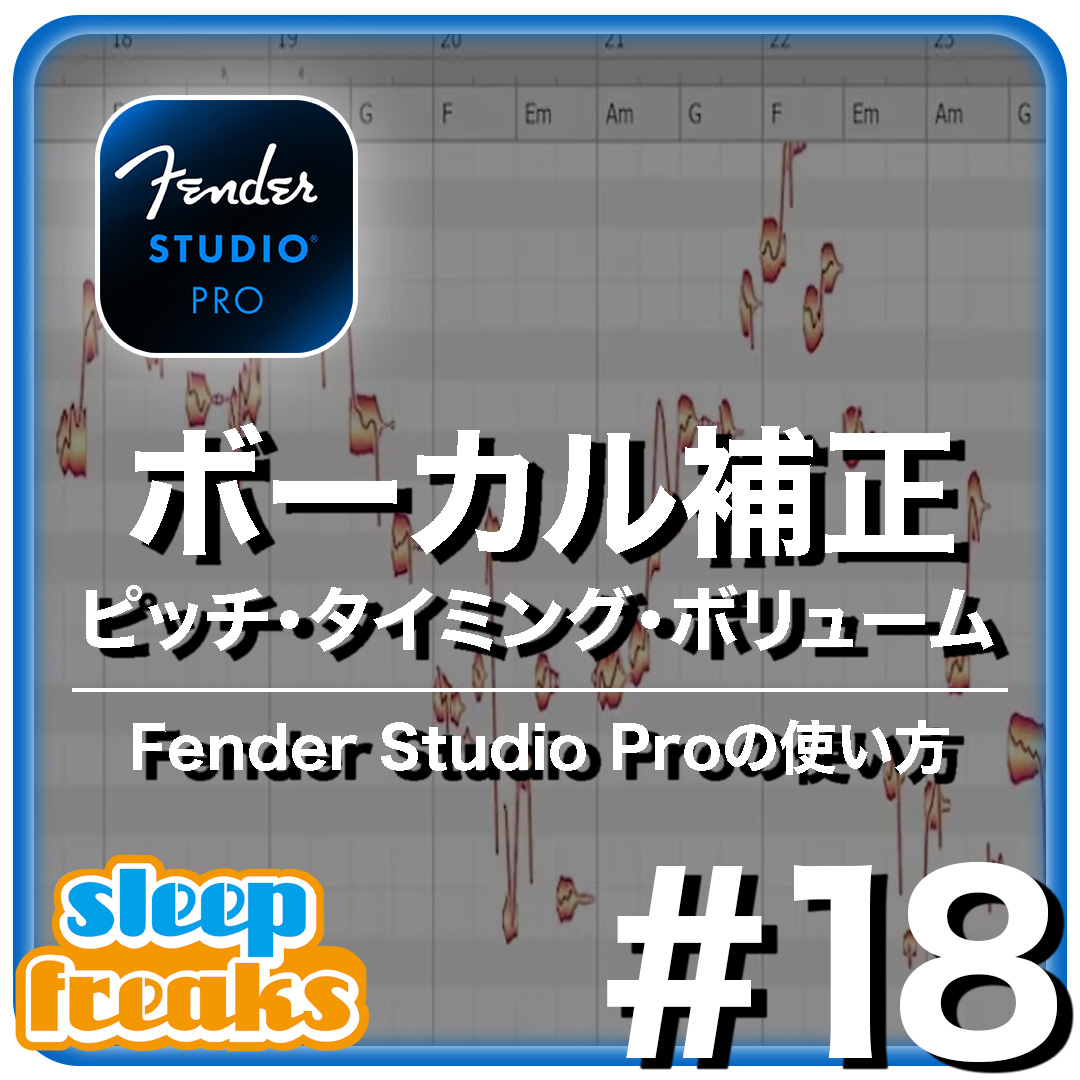
Melodyne Essential, included with eligible Studio One editions, lets you fine-tune the pitch, timing, and volume of recorded vocals. This guide covers splitting notes, adjusting pitch in semitones or cents, using the pitch curve for natural corrections, and comparing the result with the original. It also explains how to combine Melodyne edits with Studio One’s gain envelope for more detailed volume control.
Polish vocals with pitch correction
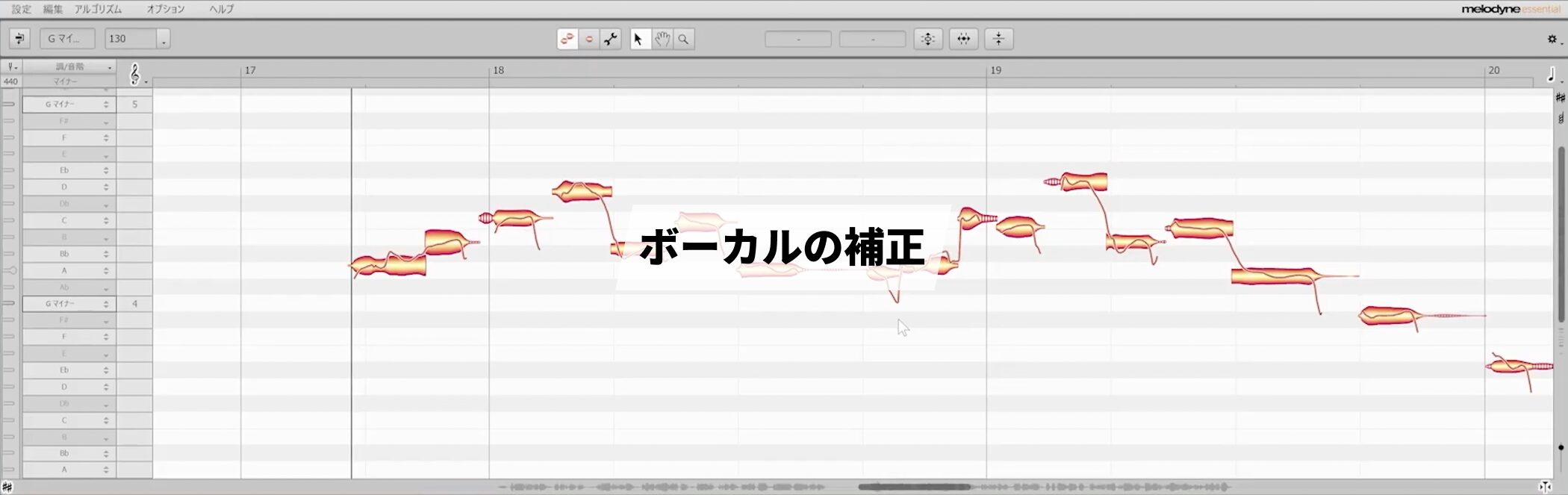
Studio One includes the powerful pitch-correction software Melodyne Essential with eligible editions.
Here we explain how to correct a recorded vocal performance.
Install and open Melodyne Essential
Melodyne Essential is included among the available loops and effects.
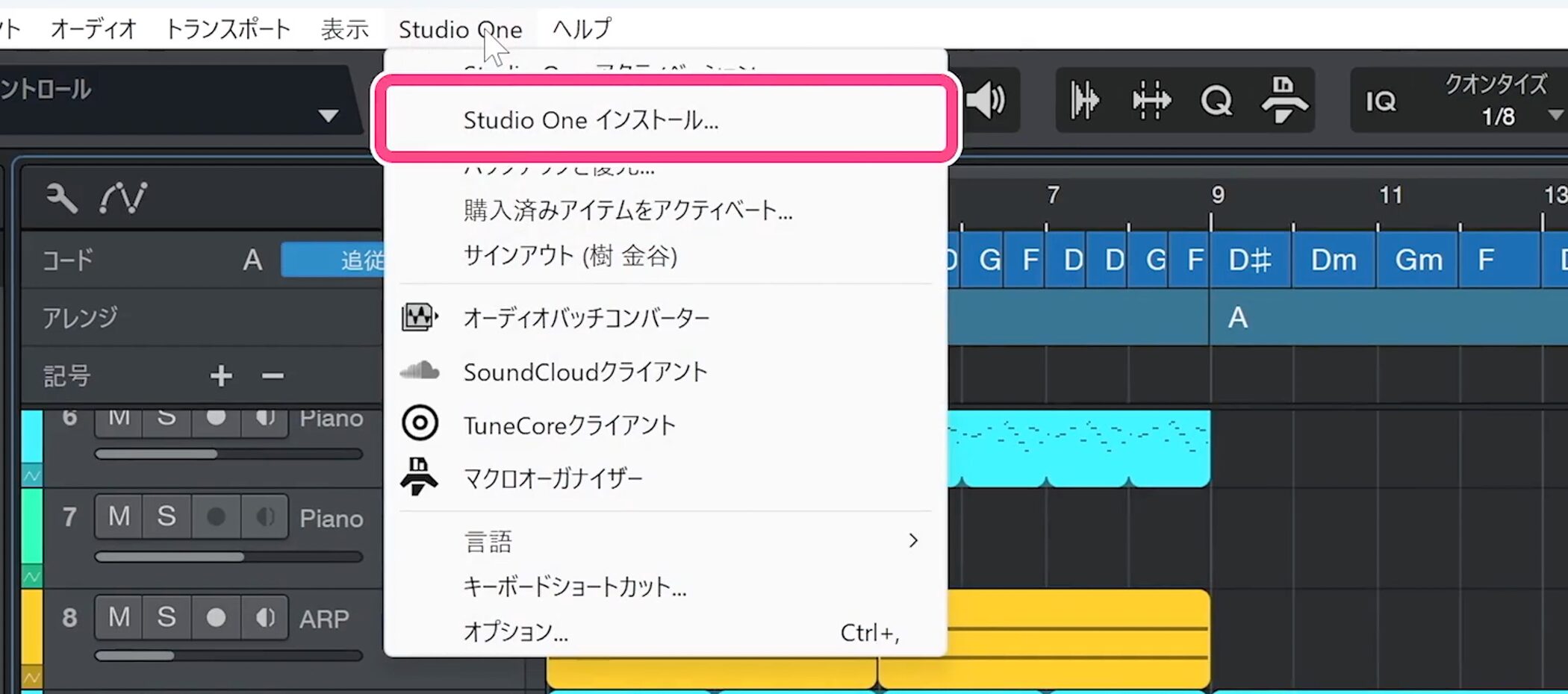
Open Studio One Installation from the Studio One menu at the top.
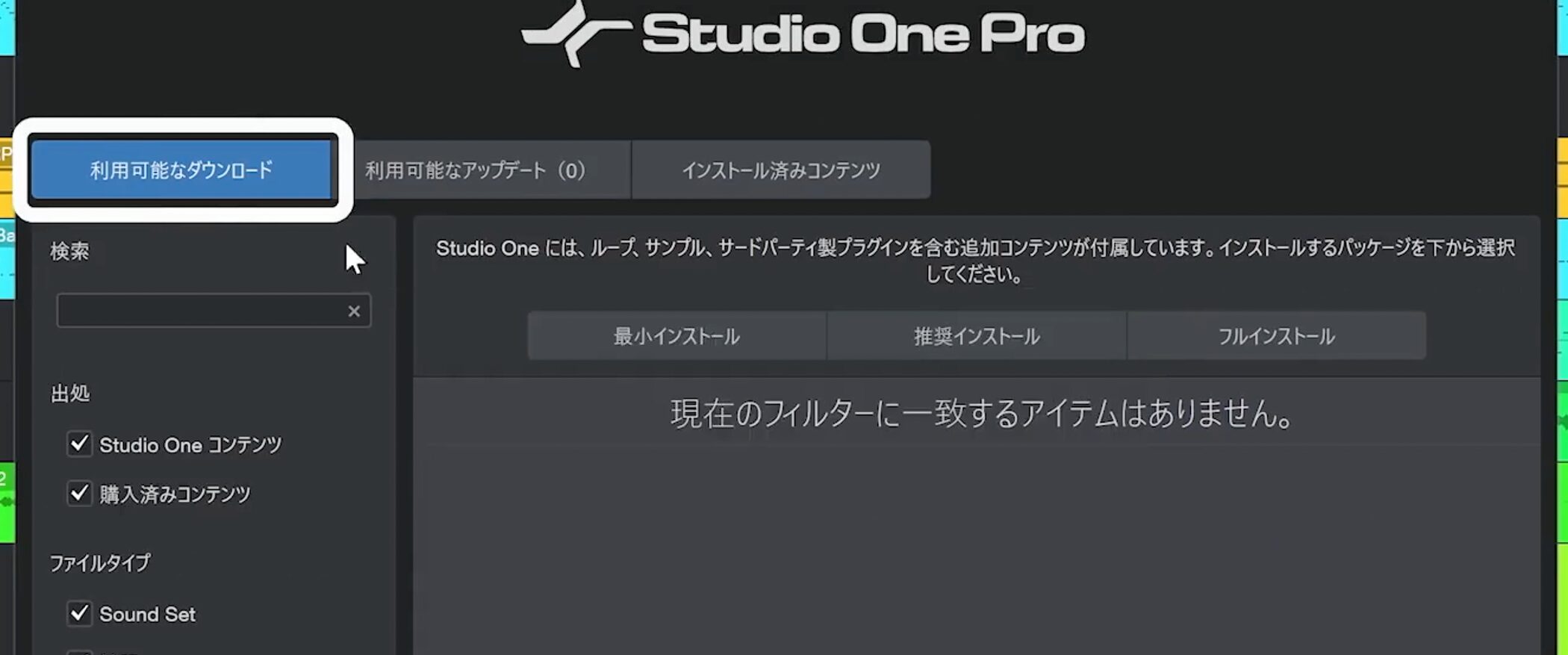
If it has not been installed yet, find it under Available Downloads and install it.
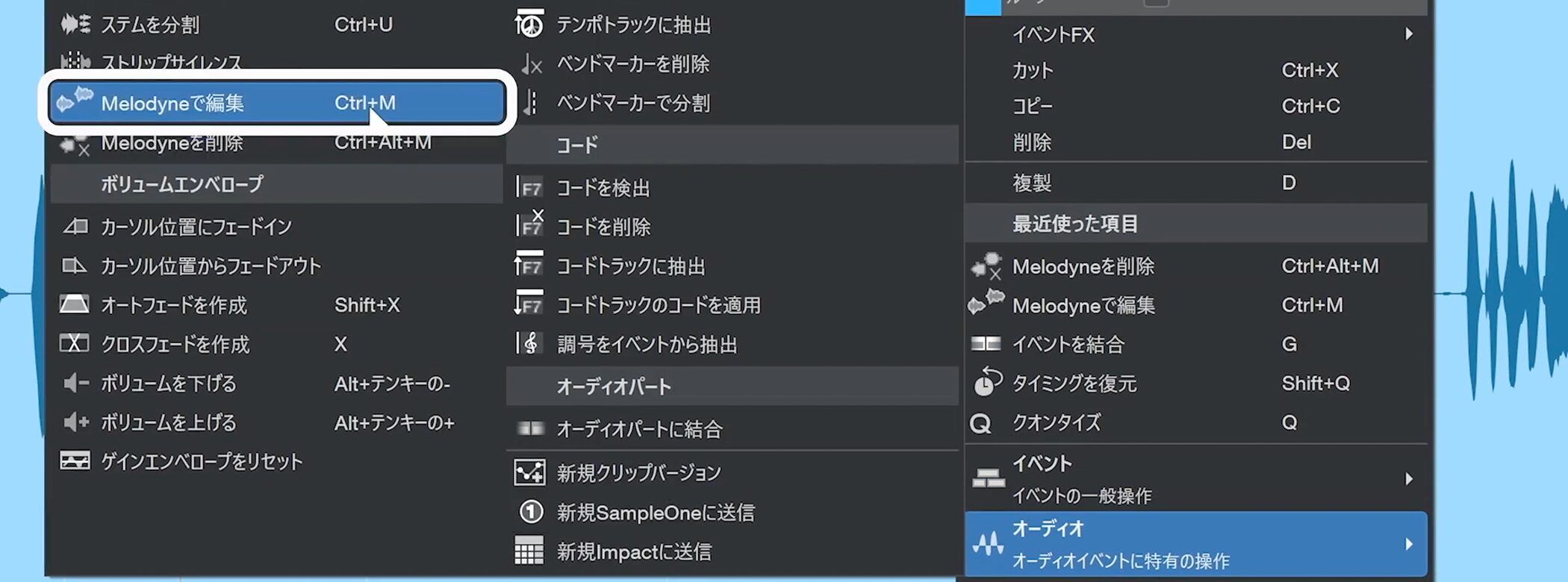
Right-click the audio event you want to correct and choose Audio → Edit with Melodyne.
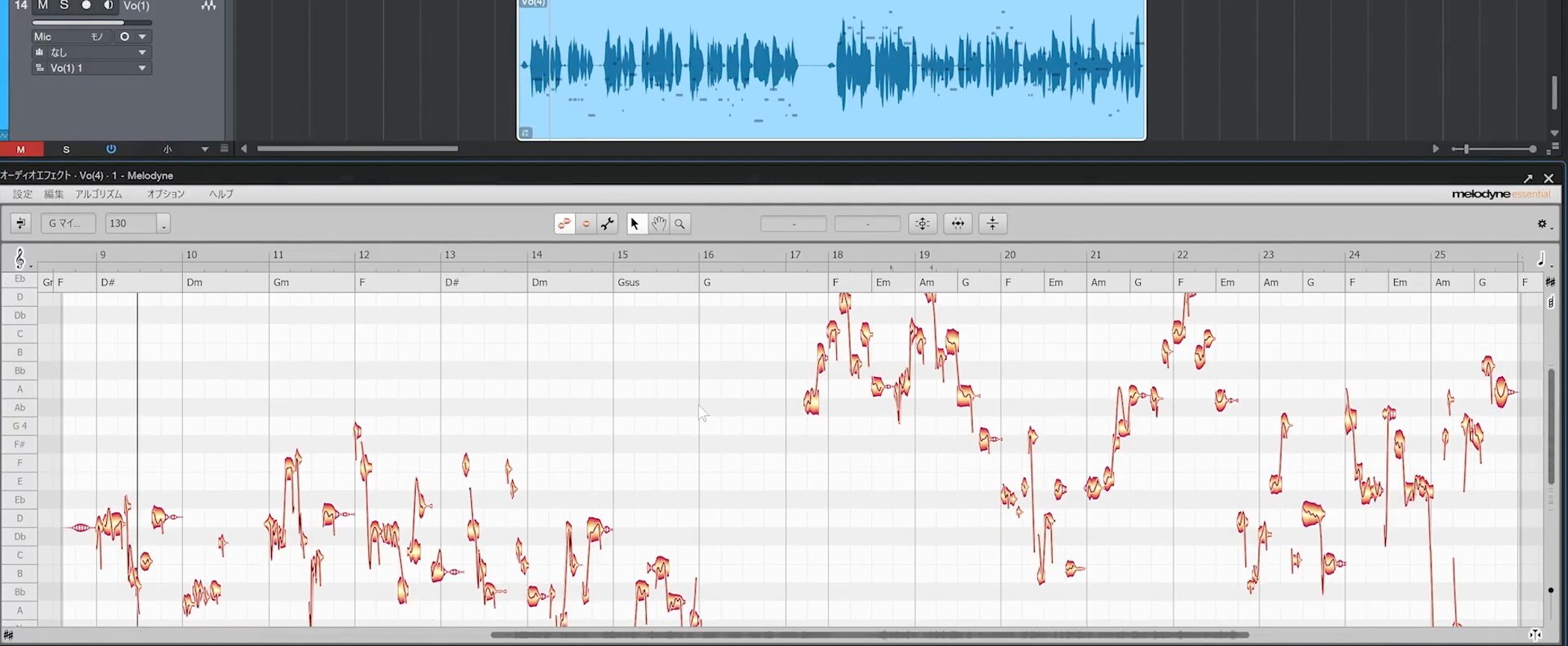
Melodyne Essential opens.
Split notes before editing
A little preparation makes correction easier.
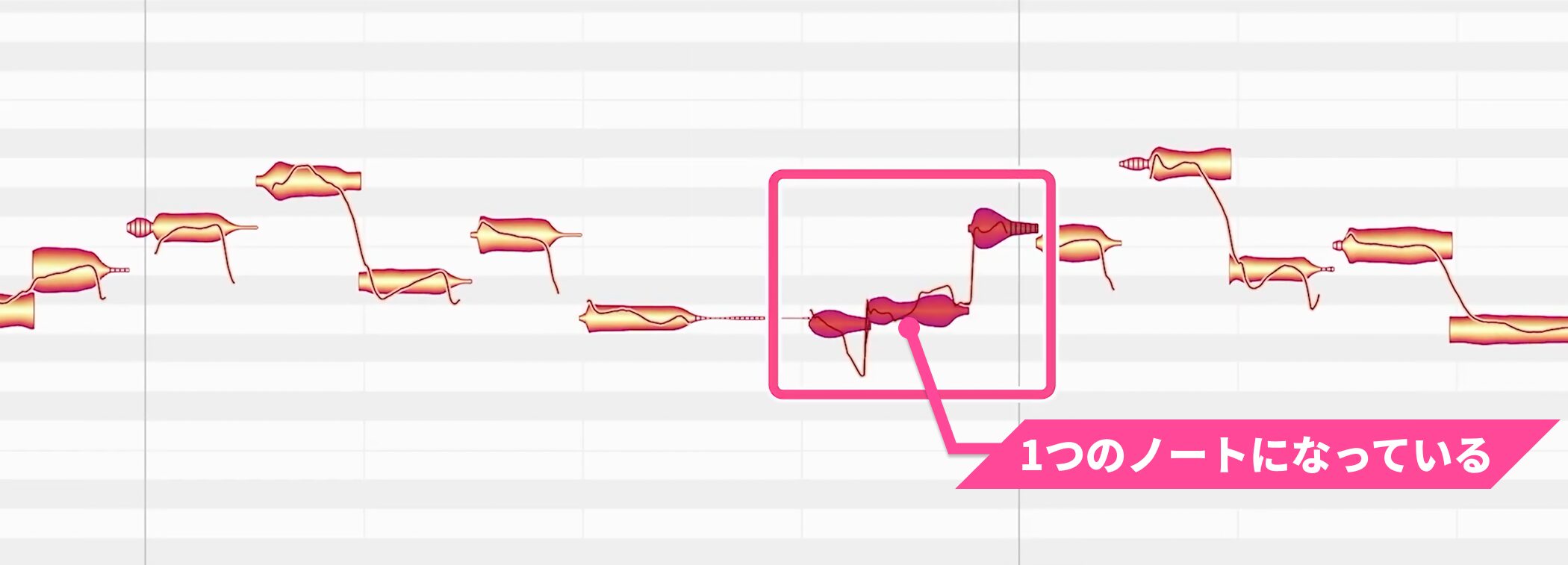
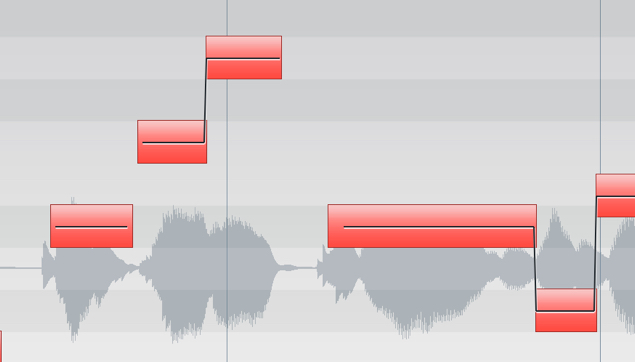
In this example, the singer repeats the phrase “mada mada,” but both instances of “mada” are joined as one note.
That makes it difficult to correct them individually, so split the note first.
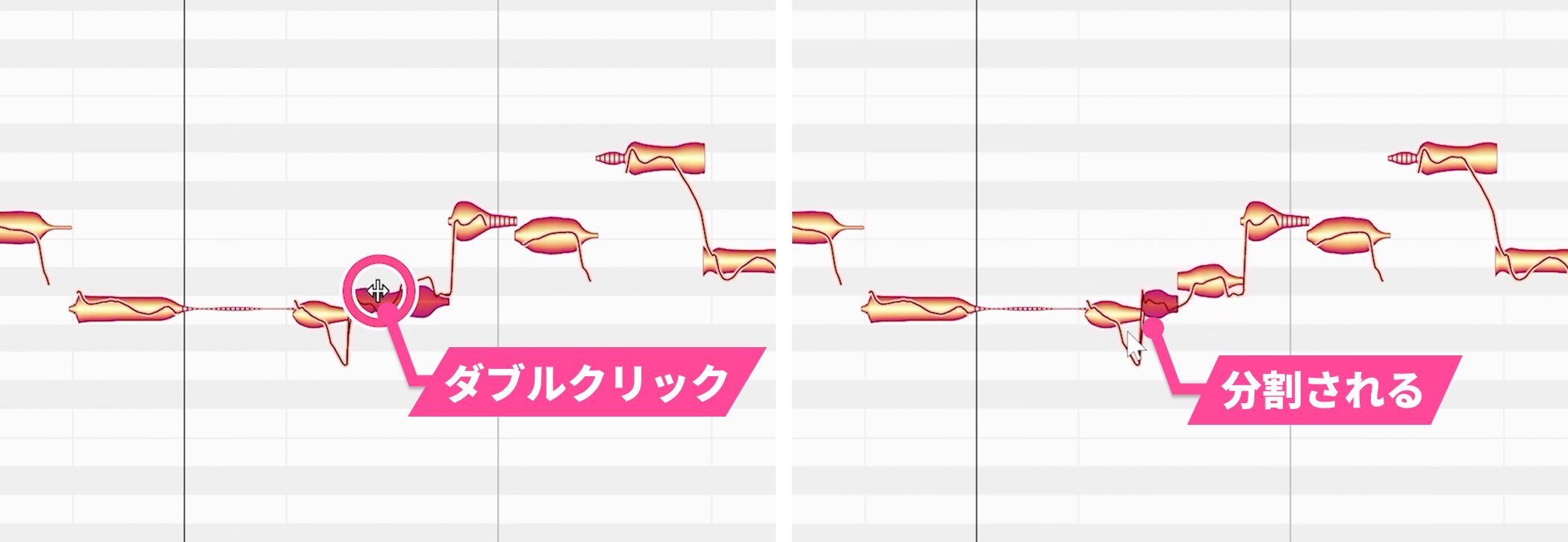
Move the cursor over the target note and, when the cursor changes, double-click.
The note is split and each part can be edited separately.
Use the same method wherever notes are joined together.
Correct pitch
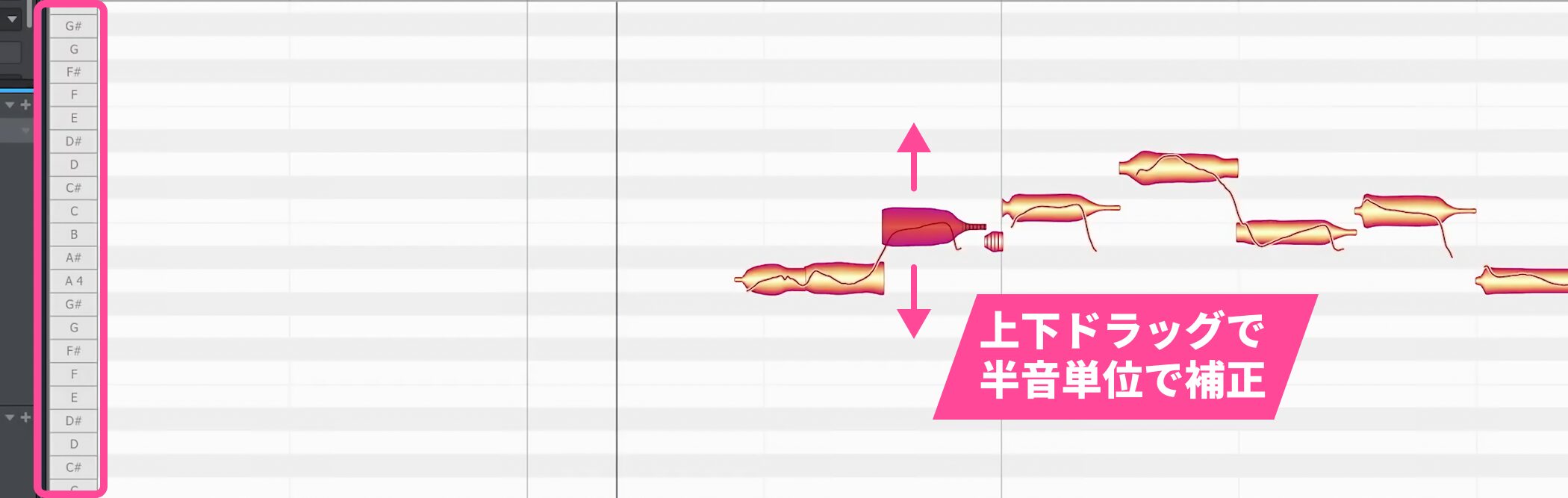
Select a note and move it up or down to correct pitch in semitone steps.
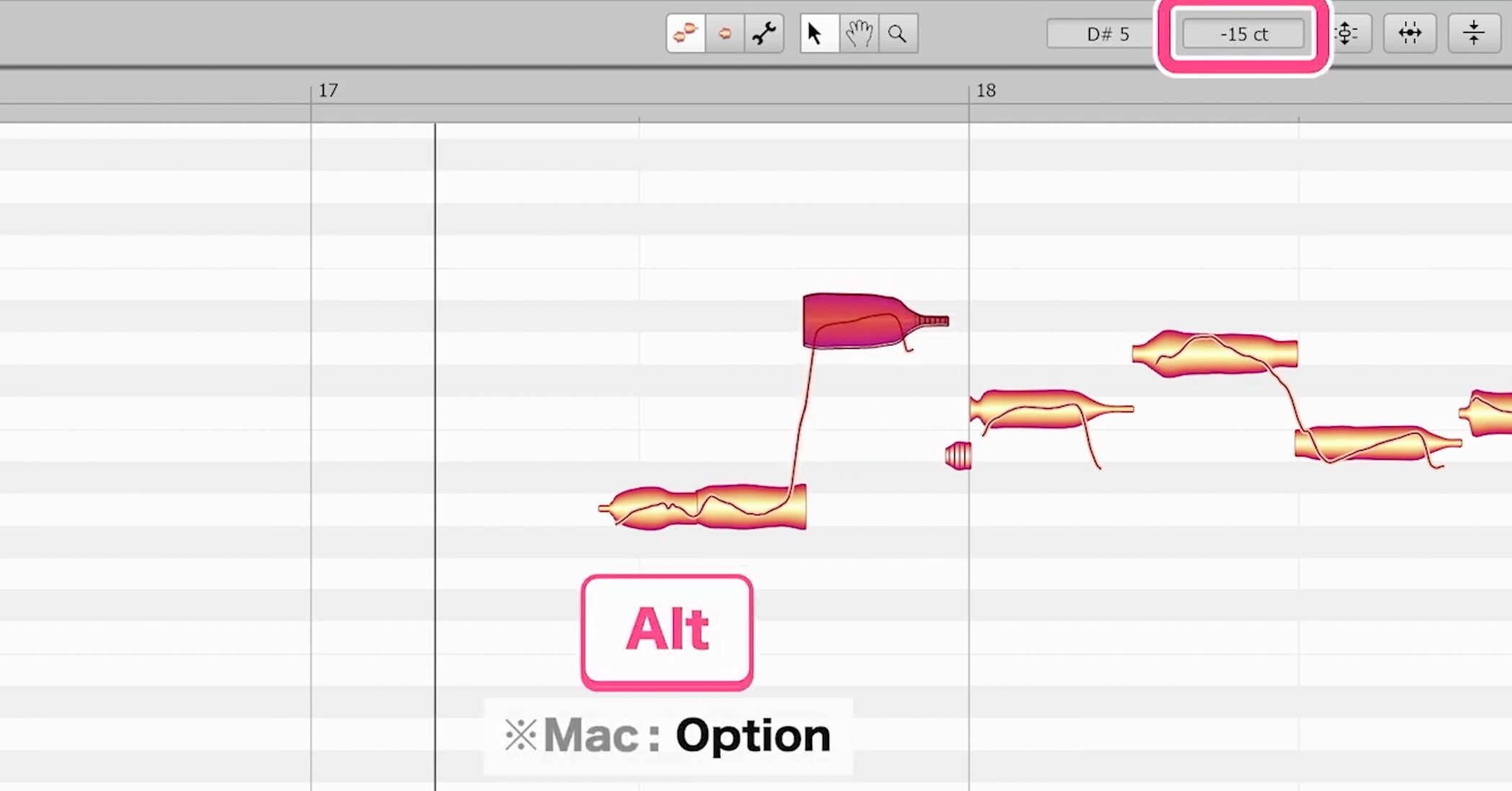
Hold the Alt key while dragging to fine-tune in cents, or hundredths of a semitone.
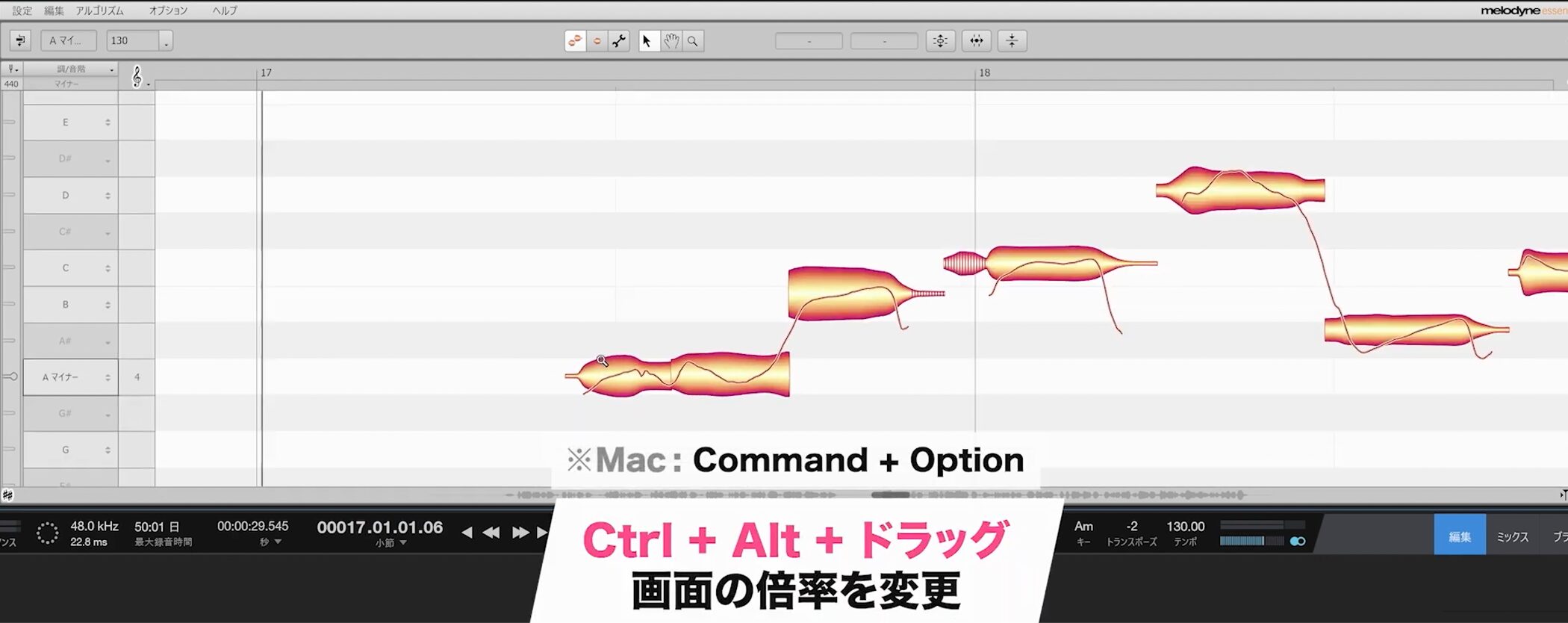
Changing the zoom to suit the edit also makes the work easier.
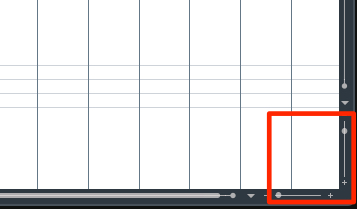
Hold Ctrl+Alt and drag the timeline to change the zoom.
Use the pitch curve
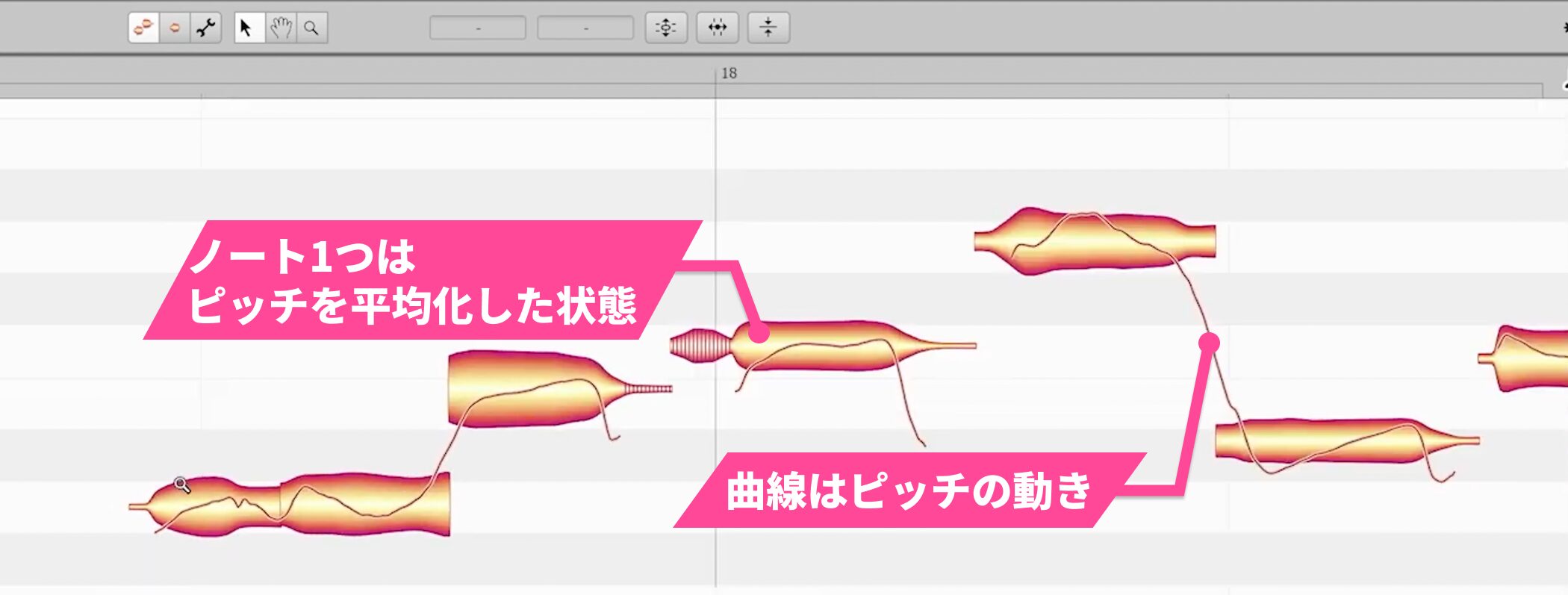
The curve inside each note shows pitch movement; the note itself displays an averaged representation of that movement.
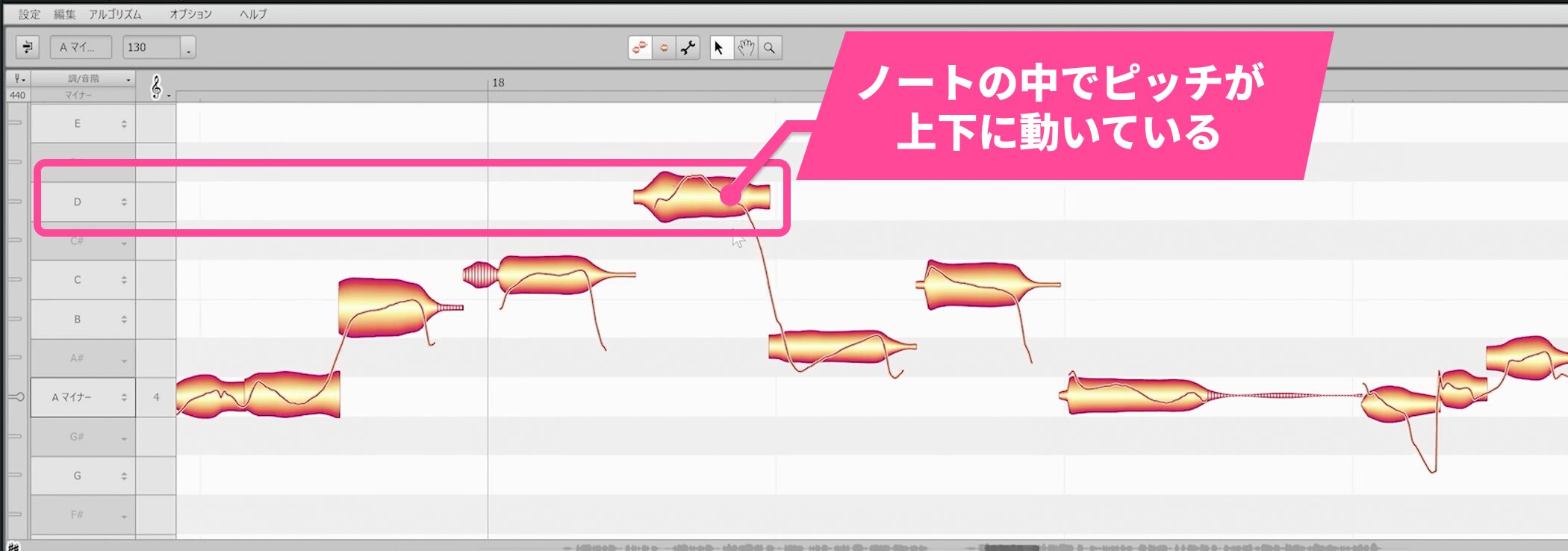
For example, even if a note is positioned at D, its pitch can still move above and below that note.
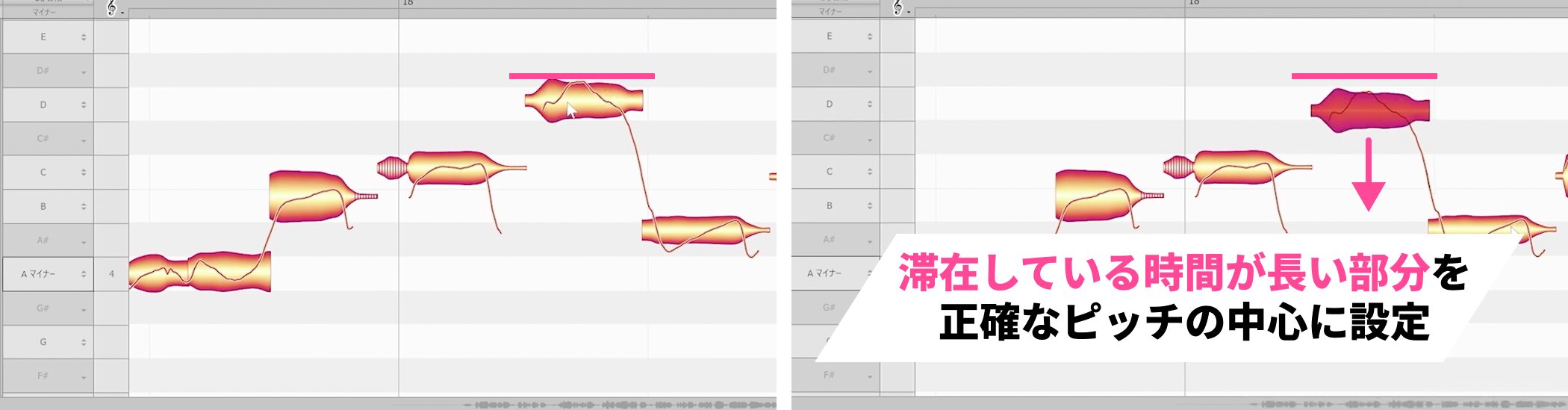
In such cases, use the part where the pitch spends the most time as a guide when setting it to the intended pitch, D in this example.
This can help the result sound natural and in tune.
Play the passage and listen as you adjust the note position.
Correct timing
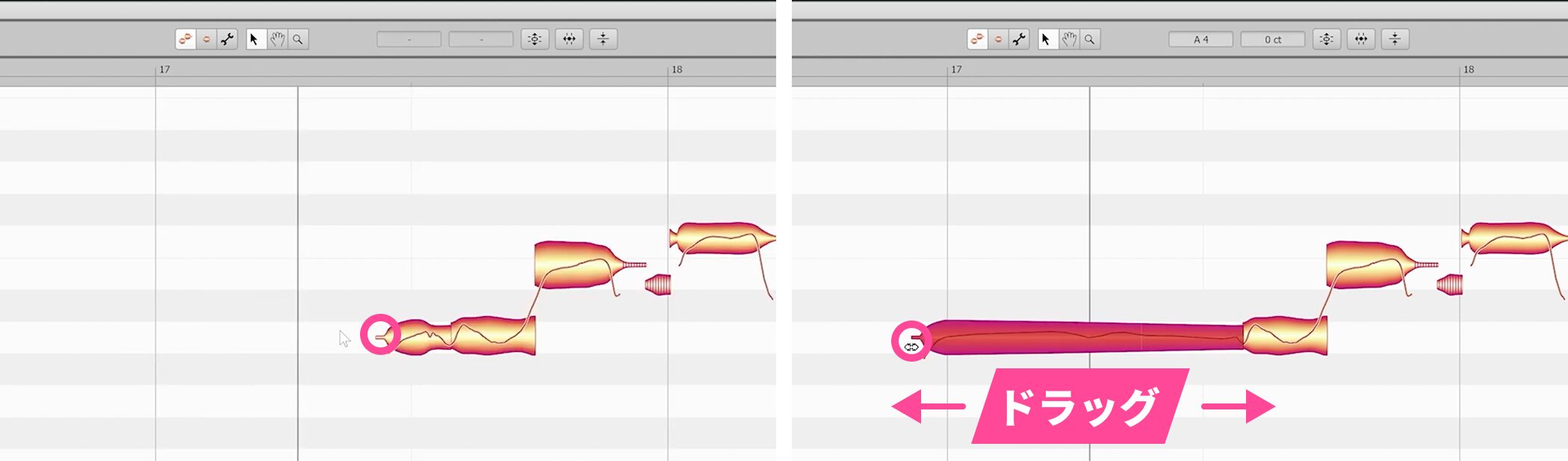
To adjust timing, drag the edge of a note.
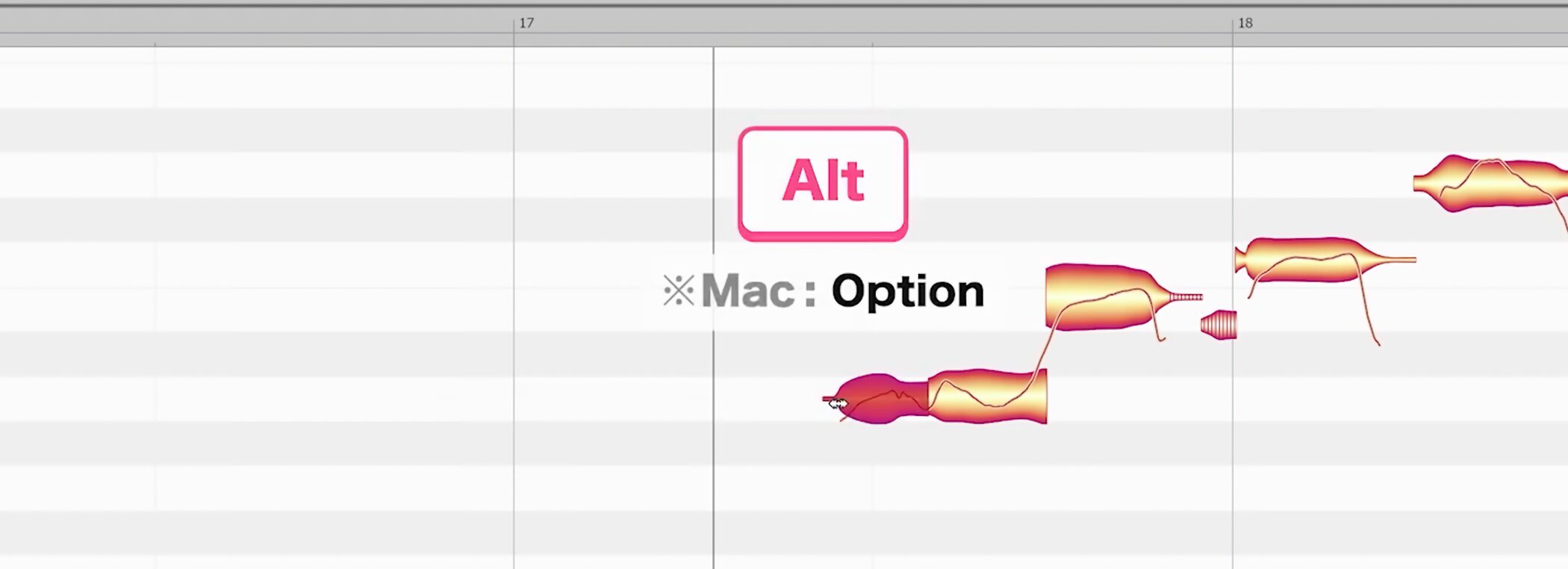
As with pitch, hold Alt while dragging for finer adjustment.
For timing in particular, repeatedly edit and listen to improve the result.
Compare before and after
While editing, you may want to compare the processed and original sound.
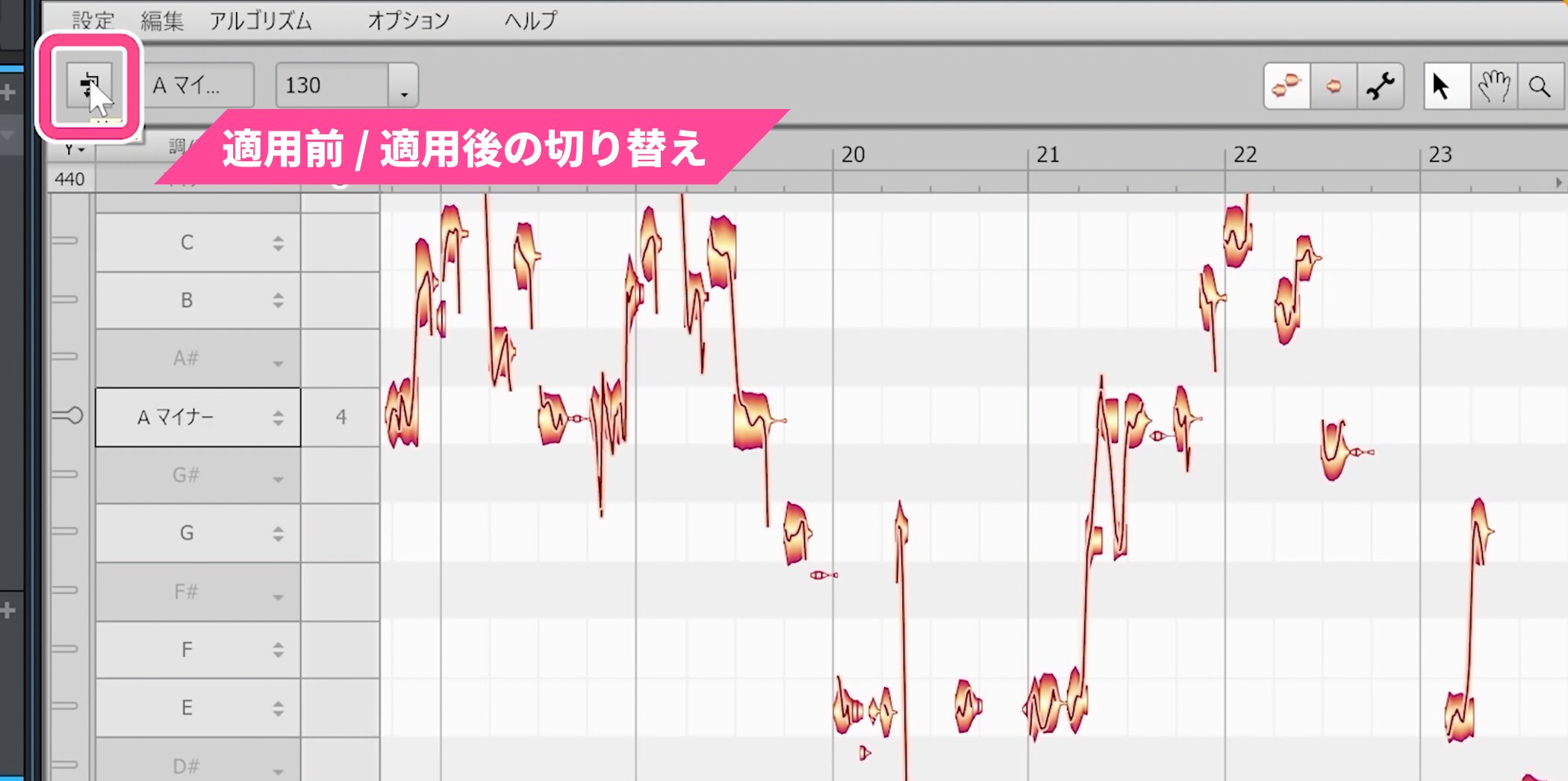
To do so, click the button at the upper left for a quick before-and-after comparison.
Restore the original
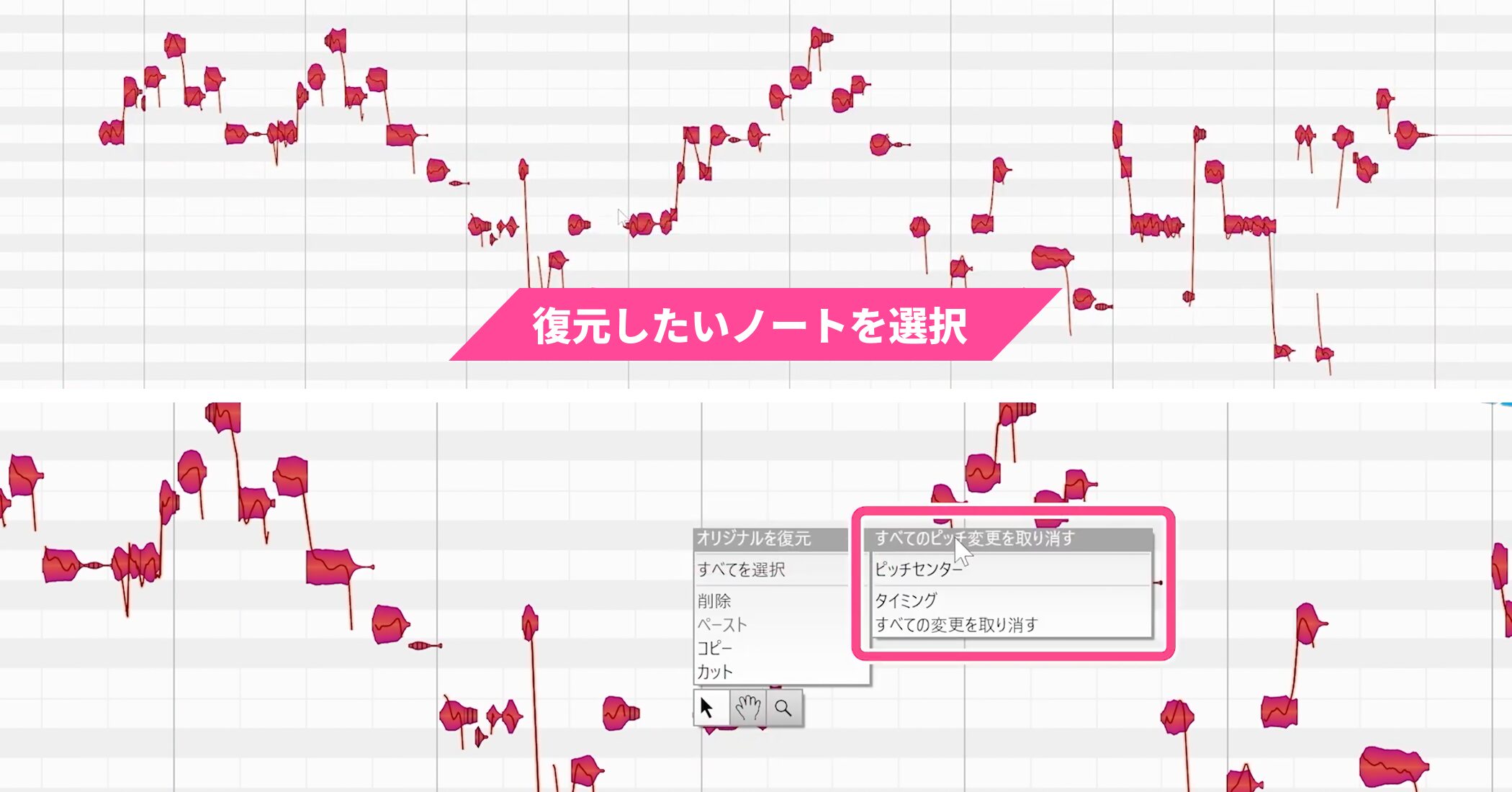
To undo some or all corrections, select the notes, right-click, and choose Restore Original at the top of the menu. You can restore pitch, timing, or all changes.
Correct volume
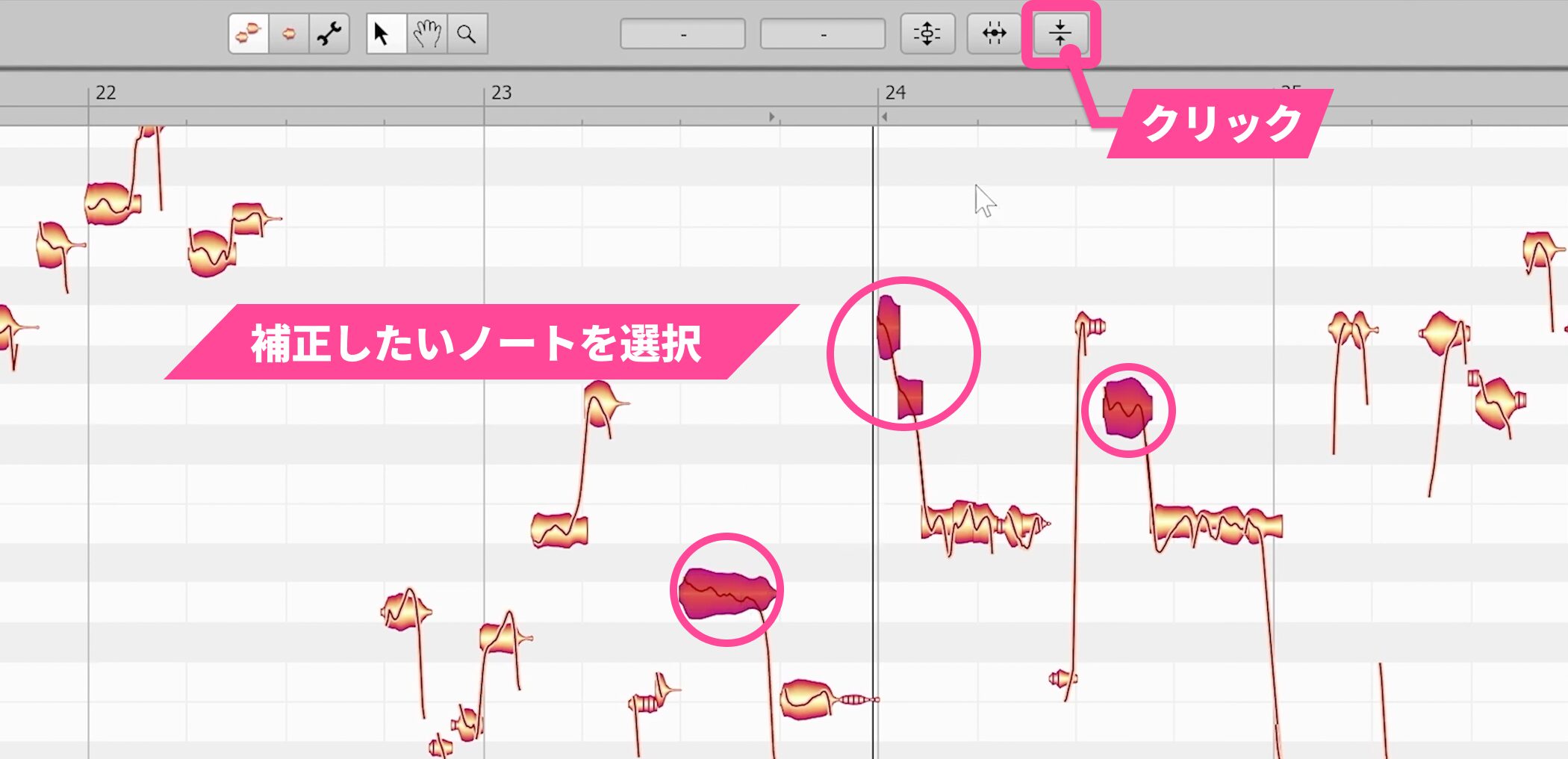
To adjust volume, select the notes you want to correct and click the button on the far right.
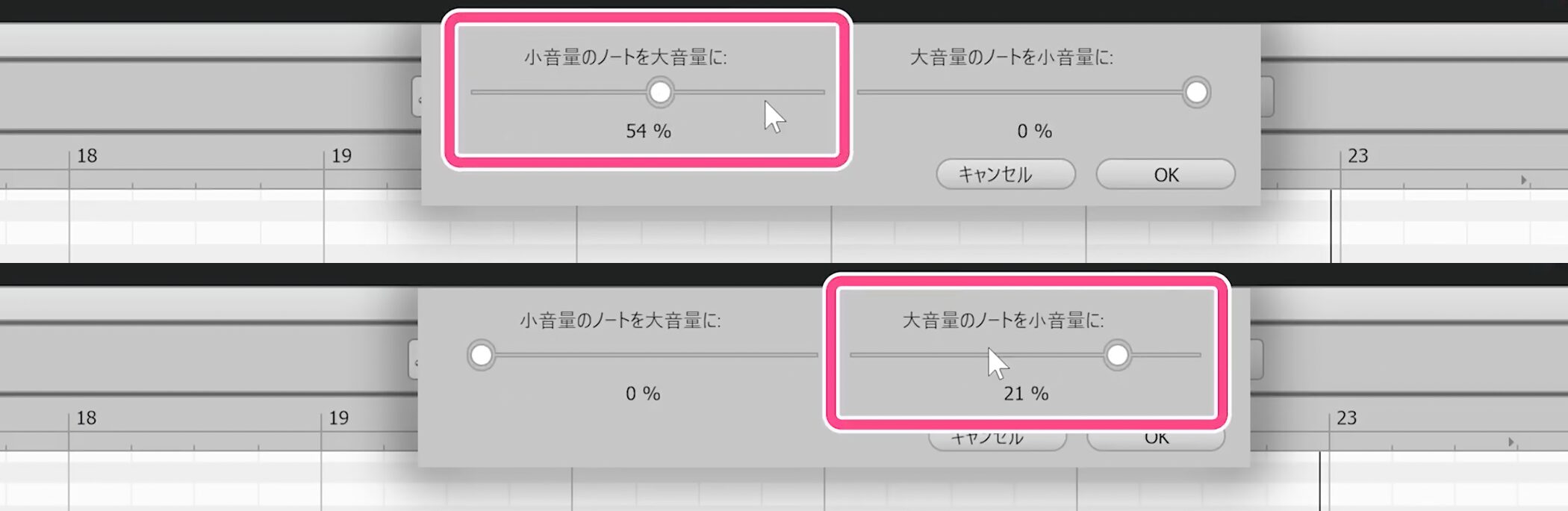
Raising the left slider makes quieter notes louder; the right slider makes louder notes quieter.
Together, these controls even out the volume.
Using the gain envelope
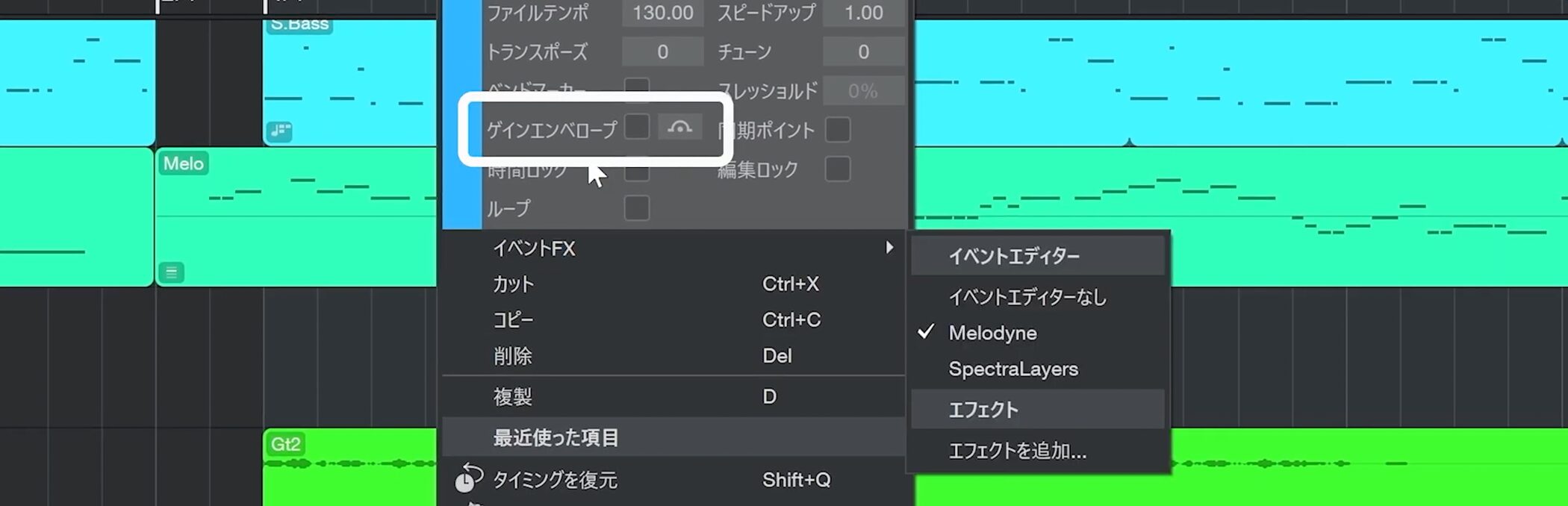
Studio One has a Gain Envelope feature for adjusting volume on an audio track.
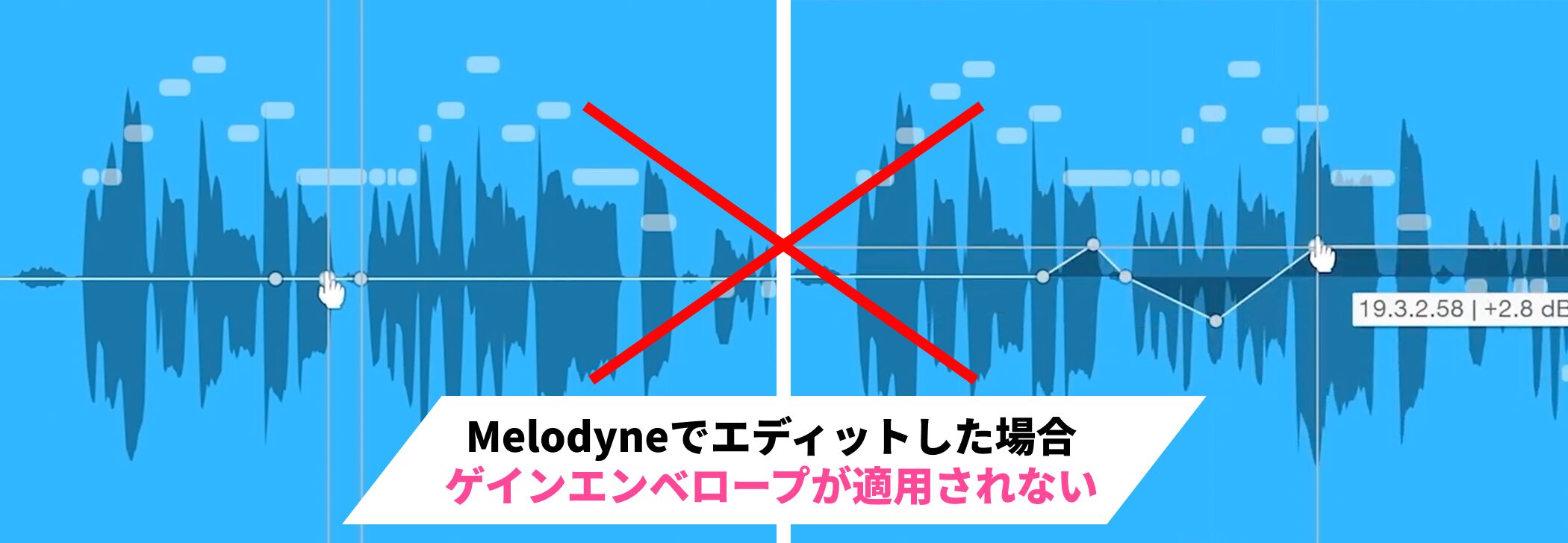
Note that after editing with Melodyne Essential, the gain envelope is not applied.
You therefore need to render the audio first.
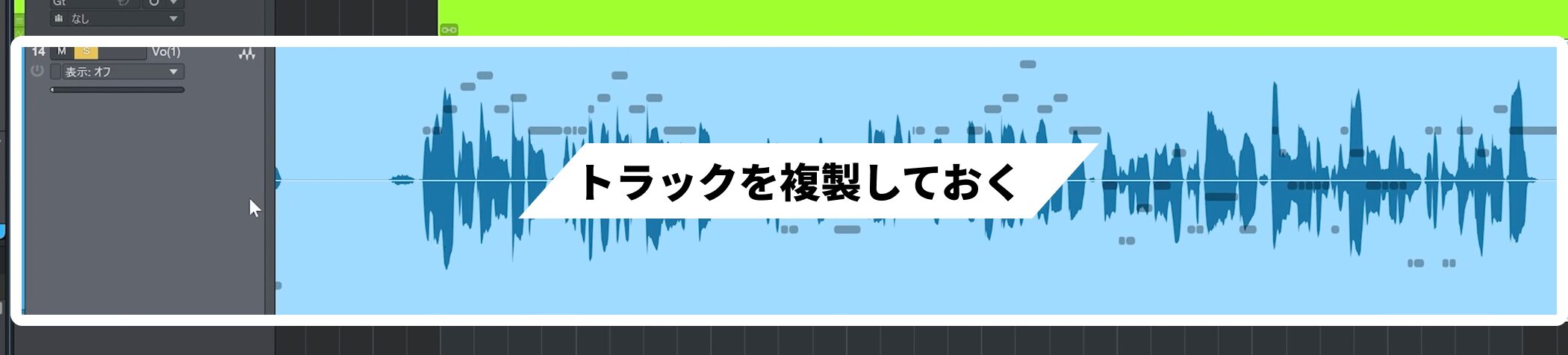
Once rendered, you cannot return to the Melodyne edits on that rendered event, so we recommend duplicating the track first.
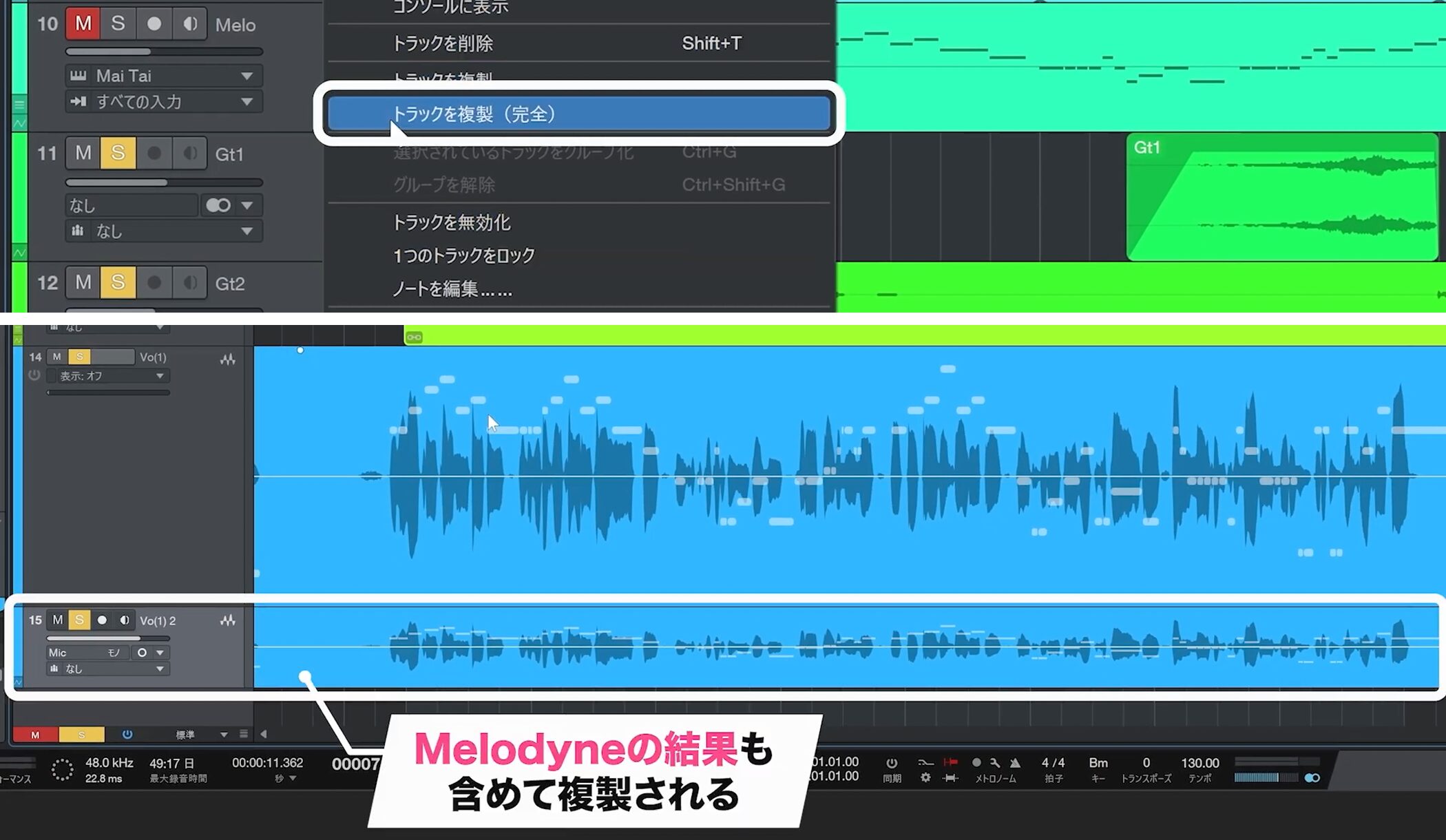
Right-click the event and choose Duplicate Track (Complete).
This also duplicates the Melodyne result, allowing you to keep one copy as a backup.
Render the other copy to audio.
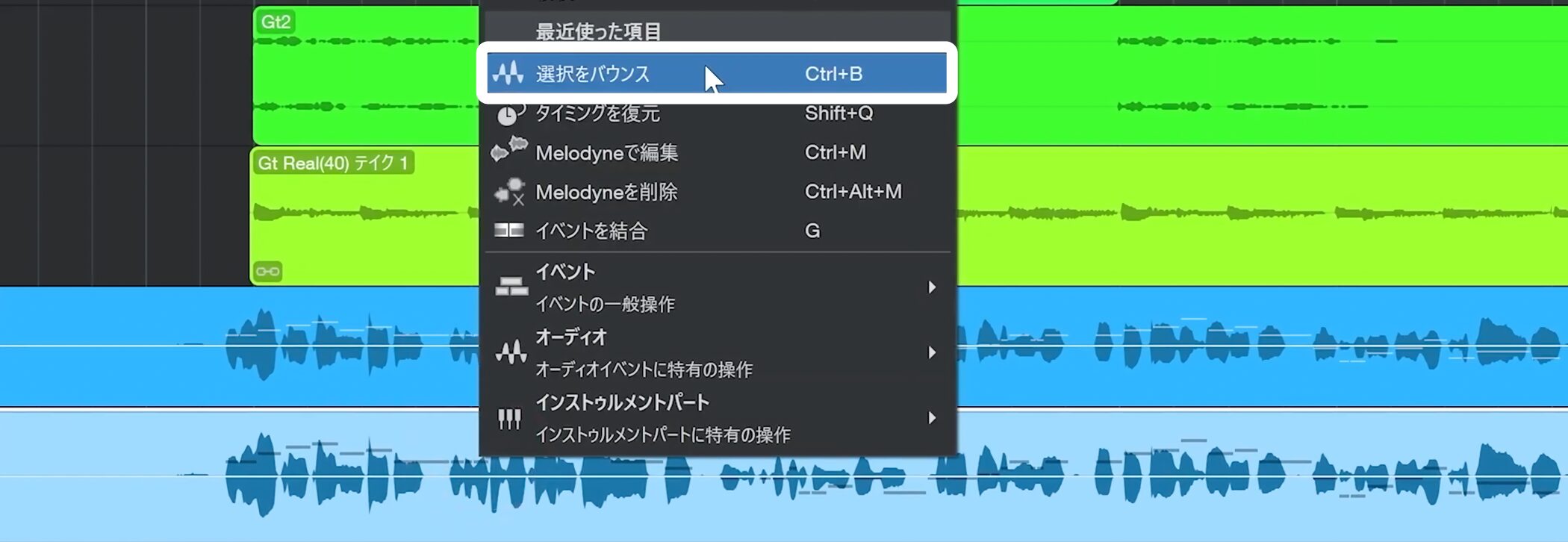
Right-click its event and choose Bounce Selection.
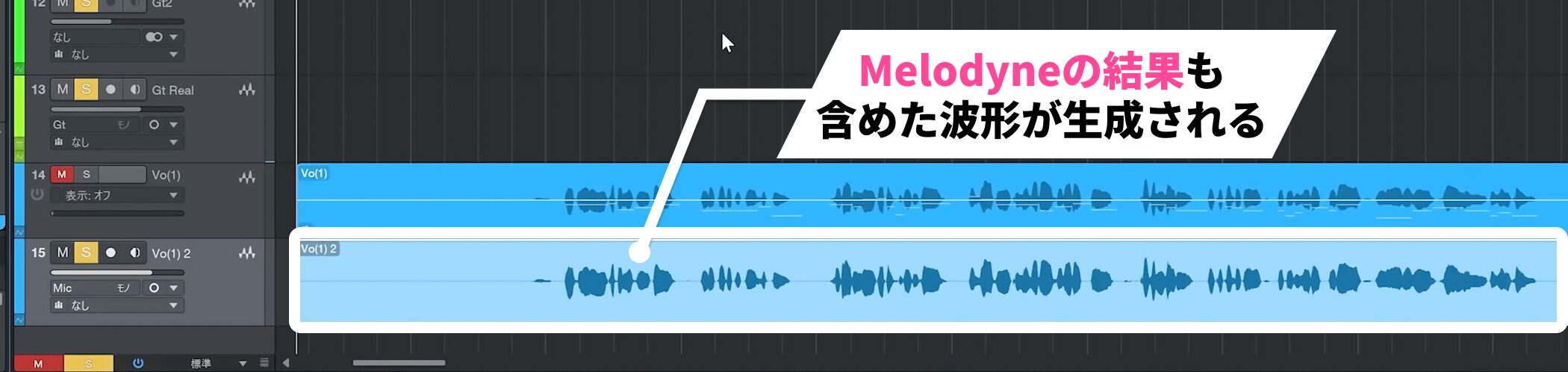
A waveform containing the Melodyne edits is created, and you can apply the gain envelope to it.
For instructions, see the section on adjusting phrase-level volume with the gain envelope in the linked article below.

Frequently asked questions
Q1. How do I install Melodyne Essential?
Open Studio One Installation from the Studio One menu and install Melodyne Essential from Available Downloads if your license includes it. Then right-click the audio event and choose Audio → Edit with Melodyne.
Q2. How do I make fine pitch adjustments?
Hold Alt while dragging a note to adjust in cents. Hold Ctrl+Alt and drag the timeline to zoom in for more precise editing.
Q3. Why does the gain envelope not work after editing in Melodyne Essential?
The gain envelope is not applied after a Melodyne edit. First use Duplicate Track (Complete) to create a backup, then Bounce Selection on the edited event to render it as audio and use the gain envelope.
Q4. How do I split a note?
Place the cursor over the note and double-click when the cursor changes. The resulting notes can be edited separately.
Q5. What does the pitch curve represent?
The curve shows pitch movement within the note; the note’s displayed position represents an average. For a natural correction, check the movement and use the part where the pitch spends the most time as a guide.
NEW ARTICLES
Latest English Articles