
How to Choose External Storage: Our 2020 Recommendations
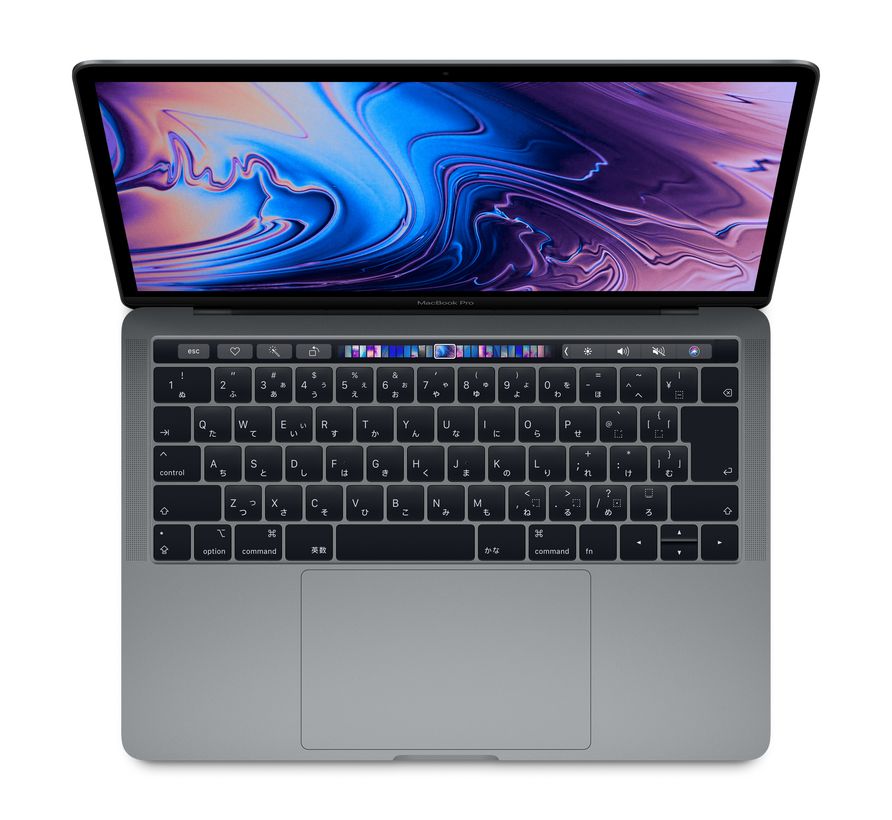
This article explains how to choose external storage for music production on a laptop.
How much does external storage affect music-production performance? We put that question to the test and introduce our recommended products as of 2020.
Choosing External Storage: Video Guide
The Complete Guide to Freeing Up Drive Space for Music Production
This guide explains how to organize your drive and free up space for a smoother music-production workflow.
Running low on free drive space can reduce software performance and even interrupt a project, so it is a situation best avoided.
Let's look at the principles and practical techniques for keeping enough drive space available.
Transfer Speed Matters for External Drives Used in Music Production
By the time of this 2020 article, improvements in computer performance had made it possible to produce music comfortably on a laptop.
You can take your entire setup with you and make music wherever you go.
One weakness of laptops, however, is their limited internal storage capacity.
Many of you may already use an external drive to make up for this, or be considering buying one.
When choosing external storage, key points include:
- Capacity: for example, the number of terabytes
- Drive type: SSD or HDD
- Storage interface: SATA or NVMe
- External connection: USB or Thunderbolt
Of these factors, everything except capacity directly affects data-transfer speed.
This can make a substantial difference to your workflow, especially when using sample-based instruments with large libraries.
We tested how transfer speed affects a DAW in practice.
Can a Slow Drive Cause Audio Dropouts?
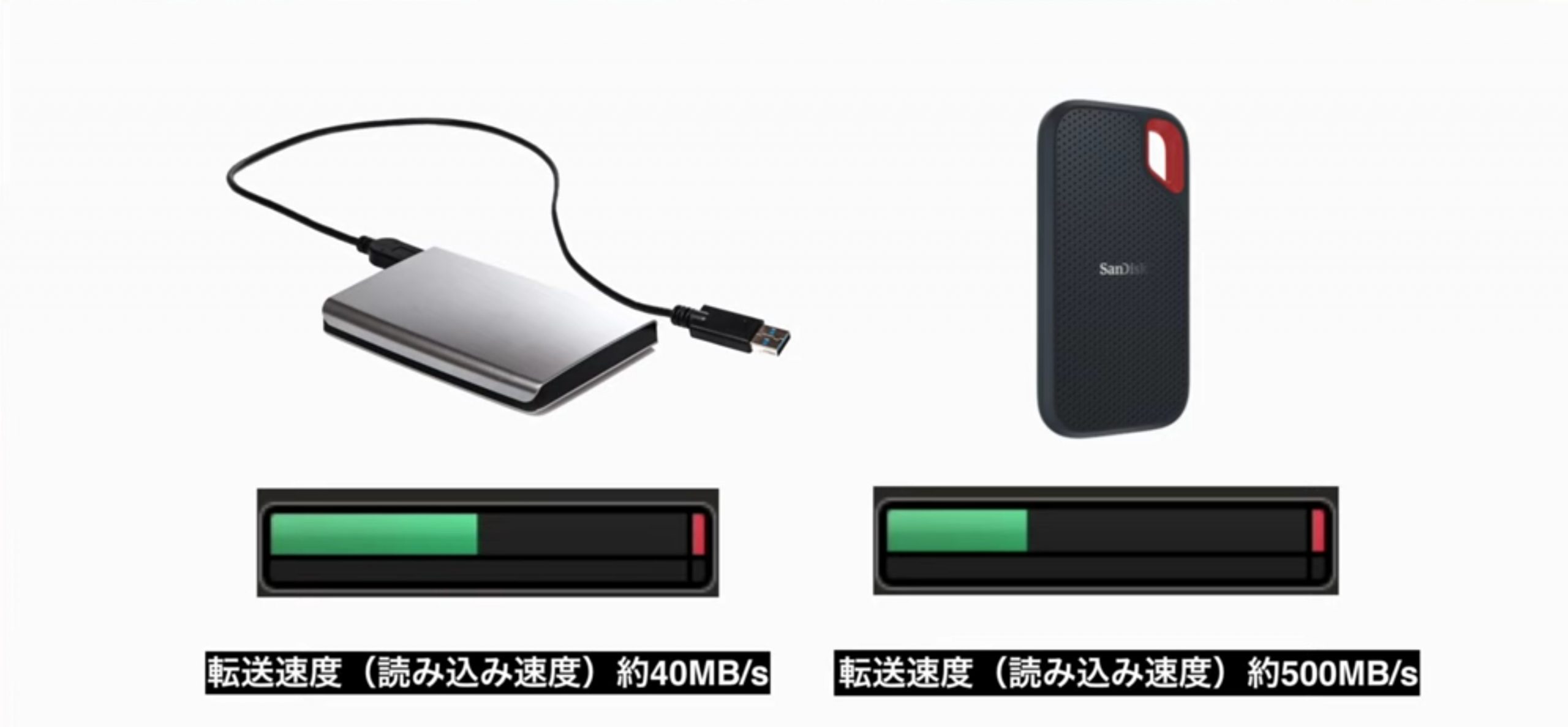
We prepared the following two external drives for the test.
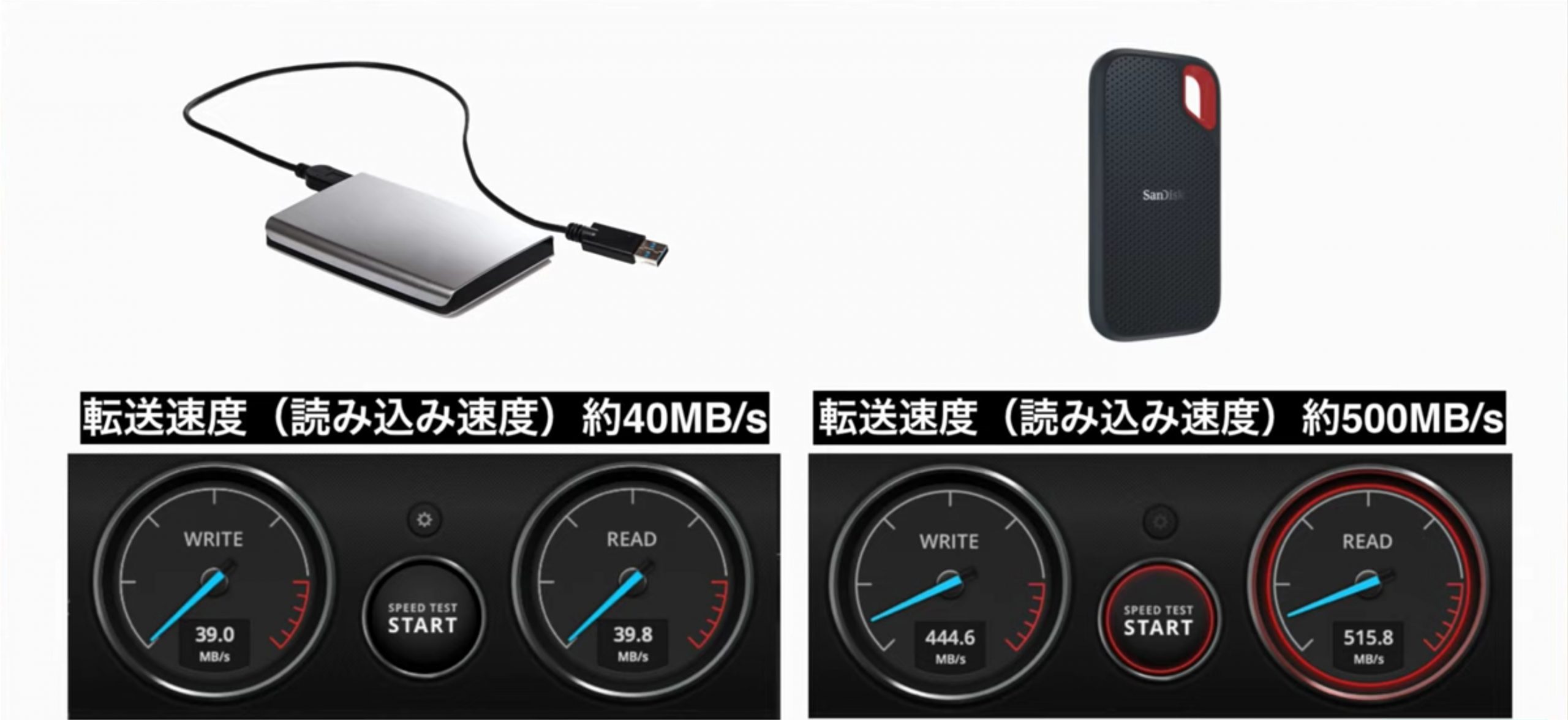
- An external HDD connected via USB 3.0, transferring approximately 40 MB per second
- An external SSD connected via USB 3.1 Gen 2, transferring approximately 500 MB per second
We stored the same library for the industry-standard sampler Kontakt on each drive.
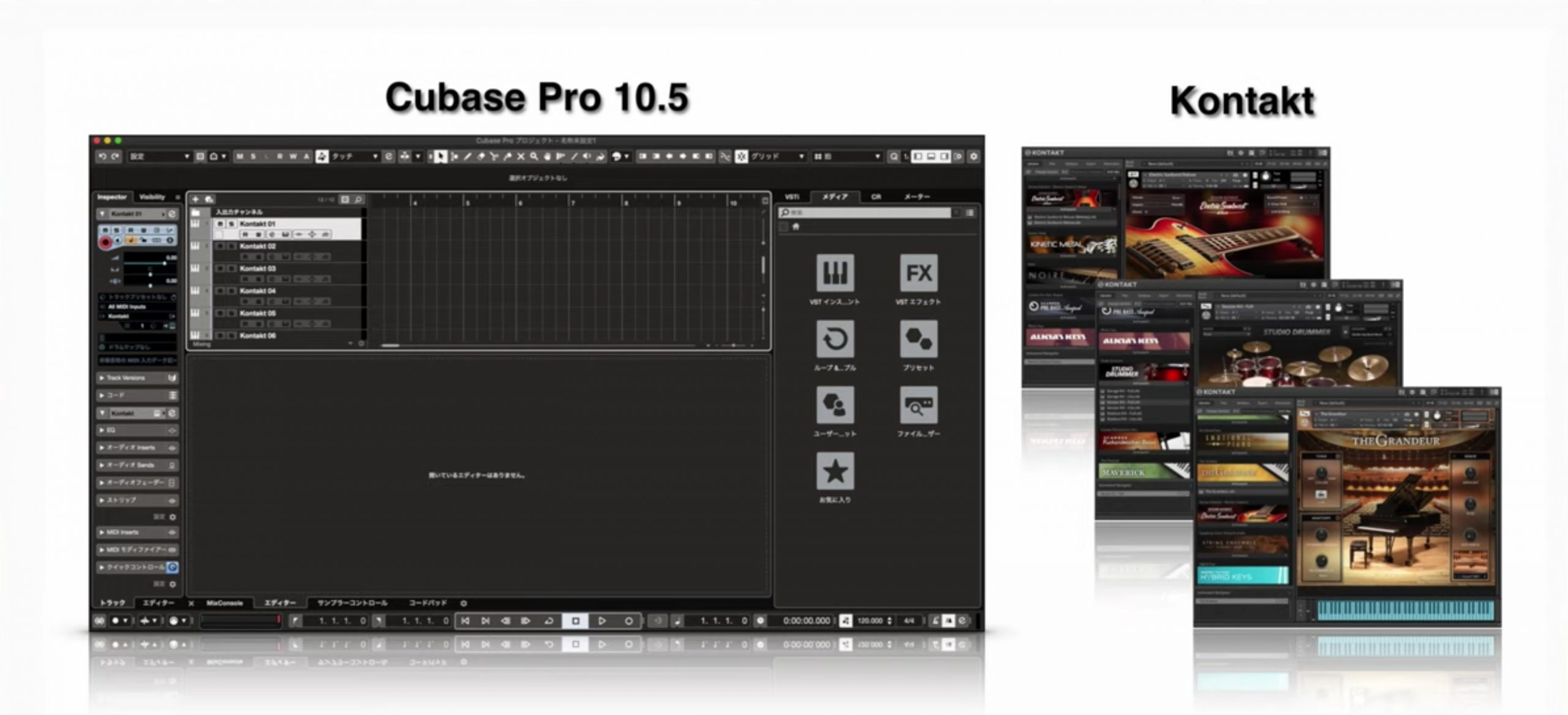
In Cubase, we created multiple tracks using Kontakt exclusively.
All Kontakt samples were set to load from the external drive.
We then played back the song using each of the two drives and compared their behavior.
Audio Test Results
Drive transferring approximately 40 MB per second
Drive transferring approximately 500 MB per second
With the slower drive, the sound repeatedly cut out.
Samplers such as Kontakt typically stream samples from storage.
In this test, the slower drive could not load the samples quickly enough to keep up with playback, resulting in audio dropouts.
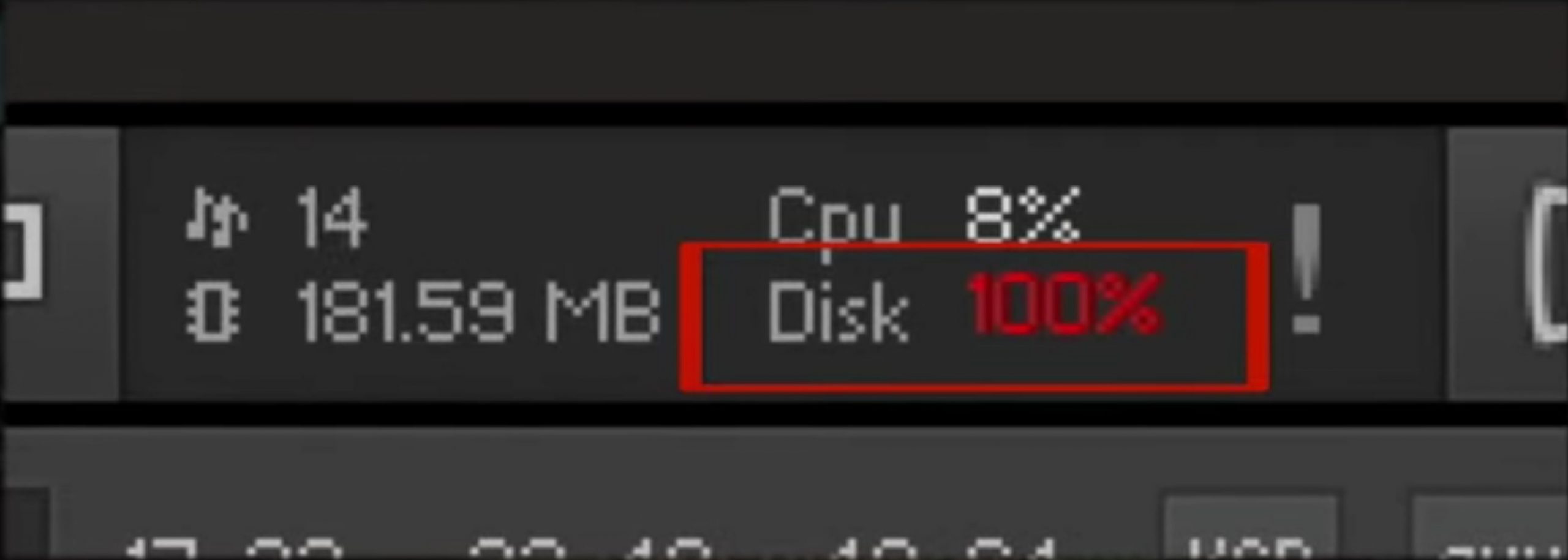
Kontakt's Disk meter showed a high load, indicating frequent occasions when sample loading could not keep up.
We also observed that loading samples from the slower drive was accompanied by much higher CPU usage, which was clearly visible on the meter.
Other instruments that stream samples work on essentially the same principle.
Drive speed can therefore have a major impact on your workflow, particularly in songs that use many large sample libraries.
Key Factors That Affect External Drive Speed
The test above demonstrates why transfer speed matters.
So what kind of product should you choose for a smoother music-production workflow?
Let's look at the differences between drive types and connection standards.
How Drive Type Affects Speed
The three common drive types discussed in this 2020 guide are:
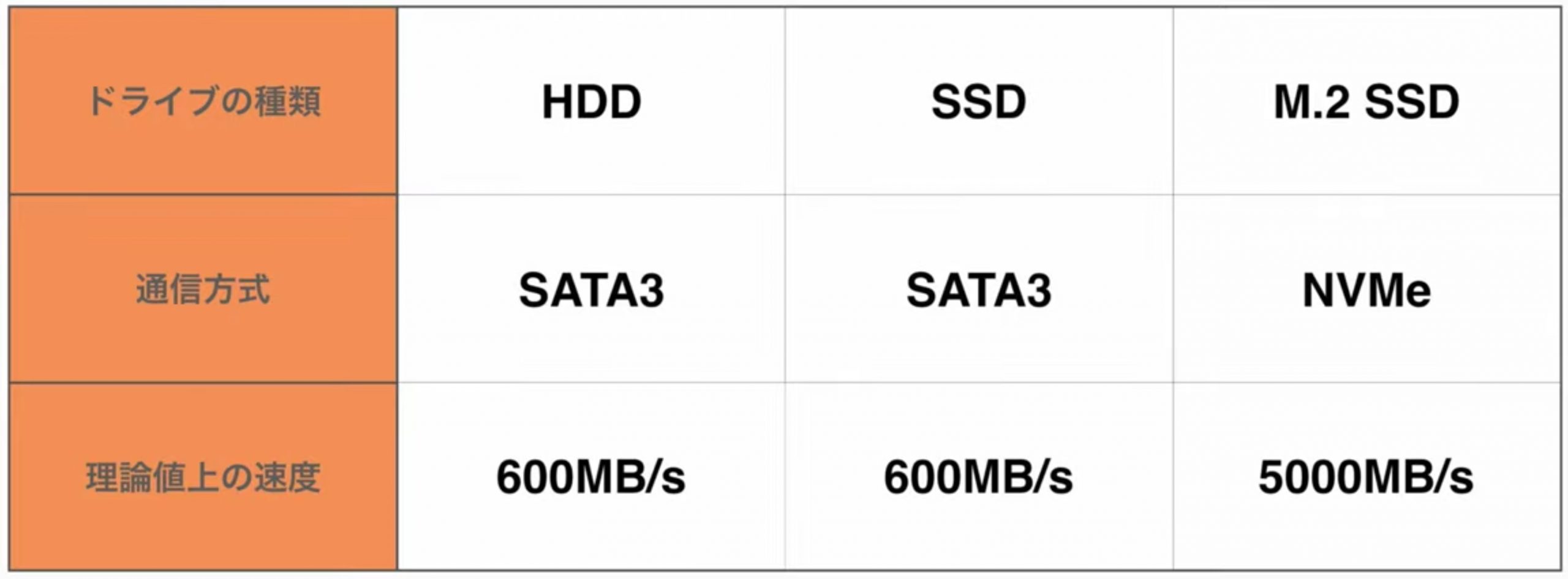
- HDD (hard disk drive)
- SSD using SATA 3
- M.2 SSD using NVMe
These are the three types we will compare.
For the drives considered here, the speed ranking is as follows.
- 1. M.2 SSD with NVMe Support
The 2020 article uses 5,000 MB per second (5,000 MB/s) as its headline speed figure for this class. This is not a universal speed for every NVMe M.2 drive. - 2. SSD with a SATA 3 Connection
The SATA 3 interface has a theoretical data rate of 600 MB per second (600 MB/s). - 3. HDD
The SATA interface may support a theoretical 600 MB/s, but an HDD reads and writes using rotating platters, so its measured throughput is much lower.
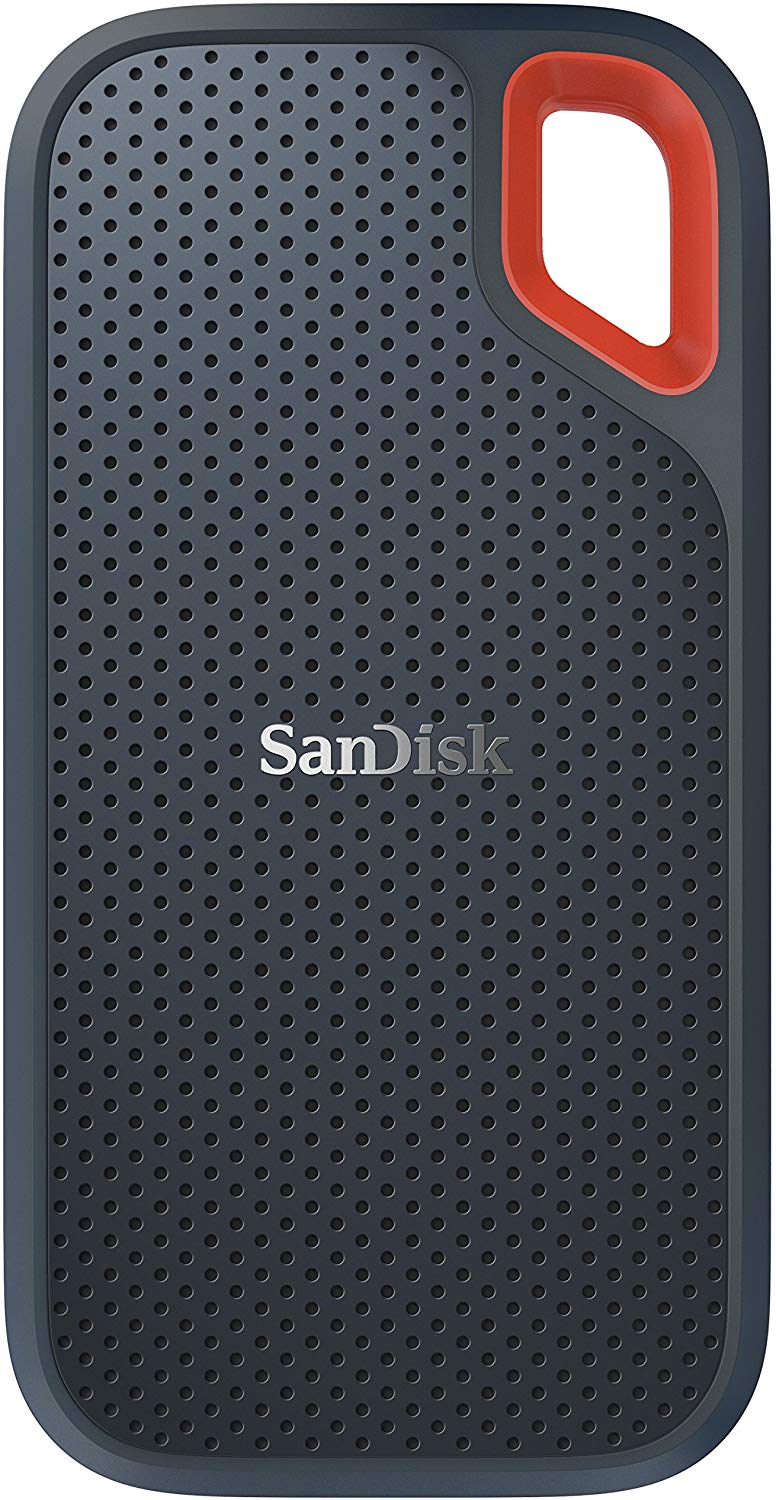
The faster external drive in our comparison achieved approximately 500 MB per second in practice.
That result suggests a drive in the second category: an SSD using SATA 3.
How the Connection Standard Affects Speed
Next, let's look at connection standards. Common external-drive connections discussed here include:
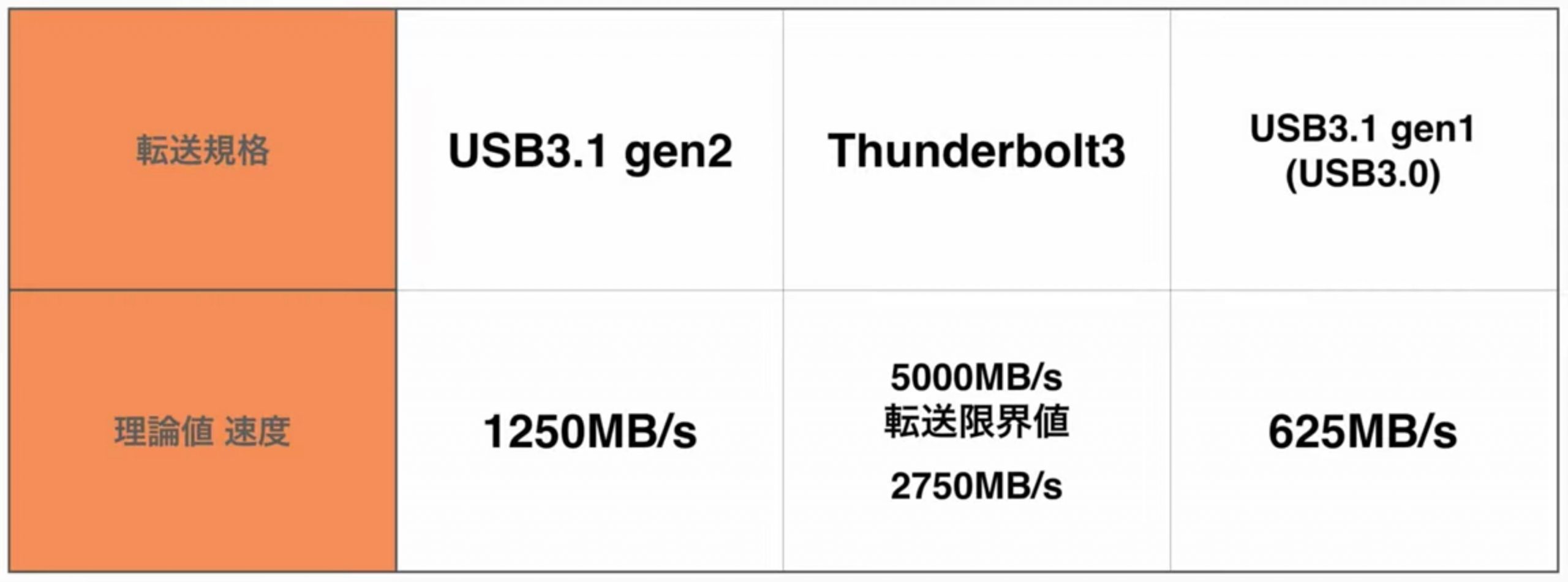
- USB 3.1 Gen 2
- Thunderbolt 3
- USB 3.1 Gen 1 (USB 3.0)
These are the standards compared in this guide.
The two fastest connection standards in this comparison are:
- 1. Thunderbolt 3
This is the fastest connection in the comparison. Its advertised 40 Gbps link rate is equivalent to 5,000 MB per second before overhead.
Actual storage throughput is lower. The original article cites up to 2,750 MB per second as a practical figure; this should not be read as a universal limit for all Thunderbolt 3 products.
Compared with the other connections discussed here, Thunderbolt 3 products were expensive, and many Windows PCs did not support the required connection. Check compatibility with your computer. - 2. USB 3.1 Gen 2
Its 10 Gbps link rate is twice that of USB 3.1 Gen 1, equivalent to 1,250 MB per second before overhead; actual file-transfer speeds are lower.
In the 2020 market described here, it was a widely available option offering a good balance of speed and price.
Recommended Portable Storage: 2020 Options
Based on the points above, the following configurations were our recommendations for running large sample libraries comfortably on a laptop.
A Good Balance of Performance and Price
For a band-style arrangement like the project used in our test, we found that USB 3.1 Gen 2 with a SATA 3 SSD (600 MB/s theoretical SATA interface rate) was sufficient.
Our recommended product is shown below.
Choose from 250 GB, 500 GB, 1 TB or 2 TB, depending on the space your sample libraries require. These were the capacity options listed in the original article.
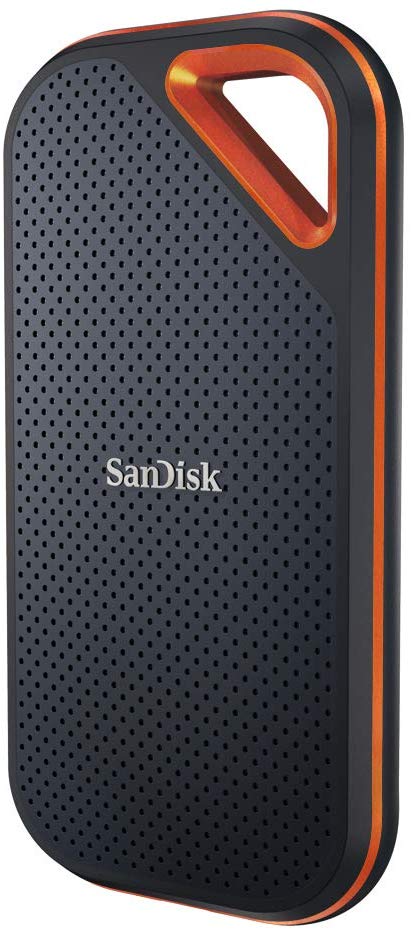
A Higher-End Model Offering 1,000 MB/s
If you use even more sampler tracks in your productions, USB 3.1 Gen 2 with an NVMe M.2 SSD offers a more reassuring level of transfer performance.
Our recommended product in this class is shown below.
Choose from 500 GB, 1 TB or 2 TB to suit your sample libraries. These were the capacity options listed in the original article.
A Professional Model in the 2,750 MB/s Performance Class
For still faster transfers, the article recommends a professional model combining an NVMe M.2 SSD with Thunderbolt 3.
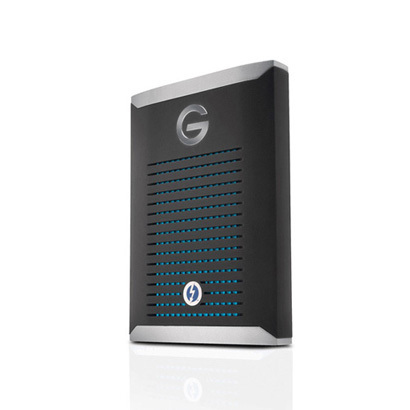
Thunderbolt 3 products can be expensive. Another option is to buy an enclosure and an NVMe M.2 SSD separately and assemble them yourself.
This can reduce the cost, but compatibility and guaranteed operation are less certain. Check reviews and compatibility tests carefully before purchasing.
We hope this comparison has been helpful.
Although our test focused specifically on sample-based instruments, it illustrates how important drive speed can be for music production.
Storage products marketed for high-speed transfers often list their transfer rate in the product description.
Be sure to check that information before making a purchase.
NEW ARTICLES
Latest English Articles

















































































































































































































