Mastering audio event editing in Studio One opens up more expressive possibilities for music production. This article explains practical techniques including transposing and reversing audio events, removing clicks with fades, and adjusting volume. Audio-specific editing offers possibilities that are difficult with MIDI, such as reverse cymbal effects, local volume changes, and fine adjustments to individual phrases using gain envelopes.
Basic audio event editing and practical processing techniques
Studio One offers flexible, intuitive editing for audio events as well as MIDI events.
Mastering these techniques can make your music more expressive.
Transposing audio events
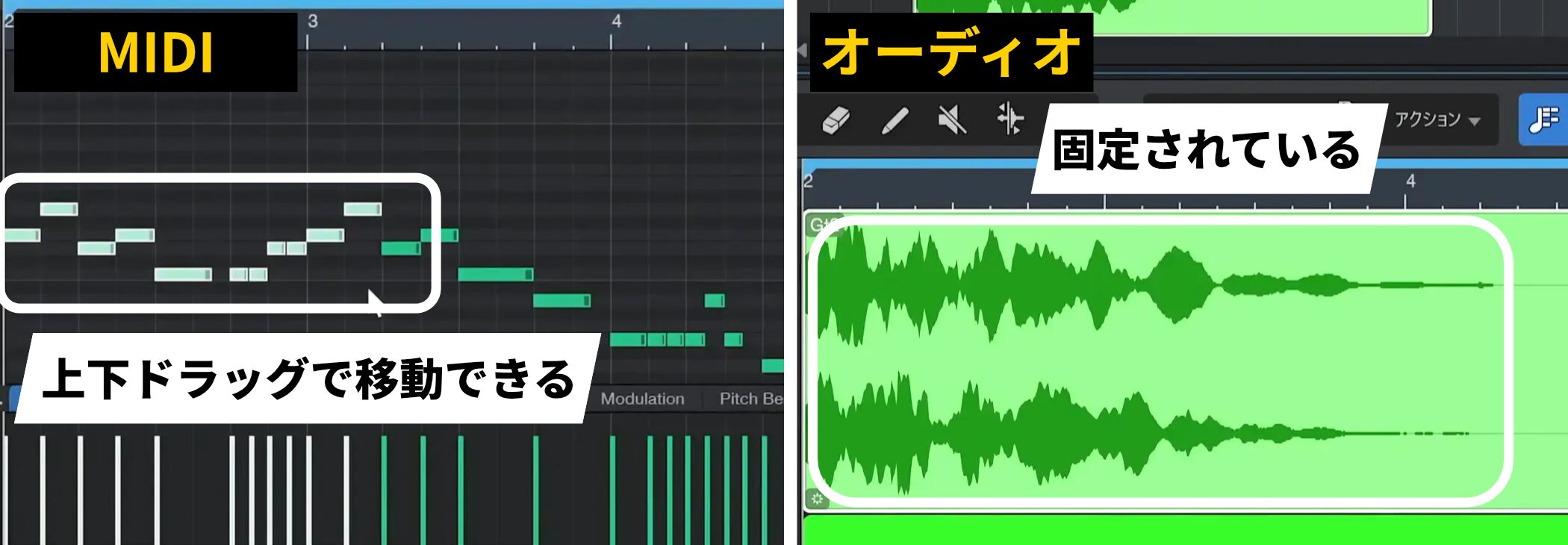
Although audio events normally have a fixed pitch, Studio One lets you easily transpose an audio event.
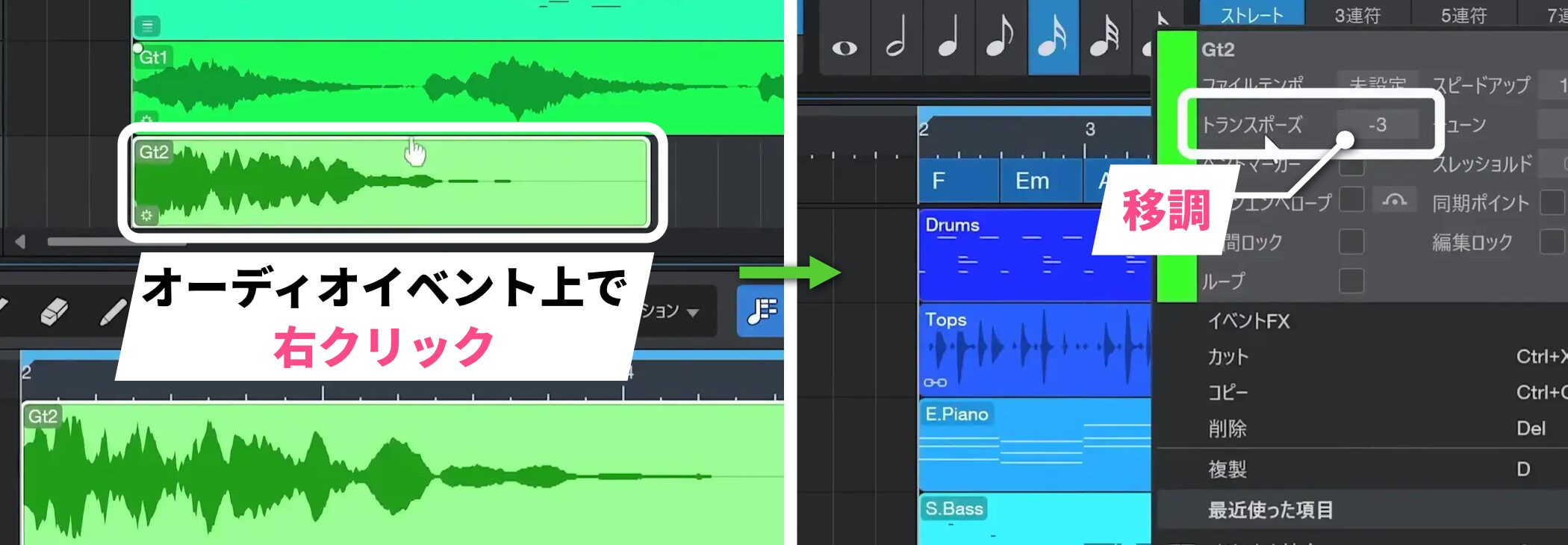
Right-click the audio event and use Transpose in the menu that appears.
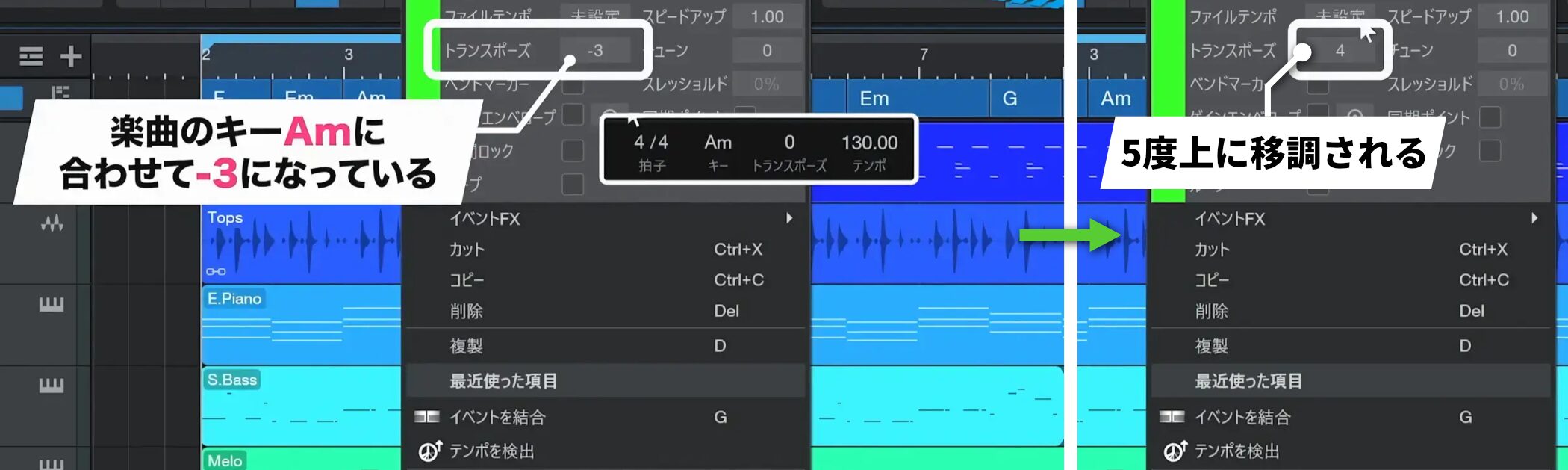
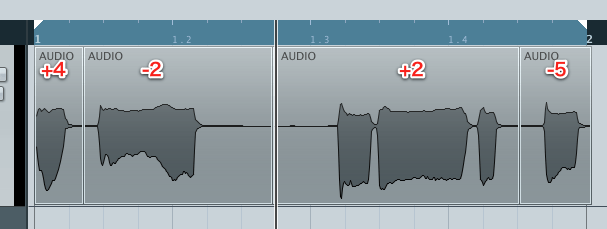
In this example, the setting is -3 to match the song’s A minor key.
For example, to raise it a fifth (7 semitones) from there, add 7 to -3 and set the value to 4.
This gives the overall Gt2 sound a lighter, brighter character and can effectively change the feel of the song.
Reversing audio events
Studio One offers audio-specific editing features that are difficult to achieve with MIDI.
Here we will look at the Reverse Audio function.
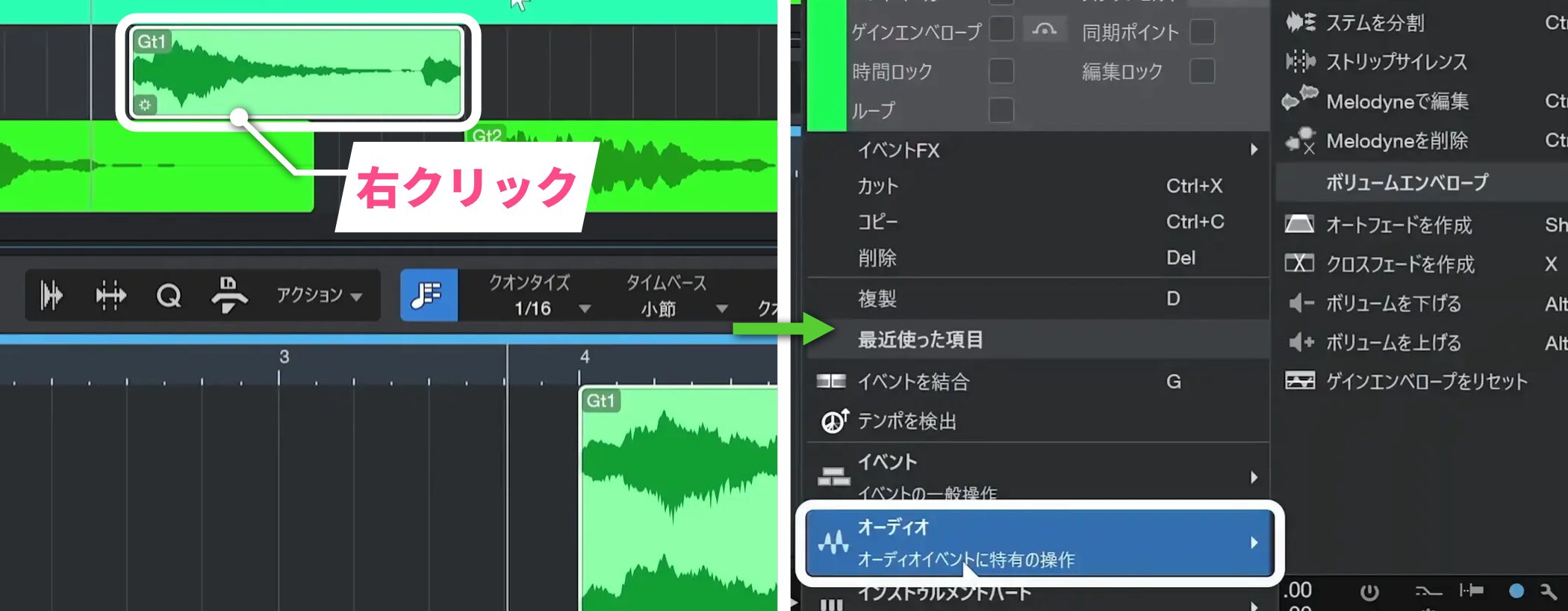
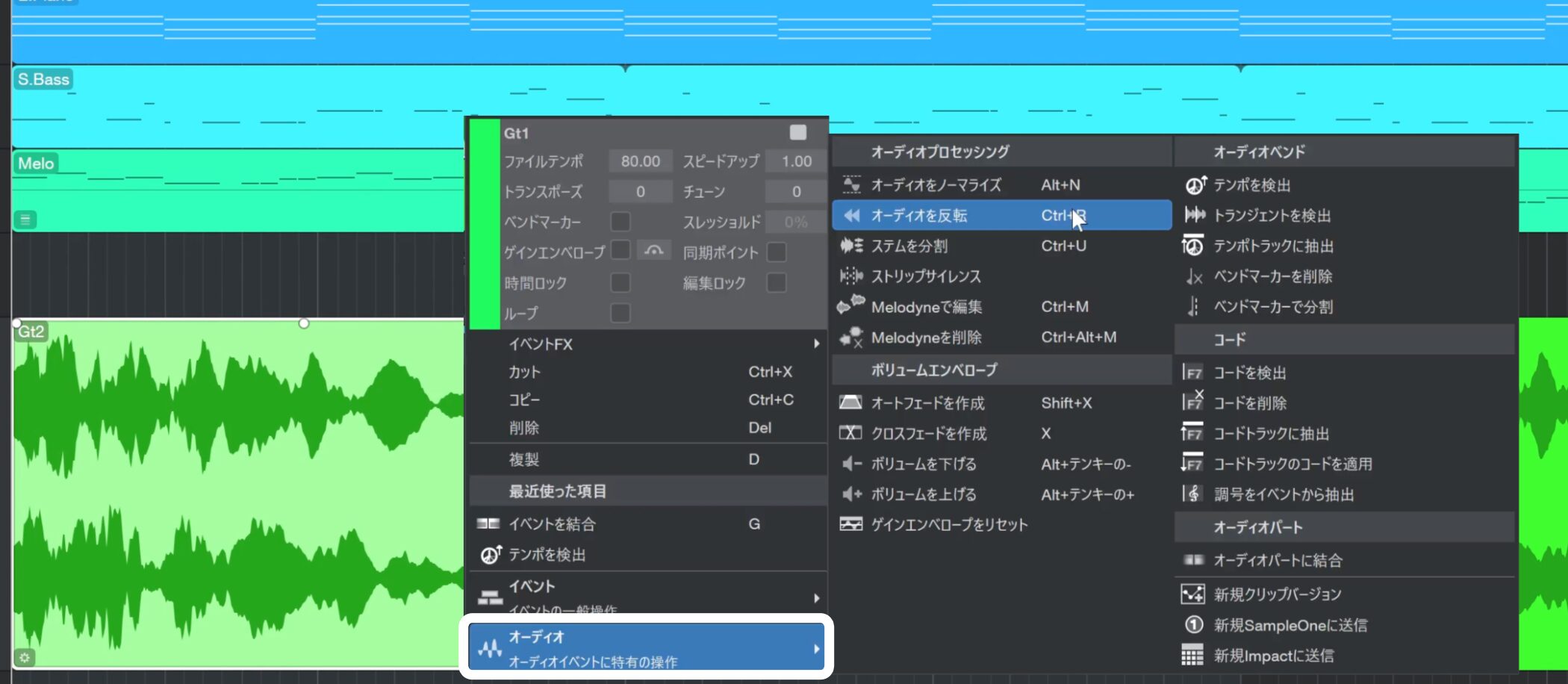
Right-click the audio event and choose Audio from the menu to see the available editing commands.
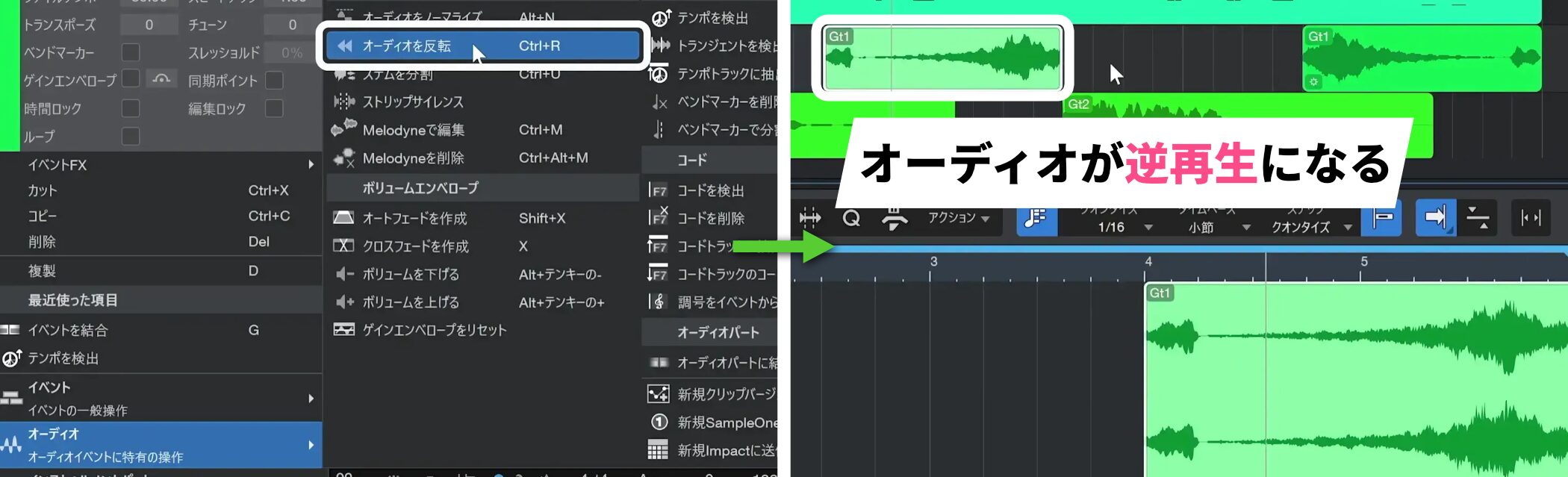
Apply Reverse Audio to play the audio backward and create an atmospheric sound.
Creating a reverse effect with a drum instrument
One common use of reverse is to play a drum cymbal backward.
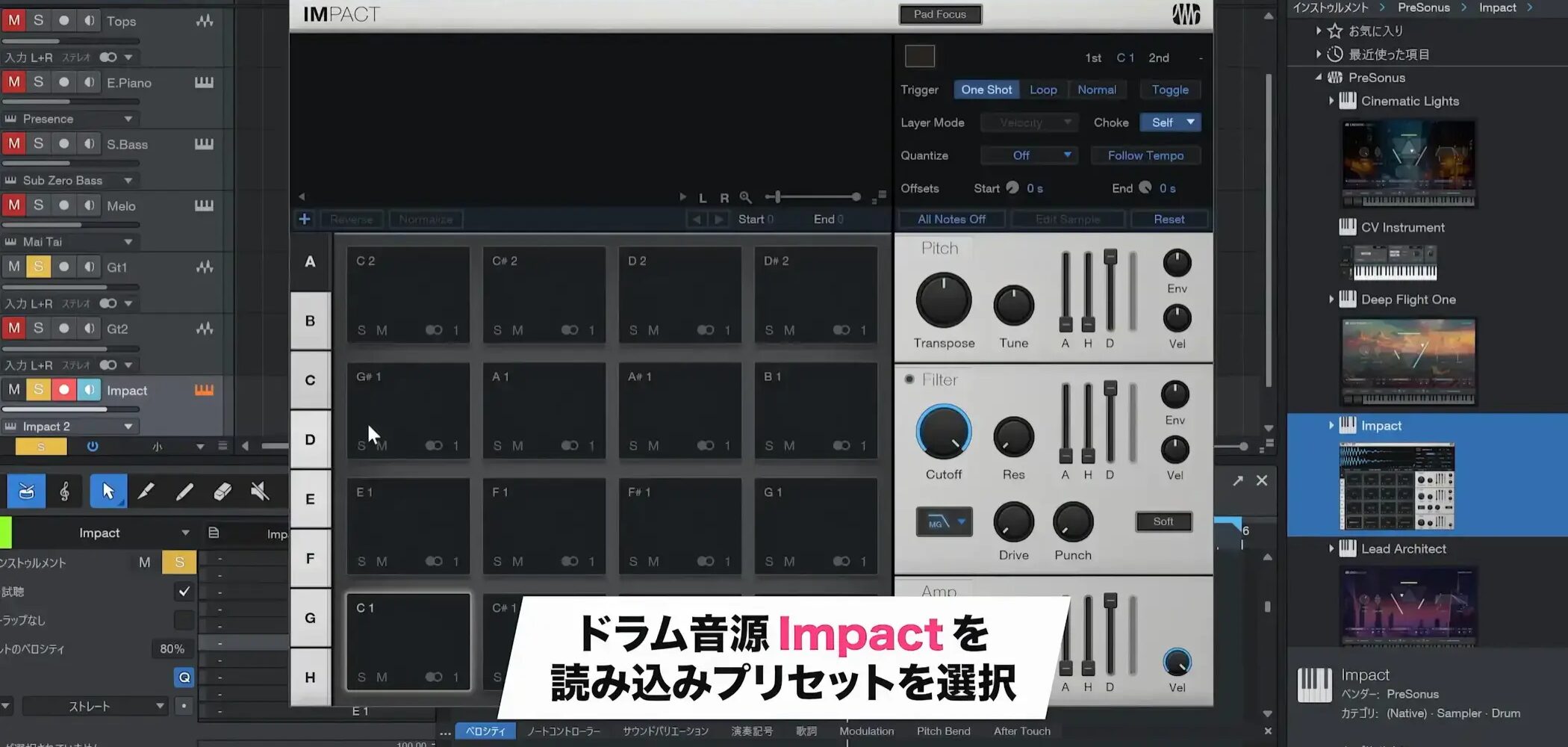
First, load the Impact drum instrument and choose a suitable preset.
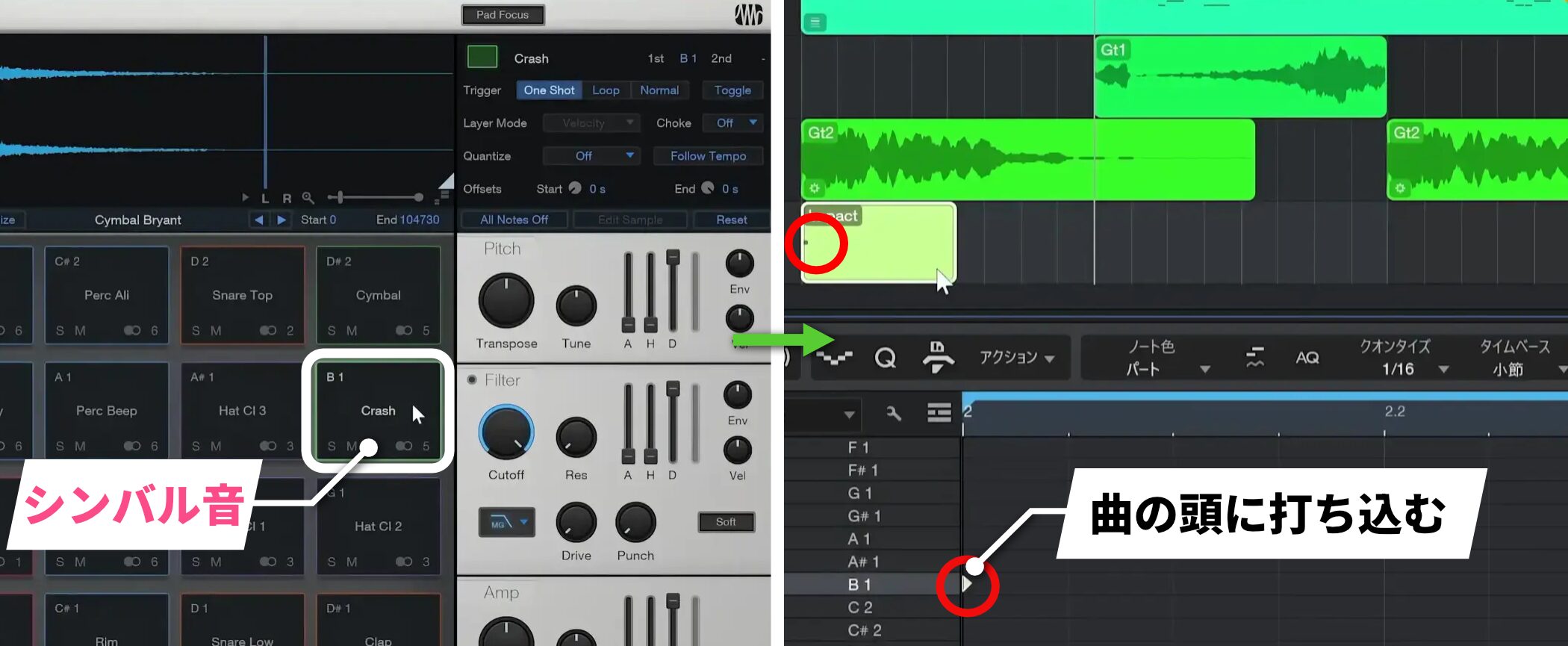
Prepare a cymbal sound and program it at the beginning of the song.
Because reverse is an audio-specific function, the drum sound created in MIDI must first be converted to audio.
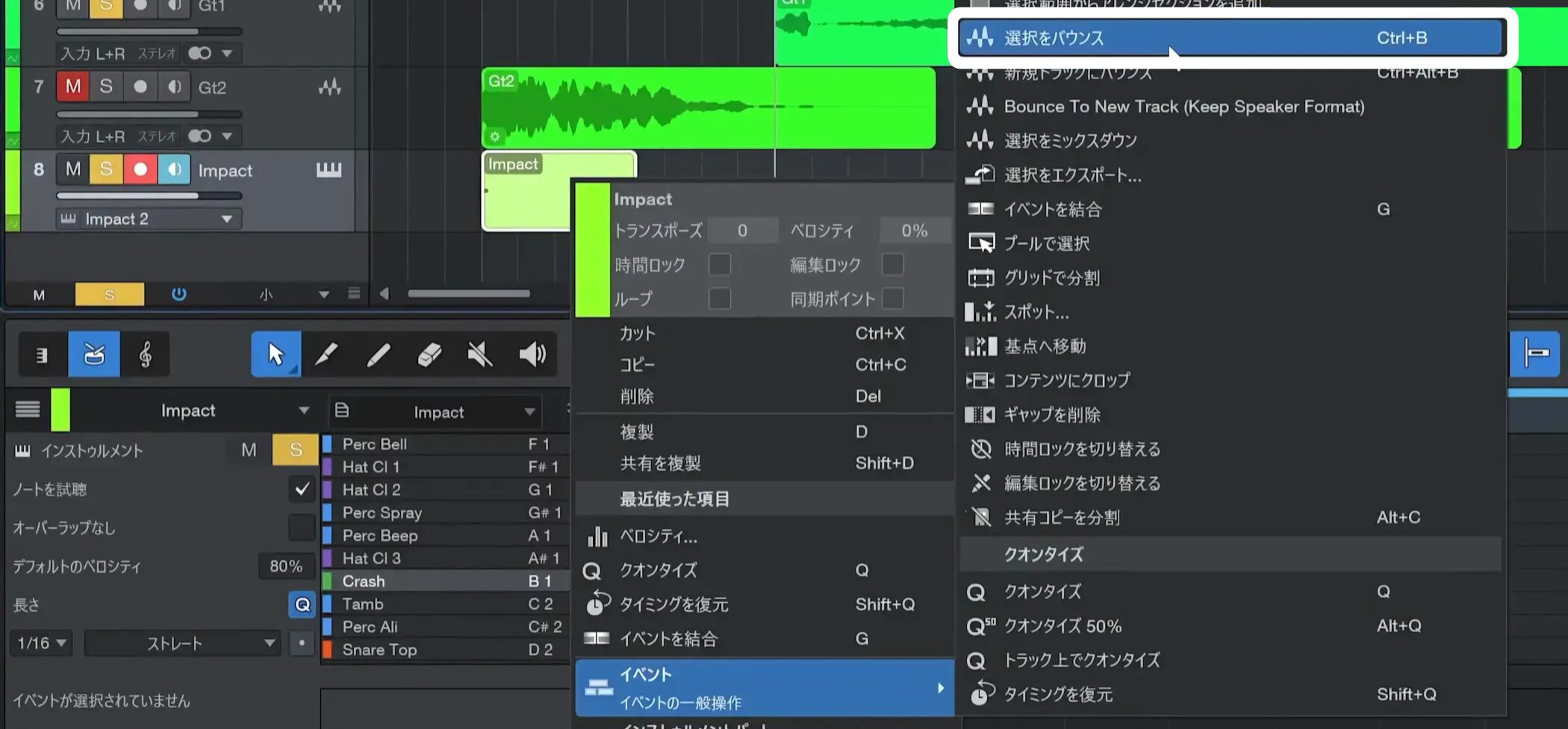
Right-click the MIDI event and choose Bounce Selection from the Event menu.
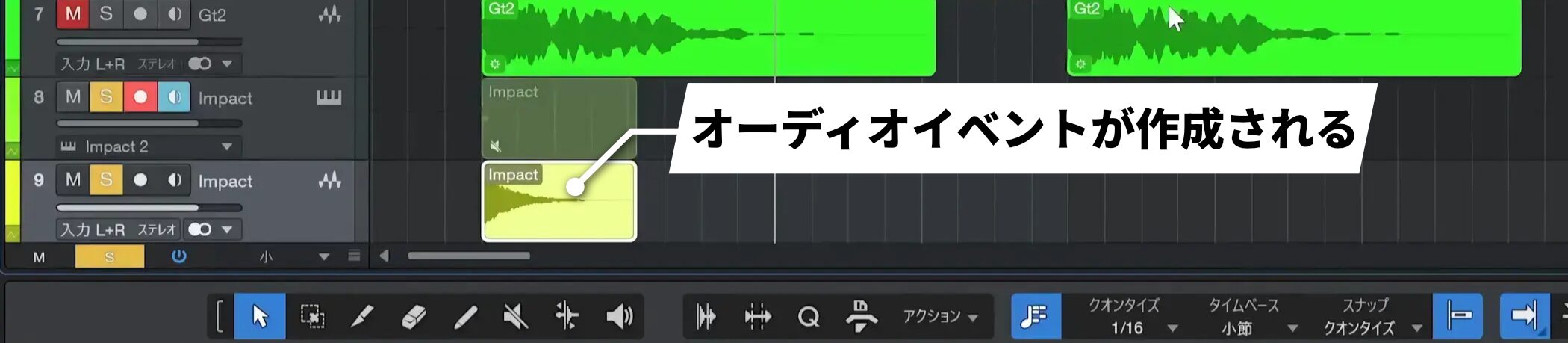
This makes it easy to create an audio event from the programmed MIDI.
Once the audio has been created, the original MIDI track is no longer needed and can be removed.
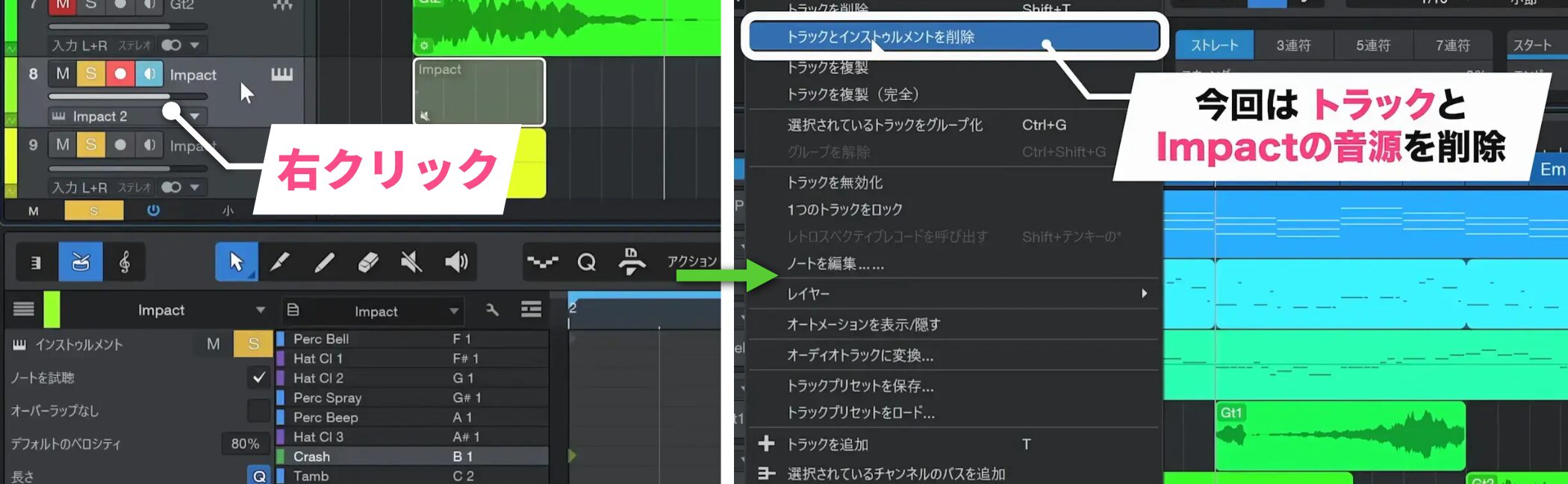
Right-click the MIDI track and choose Remove Track if you only want to remove the track.
In this example, we also want to remove the instrument, so we choose Remove Track and Instrument.
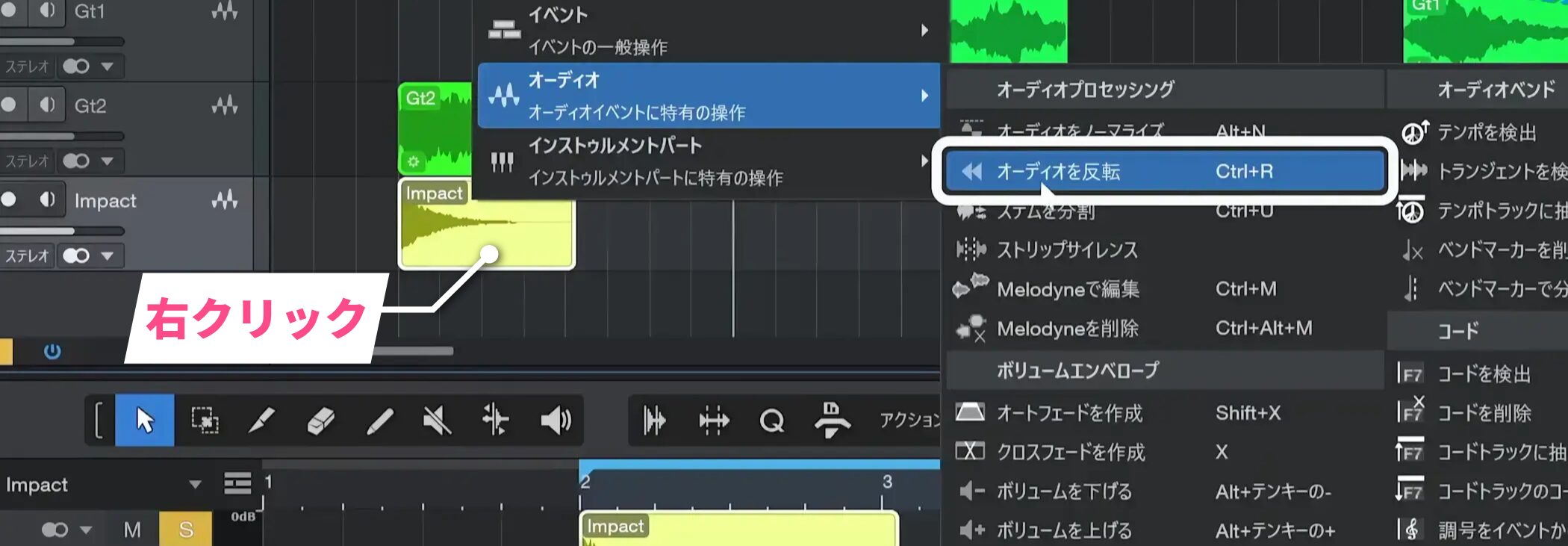
Next, right-click the new audio event and apply Reverse Audio from the Audio menu to create a classic reverse cymbal.
Applying Reverse Audio again to the reversed sound restores it to its original direction.
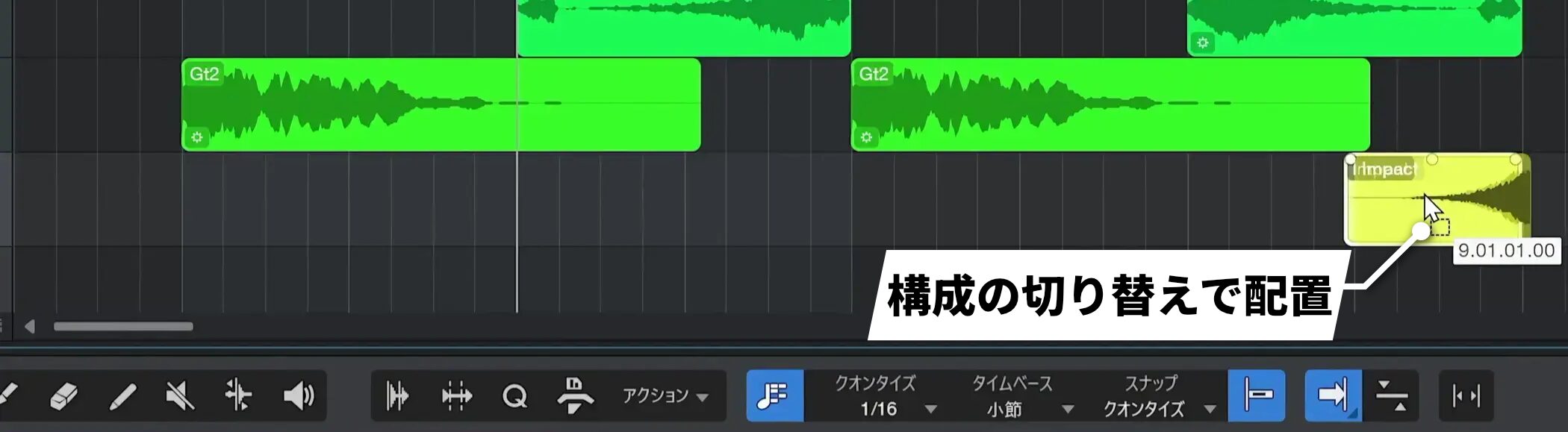
A reverse cymbal works well at transitions between sections of a song.
Removing clicks with fades
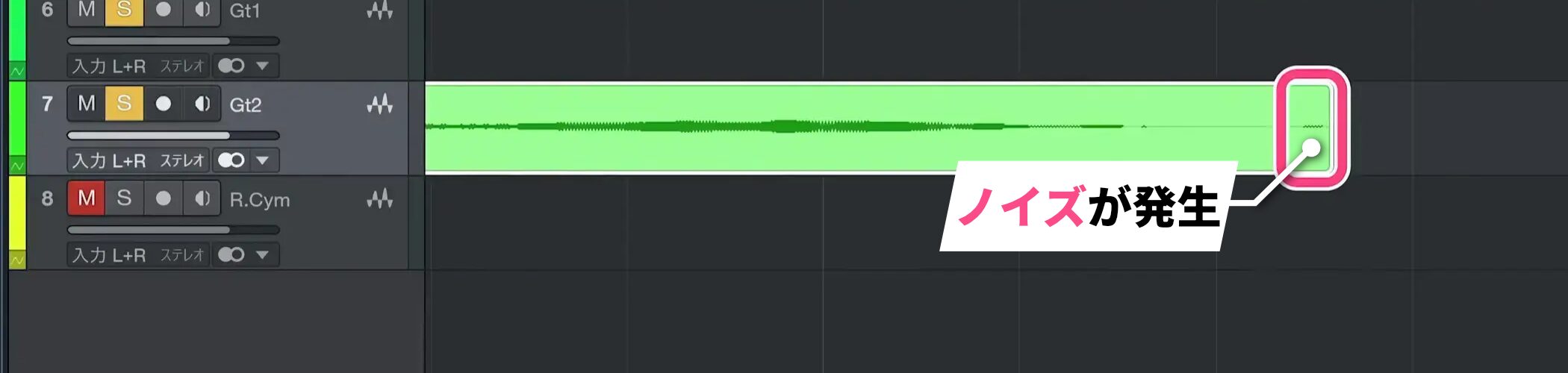
Shortening an audio event can cut off the waveform abruptly and cause a click.
An effective way to address this is with the fade function.
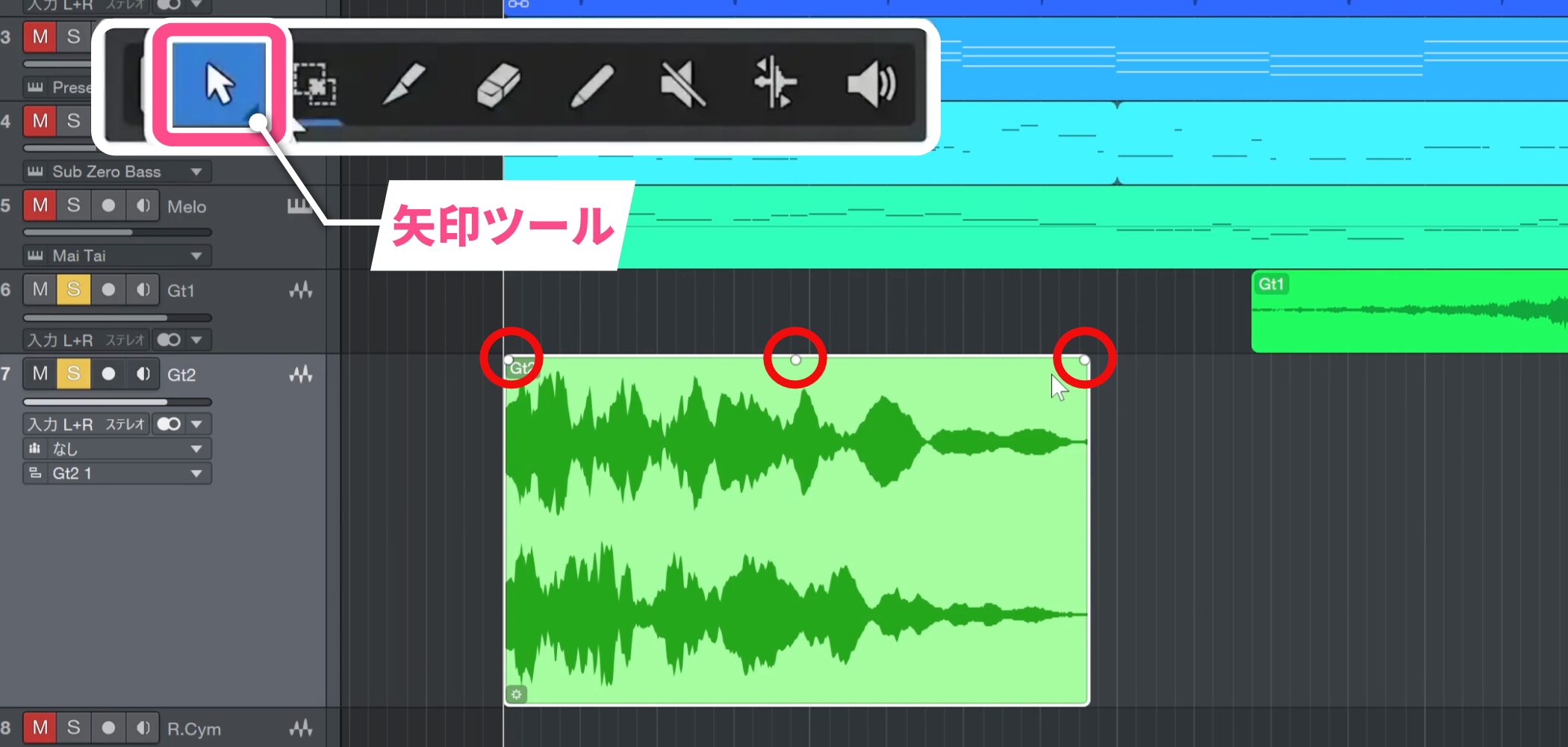
First, make the track display a little larger and move the Arrow tool over the audio event.
Three handles appear on the event: left, center, and right.
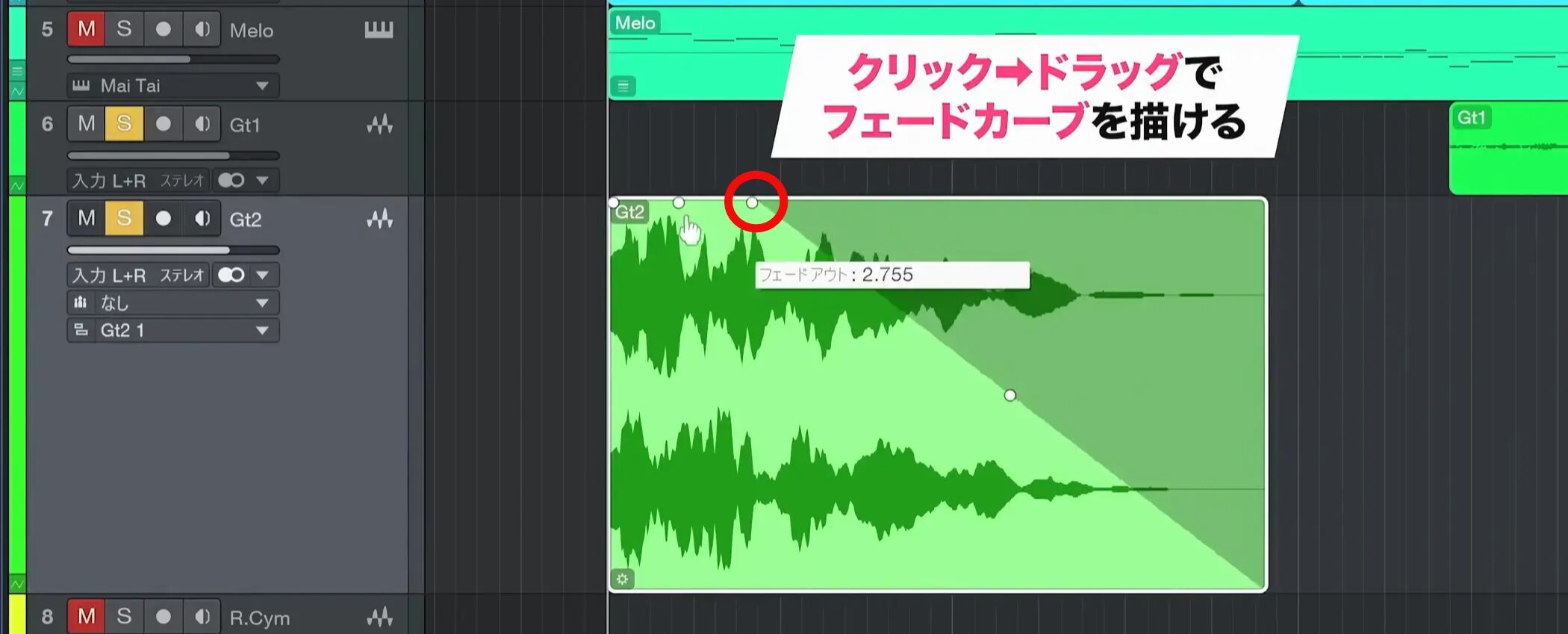
Click and drag a handle to draw a fade curve.
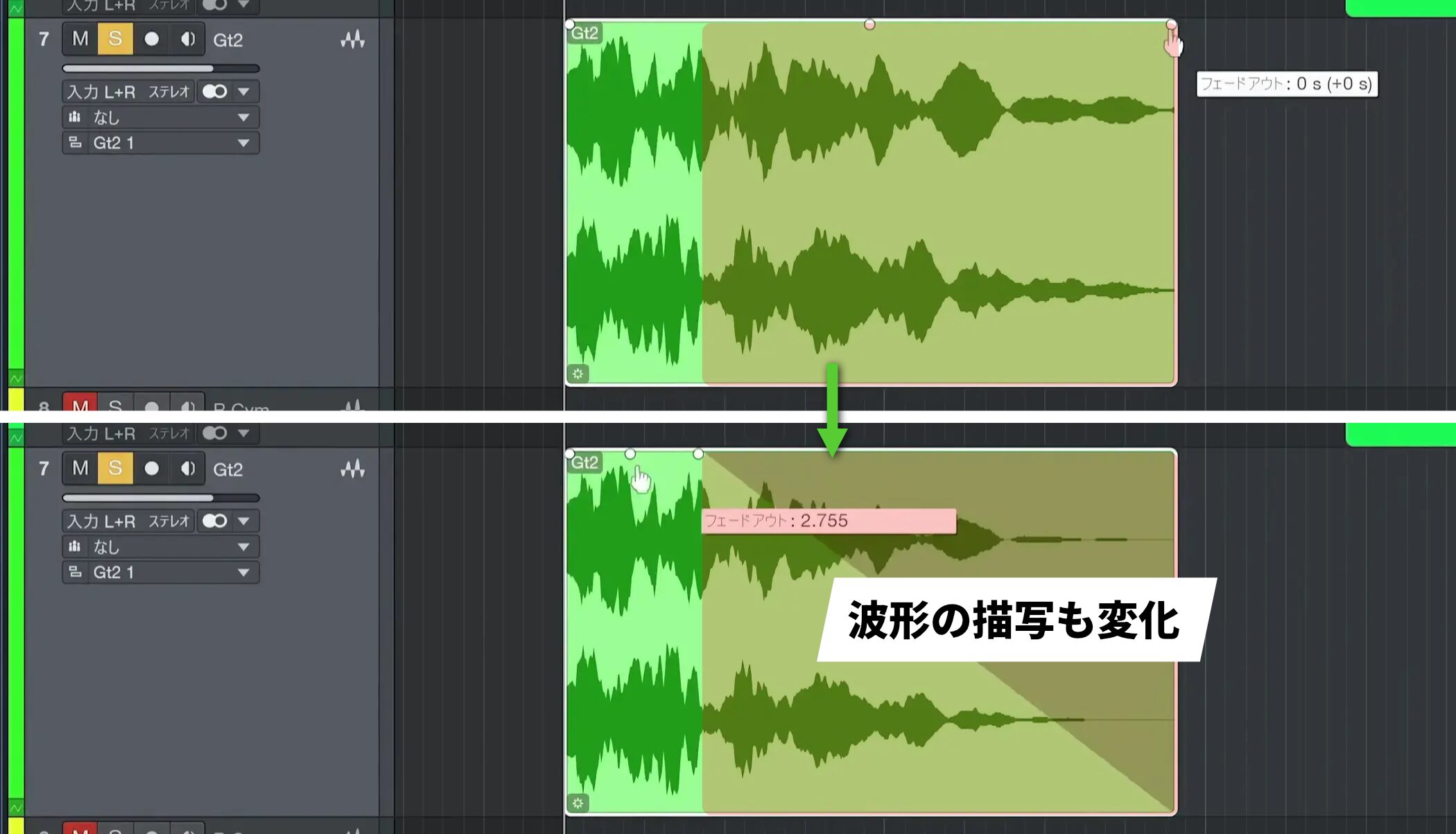
The waveform display changes to reflect the fade, making the result easy to see.
A suitable fade smoothly reduces the volume and removes the click.
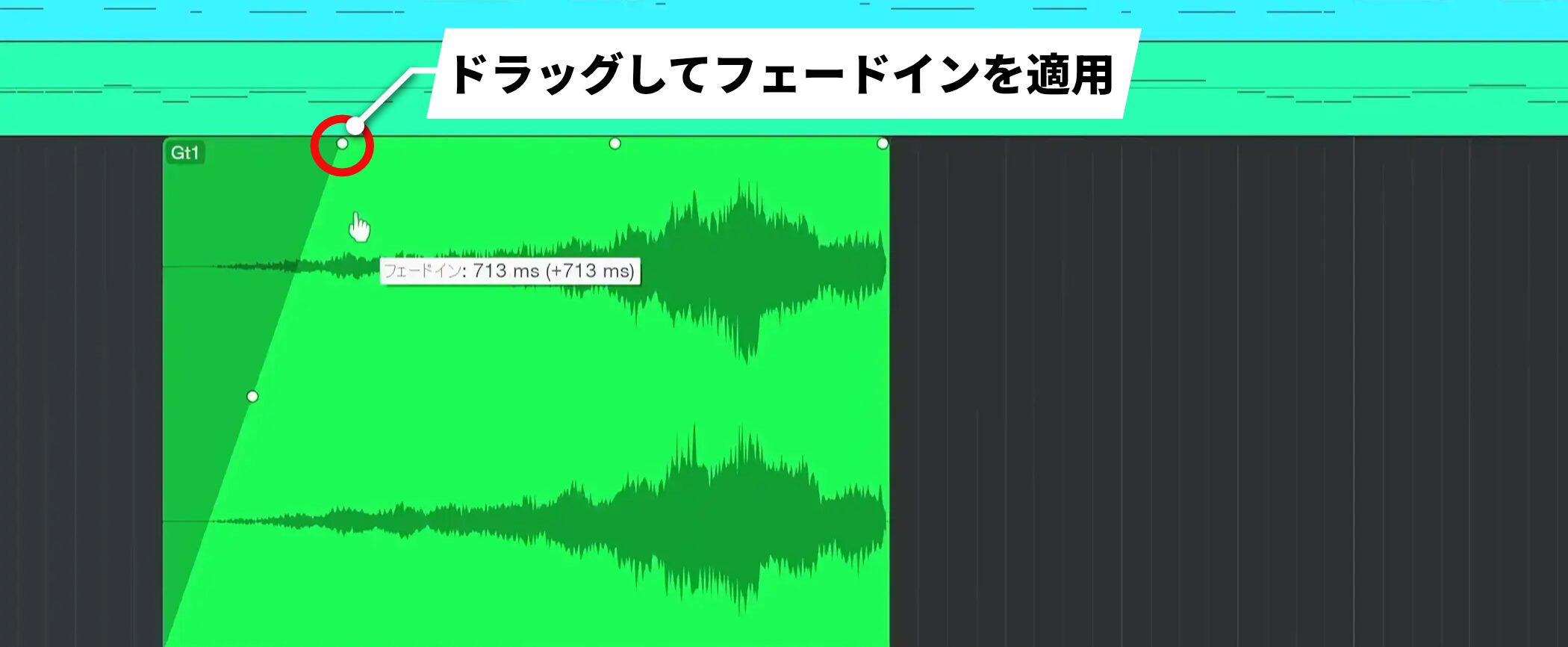
If the audio starts abruptly partway through a waveform, you can also apply a fade-in in the same way.
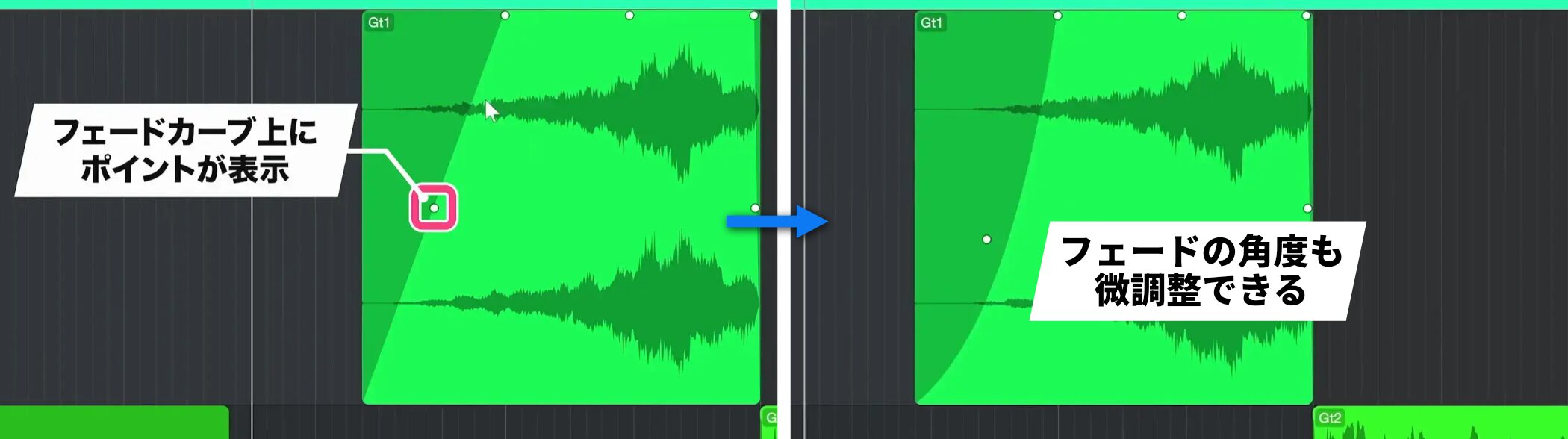
After creating a fade, a handle appears in the fade area so you can fine-tune the shape of the fade while listening to the sound.
Adjusting volume at the event level
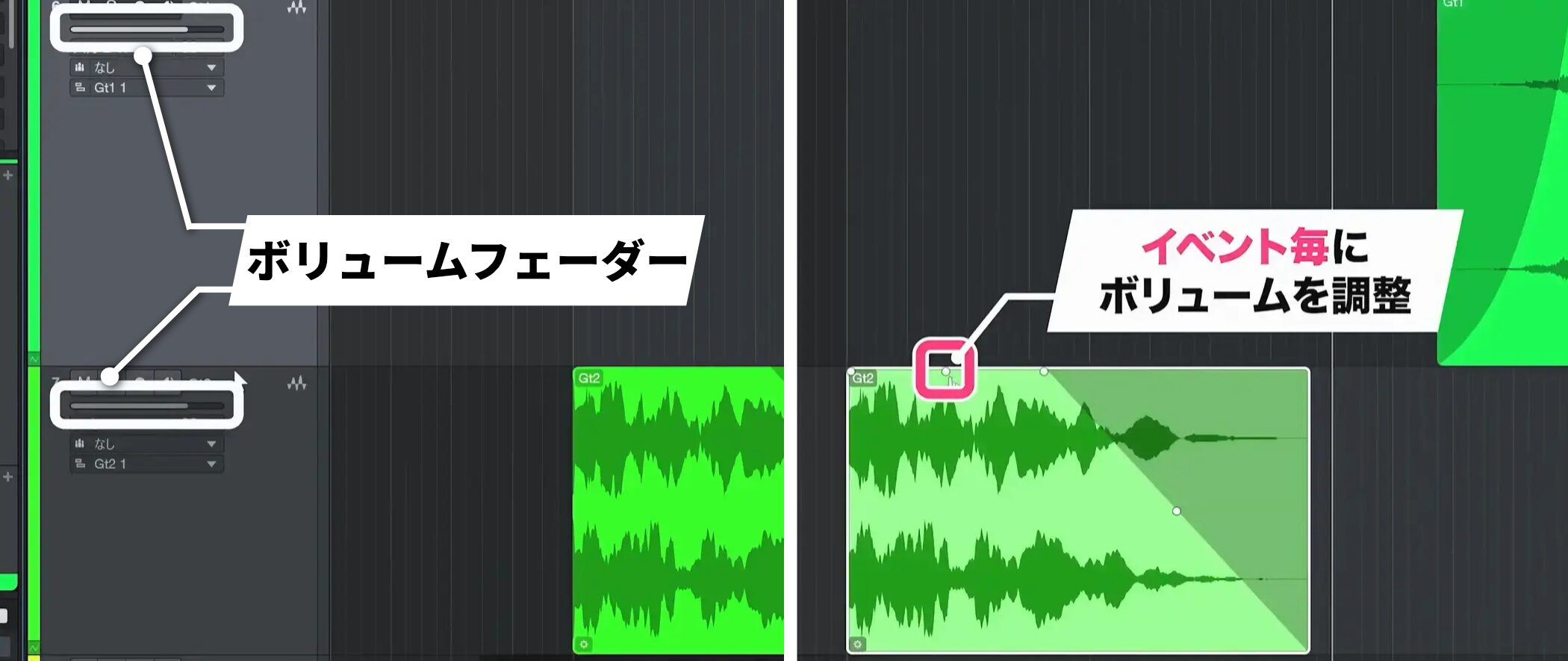
To balance multiple audio tracks, you can use their track volume faders, but dragging the center handle of an audio event up or down provides more flexible control over each event’s volume.
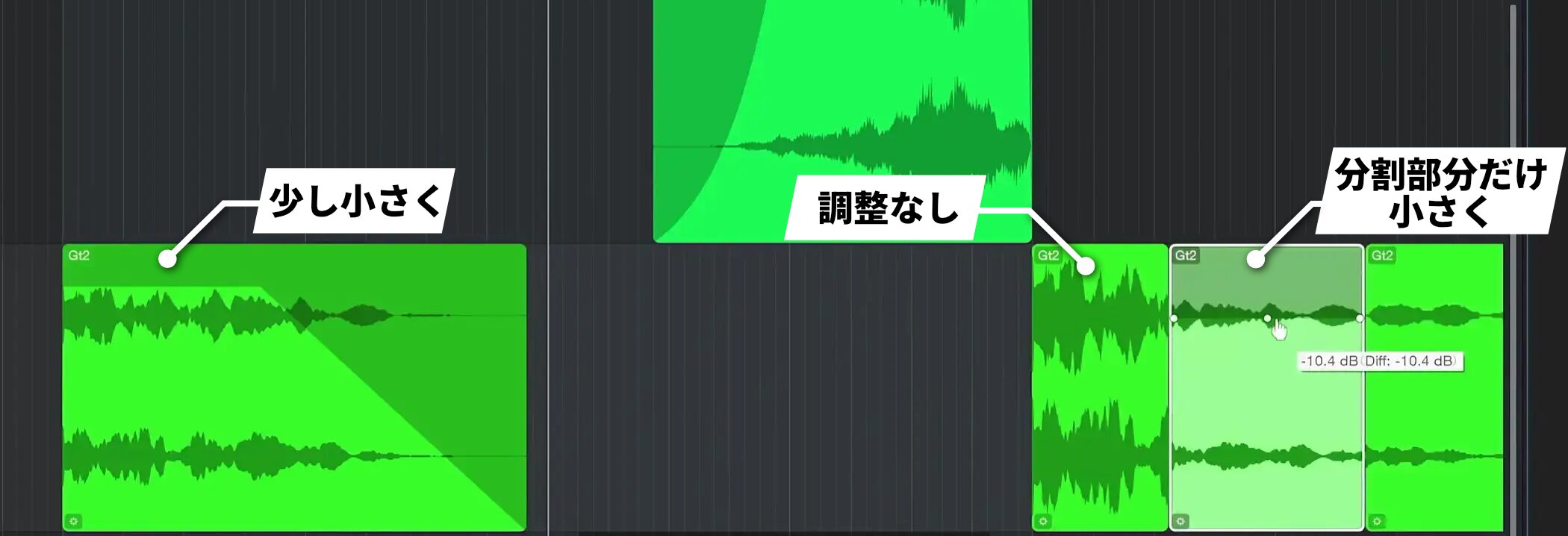
For example, you can make the first event quieter and the second louder, or split an event and reduce the volume of a particular section.
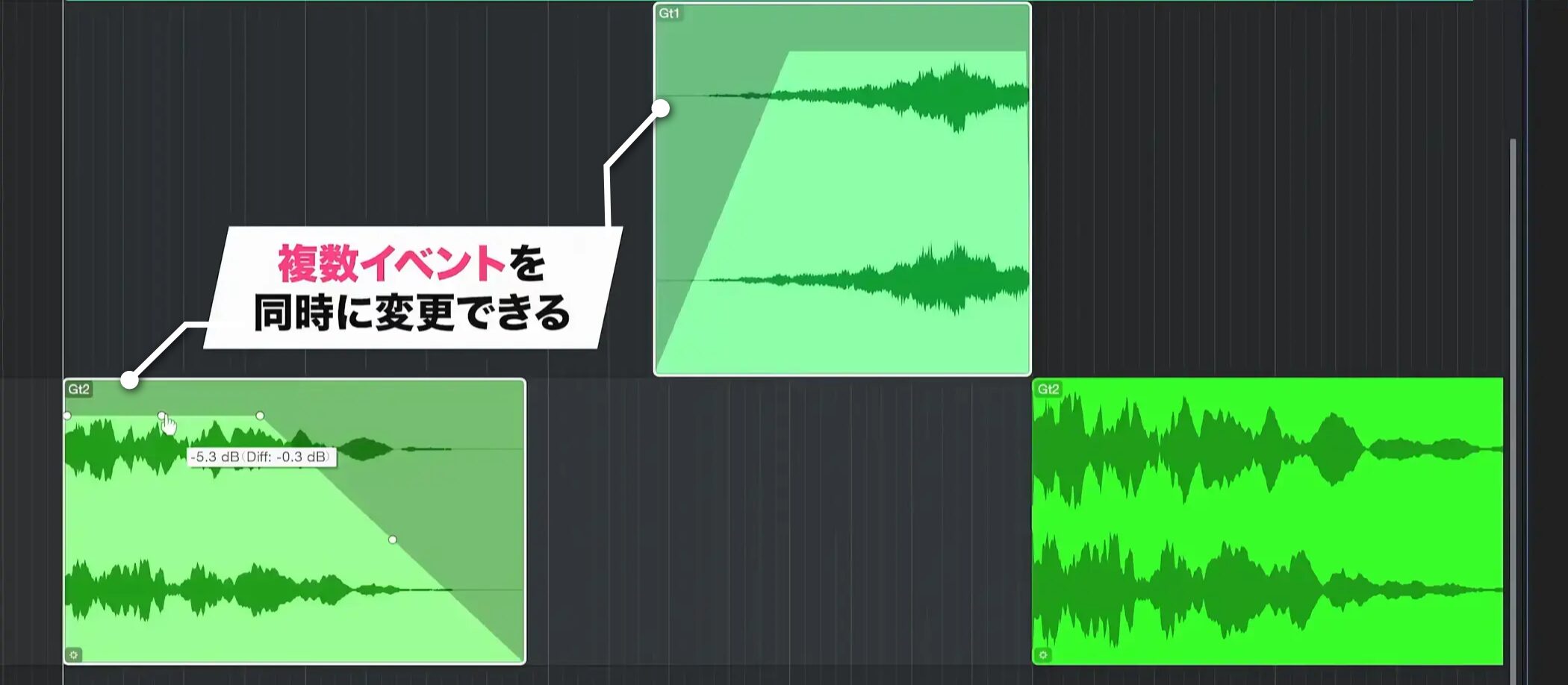
Another useful feature is the ability to select multiple events and change their volume together.
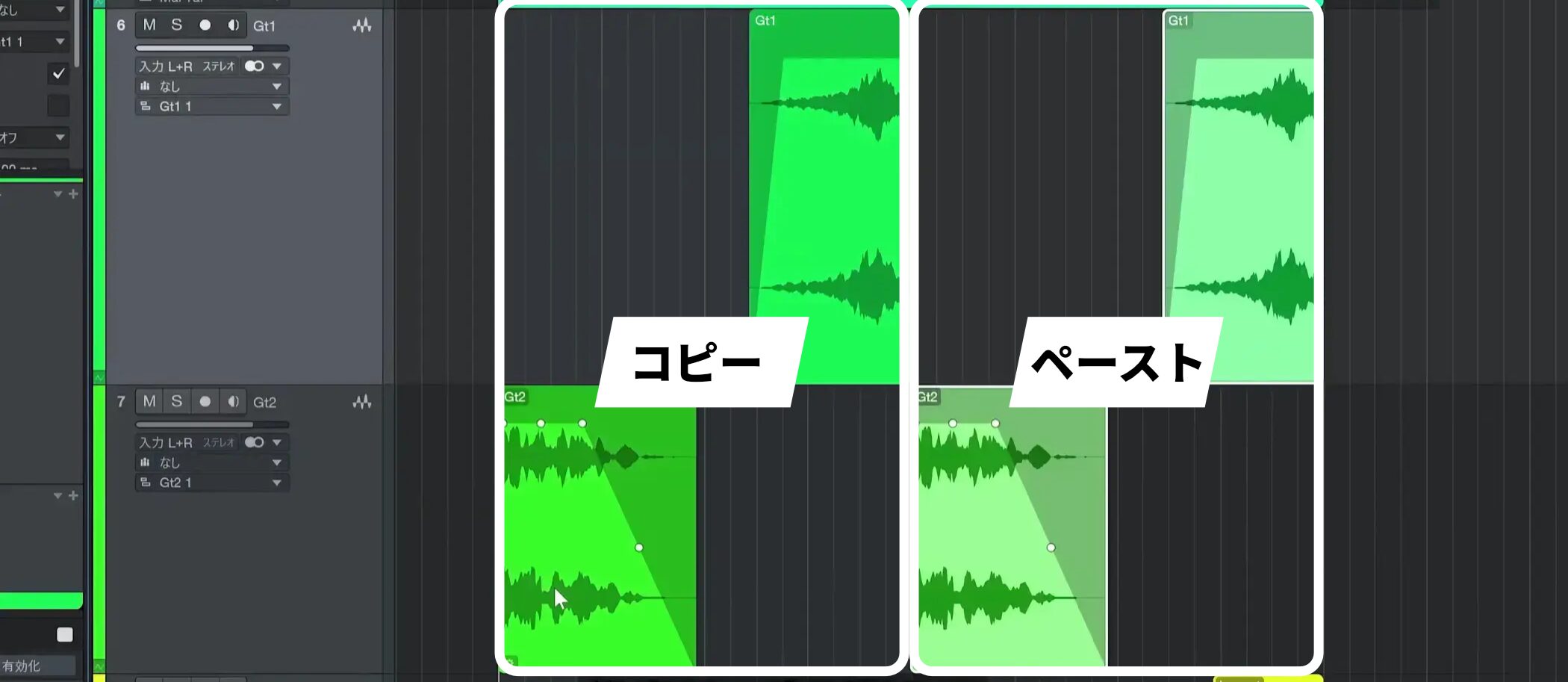
If the same phrase repeats later, you can work more efficiently by duplicating an event after adjusting its fades and volume and placing the copy where needed.
Adjusting individual phrases with gain envelopes
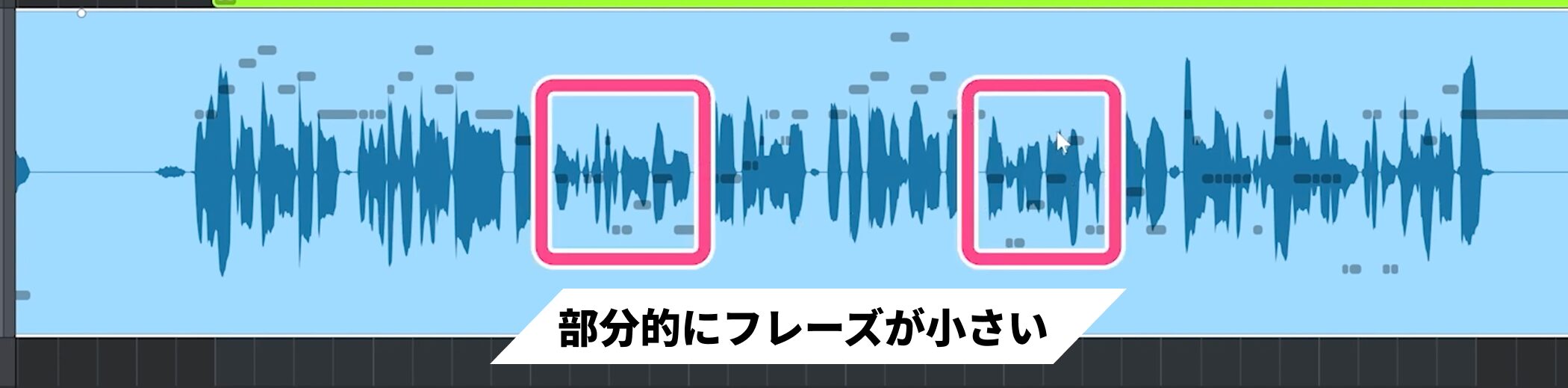
Some phrases may be quieter or louder than others.
The Gain Envelope is useful for reducing these inconsistencies.
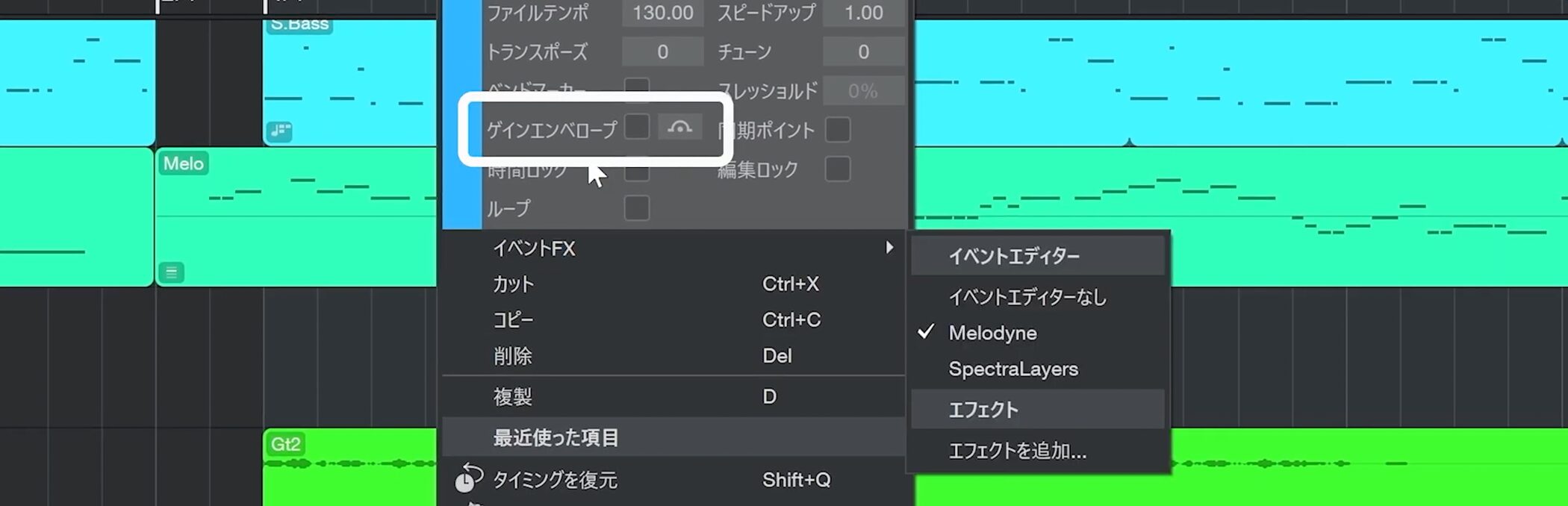
Right-click the event and enable Gain Envelope in the menu.
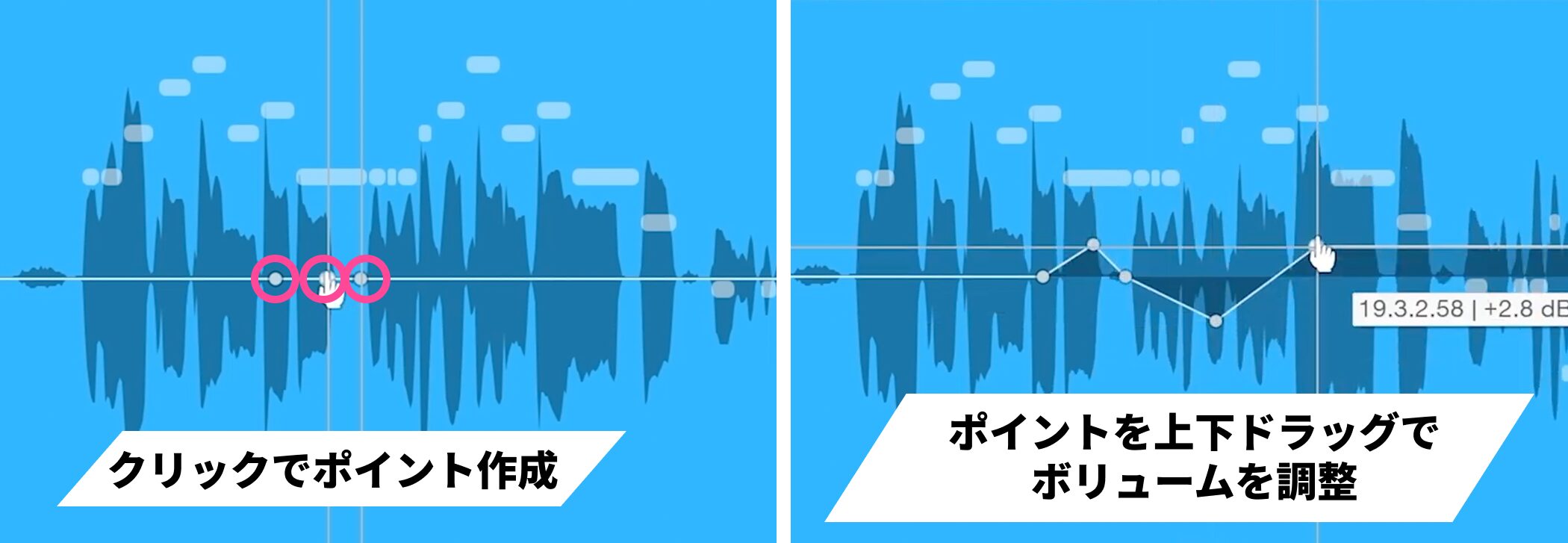
A line appears in the center. Click it to create points, then drag the points up or down to adjust the volume.
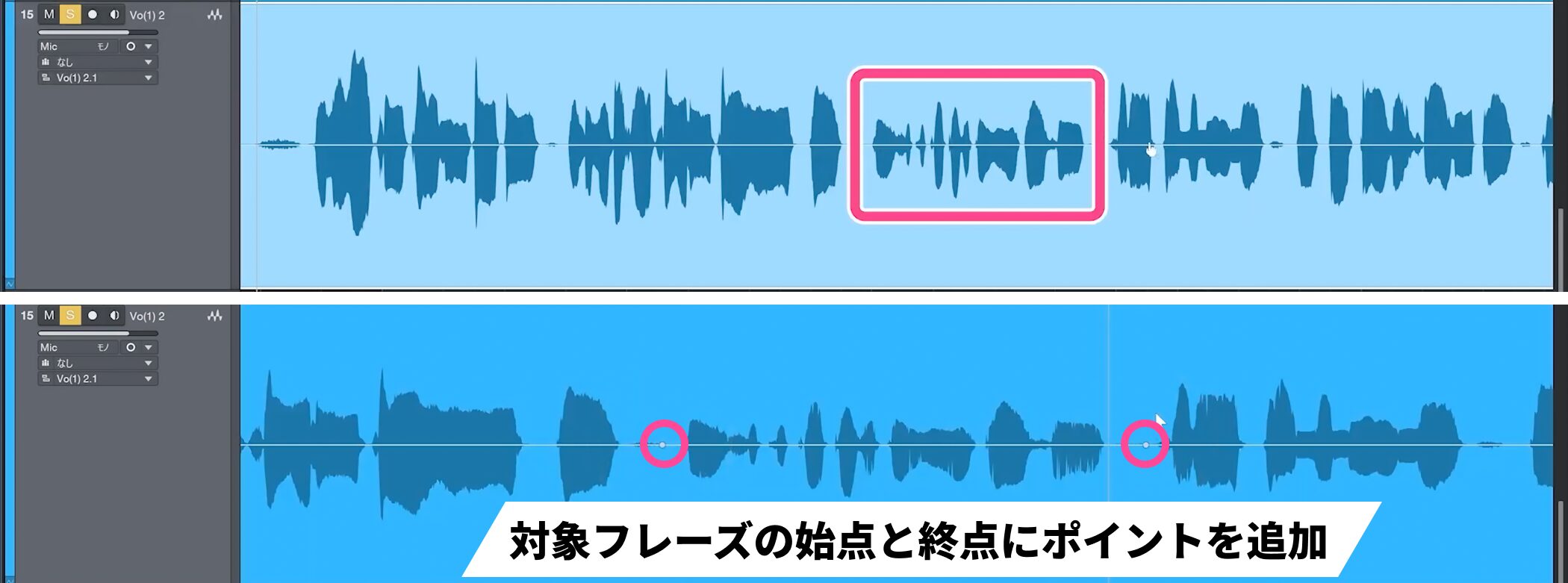
For example, if a phrase is slightly quieter than the others, click the line at the beginning and end of that phrase to add points, as shown.
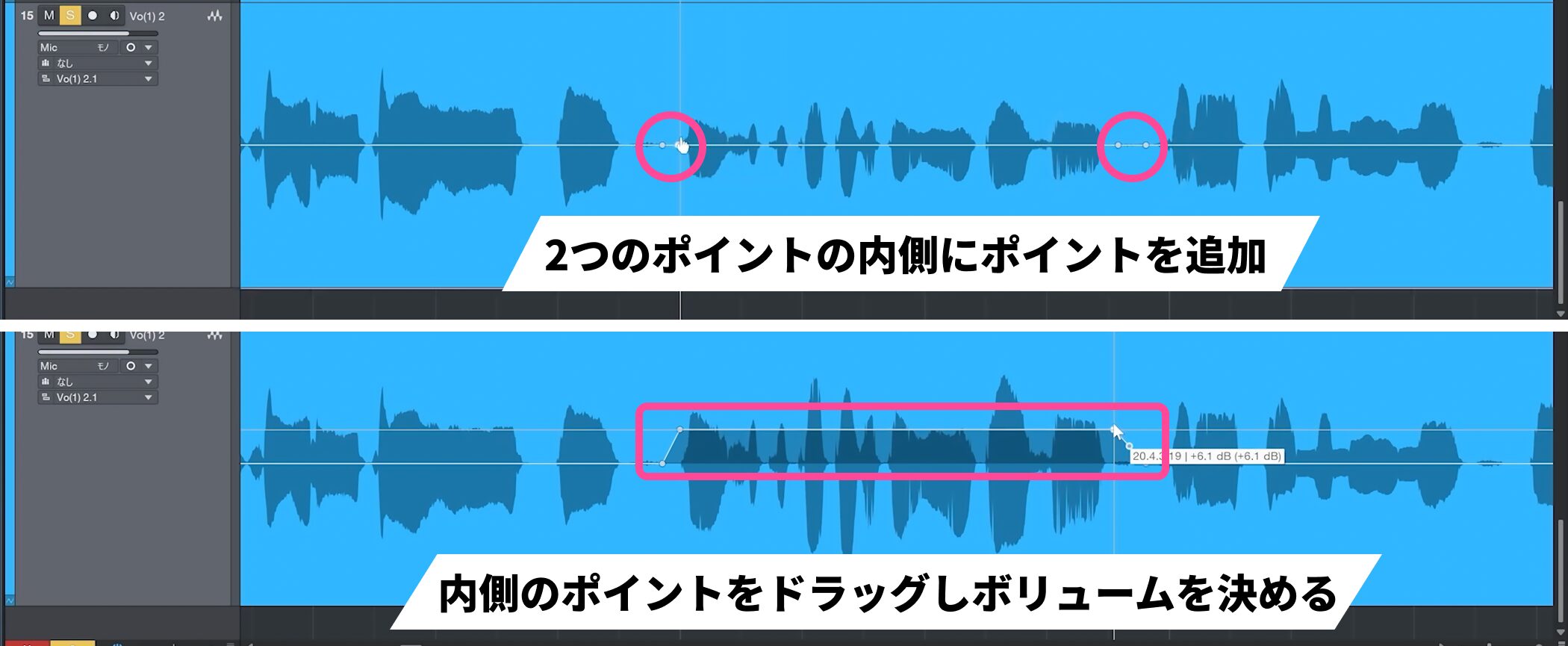
Then add more points between the two and drag the inner points up or down to set the volume.
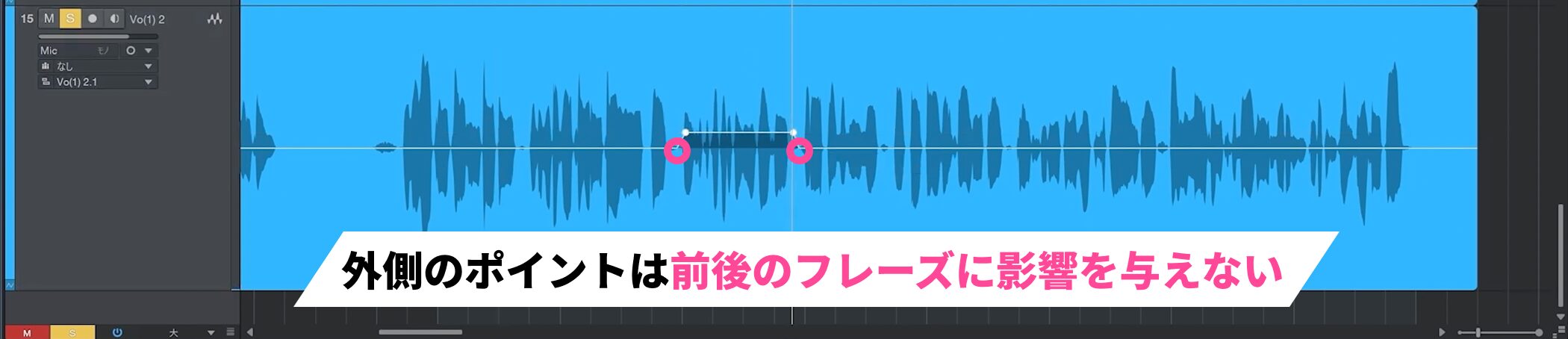
Zooming out shows that the overall volume is now more even.
The outer points you added first prevent the adjustment from affecting the phrases before and after, so only the desired section changes.
Of course, you can fine-tune it again at any time.

In the same way, you can lower louder sections or, as another application, soften strong attacks and emphasize weaker ones.
Frequently asked questions
Q1. How do I transpose an audio event in Studio One?
Right-click the audio event and choose Transpose from the menu. Enter a value in semitones to change the pitch of the entire event. For example, enter +7 to raise it by seven semitones.
Q2. When is a reverse audio effect useful?
It works well at transitions between song sections. A common technique is to reverse a drum cymbal to create an atmospheric sound. Bounce the MIDI to audio, then apply Reverse Audio.
Q3. How can I remove clicks caused by cutting an audio event?
Use a fade. With the Arrow tool, drag an audio event handle to draw a fade curve. The volume decreases smoothly, removing the click, and you can adjust it while watching the waveform.
Q4. How can I even out volume differences between audio events?
Use a gain envelope. Right-click the event and enable Gain Envelope, add points at the beginning and end of the range to adjust, then drag inner points up or down to even out the volume.
Q5. Can I adjust the volume of several events at once?
Yes. Select multiple audio events and drag the center handle up or down to change their volumes together. This can make production more efficient.
NEW ARTICLES
Latest English Articles