Setting up audio after installation helps you work comfortably in FL Studio. This guide covers choosing an audio device, balancing latency and CPU load with buffer size, and troubleshooting. Reducing the delay between playing and monitoring is especially useful when recording MIDI keyboards or live instruments.
First Steps After Installing FL Studio
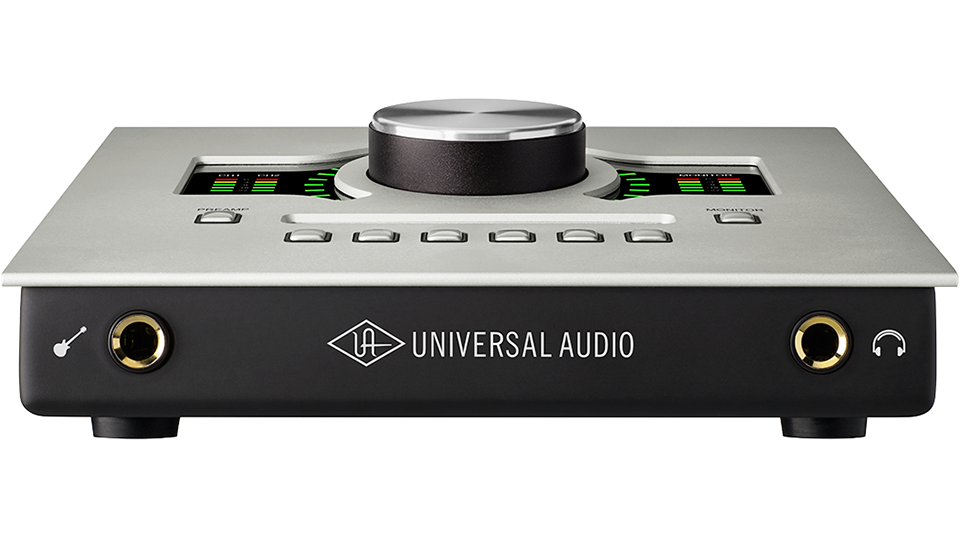
If you are reading this, you are probably about to start using FL Studio.
You may be eager to make music immediately,
but first let’s configure the basics for a comfortable workflow.
These settings are important and can be tricky for beginners, so we will cover them over several articles.
We will start with audio settings.
Here we will configure:
- Audio output from FL Studio
- Audio recording into FL Studio
- Adjustments for delayed audio playback
Video: Setting Up Audio in FL Studio
Questions and Answers from the YouTube Video

I always learn from your videos. I use FL Studio 20 and a Yamaha AUDIOGRAM6 on a Mac, and sometimes an error closes the window: “The required rate (44100 Hz) couldn’t be set for input by the CoreAudio driver.” Is there a solution?

One possibility is that the AUDIOGRAM6 is set to 48,000 Hz (48 kHz) and does not match the project. Check the device’s sample rate. This is a possibility, not a confirmed diagnosis.
How can I fix a bug where the green line does not move?
An update may resolve it. Check whether a newer version is available; if so, install it and see whether the symptom persists.
My initial audio setting was FL Studio ASIO. Is that okay?
FL Studio ASIO can be used with a computer’s built-in audio output on Windows. It generally allows audio from other applications at the same time. ASIO4ALL can take exclusive control of a device, which may prevent other applications from using it; behavior depends on the device and settings.
I installed MASSIVE, but its window is so large that the bottom is cut off. Sorry this is a different topic; is there a solution?
Your screen resolution settings may be involved. Look up how to adjust display resolution for your operating system and try it.
Choosing an Audio Device in FL Studio
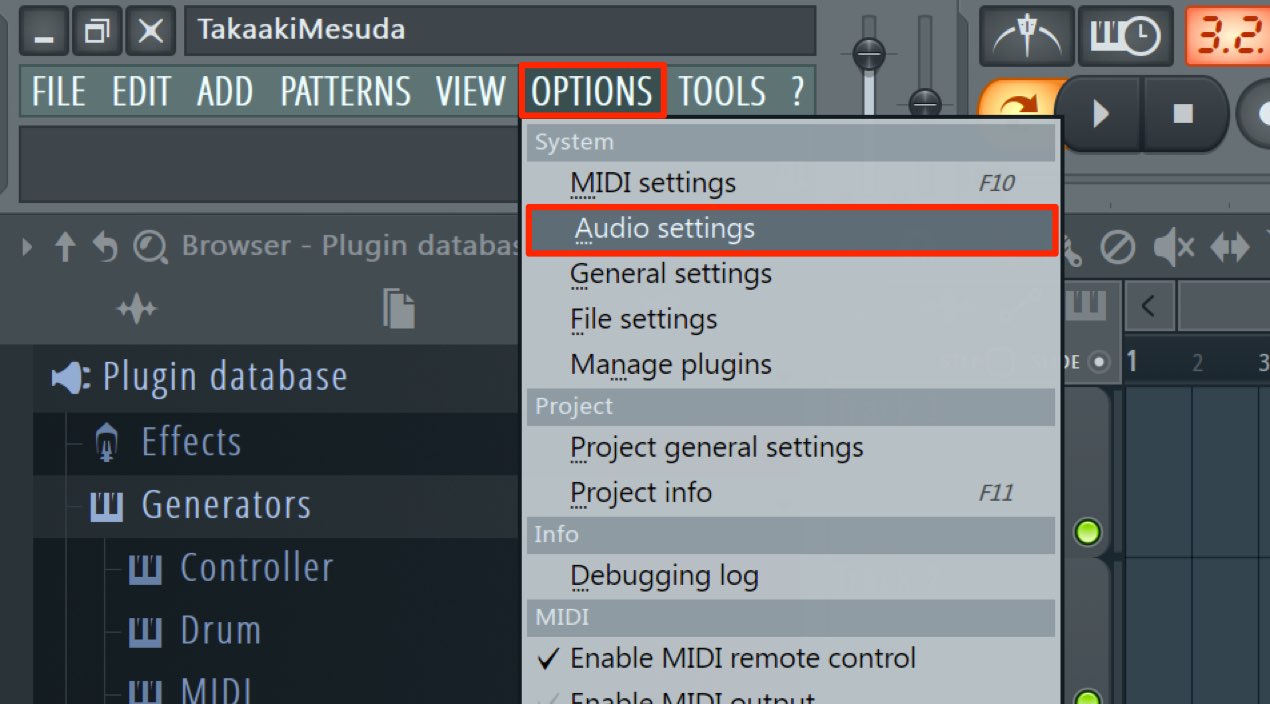
Select “Audio Settings” from “Options.”
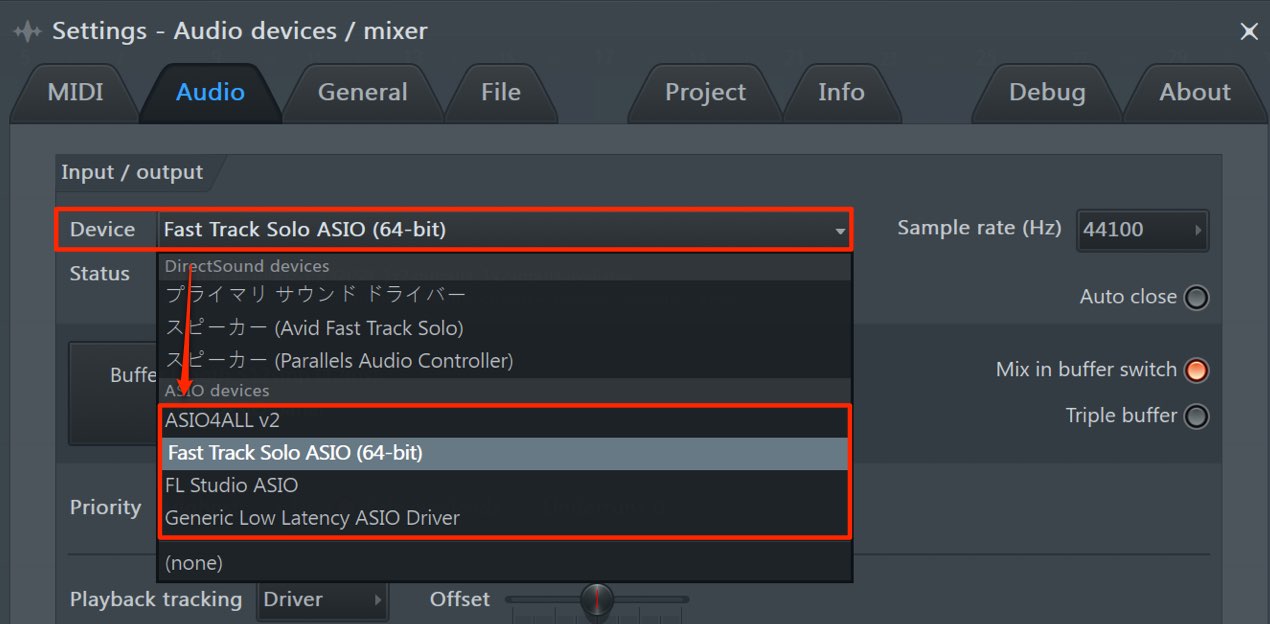
Under “Device,” select the device or driver you want to use for audio output.
ASIO4ALL and Generic Low Latency ASIO Driver are Windows driver options that can use built-in audio devices; the actual inputs and outputs depend on their configuration.
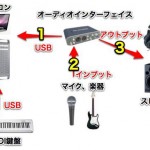
If you use an audio interface,
select the appropriate device or its driver here. Audio will be routed to the selected output.
An audio interface also lets you record vocals and acoustic instruments.
Input and output selection depends on the driver and platform. Standard drivers commonly use one device, but FL Studio ASIO and ASIO4ALL on Windows and Core Audio on macOS can support separate input and output devices; consult the driver settings.
Choosing an Audio Interface for Recording Instruments

Balancing Latency and CPU Load with Buffer Size
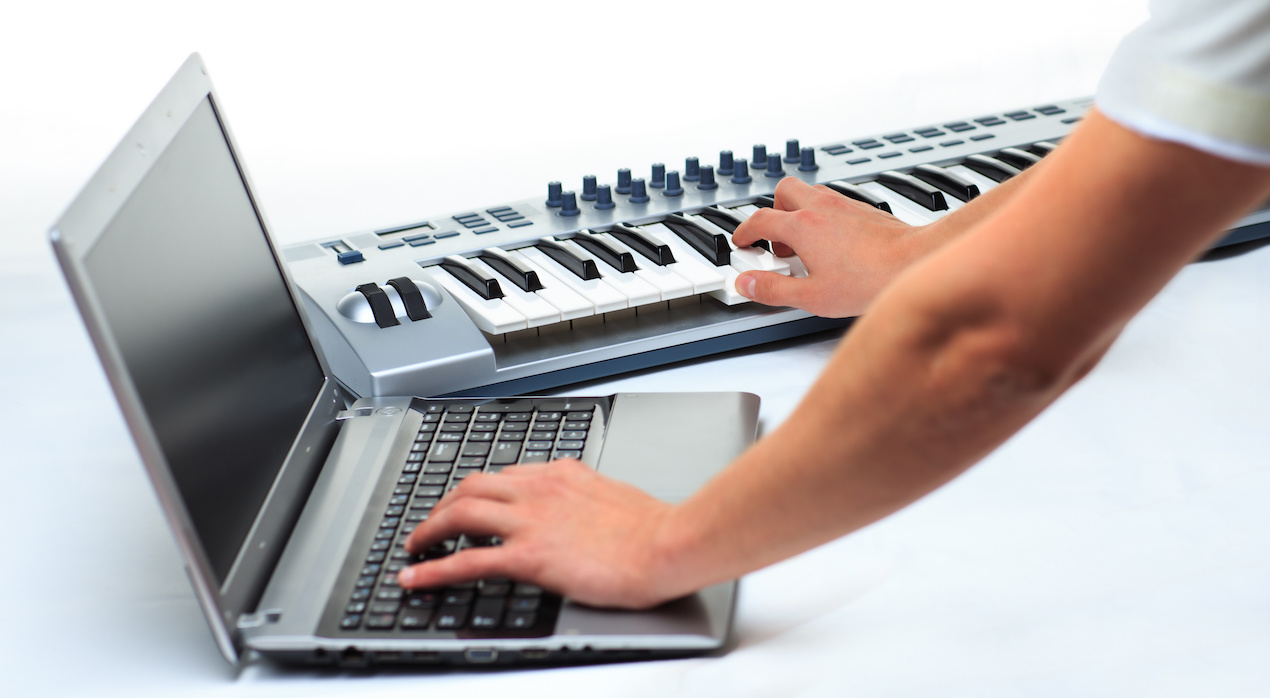
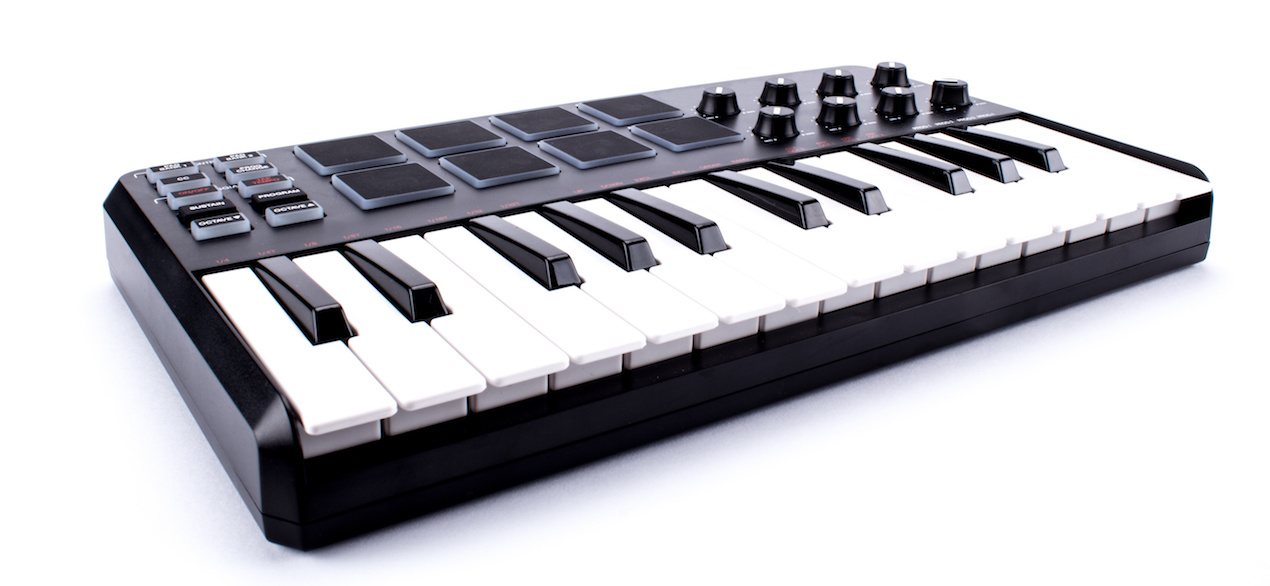
When recording in real time with a MIDI keyboard,
or recording an acoustic instrument, you may hear a delay between playing and monitoring the sound.
This delay is called latency.
What Is Latency?
Latency is related to the audio device’s buffer size.
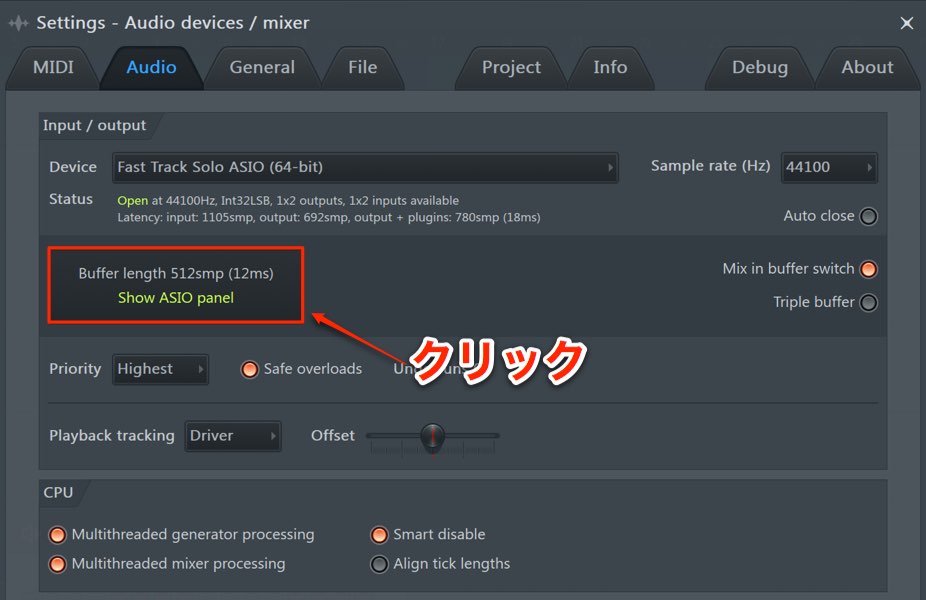
Click the area shown to adjust the device’s buffer size.
The window varies by device, but the general approach is similar.
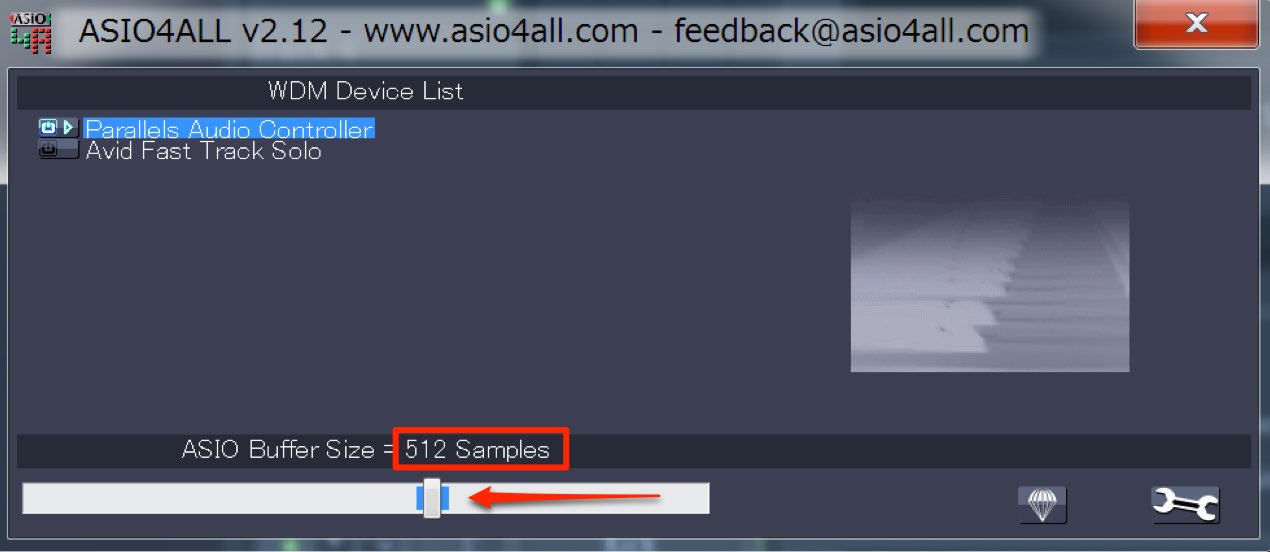
Adjust “Buffer Size” using values such as 128, 256, 512, 1024, or 2048 samples.
- A smaller value reduces latency but increases the load on the computer
- A larger value increases latency but reduces the load on the computer
The appropriate value also depends on your computer’s performance.
If the value is too small, the CPU may not keep up,
causing playback problems or noise.
Latency is often less noticeable when you are not playing or monitoring live,
so one approach is to use a smaller value while recording and raise it when appropriate.
If You Have Trouble Setting Up
If your equipment is not working correctly or you hear no sound, check the following.


Frequently Asked Questions
Q1. What should I check if FL Studio produces no sound?
First check the selected audio device under Options → Audio Settings. Then check your connections and, if the interface requires one, that its current manufacturer’s driver is installed.
Q2. Is a smaller buffer size always better?
A smaller buffer reduces latency but increases CPU load. If it is too small, the computer may not keep up and noise can occur. Choose a balance suited to your system.
Q3. Should I use different settings for recording and playback?
It can help to use a smaller buffer during recording to reduce latency and a larger one during playback to ease CPU load. Choose the setting that works reliably for your system.
NEW ARTICLES
Latest English Articles