
Automation in Cubase lets you change volume, pan, and plug-in effect parameters over time for more precise and expressive mixes. You can make detailed adjustments to suit each section of a song, such as changing the vocal level in particular passages or enabling an effect only at a specific point. With straightforward controls—click to create automation events and drag to adjust them—users from beginners to advanced producers can take the quality of their songs much further.
This time, we will explain automation: the feature that lets you change various Cubase parameters freely over time.
Learning to use automation will help you mix with greater precision and expand your range of expression, so take the time to master it.
Automation Video
Selected Questions and Answers from the YouTube Video

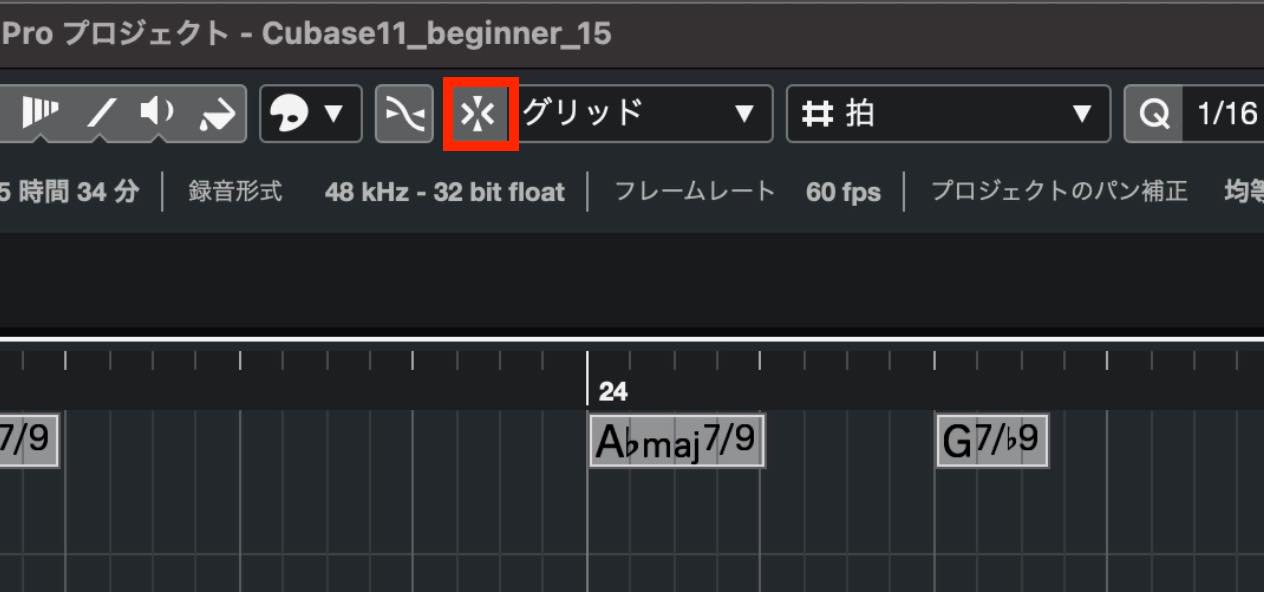
Snap does not seem to work at all for volume automation, which makes editing frustrating. Is there another setting besides turning on the grid?

Snap Type, immediately to the right of the Snap On/Off button, may be set to something other than Grid. Please check that setting.
Automation Overview
When you set a parameter in Cubase, such as a volume fader, pan control, or plug-in effect knob, that value normally applies from the beginning of the song to the end.
>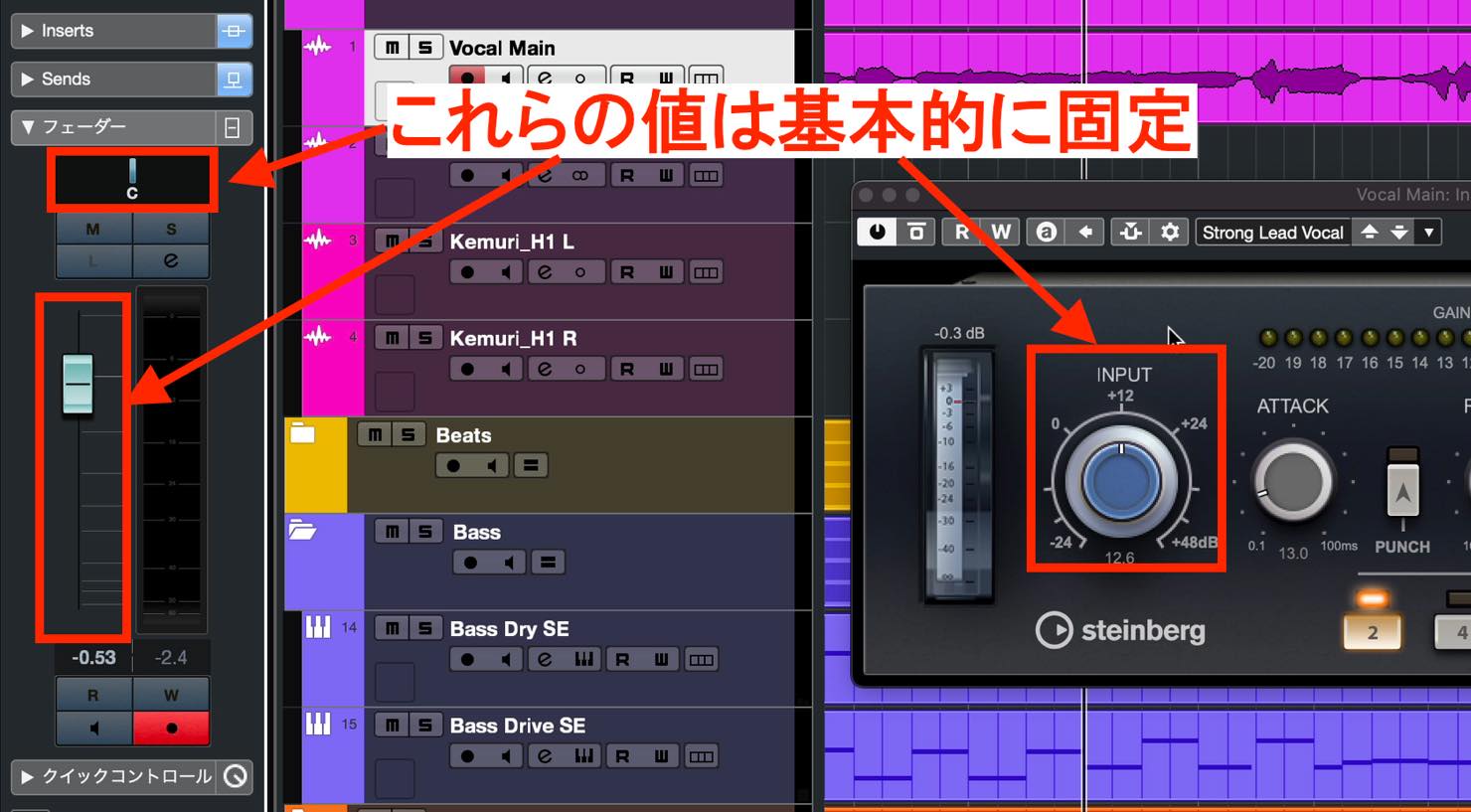
Automation lets you change these values during the song to suit each section.
Writing Volume Automation
Vocal volume automation is a typical example.
This differs fundamentally from the method covered in the previous tutorial, where we split events and raise or lower their volume. Event volume adjustments are useful for roughly evening out levels just after recording, while automation is used to fine-tune levels after plug-in processing.
Let's apply automation to this vocal track.
Click the Show Automation button at the lower left of the track.
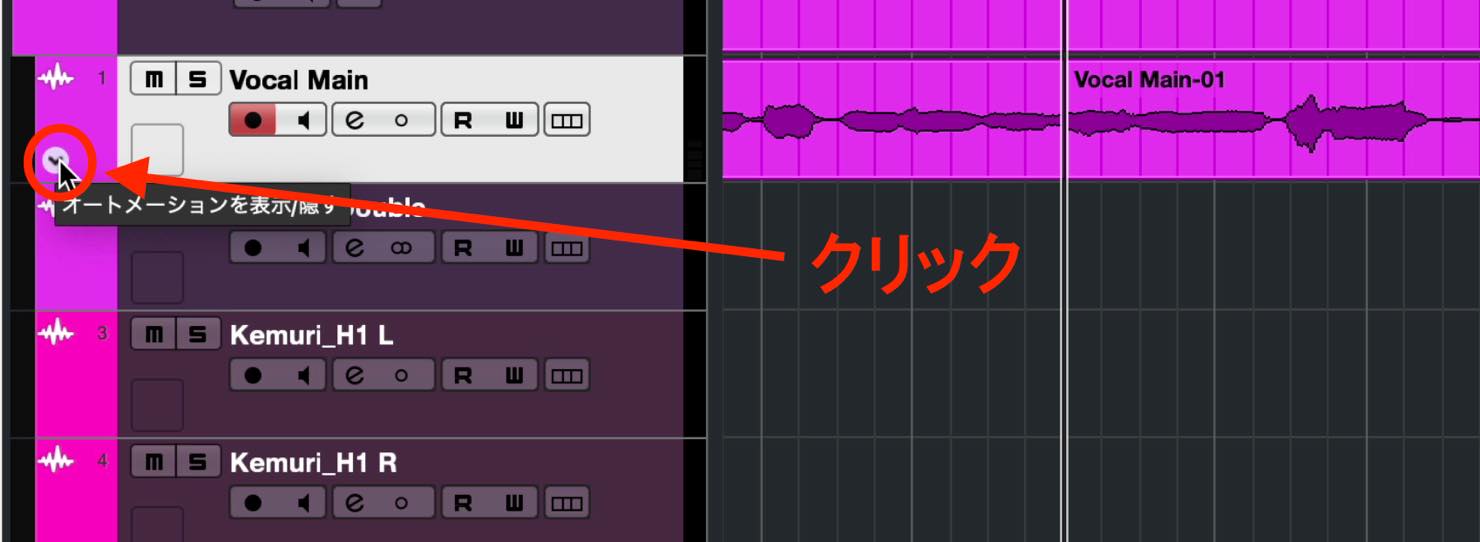
An automation lane belonging to the vocal track appears. Make sure its parameter is set to Volume.
The numerical value beside it matches the current fader level, and the height of the horizontal line in the lane represents that value.
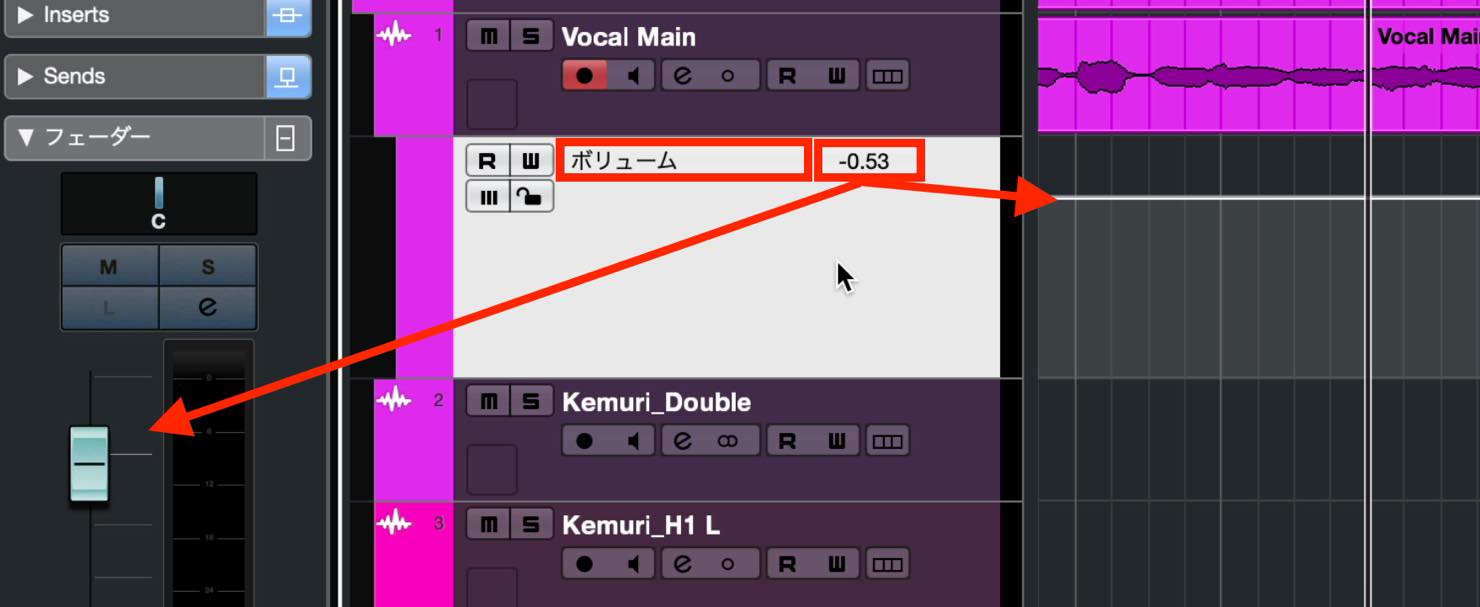
Raise or lower portions of this line to change the volume over time.
Move the pointer over the automation line where you want the volume to change. It automatically becomes a pencil; click to create an automation event.
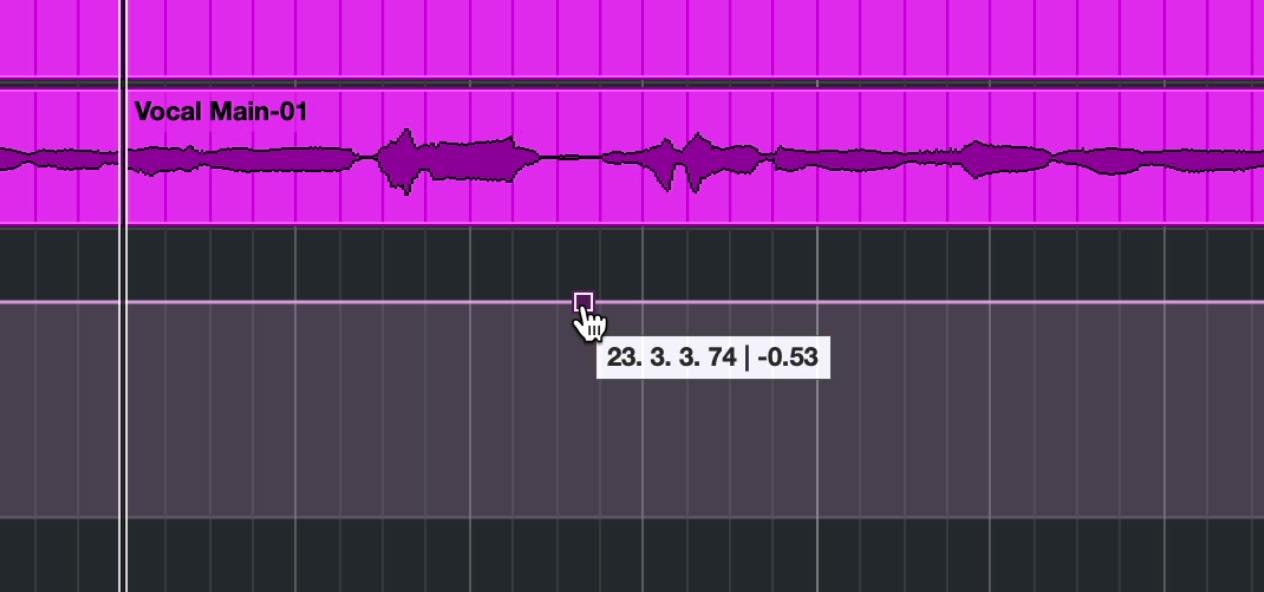
With Snap enabled, you can move events only in the specified increments. Turn Snap off when you want to make finer adjustments.
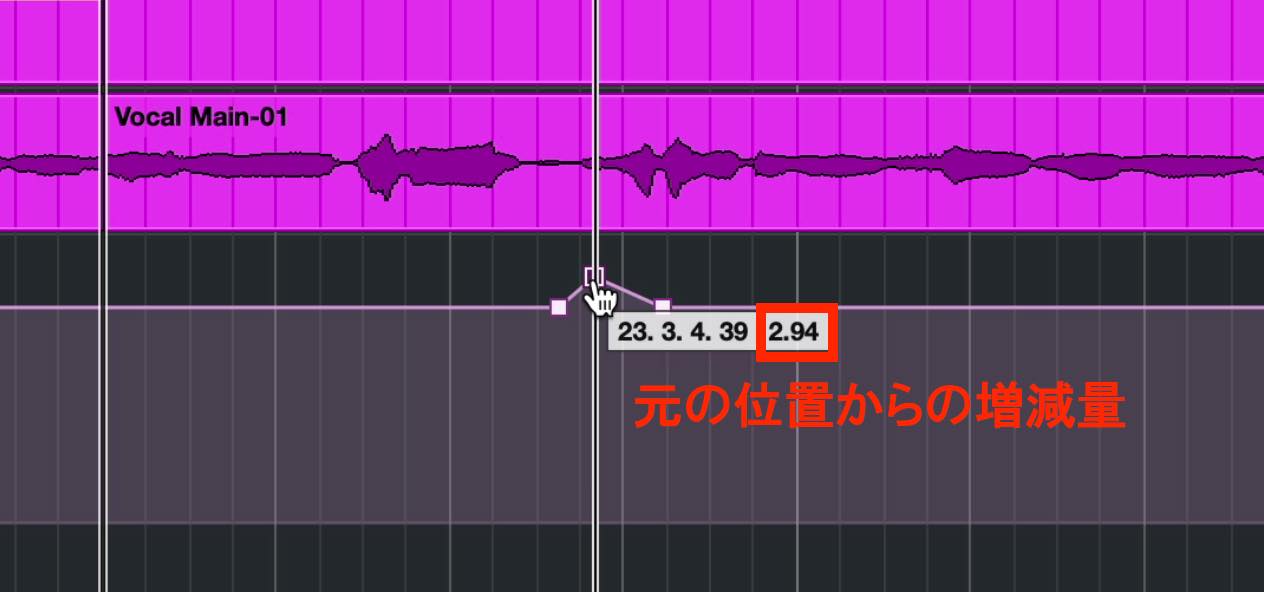
Create about three events as shown, then drag one up or down to raise or lower the volume in that section. The value beside the pointer shows the relative amount by which you are raising or lowering it.
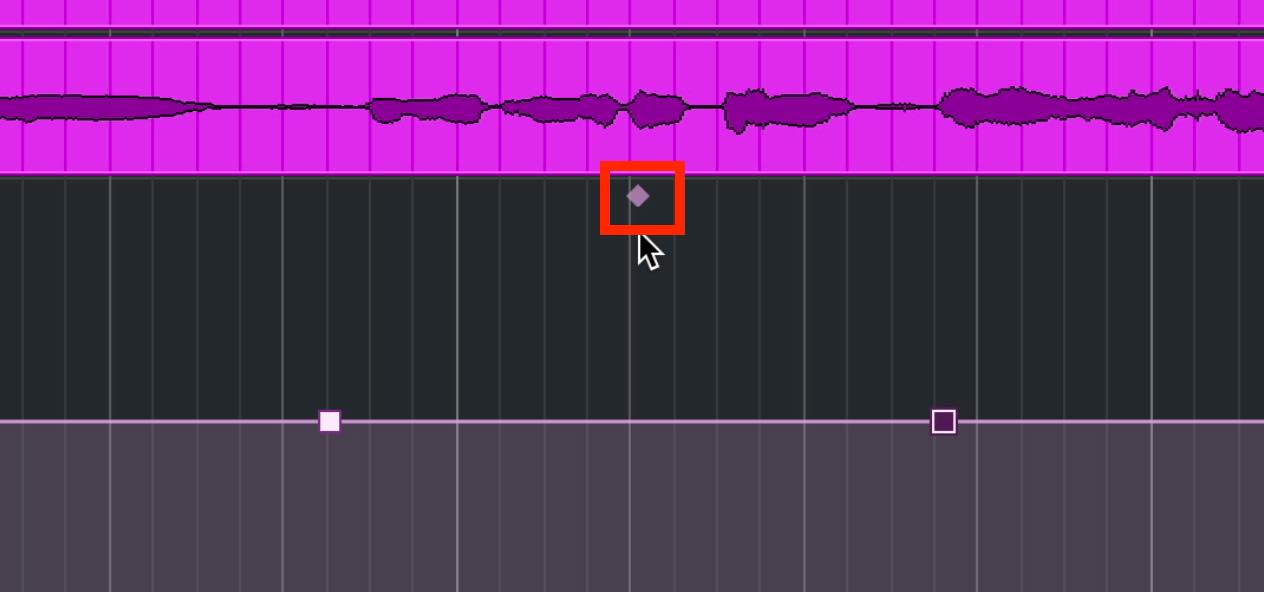
When you create two automation events, a diamond-shaped handle appears above the midpoint between them.
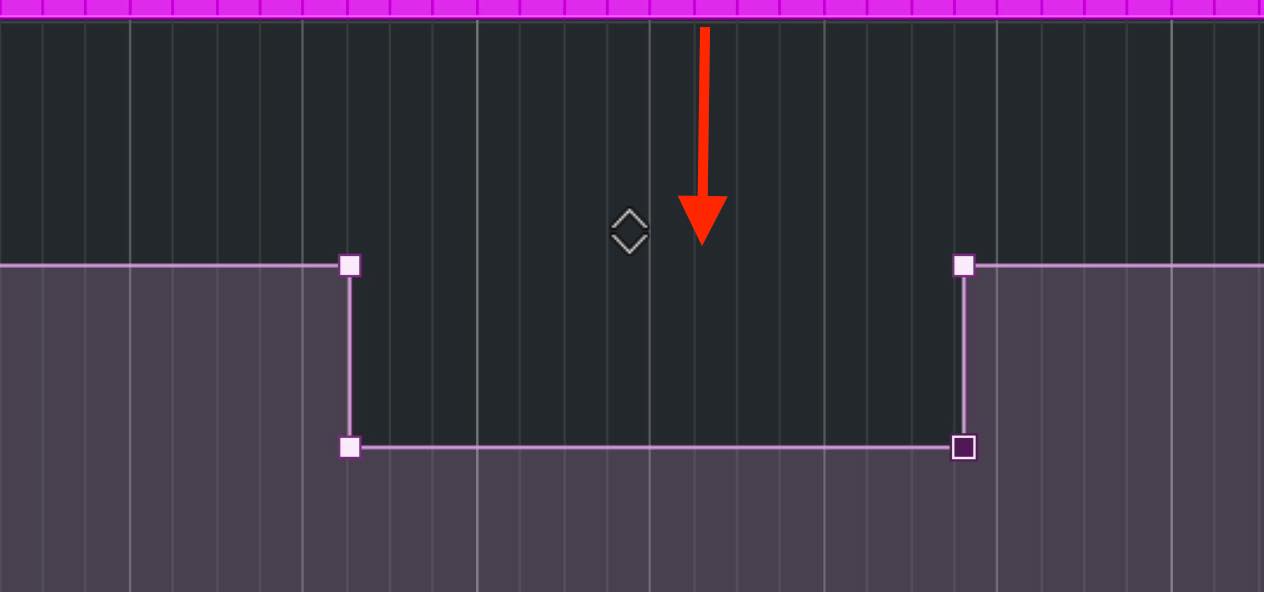
Drag this handle up or down to raise or lower the whole section bounded by those two points. This is another useful technique to remember.
Editing Automation
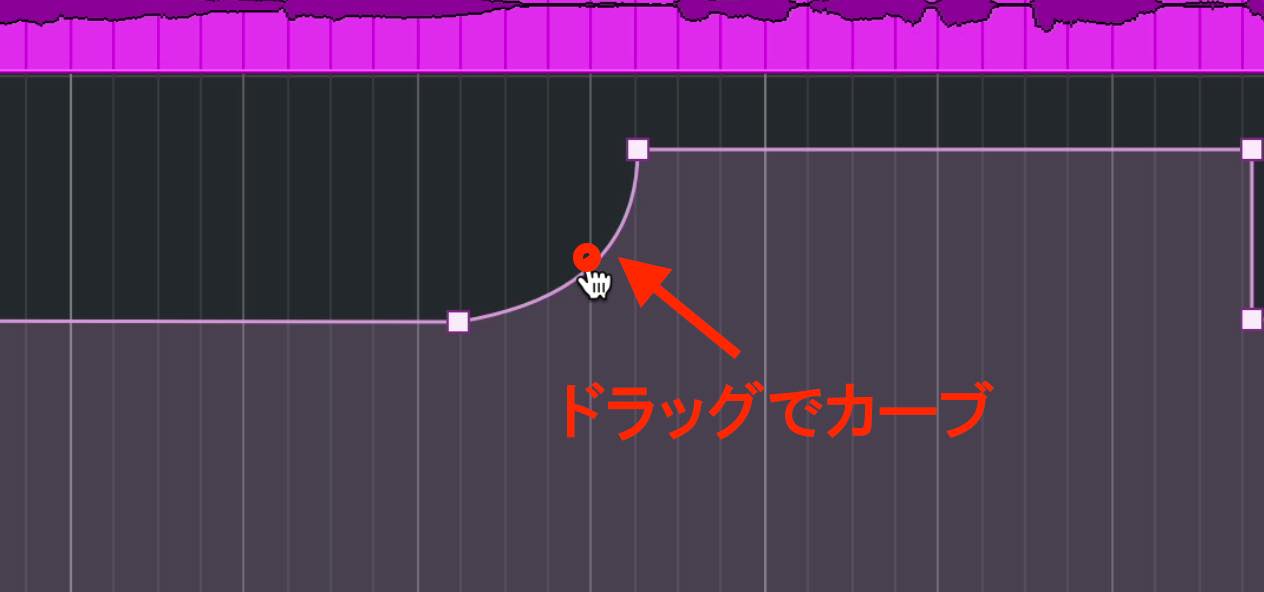
Two automation events at different heights form a sloping line, and you can turn this slope into a curve. Drag the round handle along the slope to bend the line and control the character of the volume change.
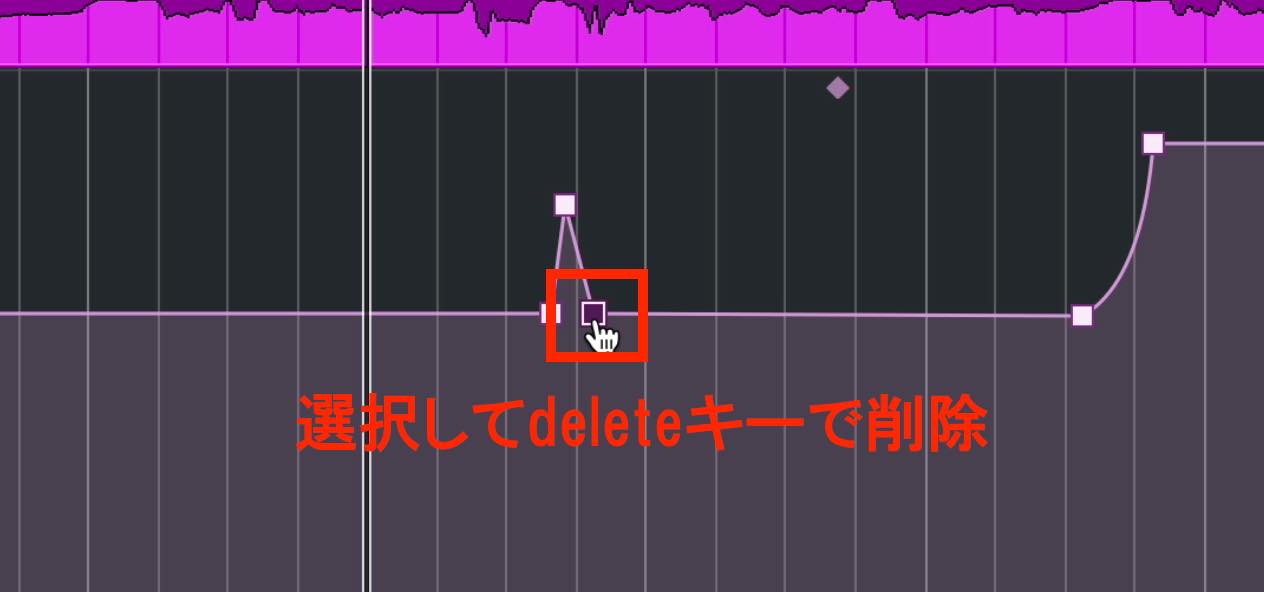
To delete an automation event, click to select it and press Delete. You can also select and delete multiple events.
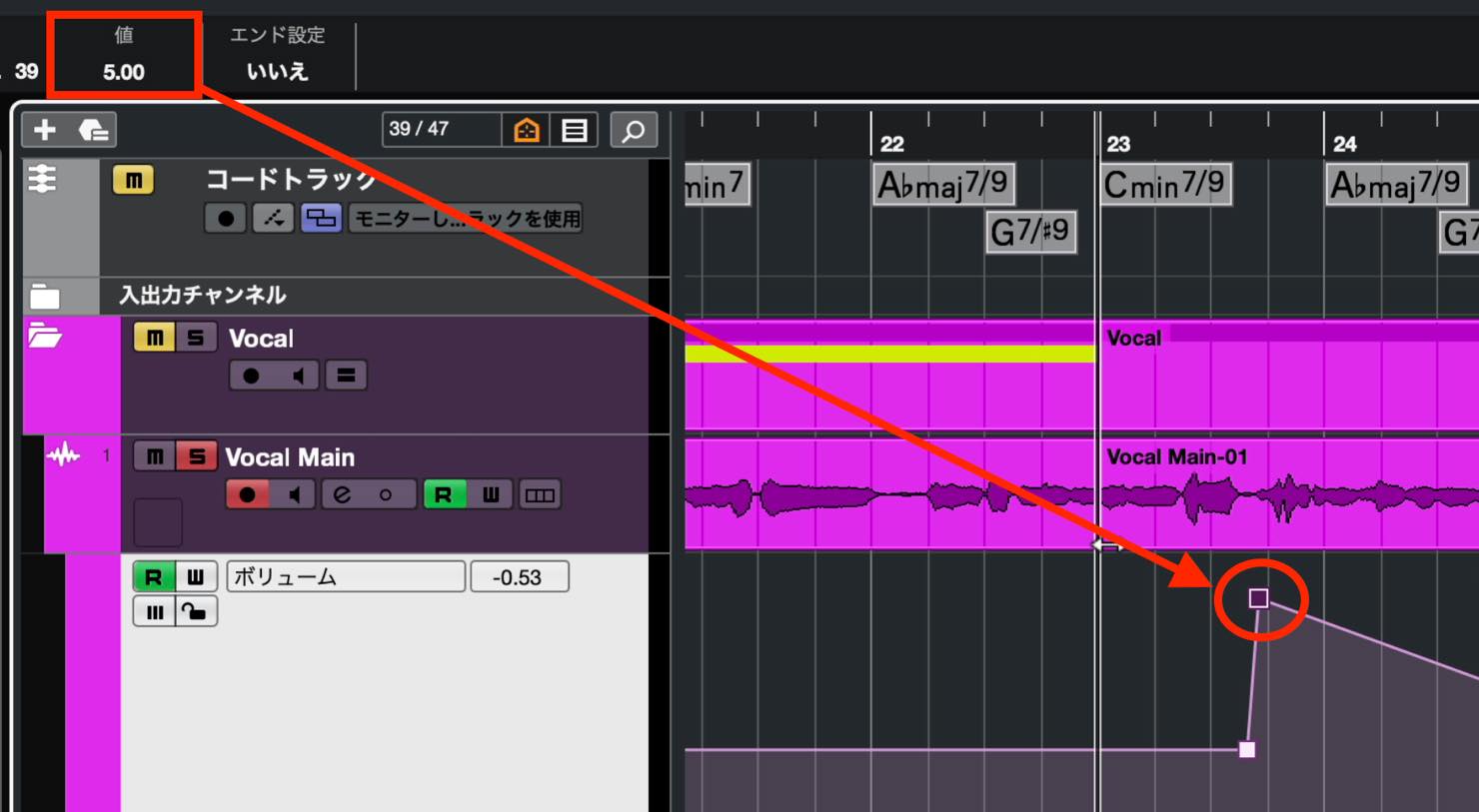
Selecting an automation event also displays its parameters on the Info Line. Enter a value there to set an exact volume level, for example.
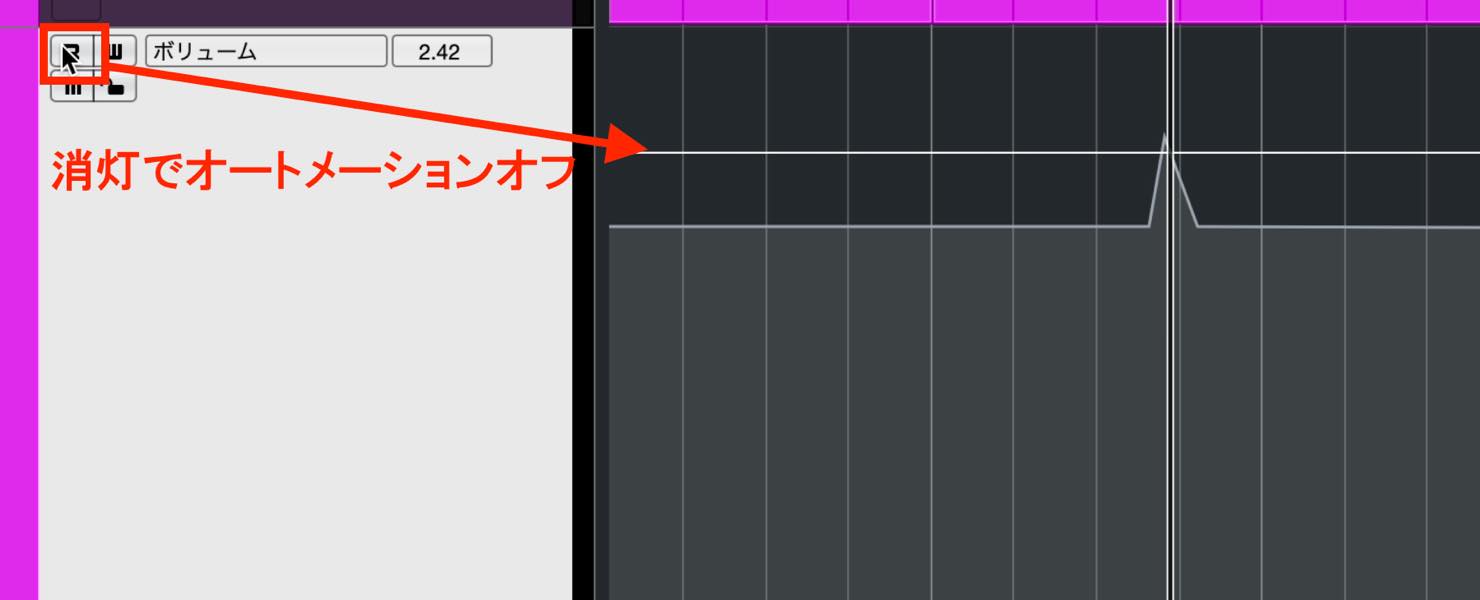
The track's R button lights automatically when you write automation. Click it to turn it off and disable automation. The parameter will then remain at the value at the playback cursor's position.
Keep in mind that a parameter being controlled by automation will not retain your manual adjustments. For volume, for example, moving the fader will not override the level set by the automation: it will return to that level.
To raise or lower the overall volume in this situation, right-click the automation lane and choose Select All Events on Track.
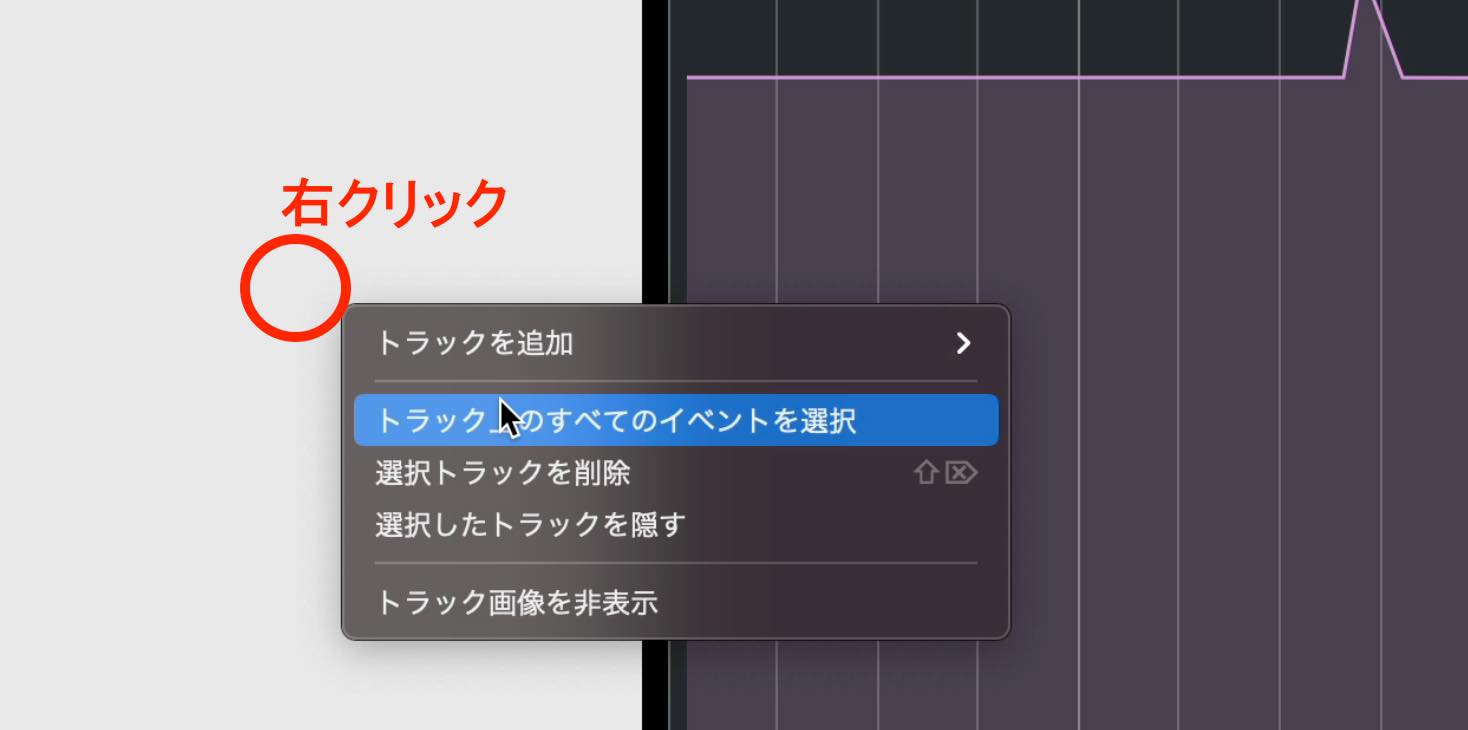
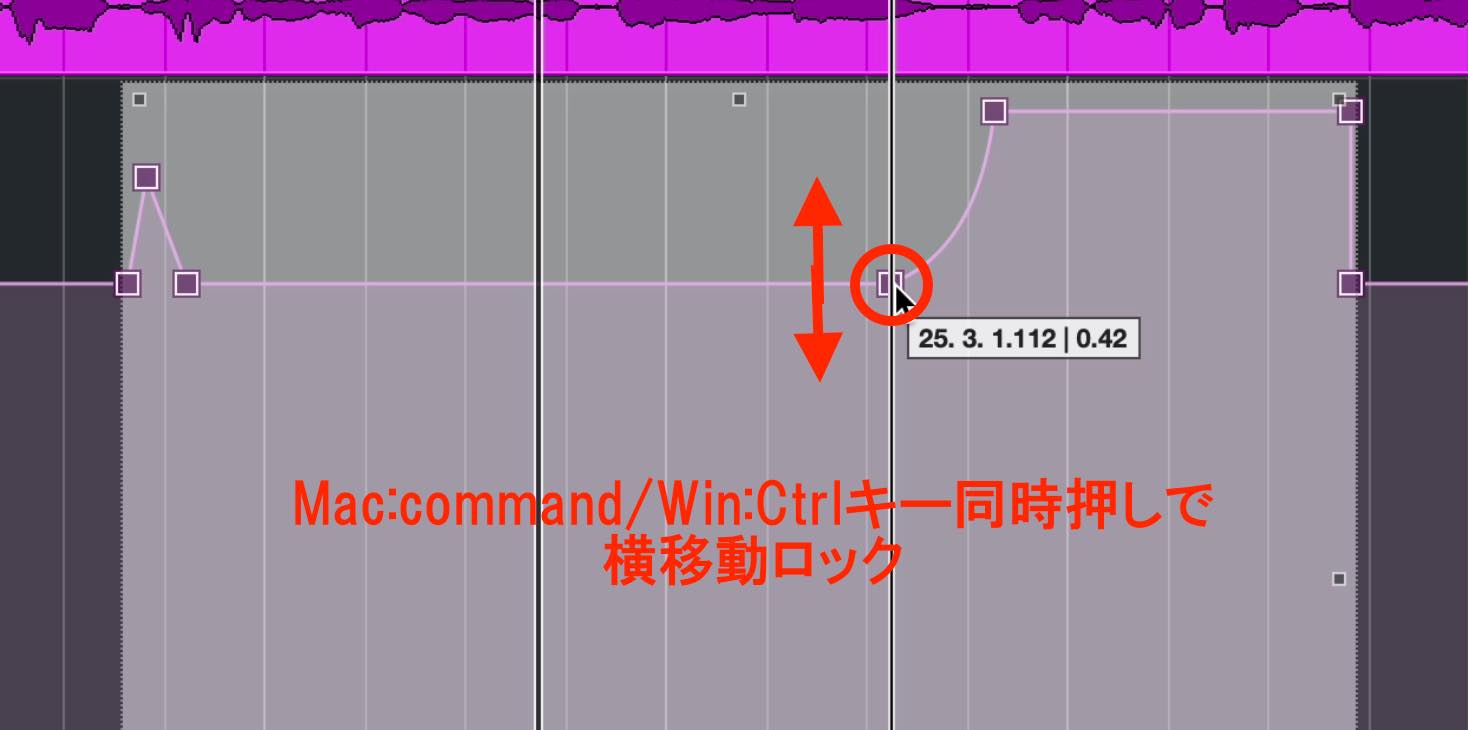
Now drag any selected event up or down, and all the events will move together. Holding Command on Mac or Ctrl on Windows while dragging prevents sideways movement, which is useful here.
Automating Plug-in Effects
Let's look at another example: automating a plug-in effect parameter.
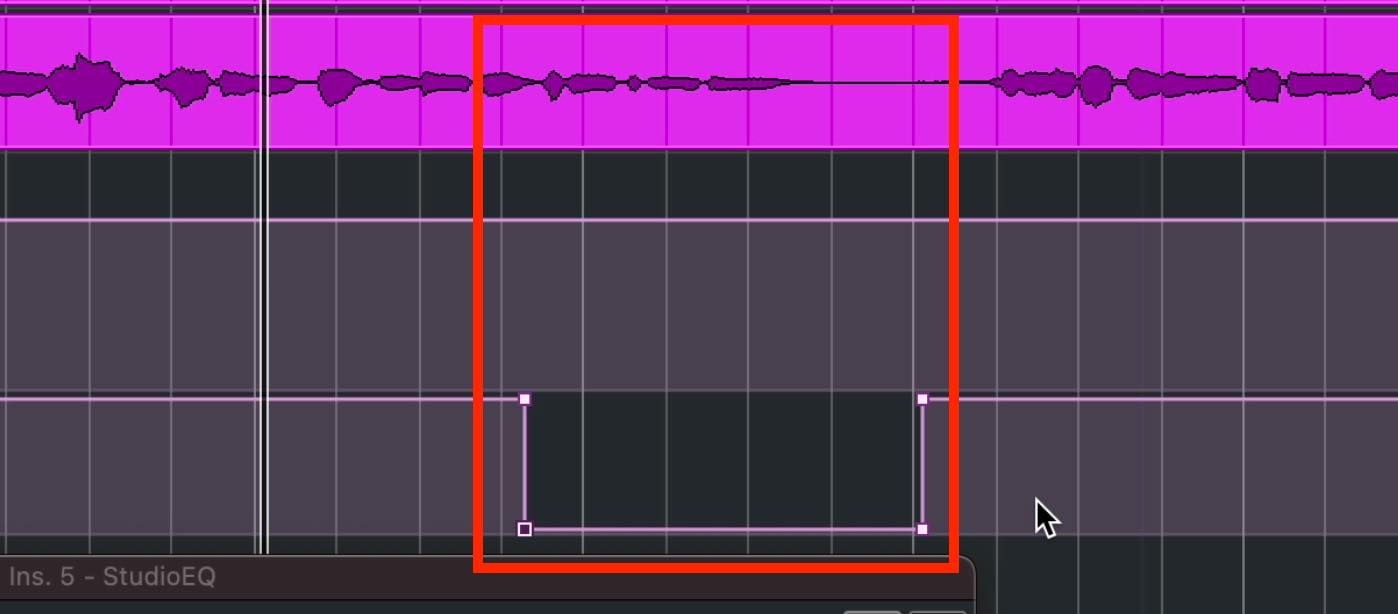
Suppose you want this EQ plug-in to affect just one passage in the vocal. You need automation that normally keeps the EQ bypassed and turns bypass off only for that passage.
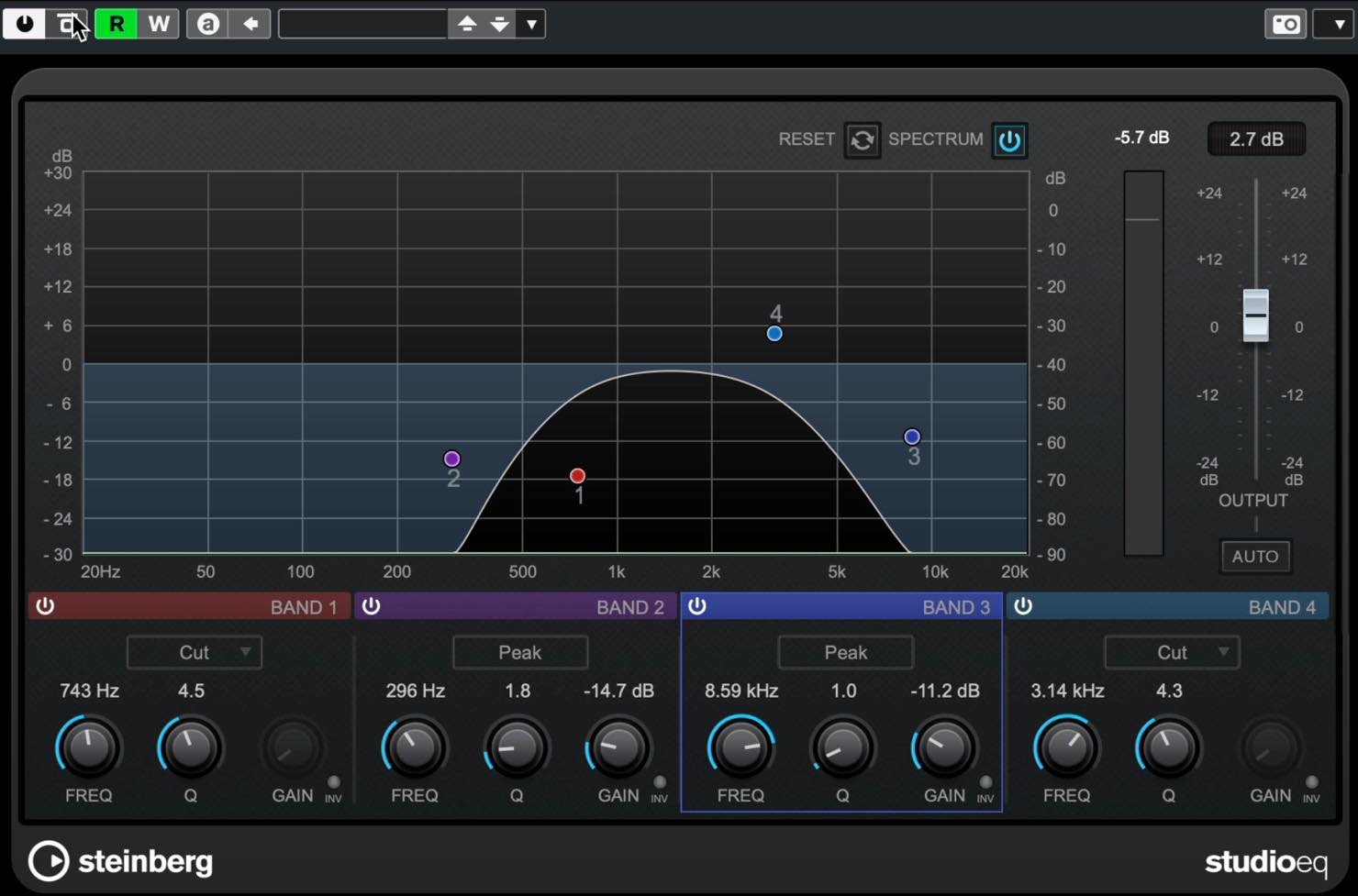
There are two ways to do this.
For the first method, right-click the bypass button and choose Show Automation Track for Bypass from the menu.
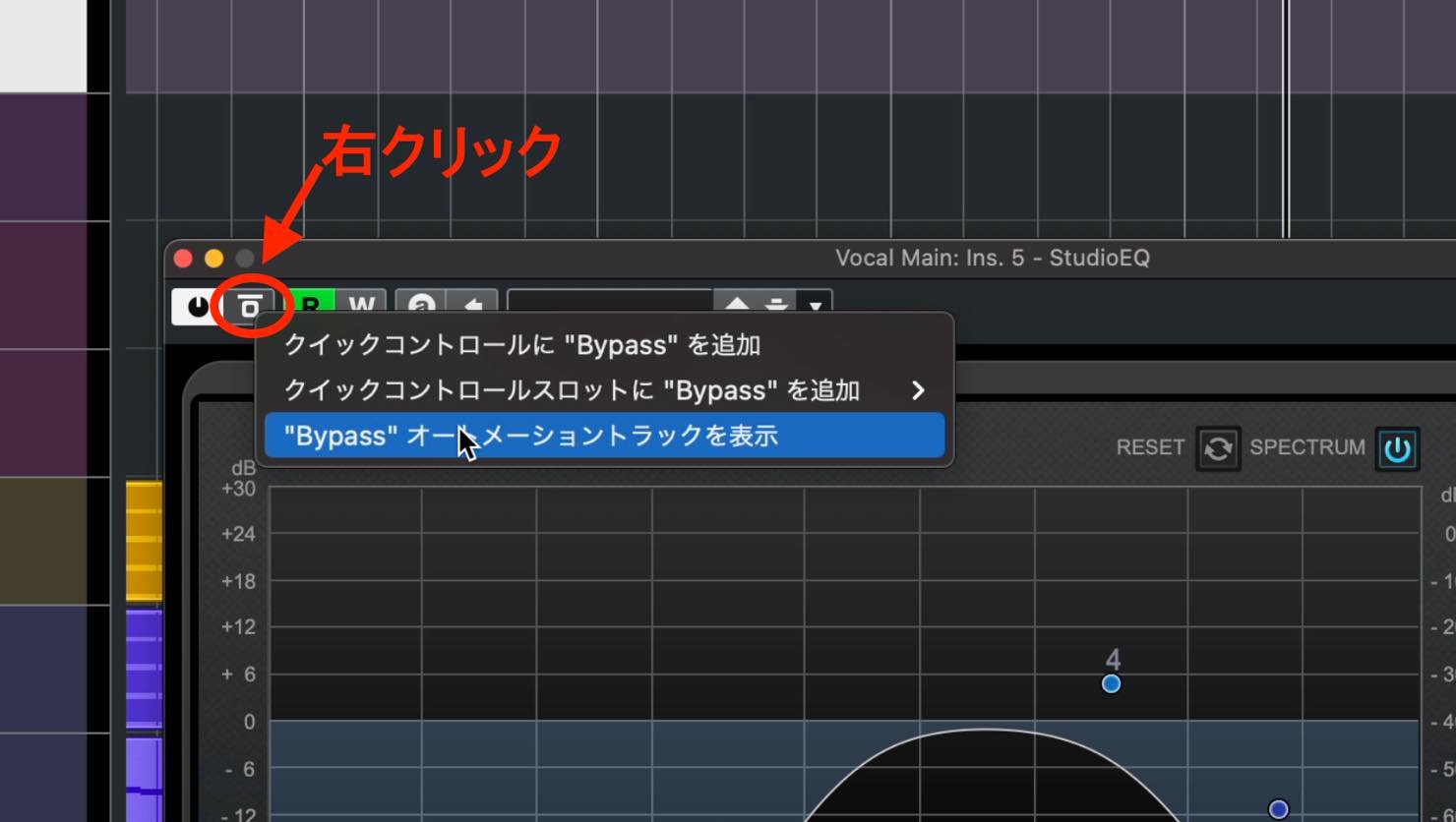
This adds an automation lane for the EQ's bypass button. You can then write automation in that lane.
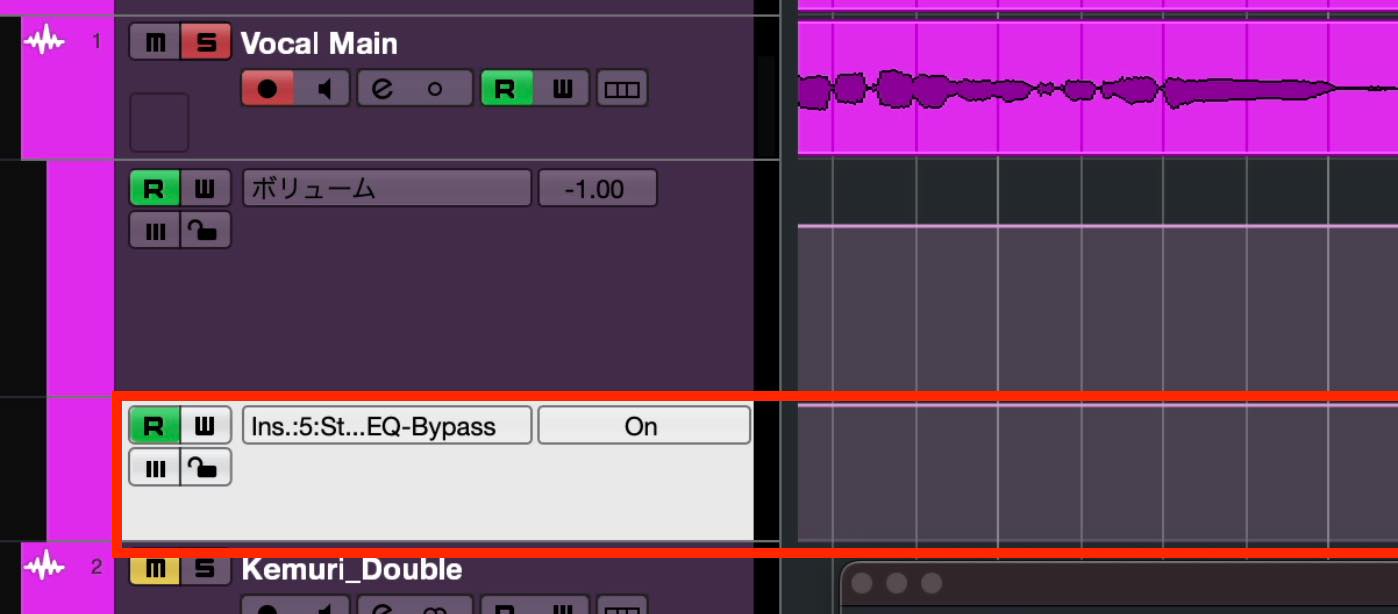
For an on/off button, the maximum value means on and the minimum means off. Here, bypass should normally be on; turn it off only where you want to apply the EQ.
The other method is to record your control movements in real time.
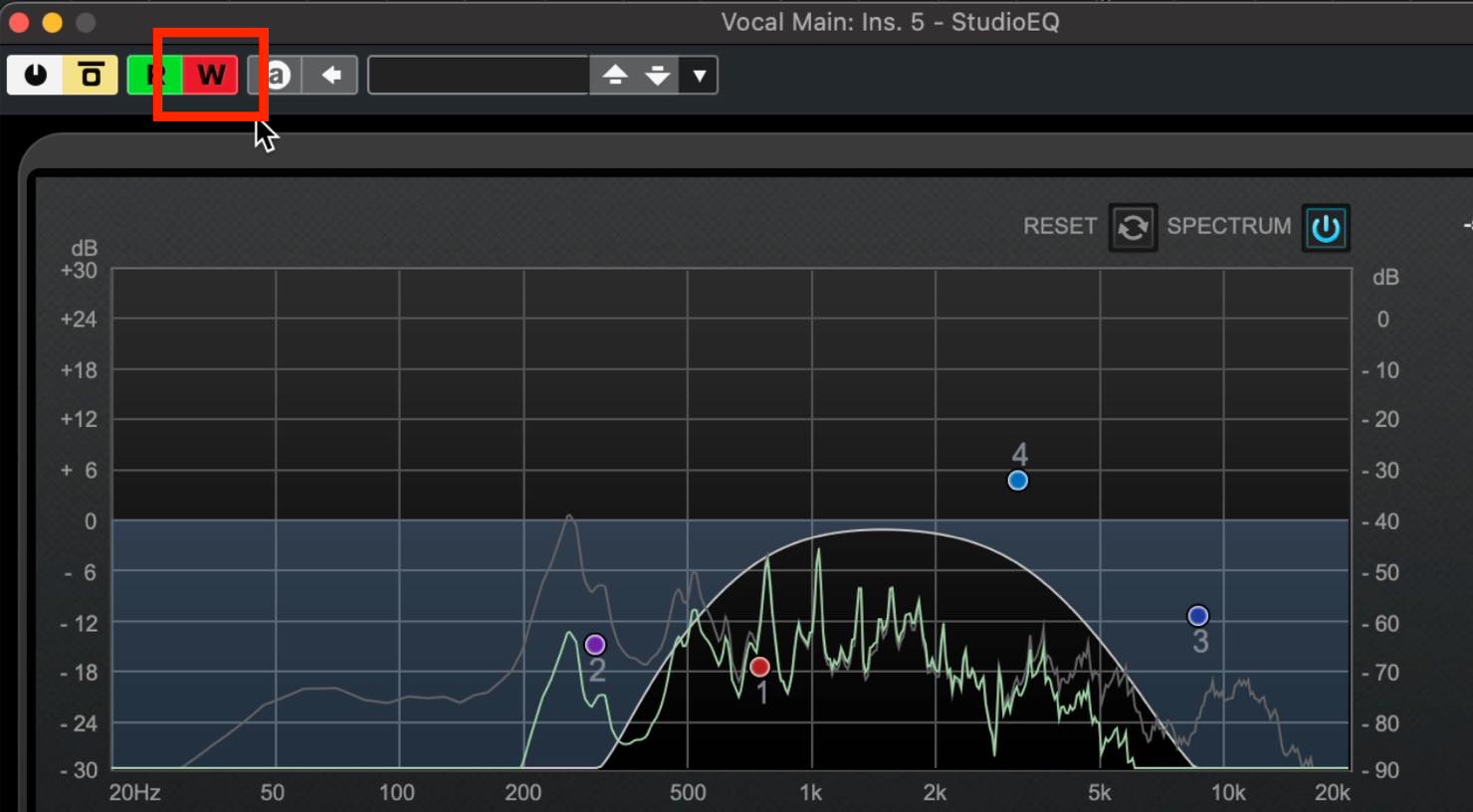
Click the W button in the plug-in window so that it lights, then operate the controls during playback to record your movements.
An automation lane is added automatically, displaying the recorded parameter. If the timing is not quite right, you can adjust it manually afterward.
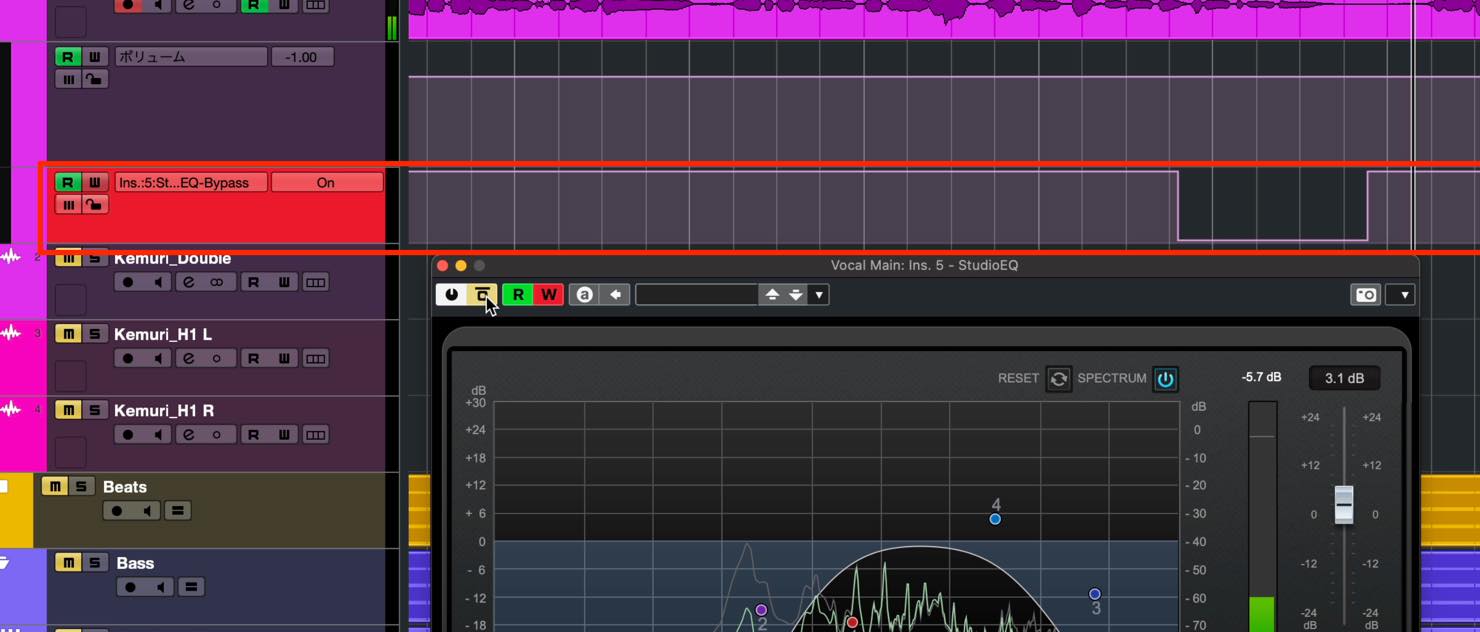
When you have finished writing automation, turn the W button off. If you leave it enabled, any control movements during playback will continue to be recorded.
Of course, automation is not limited to bypass: it works with almost all effect and synthesizer parameters.
For more information about writing modes and related details, see this article.
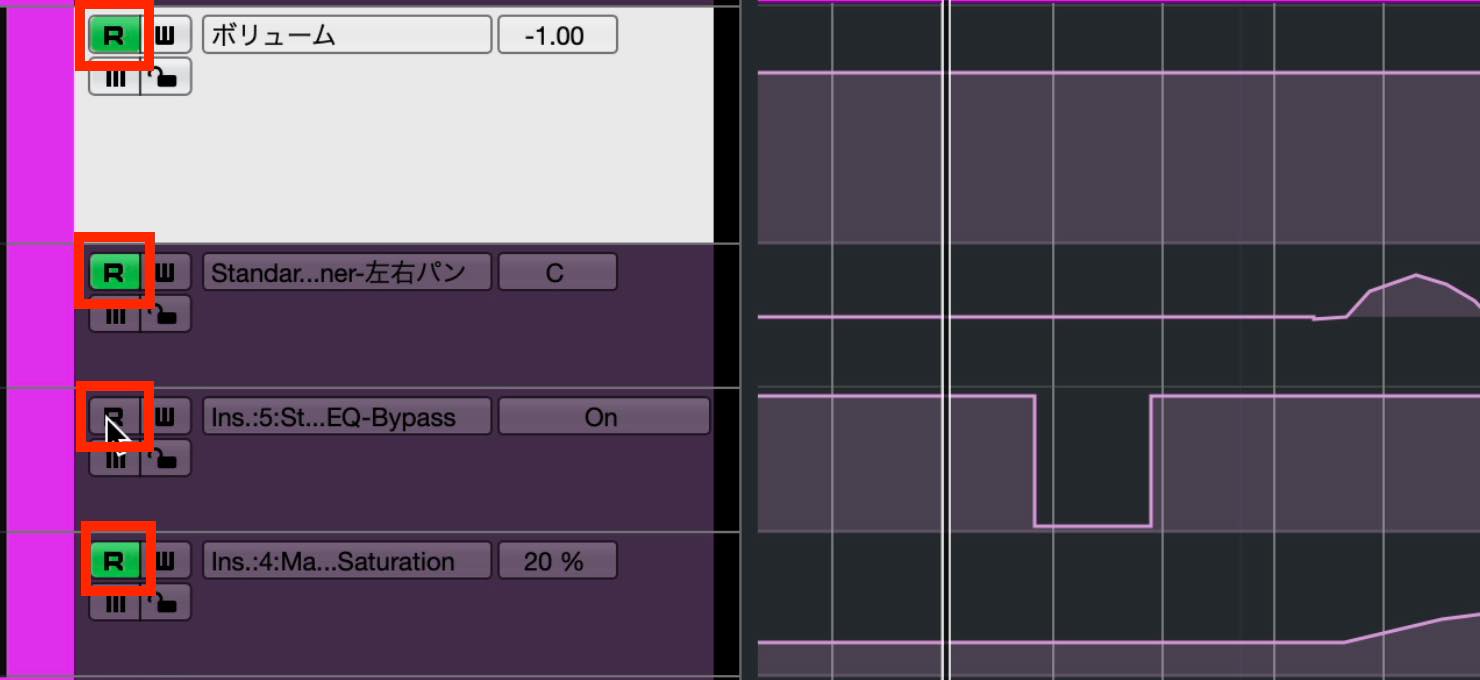
Each automation lane has its own R button. Plug-in automation can be enabled or disabled individually, but the R buttons for track automation, such as volume and pan, are linked.
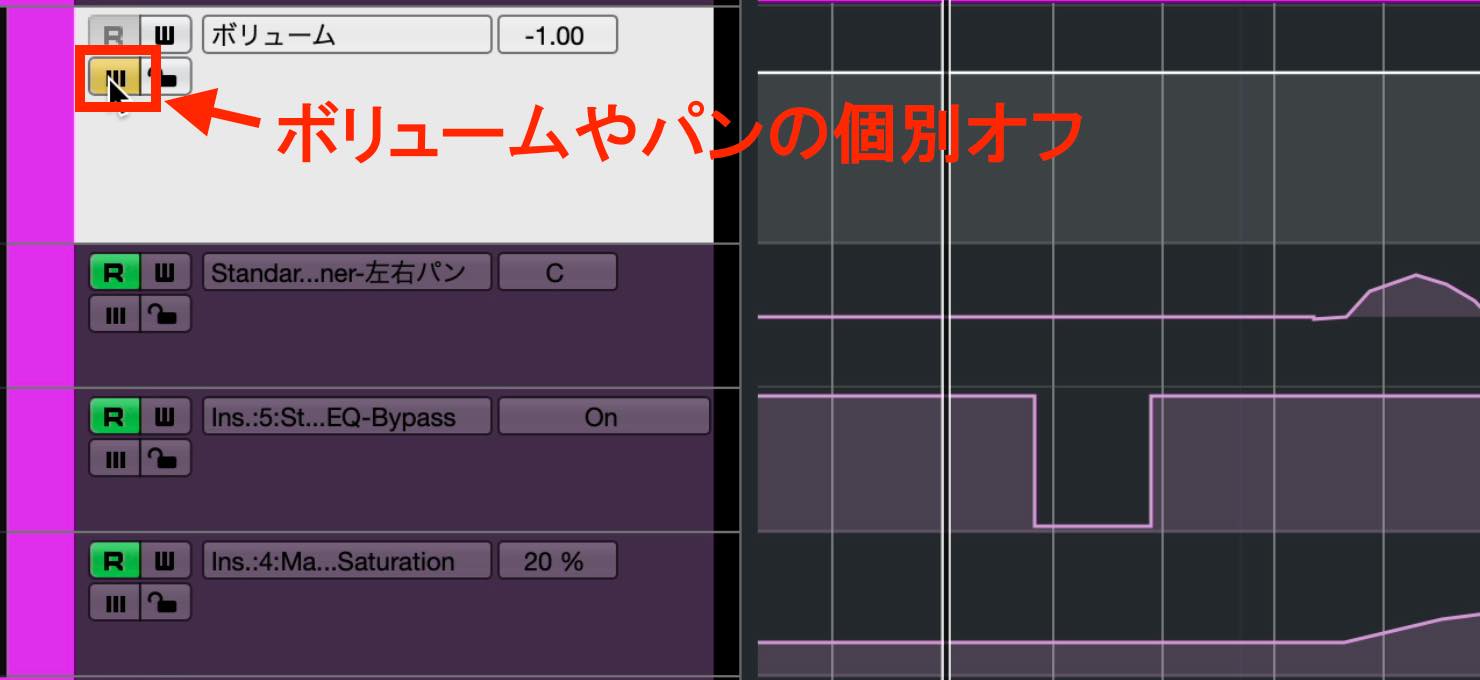
To turn off an individual track automation lane, use its Automation Mute button instead.
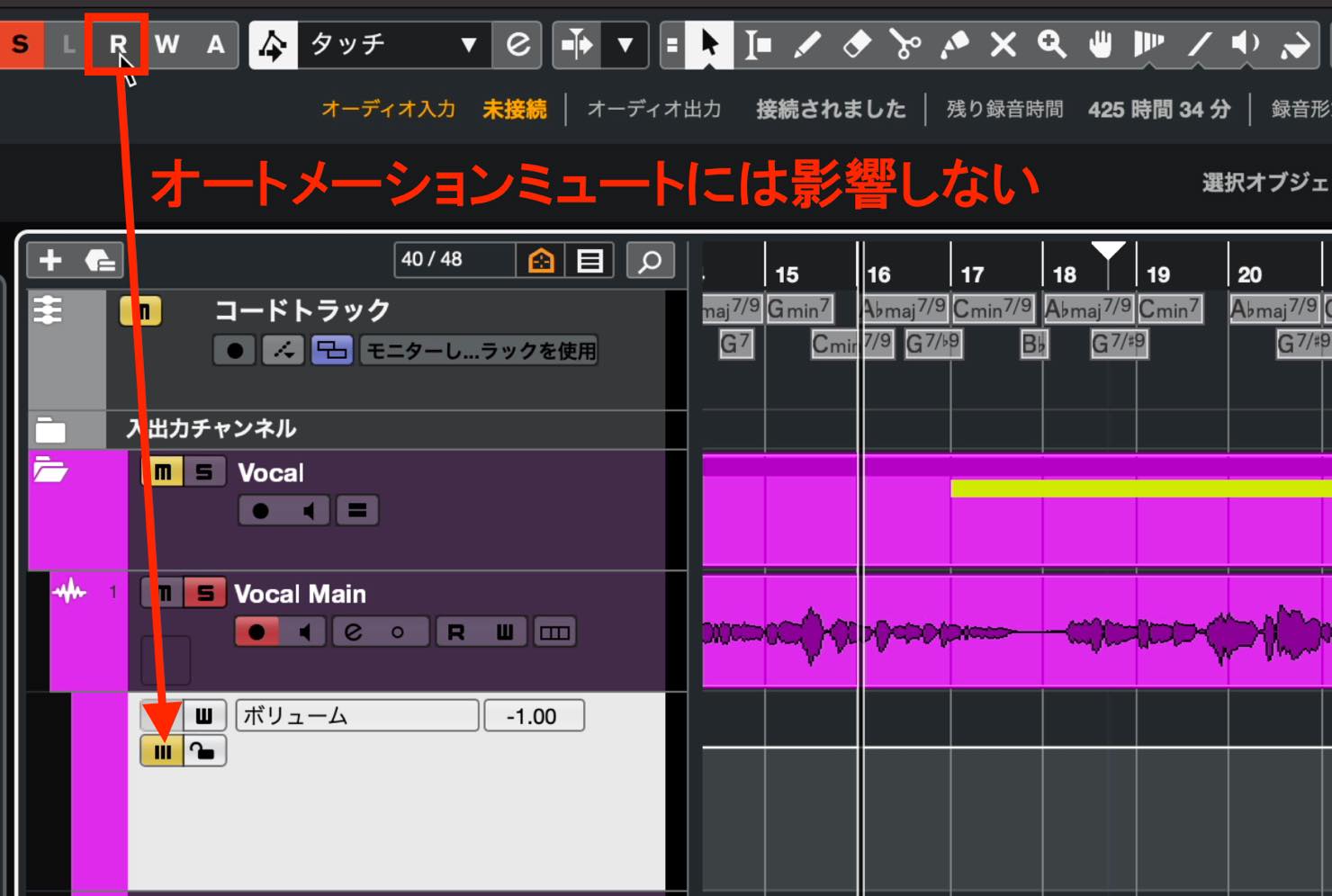
The R button at the top can also enable or disable automation for all tracks, but it does not affect the Automation Mute settings.
That concludes our introduction to automation.
Mastering automation can take your songs up another level. Take the time to shape the sound you have in mind.
For more detail on automation modes and related topics, see the separate video linked in this article.
Next time, we will cover MixConsole, an essential tool for mixing.
Part 15 of our Cubase 11 beginner series covers automation.
Automation helps you mix with greater precision and expand your range of expression, so take the time to master it.
Details: https://t.co/piMCeQCgmS #DTM #Cubase— SLEEP FREAKS (@SLEEPFREAKS_DTM) November 7, 2021
Frequently Asked Questions
Q1. What is the difference between automation and event volume adjustment?
Event volume adjustments are used for rough level corrections just after recording, while automation is used to fine-tune levels after plug-in processing. Automation also allows more sophisticated changes over time.
Q2. Why can't I manually change the fader level after writing automation?
When automation is enabled, the parameter returns to its automated value, overriding manual changes. To change the overall level, select all automation events and move them together.
Q3. What are the two ways to write automation for plug-in effects?
The first is to show the parameter's automation lane from its right-click menu and write events manually. The second is to enable the W button and record your control movements in real time during playback.
NEW ARTICLES
Latest English Articles






































































































































