This article explains how to change and adjust the sounds in a drum track in FL Studio: choosing samples from the Browser, adjusting pan and volume in the Channel Rack, and adding a software instrument. Even with the same pattern, changing the sounds can transform how a track feels. These basic controls help you refine your drums.
Polishing Your Drum Track
After setting the tempo in the previous section, you may have a clearer sense of the song's atmosphere.
Next, let's replace the sounds in the drum pattern we've created.
Even with the same pattern, changing the sounds can make a big difference.
Tutorial Video
Selected Questions and Answers from YouTube

Hello. I'm considering buying FL Studio 12 Signature Bundle. Could you tell me how much library content is included? I wasn't sure where to ask, so I'm asking here. Thank you.

You can check the following page:https://www.image-line.com/flstudio-feature-comparison/index.php
Finding Sounds in the Browser
Using the Browser is an intuitive way to change sounds.
First, open the Browser.
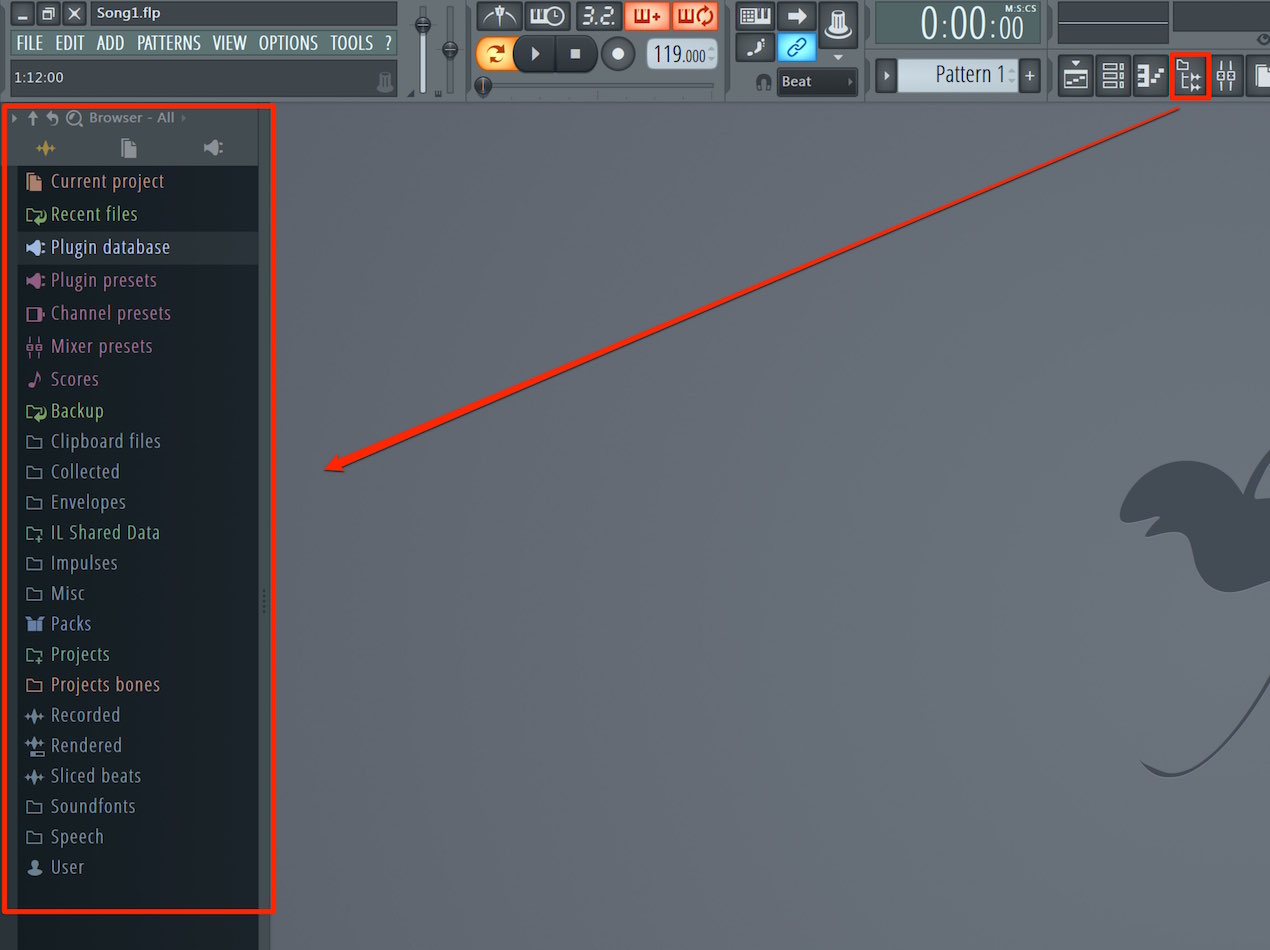
Click the Browser icon to display it on the left.
The Browser provides access to instruments, effects, MIDI patterns, audio samples
and many other items.
It has uses beyond changing sounds, so it's worth becoming familiar with it.
Replacing Sounds from the Browser
Let's replace drum kit sounds with audio samples.
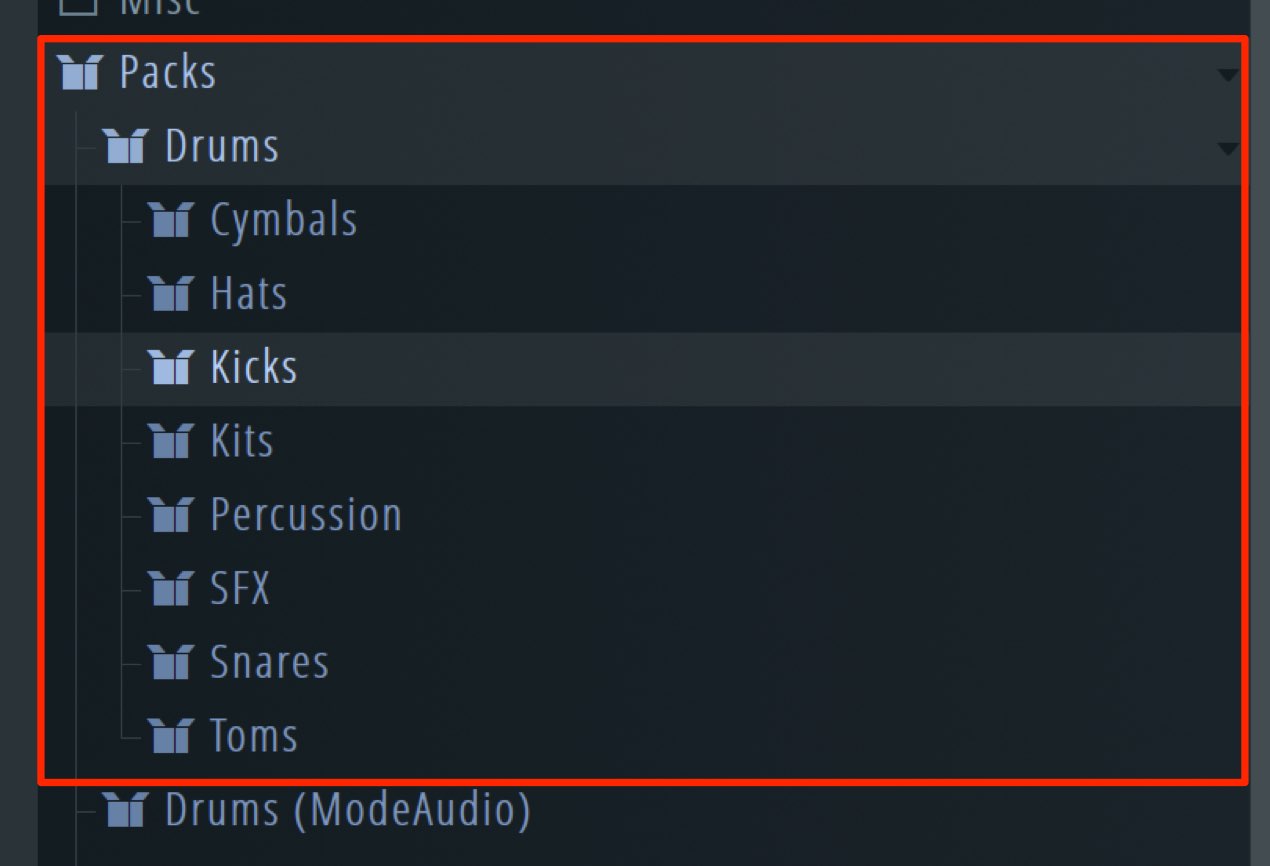
Open Packs → Drums to find sounds organized into categories.
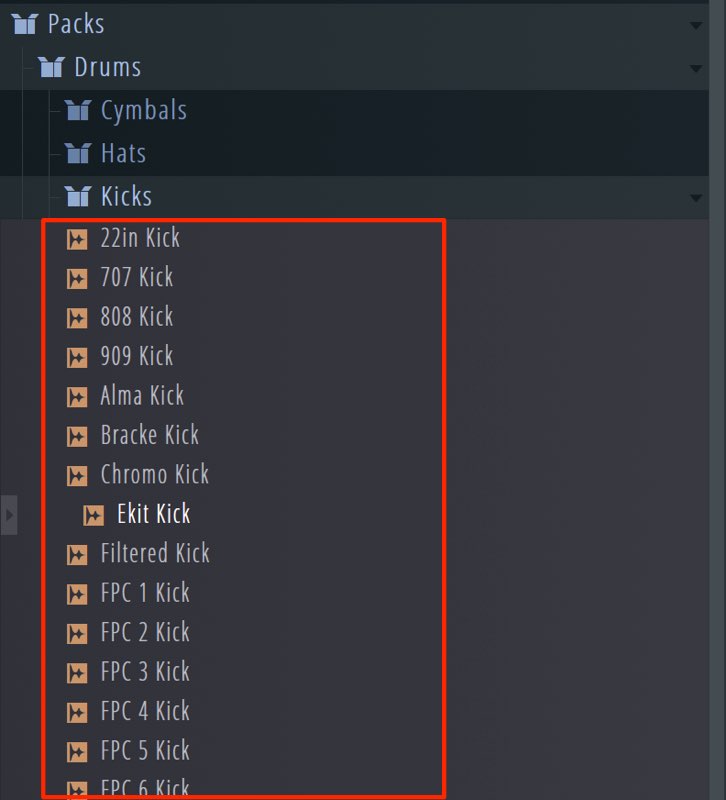
Open Kick to see a selection of kick sounds.
Click a sound to preview it.
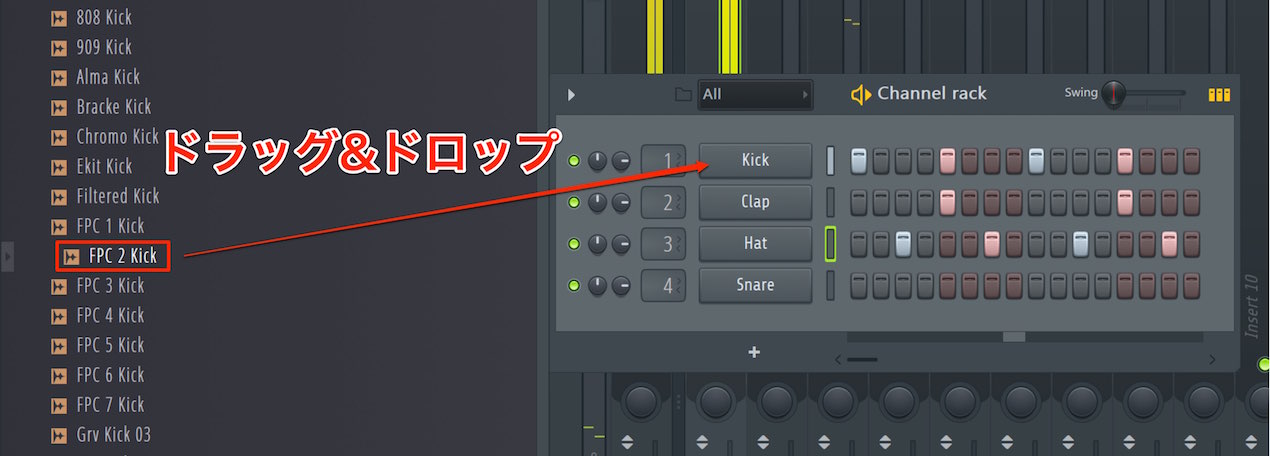
To replace a sound, drag a sample you like onto the target channel.
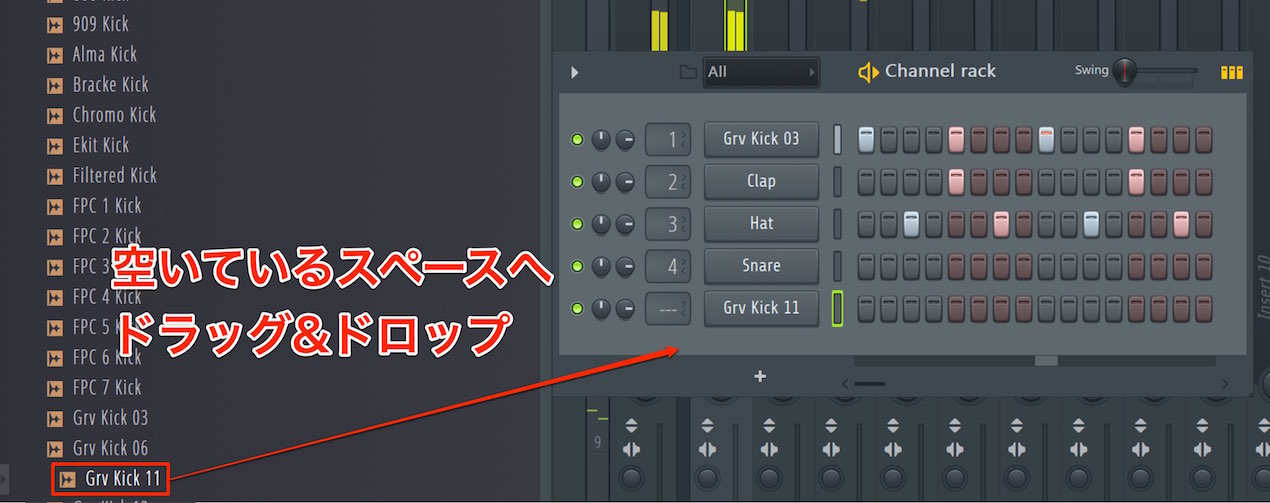
Drag and drop a sample into an empty area to add a new channel.
This also lets you layer two kicks.
Adjusting Volume and Pan
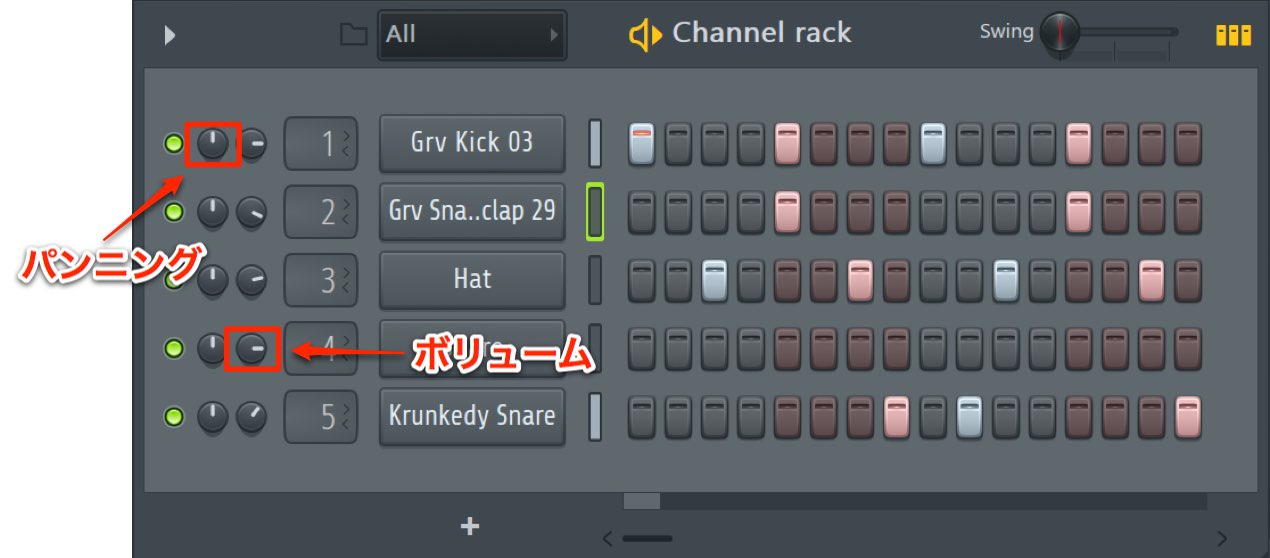
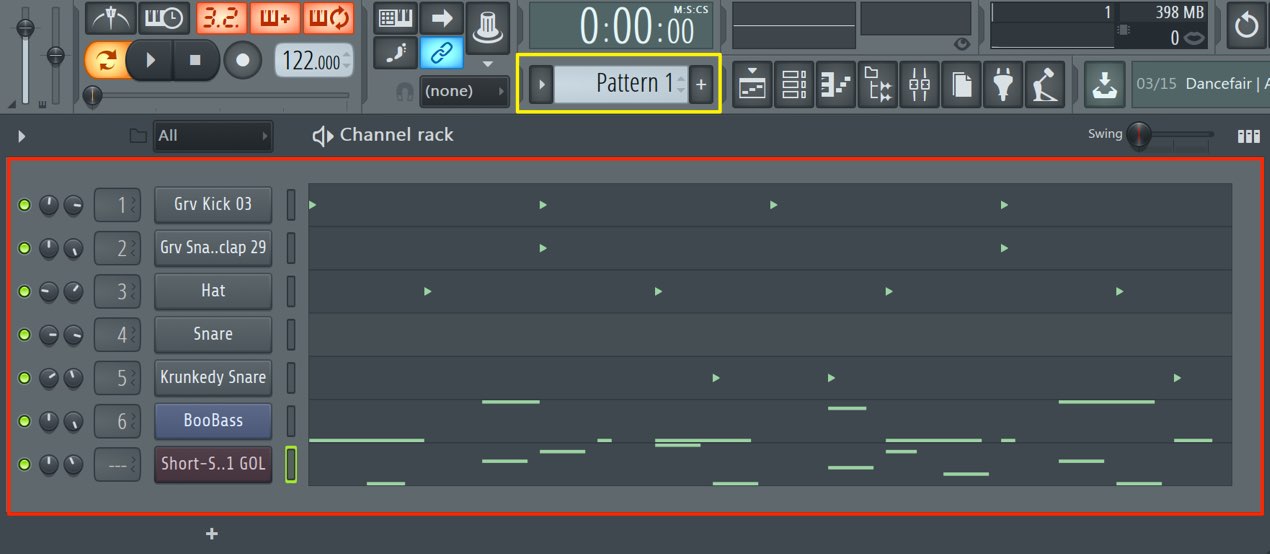
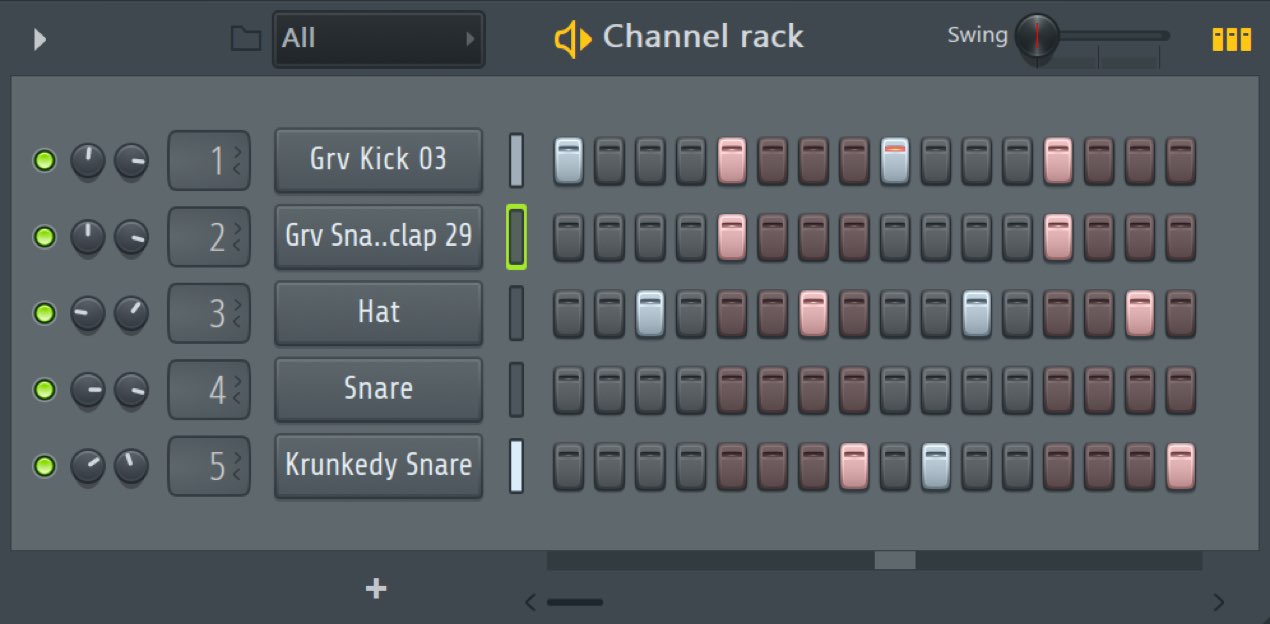
There are two knobs on the left of each channel.
They control:
- Left knob: pan, which sets the sound's left-right position
- Right knob: volume
These are the channel controls.
Here we've replaced kit sounds and adjusted their volume and pan as follows.
Adding a Software Instrument
In the next section, we'll add a bass phrase over these drums.
First, let's load a software instrument in preparation.
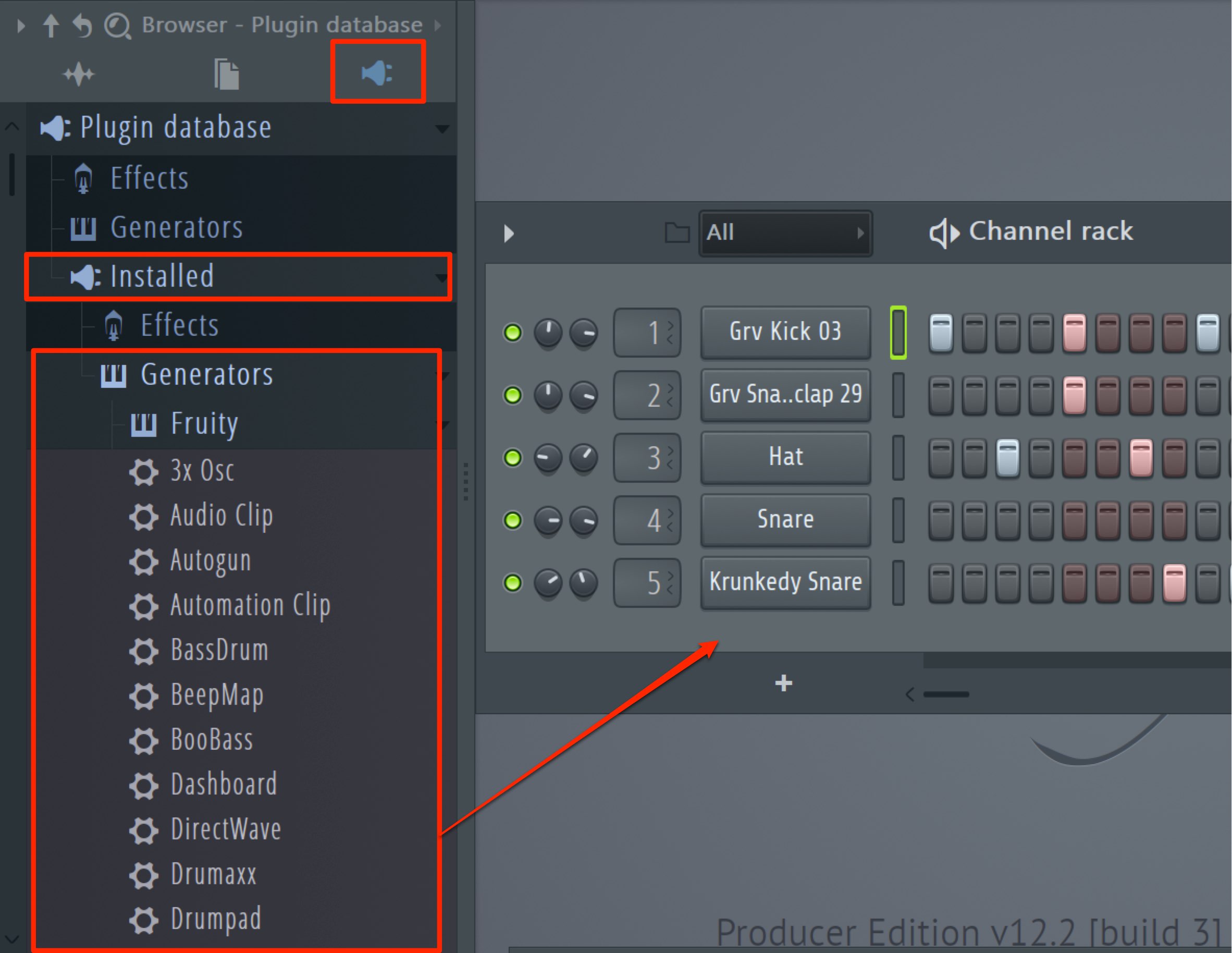
You can load plug-ins from the Browser as described above,
but here we'll try another method.
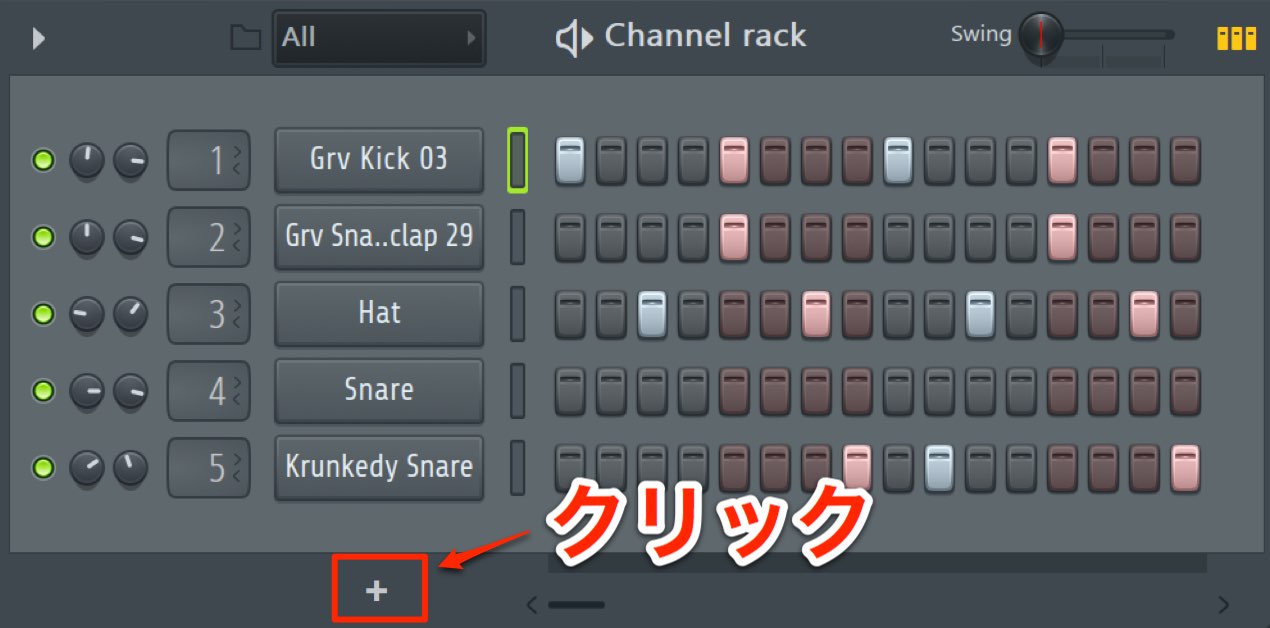
Click the + icon at the bottom of the Channel Rack.
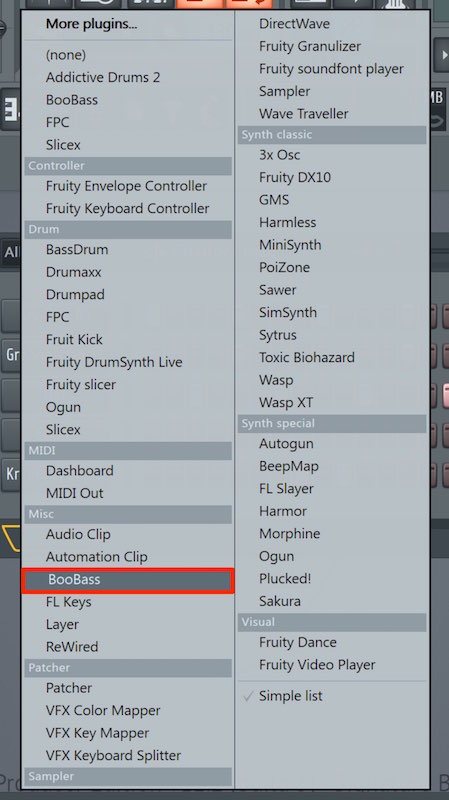
A list of instruments appears, so you can select the one you want.
Here we'll choose the BooBass bass instrument.
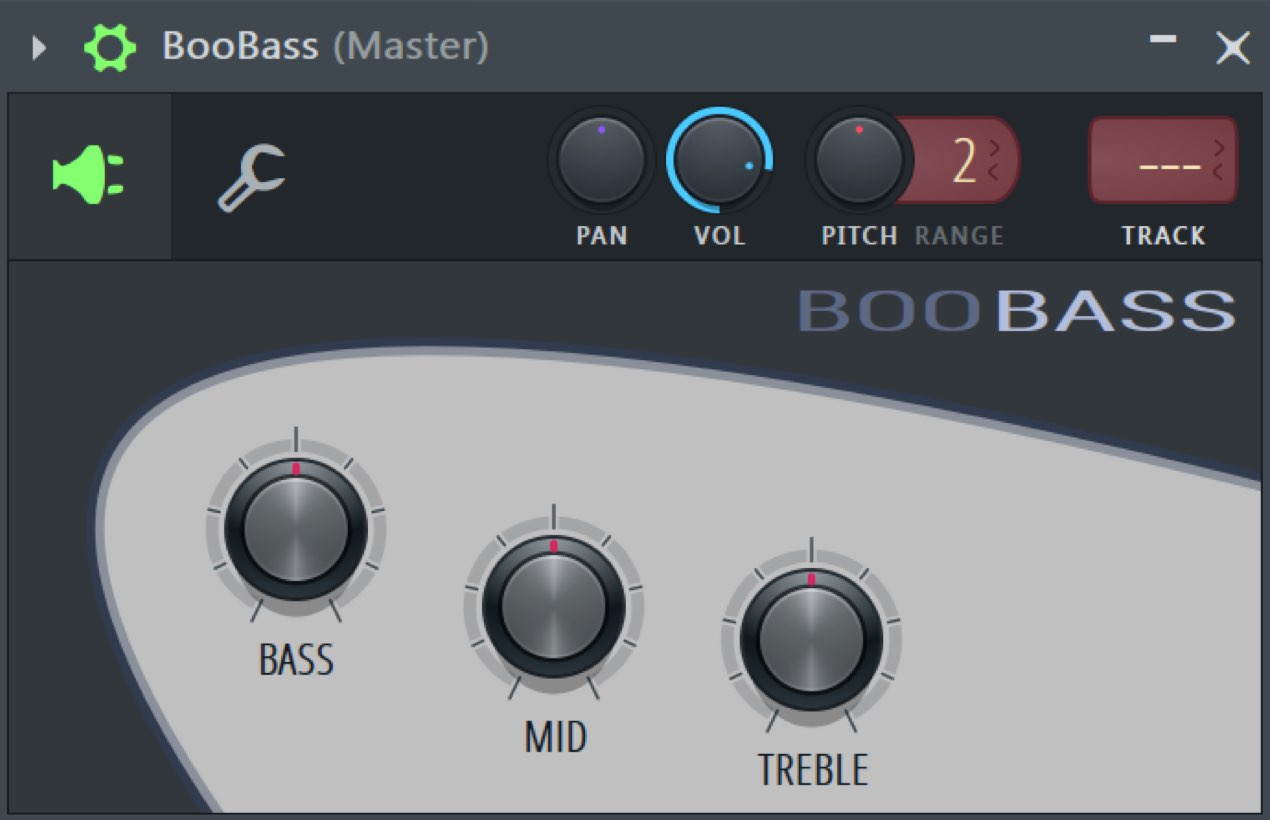
The bass instrument opens as shown.
Other software instruments, also called generators, can be added in the same way.
For instructions on using VST instruments you purchased separately, see the following guide.


Frequently Asked Questions
Q1. How can I quickly change drum sounds in FL Studio?
Open the Browser, choose a kit under Packs → Drums, and preview sounds. Drag a sample you like onto the target channel to replace its sound.
Q2. What do the Channel Rack knobs do?
The left knob controls pan, or the sound's left-right position; the right knob controls volume. Adjust them to balance the mix.
Q3. How can I add a software instrument in FL Studio?
Click the + icon at the bottom of the Channel Rack and select an instrument from the list. You can also load plug-ins from the Browser.
Q4. Can I layer two kick sounds?
Yes. Drag different kick samples into empty areas to add channels, then layer the kicks.
NEW ARTICLES
Latest English Articles