
Ableton Live’s Looper effect lets you layer performances in real time without stopping playback. This guide covers setup, recording, overdubbing and clearing a loop, building from drums to bass, melody and vocals for live performance.
Loop Your Performance Immediately and Keep the Session Moving
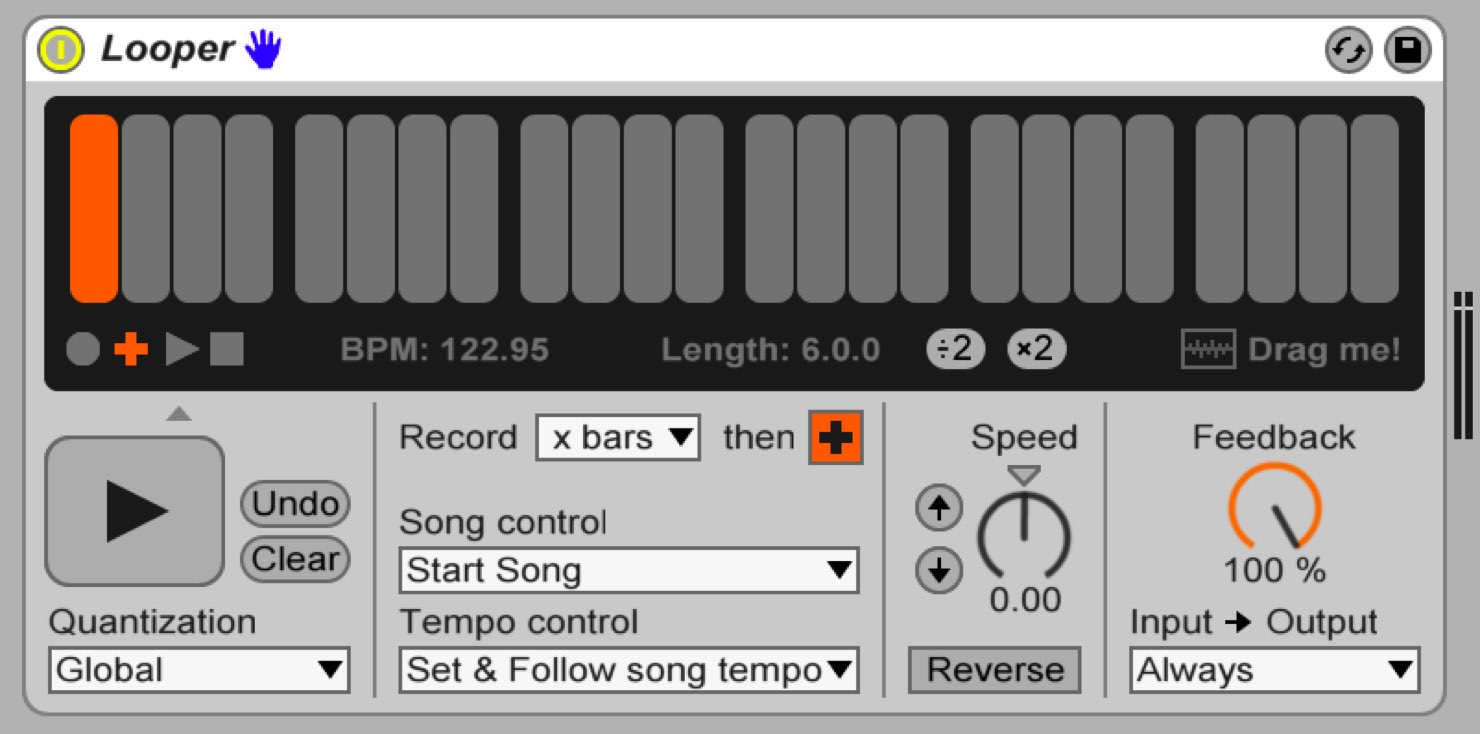
Ableton Live’s Looper is an effect that lets you layer performances on multiple tracks without stopping playback while recording.
You can build a piece in real time—drums, bass, melodic parts, vocals and more—making it useful for live performance.
Here we explain how to use Looper and demonstrate a performance in the video.
We hope this gives you a sense of its creative possibilities.
Looper Video Tutorial
Loading and Setting Up Looper
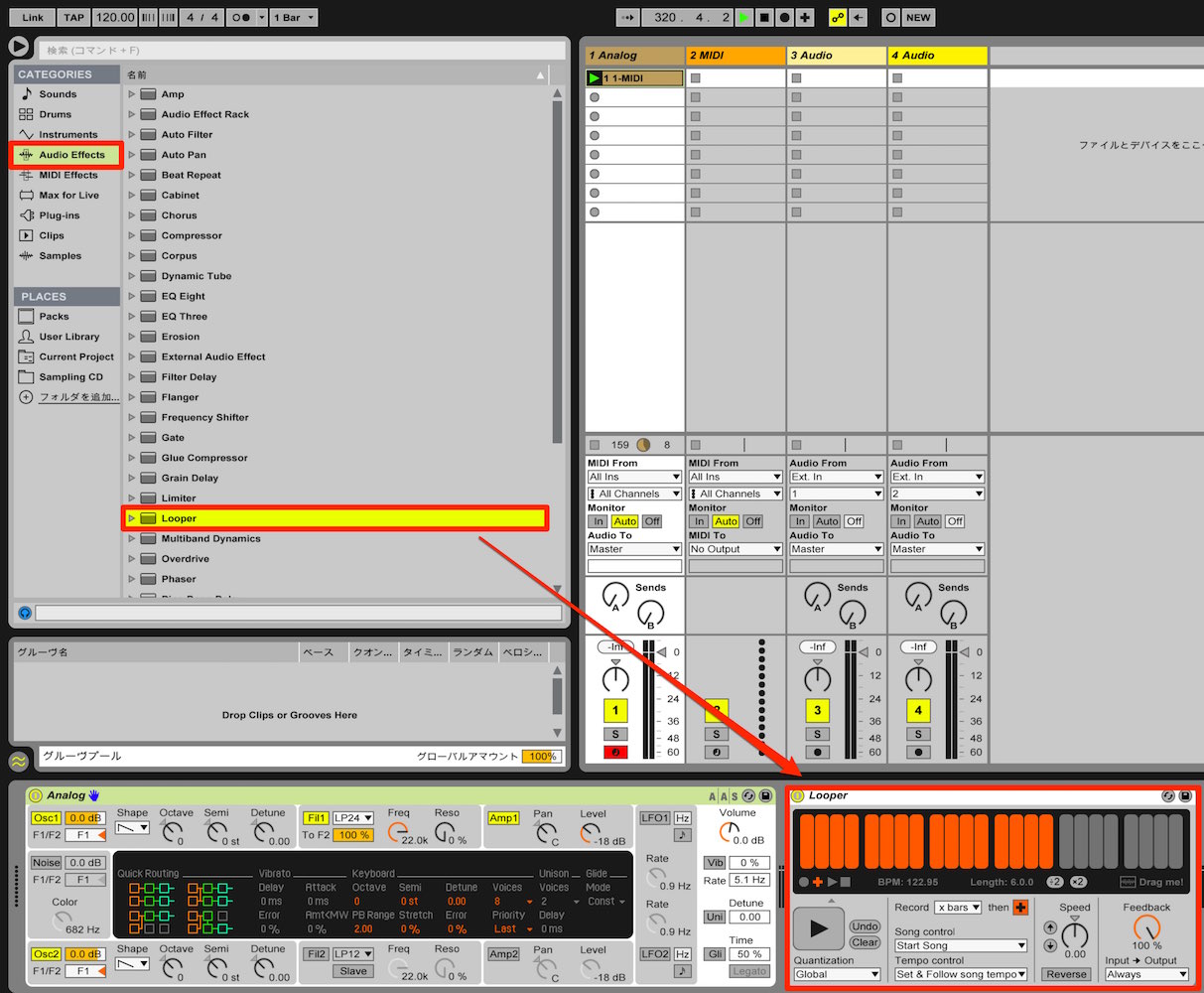
On the track you want to perform on, add Audio Effects → Looper.
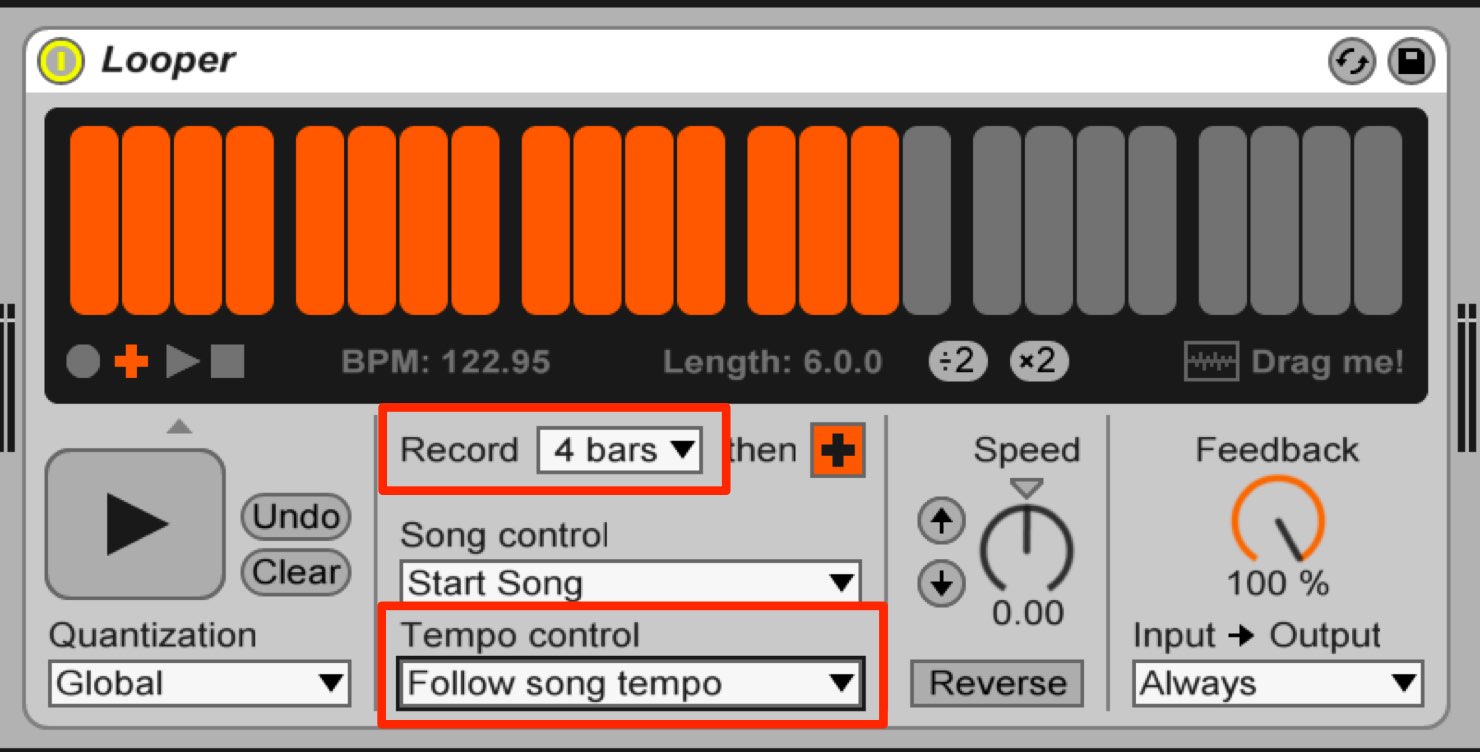
Next, configure Looper.
Under Record, specify the desired loop length in bars.
Set Tempo Control to Follow Song Tempo.
Looper will then follow the project tempo.
Add and configure a Looper on each track you want to layer.
Recording and Playing Back with Looper
Recording and playback are straightforward.
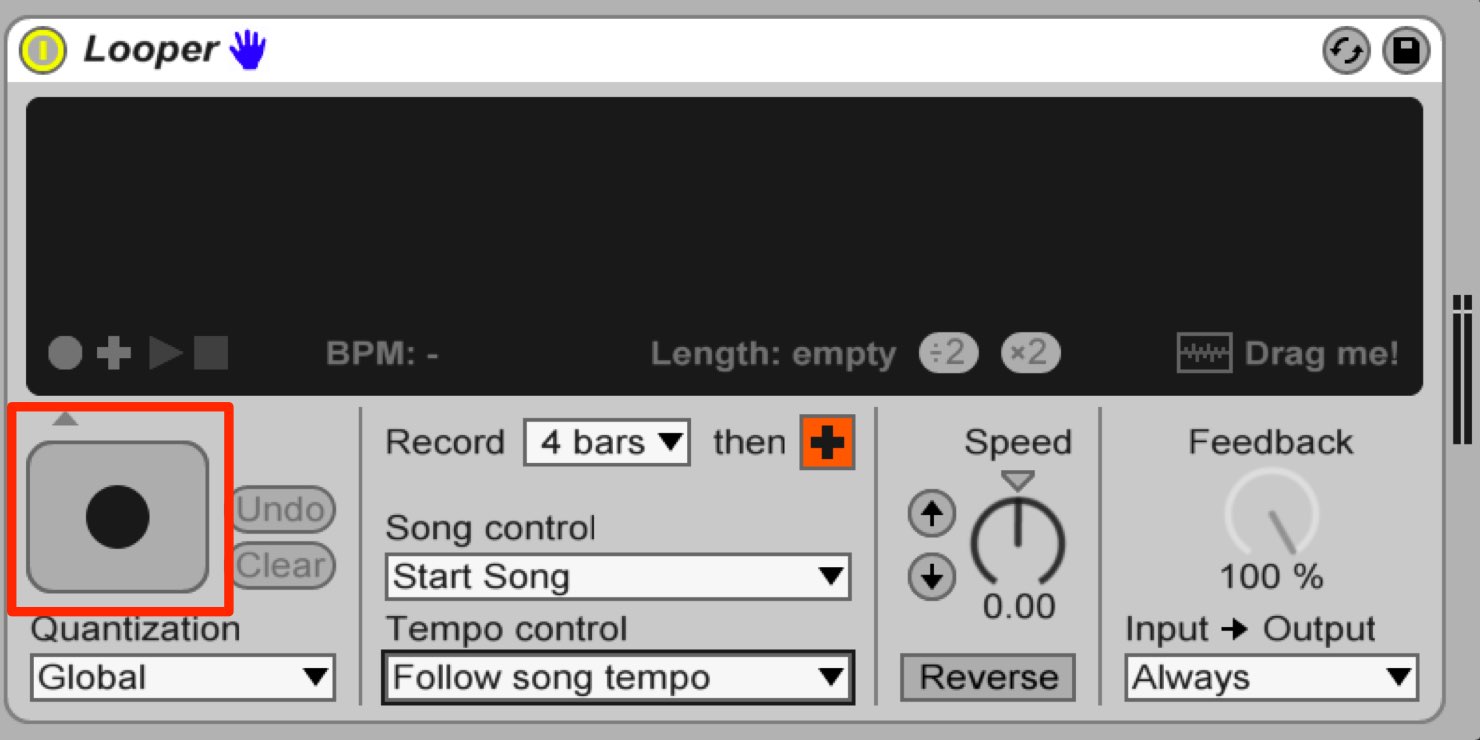
Press REC when you want to begin recording.
Then perform while recording is active.
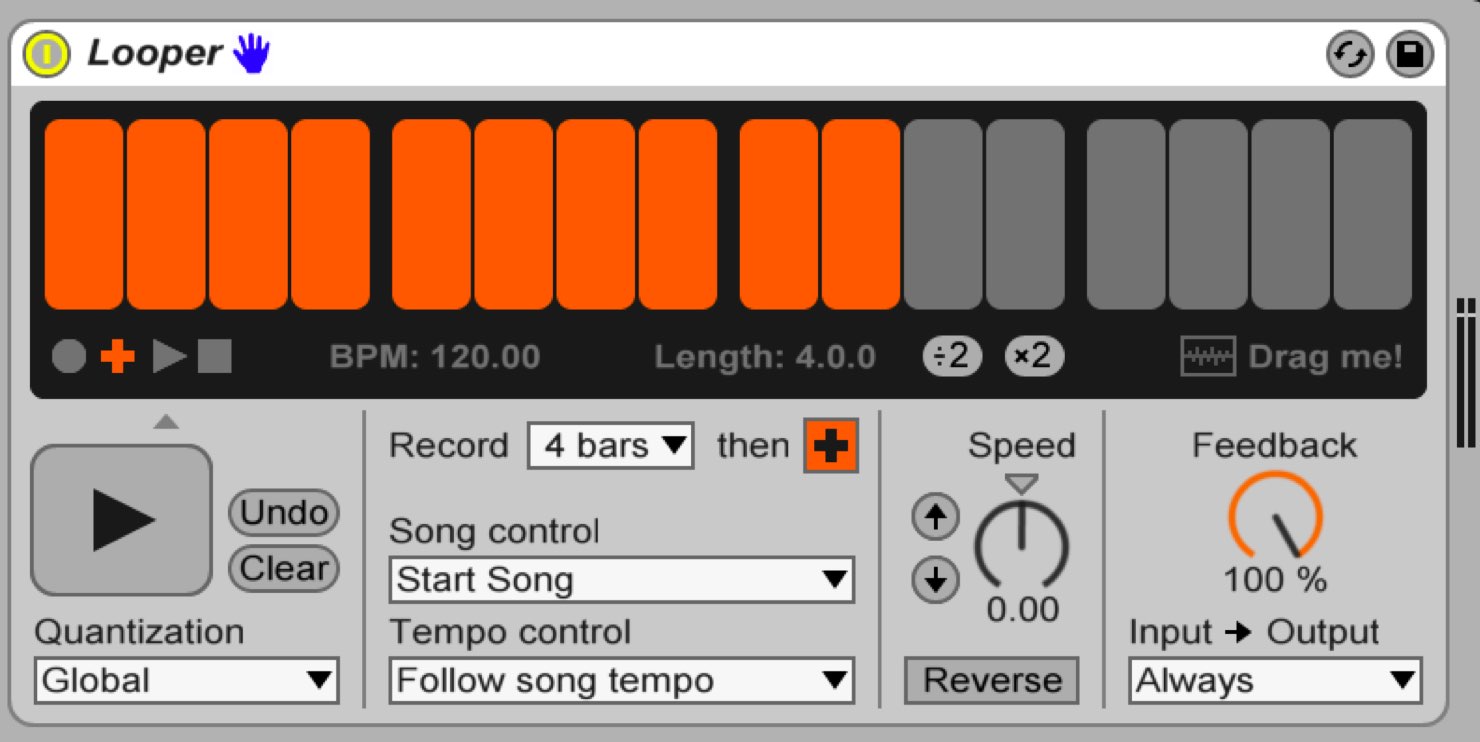
After the specified number of bars, Looper enters overdub mode.
You can add another recording on top of the performance you just recorded.
The earlier performance continues to loop as you add to it.
When recording is complete, move on to recording another track.
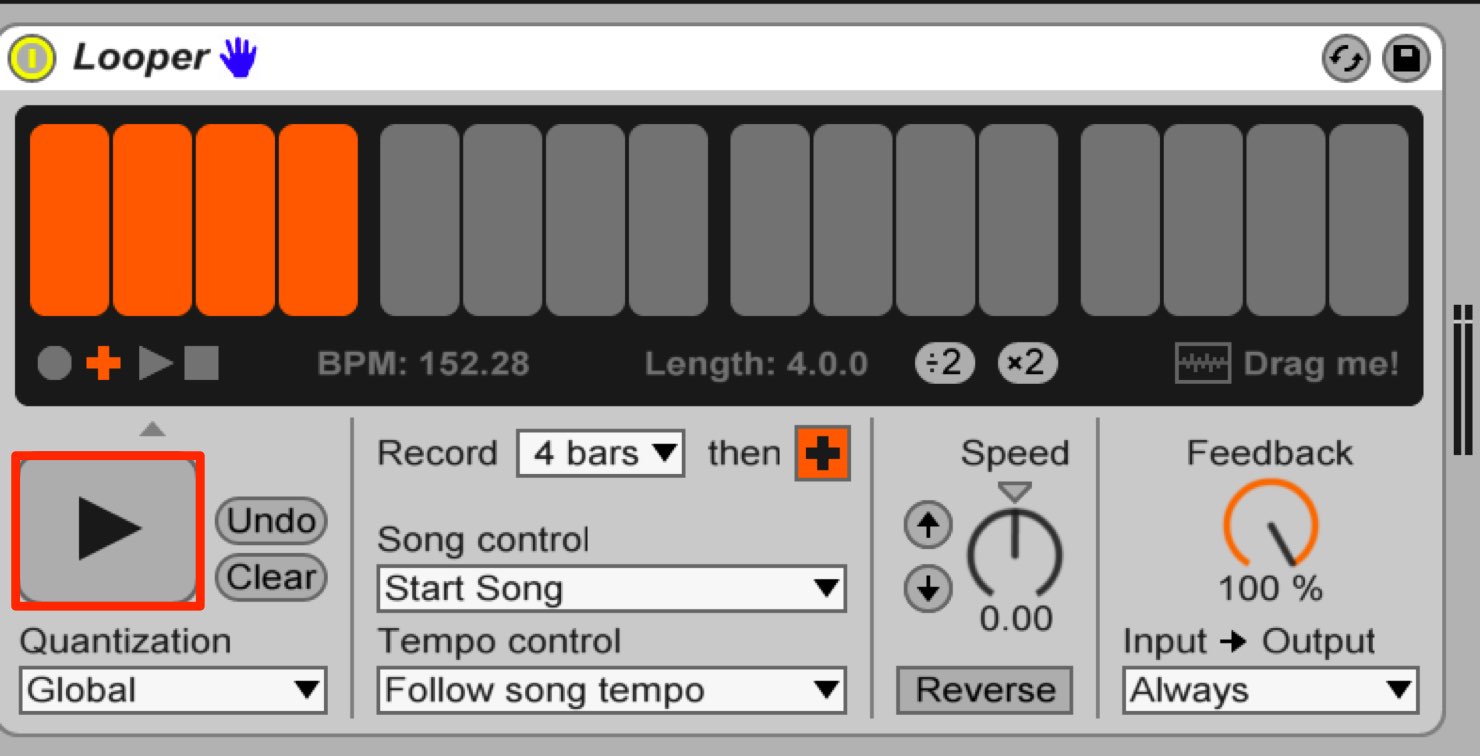
To leave overdub mode and play the loop without recording more, press Play.
Looper will then play back the recorded performance as a loop.
Repeat this process on each track to build up the performance.
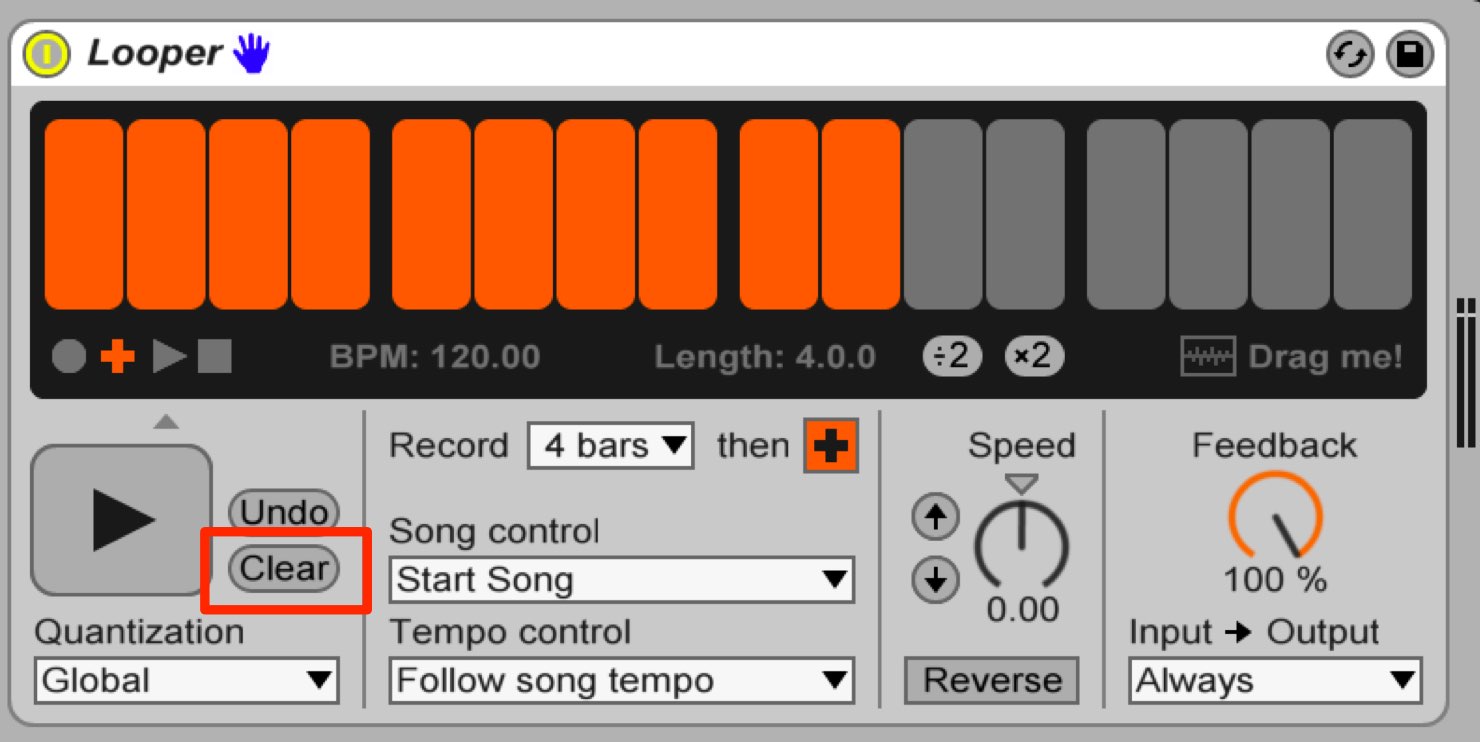
If you make a mistake and want to delete the recorded content, press Clear.
The recording is cleared so you can perform it again.
Frequently Asked Questions
Q1. How can I keep Looper in time with the project?
Set Tempo Control to Follow Song Tempo so Looper follows the project tempo. Accurate timing also depends on the performance, recording settings and latency.
Q2. Does the earlier performance disappear when I add a new one?
No. In overdub mode, the earlier recording continues to play while the new performance is added.
Q3. Can I correct a mistake without clearing everything?
Clear removes the loop so you can start again. Looper also provides Undo for the most recent overdub; consult the documentation for your Live version and the available undo behavior.
NEW ARTICLES
Latest English Articles


















































































































































































































































































































































































