
Ableton Live 10 is a DAW geared toward loop-based music production, with features that streamline everything from finding samples and building a track to processing effects. This article walks through a practical production workflow, from choosing kick, hi-hat and piano sounds to editing MIDI, adding effects and setting up automation with Macro controls. Keyboard shortcuts, automatic tempo synchronization and sidechain routing help beginners and experienced producers alike create polished tracks with an efficient workflow.
Useful Features for a More Efficient Production Workflow
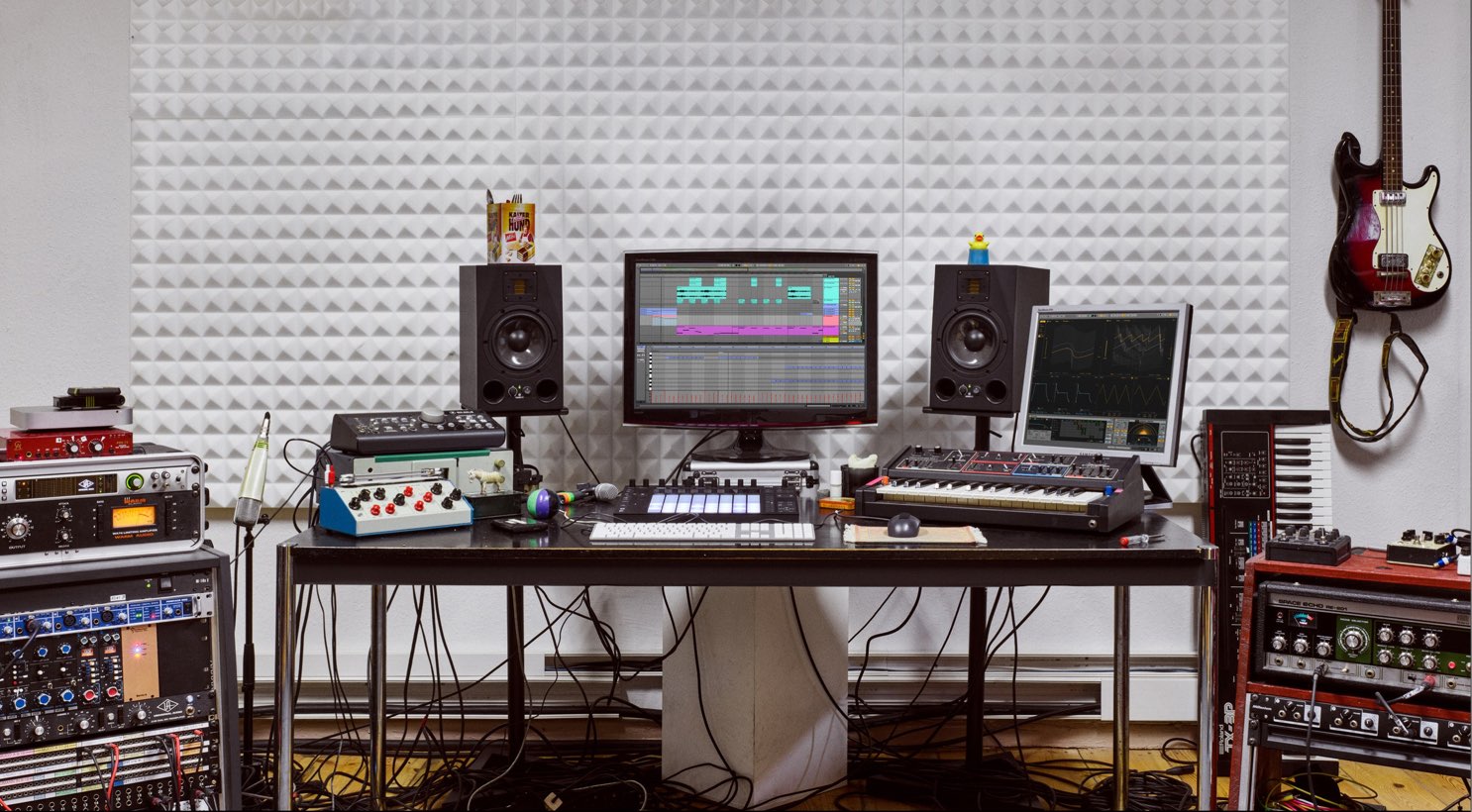
Ableton Live 10 is a DAW geared toward loop-based music. Its interface and features incorporate many thoughtful touches designed to make music production more efficient.
In this tutorial, our instructor Tomoki Miyakawa (@l75_3) demonstrates the process of making a track in Ableton Live 10.
We hope this helps if you are interested in Ableton Live 10 or want to develop a more efficient workflow!
Ableton Live 10: Music Production Workflow Video
Selected Questions and Answers from the YouTube Video

Hi! At around 1:23, it looked as though you were entering notes using only the keyboard. Could you tell me which shortcut you were using?

After duplicating the first note with Command (Control)+D, I move it using the arrow keys.
I mainly want to use a Launchpad with Ableton Live Lite 10 to perform music I have imported from YouTube. I see three different prices for Ableton Live Lite 10 and do not know which one to buy. Could you advise me?
You should be able to use it in Ableton Live Lite 10 by selecting your pad controller in Preferences.
You have added folders within Collections to organize your sounds. How do you add those folders?
I use Edit in the area shown in this image to add Collections to the display: https://app.box.com/s/0t4s8rq8msyfp9qc41dj6lgo8p5hb1aq If you mean folders within a single Collection instead, I simply add the desired folder to that Collection.
When do you create your synth sounds? Do you make them before you start composing?
For the chord sound, I am using a sound I saved from a previous track. It is useful to save sounds that seem versatile whenever you create them.
At the time of this tutorial, Ableton Live 10 Suite was also available as a free, fully featured 30-day trial.
Download it here!
Finding Sounds and Saving Favorites
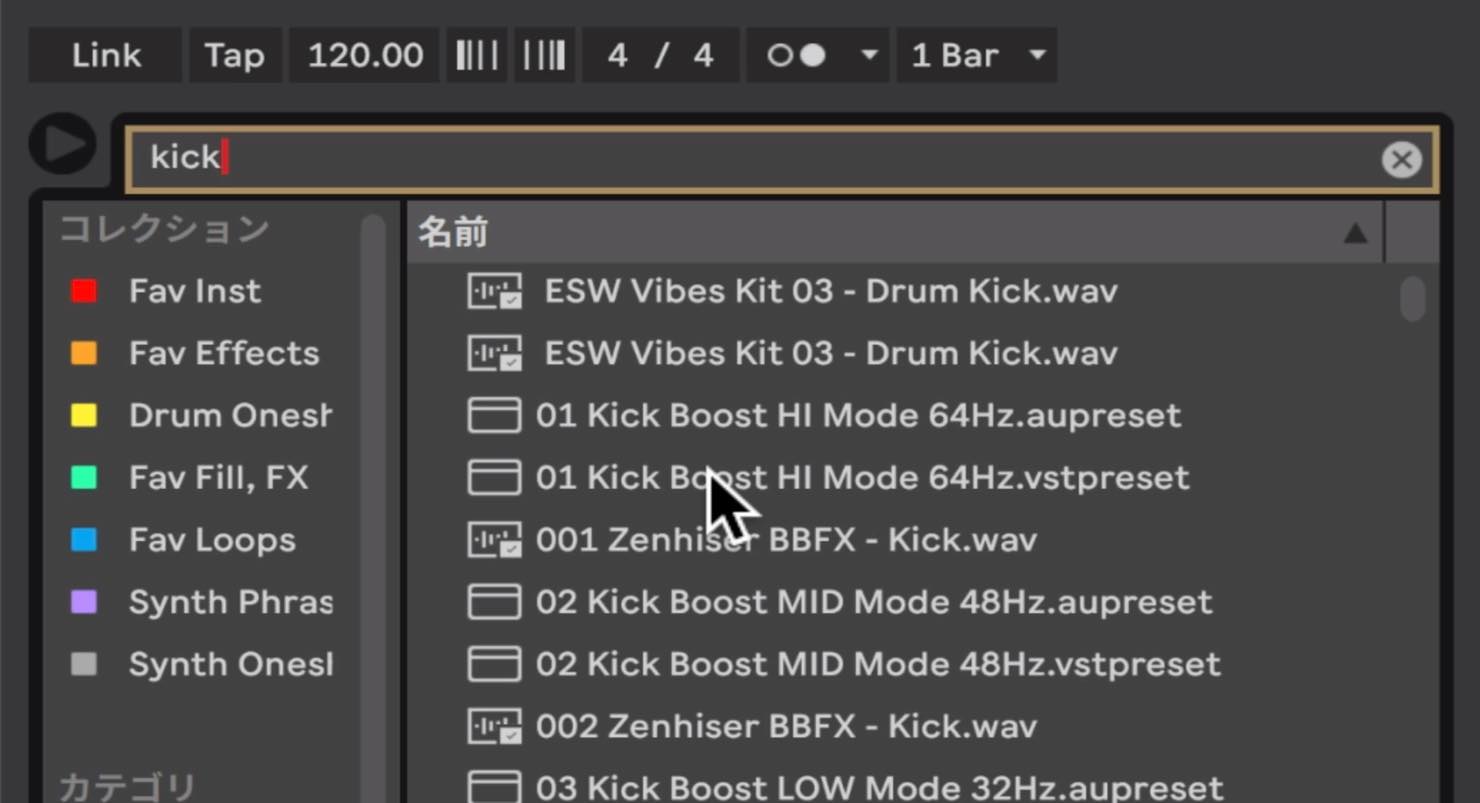
First, we will look for a kick sample. Press Command+F (Ctrl+F on Windows) to jump to the search field, then type Kick to narrow the results to samples with Kick in their filenames.
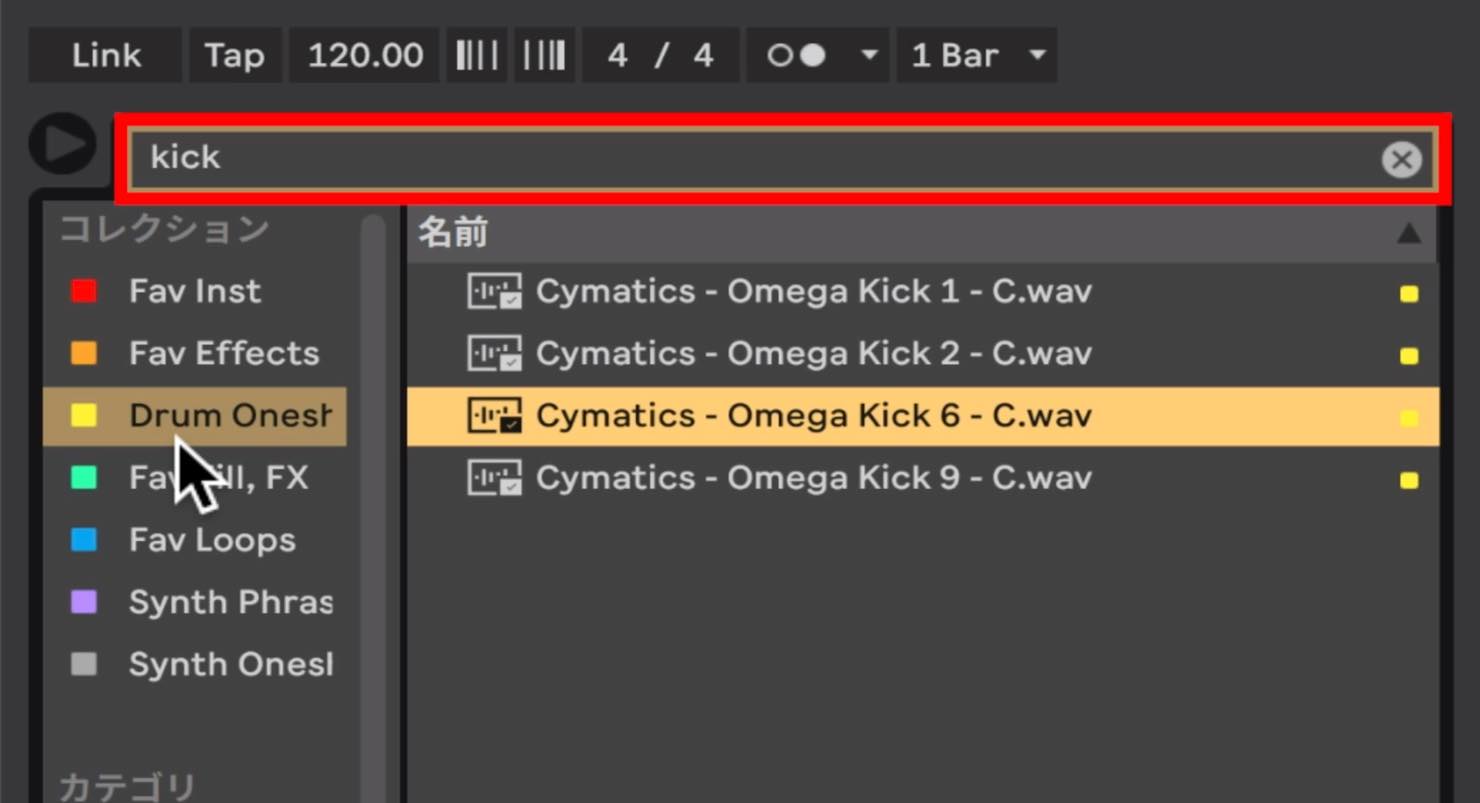
To narrow the large sample library to favorites, we can use Live's Collections feature to tag samples. Here, we will find a kick among the favorite drum samples we have tagged previously.
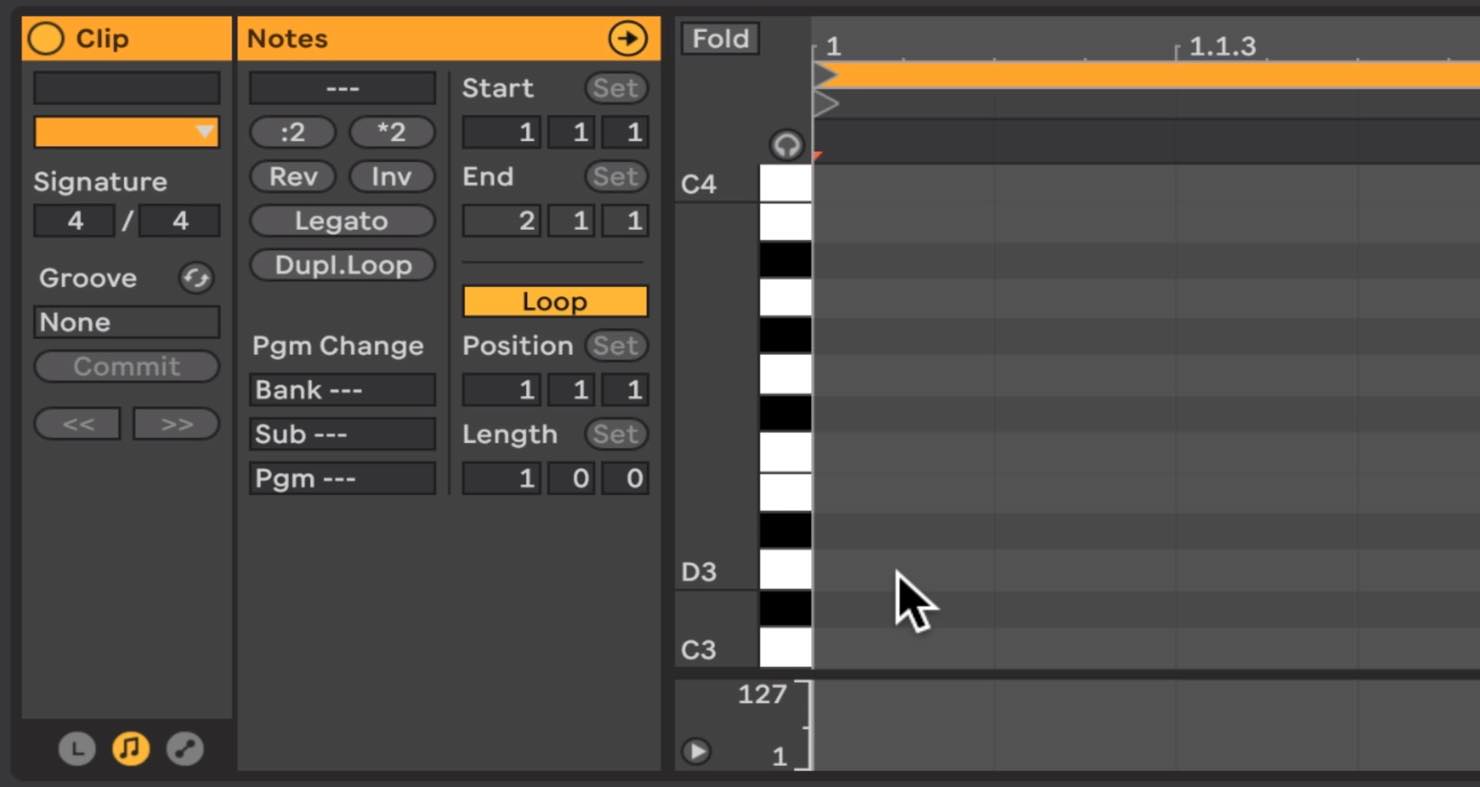
With a MIDI track selected, double-click the desired sample. It opens in the Simpler sampler, with the sample already loaded.
Next, we will look for a hi-hat sample. This time, we will use a loop.
Loop samples automatically synchronize to the song tempo even if their original tempo is different. To display only samples with a similar tempo, enter the BPM in the search box.
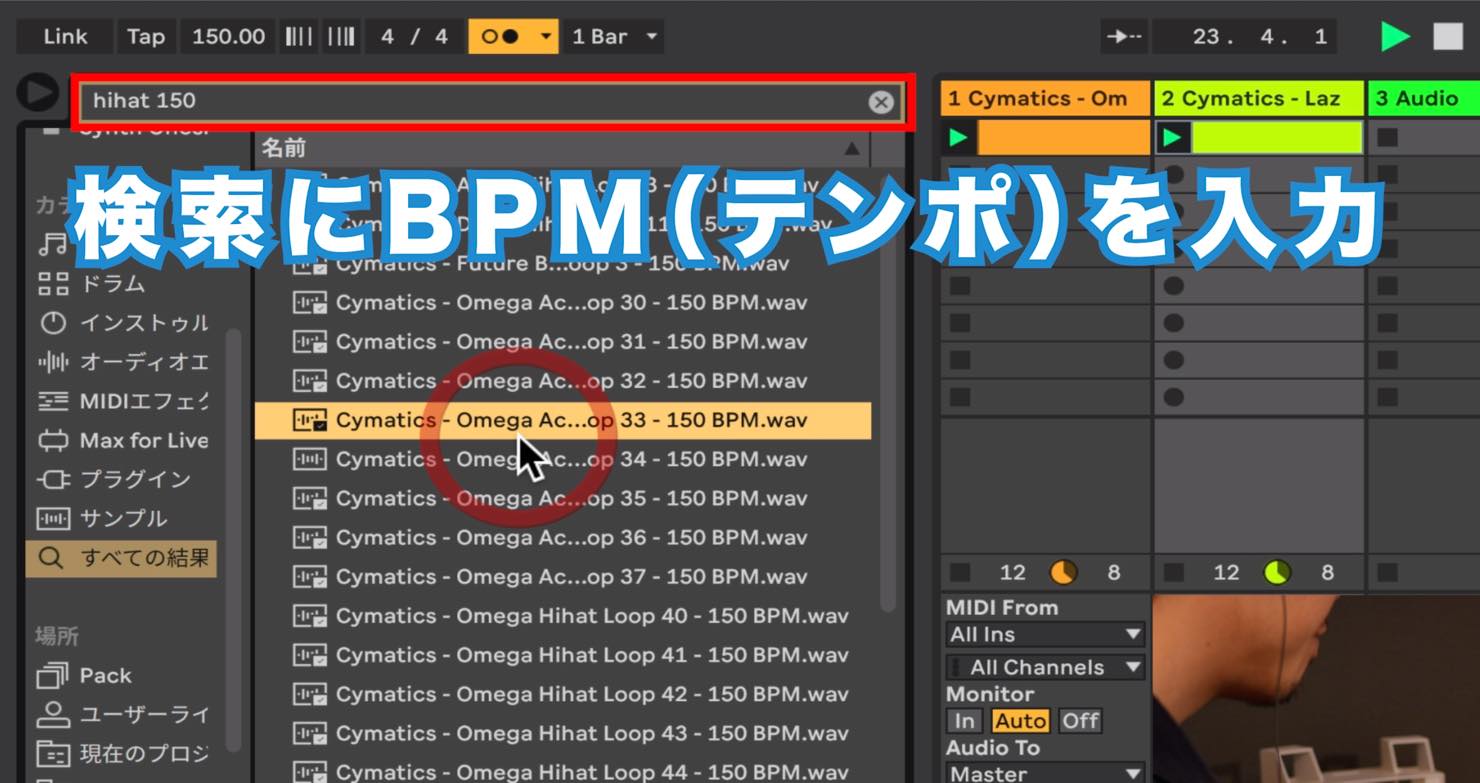
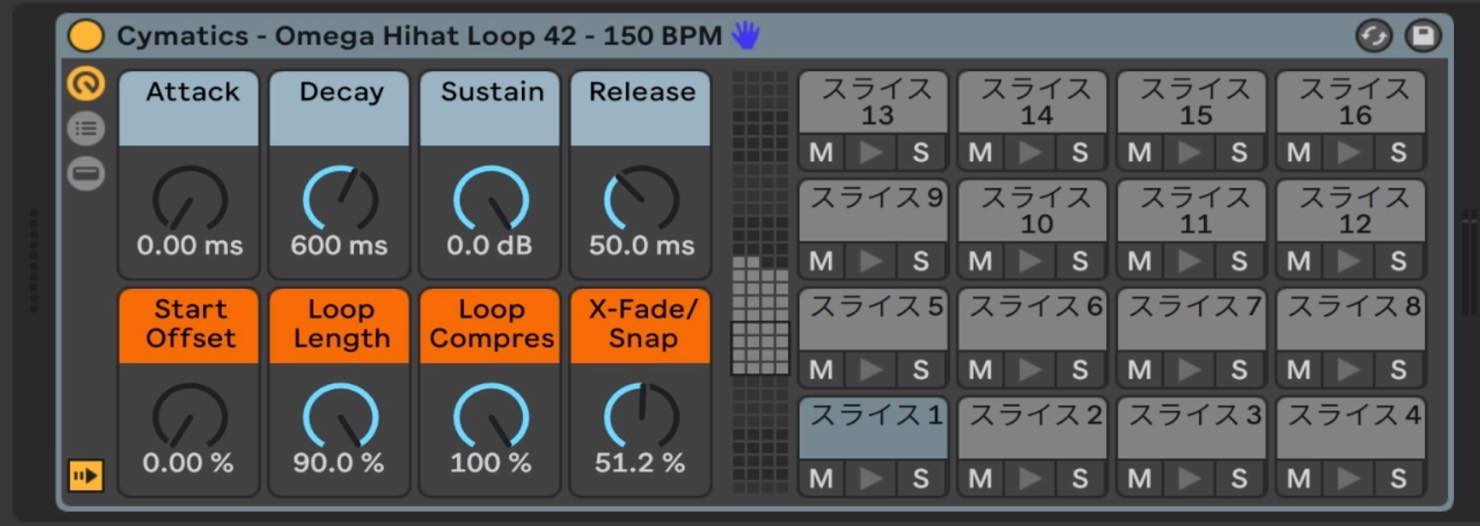
Once you have chosen a loop, right-click the file and select Slice to New MIDI Track. This creates a Drum Rack containing slices of the audio loop.
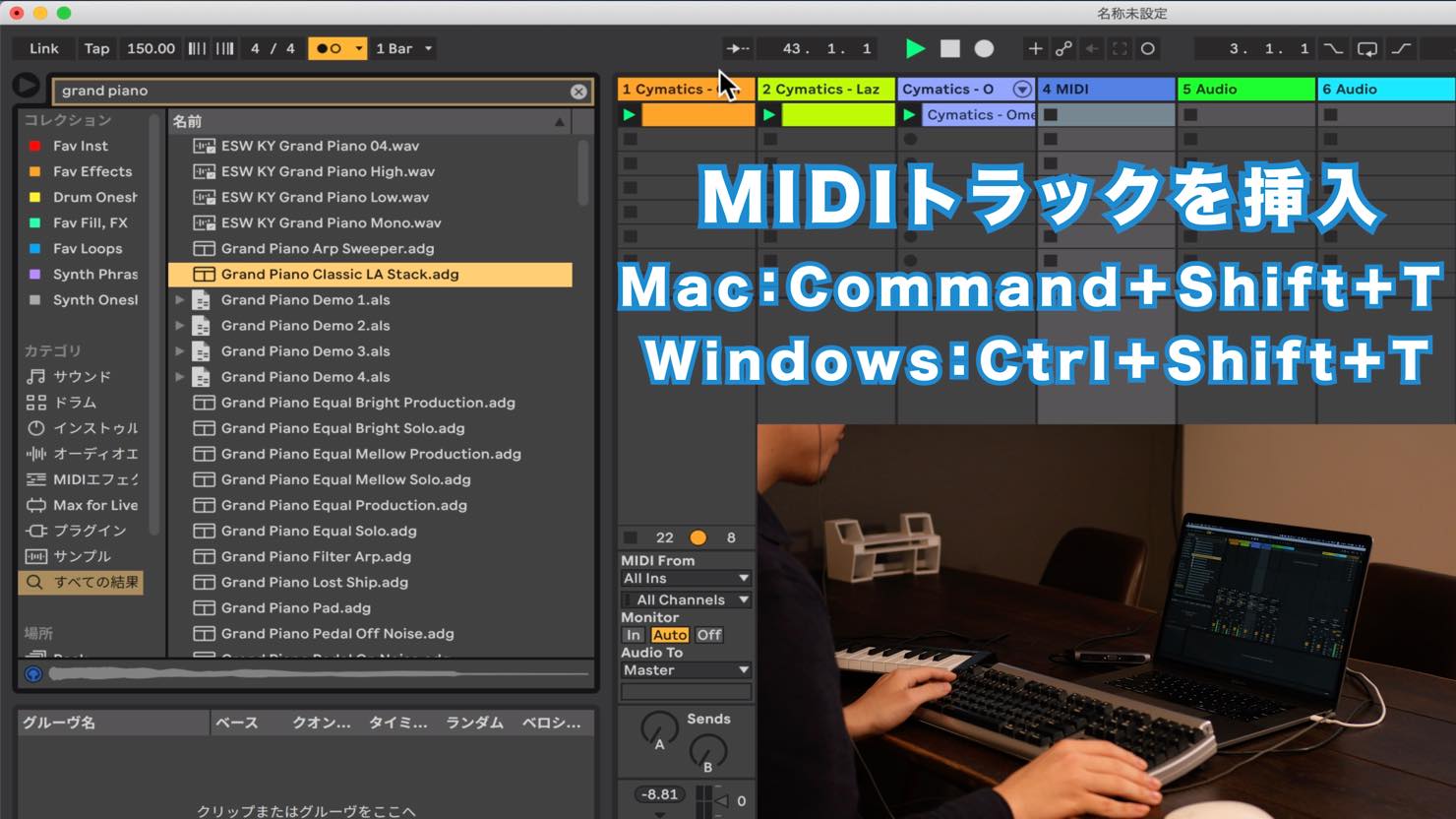
Next, add a MIDI track with Shift+Command+T (Shift+Ctrl+T on Windows). Use Command+F (Ctrl+F on Windows) to search for Piano and load one of Live's built-in piano instruments.
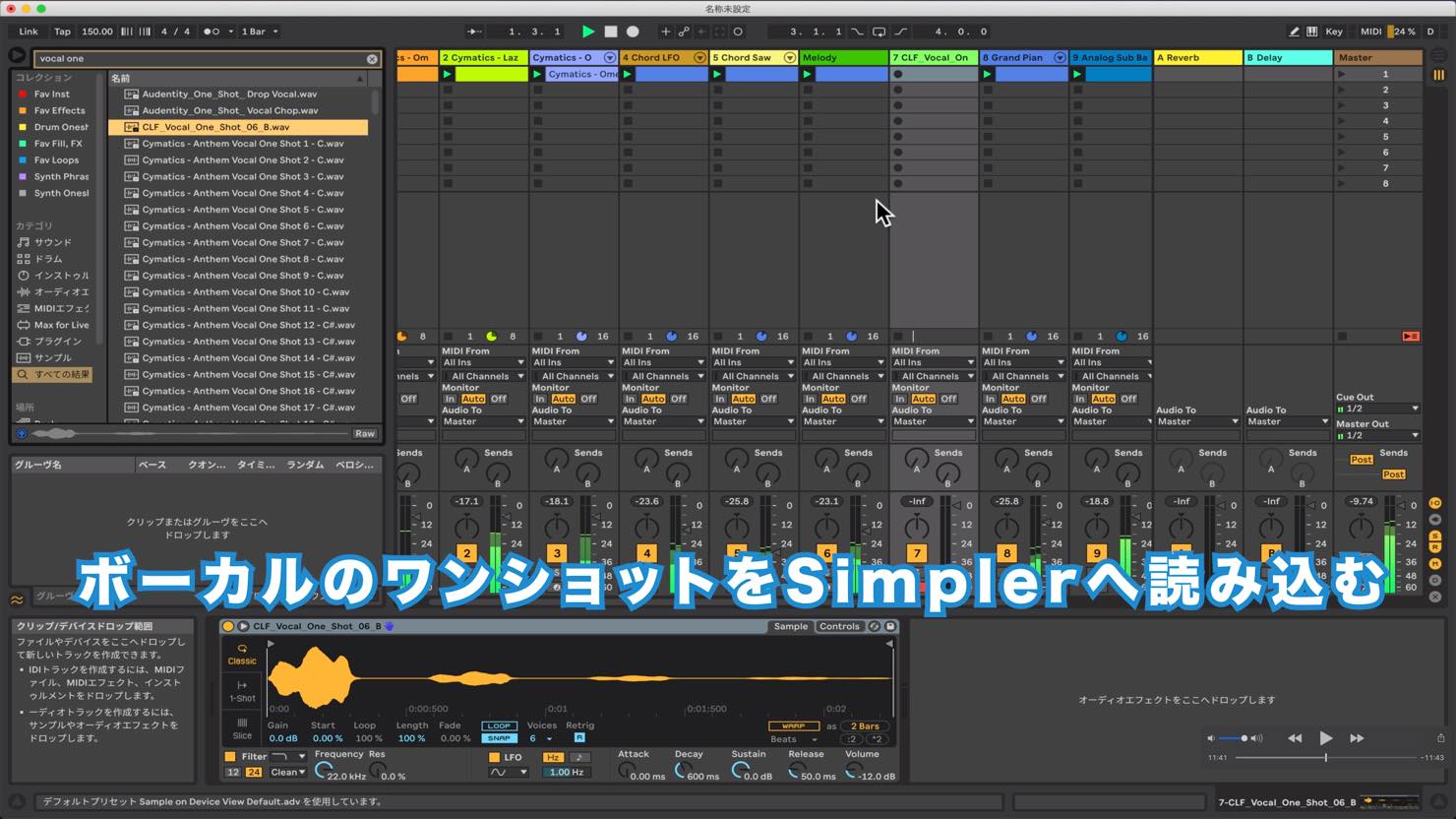
When working with one-shot samples, first load one into Simpler. You can then preview sounds one after another and press Return to replace the sound. This reduces unnecessary steps so you can focus on choosing a sound.
Editing MIDI
Once the sounds are ready, let's edit the MIDI.
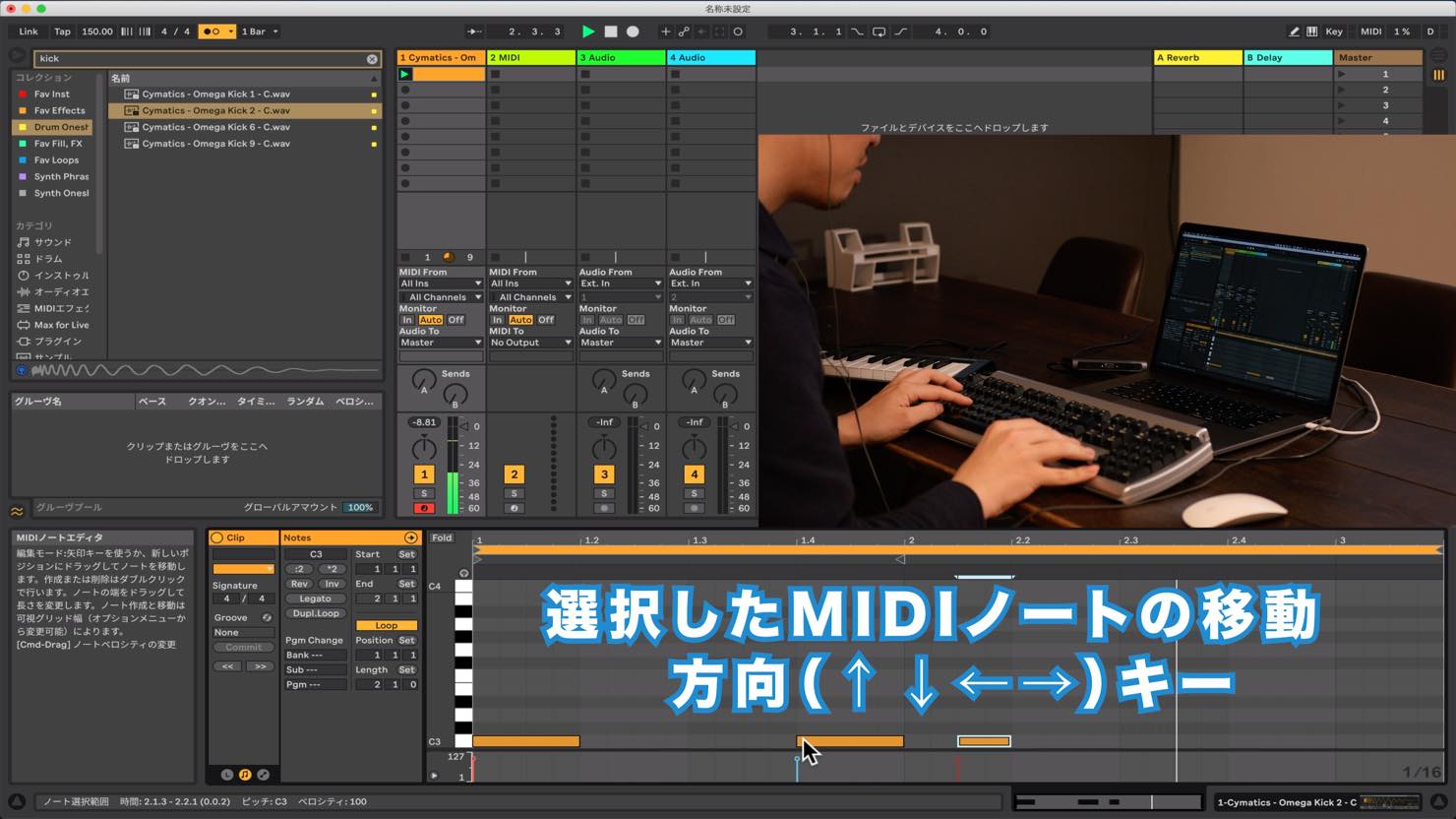
In Live's piano roll, you can move selected notes up, down, left or right with the arrow keys. Shift+Left or Right changes the note length.
These shortcuts make MIDI editing quick and easy.
With the beat playing, we will play the piano sound we loaded earlier and explore chord progressions.
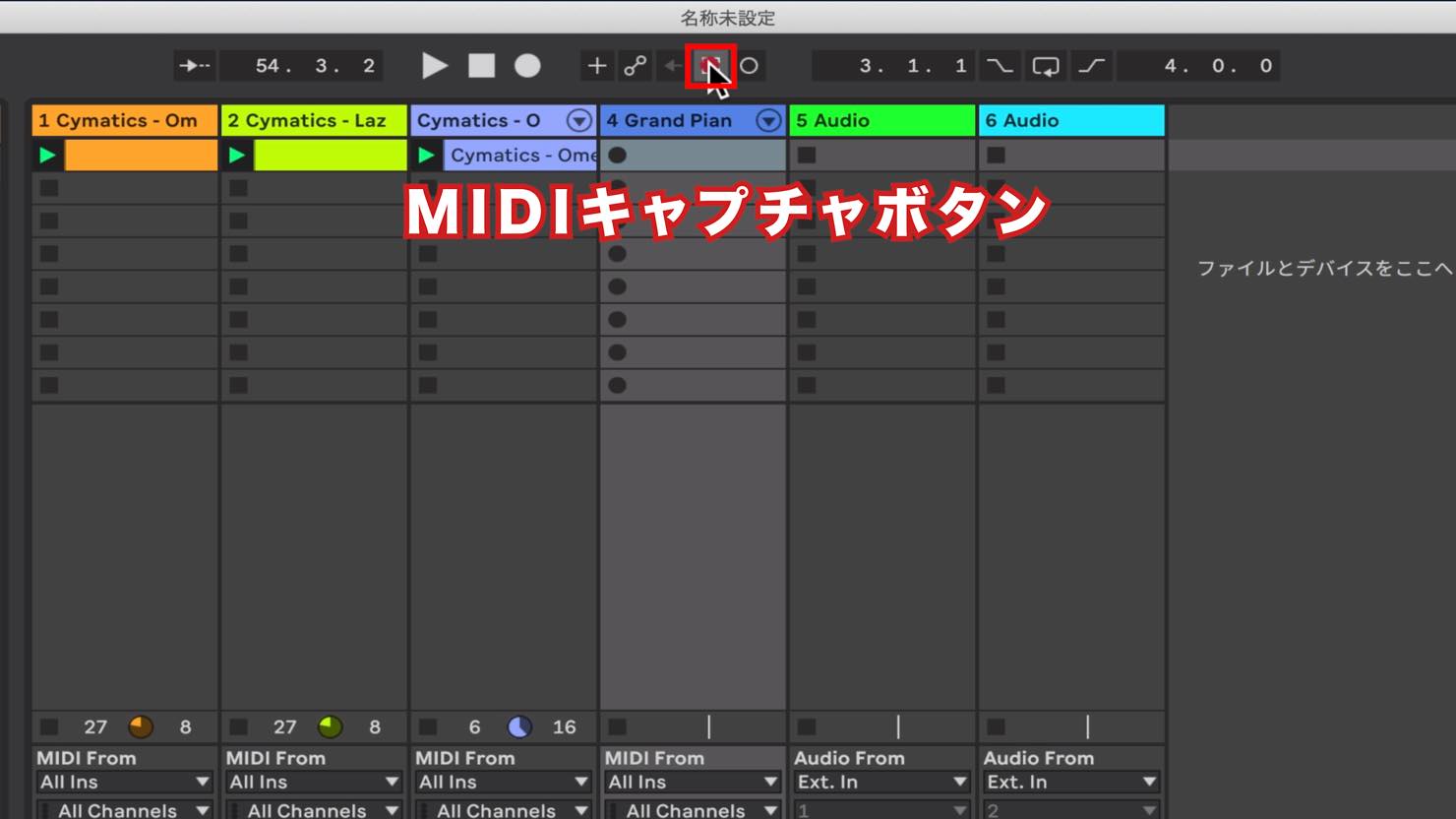
Once you find a progression you want to use, press the Capture button to recall the take you have just played.
Live keeps track of your MIDI performance, so you do not have to lose a take that came about by chance.

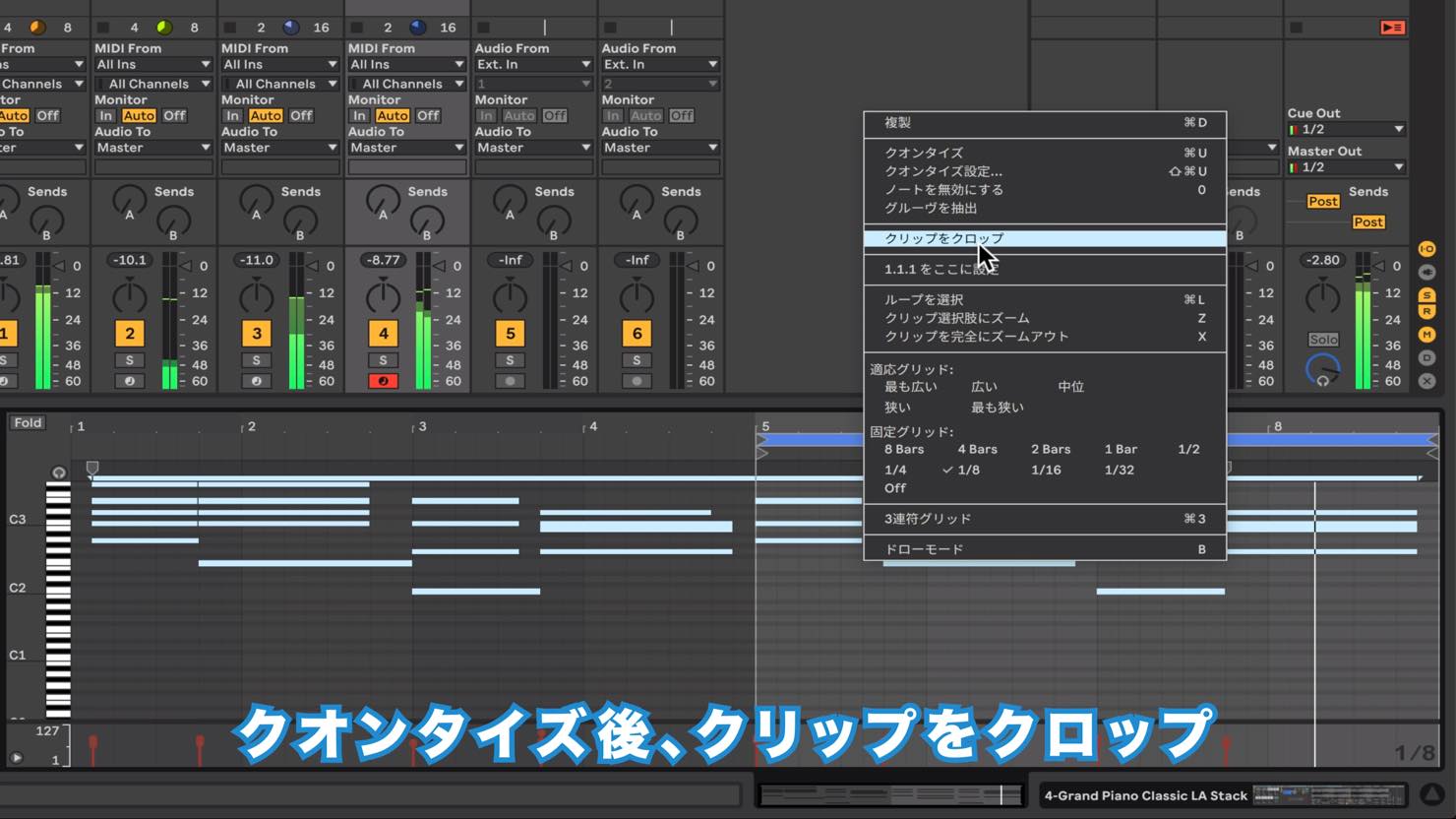
After quantizing the rough take, we cropped it to keep only the section we needed.
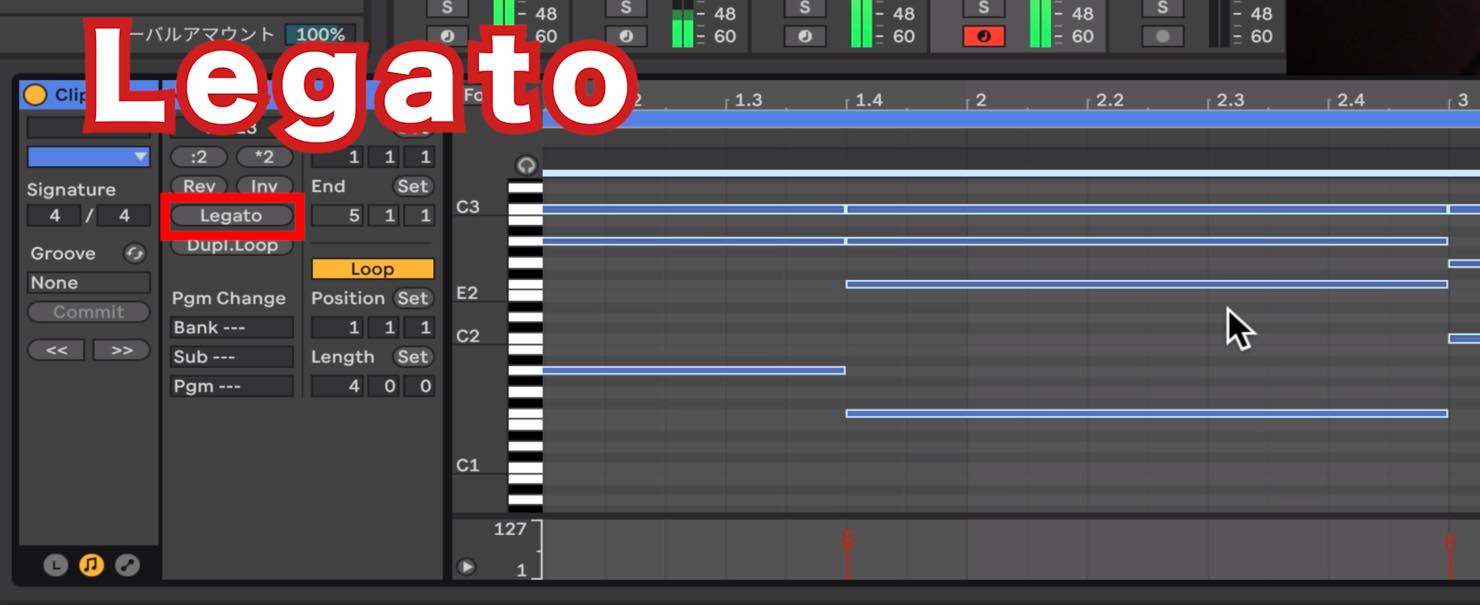
Use the Legato button to fill the gaps between notes in one step.
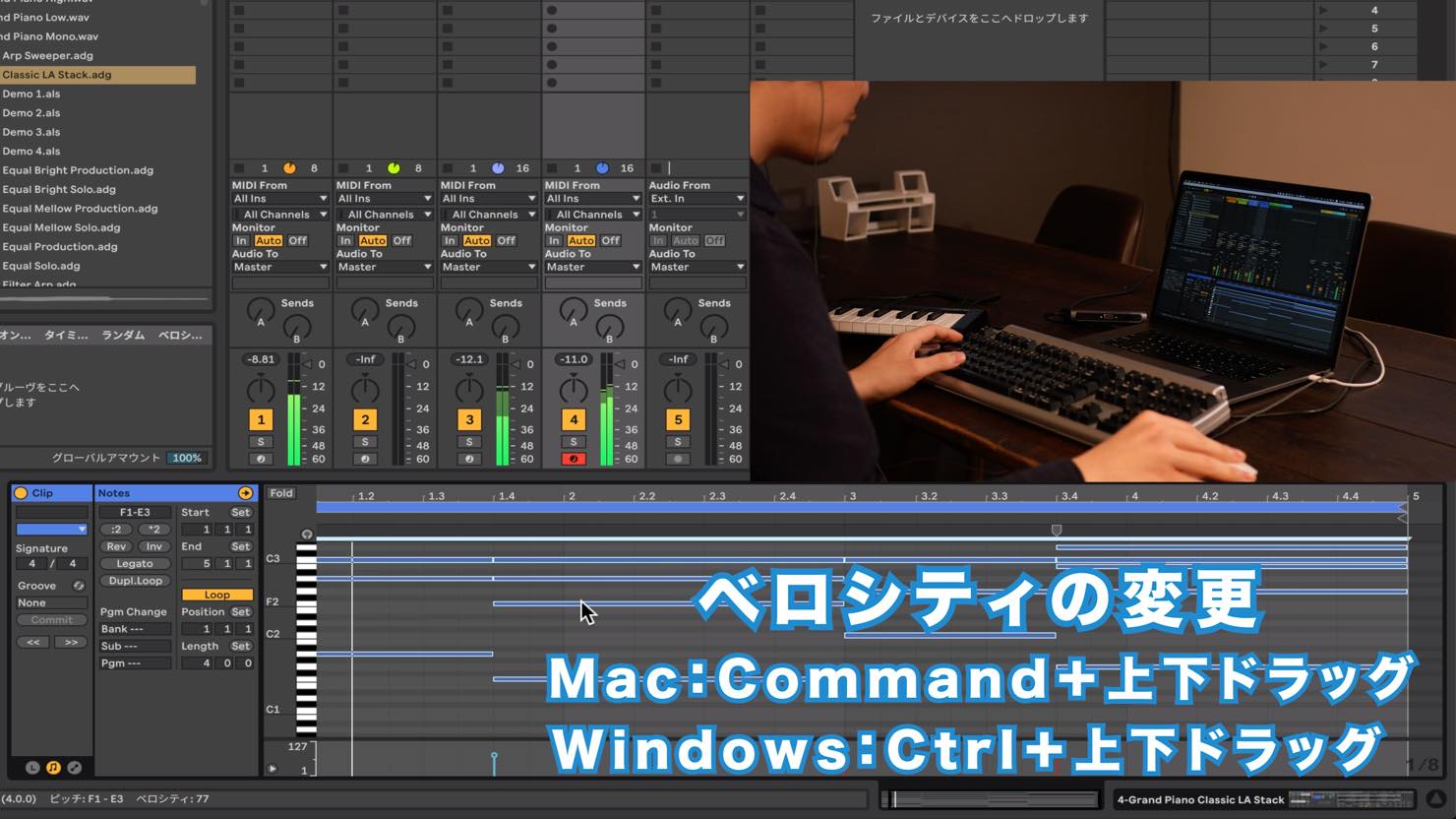
Then hold Command (Ctrl on Windows) and drag up or down directly over a note to adjust its velocity.
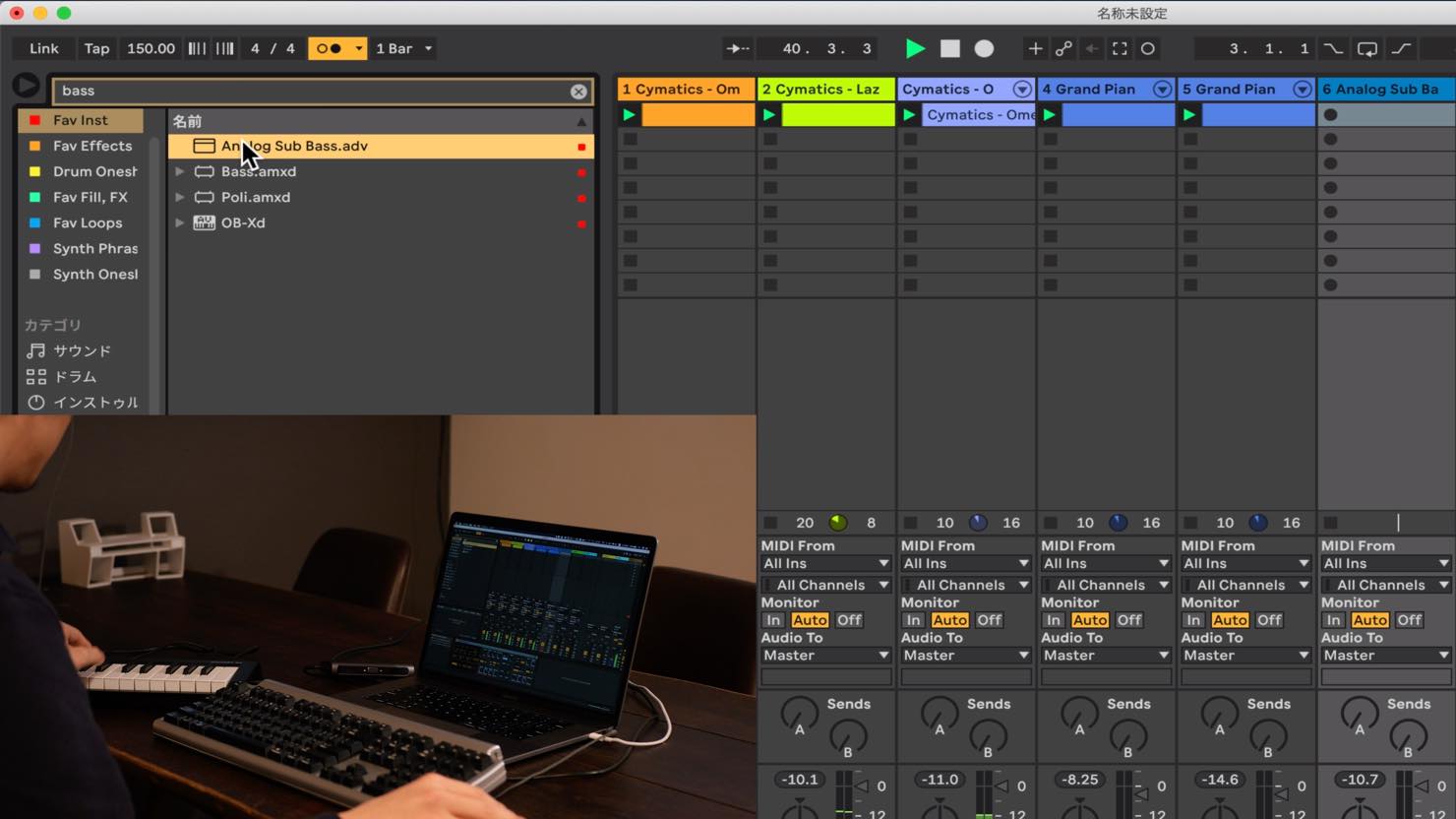
Next, we will look for a bass sound in the browser. We will work out a bass line with Bass, a device modeled on the Analog synth included with Live Suite, which we have added to our favorites.
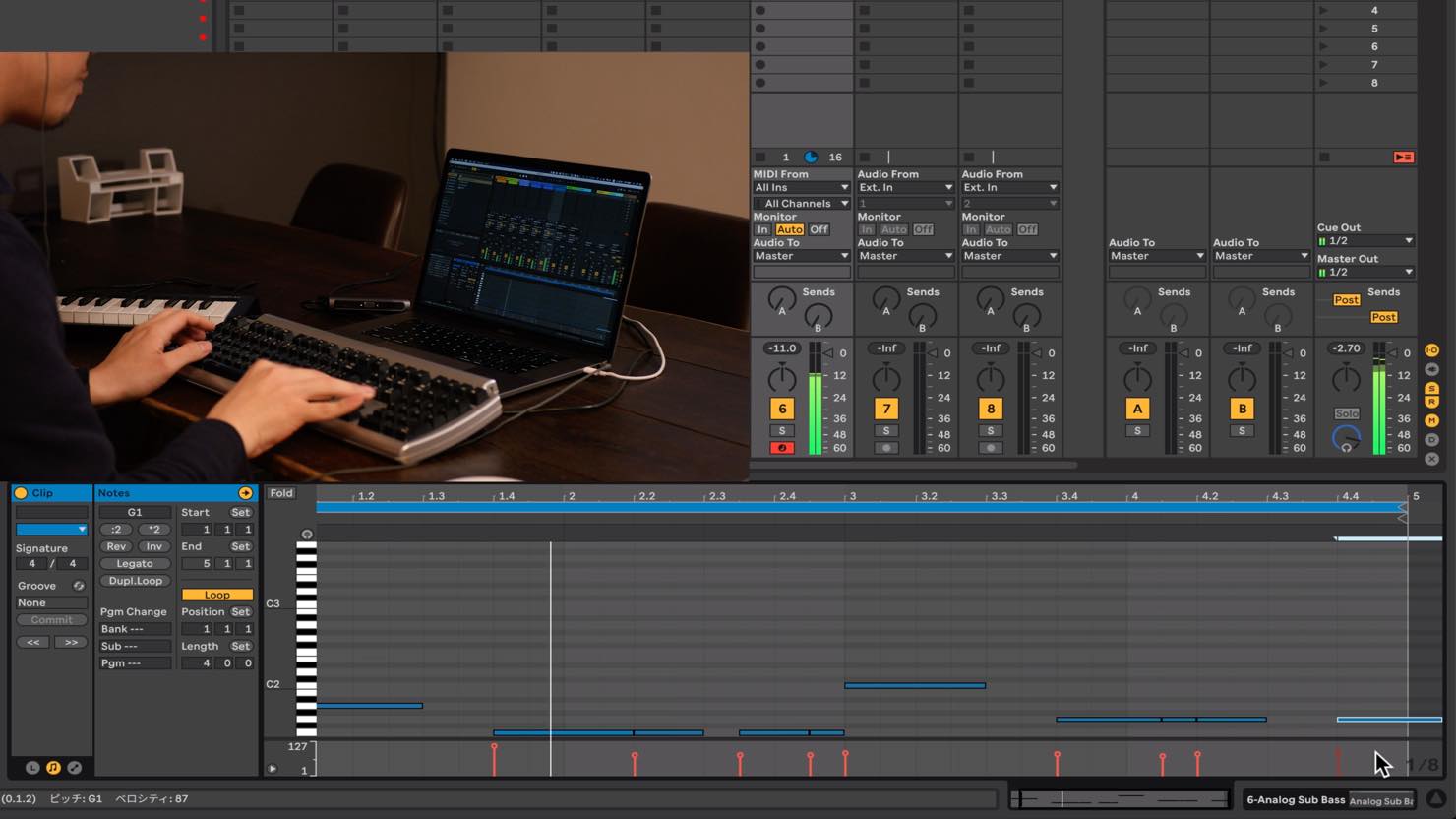
Apply quantization, then adjust the timing and length of the notes.
Applying Effects
Once the editing is finished, add effects such as Overdrive and EQ to shape the sound.
Press Command+F to search for the effect you want to insert, select it and press Return to add it. The whole process is quick.
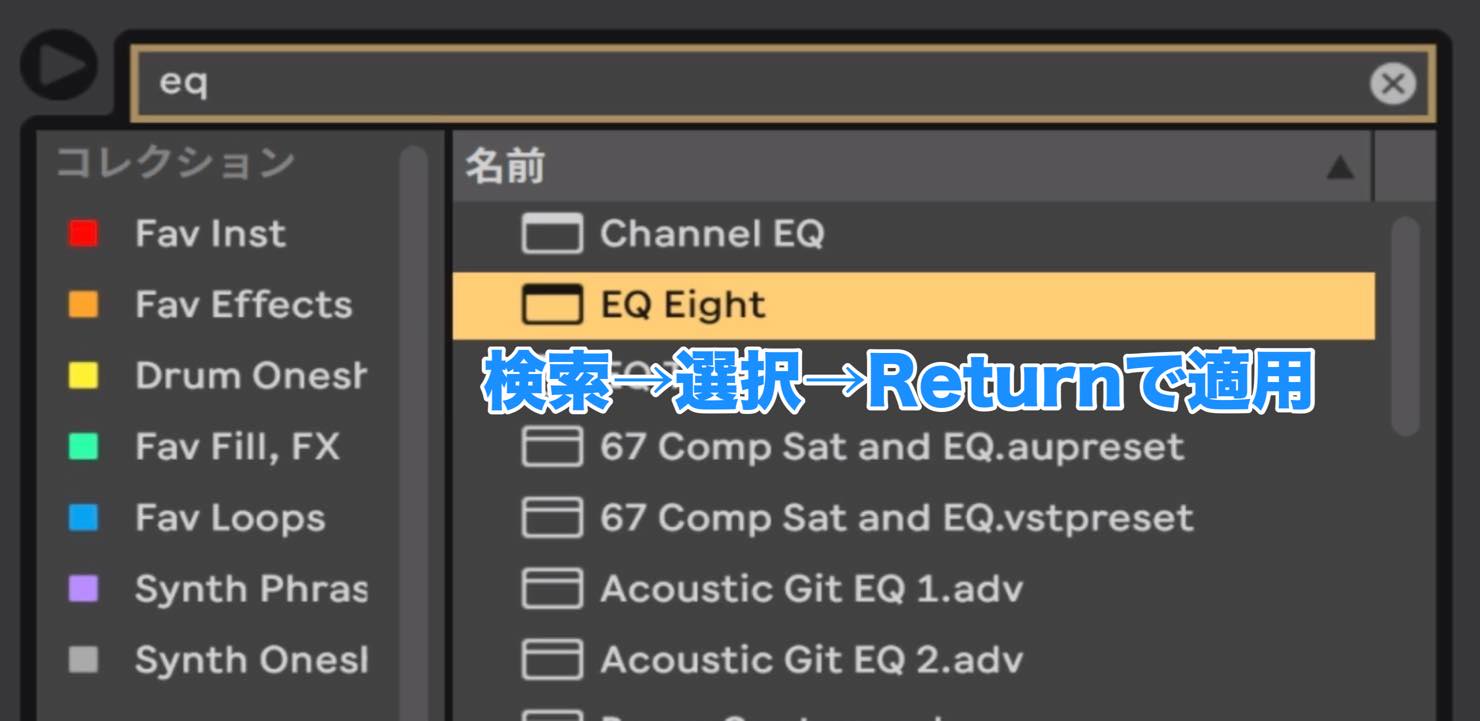
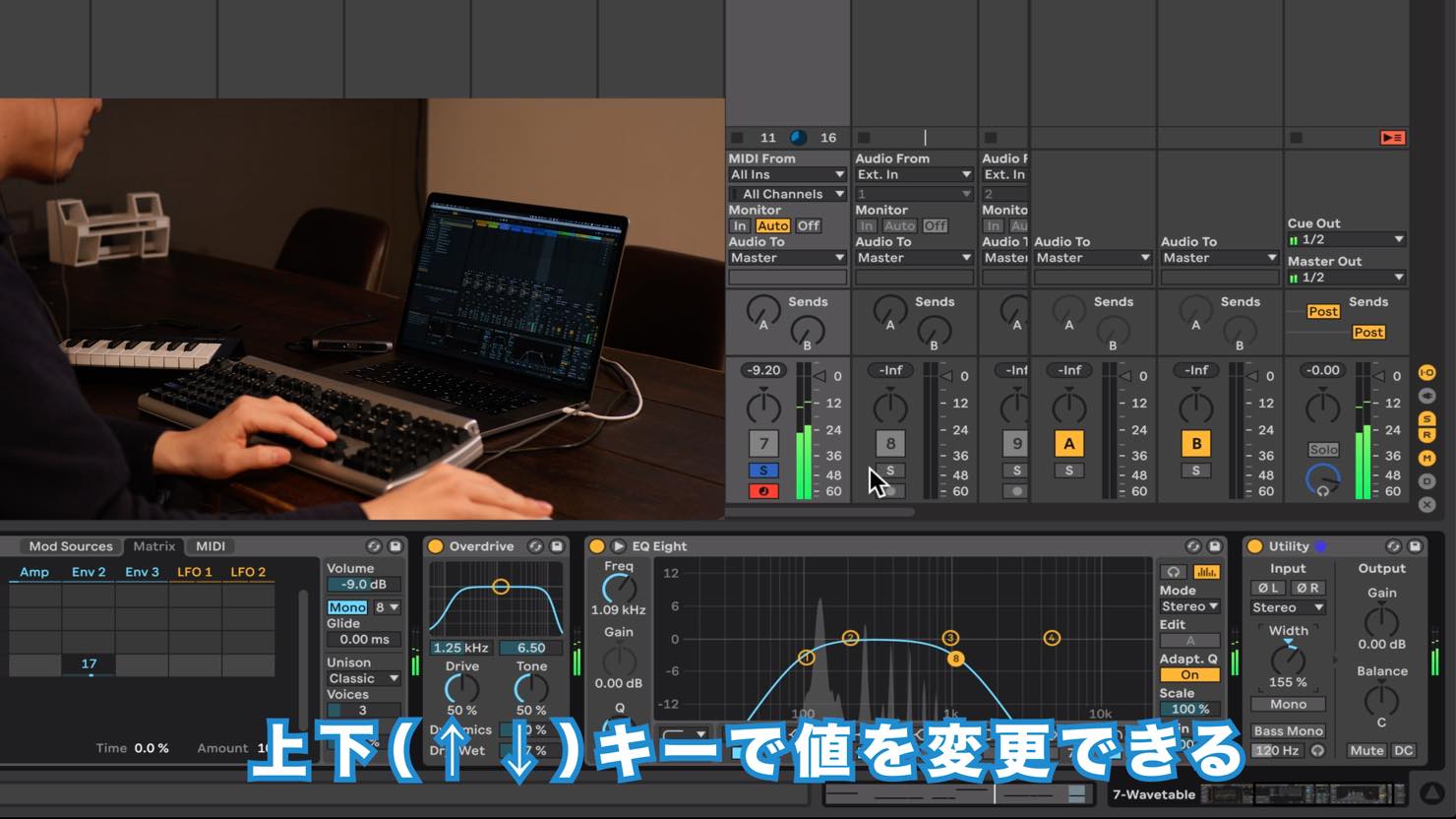
Personally, I also find it very useful that the Up and Down arrow keys can adjust values for effect knobs and even mixer volume faders.
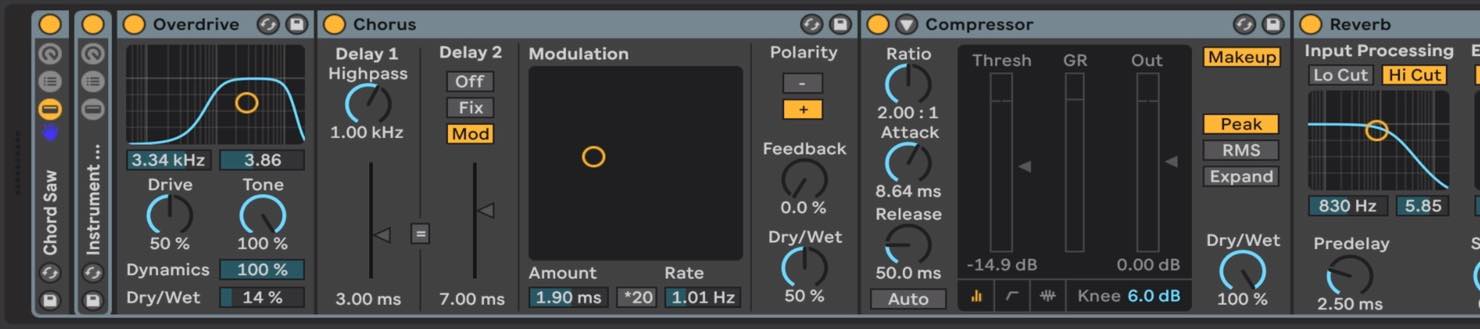
Instrument Racks can save effects along with the synth. Saving combinations you use frequently can therefore save time.
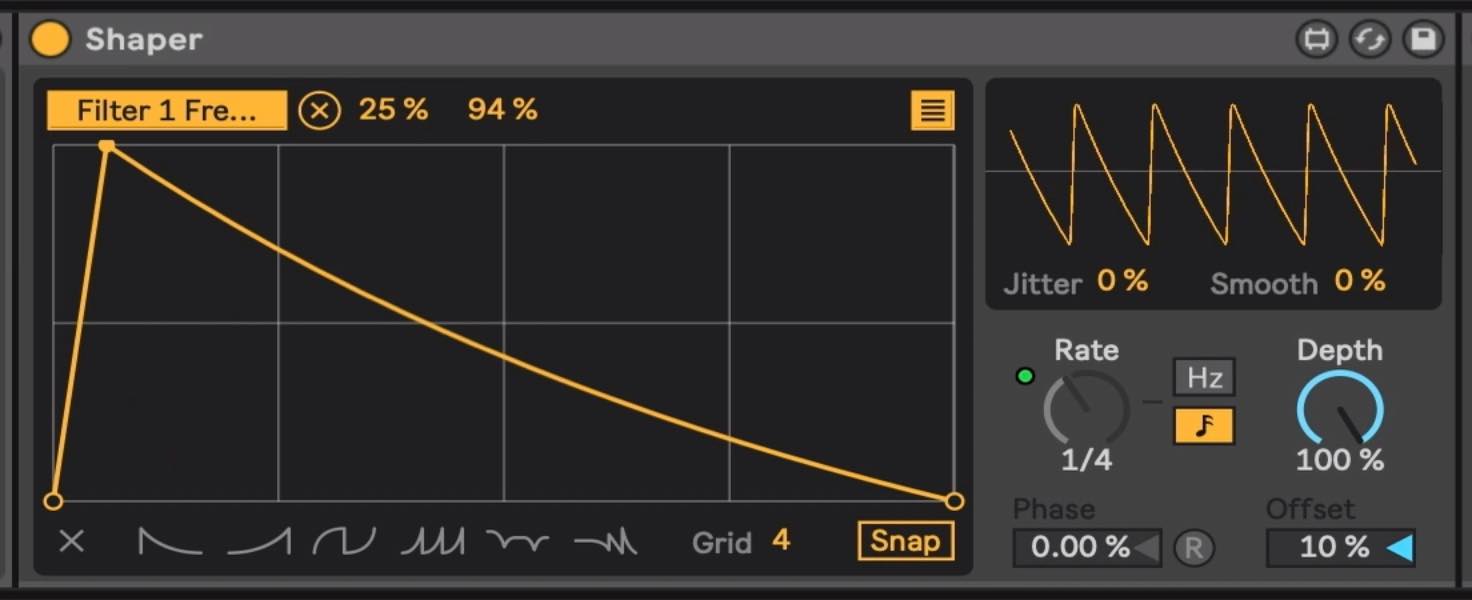
Shaper can apply LFO-like modulation across devices such as synths and effects, expanding your sound-design options.
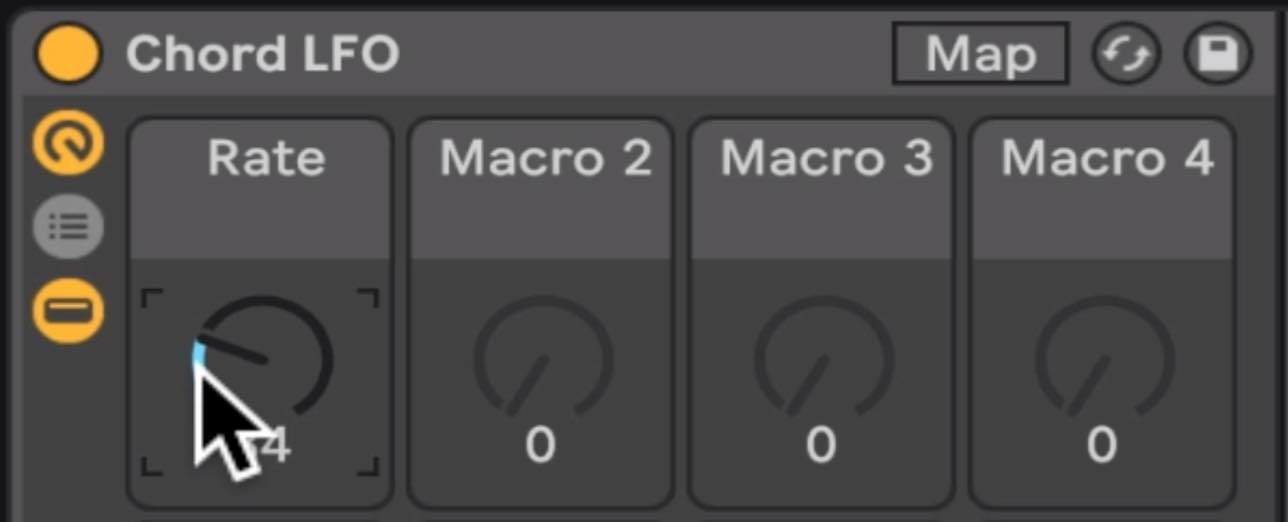
Here, a Macro control adjusts the speed of Shaper's modulation. Controlling multiple modulations with a single knob is especially useful when producing genres that make extensive use of automation.
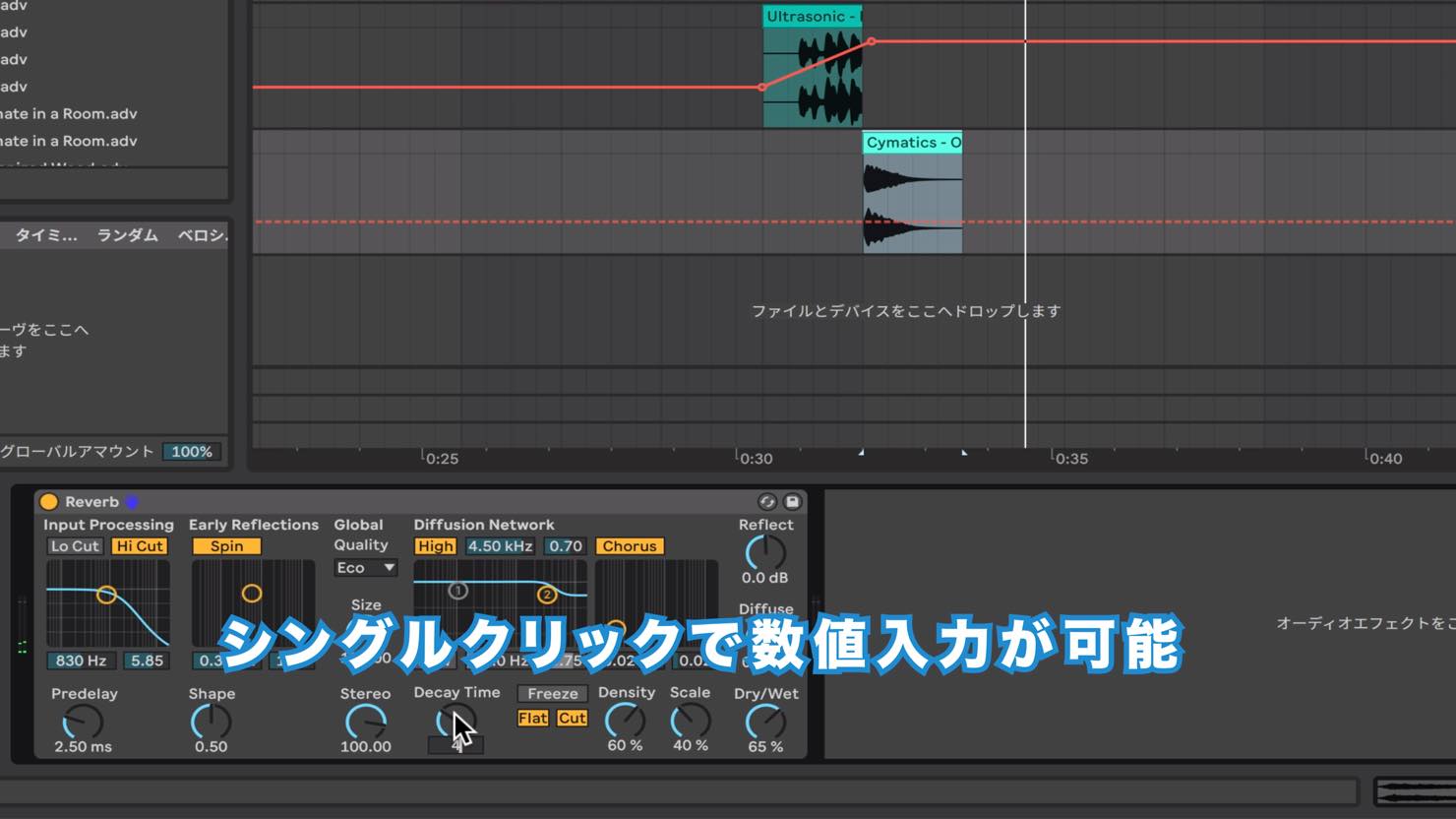
Another convenient feature is that you can select a parameter with a single click and immediately type in a value.
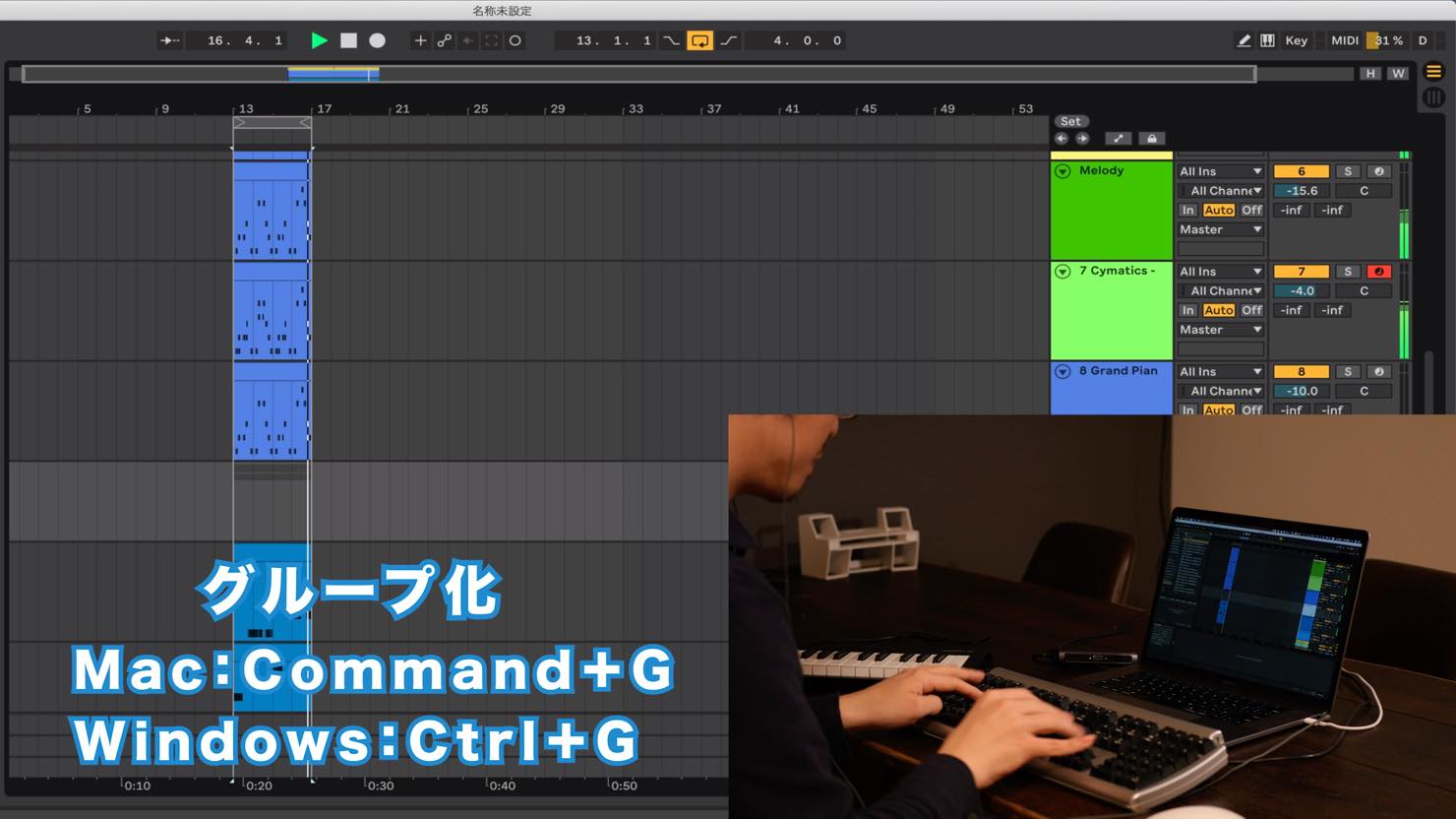
Select the tracks you are layering and group them with Command+G (Ctrl+G on Windows). You can then apply effects to the grouped tracks together.
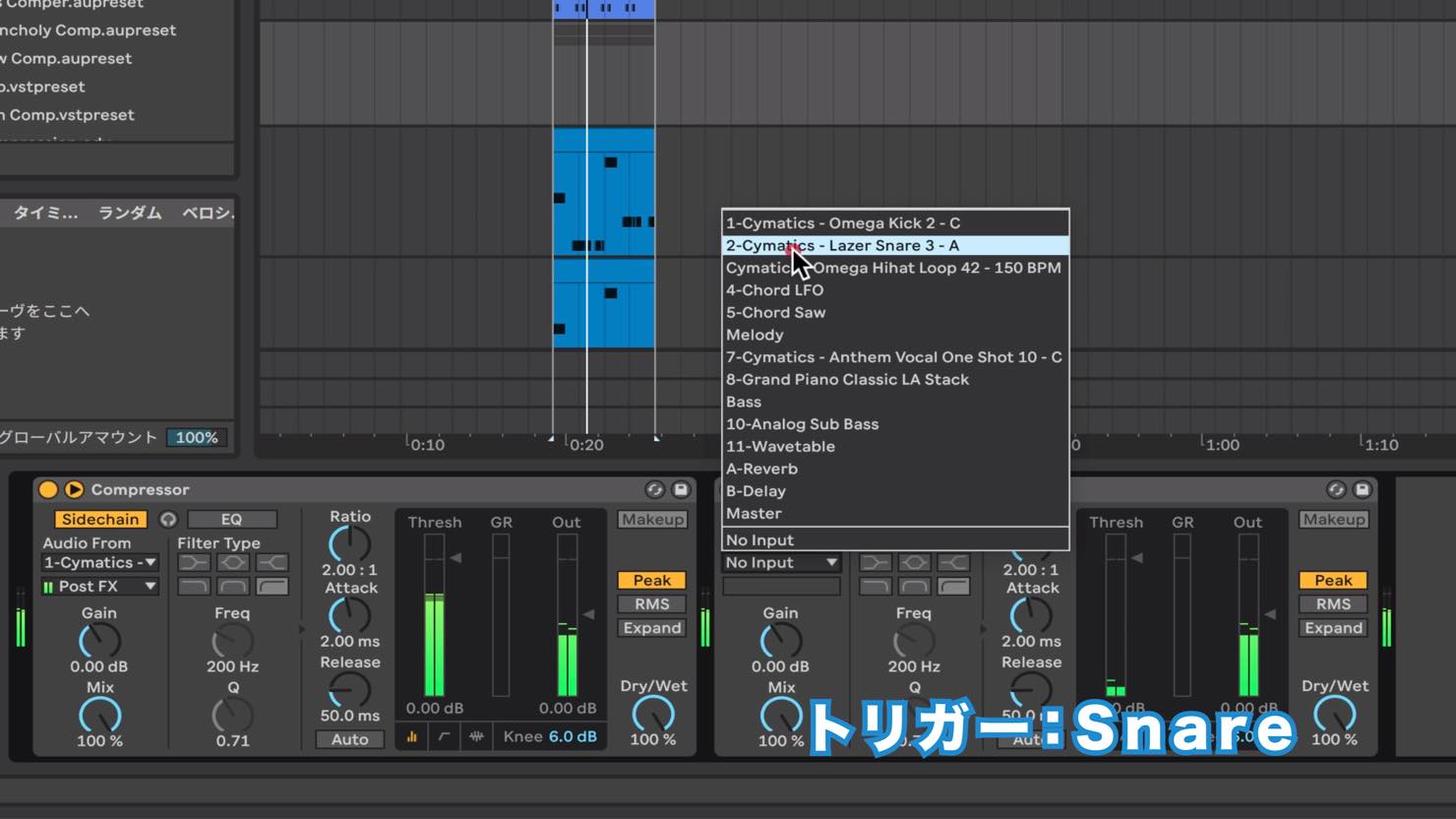
Here, we use two compressors with sidechain enabled. The kick is selected as the trigger track for the first compressor, and the snare for the other.
You can also group effects with Command+G (Ctrl+G on Windows).
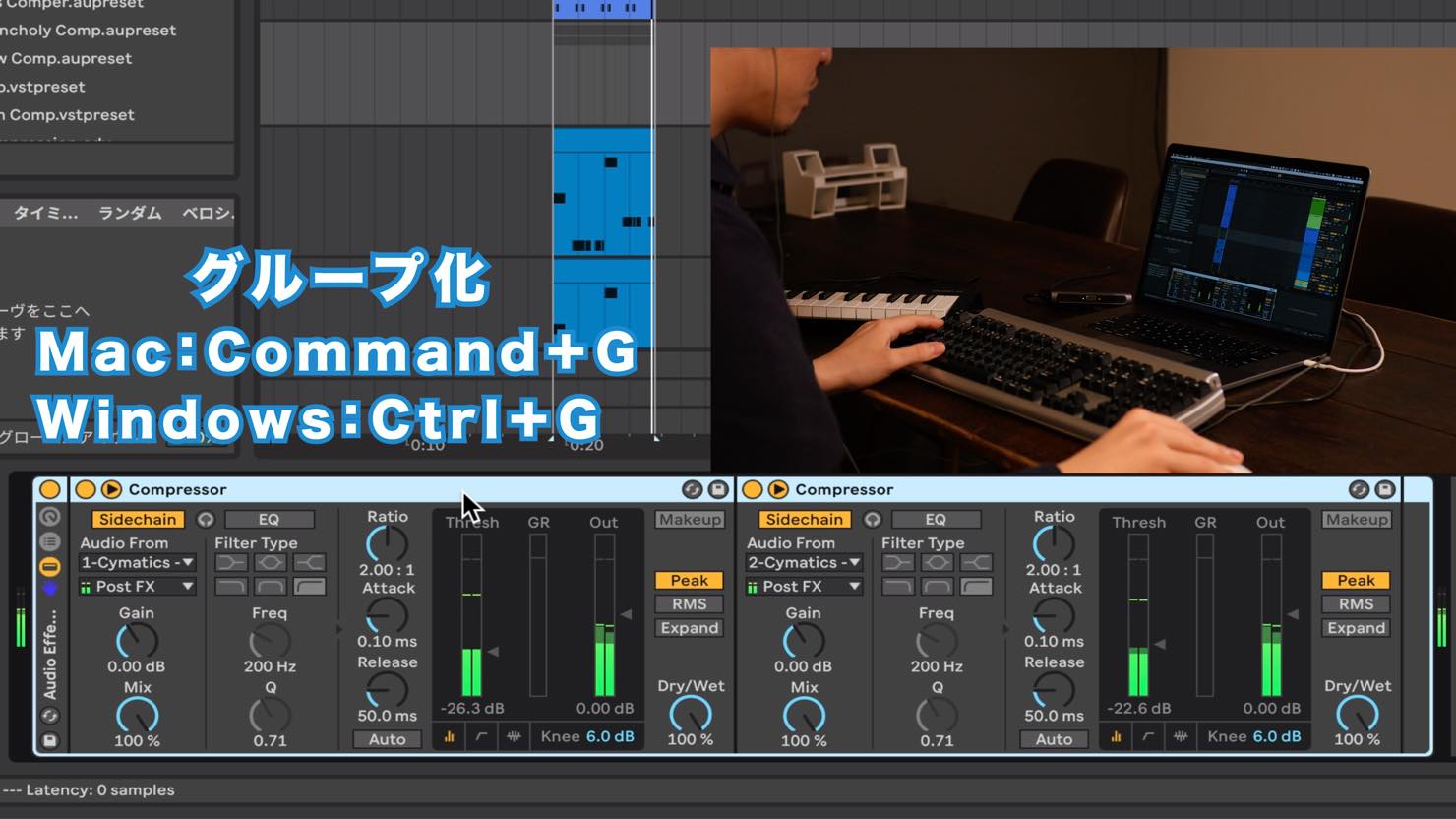
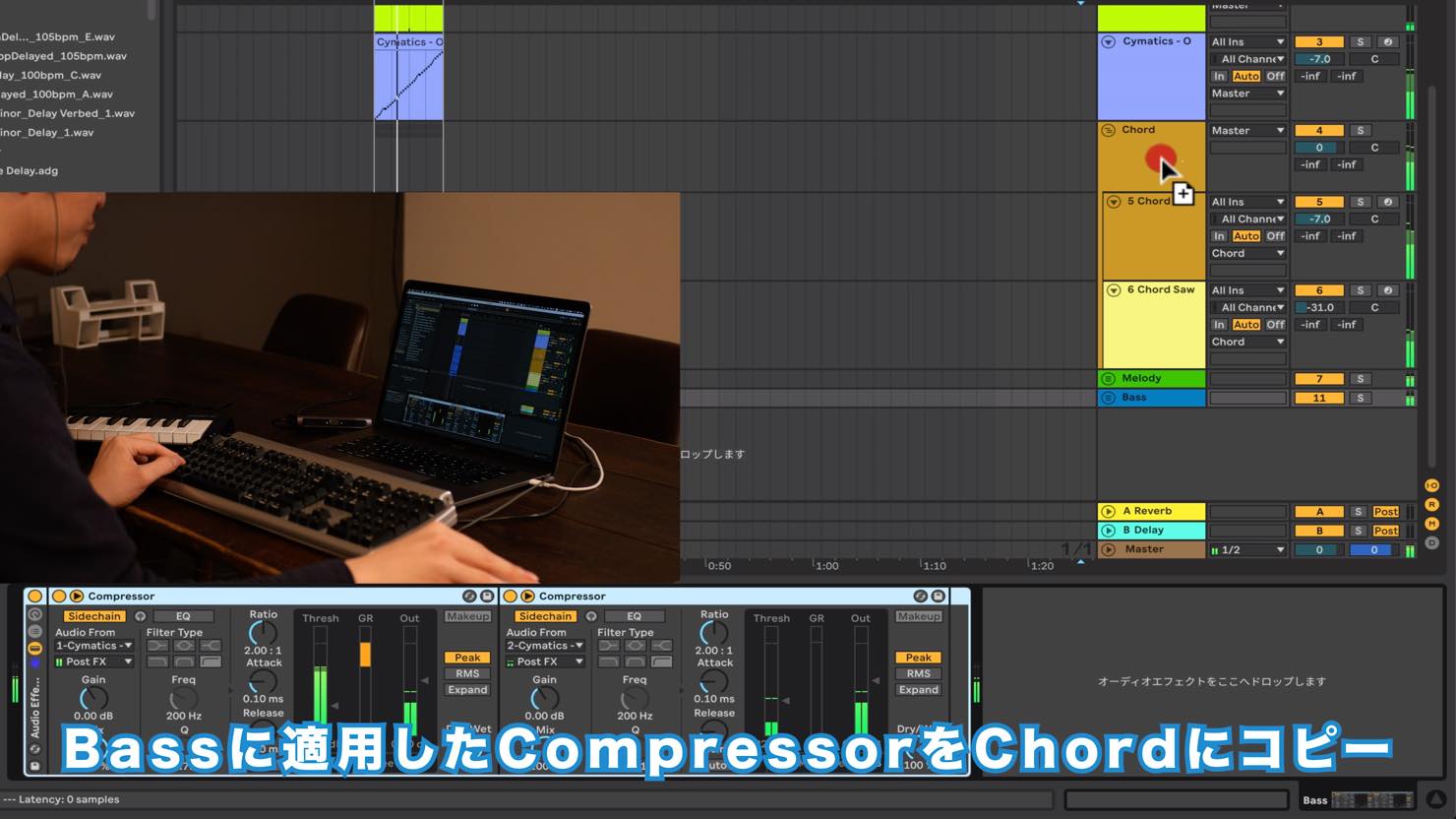
We will copy the compressors used for the bass sidechain to the chords. Because they are grouped, we can copy both compressors at once.
The sidechain routing settings are copied too, so there is no need to configure them again.
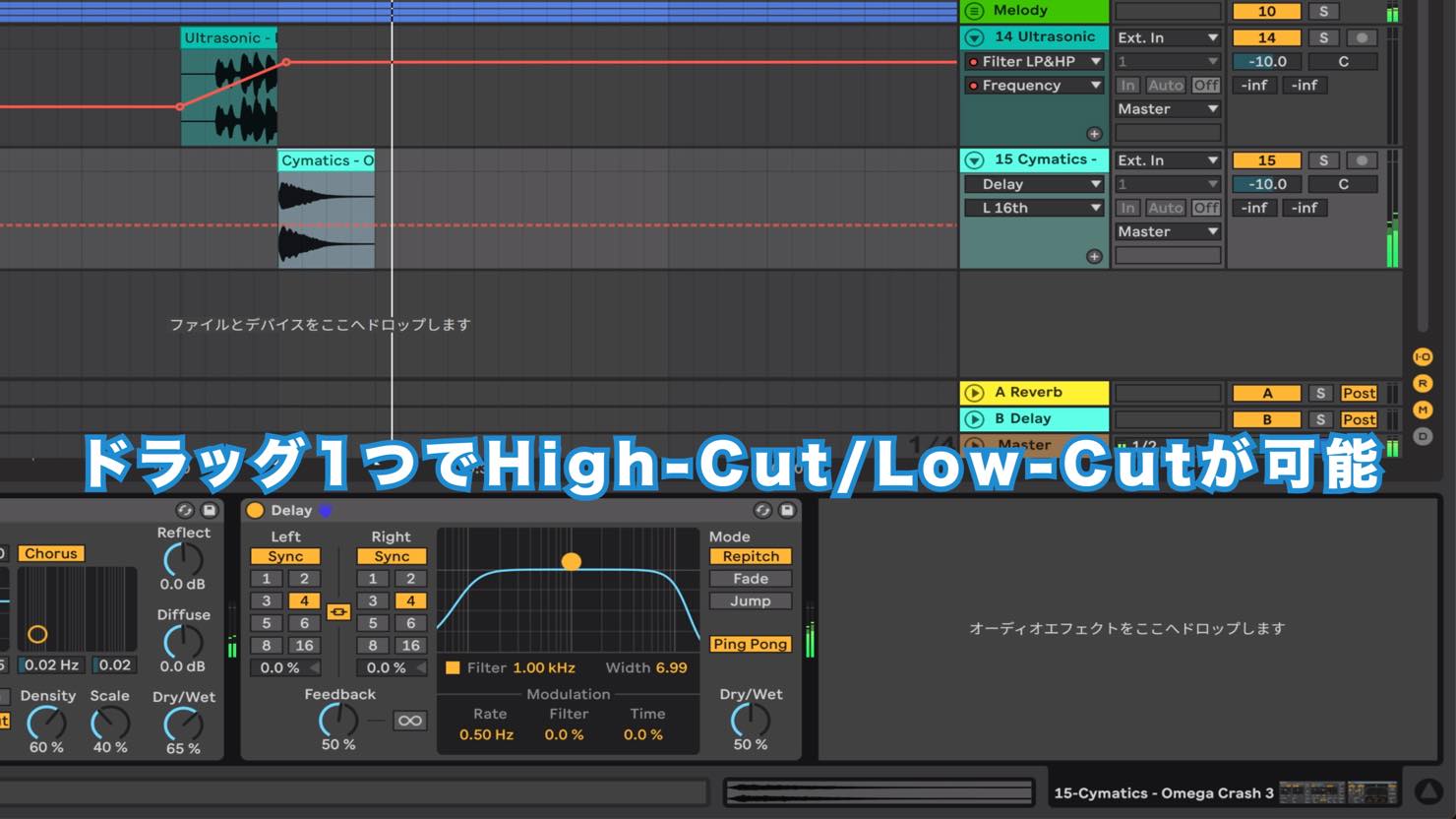
Live's built-in Delay also saves time by letting you adjust its high-cut and low-cut filters simply by dragging.
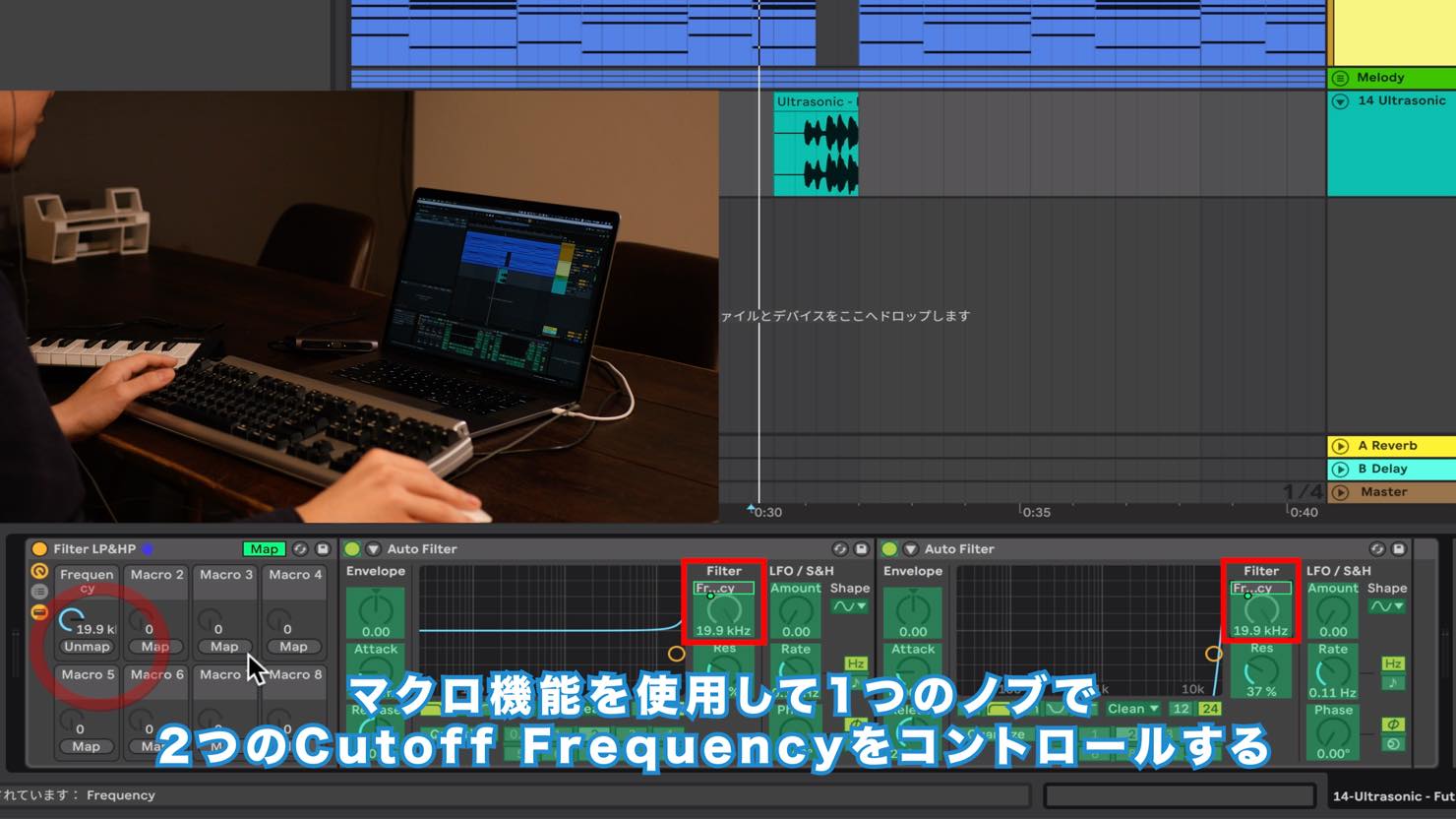
Using Macro Controls for Automation
Here, we use a Macro to control the cutoff frequencies of two filters with a single knob.
This keeps the setup simple without creating unnecessary automation lanes.
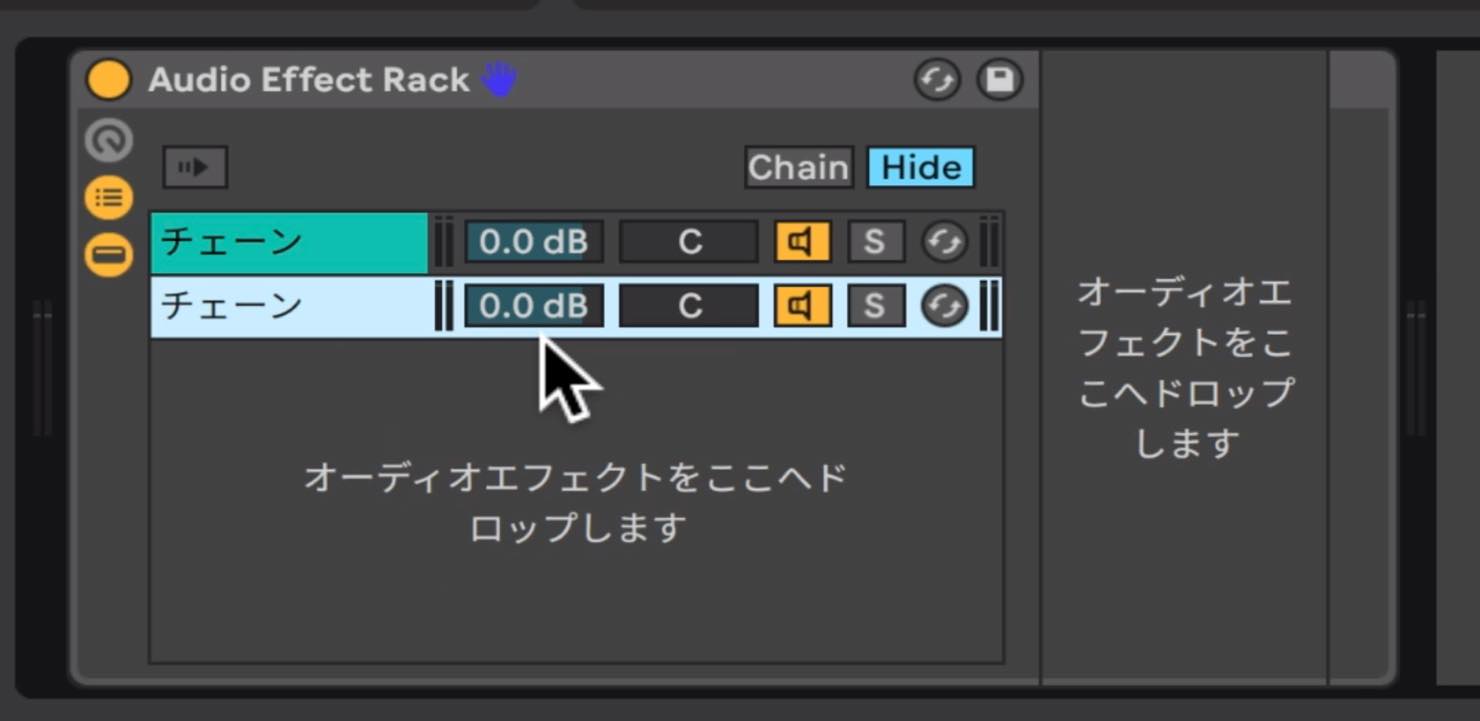
Place the Audio Effect Rack containing the filters inside another Audio Effect Rack, then create chains.
This lets you create both a filtered path and an unprocessed path within one track, so you can process them in parallel without using send channels.
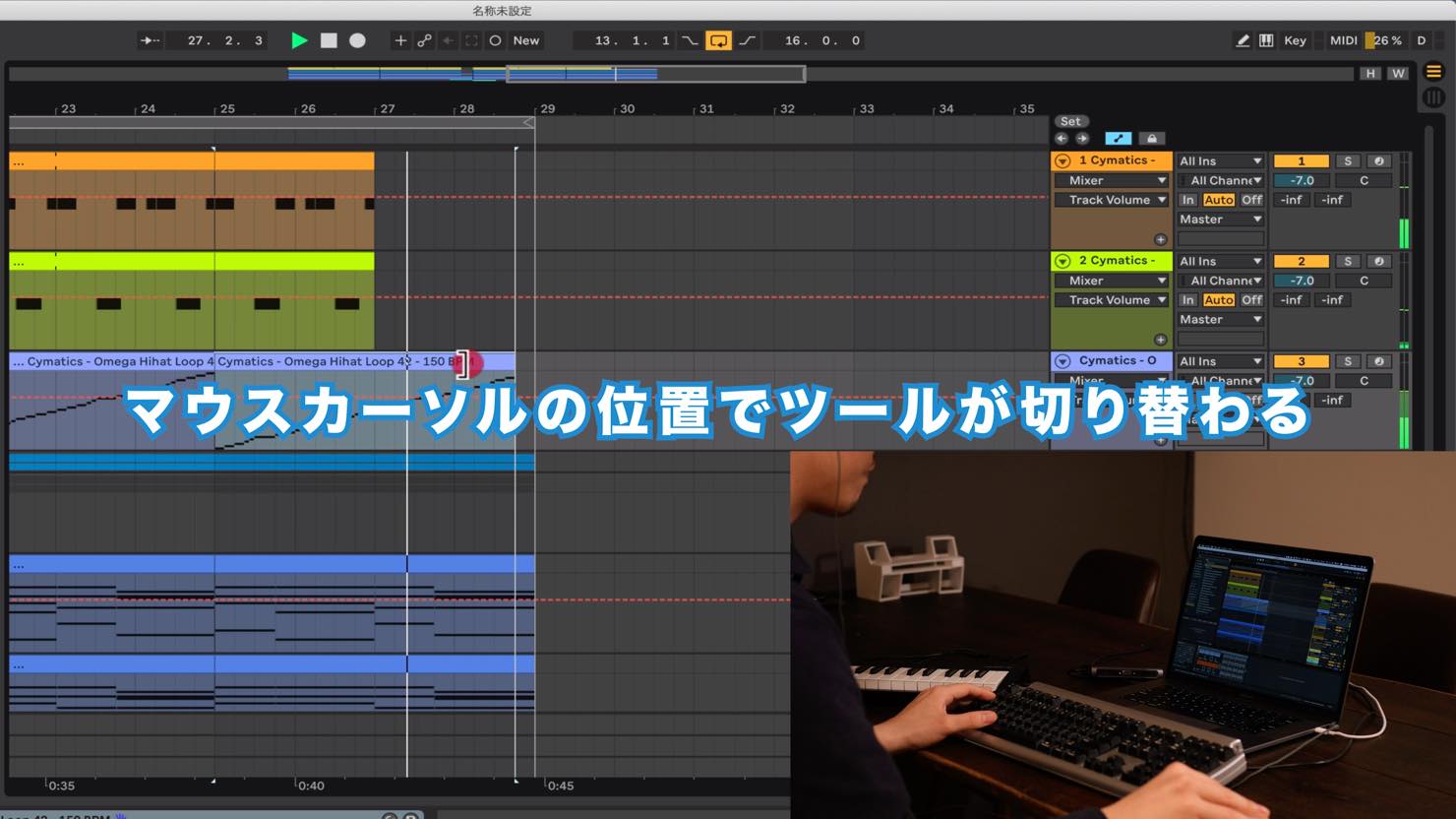
I also appreciate how the tools for cutting or stretching clips and changing range selections switch automatically according to the mouse pointer's position.
What did you think?
We hope this demonstrated how quickly you can put your ideas together with minimal equipment, using Live's distinctive Session View alongside MIDI editing, parameter control, assignments, automation and more.
At the time of this tutorial, Ableton Live 10 Suite was also available as a free, fully featured 30-day trial.
If you would like to experience these features, give it a try.
Download it here!
We also offer tutorials on the basics of Ableton Live. We hope you find them useful!

Ableton Live Basics: Session View
Learn how to use Ableton Live through videos and articles designed to help even newcomers start making music right away. This series focuses on Session View, one of Live's most distinctive and appealing editing features.

Ableton Live Advanced Tutorials: Arrangement View
Once you have learned the basics of Ableton Live, it is time to start building complete tracks. These videos and articles focus on practical techniques for producing higher-quality music.
Music Production Workflow in Ableton Live 10
We build a track in about 20 minutes using Live's unique features and keyboard shortcuts. We hope this helps anyone interested in Live!
🎥 YouTube: https://t.co/s1K3xxz7dm
📝 Article: https://t.co/jAa0ptxxlg— @AbletonJP @Ableton pic.twitter.com/Qa5UN3BD1z— SLEEP FREAKS (@SLEEPFREAKS_DTM) July 21, 2019
Frequently Asked Questions
Q1. Can I try Ableton Live 10 before buying it?
At the time of this tutorial, a free, fully featured 30-day trial of Ableton Live 10 Suite was available. It let you try all the features before buying to see whether they suited your production style.
Q2. Can I search for samples without using keyboard shortcuts?
Yes. You can also browse for samples manually. However, Command+F (Ctrl+F on Windows) helps you quickly find the sound you want in a large sample library.
Q3. Will loop samples with different tempos fall out of time?
No. In Ableton Live 10, loops with different tempos automatically synchronize to the song tempo, so you can use them without tempo mismatches.
Q4. What is the main advantage of Macro controls?
A single knob can control several parameters at once. This keeps automation simple without adding unnecessary lanes and is especially useful for genres that rely heavily on automation.
NEW ARTICLES
Latest English Articles






















































































































































































































































