
Waves CLA MixHub is a channel strip plugin developed under the supervision of renowned engineer Chris Lord-Alge, designed to dramatically streamline mixing in your DAW. Its bucket feature lets you manage up to 64 channels centrally and intuitively adjust gain, EQ and dynamics across multiple tracks in a single window. This analog-console-style workflow can help beginners and experienced users alike train their ears and improve their mixing skills.
Mix Intuitively with CLA MixHub
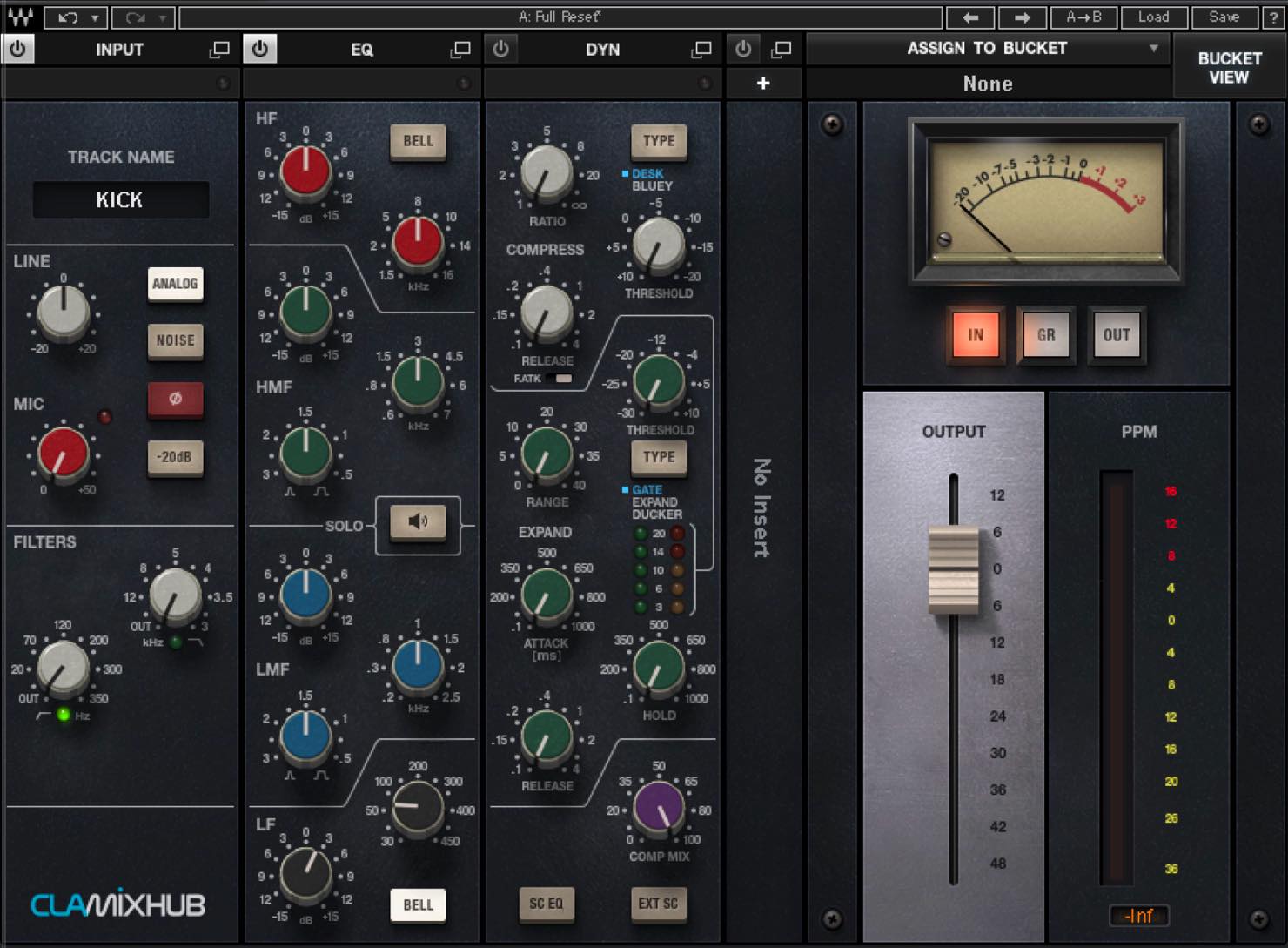
In this article, we will look at mixing with Waves CLA MixHub.
CLA MixHub is a channel strip modeled on the console owned by renowned engineer Chris Lord-Alge and developed under his supervision. It is also an innovative plugin that supports multiple channels for a faster workflow.
Let's take a closer look at the advantages CLA MixHub brings to mixing.
Tips for Better Mixes: Waves CLA MixHub Video
Product link: Waves CLA MixHub
CLA MixHub: Basic Features
First, here is a brief introduction to CLA MixHub.
At first glance, this plugin looks like an ordinary channel strip.
It brings together input, EQ, dynamics and output sections.
An interesting feature is the ability to insert one additional Waves plugin into the signal chain.
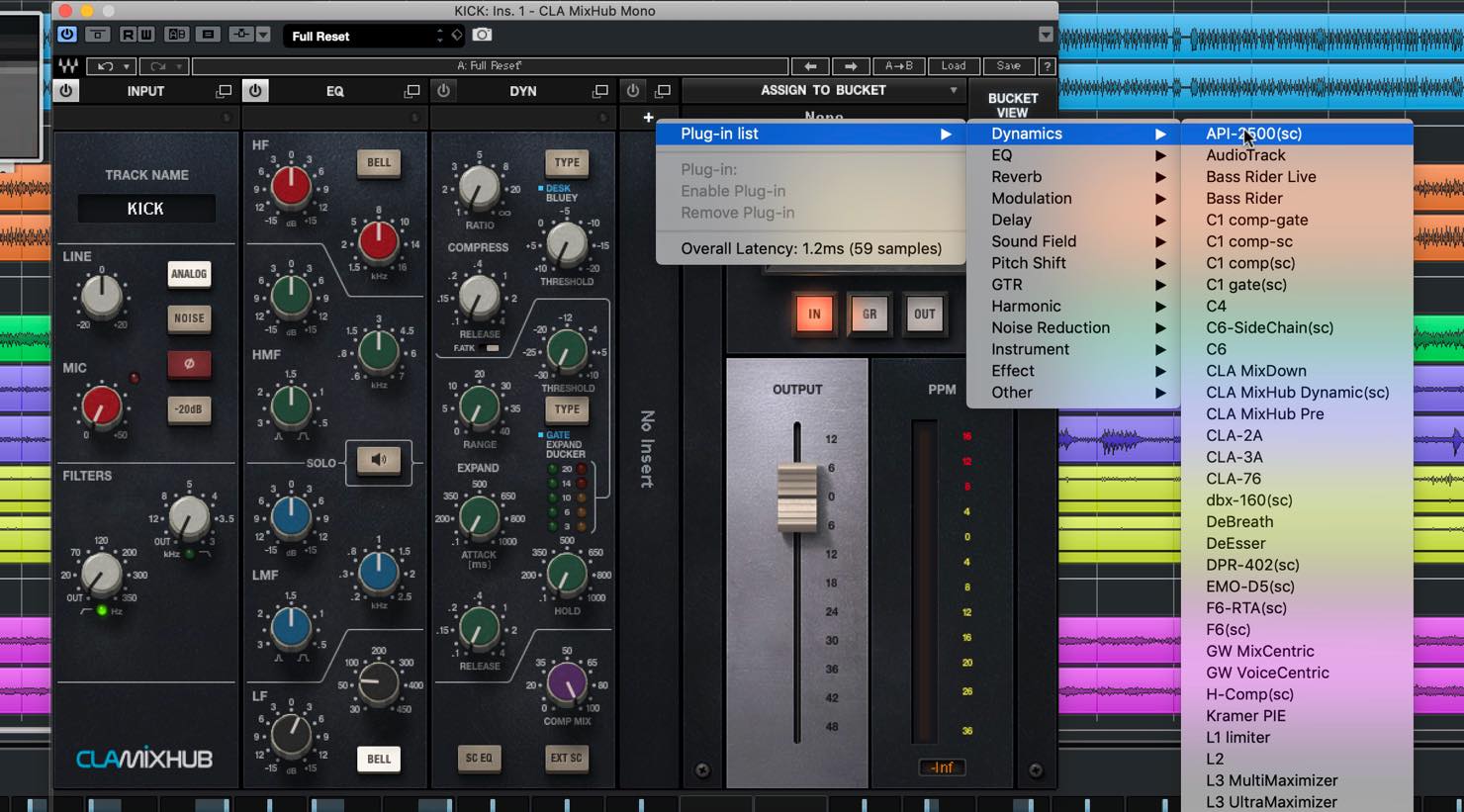
You can also freely rearrange the order of the EQ, dynamics and insert sections, as shown here.
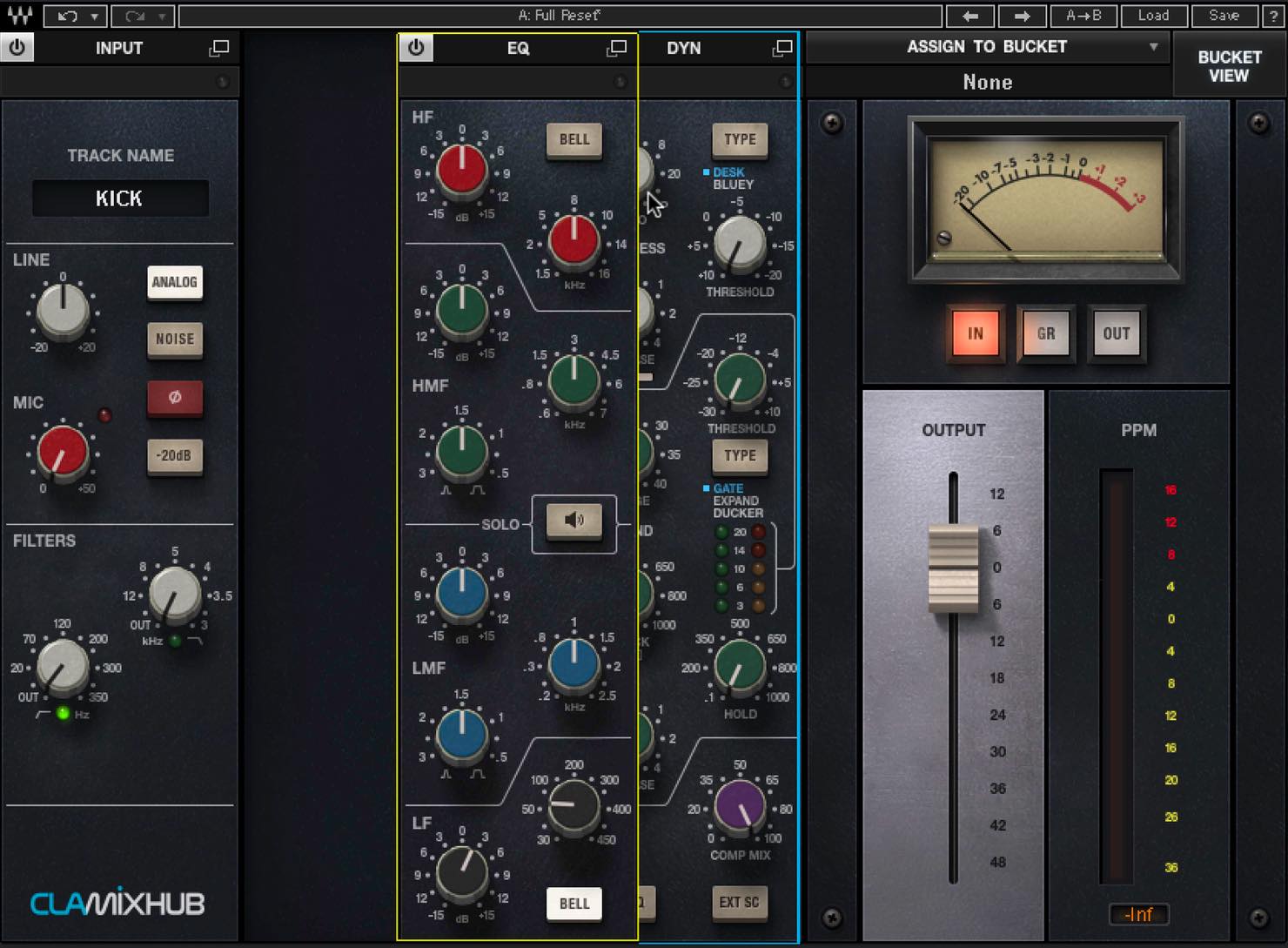
But CLA MixHub has another feature that goes beyond this.
It is the concept of buckets.
Manage Multiple Tracks Centrally with Buckets
CLA MixHub supports multiple channels. By inserting the plugin on several tracks as shown here, you can manage them together from one place.
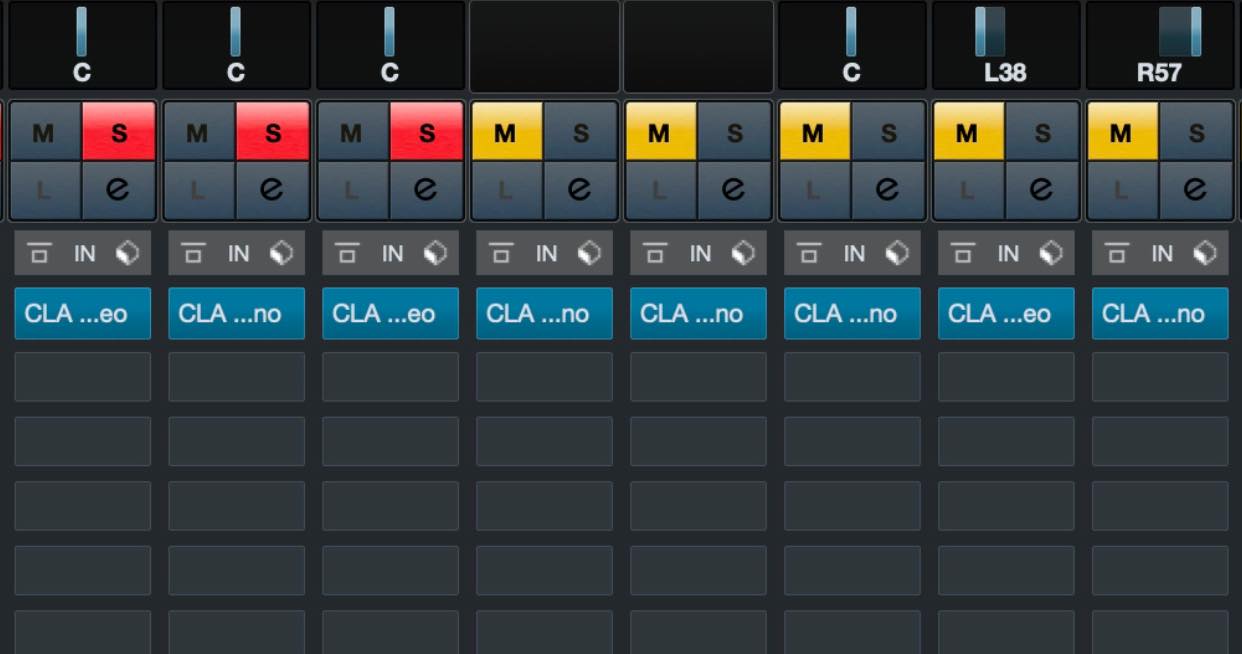
Let's try it.
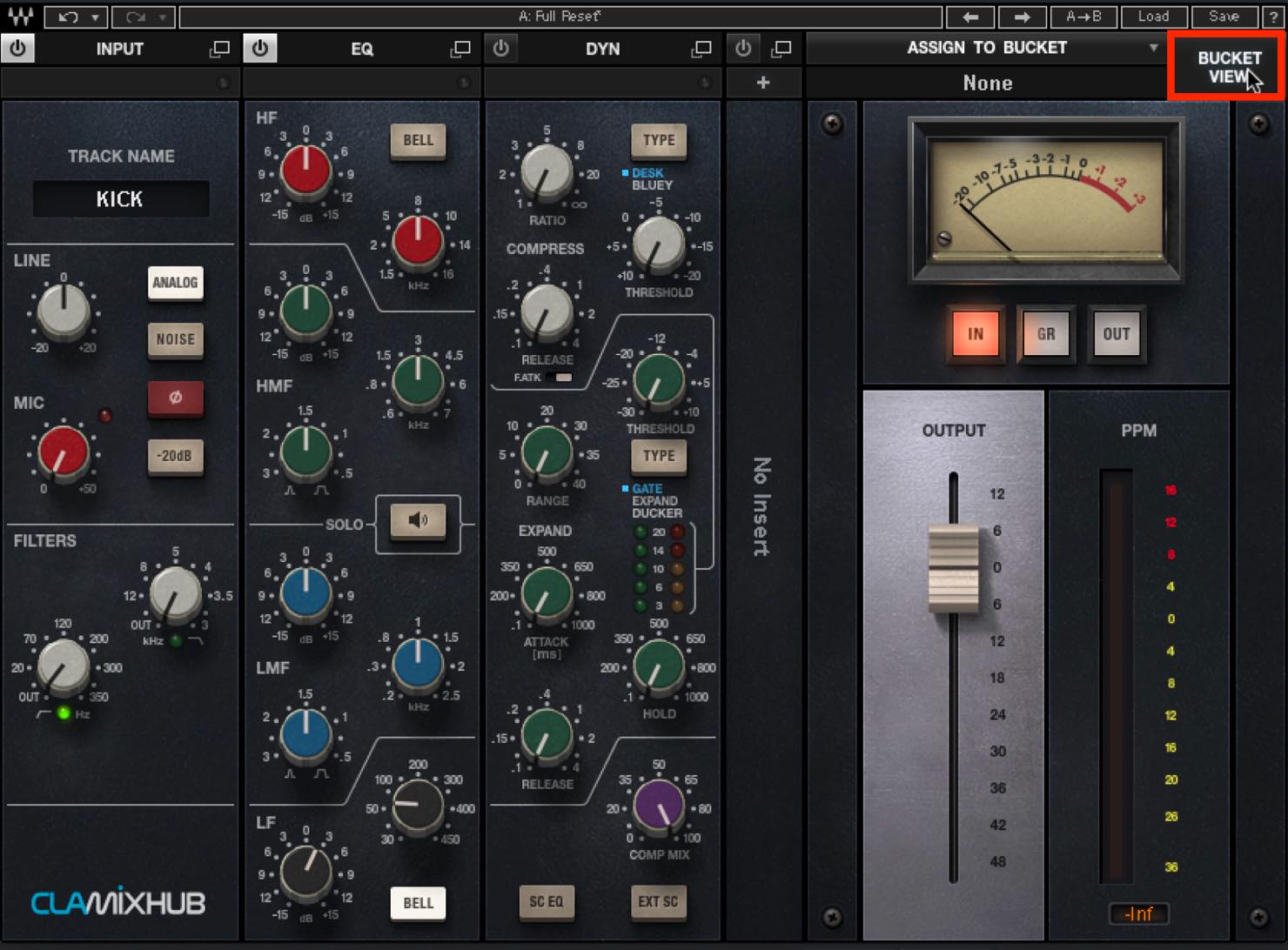
First, click BUCKET VIEW at the top right.
This screen appears, indicating that the bucket is empty.
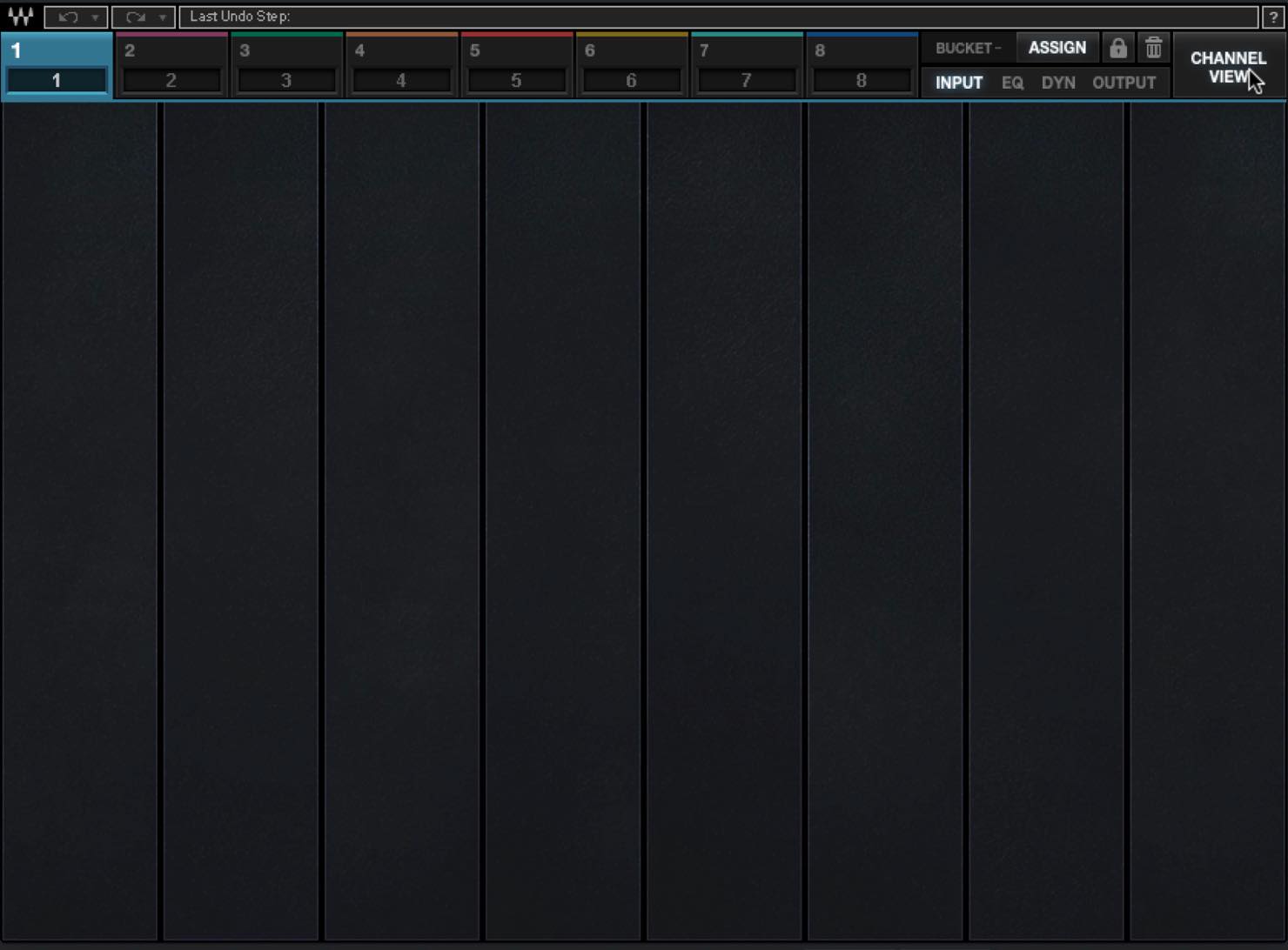
Notice the eight numbered tabs at the top. Each represents a bucket, and you can create up to eight buckets.
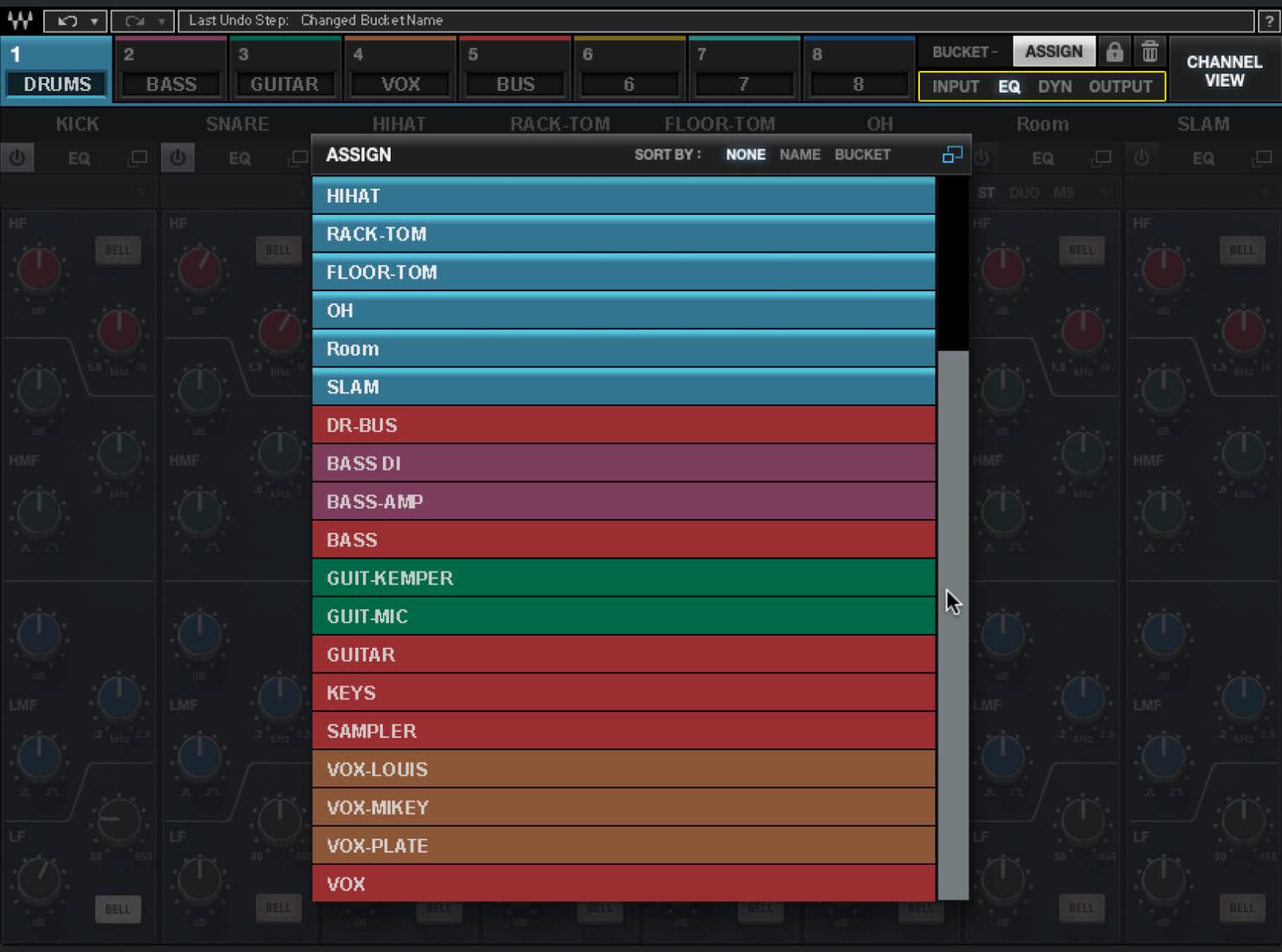
To assign tracks to a bucket, click the ASSIGN button at the top right.
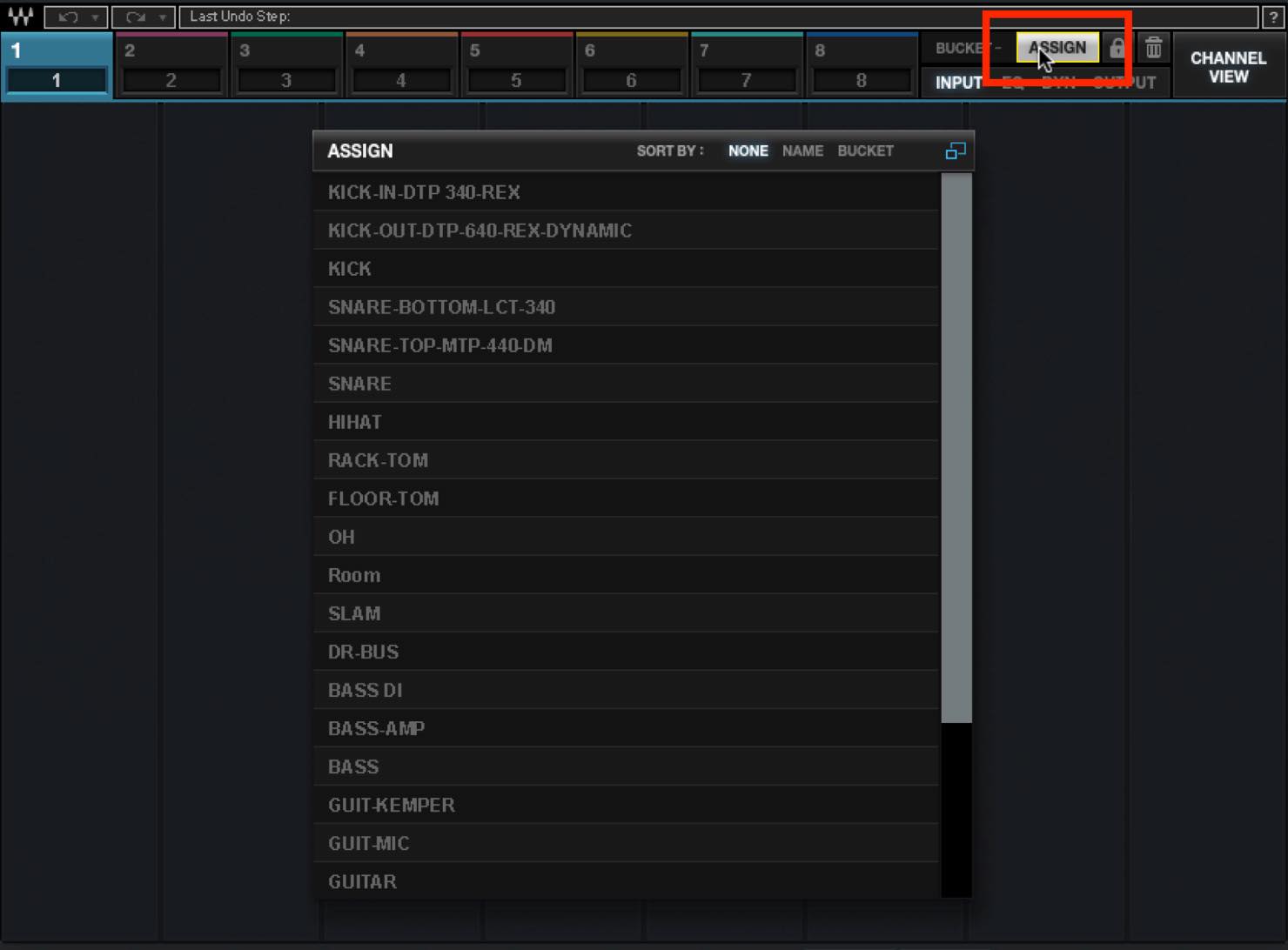
The tracks with CLA MixHub inserted are now displayed, as shown here.
Select the tracks you want from this list. You can assign up to eight tracks to each bucket. For this example, let's select the drum tracks.
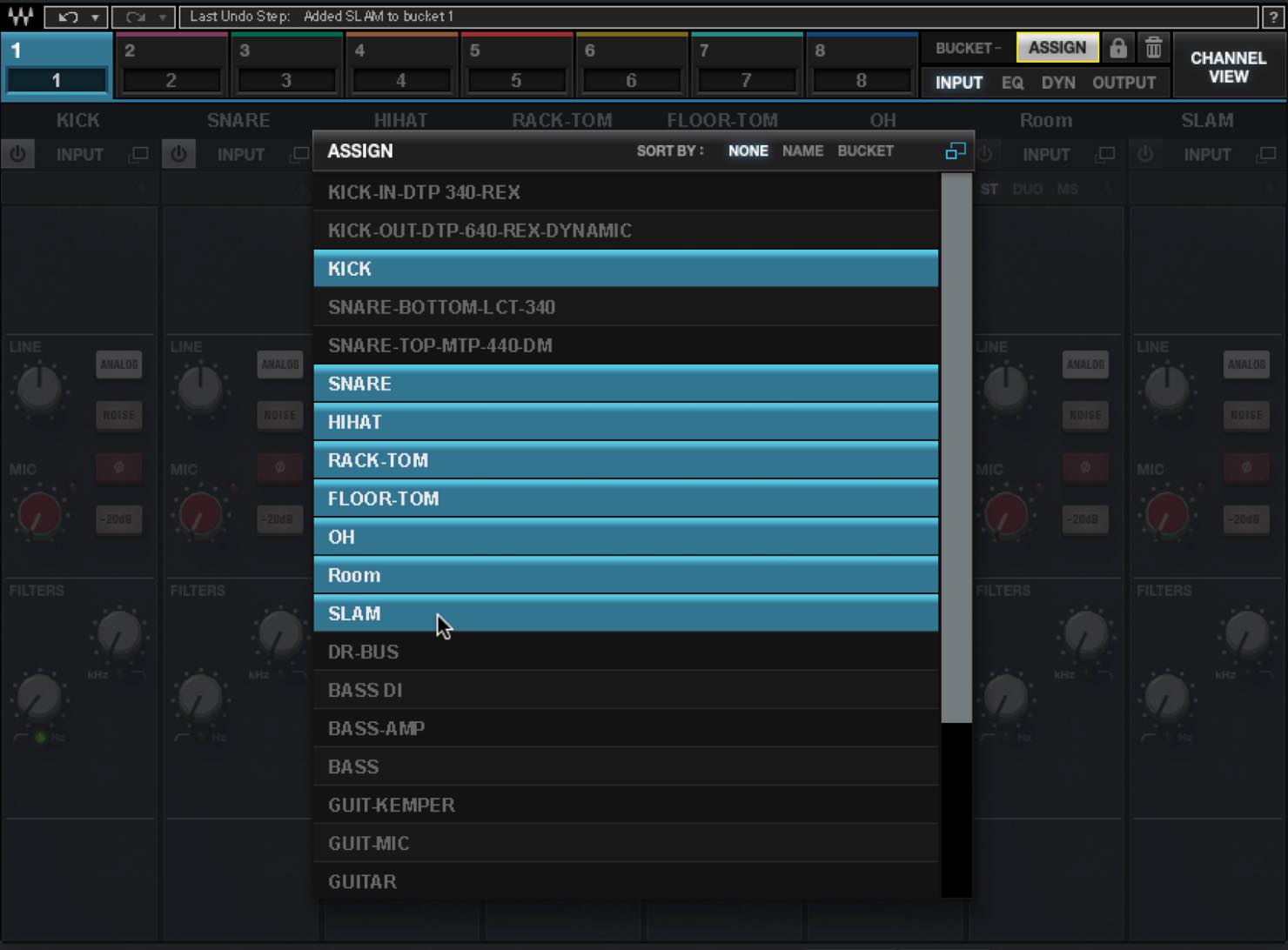
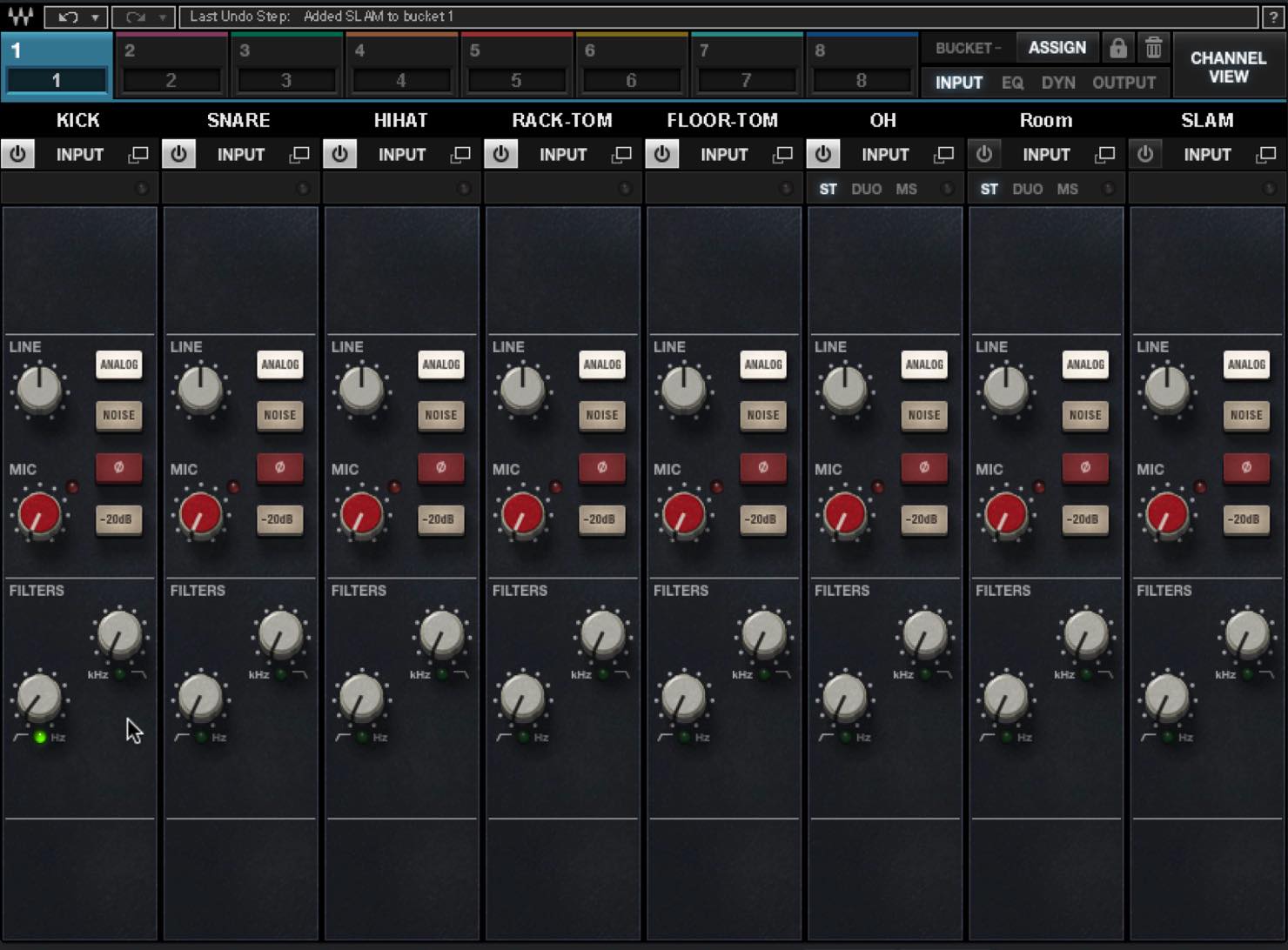
Close the ASSIGN screen, and the input modules for the drum tracks are displayed side by side.
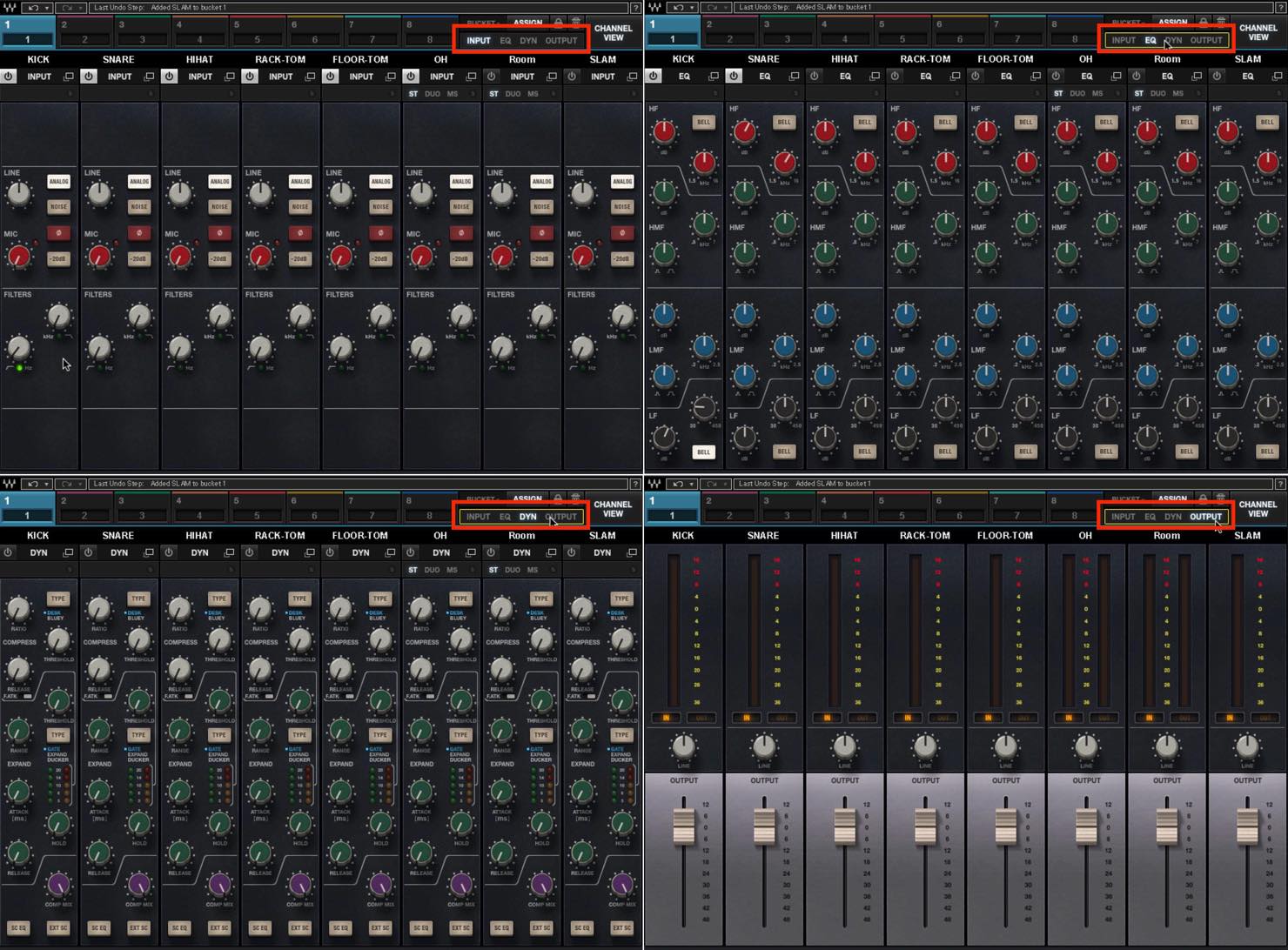
You can, of course, switch modules by selecting EQ, dynamics or OUTPUT from the menu.
As you may have noticed, the channel names are taken directly from the track names in your DAW.
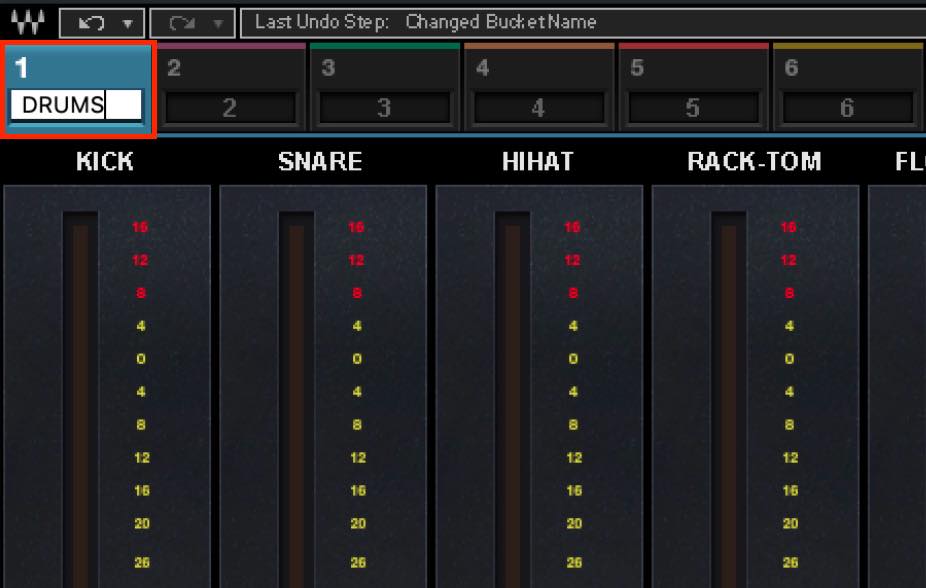
To name a bucket, double-click its default number and enter any name you like.
Here, we have assigned tracks to the other buckets in the same way.
The buckets are color-coded, making them easy to identify.
You can access the same buckets from any instance of CLA MixHub inserted on a DAW track.
All operations stay synchronized, so without opening multiple plugin windows, you can focus on your mix largely within a single window. This is arguably CLA MixHub's defining feature.
A Practical Mixing Example
As an example, let's look at the input modules for the drum tracks.
There are two input gain controls, LINE and MIC. LINE raises the gain without coloration, while MIC adds analog-style saturation as the gain increases.
Let's raise the MIC gain on a few tracks.
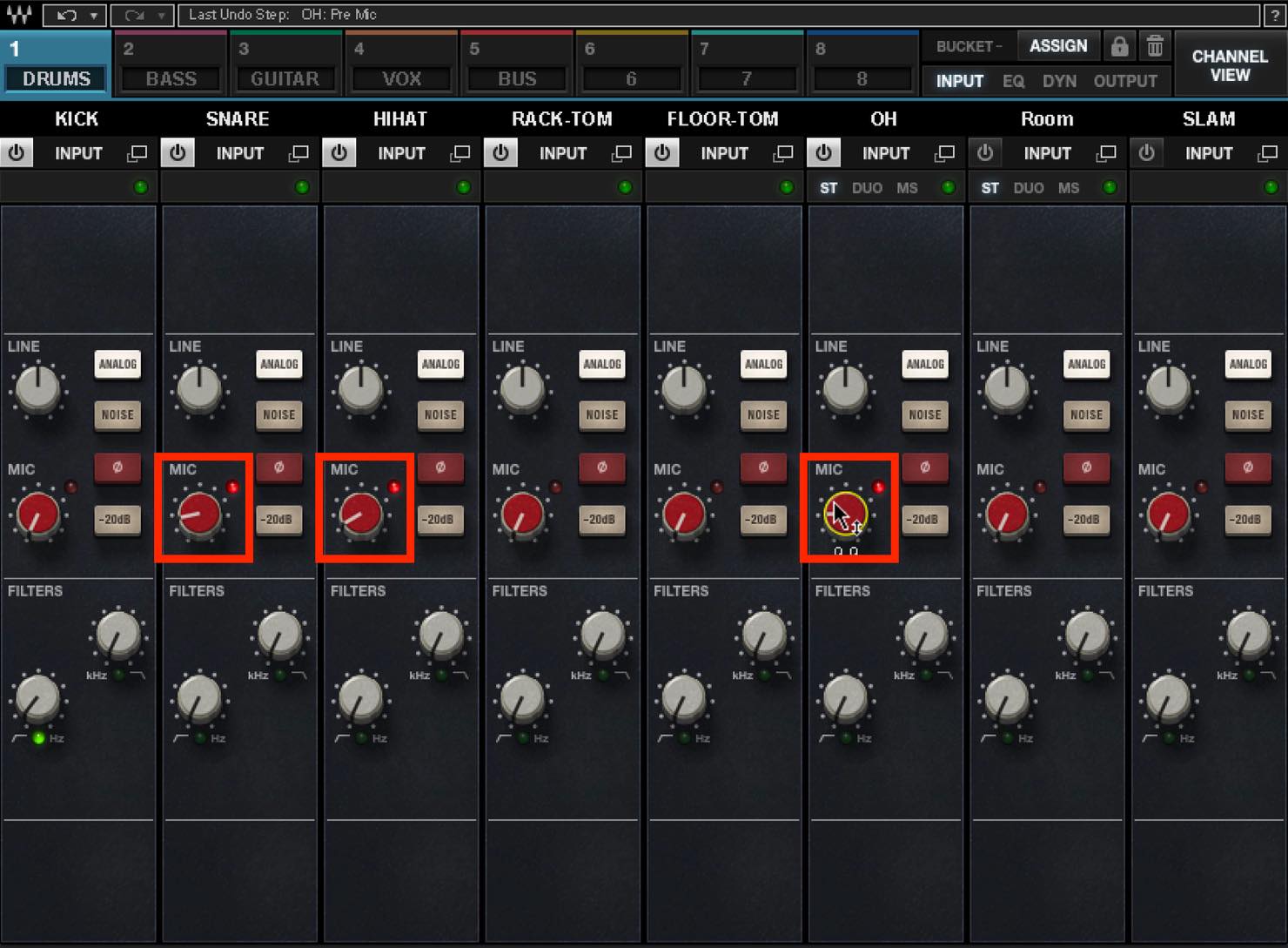
Raising the gain also raises the volume, of course. If a track becomes too loud, you can immediately switch to the output module and turn it down.
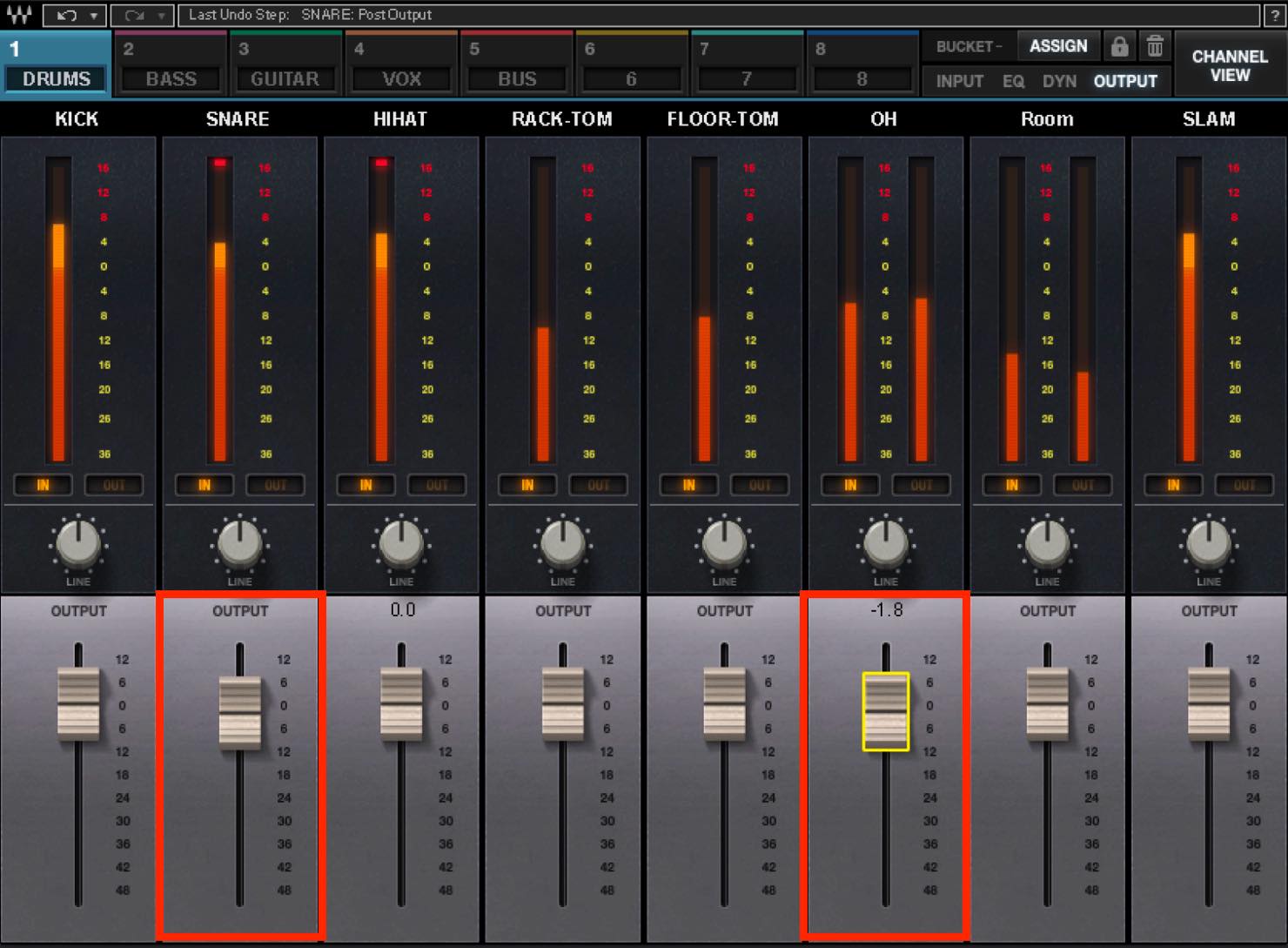
A little extra gain gives the snare and cymbals more definition and sounds good here.
The input module also has filters, so let's try applying some low cuts.
For the kick, we'll cut below around 20 Hz, at the lower edge of the audible range. For the snare, we'll cut below around 180 Hz, just below its body resonance. For the hi-hat, we'll make a more substantial cut below around 300 Hz.
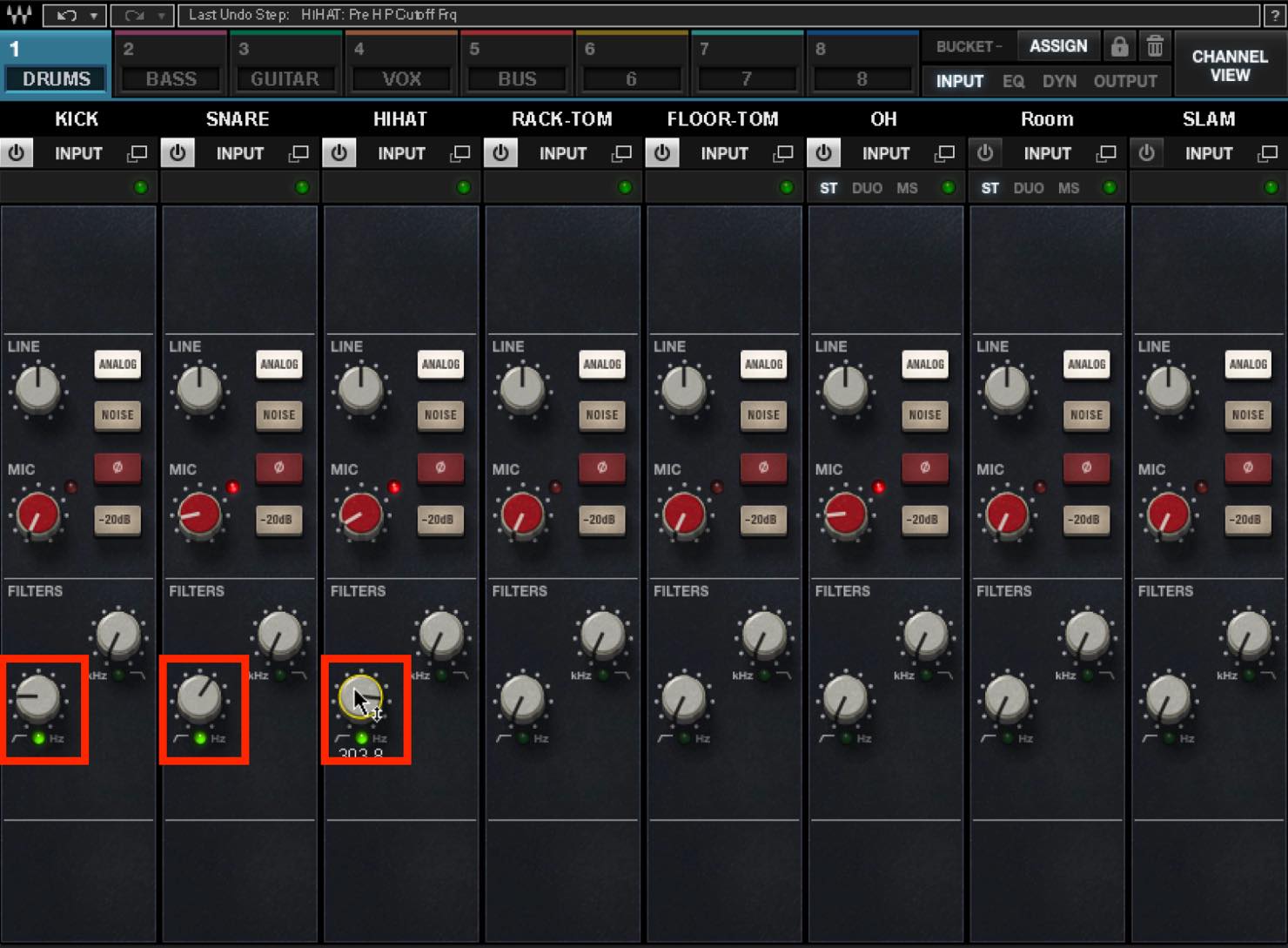
Cutting unnecessary low frequencies to improve separation is a fundamental part of mixing. Being able to do this quickly with the channels side by side is a particular strength of CLA MixHub.
You can use this workflow with up to 64 channels, giving you an intuitive experience much like working on an analog console.
This approach remains very useful as you move on to EQ and compression, and there are many other ways you could apply it.
If you are not familiar with analog consoles, this way of working may feel refreshingly different. Above all, I think it will help train your ears.
If this has caught your interest, give it a try.
Product link: https://bit.ly/2UUQ2Uk
Tips for Better Mixes #1: Mixing with Waves CLA MixHub
CLA MixHub is an innovative plugin modeled on renowned engineer Chris Lord-Alge's own console and developed under his supervision.
🎥 YouTube: https://t.co/qMB8aTO21w📝 Article: https://t.co/kVMeduxYzb @WavesAudioLtd @minetjp pic.twitter.com/CnVlFFKOgb
— SLEEP FREAKS (@SLEEPFREAKS_DTM) July 27, 2019
Frequently Asked Questions
Q1. What is CLA MixHub's bucket feature?
Buckets let you group and manage multiple tracks. You can create up to eight buckets and assign up to eight tracks to each one. This lets you organize different groups of tracks, such as drums and vocals, and manage them efficiently from one place.
Q2. How many channels can CLA MixHub process at once?
CLA MixHub supports simultaneous processing of up to 64 channels. Inserting the plugin on multiple tracks provides a scalable mixing workflow, even for large sessions.
Q3. What is the difference between LINE and MIC input gain?
LINE provides neutral gain adjustment, while MIC increases the gain with analog-style saturation. MIC lets you add warmth and coloration at the input stage.
Q4. Can I apply low cuts with CLA MixHub?
Yes. The filters in the input module let you efficiently apply low cuts at frequencies suited to each track, such as around 20 Hz for the kick, 180 Hz for the snare and 300 Hz for the hi-hat in this example.
NEW ARTICLES
Latest English Articles





















































































































































































































































