
Cubase Expression Maps make keyswitch management much more efficient. With instruments such as Kontakt and Trilian, switching playing techniques can otherwise involve entering MIDI notes. Once an Expression Map is configured, you can select articulations visually with the mouse. Add and name the articulations, then assign the corresponding keyswitch notes. You can export the map and reuse it in other projects or on another computer.
Control Instrument Keyswitches Efficiently in Cubase
When programming, keyswitches let you change an instrument’s playing technique easily.

Alongside the included instruments, keyswitches are often used in high-quality instruments such as Kontakt and Trilian.
However, keyswitches can be a little cumbersome.
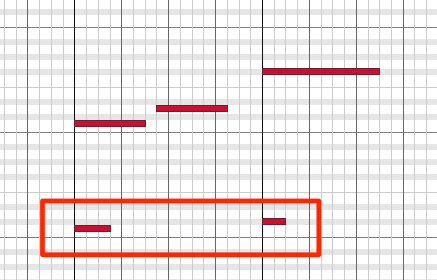
You need to enter a MIDI note to switch each playing technique.
You may have to open the instrument to check the technique, or accidentally enter the wrong note.
These are common occurrences.
A much more convenient solution is
a powerful Cubase feature called Expression Maps.
Expression Map Basics
See the article at the following URL for details.
https://sleepfreaks-dtm.com/softsynth/halion-sonic-se/
Expression Maps for Additional Instruments
Setting Up an Expression Map
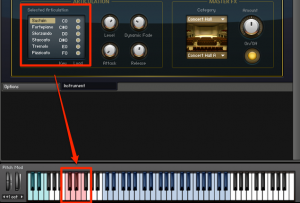
In this example we will use Kontakt.
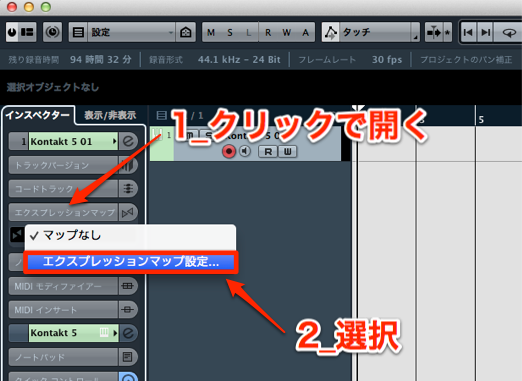
Click Expression Map in the Inspector,
then select Expression Map Setup.
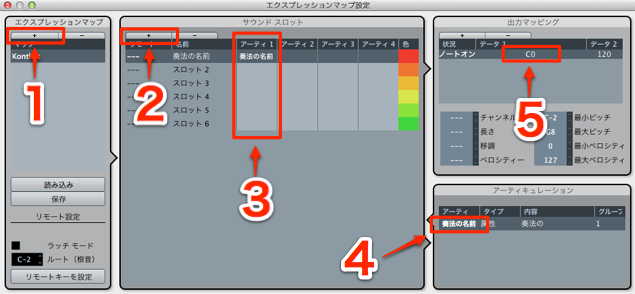
- 1. Click “+” to add a map.
- 2. Use “+” to add an entry for each articulation.
It is also helpful to enter each playing technique in the Name field. - 3. Enter the individual playing techniques.
Click and choose Add Articulation. - 4. Select Text and enter the name of the playing technique.
- 5. Enter the corresponding articulation note from the instrument.
The setup is complete.
Applying the Expression Map
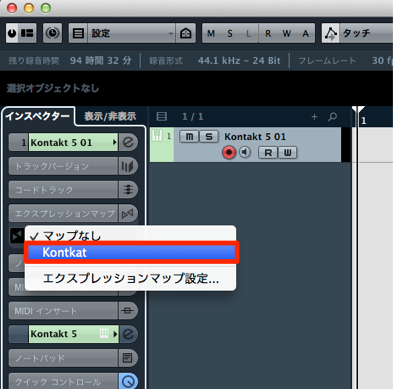
Look at Expression Map in the Inspector again:
your new map is now available. Select it.
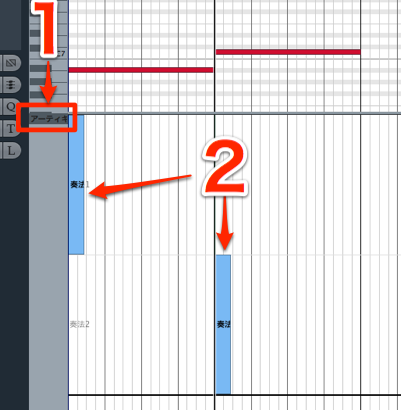
Open the Key Editor.
- 1. Select Articulations/Dynamics.
- 2. Use the Pencil tool to draw in the desired playing technique.
The instrument will now follow the selected articulation.
Saving and Loading an Expression Map
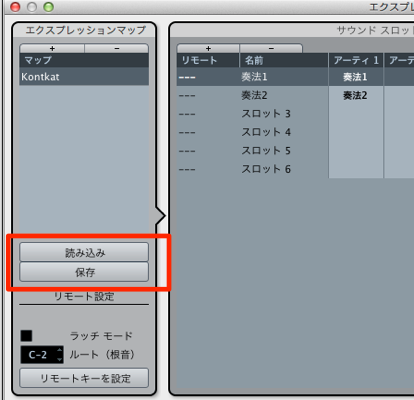
Export the Expression Map
to load and reuse it easily in other projects or on another computer.
Frequently Asked Questions
Q1. What is the difference between an Expression Map and a keyswitch?
A keyswitch is a MIDI note used to change an instrument’s playing technique. An Expression Map helps you manage and visualize those switches in Cubase so you can select them more easily.
Q2. Can I use Expression Maps with instruments other than Kontakt?
Yes. You can configure them for instruments that support keyswitches, including compatible libraries in Trilian, Nexus and other plug-ins.
Q3. Can I save an Expression Map?
Yes. Export and save the map, then load it for reuse in another project or on another computer. This makes it convenient to manage settings for multiple instruments.
Q4. Any tips for entering articulations in the Key Editor?
When using the Pencil tool, place the articulation precisely at the start of the section where the playing technique should change. Clearly naming techniques in the Expression Map beforehand also helps avoid confusion while editing.
NEW ARTICLES
Latest English Articles


































































































































































































































































































































































































































































































































































