Setting up multiple outputs in Studio One lets you treat individual instruments or drum-kit elements from a single software instrument like separate tracks in your mix. You can adjust volume, pan, effects, and sends independently for sounds such as kick and snare, giving you more control over multitimbral and drum instruments. The basic process is straightforward: assign different output numbers to the sounds you want to separate.
Useful for Multitimbral Instruments and Drum Instruments
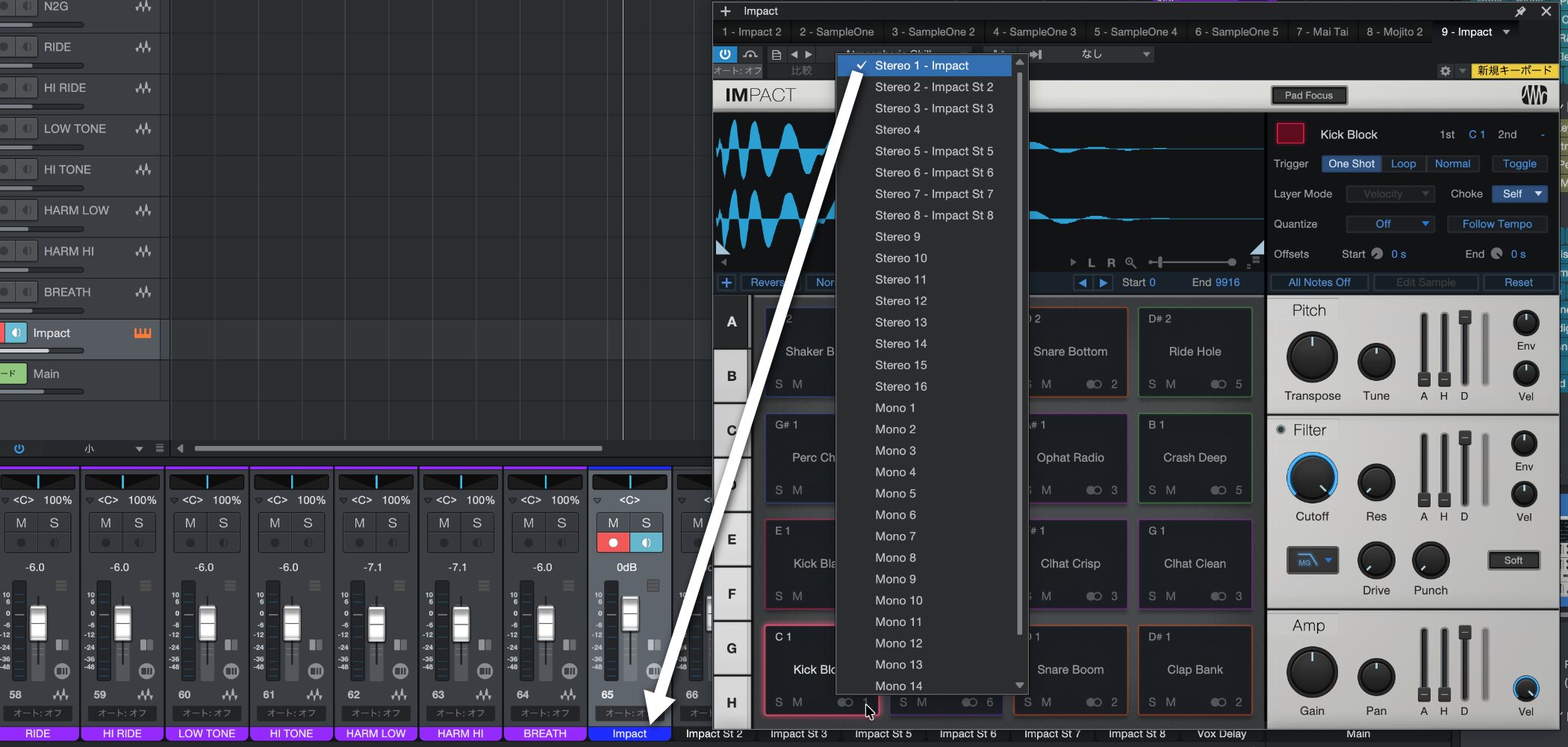
In the previous tutorial, we introduced how to use different sounds in one software instrument by assigning MIDI channels to multiple instruments.
While convenient, sharing a single software instrument between several parts can also present some challenges.
For example, the following controls may be shared rather than independent:
- Volume and pan for each instrument
- Insert and send effects for each instrument
- Independent solo and mute for each instrument
These limitations may seem unavoidable when using a single software instrument, but multiple outputs can solve them.
With multiple outputs, you can independently adjust volume, pan, effects, and sends for different instruments within the same plug-in, as well as individual kit elements such as kick and snare.
Video: Setting Up Multiple Outputs in Studio One, Part 1
Questions and Answers from the YouTube Video

I always enjoy your videos. I use Studio One 3, but when I try to route BATTERY 4 to multiple outputs, the outputs after St 7/8 appear as Mono 9. How can I route all of them in stereo?
“Near the top center of the BATTERY window, click the ▼ symbol next to the magnifying glass, and Edit…” [The answer in the original article ends here.]
Video: Setting Up Multiple Outputs in Studio One, Part 2
Setting Up Multiple Outputs in Studio One
Setting up multiple outputs in Studio One is straightforward.
Here we use Impact, the software instrument included with Studio One, as an example.
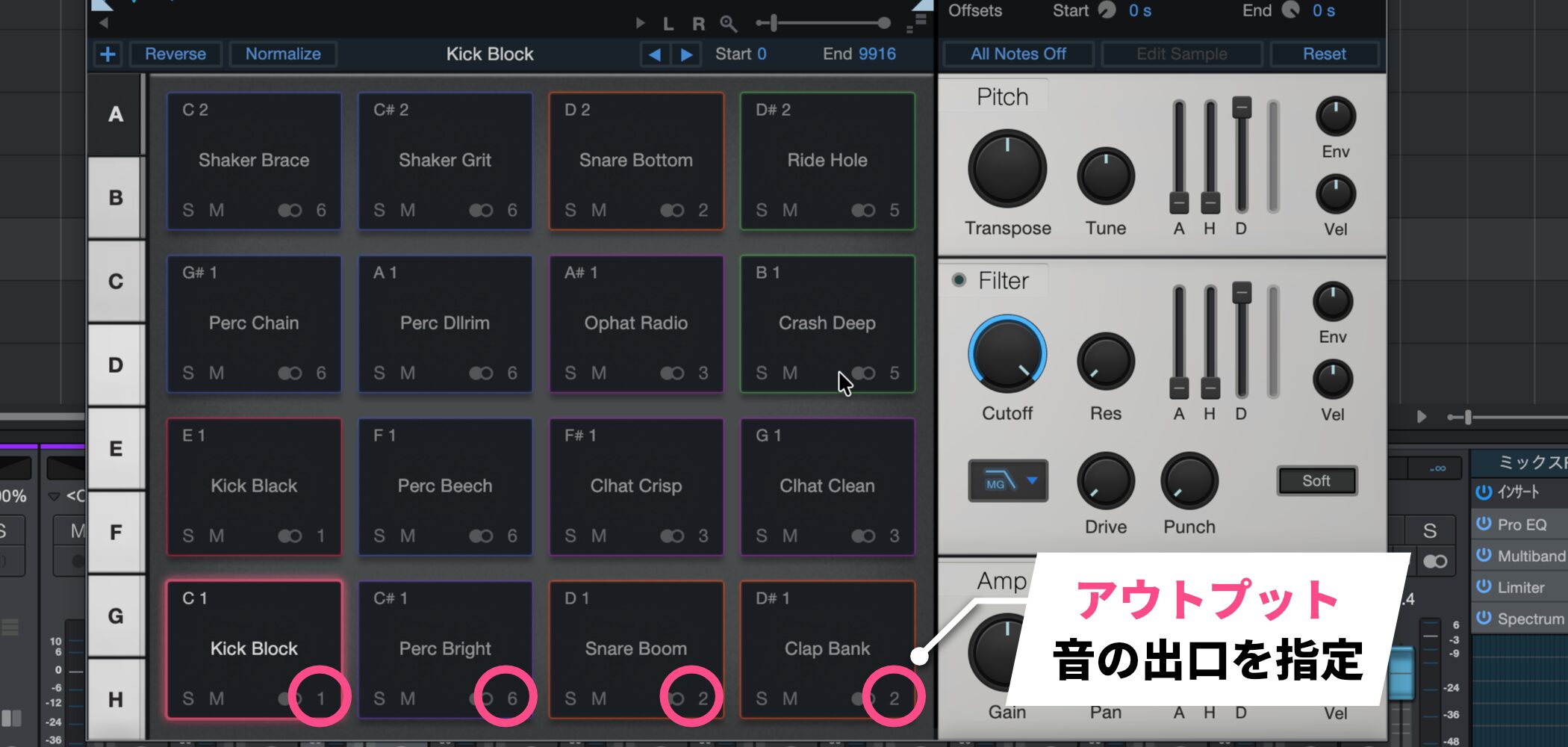
A software instrument that supports multiple outputs has an output setting for choosing where its sound is sent.
Assign a different output number to each kit sound you want to separate.
The same approach also applies to compatible third-party instruments.
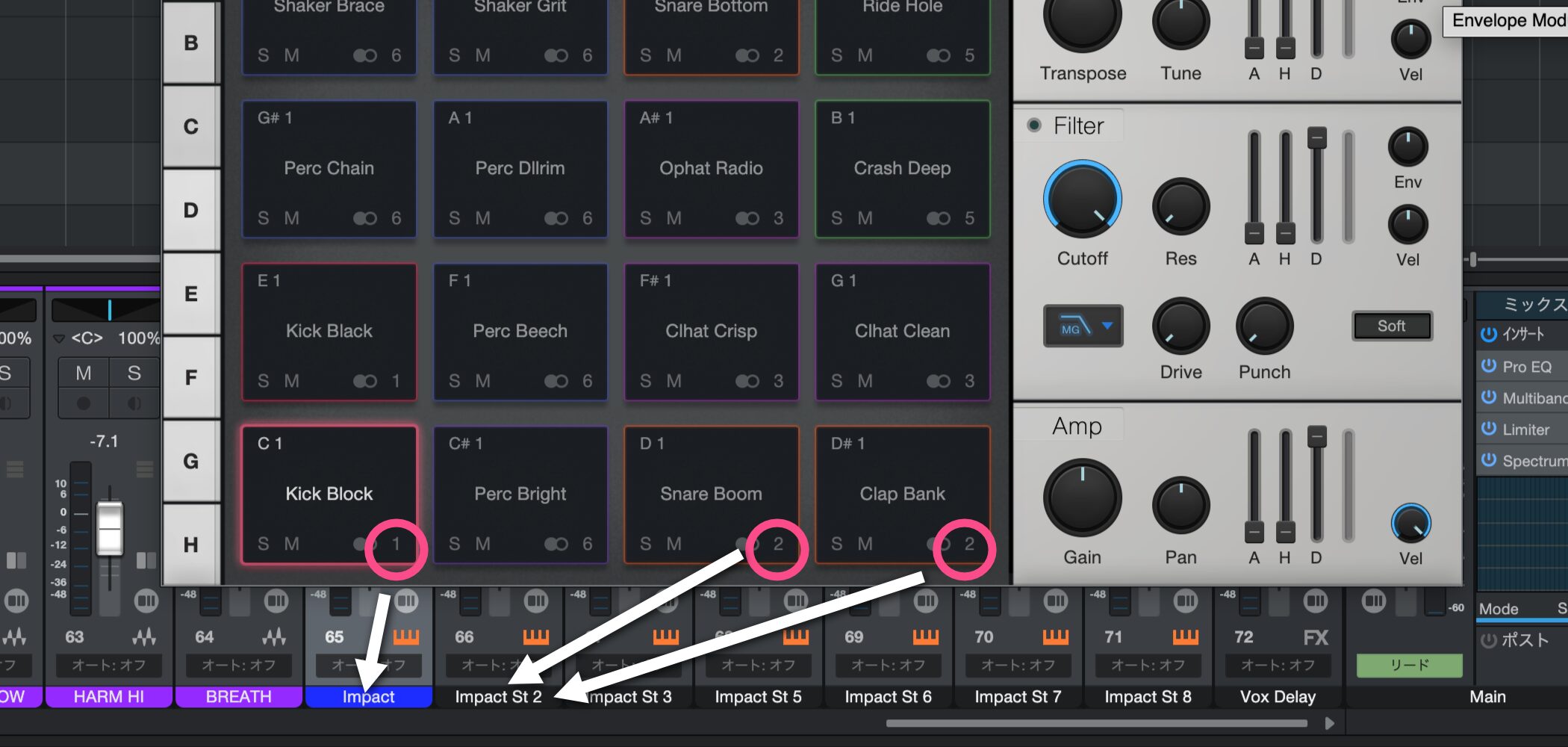
In the example shown, “Kick Block” plays through the “Impact” channel, while “Snare Boom” and “Clap Bank” play through “Impact St 2.”
Although the sounds originate from one software instrument, each output channel can be adjusted separately for volume, pan, effects, and sends, much like separate tracks.

Frequently Asked Questions
Q1. What are multiple outputs?
Multiple outputs route sounds from one software instrument to different output channels so they can be handled like separate tracks. This lets you adjust volume and effects individually for drum-kit elements or for instruments in a multitimbral plug-in.
Q2. Is it difficult to set up multiple outputs in Studio One?
The basic setup is simple. In a compatible software instrument, use its output settings to assign different output numbers to the sounds you want to separate.
Q3. Which software instruments support multiple outputs?
You can use instruments that support multiple outputs, including Impact, which comes with Studio One. Compatible third-party instruments with output routing can be used in the same way.
NEW ARTICLES
Latest English Articles