
Scaler 3 is the latest version of a music composition tool designed to make creating chord progressions faster and more effective. Its redesigned interface is organized into three pages—Browse, Create, and Arrange—so beginners and experienced musicians alike can build progressions intuitively. Features such as automatic suggestions, the Explore page with 17 genres, and a wide range of Chord Sets make it easy to generate natural-sounding progressions without in-depth music theory knowledge. With standalone operation and multitrack editing, Scaler 3 can also serve as a DAW-like workspace, supporting the entire composition process.
Scaler, a Powerful Tool for Building Chord Progressions, Gets an Upgrade
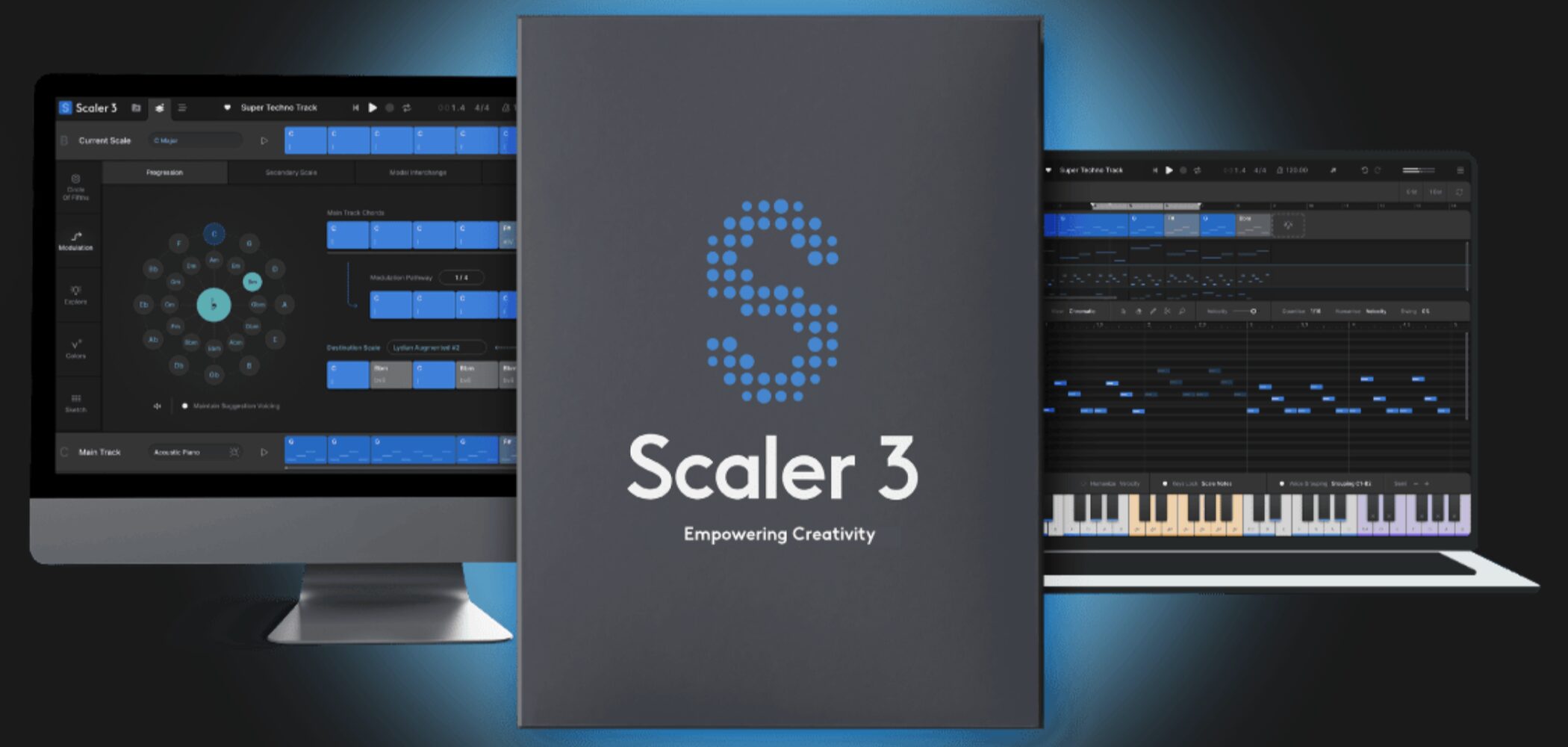
The popular composition tool Scaler has been officially released as version 3.
This update introduces more than a refreshed interface. It also adds features such as simultaneous multitrack editing and support for external plug-ins,with tools that support the entire composition processamong many other additions.
This article focuses on the new features in Scaler 3.
Scaler 3 Video Guide
Selected Questions and Answers from the YouTube Video

Can I import an SMF of a melody I created and add chords to it?

The Detect MIDI feature can import an SMF for scale analysis, and it can analyze chords if the file contains them. However, Scaler 3 currently does not let you build chords while playing the original melody at the same time.
Key New Features
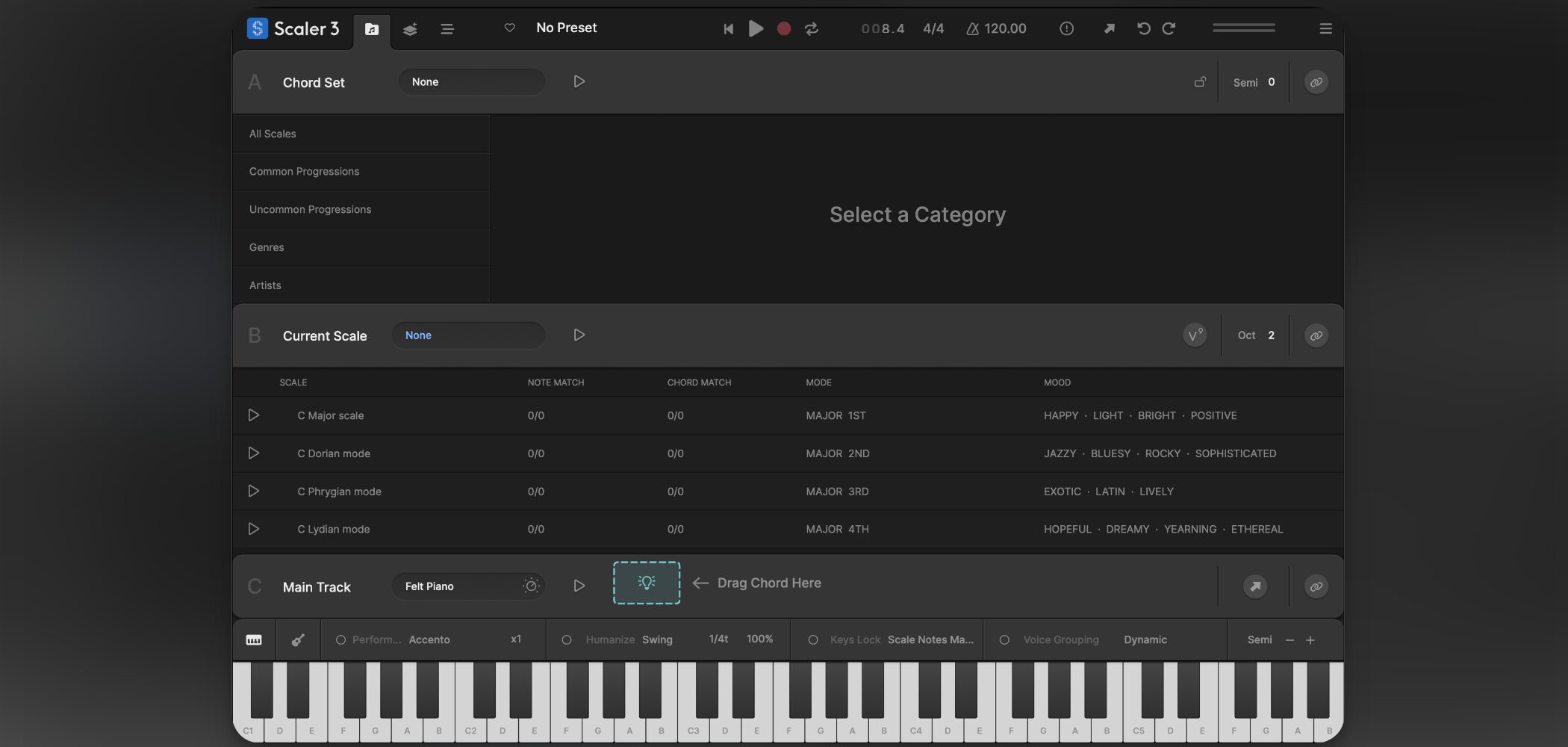
- Improved design: A clear layout organized into three pages—Browse, Create, and Arrange
- Standalone app: Runs independently as well as a DAW plug-in
- External plug-in support: Use third-party instruments and effects directly
- Multitrack editing: Add and edit multiple instrument parts, much like in a DAW
- Unlimited timeline: Create chord progressions of any length to match your song
An Interface Organized into Three Pages
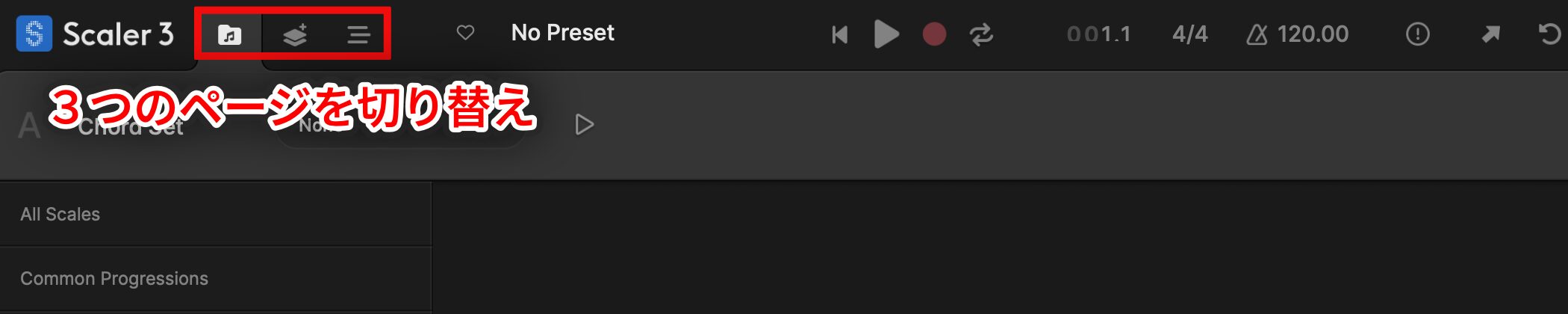
Scaler 3 has been redesigned to make it easier to use, with its interface organized intothree main pages.
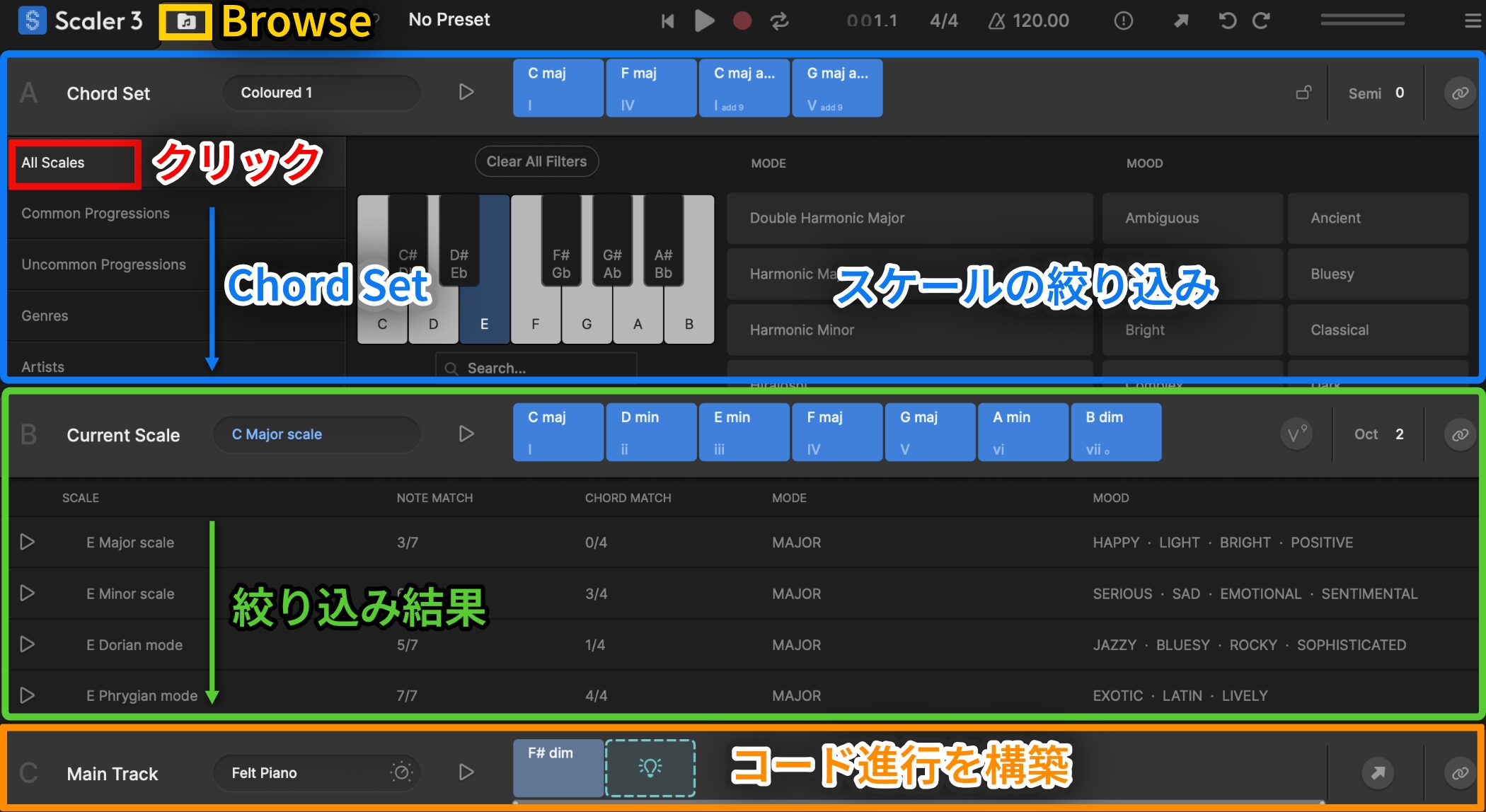
Browse is where you explore Chord Sets (chord progression patterns) and scales to create progressions. It is divided into Sections A, B, and C.
- Section A (blue): Browse Chord Sets from the categories on the left, or narrow down scales in the content on the right that appears when you click All Scales.
- Section B (green): Shows a list of available scales based on the filters selected in Section A.
- Section C (orange): Drag chords shown above Section A or B into this area to build a progression. You can also select and drag multiple chords at once.
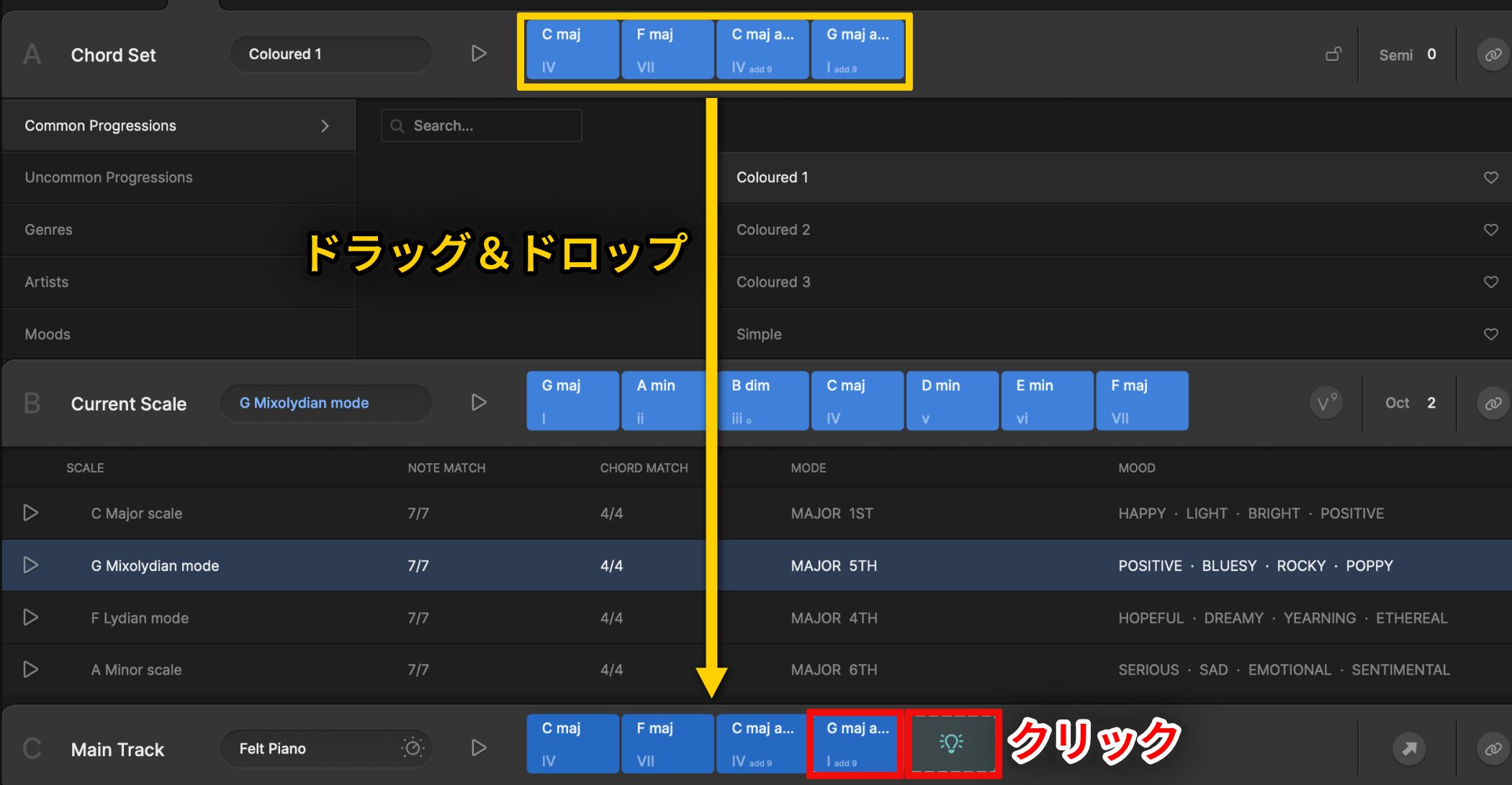
In Scaler 3, the Main Track in Section C is where youbuild the chord progressionyou want to use in your music.
If you are unsure which chord to try next, use the Suggest feature.
Select a chord, then click the lightbulb icon.
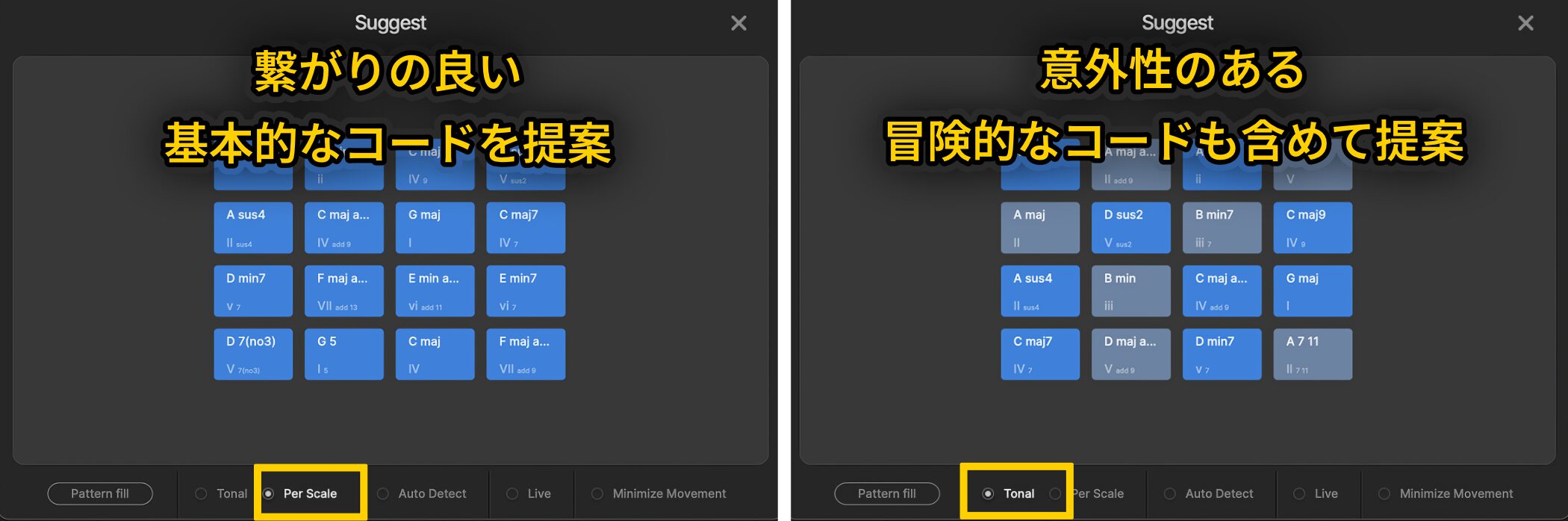
On the Suggest page,Scaler recommends chords that may work well after the selected chord.
Dark blue chords are more likely to harmonize well; lighter shades indicate bolder choices.
Two modes are available. Per Scale suggests basic chords that connect smoothly, while Tonal can include more unexpected and adventurous options.
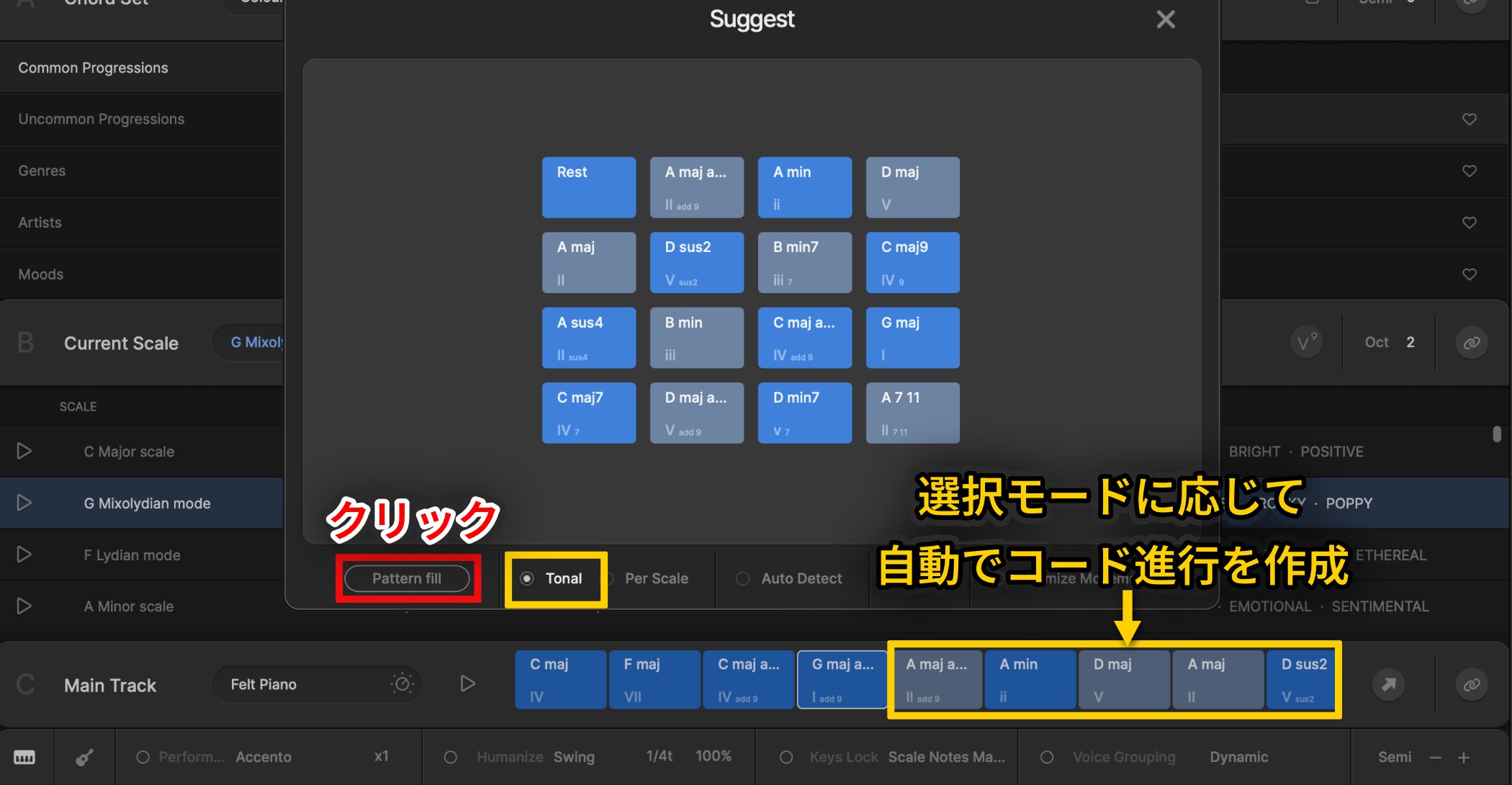
When you have no ideas for a song, click Pattern Fill and, depending on the selected mode,Scaler will generate a chord progression automatically.
A Wide Range of Ready-to-Use Chord Sets
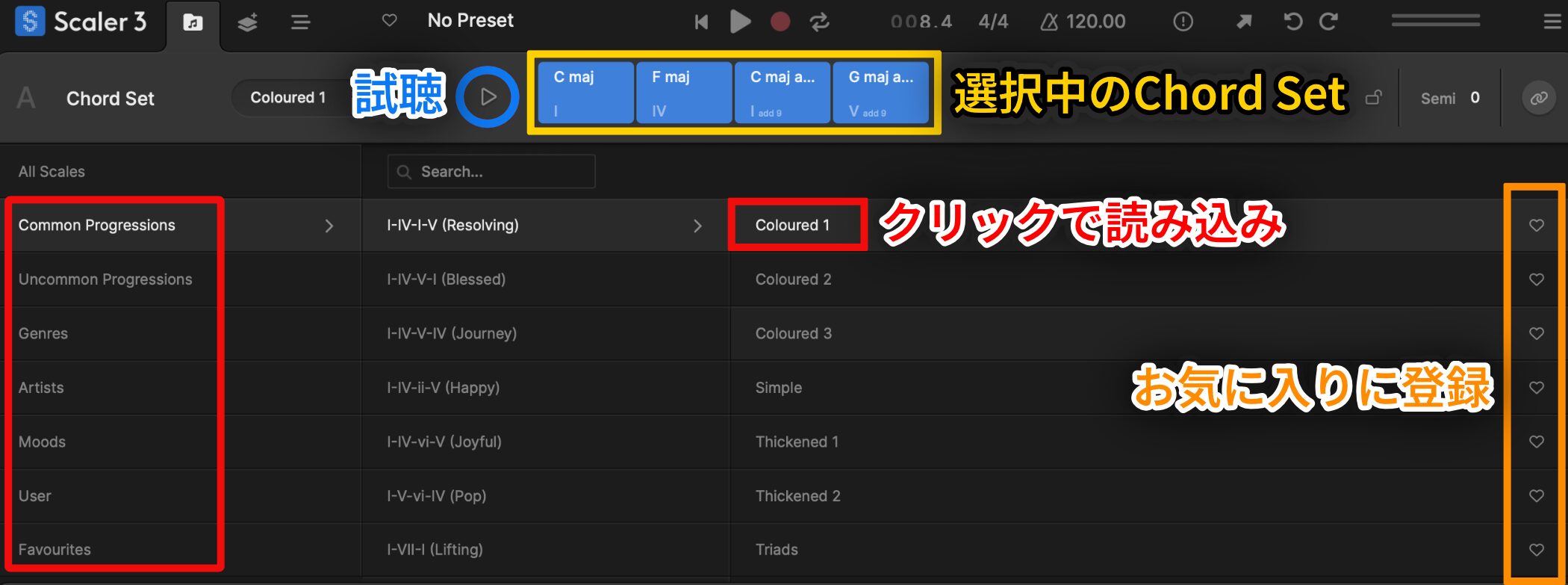
Scaler 3 includes many chord progressions by well-known artists and from a variety of genres,organized as Chord Sets.
Click a set to load its progression at the top of Section A, then use the play button (▷) to preview it.
You can also turn on the heart icon on the right toadd a set to your favorites.
Chord Sets include categories such as:
- Common Progression: Frequently used, familiar progressions
- Uncommon Progressions: Less common progressions
- Genre Sets: Progressions organized by musical genre
- Artist Sets: Progressions created by professional artists
- Moods: Progressions organized by mood or emotion
- User Sets: Progressions you have created and saved
- Favourites: Progressions you have marked as favorites
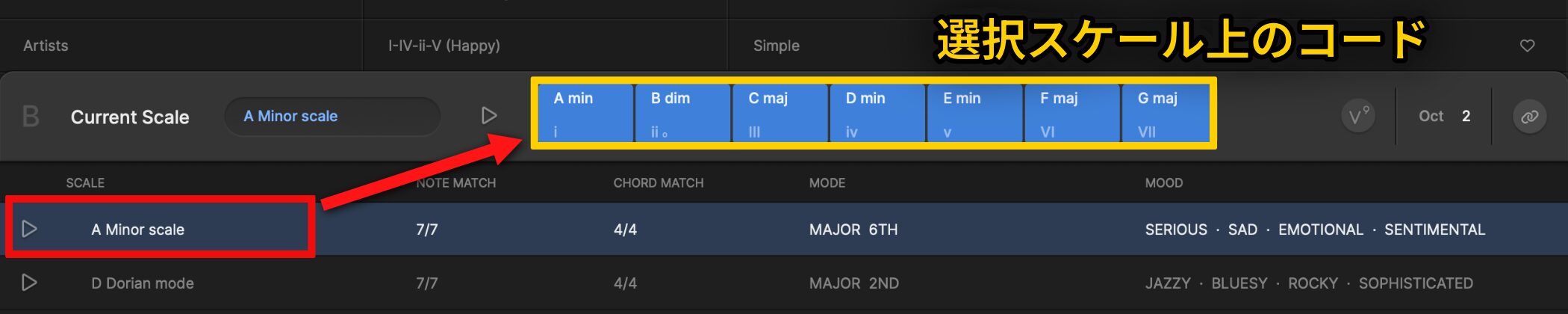
Current Scale in Section B displaysthe chords built from the selected scale.
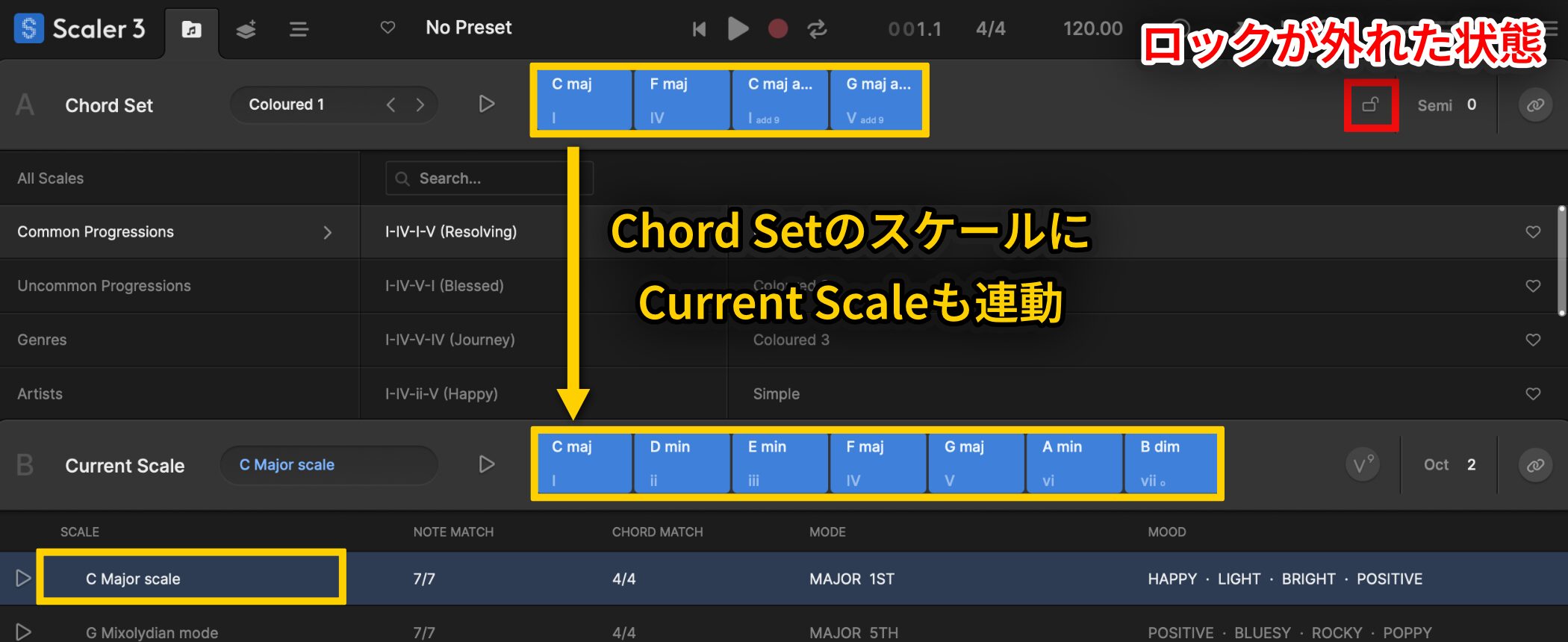
Each Chord Set has its own scale. When the key icon at the top right is unlocked (the default), switching Chord Sets also changes theCurrent Scale automatically.
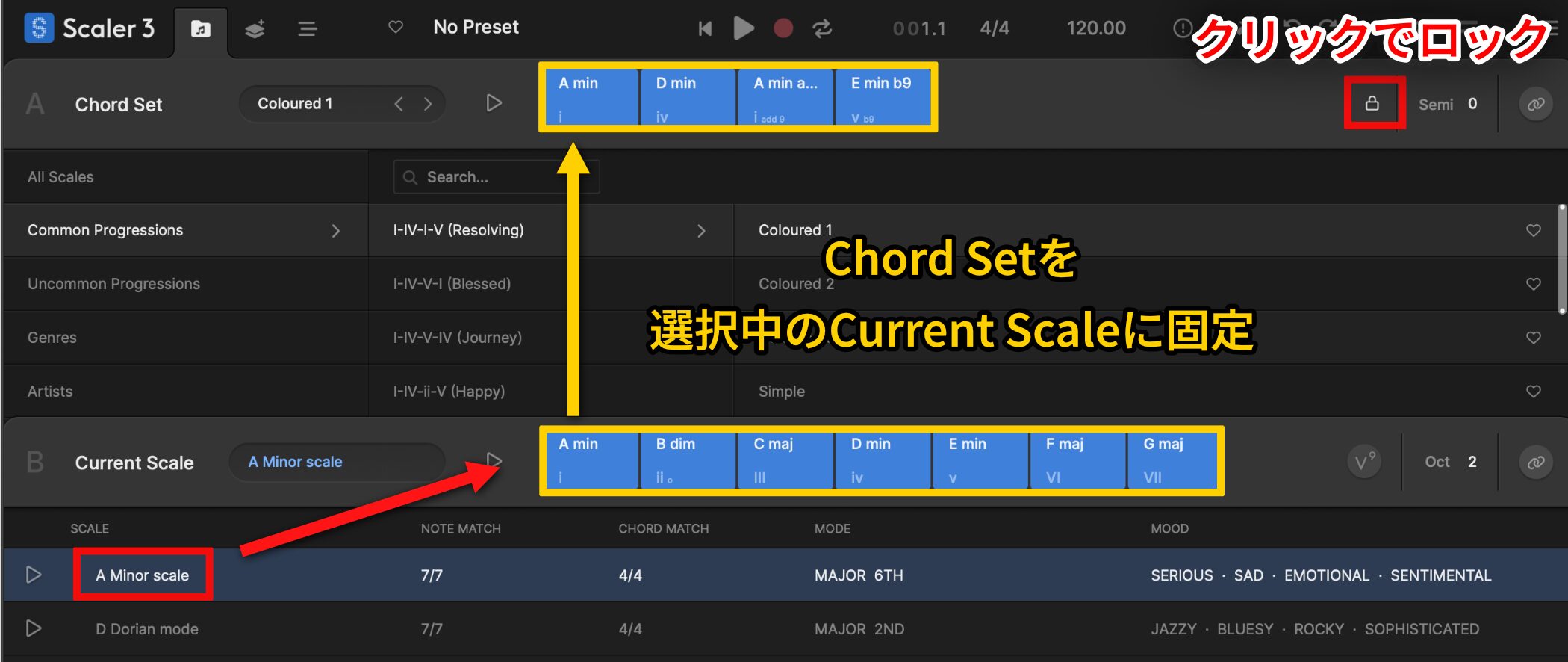
Click the key icon to lock it andkeep the Current Scale fixed while changing Chord Sets.
With the scale locked, all Chord Sets follow the selected Current Scale. This is useful when you want to try different sets while keeping your scale fixed.
Explore Chords Intuitively on the Explore Page
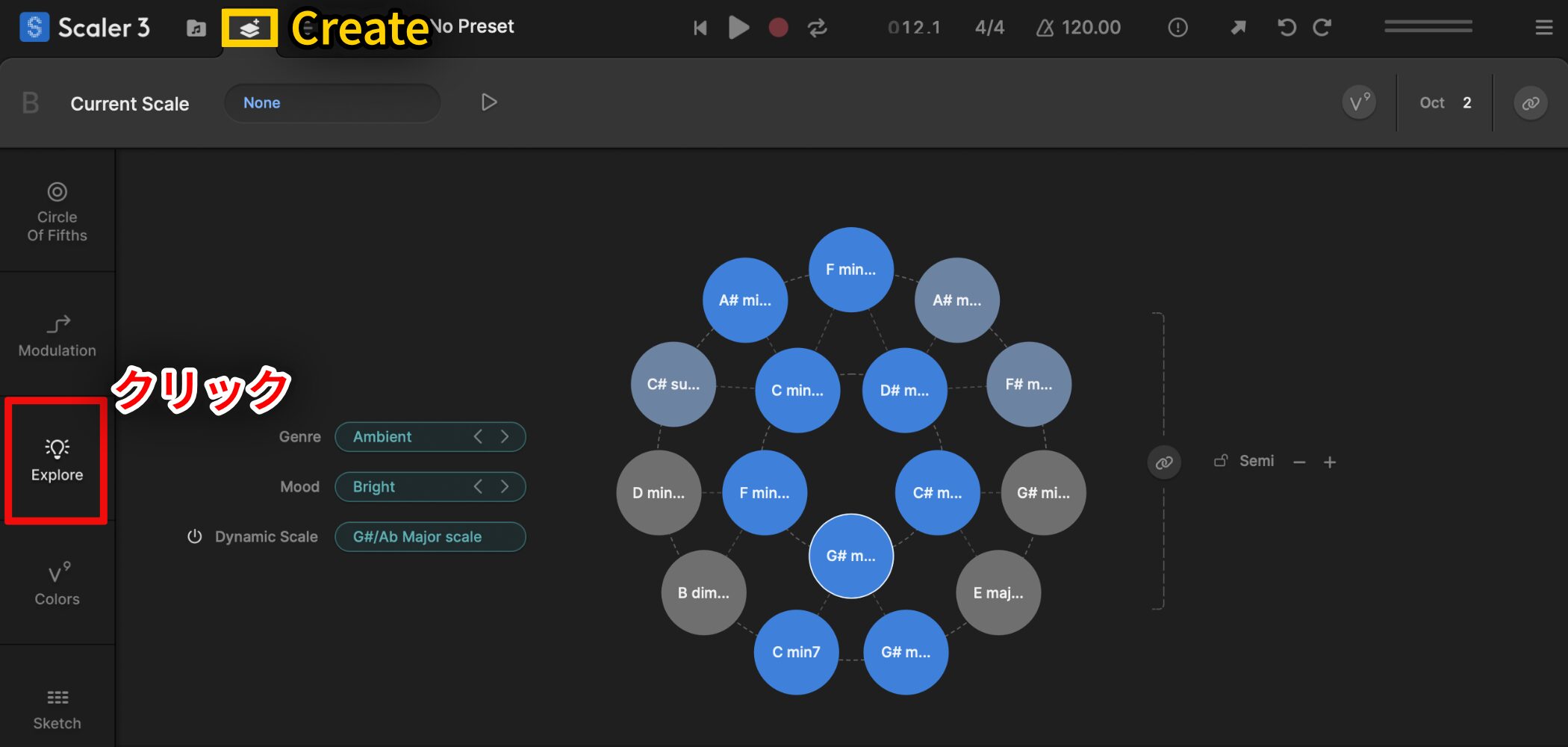
Create is the main page for exploring new chords and building your own progressions.
Its Explore pagelets you explore chord relationships intuitivelyand is one of Scaler 3’s standout features.
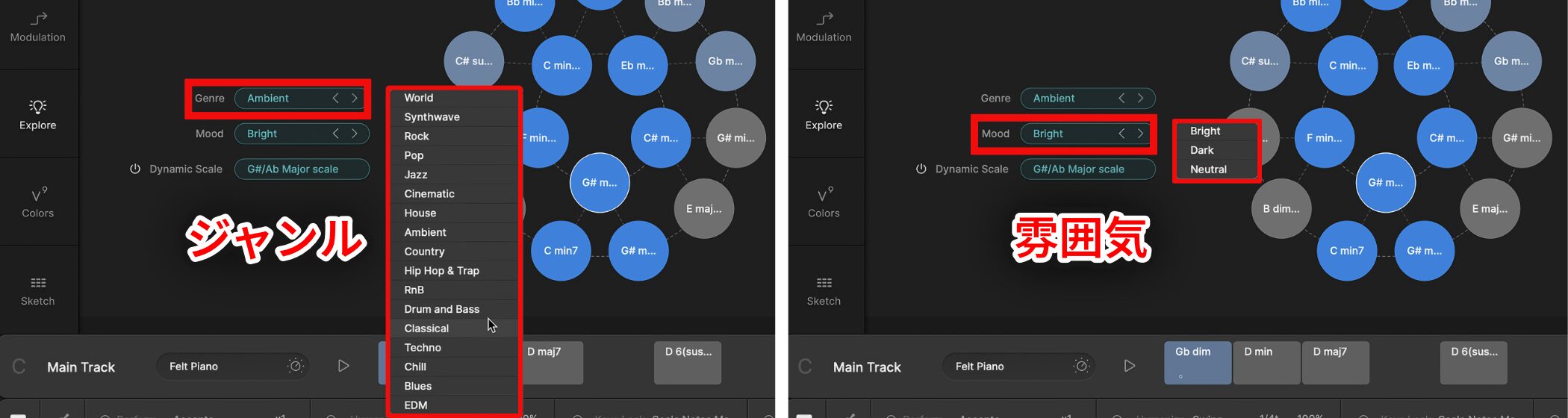
Choose from 17 musical genres and three moods, andchord suggestions that fit your selection appear on the right.
This is a useful option when you want to create your own progression based on an idea for the kind of song you want to make.
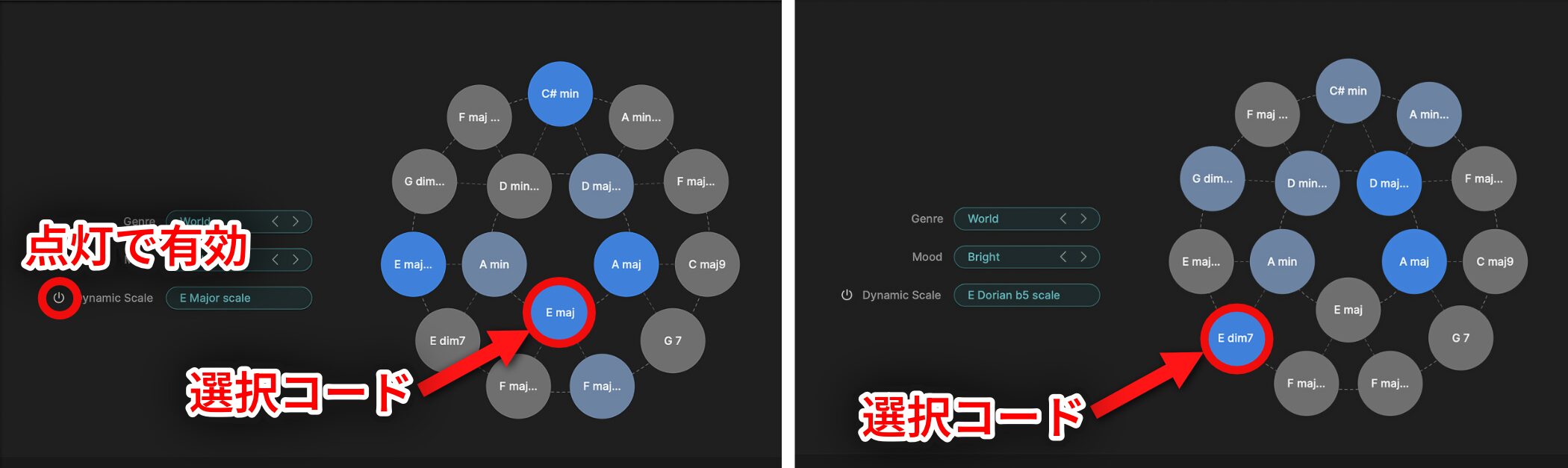
Turn on Dynamic Scale to seehow closely each chord relates to the last selected chord, indicated by color.
As with Suggest, dark blue chords are more likely to harmonize with the selected chord. Lighter colors tend to indicate more adventurous, colorful sounds.
The display updates automatically each time you select a chord, making it easy to find natural-sounding options without specialized knowledge.
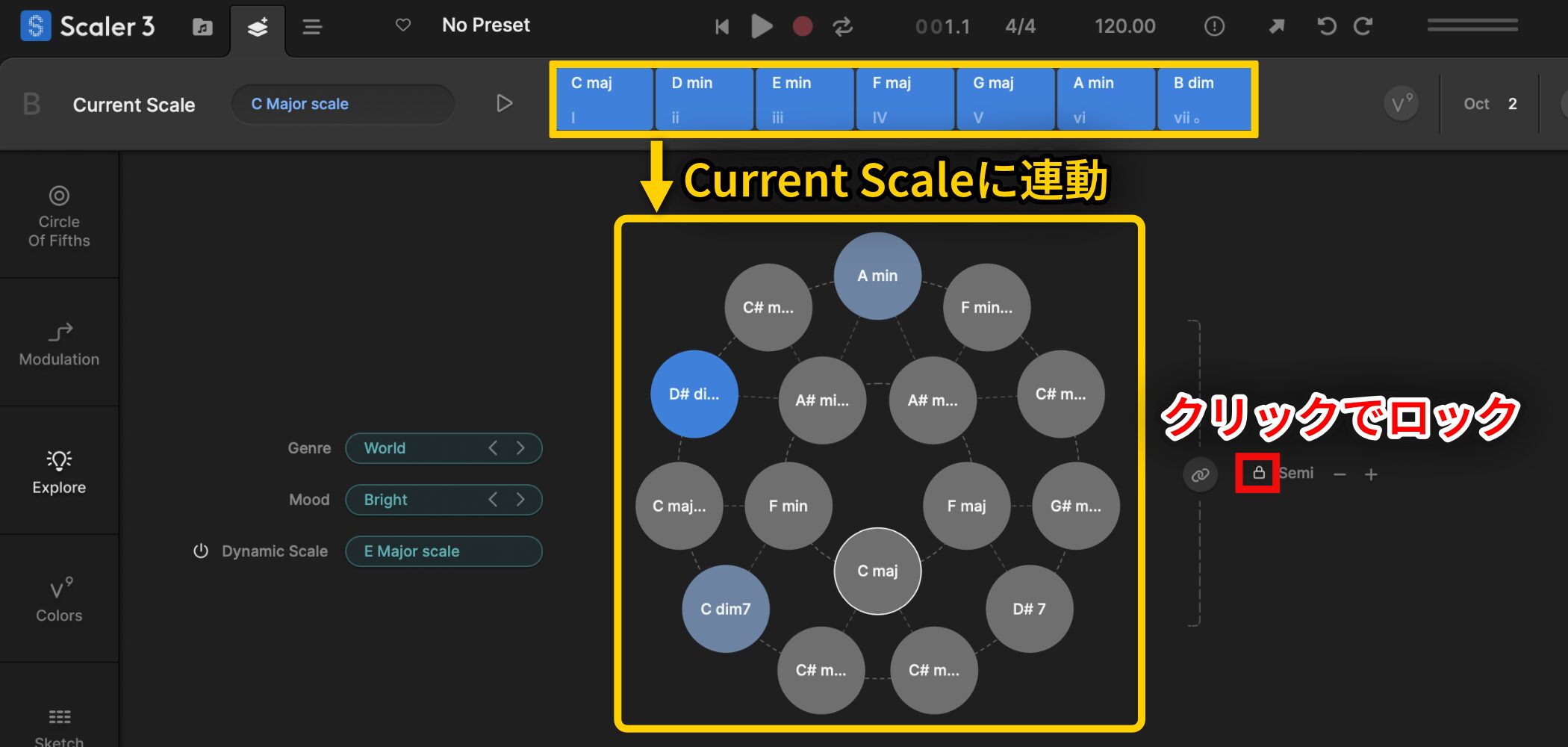
You can also lock the key icon so that the chords shown on the Explore pagealways follow the selected Current Scale.
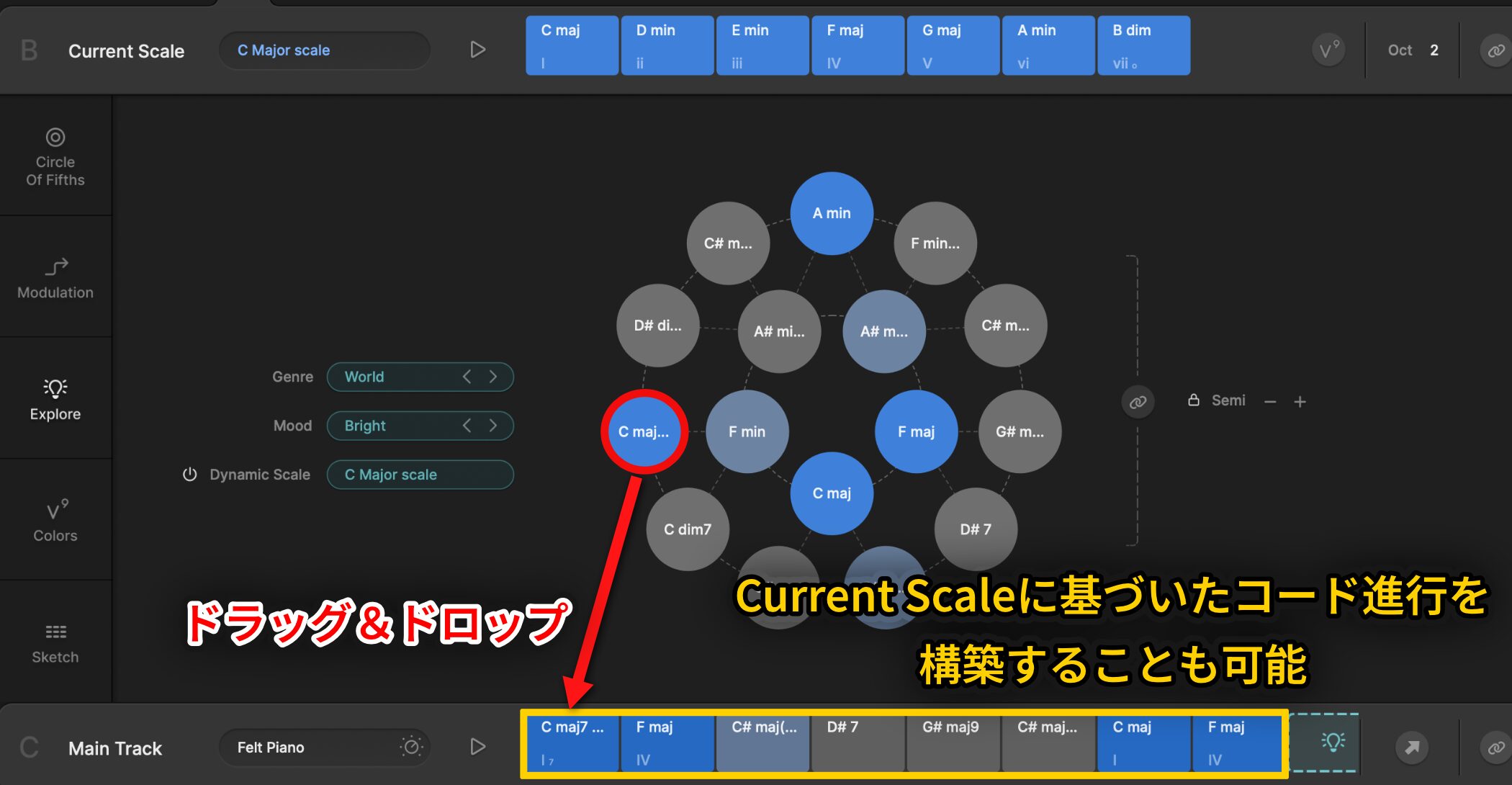
This lets you draw on the character of a selected genre or mood whilebuilding a progression based on your own chosen scale.
Explore Chord Variations on the Colors Page
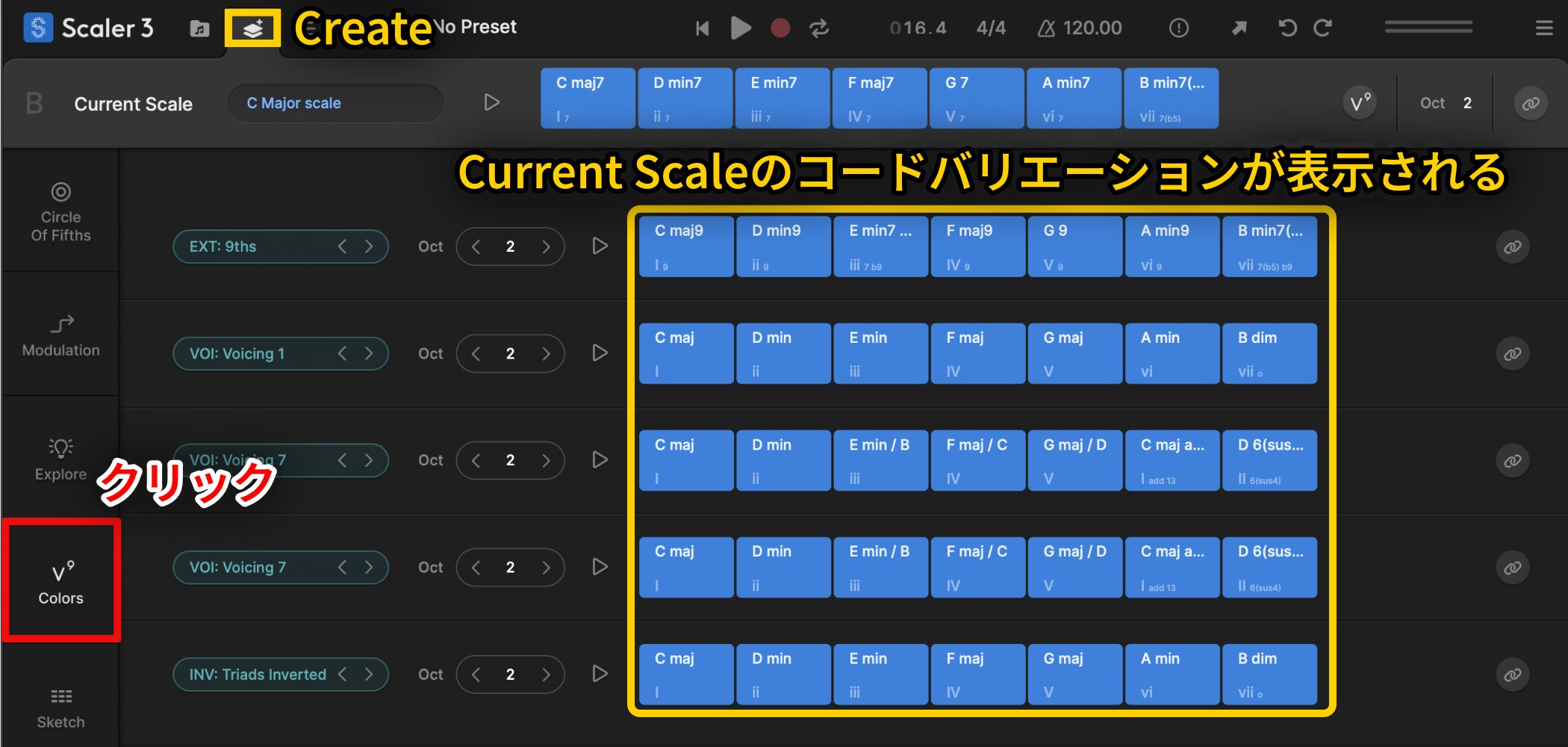
Colors is a page where you can viewdifferent variations of chords in the Current Scale.
It is useful when you want to find chords with more complex or interesting sounds.
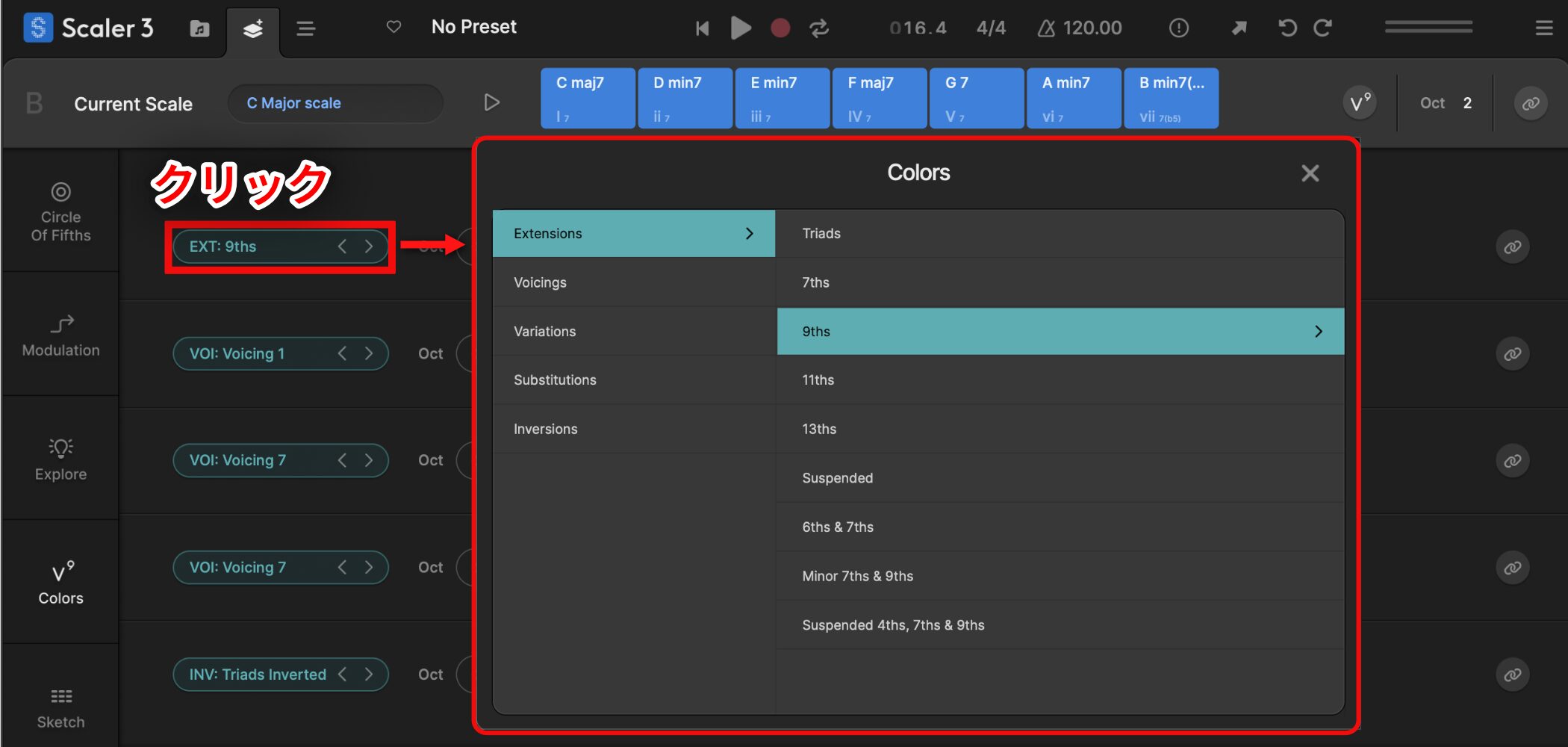
Chords are displayed across five rows, each of which lets you selecta different type of color (a change in the chord’s sound)so you can easily audition different variations.
Here are the options available in Colors:
- Extensions: Add tension notes such as 7ths, 9ths, 11ths, and 13ths
- Voicings: Change how the notes in a chord are arranged
- Variations: View alternatives for a single chord
- Substitutions: Replace a chord with a substitute chord
- Inversions: Change the order of a chord’s notes (inversions)
The Arrange Page: A DAW-Like Editing Environment
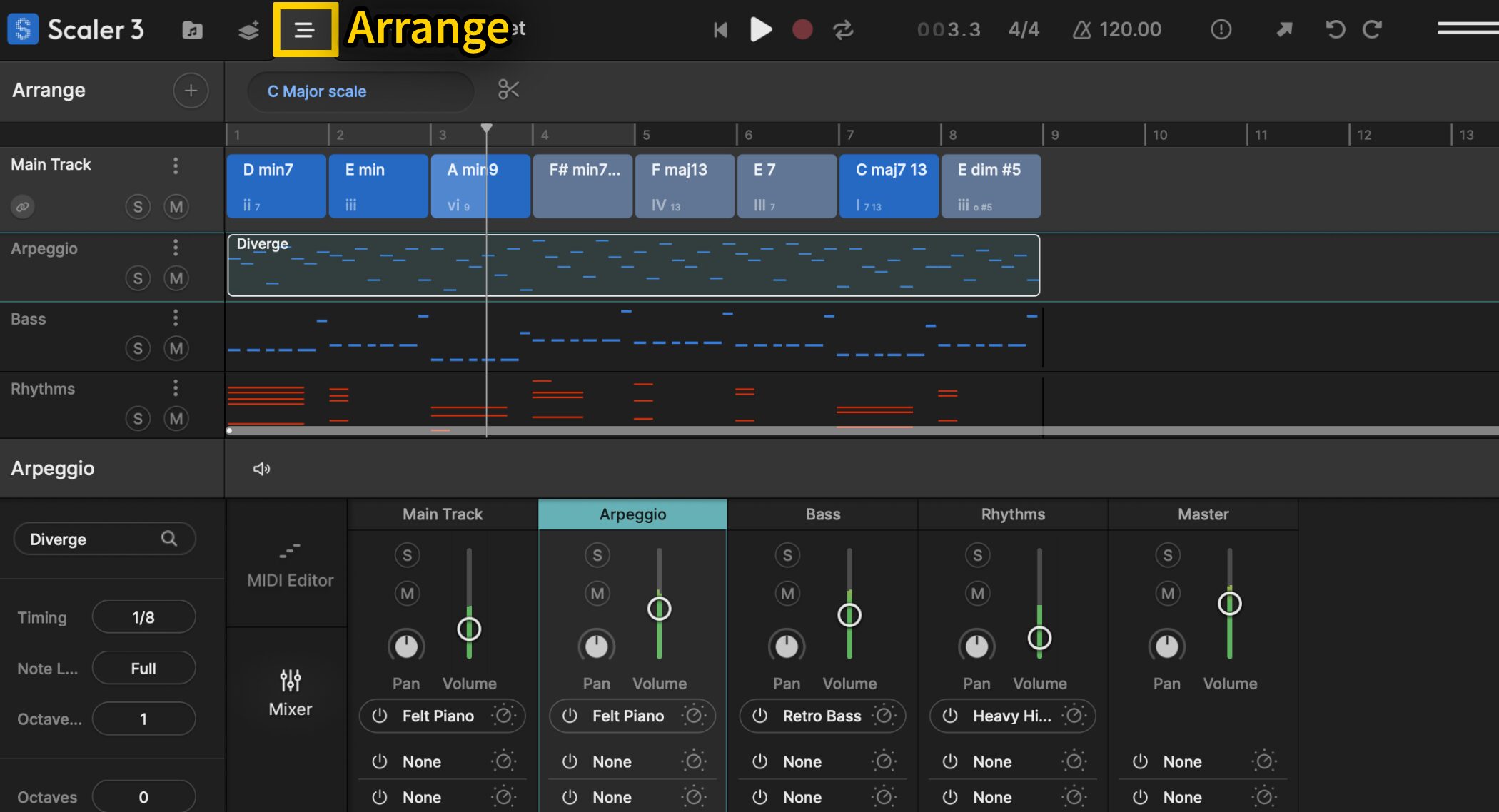
One of Scaler 3’s biggest additions is the Arrange page, which offers DAW-like multitrack editing.
Using the progression created on theMain Track in Section C as a foundation, you can layer multiple instrument parts, change sounds, edit performances, and adjust your sound, withpowerful tools for developing your composition ideas into a complete track.
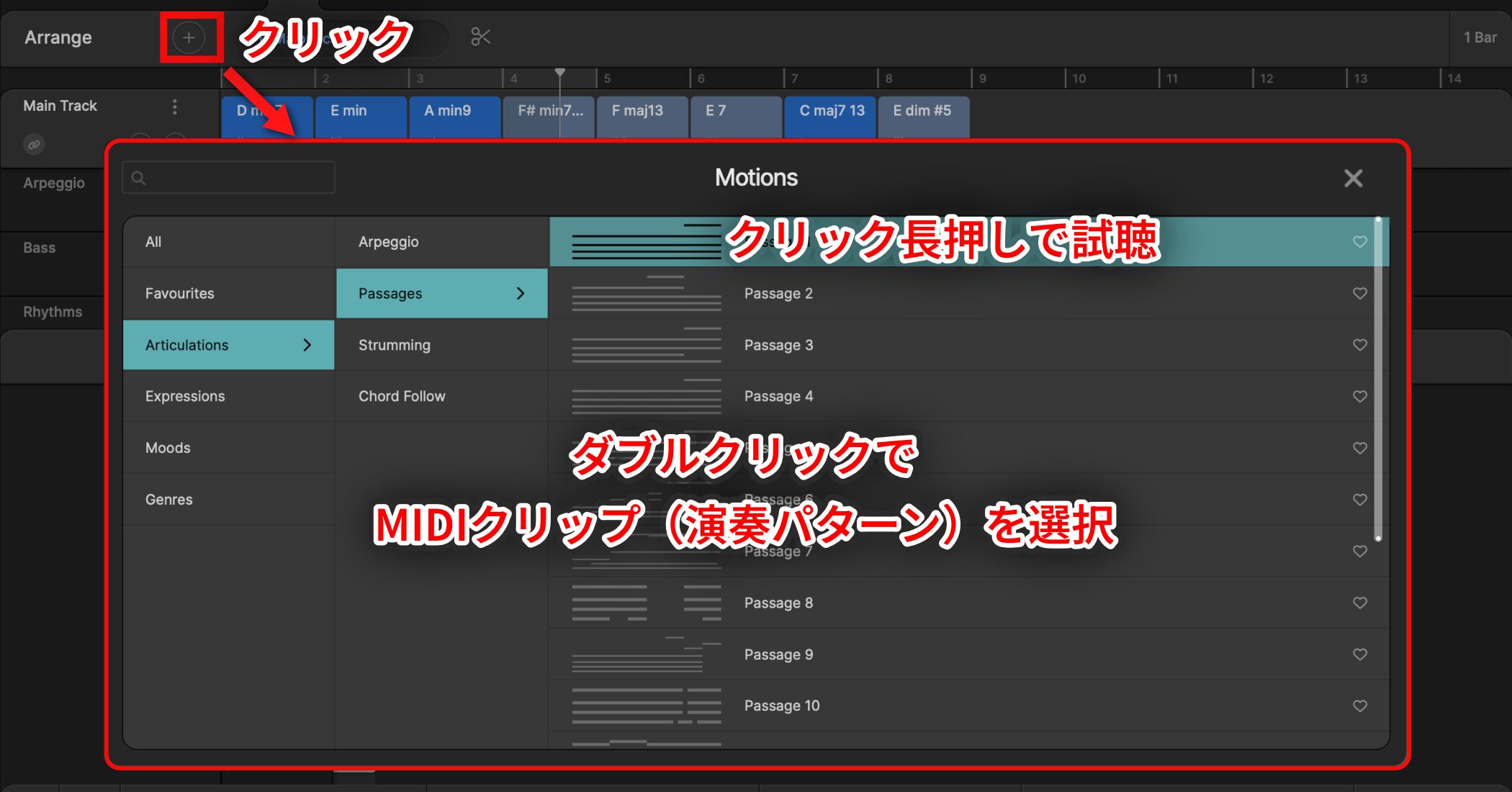
Click the + button at the top left to open Motions, where you canchoose from a variety of Motion MIDI clips (performance patterns) created by professional musicians.
Press and hold a Motion thumbnail to audition the performance. Double-click it to add a MIDI track containing that Motion to the sequencer.
Editing the Performance
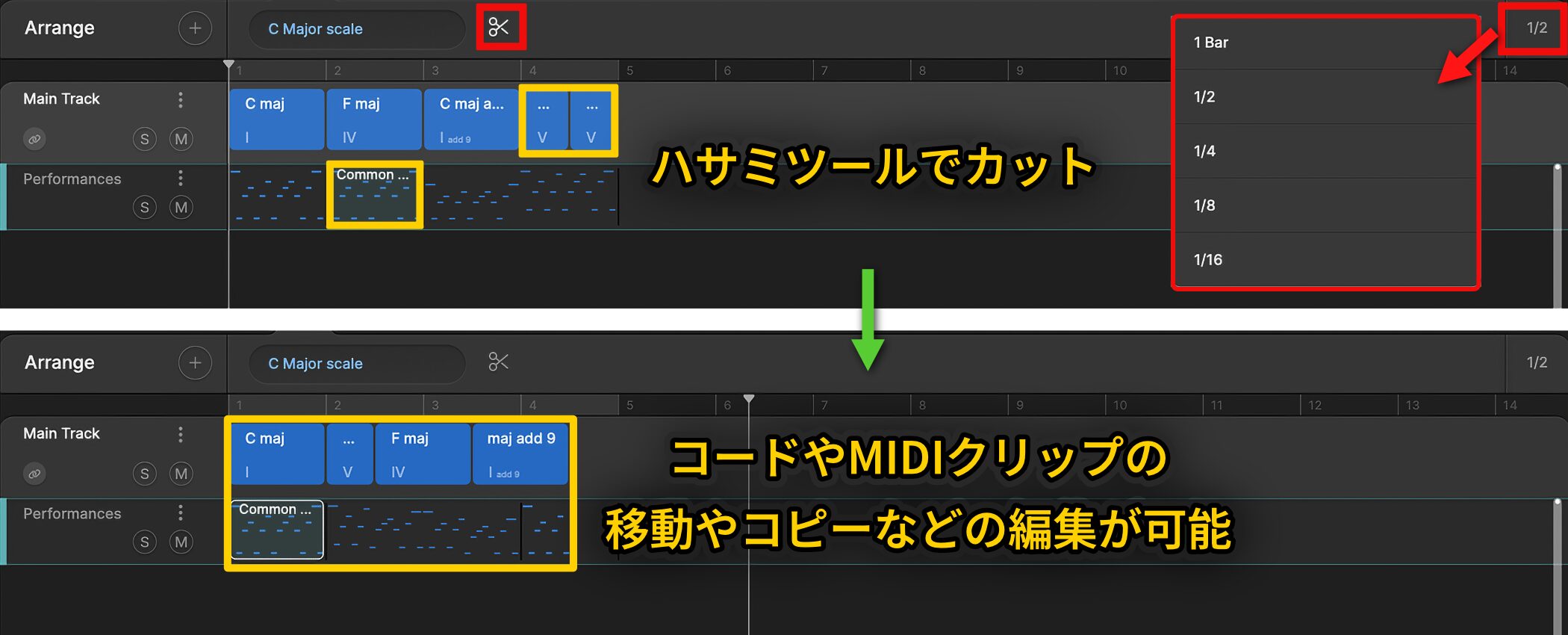
In the sequencer, change the Bar setting at the top right. Use the scissors tool to cut chords or MIDI clips, then move or copy them as needed.
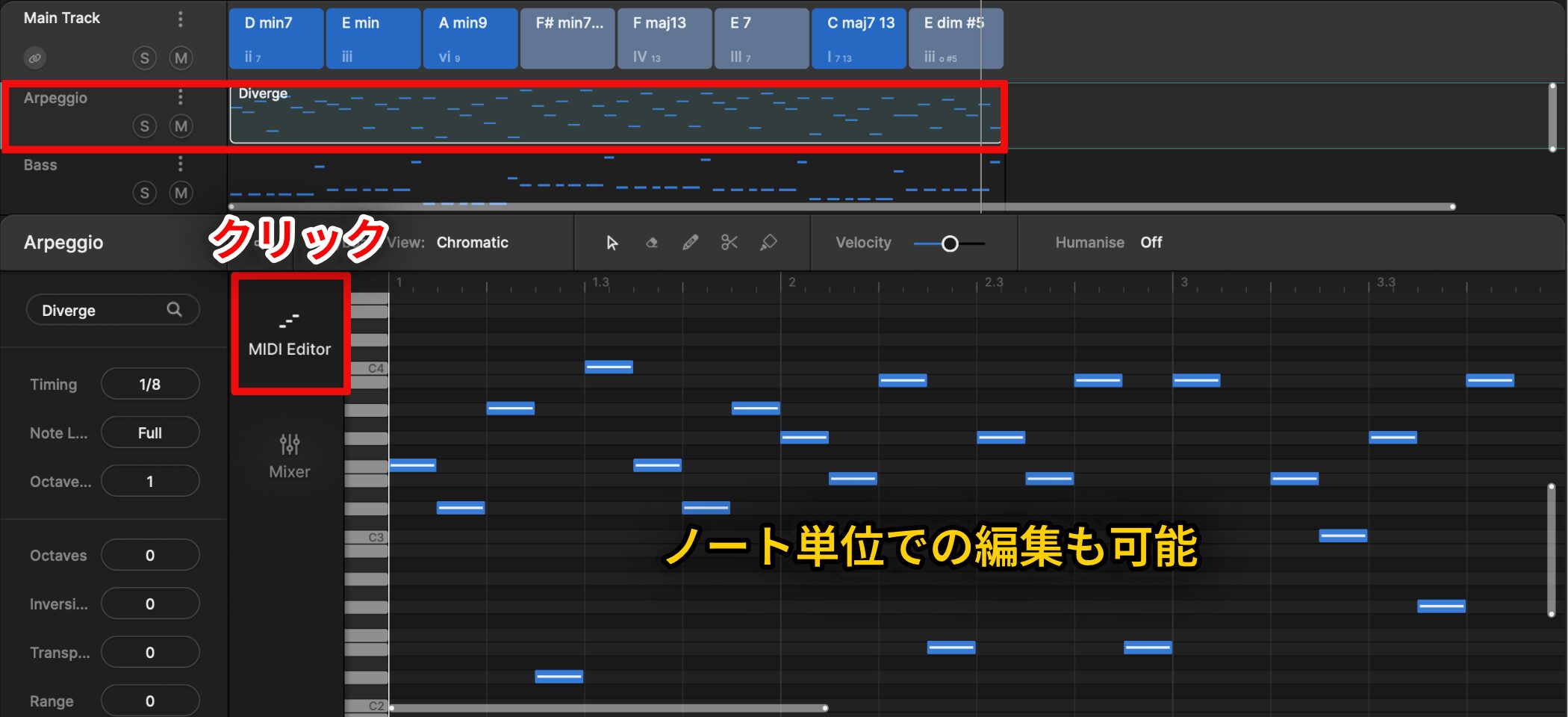
Select a track and open MIDI Editor to edit individual notes in detail.
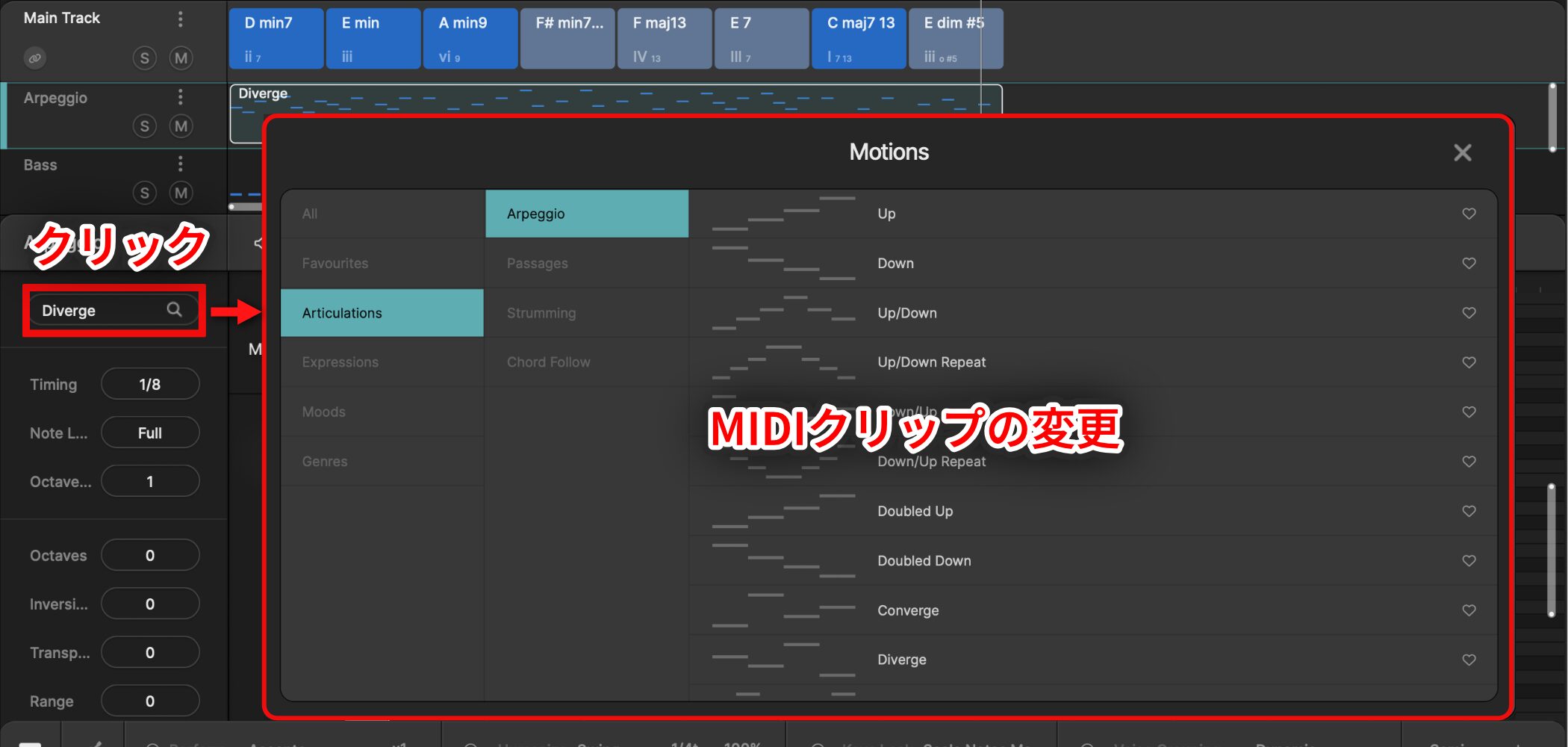
Click the magnifying glass icon to open Motions andswitch to another Motion of the same type.
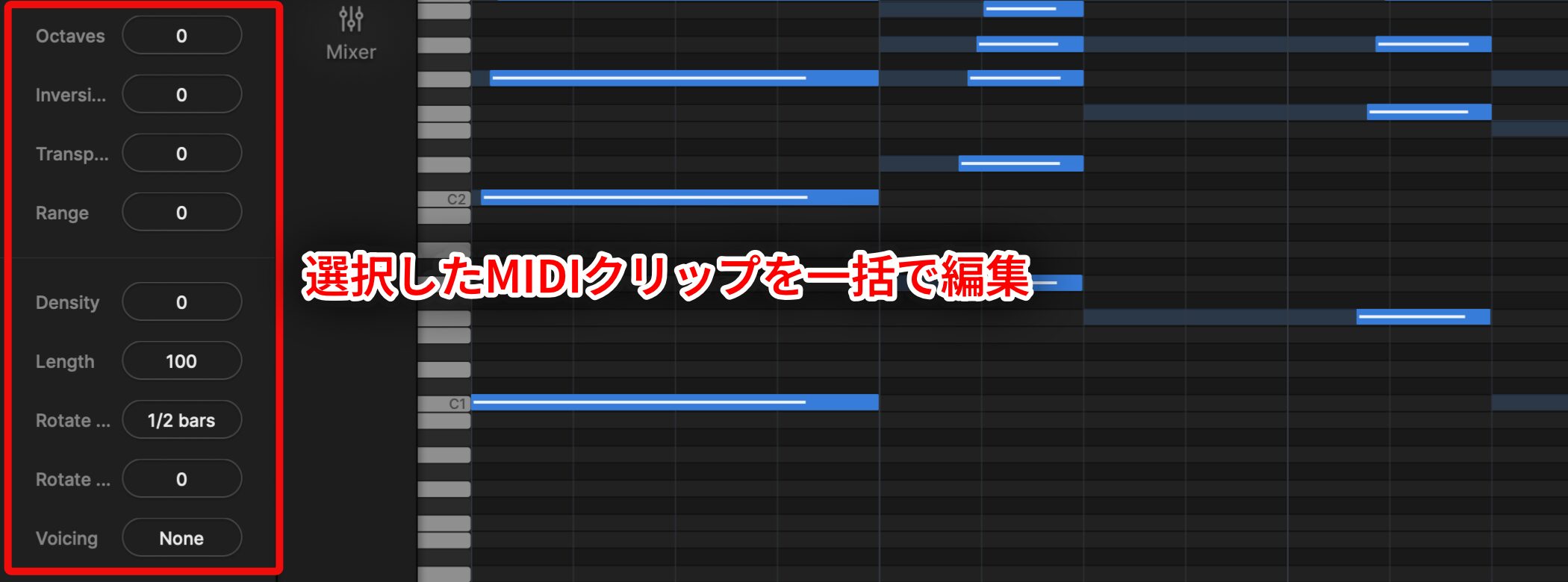
The sidebar groups controls for makingchanges to selected MIDI clips or Main Track chord clips in one go.
The available controls depend on the type of Motion, but the following options are common to many Motion types.
- Octaves: Move the pitches of all notes in a clip up or down by octaves
- Inversion: Change the inversion of notes in a clip
- Transpose: Shift all notes in a clip up or down in semitones
- Range: Expand or narrow the pitch range between the highest and lowest notes in a clip
- Density: Increase or decrease the number of notes in a clip
- Length: Increase or decrease note lengths in a clip
- Rotate Resolution: Choose the grid interval used when rotating notes
- Rotate Increment: Shift notes in a clip forward or backward according to the selected Rotate Resolution
- Voicing: Choose a preset for how the chord notes are voiced in the clip
Changing and Adjusting Sounds
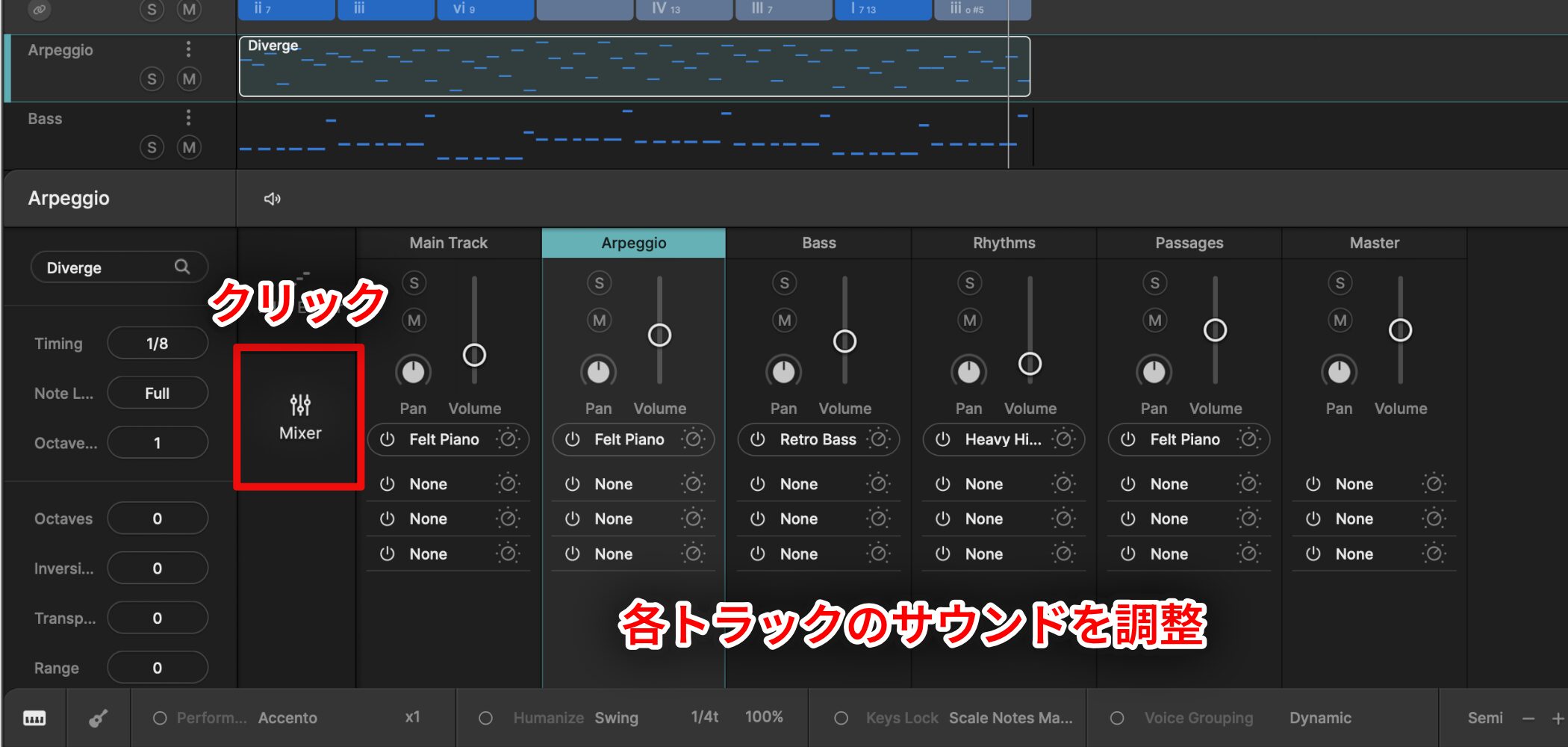
Scaler 3 also includes amixer for adjusting each track’s volume, pan, solo, and mute settings.
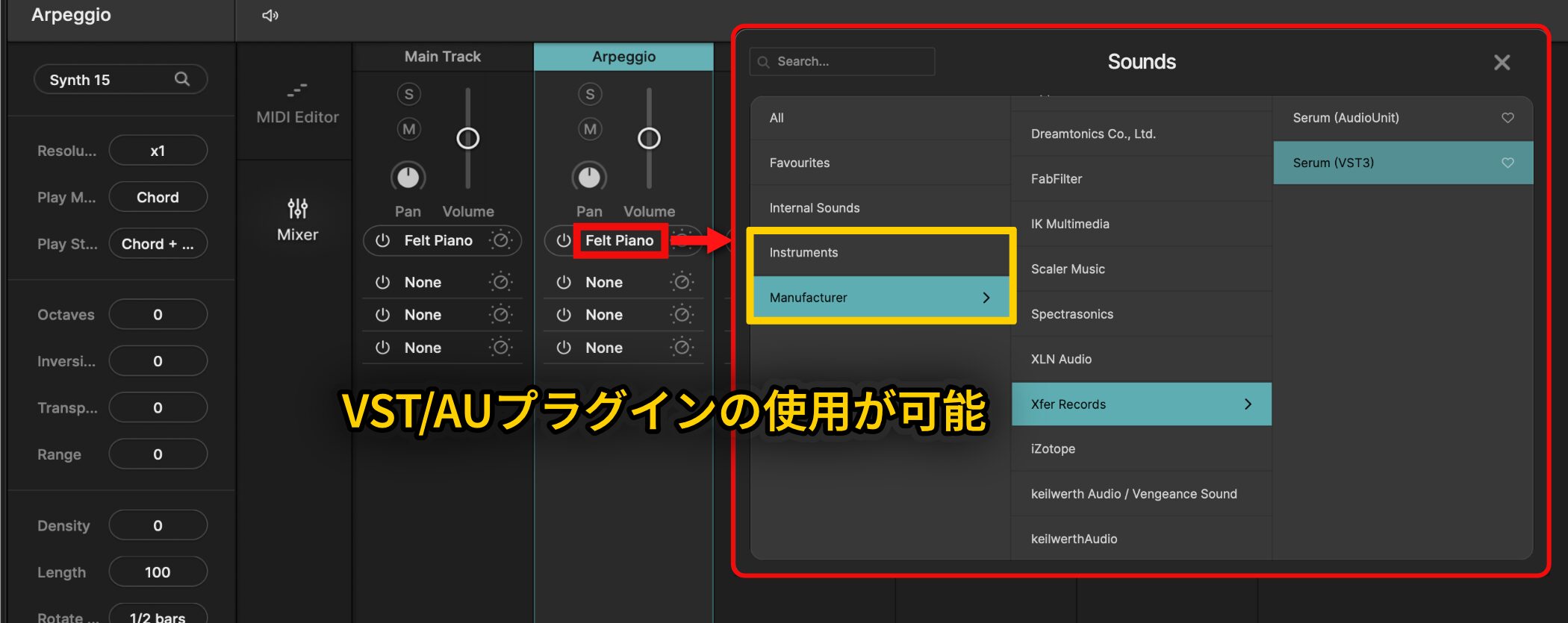
Click the slot outlined in red on a channel to open Sounds. From Internal Sounds, you can switch to a built-in instrument, or use an externalVST/AU plug-in.
Choose from Instruments, or browse the list by manufacturer under Manufacturer.
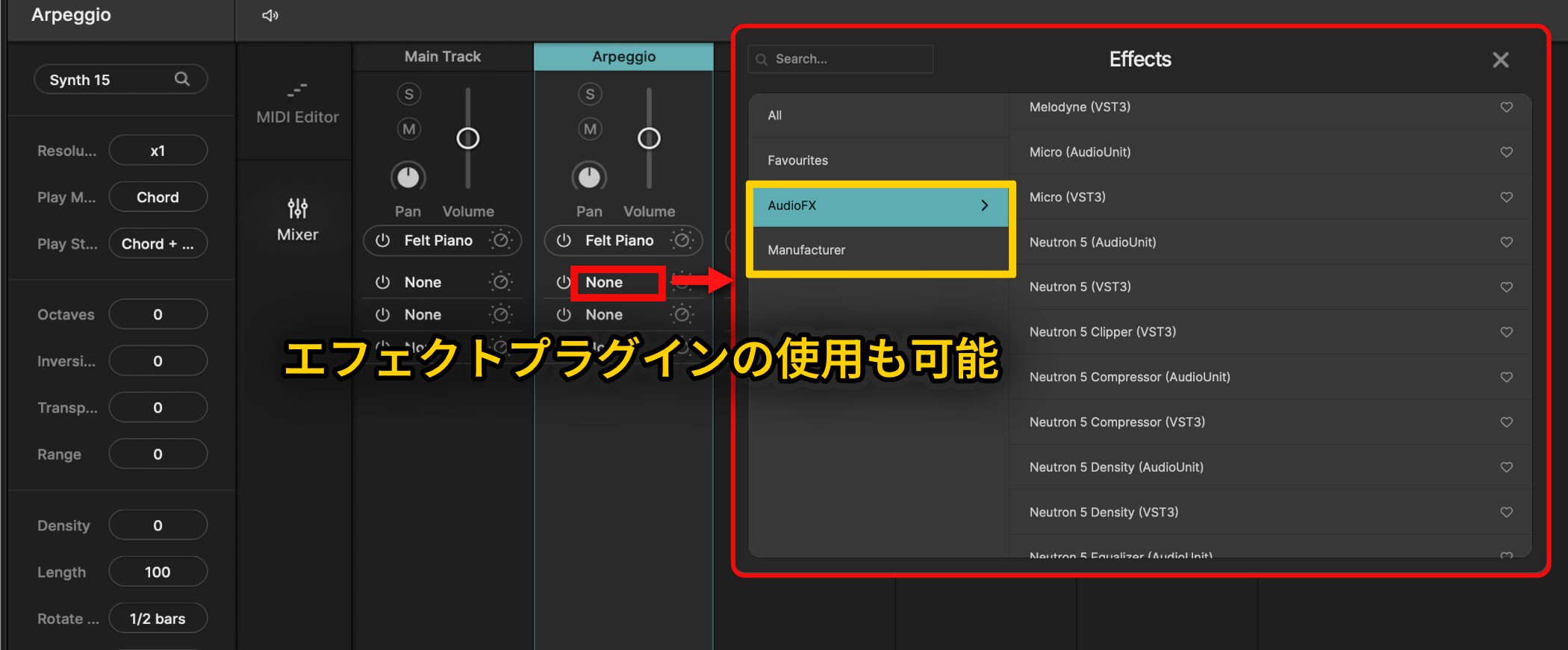
You can also use the slot below toadd effects plug-insand create polished sounds inside Scaler using your favorite instruments and effects.
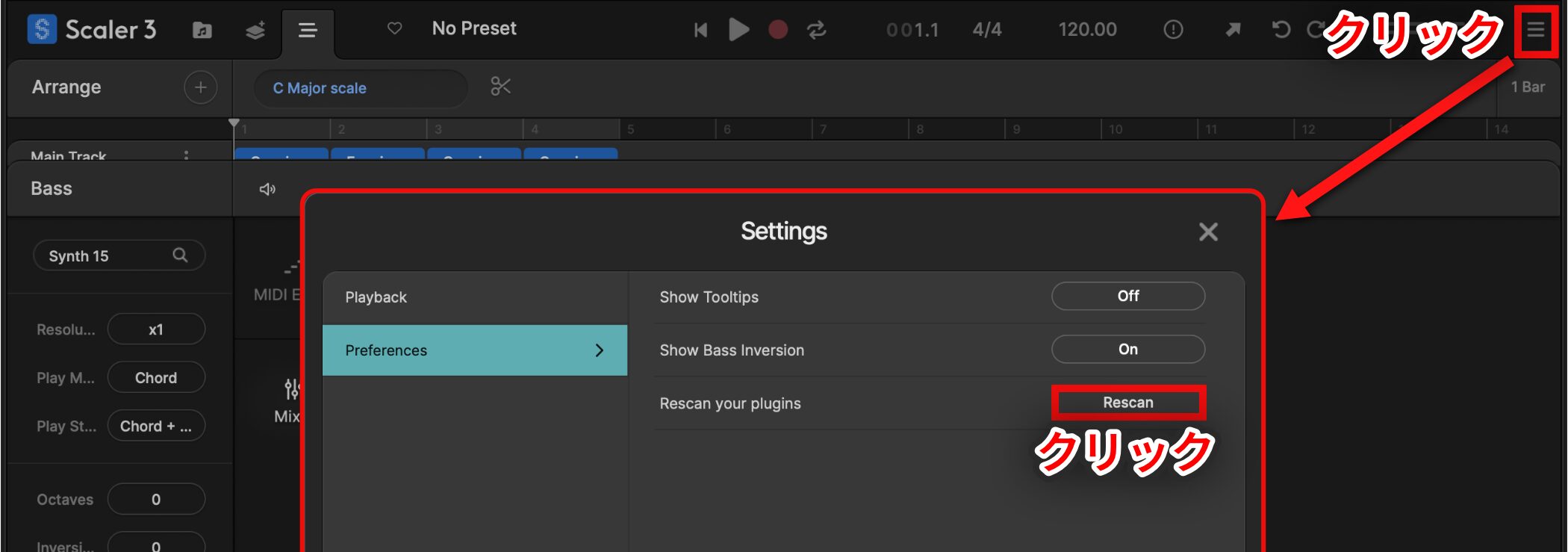
Ifan external plug-in does not appear, open Settings from the top right, click Rescan under Preferences, and try restarting Scaler.
System Requirements
Supported operating systems: Windows 8 or later; macOS 10.14 or later (Intel or Apple silicon)
Supported formats: Standalone, VST, VST3, AU, AAX
Compatibility: 64-bit only (32-bit is not supported)
About the Trial Version
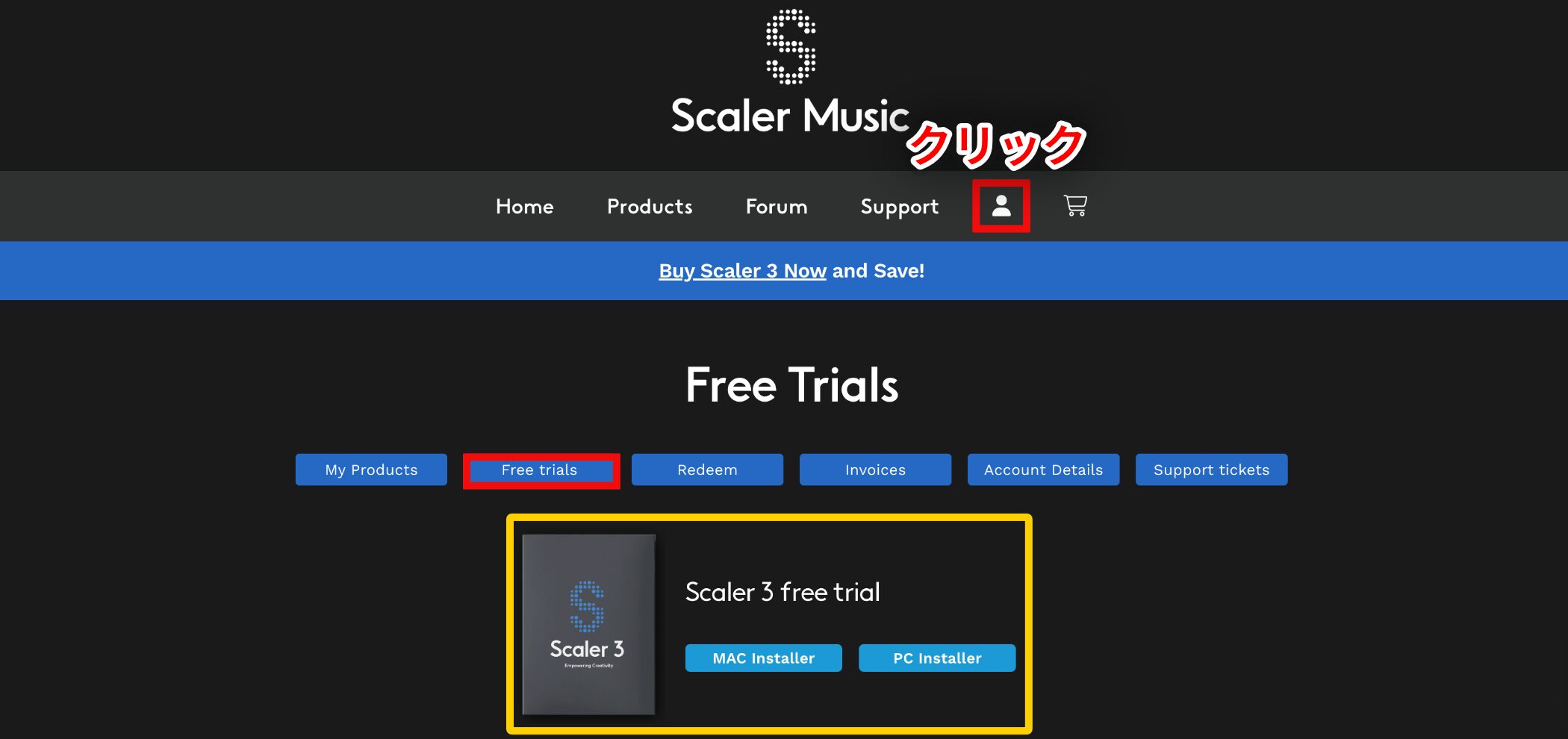
Scaler 3 offers a14-day trial with all features available.
Scaler MusicAfter signing in, you can download it from Free trials in your My Account page.
If you do not have an account, create one first.
What did you think?
With this update, Scaler 3 makes it easier to build chord progressions intuitively,making it a good choice for people who find music theory challenging.
It has also grown beyond a chord progression tool into a comprehensive music-making workspace, with potential uses ranging from developing composition ideas to sketching arrangements.
Take a look and explore new possibilities for your music.
Frequently Asked Questions
Q1. Is Scaler 3 suitable for beginners?
Yes. Scaler 3 is well suited to beginners. Suggest can recommend the next chord, and Pattern Fill can generate a progression automatically. It is designed to make building progressions intuitive, even without music theory knowledge.
Q2. Can I use it on its own, or only as a DAW plug-in?
Yes. Scaler 3 is also a standalone application, so you can run it without opening a DAW. It can also use external plug-ins directly.
Q3. What kinds of chord progressions are included?
It includes a wide range of progressions, from familiar to more advanced, across seven categories such as Common Progressions, Uncommon Progressions, Genre Sets, Artist Sets, and Moods. You can also use examples created by professional artists as a reference.
Q4. Can I edit multiple instrument parts at the same time?
Yes. Multitrack editing lets you add and edit multiple instrument parts at once, much like in a DAW. The unlimited timeline gives you room to create progressions of any length.
Q5. What is Dynamic Scale?
It shows how closely each chord relates to the selected chord using color. Dark blue indicates a more harmonious fit; lighter colors indicate more adventurous chords. The display updates as you choose chords, making it easier to find a natural-sounding progression.
NEW ARTICLES
Latest English Articles















































