
Cubase 11 introduced a wide range of features designed to make professional music production more efficient, including batch jobs for Audio Mixdown, Scale Assistant in the MIDI editor, and LFOs in the Sampler Track. In particular, stem export and MIDI editing workflows were substantially improved, helping producers from beginners to advanced users spend less time on routine tasks and more time creating.
A major update packed with new features
In this article, originally published in November 2020, we explore the new features introduced in Cubase 11.
There are many improvements and additional plug-ins to look out for.
Here is an overview of the main topics.
- 1Audio Mixdown improvements, including batch export jobs (Pro only)
- 2MIDI editor improvements (some features are Pro only)
- 3Sampler Track improvements, including slicing and LFOs
- 4New plug-in: Squasher
- 5New plug-in: Imager (Pro and Artist only)
- 6New plug-in: SuperVision (Pro and Artist only)
- 7Frequency improvements: dynamic EQ (Pro only)
- 8SpectraLayers One included (Artist and Pro only)
- 9Score Editor improvements (Pro only)
- 10Other improvements
Let’s take a closer look at each one.
Video: Cubase 11 new features overview
Steinberg product distributor: Access content from Yamaha Music Japan Co., Ltd.
- Yamaha Music Japan MPP (YouTube): https://www.youtube.com/user/SteinbergJapan
- MPP (Twitter): https://twitter.com/SteinbergJP
- Music production program Sound Roster (Fresh!): https://freshlive.tv/ymjsoundroster
Product page: https://bit.ly/2UiQvP5
Audio Mixdown improvements, including batch export jobs (Pro only)
Batch export jobs
You can now queue multiple export jobs and run them all in one batch.
At the bottom of the Export window, click the new Export Queue section to display the queue shown here.
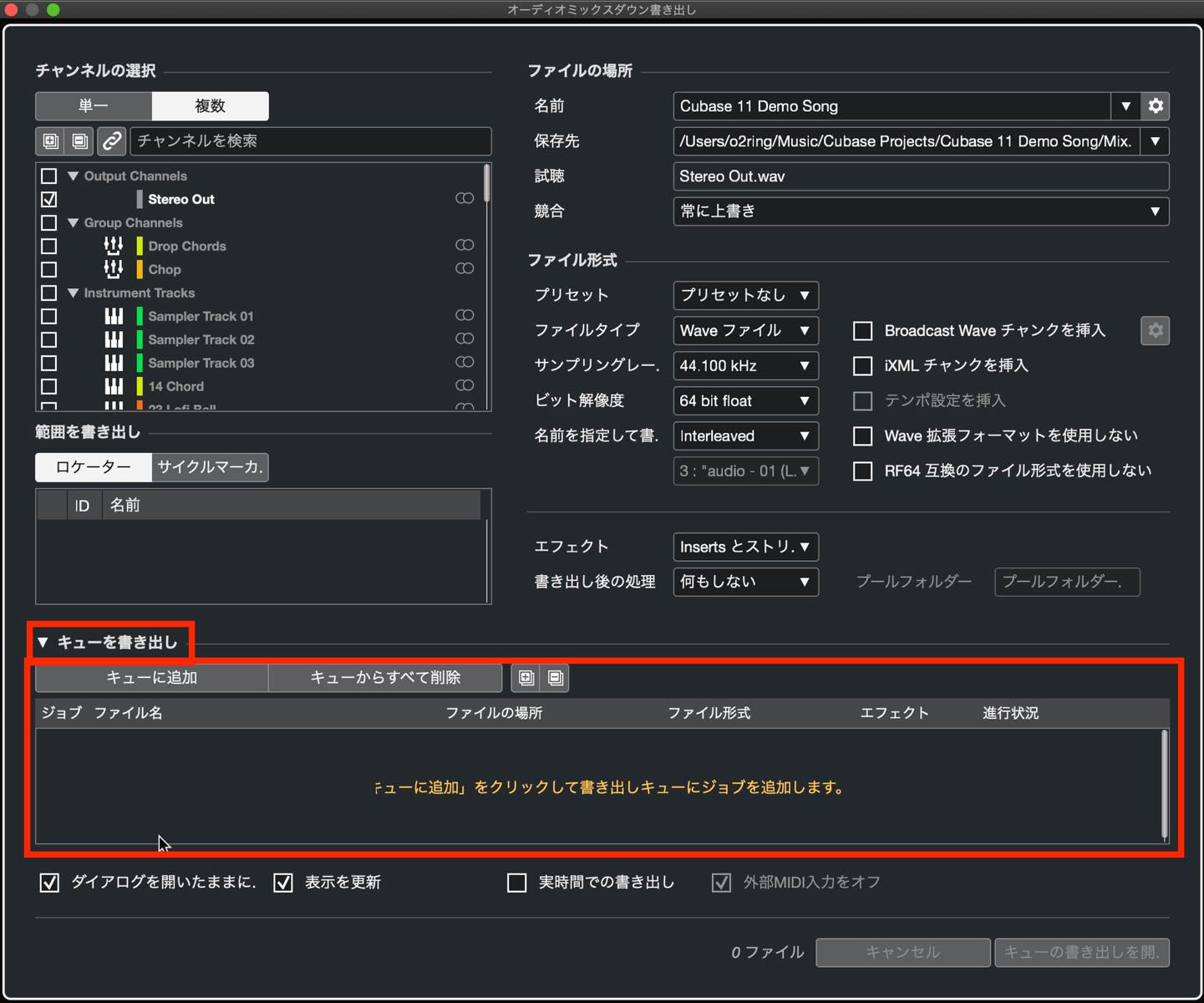
Configure the export settings and click Add to Queue. The export then appears in the queue as a job.
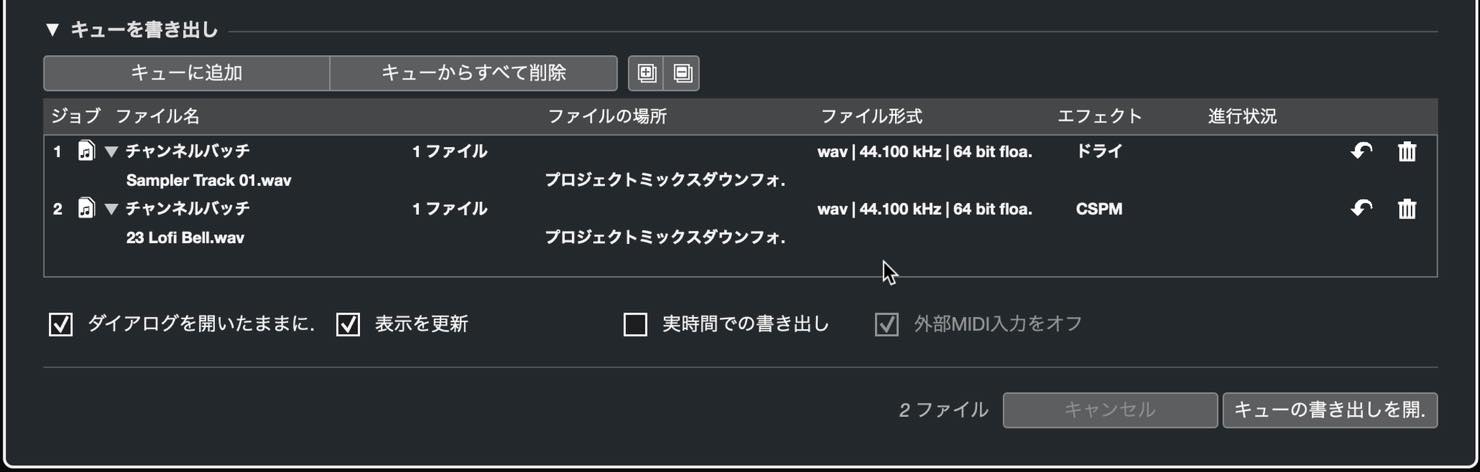
You can build up a list of export jobs, each with its own settings.
Then click Start Queue Export at the lower right to run every job. This is especially useful when exporting stems.
Saving file format presets
File format settings can now be saved as presets.
Open the preset menu and choose Save Preset.
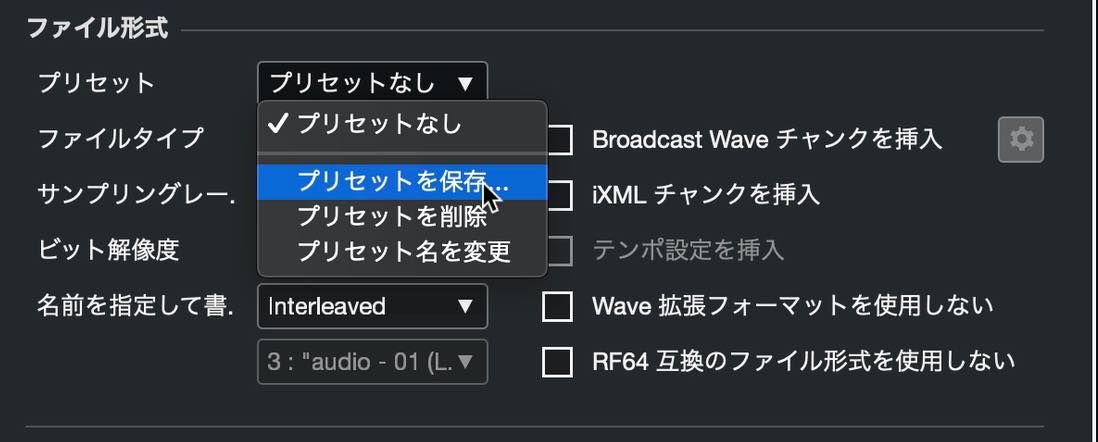
Name and save the preset, and it will appear in the menu the next time you need it.
Channel Selection improvements
The Channel Selection section has also been improved.
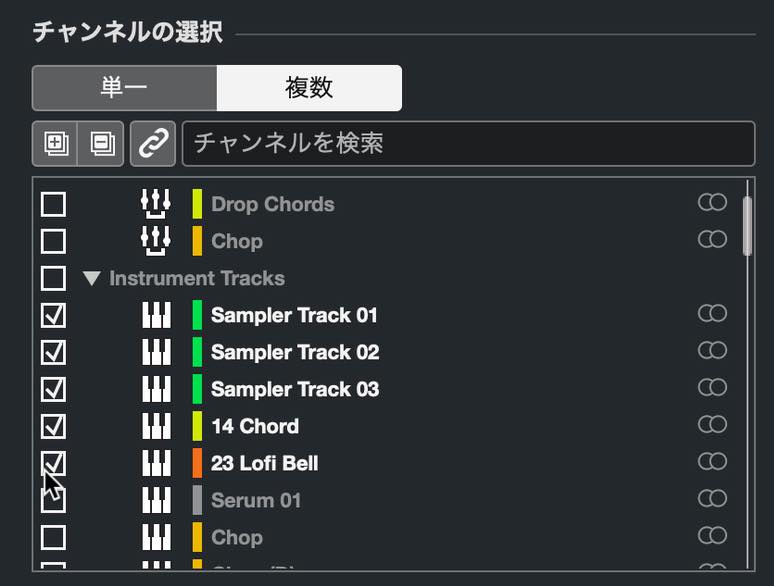
It now displays channel icons, colors, and whether each channel is stereo or mono.
You can also select several channels at once by dragging.
Linking track selection to the channel display
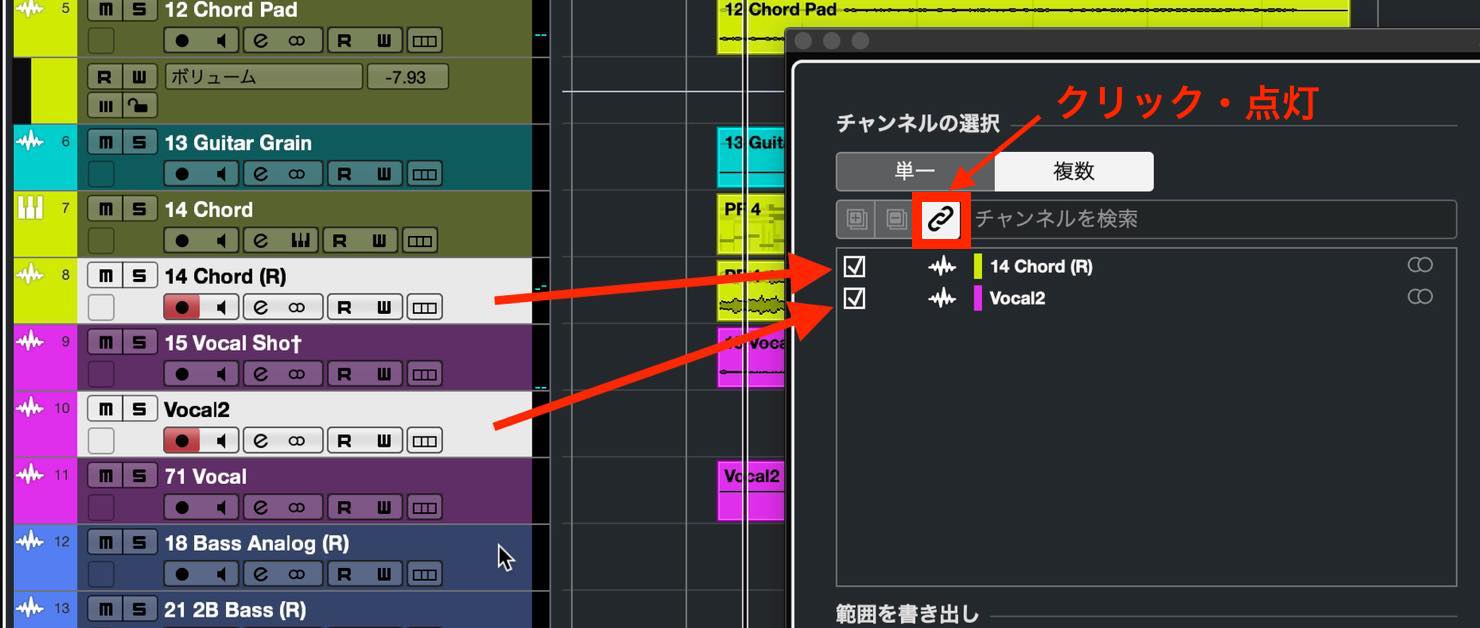
Track selection in the Project window can now be synchronized with the channel display.
Enable the Link button, then select a track in the Project window. The Channel Selection display follows your selection, as shown here.
MIDI editor improvements (some features are Pro only)
Ramps and curves for MIDI CC data
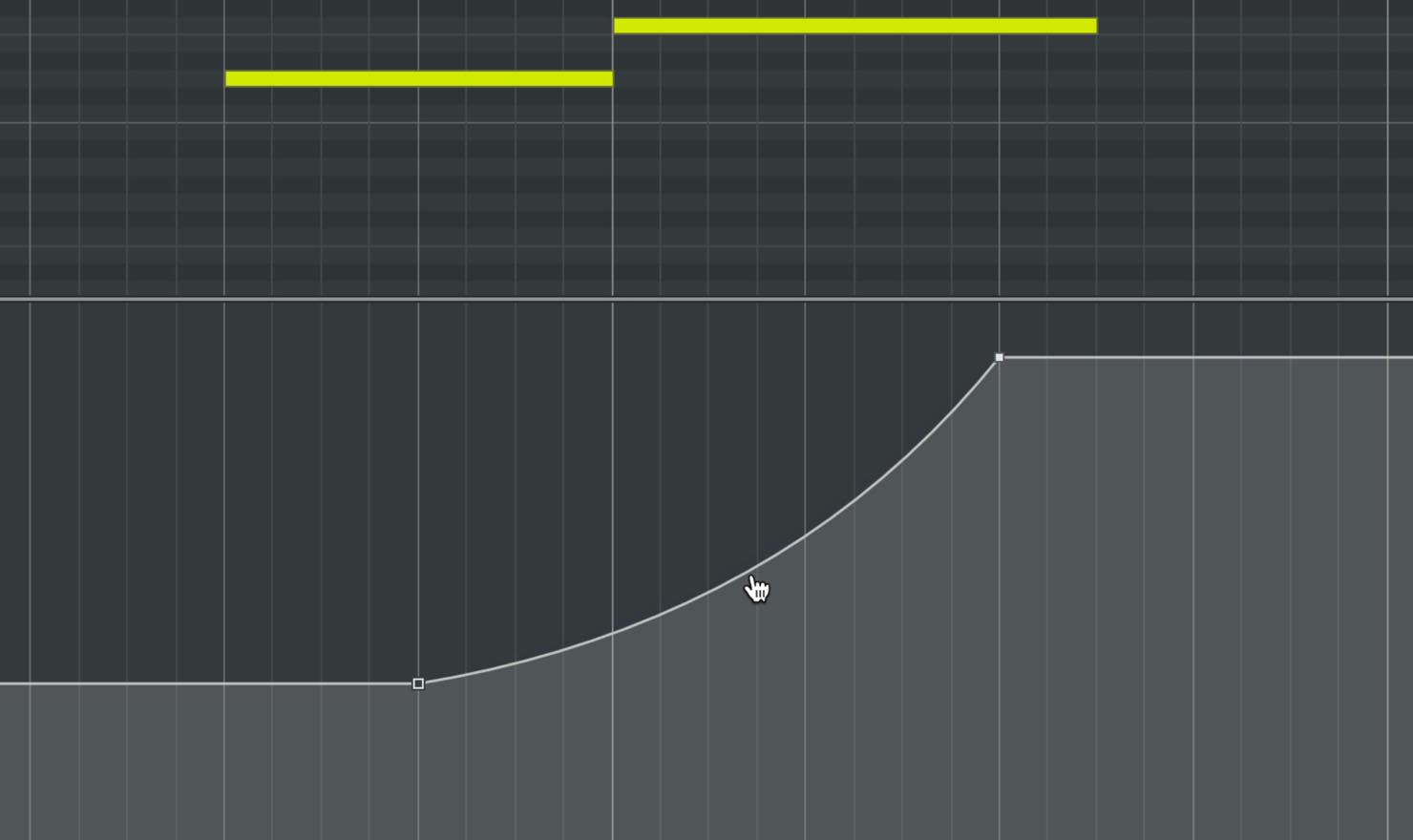
You can now create ramps and curves in MIDI CC data.
Select MIDI CC events in a controller lane, then choose Ramp/Curve as the curve type in the info line.
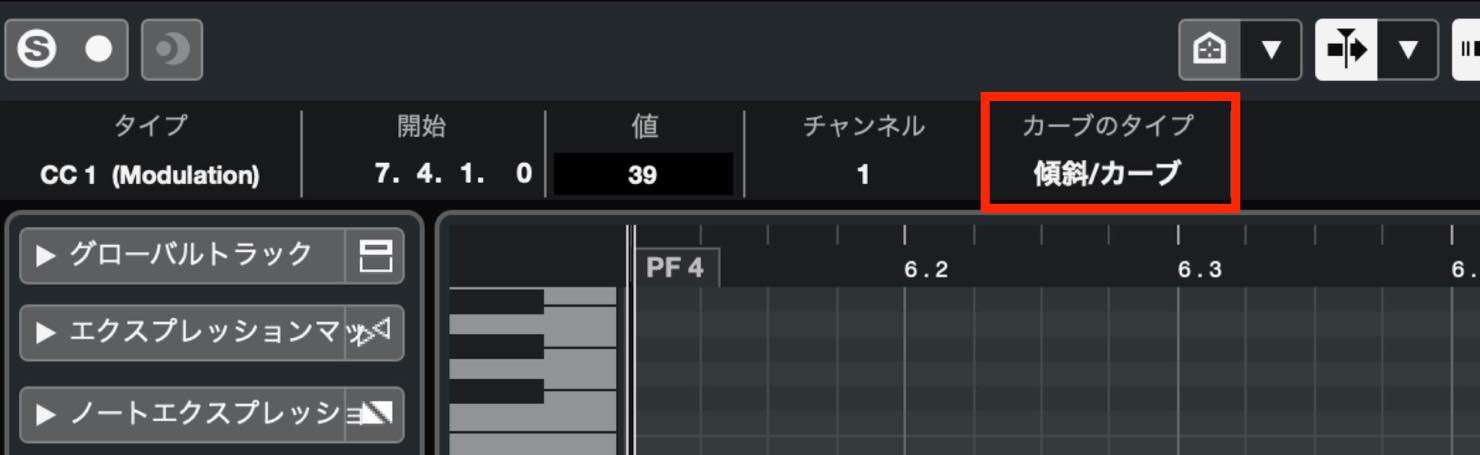
The values are connected by a sloping line from one event to the next.
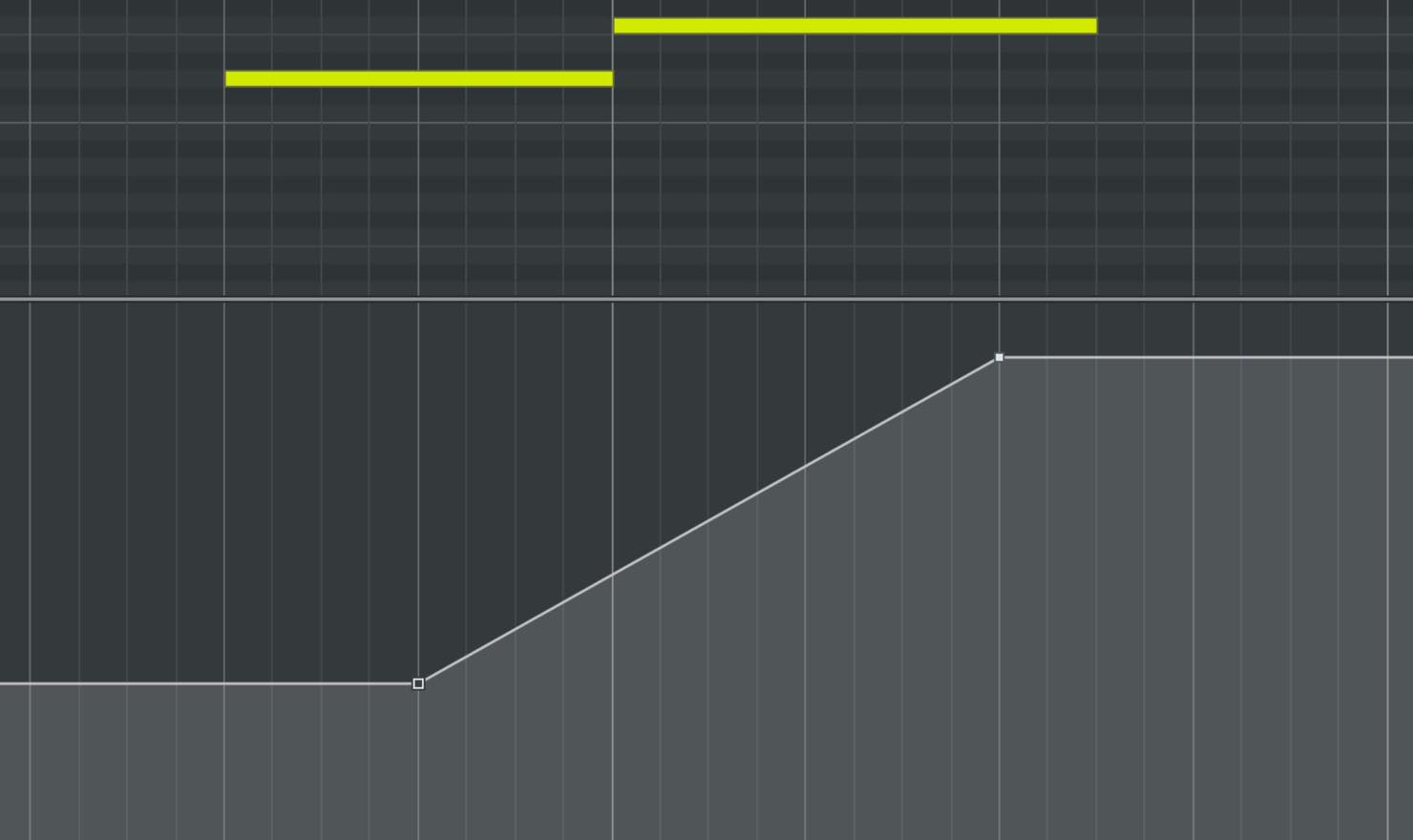
Drag the handle in the middle of the line to turn it into a curve.
Pitch Bend snapping
Pitch Bend editing now lets you snap to specific pitches.
Click the button shown here.
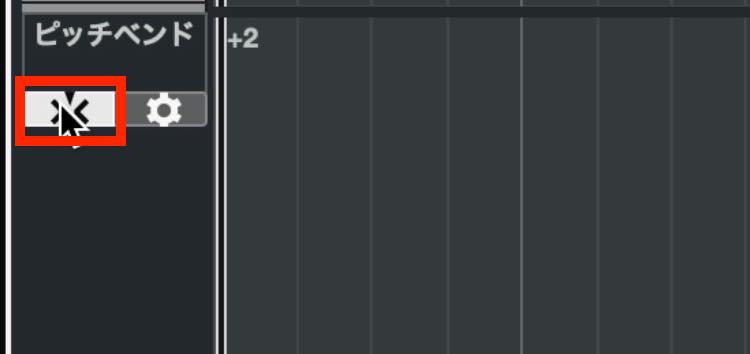
A semitone grid appears, and pitch values snap to its lines.
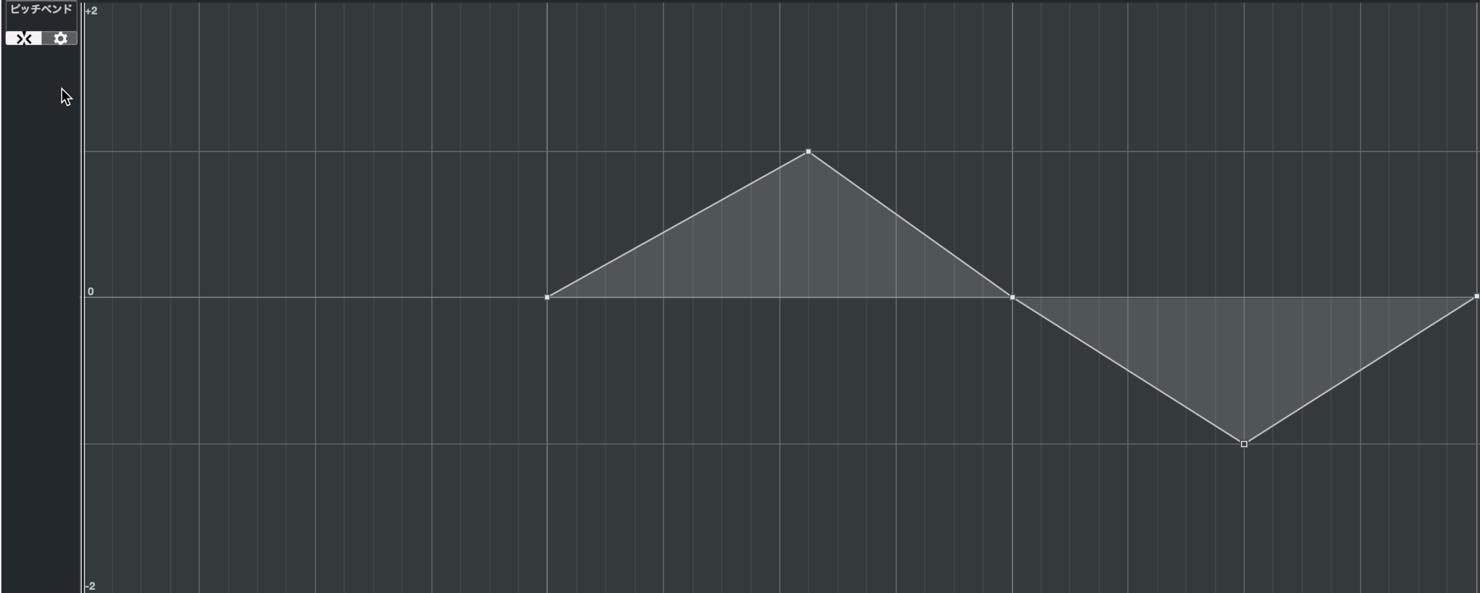
To configure the snapping grid, click the gear button on the right.

Here you can change the number of semitone steps displayed. Disable Link to set different values for the upper and lower ranges.
Displaying Global Tracks
Global Track information can now be displayed in the editor. This feature is available in Cubase Pro only.
Open Global Tracks in the Inspector to see the Global Tracks in your project. Check the ones you want to display, and they appear at the top of the editor as shown here.
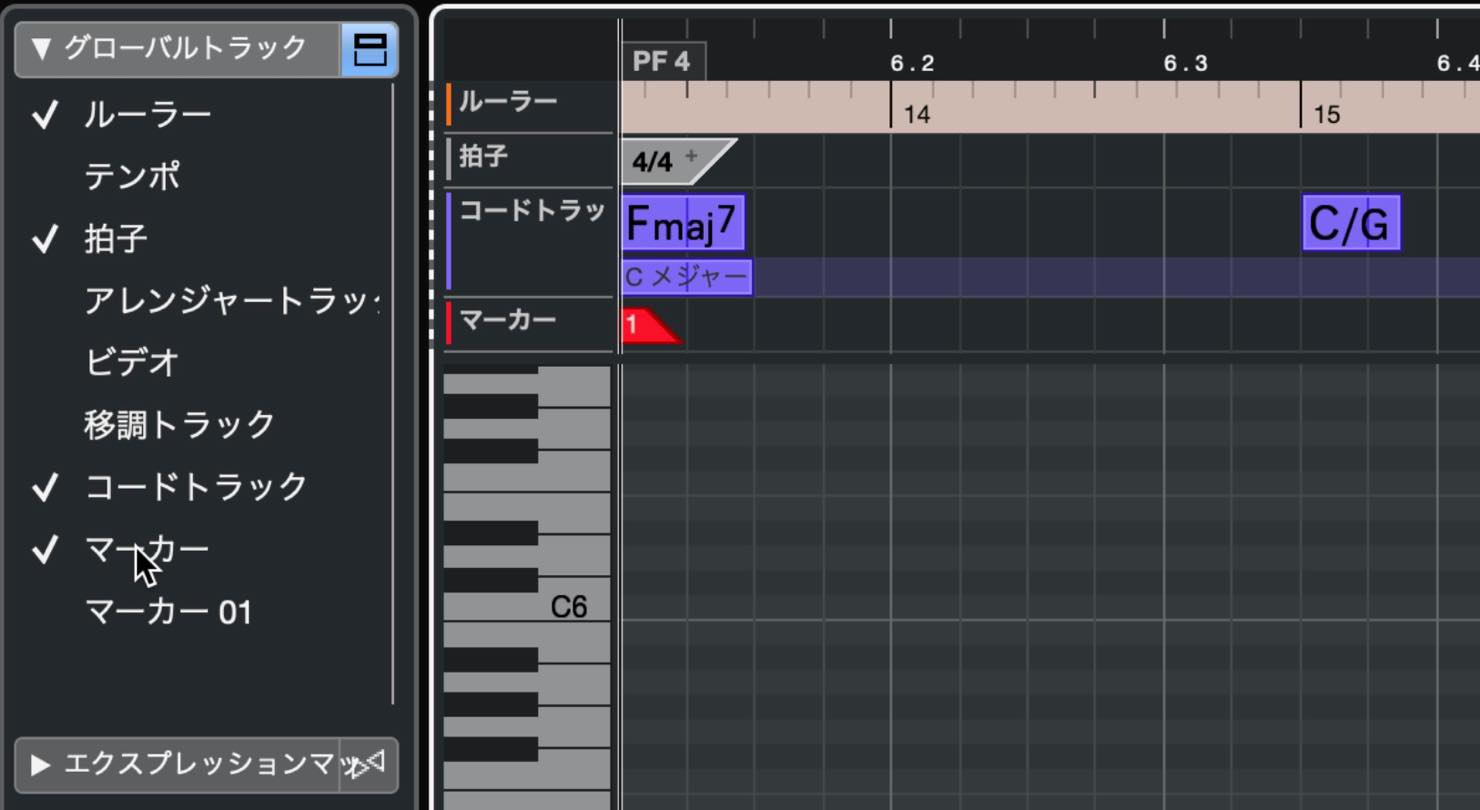
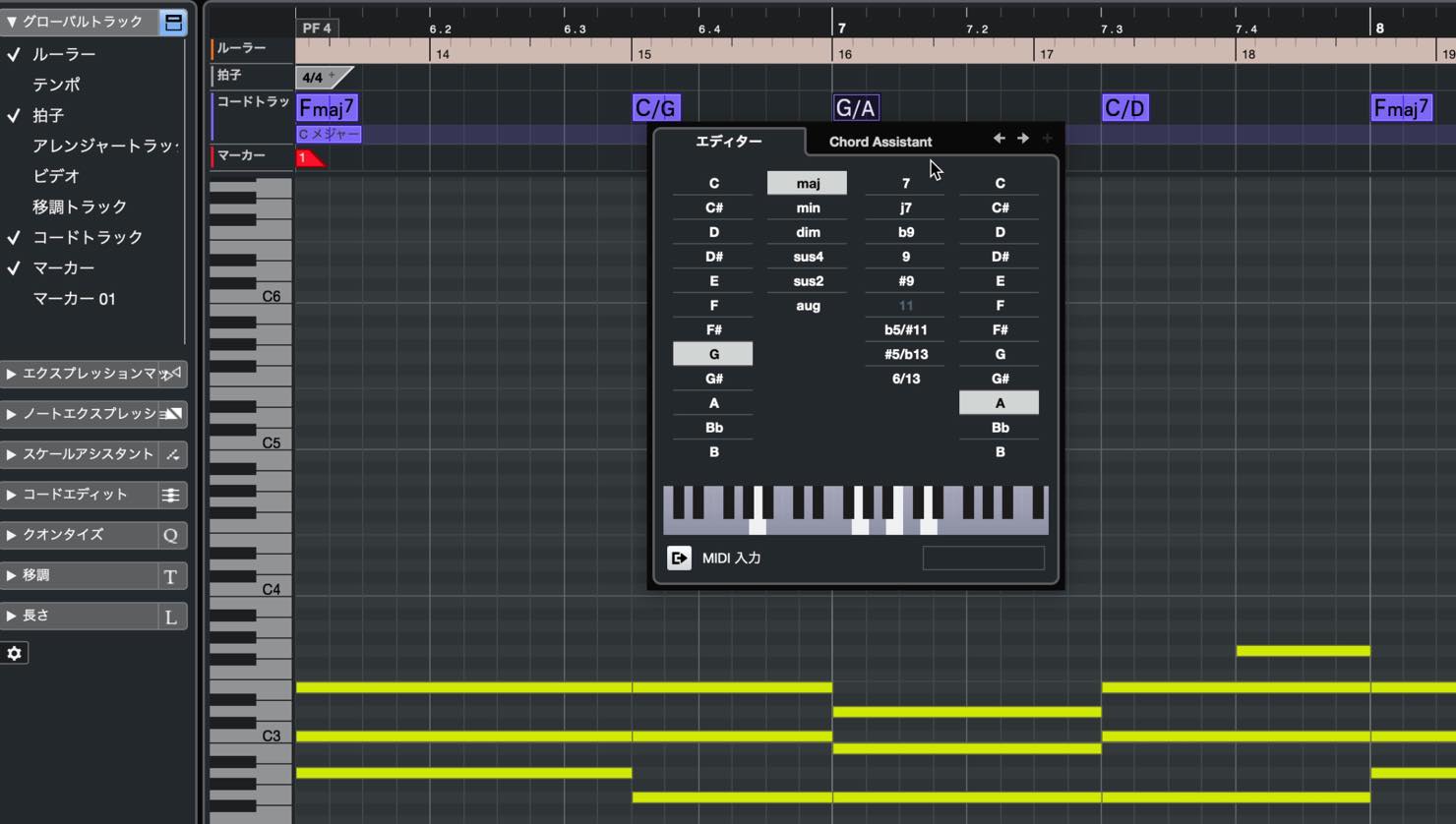
You can display Tempo, Signature, Chord, Ruler, Arranger, Video, Marker, and Transpose tracks, and edit them directly in the editor.
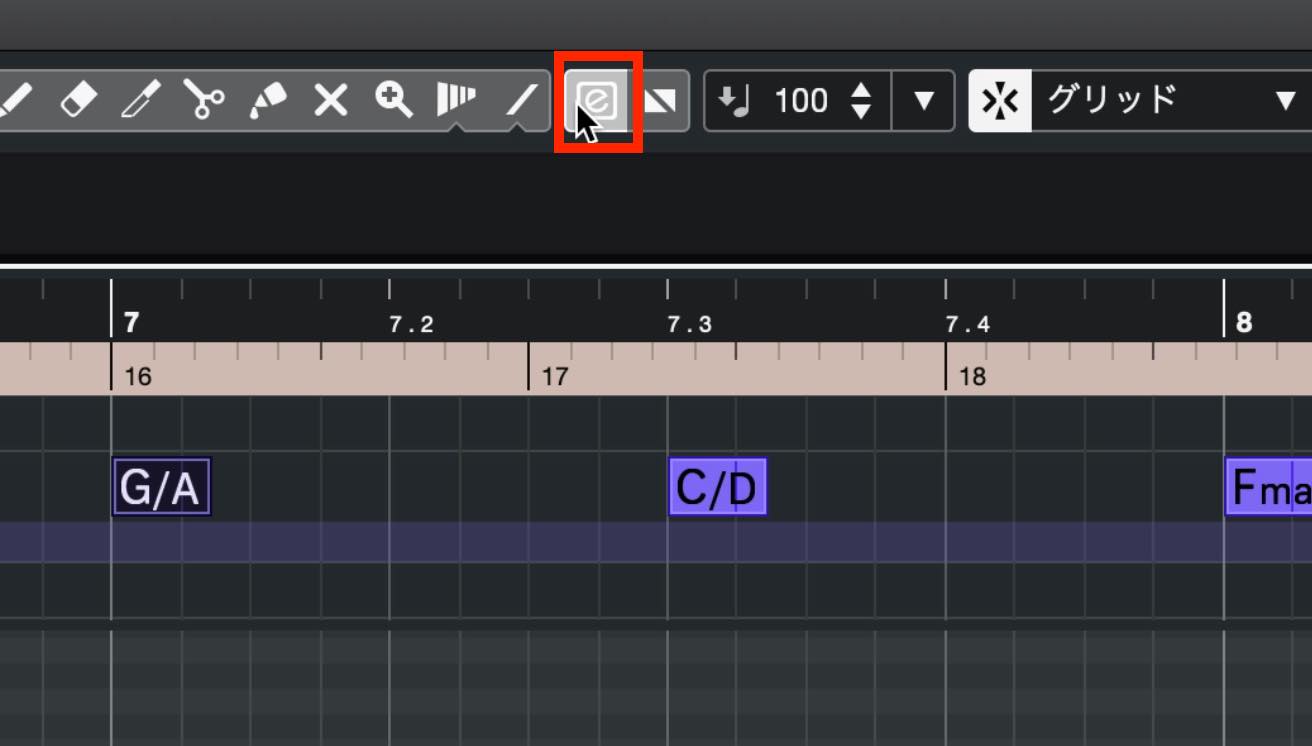
Double-clicking a note now deletes it by default
The default action when you double-click a note is now to delete it.
If you want double-clicking to open Note Expression instead, enable the “e” button at the top of the editor.
Scale Assistant
Scale Assistant has been added to the editor.
Open the new Scale Assistant section in the Inspector.
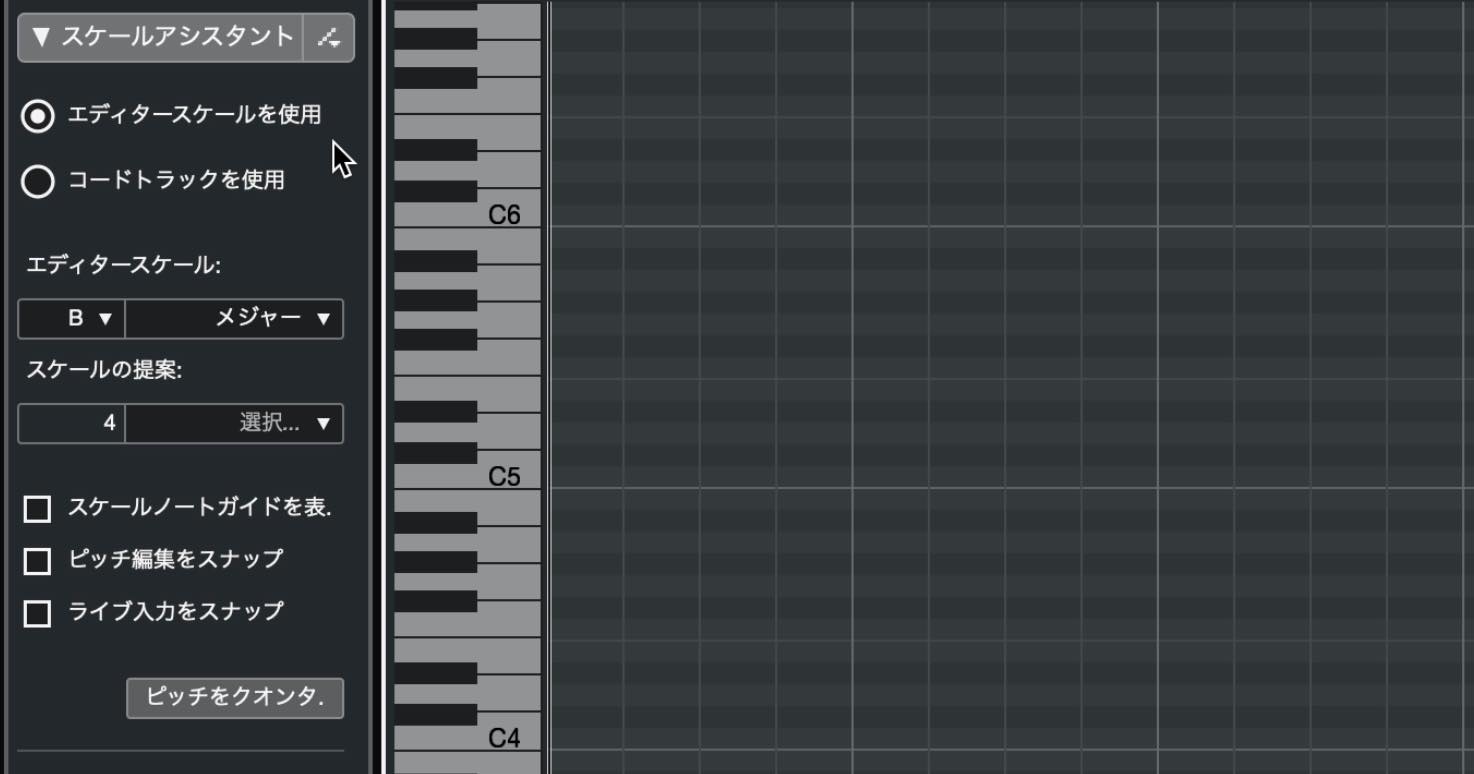
First, enable Show Scale Note Guides. The arrangement of light and dark keys in the display changes.
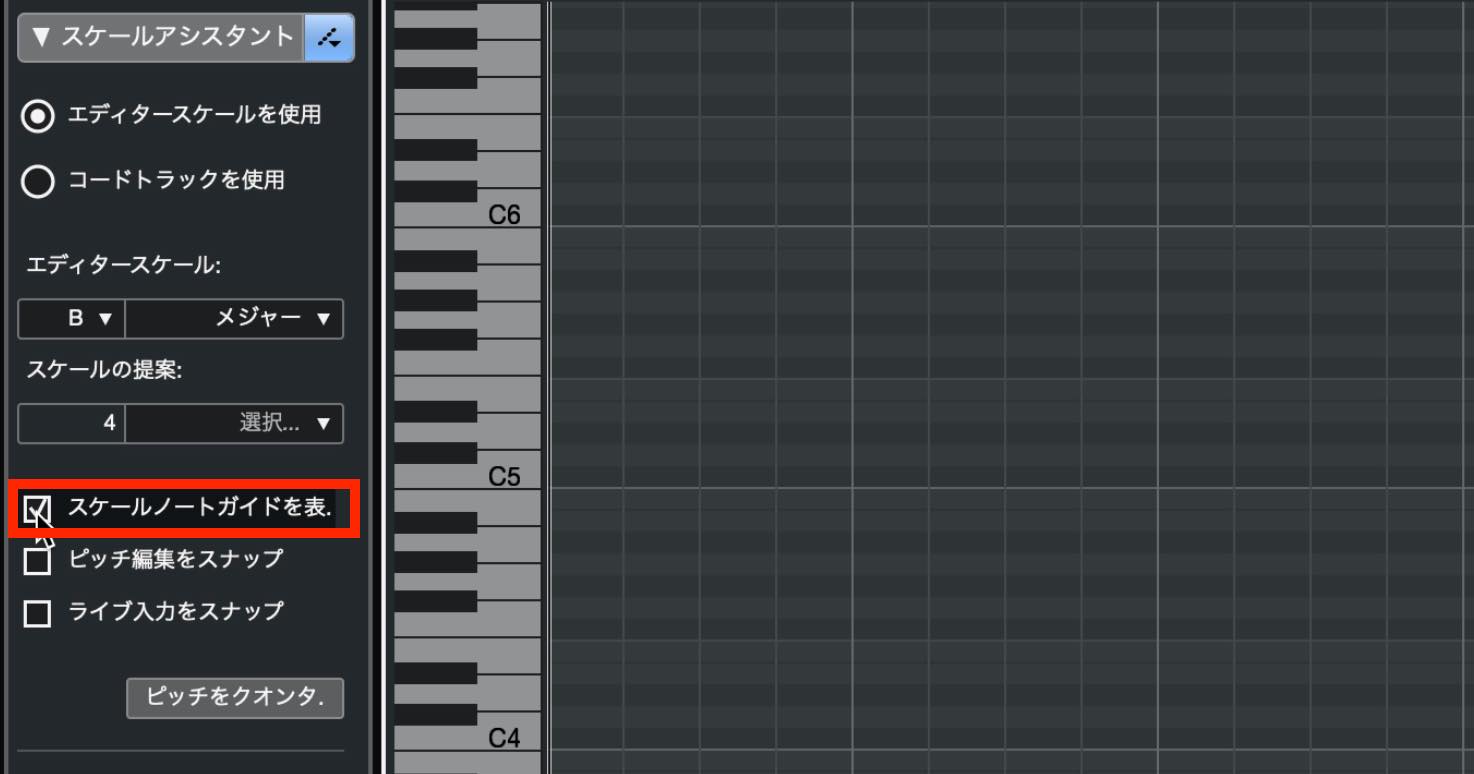
In this example, the Editor Scale is set to B major. Pitches within that scale are displayed as white keys, while pitches outside it appear as black keys.
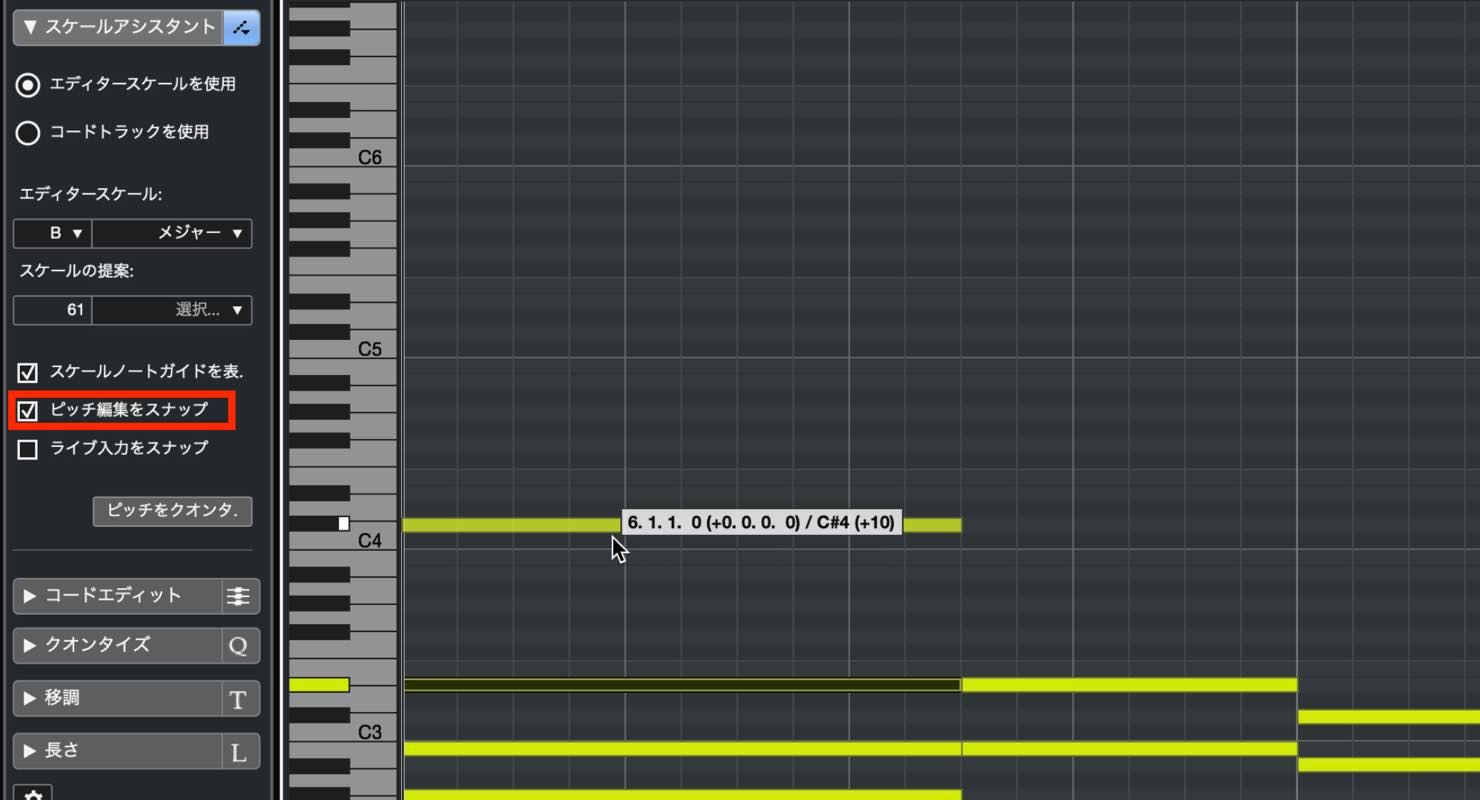
Enable Snap Pitch Editing, and you can no longer move notes to pitches outside the scale. Notes will always snap to pitches within the scale.
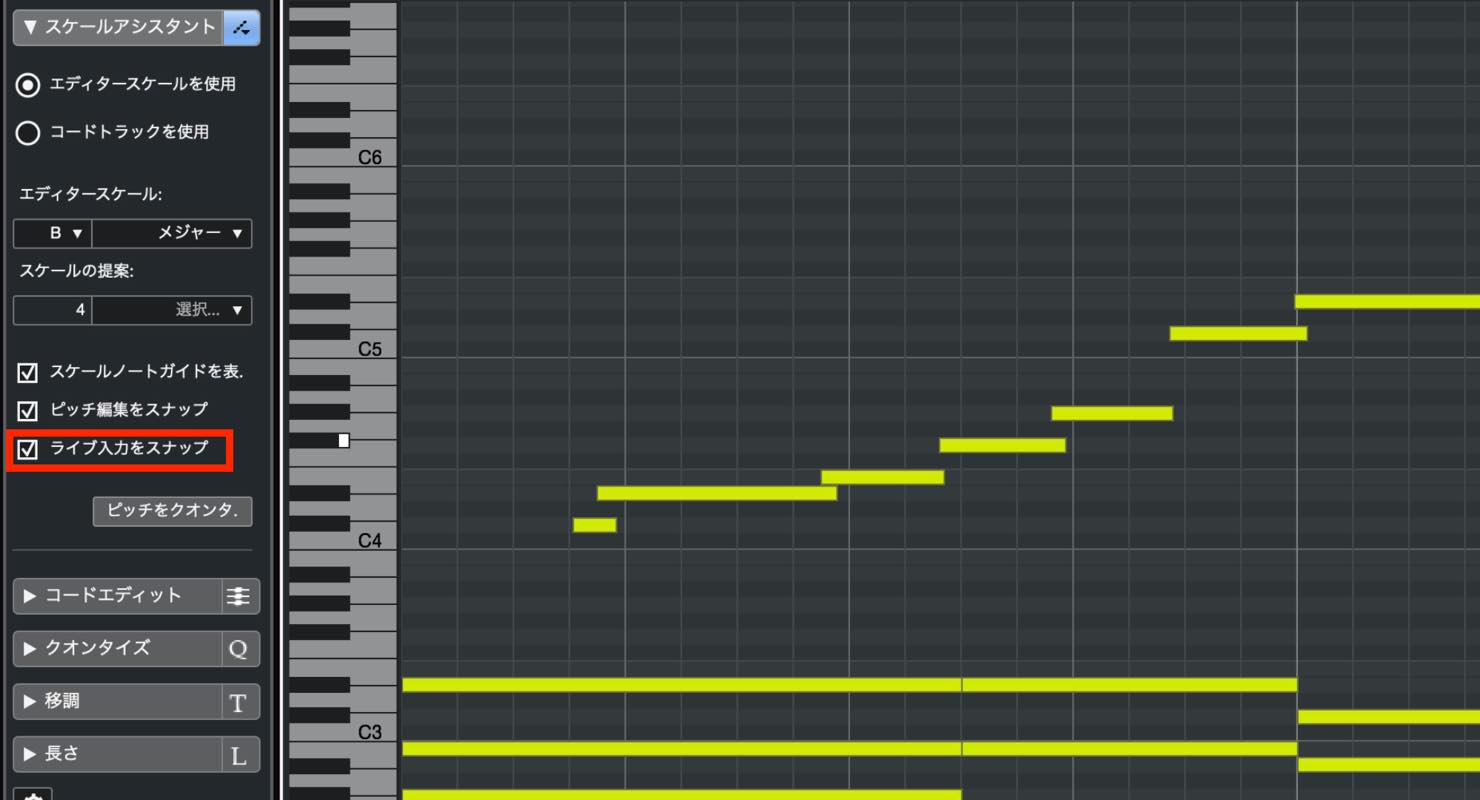
Enable Snap Live Input and activate the editor’s Record button to have notes played on your MIDI keyboard automatically corrected to pitches within the scale, too.
If you do not know the scale of your music, Scale Suggestions can help.
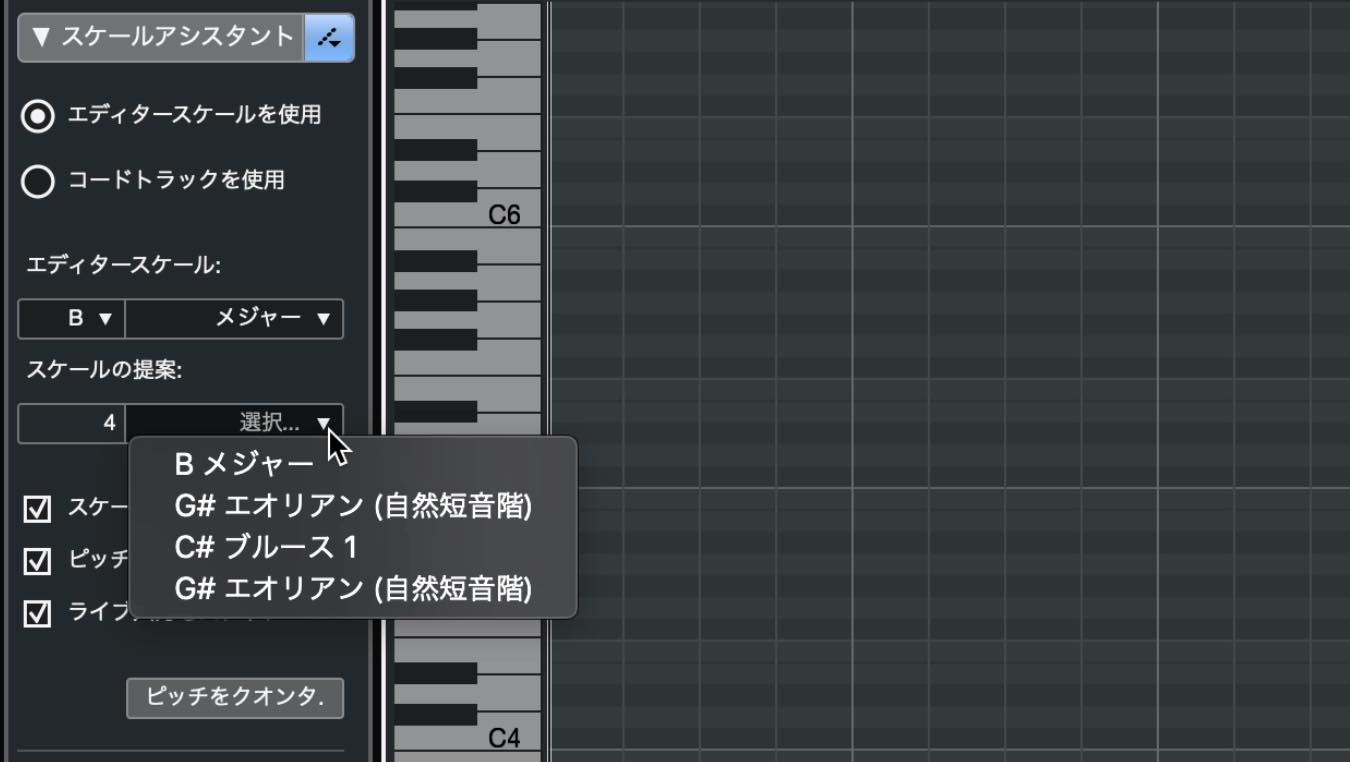
With no notes selected, suggested scales are based on all notes in the event.
If you select particular notes, the suggestions are calculated from those notes instead.
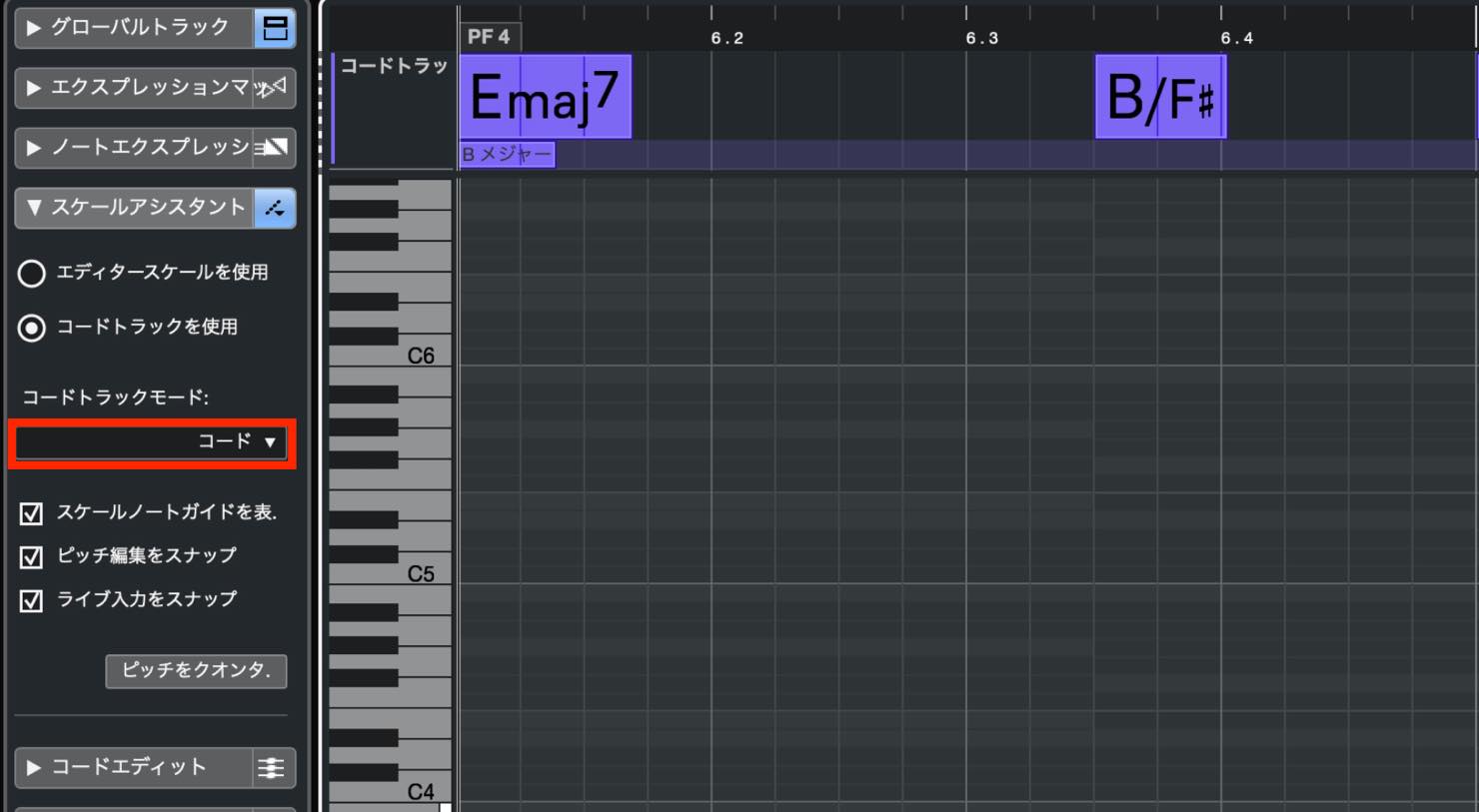
Scale Assistant can also follow the Chord Track. Enable Use Chord Track to reveal the Chord Track Mode setting below.
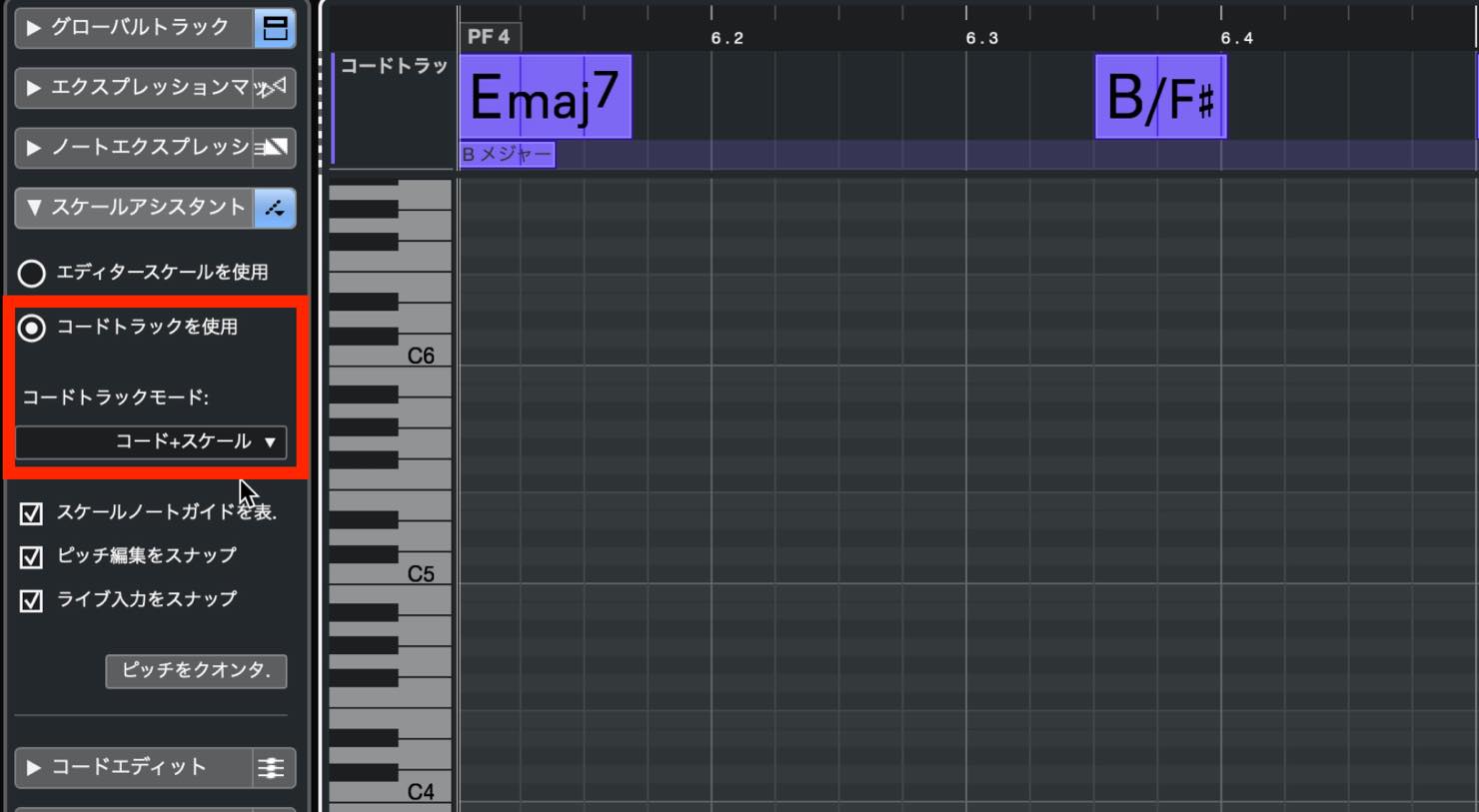
You can choose Scale, Chord, or Chord & Scale.
For example, choosing Chord displays only the current chord tones as white keys, with the other pitches shown as black keys. Snapping follows those white-key pitches as well.
Pitch visibility options
You can now change which pitches are displayed.
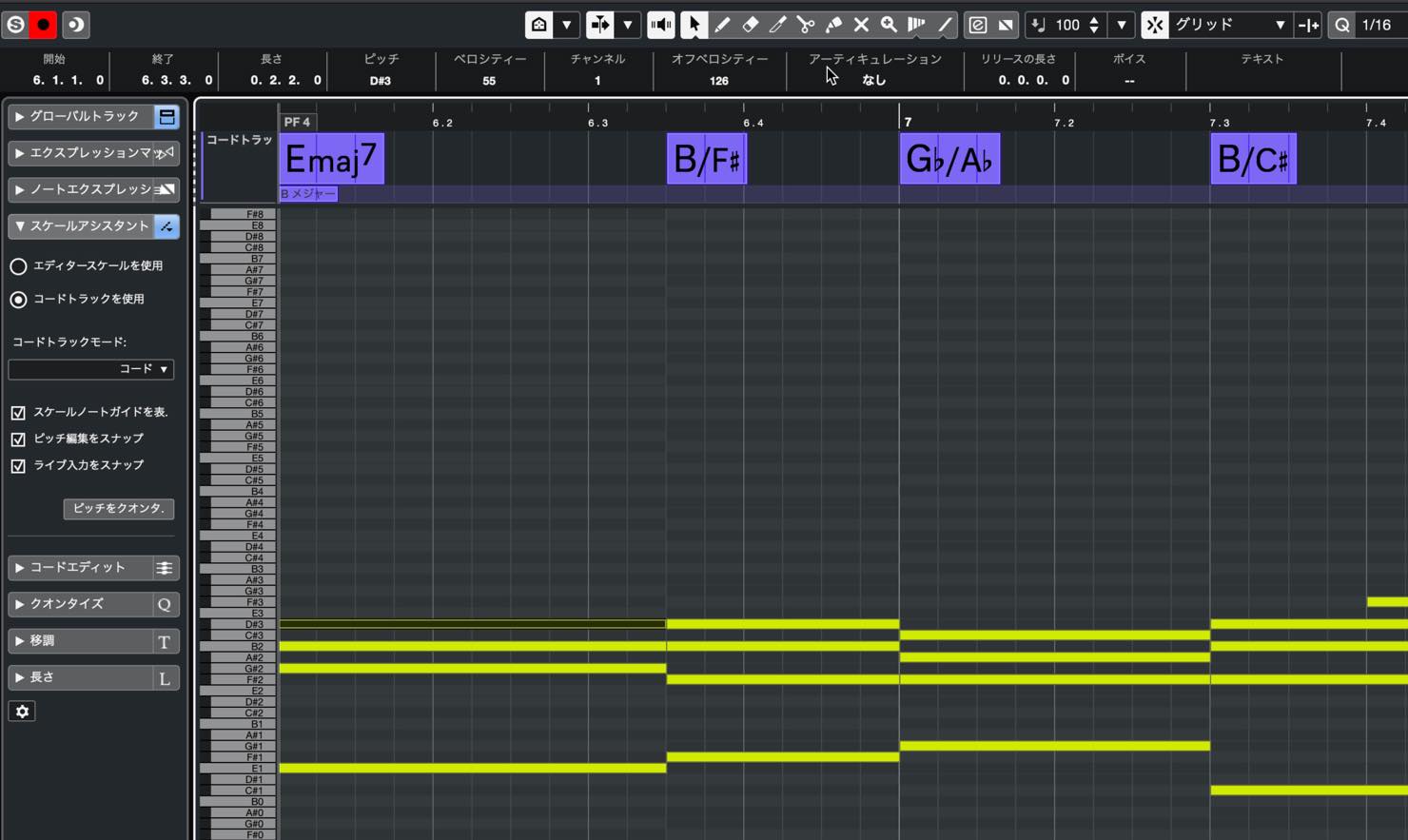
Enable Pitch Visibility with the button at the top of the editor, and fewer pitch rows are shown, as in this example.
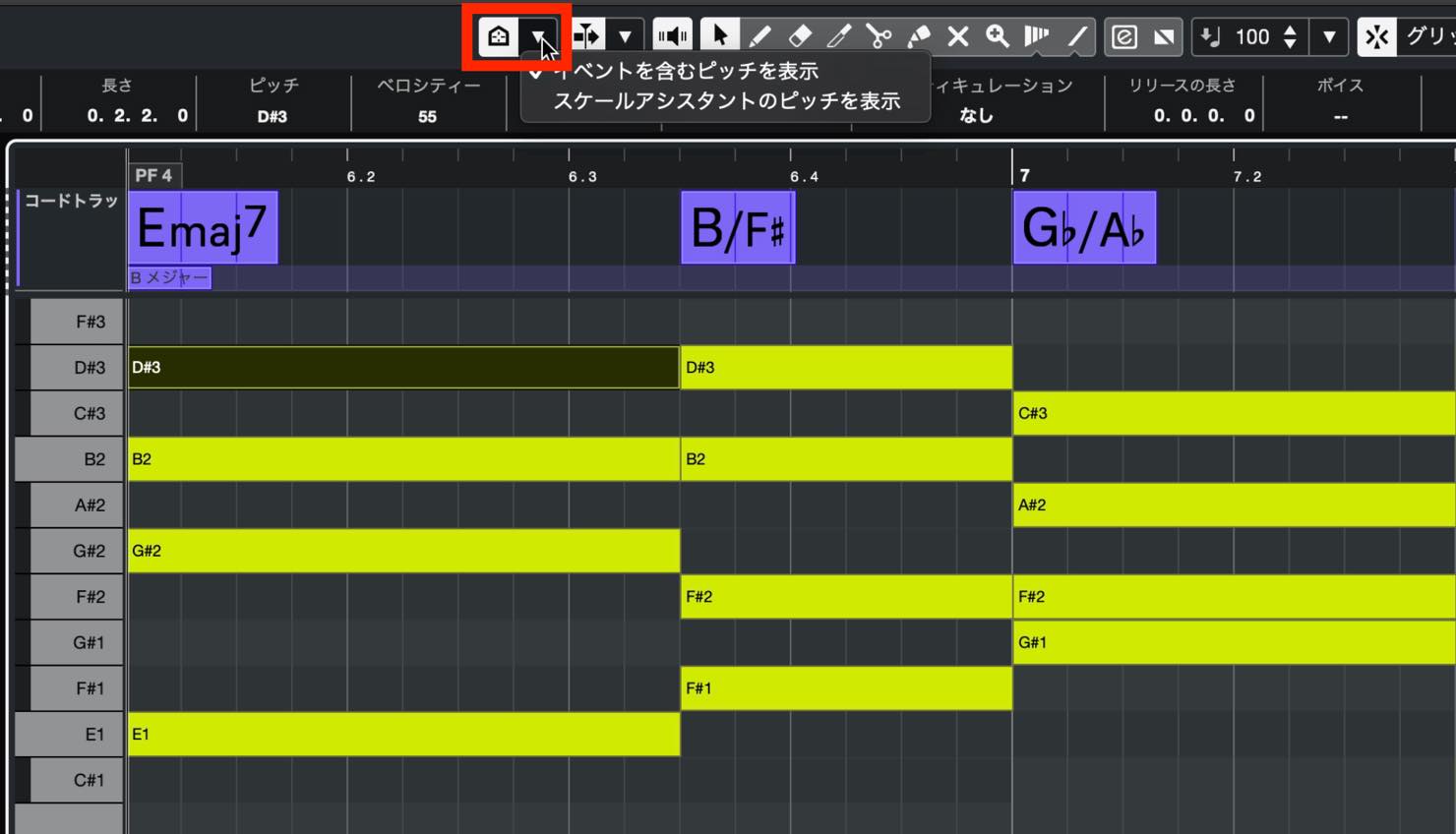
The selected option here is Show Pitches with Events, so the display is filtered to pitches that contain events.
Choose Show Pitches from Scale Assistant to show only the pitches allowed by your current Scale Assistant settings.
Sampler Track improvements, including slicing and LFOs
LFOs
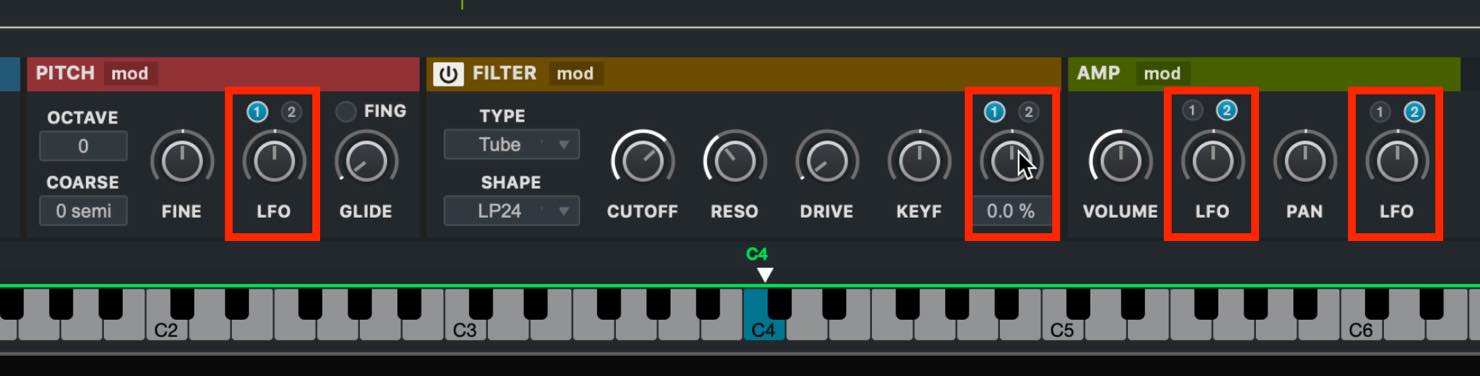
The Sampler Track now includes LFOs.
They can be applied to pitch, filter, volume, and pan.
Click the MOD button to open the modulation settings.
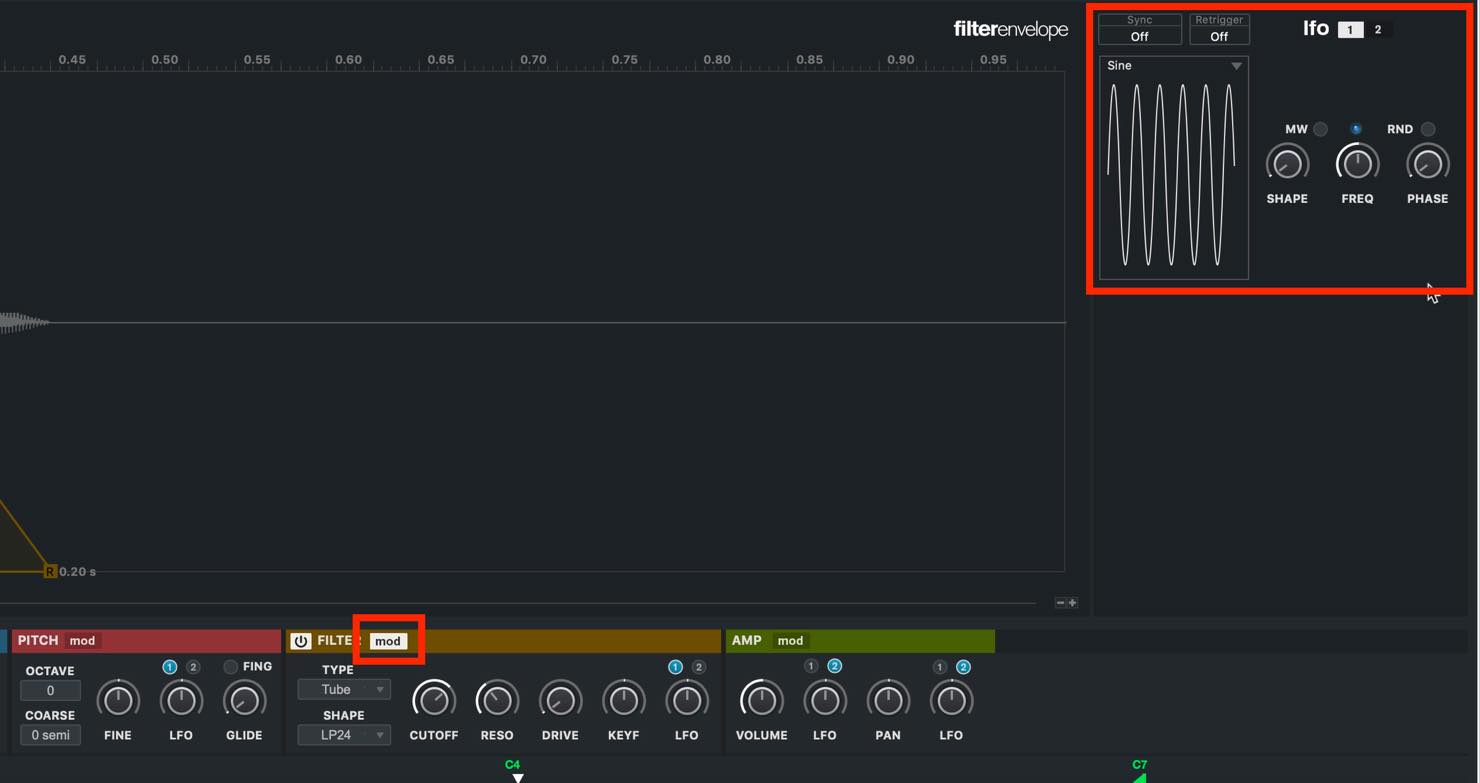
There are two LFOs, and you can choose which one to use in each section.
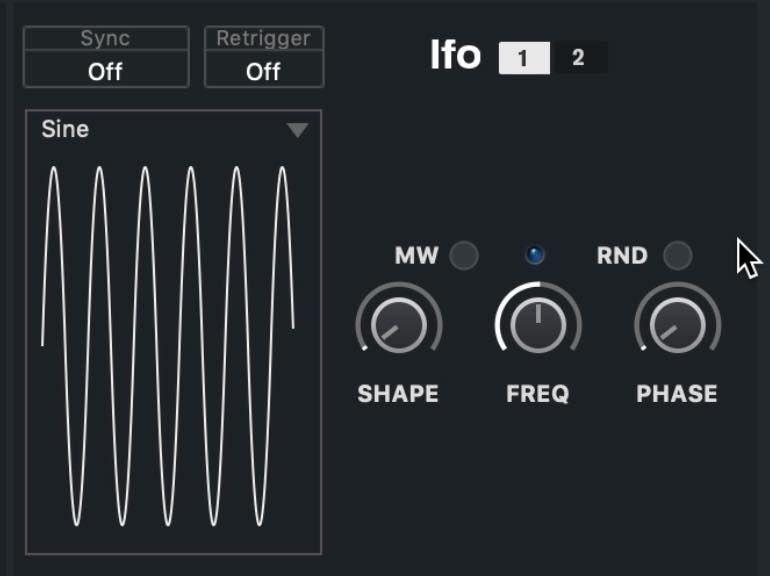
The three main controls are SHAPE, FREQ, and PHASE, which will be familiar if you use synthesizers.
You can choose from various waveforms and configure tempo sync and retriggering.
Enable RND to apply a random phase to each note. Enable MW to control the LFO output with the modulation wheel.
Slicing
A new slicing function has been added.
Choose Slice here to split the sample at its transients and automatically map the slices to keys.
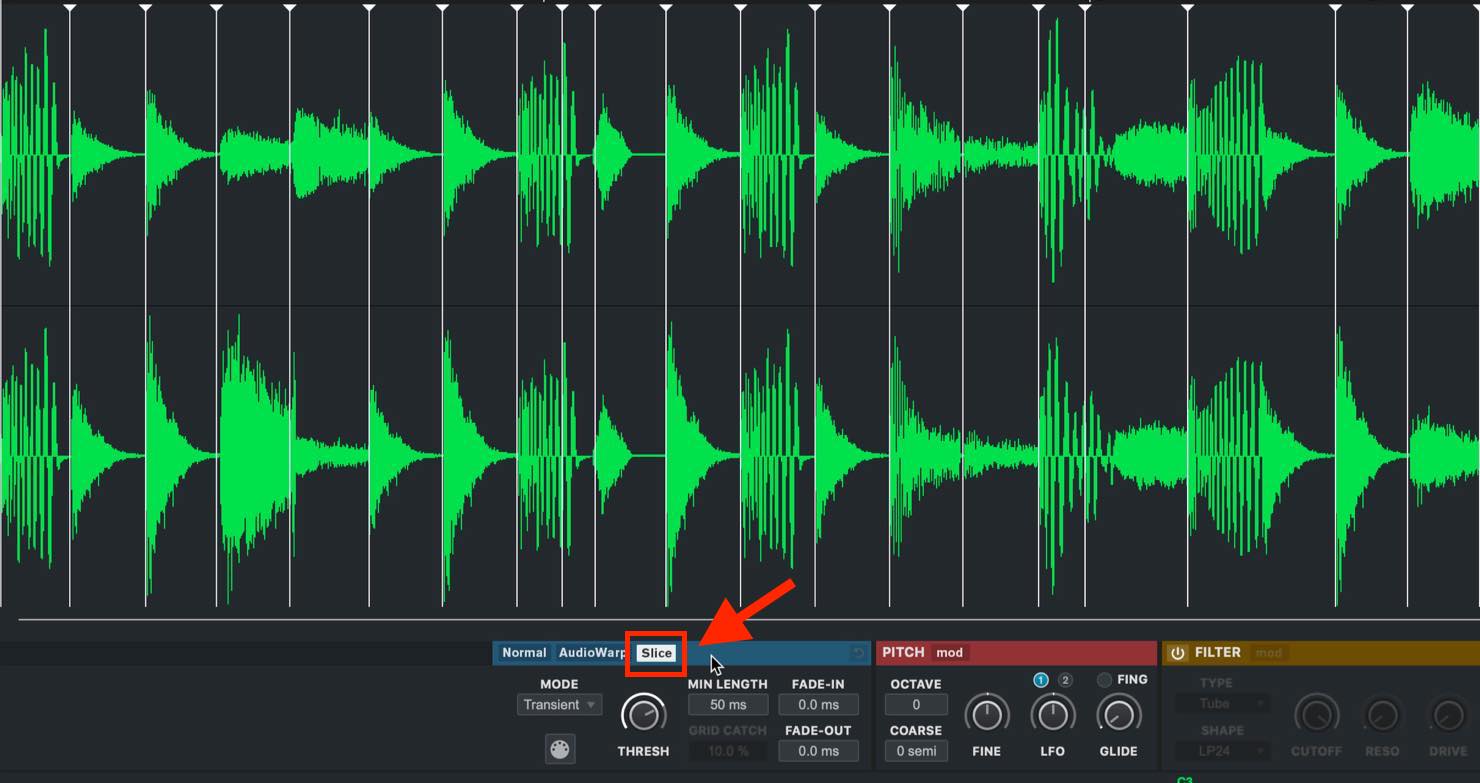
Drag from the MIDI icon shown here and drop onto the Sampler Track to create a phrase that plays the generated slices.
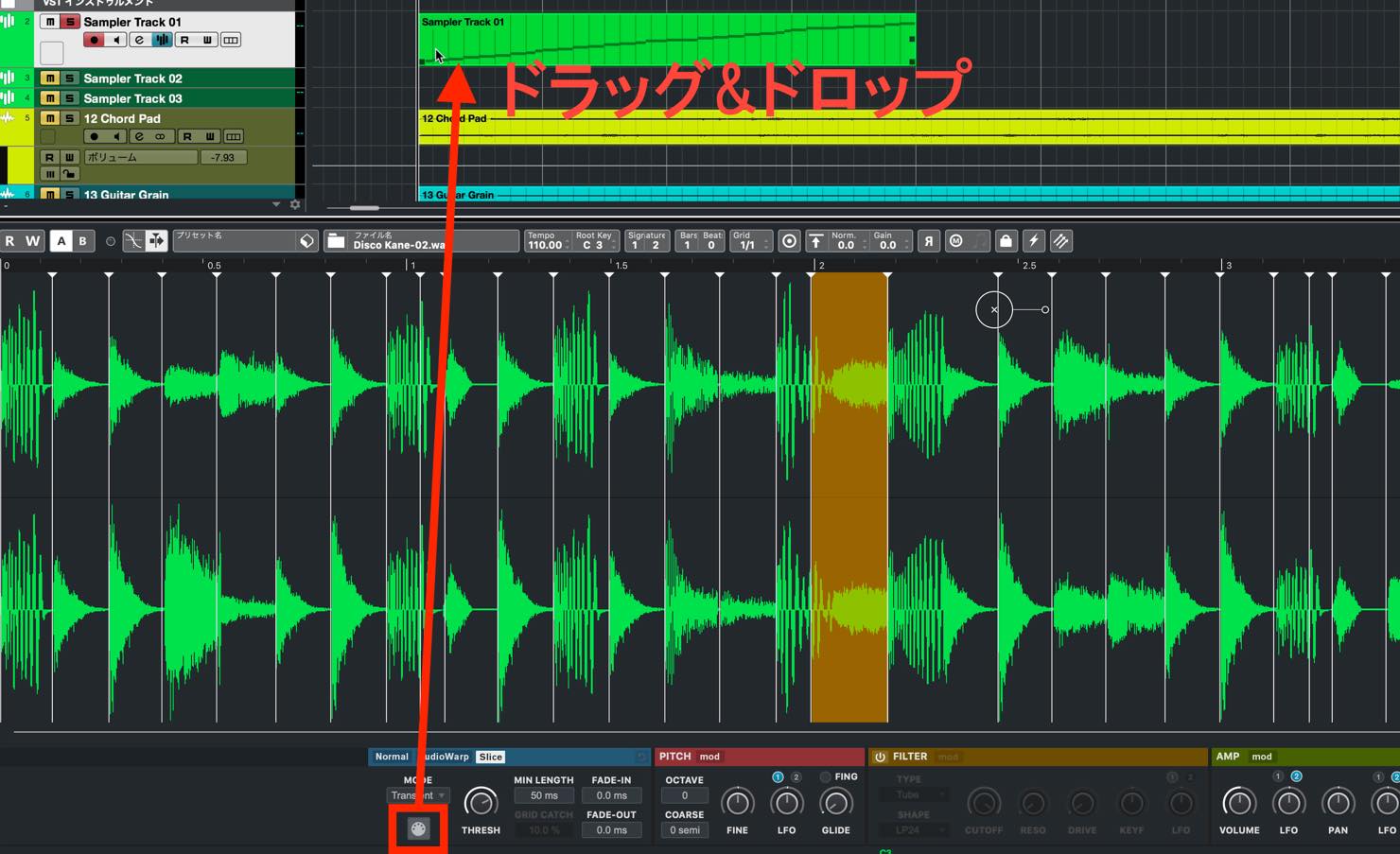
The available slicing modes are Transient, Grid, Transient+Grid, and Manual.
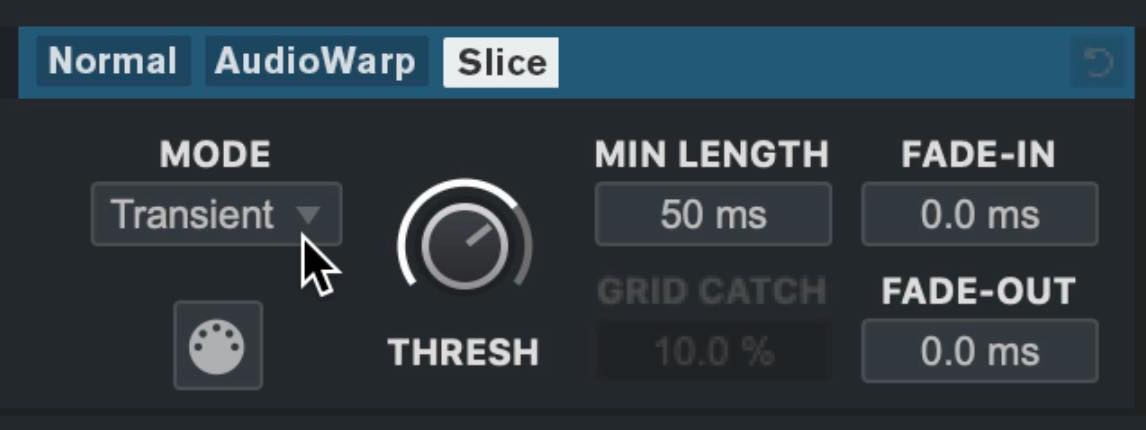
In Transient mode, adjust the threshold to determine how quiet a sound can be and still trigger a slice. In Grid mode, the sample is sliced at the grid interval selected here.
You can also set the minimum time interval and the fade-in and fade-out for each slice.
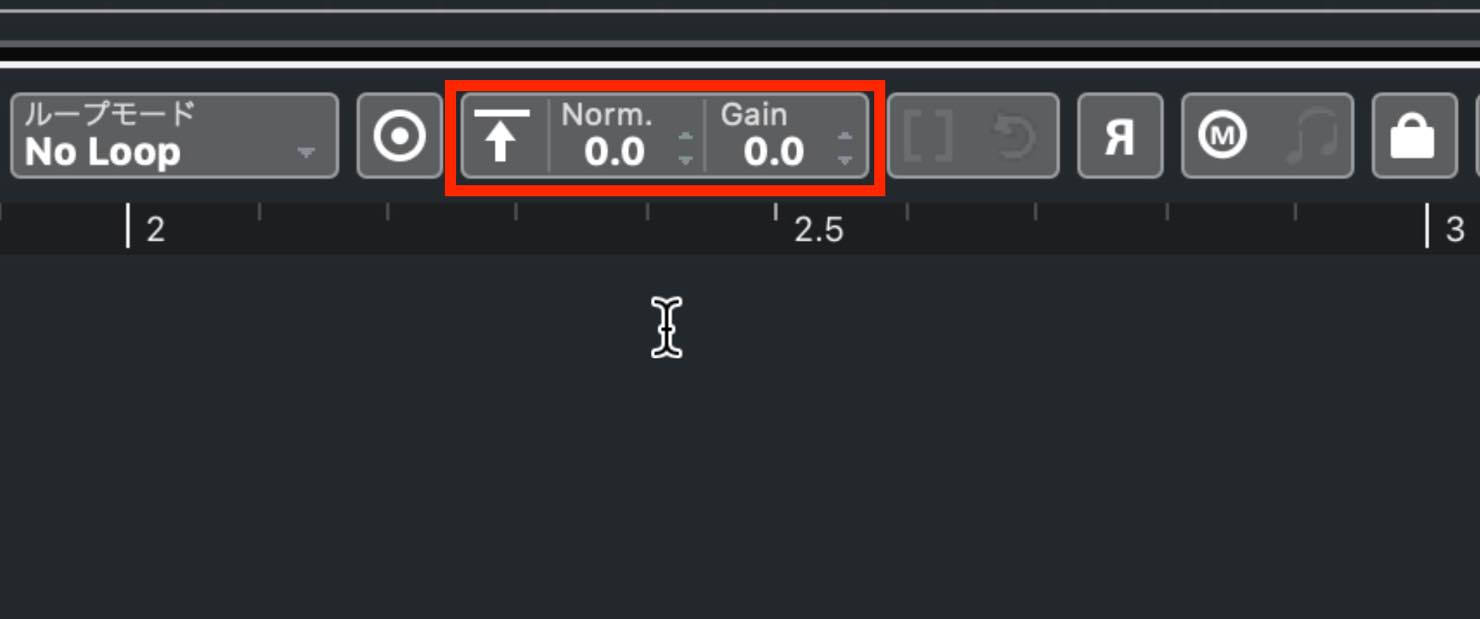
Normalization and gain adjustment
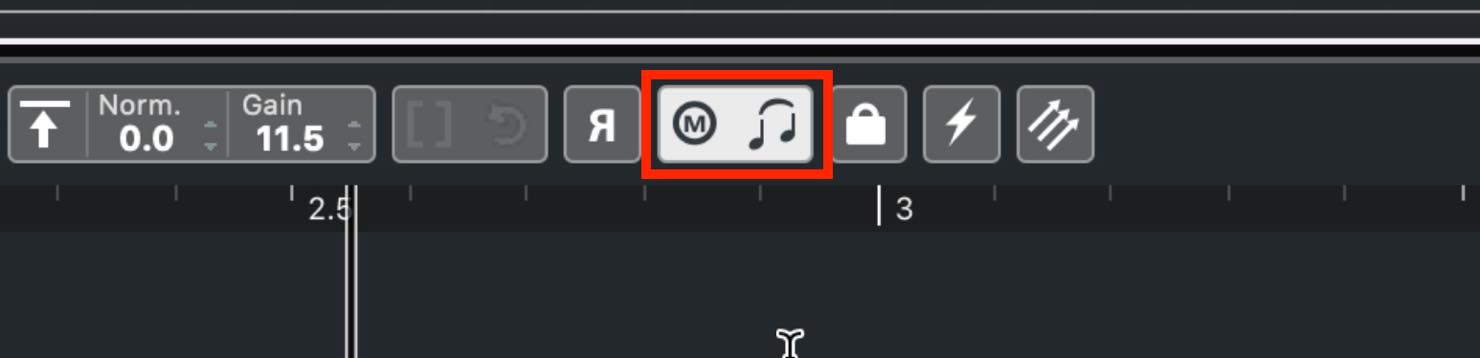
The section shown here in the sampler’s upper toolbar now provides normalization and gain adjustment.
Trimming
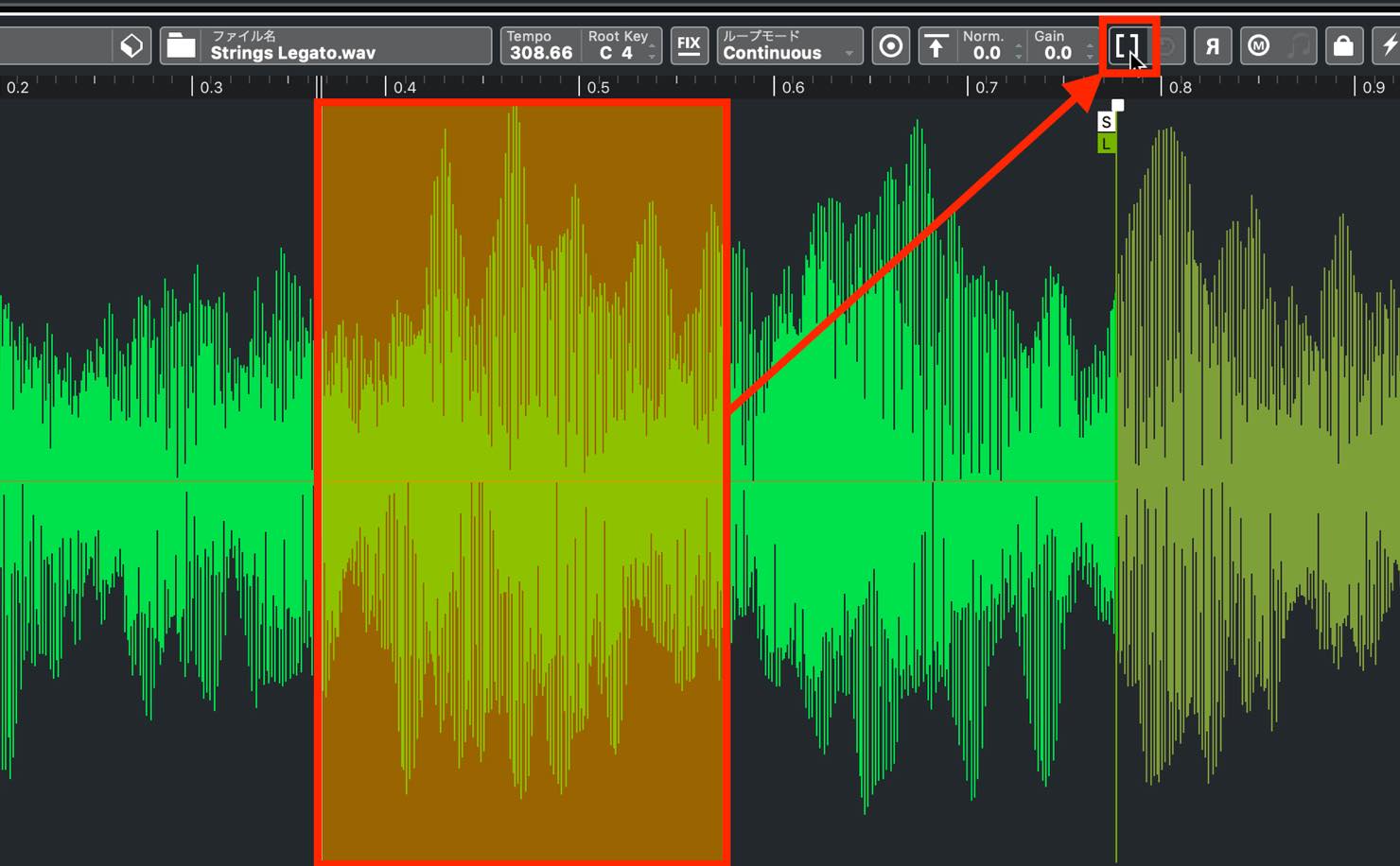
A new Trim button lets you select a range and then click to trim the sample, keeping only that range.
Key Follow
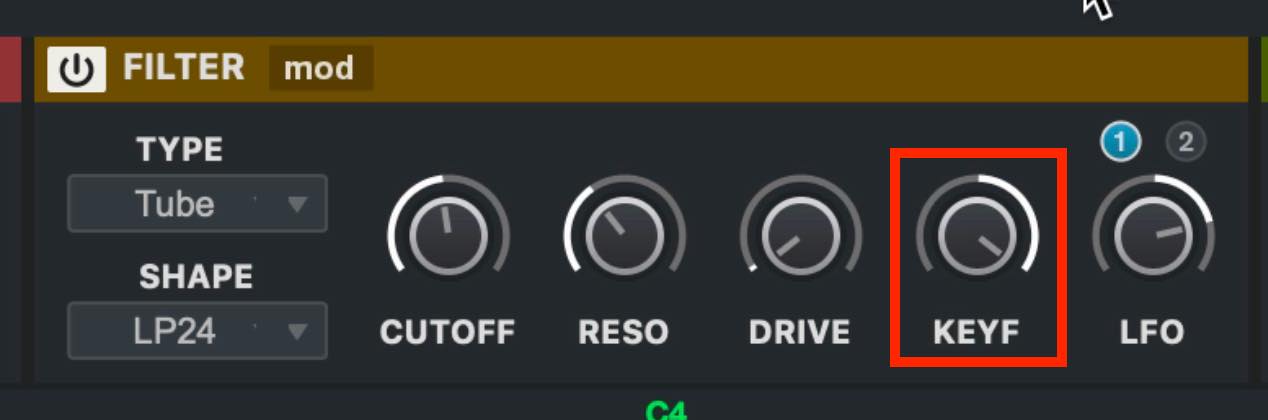
The filter now includes Key Follow.
For example, with a low-pass filter applied, turning the KEYF knob to the right raises the cutoff as you play higher notes, allowing more of their high-frequency content through.
Tempo-synced envelopes
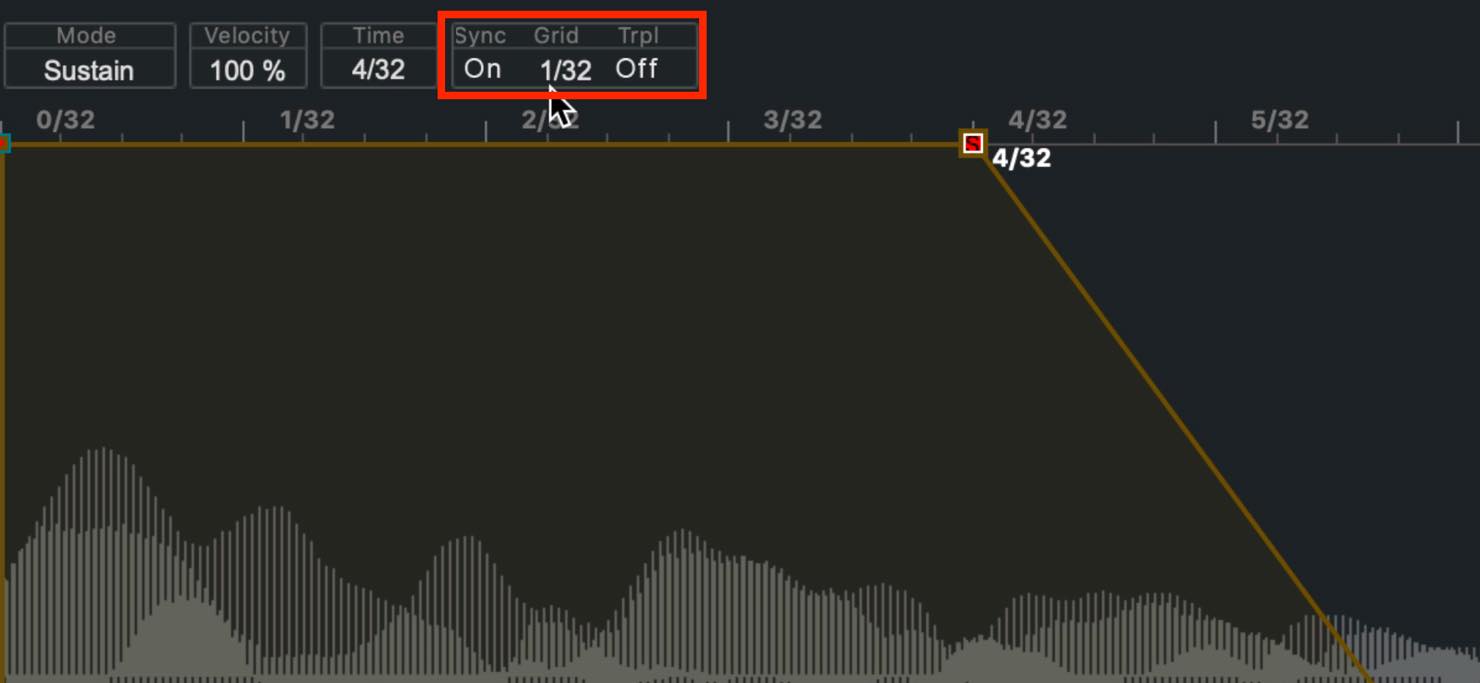
Envelope editing now supports snapping to rhythmic note values with tempo sync.
Turn Sync on and set a note value with Grid. As you move close to one of the grid positions, the envelope point snaps into place.
Mono Legato
A new Mono Legato option is available in monophonic mode. Enable it to change pitch without retriggering the sample when you play legato.
Parameter Lock
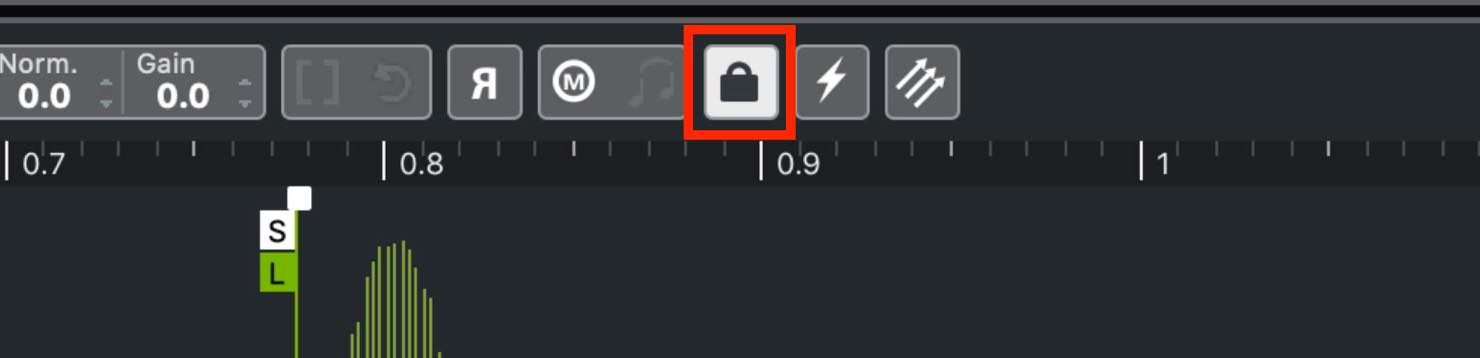
Parameter Lock has been added for situations where you have adjusted a sample extensively and want to replace the source sample itself.
Enable it and drag in a different sample. Only the sample is replaced; the parameter settings remain intact.
New options in the Pitch section
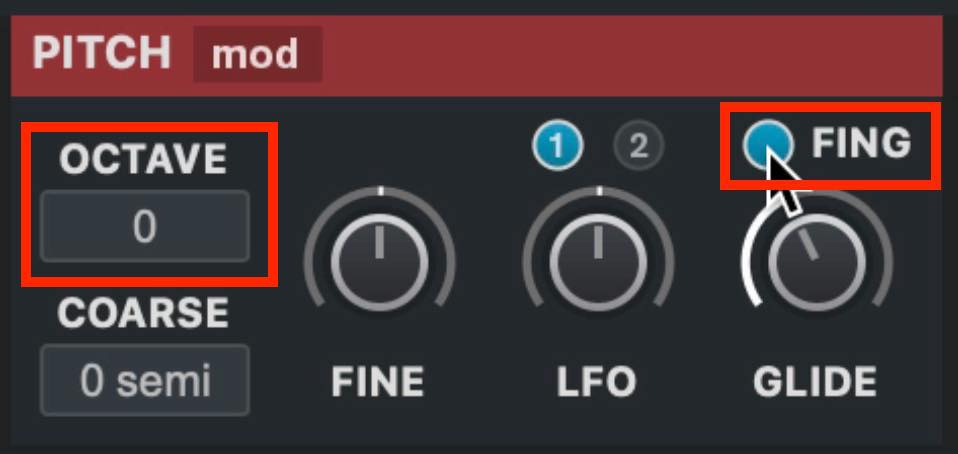
The Pitch section now lets you change the octave.
Enable FING (Fingered), above the GLIDE knob, to apply glide only when you play legato.
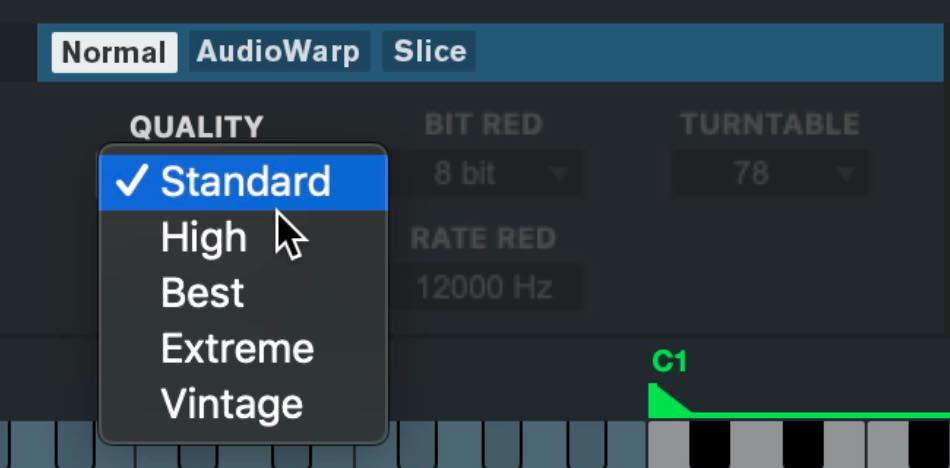
QUALITY
A new QUALITY setting controls the sampler’s transposition quality.
You can select higher-quality processing, or deliberately choose a rougher sound with VINTAGE.
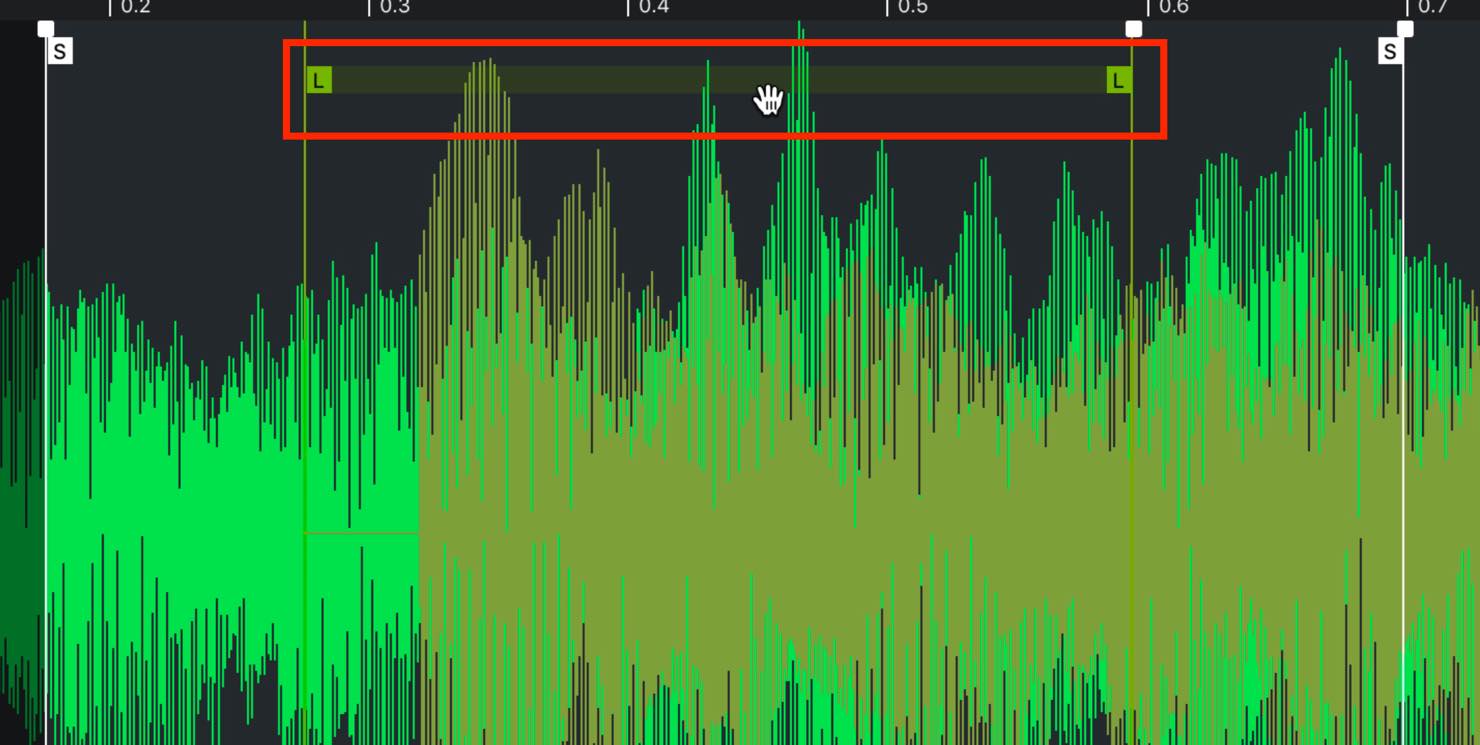
Moving start and end markers together
To move a sample or loop’s start and end positions together, drag the bar that appears when you hover over the relevant area.
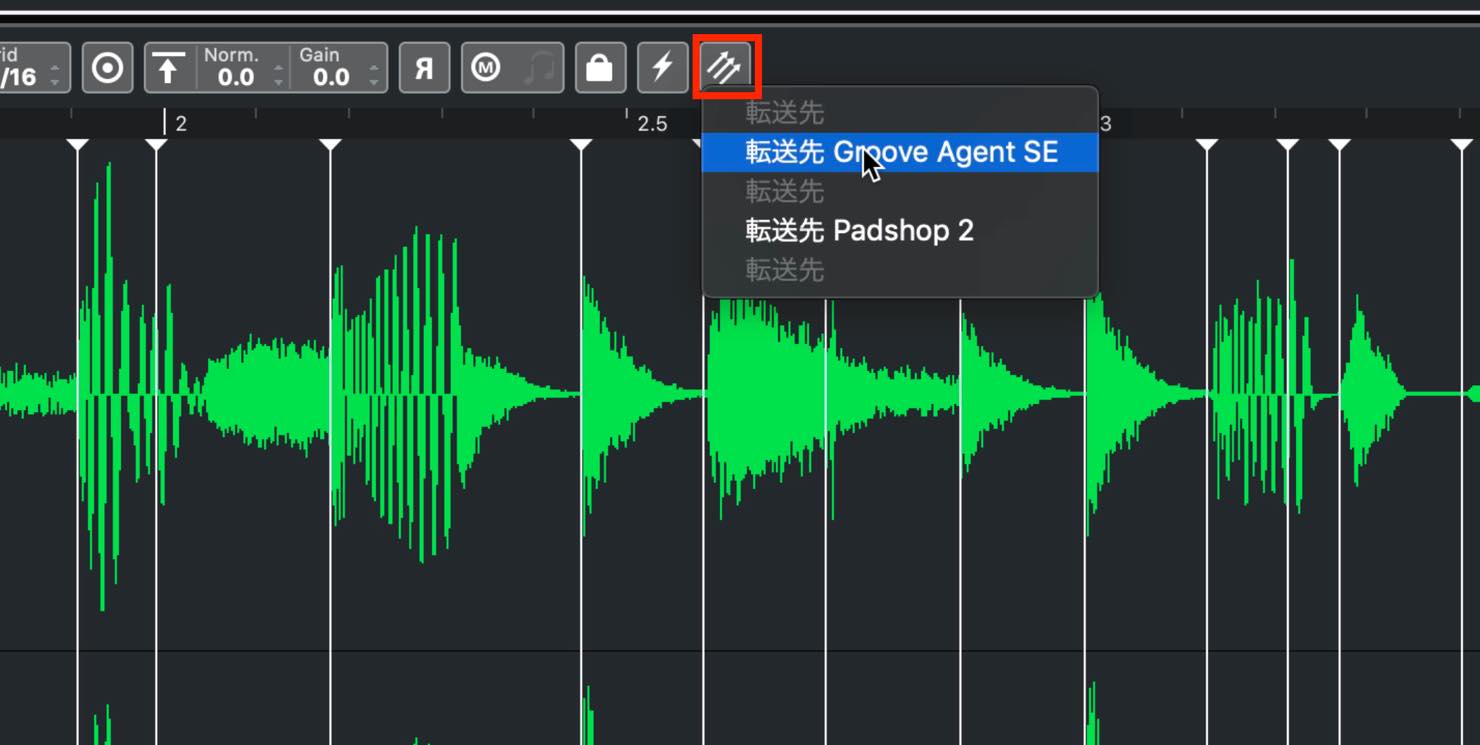
Transferring to Groove Agent SE
The existing transfer function now allows you to transfer slices to Groove Agent SE and assign them to pads.
New plug-in: Squasher
Squasher is an effect with up to three bands, combining upward and downward compression, saturation, and a gate in each band. It can transform a sound into something aggressive and pumping.
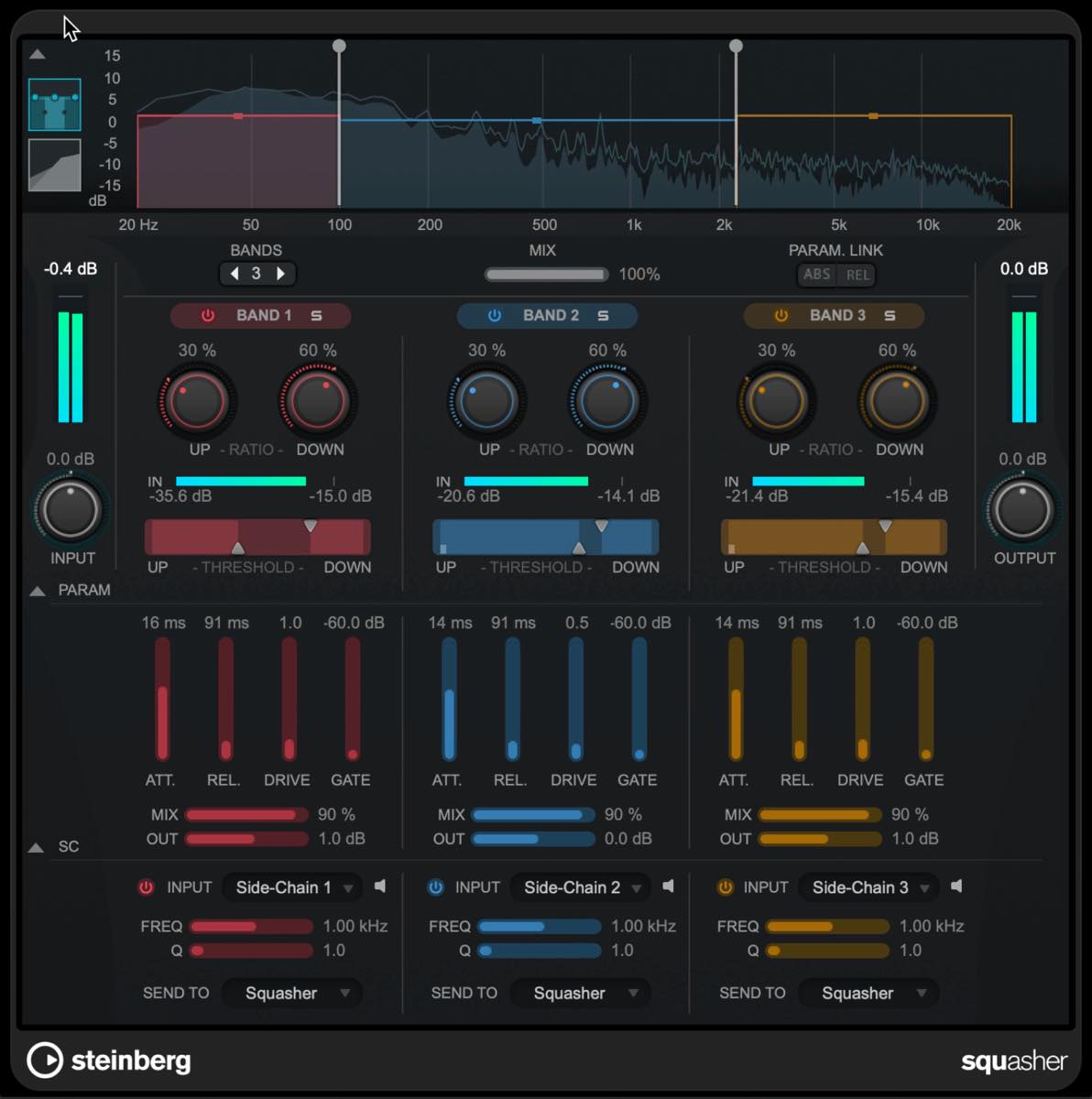
It also supports multiple side-chain inputs, another new feature in Cubase 11.
Click the gear icon beside the Side-Chain button to open Side-Chain Routing. Click the Source list to register three separate side-chain inputs.
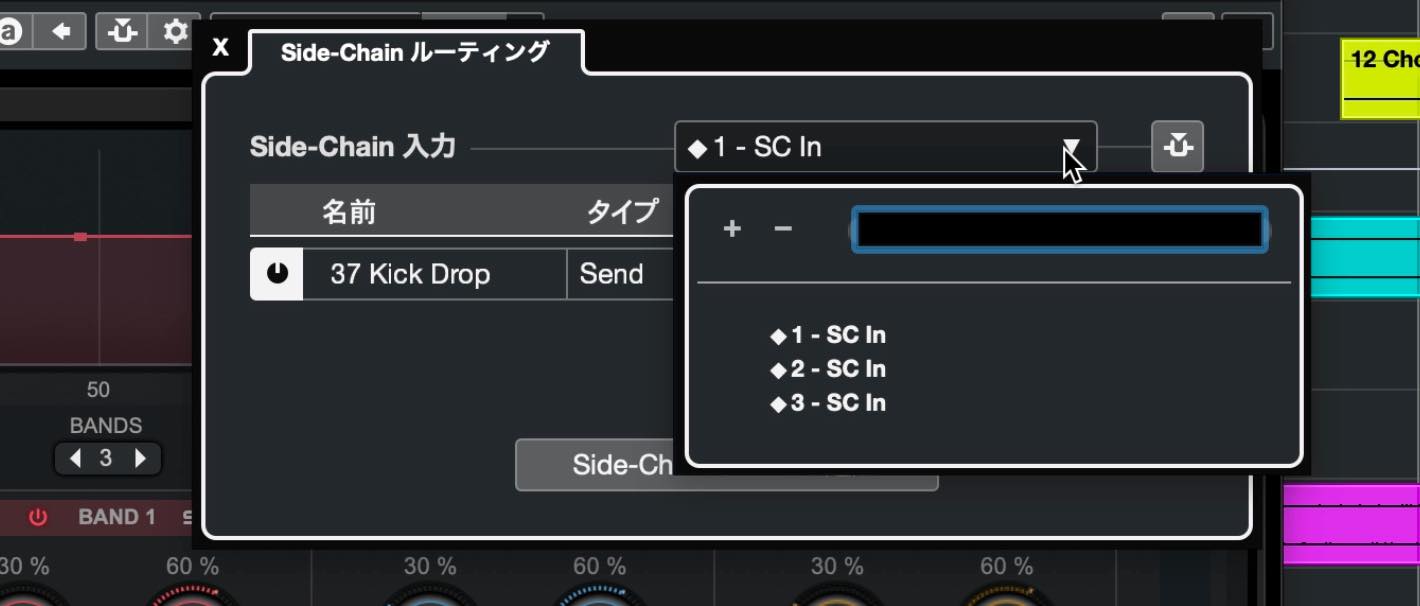
In the side-chain destination settings, you can then choose one of those three sources.
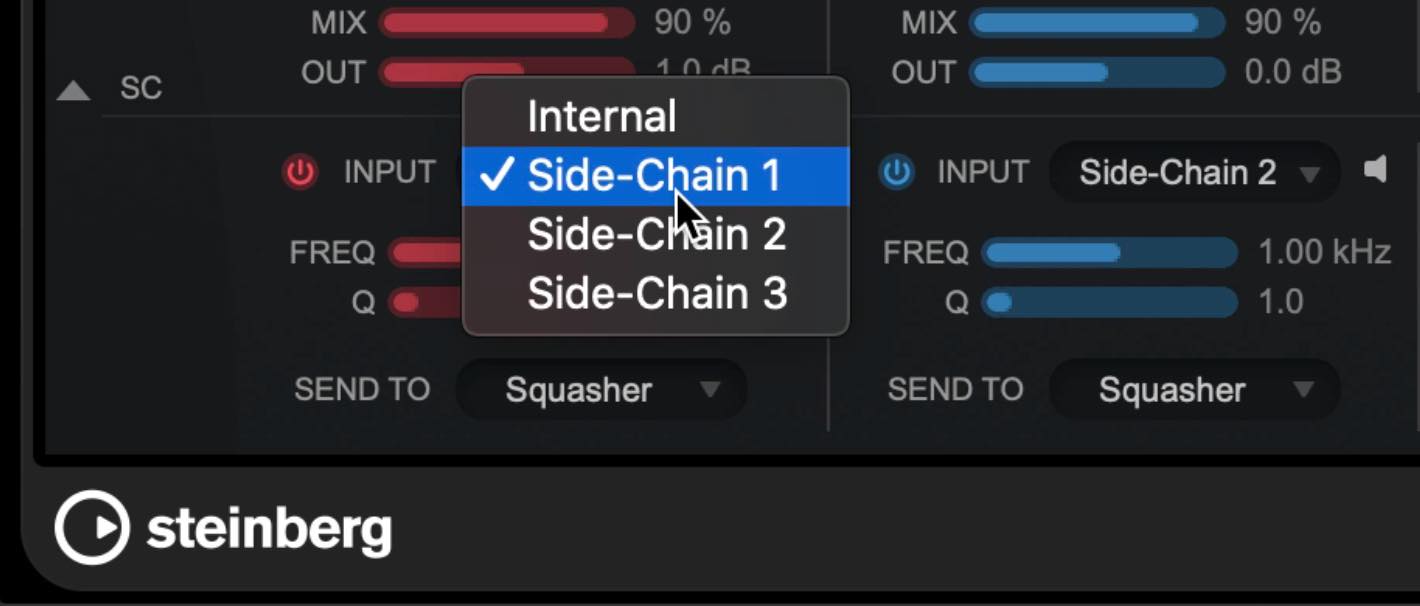
This lets you shape the sound by feeding each of Squasher’s three bands from a different side-chain source.
New plug-in: Imager (Pro and Artist only)
Imager is a four-band processor with Width, Pan, and Output controls for each band.
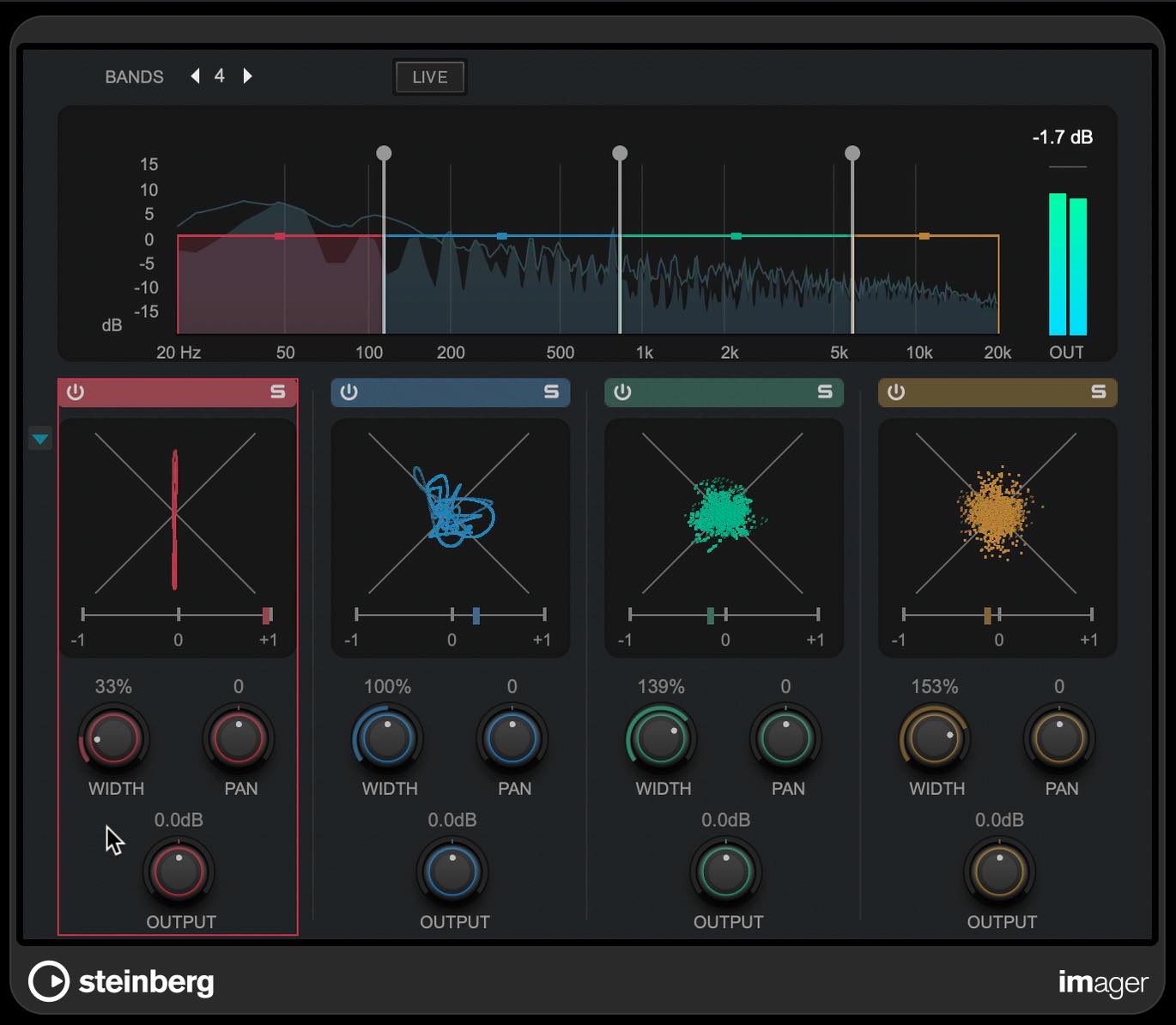
Each band also has a phase scope and correlation meter, making it easy to check the results visually.
New plug-in: SuperVision (Pro and Artist only)
SuperVision is a flexible tool that brings a variety of visual monitoring displays together in one place.
You can display up to nine modules at once, choosing from 18 module types, and resize them as needed.
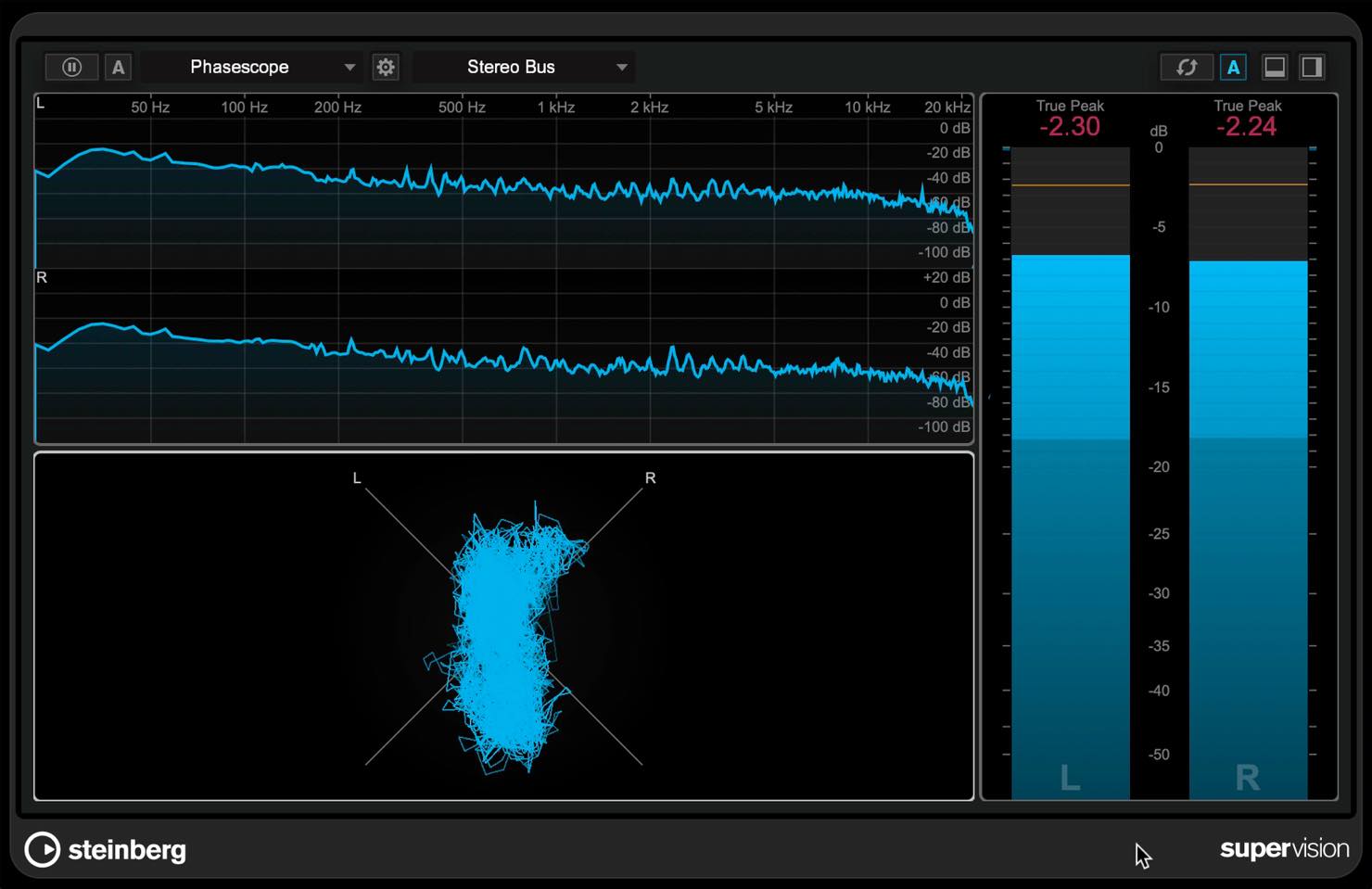
Presets provide common combinations of modules, or you can assemble your favorites and save your own preset.
Frequency improvements: dynamic EQ (Pro only)
Frequency has been updated with dynamic EQ functionality.
The default display looks familiar, but if you select SINGLE in the VIEW section shown here,
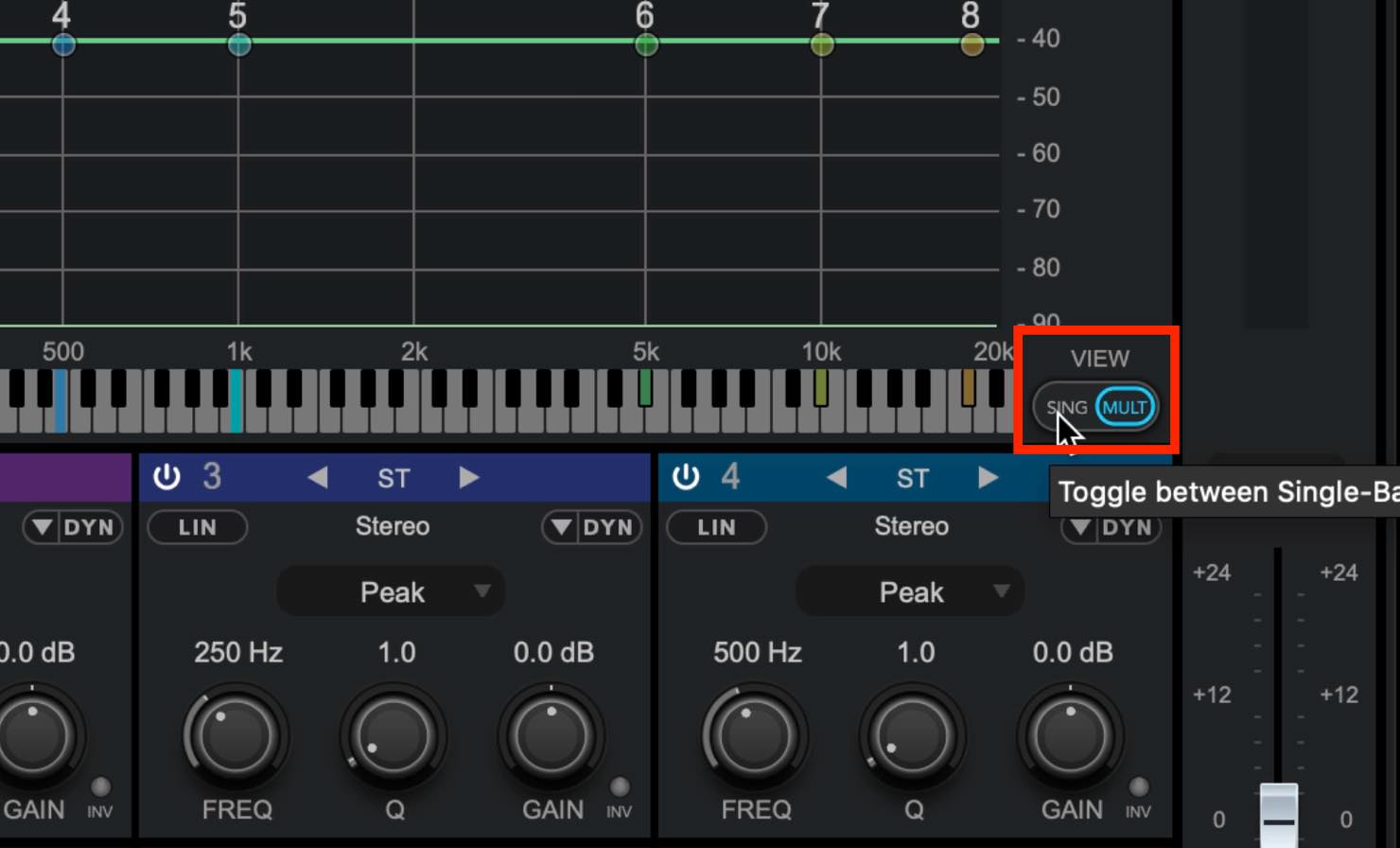
it opens a detailed view of the currently selected band.
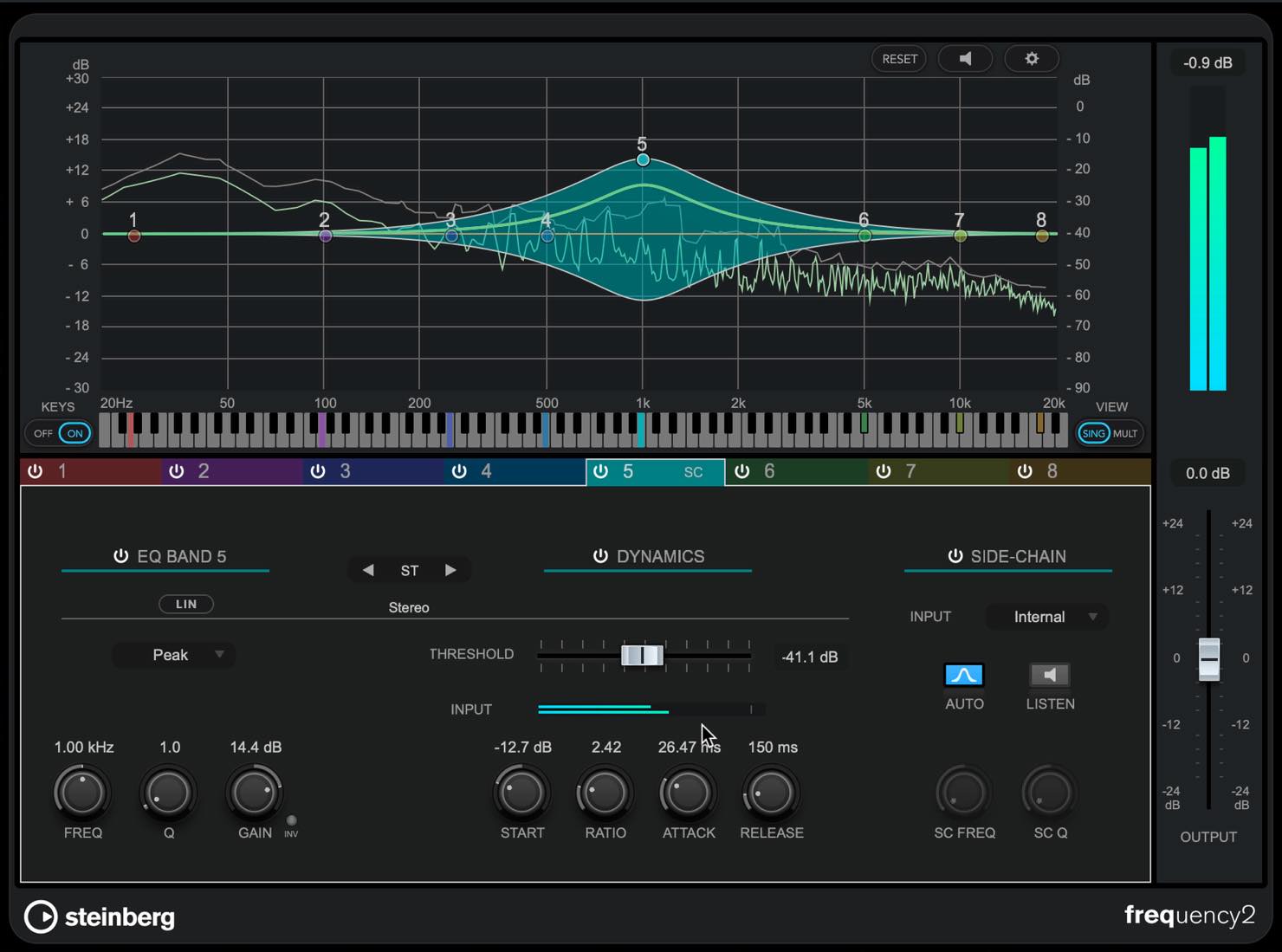
Enable DYNAMICS here to use dynamic EQ.
Use the usual GAIN control to set the direction and range of the change, then adjust parameters such as threshold, the starting gain value, ratio, attack, and release.
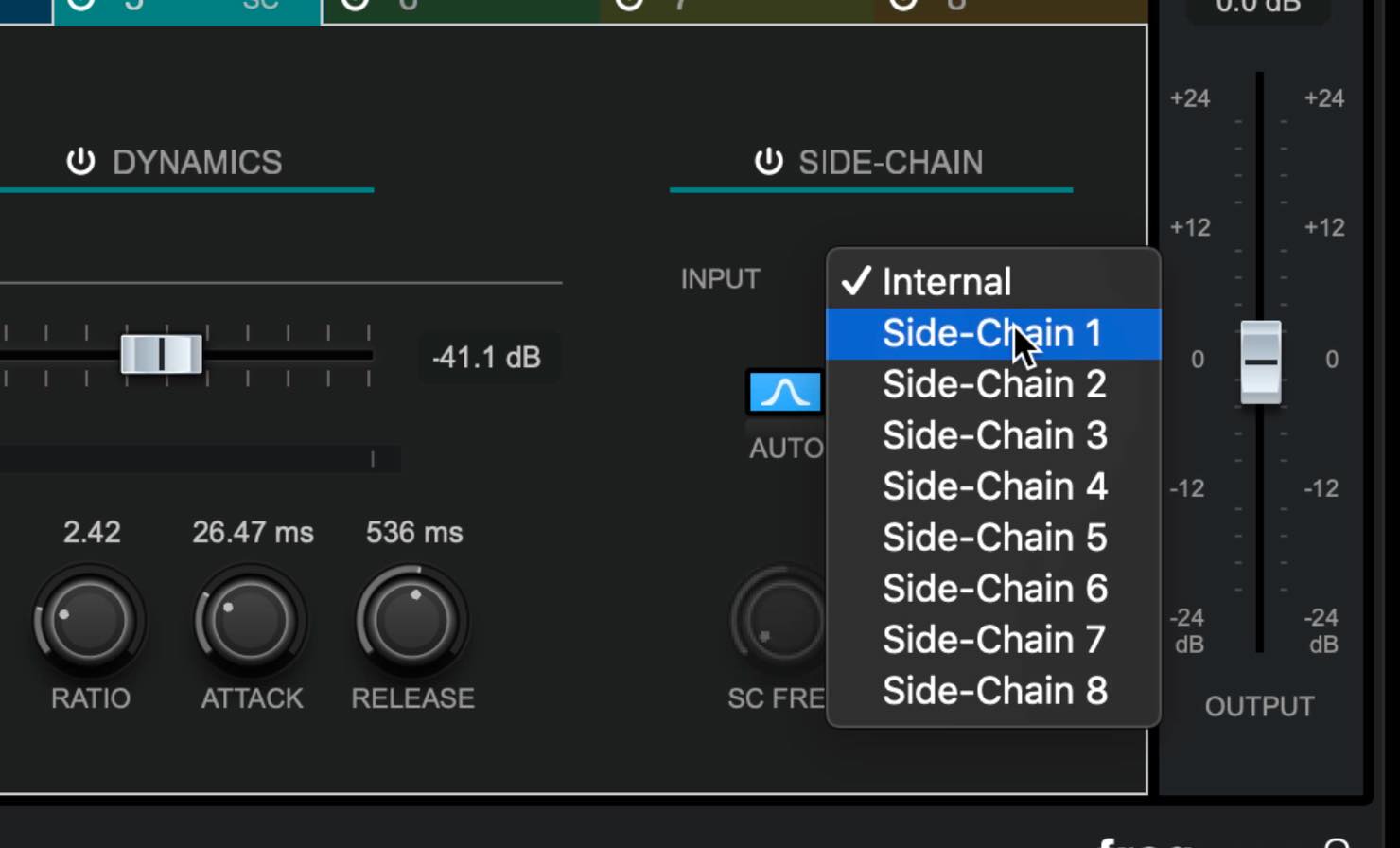
For dynamic EQ side-chaining, you can choose Internal or inputs from up to eight external sources.
SpectraLayers One included (Artist and Pro only)
The ARA-compatible audio editor SpectraLayers One is now included with Cubase Pro and Artist.
Select an audio event and open it from the Extensions menu.
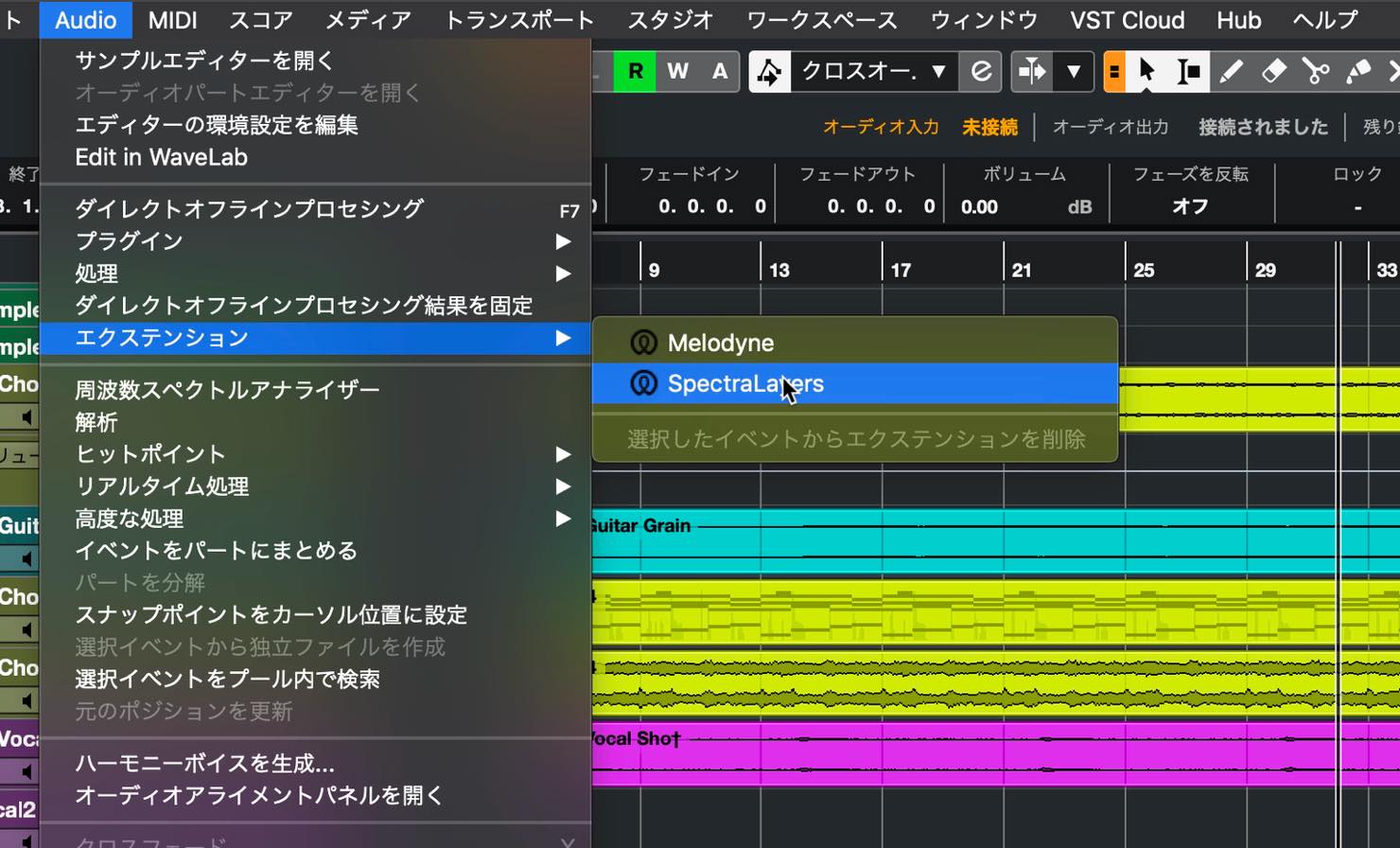
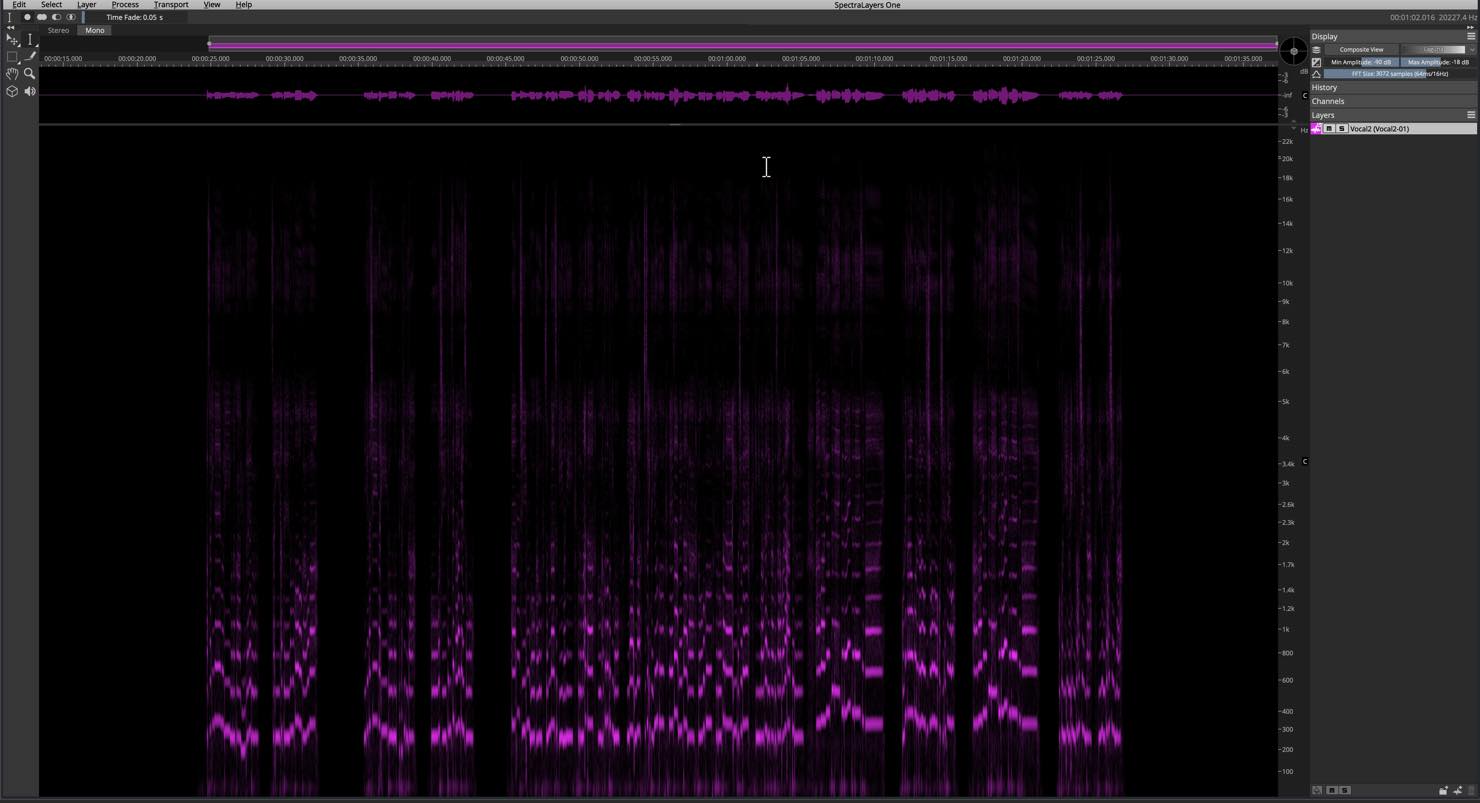
Once the extension has been created, the audio appears as a frequency spectrum in the editor window.
Drag in the upper area to display the corresponding waveform as well.
You can also view it in 3D.
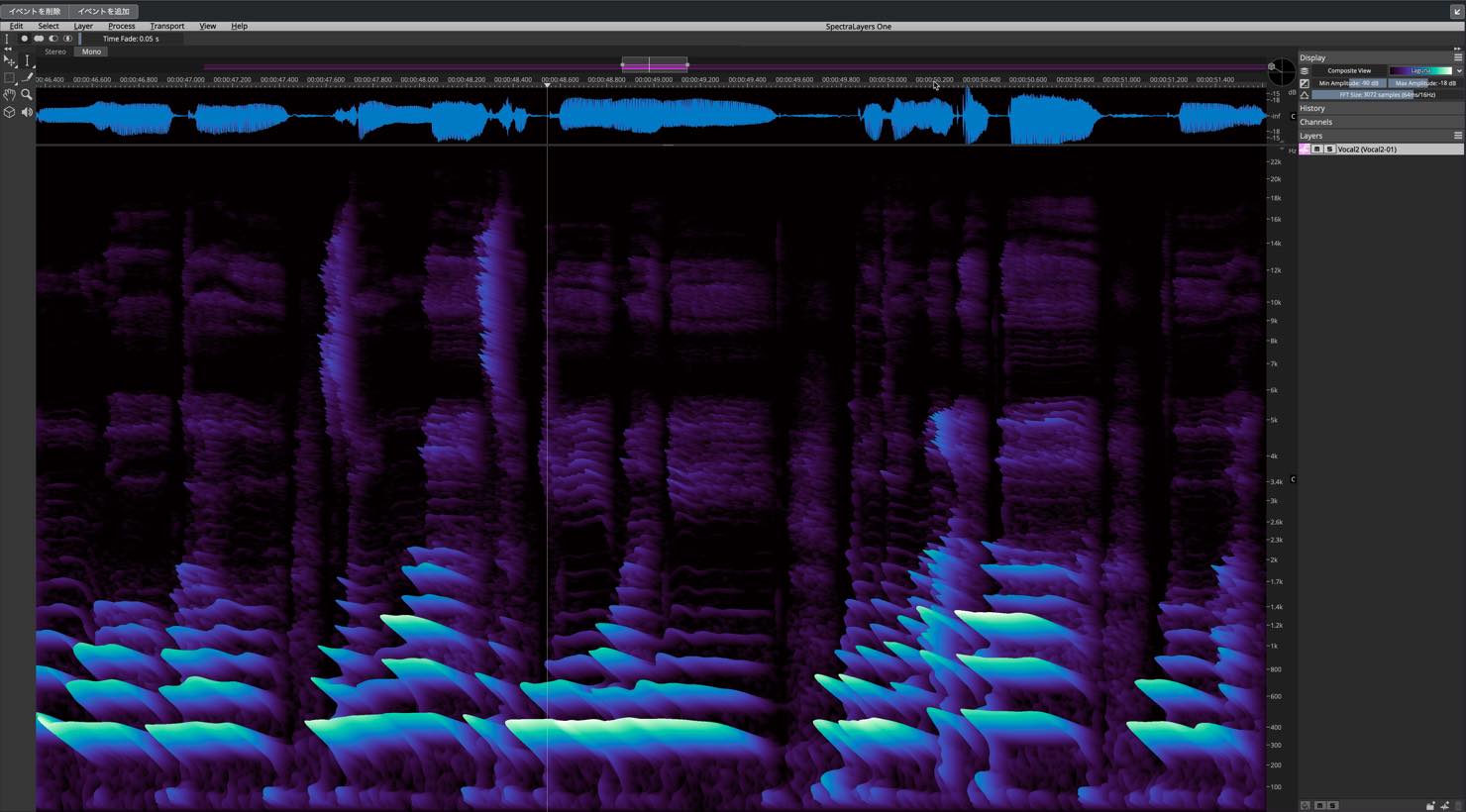
SpectraLayers One offers a wide range of functions. Here are a few examples.
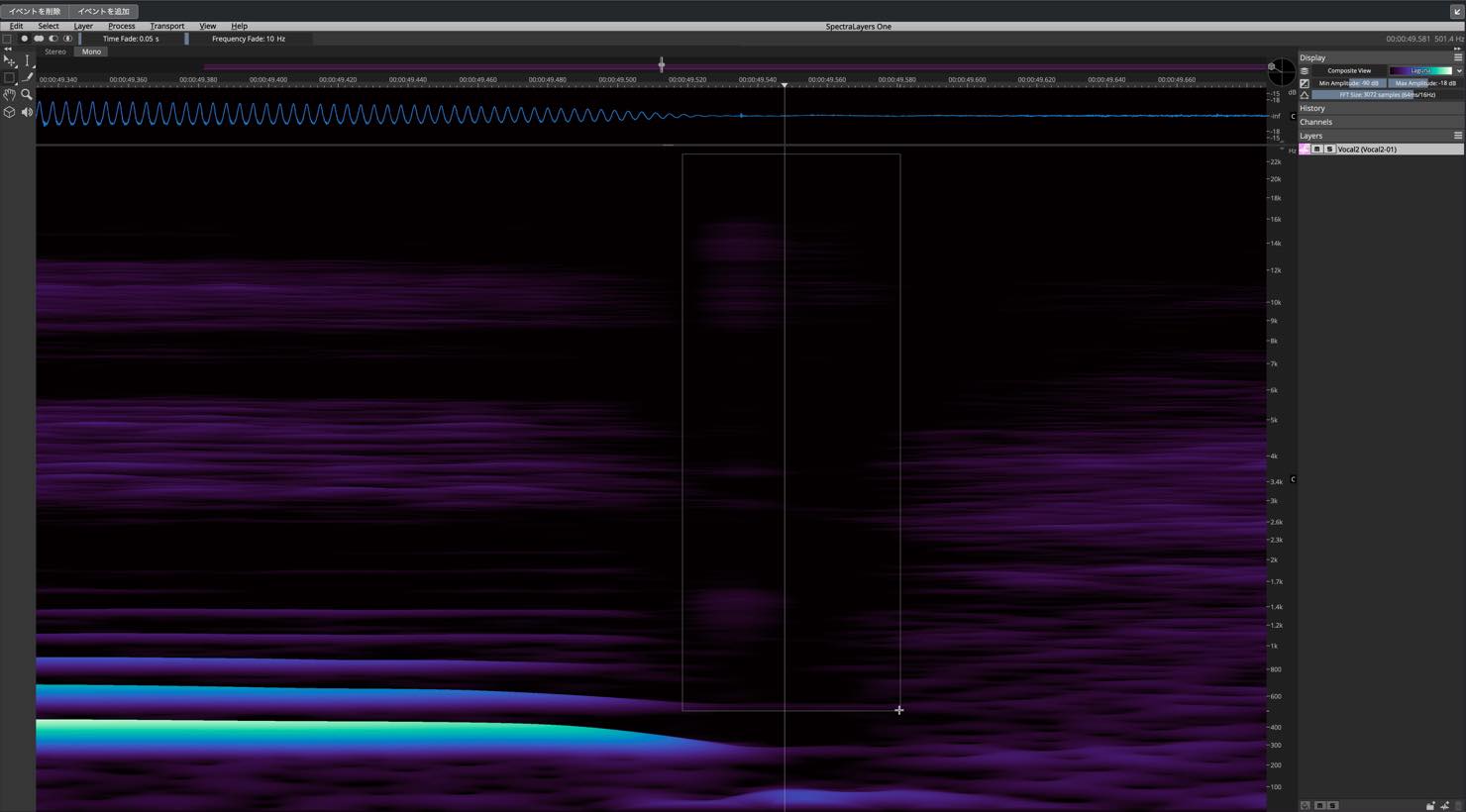
Removing noise
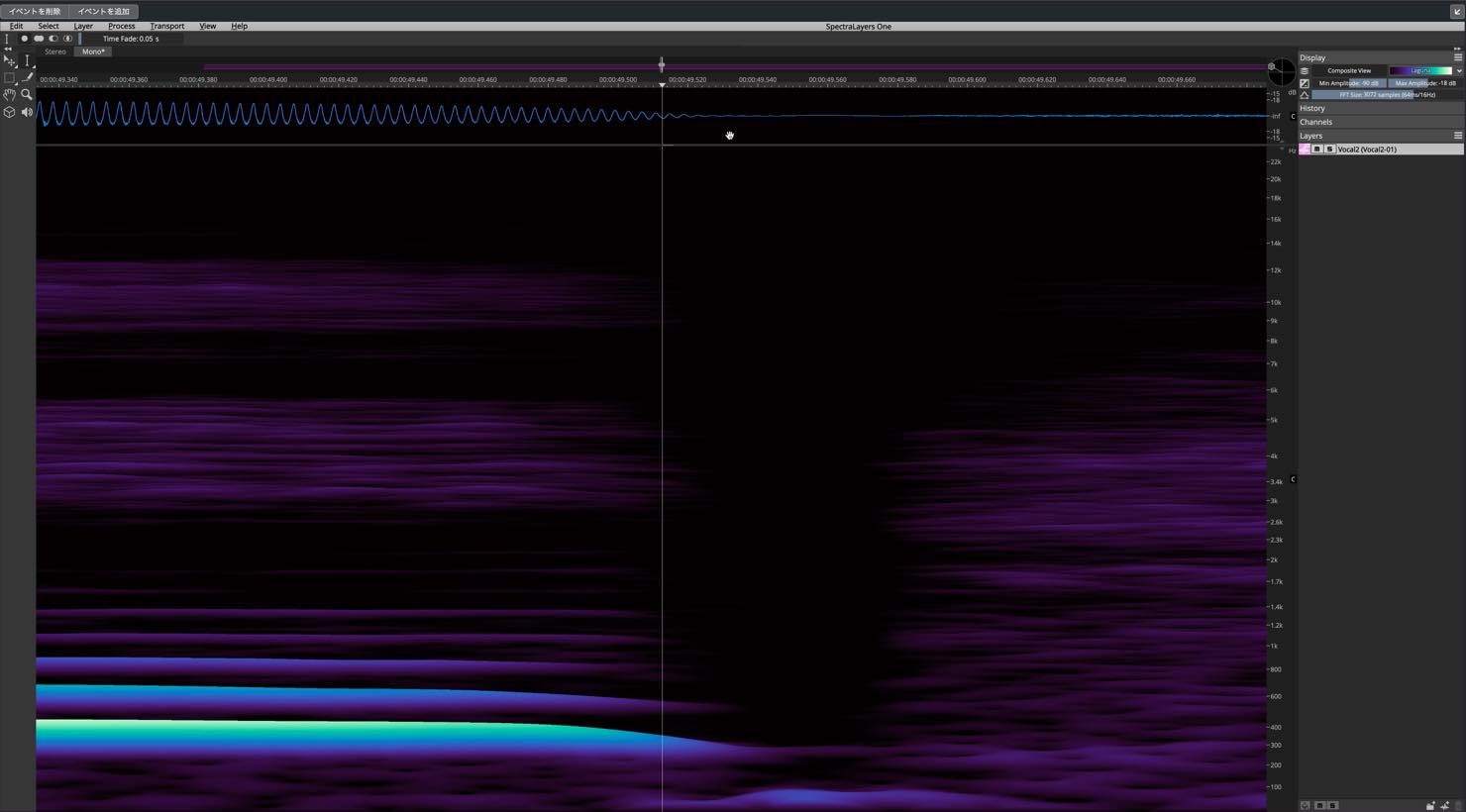
If you find a click or similar unwanted noise, zoom in, select the relevant area, and erase it precisely.
Extracting vocals from a stereo mix
You can easily extract the vocals from a stereo mix containing vocals.
The process is simple: choose Unmix Vocals… from the Layer menu.
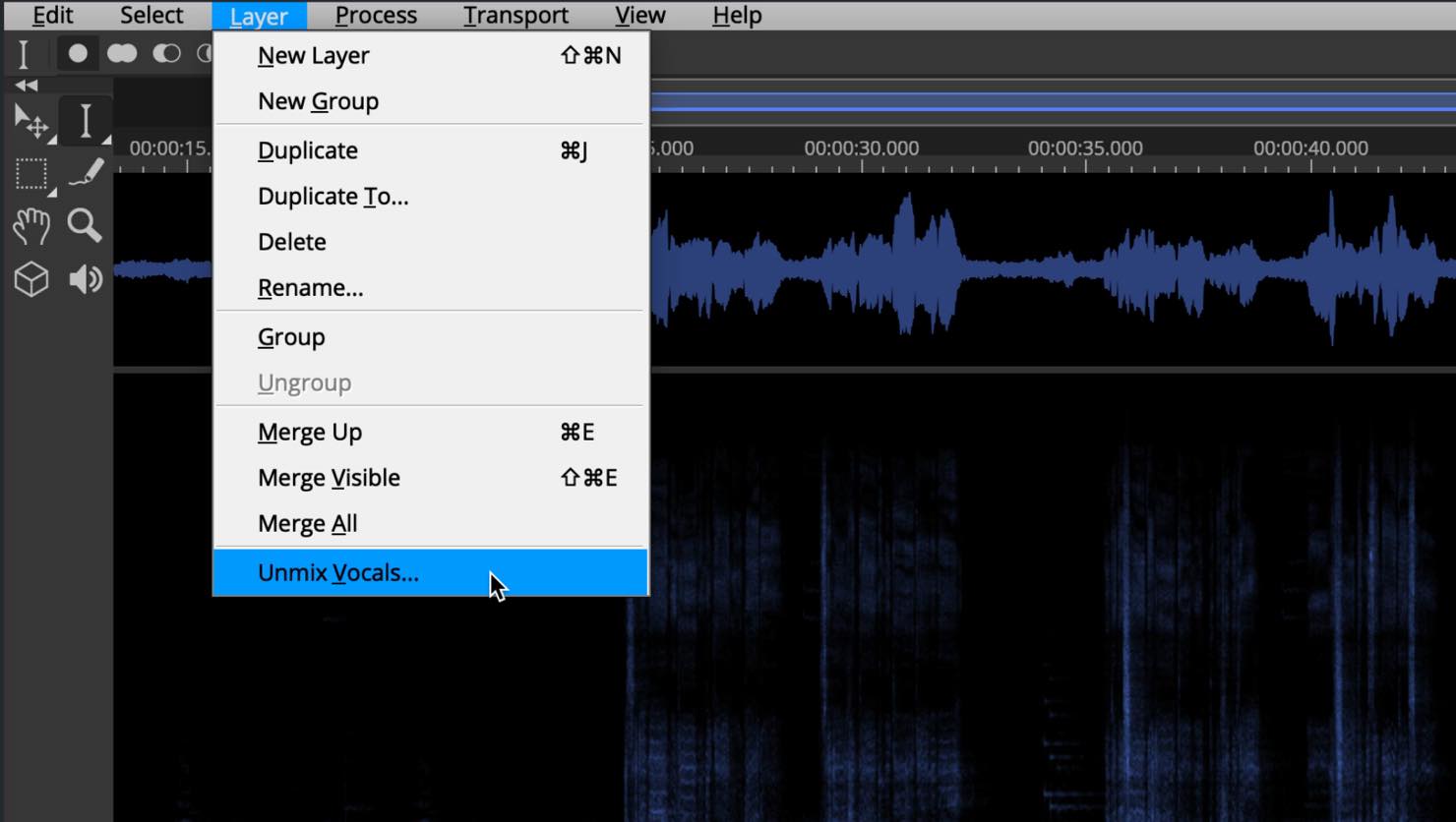
You can adjust the sensitivity, but the default setting is a good starting point.
When processing finishes, the Layers panel on the right contains layers named “Vocals” and “Piano+Drums+Bass+Other.”
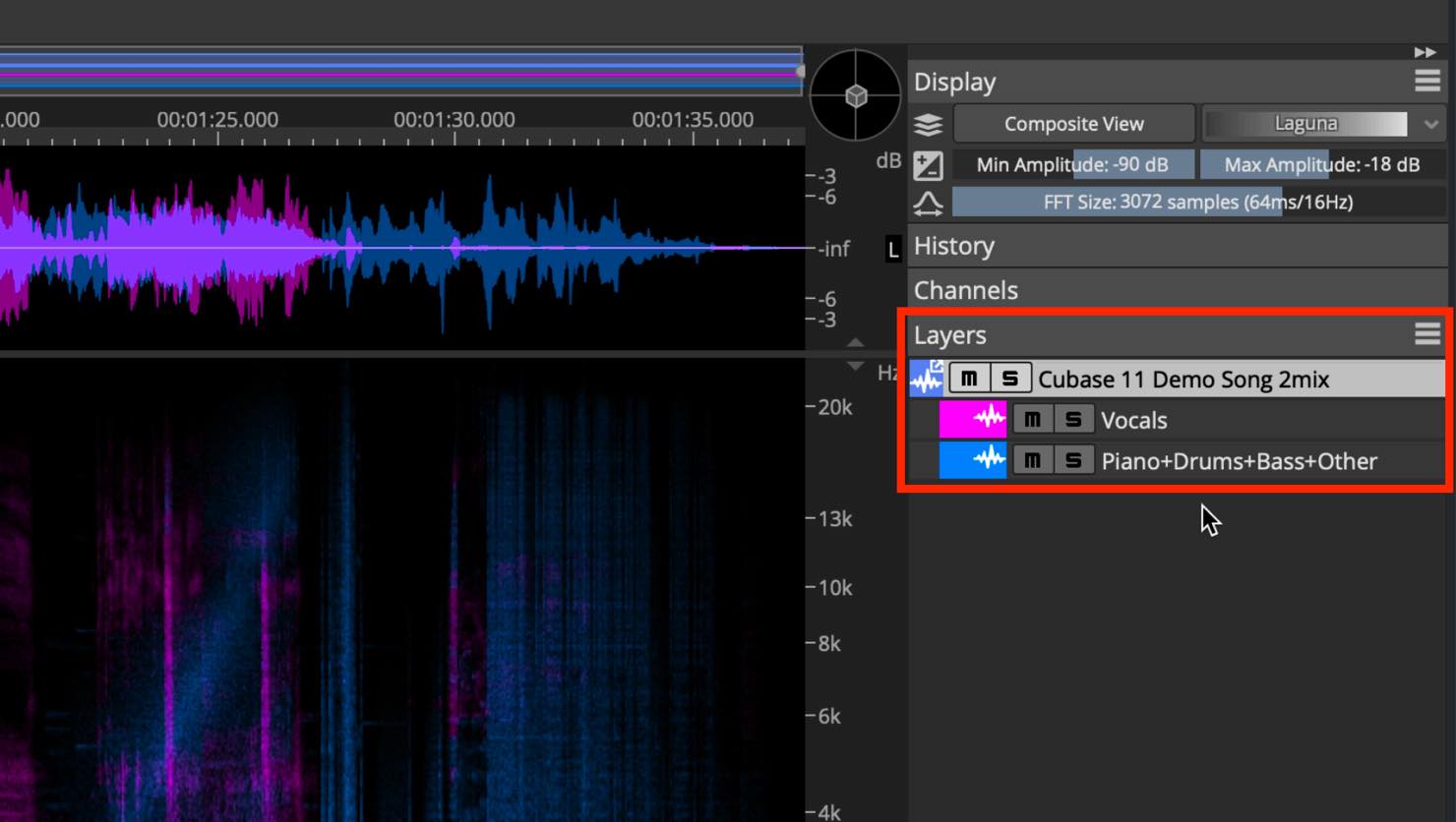
Solo the layers individually to hear the separation into vocals and the remaining instrumental accompaniment, as demonstrated here.
This opens up a variety of possible uses.
ARA workflow improvements
These changes are not limited to SpectraLayers: new Add Event and Remove Event buttons have been introduced.
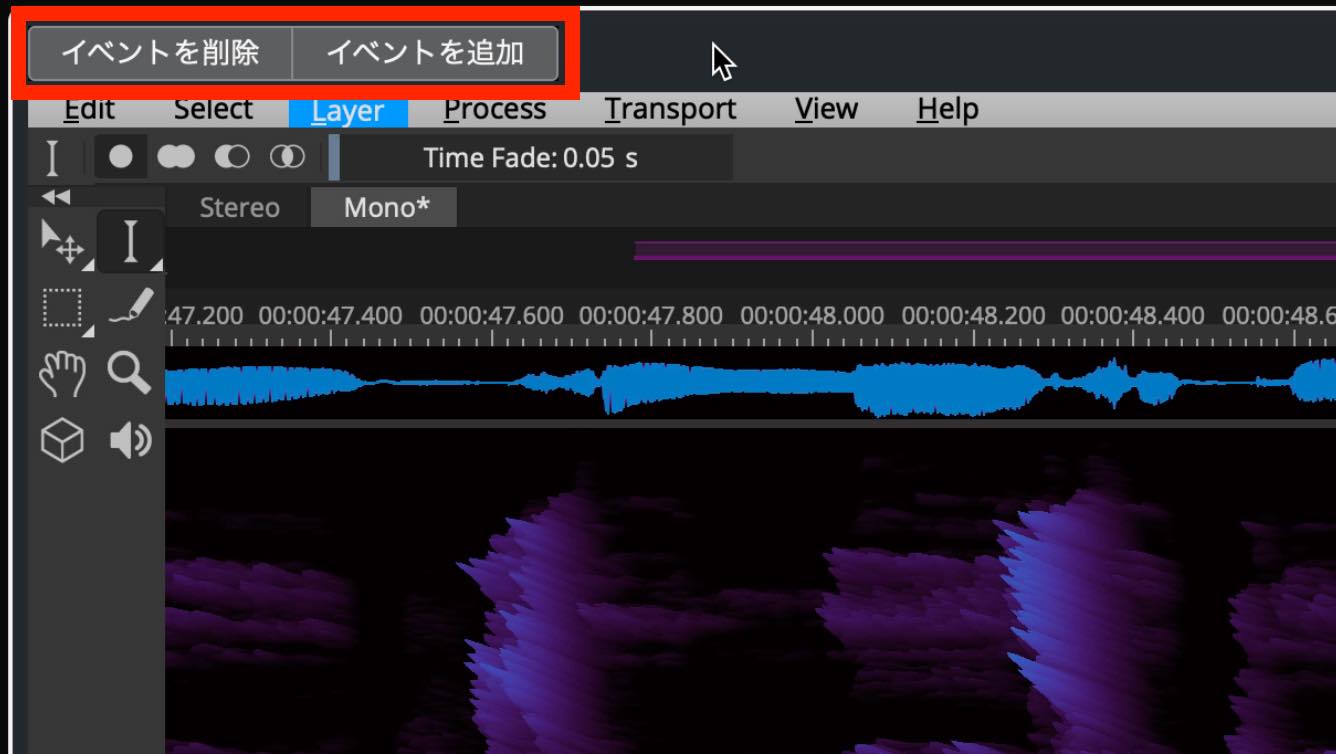
With Add Event enabled, double-click an audio event to create an extension immediately.
With Remove Event enabled, double-click an audio event that already has an extension to remove it.
Score Editor improvements (Pro only)
Right Zone: Properties Inspector
You can now open the Right Zone to display the Properties Inspector.
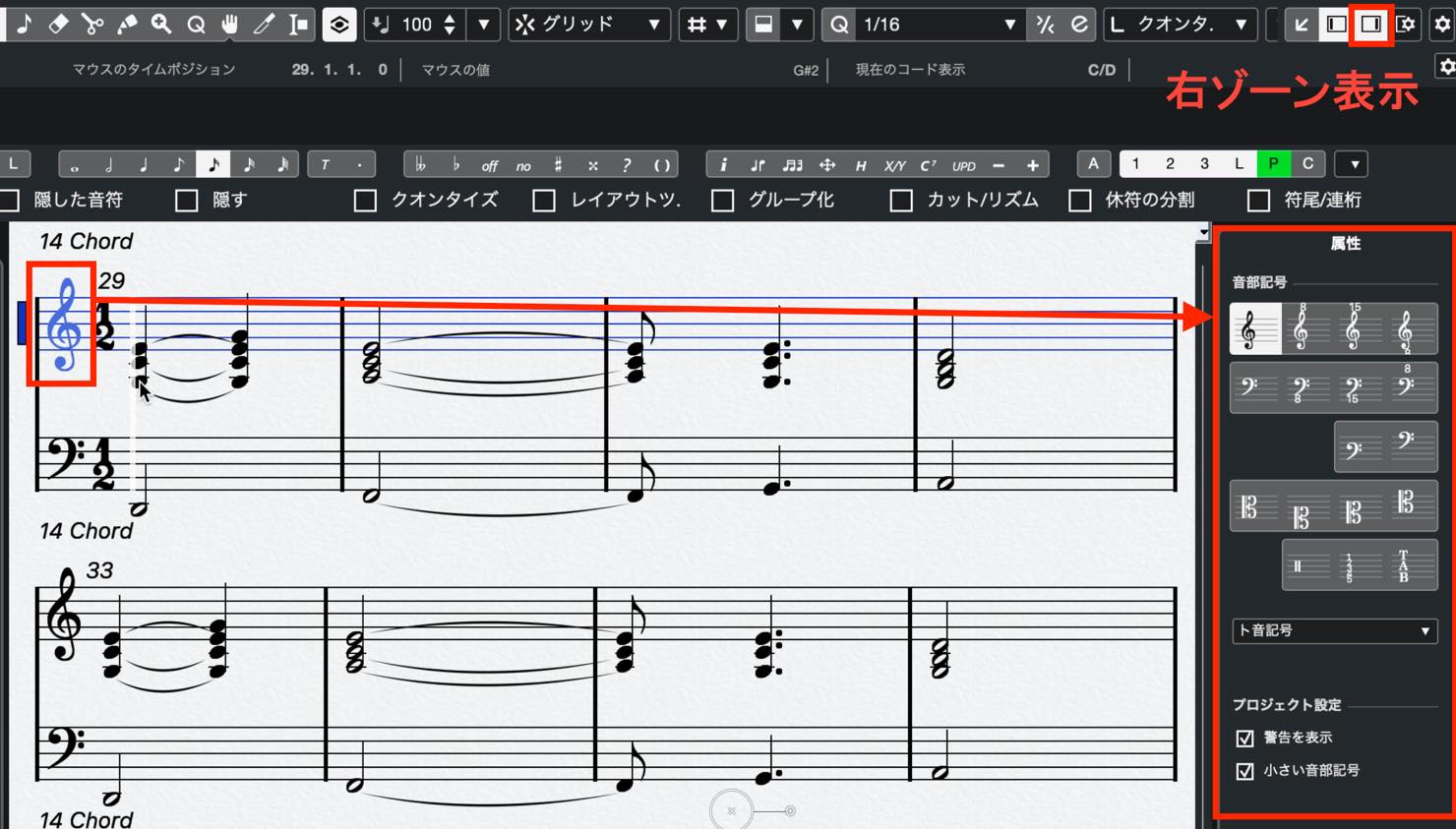
The Properties Inspector changes its available settings according to the score element currently selected. You no longer need to open a separate window for each type of setting, which streamlines the workflow.
Note Editing Overlay
A Note Editing Overlay has been added.
Enable it with the button at the top of the Score Editor to display the overlay at the current cursor position.
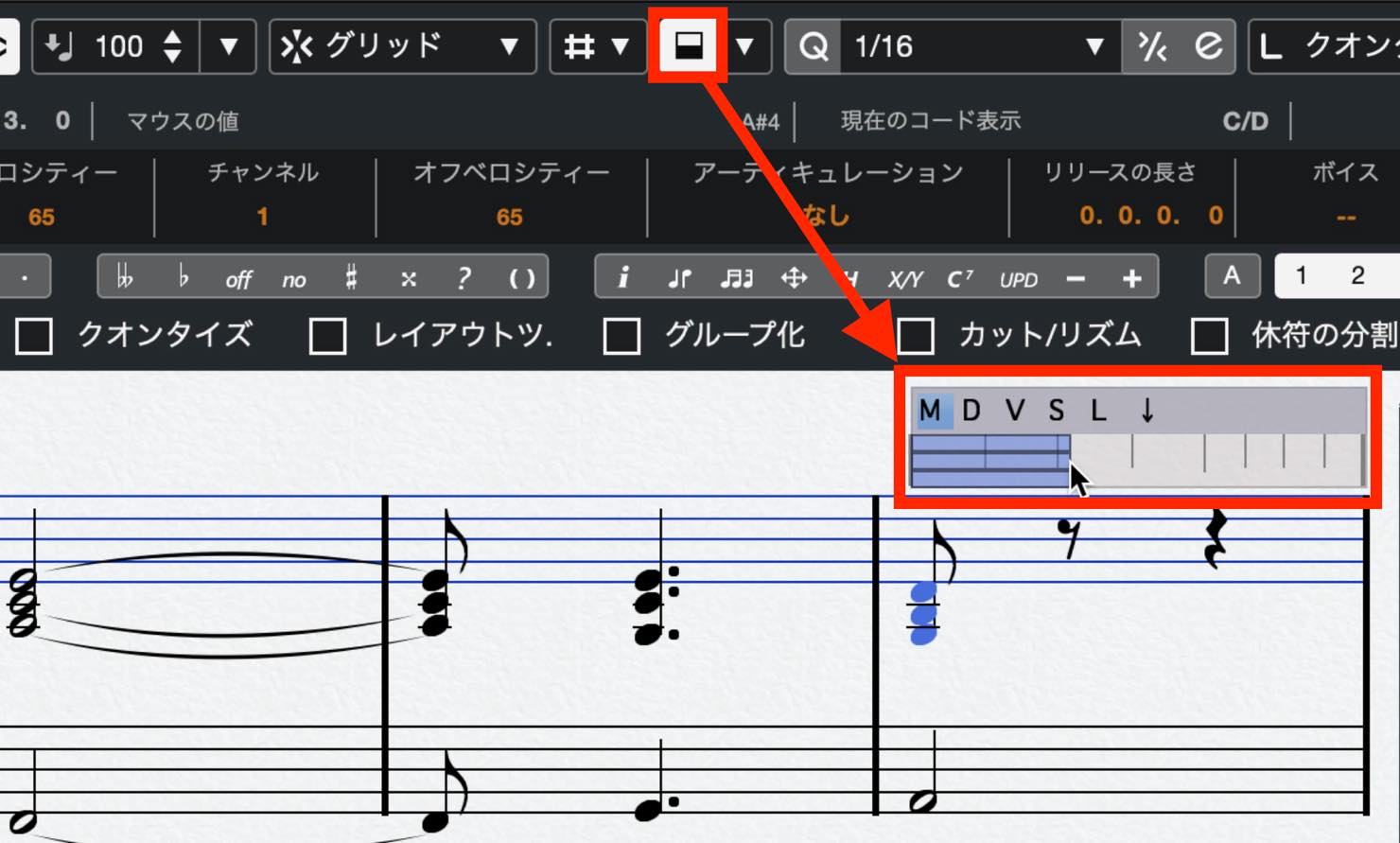
Here you can edit the actual MIDI note duration, its displayed duration in the score, velocity, and other parameters.
New SMuFL fonts
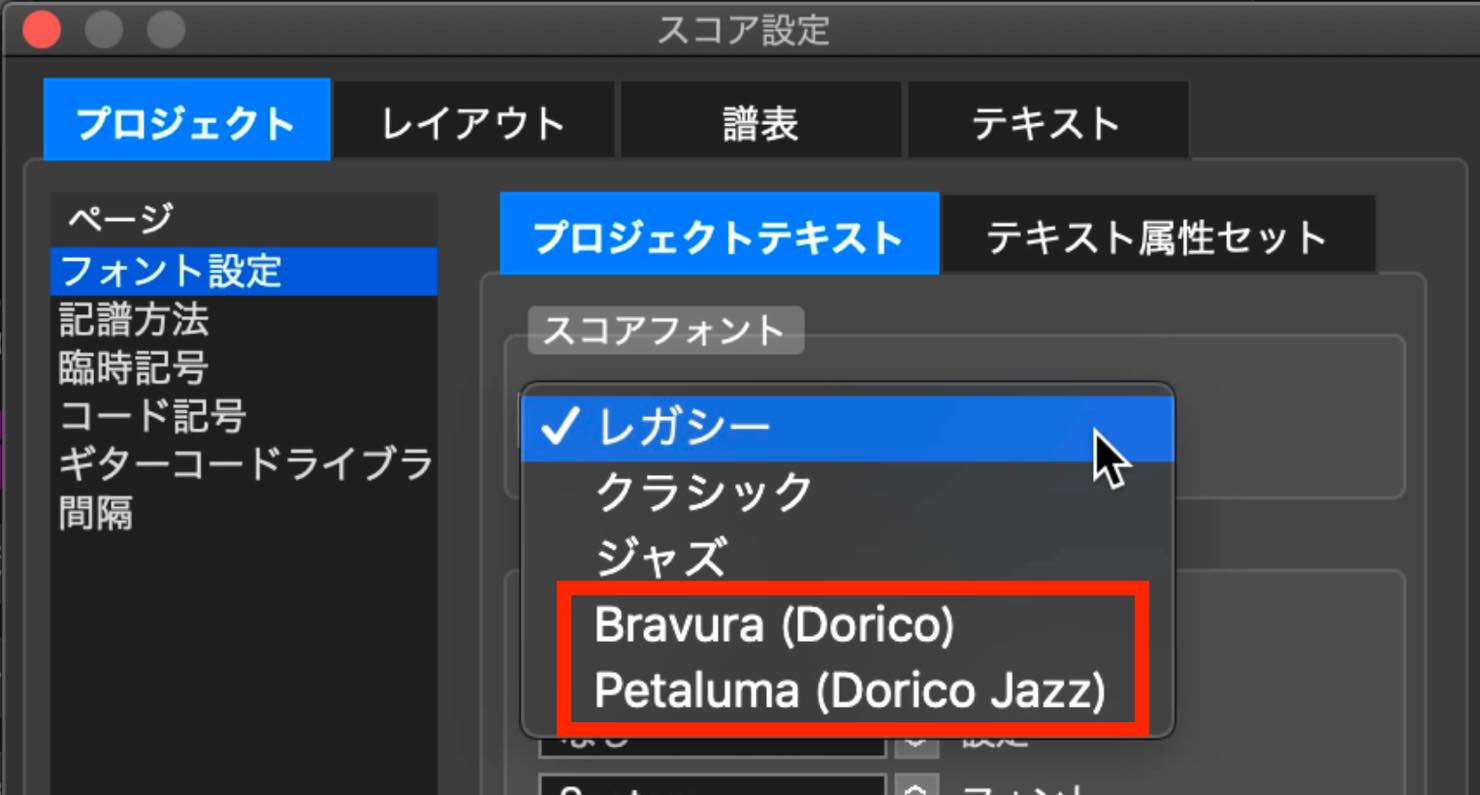
Bravura and Petaluma, the SMuFL fonts used in Dorico, are now available. Choose them under Project > Font Settings in Score Settings.
Other improvements
Marker Lines
Marker Lines can now be displayed.
Right-click the Marker Track and choose an option other than Off from the Show Marker Lines menu.
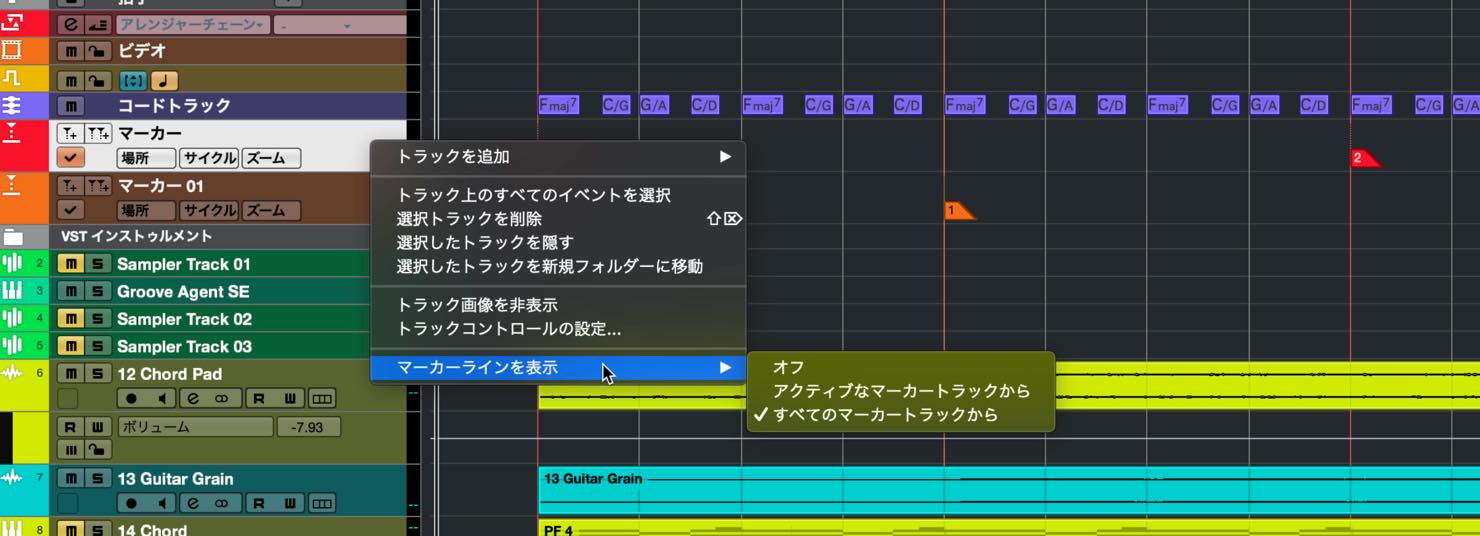
Choose From All Marker Tracks to draw lines from all markers, or From Active Marker Track to draw lines only from the active Marker Track.
Performance improvements
- Further optimization has been made for computers with eight or more CPU cores. This is especially useful in projects with many tracks and extensive plug-in use.
- On Mac, improvements were made to make better use of GPU performance. At its release, Cubase 11 was described as the most responsive Mac version of Cubase to date.
Features added to the smaller editions
- Cubase Elements 11 now supports side-chaining.
- Cubase Artist 11 gains the much-requested VariAudio 3 and ARA 2 support.
Those are the key improvements introduced in Cubase 11.
From major additions to smaller refinements, these changes improve usability. Try incorporating them into your workflow to make music more efficiently and creatively.
Steinberg product distributor: Access content from Yamaha Music Japan Co., Ltd.
- Yamaha Music Japan MPP (YouTube): https://www.youtube.com/user/SteinbergJapan
- MPP (Twitter): https://twitter.com/SteinbergJP
- Music production program Sound Roster (Fresh!): https://freshlive.tv/ymjsoundroster
Product page: https://bit.ly/2UiQvP5
November 2020 announcement: Cubase 11 released! An in-depth look at its new features
New features include the Squasher, Imager, and SuperVision plug-ins, plus the ARA-compatible audio editor SpectraLayers One.
Let’s take a closer look at each one.Read more: https://t.co/EqqFLgTzbj#DTM #DAW pic.twitter.com/nGIDJEPMaA
— SLEEP FREAKS (@SLEEPFREAKS_DTM) November 11, 2020
Frequently asked questions
Q1. Are the new features in Cubase 11 available in every edition?
No. Batch jobs for Audio Mixdown and Frequency’s dynamic EQ are Pro-only features. SuperVision is available in both Pro and Artist, as noted in the main article and Steinberg’s Cubase 11 release information. Availability varies by feature and edition.
Q2. What is Scale Assistant?
It lets you set the key or scale in the MIDI editor and, with the relevant snapping options enabled, restrict note editing or live input to that scale. It can correct out-of-scale notes and help beginners edit melodies within the intended scale.
Q3. What can the new Sampler Track LFOs do?
The LFOs can modulate pitch, filter, volume, and pan to create changes over time, enabling dynamic and expressive sound design.
NEW ARTICLES
Latest English Articles










































































































































































