
Processing vocals with UAD plug-ins is an important technique in professional music production. This article takes a detailed look at two powerful plug-ins, Antares Auto-Tune Realtime Advanced and Manley VOXBOX Channel Strip, showing how pitch correction, EQ, compression and de-essing can significantly improve a vocal. Real-time processing within an Apollo interface provides high-quality effects with virtually no monitoring latency, helping you record more efficiently while improving the sound.
High-Quality Vocal Processing with UAD Plug-ins
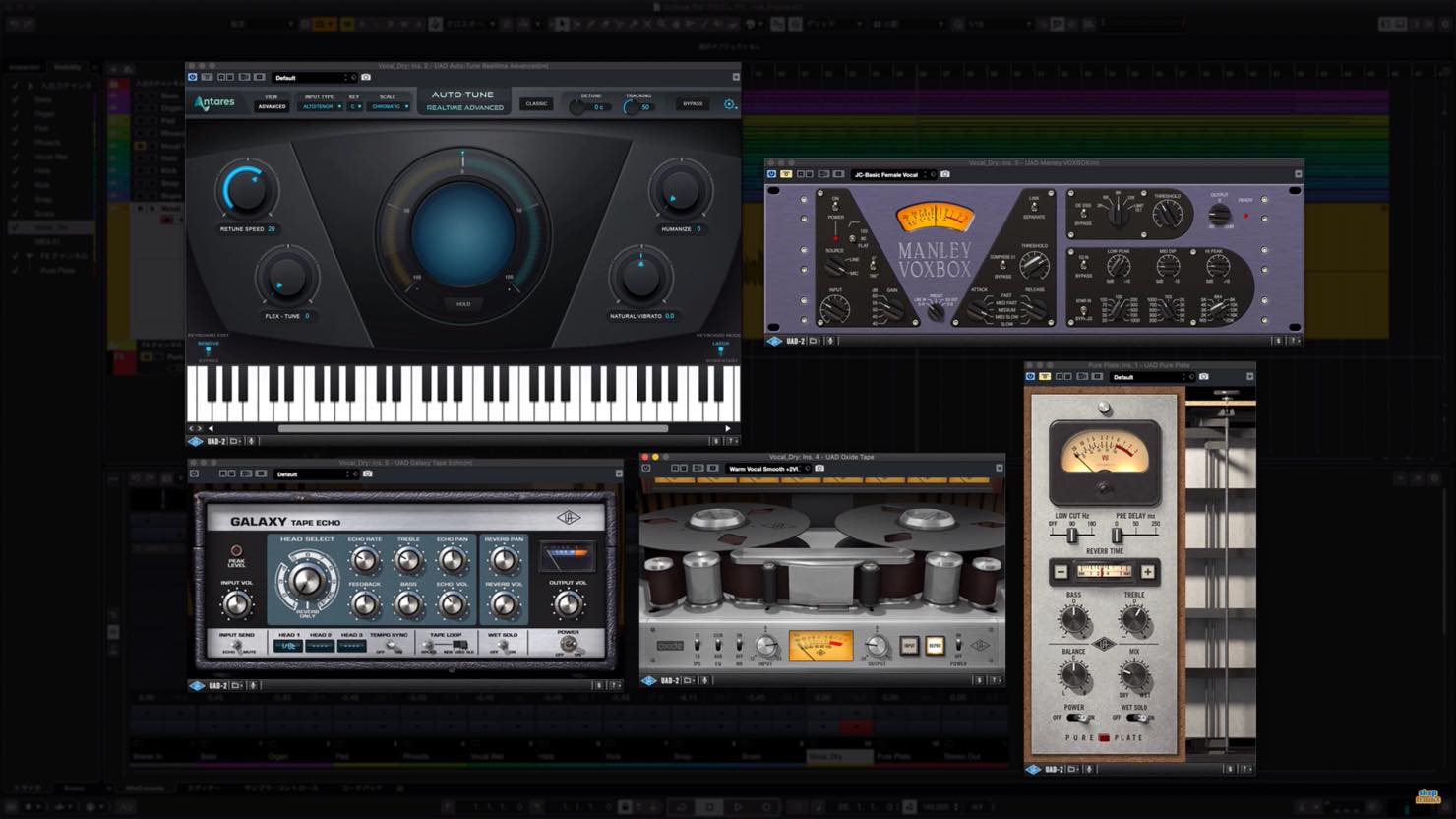
In this two-part series, we will pick out UAD plug-ins that are particularly well suited to vocals and explain the processing workflow and key points for using them.
One particularly useful feature of UAD plug-ins is that, when loaded in an Apollo interface's Console software, they can run in real time. You can record with the effects printed, or apply them only to your monitoring while recording the dry signal.
If you have not tried them yet, we hope this introduction sparks your interest.

Let's take a closer look at each plug-in.
UAD Vocal Processing, Part 1: Video
Selected Questions and Answers from the YouTube Video

Hello! I record and mix my own vocals. How can I tell what key my singing is in—for example, whether it is C-sharp minor?

It takes a little work, but programming your melody as MIDI first makes it easier to identify the pitches and edit them. If you want to identify the song's key, the following approaches can help: “Understanding and Using a Song's Key, and Tips for Working Out a Melody” https://youtu.be/RgS6mPA9h_g “Accurately Analyzing a Song's Key and Chords” https://youtu.be/Go29onIxp2g
Product URL: https://hookup.co.jp/blog/35007
Antares Auto-Tune Realtime Advanced
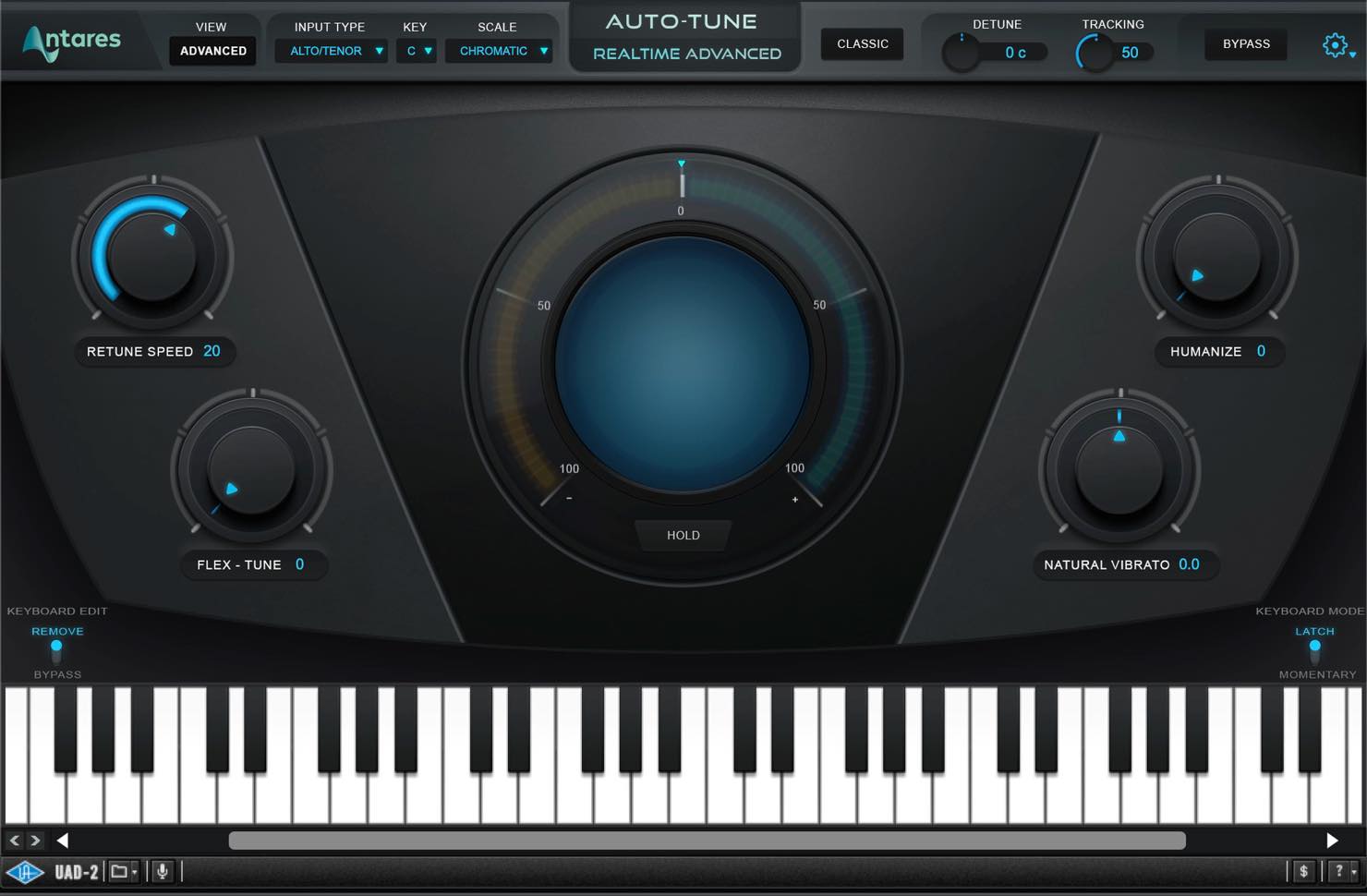
First up is Antares Auto-Tune Realtime Advanced, the real-time version of the well-known pitch-correction plug-in.
This capable plug-in corrects pitch with virtually no latency and is also intended for live use. We will use a recorded track here, but its responsive performance is certainly welcome.
Input Type, Key and Scale
The first setting to make before correcting pitch is Input Type.
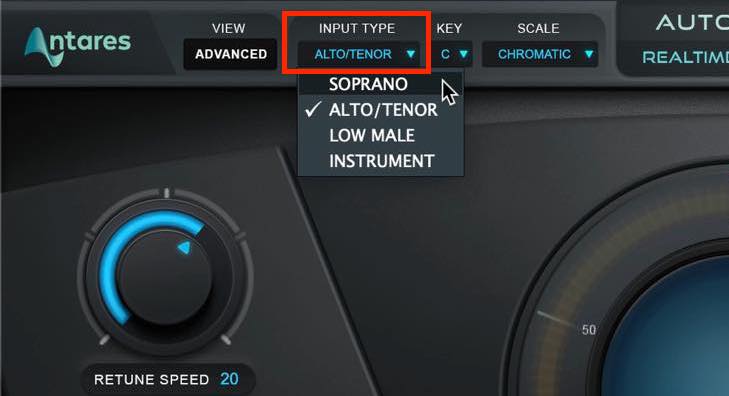
Soprano is for higher female vocals; Alto/Tenor is for lower female vocals or higher male vocals; Low Male is for lower male vocals; and Instrument is for instruments.
Next, set the song's key and scale.
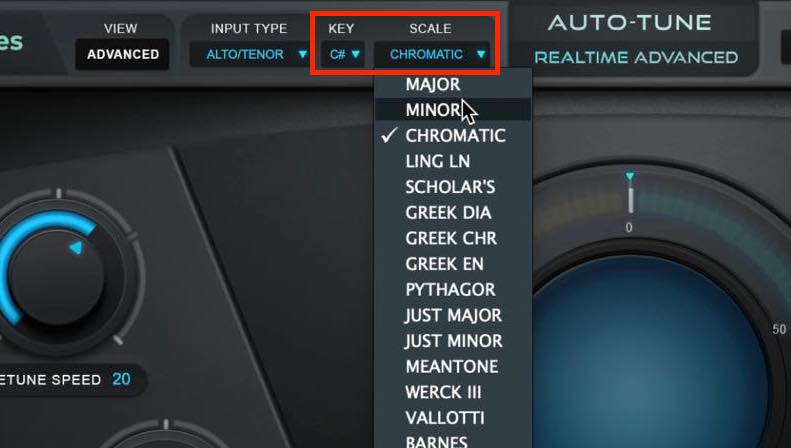
If you leave the scale set to Chromatic, notes are simply corrected to the nearest in-tune semitone. Setting the key and scale restricts the correction targets to the appropriate notes, which can give better results.
These two settings alone can produce highly accurate pitch correction.
However, Auto-Tune has appealing uses beyond natural-sounding pitch correction, so let's explore a little further.
Retune Speed and Flex-Tune
Of the four large knobs, the two on the left are the most important.
Retune Speed at the upper left controls how quickly pitch correction takes place. You can think of it as an attack time.

Turn it fully clockwise to 0 for immediate pitch correction. Listen with this setting and you should hear the familiar hard-tuned, robotic vocal effect—the signature Auto-Tune sound.
For more natural pitch correction, we suggest a setting around 10–20. If you make it too slow, the correction will not keep up. Listen for a suitable balance.
Flex-Tune, below it, adjusts pitch-correction sensitivity.
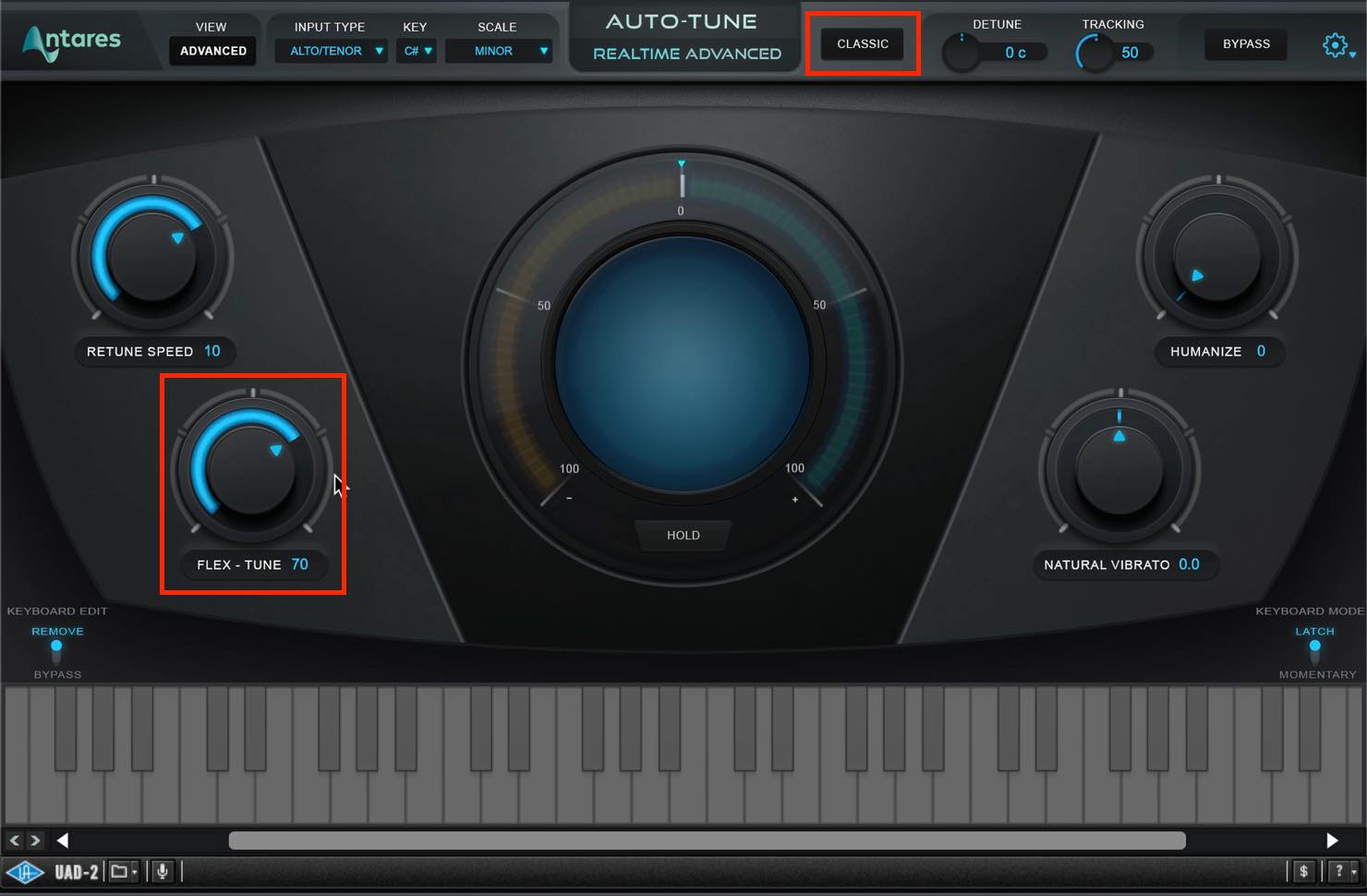
At 0, fully counterclockwise, correction is applied to every detected note. As you turn it clockwise, notes farther from the target receive less correction, preserving more of the original vocal's nuances. Fully clockwise, no pitch correction is applied.
Turning on the CLASSIC button above deliberately gives a more pronounced, old-school correction response and disables Flex-Tune.
For the hard-tuned effect, use 0 or enable CLASSIC. For natural correction, a setting farther to the right, around 70, worked well in our example.
Humanize and Natural Vibrato
Let's also look at the two controls on the right.
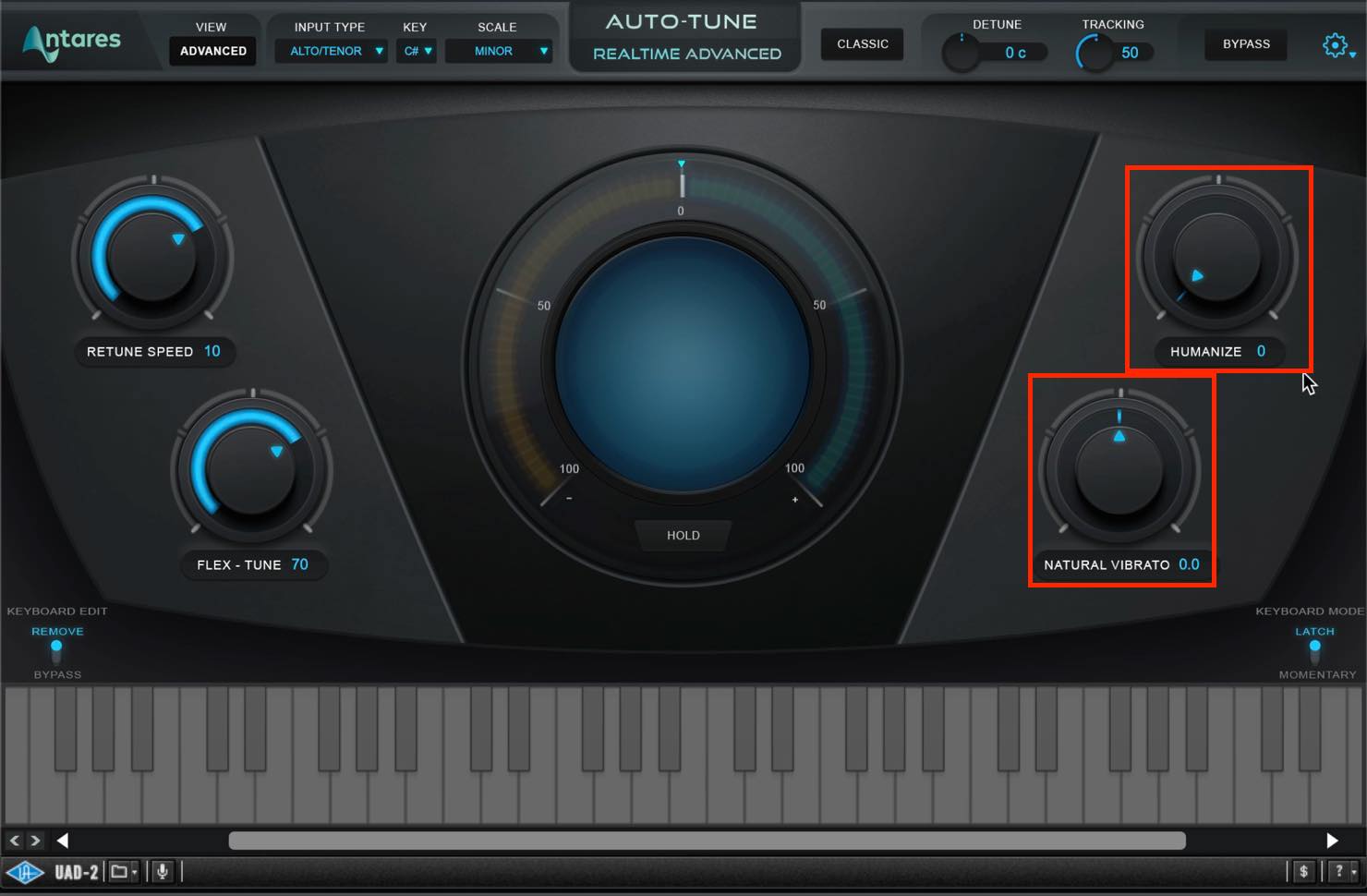
Humanize, at the top, distinguishes short notes from sustained notes. Turn it clockwise to slow down Retune Speed only on longer notes. This helps prevent sustained notes from sounding unnatural even with a fast Retune Speed.
Natural Vibrato identifies vibrato already present in a vocal or instrumental performance and lets you increase or reduce its depth.
Using the MIDI Features
To take the hard-tuned effect further and create a more robotic voice, try the MIDI features.
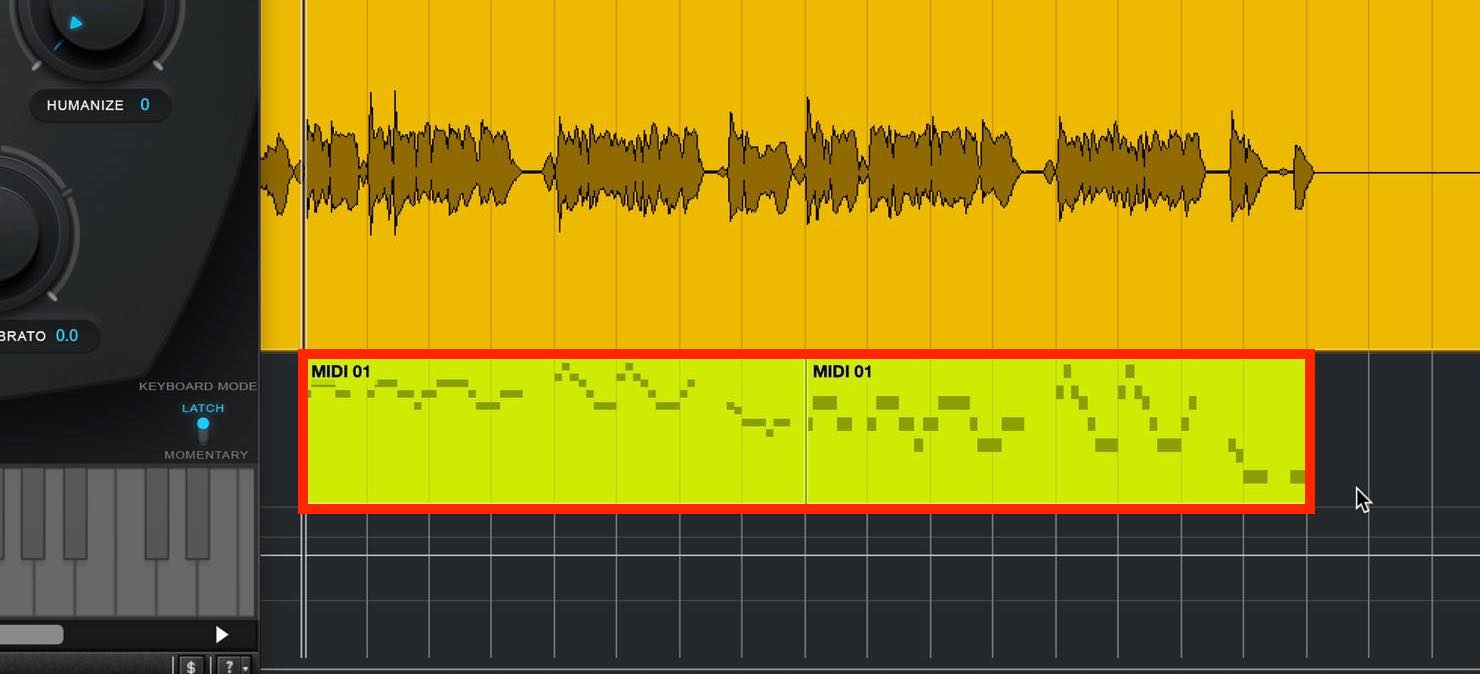
First, prepare MIDI notes to guide the melody and place them on a MIDI track.
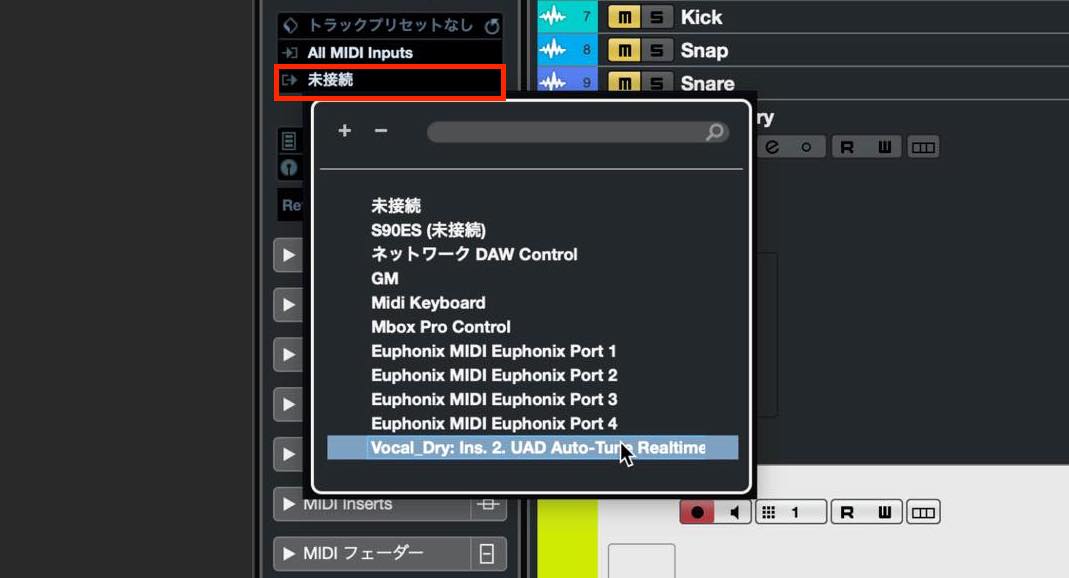
Set that MIDI track's output routing to Auto-Tune Realtime Advanced.
In Auto-Tune, switch View to Advanced and enable Target Notes in the MIDI section.
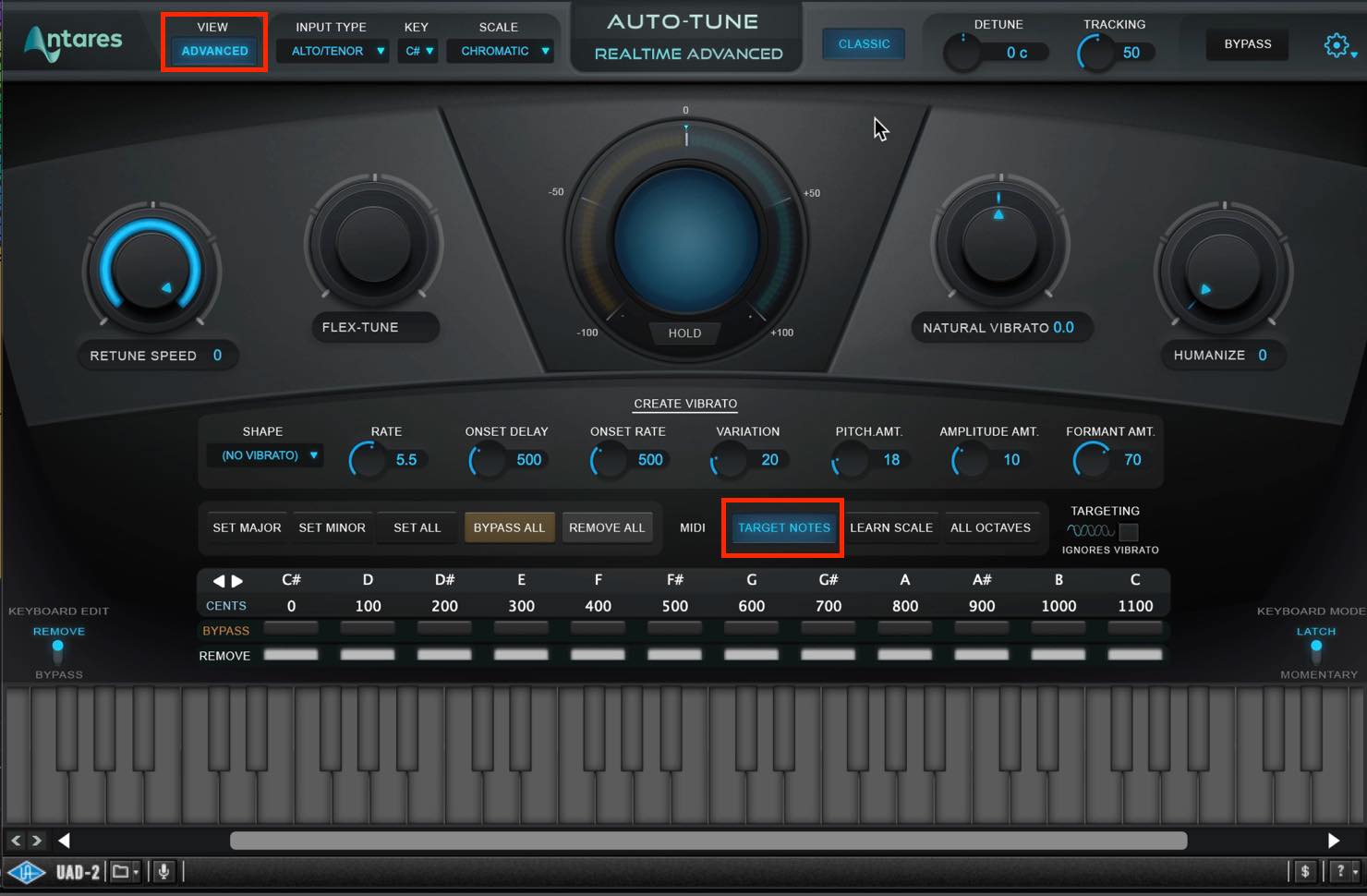
Now set Retune Speed to its minimum value, enable CLASSIC and listen. You should hear an extremely unnatural, robotic voice.
You can also transform the vocal in real time while playing notes on a keyboard, which could create interesting effects in a live performance.
About Auto-Tune Realtime Access
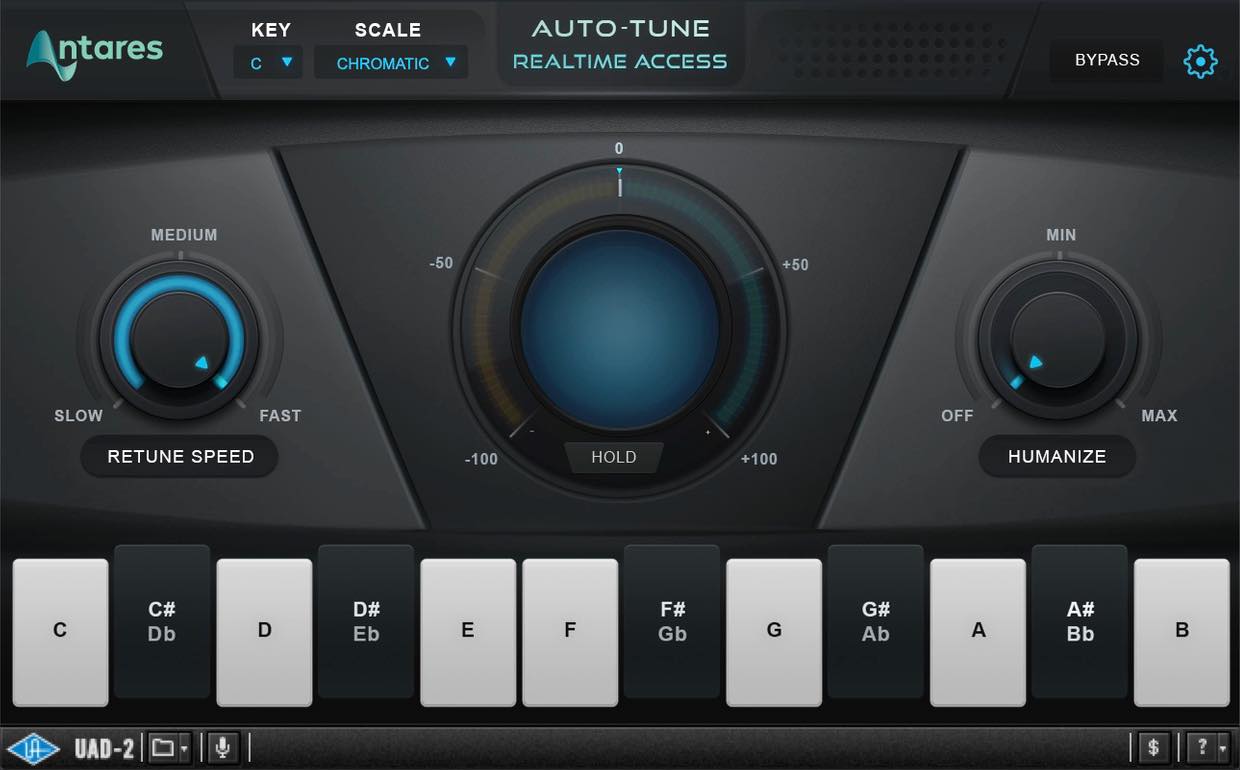
Auto-Tune Realtime Access is a simplified version of Auto-Tune Realtime Advanced.
Its feature set is greatly reduced: key and scale settings, three Retune Speed choices, two Humanize choices and selection of target notes.
Even so, it can still create the signature hard-tuned effect and provides accurate automatic pitch correction. We think it is a good fit for anyone who wants to try Auto-Tune with straightforward controls.
Manley VOXBOX Channel Strip
Next, let's shape the vocal's tone with EQ, compression and other processing.
Manley VOXBOX Channel Strip is particularly well suited to this vocal-processing workflow.
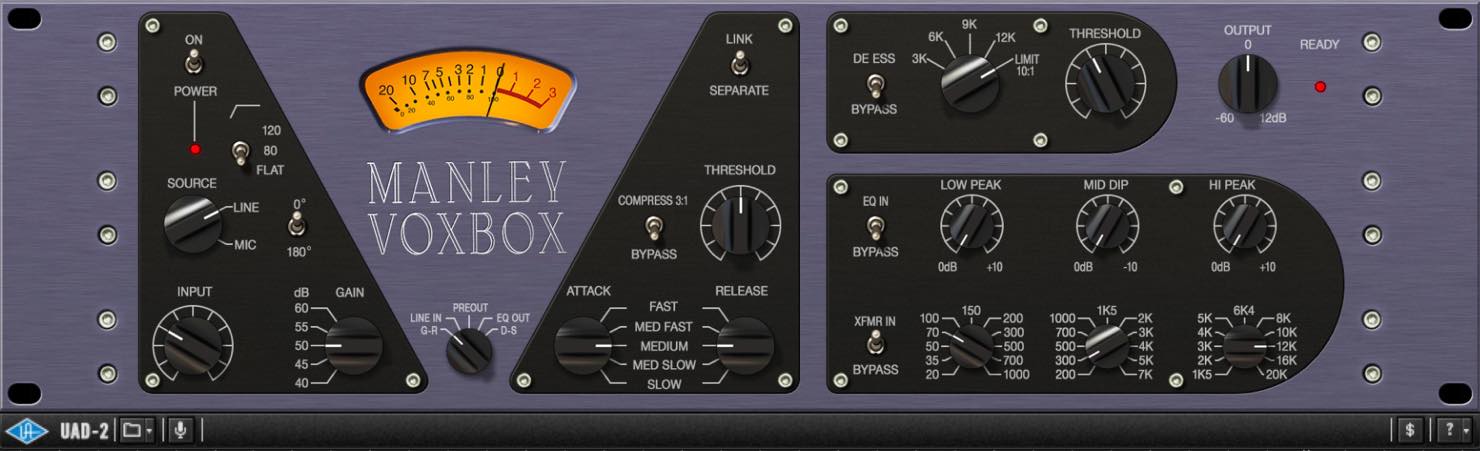
VOXBOX has four sections: a microphone preamp, compressor, equalizer and de-esser. It feels like everything you need is included.
Microphone Preamp Section
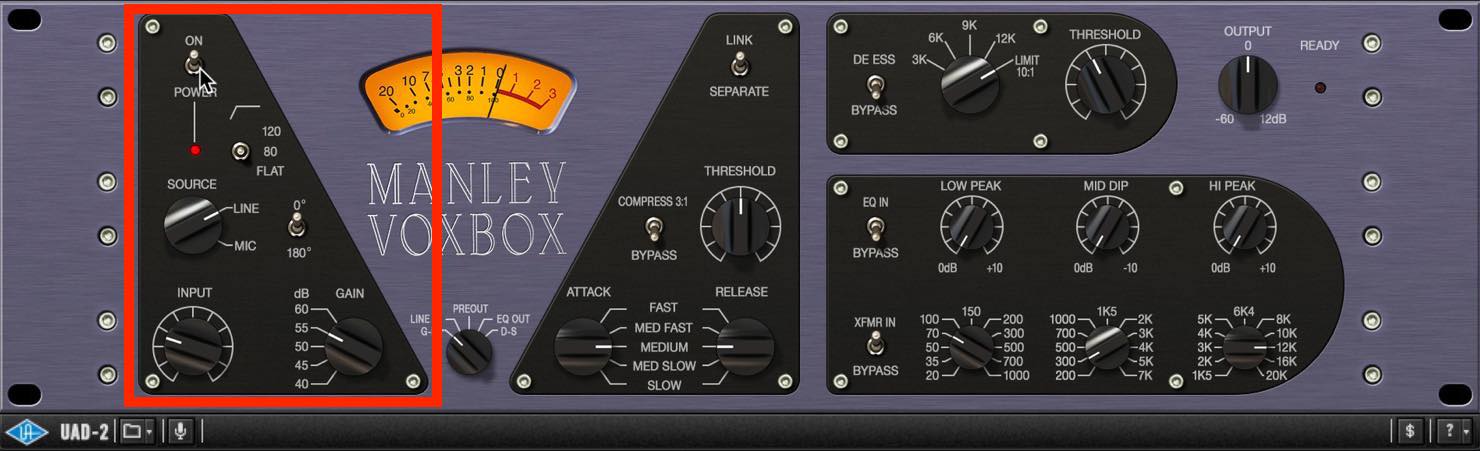
- LOW CUT
Choose FLAT (off), 80 Hz or 120 Hz. An unprocessed vocal recording can contain more unwanted low frequencies and plosive noise than you might expect, so start by removing them here. Avoid cutting too much, though: listen carefully when choosing the setting. - SOURCE
Choose MIC or LINE. In this plug-in setting, the switch acts as a level pad rather than a tonal control: LINE lowers the level by approximately 4 dB, reflecting the hardware's behavior. - POLARITY
This switch changes polarity. At 0°, it stays as it is; at 180°, it is inverted. You generally do not need to change it for an isolated vocal track, but if phase interactions with other tracks cause problems, trying the inverted setting may improve the result. - GAIN and INPUT
GAIN and INPUT are the most important controls in the preamp section. Both appear to control level, but they have distinct roles.
The VOXBOX preamp uses tubes, so simply passing a signal through it subtly changes its harmonic content and tone. GAIN determines the extent of this coloration. Increasing GAIN produces a greater tonal change; reducing it does the opposite, while also changing the level. It is easier to compare the result when the level stays close to the original, so compensate with INPUT. As a practical guide, think of GAIN as the tone control and INPUT as the level control.
Compressor Section
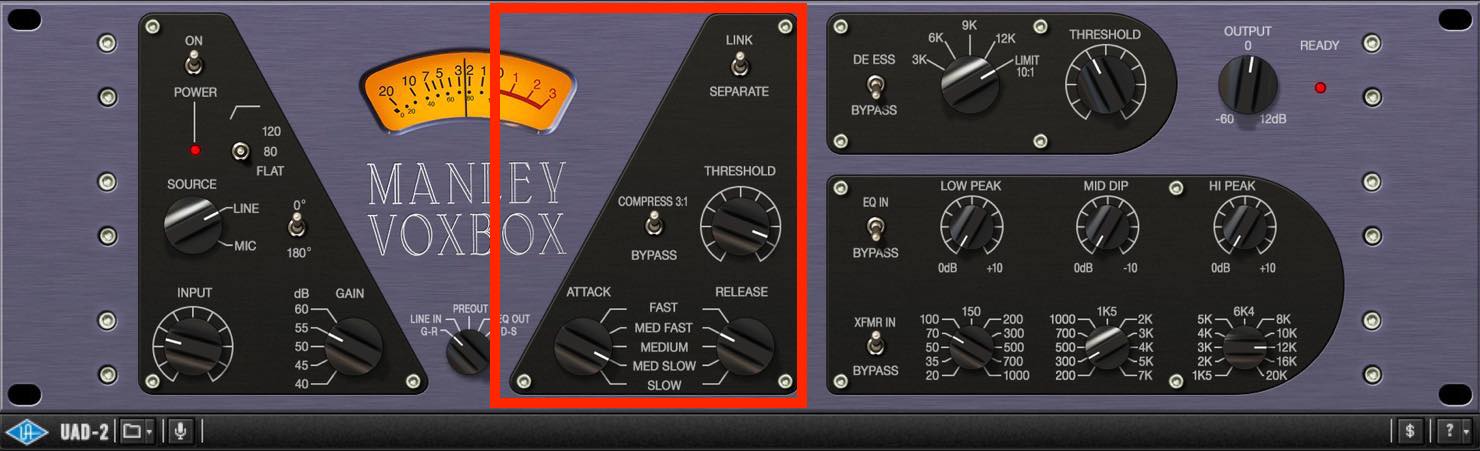
- COMPRESSOR BYPASS
Set this switch to COMPRESS 3:1 to enable the compressor. The label describes its nominal 3:1 ratio. More precisely, the optical circuit's ratio varies somewhat with the signal rather than behaving as a perfectly fixed ratio. - SIDECHAIN LINK
This switch links or separates the left and right dynamics processing when the plug-in is used in stereo. In mono mode, it is fixed at LINK. - THRESHOLD
This sets the level above which compression starts. The compressor is an optical design; for a natural vocal sound, we found that keeping gain reduction around 2–3 dB worked well. - ATTACK and RELEASE
Attack controls how quickly compression takes effect after the signal exceeds the threshold; release controls how quickly the level returns as the signal falls below it. The two controls interact closely: setting both slow produces a very gradual response. Try balancing them—for example, making one faster when you slow the other—so that the meter follows the vocal's dynamics. Which one you make faster can significantly change the feel.
Equalizer Section
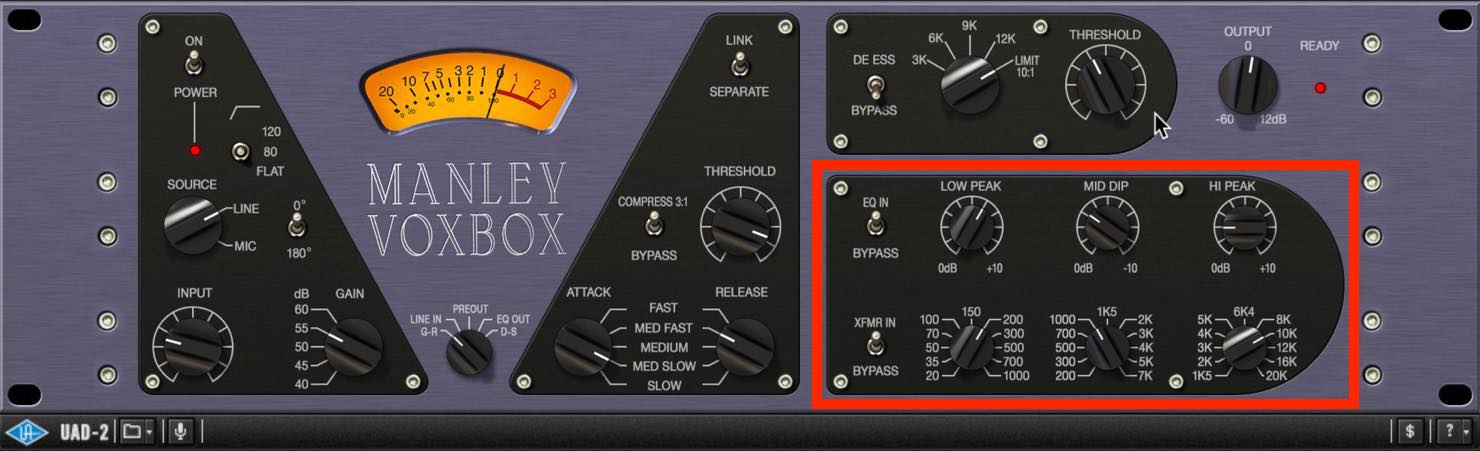
- LOW PEAK
Boosts the low-frequency band at the selected frequency. - MID DIP
Cuts the midrange band at the selected frequency. - HI PEAK
Boosts the high-frequency band at the selected frequency. Editorial correction: the Japanese source says “cuts” here, but its next paragraph and Universal Audio's VOXBOX manual confirm that HI PEAK is boost-only.
Although it looks like a simple three-band EQ, its distinctive feature is that LOW and HI can only boost, while MID can only cut. It models the hardware's passive circuitry, resulting in a very natural, transparent EQ. In use, we found its response predictable and easy to understand and control.
As a suggested workflow, if you feel a cut is needed, start with MID. Despite its name, MID covers a very wide frequency range.
Then try small boosts to the high and low bands. Set the gain to around 3–4 dB, find the best frequency, and make the final gain adjustment afterward.
De-Esser Section
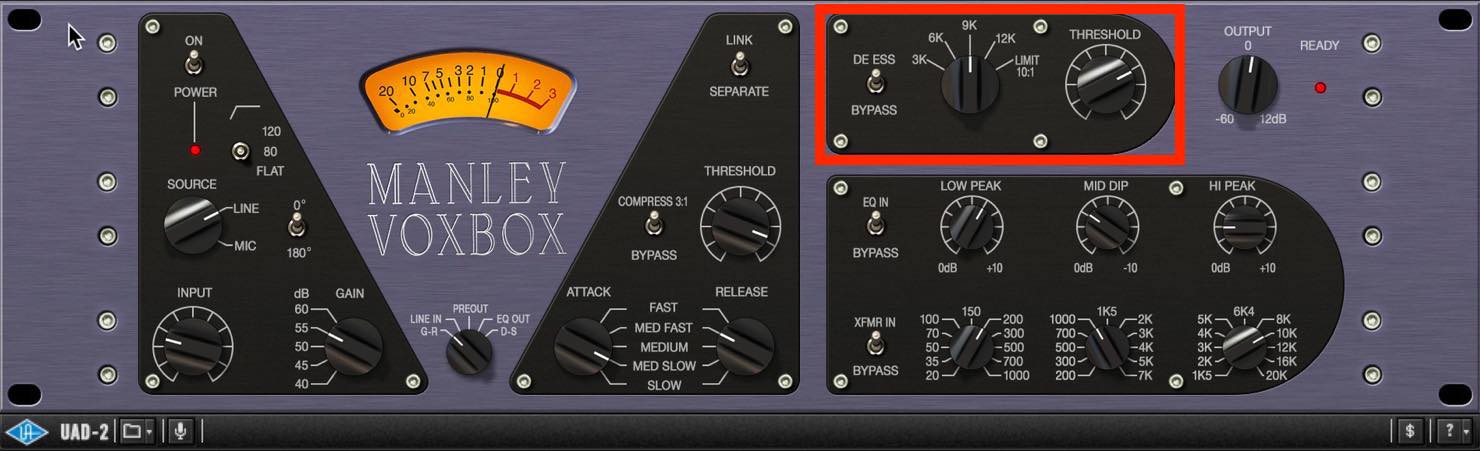
- DE-ESS SELECT
Select the frequency to target for sibilance. Note that the far-right position of the frequency selector switches the section to limiter mode.
At that setting, the de-esser's sidechain filter is disabled and the section operates as a traditional LA-2A-style limiter. - THRESHOLD
This sets the level at which the de-esser starts working. Turning it clockwise lowers the threshold and reduces sibilance, but lowering it too far can make the whole high end sound as though it has been cut.
If that happens, de-essing is being applied where it is not needed. Back off the control and readjust.
That is all for this installment. Next time, we will continue with tape-simulator coloration and spatial processing using delay and reverb.
Product URL: https://hookup.co.jp/blog/35007
In this two-part series, we pick out UAD plug-ins that suit vocals and explain key points for using them.
⁰
First up are Antares Auto-Tune Realtime and Manley VOXBOX Channel Strip⁰.
🎥 YouTube: https://t.co/PkPTxh1cwZ📝 Article: https://t.co/s1BCrPU24Q#DTM #DAW pic.twitter.com/E0nX0WsAlD
— SLEEP FREAKS (@SLEEPFREAKS_DTM) April 1, 2020
Frequently Asked Questions
Q1. What is the difference between Auto-Tune Realtime Advanced and Access?
Advanced offers a broad feature set, including detailed controls such as Flex-Tune, Natural Vibrato and MIDI functions. Access is a lower-cost, simplified version: it provides basic pitch correction and the hard-tuned vocal effect, but not the same fine adjustments.
Q2. What Retune Speed setting should I use?
For natural pitch correction, try 10–20. Settings closer to 0 produce a stronger hard-tuned effect, but excessively slow settings may not keep up with the performance. Adjust while listening.
Q3. How does Manley VOXBOX Channel Strip differ from separate EQ and compressor plug-ins?
VOXBOX combines a microphone preamp, compressor, equalizer and de-esser, providing the functions needed for vocal processing in one channel strip. It can make adjustments more efficient than combining separate plug-ins and deliver professional sound quality.
Q4. Should I always use Low Cut?
Recorded vocals often contain unwanted low frequencies and plosive noise, so we recommend considering Low Cut. Cutting too much can remove the vocal's warmth, however, so choose carefully between 80 Hz and 120 Hz.
NEW ARTICLES
Latest English Articles
















































































































































































































