FL Studio's real-time recording lets you capture a performance played on a MIDI keyboard as you play. Unlike entering notes with mouse clicks, you can use your keyboard skills to enter melodies and phrases efficiently. This guide covers preparing your MIDI keyboard, recording, and choosing a recording mode so beginners can put their playing skills to use.
Recording a MIDI Keyboard Performance in FL Studio
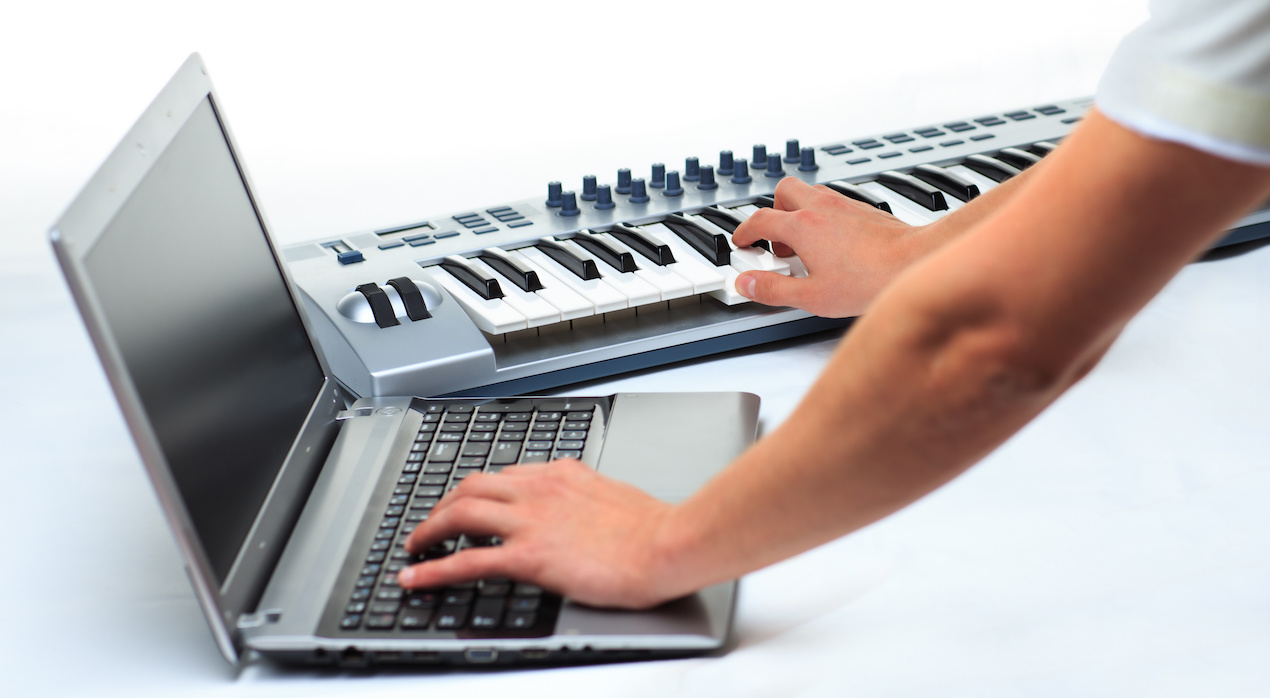
So far, we have entered notes by clicking with the mouse.
This lets you work accurately at your own pace, but it can be slower.
If you play keyboard,
you may often find it quicker to play the part yourself.
Here we'll explore
real-time recording, which captures what you play on a MIDI keyboard immediately.
Tutorial Video
Selected Questions and Answers from YouTube

How can I use the sounds built into my MIDI keyboard?

The following article explains how to do this. Take a look:https://sleepfreaks-dtm.com/for-advance-fl/external-synth/
Preparing for Real-Time MIDI Recording
First, connect and configure a MIDI keyboard.
If you haven't set it up yet, follow the article below.
First, load the instrument you want to play.
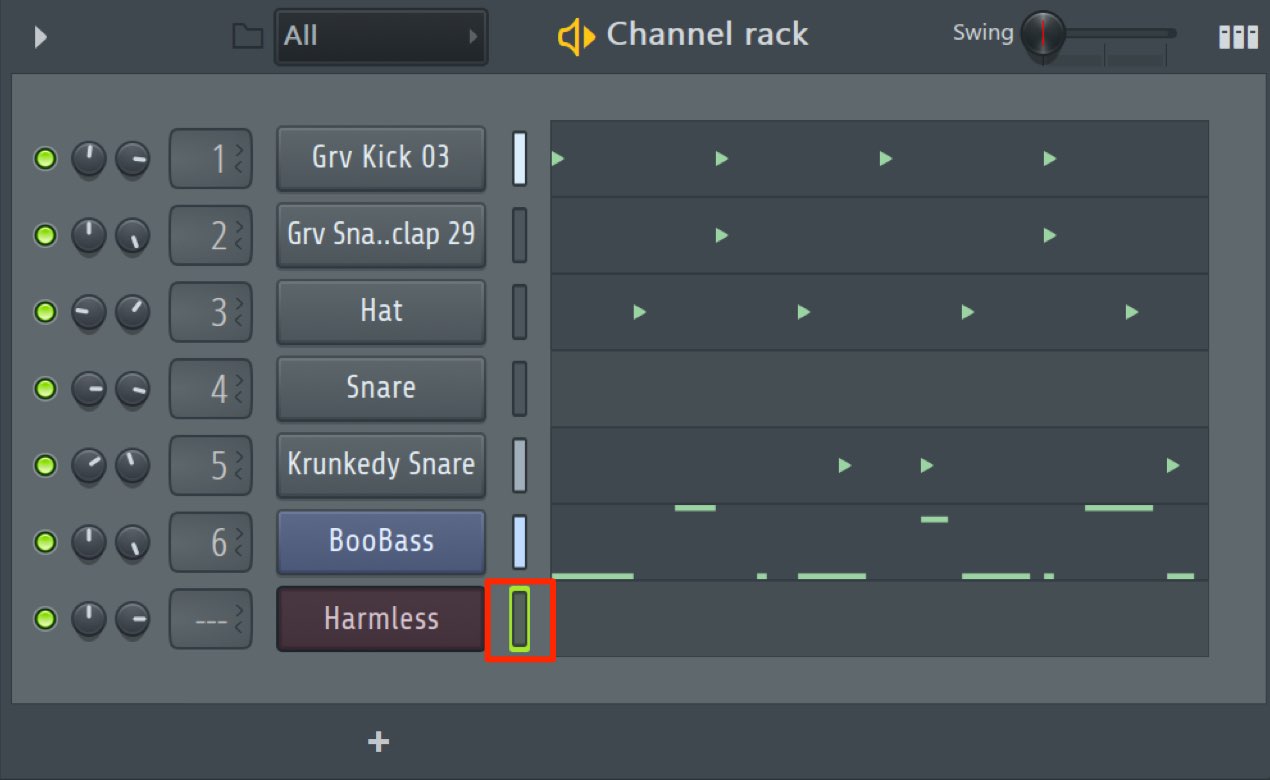
Here we've loaded the Harmless synthesizer in the same way we loaded Bass in the previous section.
There is a select button to the right of each channel name.
The lit channel is the one that receives your keyboard performance.
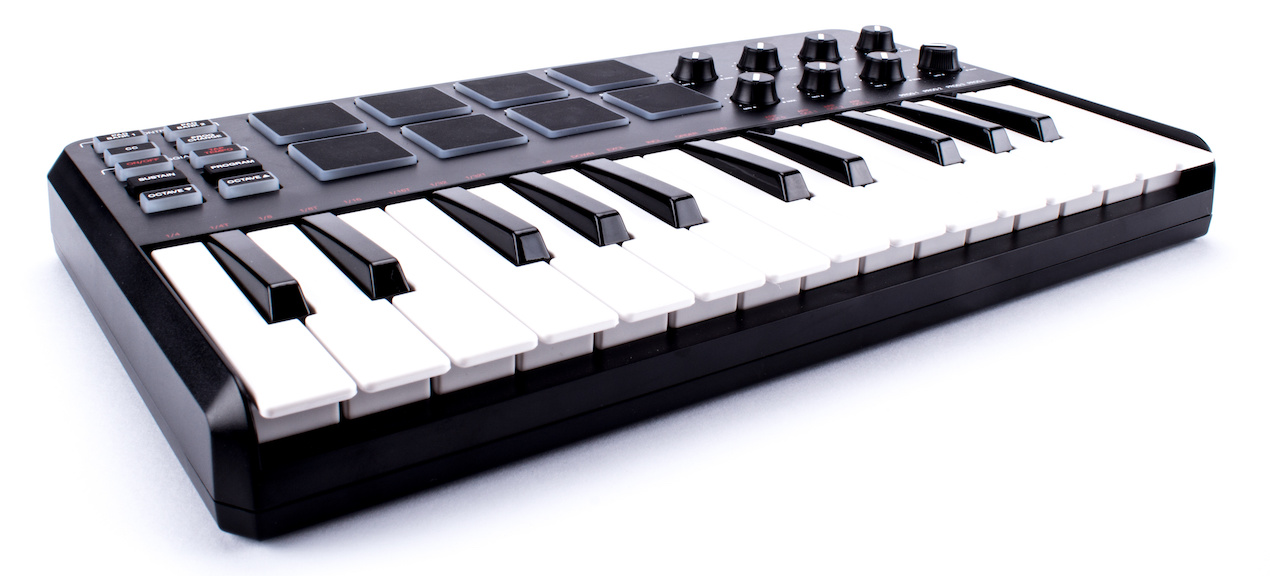
Try playing the keyboard now.
Your MIDI input should trigger the instrument's sound.
If there is a delay between pressing a key and hearing the sound,
try adjusting the buffer size as explained in the article below.
How to Record MIDI in Real Time
Select the channel you want to record, as described above.
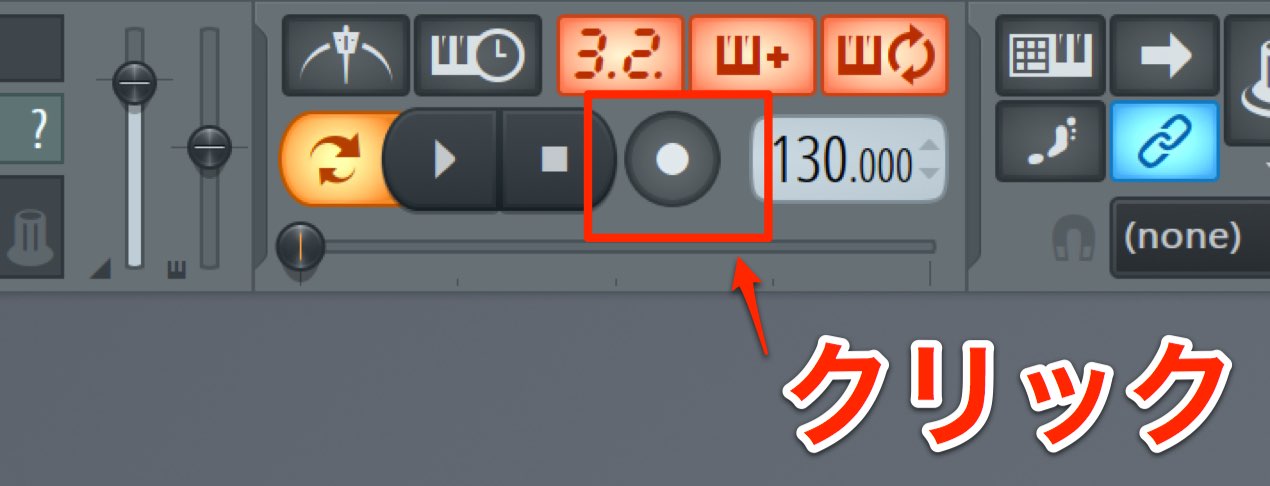
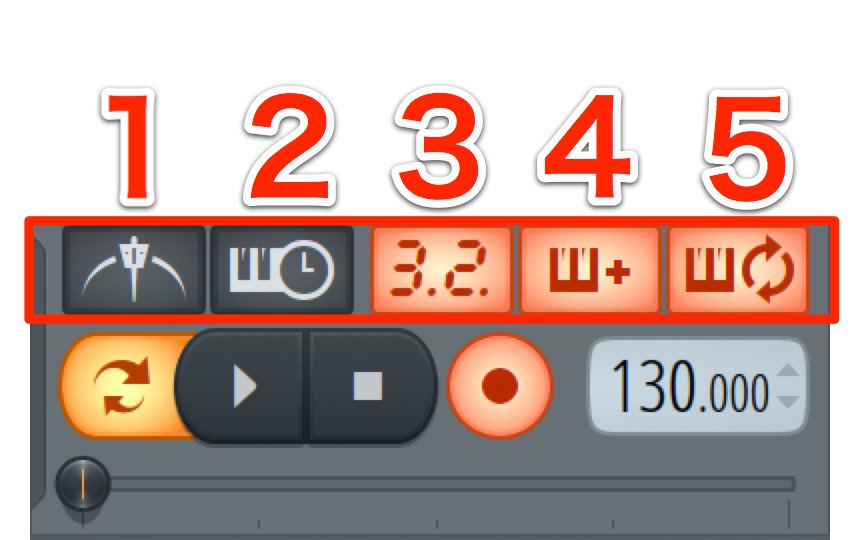
Click the record button at the top of the screen.
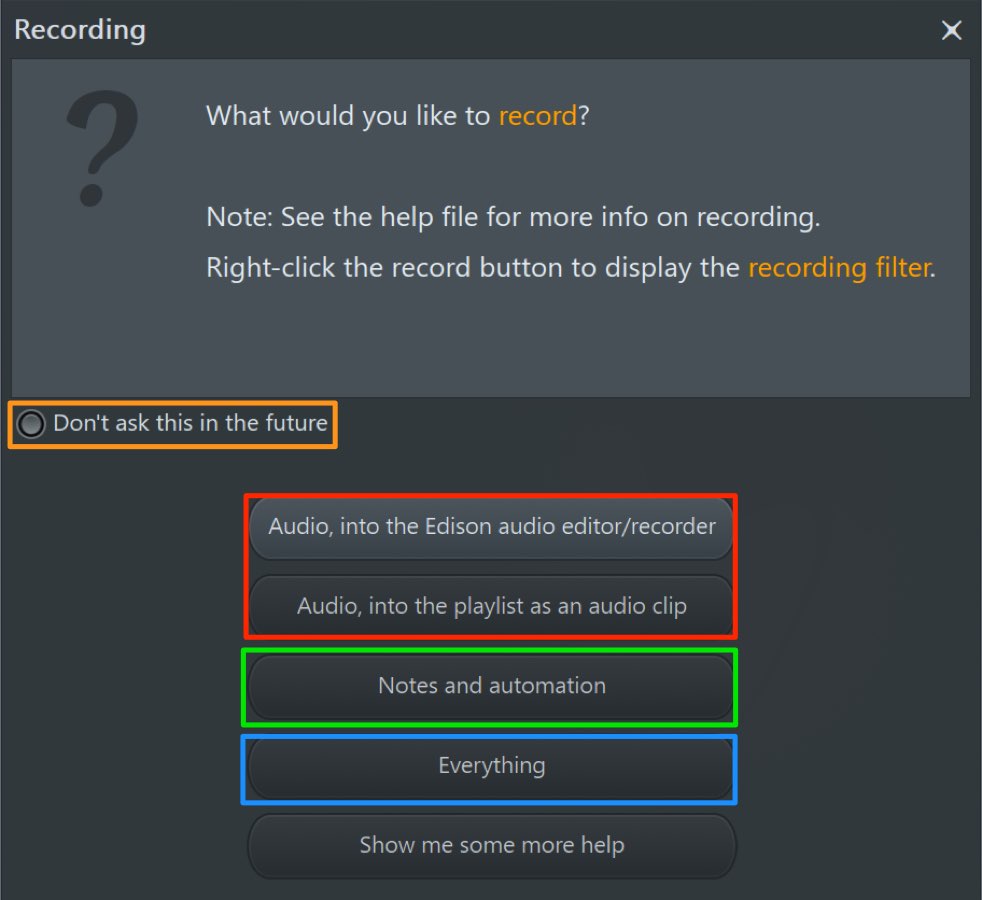
A dialog appears for choosing the recording mode.
- The button outlined in red is for recording vocals or acoustic instruments.
We won't use it here. - The button outlined in green is for the MIDI recording we are about to do.
Select Notes and automation. - The button outlined in blue records all of the above.
If you always use the same option, enable Don't ask this in the future.
The dialog will no longer appear next time.
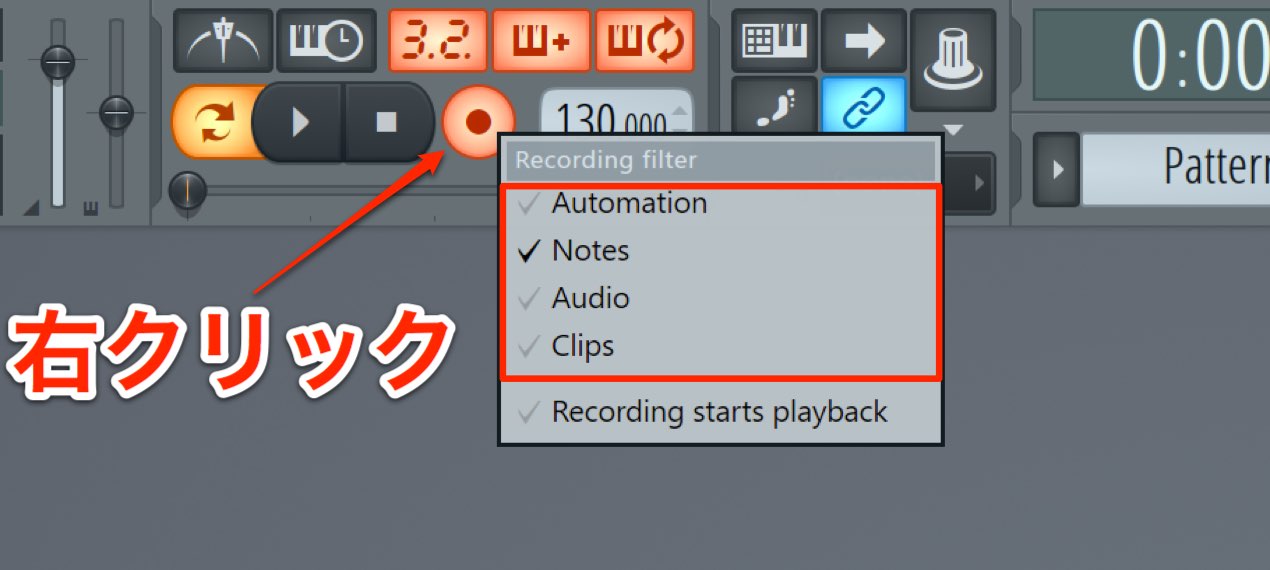
You can also change recording modes by right-clicking the record button.
For this MIDI example,make sure Notes is checked.
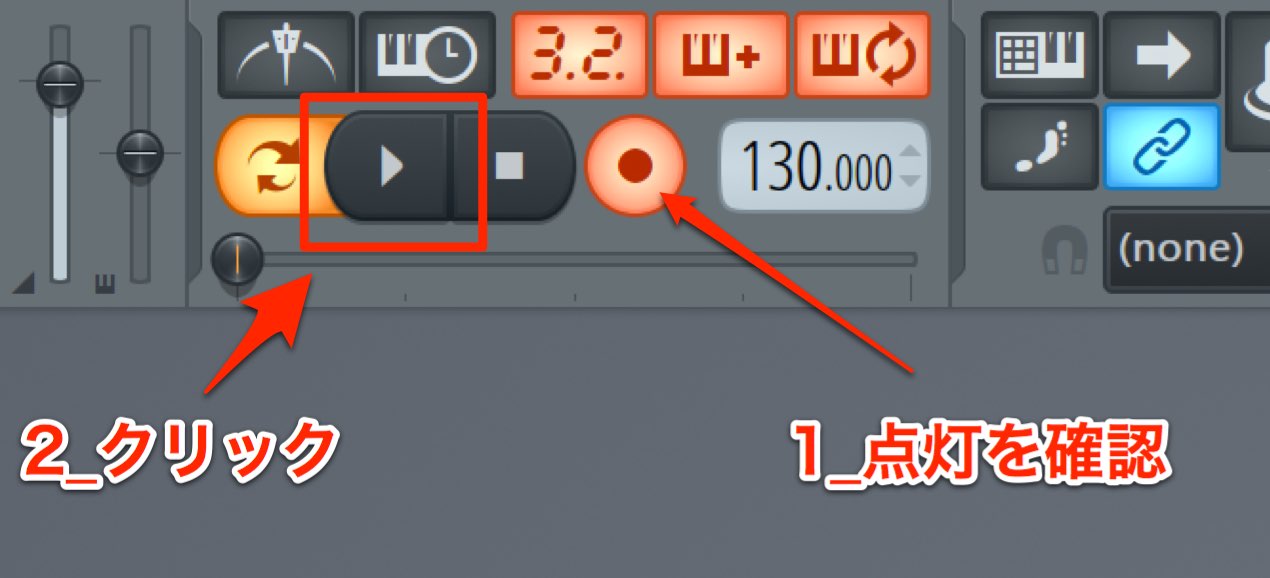
Confirm that the record button is lit,
then press Play to start recording.
Play your MIDI keyboard.
Your performance will be recorded as you play.
To stop recording, press the spacebar or the stop button to the right of Play.
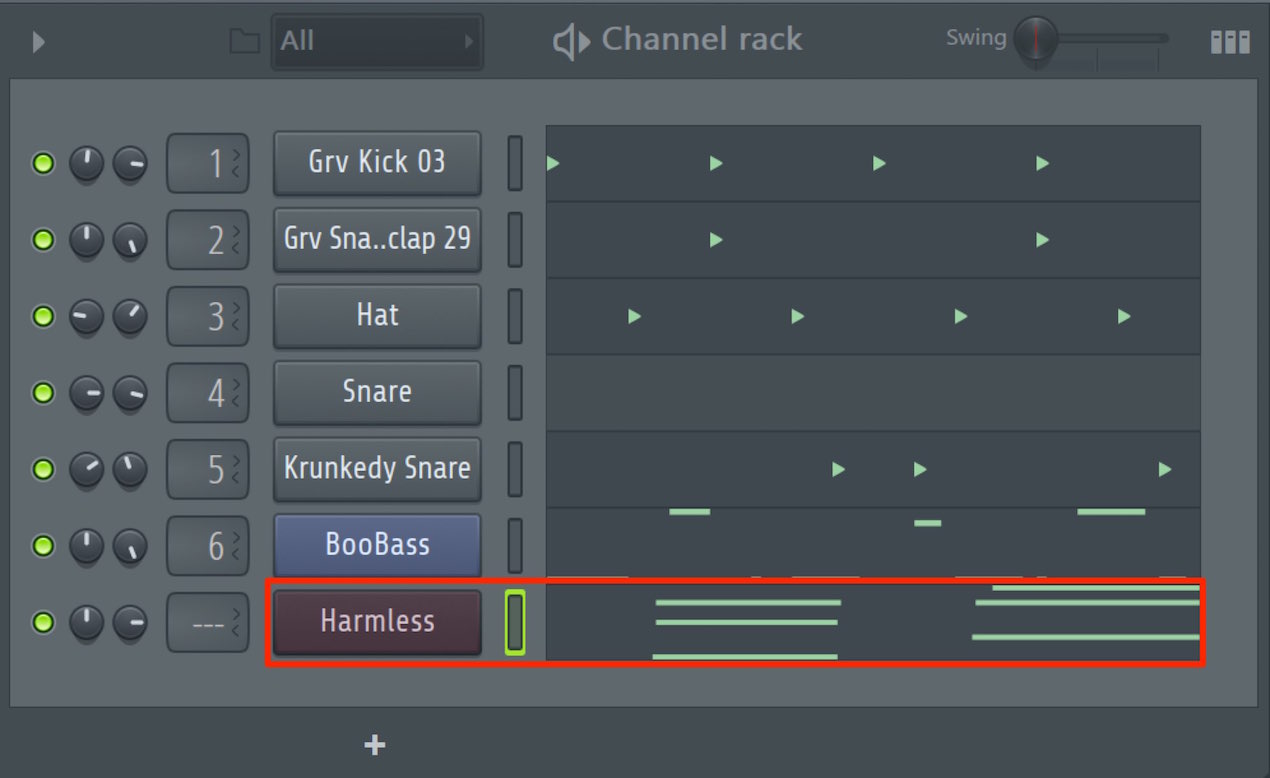
You have now recorded MIDI.
You may have found it difficult to start playing in time
or recorded somewhere other than the intended position.
This can happen when the recording options are not set appropriately.
These settings are important throughout recording, so we'll cover them in detail in the next section.

Frequently Asked Questions
Q1. Why do I hear a delay when recording MIDI in FL Studio?
An unsuitable buffer size can cause latency. Adjust the buffer size in your audio settings to reduce the delay between pressing a key and hearing sound.
Q2. How can I improve timing when recording MIDI?
Setting the recording options appropriately can help. The next section explains those settings in detail.
Q3. Can I record multiple instruments simultaneously?
In the basic workflow shown here, select the instrument channel and record one part at a time. FL Studio also supports routing controllers to multiple instrument channels for layered recording; consult the Channel Rack documentation for setup.
Q4. Can I undo a mistake made while recording?
Yes. Stop recording with the spacebar or Stop button, then use FL Studio's Undo function to return to the previous state.
NEW ARTICLES
Latest English Articles