
Setting up your audio interface, microphone, and other equipment correctly is an important step toward recording a high-quality vocal cover. This beginner-friendly guide walks through connecting an interface by USB, installing its software, checking headphone playback, assembling a microphone stand, holder, and pop filter, and making a test recording in Studio One Prime. Follow along with the video to work through each stage of the setup.
Setting Up Your New Equipment
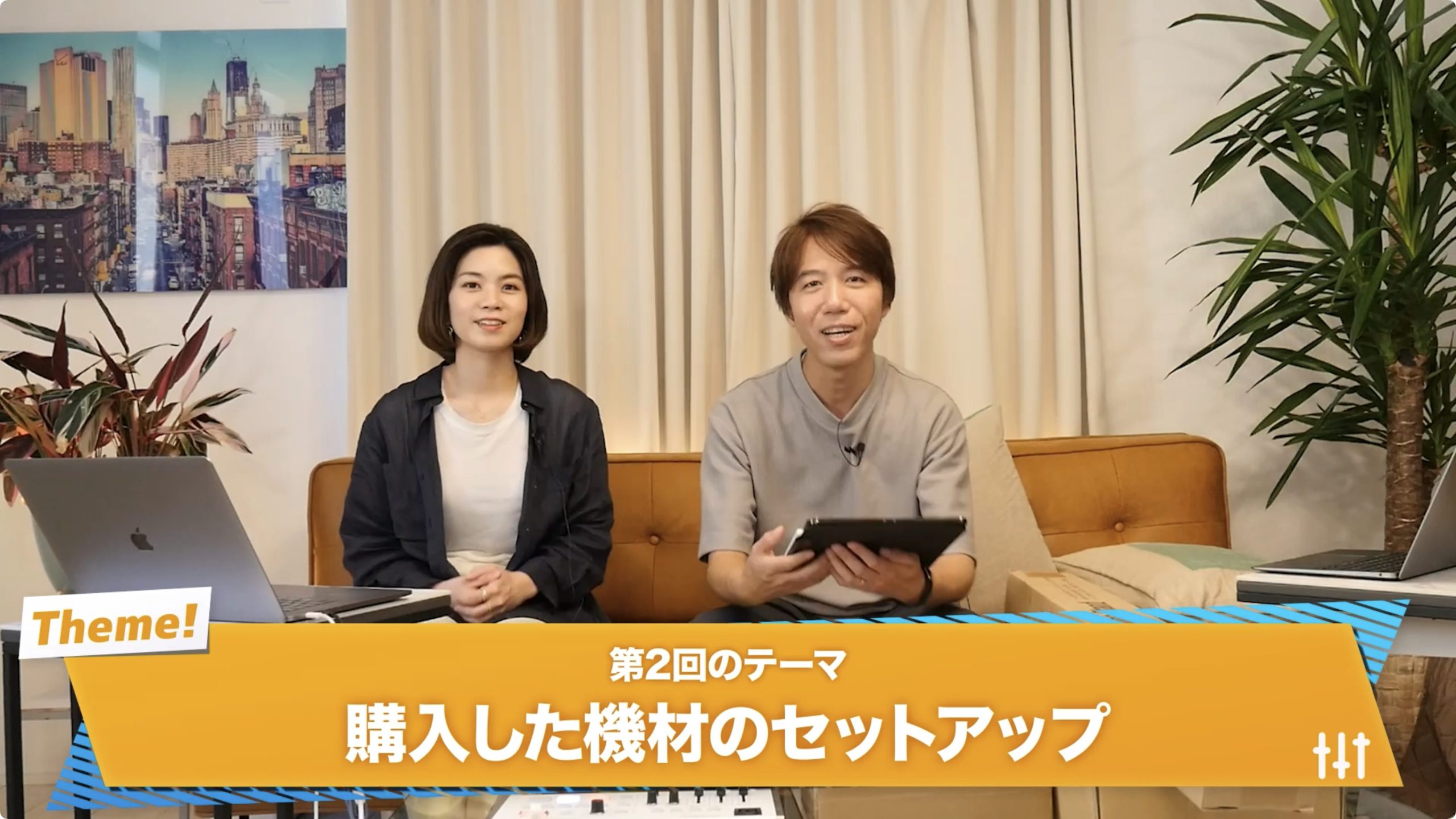
In Part 2 of Getting Started with Vocal Covers, we'll set up the equipment we bought in the previous installment.
Setup can seem daunting at first, but the video and article demonstrate each stage so you can follow along.
Work through these steps and get ready to record!
Note: This article provides supplementary information for the video, so please watch the video below before reading on.
Getting Started with Vocal Covers — Part 2: Video
Connecting the Audio Interface to Your Computer
Unpack the audio interface and connect it to your computer with the included USB cable.
Check Your USB Connectors
As mentioned in the previous installment, the cable's connector may not match the USB port on your computer.
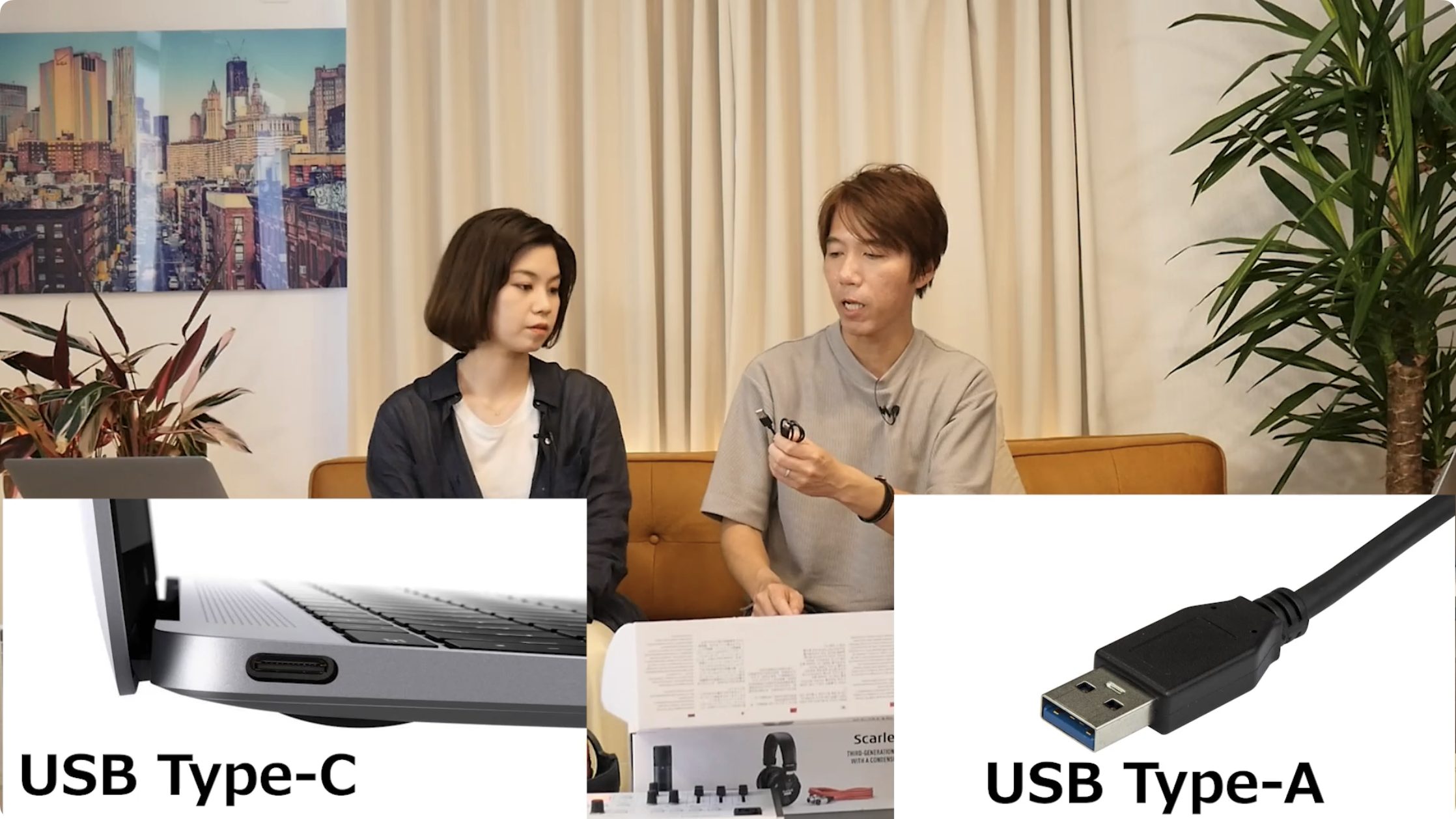
The two common connector types discussed here are the larger USB Type-A and the smaller USB Type-C. Many recent Apple laptops use USB Type-C ports, while the interface cable shown in this guide uses Type-A. Check the ports on your own computer.
If they don't match, you may need a USB adapter or hub like the one below. Check your computer's specifications and get a suitable adapter if necessary.
Installing the Connection Software
An audio interface may need additional setup before it works with your computer.
After connecting it, install the software that allows your computer to recognize and operate the interface, commonly called a driver, if required for your model and operating system.
Drivers are usually available from the manufacturer's website. Check the manual or search online for the model name followed by “driver” to find the appropriate download.
The Focusrite Scarlett model shown in the video initially appears as an external drive, which provides a route to its setup page.
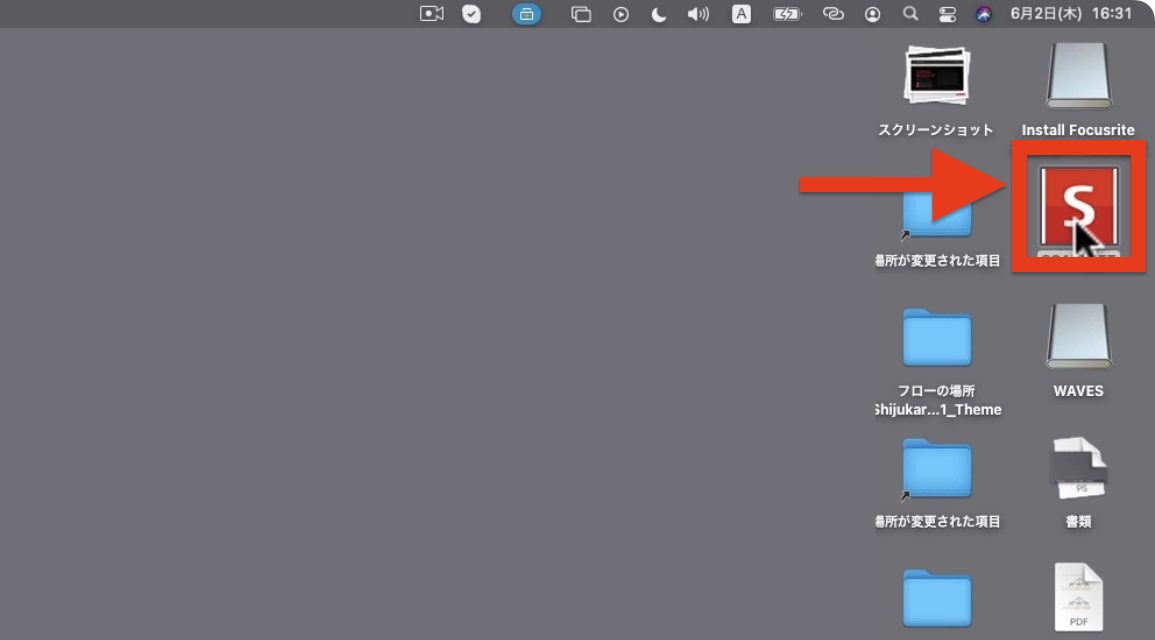
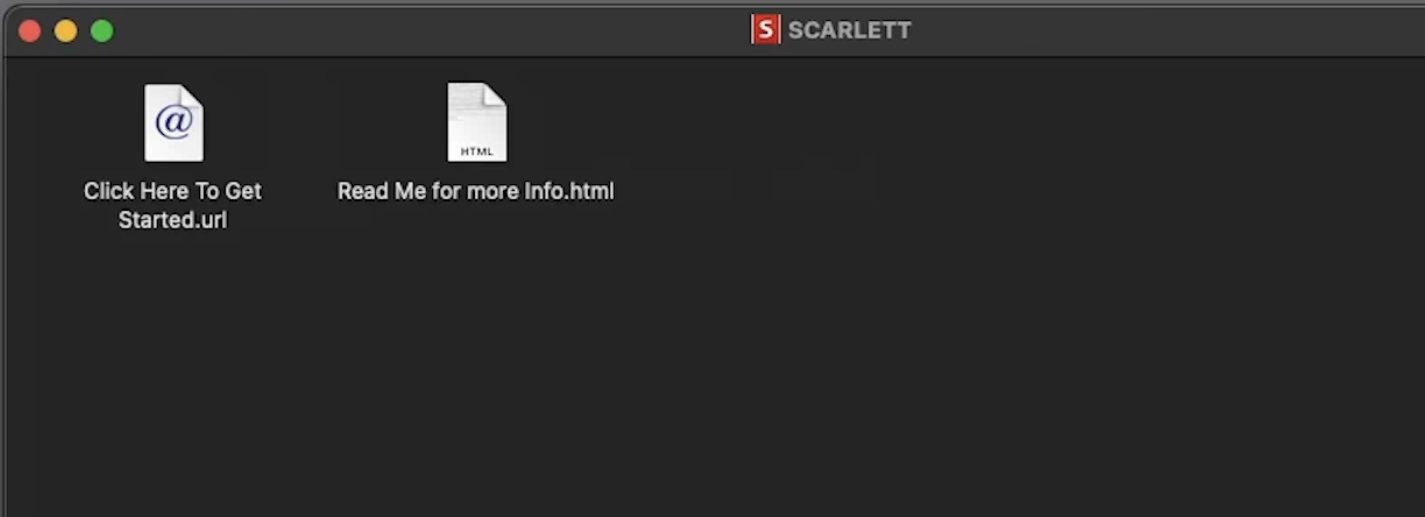
Open the drive with the S icon and double-click the file named Click Here to Get Started.
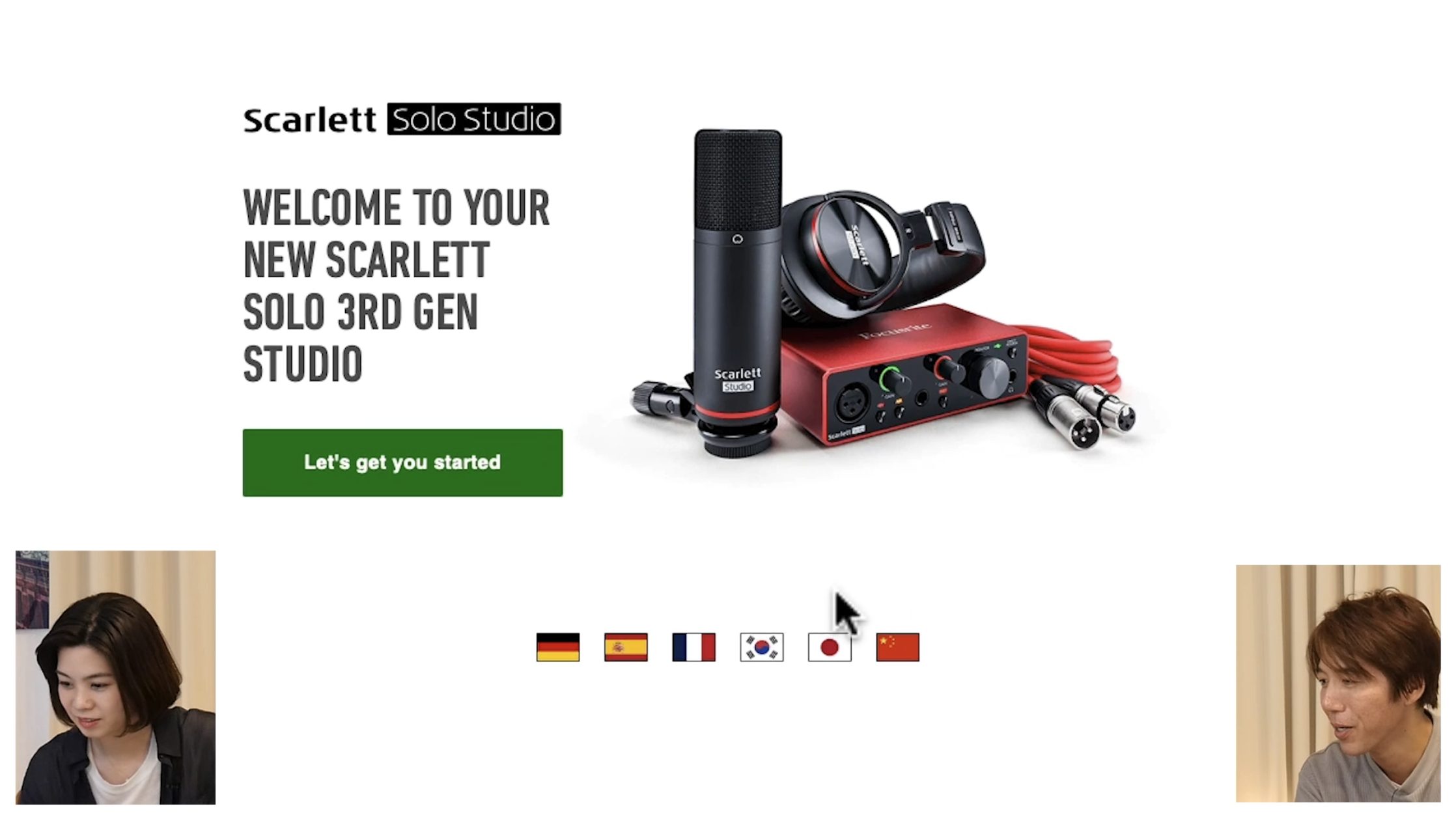
Your browser will open the Focusrite website. The video clicks the Japanese flag to display the site in Japanese; you can keep your preferred language.
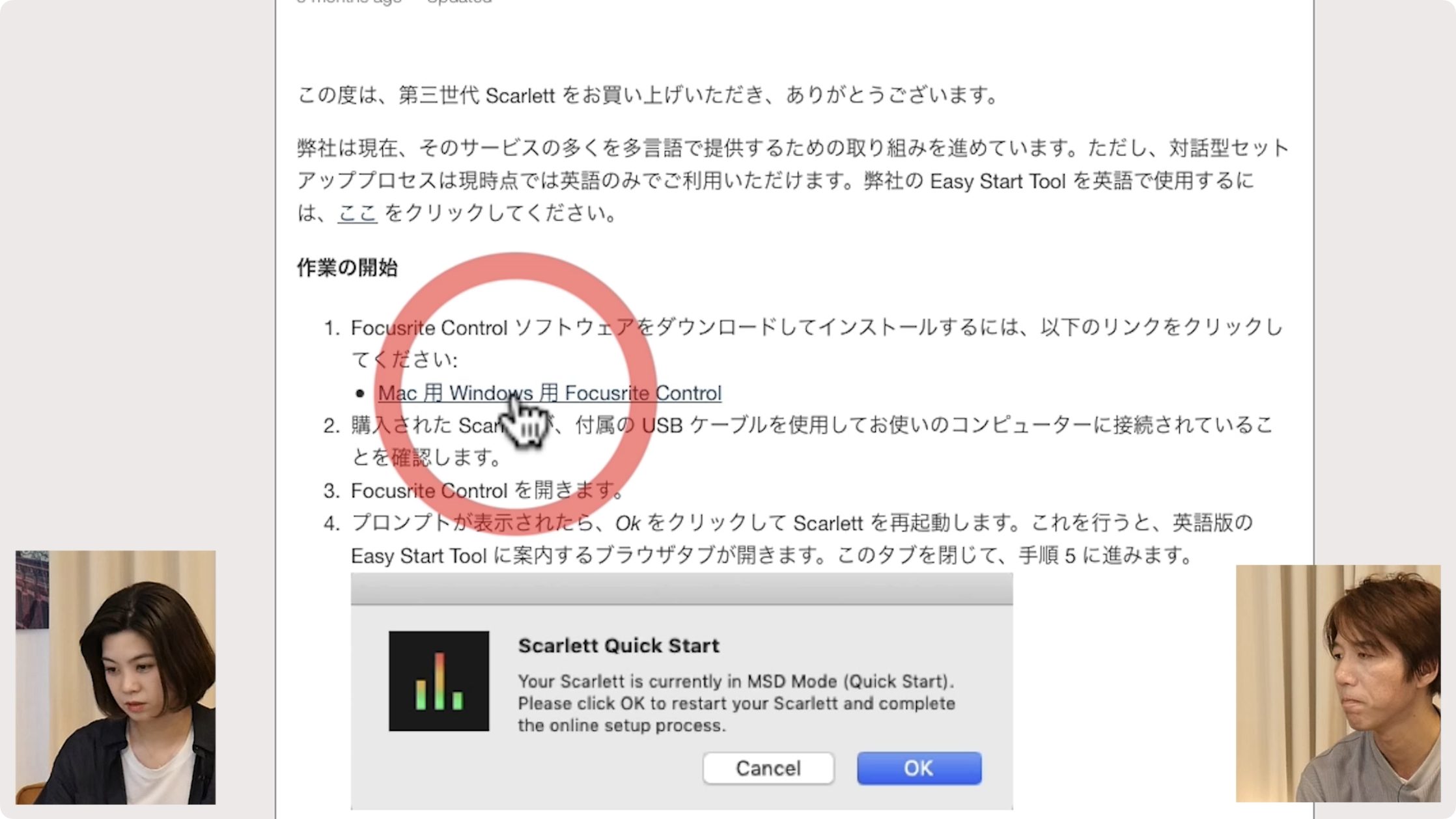
In the Japanese-language workflow shown, click the Focusrite Control link labeled for Mac and Windows.
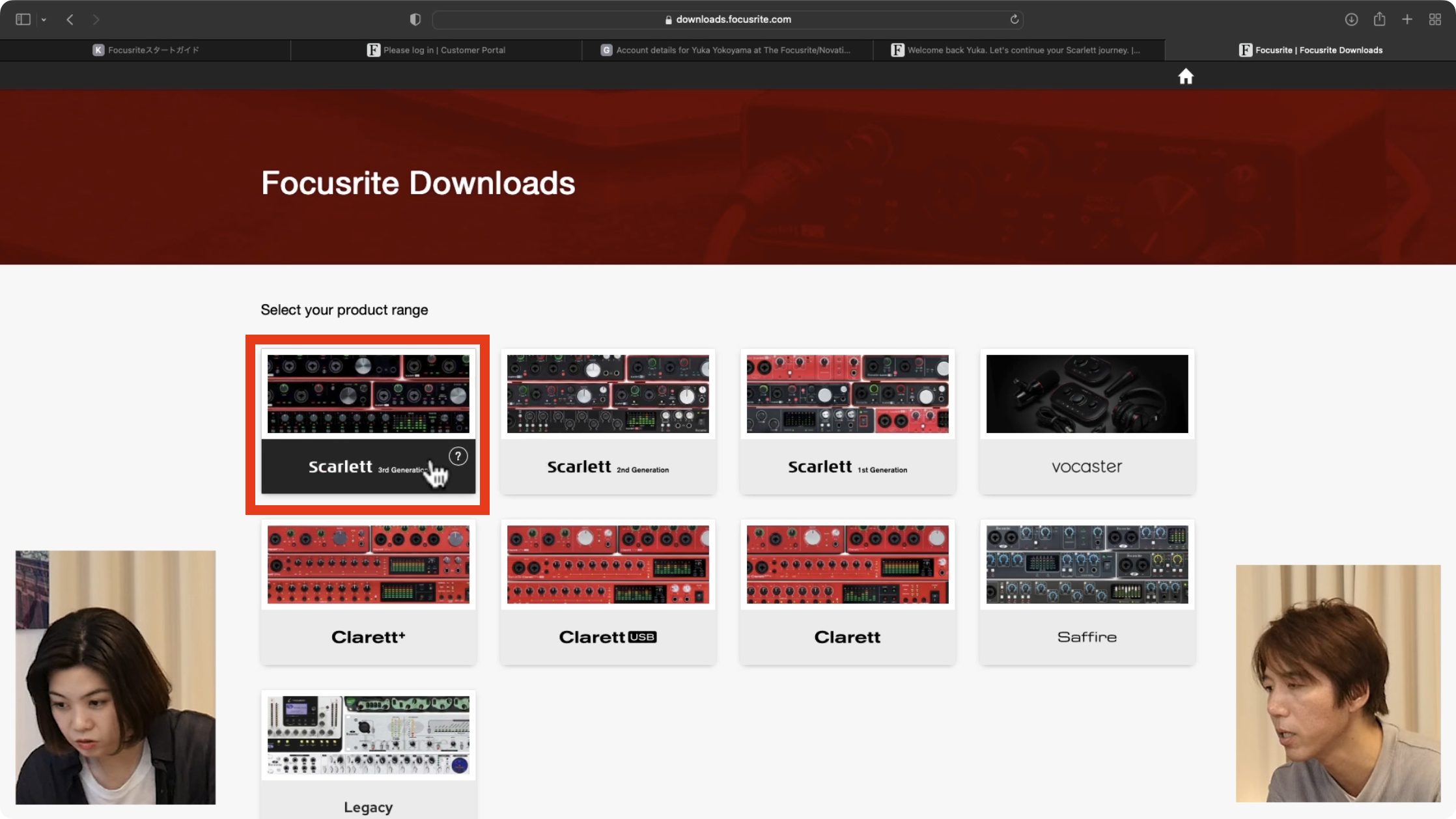
Select the product series—Scarlett 3rd Generation in this example.
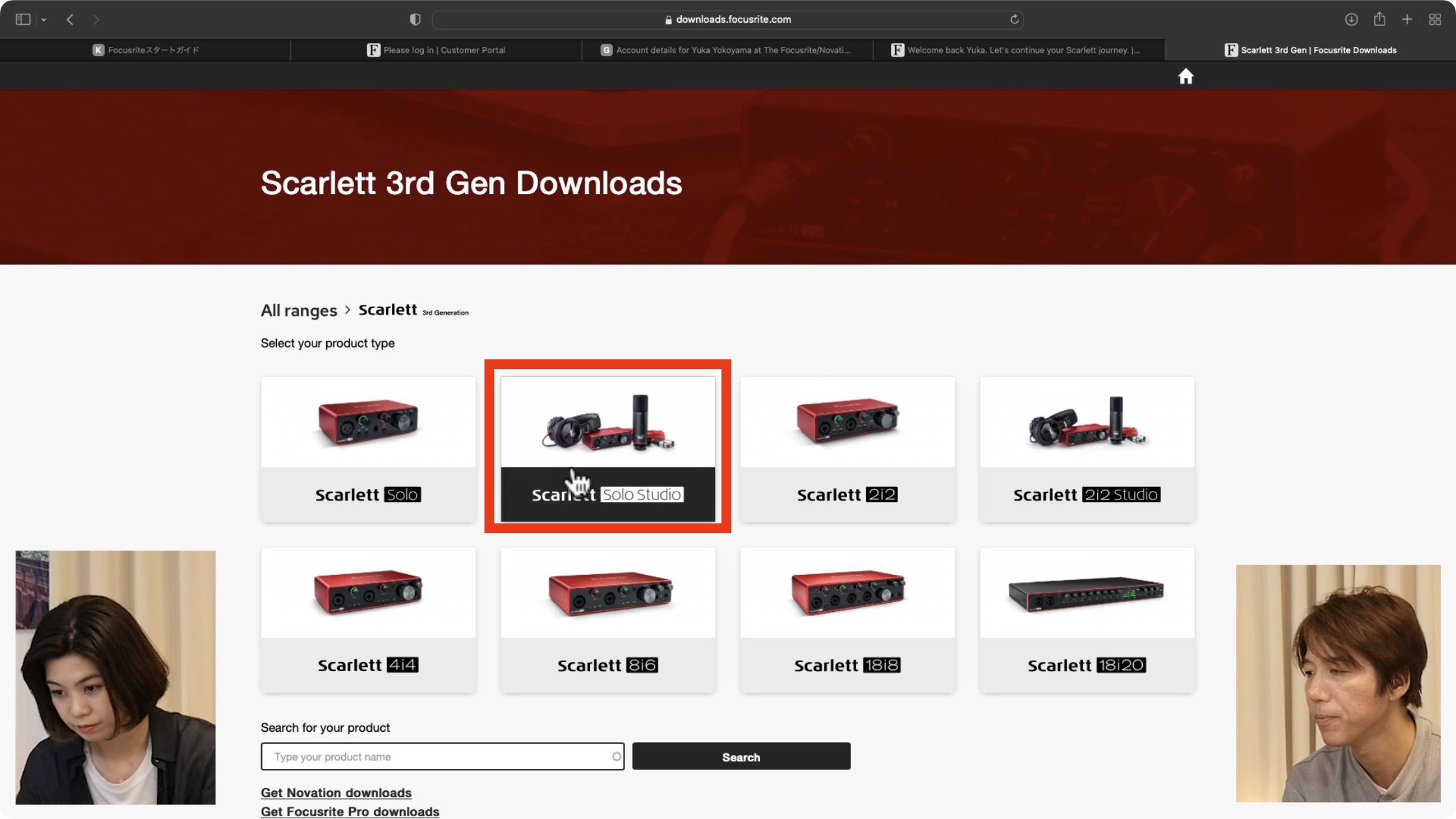
Select the product—Scarlett Solo Studio here.
Choose Mac or Windows and click DOWNLOAD at the upper right.
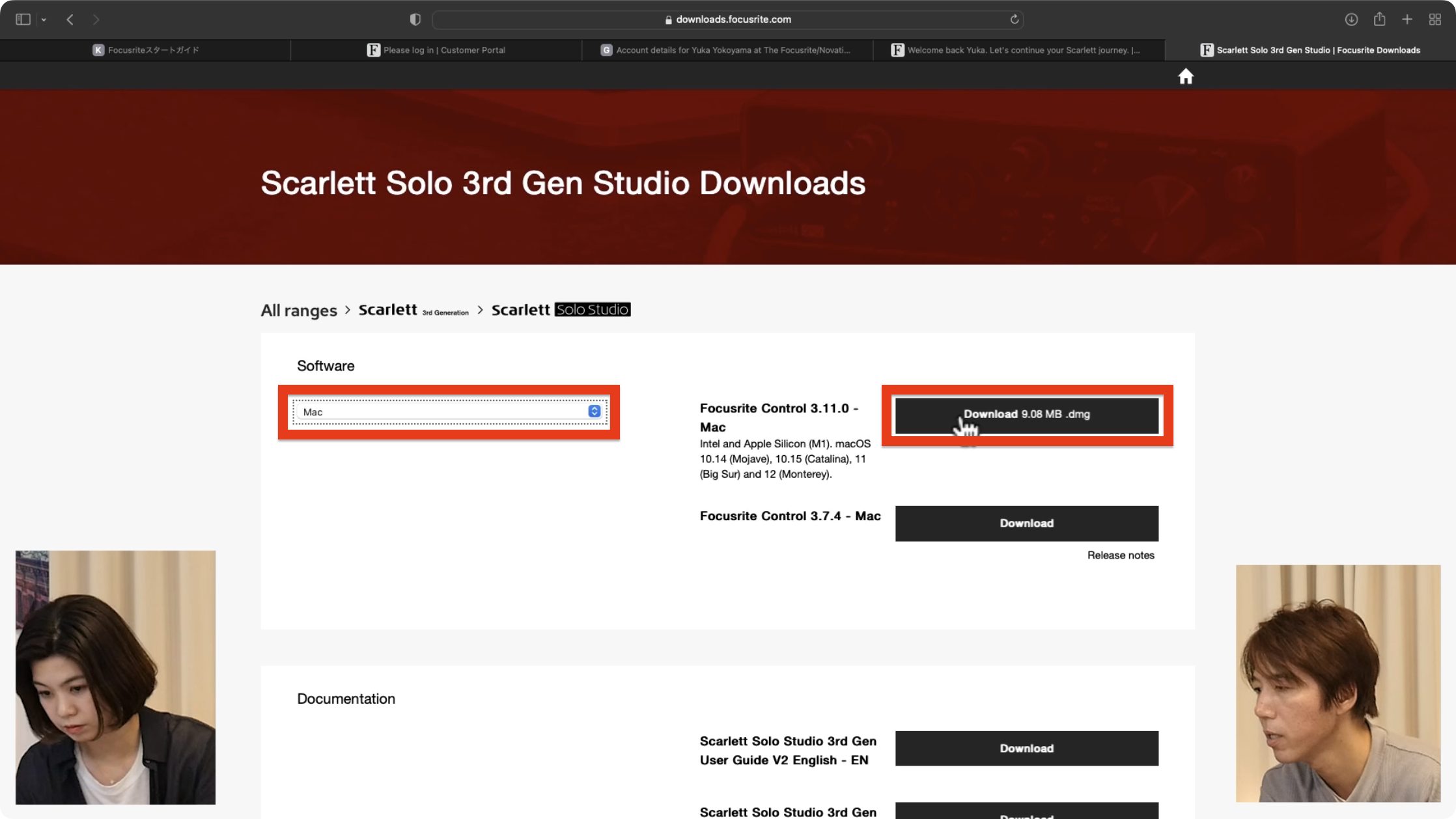
Open the downloaded file and run the installer, following its instructions to complete installation.

Check That the Connection Works
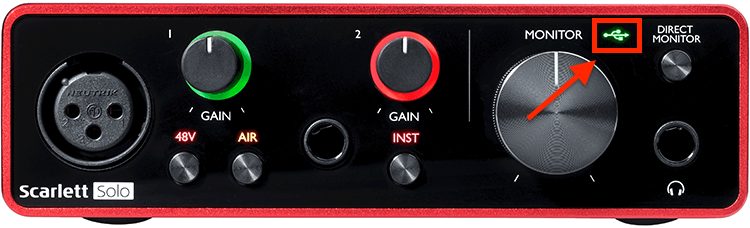
After installing the software, first check the interface's indicators.
The illuminated USB indicator at the upper right of the model shown indicates that the computer recognizes it.
One of the quickest ways to check the connection is to listen to some audio.
As explained previously, an audio interface lets you record and listen to sound. Once connected correctly, it can play audio from music-player applications, YouTube, and other computer sources—most of the audio you normally hear from your computer.
Connect your headphones to the interface, then tell the computer which device to use for playback.
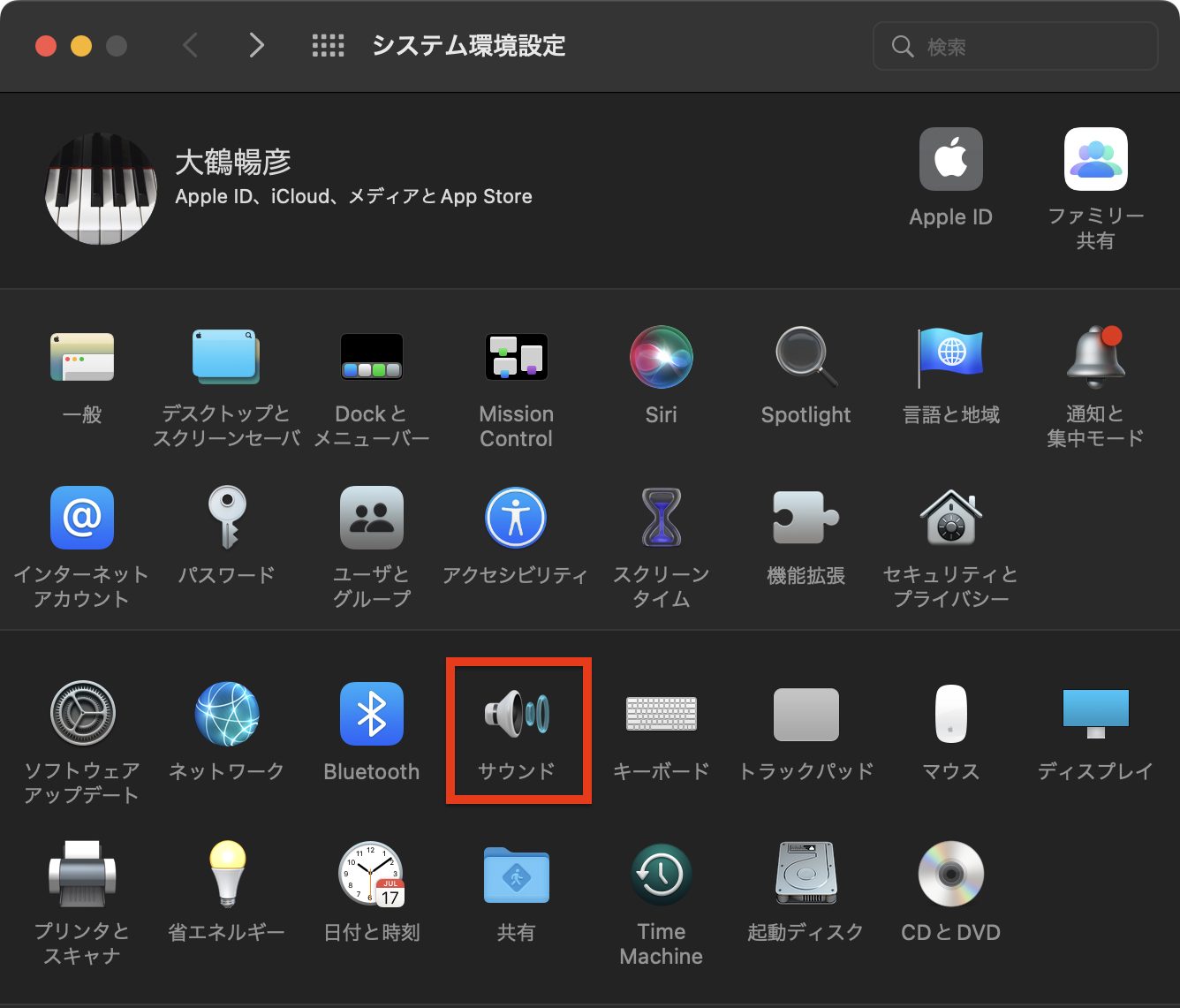
On the macOS version shown in this guide, open Sound in System Preferences.
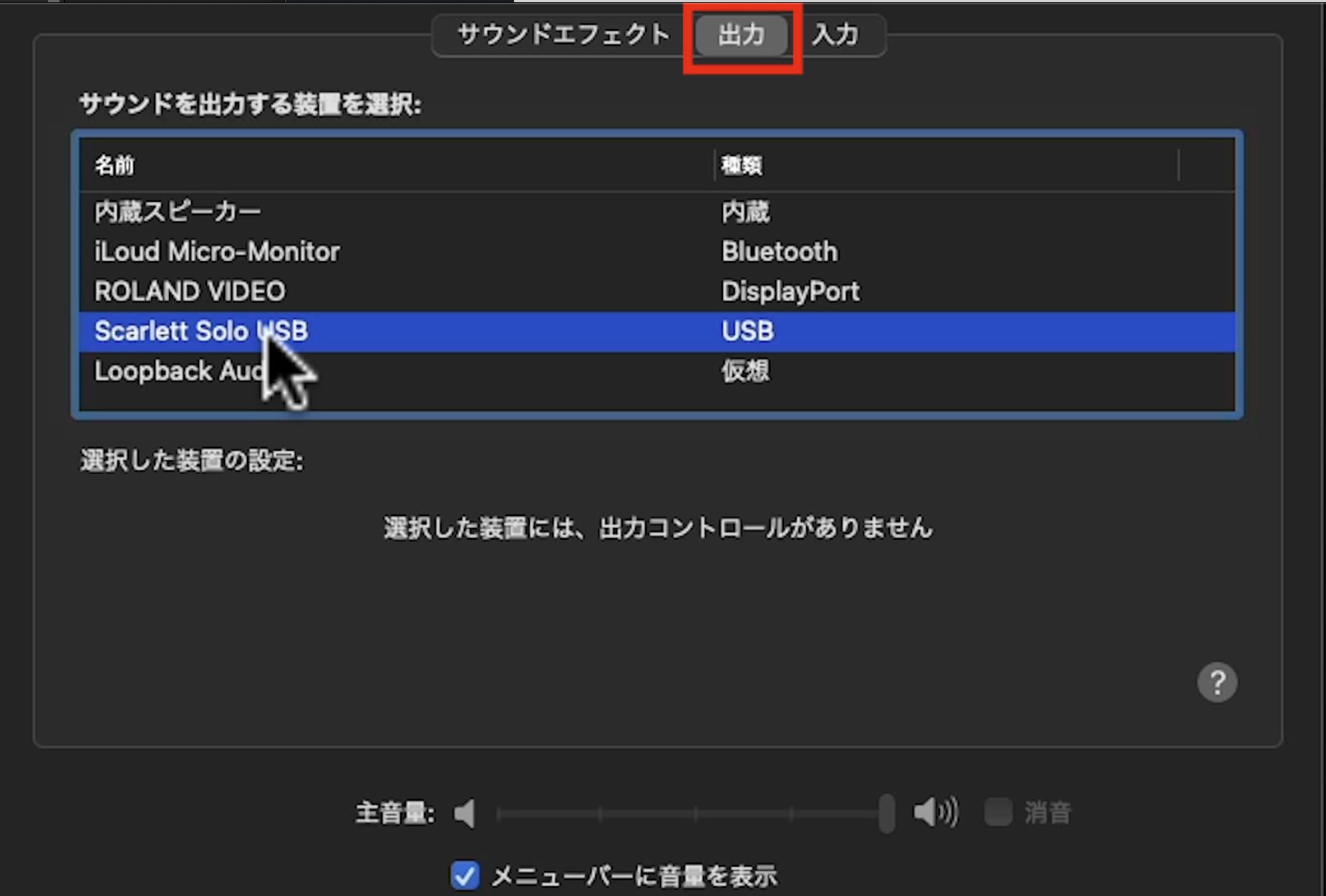
On the Output tab, select the connected audio interface.
Play music or a YouTube video. You should hear it through the headphones plugged into the interface.
If you can hear it, you've confirmed that the basic playback connection is working.
Setting Up the Microphone
Next, prepare the microphone. For this recording setup, mount the condenser microphone on a stand rather than holding it while singing.
Start by assembling the microphone stand.
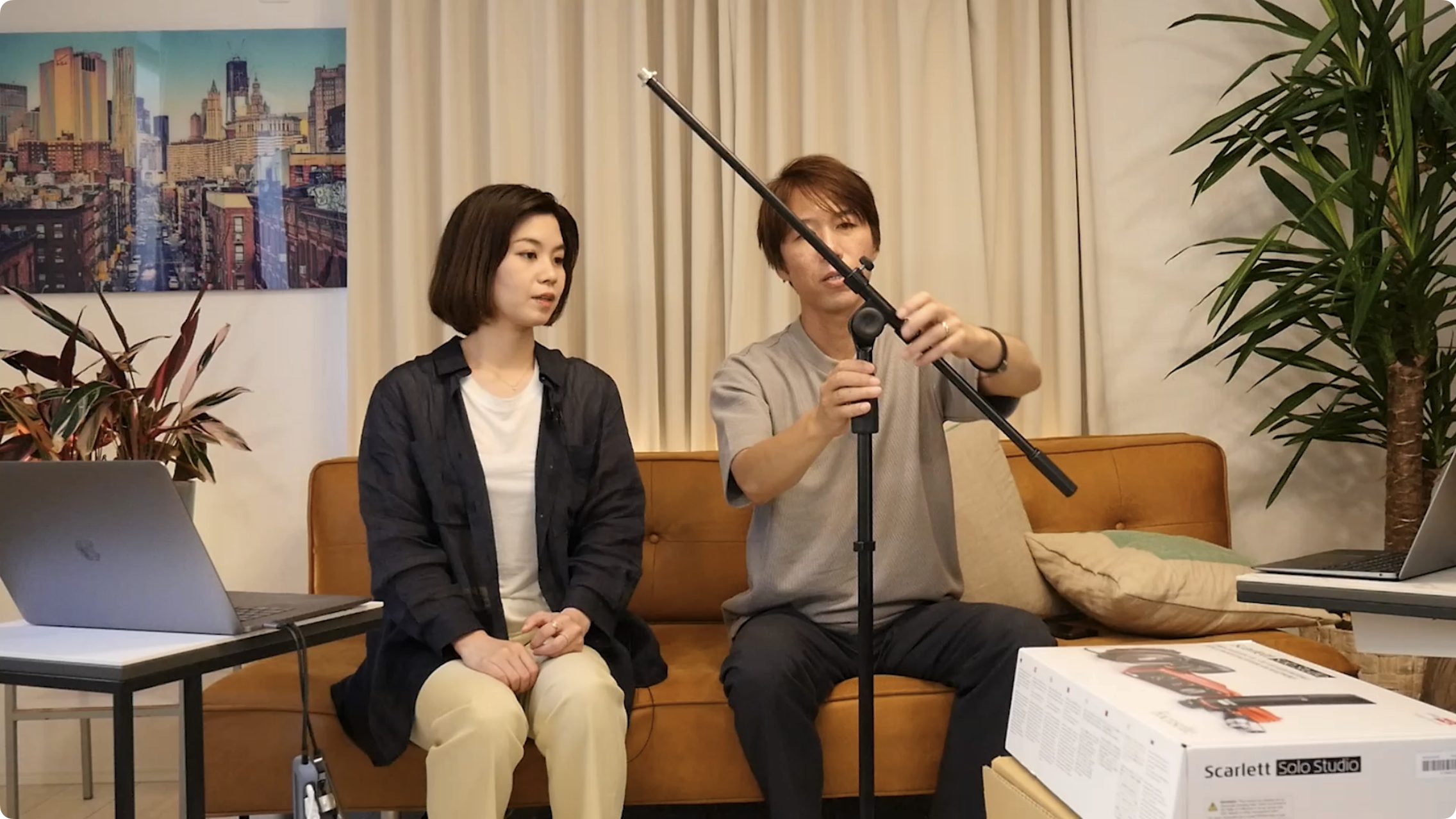
The stand included in our kit is a boom stand. Its angled arm lets you position the microphone conveniently.
Use the screws and knobs at the joints to adjust the length and angle. See the video for details.
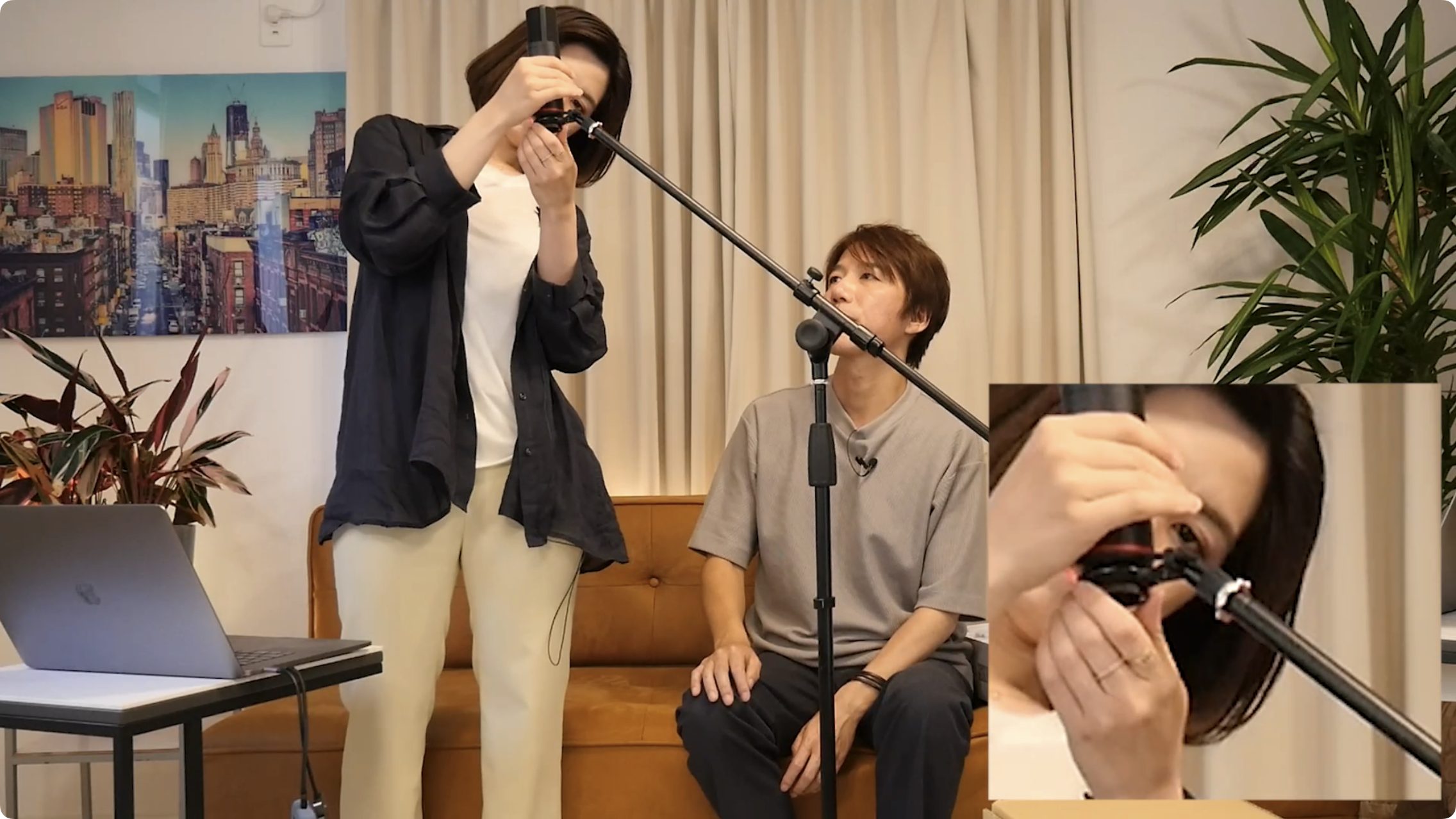
With the stand in place, attach the microphone.
First, attach the microphone holder to the end of the stand. Pay attention to the thread adapter.
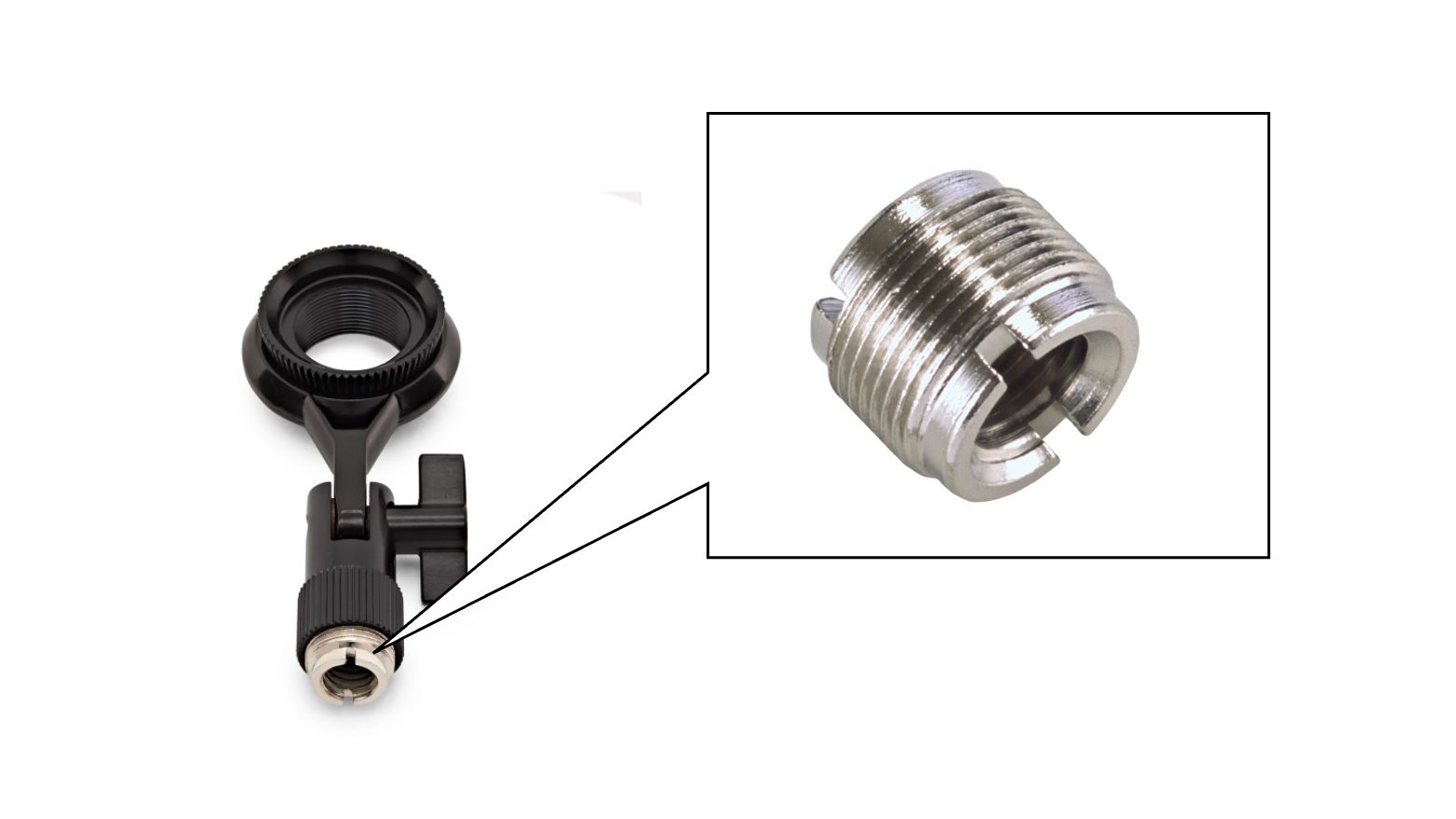
The silver fitting shown above is an adapter used when the holder and stand have different thread sizes.
If the holder doesn't fit with the adapter installed, remove the adapter and try attaching the holder directly to the stand.
Once the holder is attached, secure the microphone by tightening its fitting.
On the microphone shown, the side with the lettering should face you.
A shock mount is another option if you want to upgrade from the included holder.
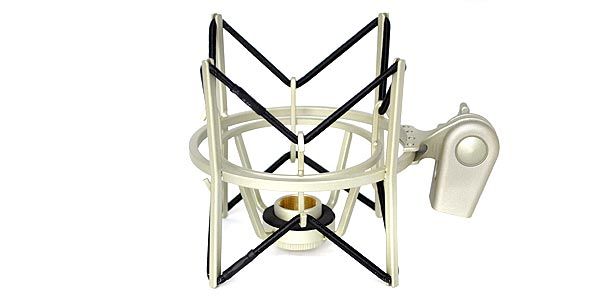
It suspends the microphone on elastic supports, reducing vibrations transmitted from the floor and stand.
Manufacturers offer dedicated models, and generic mounts are available in different sizes. Check for one that fits your microphone.
Next, attach the pop filter to the microphone stand.
Clamp it below the microphone and bend its arm to position the filter in front of the microphone.
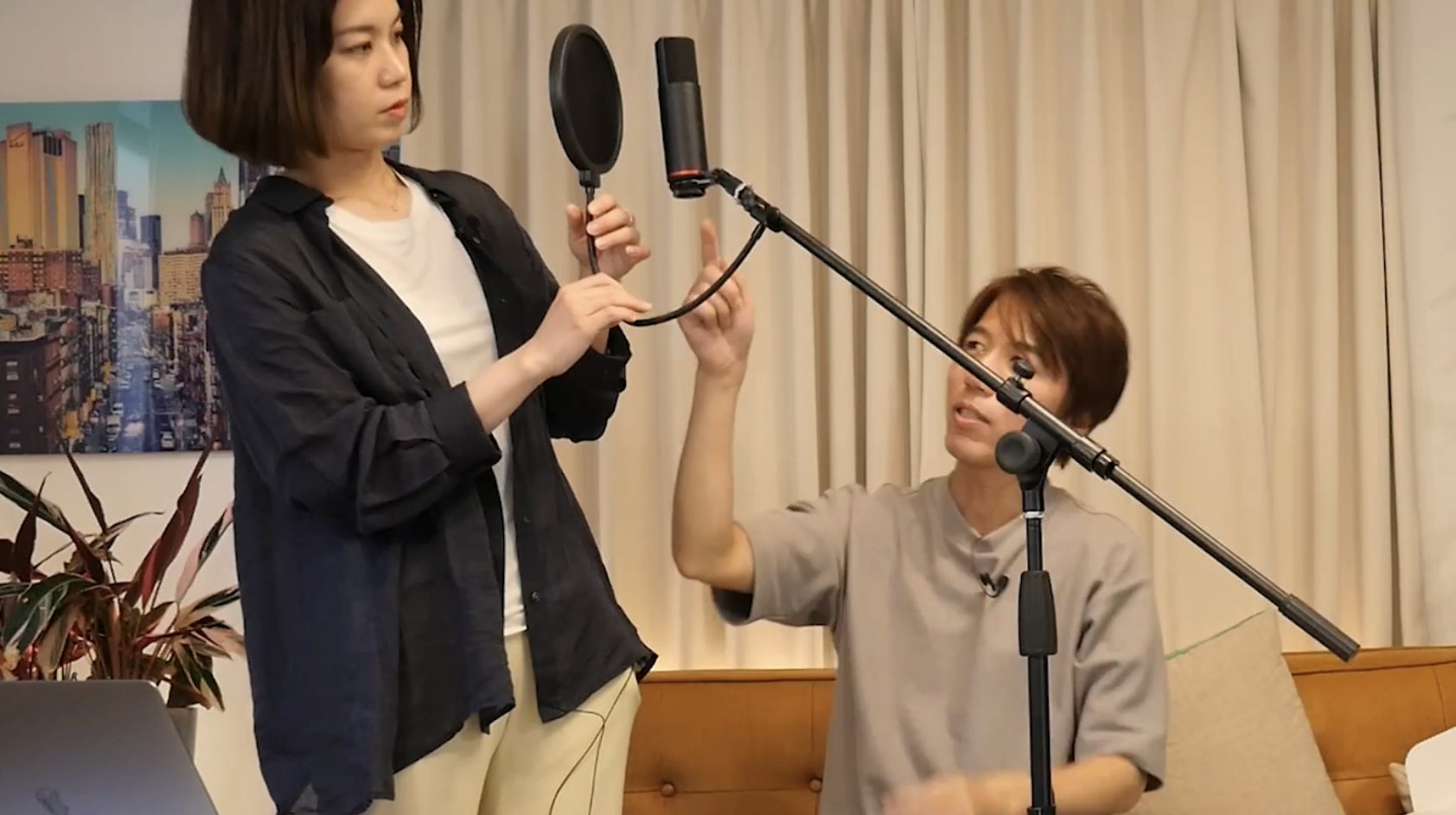
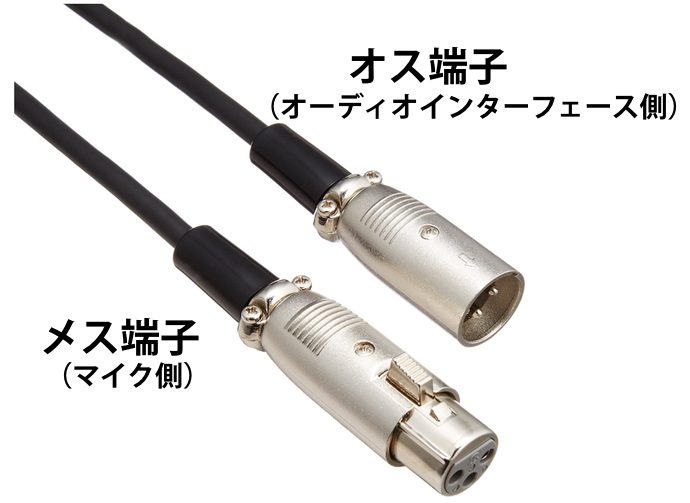
Finally, connect the microphone to the audio interface with its cable.
The cable has different connectors at either end: the female connector has three sockets, while the male connector has pins.
Connect the female end to the microphone and the male end to the audio interface.
Testing Your Recording Setup
With the microphone set up, let's make a test recording using Studio One Prime, the DAW demonstrated in this guide.
Historical note from September 30, 2022: Following the release of Studio One 6, distribution of the free Prime edition was suspended. At that time, the official website said it would return soon. This is the original article's dated notice, not a statement about current availability.
Creating a Song and a Track
On Studio One's start page, click the audio-device area showing Built-in Output in this example.
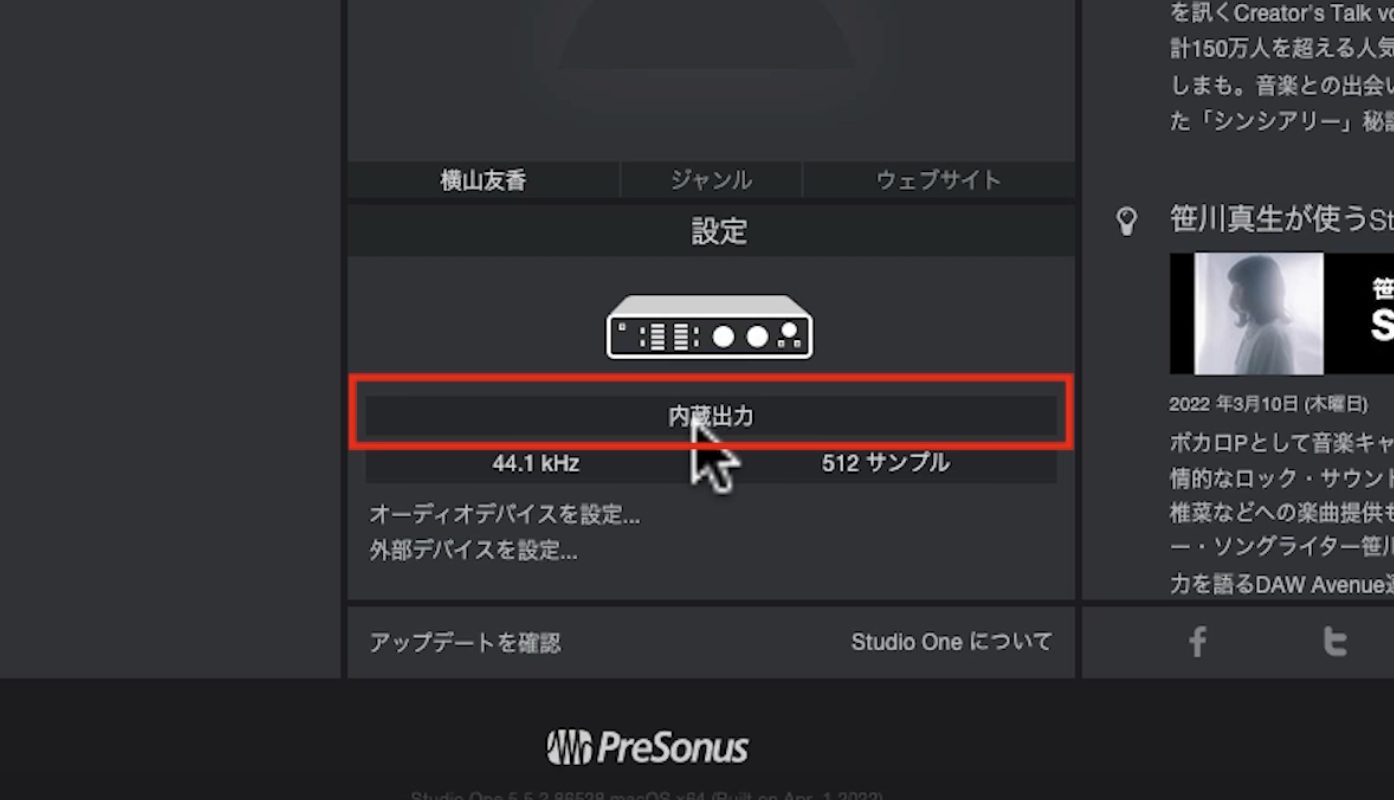
In the pop-up, change Playback Device to Scarlett Solo USB.
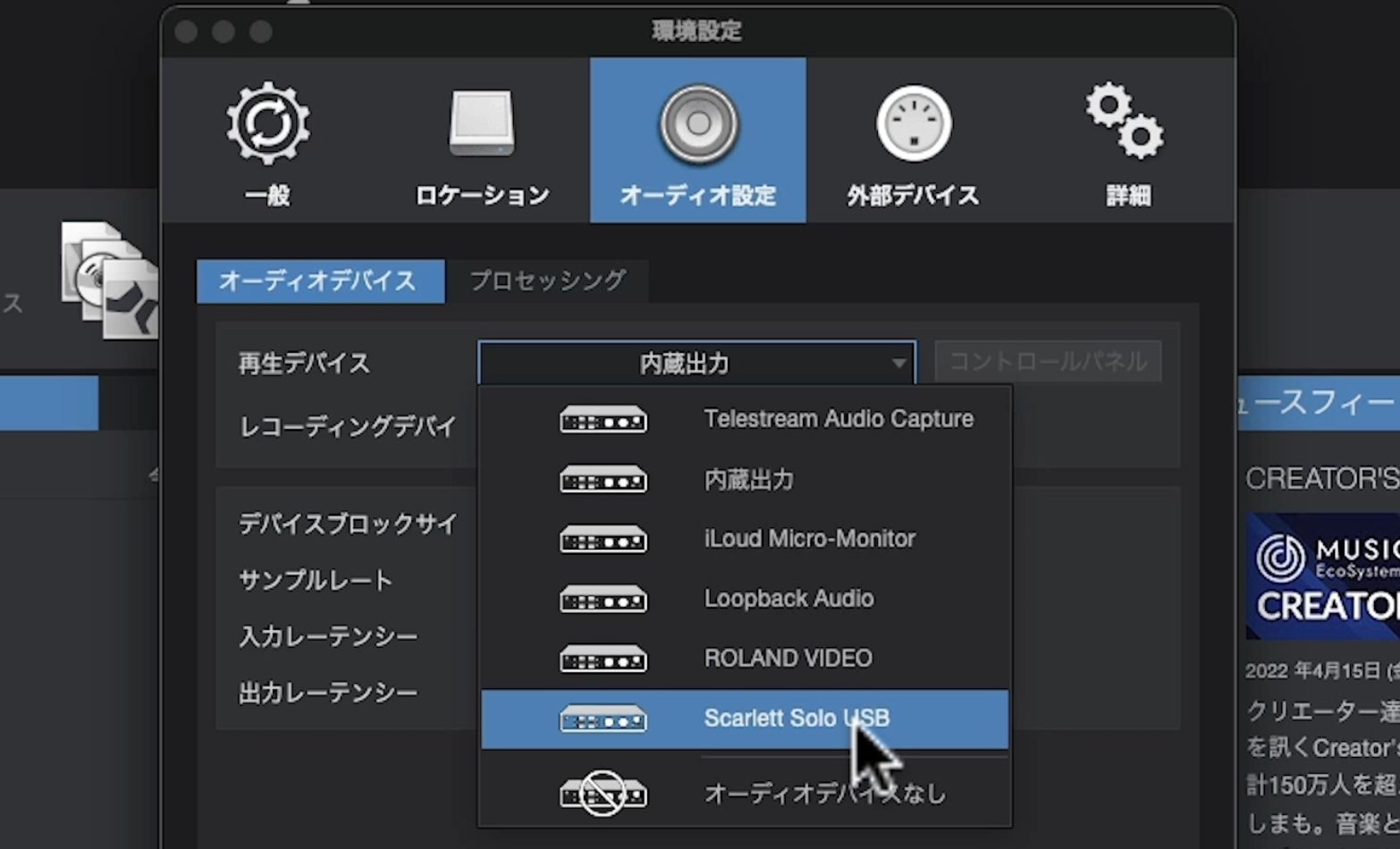
Check that Recording Device has changed to the same interface. If it hasn't, select it manually.
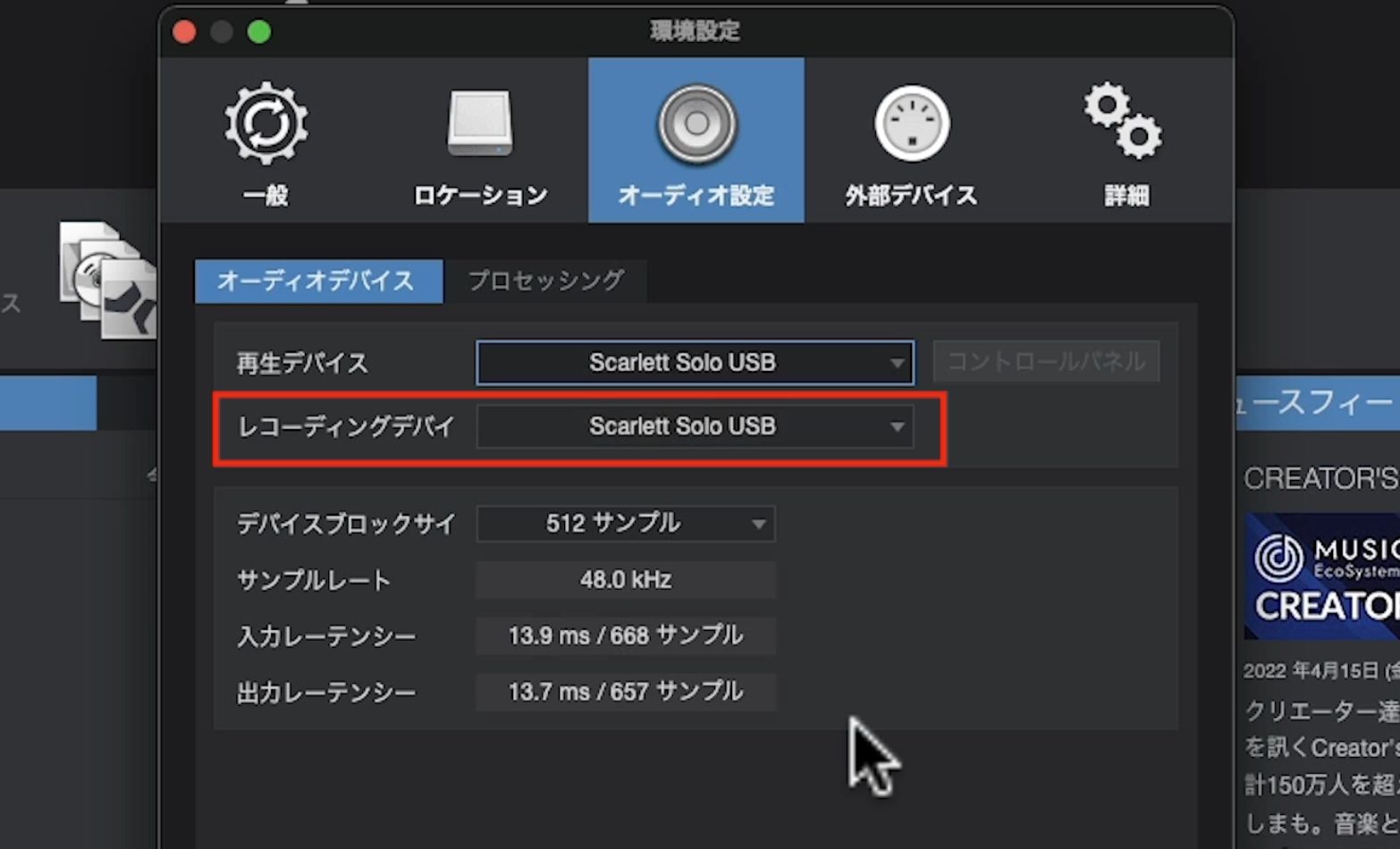
Click OK to close the pop-up.
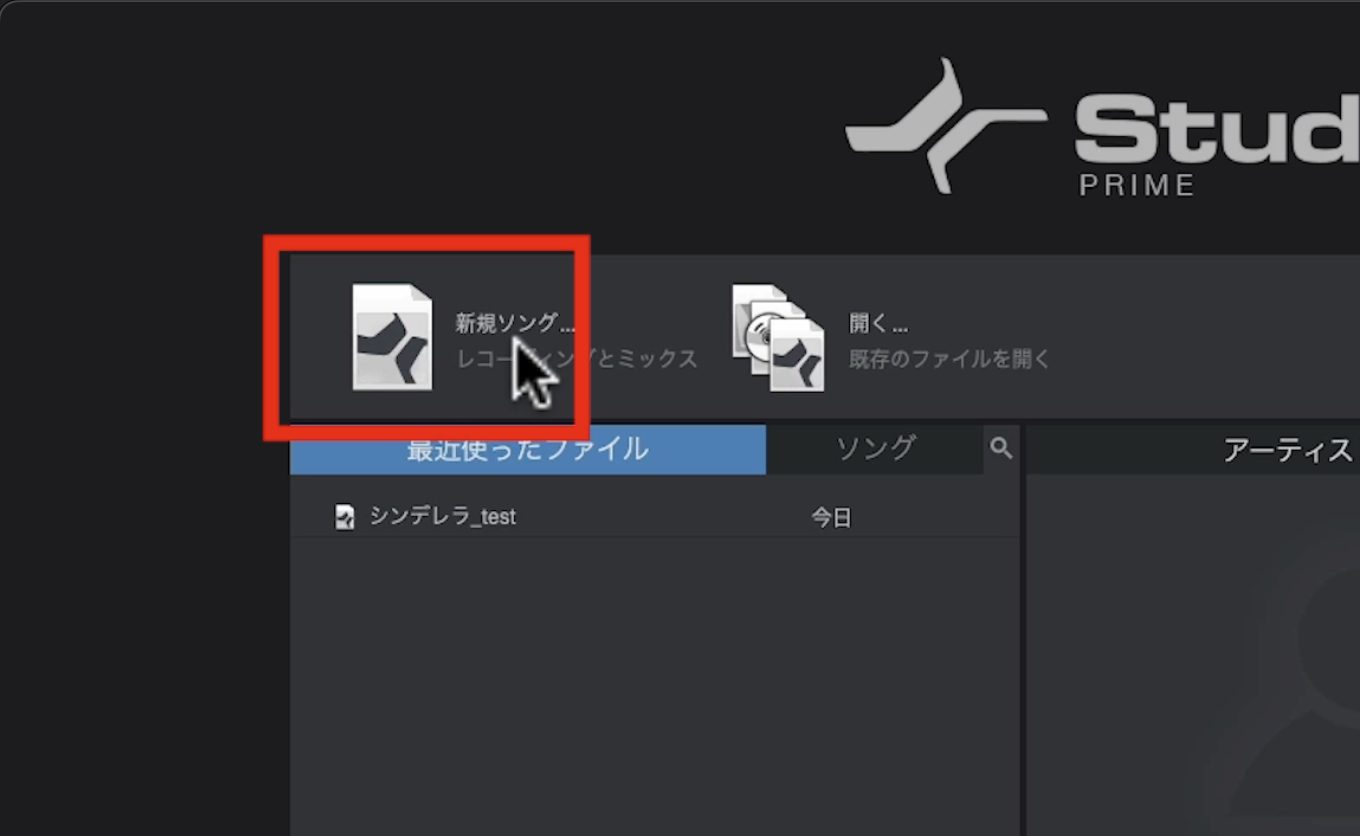
Next, create a Song file to hold your recording. Click New Song at the upper left of the start page.
In the dialog, enter a Song Title if you have one in mind. For this test, you can leave the default name.
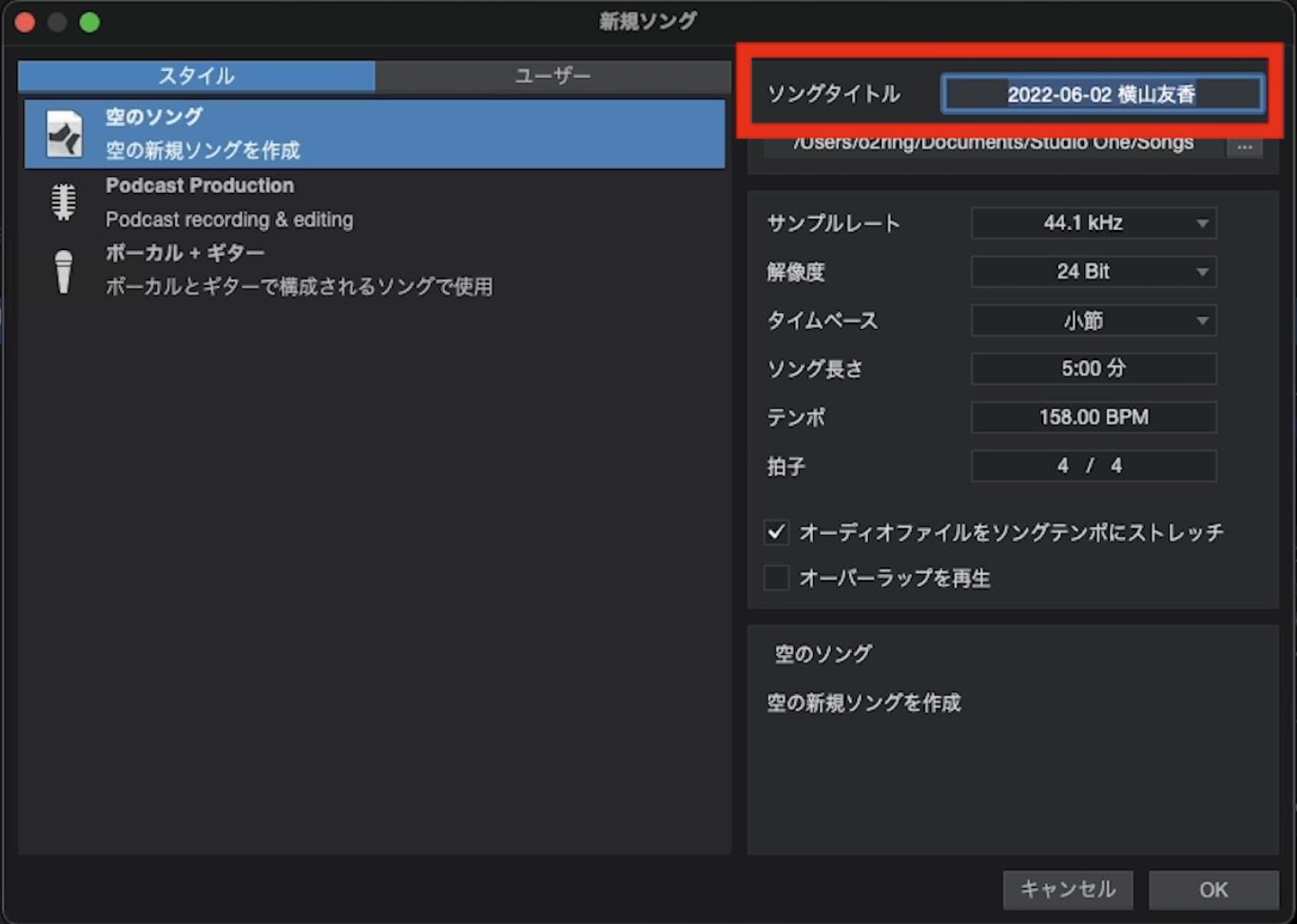
Click OK to open the Song.
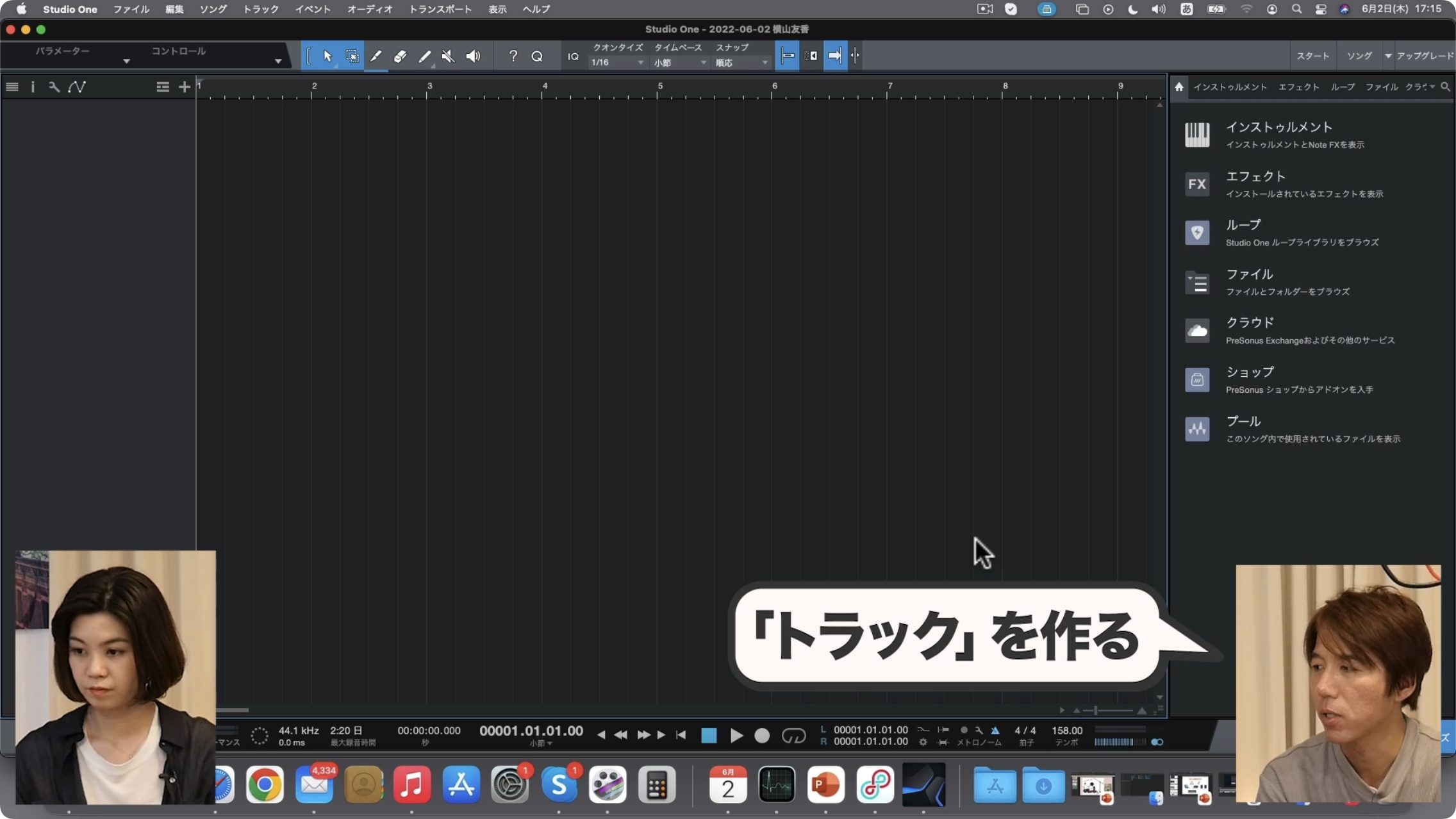
Now create a track to hold the recorded vocals.
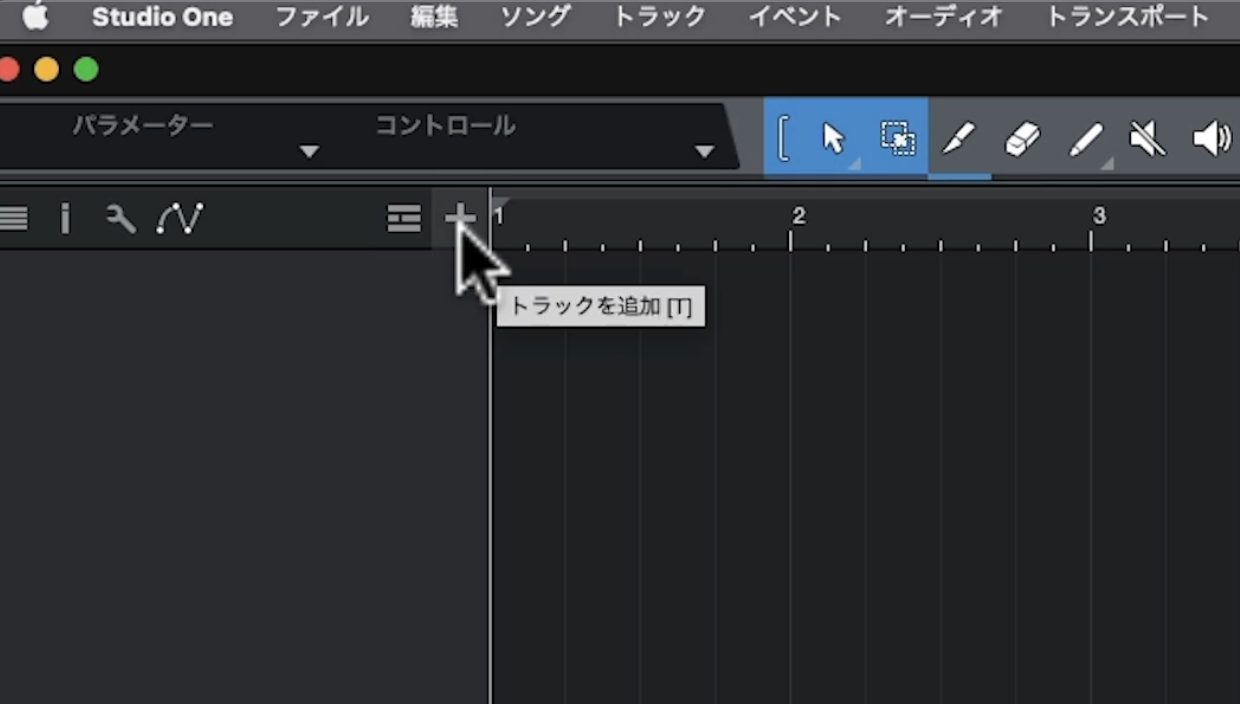
Click the + button at the upper left.
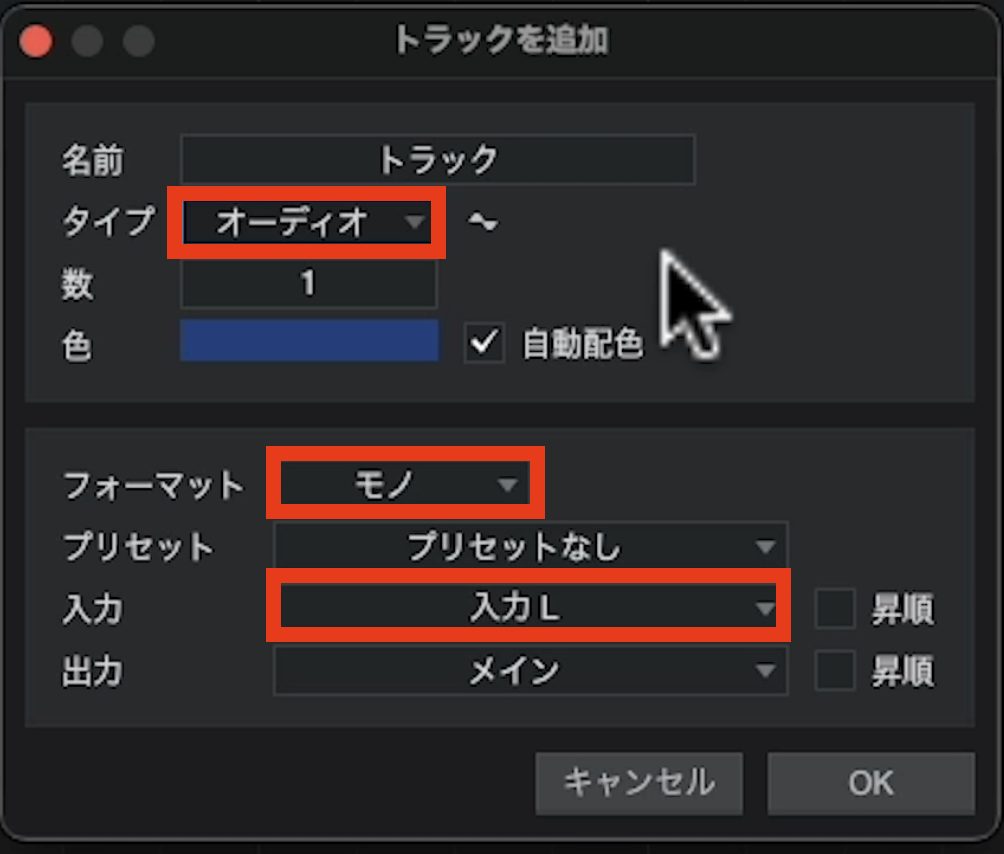
In the dialog, set Type to Audio, Format to Mono, and Input to Input L, matching the setup shown. Change the settings if necessary.
Click OK to create the track.
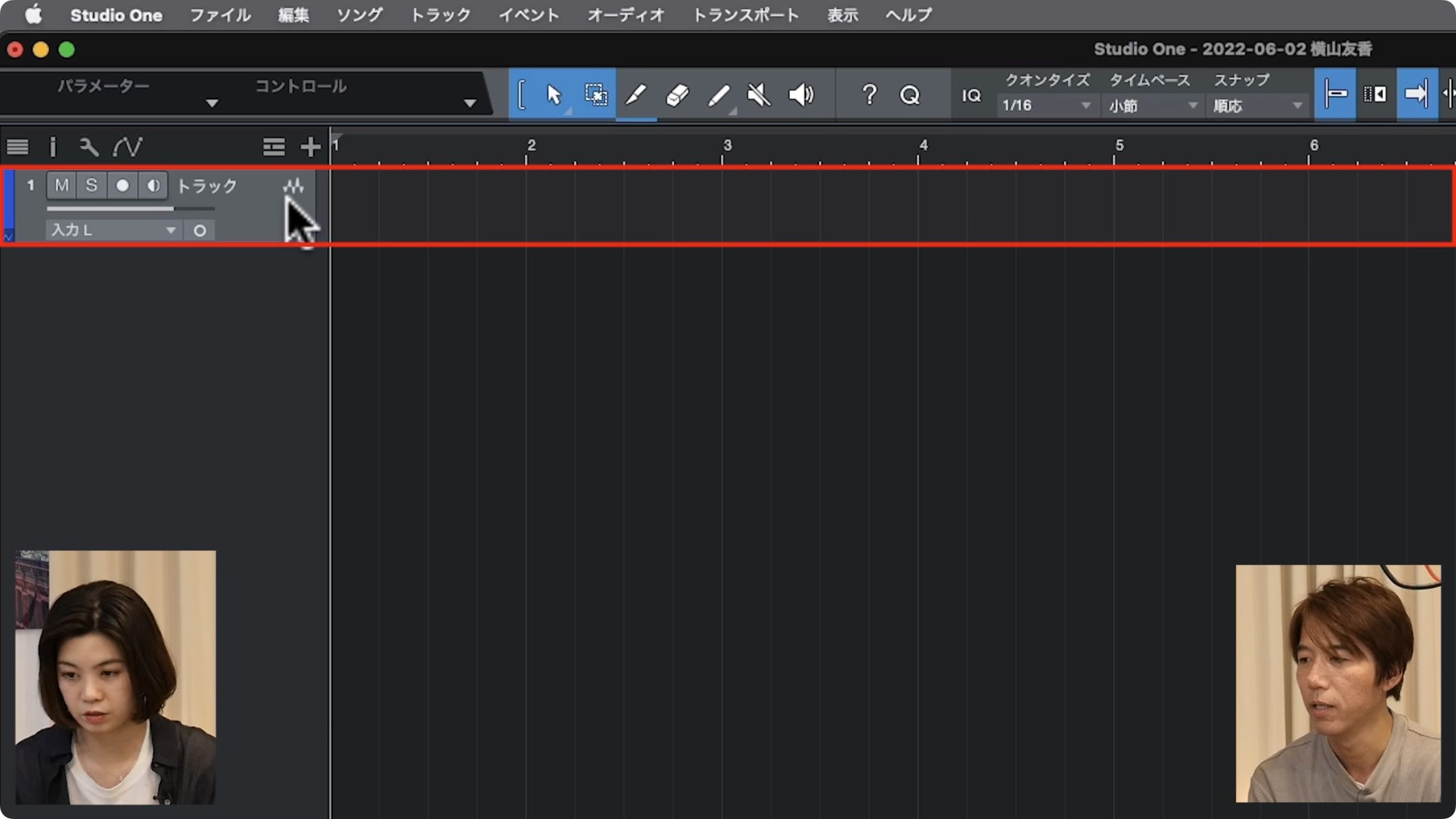
Create additional tracks when you want to record harmonies, overdubs, and other layers for mixing.
Double-click the track name to give it a more recognizable name.
Preparing the Audio Interface
Next, prepare the interface for recording.
On the model shown, press 48V so its indicator lights up. This provides phantom power to the condenser microphone used in this setup.
Also enable the DIRECT MONITOR button at the upper right.
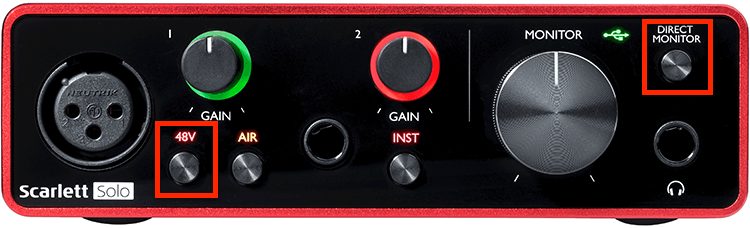
Put on your headphones and speak into the microphone while slowly turning the GAIN knob clockwise.
You should gradually hear your voice become louder.
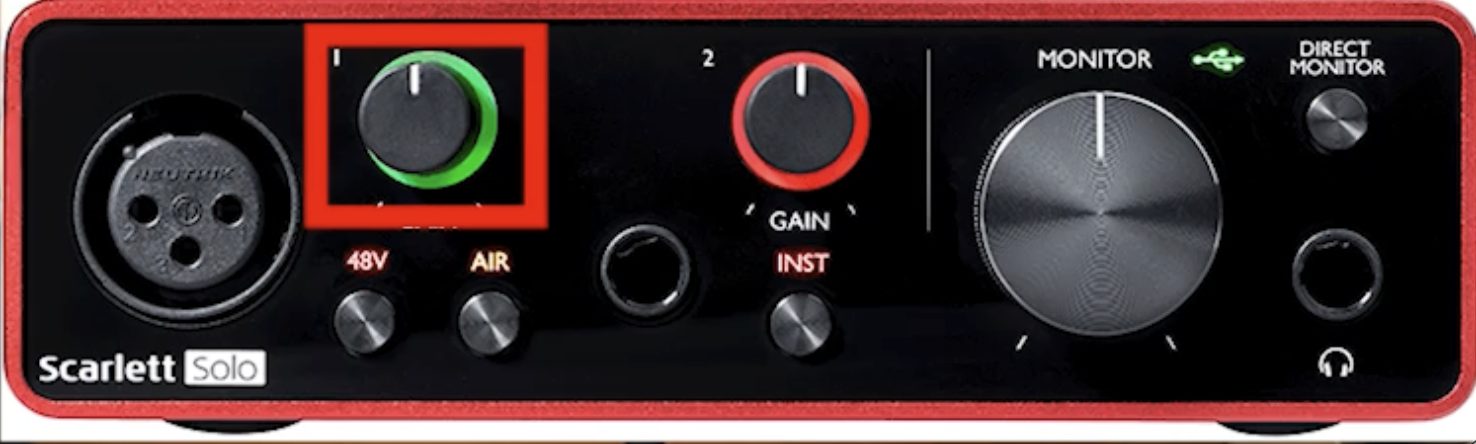
If you turn it up too far, the indicator around the knob changes from yellow to red, indicating clipping.
Clipping will be captured in the recording itself, so test and adjust the level carefully before recording the actual performance.
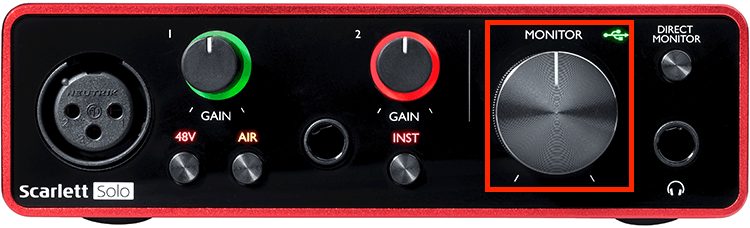
If reducing the gain makes your voice hard to hear, turn up the MONITOR control to raise the listening level.
Making a Test Recording
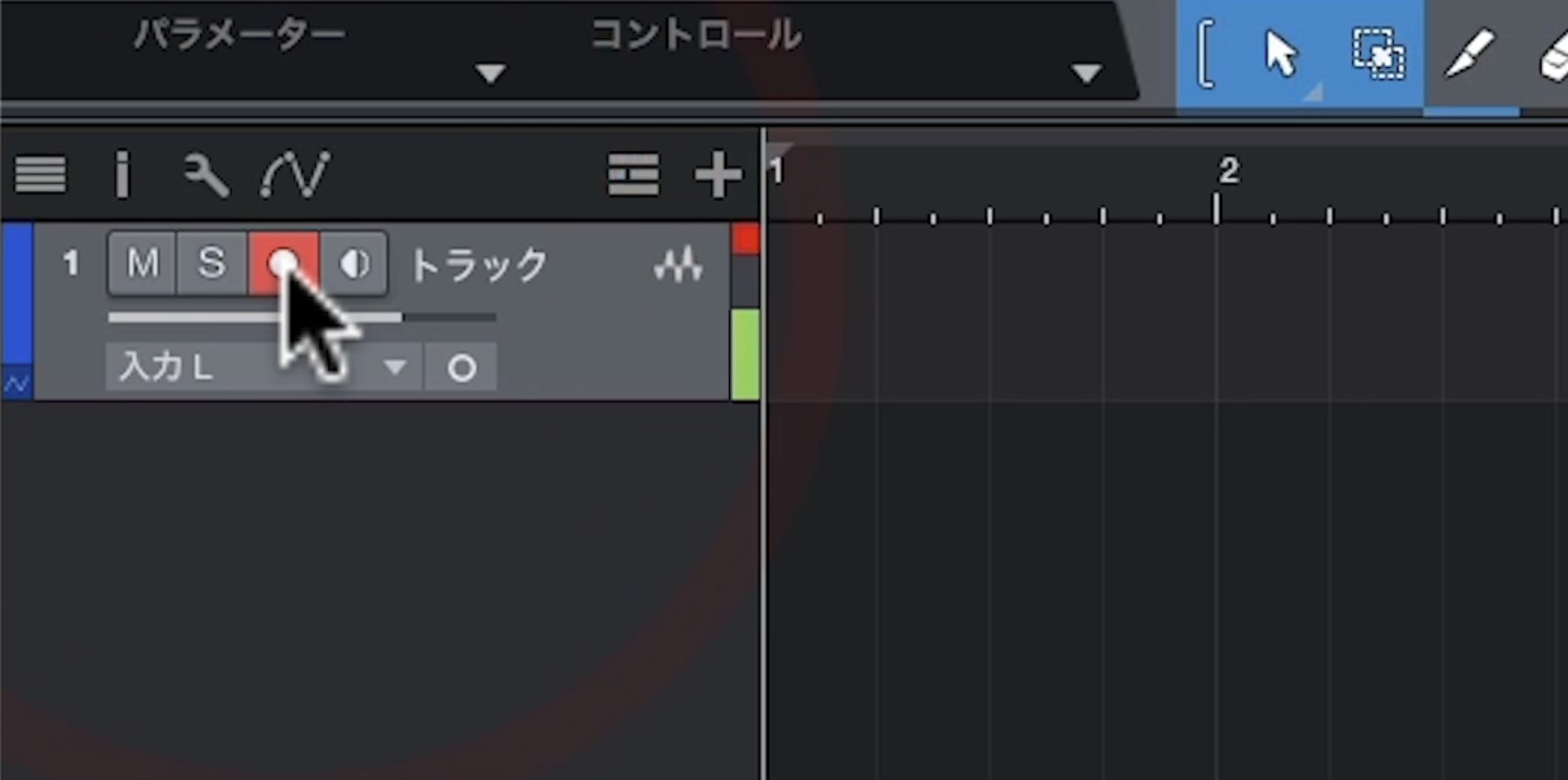
Return to Studio One Prime and click the track's ● Record Enable button to arm it.
One important point: for the direct-monitoring setup shown here, leave the speaker-shaped button beside Record Enable switched off.
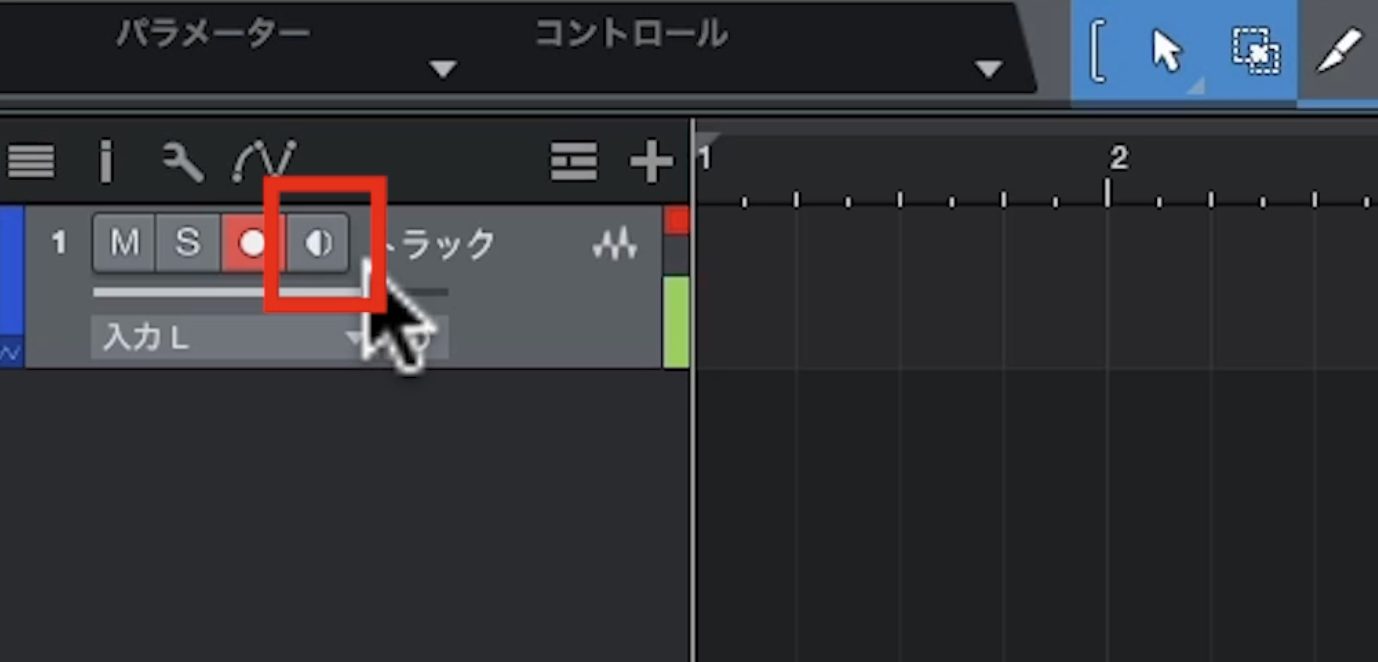
That is the software-monitoring button. It lets you hear the microphone through the DAW, but the sound may return slightly after you speak.
You can already hear your voice using the interface's DIRECT MONITOR function, so we recommend that approach for this setup.
When you're ready, click the larger ● Record button at the bottom of the screen to begin recording.
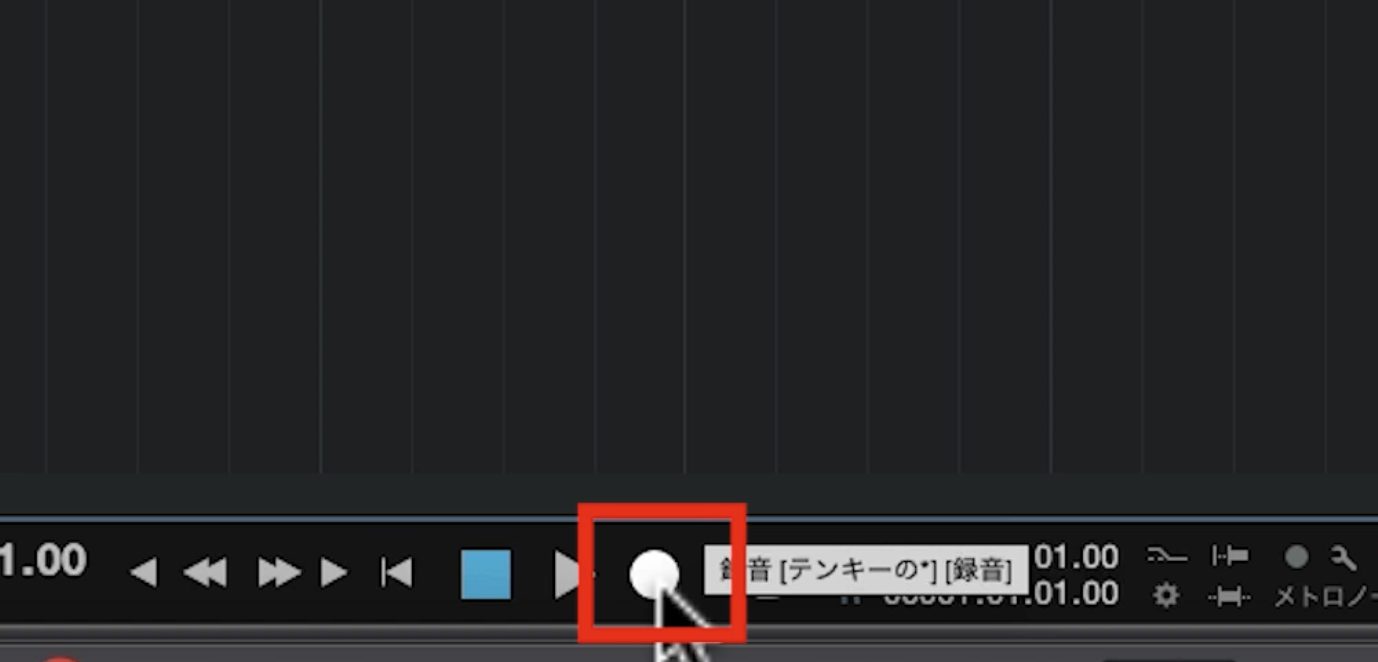
Speak into the microphone. A dark waveform will appear on the track, representing the recorded sound.
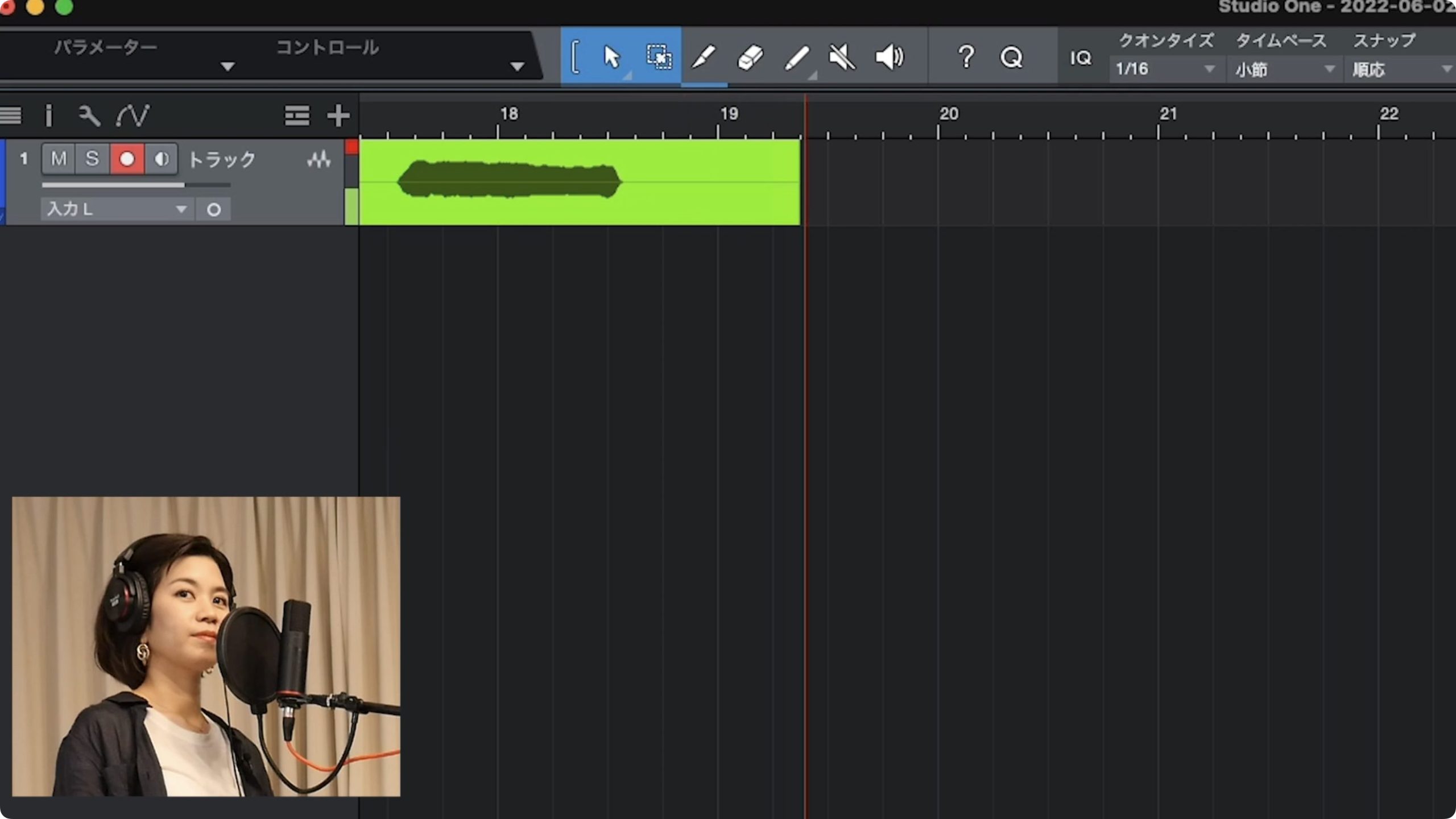
Click the ■ Stop button at the bottom of the screen to stop recording.
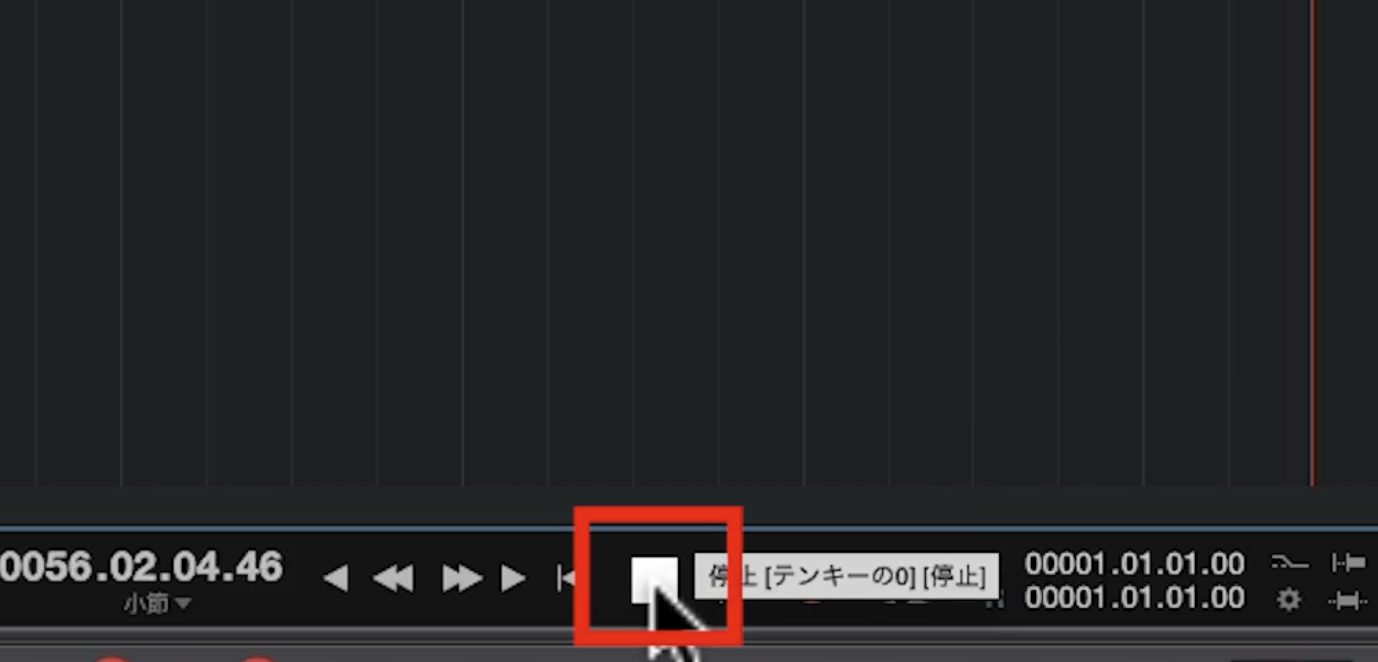
That completes the recording test.
That concludes Part 2 of Getting Started with Vocal Covers, covering equipment setup.
Next time, we'll record vocals along with a song. Stay tuned!
Getting Started with Vocal Covers — Part 2: Setup
Setup may seem daunting, but our video and article walk through each stage so you can follow along. Get your equipment ready and move on to recording!
Details: https://t.co/4r93JKtMhK #DTM #VocalCovers pic.twitter.com/qdDzJttaYZ— SLEEP FREAKS (@SLEEPFREAKS_DTM) August 7, 2022
Frequently Asked Questions
Q1. My computer doesn't recognize the audio interface. What should I do?
Check the manufacturer's website for the driver or setup software required for your model and operating system, and install it if needed. Check the USB indicator on the interface shown to confirm recognition. On a Mac, also select the interface as the output device in the Sound settings.
Q2. My MacBook Pro has USB Type-C ports, but my interface cable doesn't fit. What do I need?
If the included cable has a Type-A connector, use a compatible USB Type-A-to-Type-C adapter or hub, such as the BUFFALO example. Check your computer's ports and connection requirements before buying.
Q3. Why won't the microphone holder fit the stand?
The thread sizes may differ. Try the included silver thread adapter. If it still doesn't fit, remove the adapter and try again. Secure the microphone with the side bearing the lettering facing you, as shown for this model.
Q4. What does a pop filter do?
Placed in front of the microphone, a pop filter reduces the bursts of air from plosive sounds such as “p” and “b.” Clamp it below the microphone and bend the arm to position it in front. This helps reduce popping noises in the recording.
Q5. Studio One Prime isn't recording sound during the test. What should I check?
On Studio One's start page, set both Playback Device and Recording Device to your connected interface, such as Scarlett Solo USB. Check that both are configured correctly for the setup shown.
NEW ARTICLES
Latest English Articles












































































































