
Oculus Spatializer is a free spatial audio plug-in for applications such as VR audio and binaural production. This article explains the interface and the role of each control, covering its three main sections: setting the space, positioning the sound source, and configuring reflections. You will learn to approach spatial audio intuitively and create more detailed spatial effects in your music productions.
How to Use Oculus Spatializer
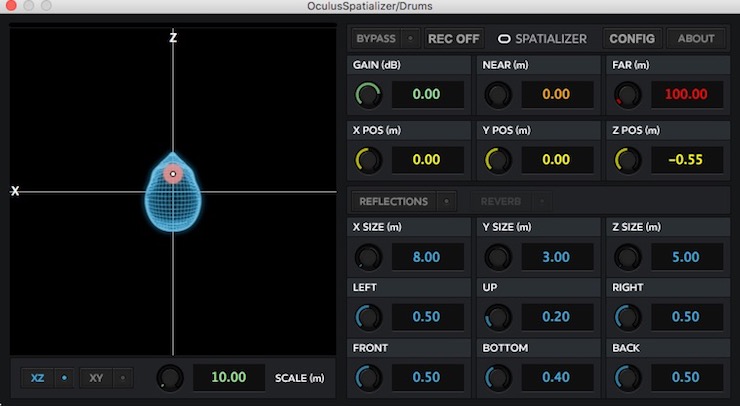
In this article, we will show you how to use Oculus Spatializer, a free plug-in that makes spatial audio easy to create.
The linked article below explains how to download and install the product.
Selected Questions and Answers from the YouTube Video

Can I use this for cover-song videos and similar projects?

Yes, you can. Try experimenting with different positions.
This may be a beginner's question, but do people use this kind of spatial audio panning in music?
Thank you for your question. Yes, some songs do use this kind of panning. It can be particularly effective on sound-effects tracks, adding movement to the music.

What Each Section Does
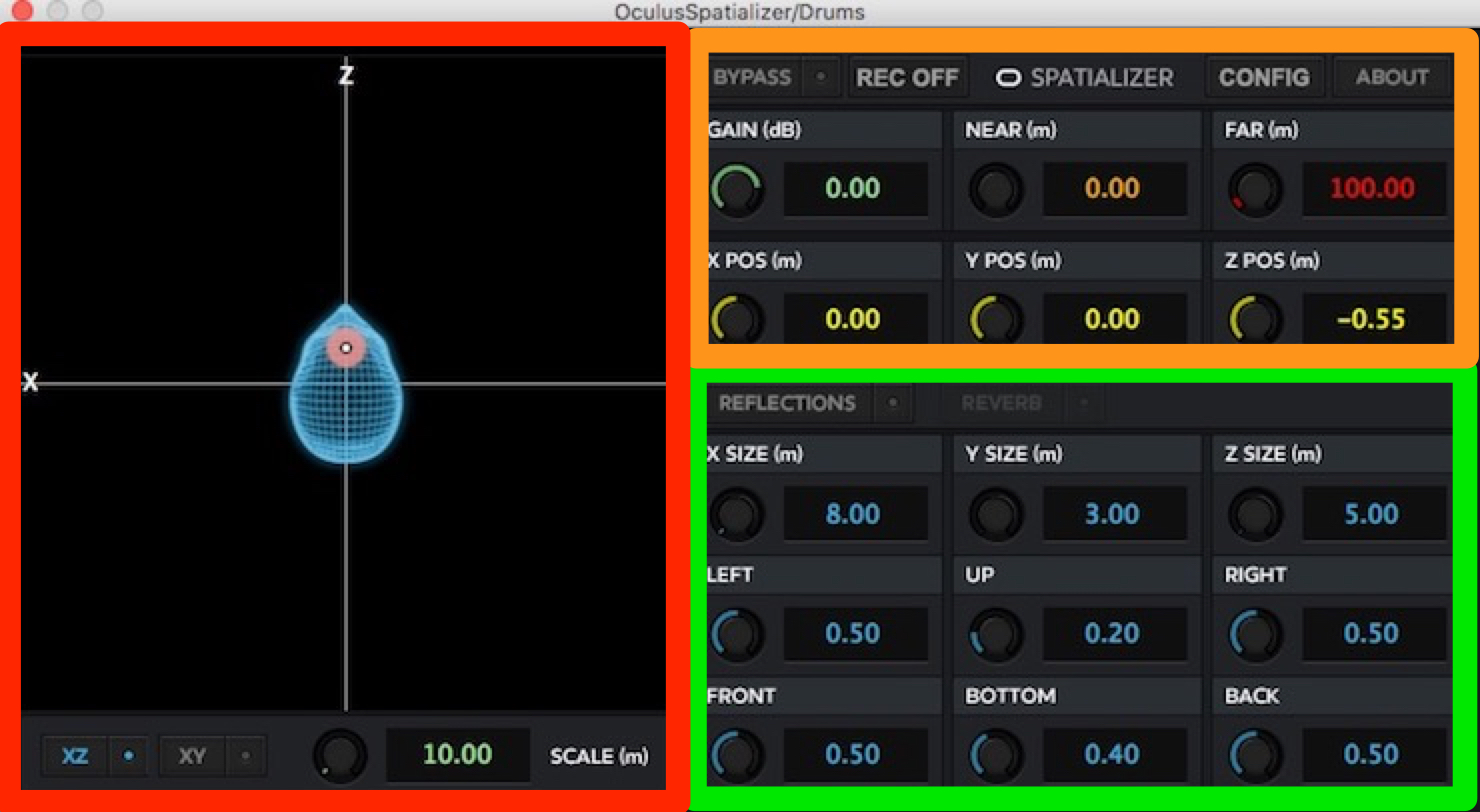
The Oculus Spatializer interface is divided into three main sections.
They control the following:
- Red box: the space in which the sound plays
- Orange box: where the sound comes from
- Green box: how the sound behaves in the room
These are the basic roles of the three sections.
Let's look at each one.
Setting the Space
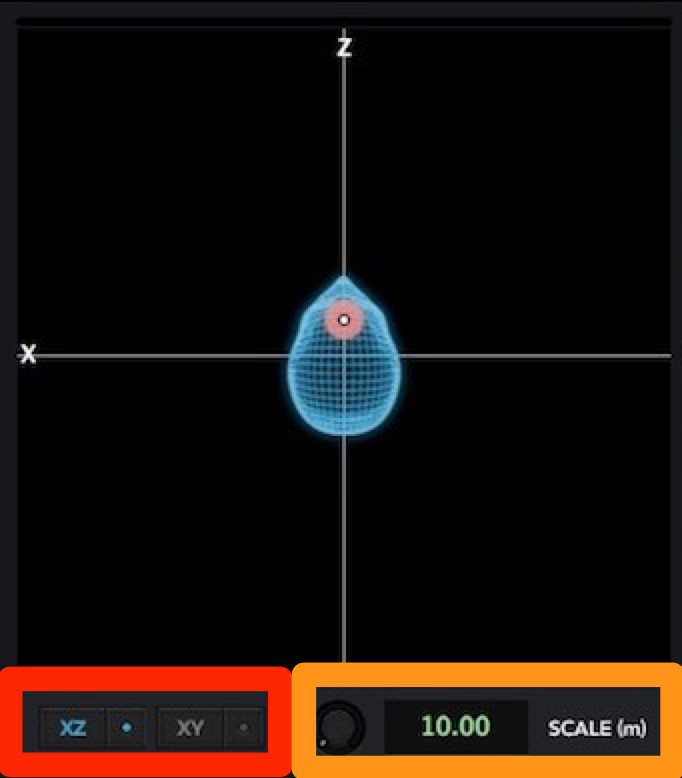
The blue shape represents a person's head.
Moving the pink circle lets you change the sound's position intuitively.
In the red box at the bottom left, you can switch between XZ and XY views.
- X axis: left and right
- Y axis: up and down
- Z axis: depth
This is a useful way to remember the axes.
The orange box determines the size of the space in which the sound plays.
You can adjust it in 1 cm increments. Larger values give you a larger space in which to position the sound.
Positioning the Sound Source
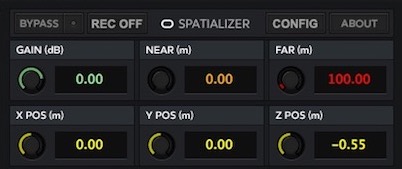
The section at the top right lets you specify where the sound comes from.
Its controls are as follows:
- GAIN: volume
- NEAR: the distance at which the sound begins to attenuate
- FAR: the distance at which the sound disappears
These controls set the level and attenuation distances.
X POS, Y POS, and Z POS specify the coordinates of the sound source.
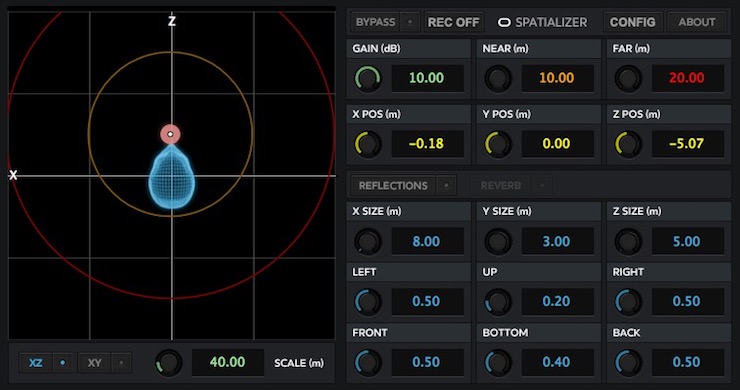
The values you set are displayed graphically in the section on the left.
The pink circle is the sound source. Centered on it, the orange outline represents NEAR and the red outline represents FAR.
Setting Reflections
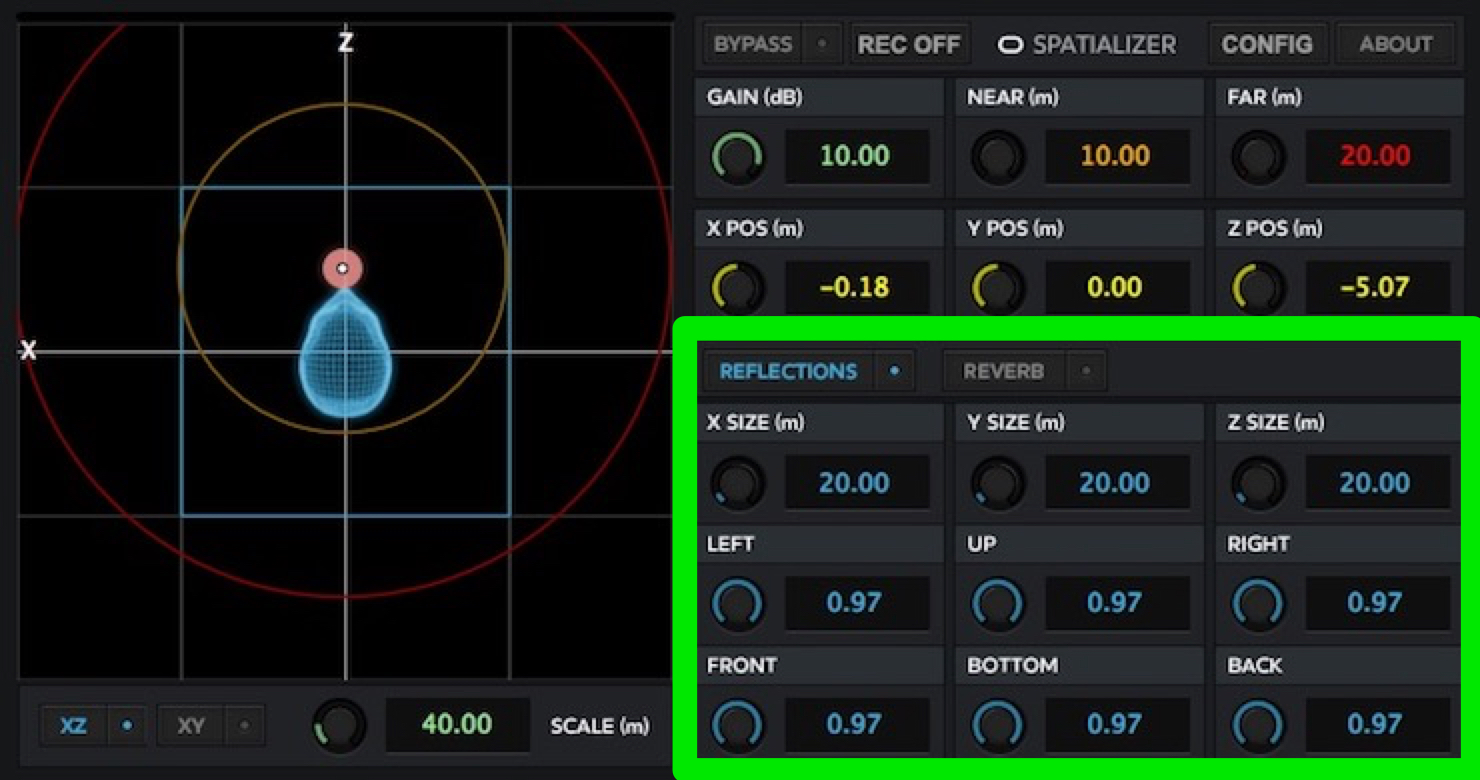
The section at the bottom right lets you configure reflections inside a room.
Click REFLECTIONS to enable it. A blue outline then appears on the left side of the interface.
X SIZE, Y SIZE, and Z SIZE determine the dimensions of the room in which the sound reflects.
The other settings control the reflectivity of each surface:
- LEFT: left
- UP: above
- RIGHT: right
- FRONT: in front
- BOTTOM: below
- BACK: behind
Each setting corresponds to the indicated direction.
What do you think?
Despite being free, this is a capable plug-in with a wide range of settings.
We think it is also a great first step into binaural audio, so give it a try!
Thank you for reading.
Frequently Asked Questions
Q1. Is Oculus Spatializer really free to use?
Yes. At the time covered by this article, Oculus Spatializer was offered completely free, with no charge to download, install, or use it. Its extensive features made it a useful starting point for beginners in binaural production.
Q2. What knowledge do I need to create spatial audio with Oculus Spatializer?
No specialist knowledge is required. As explained in this article, understanding the XYZ axes and the plug-in's three sections—space, position, and reflections—lets you create spatial audio intuitively.
Q3. Which DAWs does Oculus Spatializer support?
The original article's FAQ describes support for major DAWs and cites Ableton Live and Digital Performer as examples. Refer to the download page for the detailed compatibility list for the version you intend to use.
Q4. What is binaural audio?
Binaural audio electronically recreates the three-dimensional sound field we perceive with both ears. When listened to through headphones, it can make sounds seem to move through the space around you.
Q5. Do I always need to enable REFLECTIONS?
No. This is optional. Enable it when you want to recreate the sound of a realistic indoor environment. Simple spatial audio can be effective without reflections.
NEW ARTICLES
Latest English Articles




































































































































































































































































































