A MIDI keyboard is a useful tool for making music in FL Studio. It lets you play software instruments, check chords, record phrases, and enter rhythms with a more live feel. This guide explains how to select and enable your device in MIDI Settings, with links to external synthesizer setup and troubleshooting. A MIDI keyboard is optional: you can also enter notes with a mouse or computer keyboard.
Play FL Studio Instruments with a MIDI Keyboard
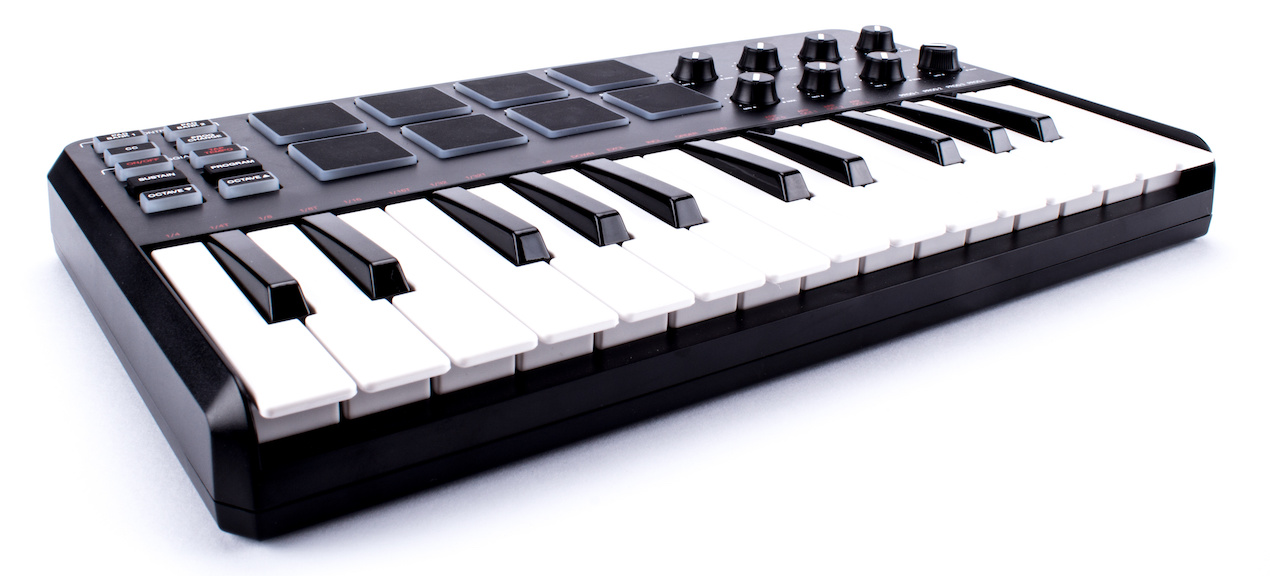
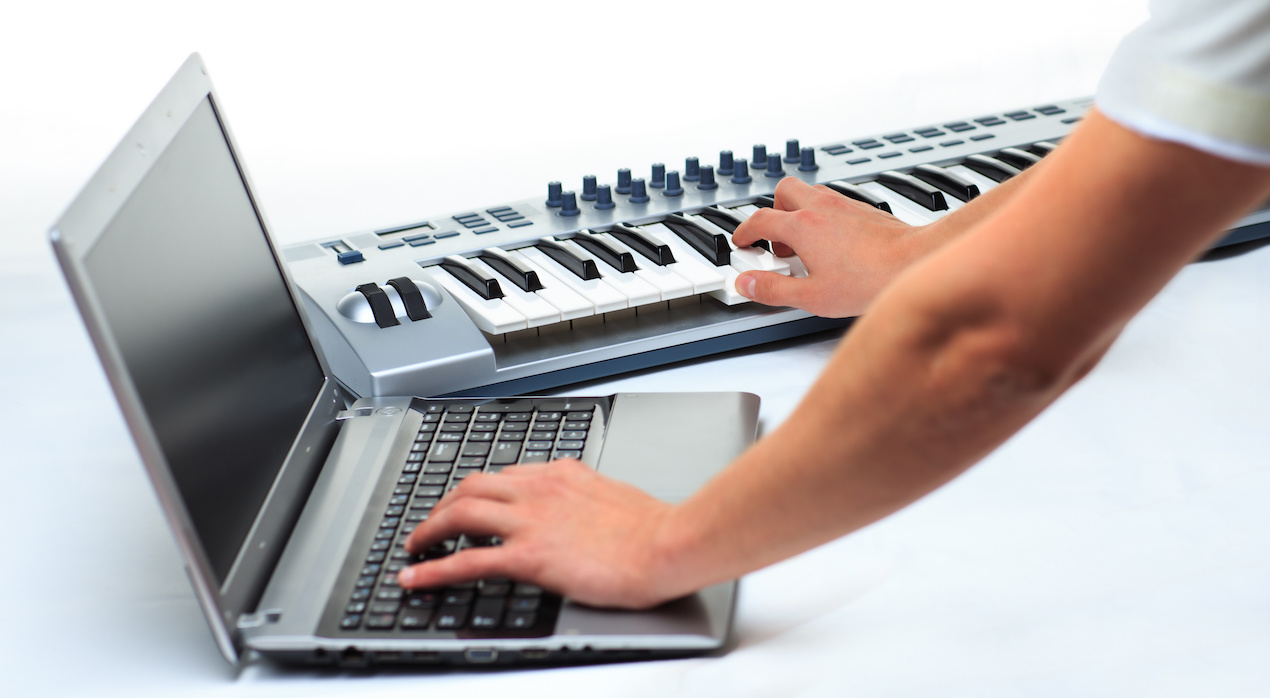
A MIDI keyboard lets you play instruments in FL Studio like a physical instrument.
Even if you are not yet confident playing keys, it is useful for:
- Quickly checking chords and sounds
- Quickly recording simple phrases
- Entering rhythms with a more live feel
These are all practical uses.
You could also use this opportunity to practice playing the keyboard.
Consider adding one to your setup.
Video: Setting Up a MIDI Keyboard in FL Studio
Setting Up a MIDI Keyboard

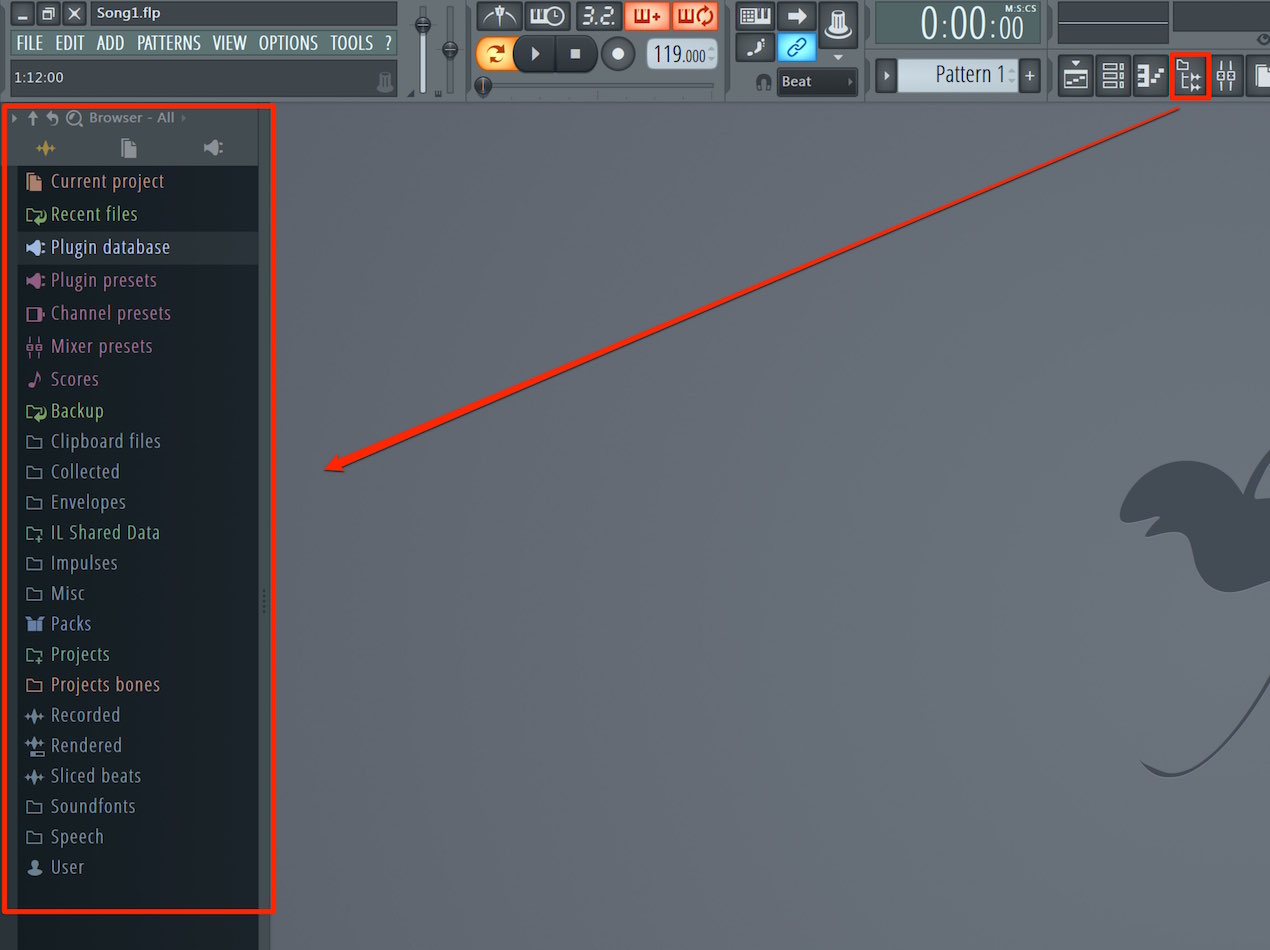
Select “MIDI Settings” from “Options.”
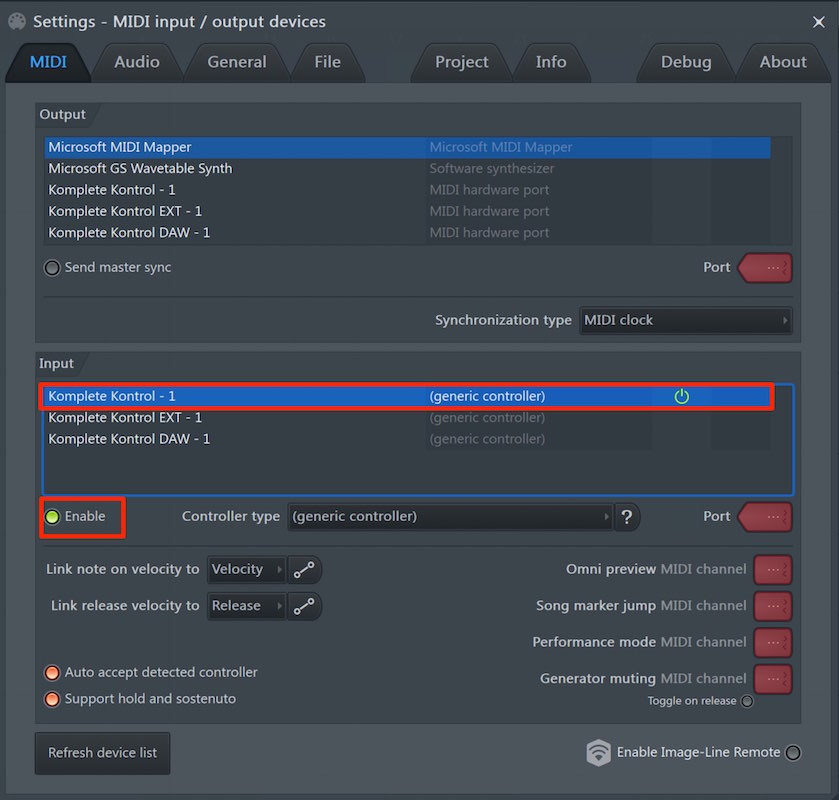
MIDI devices recognized by your computer are listed.
Select your input device and click “Enable” below to turn it on.
Your MIDI keyboard can now send your performance to an FL Studio instrument.
MIDI controllers can also be enabled using a similar procedure, though some devices may need additional controller-specific settings.
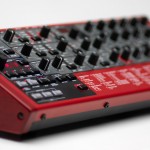
How Do I Program Parts Using an External Synthesizer?
The following article explains how to connect an external hardware synthesizer.
If You Have Trouble Setting Up
If your equipment is not working correctly or you hear no sound, check the following as well.

Install the Latest Driver
Drivers can be downloaded from each manufacturer.
Select your manufacturer and product, then install the appropriate driver if one is required.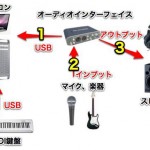
Check Your Equipment Connections
Incorrect wiring or connections can prevent equipment from working properly.

Check Latency
See this if you experience delayed sound when recording.

Frequently Asked Questions
Q1. What should I do if FL Studio does not recognize my MIDI keyboard?
First, check whether the device appears under Options → MIDI Settings and enable it. If it is not recognized, check the cable and install the latest manufacturer’s driver if the device requires one.
Q2. Is a MIDI keyboard useful for beginners who cannot play keys?
Yes. Even without keyboard skills, you can use it to quickly check chords and sounds, record simple phrases, and give programmed rhythms a more live feel.
Q3. Is setting up a MIDI keyboard different from setting up a MIDI controller?
Both can generally be selected and enabled under Options → MIDI Settings. Depending on the controller, you may also need to select its controller type or follow the manufacturer’s setup instructions.
NEW ARTICLES
Latest English Articles