Customizing Cubase preferences can directly improve your production workflow and the quality of your work. This guide covers recommended settings across the VST, Transport, Editing, Audio, MIDI, and Plug-ins tabs. Practical options such as automatic backups, audio file optimization, efficient looping, and automation reset can help beginners and advanced users alike improve their workflow.
Adjust Cubase preferences for a more efficient workflow
It is important to customize Cubase preferences to suit the way you work.
A smoother workflow can change the music you make.
Here are the preference settings I recommend.
Selected questions and answers from YouTube

After switching from another DAW, I was having trouble with the controls. This really helped me, thank you. Is it also possible to use the computer keyboard as a musical keyboard, as in Ableton? I know how to bring up the virtual keyboard and click it with the mouse, but please let me know if there is a way.

You can show it from the top menu. https://app.box.com/s/tb50vc0k4su0ec1b4uurodqzzauzlhob
Hello, and thank you as always. I unchecked ‘Show Toolbox on Right-Click’ in the tool preferences. In the video, right-clicking shows various functions including the toolbox, but in my Cubase the toolbox no longer appears on right-click. Is Cubase 10 AI different, or am I doing something differently?
The items displayed on right-click changed in Cubase 10. Can you select the tools from the ‘Tools’ item in the right-click menu?
Open Preferences

From the top menu, choose Cubase → Preferences.
- Cubase 7 or later
- Cubase 6 or earlier
VST

- 1. FX channels are automatically assigned to the Sends of new tracks.
- 2. This allows finer control over panning stereo tracks.
- 3. This adjusts the effect of FX channels, such as reverb, to match the current pan position.
Transport

- 1. Use the space bar to play back in VariAudio and the Sample Editor.
- 2. When playback stops, the cursor returns to the position where playback started.
- 3. The background moves so that the playback position remains in the center.
- 4. Move the playback cursor by clicking an empty area.
Editing

- 1. Set a range selected with the Range Selection tool as the loop range.
- 2. Delete existing events when events overlap.
Editing: Audio

- 1. Select ‘Change Settings’ and enable both checkboxes.
Audio files are automatically optimized when imported. - 2. Select ‘Create New Version’
to protect the file if you make an editing mistake. - Clear the checkbox to access various editing options with a right-click.
Editing: Tools

Audio tab

1. Enable this option and, when an audio file is analyzed,
‘Q-points’ will appear, allowing more adjustments.
2. Enable this option so that audio files added to a session
are also added to the project's Audio folder, helping prevent missing files.
3. Enable this option when splitting or editing audio events:
edits will automatically find zero crossings, helping prevent noise.
Editing tab

1. Enable this option to automatically link the selection to the cycle range,
making it easy to loop the selected section.
This is very useful.
2. Recommended for those accustomed to Pro Tools! This controls whether the lower event is
kept or deleted when events overlap, such as after moving them.
3. This setting determines whether automation positions written on an event move with it
or remain in place.
MIDI tab

1. If you stop during MIDI automation playback and start again from another position,
automation values may remain active and be applied at an unintended position.
Enable this option to reset automation when playback stops
and prevent that behavior.
2. This determines the resolution for editing MIDI.
Normally ‘120’ should be fine, but for finer editing,
increase this value.
General tab

1. Enable this option to create automatic backups at the interval set below.
Backups are saved in the session folder.
2. Set the automatic backup interval and the maximum number of backups to keep.
When the number exceeds the limit, the oldest backups are deleted first.
3. Set the number of actions that can be undone.
The screenshot shows an unlimited setting, but be aware that more undo steps consume more memory.
VST tab

1. Enable this option to automatically assign
channel tracks for reverb, delay, and similar effects to newly created track buses.
As someone who mainly mixes, I find this very useful.
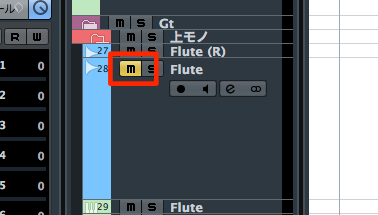
2. Enable this option so that when a groove track is muted,
the source tracks sending to it are also muted,
making tracks much easier to manage.
3. This determines whether you monitor the sound being played manually or automatically.
I use manual monitoring because of my setup, but automatic monitoring is convenient because you can always hear the sound you want to record.
Tools tab

1. I recommend clearing this checkbox so that you can right-click to display and select
options relevant to the current context.
Transport tab

1. Enable this option to start and stop playback with the space bar (the default)
even in windows such as the Part Editor and Sample Editor.
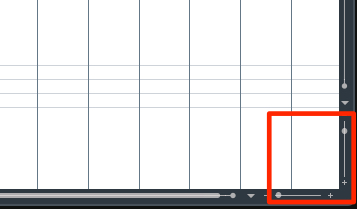
2. Enable this option to change the zoom level by dragging the lower part of the ruler.
3. Enable this option to return the playback cursor to its starting point after stopping,
which is useful for listening to or editing the same section again.
4. Enable this option to scroll the screen with the playback position.
The playback position stays in the center. I leave it off because the movement makes me feel dizzy!
5. Normally you set the playback position using the ruler or transport, but
with this option enabled you can move it simply by clicking
an empty area.
Plug-ins

1. When choosing a plug-in from an insert, the manufacturer name is also displayed,
making the plug-in you want easier to find.
- Cubase 7 or later
- Cubase 6 or earlier
Another recommended preference
Frequently asked questions
Q1. Could changing Cubase preferences damage my files?
No. In fact, enabling ‘Create New Version’ can protect files if you make an editing mistake. Using automatic backups as well makes recovery easier if a problem occurs.
Q2. Which setting helps prevent audio files from going missing?
Enable the checkbox on the Audio tab to automatically add audio files to the project's Audio folder when they are added to a session. This centralizes file management and helps prevent files from going missing.
Q3. Why is MIDI automation applied at an unintended position?
Automation values can remain after you stop playback and start from a different position. Enabling ‘Reset automation on stop’ on the MIDI tab can prevent this behavior.
NEW ARTICLES
Latest English Articles