
Cubase 11's Chord Track lets you efficiently create and manage the chord progressions that form the foundation of a song. This beginner-friendly guide covers creating a Chord Track, configuring chords in detail, choosing chords with the circle of fifths, and developing your ideas with Chord Pads and MIDI conversion. Learning these functions can streamline your production workflow and help you move on to more creative arranging.
This time, we will enter chords—an important element of a song.
Cubase includes a feature called the Chord Track, which is useful for planning and recording chord progressions.
Entering Chords: Video
Selected Questions and Answers from YouTube

I use Cubase 14 Pro. On the Chord Track, I can only place one chord in a bar. I have looked into it, but I cannot work out how to place two chords in one bar. Could you explain how?

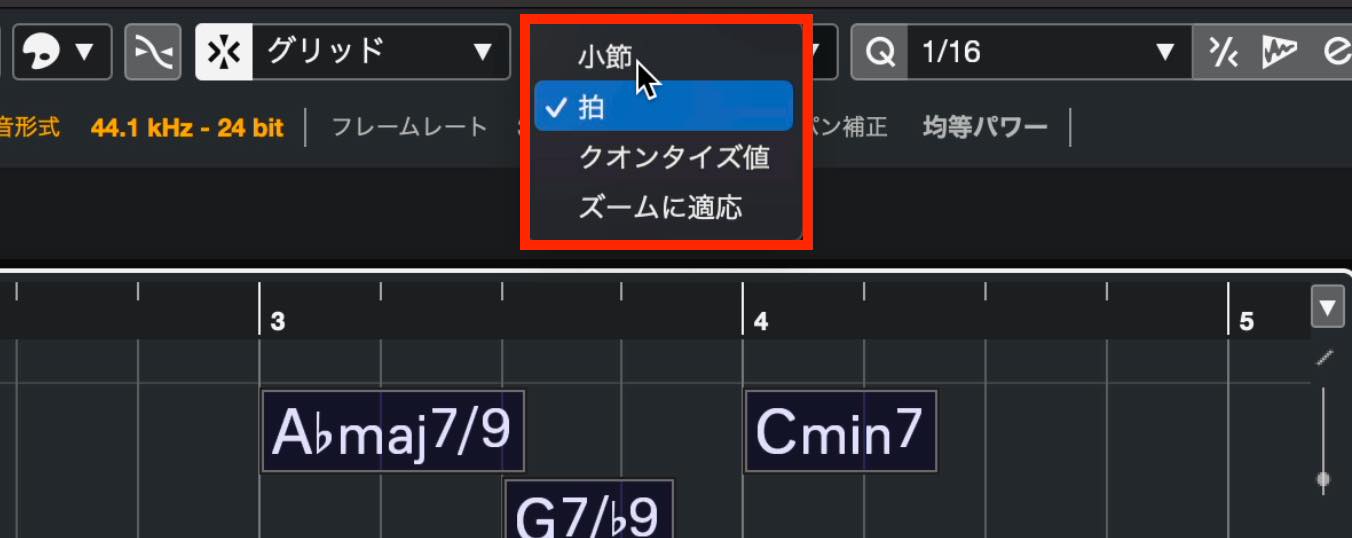
The grid or snap settings may be responsible. If Grid Type in the top toolbar is set to Bar or Beat, change it to Use Quantize and try again.
I am using the Cubase 15 Pro trial. After adding a Chord Track, I can enter the first chord, but clicking with the Draw tool does not enter any more chords. How can I fix this?
The grid or snap settings may be responsible. If Grid Type in the top toolbar is set to Bar or Beat, change it to Use Quantize and try again.
When I open HALion Sonic from the Chord Track, the Load screen does not appear. The browser is also missing, so I cannot load an instrument. What should I do?
Do you mean that the preset-selection screen in HALion Sonic 7 is missing? The interface has changed, and the preset browser now appears in the Load Panel on the right. If it is hidden, try the Show/Hide Load Panel button near the upper-right corner—the icon resembles a folder—to toggle it on.
Creating a Chord Track and Entering Chords
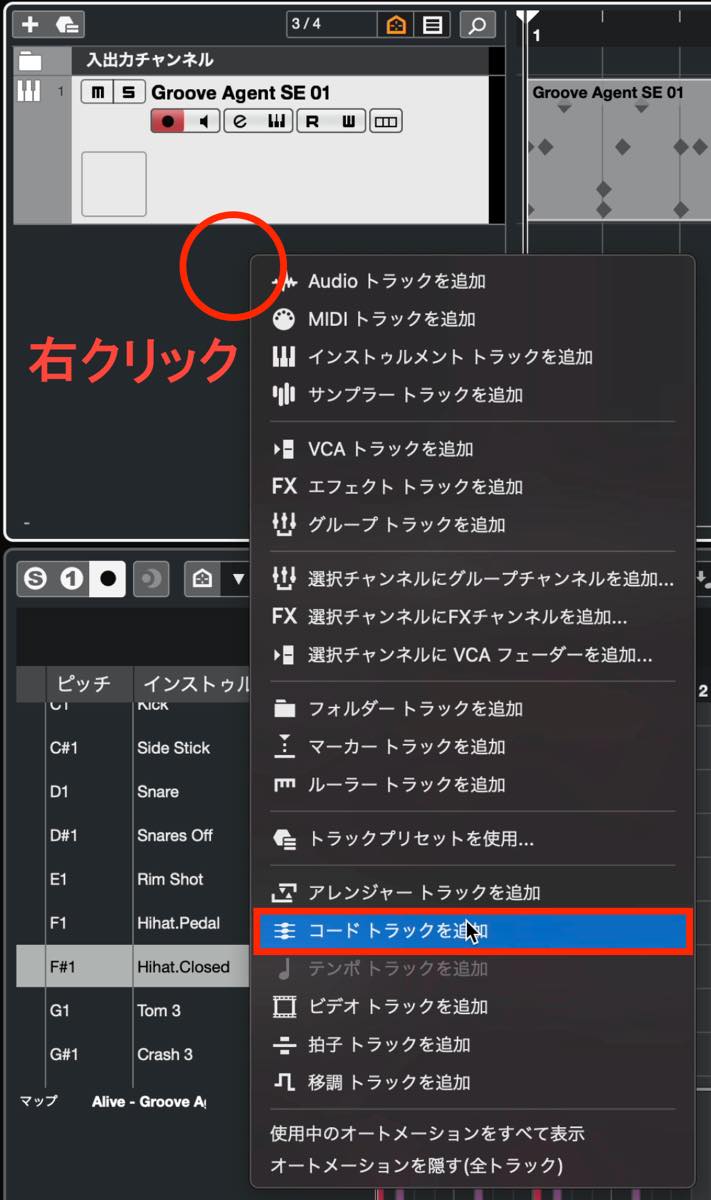
First, create a Chord Track. As with other track types, right-click the track list and select Chord to add a Chord Track.
The Chord Track appears as shown here. Keep it at the top of the project so that it remains easy to find as you add more tracks.
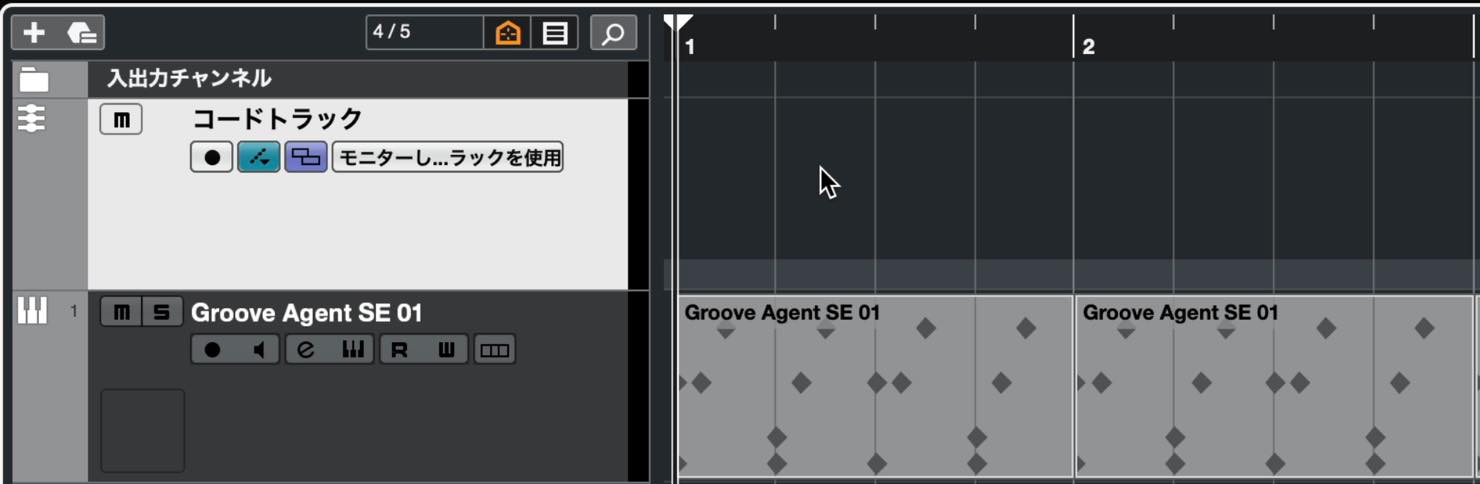
Use the Draw tool to enter chords on the Chord Track. Clicking creates a chord event marked “X,” as shown here.
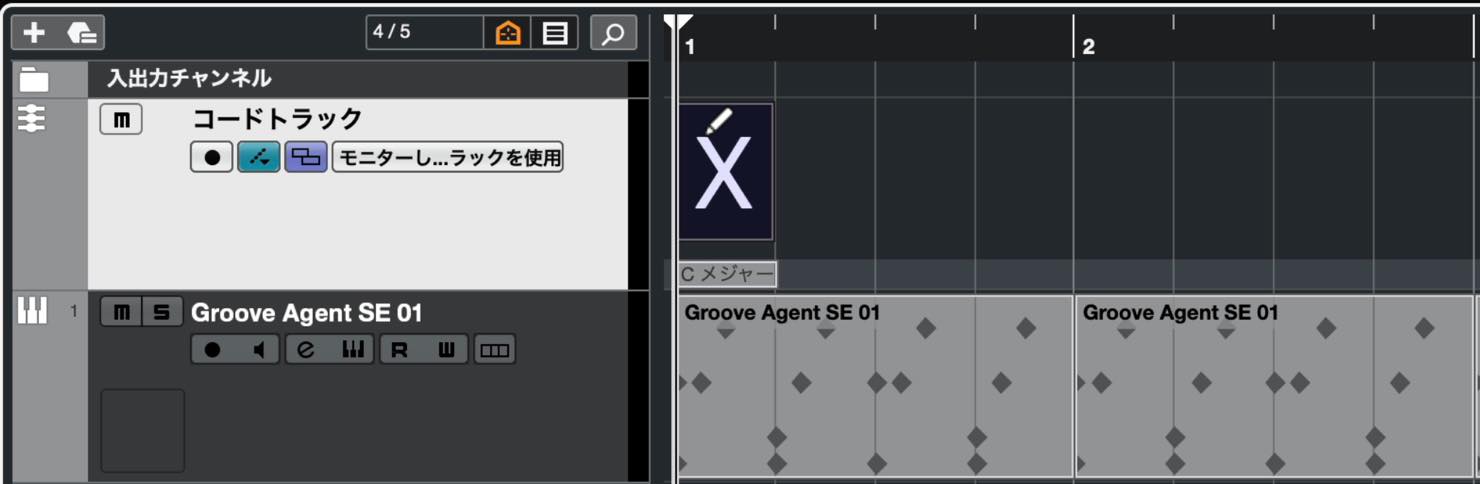
This means that an empty event has been created, but no chord has been selected yet.
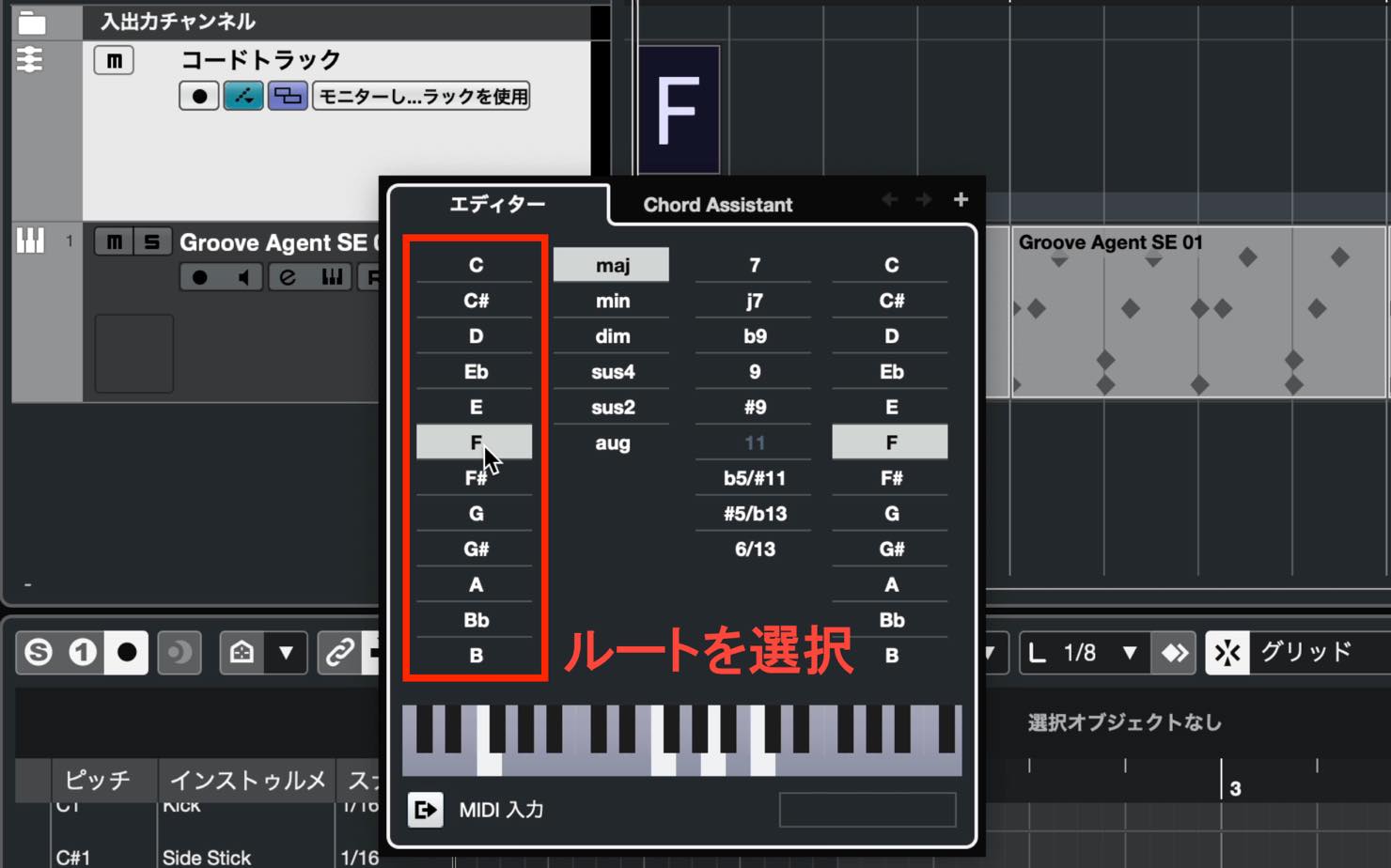
Double-click the X to open the editor and select a chord.
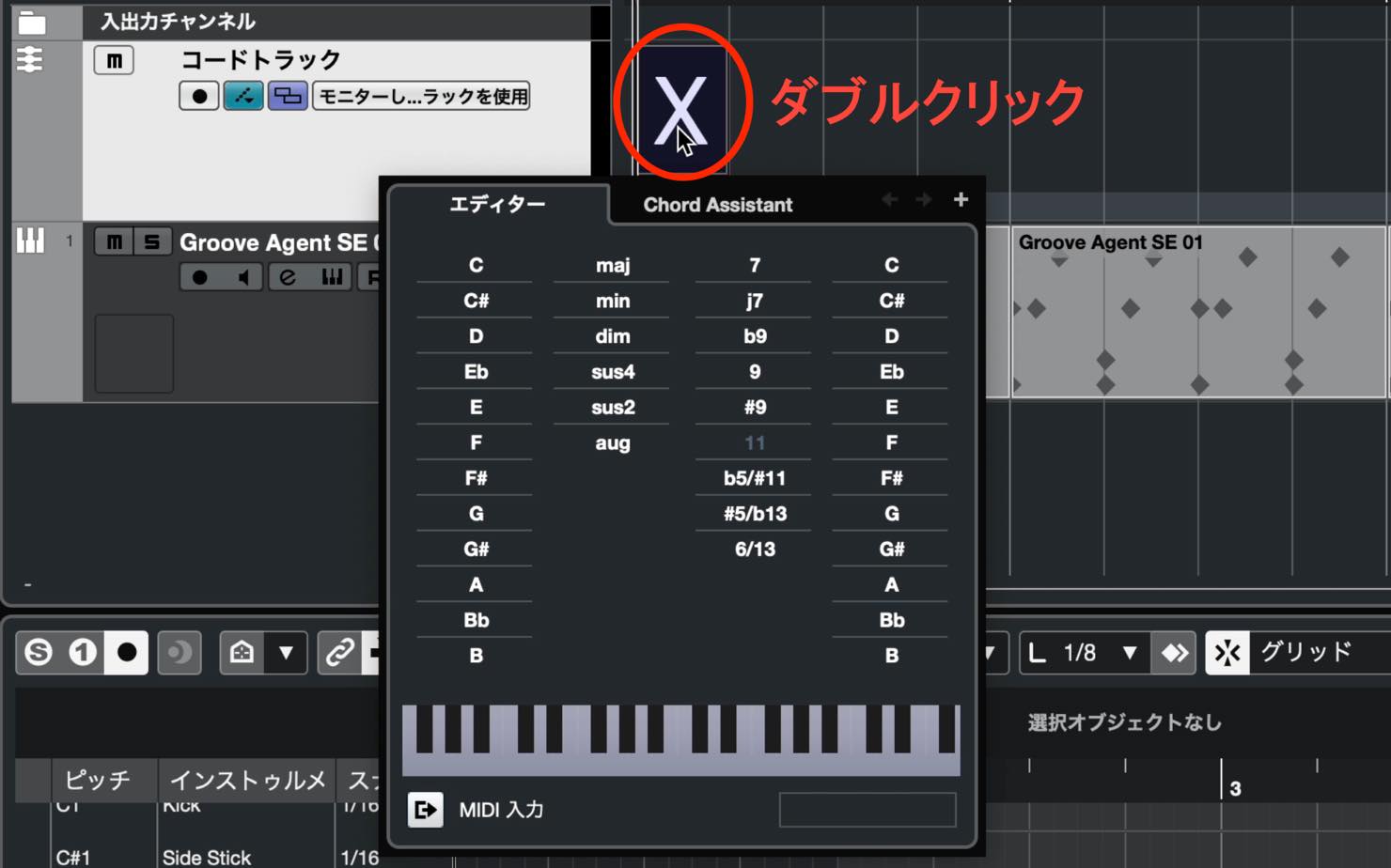
Choose the root note in the leftmost section of the editor. At this point, however, you cannot hear the chord you select, because the Chord Track does not contain a sound-generating instrument of its own.
Creating a Track to Play the Chords
Now, create a track that will play the chords.
As we learned earlier, this should be an instrument track. For this example, open HALion Sonic SE, which includes a wide range of instrument sounds.
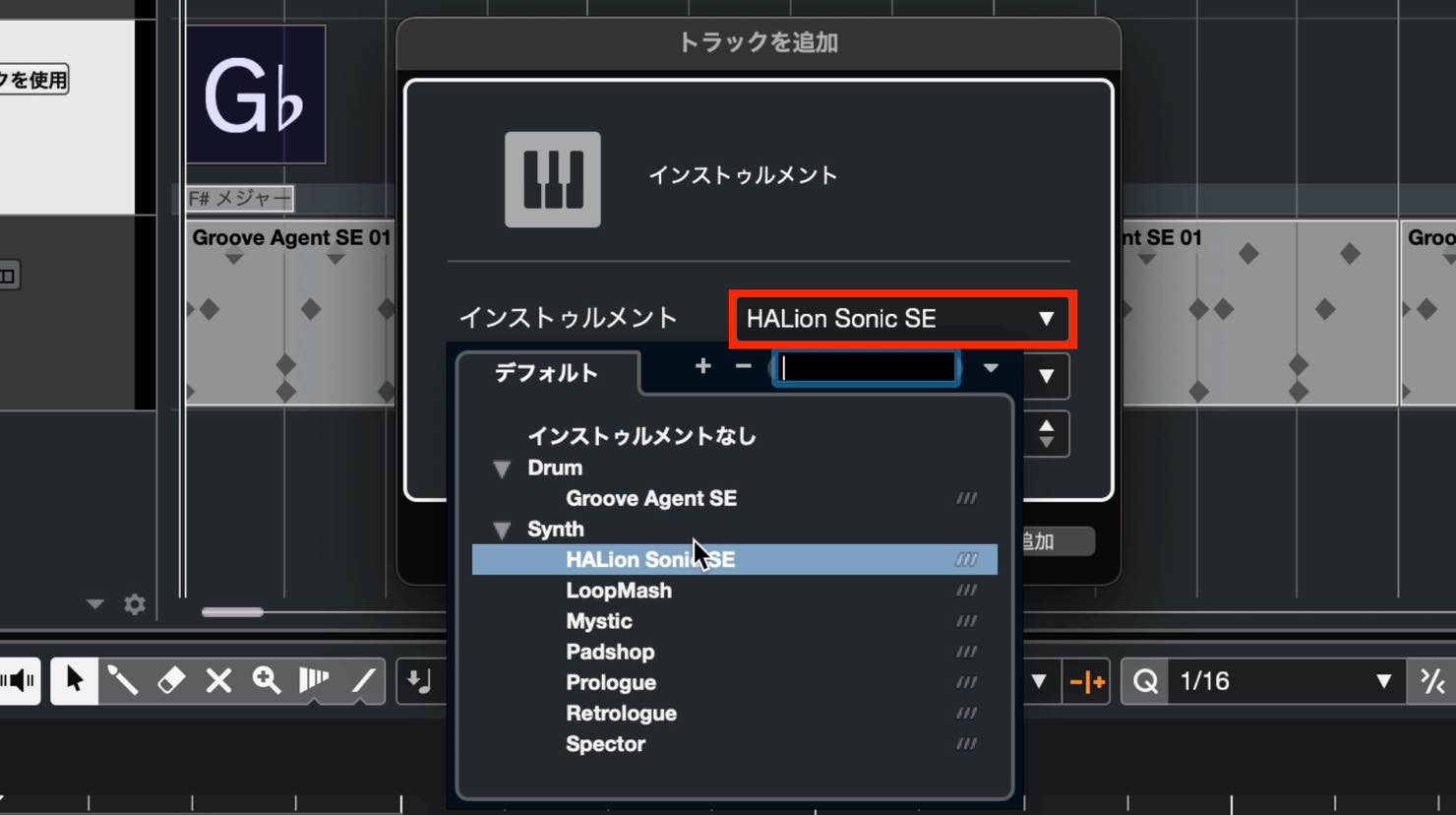
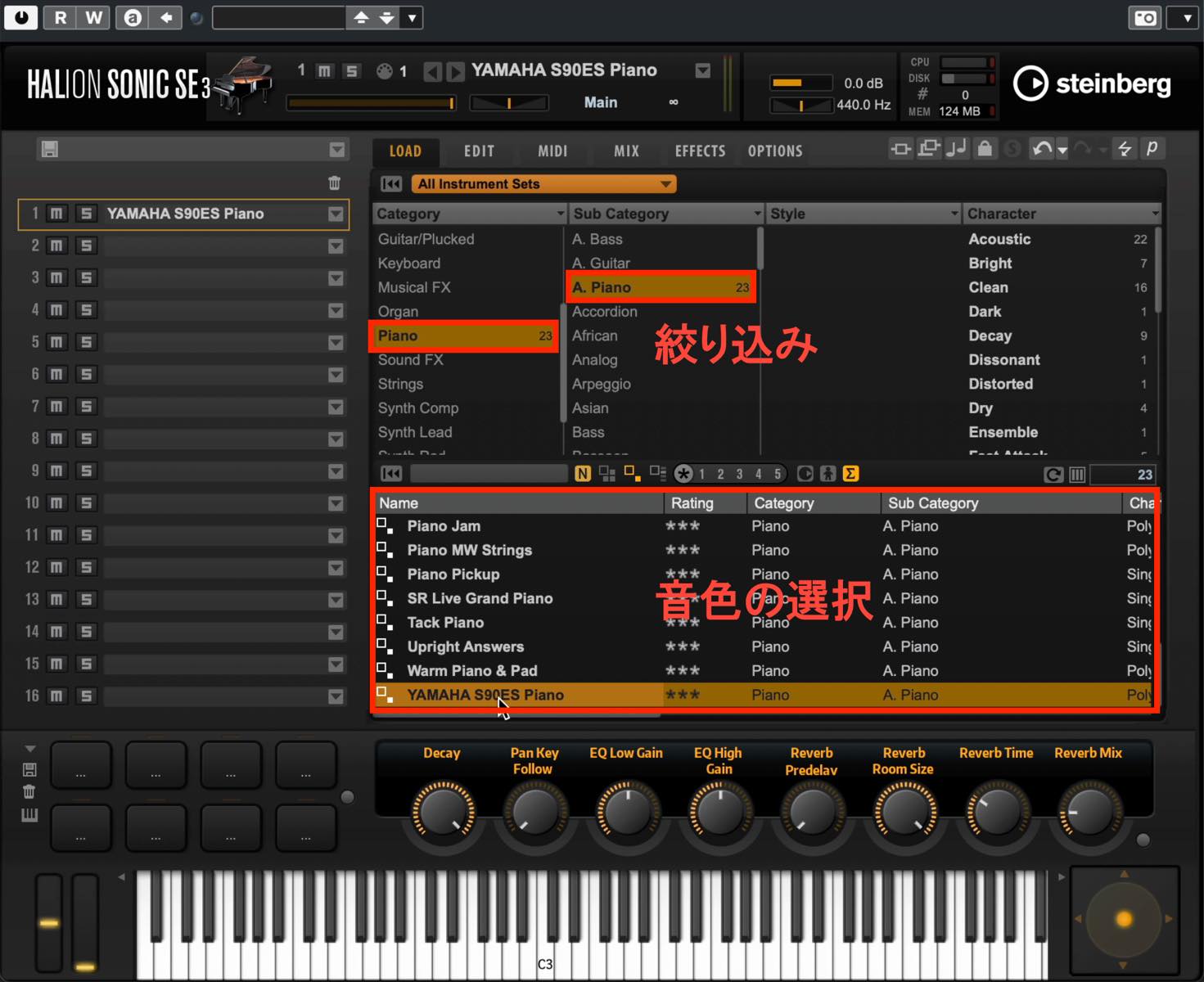
HALion Sonic SE initially displays a browser for choosing sounds. Select a piano sound for this example.
Narrow the choices using Category and Sub Category, then choose a sound you like from the list below.
On the Chord Track, click the field labeled Use Monitored Tracks and select the instrument track you just created as the track that will play the chords.
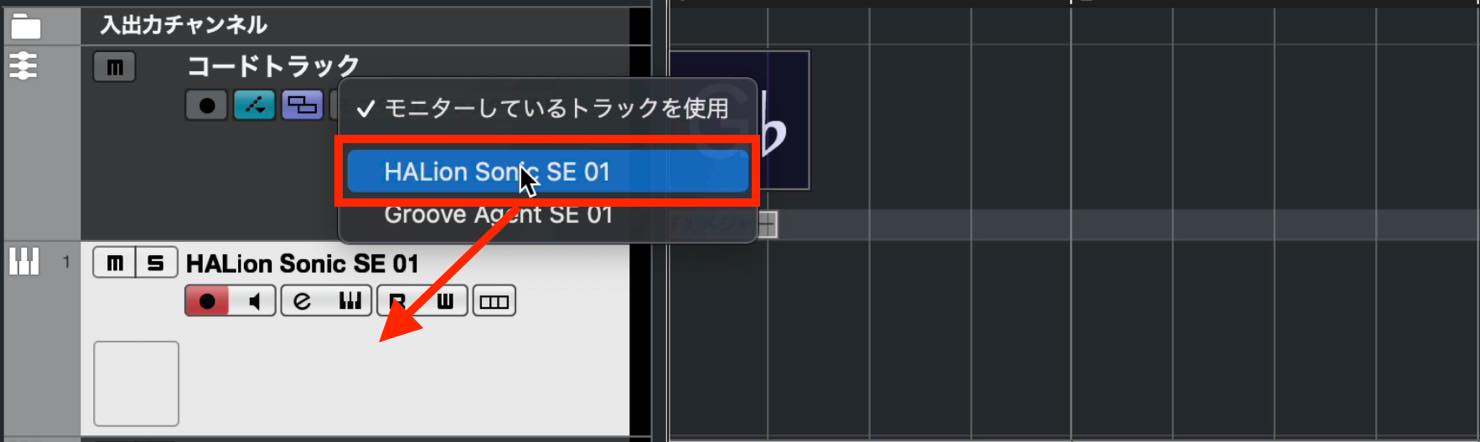
You can now hear the chords as you select them.
Detailed Chord Editor Settings
After selecting the root note, configure the chord in more detail.
To the right of the root, you can choose a chord type such as major, minor, or diminished.
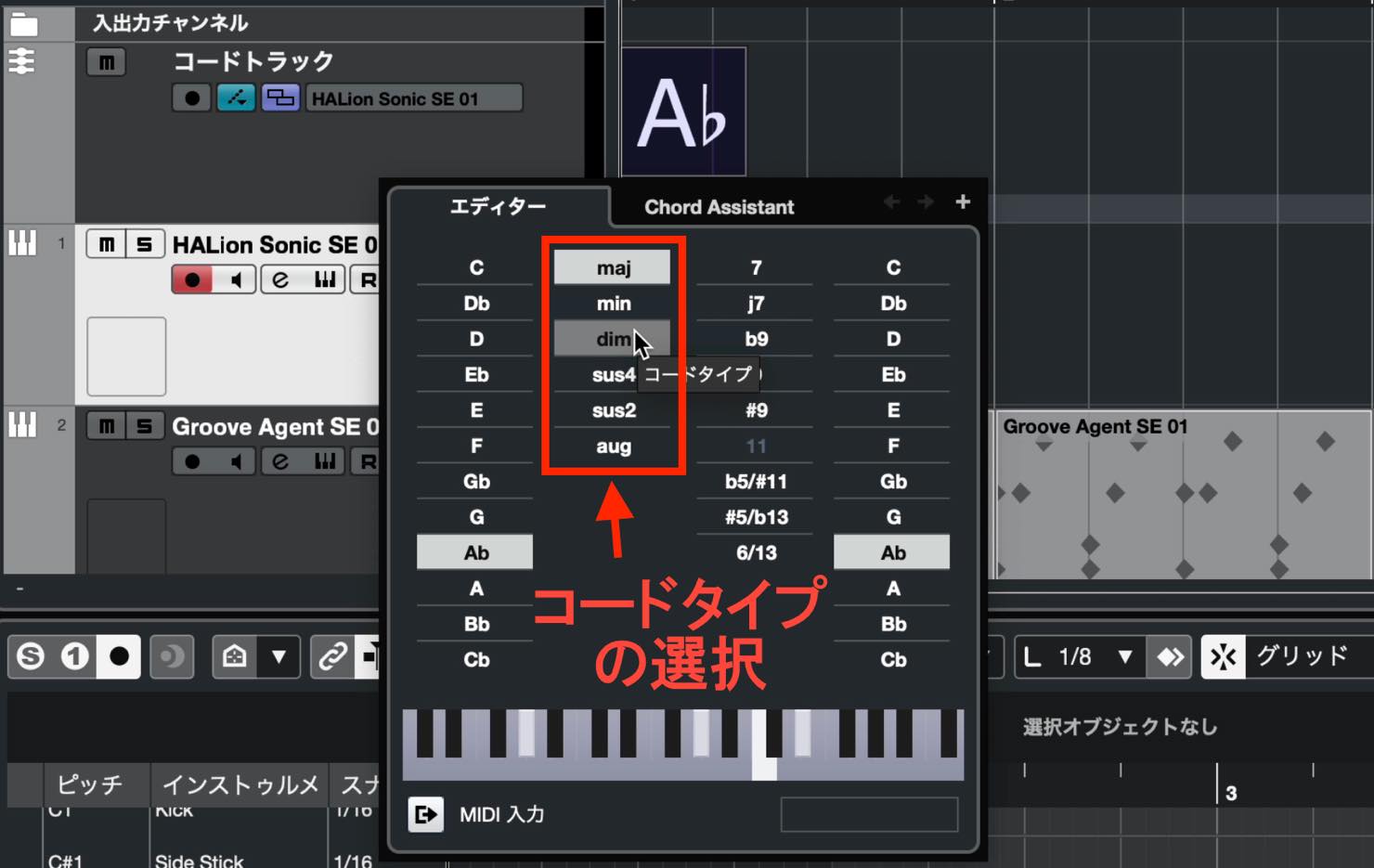
The next section lets you add extensions such as 7, maj7, and 9. You can combine multiple options.
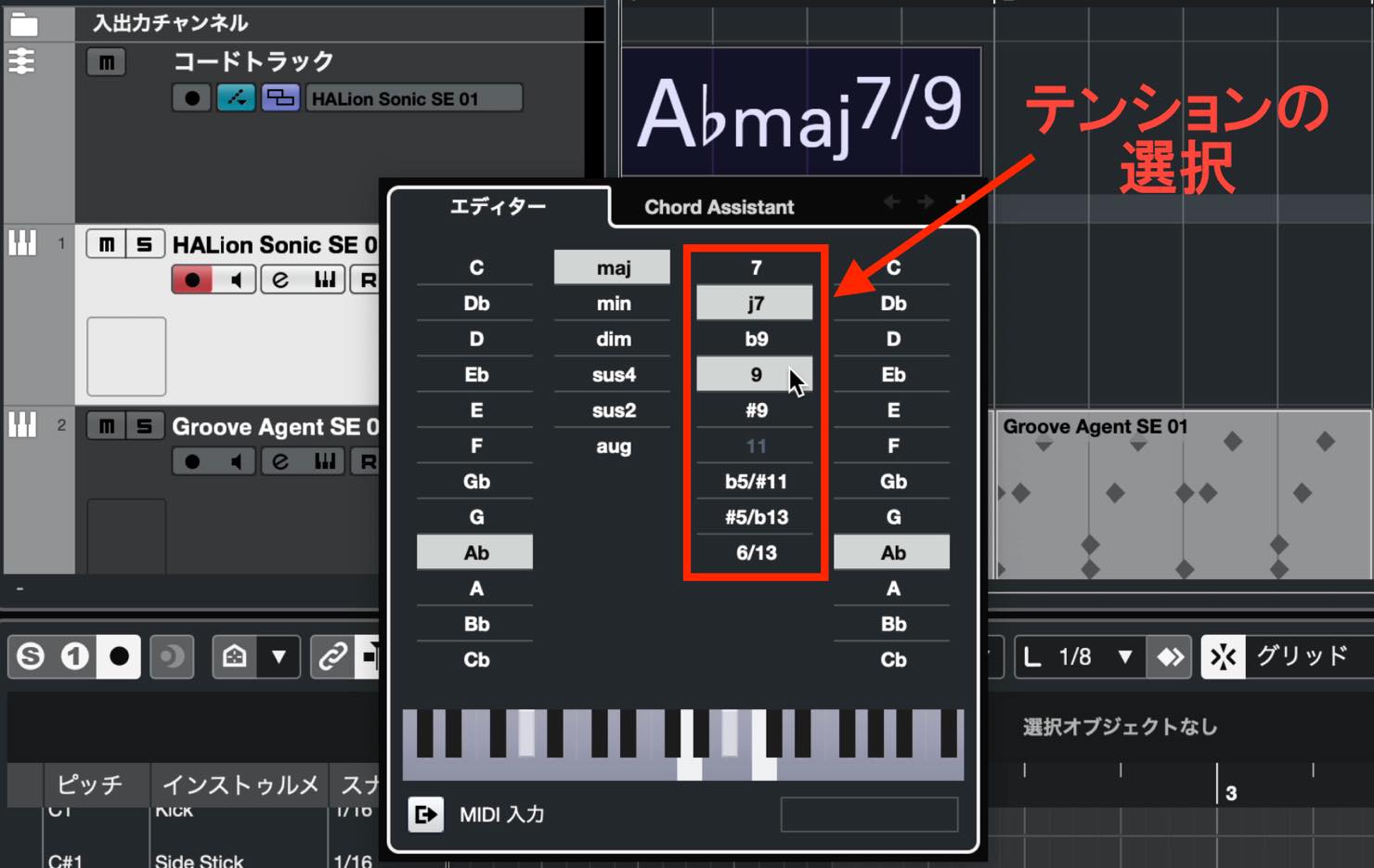
The rightmost section selects the bass note, allowing you to create slash chords.
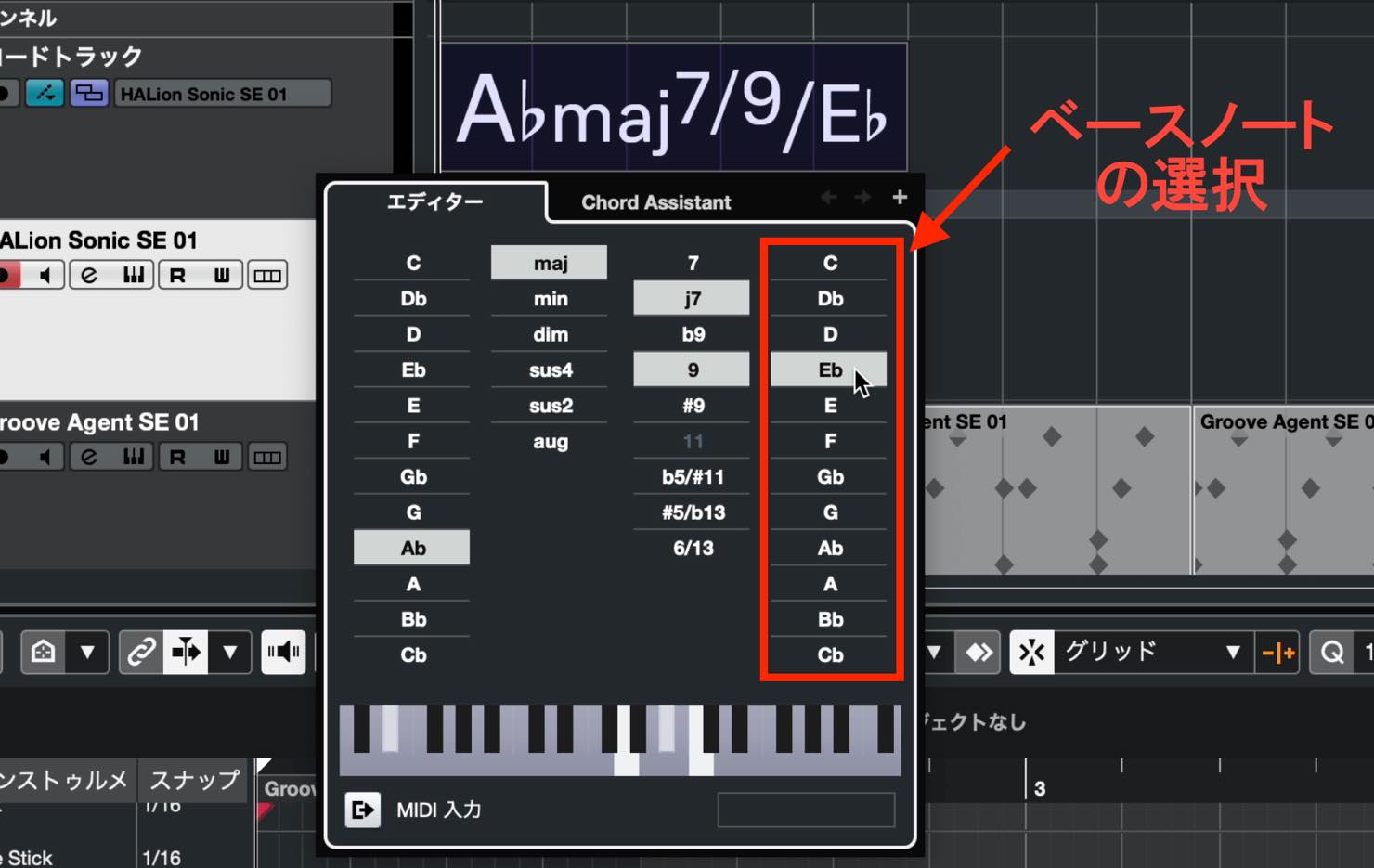
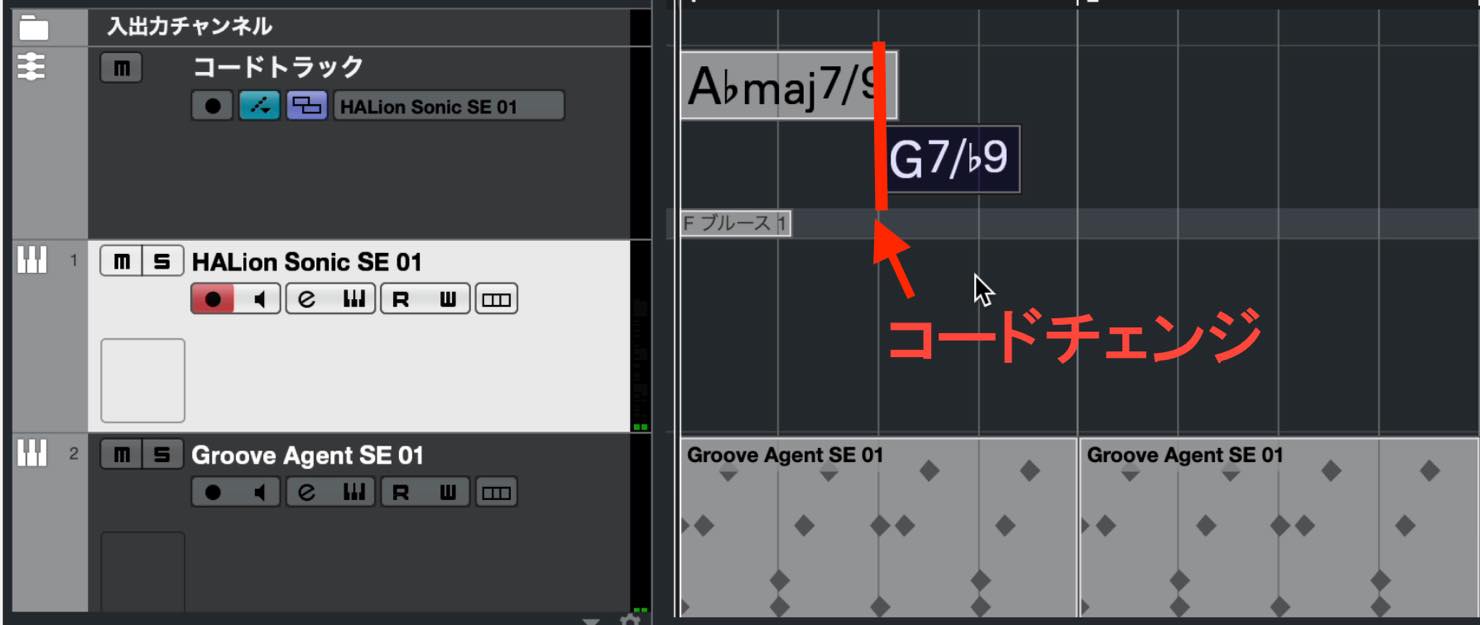
This produces a long chord name, but the visible size of the chord event has nothing to do with its duration. Only its start position matters: the chord changes when the next chord event begins.
Chord Assistant: The Circle of Fifths
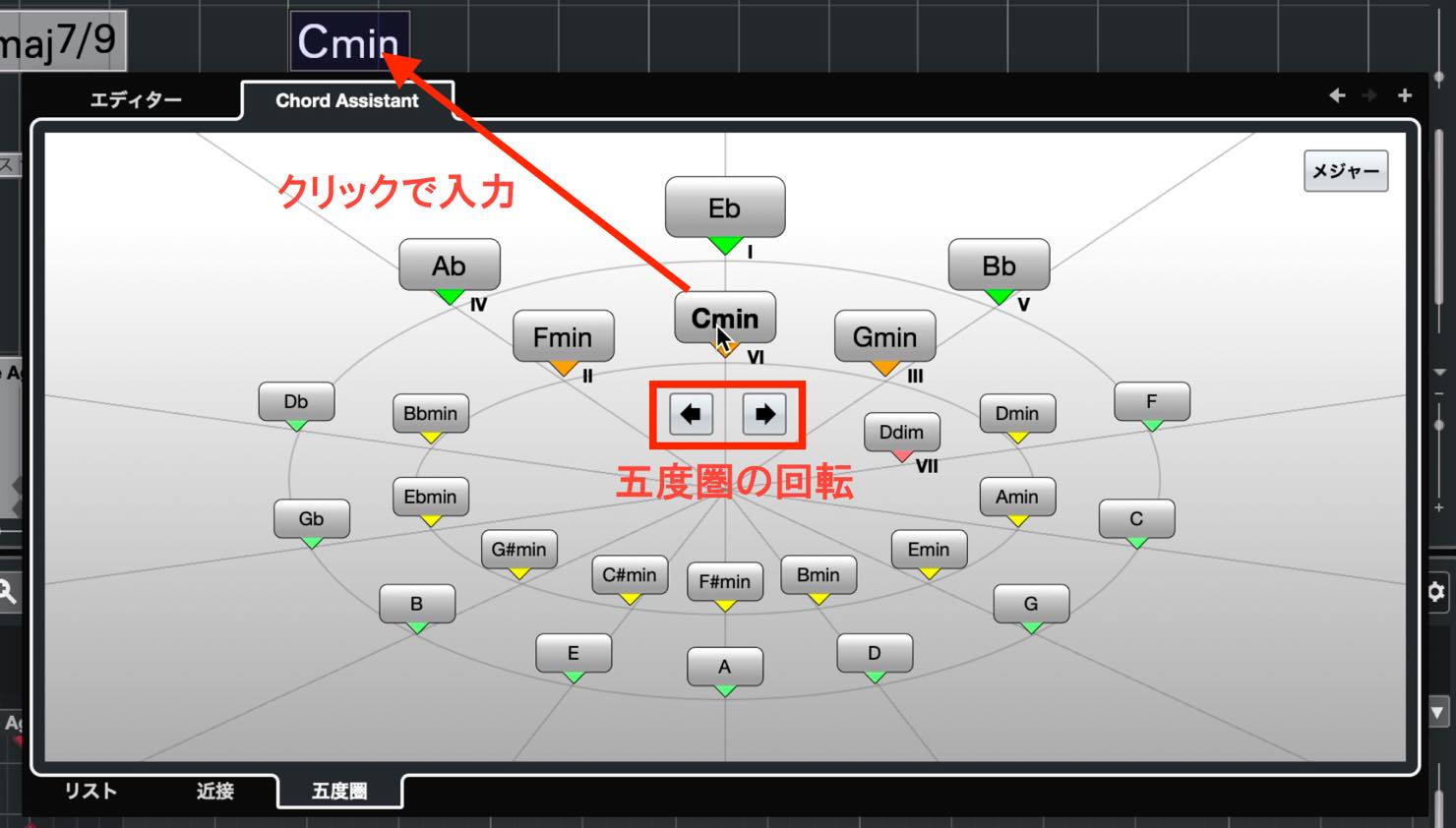
The circle of fifths in Chord Assistant is useful when entering chords.
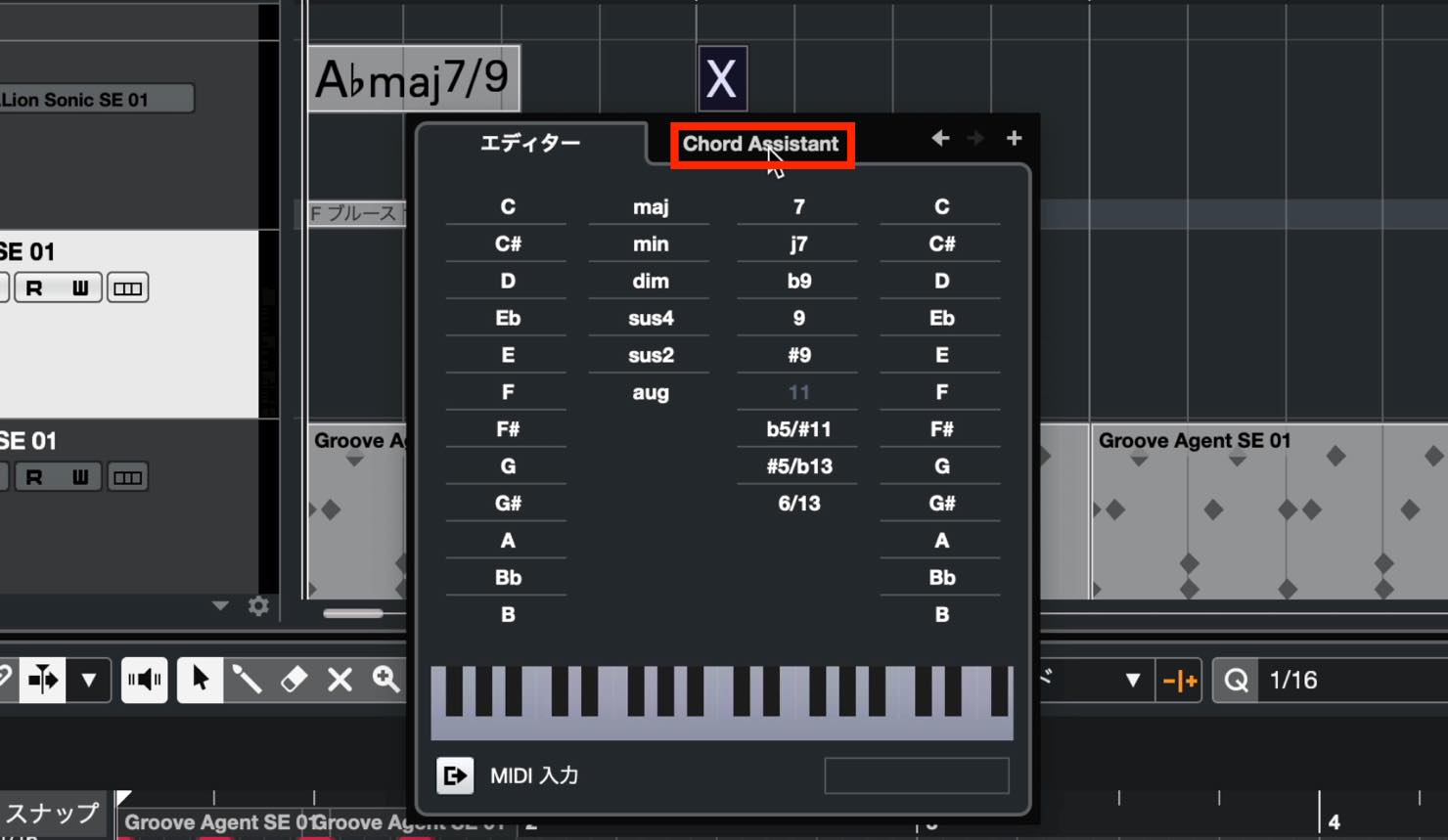
Double-click a chord, then click Chord Assistant beside the editor.
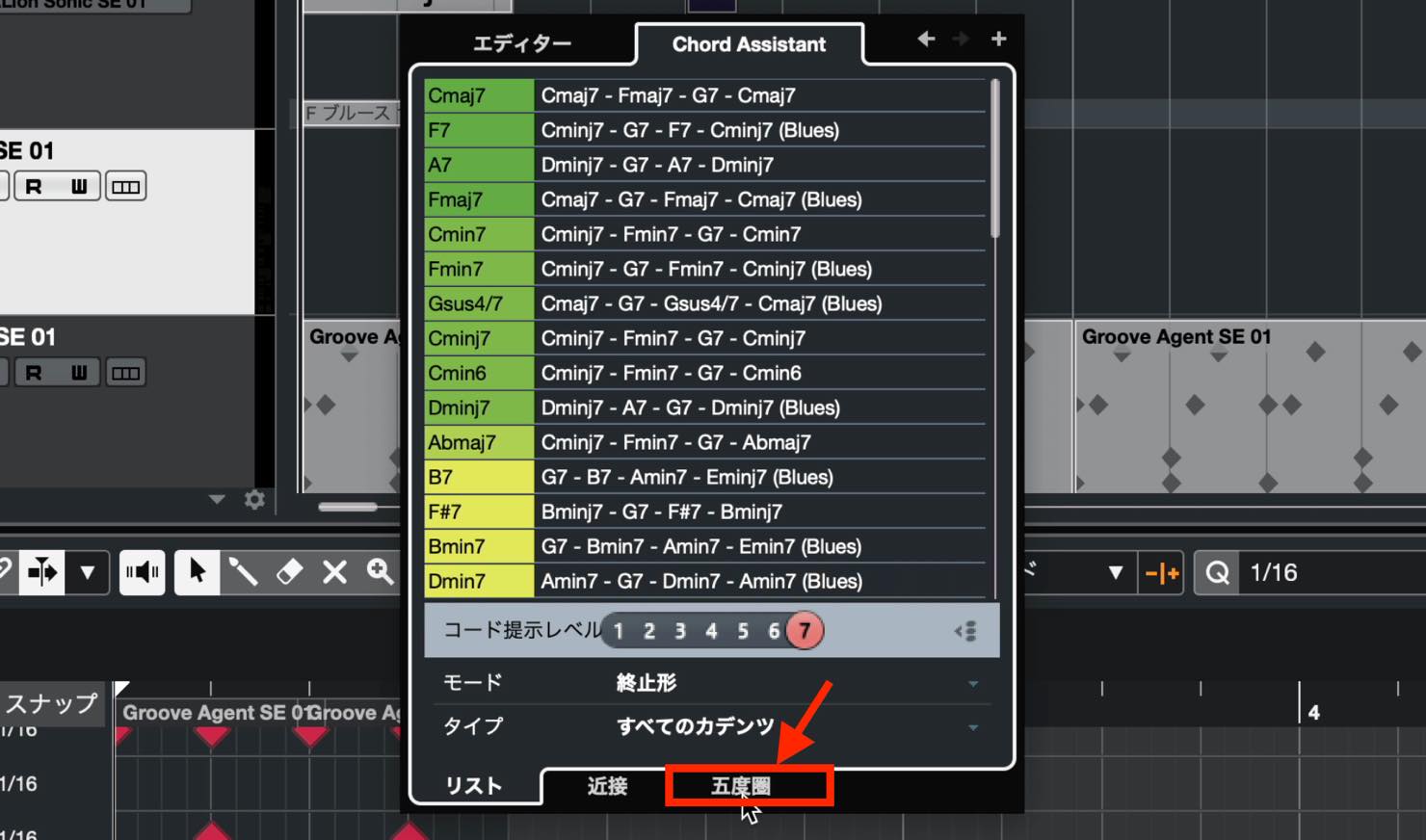
Next, click the Circle of Fifths tab below.
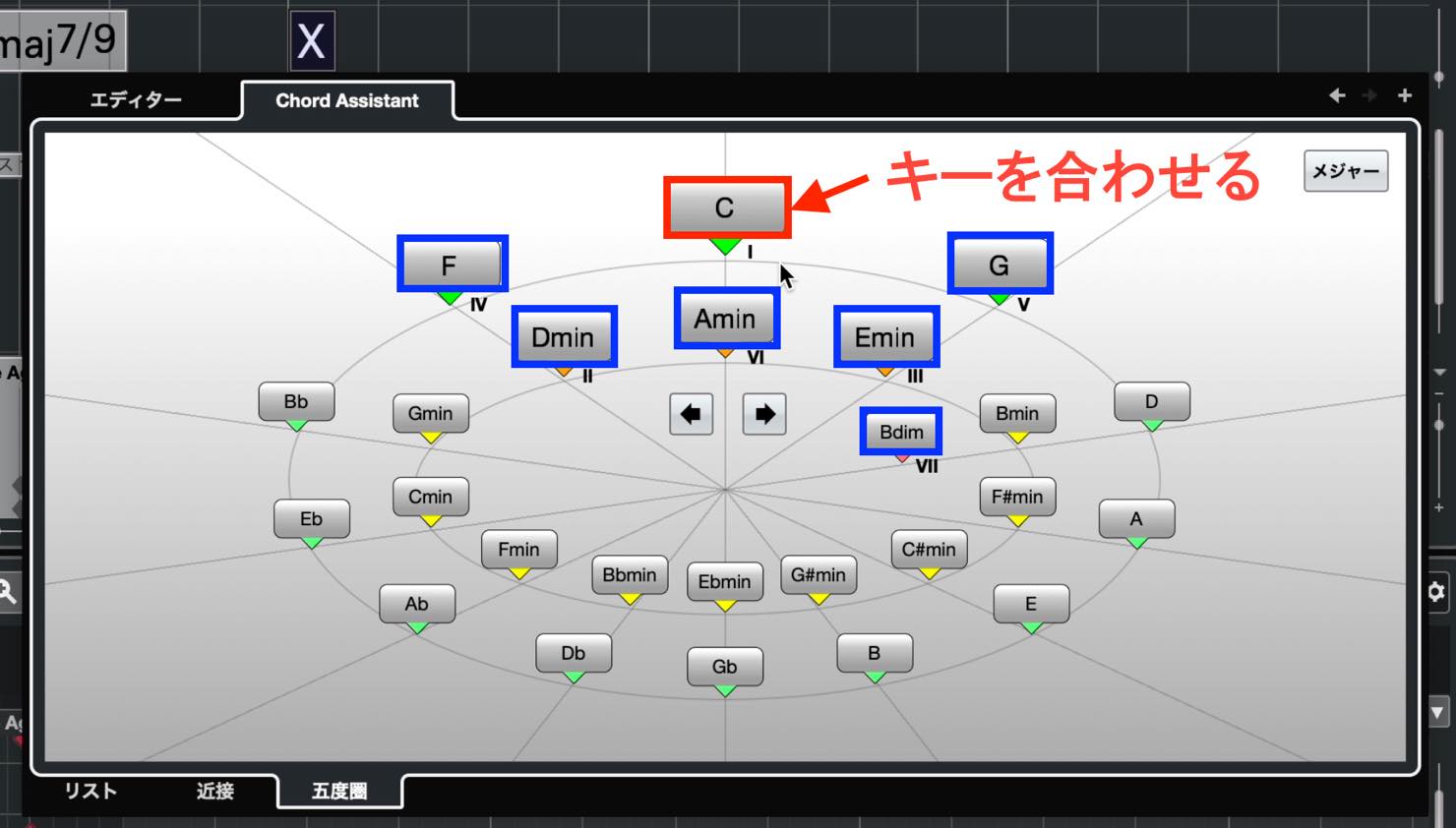
The chords appear mapped onto the circle of fifths. The numbered chords are the diatonic chords for the key whose tonic is at the top center.
In other words, rotate your chosen key into position I to see its diatonic chords indicated.
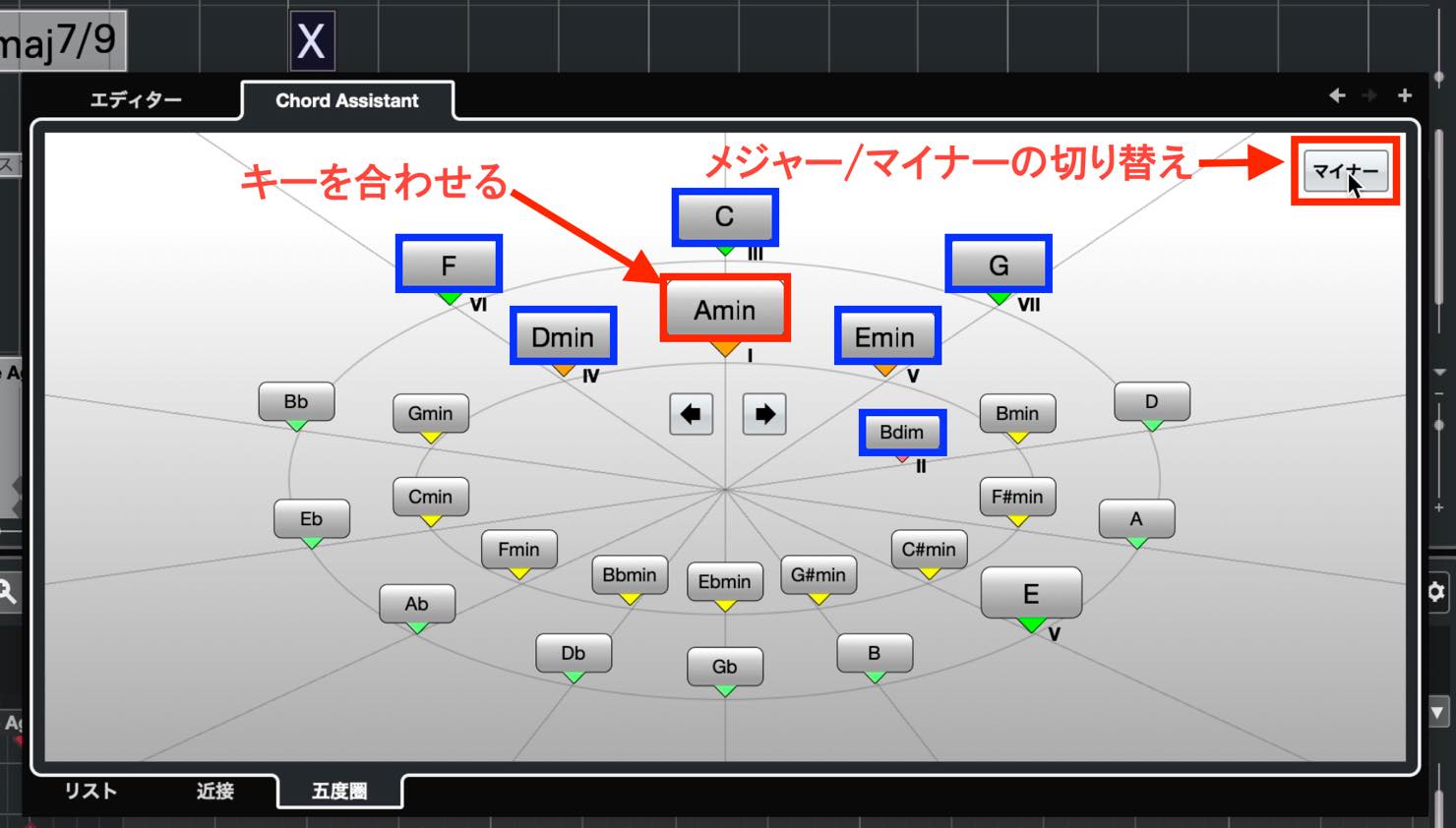
To work in a minor key, switch the Major/Minor setting at the upper right. The numbered positions change accordingly.
Use the left and right arrows in the center to rotate the circle of fifths.
Click the chord you want to enter it on the Chord Track. To add extensions, return to the editor.
Moving Chords and Stopping Chord Playback
You can move and copy chord events just like other events.
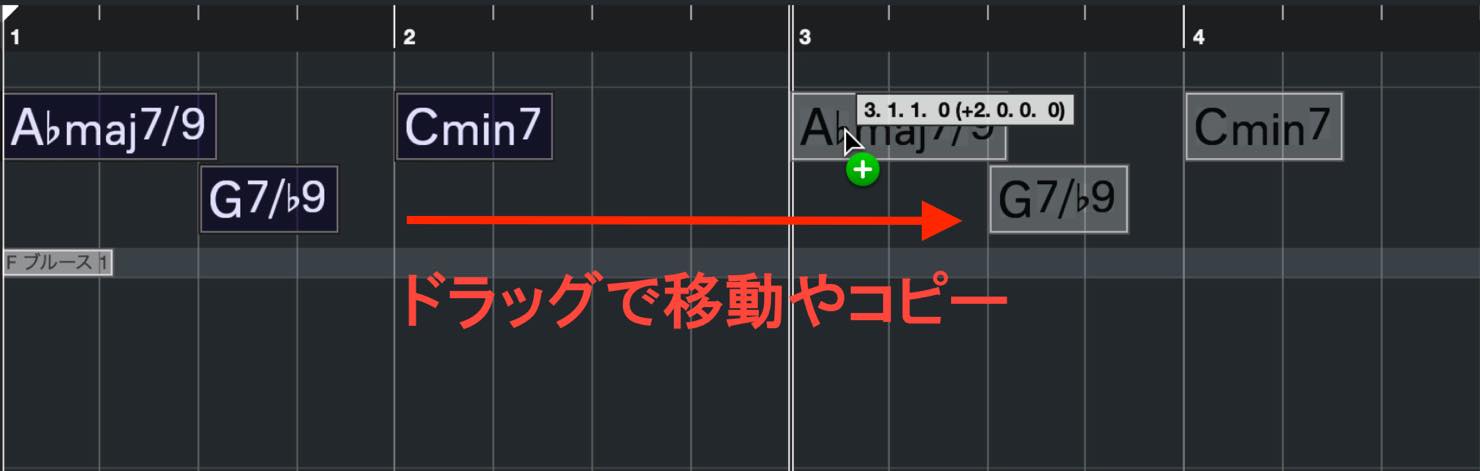
The movement increments follow the Grid Type setting.
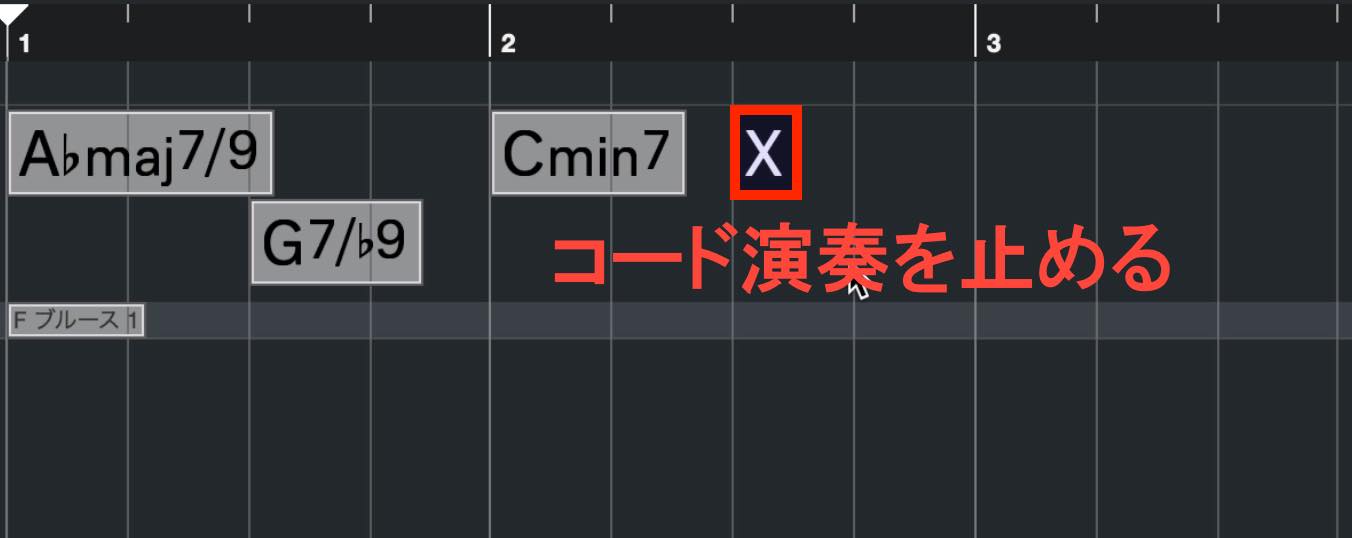
If there are no more chord events afterward, the final chord continues playing. To stop it, enter an empty event marked X.
Changing the Voicing
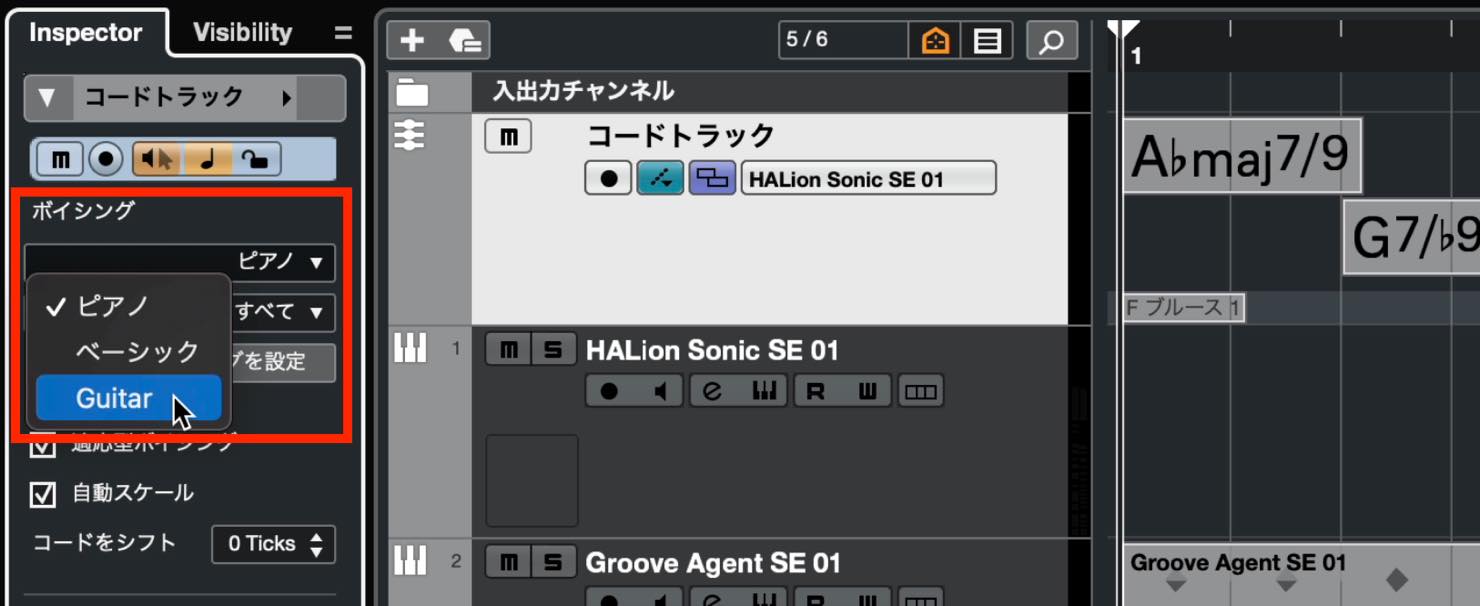
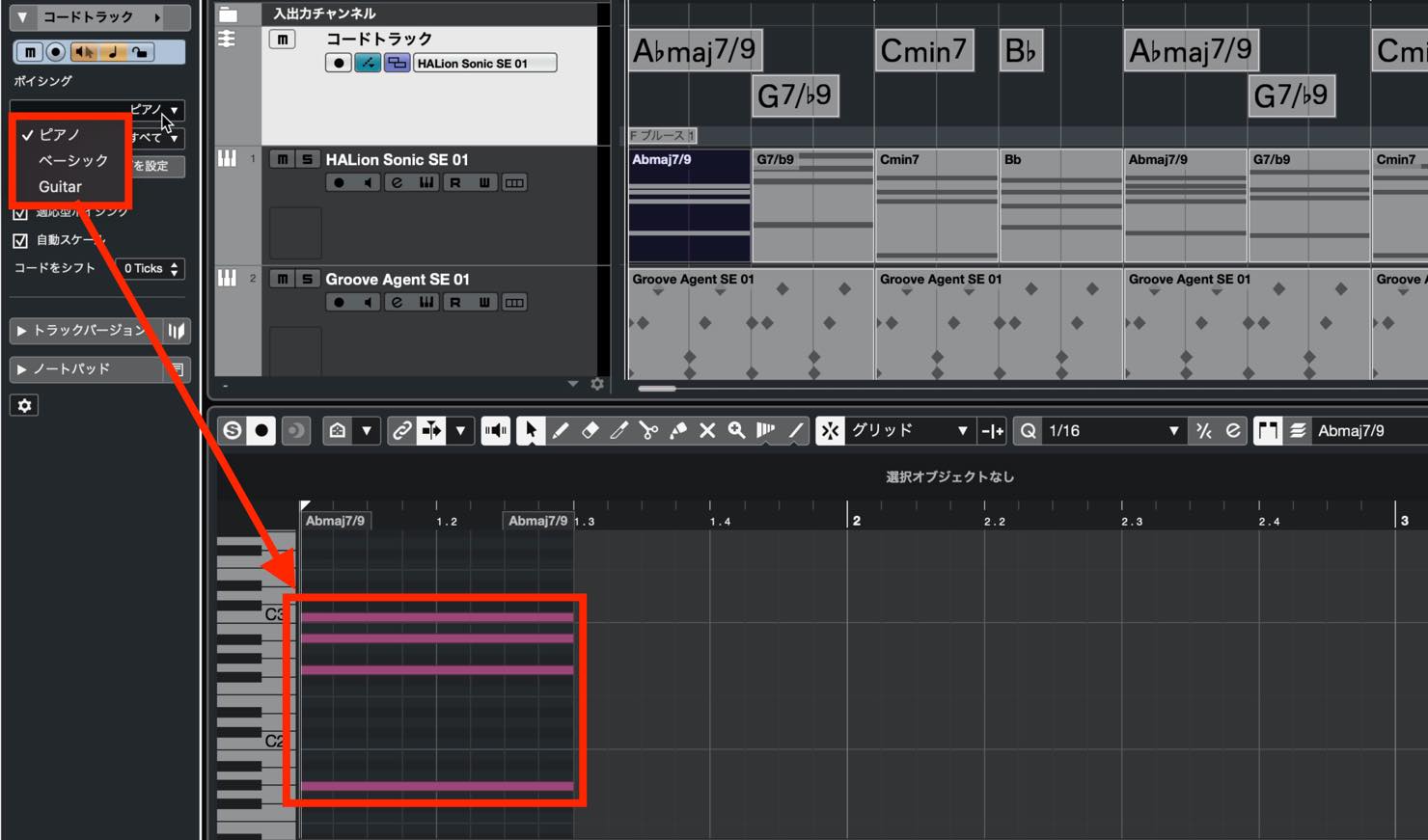
You can also change the voicing of chords on the Chord Track.
The Chord Track Inspector includes a Voicings setting, which defaults to Piano. Click it to choose another option, such as Guitar or Basic.
Chord Pads
Cubase also has a Chord Pads feature, which lets you play the currently selected track using pads assigned to chords.
To use it, select the desired track and choose the Chord Pads tab in the Lower Zone.
The Chord Pads appear as shown here. Click a pad to play its chord.
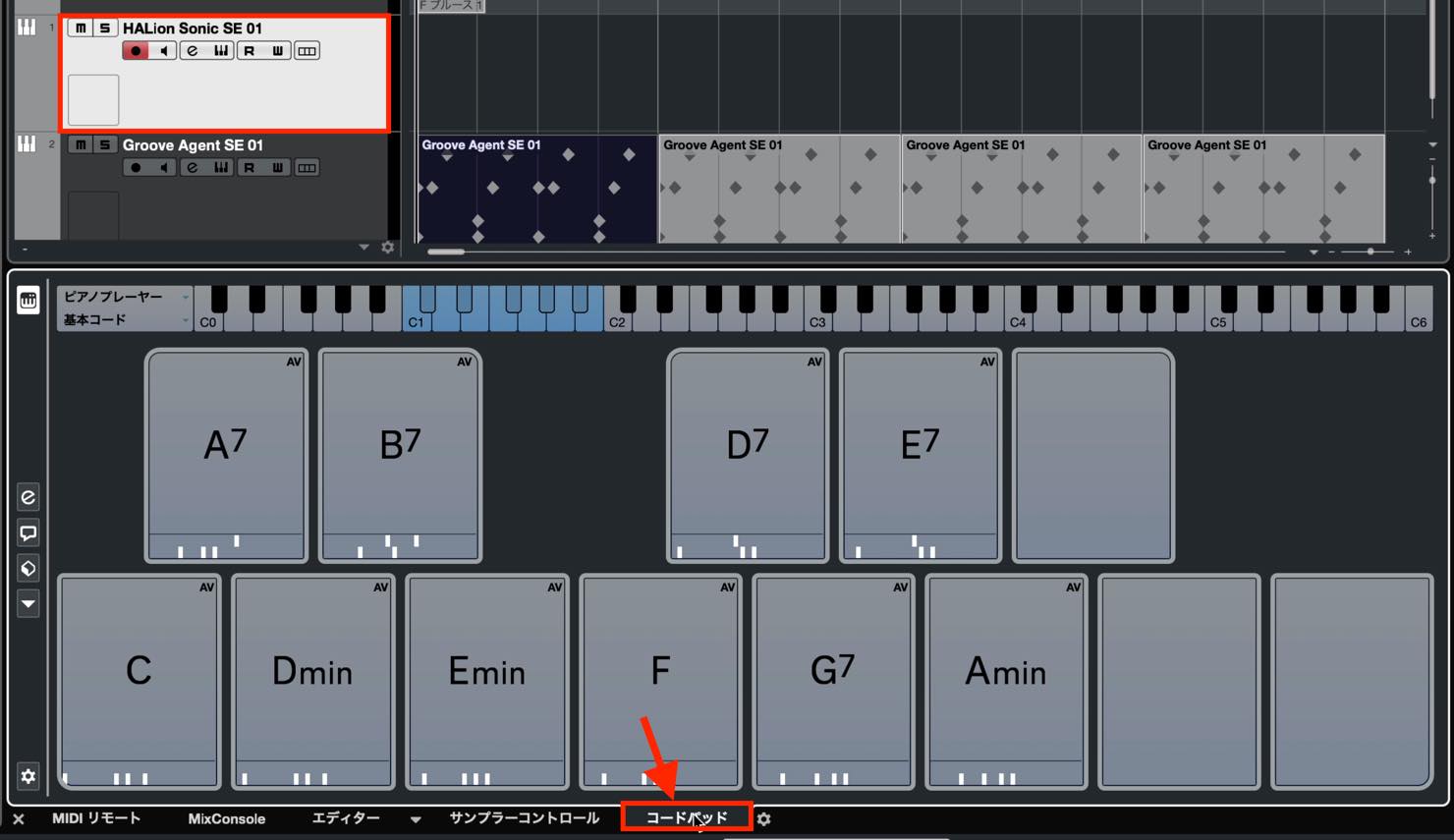
The pads correspond to the blue keys on the keyboard above. In this example, you can trigger them from C1 to B1.
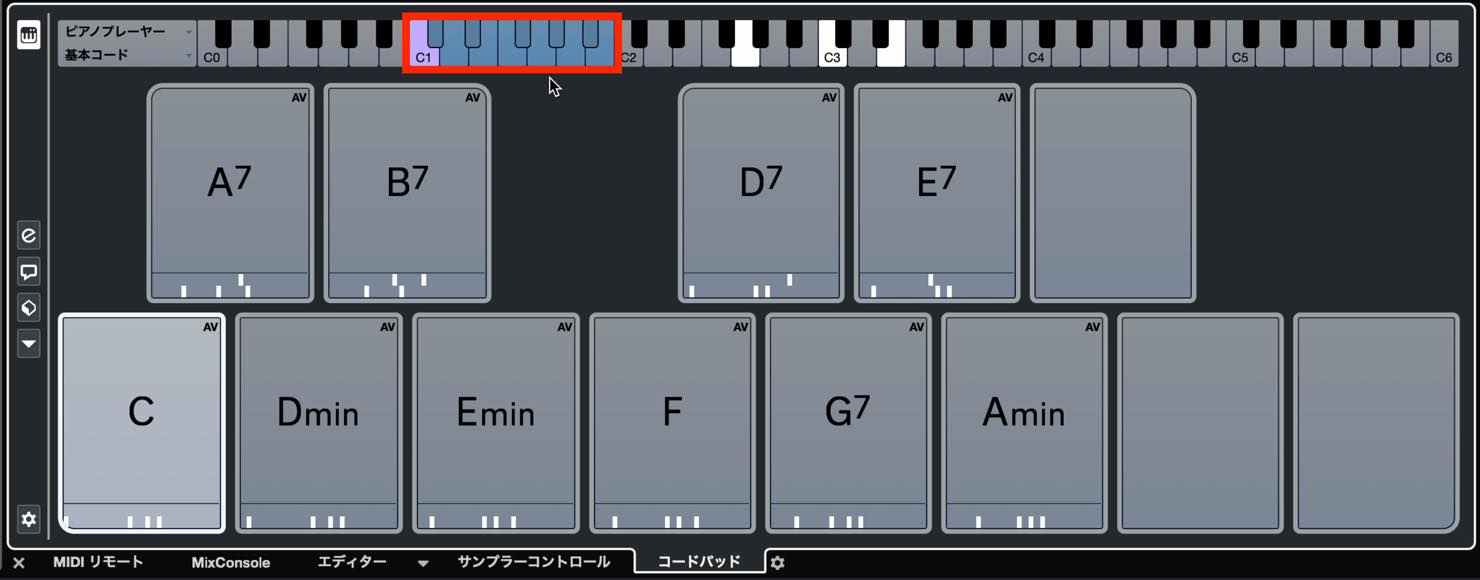
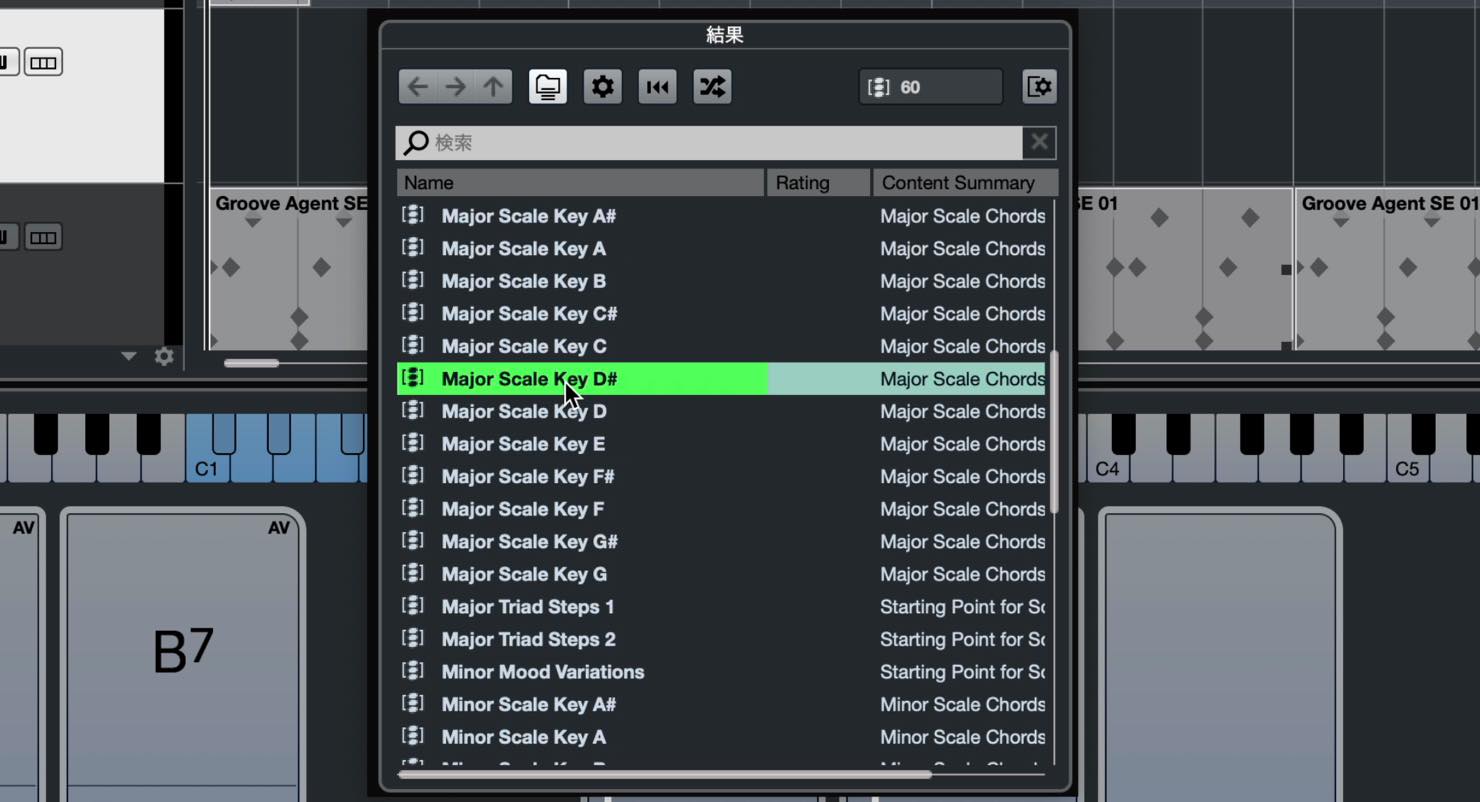
Chord Pads also includes presets. Click this icon on the left and choose Load Chord Pad Preset.
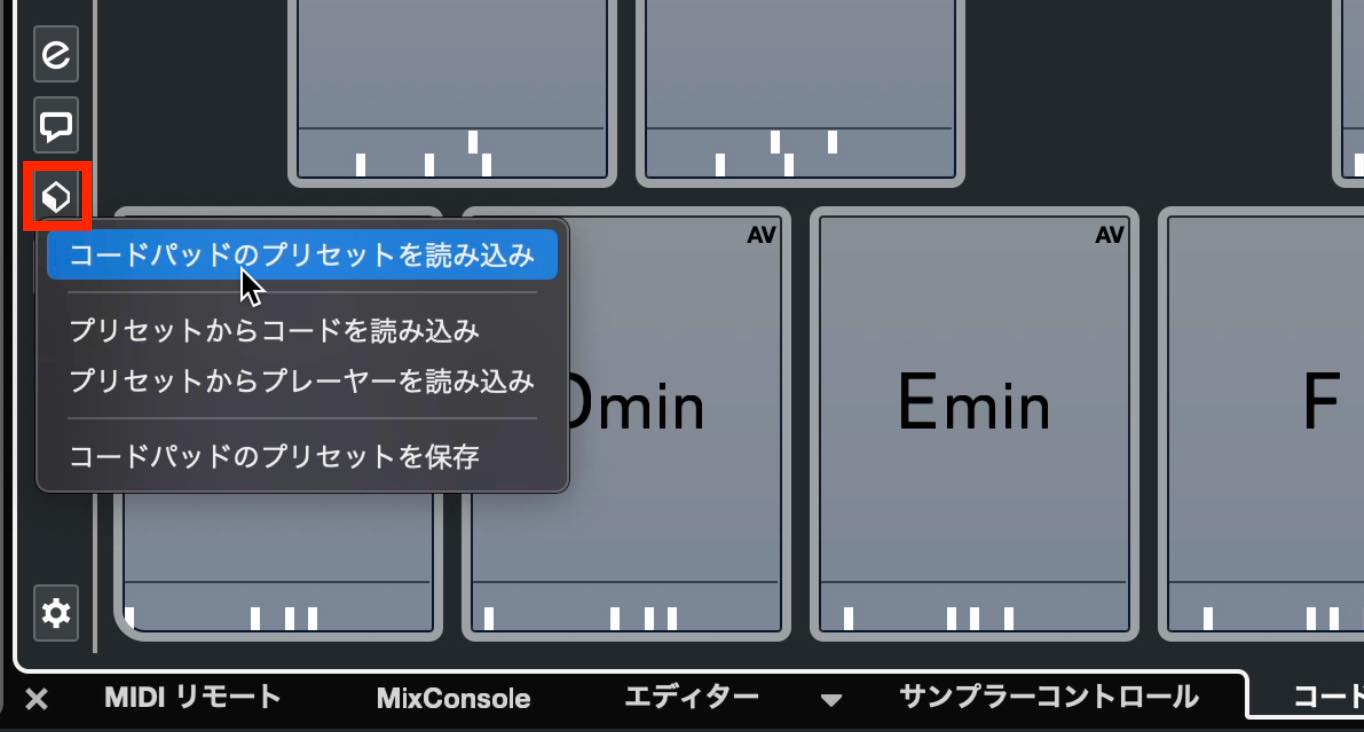
Choose a preset from the available options. Selecting one that matches your song's key assigns the corresponding diatonic chords to the pads.
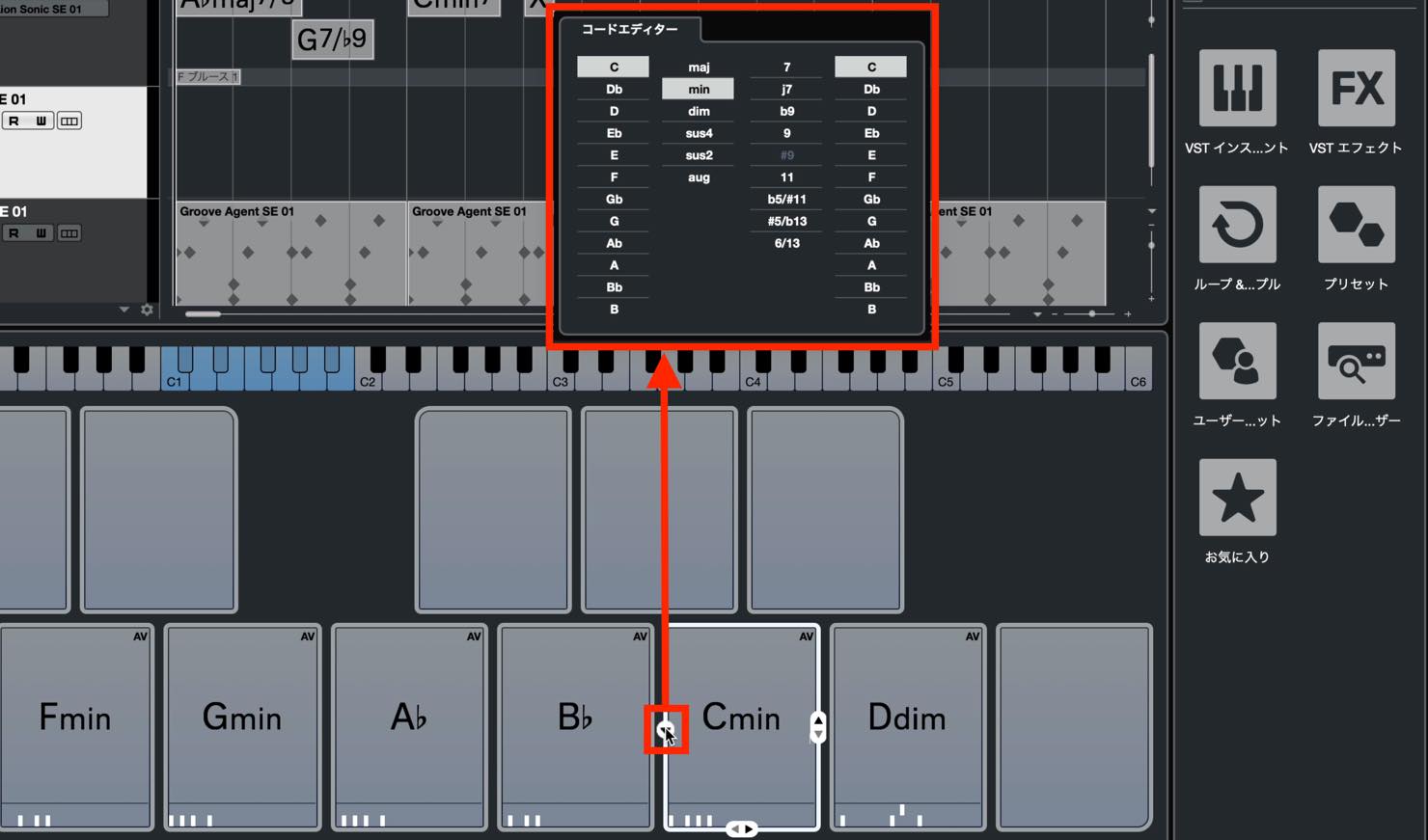
To edit the chord assigned to a pad, click the arrow button on its left.
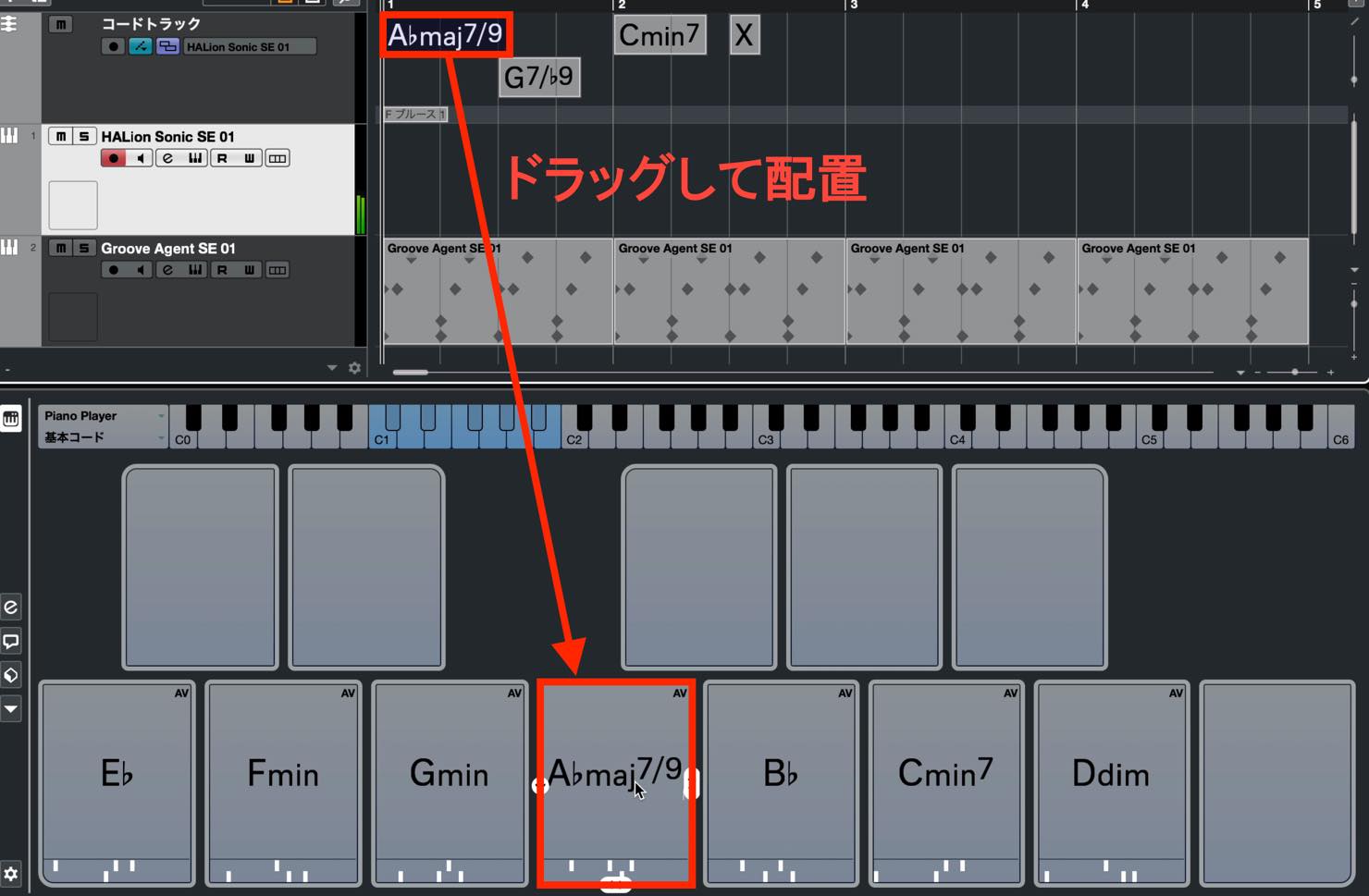
You can also drag chords that you have already entered on the Chord Track onto the pads.
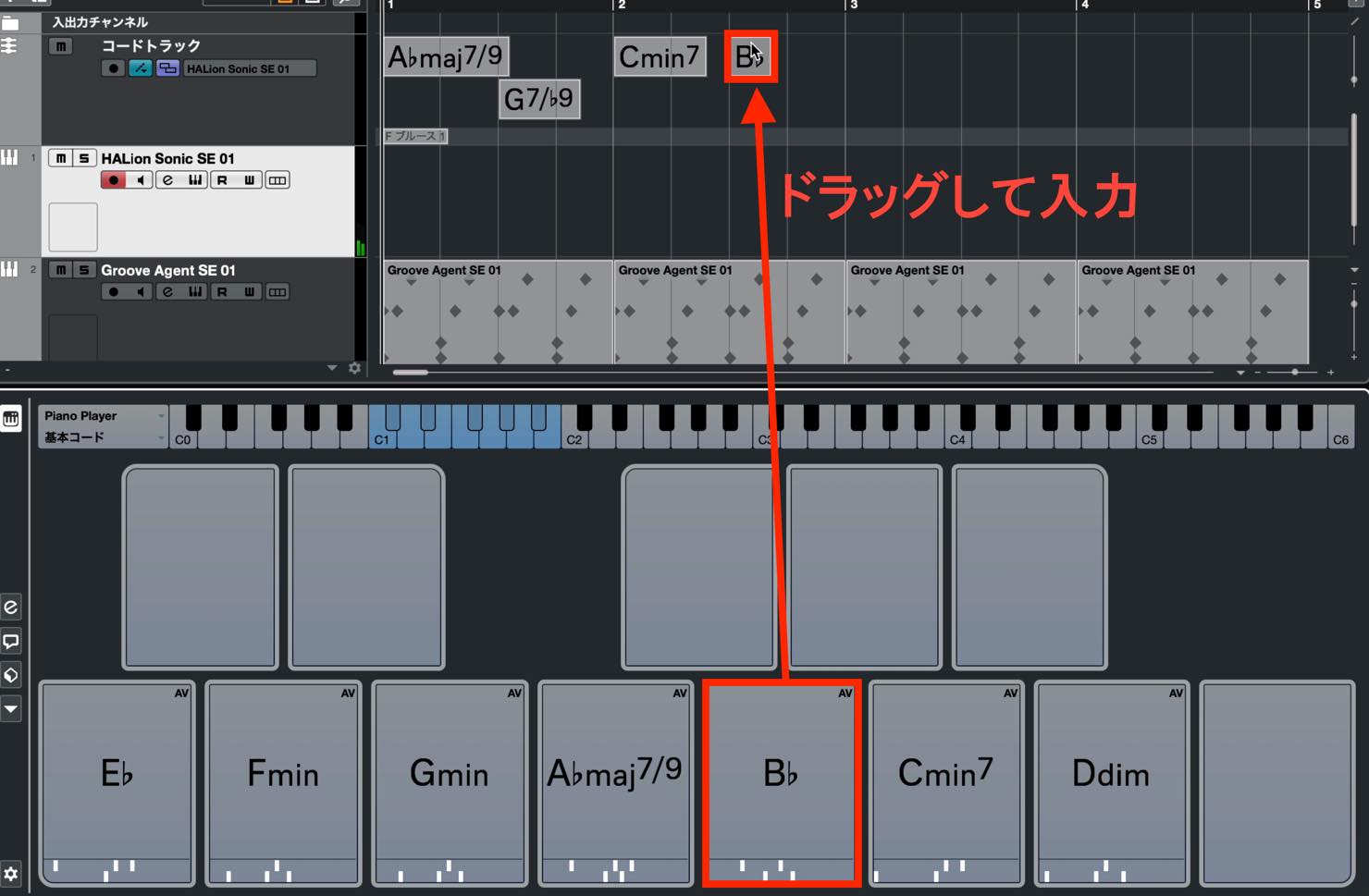
Try playing the pads to develop a chord progression. Once you have settled on it, drag and drop the chords onto the Chord Track.
Transferring Chords to an Instrument Track as MIDI
To use the Chord Track as a starting point for MIDI programming, convert its chords to MIDI.
The process is simple: select the chords and drag and drop them onto an instrument track.
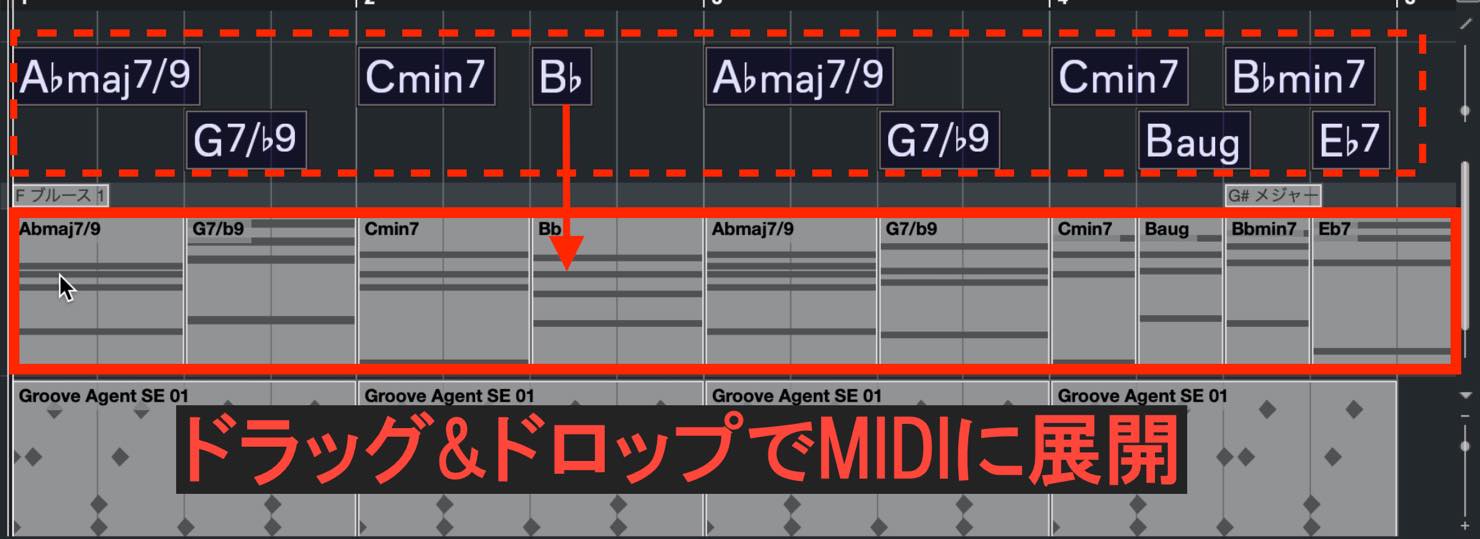
The Piano, Guitar, or other voicing you selected earlier is applied during this conversion.
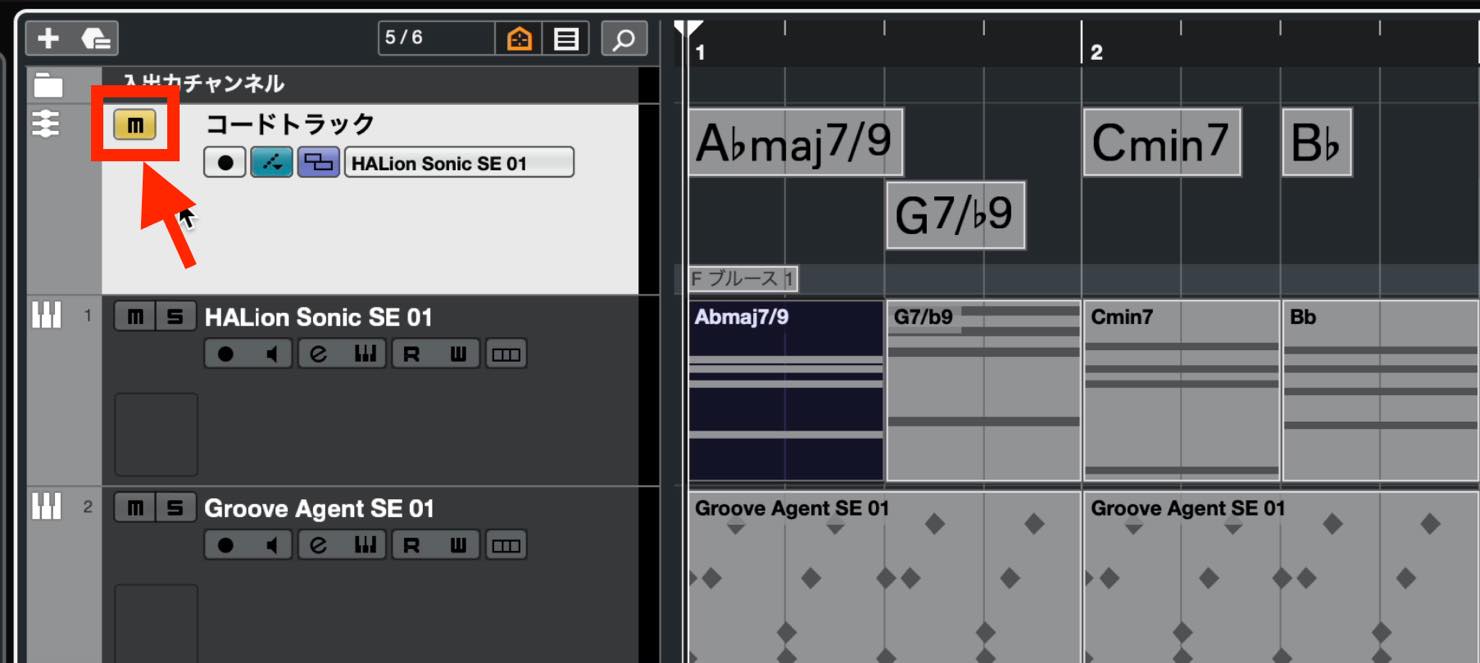
Once you start arranging the chords on the instrument track, both it and the Chord Track may play the same chords.
When you no longer need playback from the Chord Track, mute it.
That covers entering chords and using the Chord Track in Cubase.
The Chord Track is extremely useful for building the chord progression that forms a song's foundation, so take some time to get comfortable with it.
In the next lesson, we will look at programming melodies in the Key Editor.
Part 7 of our Cubase beginner series covers entering chords. Cubase's Chord Track is useful for planning and recording chord progressions. It is a valuable composition tool, so let's learn how to use it. https://t.co/xPrC63NWZB #MusicProduction #Cubase
— SLEEP FREAKS (@SLEEPFREAKS_DTM) May 28, 2021
Frequently Asked Questions
Q1. What is the Chord Track in Cubase?
The Chord Track is a Cubase feature for visually entering and managing a song's chord progression. It lets you choose chords with the circle of fifths and apply different voicings, making it useful for identifying diatonic chords and planning progressions.
Q2. How can I hear the chords entered on the Chord Track?
Create an instrument track, using HALion Sonic SE for example, and select it in the Chord Track field labeled Use Monitored Tracks. You can then hear the chords as you select them.
Q3. When are Chord Pads useful?
Chord Pads lets you play chords in real time and explore progressions as you develop your ideas. Choosing a preset that matches the song's key places its diatonic chords on the pads, helping you program efficiently.
Q4. How do I convert Chord Track events to MIDI?
Select the chords and drag and drop them onto an instrument track. The Piano, Guitar, or other voicing you configured is applied automatically.
NEW ARTICLES
Latest English Articles
























































































































































