
New Sonic Arts Nuance is a streamlined sampler for quickly editing WAV and AIFF files into drum kits and rhythm instruments. This tutorial covers preset kits, building your own kit, and editing individual pads. Choke groups, pitch, reverse playback, sample range, and ADSR controls give you many ways to shape drum sounds. It is a useful tool for music producers who want an efficient rhythm workflow.
A streamlined sampler for quickly shaping sounds
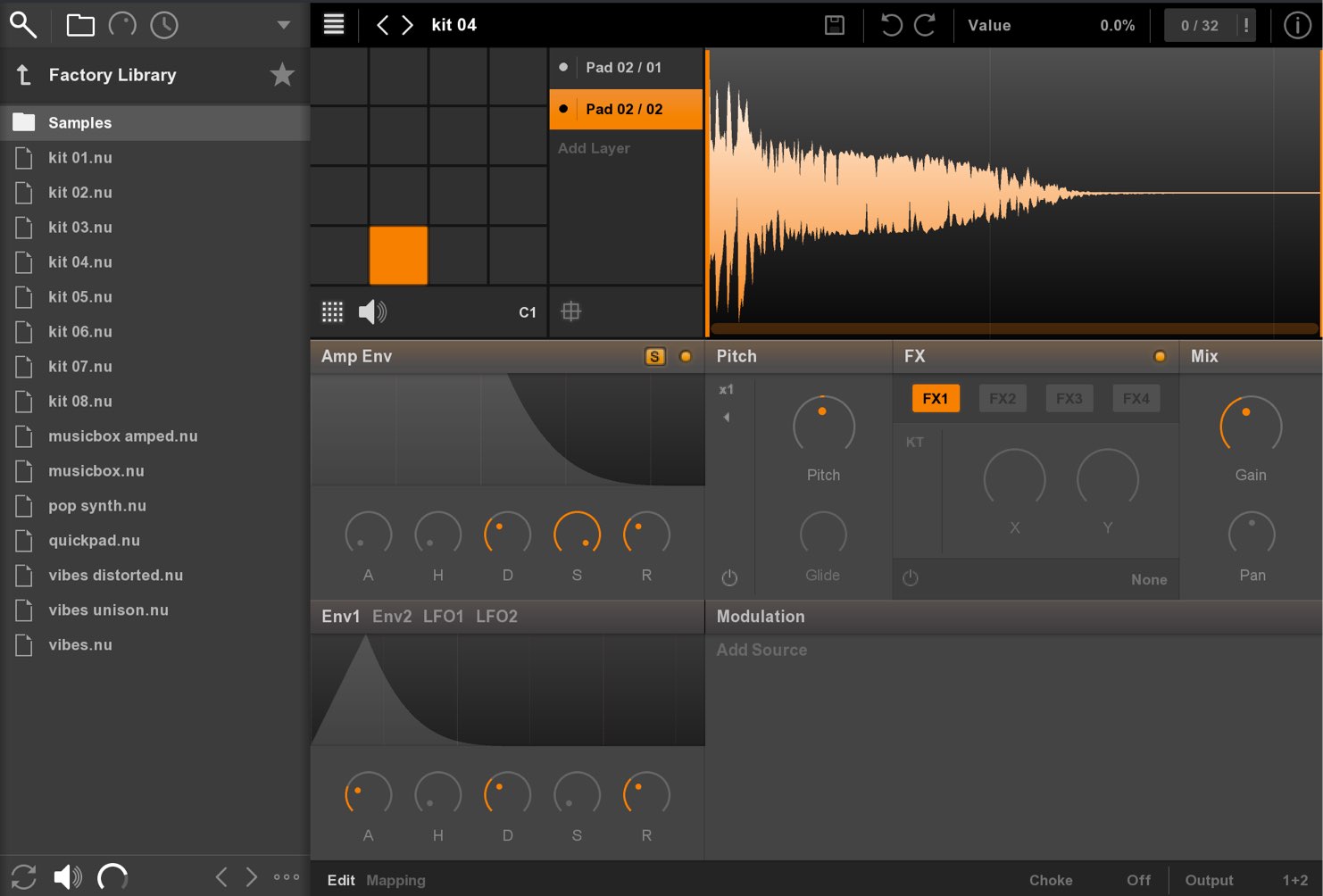
Nuance is a powerful sampler for processing material quickly.
Load WAV or AIFF audio files and arrange them on your MIDI keyboard as you wish.
It is designed around two streamlined editing windows so you can reach the sound you want quickly.
Besides mapping samples across keys as pitched instruments, you can assign samples to pads and use them as a rhythm instrument. This article focuses on that approach.
How to use Nuance
Using presets
Nuance includes preset rhythm kits.
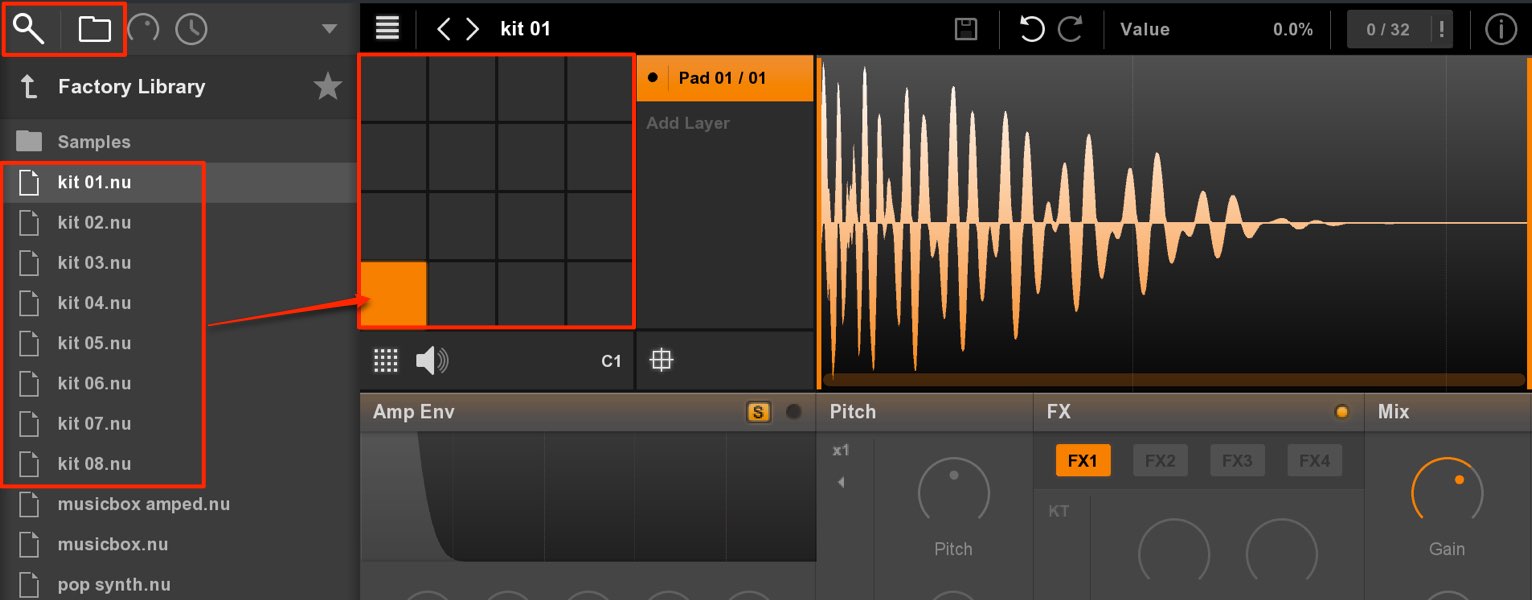
Click the browser to open it, use the folder icon to find a kit, and double-click it.
The kit sounds are assigned to the pads.
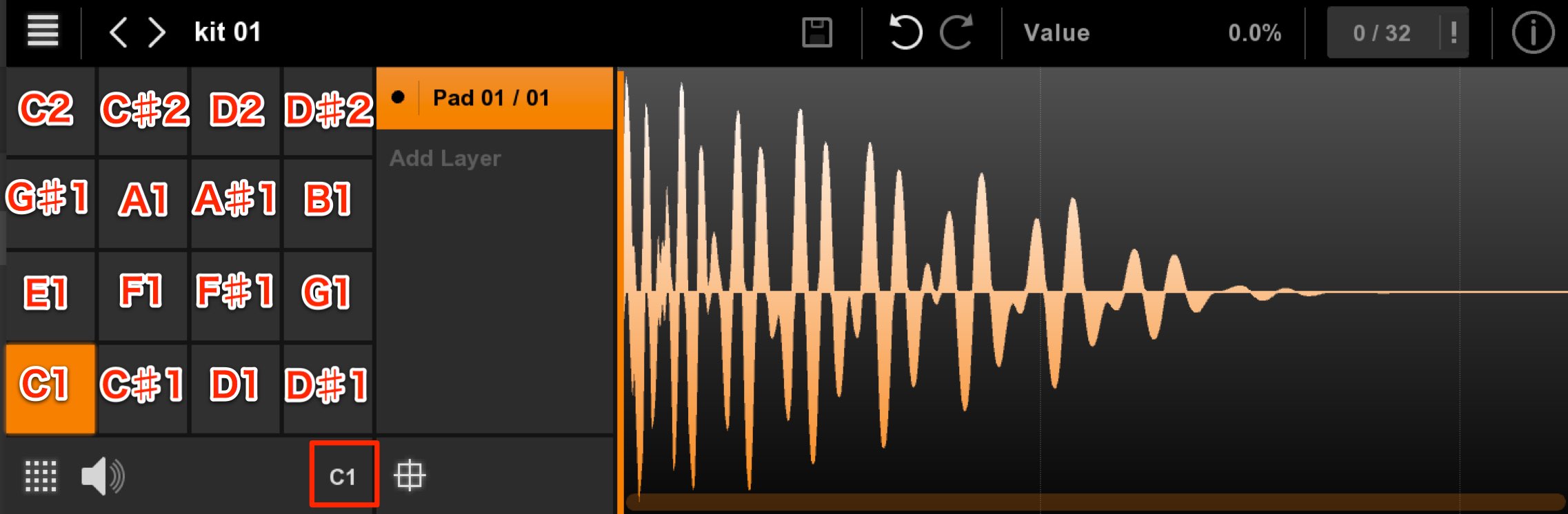
Pads are mapped in semitone steps, and the control highlighted in red sets the starting note.
In the image the first pad begins at C1, with subsequent kit sounds assigned one semitone apart.
Combining samples to create an original kit
You can also place your own audio samples on the pads to build a custom kit.
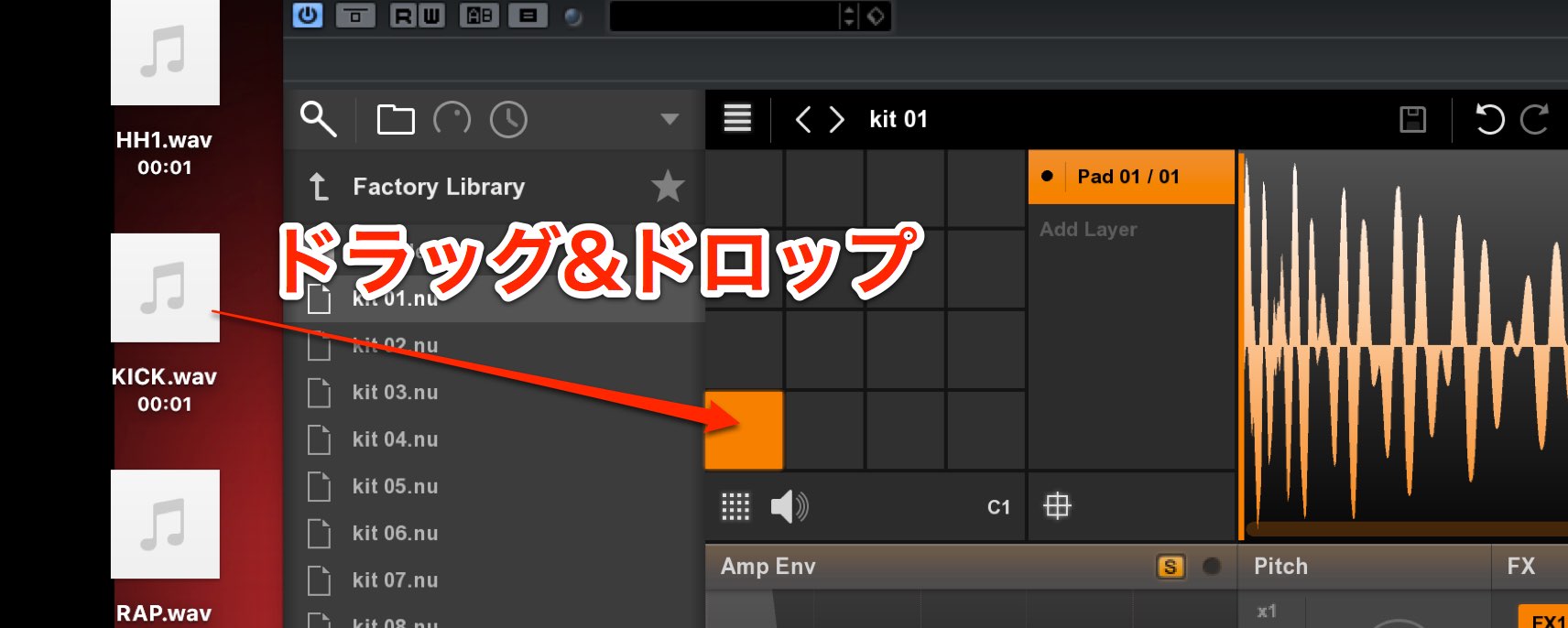
Simply drag and drop a WAV or AIFF file onto the desired pad.
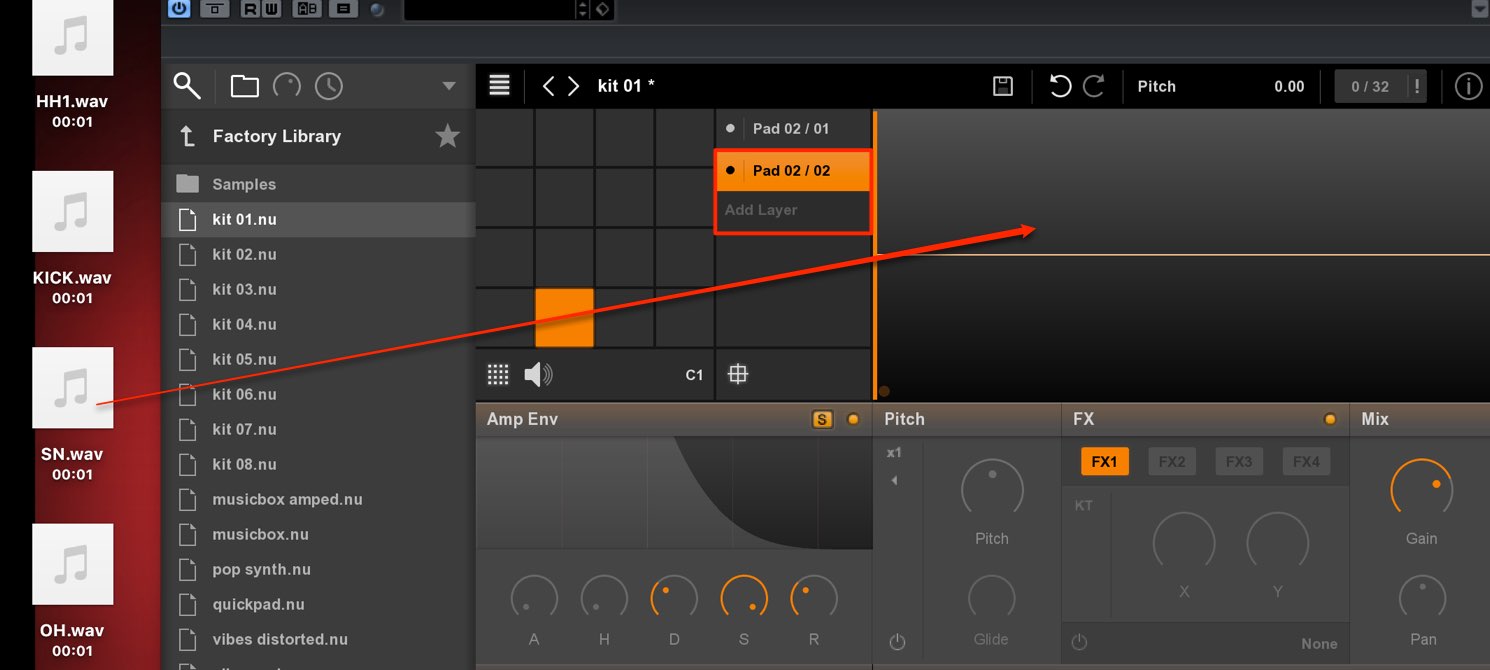
Press Add Layer to add multiple sounds to one pad.
This is useful for layering kicks or claps to make them sound fuller.
Editing individual pads
After assigning sounds to the pads, you can fine-tune each one.
Use the parameters below for these edits.
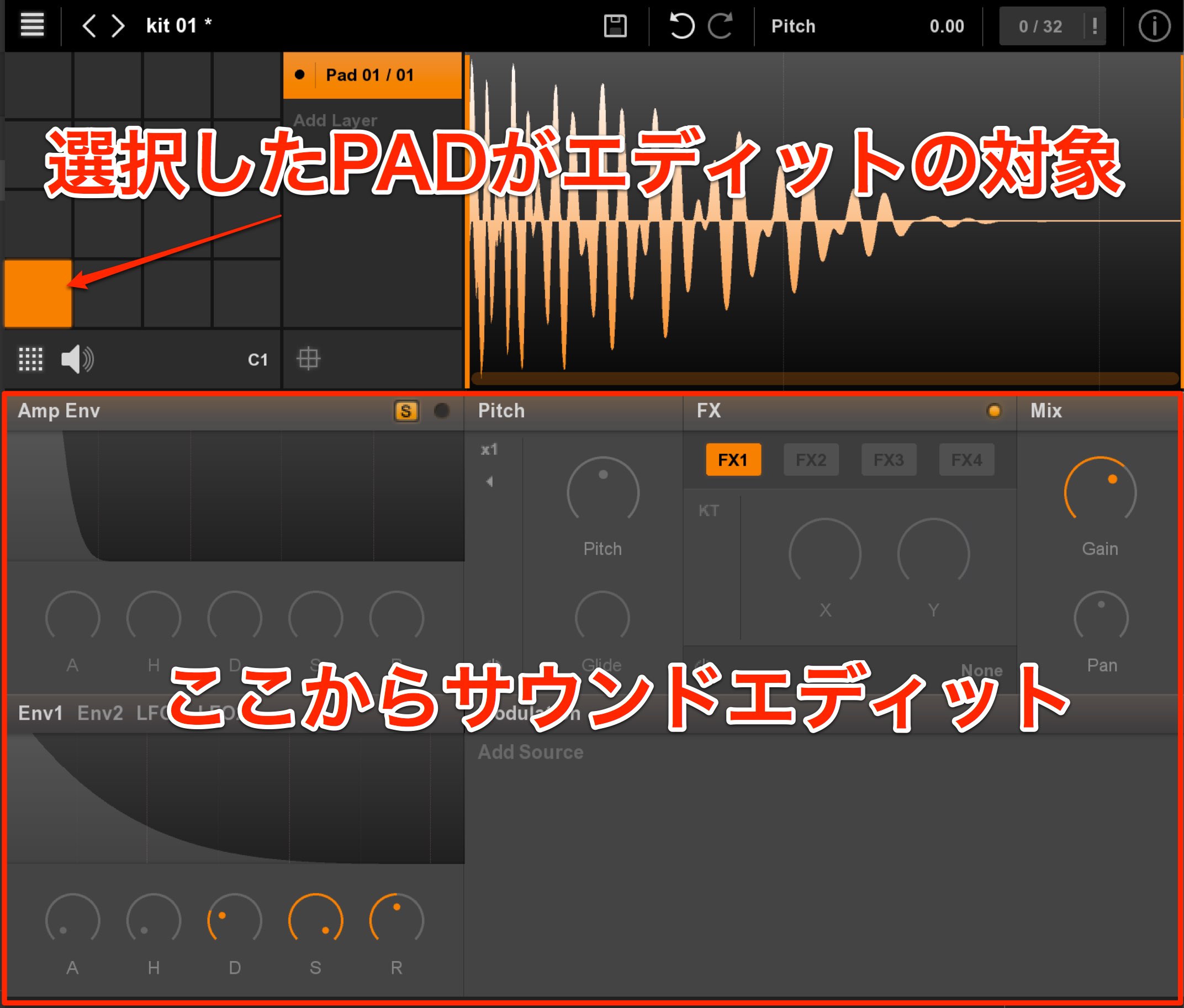
The display shows the state of the selected pad.
Toggling MIDI focus
By default, the displayed kit sound changes as MIDI notes are played.
If this makes it difficult to adjust a particular sound while previewing the kit, MIDI focus is useful.
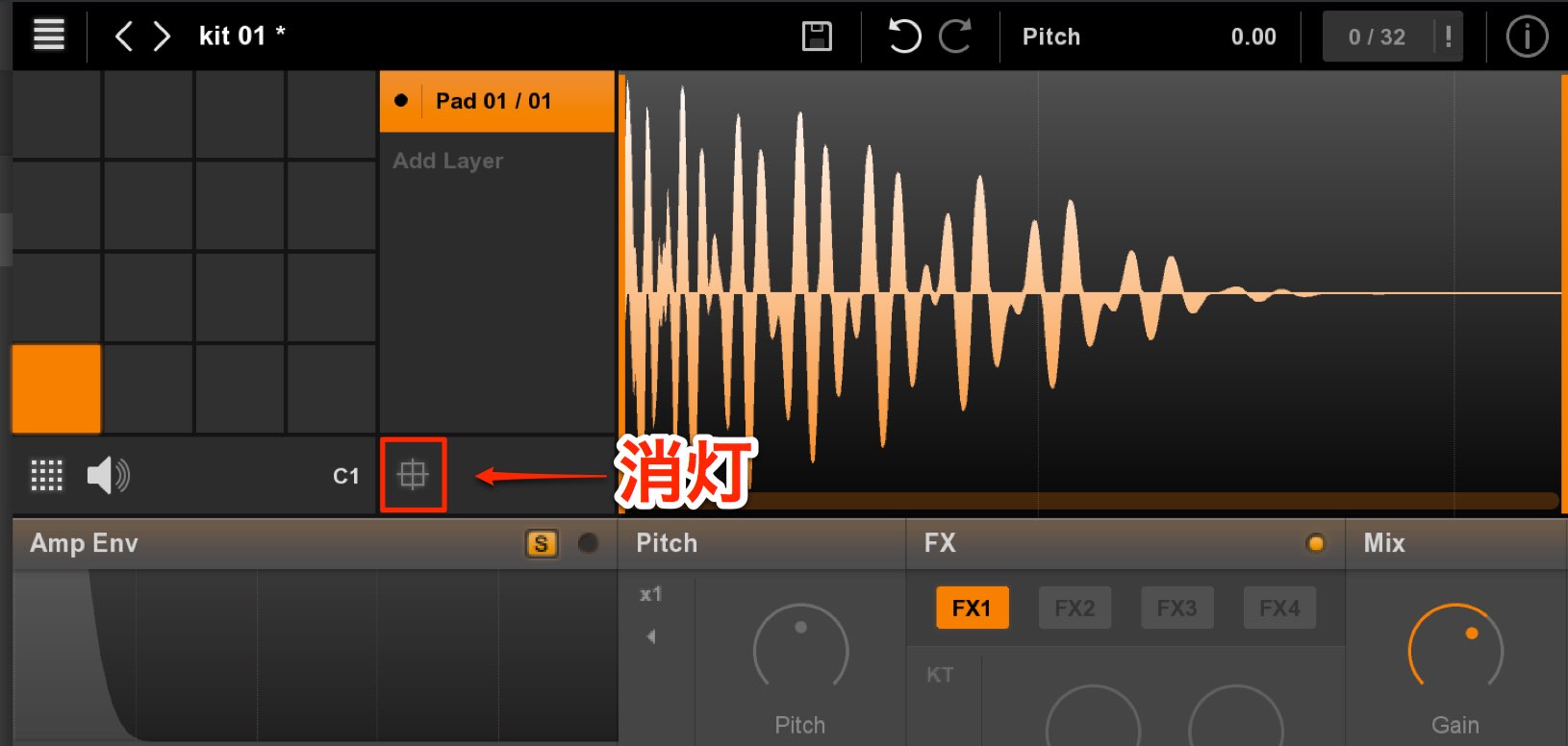
Turn MIDI focus off to keep the desired pad displayed even when other kit sounds are played.
To change the displayed pad in this state, click the desired pad with the mouse.
Using choke to stop a kit sound
The choke function limits simultaneous voices within a kit.
A common example is stopping an open hi-hat with a closed hi-hat to control the groove.
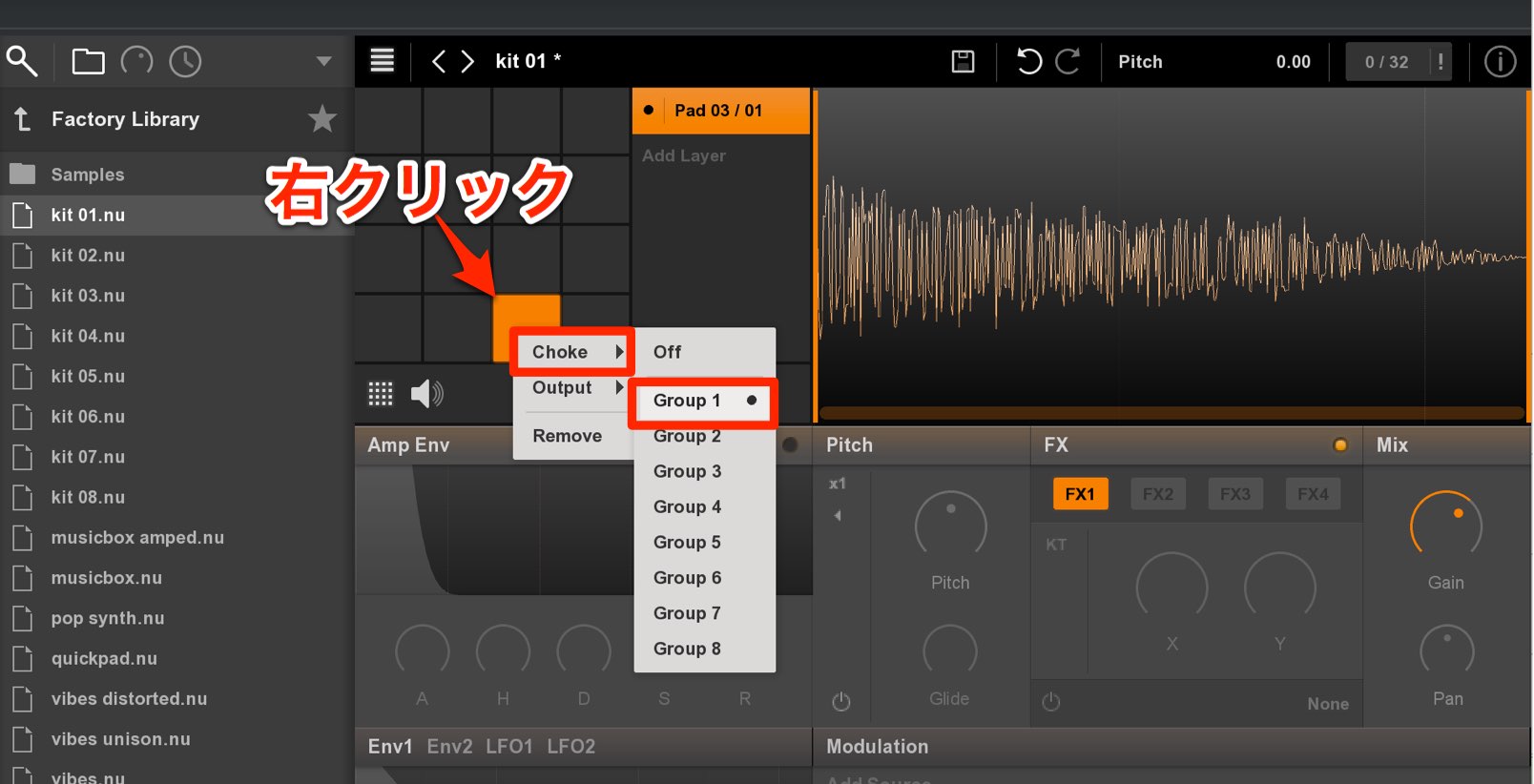
Right-click each pad you want to choke, choose Choke → Group, and assign the same group number.
The group is then limited to one simultaneous voice, so the closed hi-hat can stop the open hi-hat.
Adjusting volume and pan
You can set the level and pan of each kit sound.
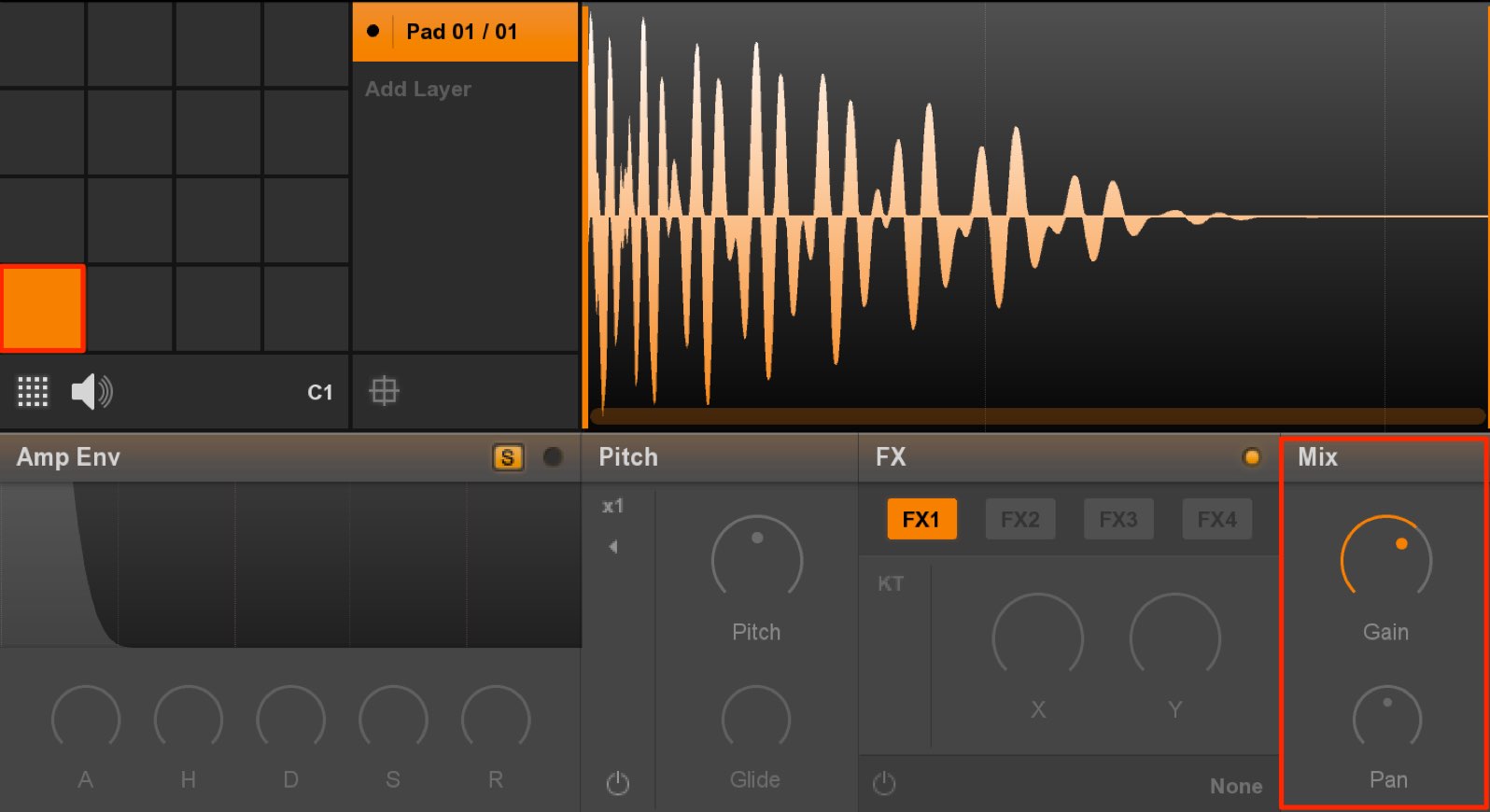
- Gain: volume
- Pan: stereo position
These are the controls to use.
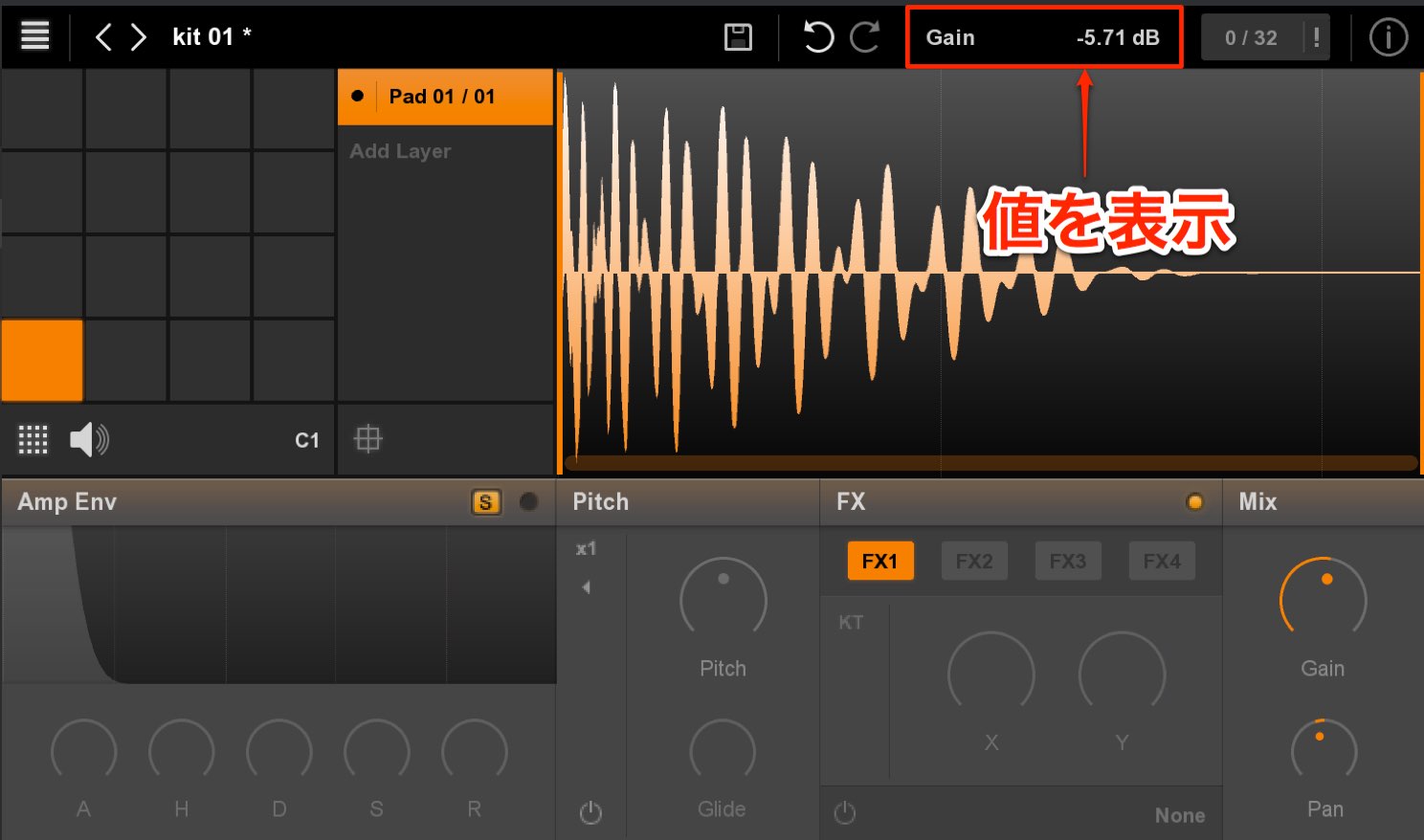
This important point applies to all parameters.
The value of the knob you are adjusting appears at the top.
Check it when making precise adjustments.
Adjusting pitch
Pitch is an important control that can substantially change a kit’s character.
Each kit sound can be adjusted in semitone steps.
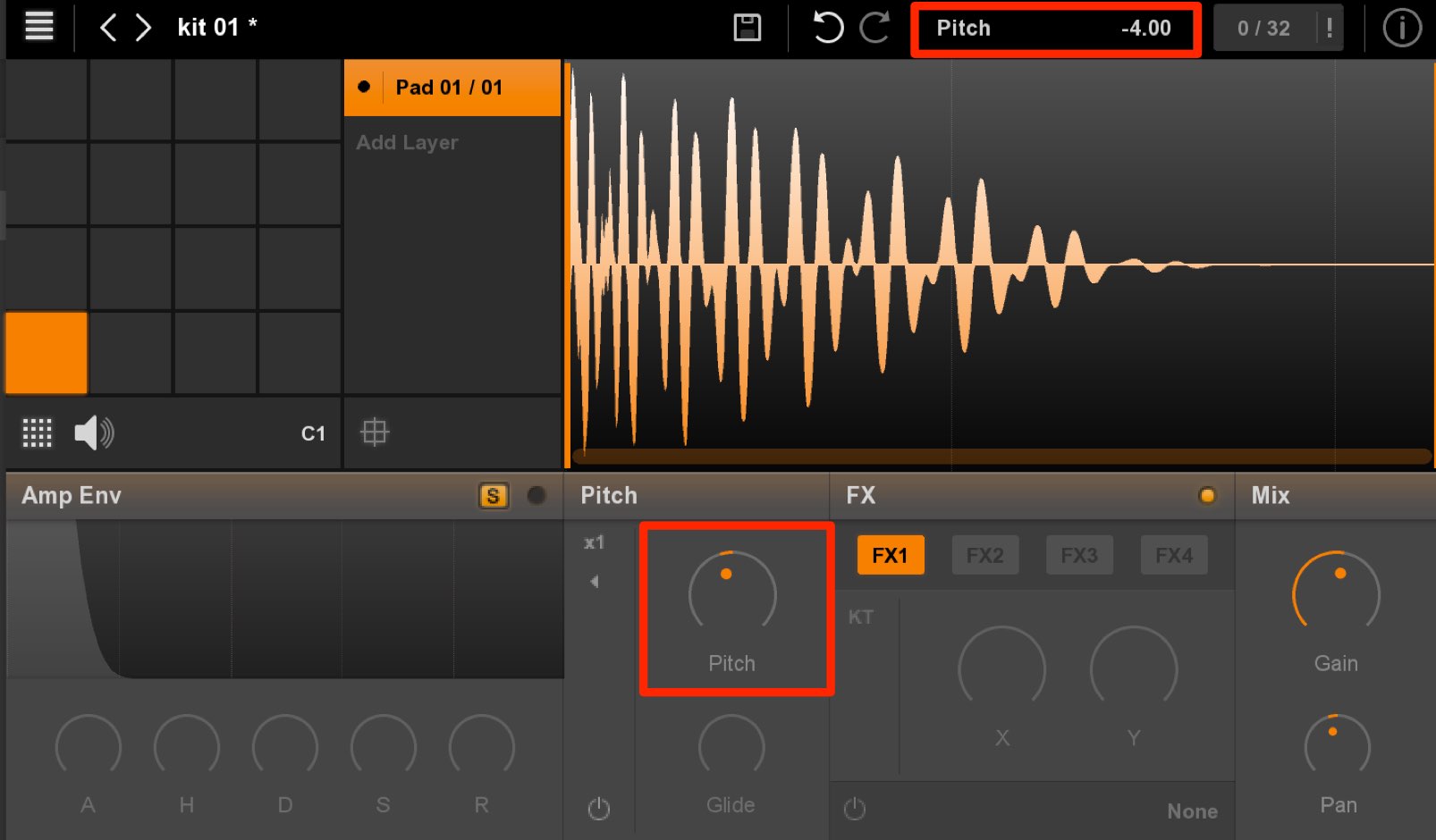
The pitch value also appears at the top.
Even a one-semitone adjustment can make a big difference.
Reversing a kit sound
You can easily create the reverse effect often used on cymbals or claps.
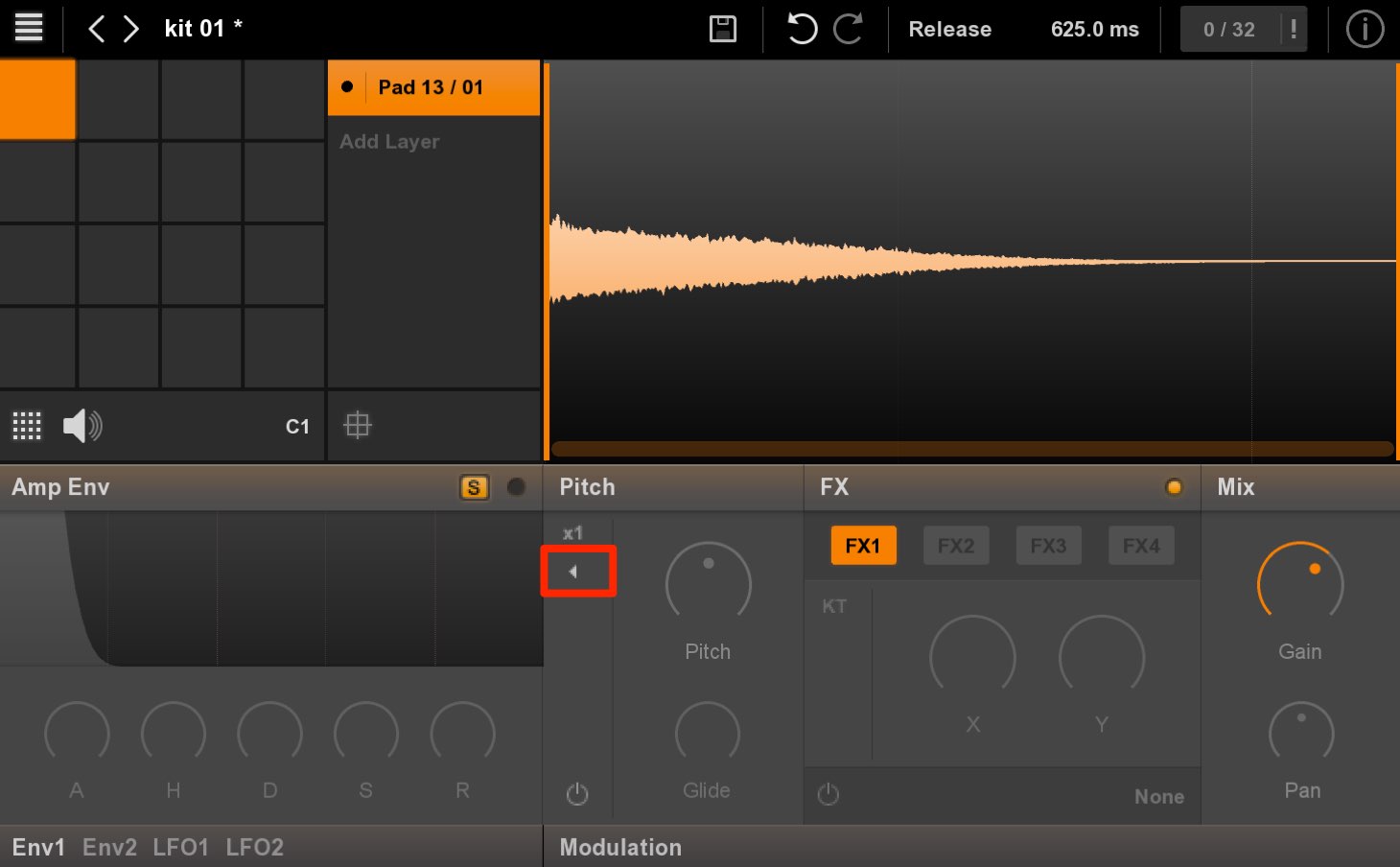
Click the small reverse playback button outlined in red to enable it.
The sample will play backward the next time it is triggered.
Setting the playback range and ADSR
Some imported samples have a playback range that is longer than you need.
You can specify the portion of the sample to use.
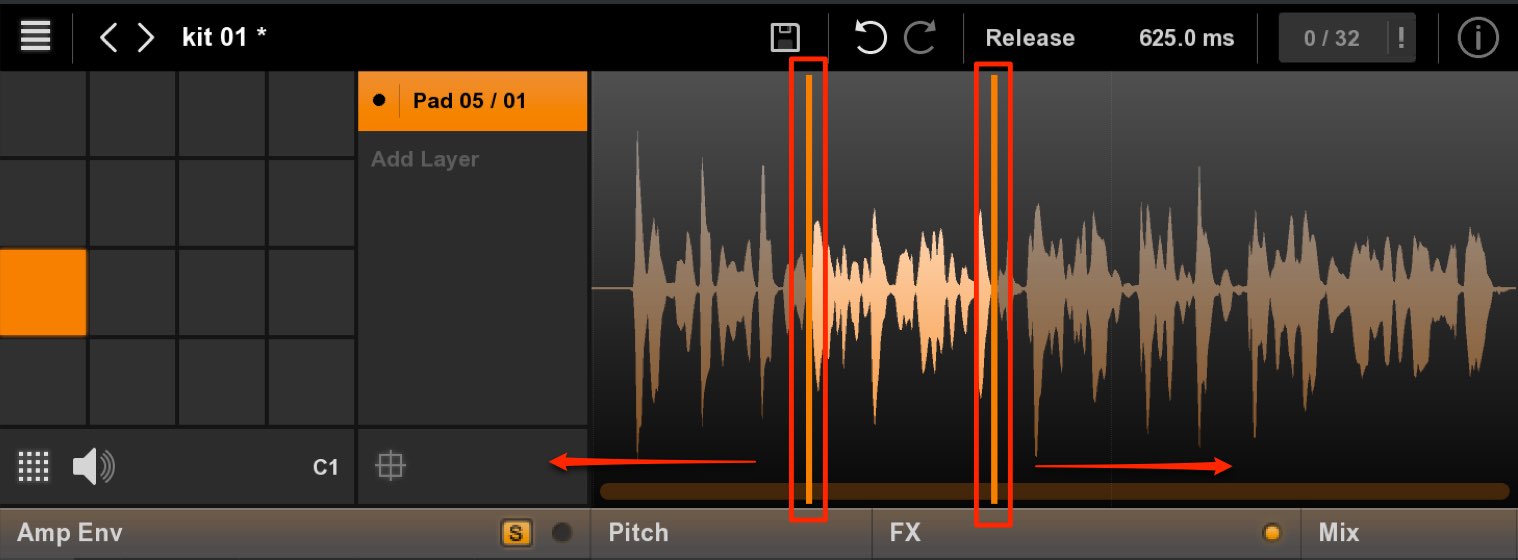
Simply drag the orange lines left or right to set the range.
By default, pad playback uses one-shot mode.
When MIDI triggers the sample, it plays to the end regardless of the MIDI note length.
This is often useful for drums, but long samples such as vocals can overlap.
In that case use ADSR mode.
This lets the MIDI note length control playback.
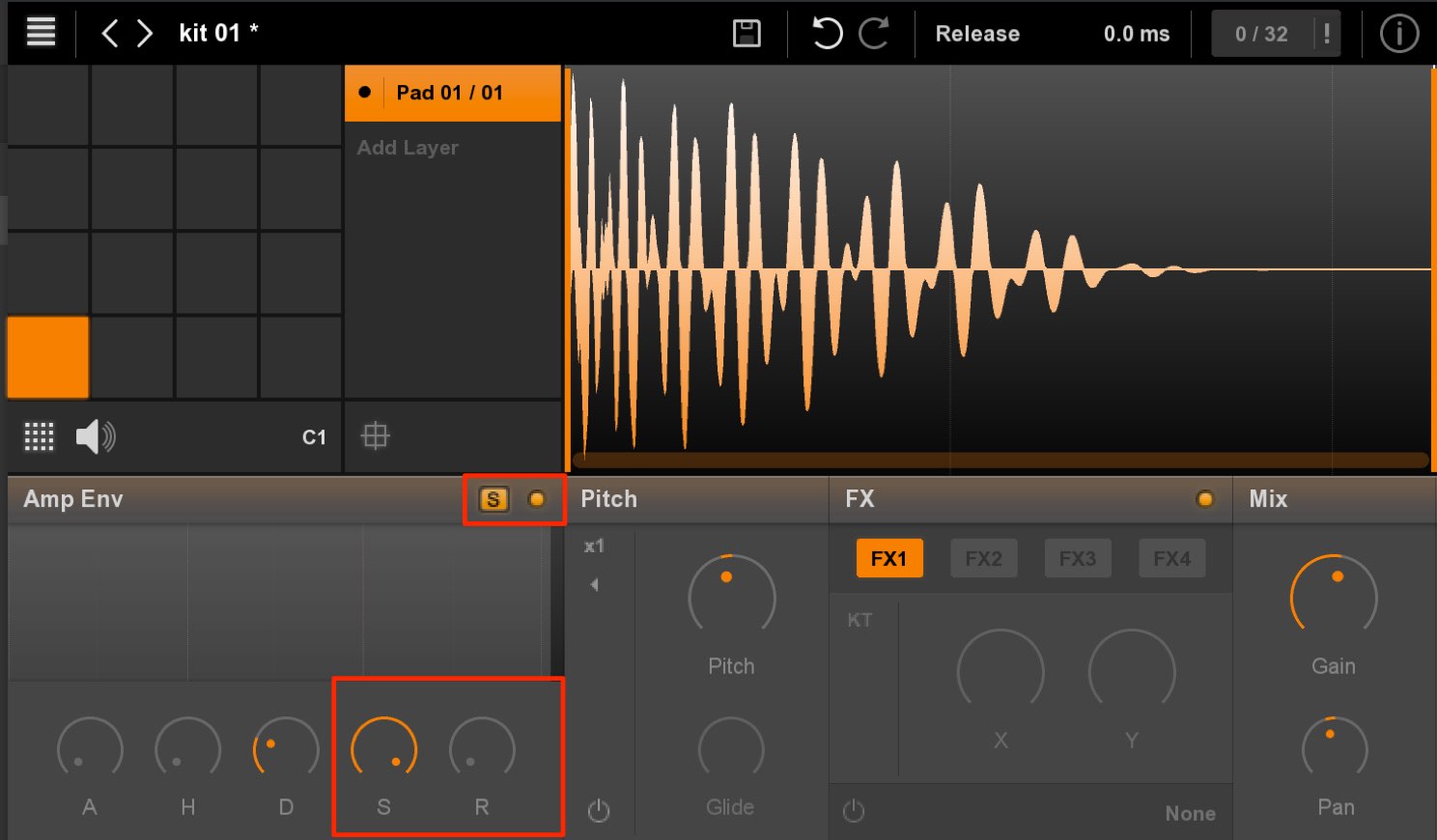
Enable the S button and the power button to its right.
- S: Turn the knob fully right so the sample plays at its sustained level while the MIDI note is held.
- R: Turn the knob fully left or set it low so the sound stops when the MIDI note ends.
This setup lets you control the length of playback.
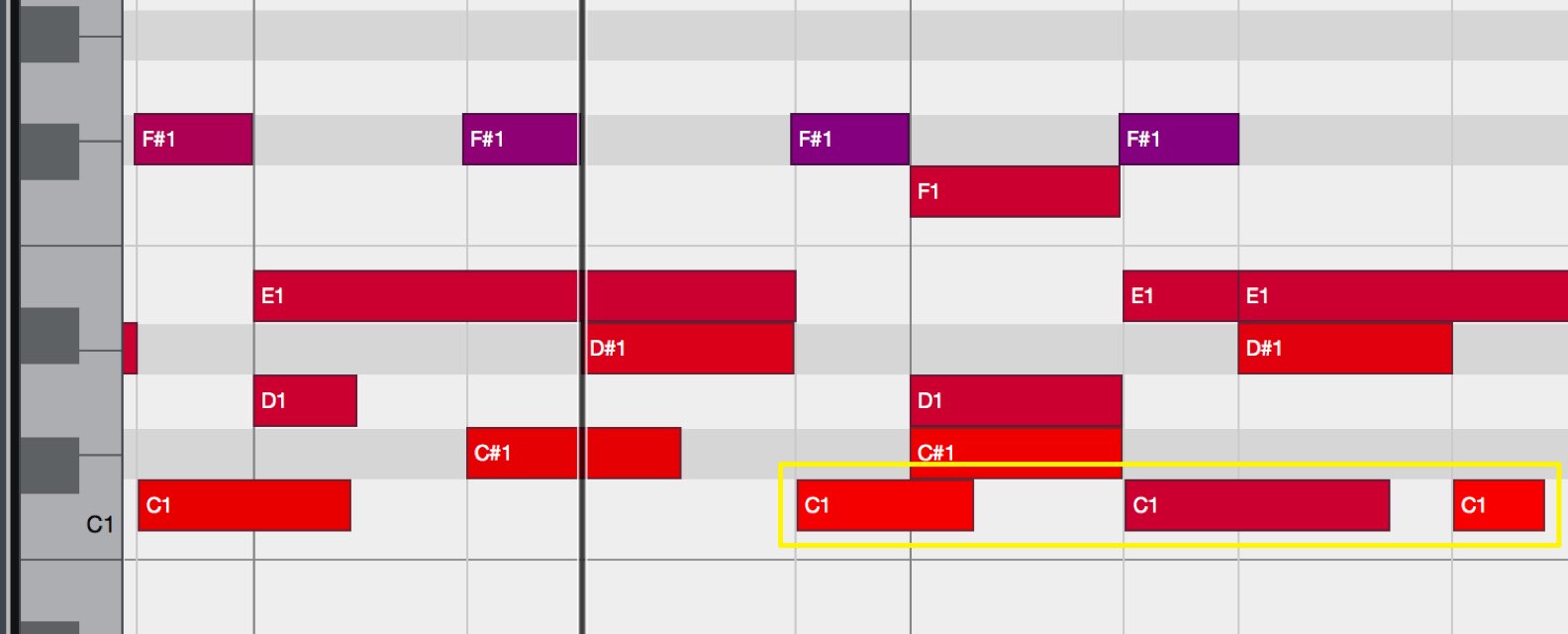
With ADSR, changing MIDI note length can also change how the same kit sound is heard, making rhythmic nuance easier to control.
Frequently Asked Questions
Q1. How do I make my own drum kit in Nuance?
Drag and drop your WAV or AIFF files onto the desired pads. Use Add Layer to stack sounds, such as kicks or claps, for a fuller custom kit.
Q2. What function stops an open hi-hat with a closed hi-hat?
The choke function. Right-click the pads and assign them to the same Choke → Group number. Only one voice in that group can play at a time, allowing natural hi-hat behavior.
Q3. How can I keep editing one drum sound while playing a MIDI keyboard?
Turn MIDI focus off to keep the desired pad displayed while playing. You can then select pads with the mouse and fine-tune each sound.
Q4. How can I prevent long samples from overlapping?
Use ADSR mode. Set sustain and release so playback follows the length of the MIDI note and long samples do not keep overlapping.
NEW ARTICLES
Latest English Articles


































































































































































































































































































































































