
This guide describes TuneCore Japan as presented in the original February 2022 article, including the prices, store coverage and registration screens shown at that time. The source describes it as Japan’s leading music distribution service, enabling independent creators to release music on more than 55 stores worldwide, including Spotify and Apple Music. It lists annual fees of ¥1,551 for a single and ¥5,225 for an album, with artists retaining copyright and receiving 100% of revenue after store fees. It also describes high-resolution distribution at 48–192 kHz. An email address and password are enough to create an account; with music files and cover artwork, independent artists can distribute worldwide alongside professional releases. These historical fees and conditions should not be read as a statement of current terms or eligibility outside Japan.
TuneCore Japan: an accessible route to worldwide distribution
This article introduces TuneCore Japan, described in the original source as Japan’s leading music distribution service, and explains its registration process.

In the service described here, TuneCore Japan lets anyone easily release music through more than 55 stores worldwide, including Apple Music and Spotify.
The annual fees quoted in this 2022 guide are ¥1,551 for a single and ¥5,225 for an album. Artists retain the copyright to their music and receive 100% of the revenue after each store’s fees.
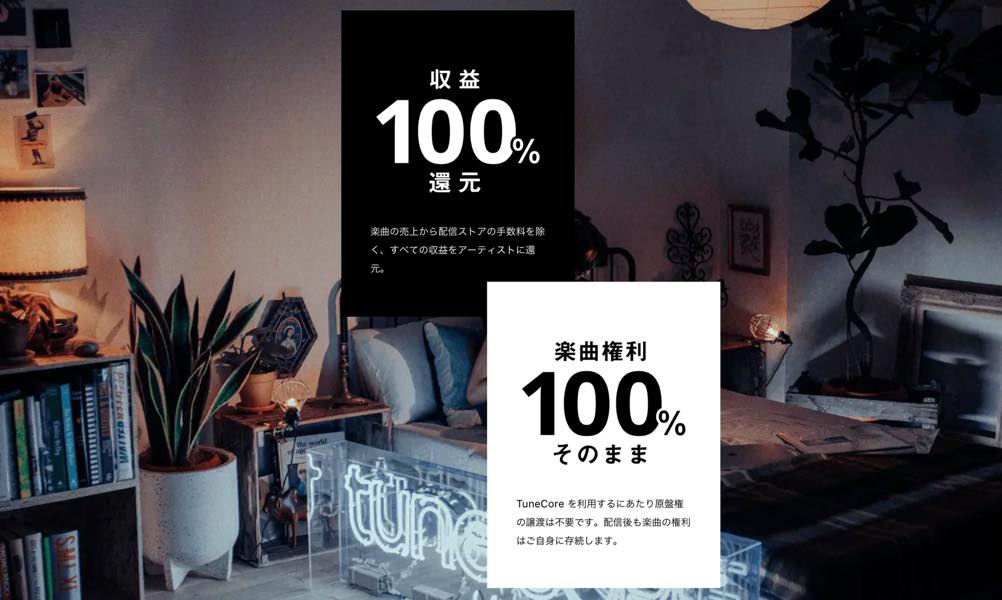
As explained later, the service also supports high-resolution distribution at 48–192 kHz.
Registration is straightforward, so let’s look at the steps shown in the original guide.
TuneCore Japan overview: registration and distribution
How to register a release with TuneCore Japan
To create an account, simply enter an email address and choose a password.
No fees are incurred at this stage in the process described here.
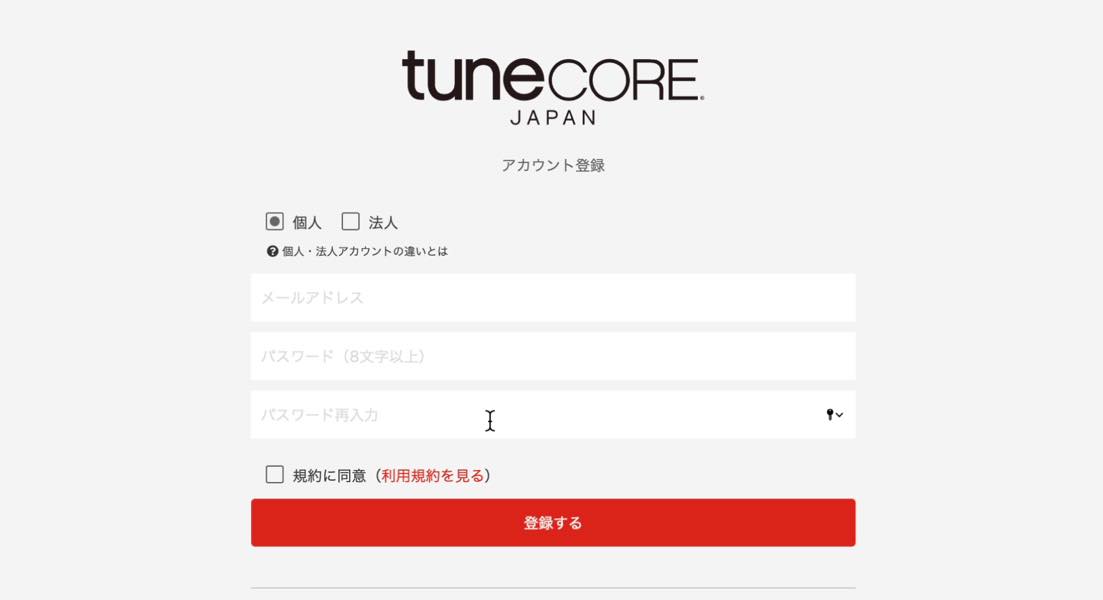
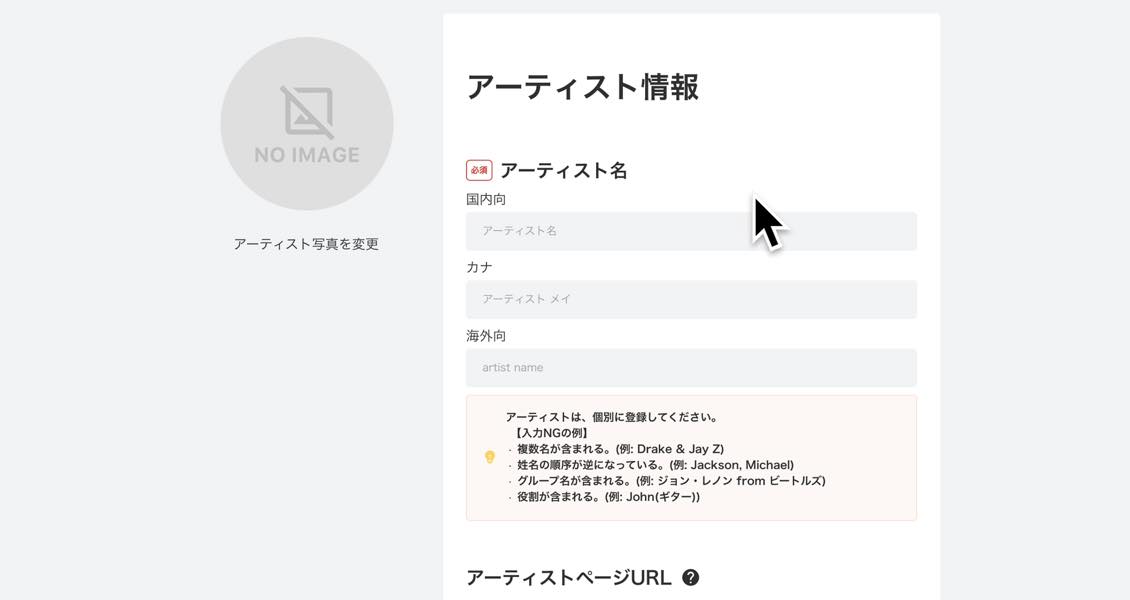
After creating your account, you move to the artist registration screen.
You can enter an artist name, photo, URL, profile, genre, location or area of activity, website and social media details. All fields except the artist name may be left blank in the workflow shown.
You can also register multiple artists.
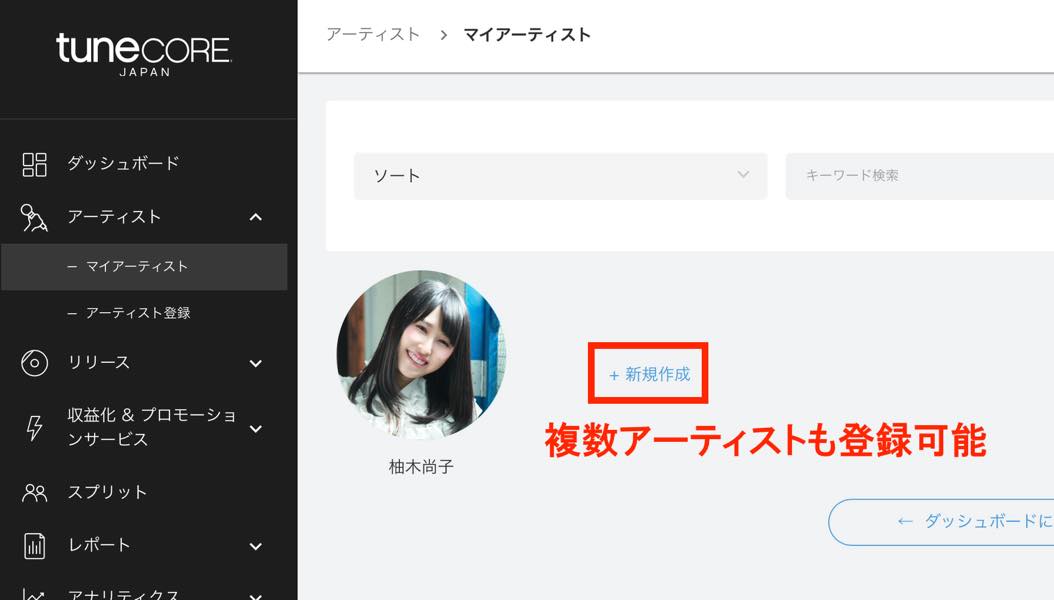
Once you have registered the artist information, create a release.
As noted above, the historical annual fees shown here are ¥1,551 for a single and ¥5,225 for an album.
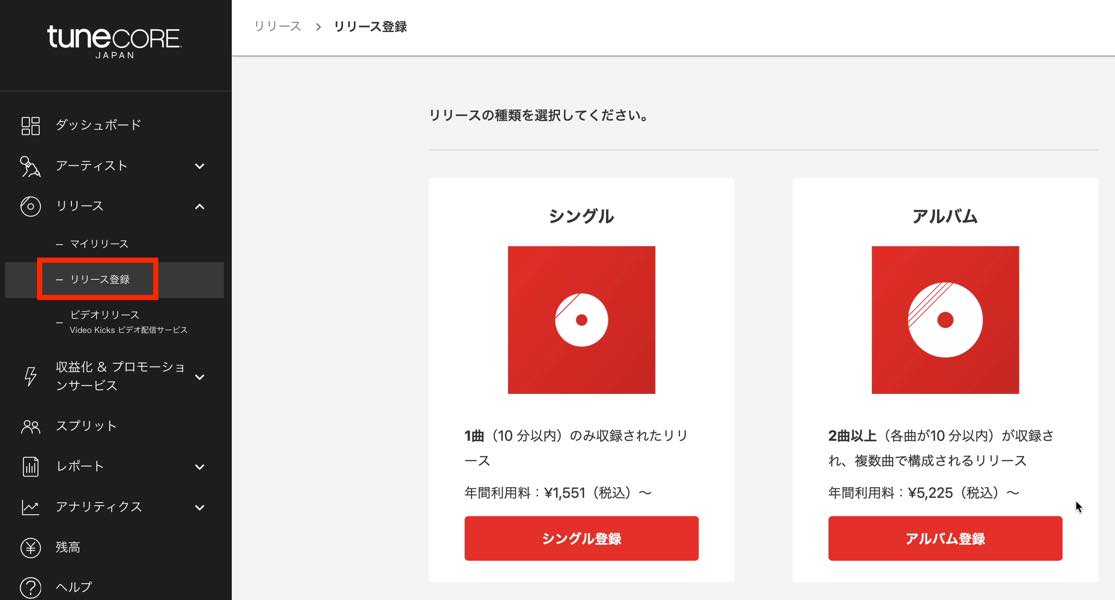
We will use a single as our example.
Click the registration button to choose the artist for the release.
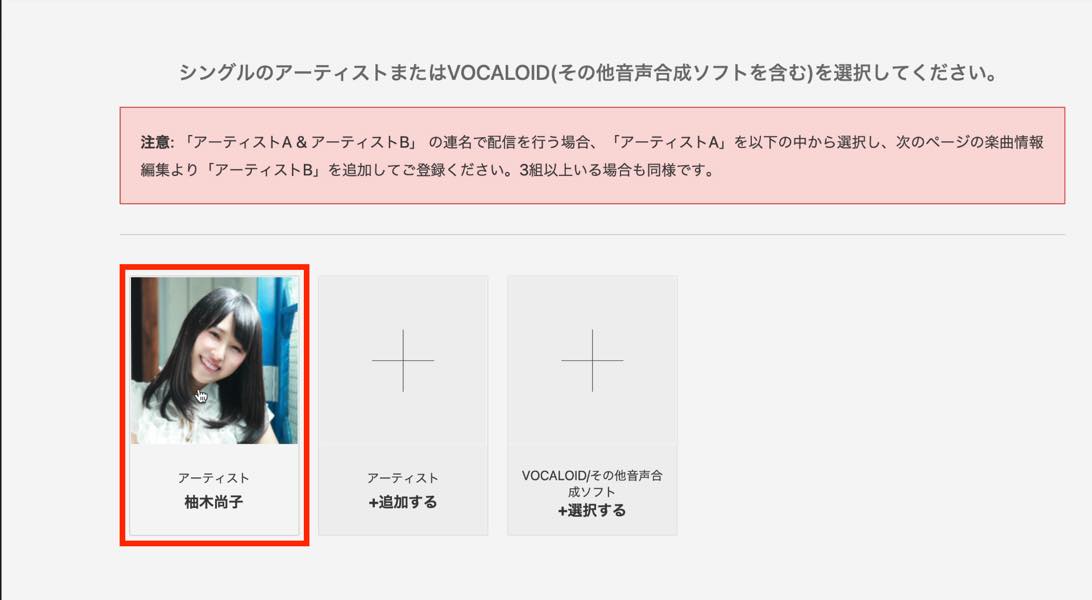
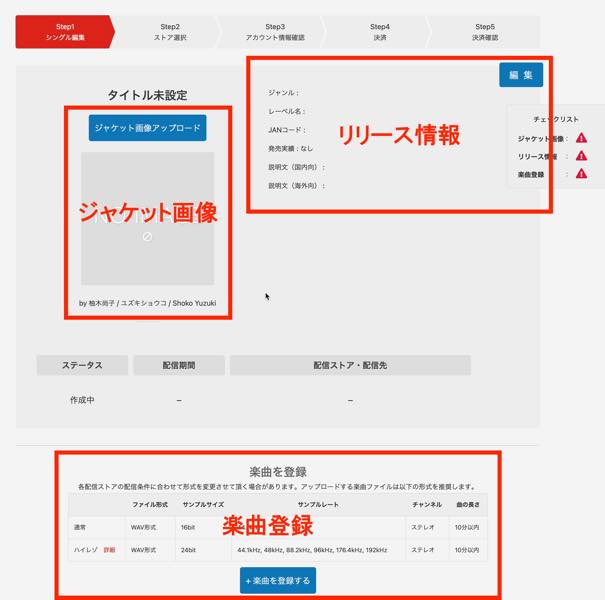
After selecting the artist, you reach the single’s information editing screen.
There are three main parts: cover artwork, release information and the actual music files.
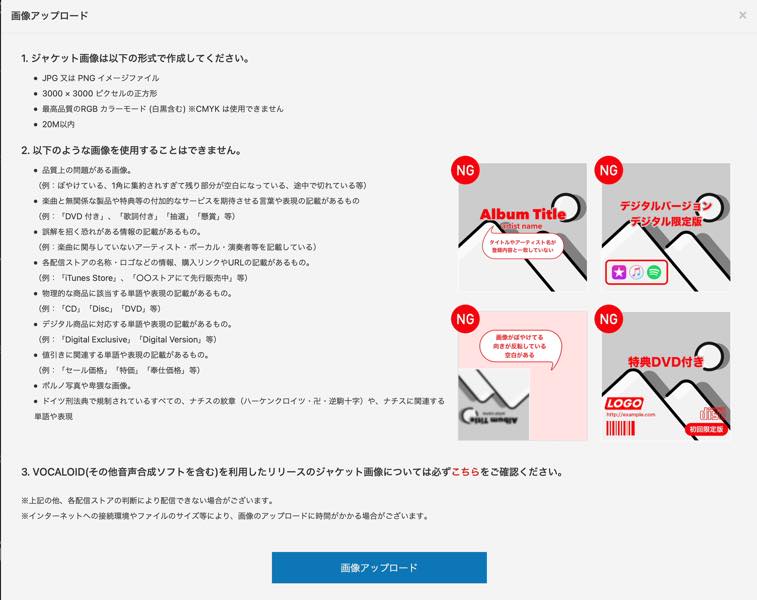
Cover artwork must meet various requirements. Read them carefully and upload an image that complies.
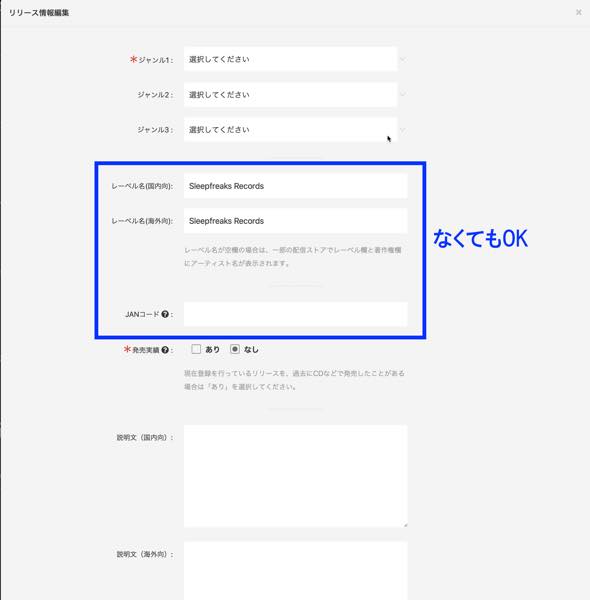
Under release information, enter the genre, label name, JAN barcode, and descriptions for domestic and overseas audiences.
You do not need to have a label. If you have not obtained a JAN barcode, you do not need to enter one in the workflow shown.
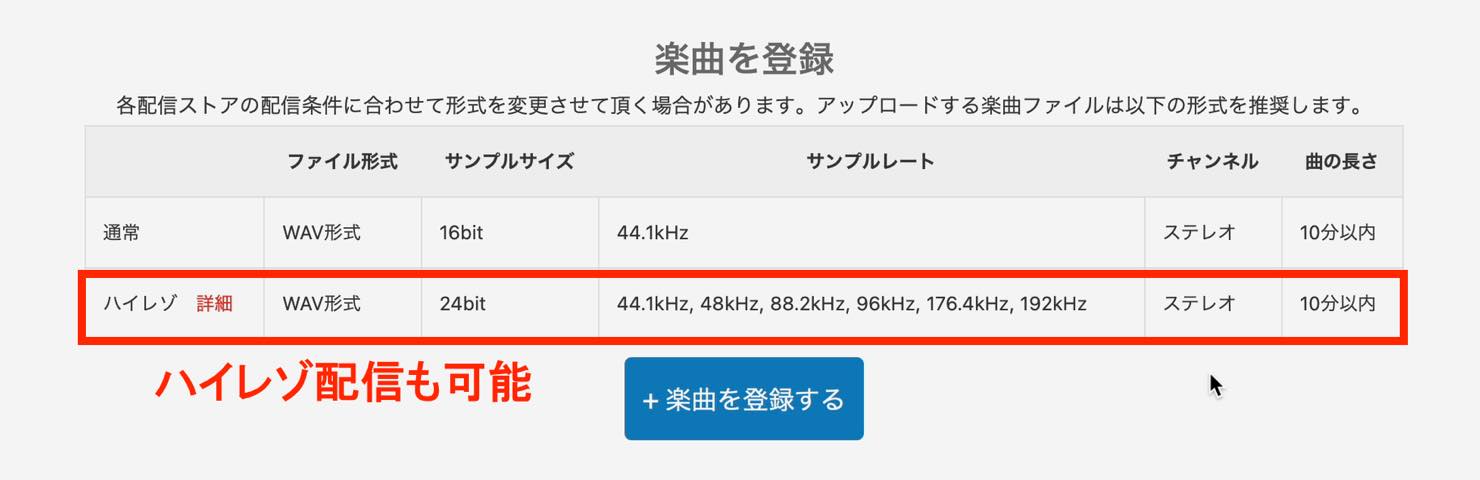
Next, register the track itself.
The standard format shown is 16-bit/44.1 kHz, but notice the high-resolution option below it.
The source explains that TuneCore accepts high-resolution tracks at 24-bit/44.1–192 kHz for distribution to supported stores. For stores that do not support that format, the files are converted appropriately, so there is no need to register the same track twice.
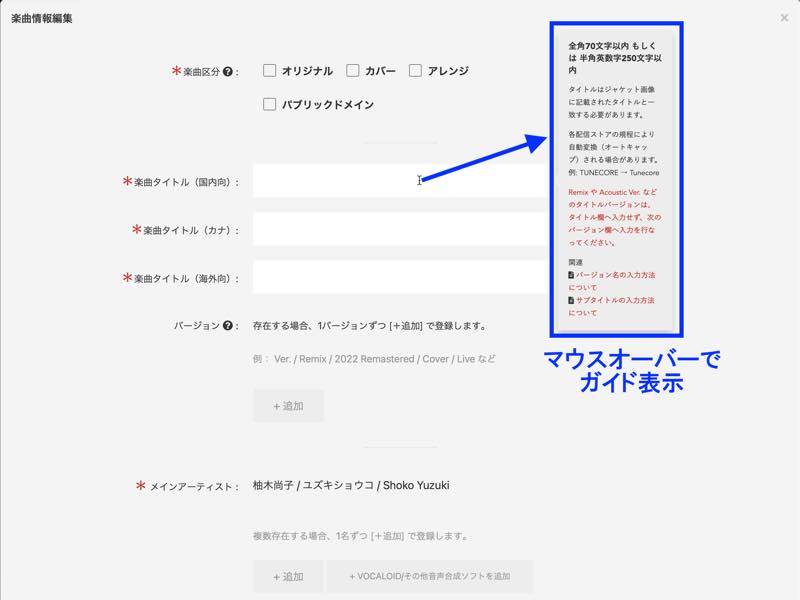
Enter the various details about the track, making sure to complete all required fields.
In the interface shown, hovering over a “?” icon or a field displays helpful instructions and links to FAQs.
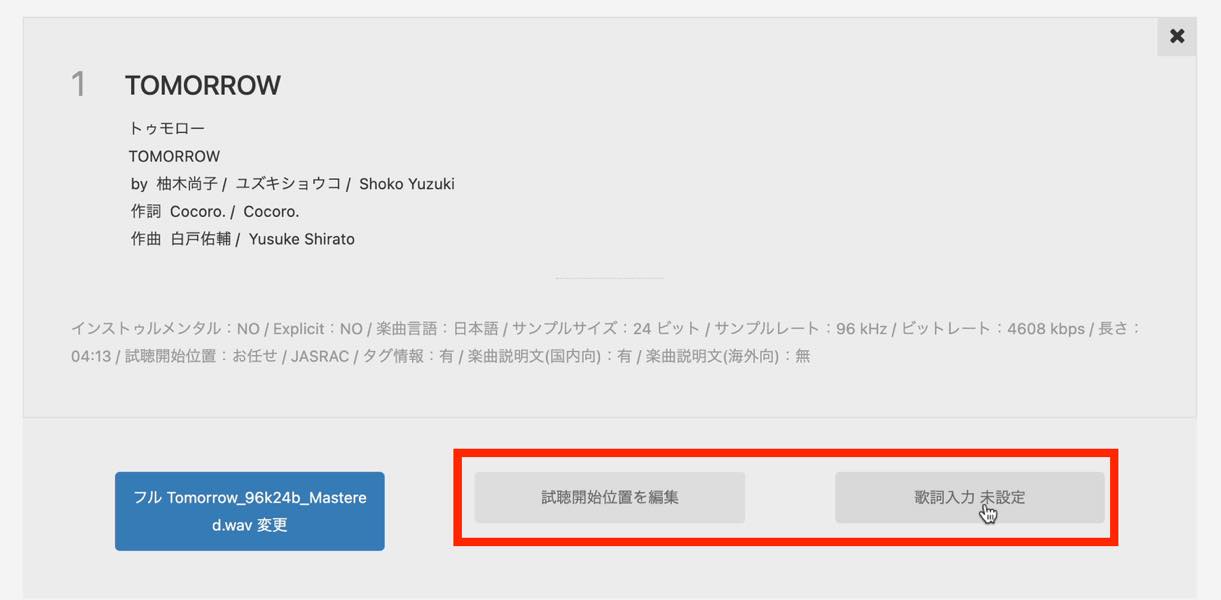
After entering the track information, upload the music file.
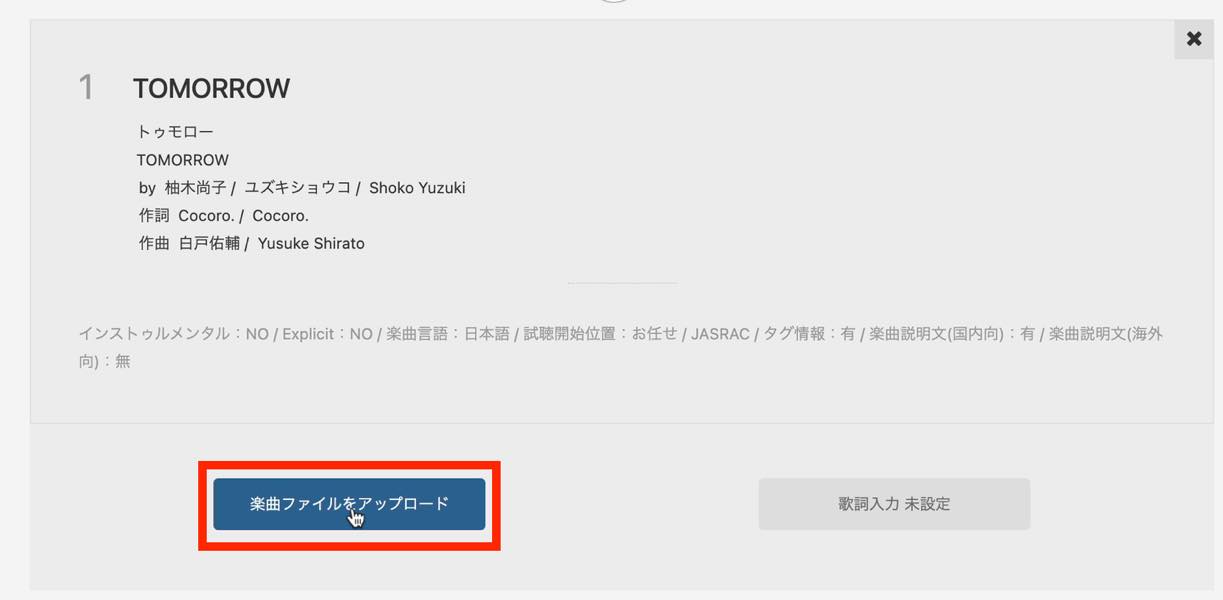
You can also set the starting point for preview playback and add lyrics.
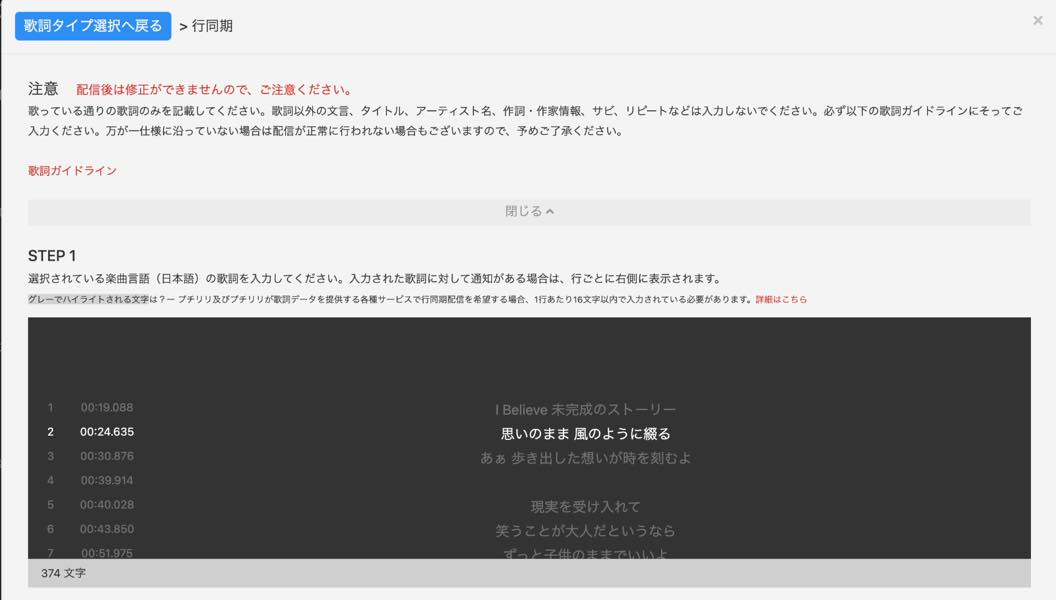
The lyrics editor also allows you to synchronize each line with the timing of the track.
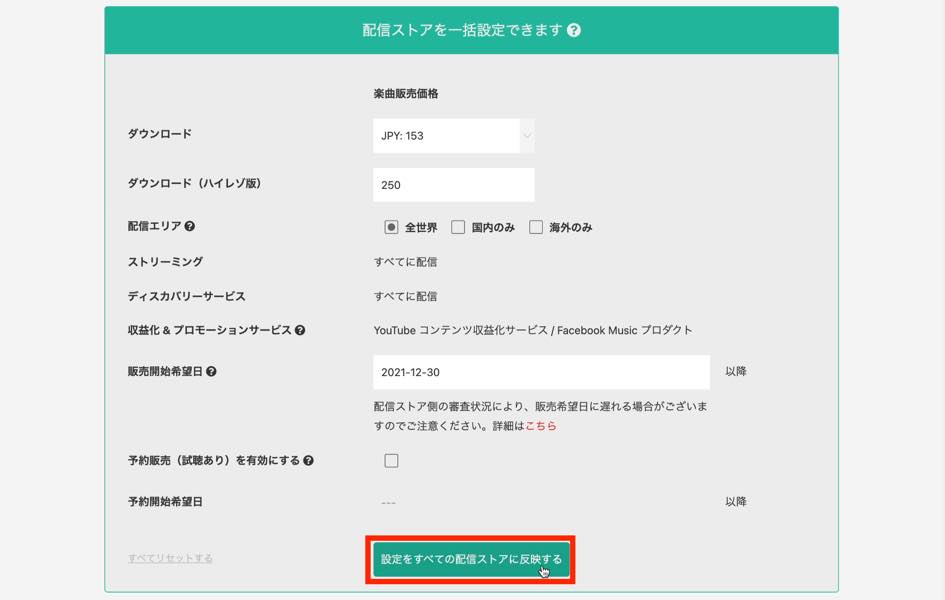
Once the track registration is complete, select the stores.
Here you can choose settings such as the price and requested release date. You can apply your selections to all stores with one click.
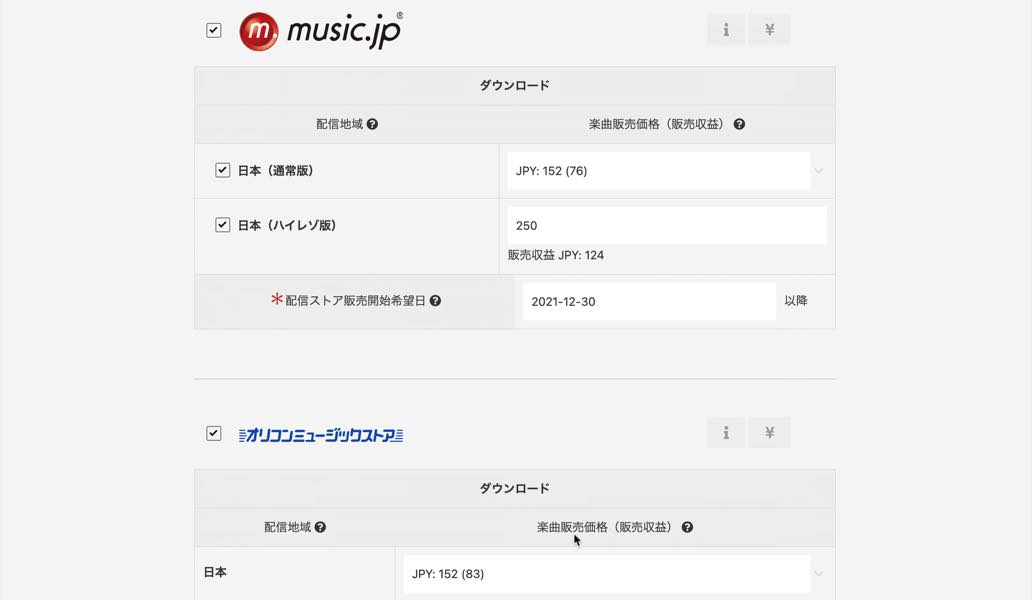
You can also customize the settings for a particular store.
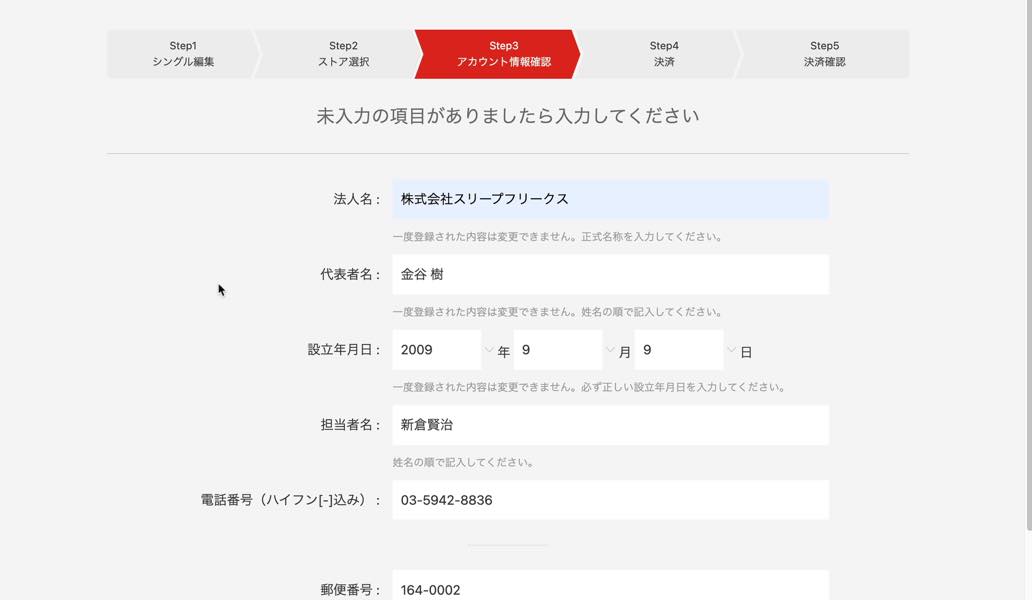
After selecting the stores, check your account information one last time and proceed to payment.
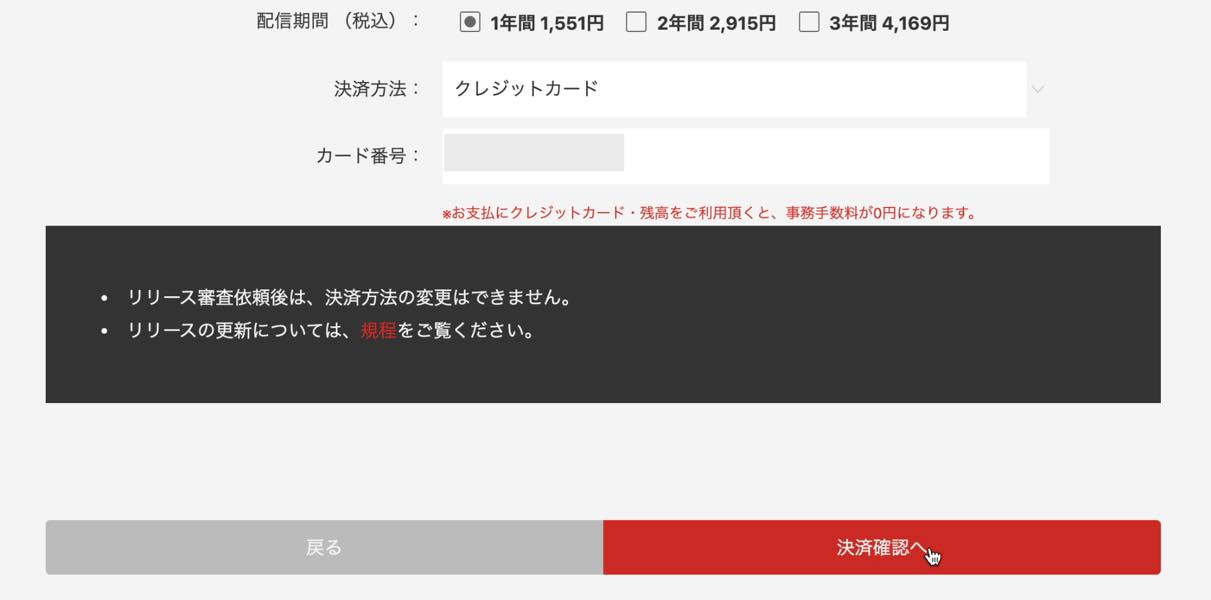
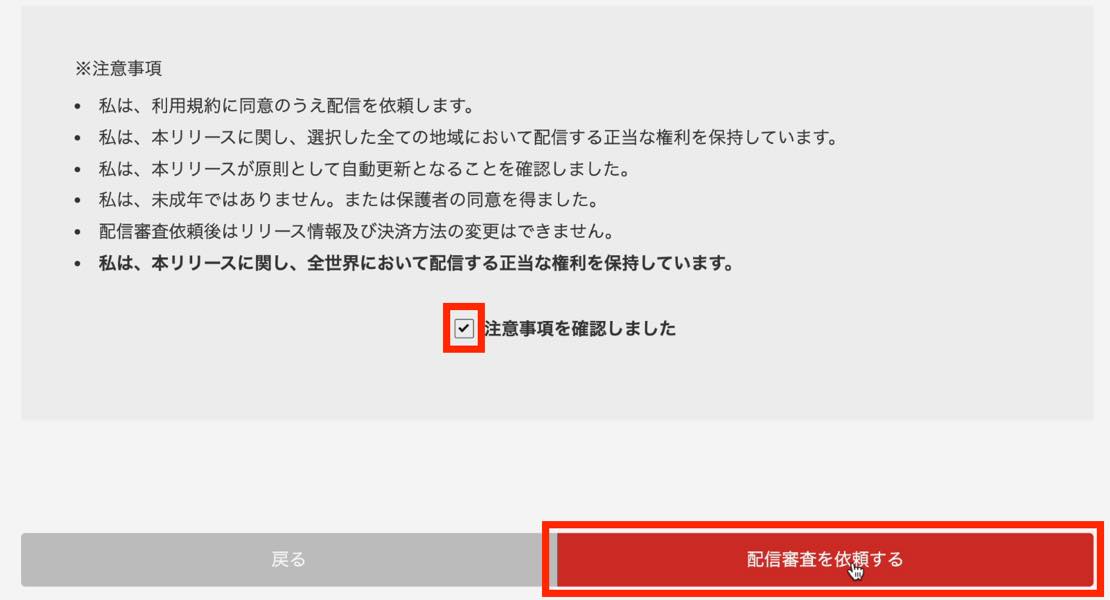
Enter your credit card or other payment details, review the notices, and click “Request review” to finish submitting the release for review.
You can check the review status under “My Releases.” Wait for the review to be completed.
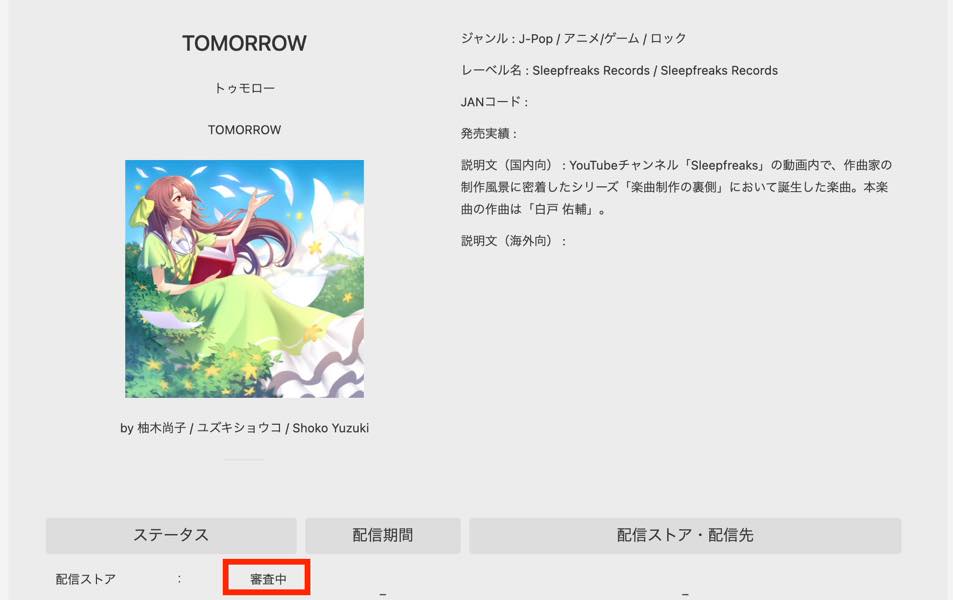
Once the review is complete and the release date arrives, the status display shown here confirms that distribution has begun.
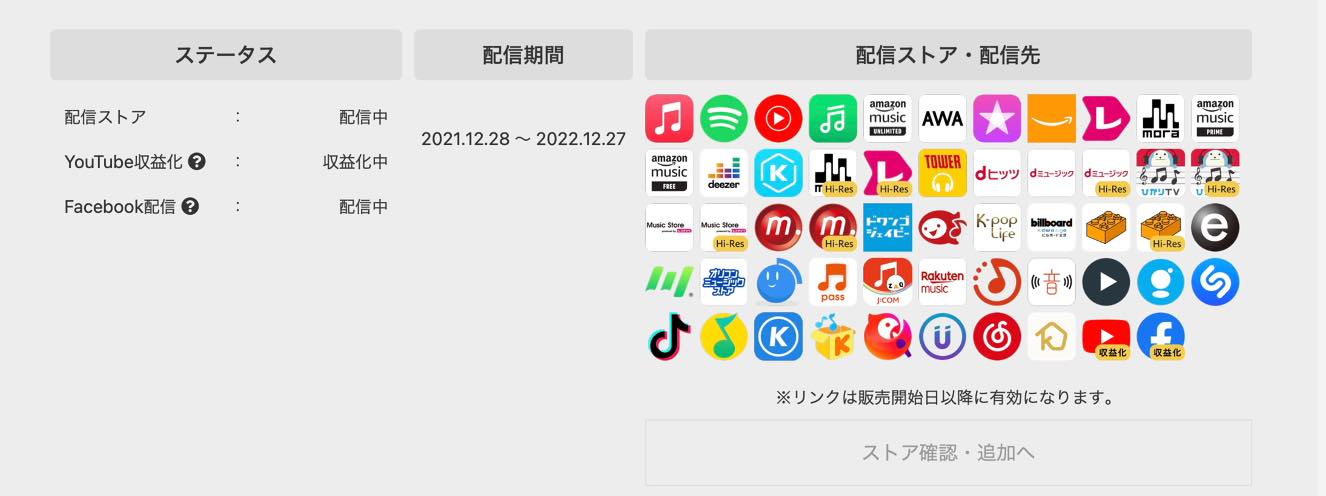
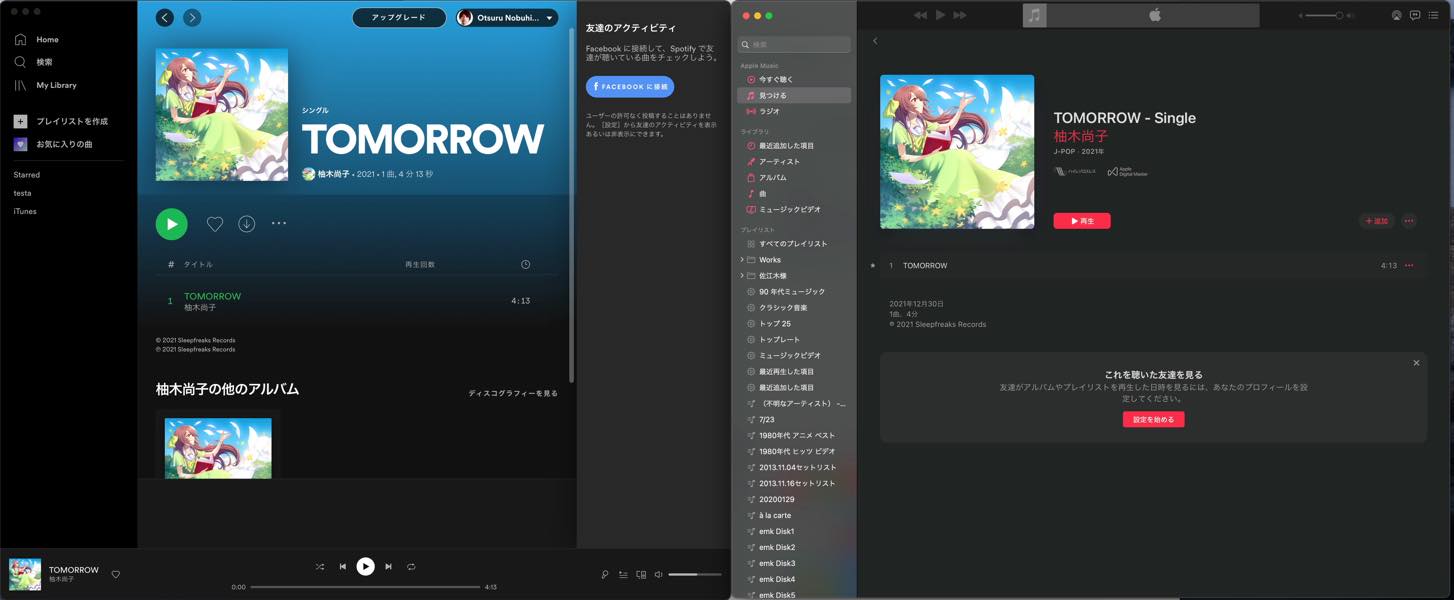
You should then be able to find the release on Spotify, Apple Music and the other selected stores.
Put simply, a music file and cover artwork provide the basic materials needed to register a release.
With just these steps—and, in the historical single-release example, around ¥1,500 per year—you could place your music in stores worldwide alongside other artists.
Seeing your own music appear in a store for the first time can be quite moving.
TuneCore Japan offers a way for anyone to release music as an artist. The original article encourages both professional and amateur music makers to try it; check the service’s current terms before signing up.

How to register and distribute music worldwide with TuneCore Japan
An annual fee applies, but artists retain copyright and receive 100% of the revenue after each store’s fees. We also used the service to distribute our track “TOMORROW.”
Details: https://t.co/eYRkvLxlYi#DTM @TuneCoreJapan pic.twitter.com/PmV1JqJ4je
— SLEEP FREAKS (@SLEEPFREAKS_DTM) February 20, 2022
Frequently asked questions
Q1. What do I need to distribute music through TuneCore Japan?
In the workflow described in this guide, the basic materials are a music file in WAV format and cover artwork. You must also complete the required track information, such as the artist name, track title and genre.
Q2. How long does it take for a release to become available?
After payment, TuneCore reviews the release. Once that review is complete, distribution begins through the selected stores from the requested release date. The article does not specify a review turnaround time, but you can check progress under “My Releases.”
Q3. Can I distribute music to stores that do not support high-resolution audio?
Yes, according to the workflow described here. If you upload a high-resolution file at 24-bit/44.1–192 kHz, it is automatically converted to an appropriate format for stores that do not support it, so duplicate registration is unnecessary.
Q4. Can I release music under multiple artist names?
Yes. The source explains that TuneCore Japan allows multiple artists to be registered and supports releases under each artist name.
Q5. What percentage of distribution revenue is deducted in fees?
The source states that artists receive 100% of the revenue after each store’s fees. It does not list the individual stores’ fee percentages. This describes the historical terms discussed in the article.
NEW ARTICLES
Latest English Articles


























































































































