The Ableton Live 12.3 public beta introduces stem separation powered by Music.AI's advanced algorithms. It can automatically extract vocals, drums, bass, and other stems from an audio track, making remix production much faster. Deeper Splice integration lets you search for samples that match your project's tempo and key. Together with expanded group-track bouncing, these features make professional music-production workflows more efficient.
Speed up music production with stem separation and Splice integration
Questions and answers from the YouTube video

I'm new to music production! Don't other DAWs have this feature?

At this point, Logic Pro and Studio One also have stem separation. Studio One also has Splice integration.
Is this only for Suite? I'm thinking about upgrading to Suite soon.
Of the three new features covered in this video, only stem separation is exclusive to Suite!
Watch the embedded video above for a demonstration.
Released as a public beta, Ableton Live 12.3 brings anticipated new features to every edition and significantly expands its integration with Push 3!
The three standout additions are stem separation, Splice integration, and expanded bouncing.
Let's take a closer look at each new feature.
Stem Separation
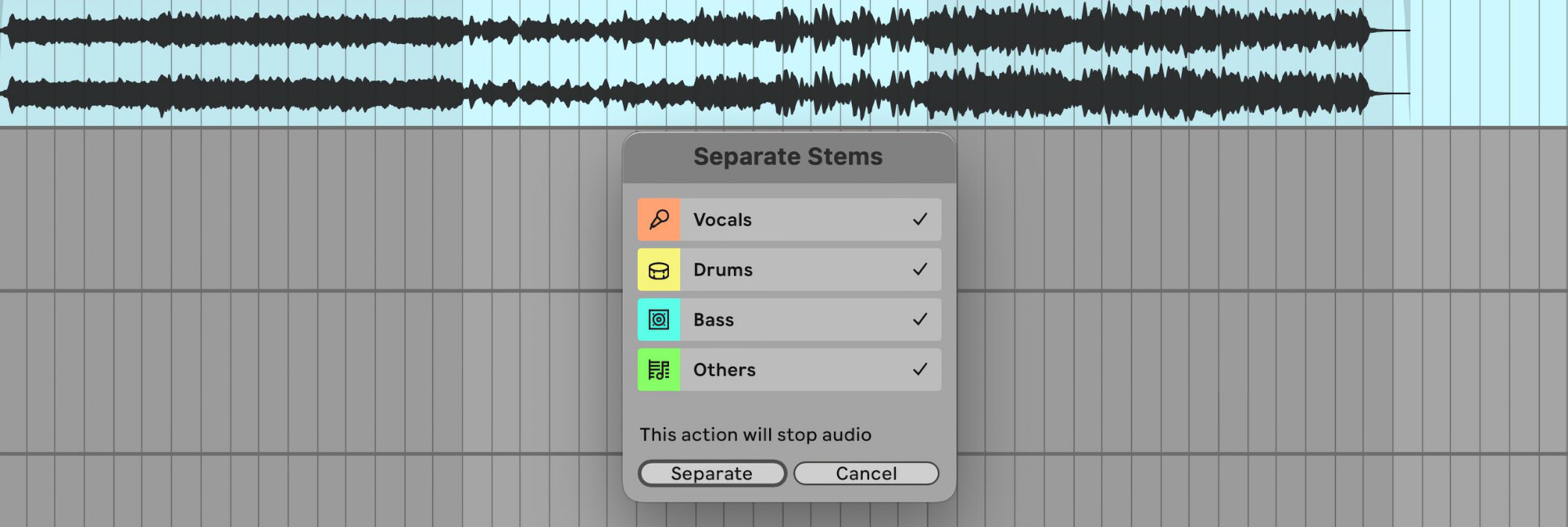
Live 12 Suite and Push standalone now supportautomatic extraction of vocals, drums, bass, and other stems from an audio clipas a built-in feature.
Music.AI's advanced algorithms separate the source audio into stems in real time, greatly speeding up remix work and similar tasks.
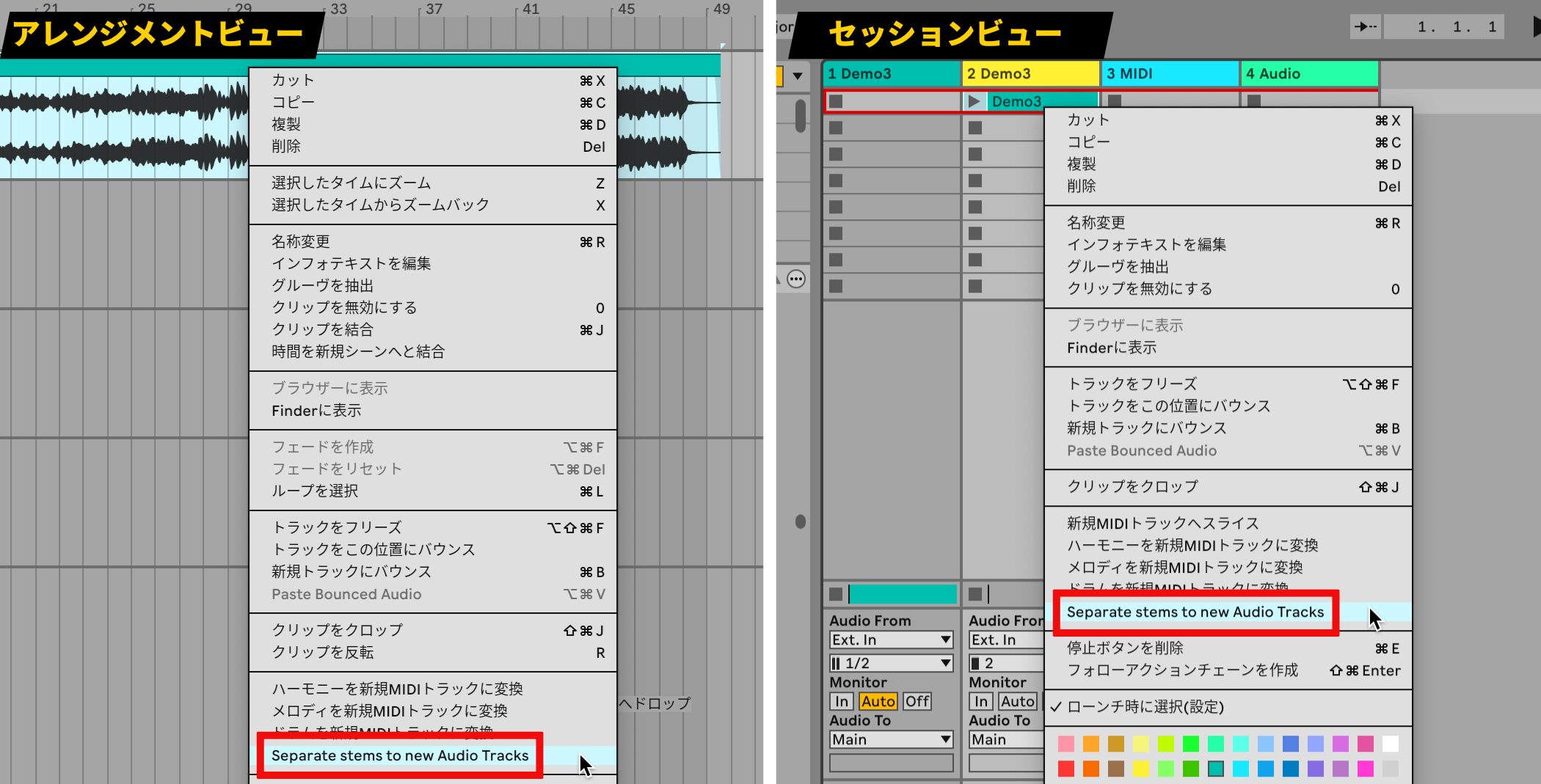
Select the audio clip you want to separate in Arrangement View, Session View, or the browser, then choose “Separate stems to new Audio Tracks” from its context menu.
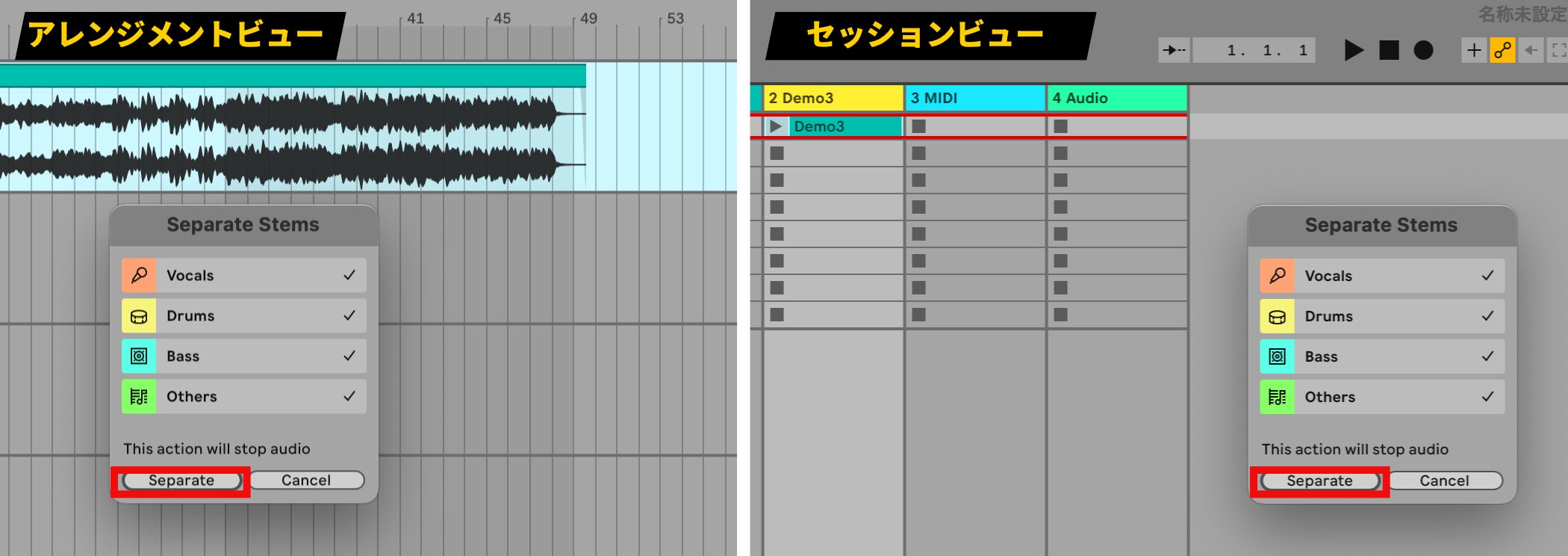
The Separate Stems window opens.
All options are selected by default. Clear any options you do not need to choose which parts to create.
When you are ready, click “Separate.”
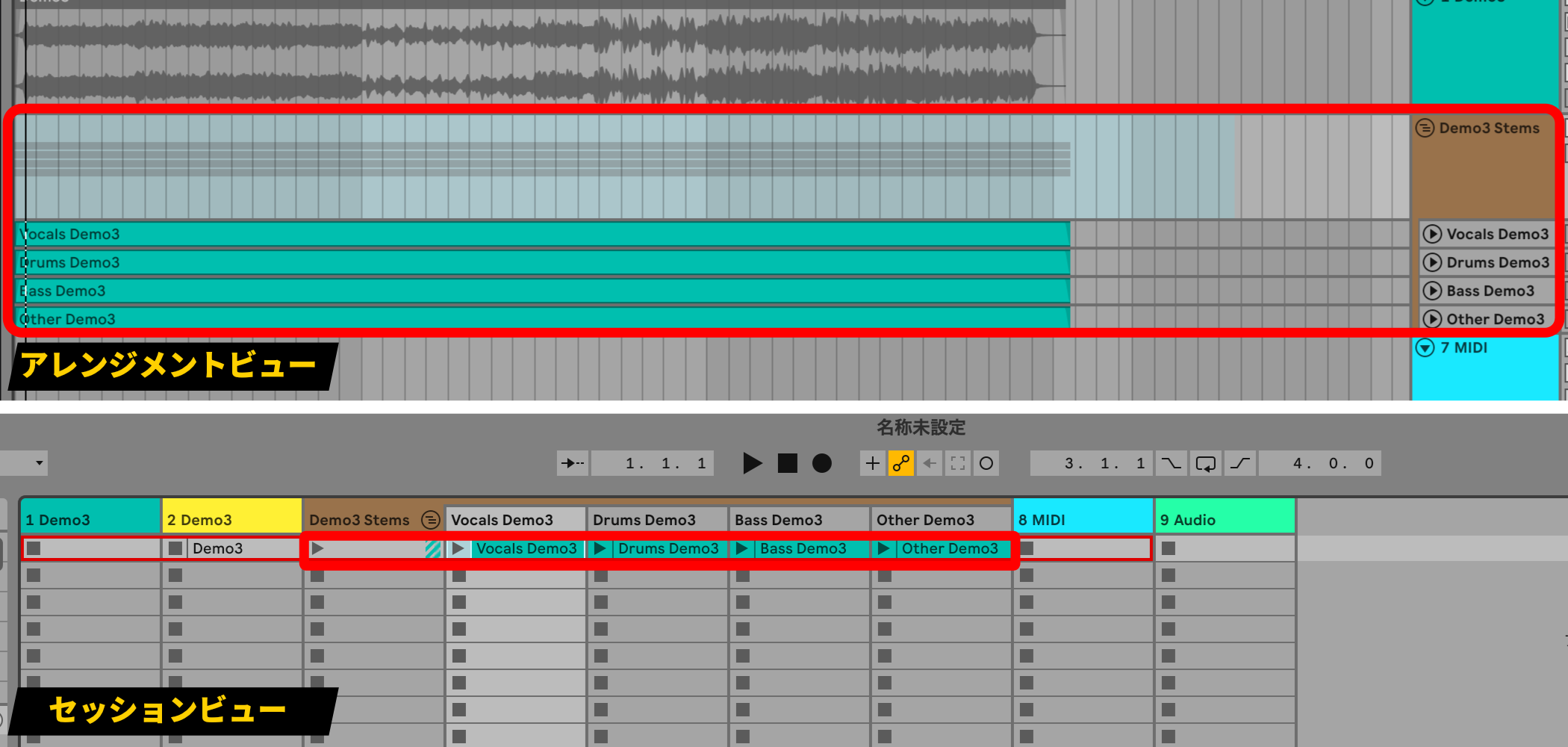
Four audio files are created in a Stems group.
Splice integration
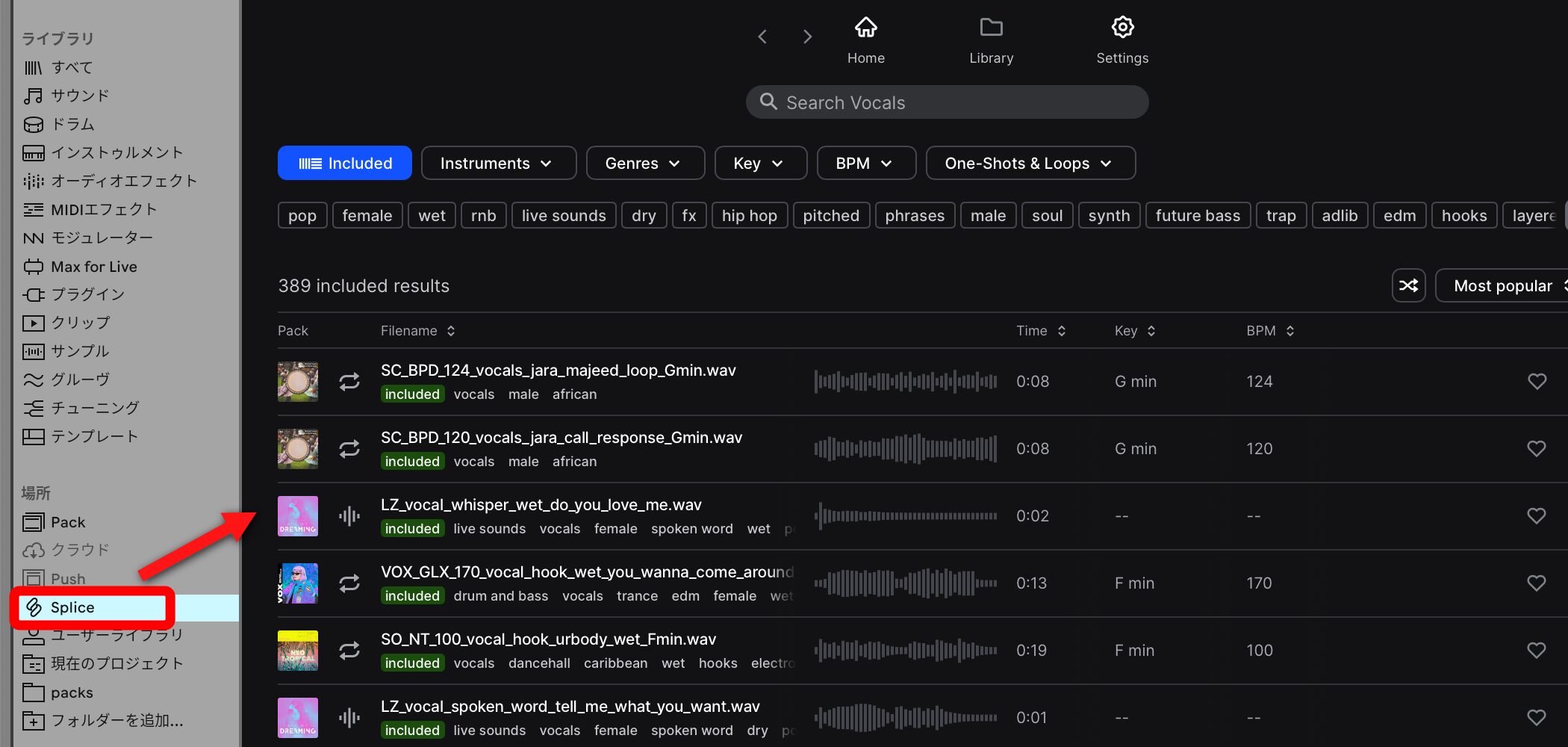
Splice users can nowaccess their Splice library directly through Live's browserwithout leaving Live.
This makes it easier to search for and preview Splice samples while matching the project's tempo and key.
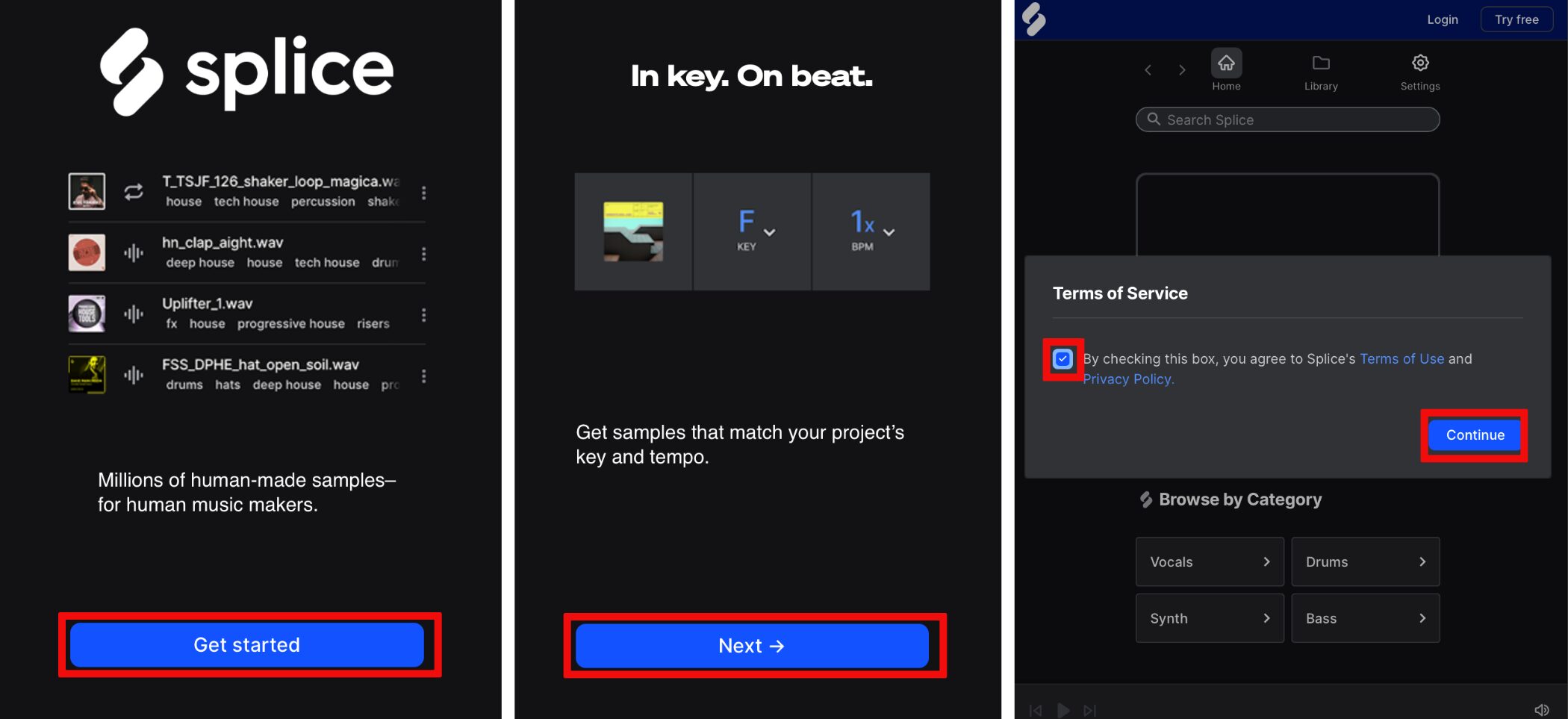
The first time you open it, select “Get started” and then “Next.” On the terms screen, check the box and click “Continue.”
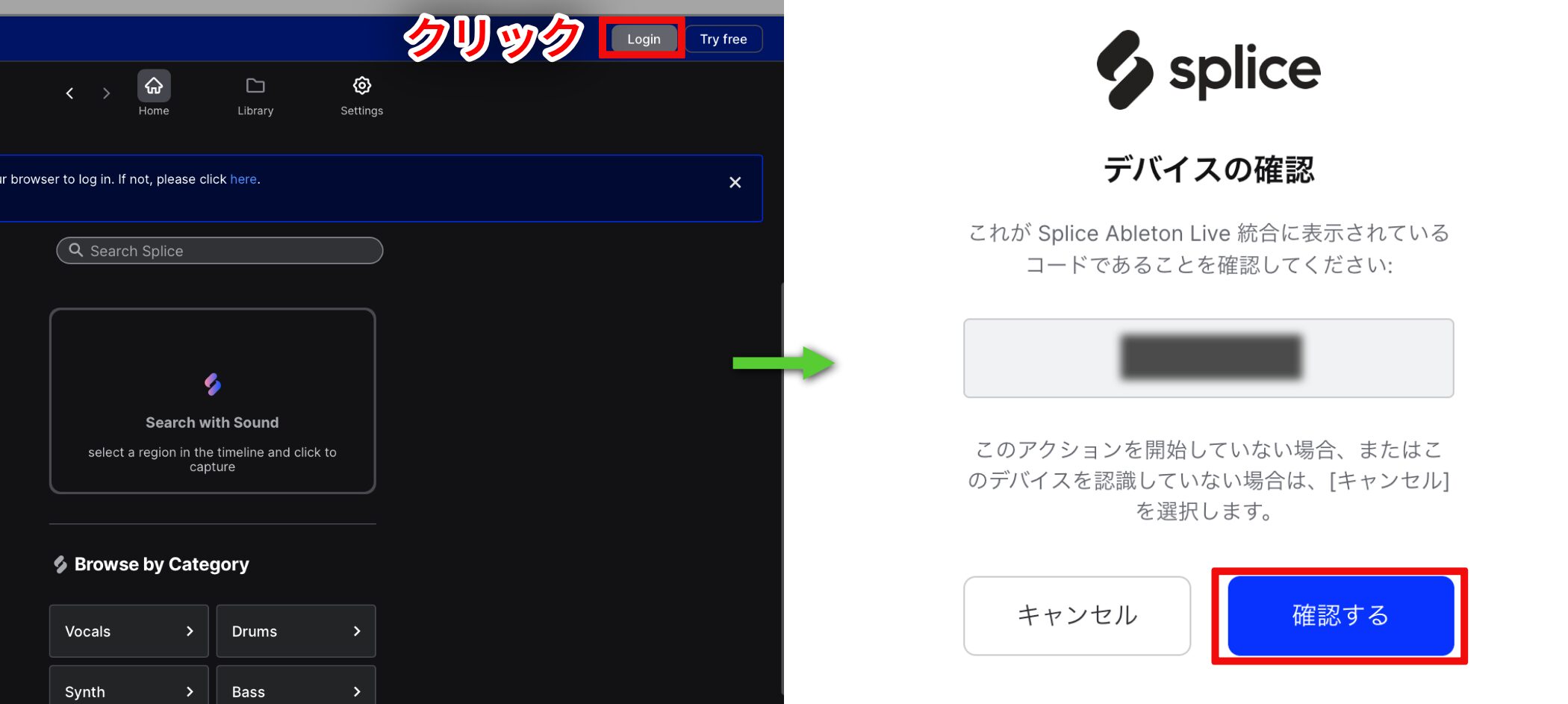
Click “Login.” A device confirmation page opens in your browser; select “Confirm.”
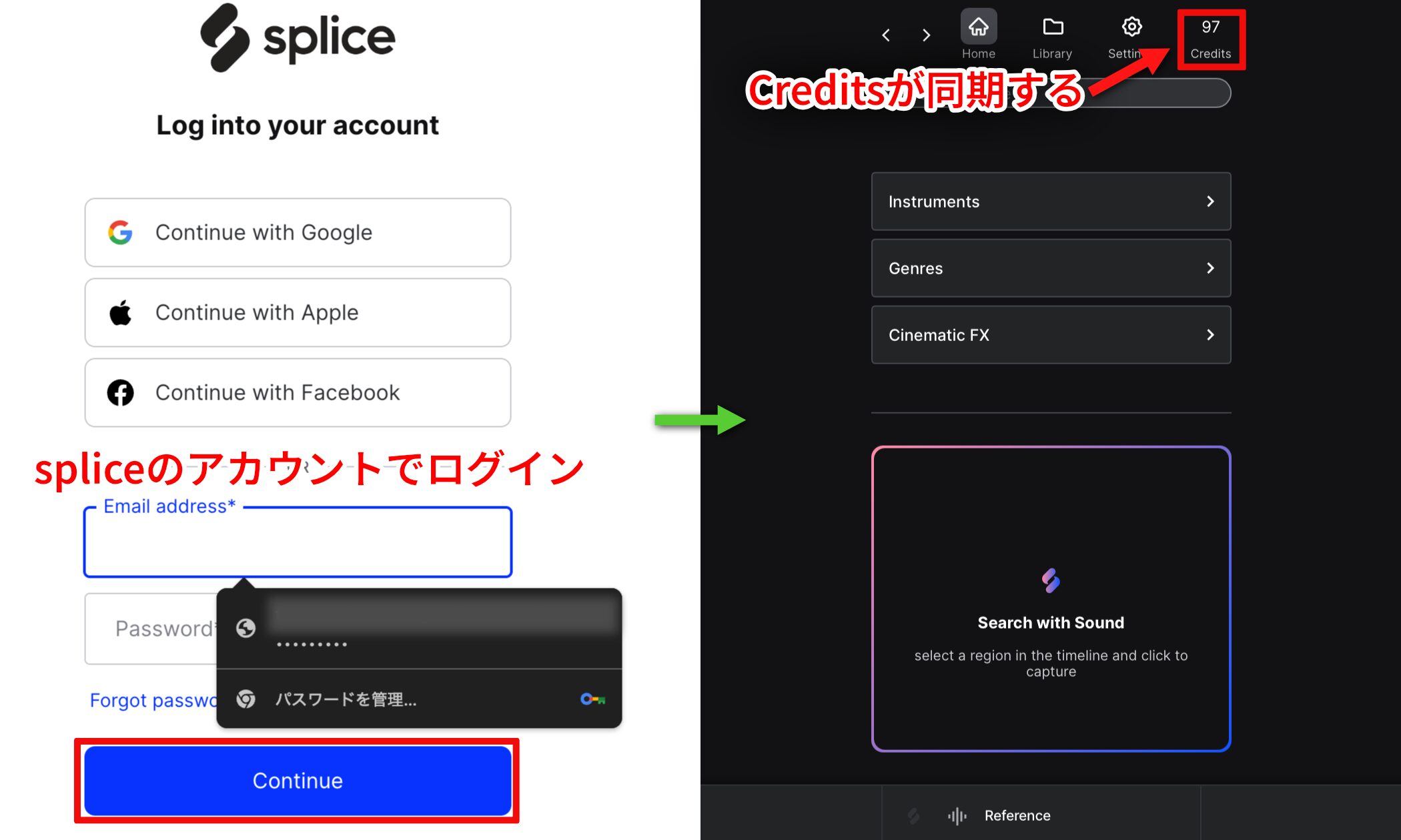
After you sign in to your Splice account on the next screen,your current credit balance appearsin Live.
Syncing your credits makes them easier to manage and use from Live.
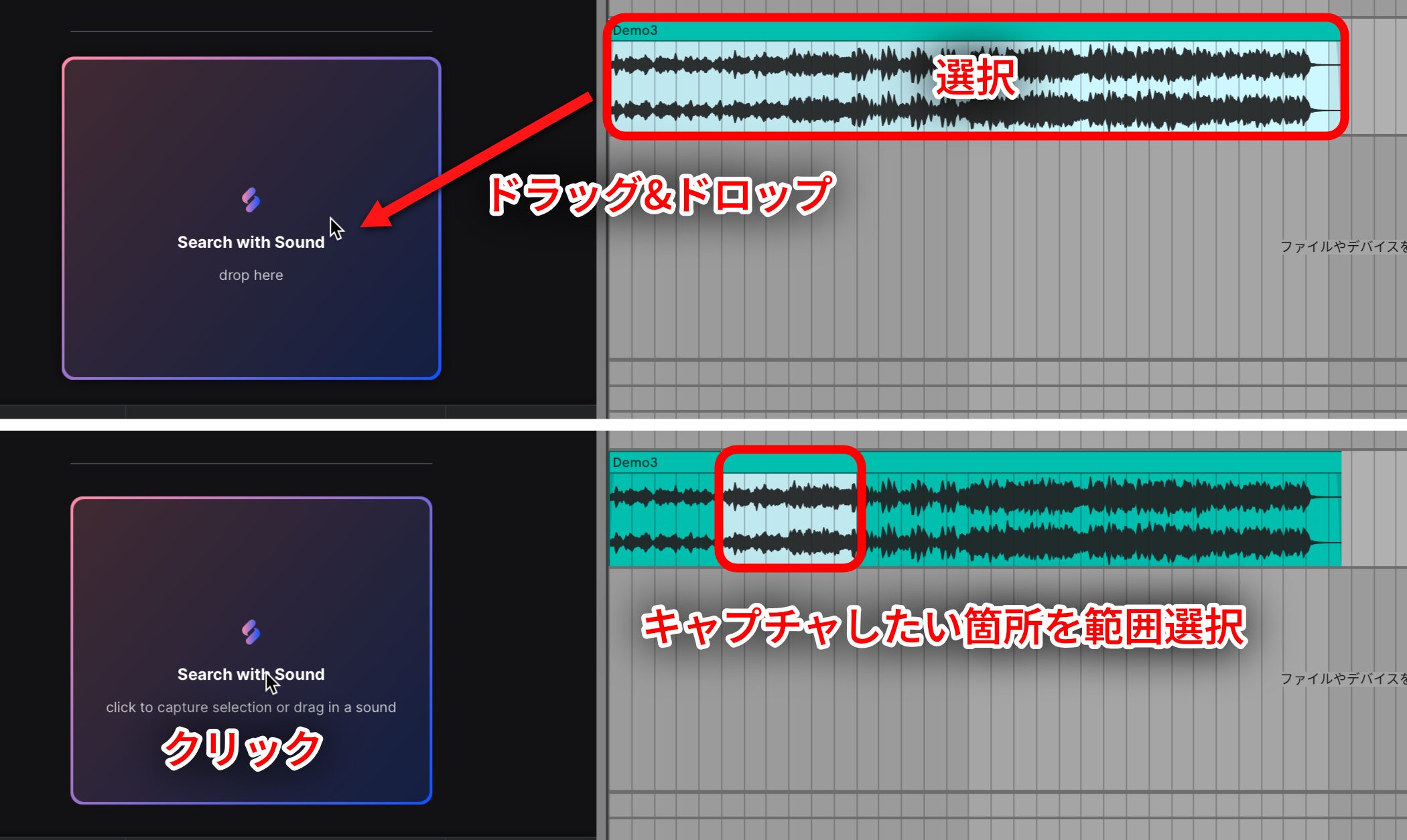
With “Search with Sound,” you canquickly find samples that fit the rhythm and harmonyof your track.
To use it, drag and drop a sound file, or select the section you want to capture and click “Search with Sound.”
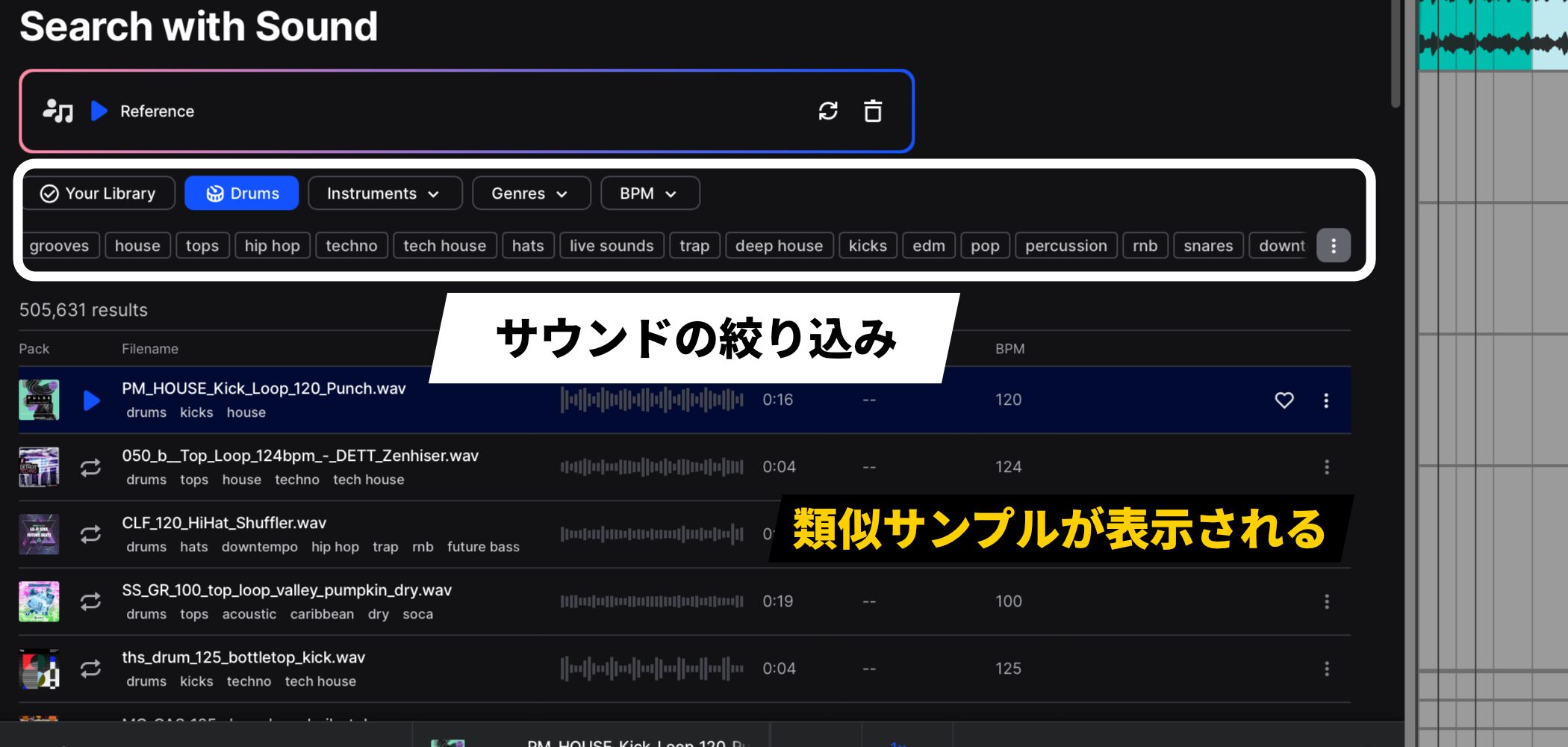
The sound is analyzed, andrelated samples appear in a listfor you to browse.
You can narrow the results further by selecting the tags you want.
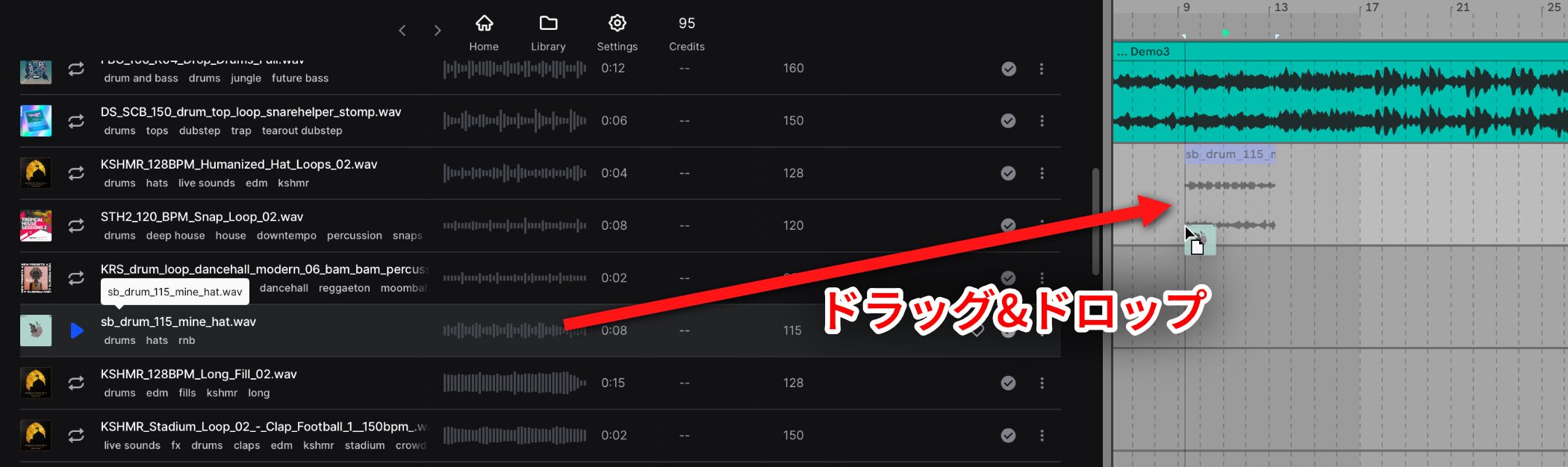
Samples play in sync with the project's tempo and key,helping you find material that fits the music you are making.
Once you find a sample you like, simply drag and drop it onto a track to add it.
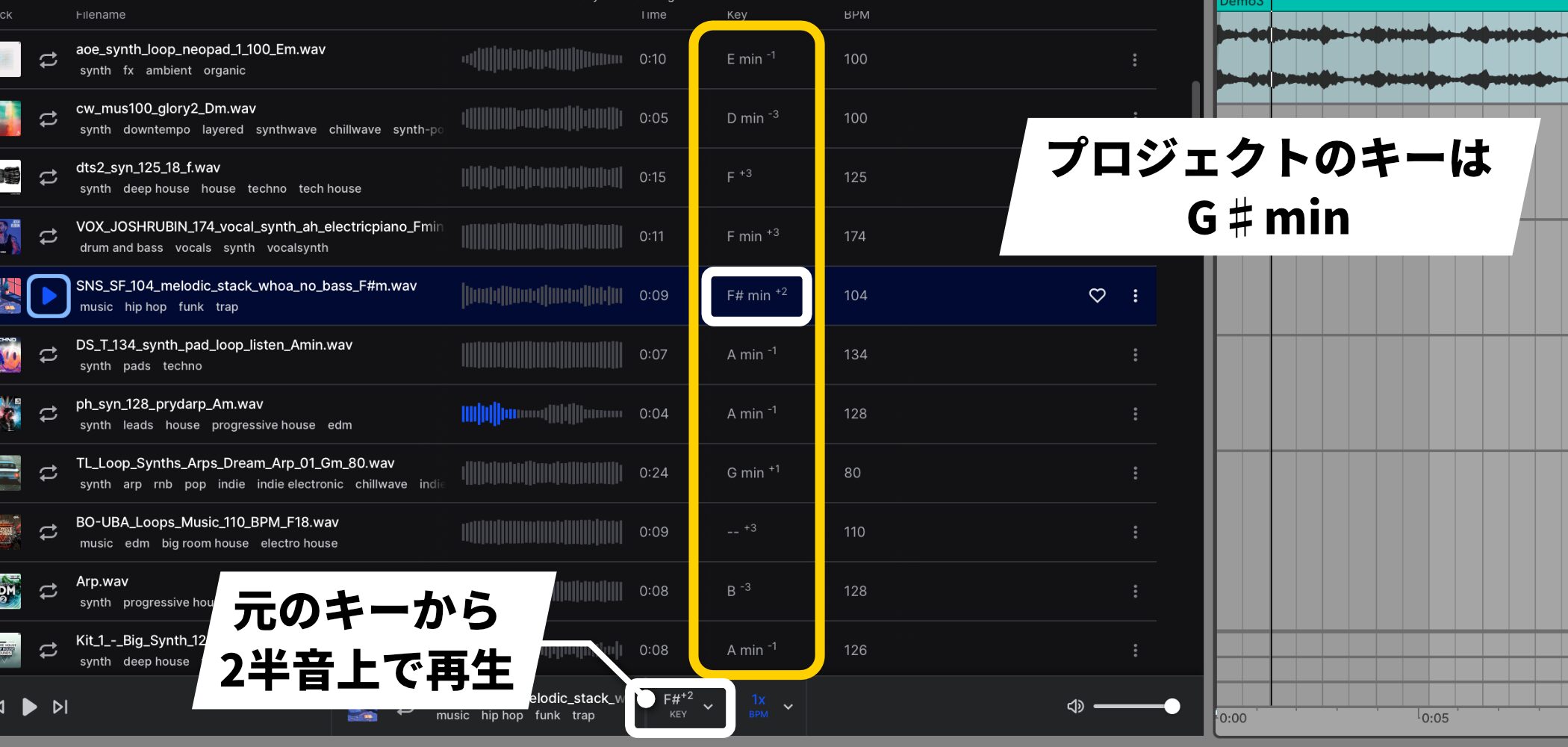
A number such as “+2” beside a key shows how far the sample has been transposed from its original key.
For example, the project used here is in G# minor. “F#min+2” means that the sample's original key is F# minor and it is playing two semitones higher.
Bounce and paste group tracks
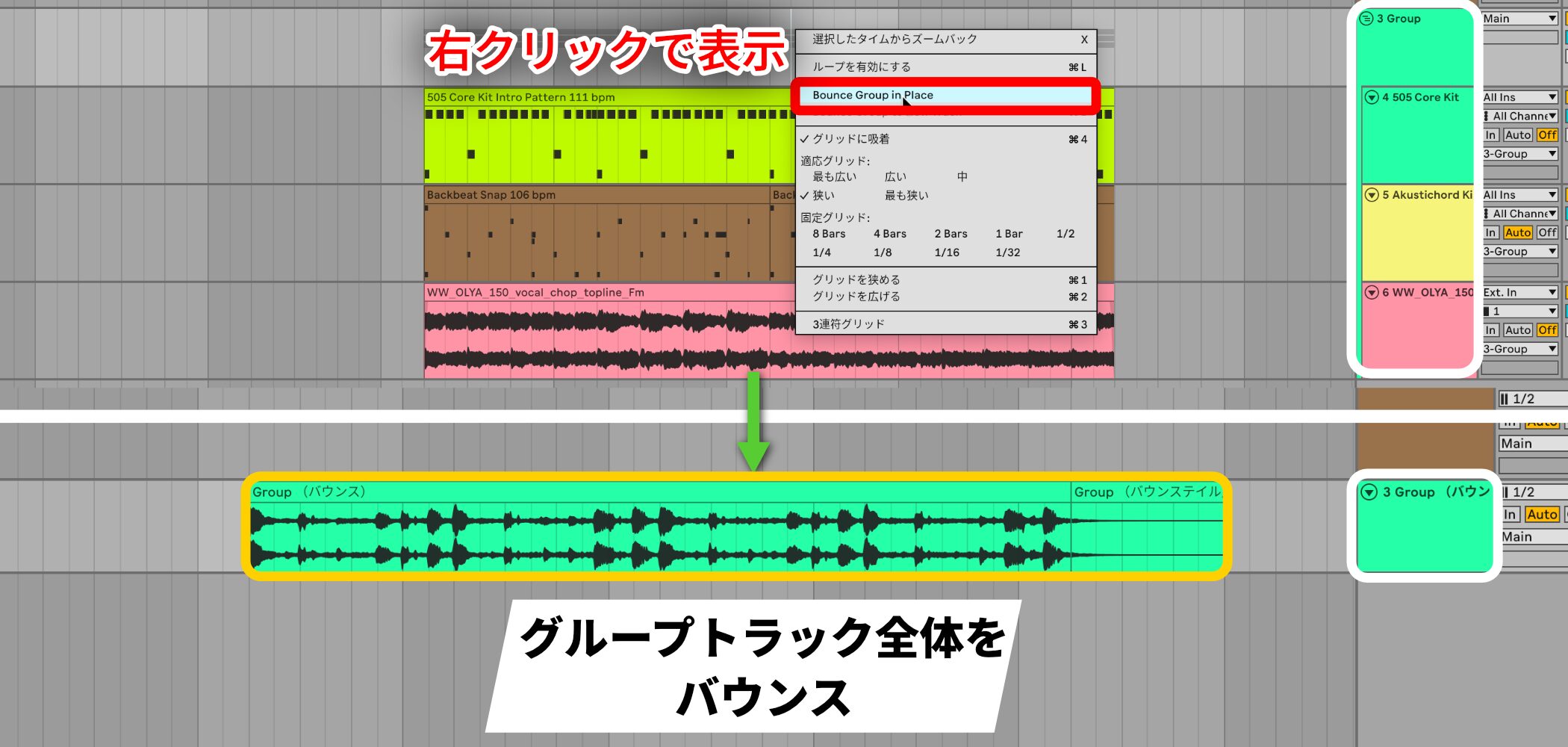
Following the “Bounce to New Track” feature in Live 12.2, you can nowbounce an entire group track easilyfrom the context menu.
Right-click the group track and choose “Bounce Group in Place” to do so.
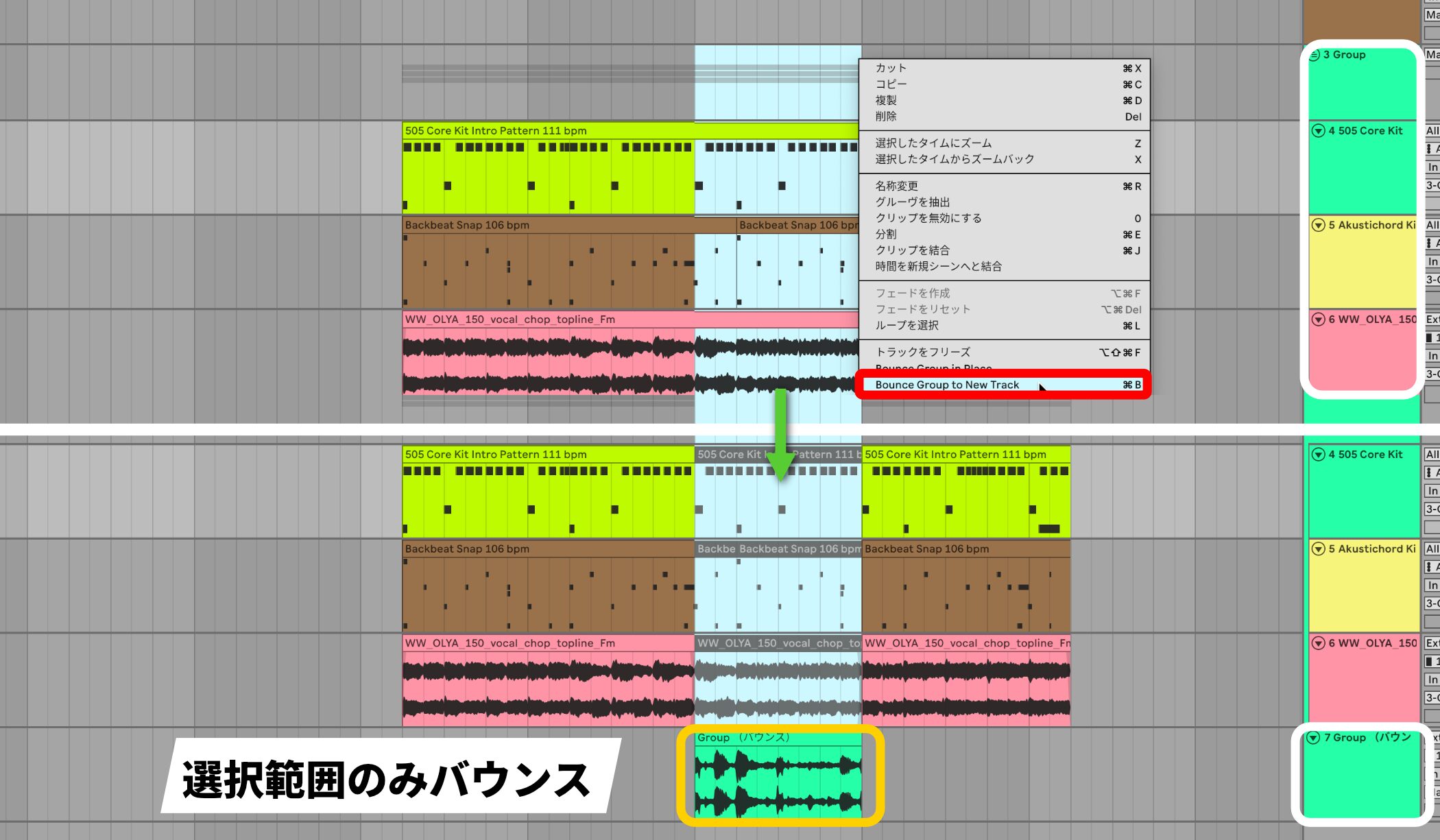
You can also select a range within a group track and choose “Bounce Group to New Track” tobounce only the selected range to a new audio trackwithout bouncing the whole group.
The “Paste Bounced Audio” feature also lets you paste copied clips or ranges at any location.
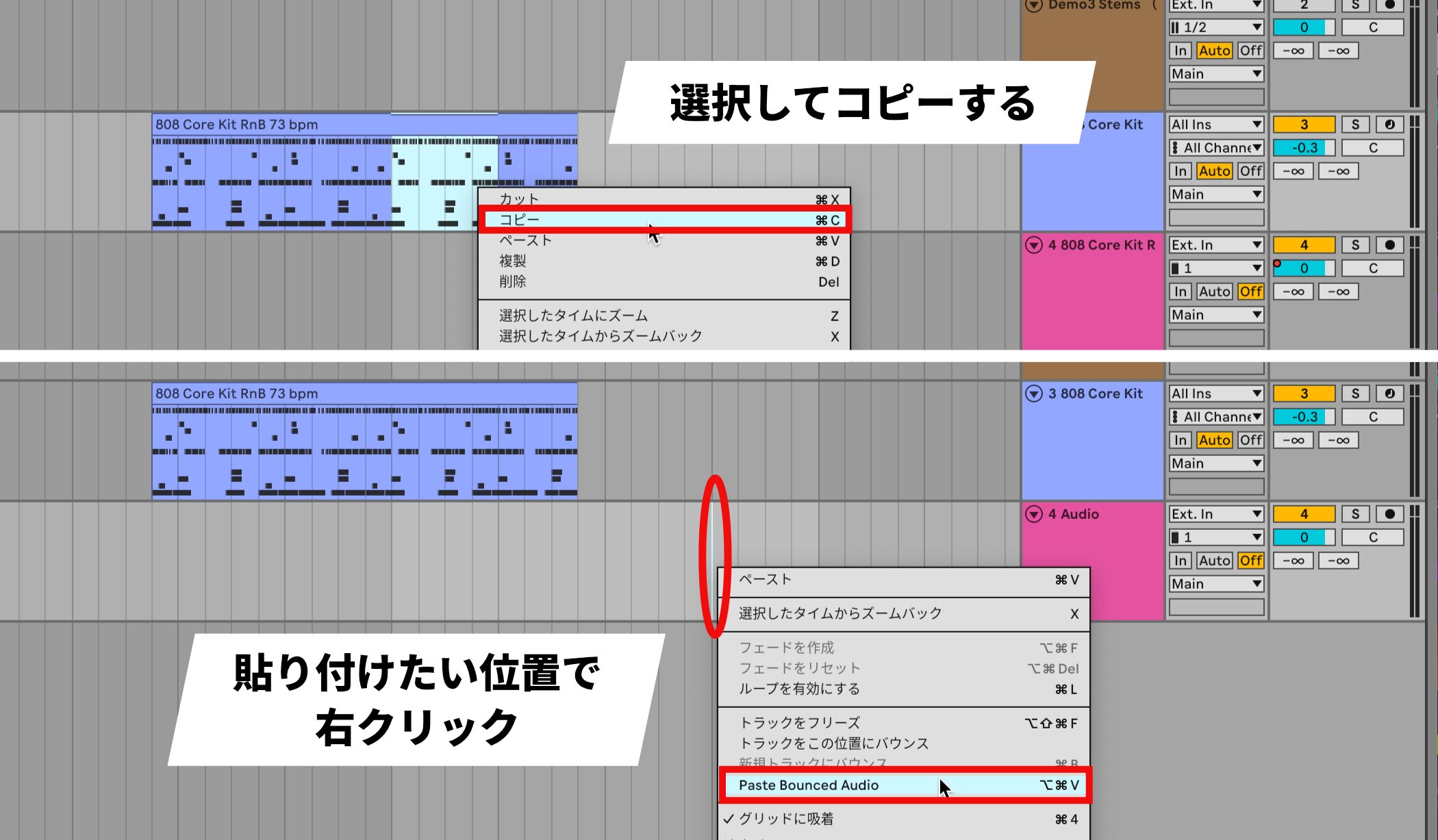
Select a clip or range to export and copy it. Then right-click where you want to place it and choose “Paste Bounced Audio.”
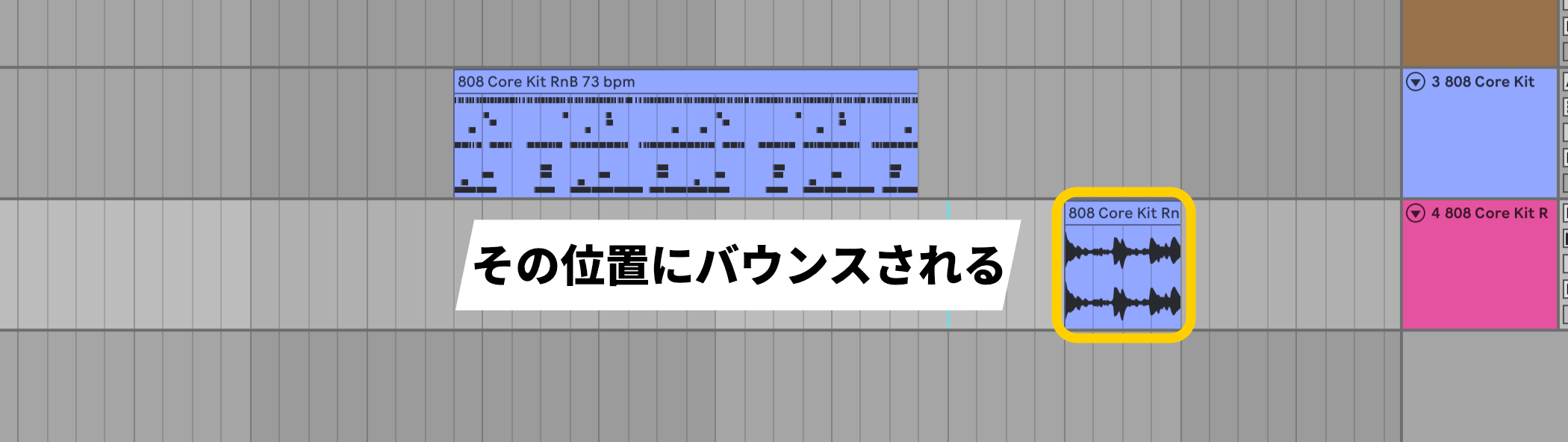
The result is bounced to audio at that location.
Note that when you use these bounce features,all processing, including the effects applied at that moment,is rendered into the resulting audio.
Other features and improvements
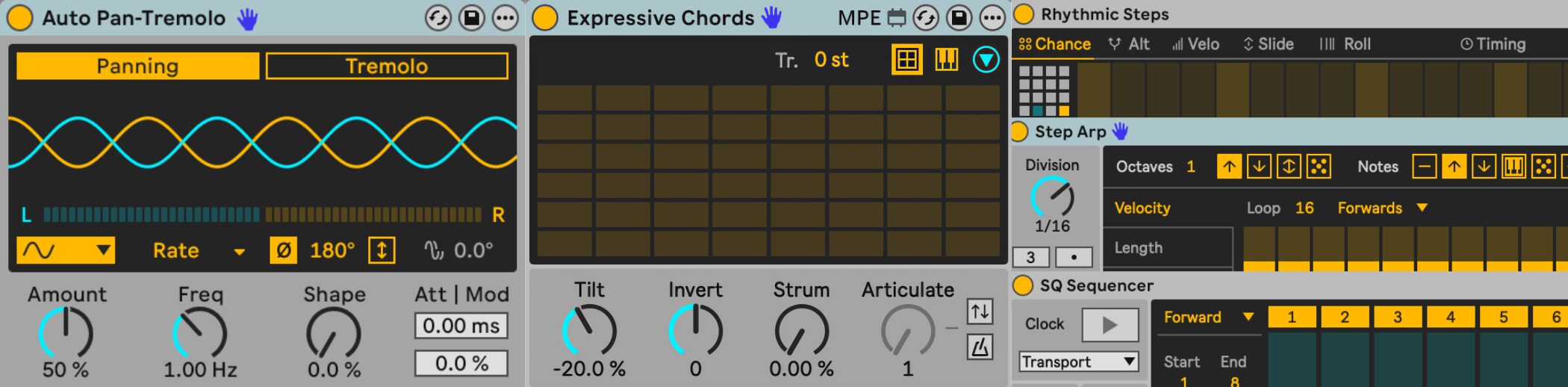
Additional features and refinements give you more ways to make music.
- Updated Auto Pan-Tremolo: A new interface and expanded modulation; available for the first time in Move, Note, and Live Lite
- Generators Pack: Includes the “Sting” acid-bass generator and “Patterns” rhythm generator (Live 12 Standard and Suite)
- Sequencers Pack: Adds tools to support repeatable arrangements
- Expressive Chords Pack: Adds “Chord Edit” mode for transposing chords and entering them with “Learn”
- A/B comparison: Quickly compare two parameter states in all instruments and audio and MIDI effects
Expanded expressive control for Push 3
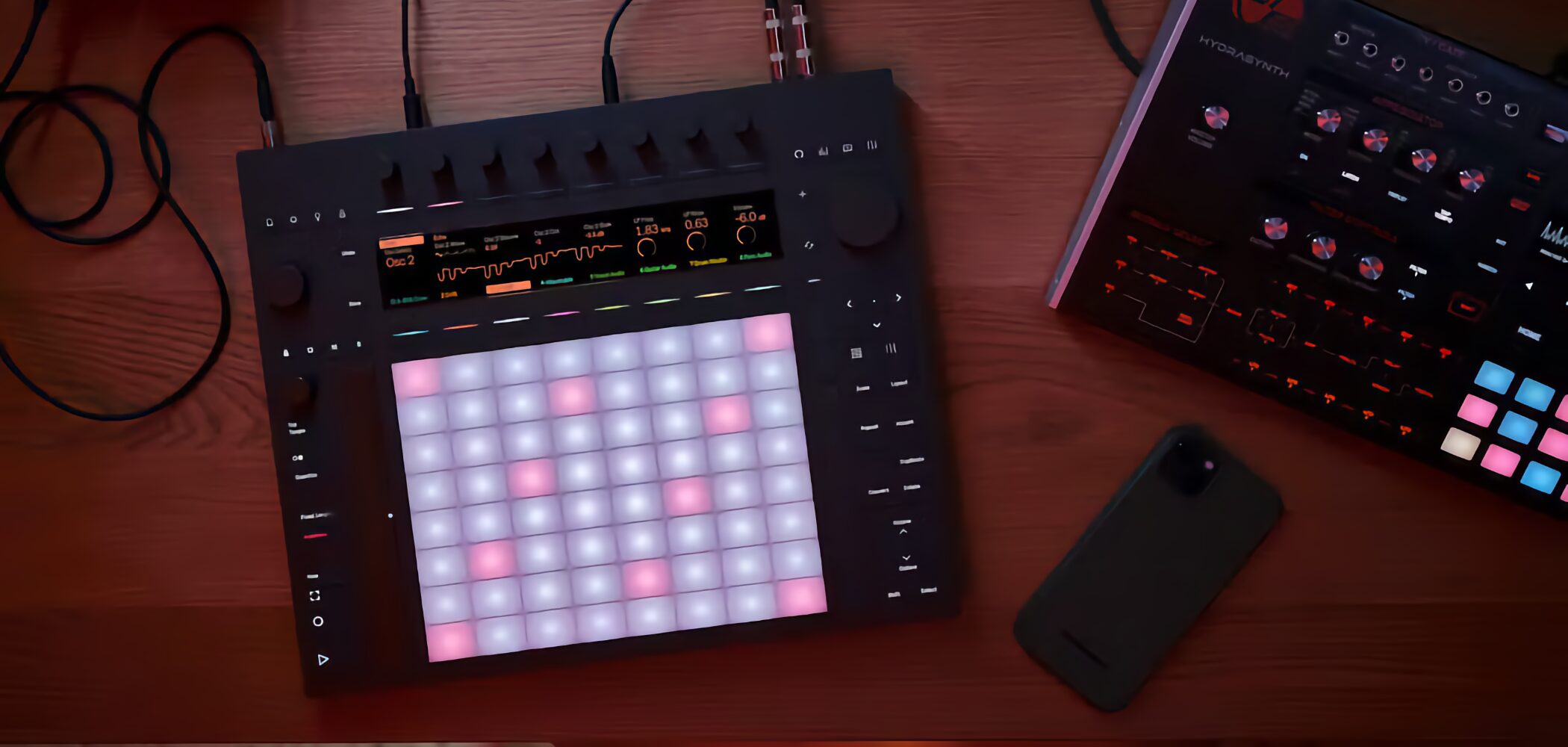
Push 3 adds new layouts and controls that make fuller use of its expressive pads, while offering more flexible music production in standalone mode.
The main updates are as follows.
- XYZ layout: Slide your fingers to change rack and device sounds
- Rhythm Generator: Create, edit, and perform rhythm patterns with four sliders
- Touch-sensitive step editing: Adjust note velocity by holding [Accent] and sliding
- Stem separation and group-track bouncing: Available in controller and standalone modes
- Class-compliant audio interface support: Expand inputs and outputs, record, and perform DJ sets in standalone mode
Trial information
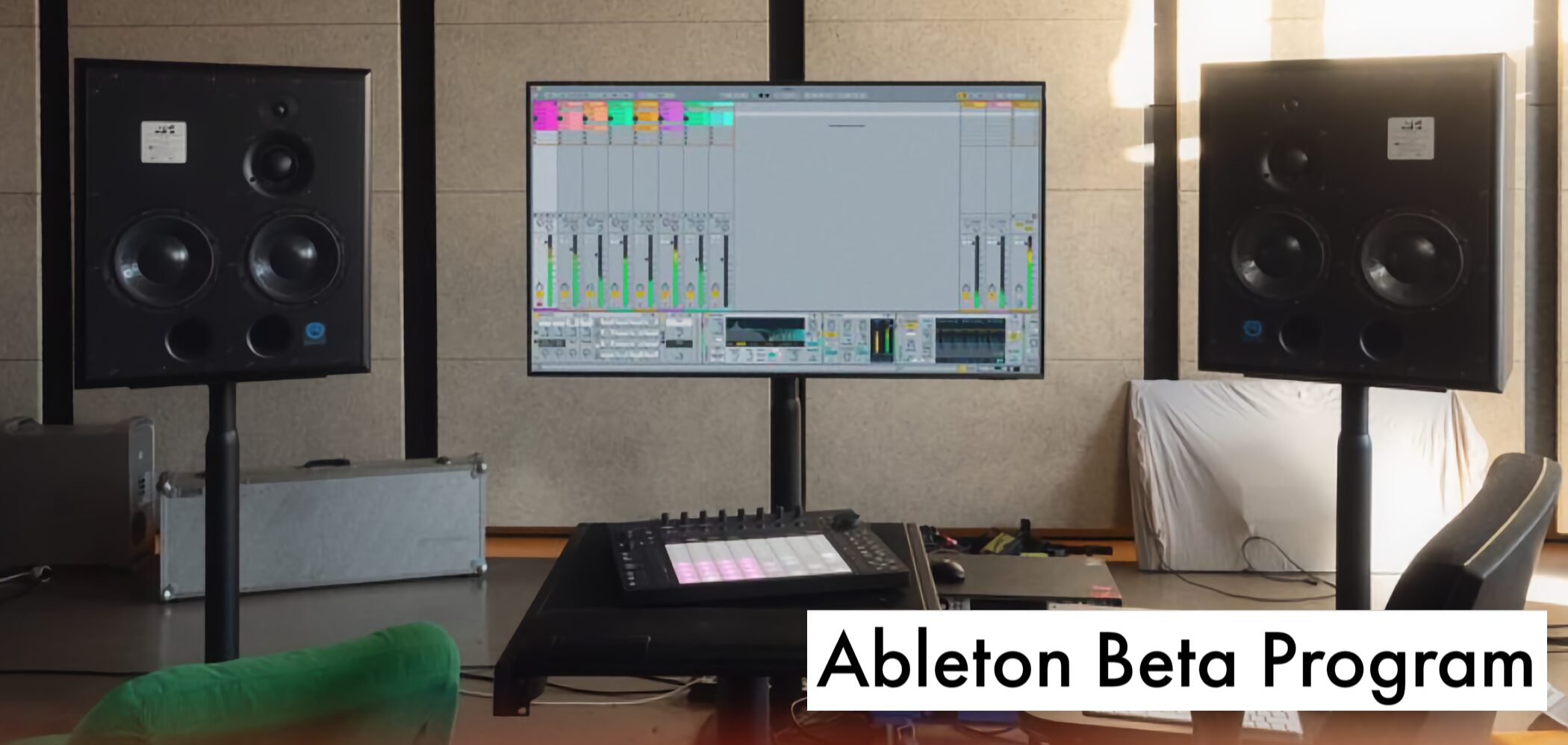
If you have a Live 12 license, you can join the Ableton beta program to try the new Live 12.3 features early.
If you are interested, take a look.
Ableton beta program
Frequently asked questions
Q1. Which editions of Ableton Live 12.3 include stem separation?
Stem separation is available in Live 12 Suite and Push standalone. It automatically extracts vocals, drums, bass, and other stems from an audio clip for remixing and related work.
Q2. How are credits managed when I use Splice directly from Live?
When you sign in to your Splice account, your credits sync so you can manage and use them from Live. It is also easier to search for samples that match your project's tempo and key.
Q3. What should I know about group-track bouncing?
The resulting audio includes all processing, including effects applied when you bounce. Use “Bounce Group in Place” for an in-place bounce, or “Bounce Group to New Track” to output to a new track.
NEW ARTICLES
Latest English Articles