
Cubase Pro 10’s VR Tool Set lets you create mixes in a VR space while working in a regular stereo project environment. This article explains how to configure groups using first-order Ambisonics, position sources in a 360° sound field with VST Multi Panner, and export four-channel Ambisonics B-format audio. This makes it easy to create a VR audio mix without a VR head-mounted display and establish a production workflow for delivery on platforms such as YouTube.
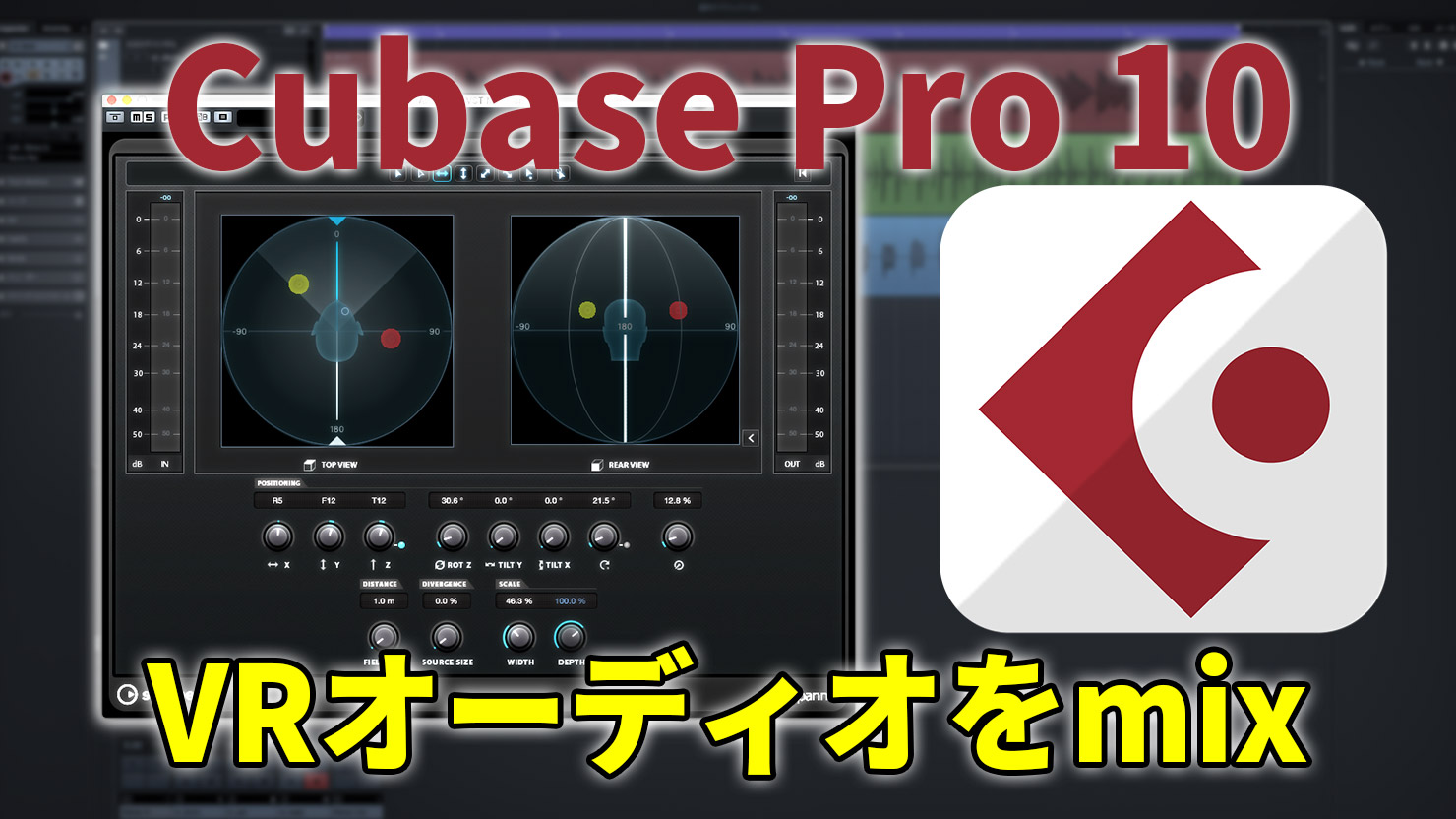
This is our guide to the VR Tool Set in Cubase Pro 10. In this installment, we will show you how to mix sources such as audio tracks and software instruments in a 360° VR space.
VR Audio, Part 2: Mixing in a VR Space — Video Tutorial
Questions and Answers from the YouTube Video

Is this feature only available in Cubase Pro?

Yes. This feature is exclusive to Cubase Pro. You can also compare other features on the following page: https://new.steinberg.net/ja/cubase/compare-editions/
A Regular Stereo Project Is All You Need
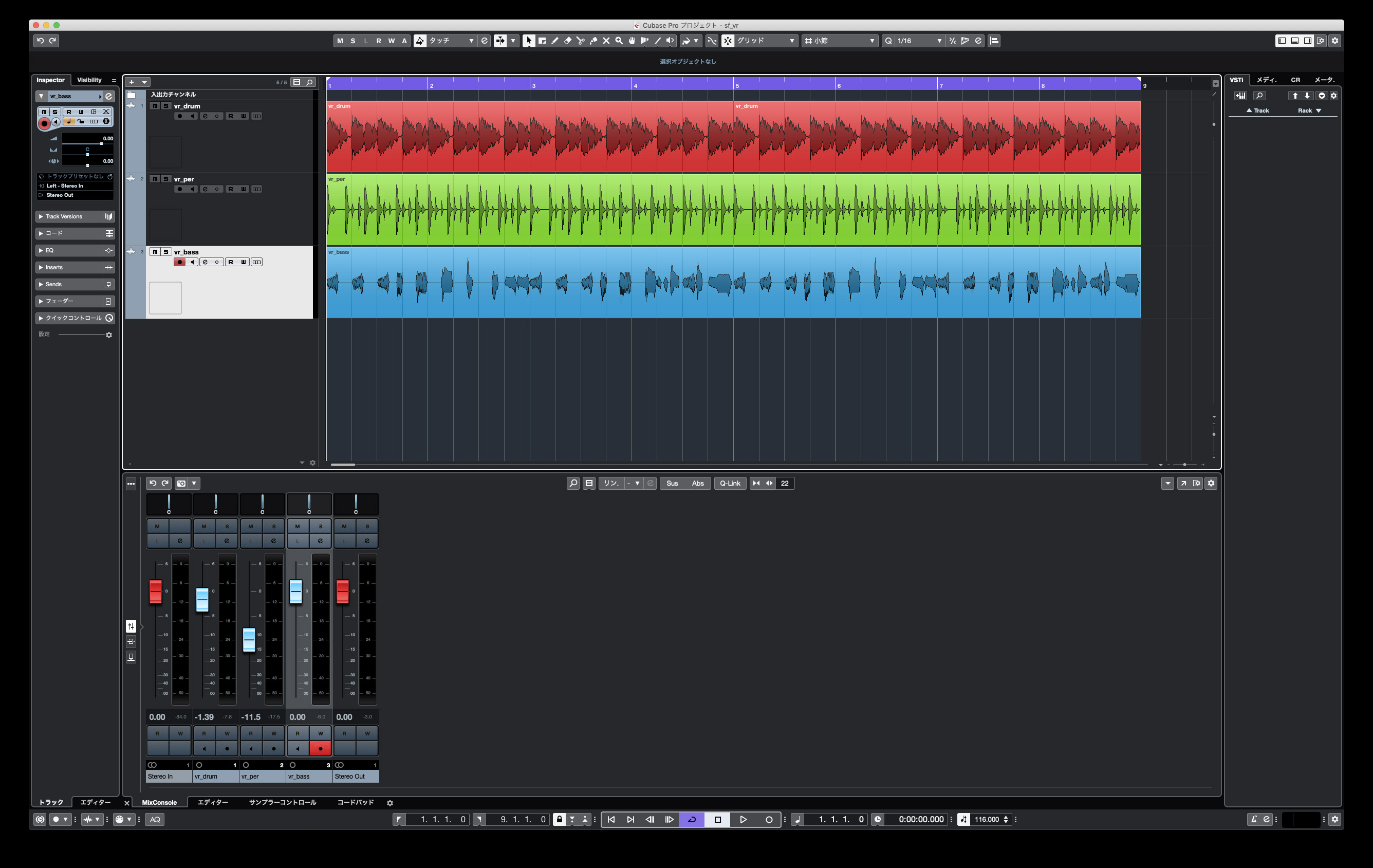
Here, we will introduce a way to create a VR mix in an otherwise ordinary project consisting of mono audio tracks. The manual describes how to set up a separate monitoring environment for VR, but this method is simpler and easier to work with, provided you keep the export precautions in mind.
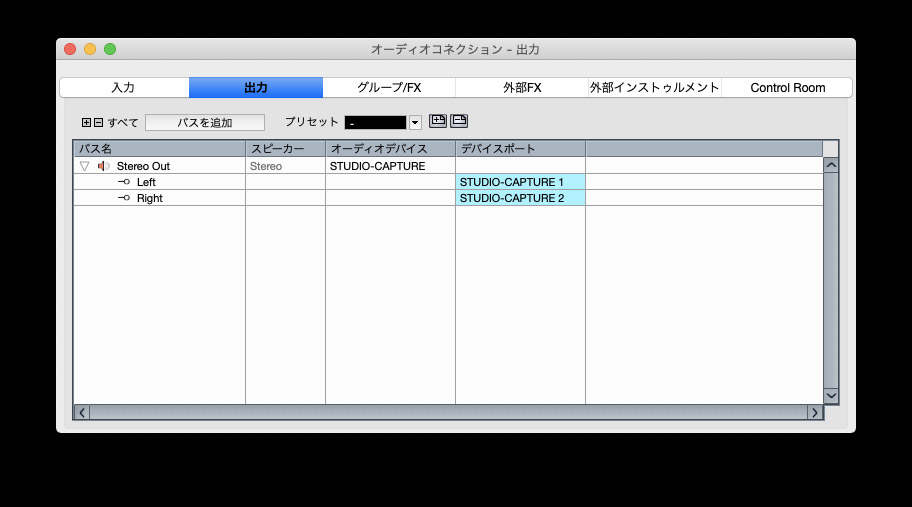
A single stereo output, as many people normally use, is sufficient. The setup is much more accessible than a surround-mixing system. In fact, you can even work through your computer’s headphone output without an audio interface.
Create a Group for the VR Mix
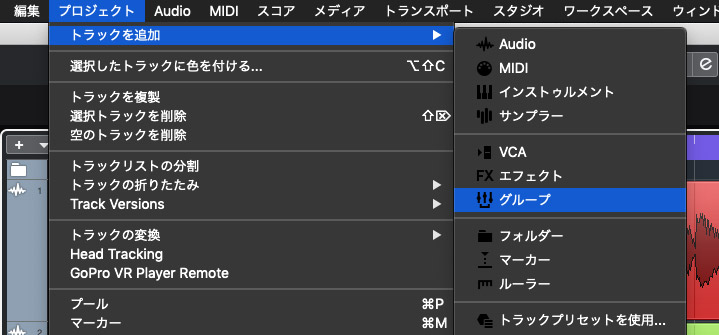
First, create a group for the VR mix.
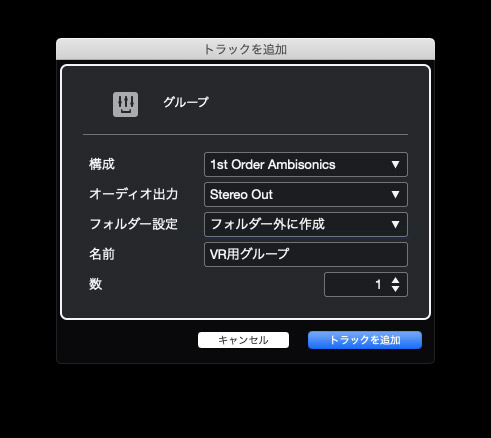
The most important group setting is to choose 1st Order Ambisonics as the configuration. Audio sources routed into this group are mixed into four-channel Ambisonics B-format. If the audio output destination is stereo, the signal is converted to a two-channel mix that you can monitor on headphones before it is output.
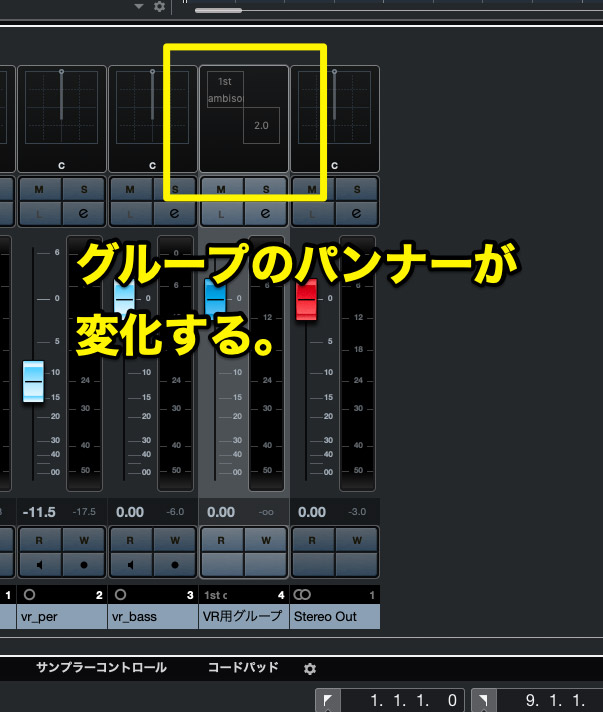
The newly created group’s panner will look like this, in the mode that converts first-order Ambisonics to two channels.
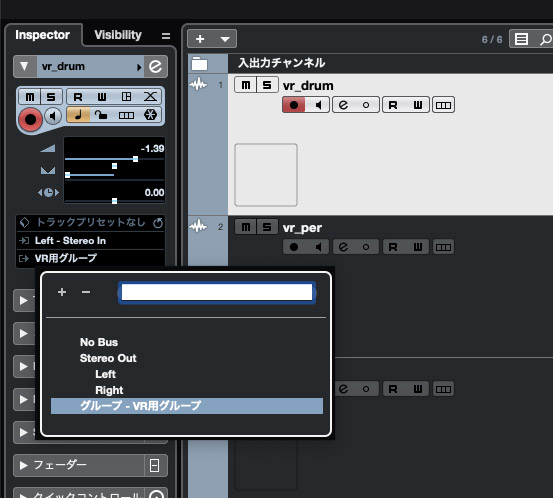
After creating the group, route the outputs of the tracks you want to mix in the VR space—usually all tracks—to the VR mix group.
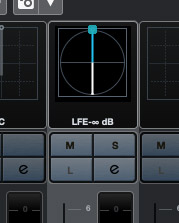
Once the panners on the rerouted tracks look like this, the setup is complete.
Using VST Multi Panner
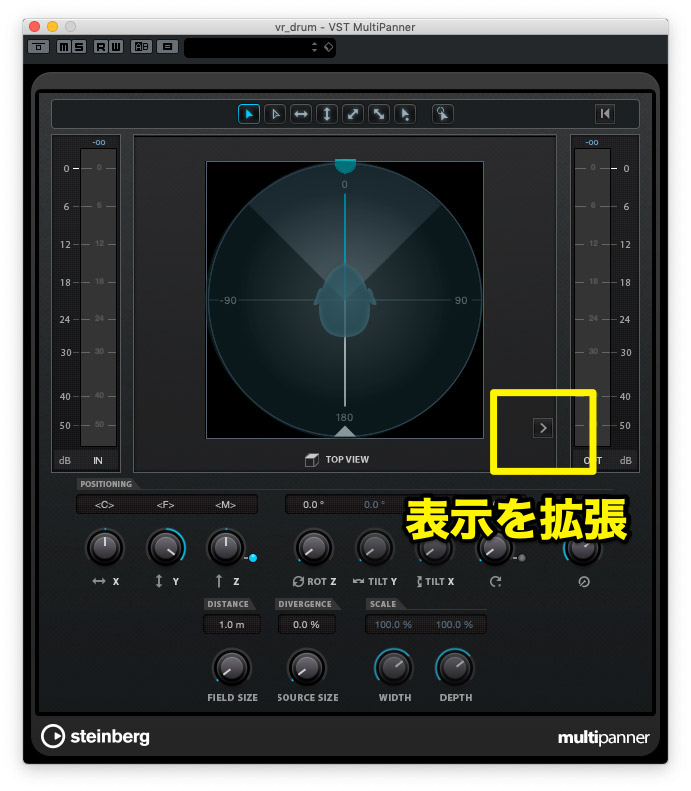
Open the panner on a track prepared for VR mixing, and VST Multi Panner will appear as shown. Its initial view is compact, so click the button indicated in the image above to expand it.
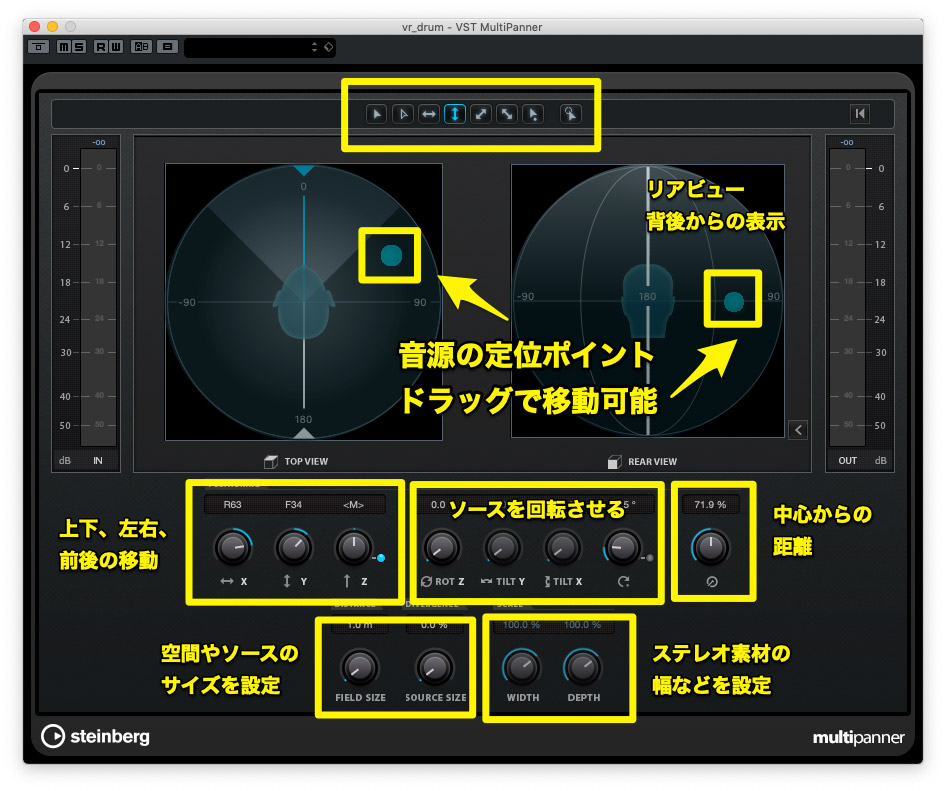
In VST Multi Panner, these parameters let you position a source anywhere in a 360° space: left, right, above, below, in front, or behind. Dragging a point changes the position in real time, making the result easy to understand. Start by listening to how the sound changes.
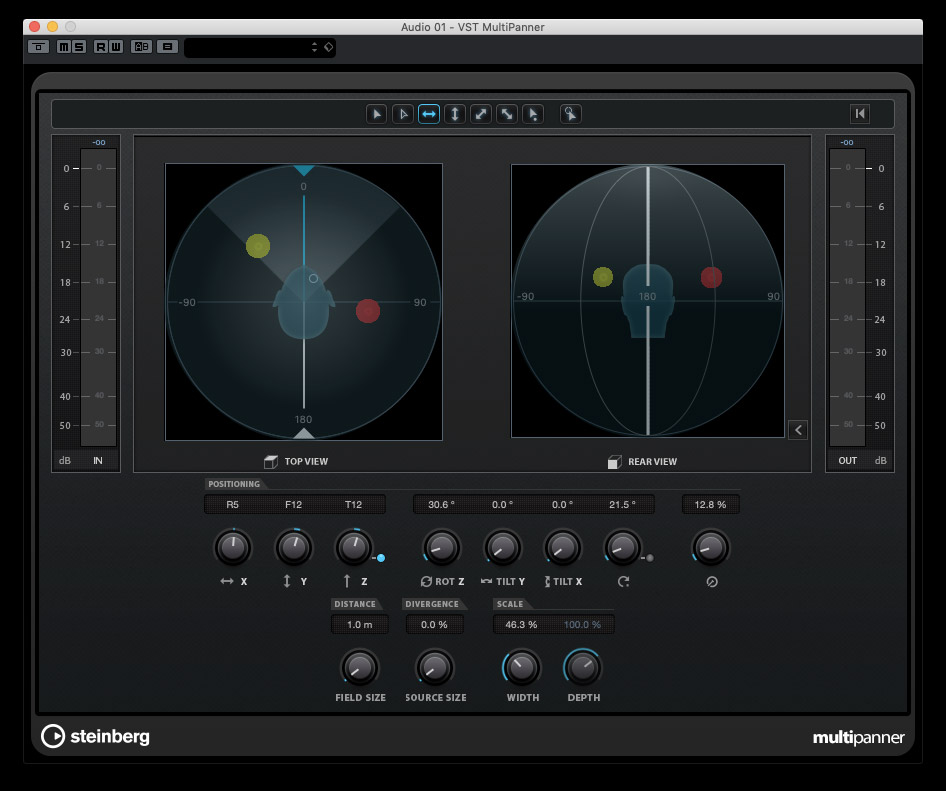
If the input source is stereo, two points appear, allowing you to adjust its stereo width as well. Many of the rotation parameters apply to stereo or multichannel sources.
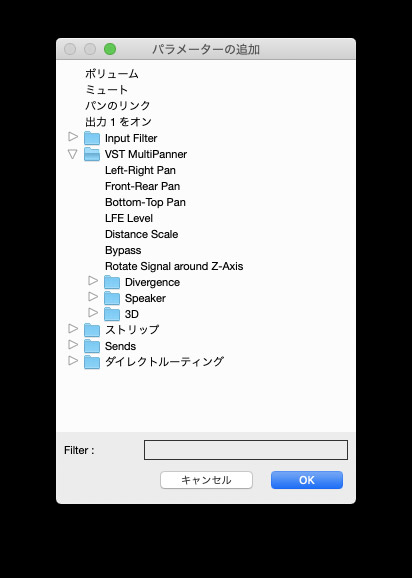
VST Multi Panner parameters can be automated, so you can create mixes in which multiple sources move in complex patterns.
Change the Monitoring Direction
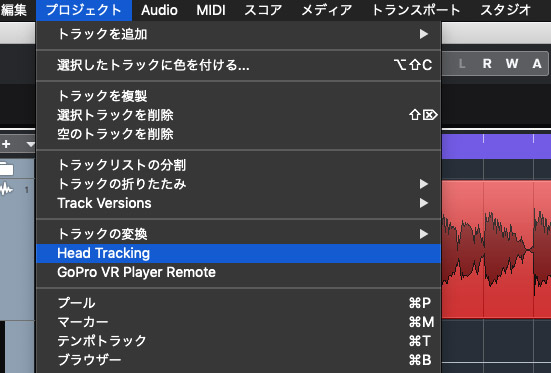
By default, you are facing forward in the VR space. Once your mix has taken shape, check it while facing different directions. Choose Project > Head Tracking.
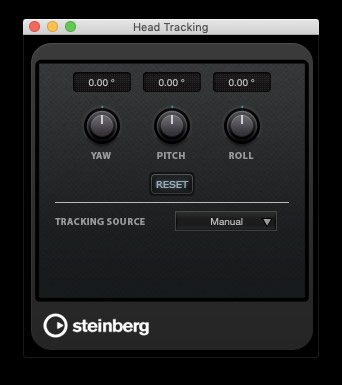
Turn the knobs in the window that appears to change the orientation of the entire sound field relative to the direction your head is facing. If a head-mounted display such as an Oculus Rift is connected, you can select it under Tracking Source to follow your actual head movements.
Exporting VR Audio
When the mix is finished, export it as a WAV file in the VR audio format, Ambisonics B-format. Although the setup used here is straightforward, there are a few important details to observe during export. Getting them wrong will prevent the audio from being exported correctly, so be sure to check them carefully.
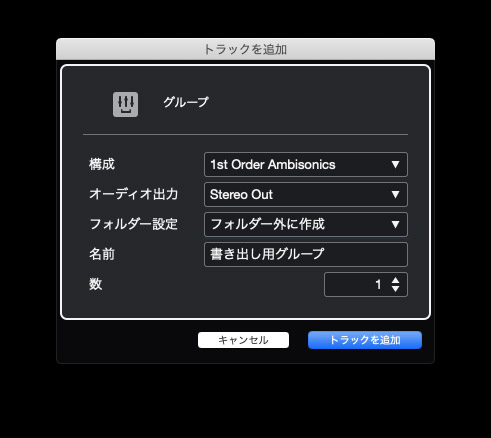
First, create another first-order Ambisonics group. To make its purpose clear, name it Export Group.
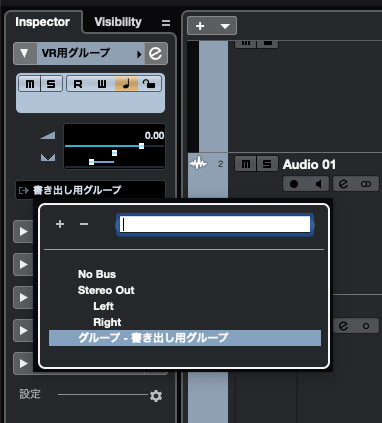
Set the output of the group you used for the VR mix to the newly created Export Group. This does not change what you hear, so you can also set up this routing from the outset.
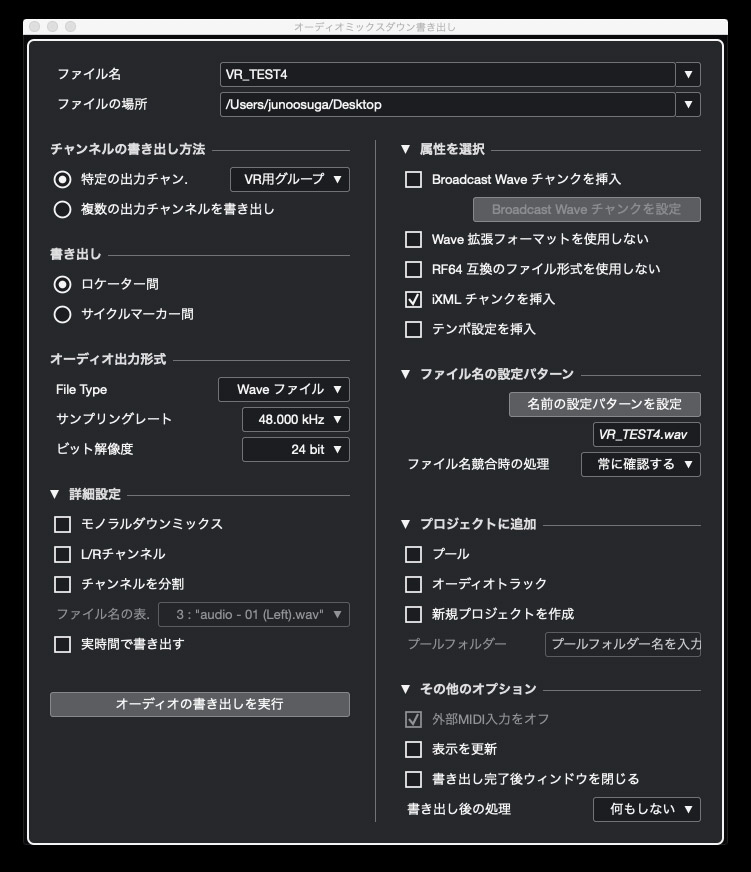
In Export Audio Mixdown, select the specific channel to export and choose the original VR mix group as the source—not the Export Group you just created. If the VR mix group’s output is still set to Stereo Out, the file will be exported as a stereo, two-channel WAV.
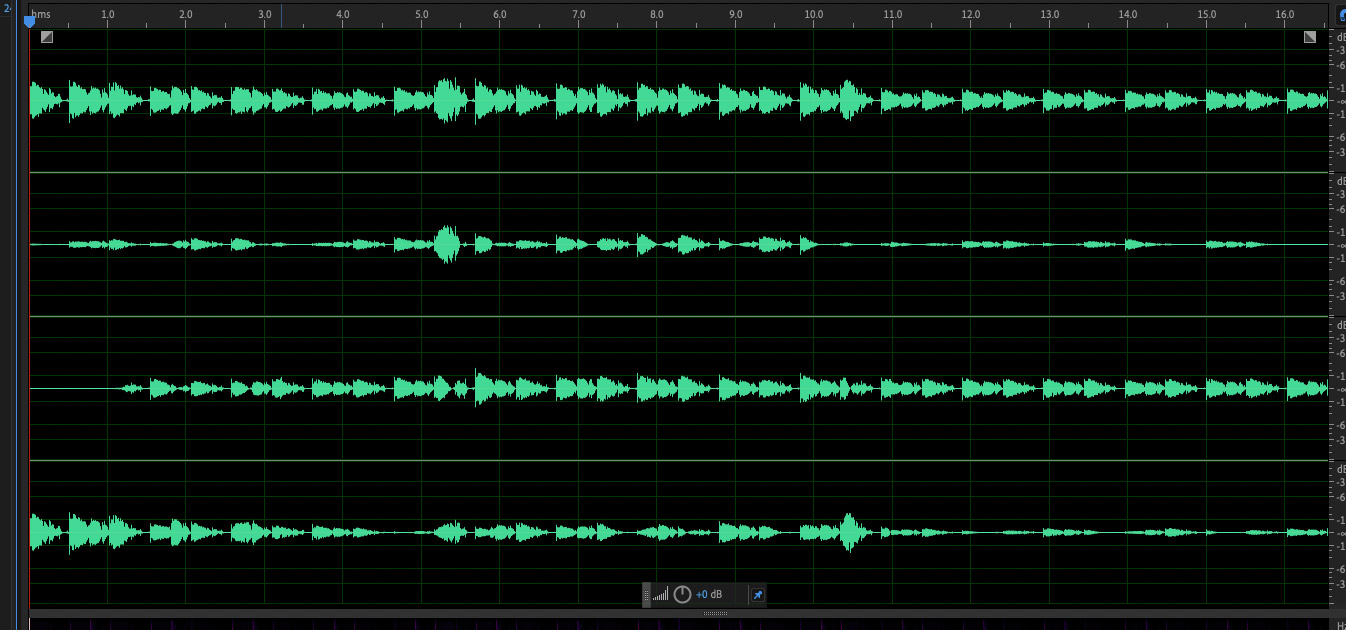
When the export is successful, the resulting file contains four channels, as shown here.
In the next installment, we will explain how to combine your VR audio mix with video and upload it to YouTube!
Mixing in a VR Space | Cubase 10’s New VR Tool Set, Part 2 💡
This time, we explain how to mix sources such as audio tracks and software instruments in a 360° VR space. 🎵Details: https://t.co/rA5GrZsQW0
Presented by Jun Oosuga (@jun_oosuga) pic.twitter.com/Vhs0nN33s3
— SLEEP FREAKS (@SLEEPFREAKS_DTM) February 16, 2019
Purchase the Product
Frequently Asked Questions
Q1. Do I need a special audio interface to start mixing for VR?
No. You can work with a standard stereo output setup. You can even produce the mix using only your computer’s headphone output, keeping the equipment requirements modest and making it easier for beginners to get started.
Q2. What is first-order Ambisonics?
It is a format that records 360° spatial audio information in four channels, known as B-format. It allows sources to be positioned in all directions—front, back, left, right, above, and below—for a natural spatial listening experience with VR headphones.
Q3. How do I distribute a completed VR mix?
Export a four-channel Ambisonics B-format WAV file, combine it with video, and upload it to a VR-compatible platform such as YouTube. Viewers can experience spatial audio using a VR headset.
Q4. Can I change the positions of sound sources dynamically during a mix?
Yes. VST Multi Panner parameters support automation, so you can create dynamic VR mixes in which multiple sound sources move over time.
NEW ARTICLES
Latest English Articles












































































































































































































































































