
FabFilter Pro-Q 3’s Dynamic EQ automatically adjusts the amount of equalization in response to changes in level at the target frequency. Unlike conventional equalizers, which apply a fixed amount of gain, dynamic EQ varies its effect in real time with the level in that frequency range, allowing more natural, musical sound shaping. It can be used on the master track or individual tracks, with Auto and Manual modes offering detailed control for professional audio processing.
Dynamic EQ for More Musical Frequency Processing
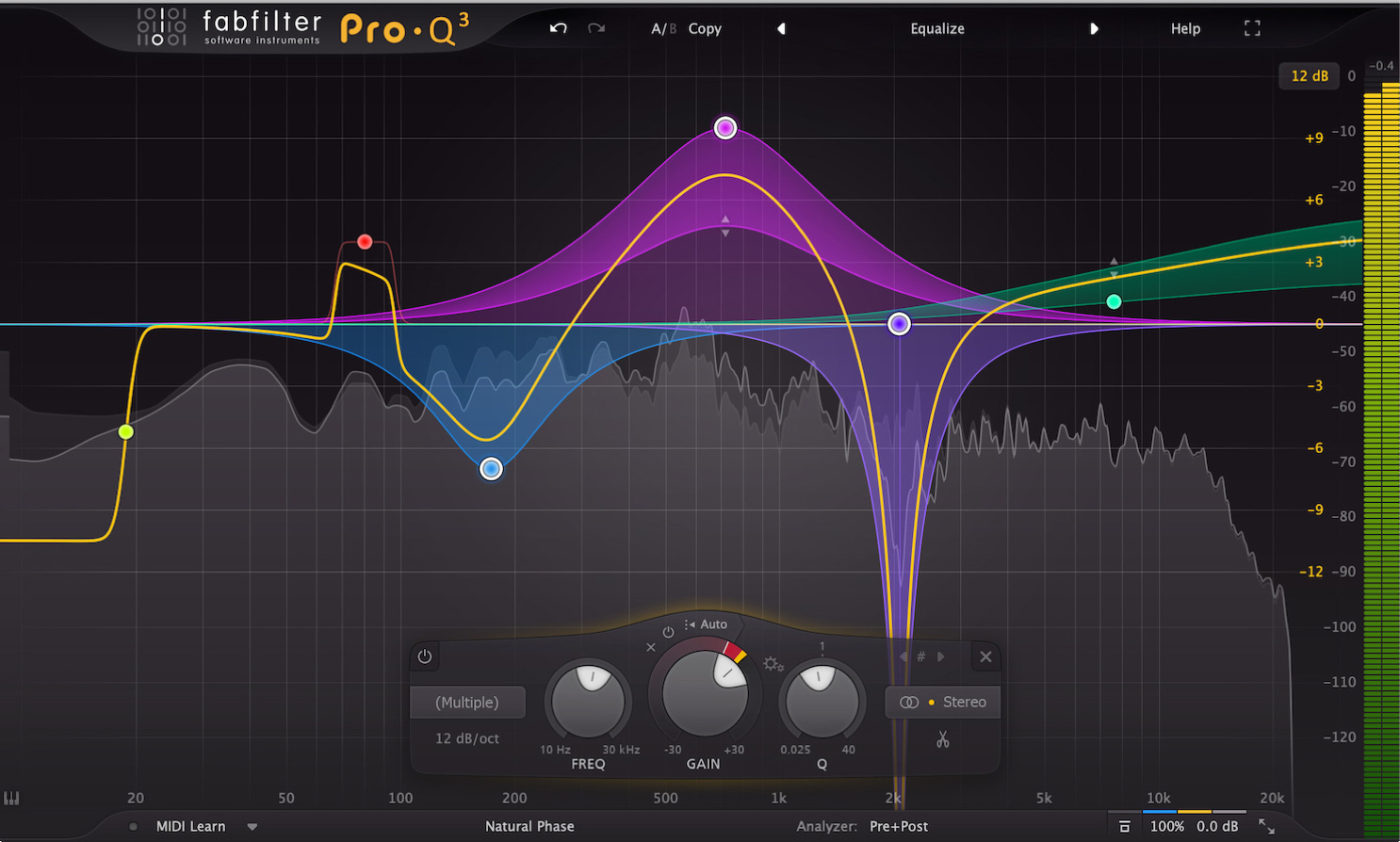
Following our previous look at enhanced Mid/Side mode, we will continue exploring the new features in FabFilter Pro-Q 3.
This time, let’s explore Dynamic EQ, one of the standout features of this version.
Dynamic EQ is an innovative feature that adjusts the amount of equalization according to the level in the target frequency range.
As well as working on individual tracks, it is effective on the master track for equalizing an entire song.
FabFilter Pro-Q 3 Dynamic EQ Video Tutorial
- 1FabFilter Pro-Q
- 2FabFilter Pro-Q 2: Auto Gain and Other New Features
- 3FabFilter Pro-Q 2: Spectrum Grab and EQ Match
- 4FabFilter Pro-Q 3: Enhanced Mid/Side Mode
- 5FabFilter Pro-Q 3: Dynamic EQ
- 6FabFilter Pro-Q 3: Brickwall Slope, Flat Tilt, and Masking Detection
- 7FabFilter Pro-Q 4 Is Here: A Guide to Key New Features
Selected Questions and Answers from the YouTube Video

I have a question. When I click Analyzer to check for masking, some instances appear under their actual track names, such as “Drums,” while others appear as Pro-Q (1), Pro-Q (2), and so on. I cannot detect masking between an instance shown by its track name and one shown as Pro-Q (1). Could you explain what might be causing this? https://photos.app.goo.gl/4U447ARXp8265BDAA

This can happen when track names contain katakana characters. Please try changing the track names to English only.
May I ask a question? I currently own Pro-Q 3 and am considering adding Pro-MB, but I do not fully understand the difference between Q3’s dynamic processing and MB’s dynamic processing. This may be because I do not know enough about EQs and multiband compressors, but I would appreciate an explanation of the specific differences between their functions.
Dynamic EQ fine-tunes the amount of equalization to suit the sound, while MB uses compression to reduce levels in separate frequency ranges. MB divides the signal into four to six bands for processing, whereas dynamic EQ can target more precise, narrowly defined areas. This is another major difference.
Applying Dynamic EQ
Here, we will insert Pro-Q 3 on the master track.
To give the overall sound more presence, we have boosted the area around 7 kHz by about 5 dB.
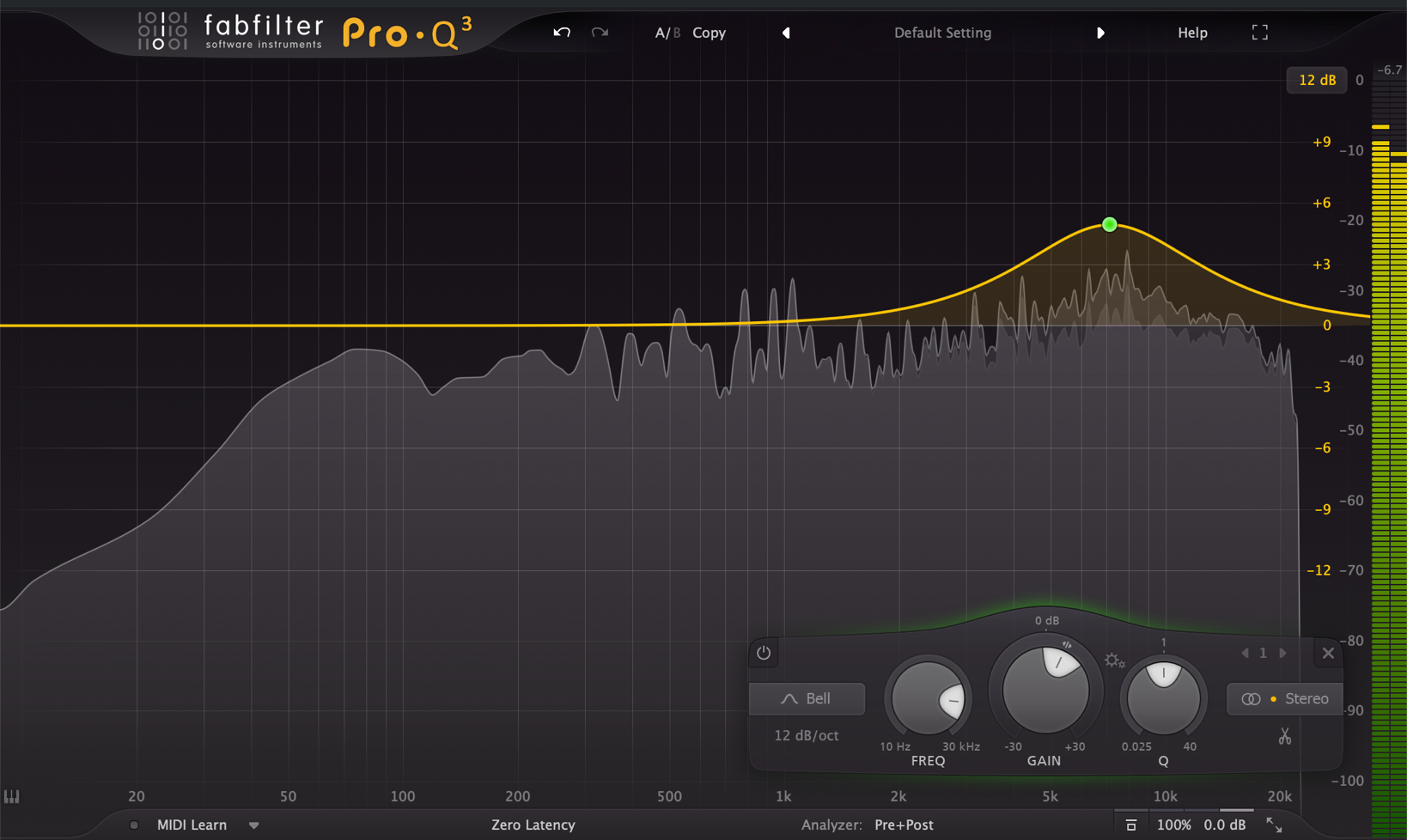
The sound does cut through more clearly, but at certain moments it becomes harsh and piercing.
This is where Dynamic EQ comes in.
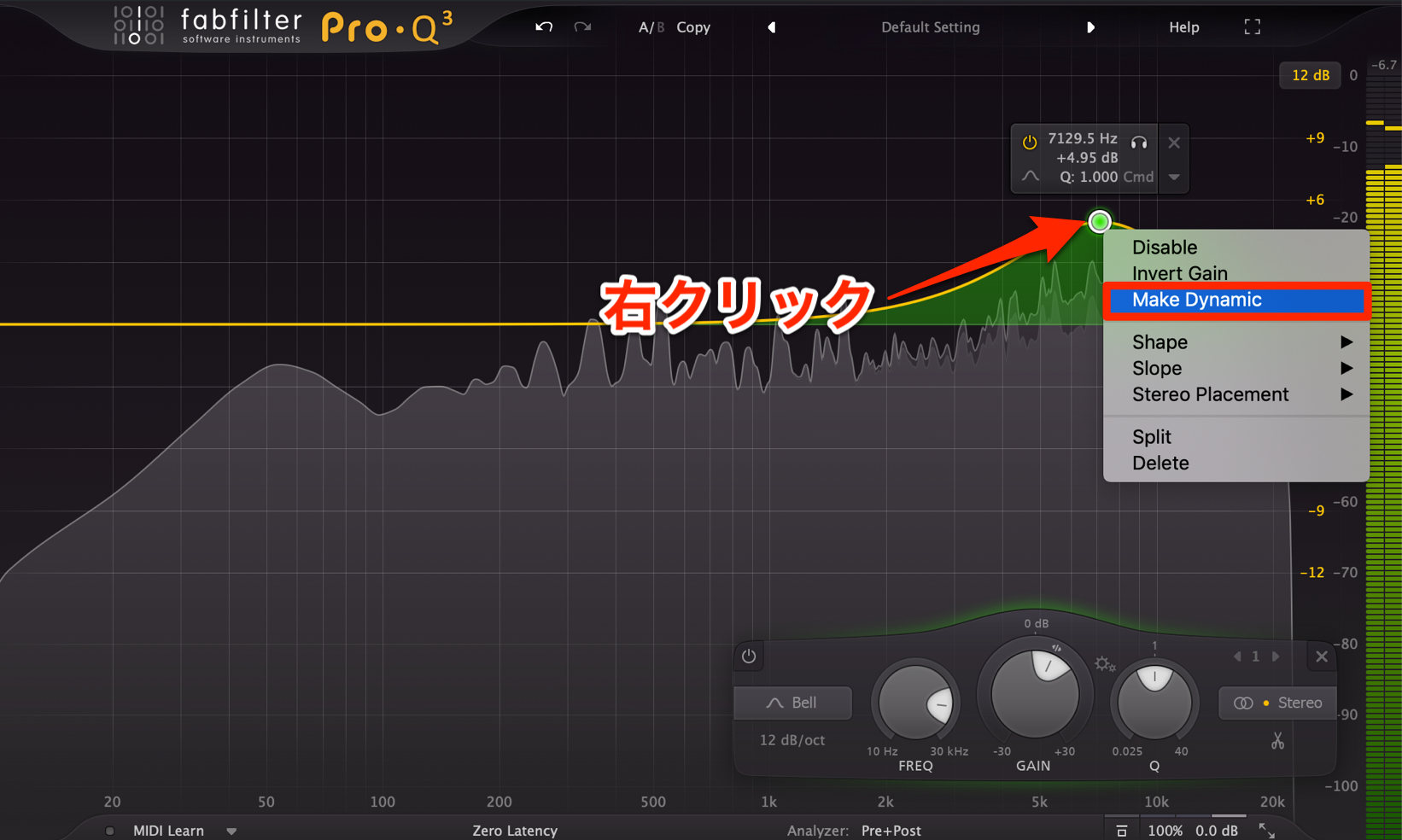
Right-click the EQ point and select “Make Dynamic.”
The point is now in Dynamic EQ mode.
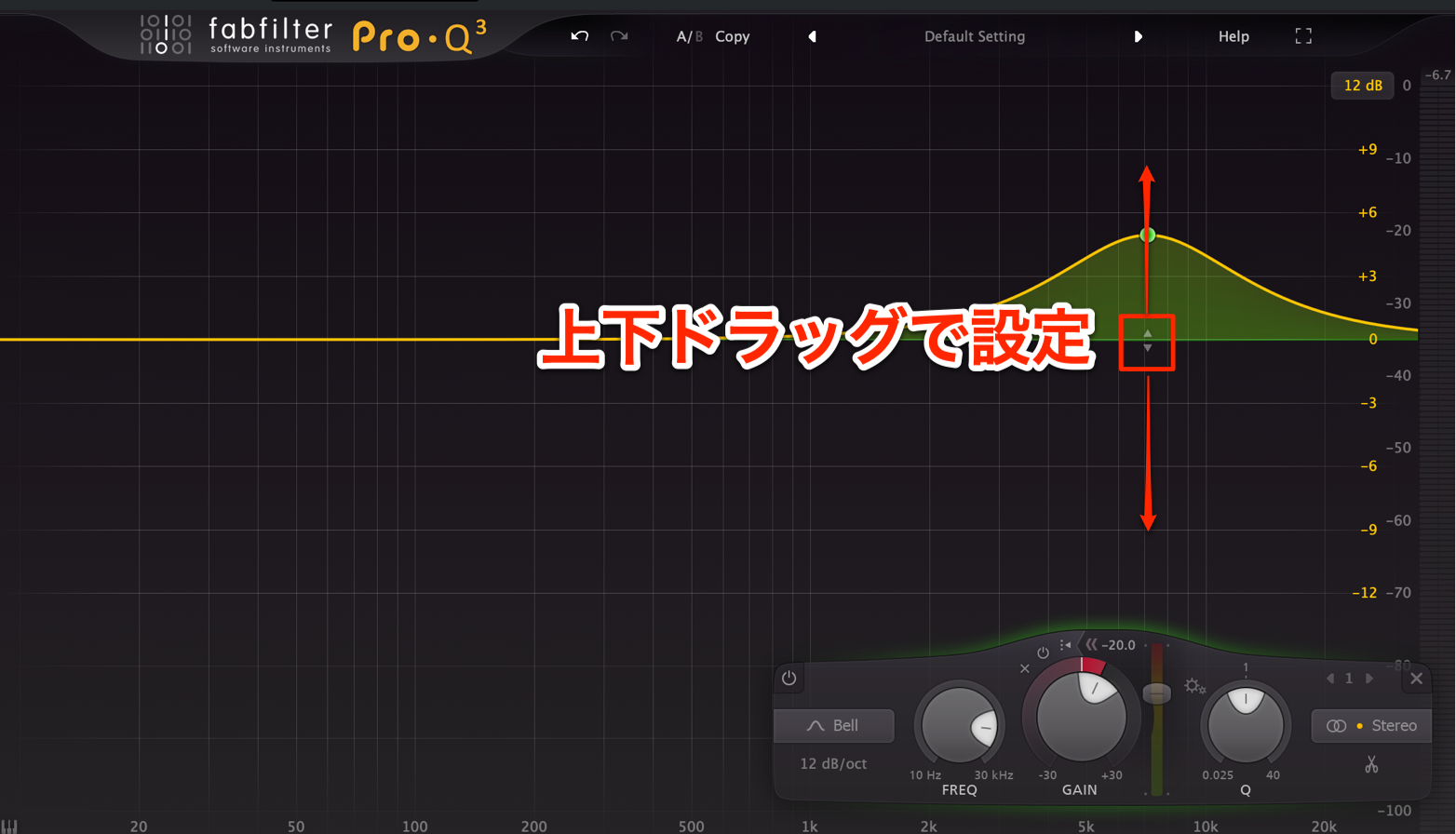
An additional control point appears alongside the EQ point.
You can move it by dragging up or down. Here, we have placed it at 0.
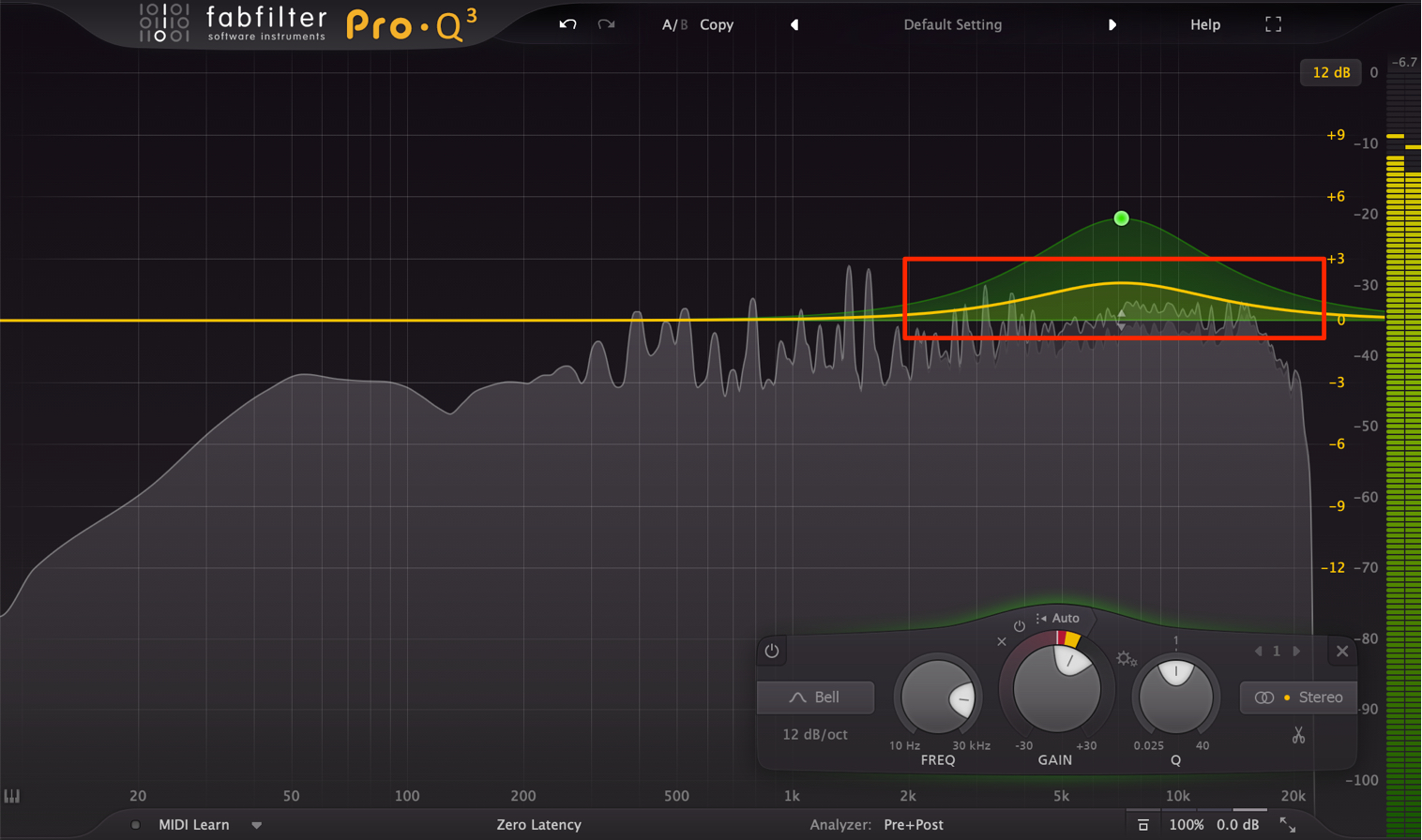
When you start playback, a moving yellow line appears between the points.
This shows the amount of equalization actually being applied.
Normally, an equalizer constantly applies the amount of gain specified by the EQ point.
With Dynamic EQ, however, the amount changes according to the level at the target frequency, producing a more musical and natural result.
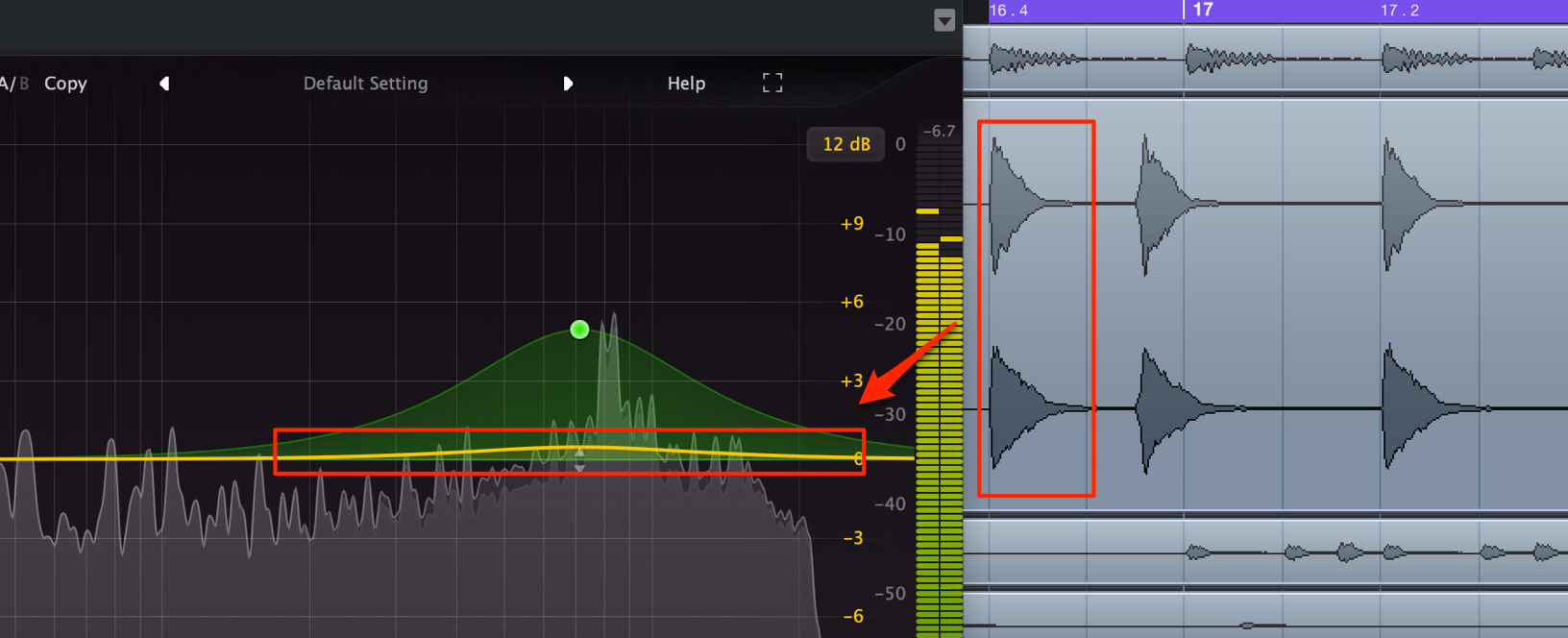
Watch the line, and you will see it move downward each time the snare hits.
This means that the snare’s attack contains a lot of energy around 7 kHz, so the level in that area rises as soon as the snare plays.
When the snare hits, the amount of EQ boost automatically decreases, helping prevent harshness. Between snare hits, the high-frequency range remains clearly emphasized.
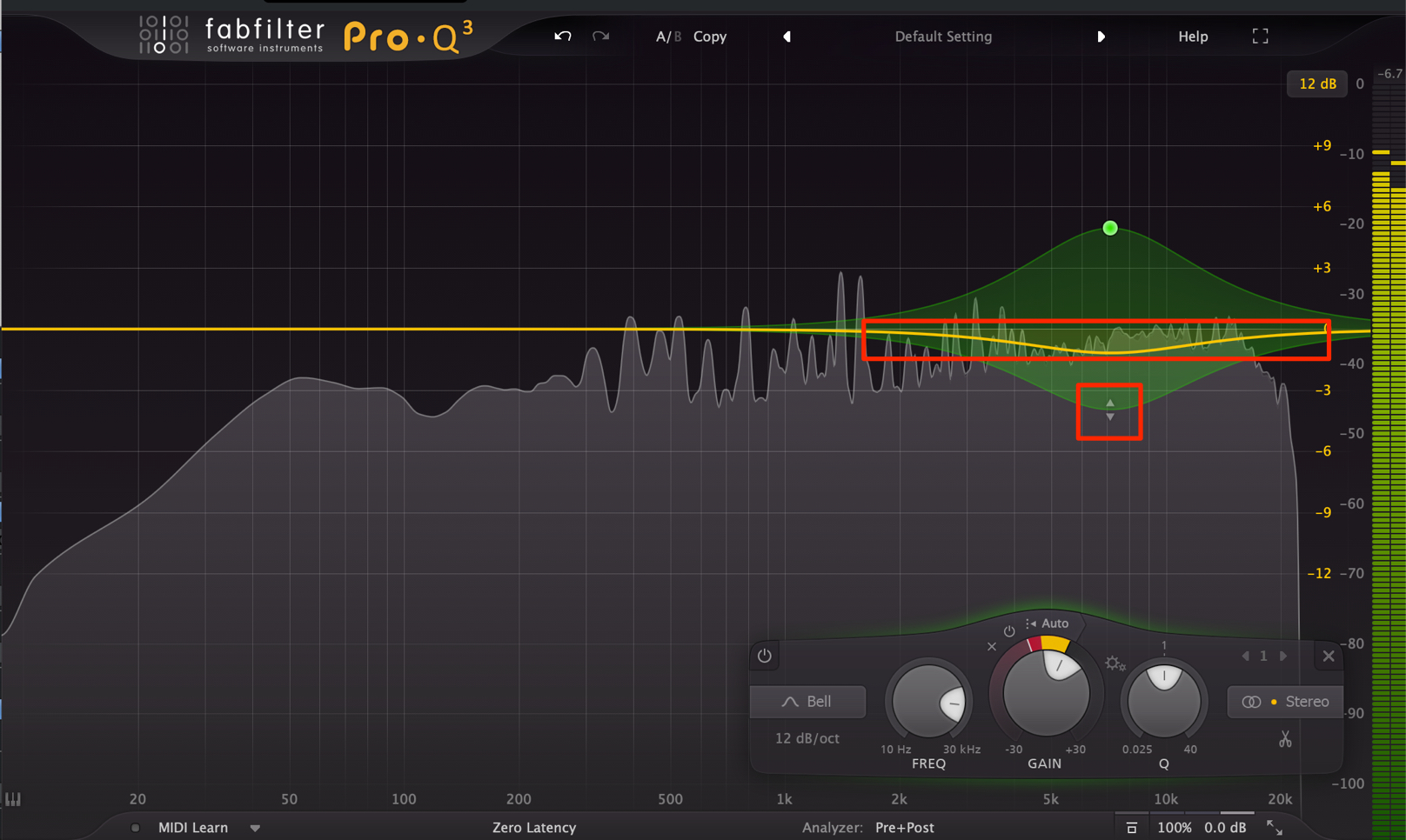
The gain varies between the EQ point and the value you set.
By setting a negative value like this, you can also make the level drop whenever the selected frequency range gets louder.
Switching from Auto to Manual
The plug-in automatically determines the level at which Dynamic EQ is triggered, but you can also set this manually.
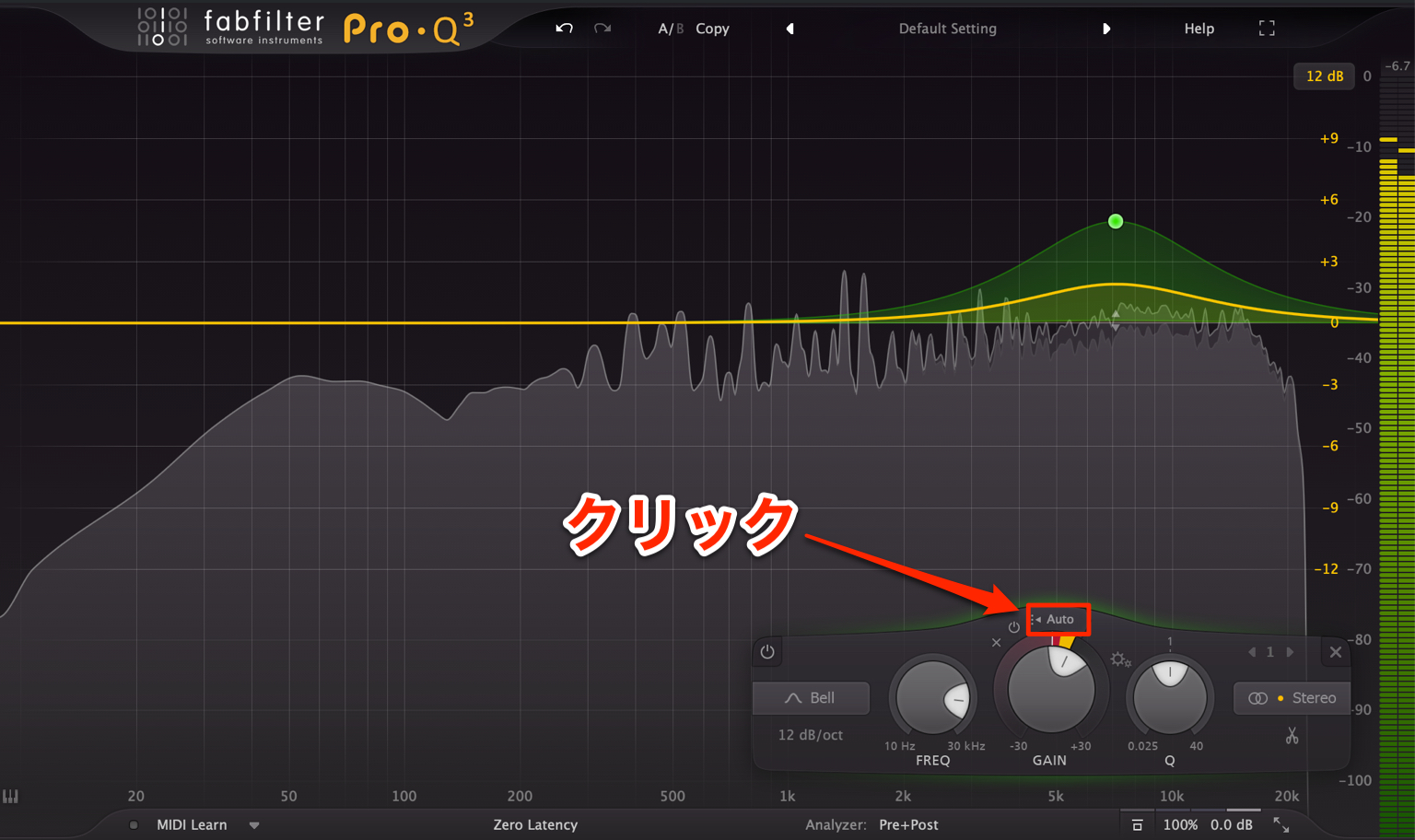
Select the point and click “Auto.”
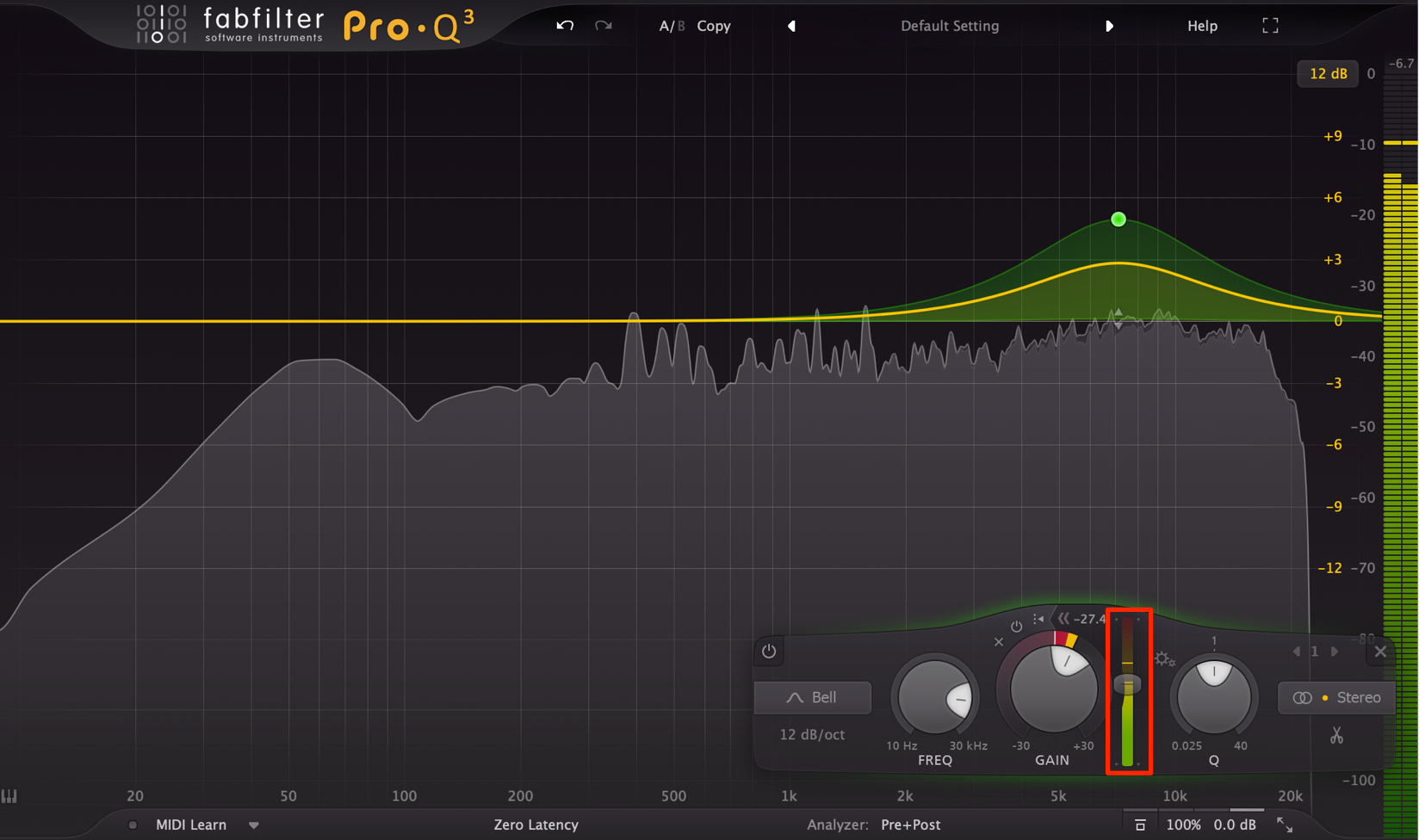
Drag the threshold slider to fine-tune when Dynamic EQ is triggered and how much it responds.
Try Auto first, then adjust this setting if the result is not quite what you want.
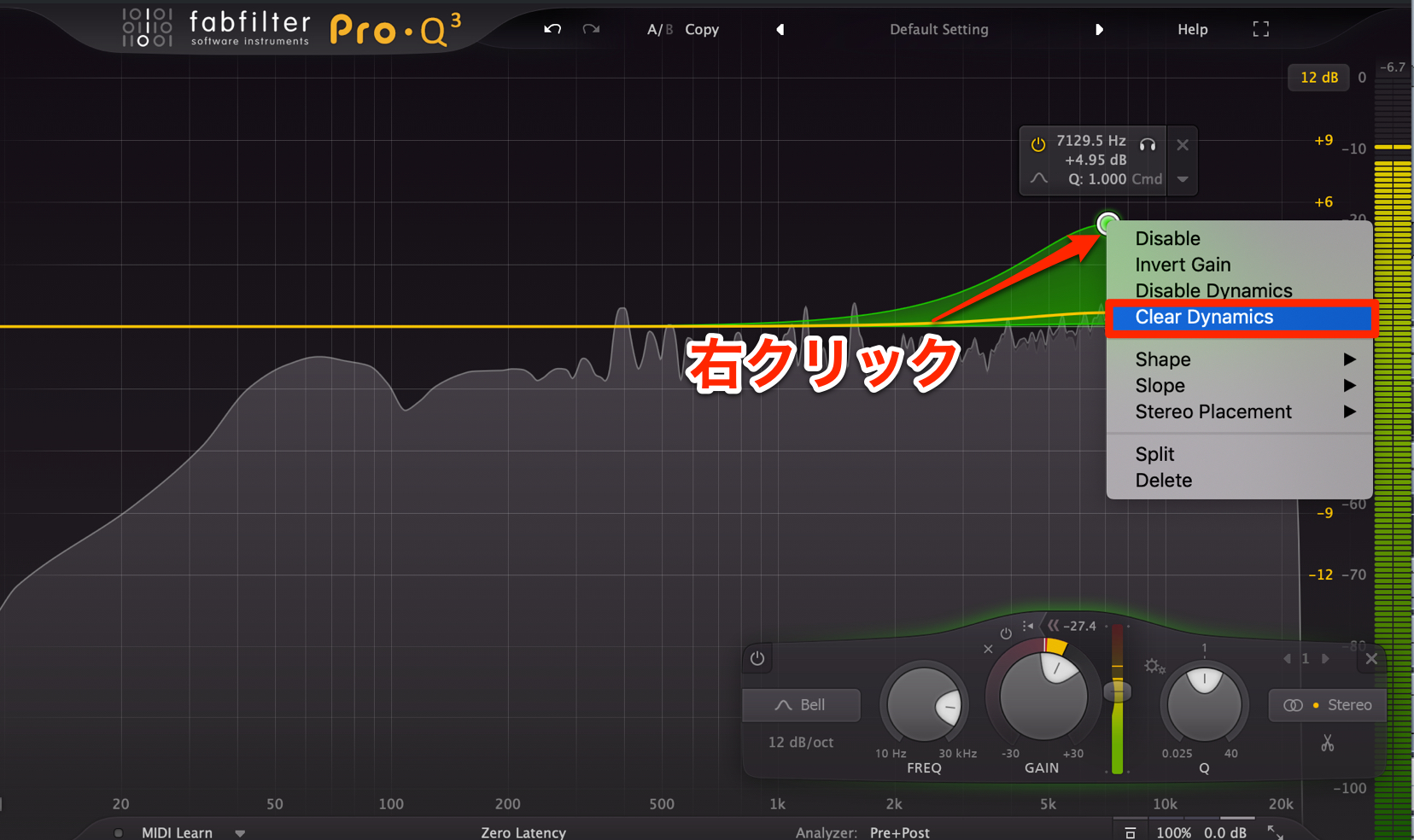
To turn off dynamic processing, right-click the point and select “Clear Dynamics.”
What did you think?
Dynamic EQ is impressive enough to feel like a revolution in equalization, and it sounds excellent, too.
Try it on your own tracks!
Next time, we will cover the remaining new features, including other tracks’ spectrum displays and the new EQ slopes and shapes.
- 1FabFilter Pro-Q
- 2FabFilter Pro-Q 2: Auto Gain and Other New Features
- 3FabFilter Pro-Q 2: Spectrum Grab and EQ Match
- 4FabFilter Pro-Q 3: Enhanced Mid/Side Mode
- 5FabFilter Pro-Q 3: Dynamic EQ
- 6FabFilter Pro-Q 3: Brickwall Slope, Flat Tilt, and Masking Detection
- 7FabFilter Pro-Q 4 Is Here: A Guide to Key New Features
Frequently Asked Questions
Q1. What is dynamic EQ?
It automatically changes the amount of equalization according to the level in a frequency range. In the boost example shown here, the amount decreases when that range gets louder and increases when it gets quieter, producing more natural, musical EQ processing.
Q2. When is dynamic EQ useful?
It is useful when you want to emphasize high-frequency presence without making brief peaks, such as snare hits, sound piercing. It is also effective for overall EQ processing on a master track, helping reduce harshness.
Q3. Why switch from Auto to Manual?
If Auto does not produce enough of an effect, you can adjust the threshold slider in Manual mode to fine-tune when Dynamic EQ responds and how much it changes, making the processing more effective.
NEW ARTICLES
Latest English Articles





















































































































































































































































































