
The Steinberg UR-C series offers a well-balanced range of audio interfaces, and the included dspMixFx UR-C V3 software expands what they can do. Using the UR22C as an example, this guide explains how to manage DAW audio separately from services such as Spotify and YouTube, and how to configure high-quality audio for livestreams, online meetings, and video production. It covers the basics through practical workflows for both new and existing users, helping you improve the efficiency and quality of your music and content production.
More ways to stream with dspMixFx UR-C V3
Steinberg's UR-C series is a popular choice for audio interfaces in Japan.
Its strong balance of features and price also makes it approachable for beginners in desktop music production.
Last year, the included dspMixFx UR-C software was updated to version 3, and features especially useful for livestreamers were added.
dspMixFx UR-C V3 lets you do the following:
- Adjust and manage DAW audio separately from audio from Spotify, YouTube, and other computer sources
- Build a livestreaming setup
- Send high-quality audio to online meetings, webinars, and online lessons
- Capture desktop audio for video production
This guide uses a UR22C to walk through the basic setup of dspMixFx UR-C V3 and a range of practical ways to use it.
Whether you have not tried these features yet or tried them without getting the result you wanted, this guide is for you.
Selected questions and answers from the YouTube video

Thank you for making this video. I want to livestream with an iPhone 15. You used OBS in the video, but can I also apply the settings made in DSP to an iPhone livestream?

We have not tested this with an iPhone 15, but according to the official manual, you can send audio processed by DSP and the Streaming Mix to an iPhone. For streaming, Steinberg recommends setting [USB AUDIO CHANNEL PRIORITY] to [Streaming]. App compatibility may vary, so test your setup beforehand. The UR22C also requires external power when connected to an iOS device.
Can I completely turn off the high-pass filter on the UR22C input in Cubase?
Open the UR22C tab in Cubase's Inspector. The high-pass filter button is just below the input controls; click it to turn the filter off.
For livestreaming I want to use a dynamic microphone, and for recording vocals I want to use a condenser microphone. Is it bad for the dynamic mic if I leave both connected and turn on phantom power? I saw a +48V control in dspMixFx UR-C V3. Can I use it to send phantom power to only one input?
On the UR22C, 48V phantom power applies to both inputs; you cannot set it separately for each input. Turn phantom power on or off on the hardware. The software only shows its current status. Phantom power does not normally harm a properly connected dynamic microphone, so you do not need to worry about this in the usual setup.
Can I change the output device in Windows? The names differ from those on a Mac. Which option should I choose?
For computer audio, the available output choices are similar to those on a Mac. For DAW output, select [YAMAHA Steinberg USB ASIO].
Launching dspMixFx UR-C V3
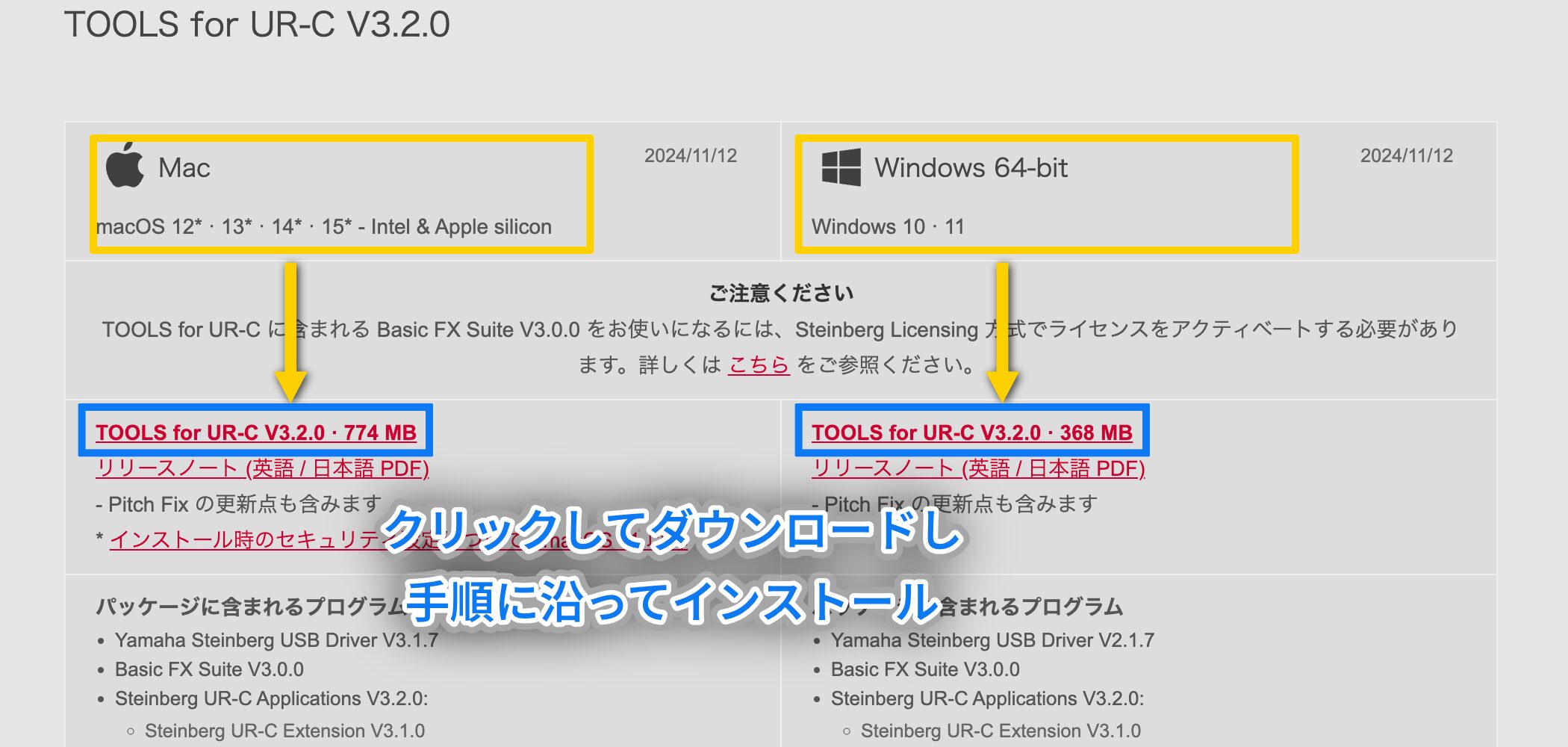
First, download and install the latest driver fromthe official websiteto use a UR-C series interface.
Installing the driveralso installs dspMixFx UR-C V3 automatically.If
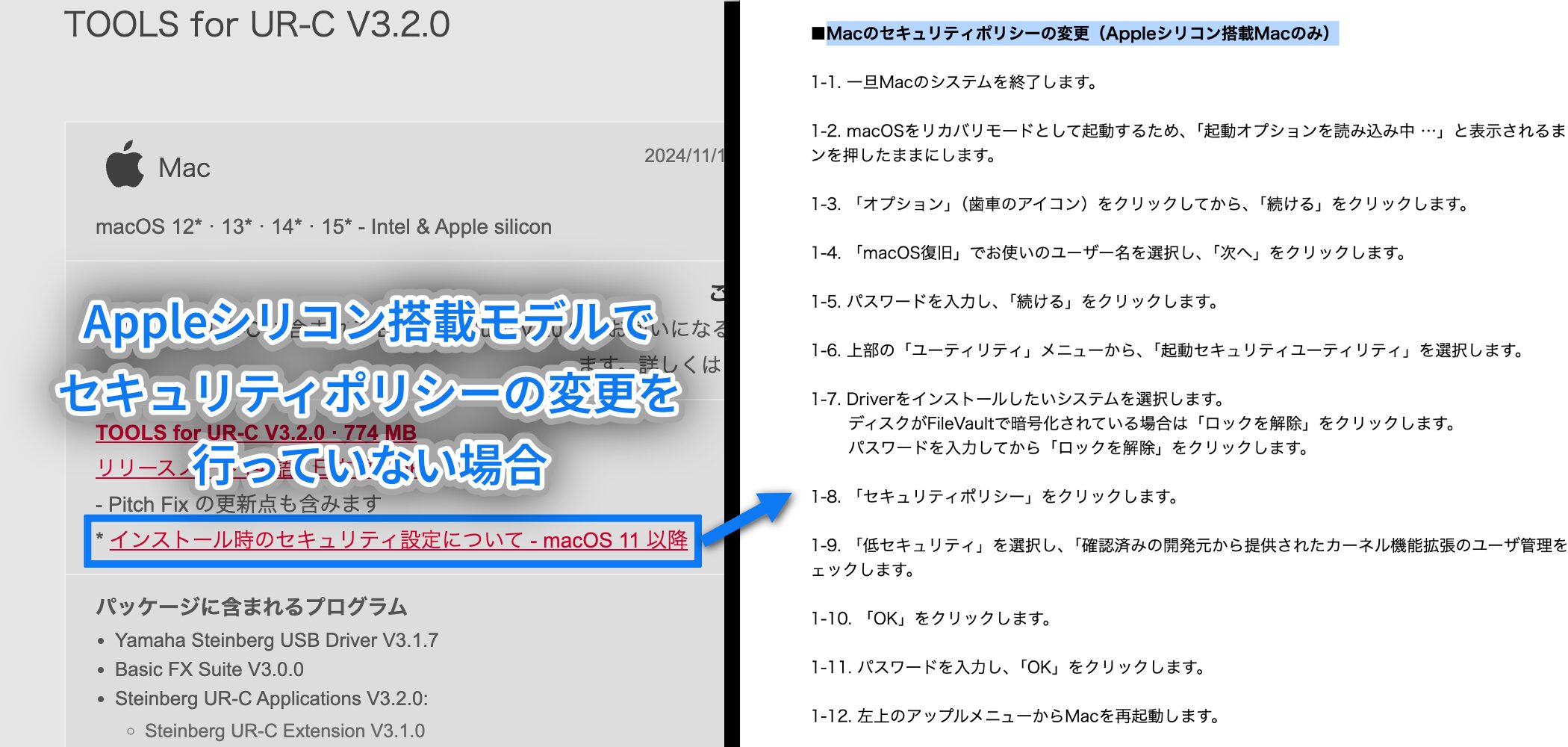
you are using an Apple silicon Mac and have not changed its security policy,openAbout security settings during installation on macOS 11 or laterand follow the section titled [Changing the security policy on an Apple silicon Mac] before installing.
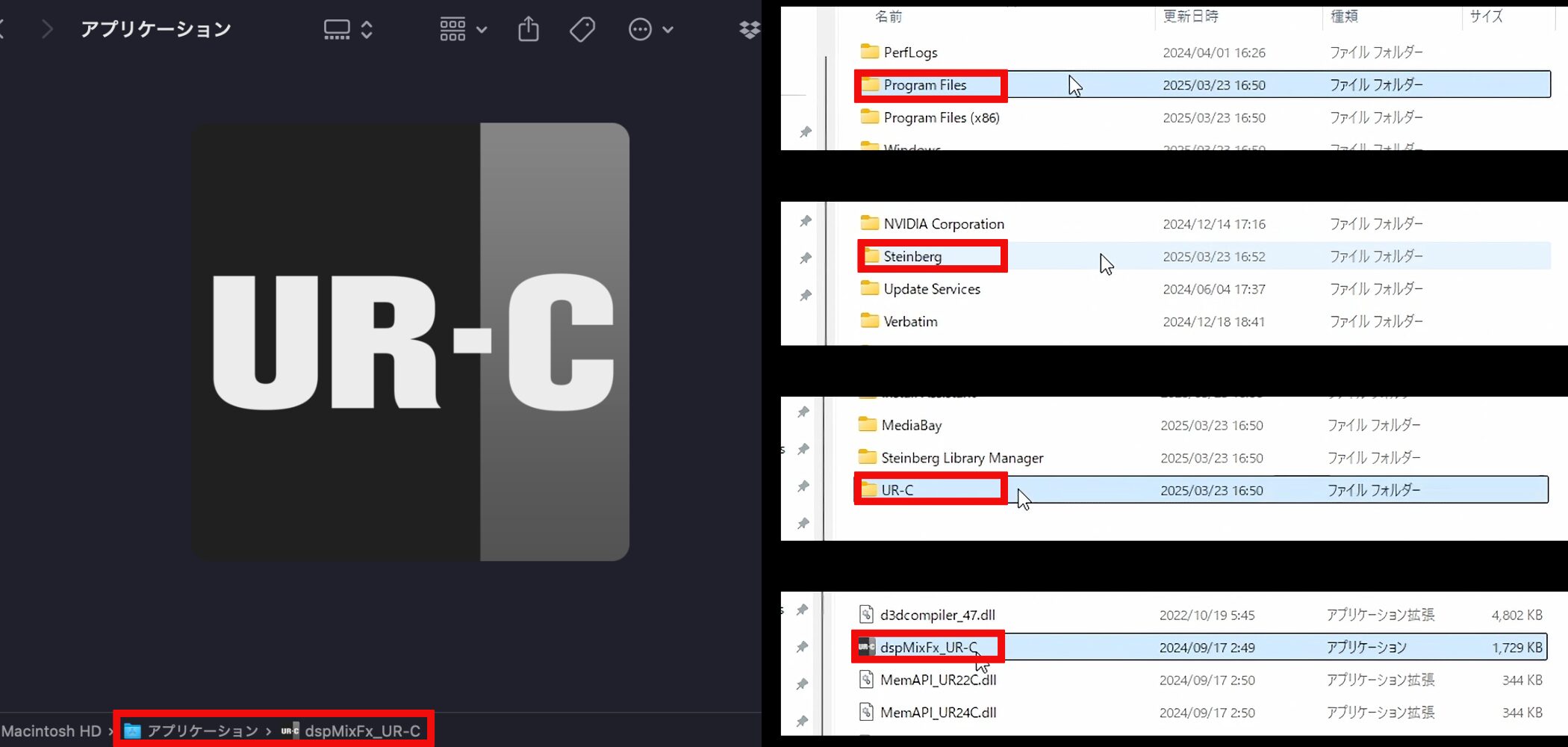
After installation, launch dspMixFx UR-C V3.
On a Mac, it is in the Applications folder. On Windows, look in Program Files > Steinberg > UR-C.
If you are prompted to update the firmware when the software starts,install the latest firmwarebefore continuing.
The dspMixFx UR-C V3 mixer window
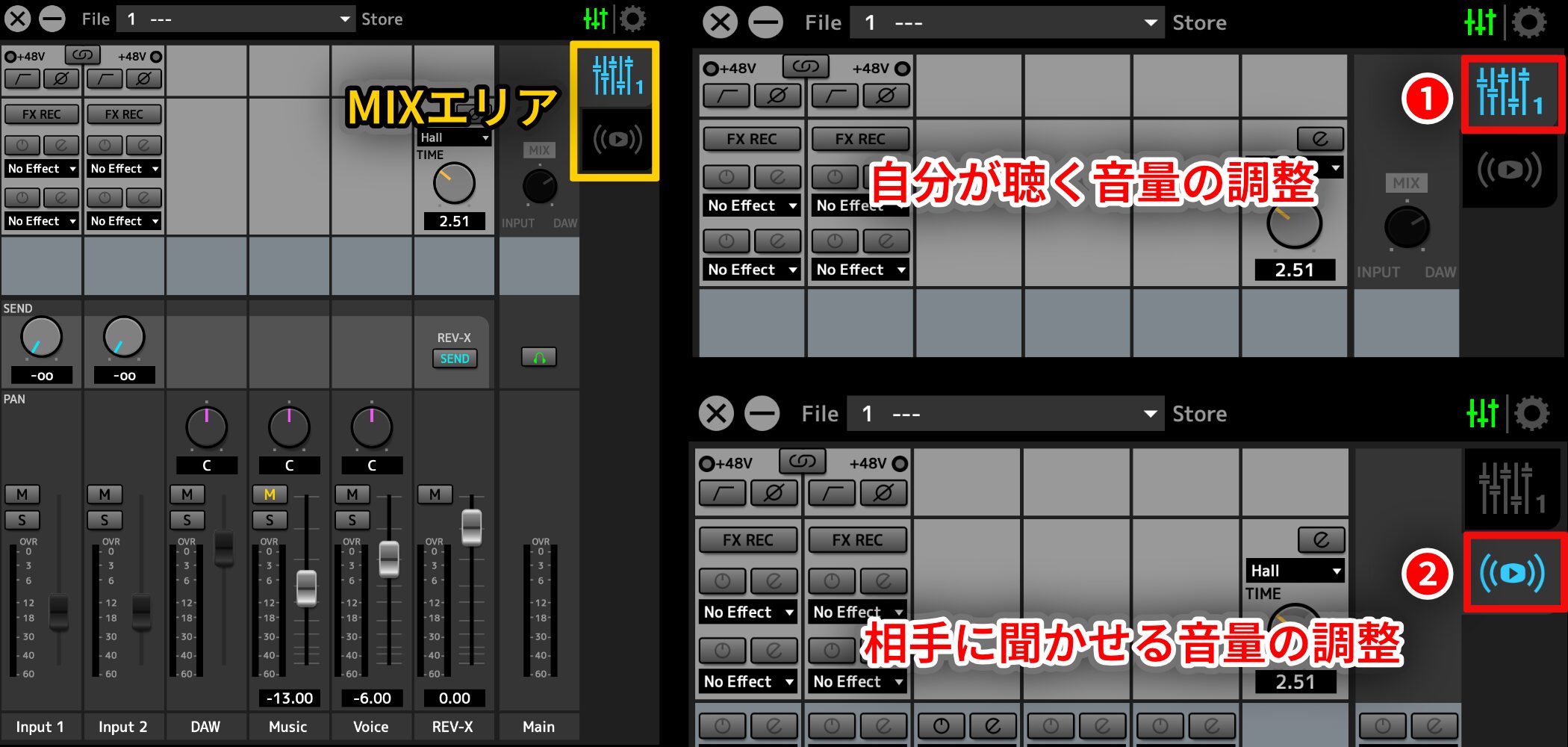
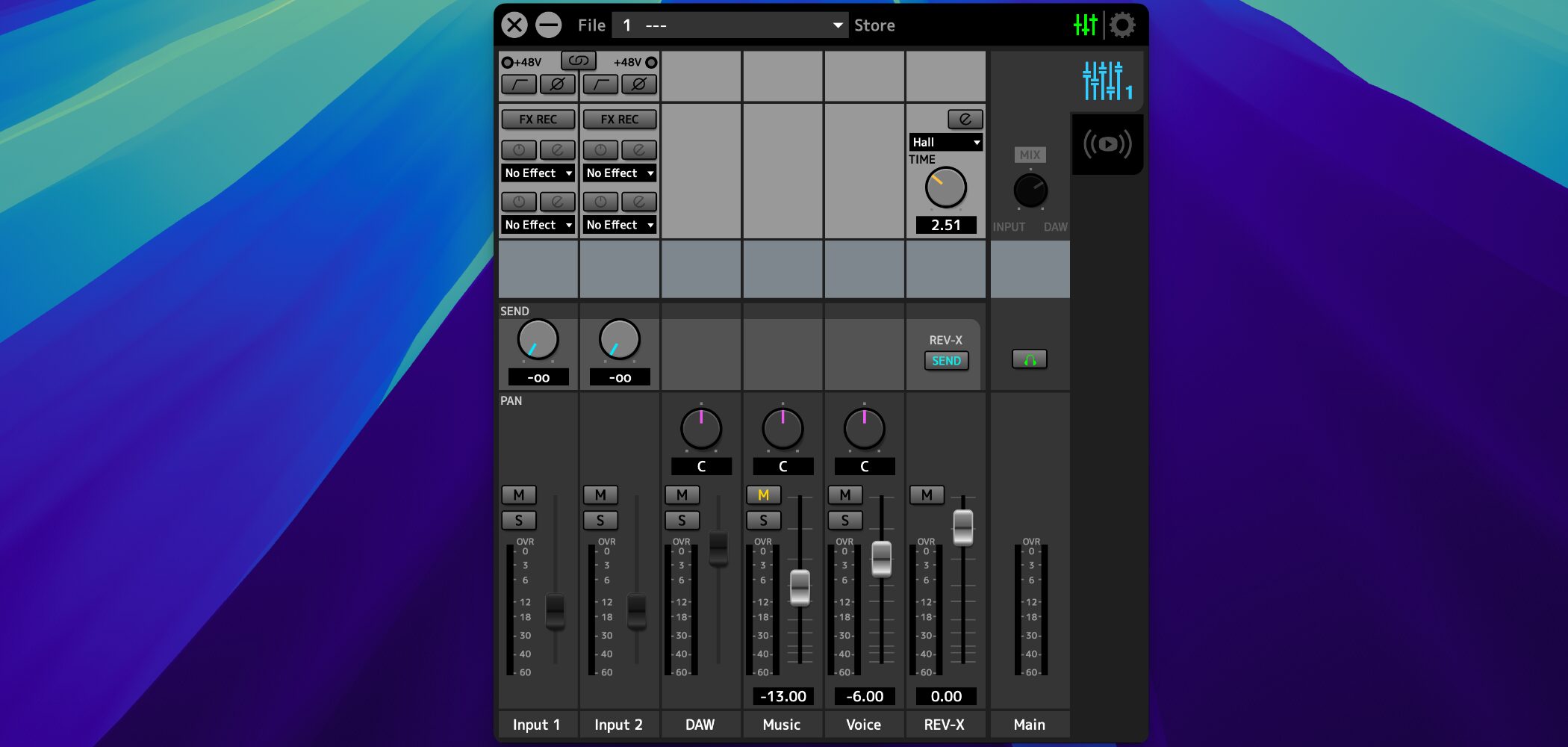
When you launch dspMixFx UR-C V3, the mixer window appears.
The tabs in the MIX area at the upper right switch between these views:
1Normal Mix: Adjust the level you hear in your monitor mix
2Streaming Mix: Adjust the level sent to your audience
We will start in Normal Mix to introduce the basic features.
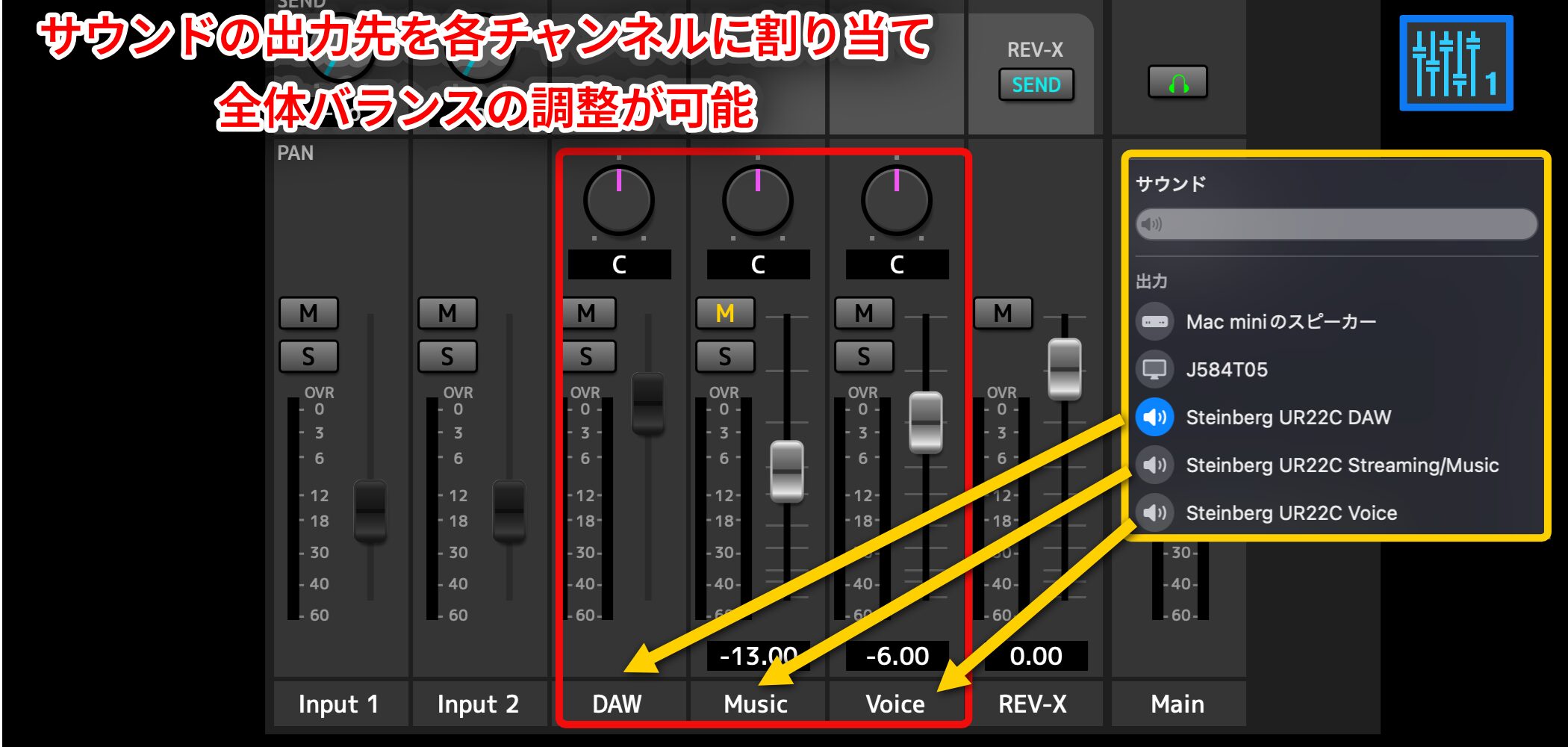
In the center are three channels labeled DAW, Music, and Voice. You can assign DAW software and other applications to these channels andchoose where their audio is routed, then balance their levels.
The manufacturer named these three channels for convenience. There is no fixed rule about which source must be assigned to each one.
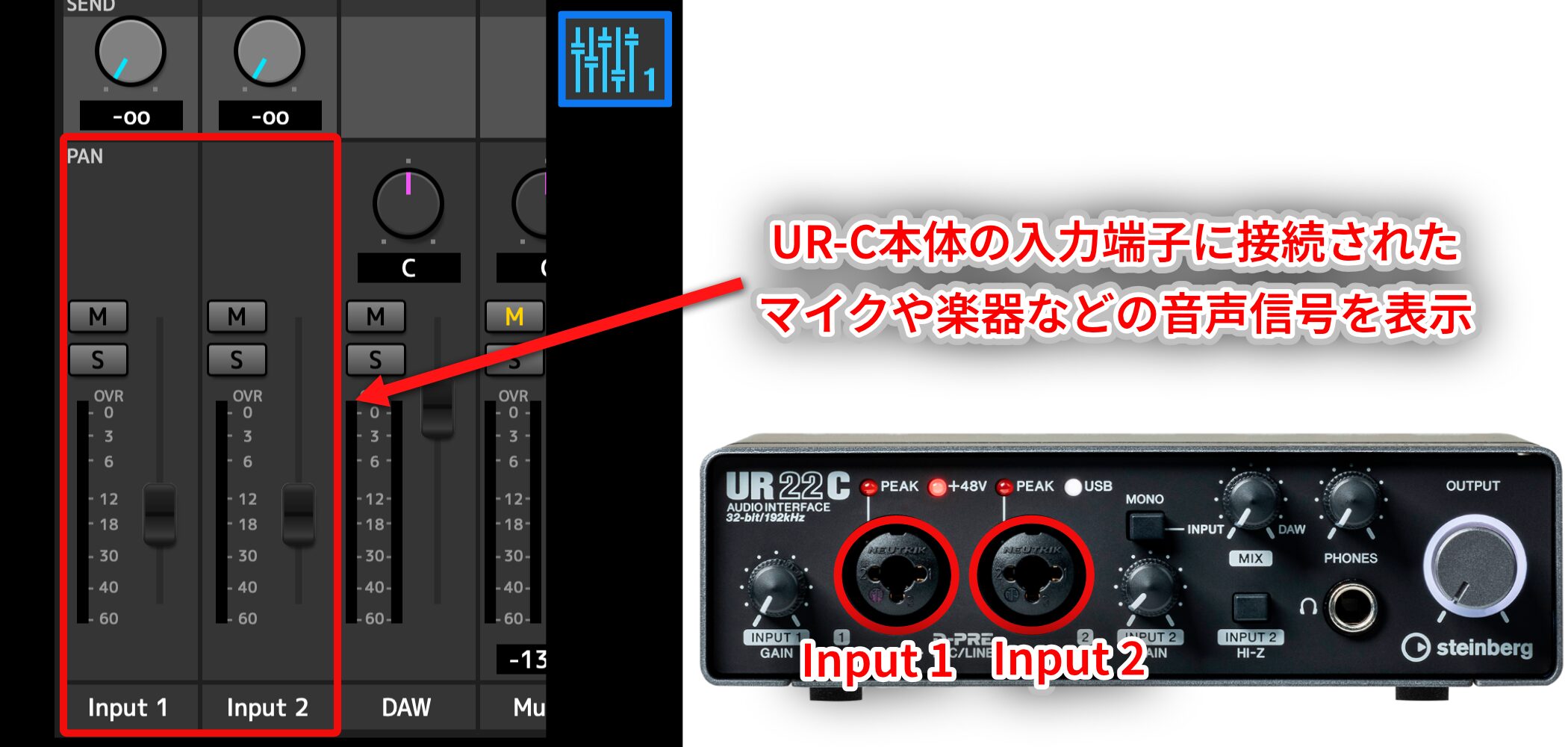
The left side is the Input section, where you can see audio signals frommicrophones, instruments, and other sources connected to the UR-C hardware.
For example, you can check your voice while speaking into a microphone.
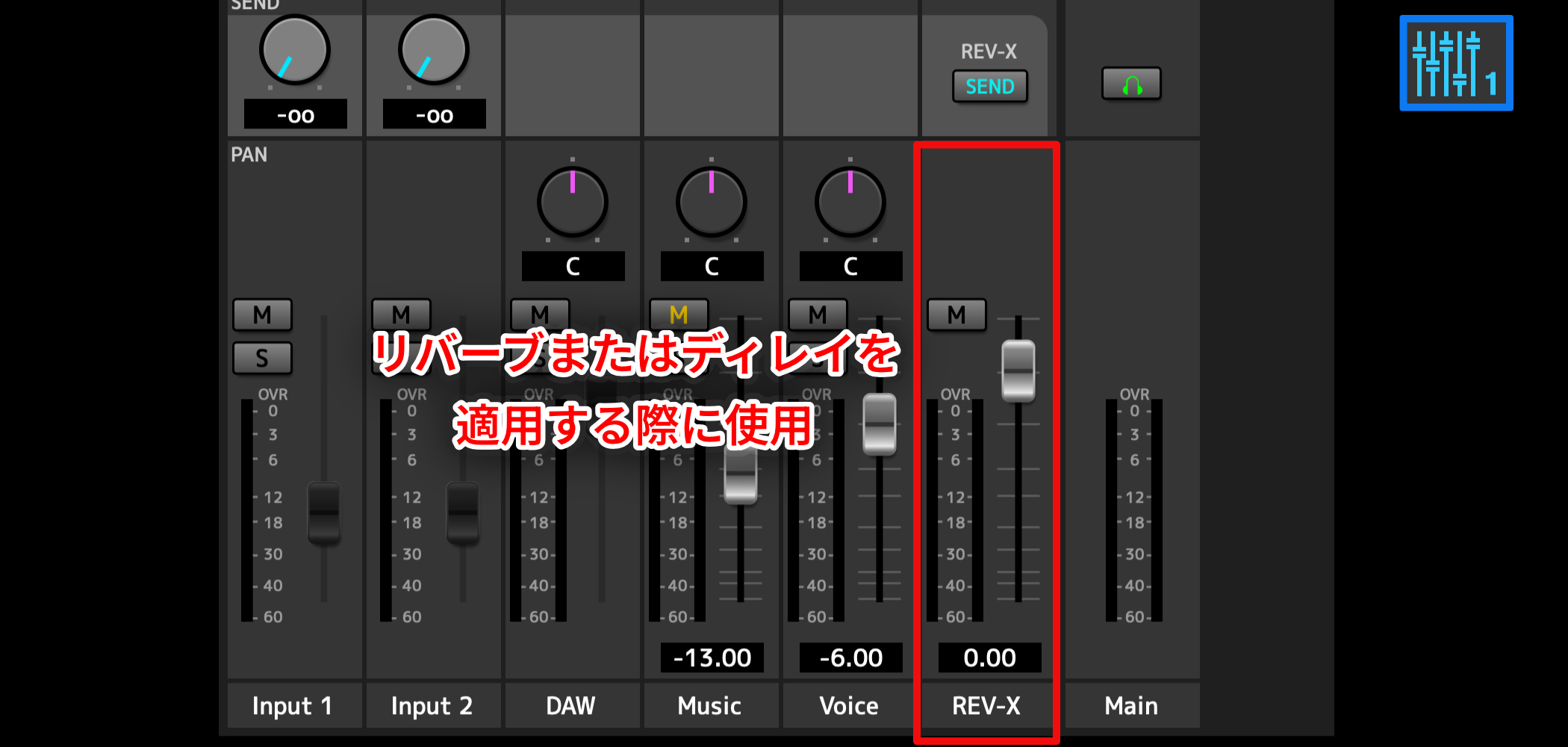
dspMixFx UR-C V3 also includes effects. The channel labeled REV-X isa dedicated channel for using Reverb or Delay.
Setting output routing for each application
Next, we will route audio from a DAW (Cubase in this example) and from streaming services such as Spotify and YouTube.
Setting up a DAW

In Cubase, open Studio Setup and select Audio System. Click the driver field to display the UR-C channel names, which match those in the mixer.
Routing the DAW to the DAW channel is usually the easiest option. If another channel is still unused, you can choose Voice or Streaming/Music instead.

The DAW channel appears in two modes: the standard [Steinberg UR22C DAW] mode and [Steinberg UR22C DAW (High Precision)], which supports 32-bit output from the interface.
To work in a 32-bit environment, select High Precision.
For this example, we selected Steinberg UR22C DAW.
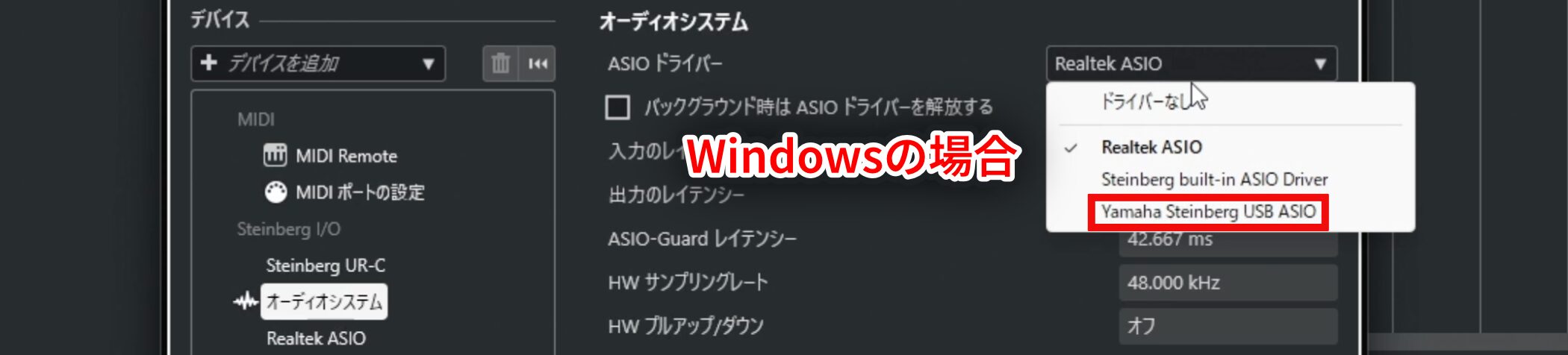
In Windows, the name is different: select [YAMAHA Steinberg USB ASIO].
Setting up music streaming apps
Apps such as Spotify and YouTube do not let you choose an output channel directly in the same way as a DAW, soselect the output in your computer's sound settings.
Audio from a browser, including YouTube, is routed through the channel selected here as well.
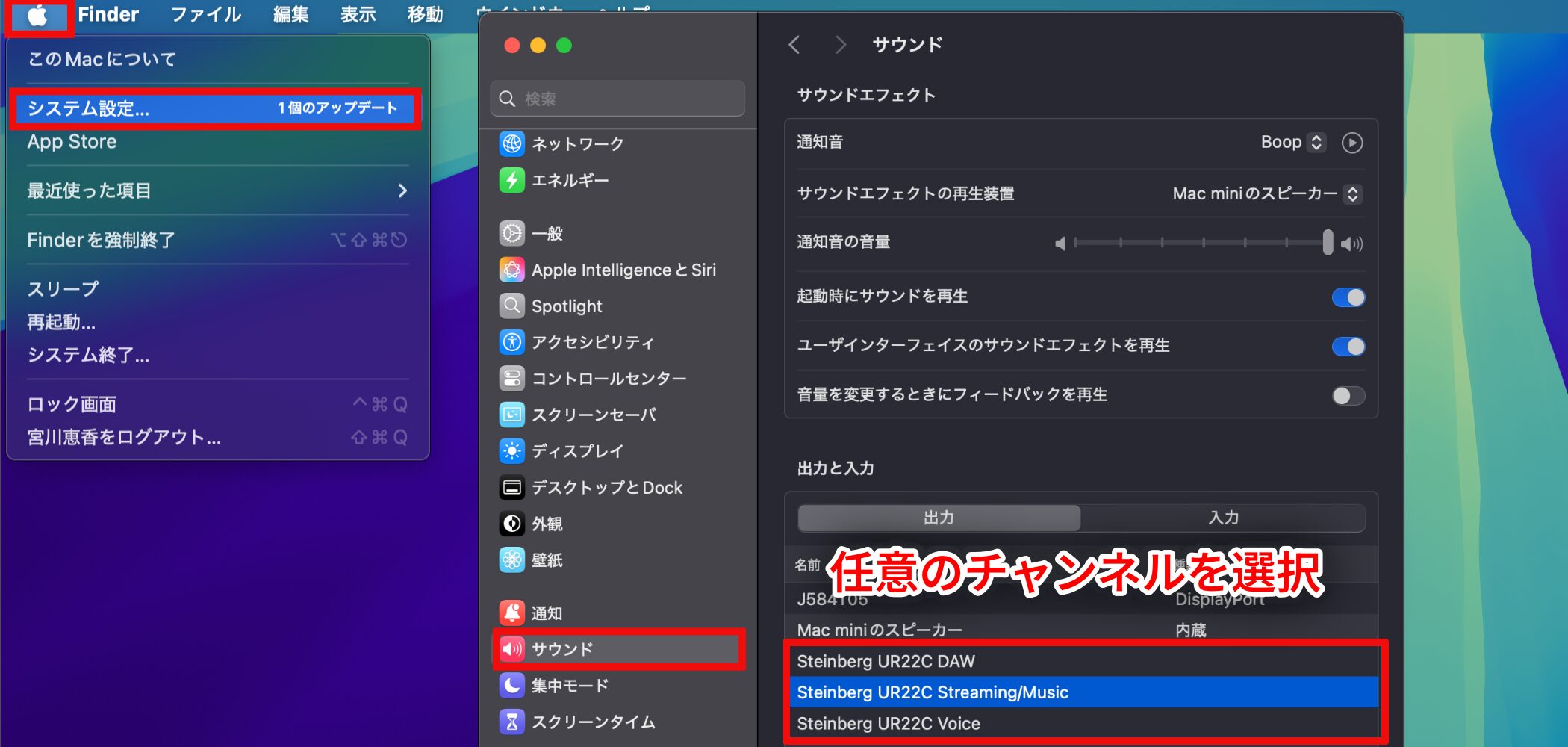
On a Mac, open Sound in System Settings and select a UR-C channel as the output device.
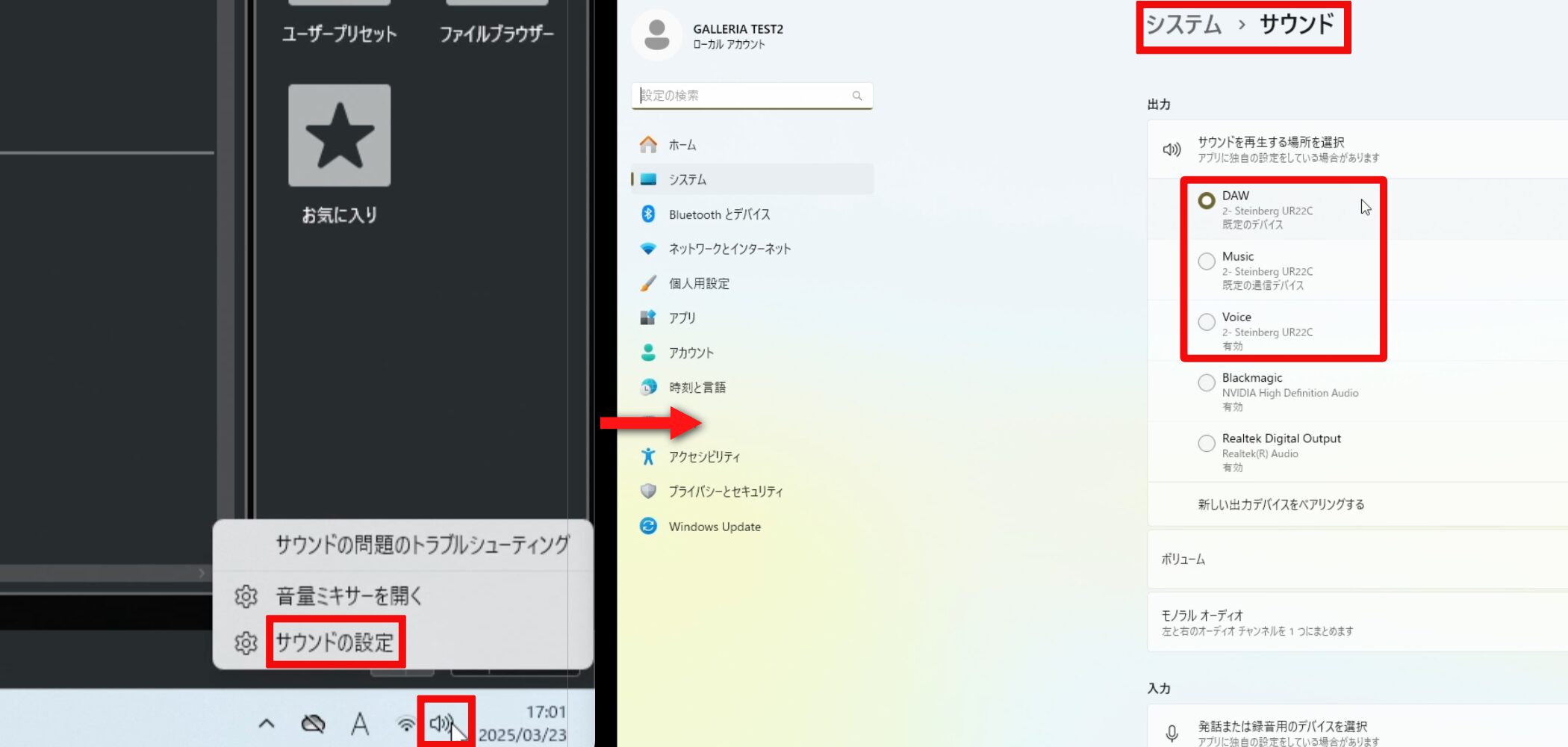
On Windows, open Sound under System settings and select a UR-C channel as the output device.
You can choose any channel, butselect one that has not already been assigned.
In this example, Cubase uses Steinberg UR22C DAW, so we selected Steinberg UR22C Streaming/Music for the other audio.
Balancing levels and monitoring
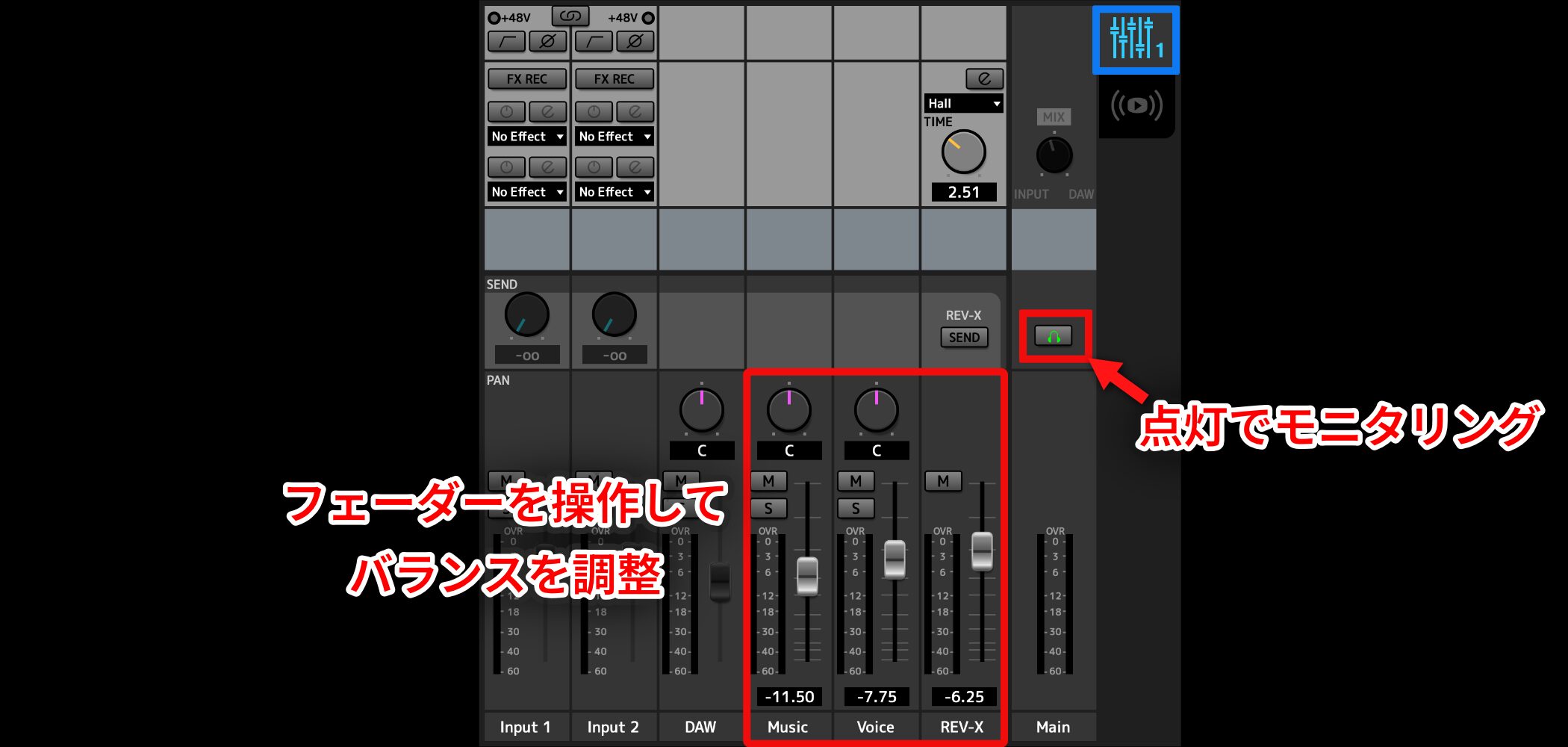
Once each source is routed, use the channel faders to balance their levels.
You can play Cubase and Spotify at the same time and balance them together.
Ifmoving a fader does not change the volume,check whether the headphone icon in Normal Mix is lit.
The monitor output lets you listen to either the Normal Mix or the Streaming Mix,and you can switch between them by lighting the headphone icon in the corresponding view.On some models, including the UR22C,the faders for the DAW and Input channels in Normal Mix are grayed out
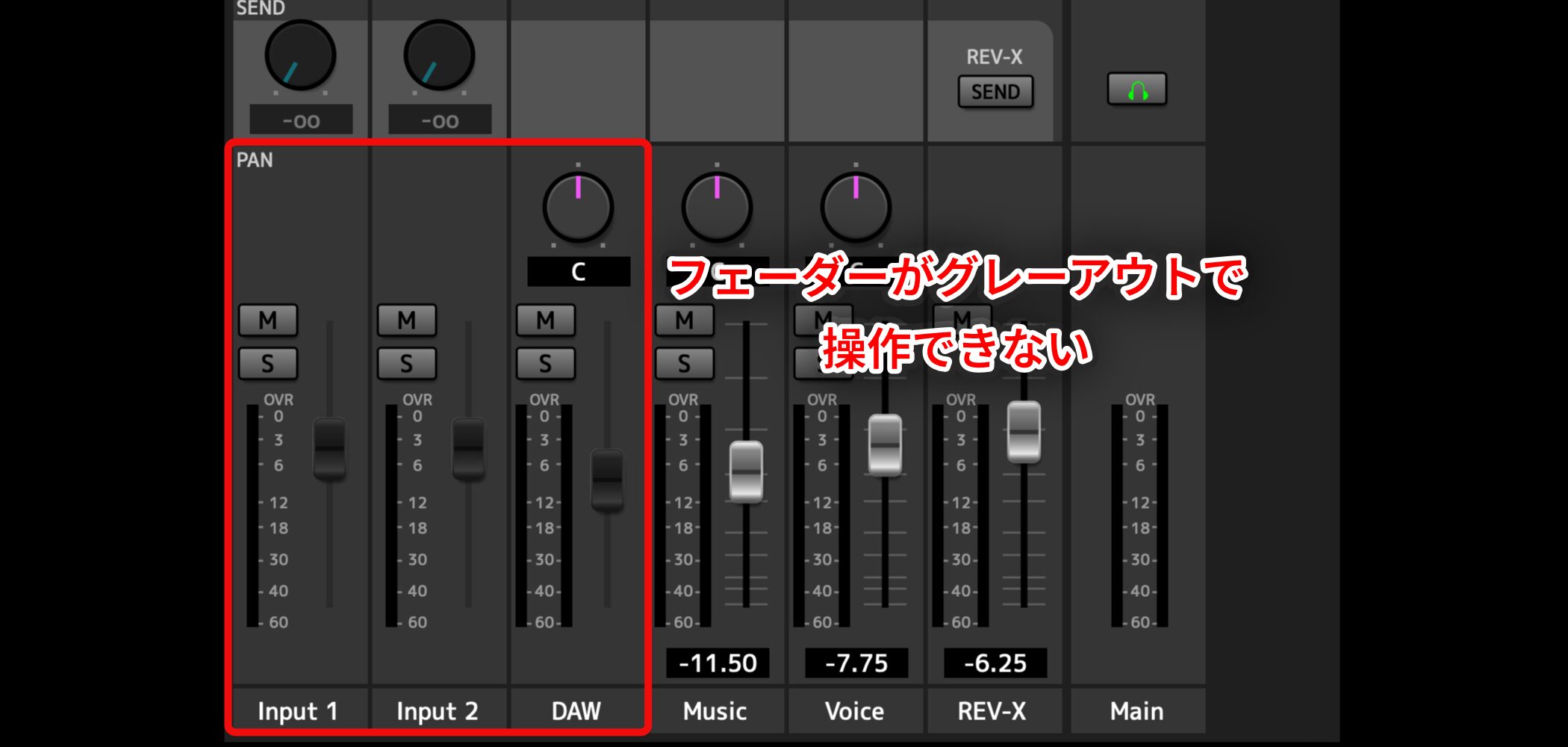
and cannot be adjusted.In that case,adjust the balance with the MIX knob on the front of the interface
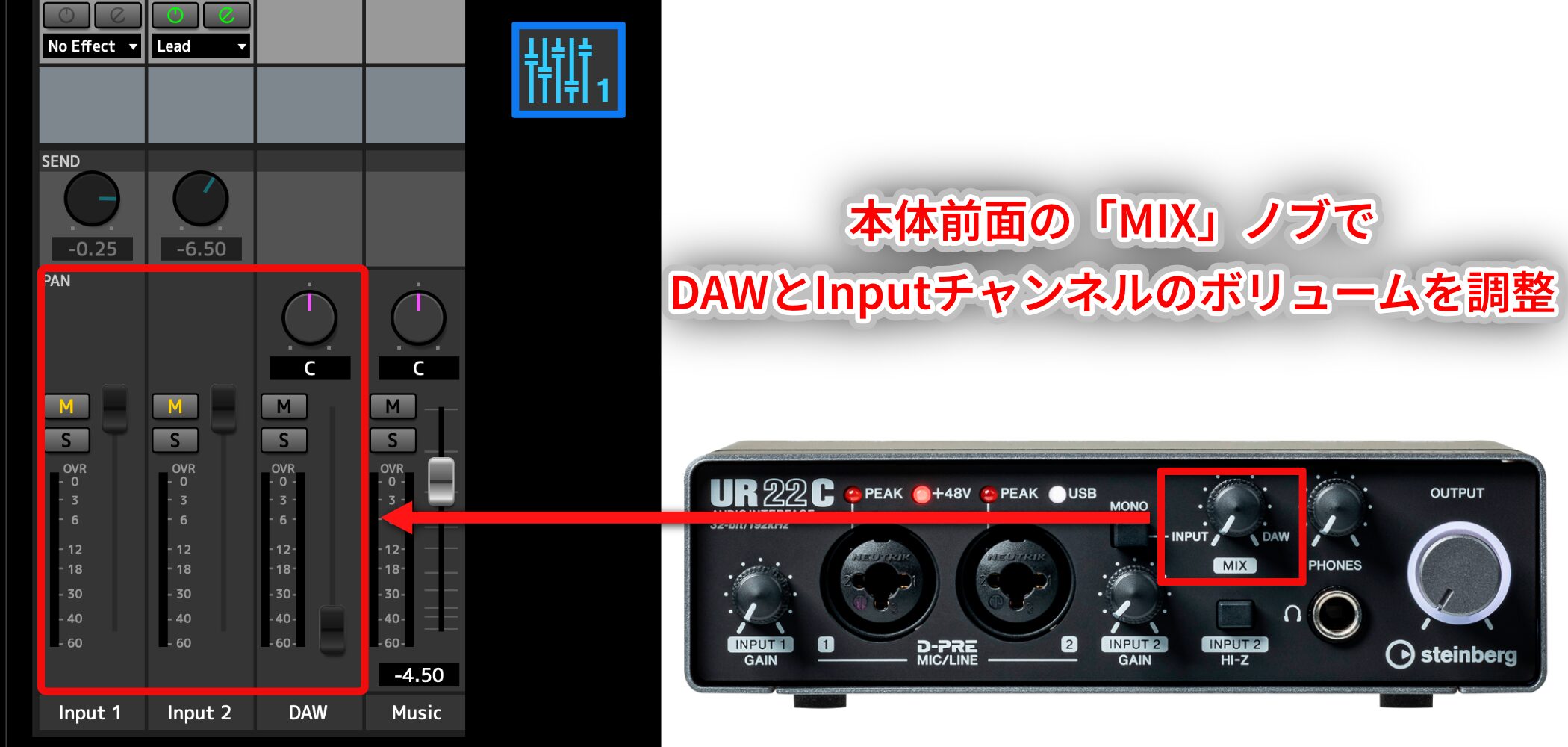
.With the MIX knob turned fully left, the DAW channel is at its minimum and the Input channels for microphones and instruments are at their maximum.Turning the MIX knob to the right raises the DAW level and lowers the Input level.
This is useful when you want to compare your production level with your everyday listening level or balance your mix against a reference track.Basic streaming setup (Streaming Mix)
One of the key features of
dspMixFx UR-C V3 is its streaming setup
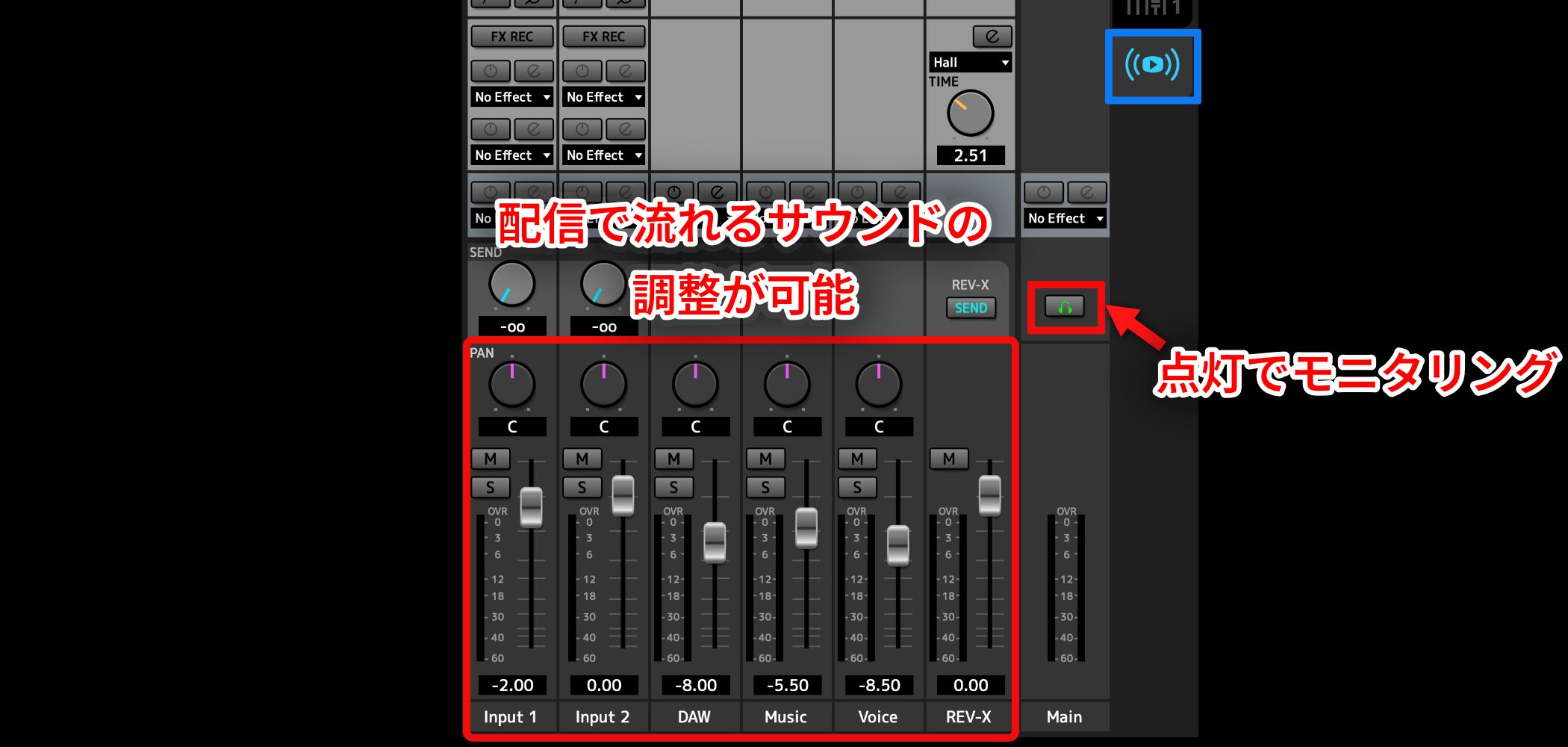
.Streaming Mix lets you balance inputs such as a microphone or instrument with background music, thensend that finished mix directly to your stream
.To monitor the mix while adjusting levels,light the headphone icon for Streaming Mix
.This applies to all audio adjustments: if the level is too high, the red indicator lights up andthe audio sent to your stream may clip or distort
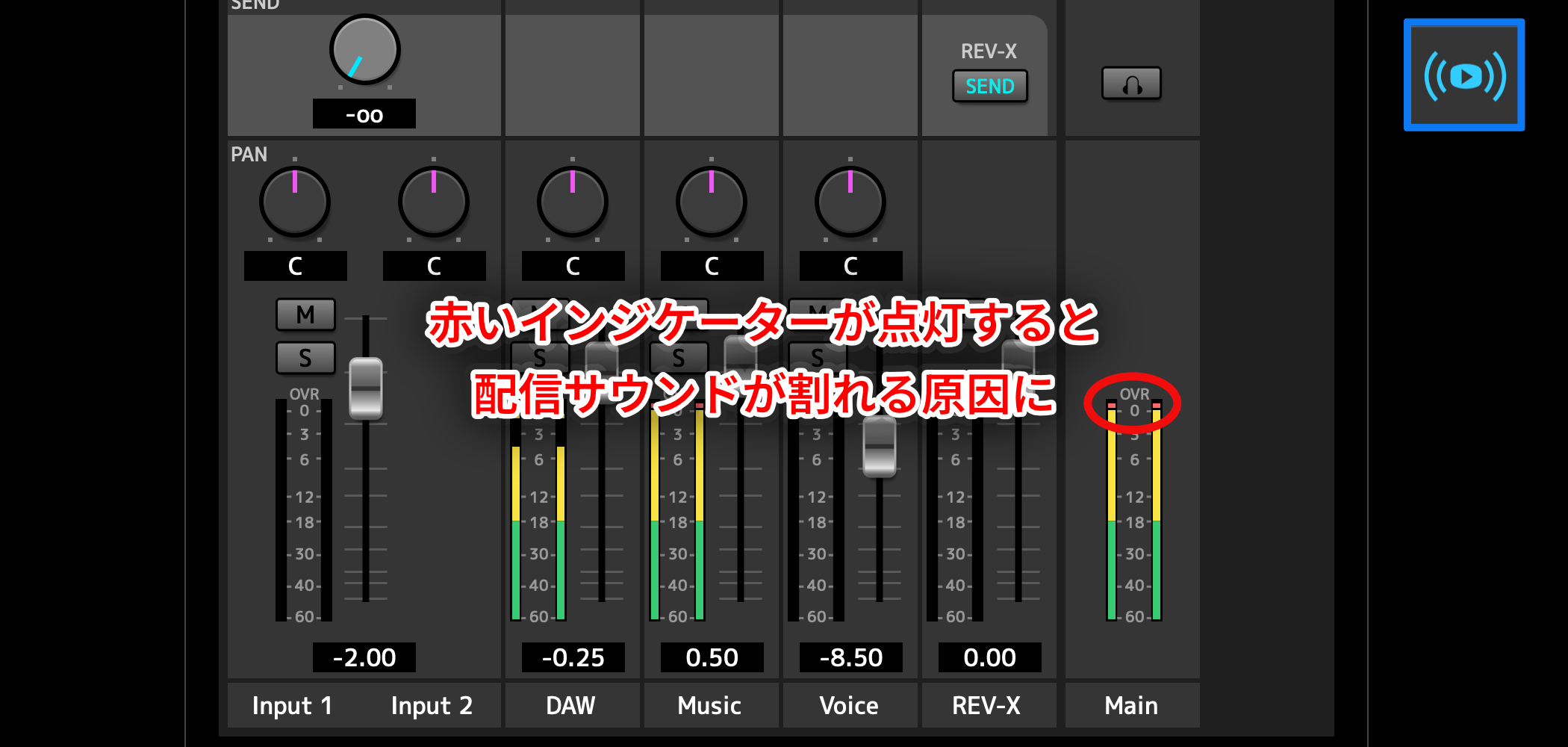
.Adjust the levels while making sure the indicators do not turn red and that the signal is not too quiet.If you do not want to hear your own voice in your headphones,
switch to Normal Mix
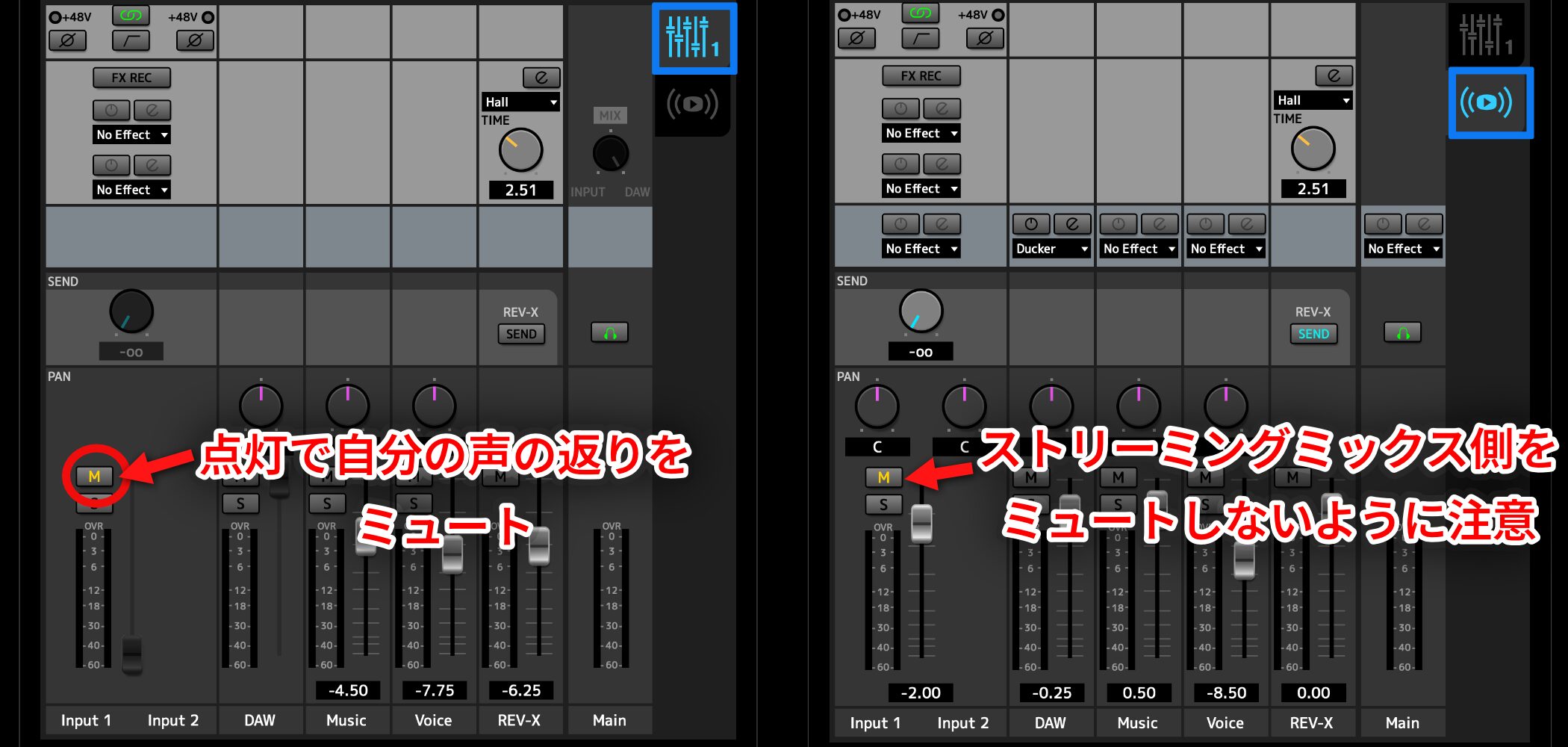
and turn on Mute for the microphone input. This mutes the voice you hear in your headphones.However,if you mute the microphone in Streaming Mix, your voice will also be removed from the stream
, so take care.For example, you can mute the microphone input in Streaming Mix before going live, then unmute it when the stream starts.Connecting to streaming software
To livestream, you need to connect the interface to streaming software.
Here we use the free OBS Studio and show how to send it the Streaming Mix audio.
In OBS, open Settings > Audio > Mic/Auxiliary Audio. UR-C channel names appear, but
there is one important point to keep in mind
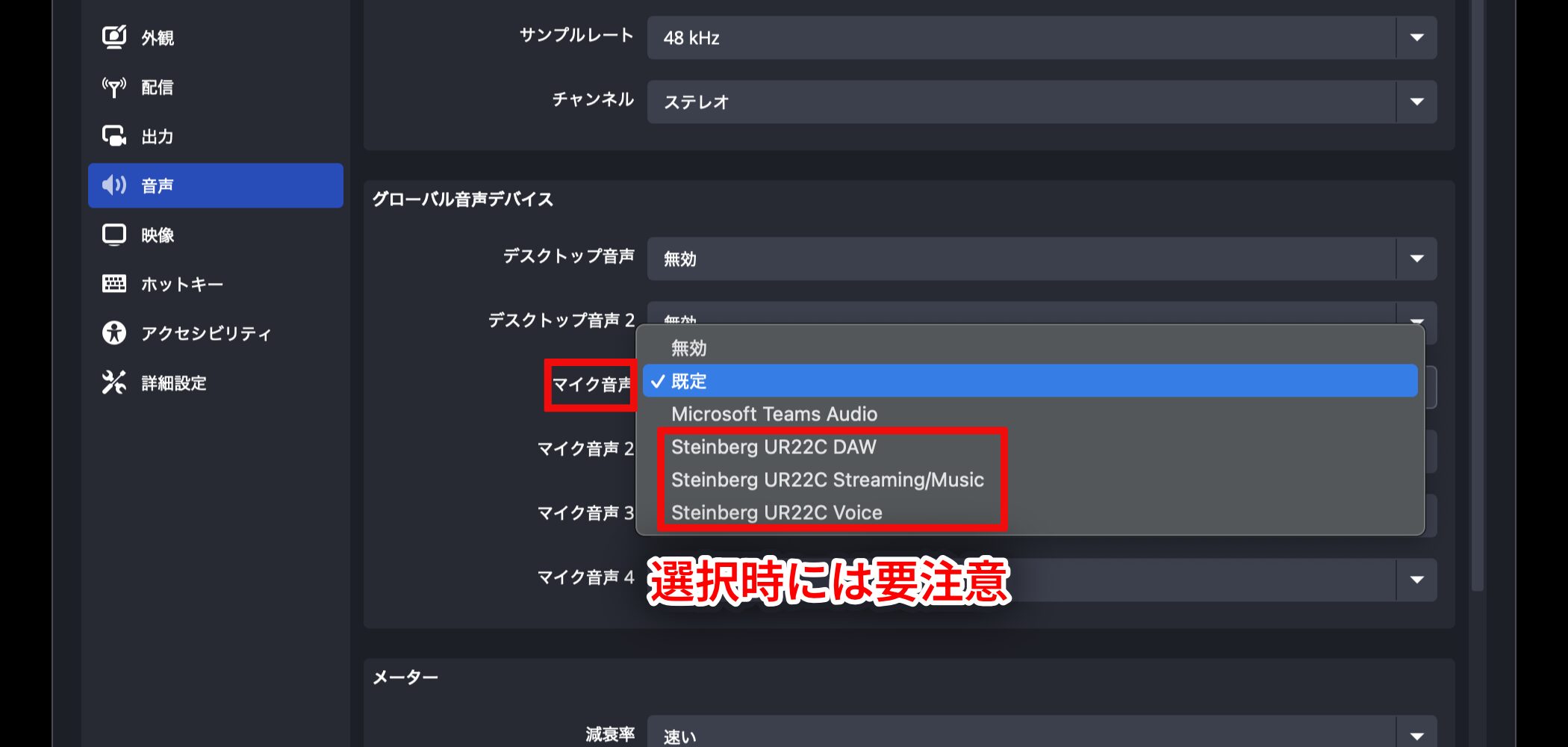
.In this example, Cubase is assigned to the DAW channel and Spotify to Music. It may seem that choosing a channel with the same name in the streaming software will send those sources, butthe channel names shown in the streaming software are completely different from the mixer channel names
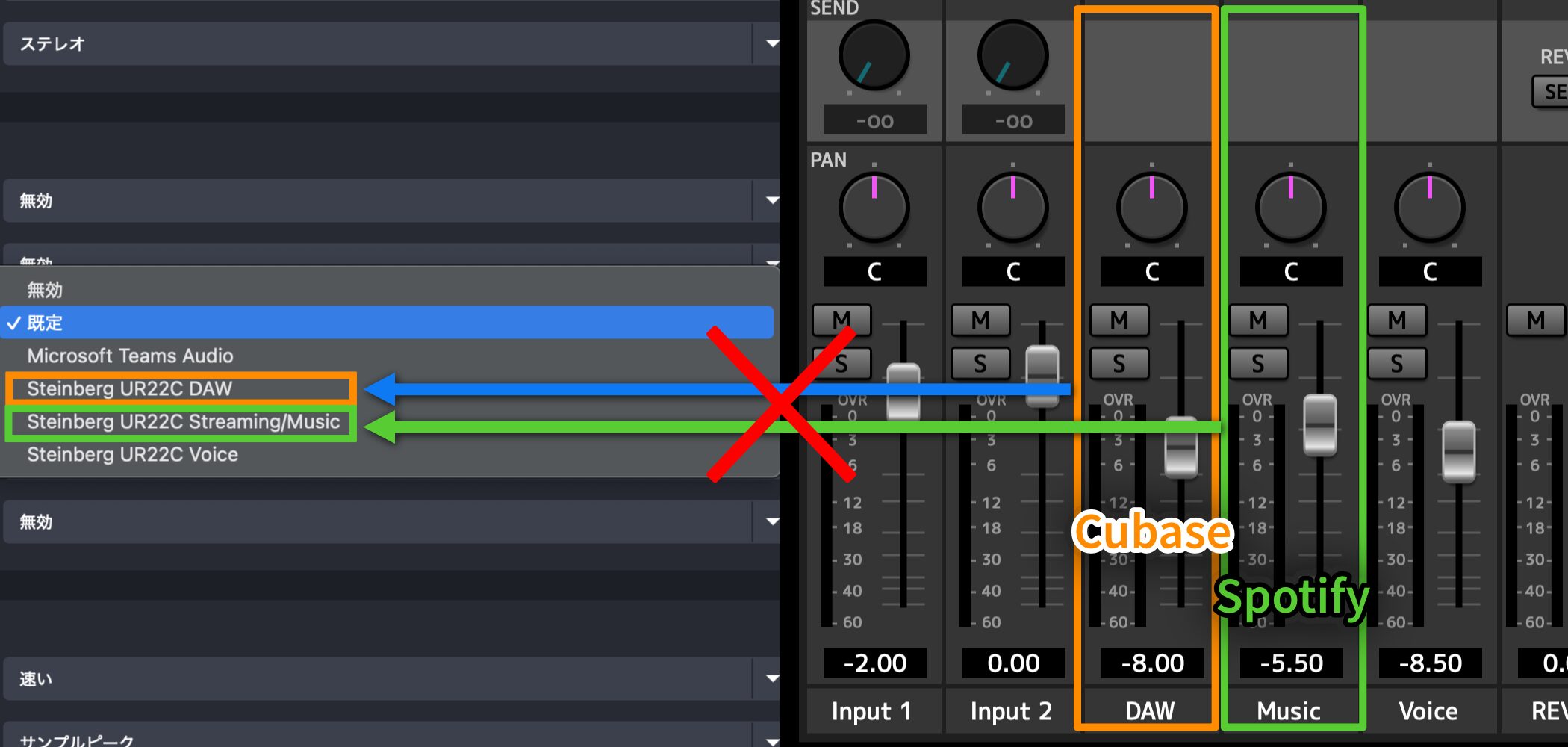
.The selected input sends the following audio:Steinberg UR22C DAW: The Streaming Mix, plus the Input audio from Normal Mix
Steinberg UR22C Streaming/Music: The Streaming Mix exactly as adjusted
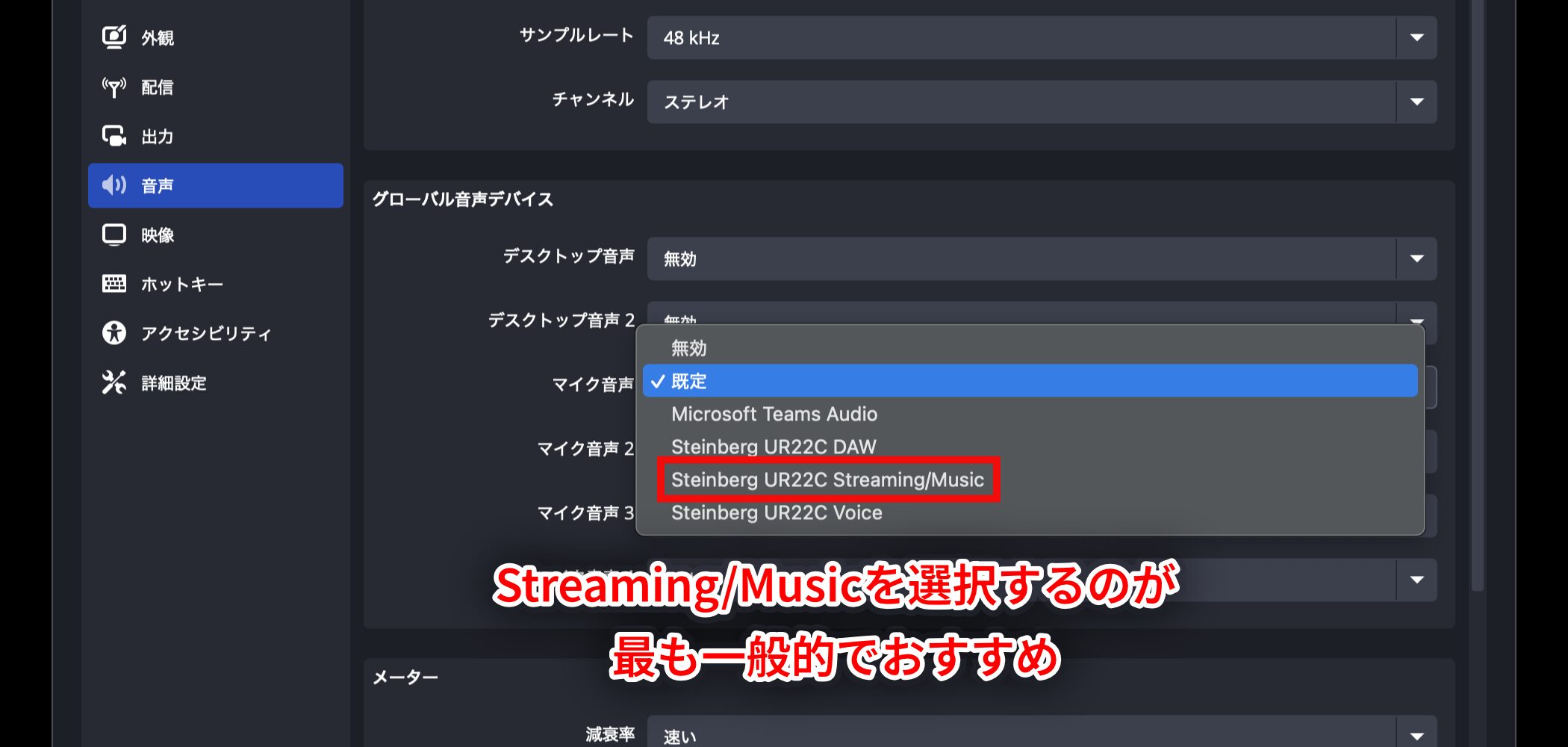
- (recommended)
- Steinberg UR22C Voice: Only the Input audio from Normal Mix; DAW and Music audio are not includedFor that reason,
- Streaming/Music is the most common choice
.Useful effectsAs mentioned above,
dspMixFx UR-C V3 includes effects
.You can use them in both Normal Mix and Streaming Mix. Here we will apply effects to Streaming Mix.Ducker
This effect responds to
incoming audio
from a microphone (Input 1/2), for example, andautomatically lowers the level of the DAW, Music, or Voice channel.Click an effects slot in the mixer and select Ducker for the channel whose level you want to lower in response to an input signal.Ducker opens with these controls:
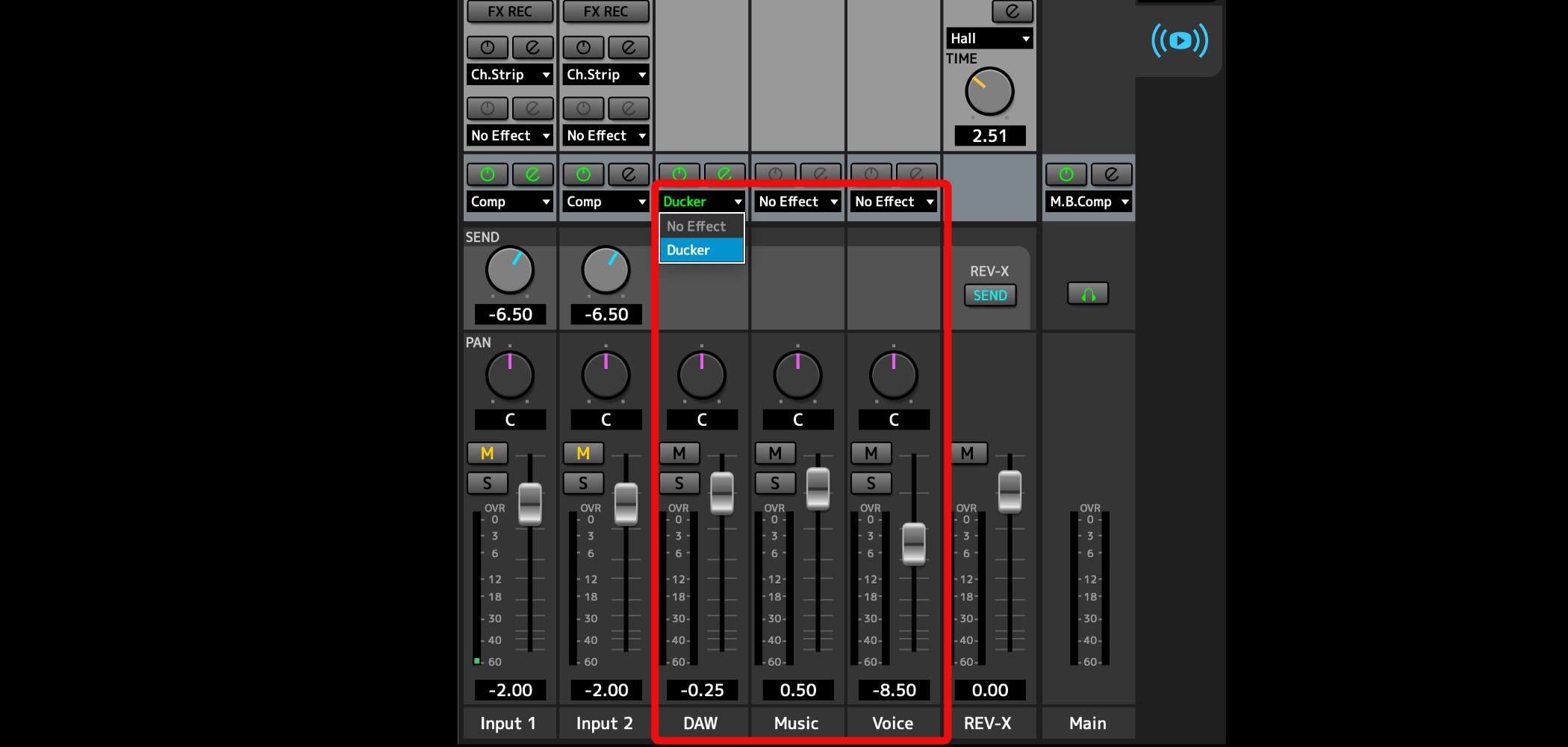
1
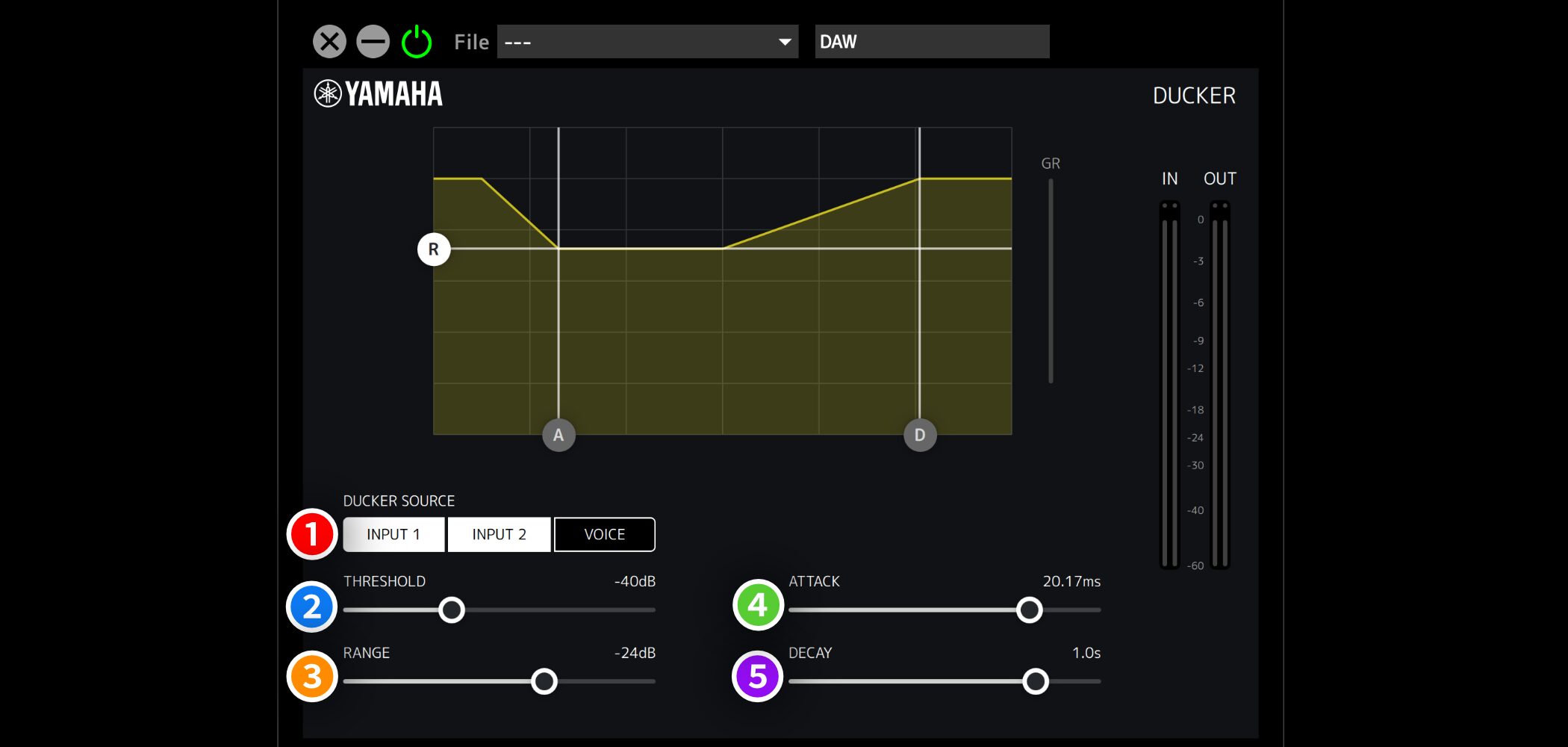
(red) DUCKER SOURCE: Choose which audio source triggers the level reduction
2(blue) THRESHOLD: Set the level at which the reduction begins
3(orange) RANGE: Set the maximum amount of level reduction
4(green) ATTACK: Set how quickly the level reduction begins
5(purple) DECAY: Set how quickly the level returns to normal
With Ducker, you canlower the background music while you speak and automatically return it to its original level when you stop
. It is a convenient way to reduce the need for manual level adjustments.COMPRESSORThis effect is useful for
evening out louder and quieter parts of a voice
.Click an effects slot in the mixer and select Comp.
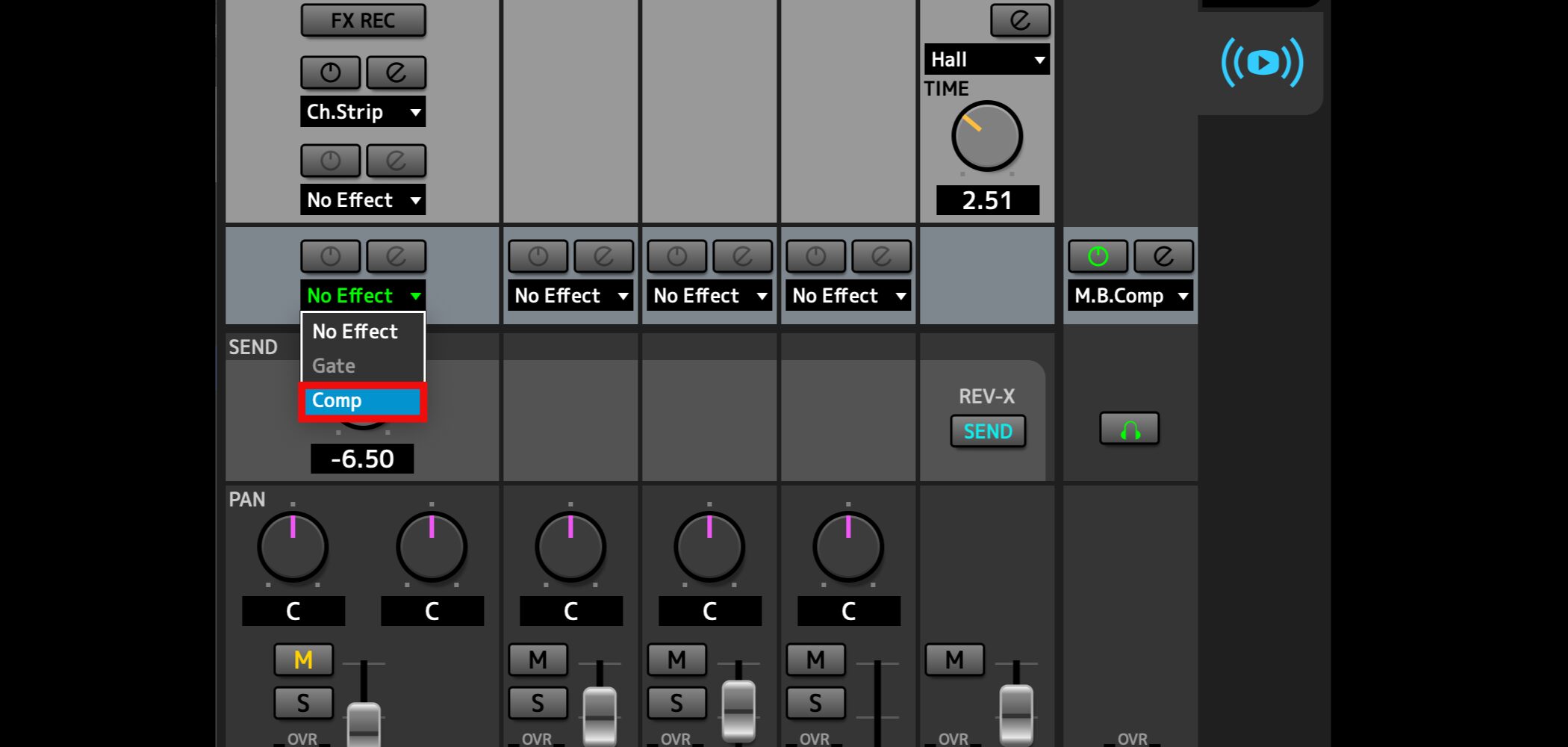
The COMPRESSOR window opens.
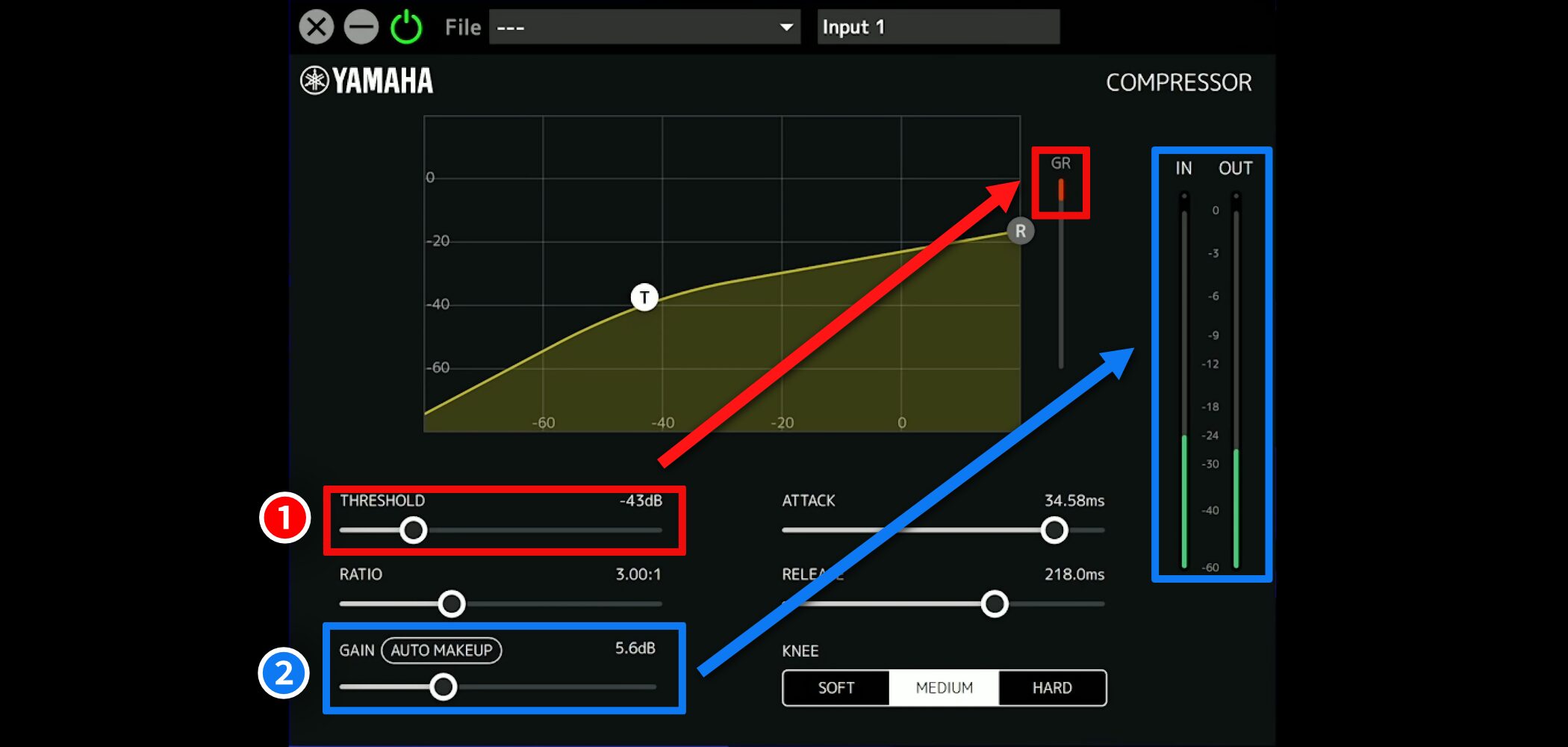
Adjusting these two controls is usually enough to get
a more consistent, easier-to-hear sound.1
(red): While listening, lower THRESHOLD until the red GR indicator shows an appropriate amount of gain reduction2
(blue): Adjust GAIN so the IN (before processing) and OUT (after processing) indicators are at roughly the same levelReverb / Delay
These
effects add ambience to vocals and other sounds.
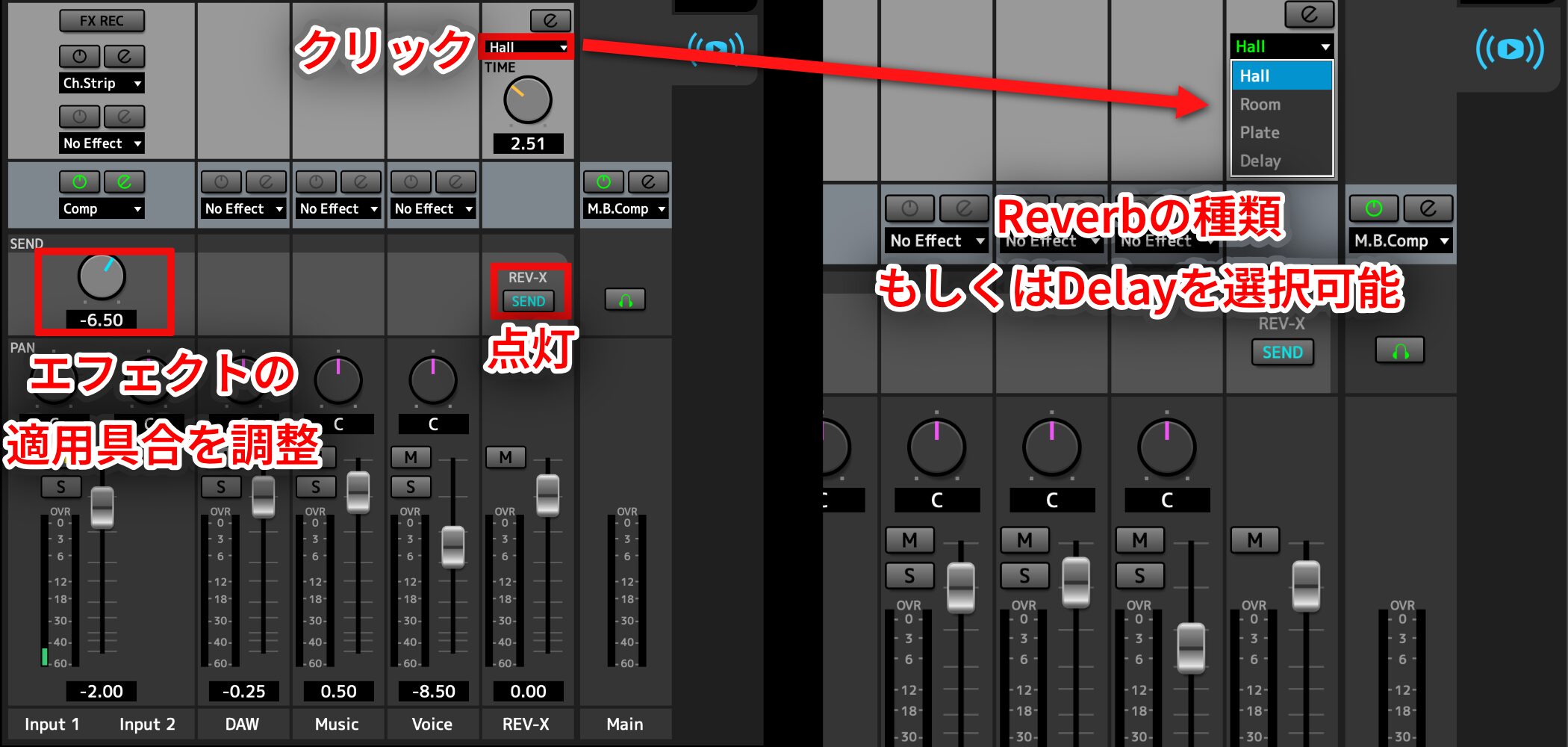
The REV-X channel is dedicated to Reverb or Delay. Light the REV-X SEND button, then adjust the effect amount with theSEND knob on the left.
Click above the TIME knob to choose aReverb type(Hall, Room, or Plate)or select Delay.
Effects for guitar
Effects are also available for guitar performances, such as livestreams where you play or sing along.
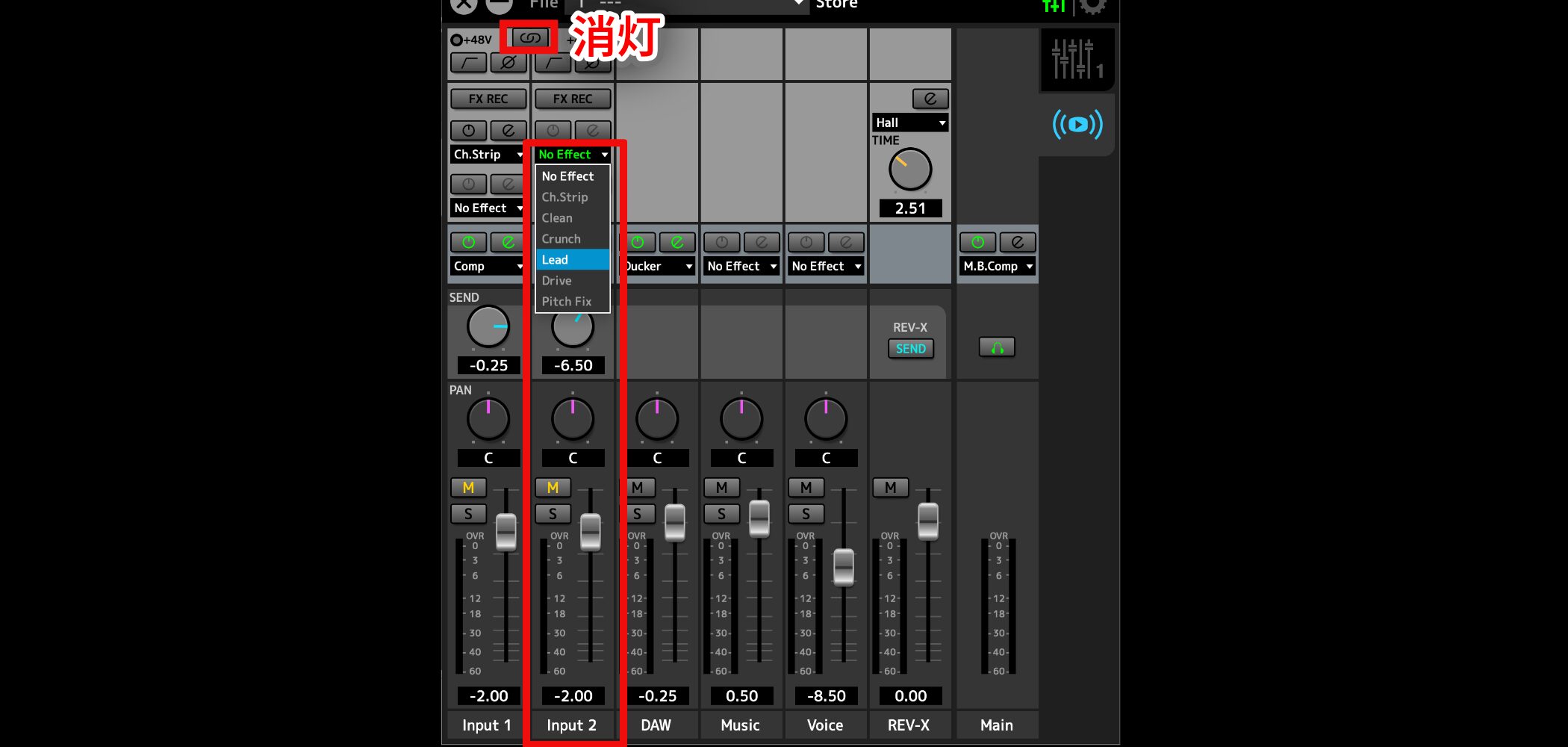
With theLink button in the upper-left corner turned off, click an effects slot in the mixer to see the effects available for guitar.
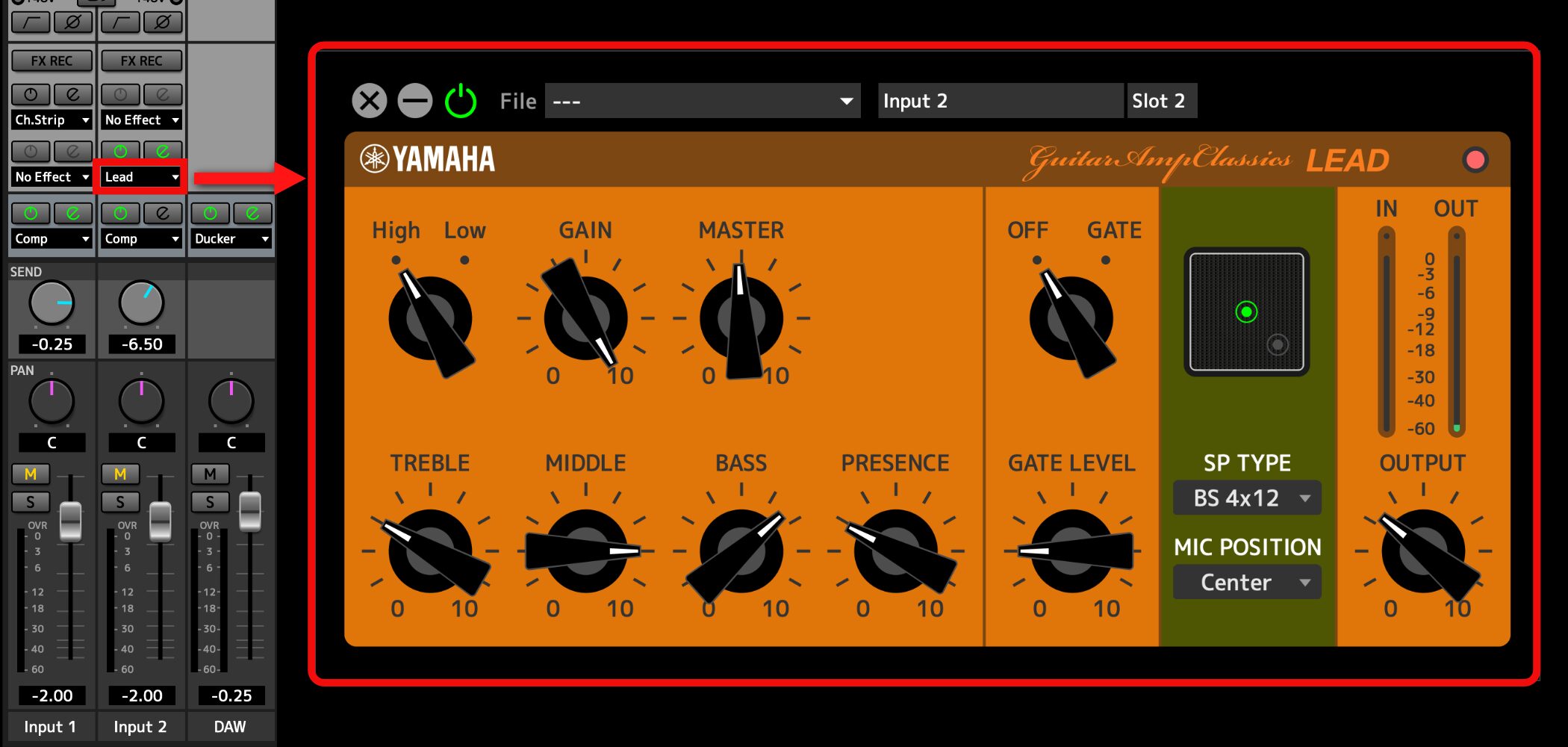
Choose an effect to open its controls, thenadjust the sound of your performance for the stream.
Saving your settings
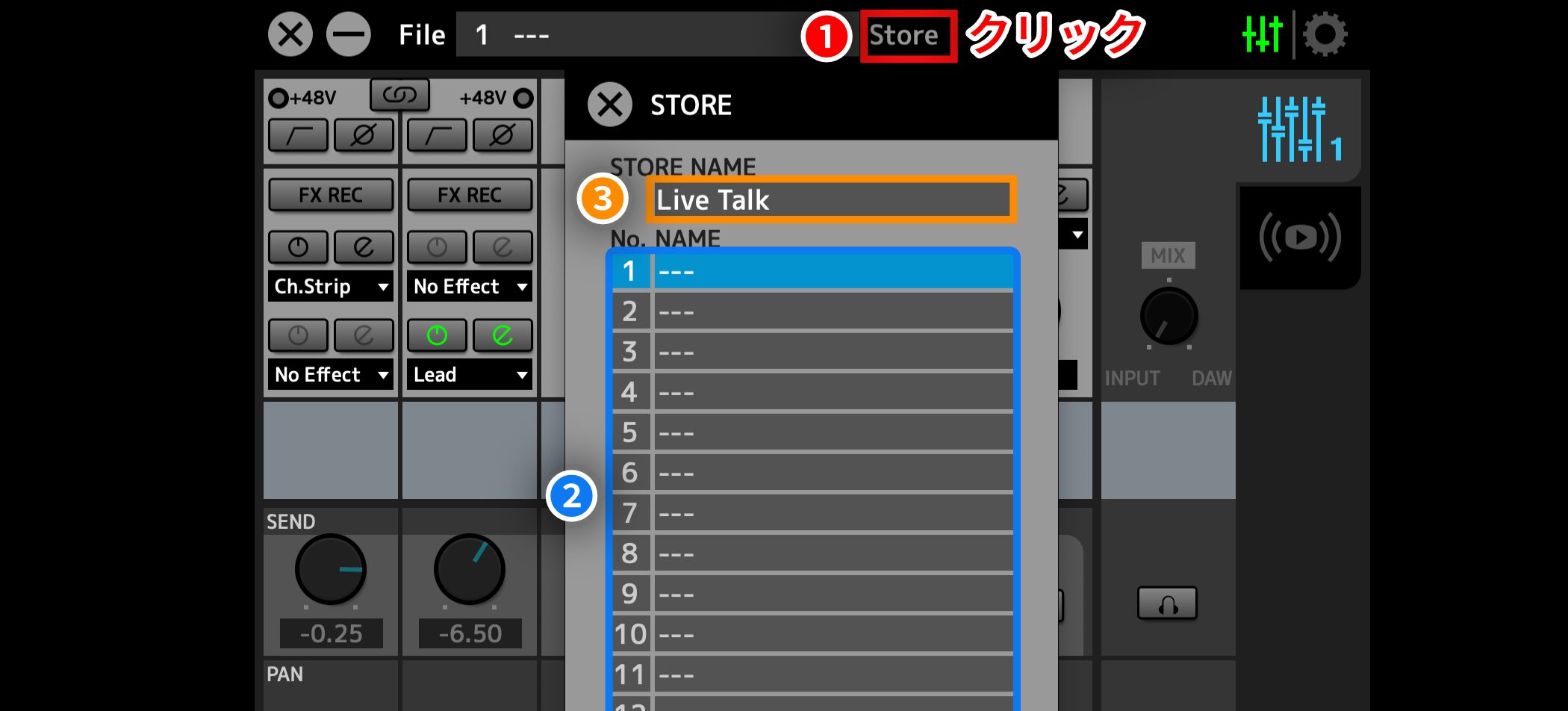
You can save your settings and recall them quickly. Save separate presets for different uses, for example.
Follow these steps to save a preset:
1(red): Click Store
2(blue): Select a preset number (1 or higher)
3(orange): Enter a name and click OK
Quick guide: Streaming setups for three common scenarios
To finish, here are example setup steps for three common scenarios.
Scenario 1: Talk-focused livestream
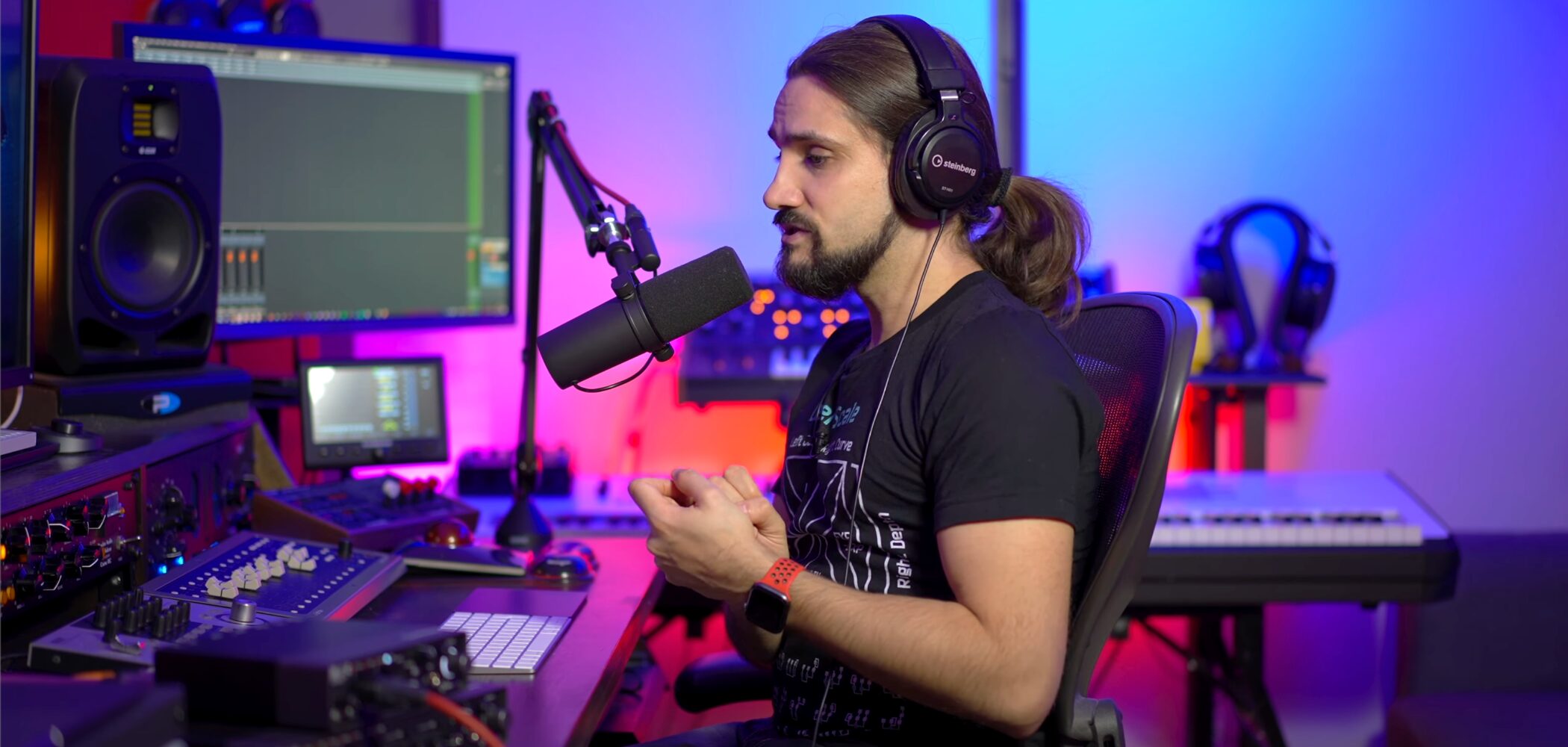
A basic setup for balancing your voice and background music.
- Switch to Streaming Mix
- In your computer's sound settings, route Spotify and other audio to the Streaming/Music channel
- The music will come into the mixer's Music channel. Adjust its level so it does not overpower your voice
- In your streaming software's microphone input, select the Streaming/Music channel
Scenario 2: Performance livestream (singing or playing along)
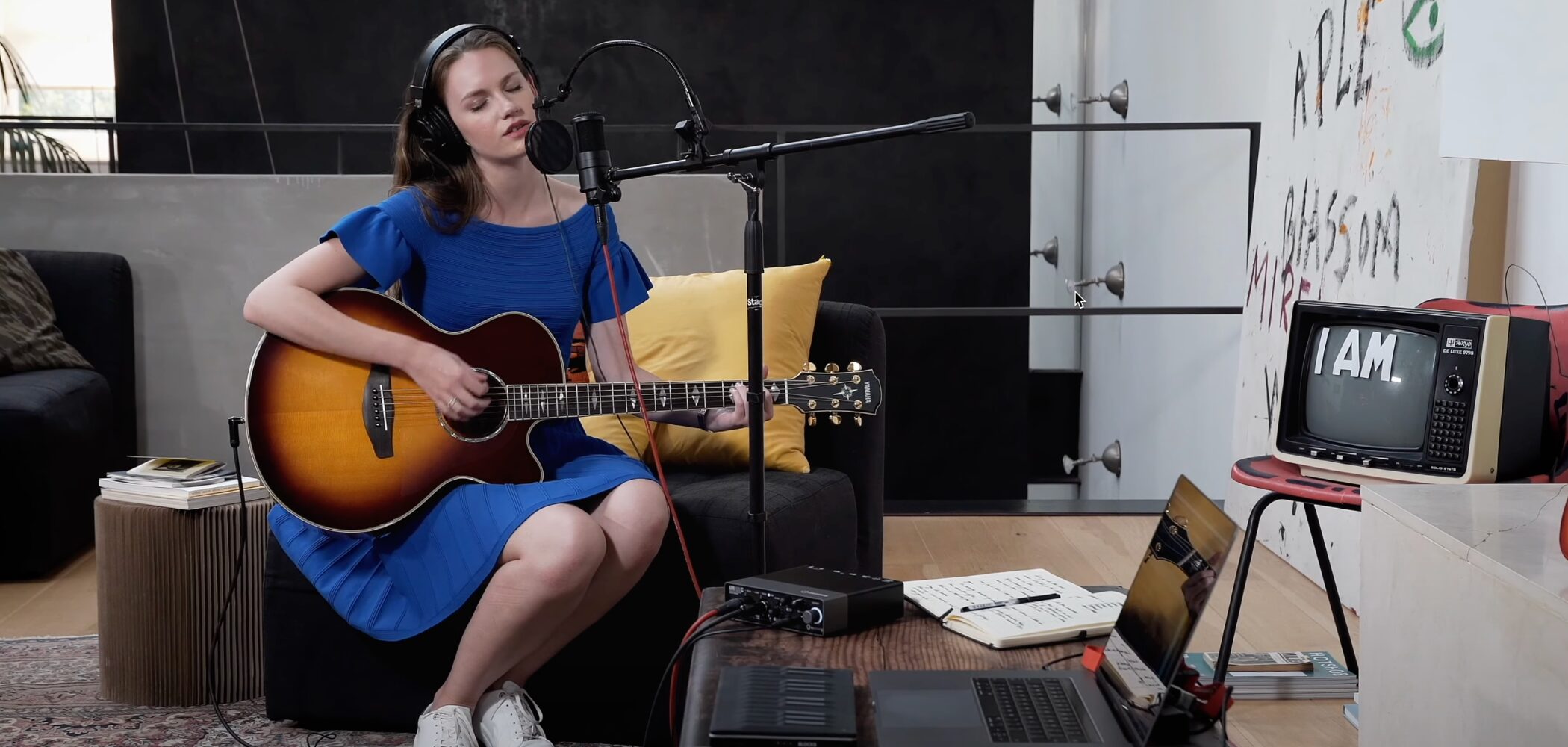
A basic setup for balancing a backing track with your voice or instrument.
This example sends the backing track from a DAW.
- Switch to Streaming Mix
- In your DAW's audio settings, route its output to a DAW channel on the UR-C series interface
- The backing track will come into the mixer's DAW channel. Balance it with the Input channel for your vocals or instrument
- Use effects to shape the sound as needed
- In your streaming software's microphone input, select the Streaming/Music channel
- Switch to Streaming Mix
- In your computer's sound settings, route audio from the meeting app, YouTube, and other sources to the Streaming/Music channel
- The audio will come into the mixer's Music channel. Set its level so it does not interfere with your voice
- Use Ducker if you want to adjust your voice and other audio automatically
- In the meeting app's microphone input, select the Streaming/Music channel
- In the meeting app's speaker output, select the Voice channel
Scenario 3: Online meetings, webinars, and online lessons

This setup is for sharing presentation materials or videos while speaking in Zoom, Teams, or similar meeting software, including online lessons.
That covers the main features.
You may find that this one interface can do things you have wanted to do for a while, or make your setup work the way you hoped.
Try the features and settings in this guide to make music production and streaming more comfortable.
Frequently asked questions
Q1. How do I install dspMixFx UR-C V3?
Download and install the latest driver for the UR-C series from Steinberg's official website. dspMixFx UR-C V3 installs automatically with the driver. On an Apple silicon Mac, you may need to change the security policy.
Q2. Can I mix audio from a DAW and Spotify at the same time?
Yes. Set the DAW output in software such as Cubase to the DAW channel, then select a different channel for Spotify and other apps in your computer's sound settings. You can then adjust and manage the two sources separately.
Q3. What should I do if the faders on my UR22C cannot be adjusted?
On some models, the DAW and Input faders may be grayed out. In that case, adjust the level with the MIX knob on the front of the audio interface.
NEW ARTICLES
Latest English Articles











































