
The REV-X digital reverb included with Steinberg UR interfaces offers three types—Plate, Hall and Room—and detailed controls including Mix, Reverb Time, Room Size, Initial Delay, Diffusion, Decay, HPF and LPF. This article explains each parameter and practical settings to help address issues such as vocals that do not sit well in a mix. Starting with Reverb Time and Room Size, which determine the character of the reverb, we will work through finer tonal adjustments so even beginners can learn to shape an appropriate ambience for a song.
A digital reverb with detailed control over the tail
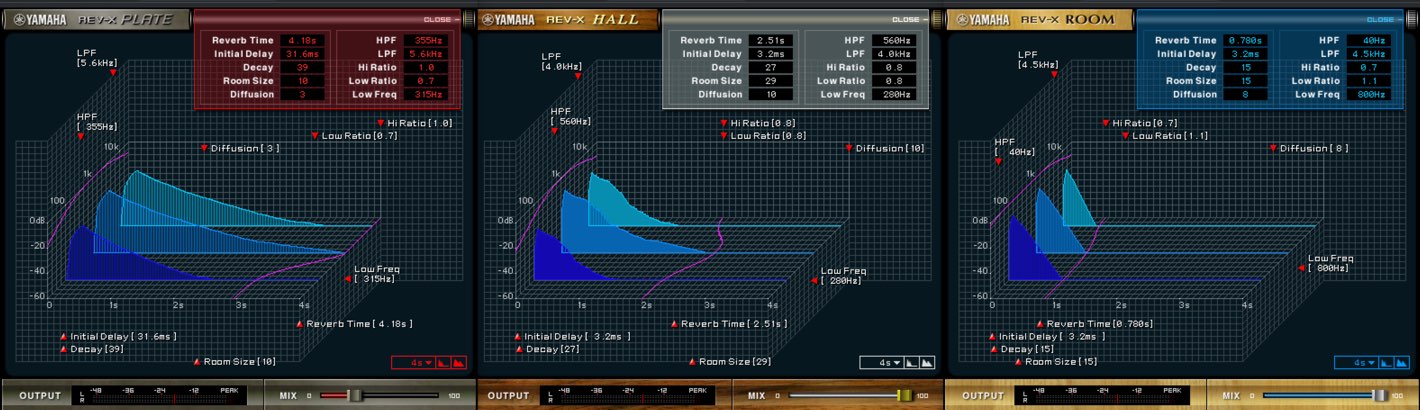
REV-X is a digital reverb included with Steinberg UR interfaces.
It offers Plate, Hall and Room types, each with detailed control over the reverb tail.
We will explain the parameters along with practical examples.
If a vocal does not sit well in the mix, understanding and adjusting these controls can help solve the problem. Enjoy exploring the reverb as you learn!
Video: REV-X digital reverb
- 1dspMixFx overview and setup
- 2Morphing Channel Strip: compressor
- 3Morphing Channel Strip: equalizer
- 4Guitar Amp Classics: guitar amp simulator
- 5REV-X digital reverb
Steinberg distributor: Yamaha Music Japan content
- Yamaha Music Japan MPP (YouTube) https://www.youtube.com/user/SteinbergJapan
- MPP (Twitter) https://twitter.com/SteinbergJP
- Sound Roster music production program (Fresh!) https://freshlive.tv/ymjsoundroster
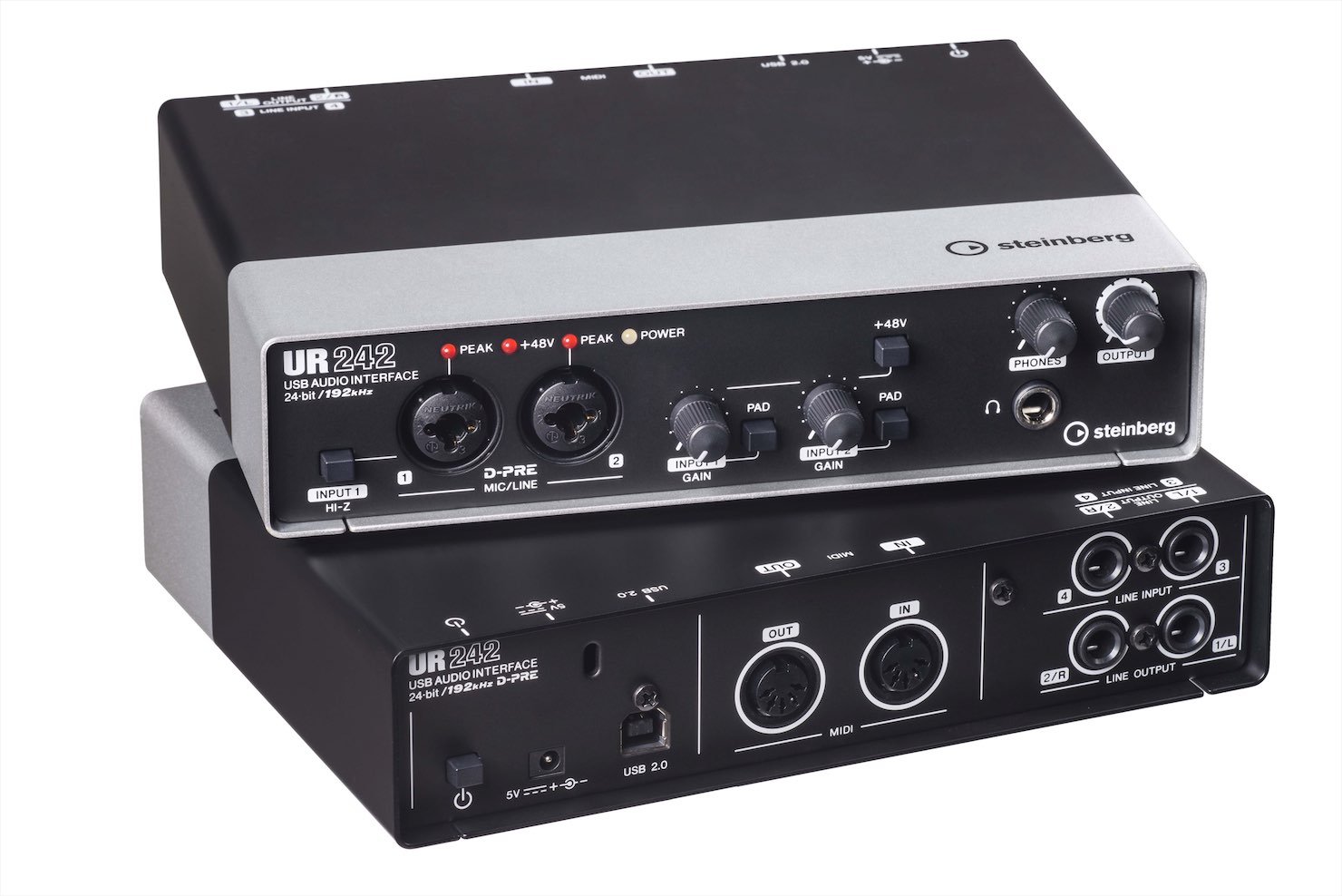
Product information and purchase: https://japan.steinberg.net/jp/products/hardware/ur_series/lineup.html Note: The products listed as supporting dspMixFx are the UR242, UR44, UR28M, UR824 and UR-RT series.
Reverb types
REV-X offers three reverb types to suit the purpose of a track.
These are all conventional types, and the ideas apply to many reverbs beyond this product.
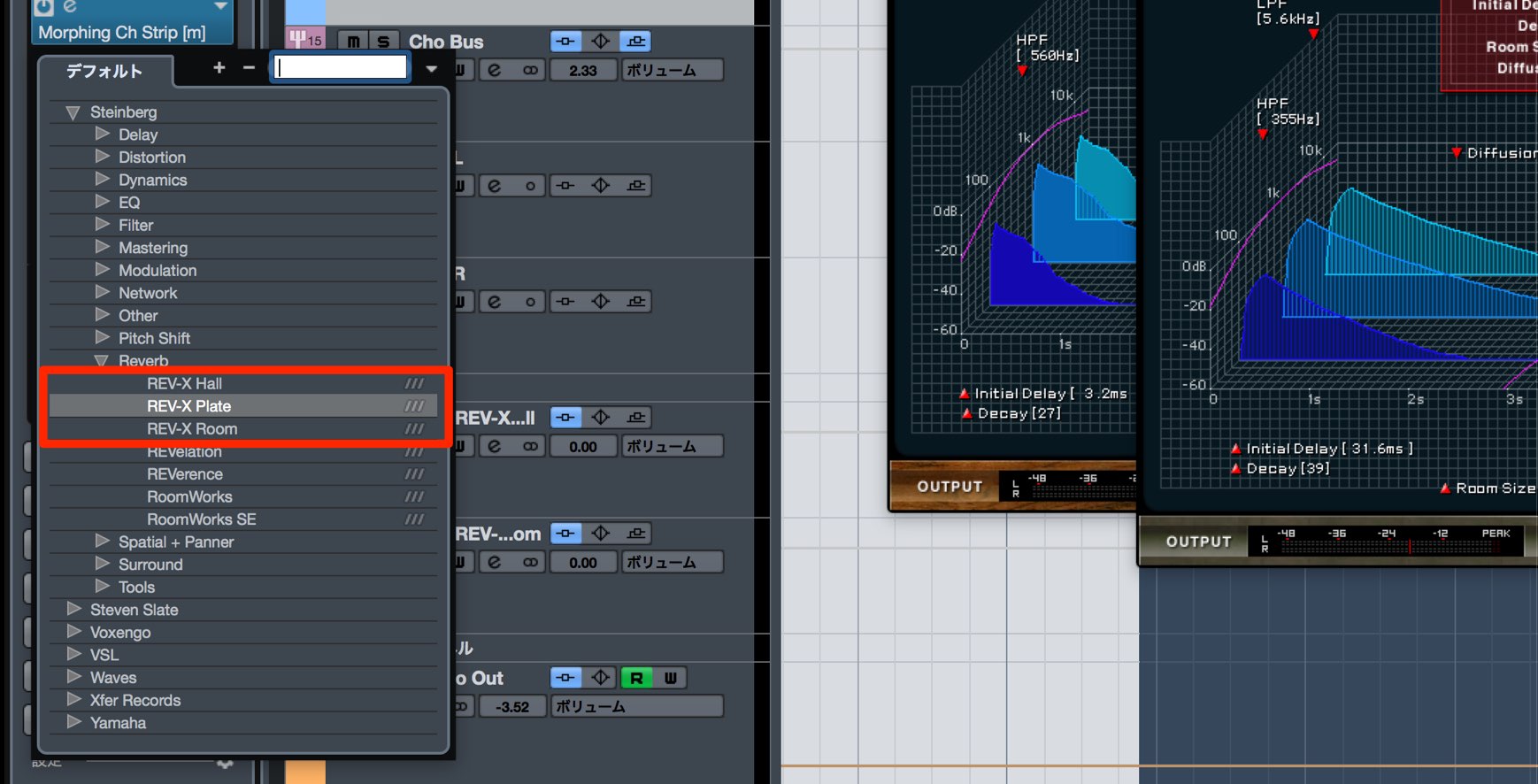
- Hall: A versatile, standard reverb that can be used on many types of track.
It simulates a concert hall and is characterized by a warm tail. - Plate: A reverb type that creates a tail by vibrating a metal plate.
Its bright, shimmering sound suits vocals and lead sounds at the center of a song. - Room: A reverb that simulates a recording studio or room.
Rather than making the reverb obvious, it is useful for adding subtle ambience and depth or helping a sound sit in the mix.
Here we will insert Plate on a vocal track.
Reverb parameters
All three types share the same parameters.
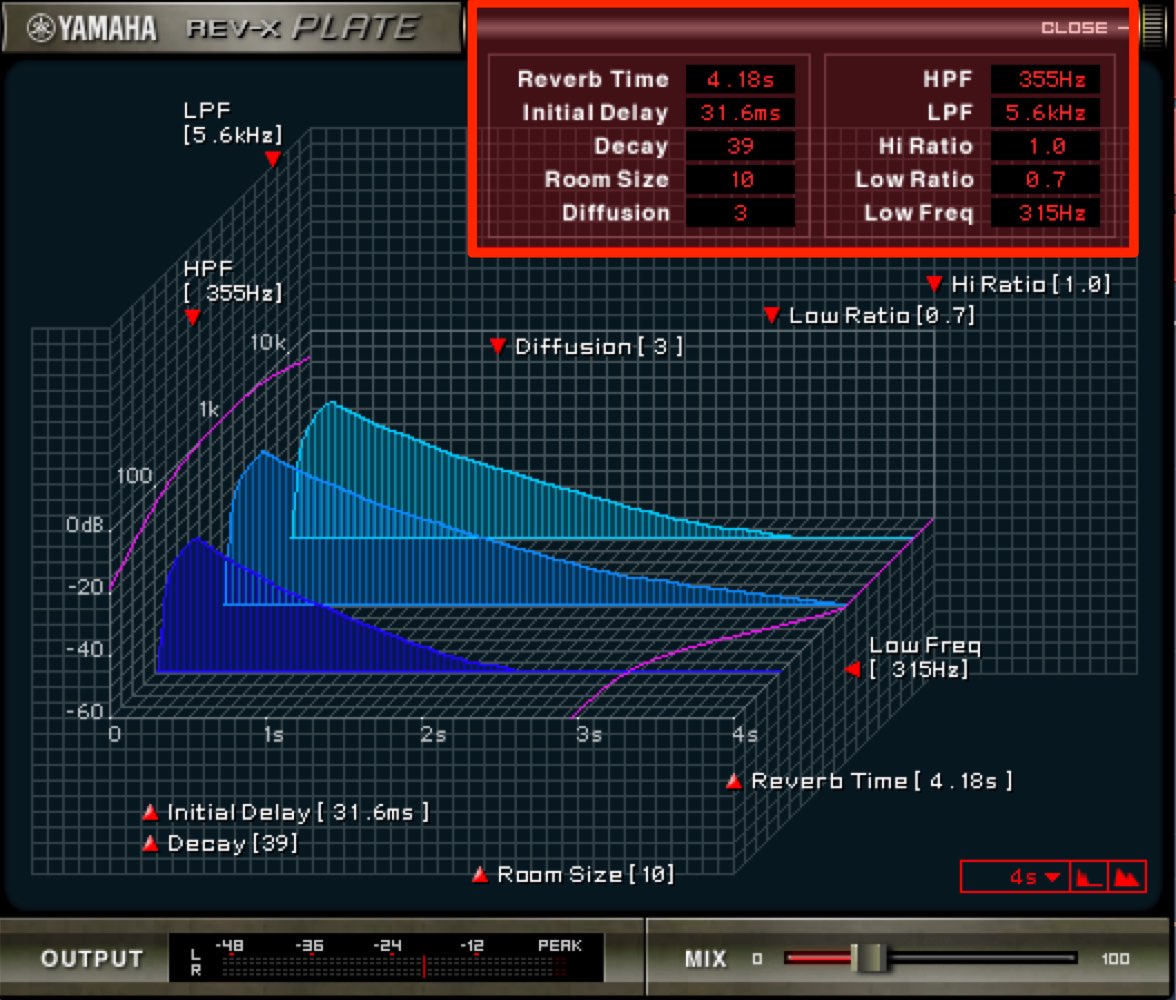
The controls appear at the top of the reverb, and the same parameters are also shown on the graph below.
Their values are linked, so choose whichever view is easiest for the task.
MIX
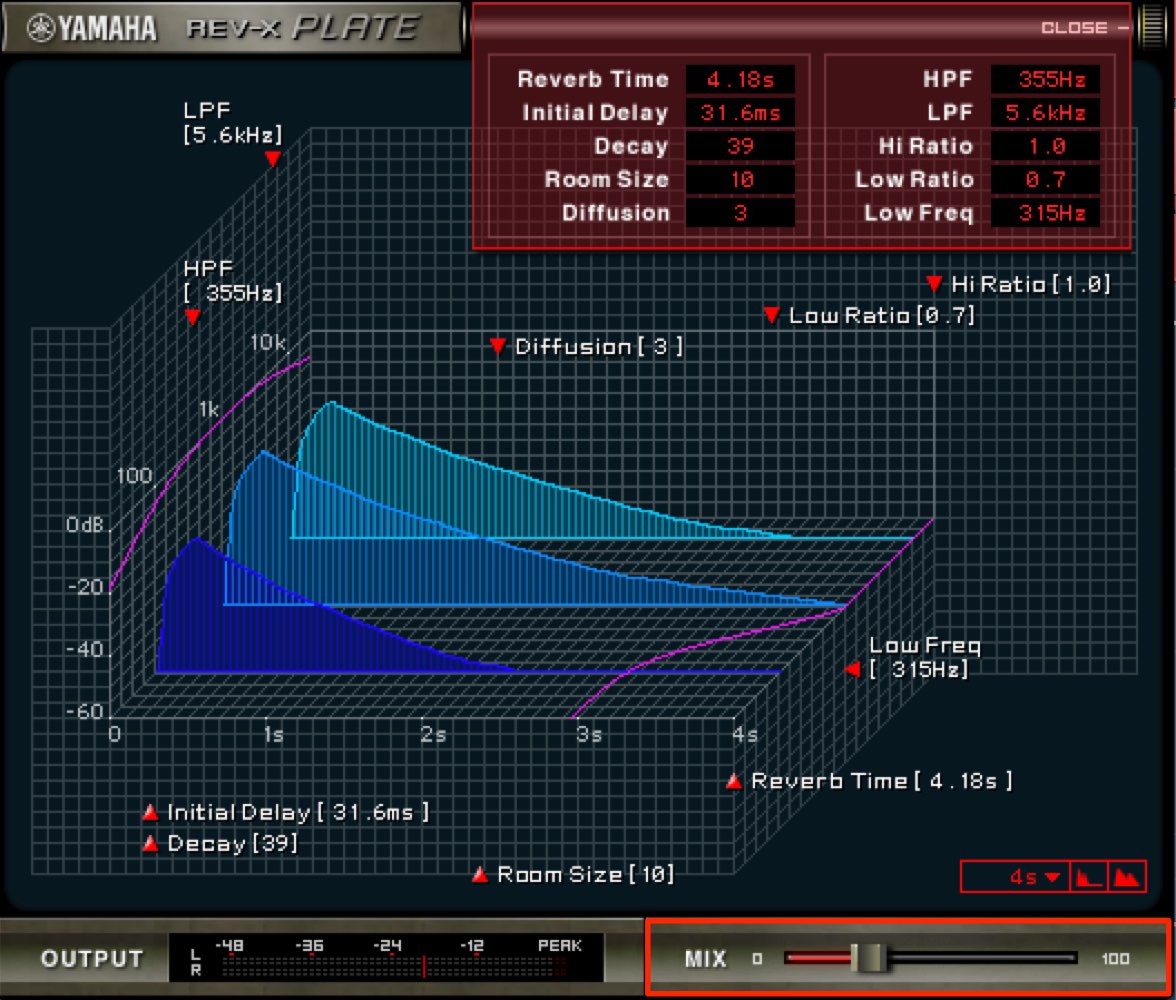
Use MIX to adjust the balance between the original track and the reverb tail.
At 0 there is no reverb effect; as the value increases, the reverb becomes more prominent.
At 100 the original track is no longer heard, leaving only the reverb tail.
Adjust the balance here until it sounds natural.
As we adjust the reverb parameters below, setting MIX to 100 makes their effect easier to hear.
Reverb Time and Room Size
Two of the most important parameters for determining reverb character are Reverb Time and Room Size, which set the length of the tail and its basic sound.
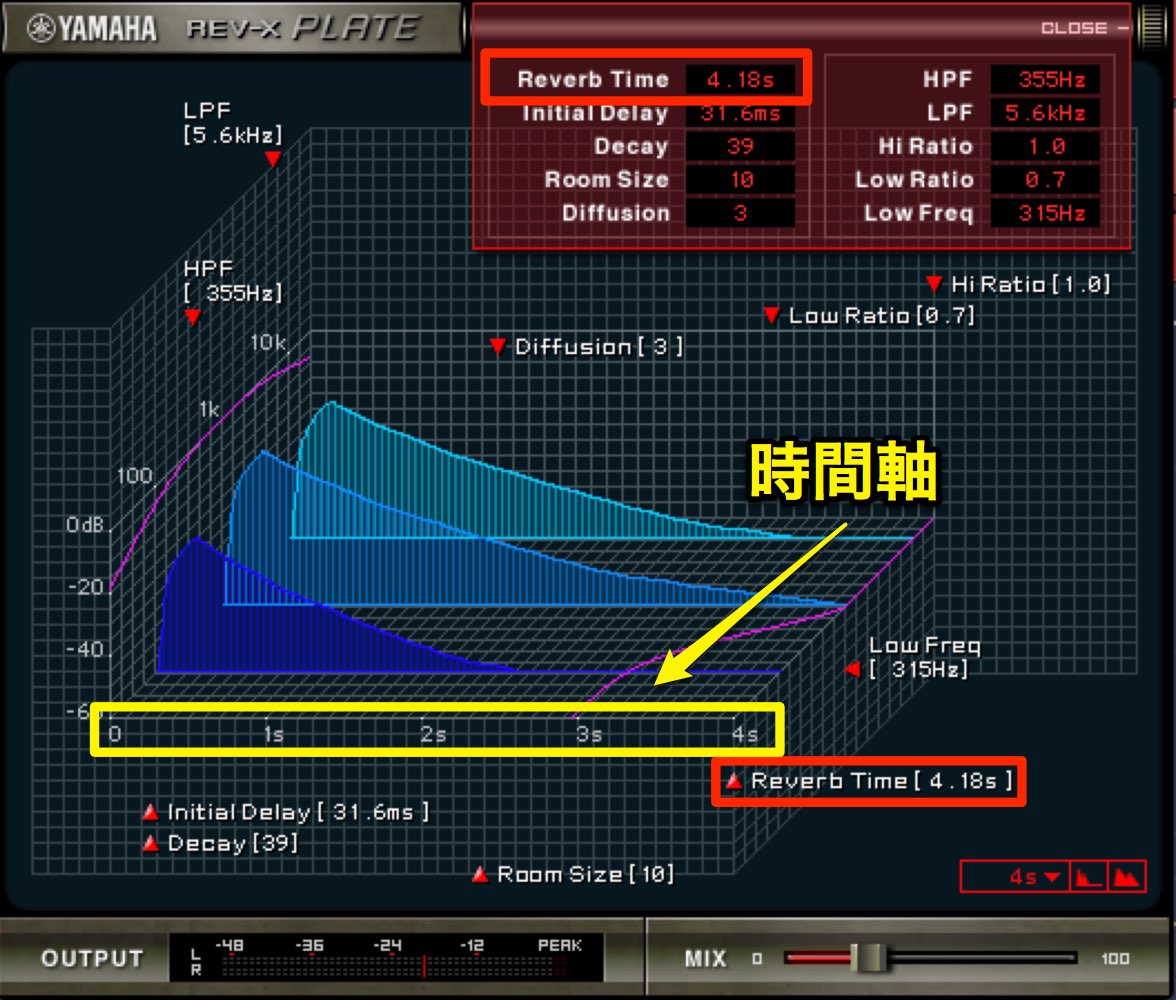
Reverb Time adjusts the length of the reverb tail.
Its unit is seconds: 1 s means one second.
The minimum and maximum settings depend on the reverb type:
- Hall: 0.103–31.0 s
- Plate: 0.152–45.3 s
- Room: 0.152–45.3 s
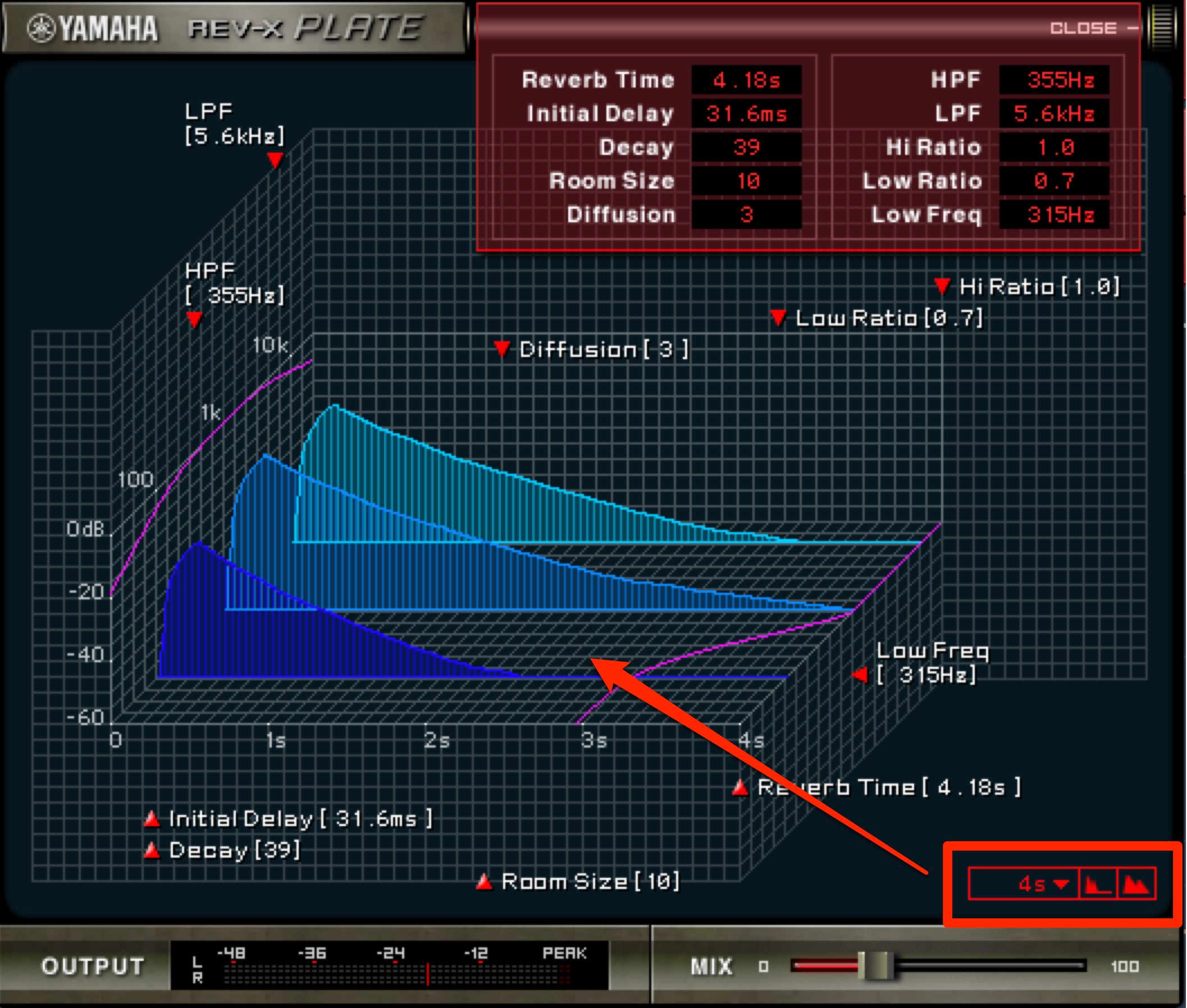
The zoom control at the lower right enlarges or reduces the graph’s time axis; it does not affect the sound.
Adjust it to make the graph easy to read for the selected Reverb Time.
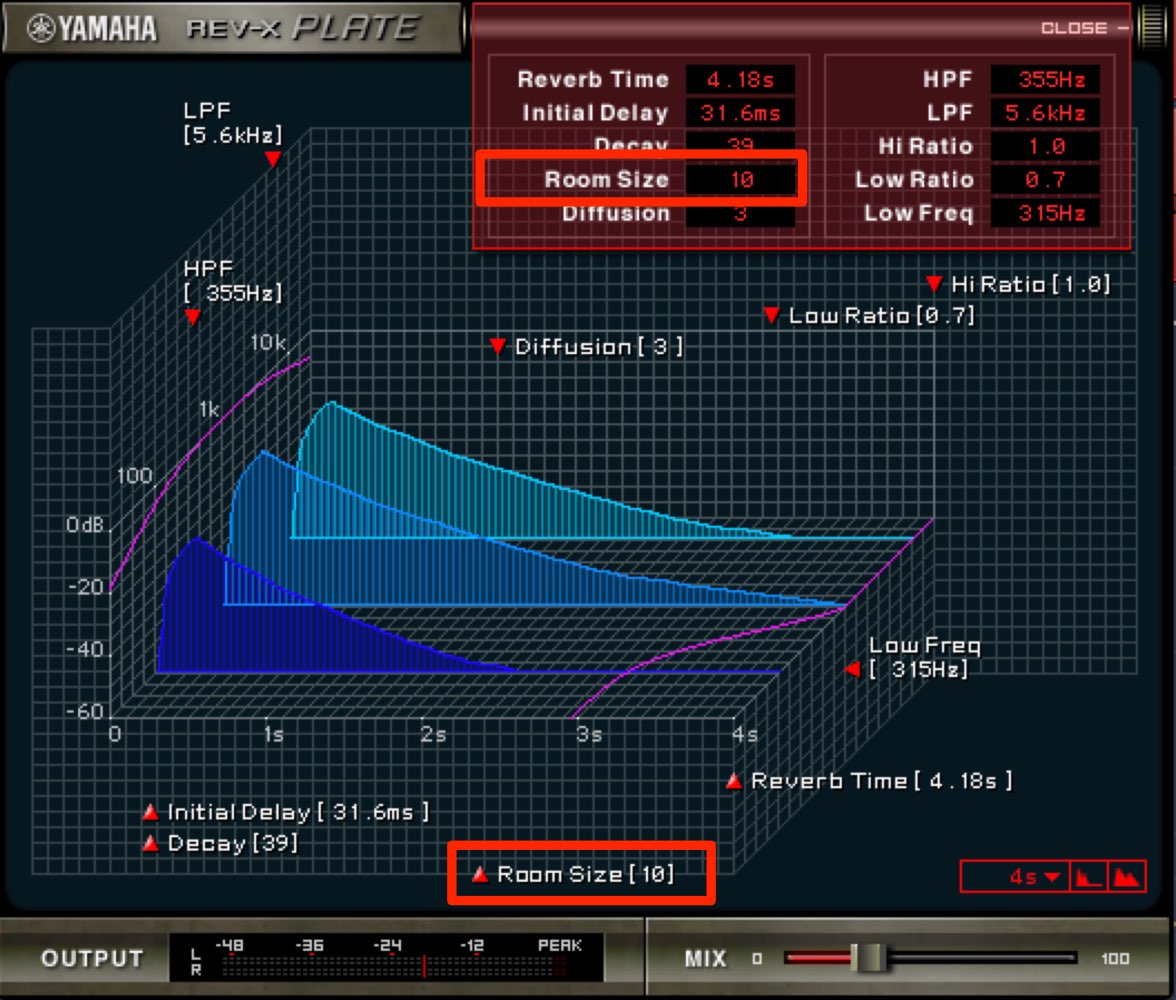
Room Size sets the size of the simulated room.
Values run from 0 to 31; higher values represent a larger room.
Changing Room Size automatically adjusts Reverb Time, but you can set Reverb Time again afterwards.
A small Room Size combined with a longer Reverb Time can also create an unrealistic space.
Initial Delay
Initial Delay sets the time between the original sound and the start of the reverb tail.
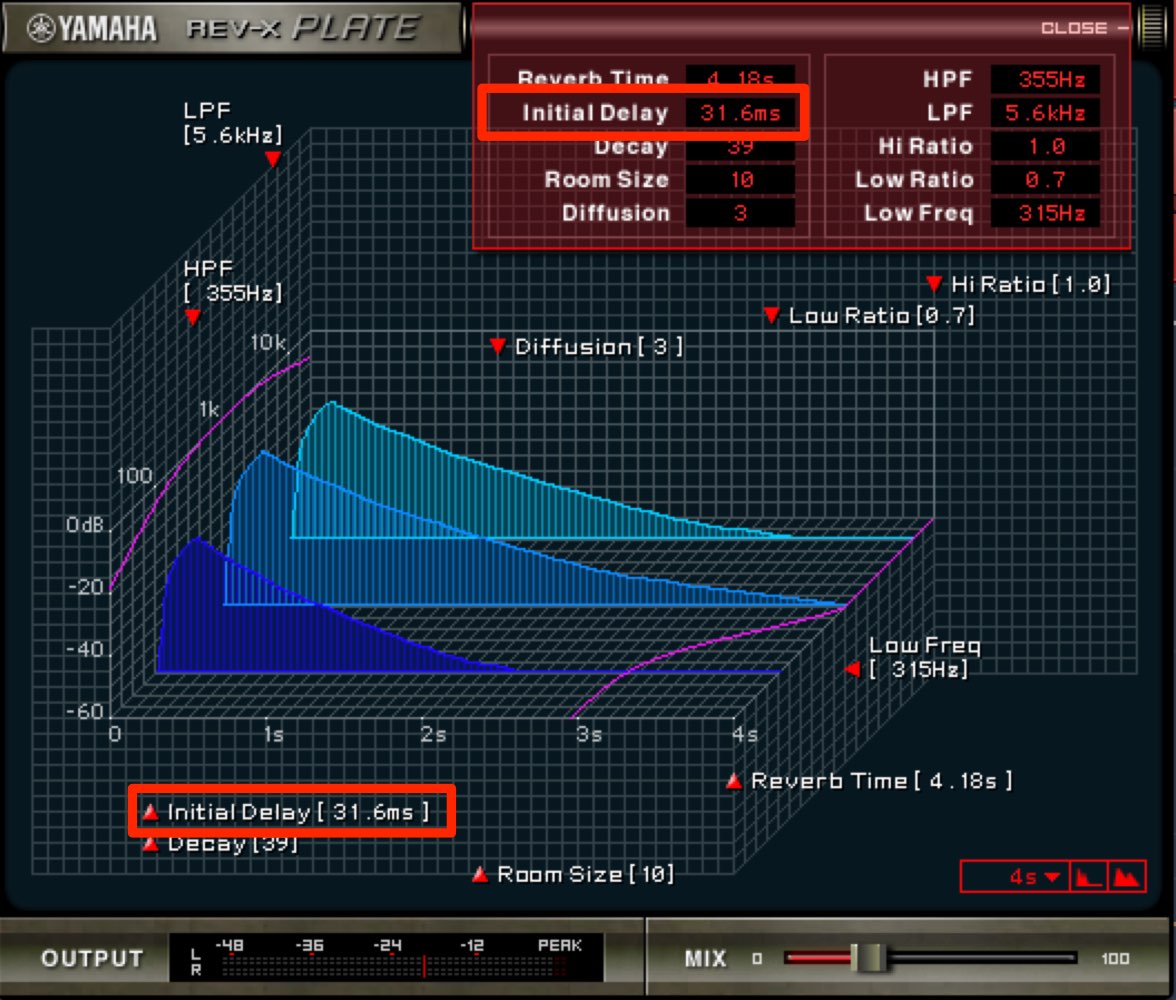
It is measured in milliseconds: 1 ms is one thousandth of a second.
The available range is 0.1–200 ms.
At low values, the reverb starts almost simultaneously with the original sound. Higher values delay its onset and can produce an effect similar to a delay.
Separating the original sound from the reverb can create a more natural sense of space.
There is no fixed rule, but try starting around 10–40 ms and adjust by ear.
Play it with the rhythm to find a setting that sounds pleasing.
Diffusion and Decay
These two parameters adjust the character of the reverb tail.
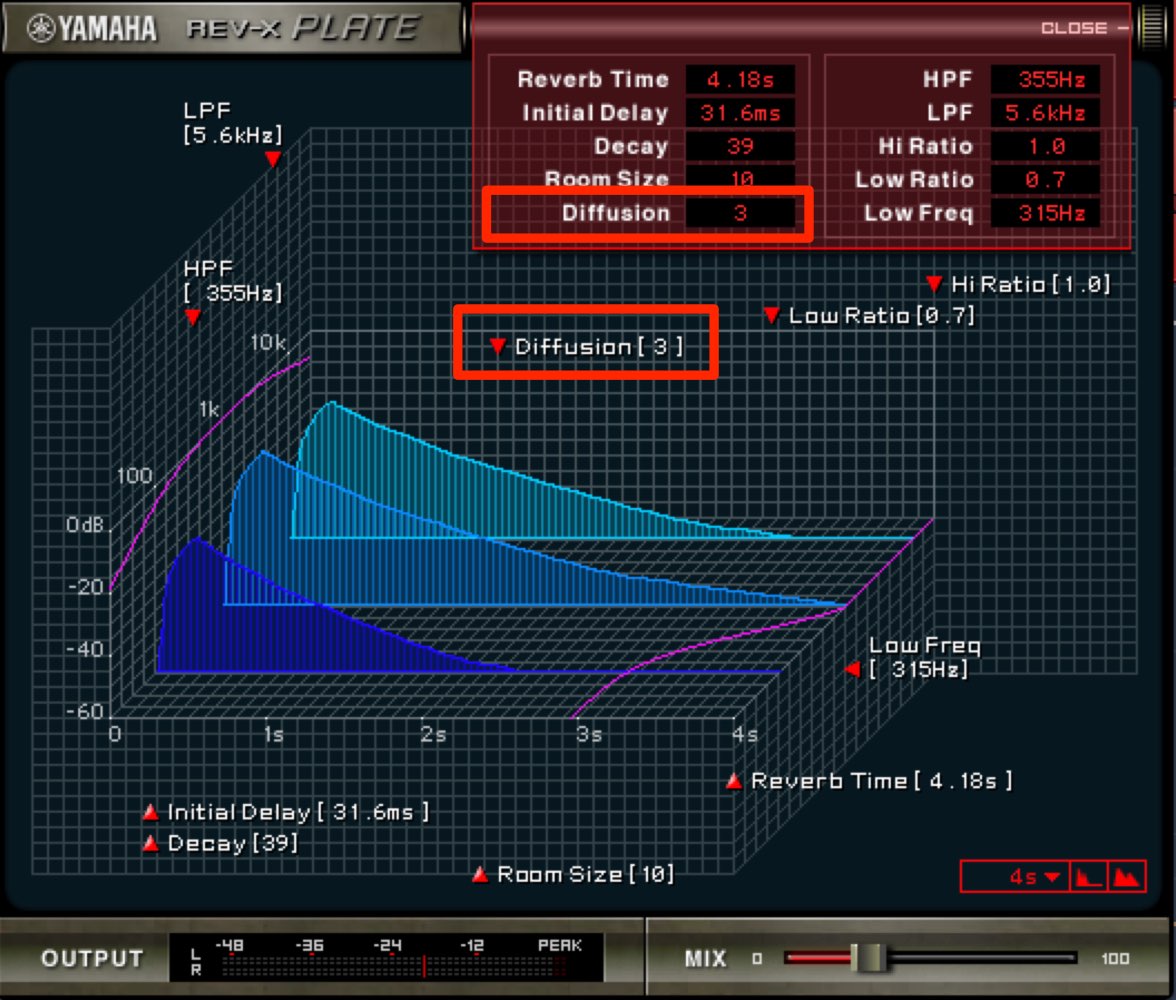
Diffusion controls the density and spread of the reverb.
Set it from 0 to 10; higher values produce a denser, more finely rendered tail.
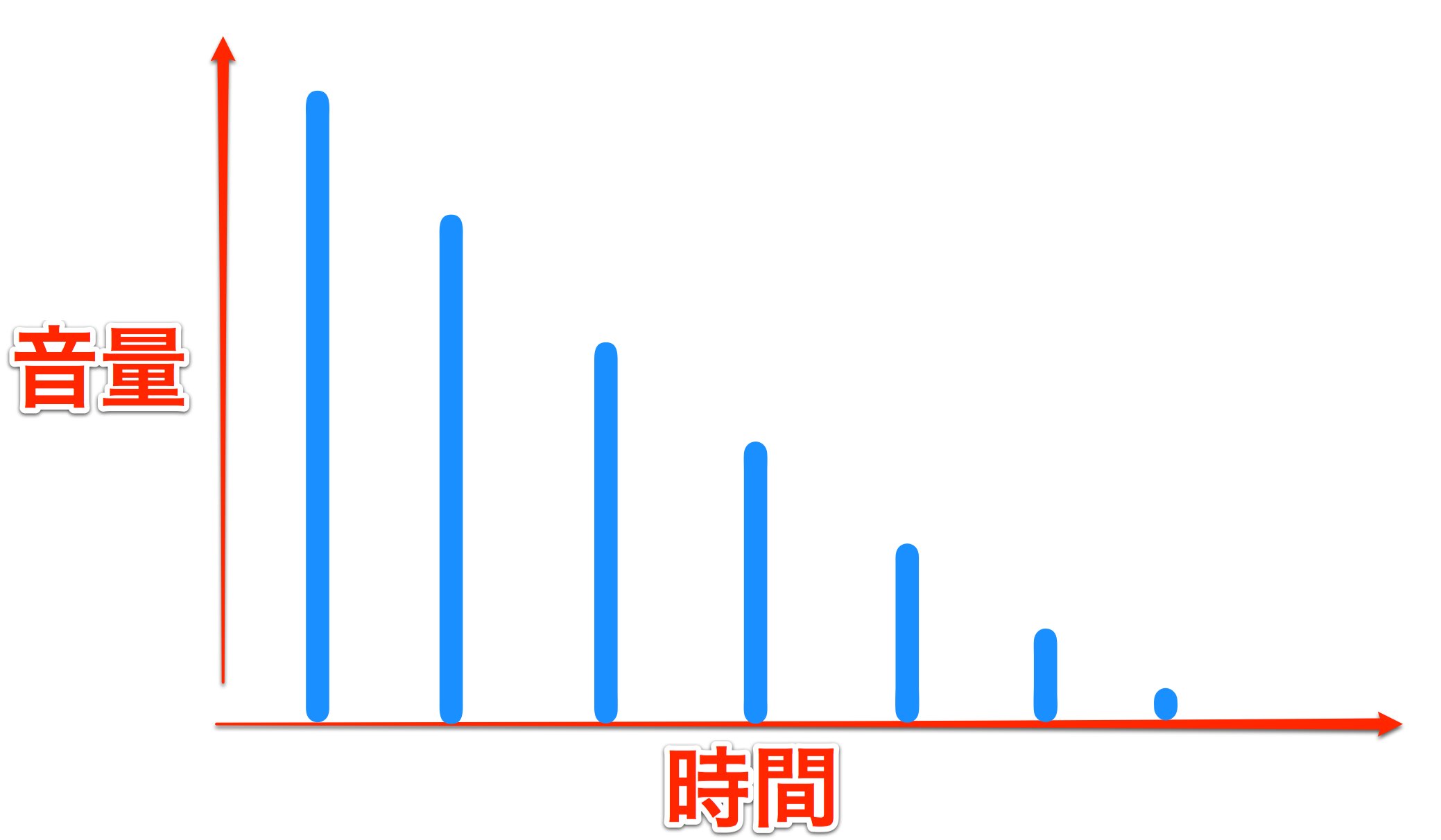
Reverb creates a tail through repeated, decaying sound.
It may help to imagine the repetitions of a delay effect being divided into progressively finer intervals.
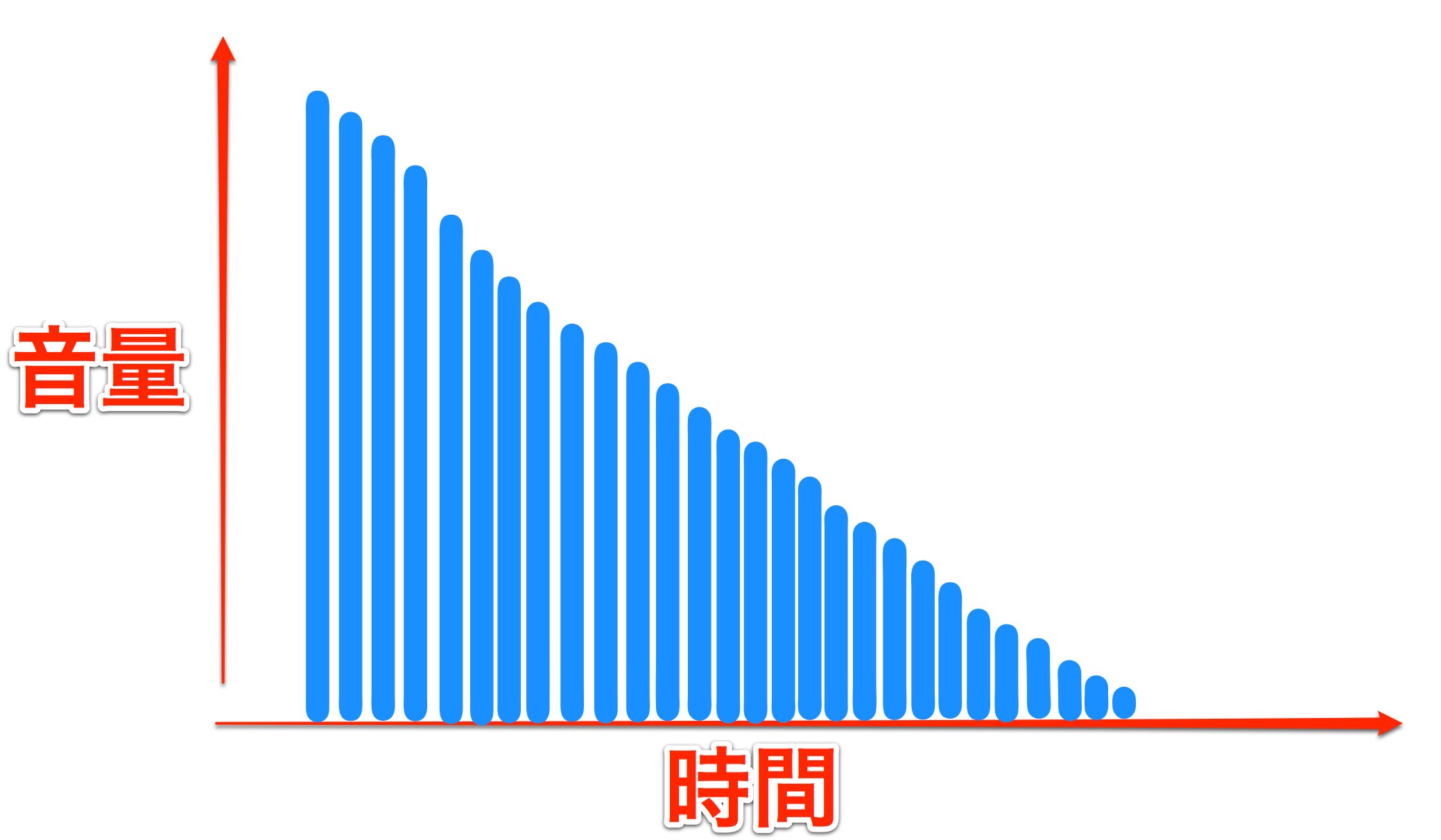
Diffusion increases the number of repetitions, creating a denser, finer decay.
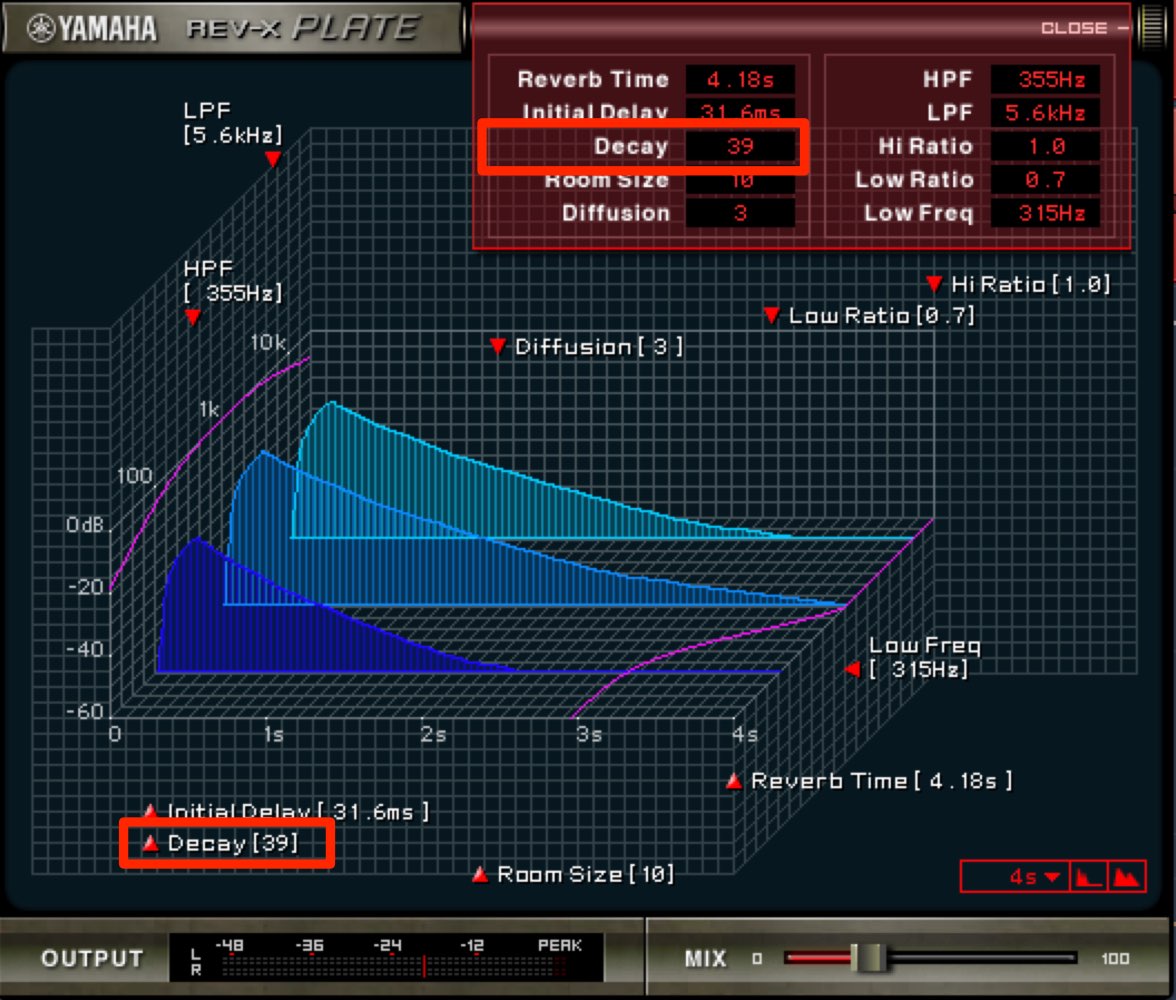
Decay adjusts the tonal character from the start of the reverb tail until it fades away.
Its range is 0–63.
Listen and set these parameters to taste.
If their effects are hard to hear, raise MIX to make the reverb tail more prominent.
HPF and LPF
Adjusting the frequency content of the reverb can produce a clearer sound.
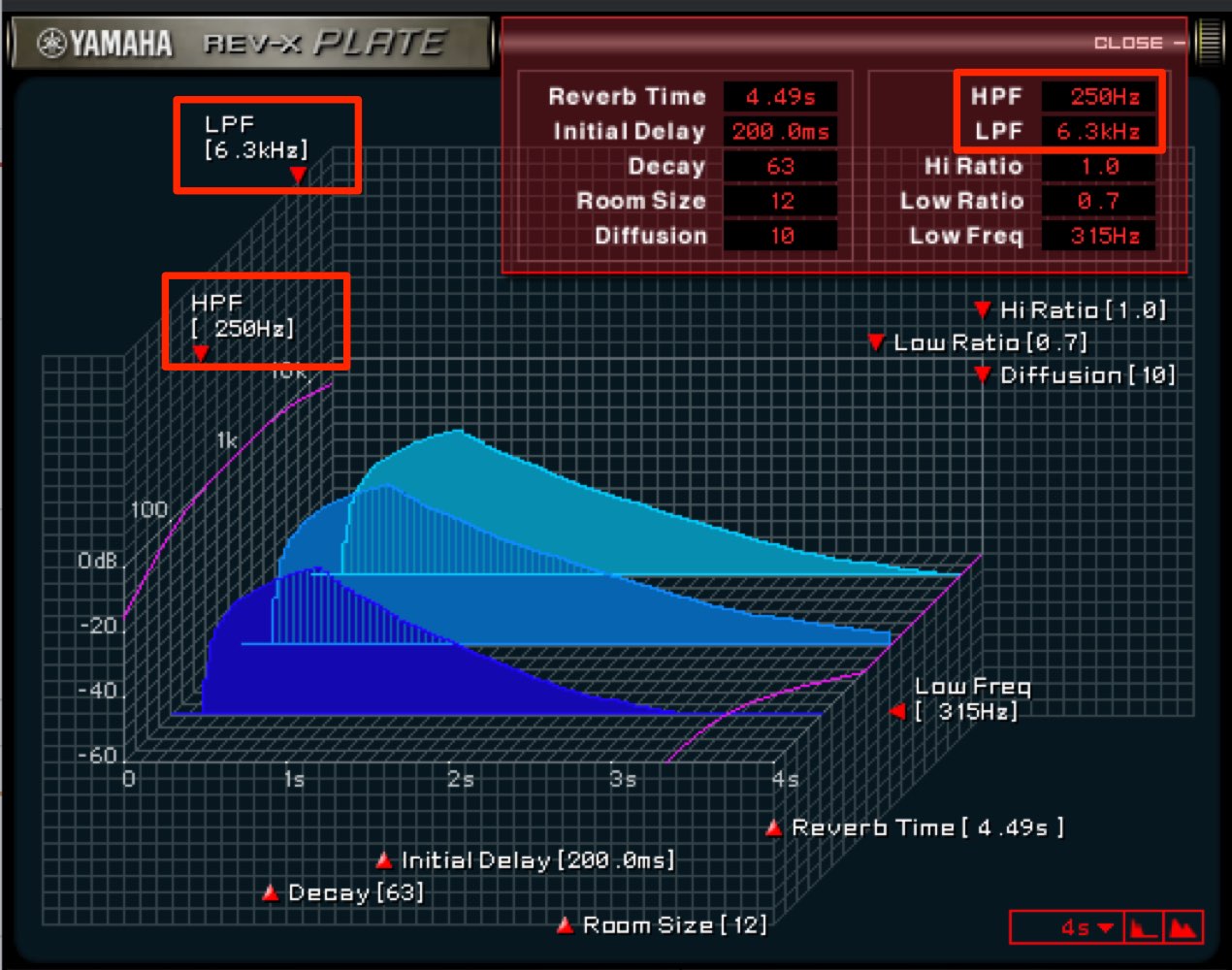
- HPF (high-pass filter): Cuts low frequencies.
Reducing the lows can remove muddiness. - LPF (low-pass filter): Cuts high frequencies.
Reducing the highs can make the tail more natural and help it sit in the track.
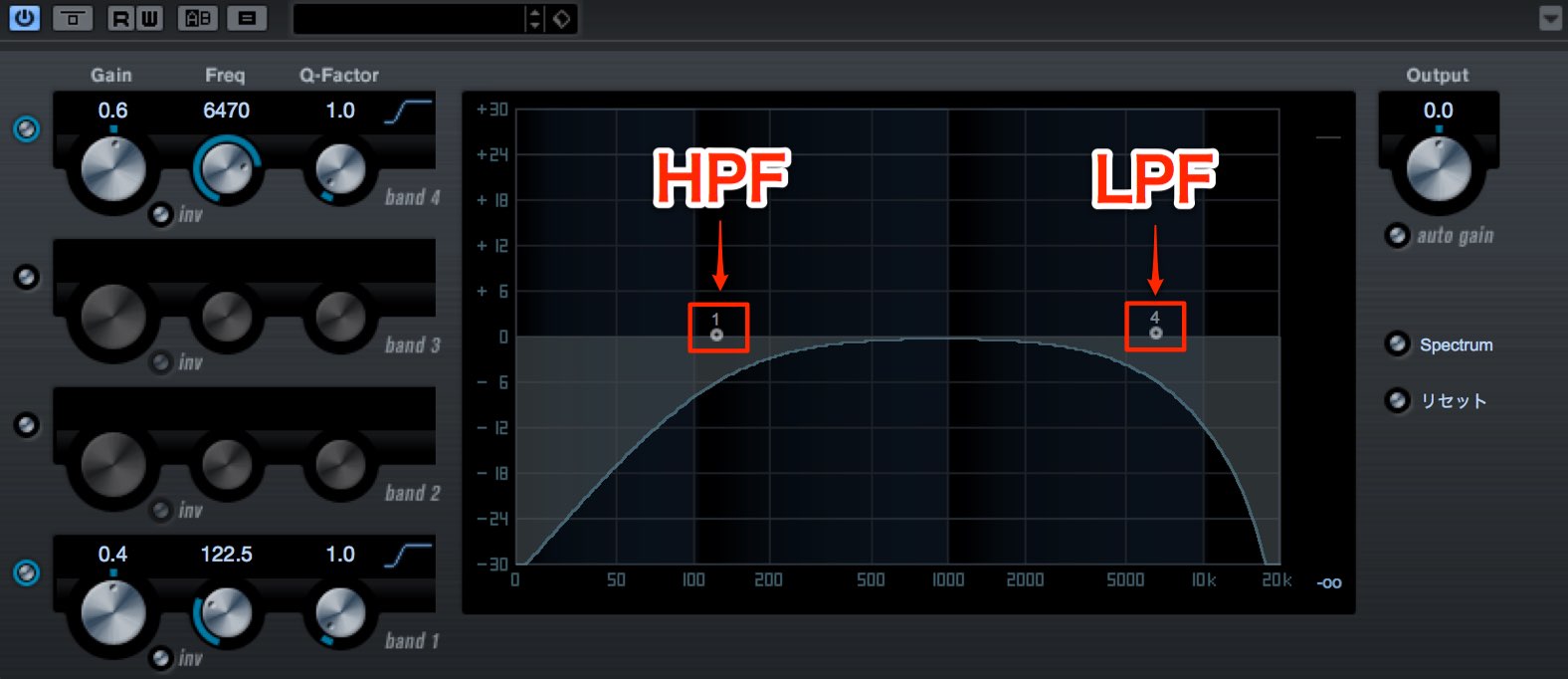
This illustration shows the idea as an equalizer curve.
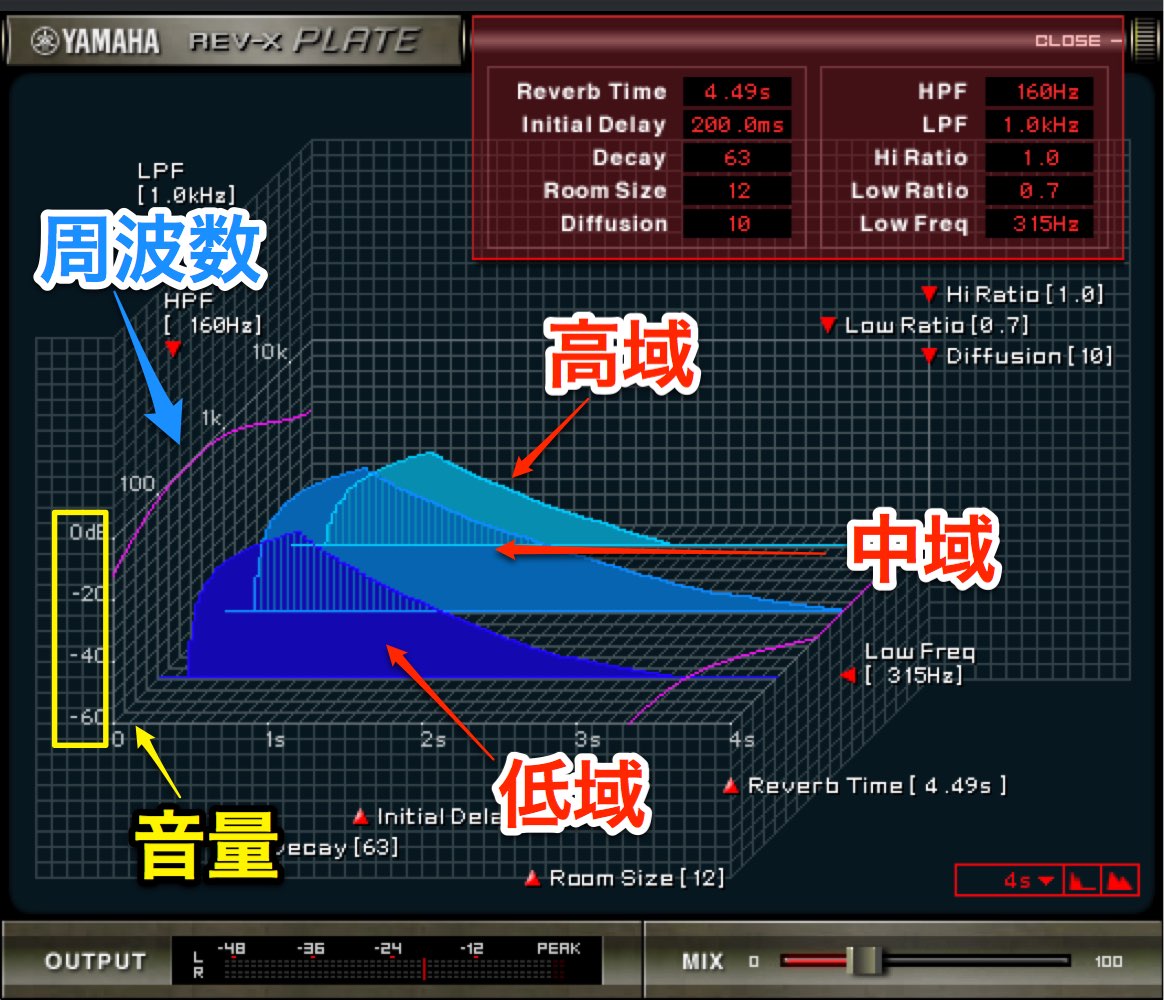
The vertical axis of the graph represents volume, increasing toward the top.
The diagonal axis represents frequency, with higher frequencies farther back.
The three waveforms in the center correspond to frequency: low, mid and high from front to back.
Adjusting HPF and LPF changes the waveforms to reflect their effect on the sound.
Hi Ratio and Low Ratio
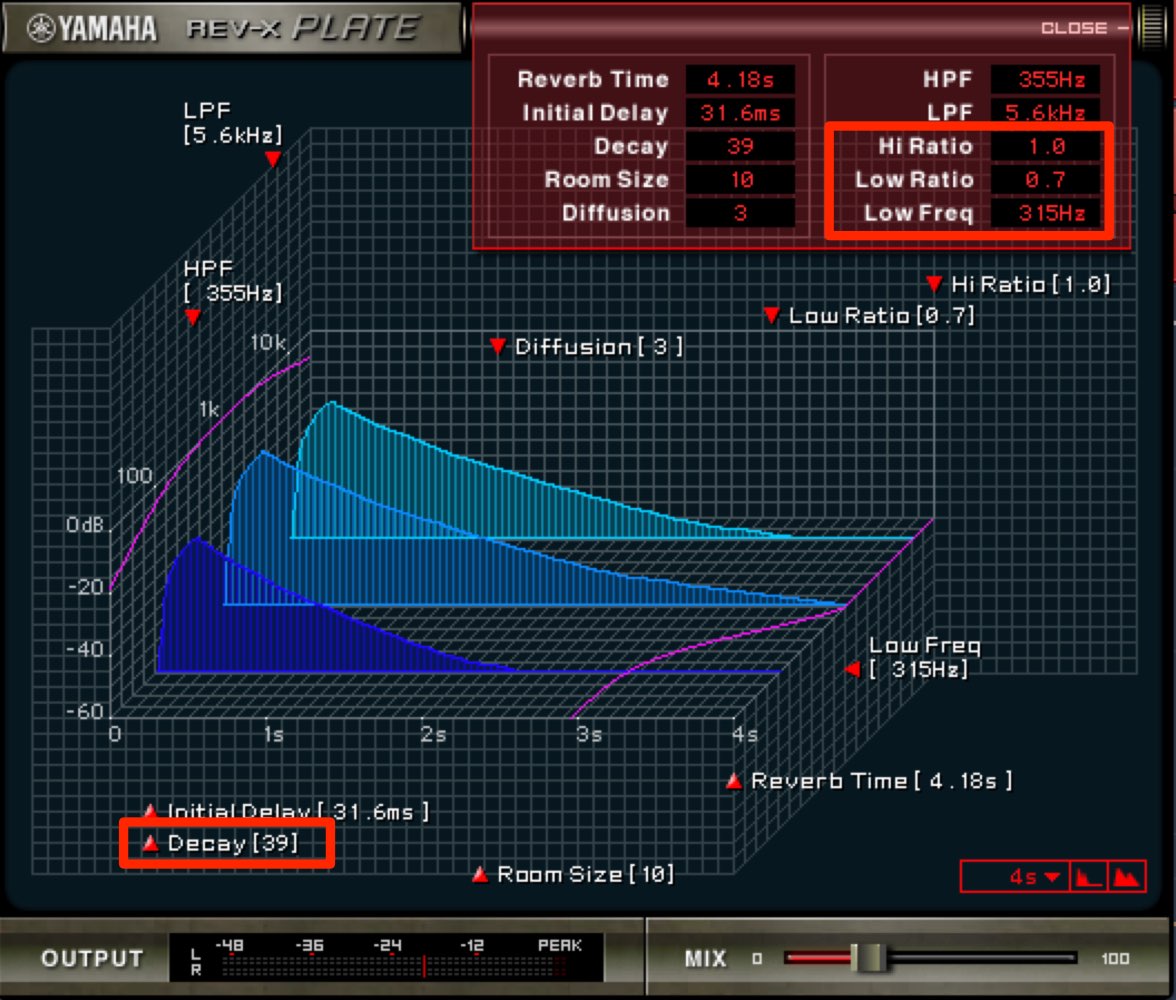
REV-X also offers a somewhat unusual reverb parameter called Ratio.
Here, the ratio is relative to the Reverb Time setting.
- Hi Ratio: Sets the length of the high-frequency tail.
Its range is 0.1 (one-tenth the length) to 1 (unchanged). - Low Ratio: Sets the length of the low-frequency tail.
Its range is 0.1 (one-tenth the length) to 1.4 (1.4 times the length).
Low Freq sets the boundary below which the low-frequency Ratio applies.
You can shorten the high-frequency tail for a darker texture or tame an overly heavy low-frequency tail.
Using reverb on a send/return
So far, we have inserted REV-X directly on a track.
Another way to apply spatial effects is a send/return.
A send/return lets you share one reverb across multiple tracks.
- Sharing one reverb can reduce CPU load compared with inserting separate reverbs on each track.
- Using the same reverb can make the tracks feel cohesive, as if they were played in the same space.
- It also allows detailed editing, such as applying an effect only to the reverb tail.
These are some of the benefits.
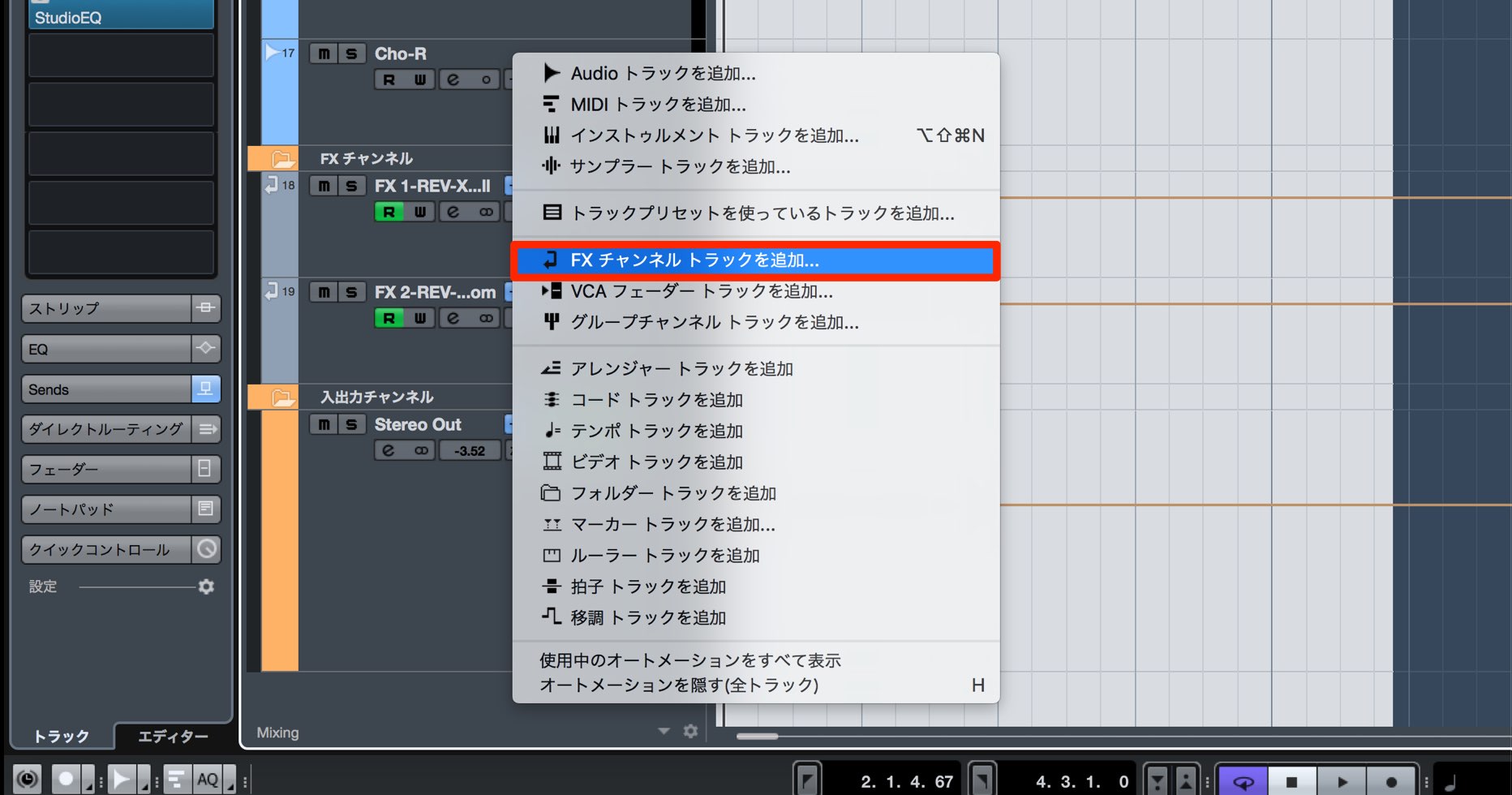
To use a send/return, create an FX channel track.

Choose an effect in the Add Track window.
Here we selected the versatile Hall type.
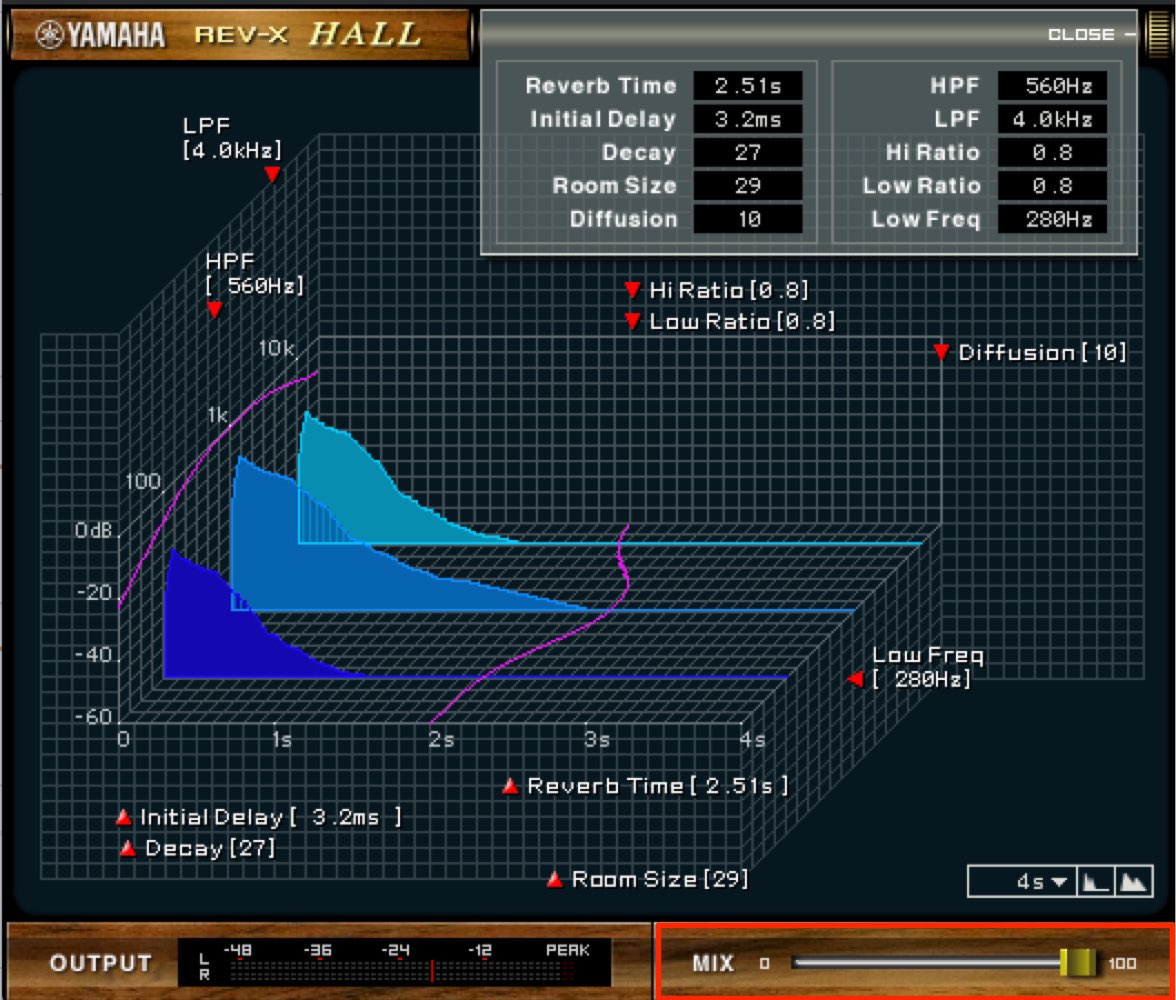
For send/return use, set MIX to 100.
This ensures the FX channel carries only the reverb, without adding the original signal.
The send/return is now ready.
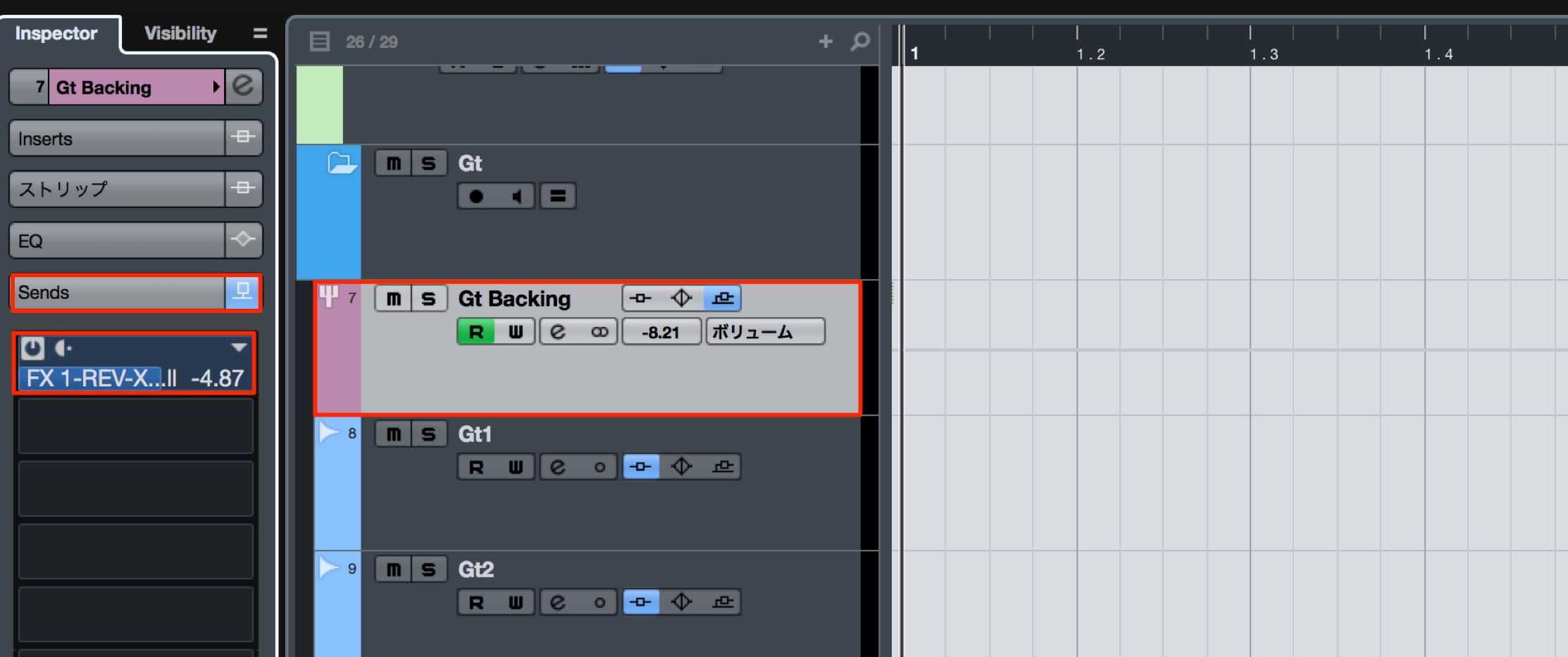
Select a track to which you want to add reverb, then choose the FX channel you created in its Sends slot.
Enable the slot and use the send level to set how much reverb is applied.
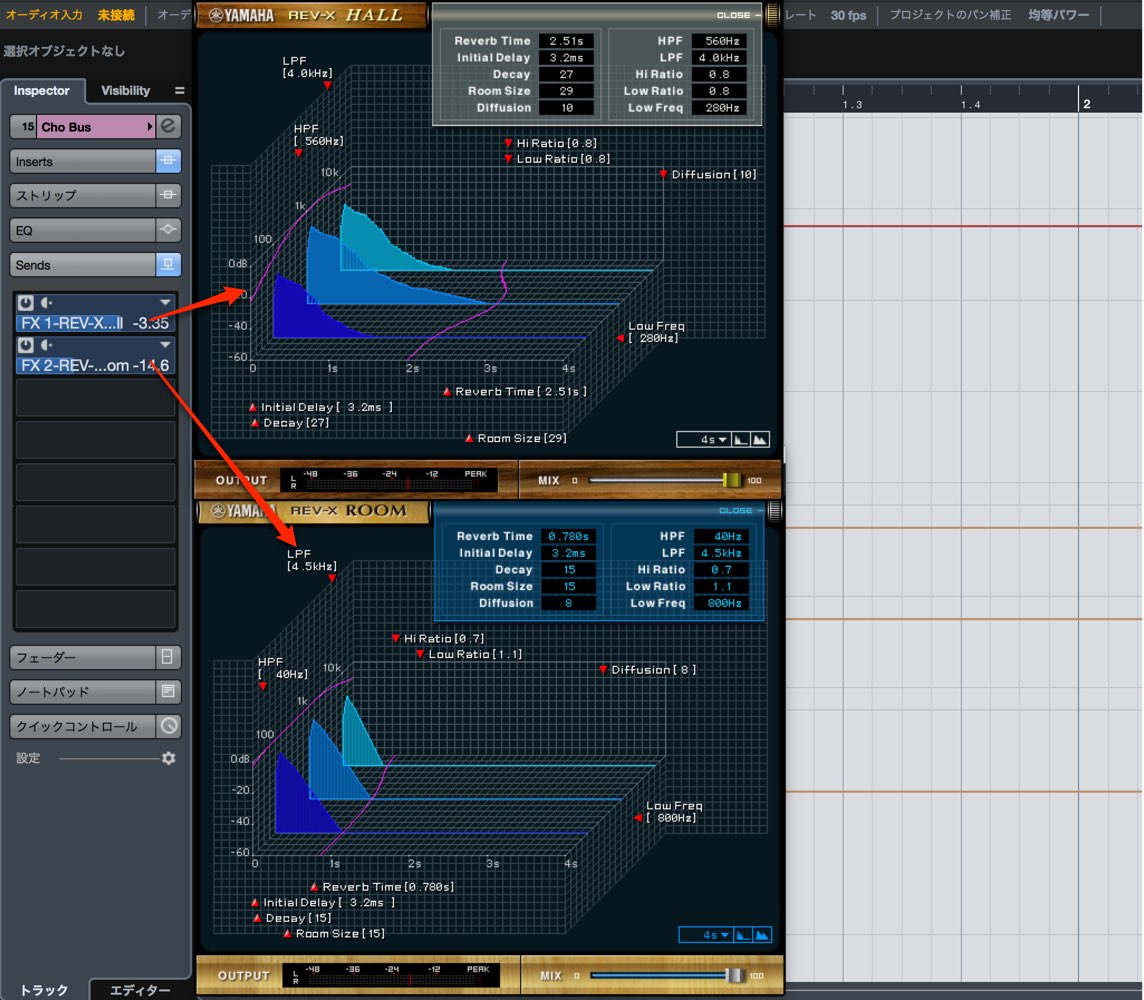
You can also combine Hall and Room in this way to create a more complex space.
Try different combinations and settings to improve your productions.
Steinberg distributor: Yamaha Music Japan content
- Yamaha Music Japan MPP (YouTube) https://www.youtube.com/user/SteinbergJapan
- MPP (Twitter) https://twitter.com/SteinbergJP
- Sound Roster music production program (Fresh!) https://freshlive.tv/ymjsoundroster
Product information and purchase: https://japan.steinberg.net/jp/products/hardware/ur_series/lineup.html Note: The products listed as supporting dspMixFx are the UR242, UR44, UR28M, UR824 and UR-RT series.
Frequently asked questions
Q1. Which tracks suit each REV-X reverb type?
Hall is a versatile standard choice for many tracks. Plate has a bright sound suited to vocals and leads. Room recreates a studio-like space and can provide natural depth for background sounds.
Q2. Which parameters should I adjust if a vocal does not sit well?
First use LPF to reduce the highs and make the tail more natural. Adjust Initial Delay around 10–40 ms to separate it from the original, then set the MIX balance to help it sit in the track.
Q3. What does Initial Delay do?
It sets the time in milliseconds between the original sound and the onset of the reverb. Larger values move toward a delay-like effect and can separate the original and reverb for a more natural sound.
Q4. What is the difference between Diffusion and Decay?
Diffusion controls the density and spread of the tail; higher values produce a finer, denser reverb. Decay adjusts its tonal character as it fades and changes the sense of decay.
NEW ARTICLES
Latest English Articles









































































































































































































































































































































