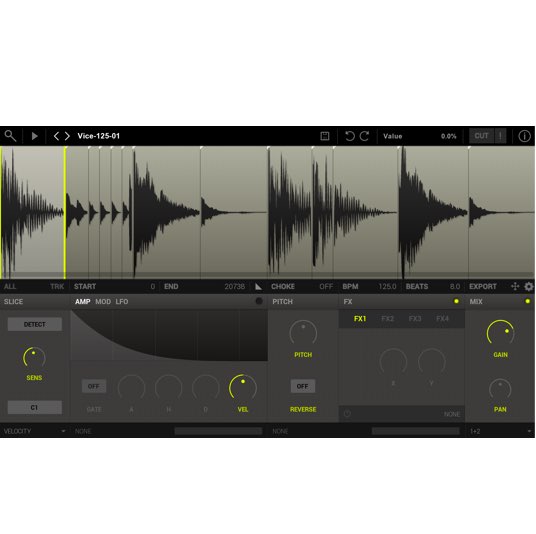
LoopMash offers real-time control over beats after you create them. This tutorial describes controlling patterns in a song and an Ableton Live workflow, switching among up to 24 patterns with a MIDI keyboard, and applying effects from the Performance Control tab. Its mute controls can also limit playback to selected sections. This is a tutorial for the older LoopMash instrument; availability and compatibility depend on the host and version.
Control LoopMash Beats in a Song or an Ableton Live Workflow
After creating beats in LoopMash,
you need to control them to use them effectively.
Its dramatic effects can also be useful
in live performance.
LoopMash video tutorials
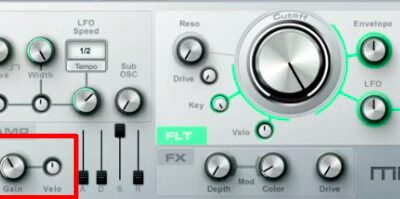
Video highlights: Saving patterns
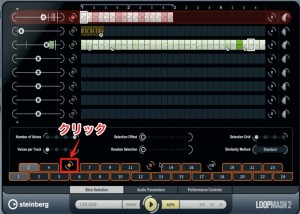
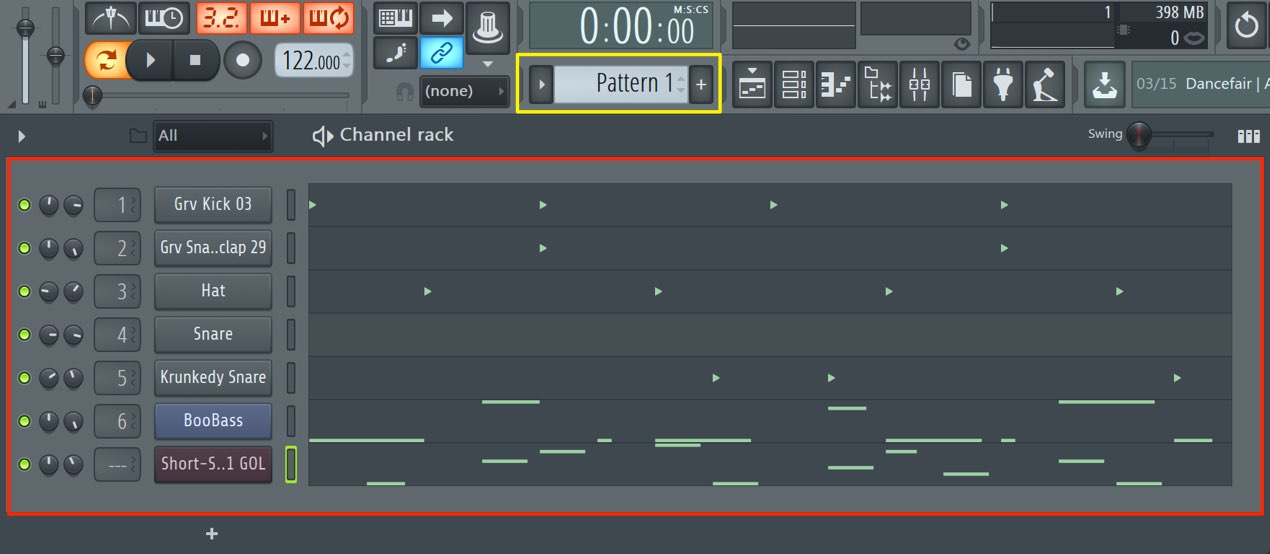
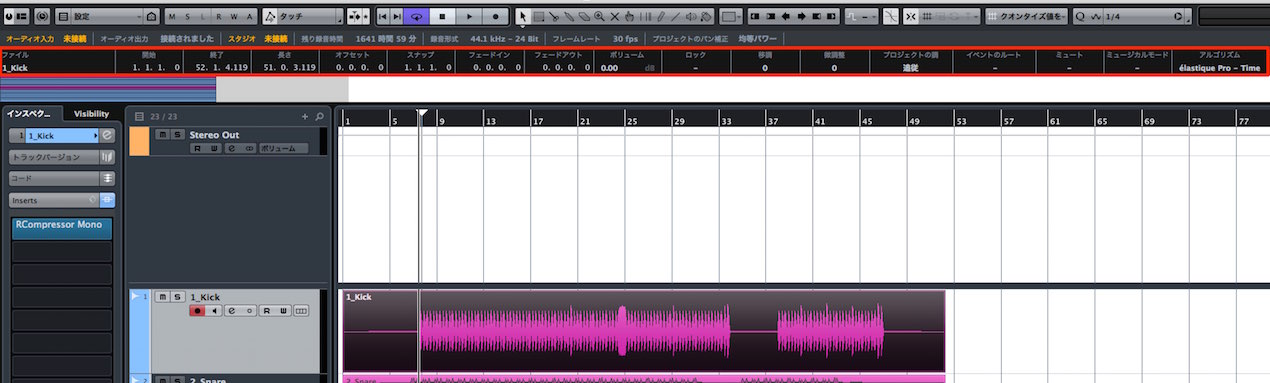
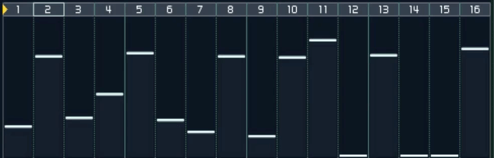
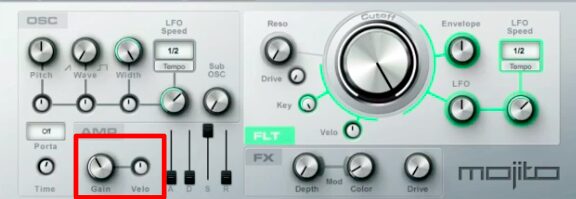
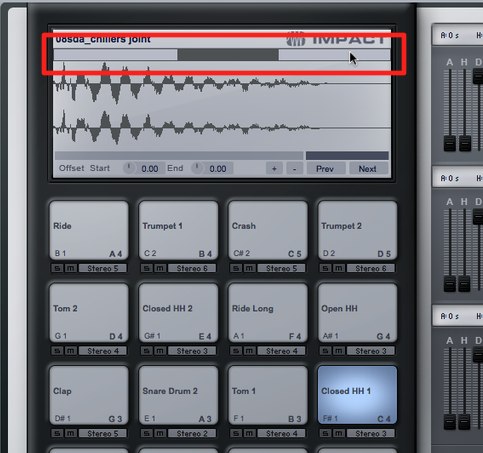
Click the save button outlined in red,
then click the number to which you want to assign the pattern.
You can store up to 24 patterns
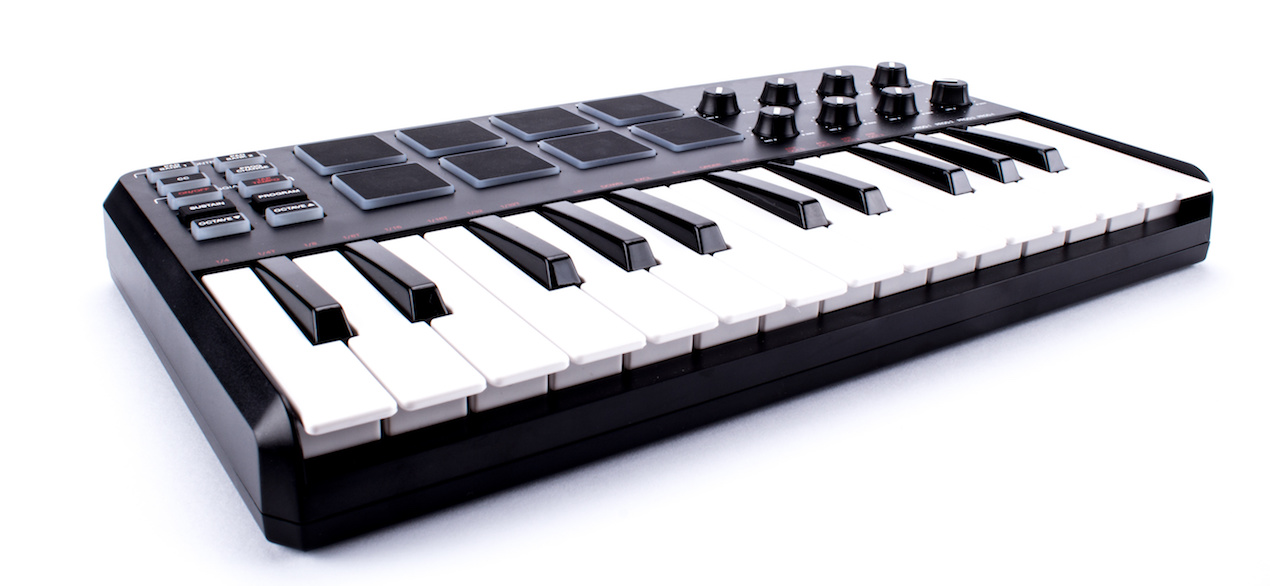
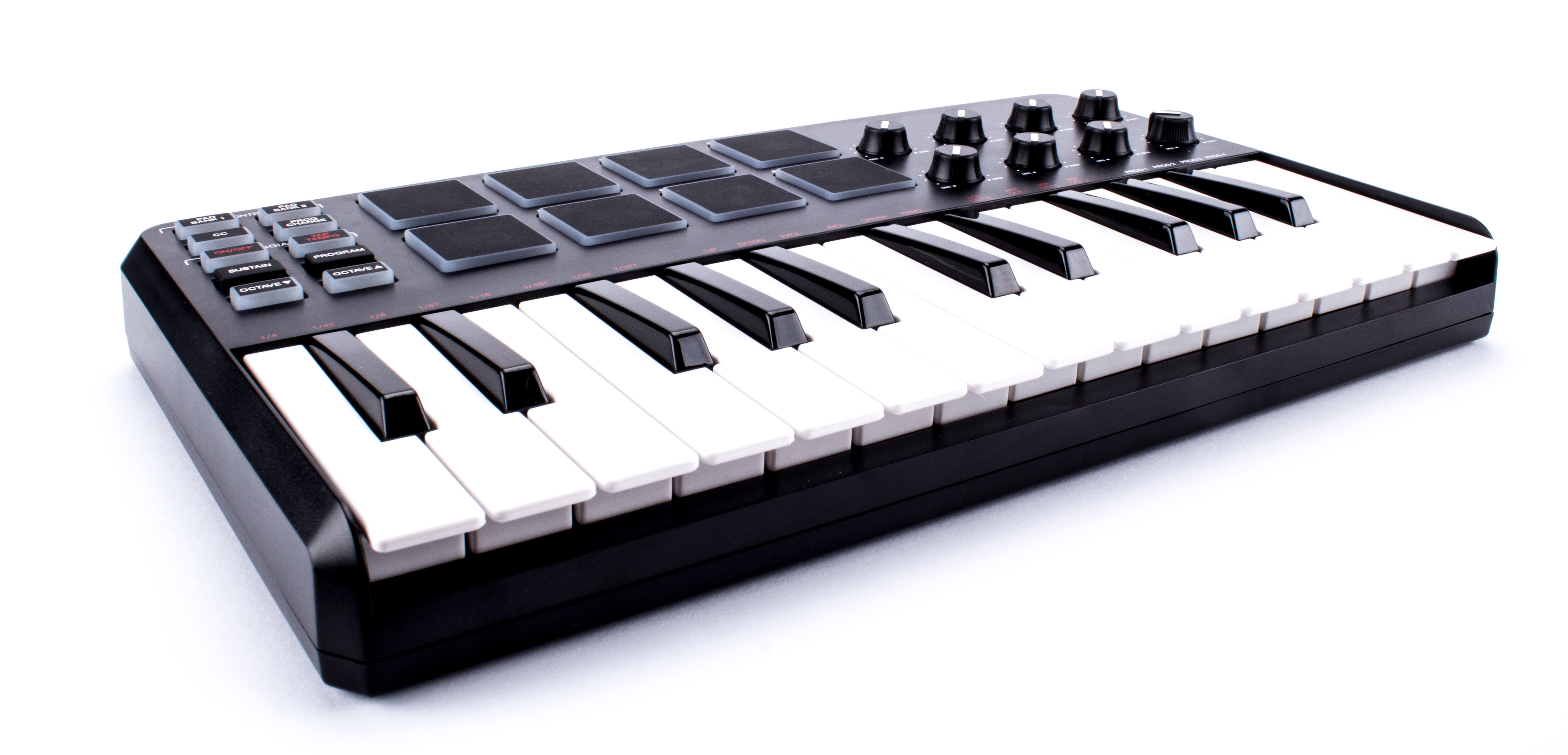
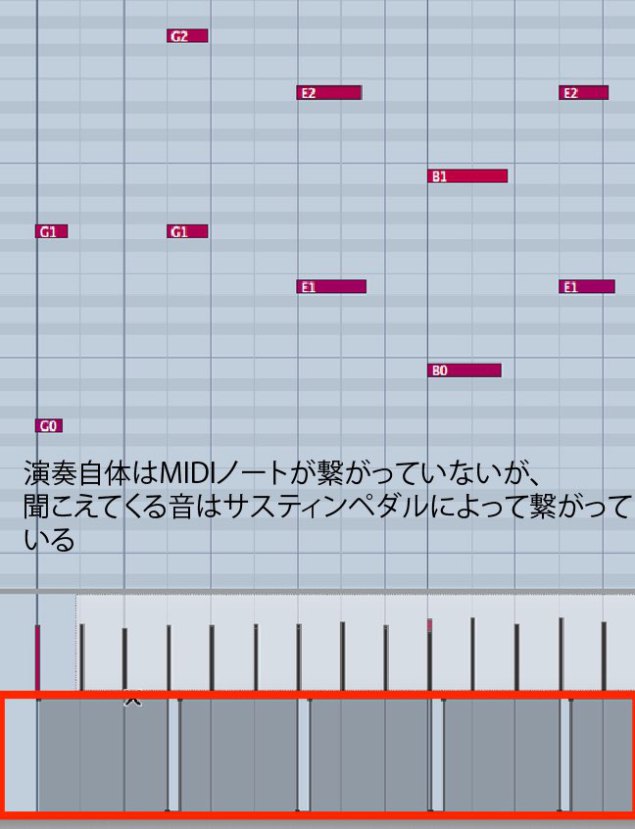
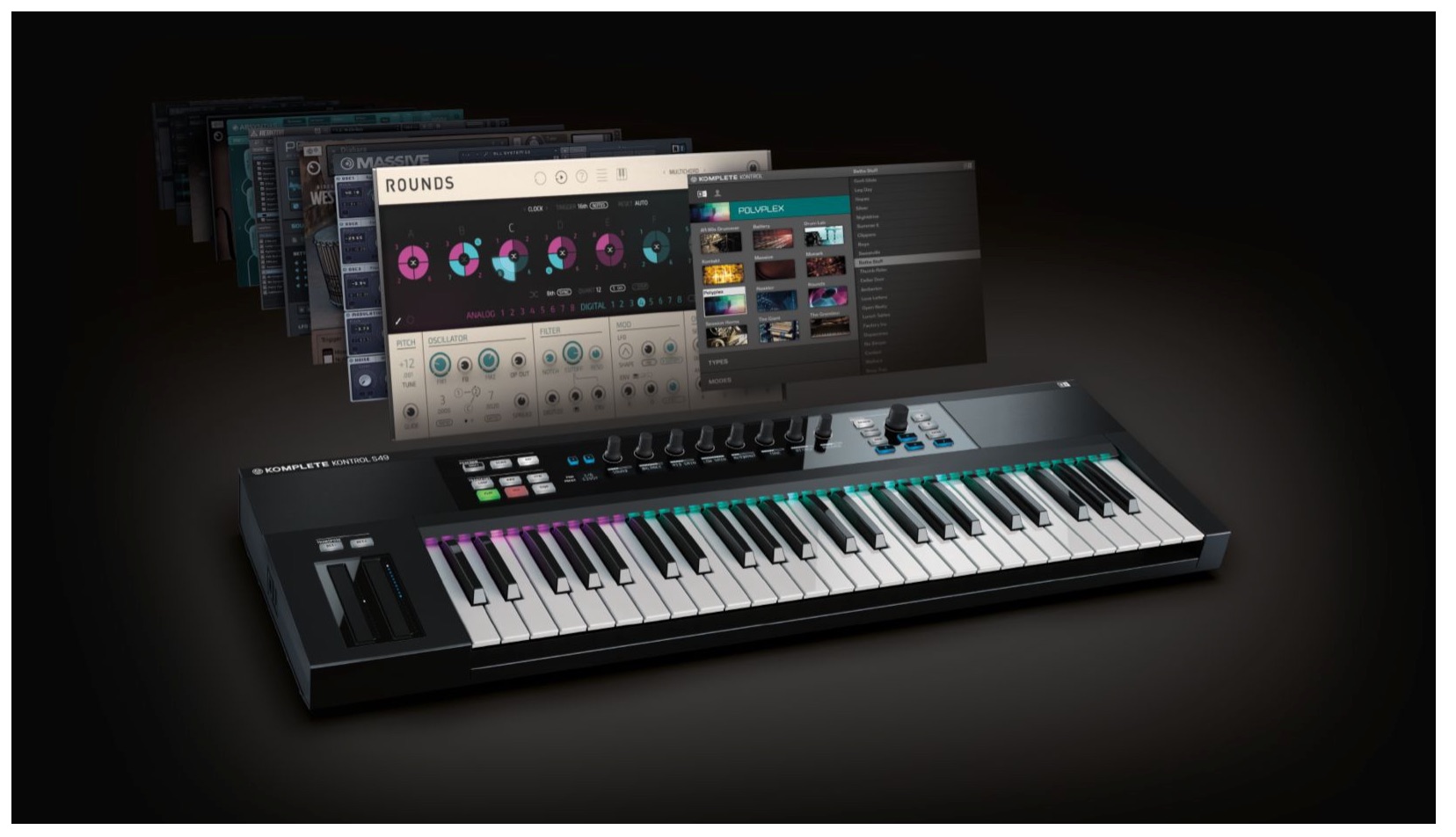
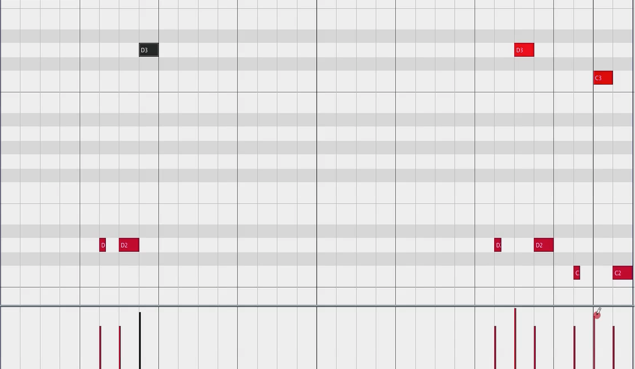
and switch between them using MIDI keyboard keys C0–B1.
Video highlights: Performance Control
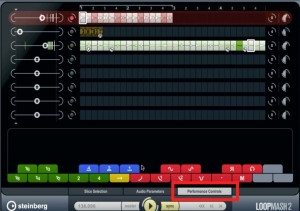
From the Performance Control tab,
you can apply effects to the whole pattern.
You can click the effect buttons,
or use MIDI keyboard keys C3–B4 to switch effects.
These effects can create dramatic changes.
Video highlights: Muting LoopMash
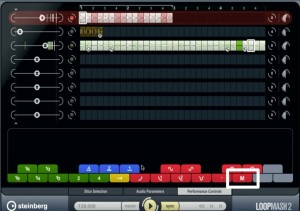
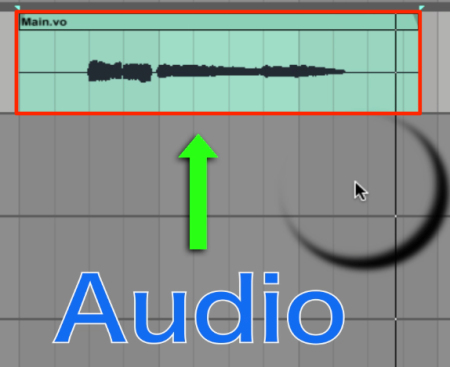
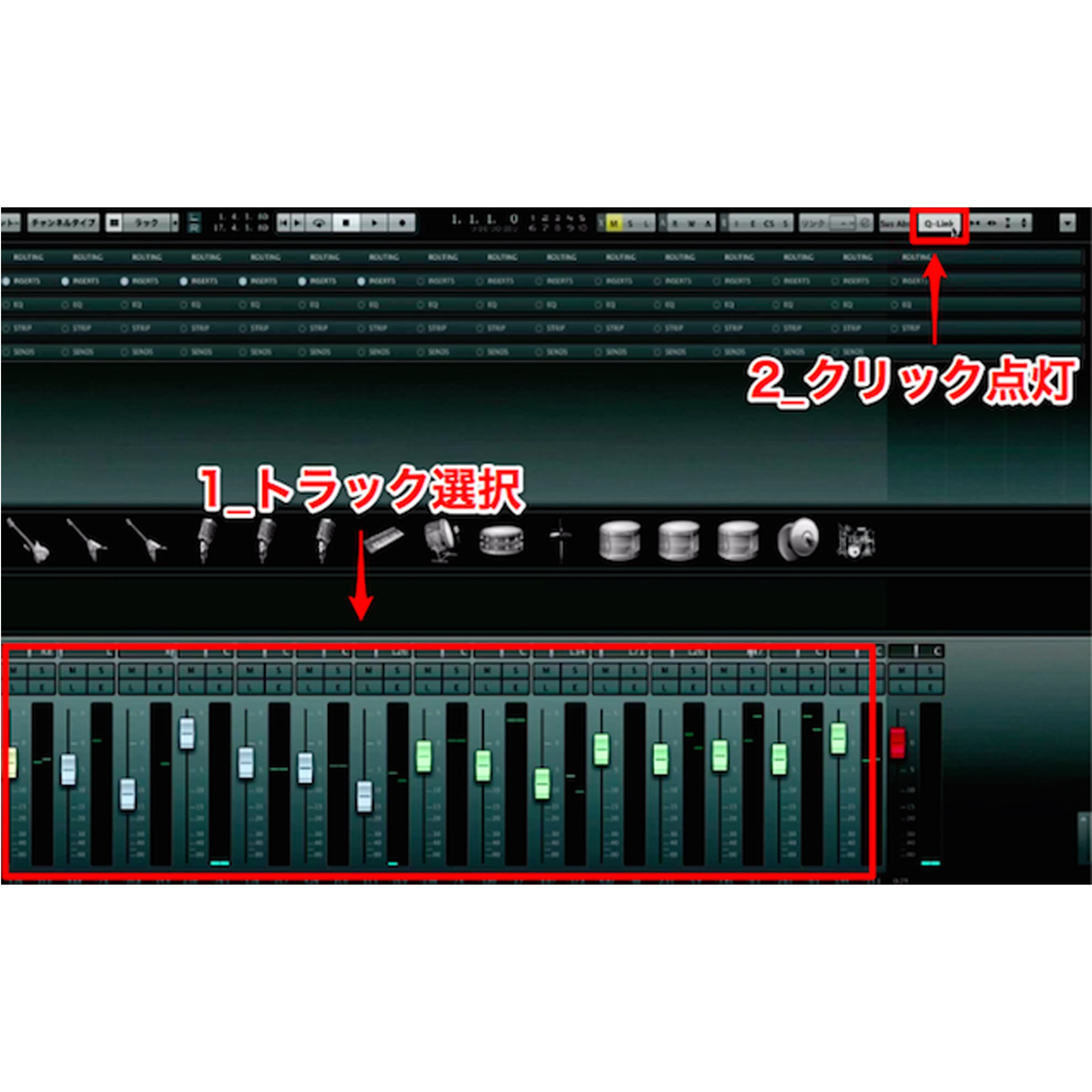
LoopMash automatically starts playing
when you start Cubase.
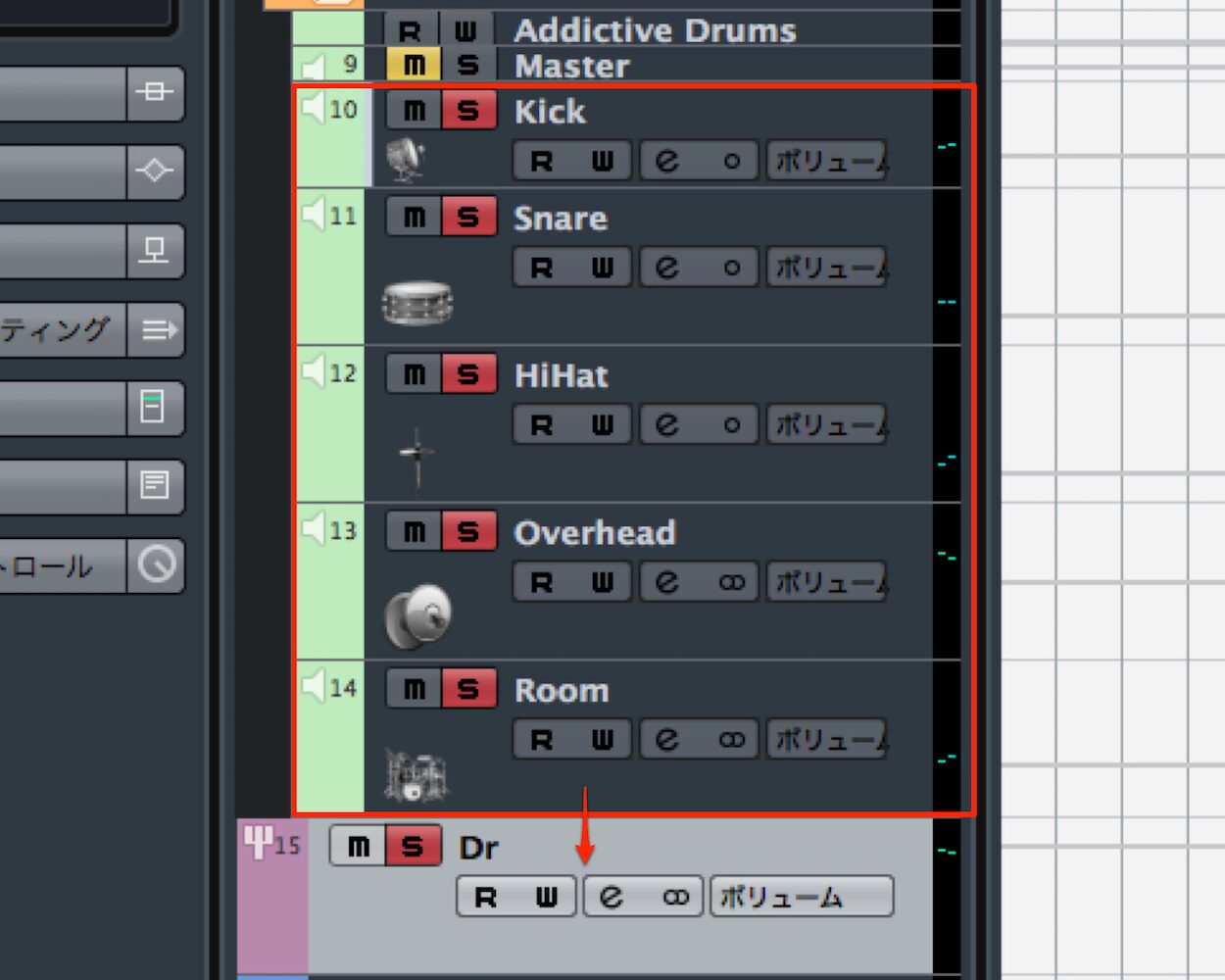
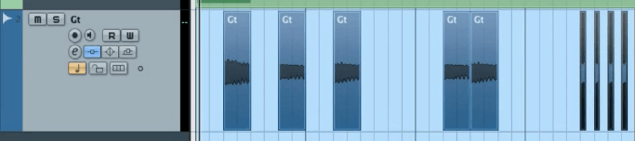
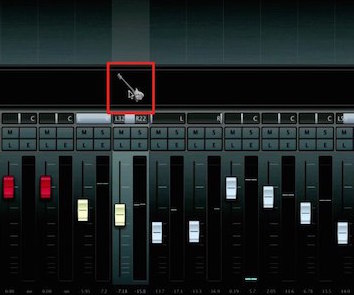
If there are sections where you do not want LoopMash to play,
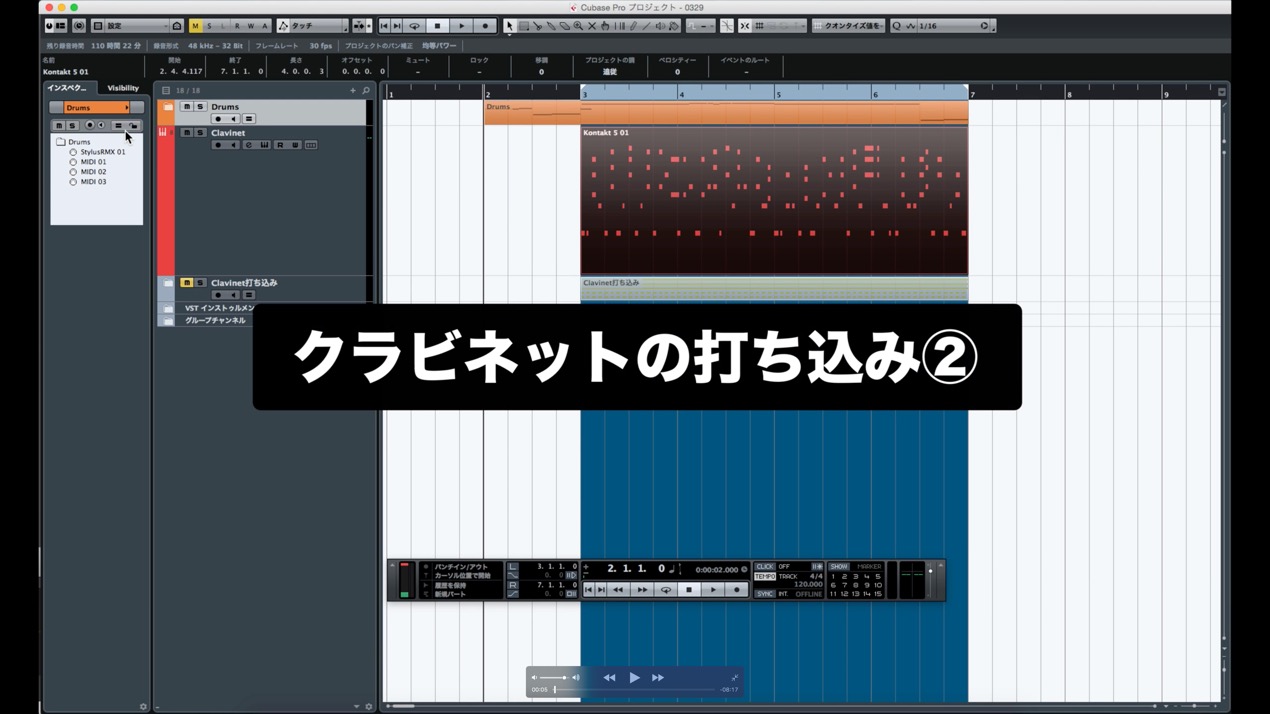
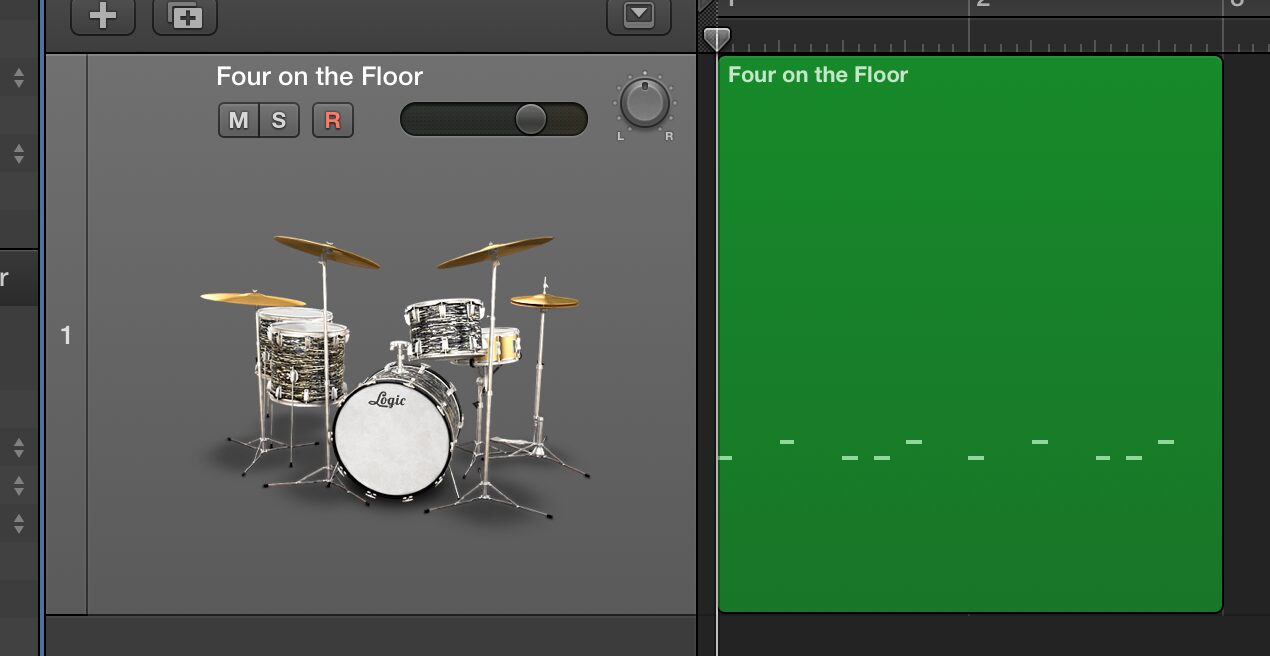
turn on M (Mute).
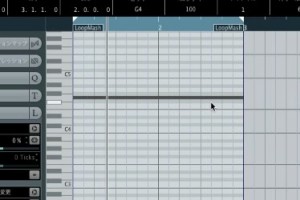
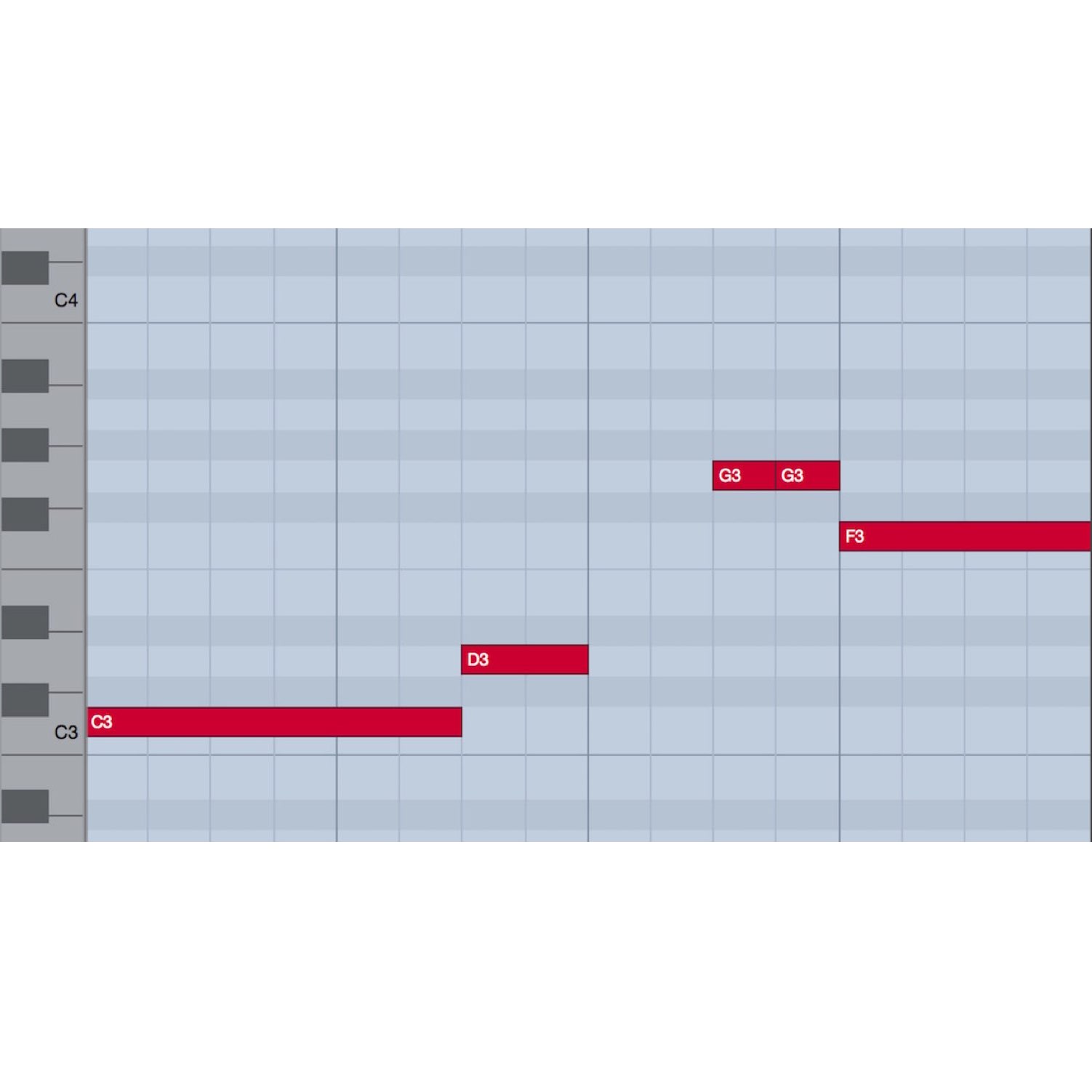
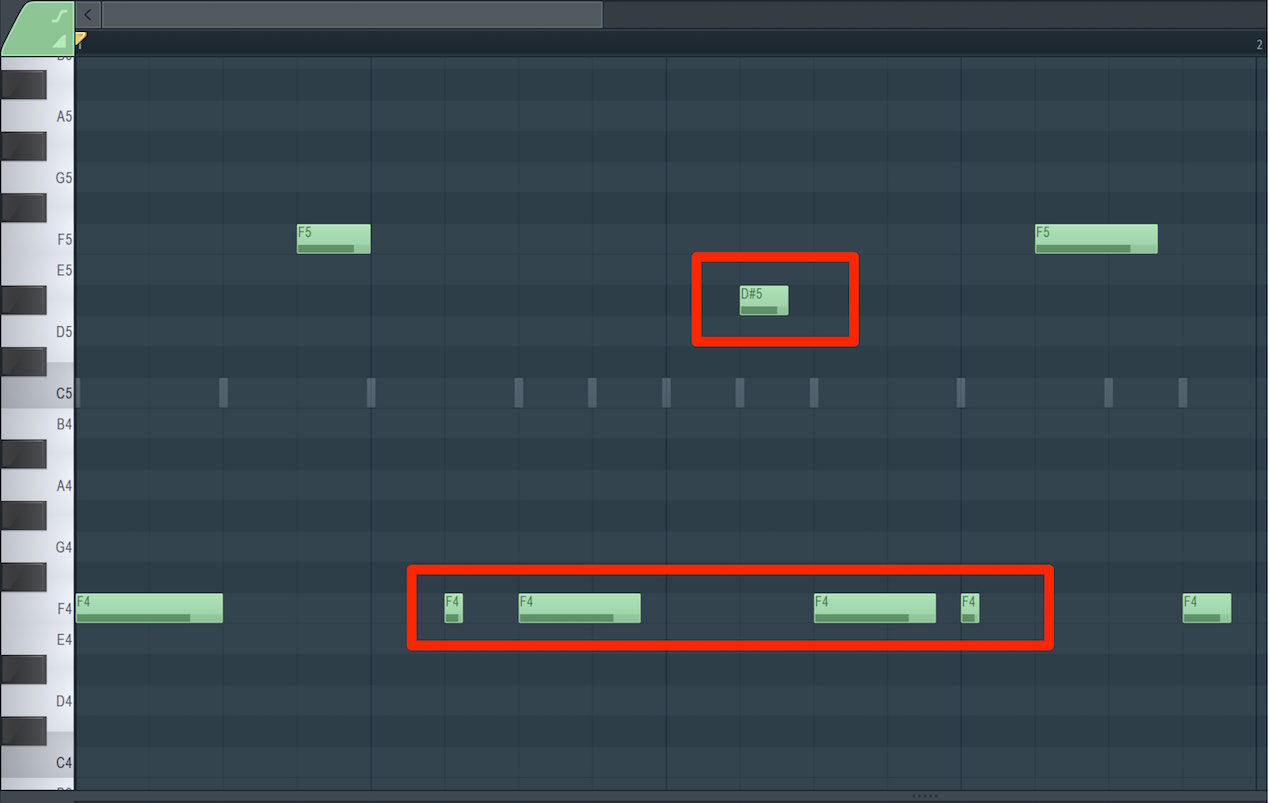
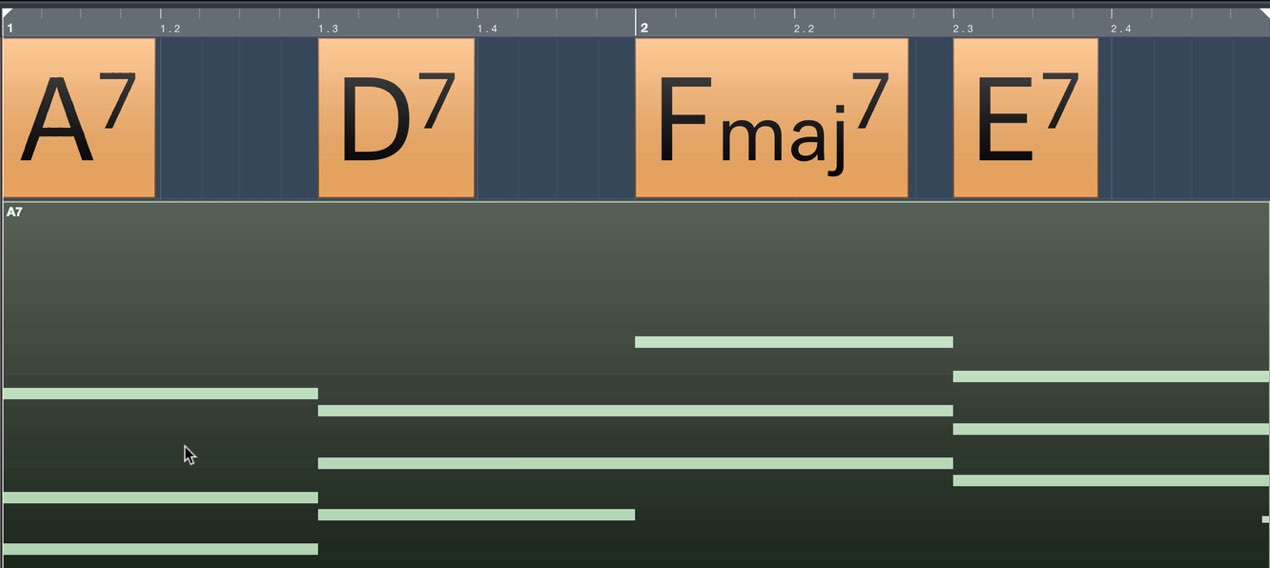
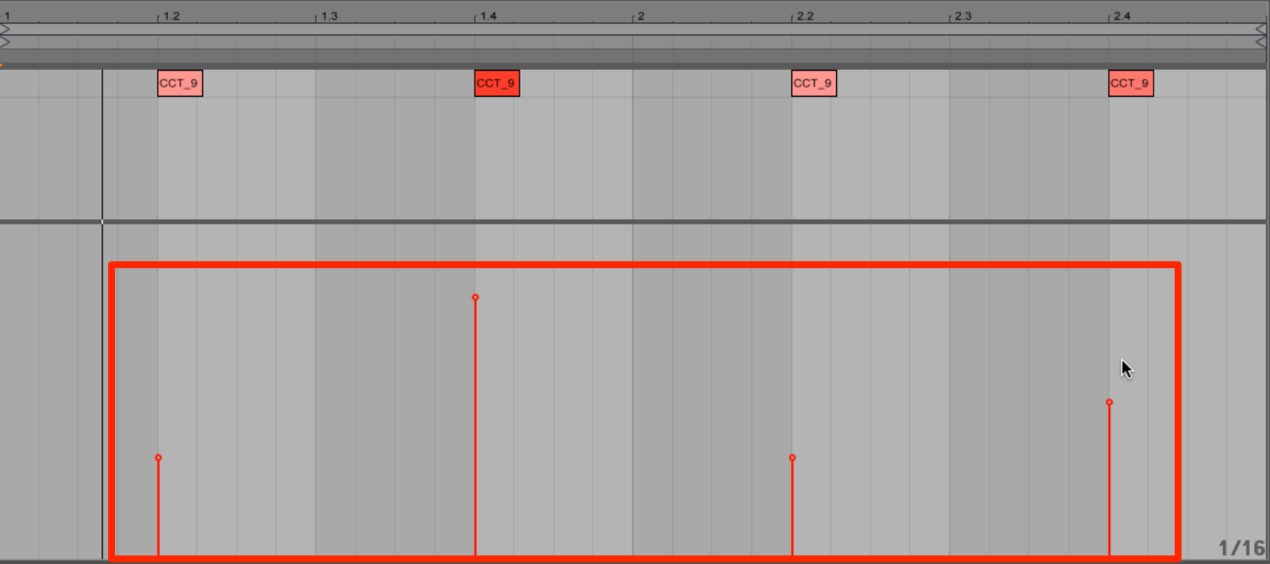
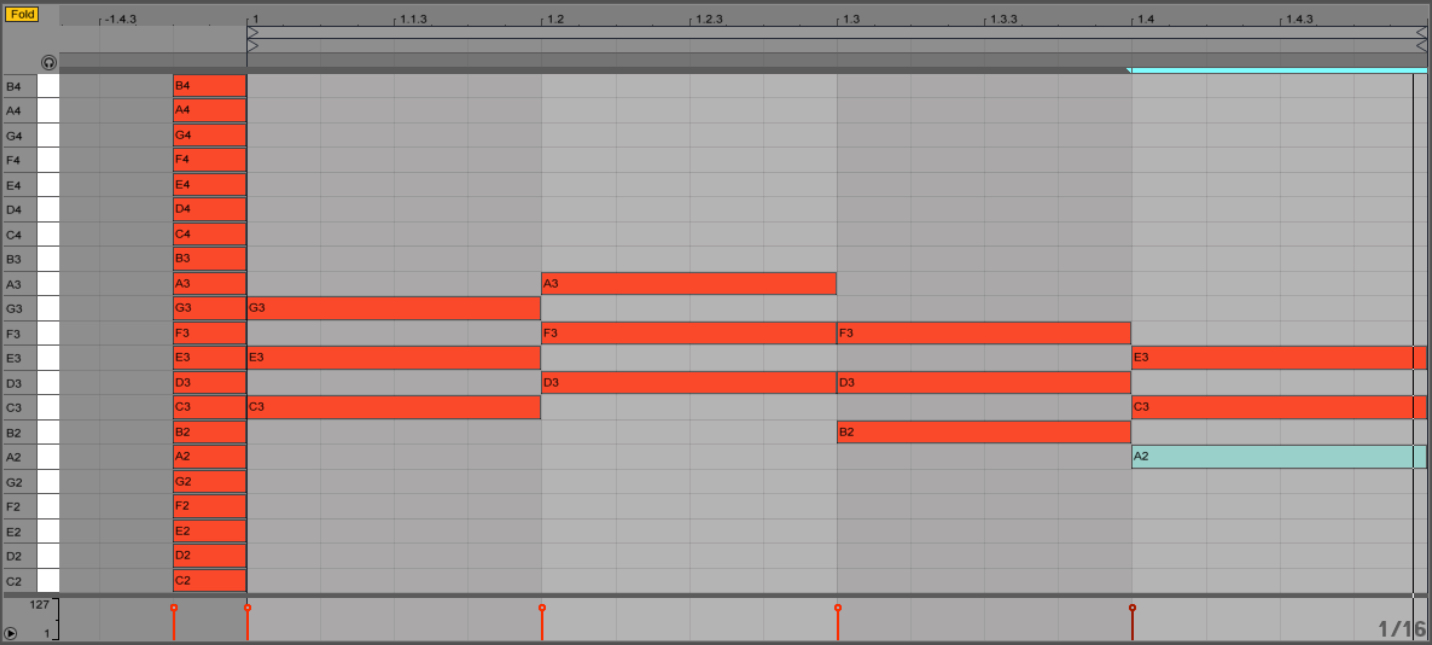
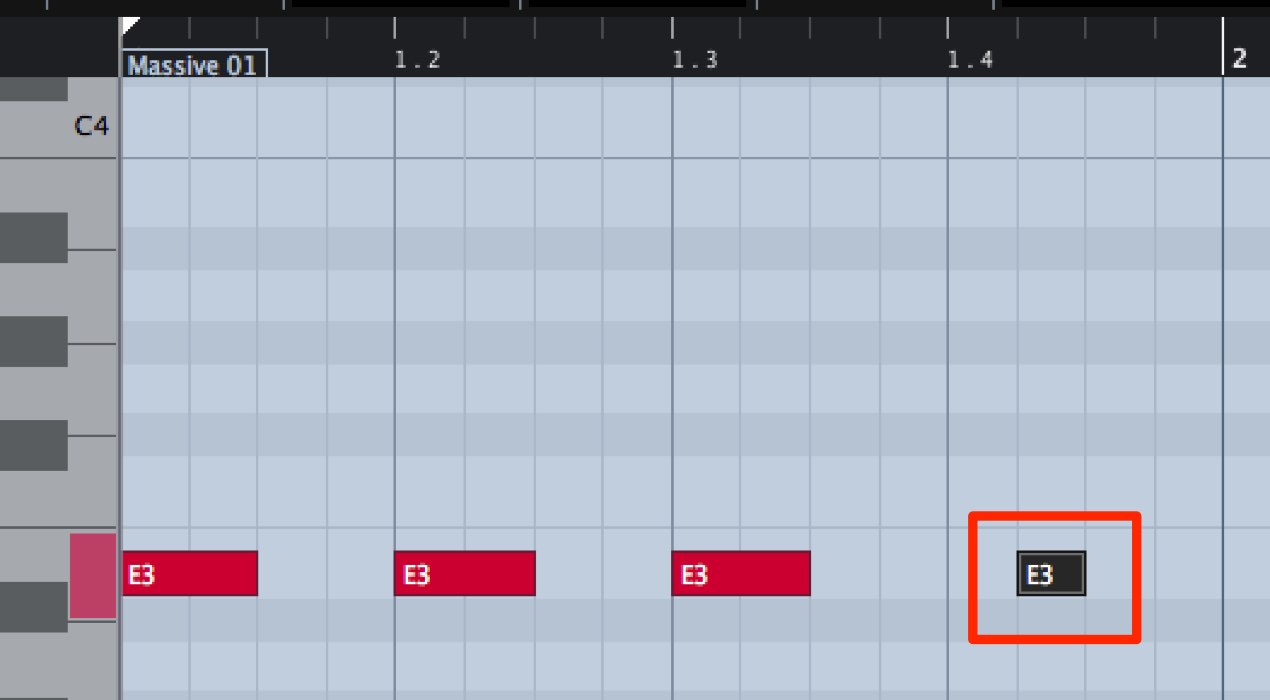
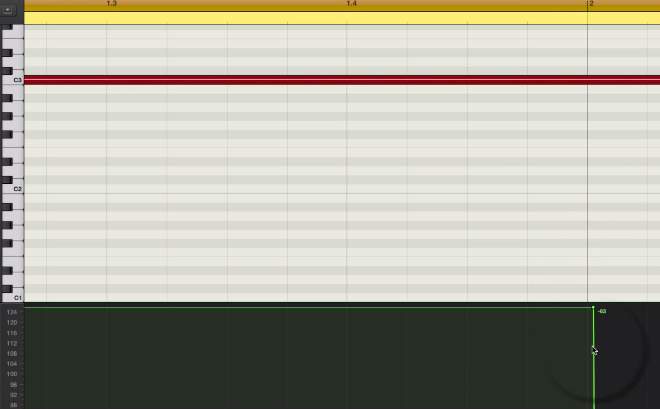
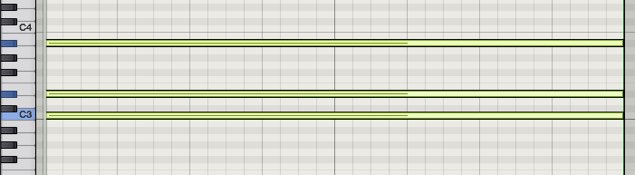
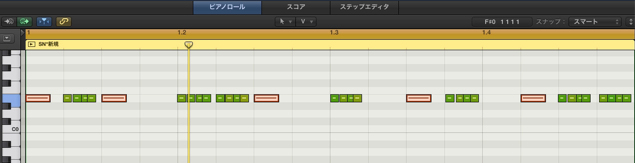
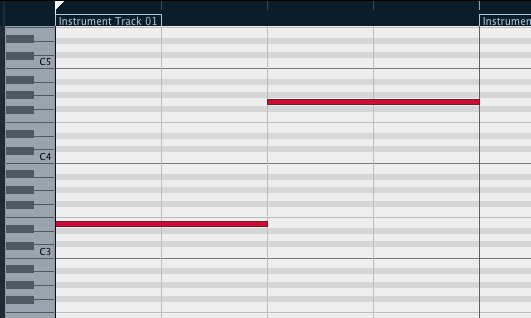
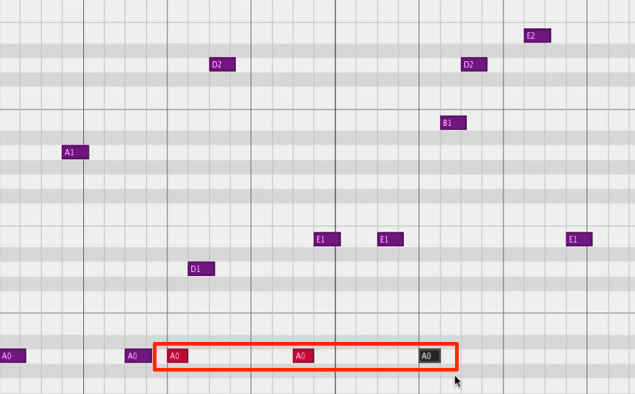
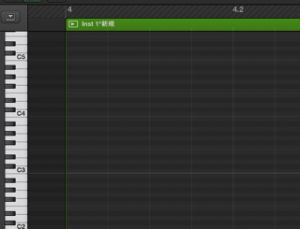
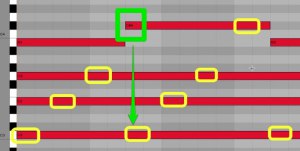
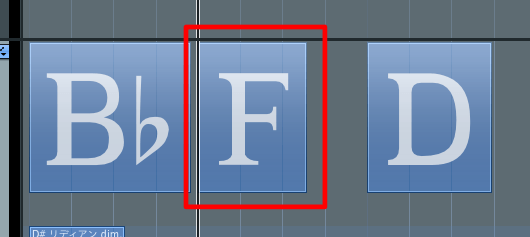
You can also enter a MIDI note at G4 for sections where LoopMash should be silent,
allowing it to play only during selected parts of the song.
LoopMash for iPhone and iPad

An iPhone and iPad app was also released. Steinberg ended distribution of LoopMash, LoopMash HD and LoopMash Free after January 8, 2018; current availability and compatibility should not be assumed.
http://itunes.apple.com/jp/app/loopmash/id419328379?mt=8
Frequently Asked Questions
Q1. How many patterns can I save in LoopMash?
LoopMash can store up to 24 patterns. Click the save button and assign a number, then switch between patterns using MIDI keyboard keys C0–B1.
Q2. How do I switch effects during a live performance?
Click an effect button on the Performance Control tab or press MIDI keyboard keys C3–B4 to switch effects immediately and apply dramatic changes.
Q3. How can I stop LoopMash playing during specific sections of a song?
Turn on the Mute (M) button, or enter a G4 MIDI note in sections where LoopMash should be silent, so that it plays only where needed.
Q4. Can I use LoopMash on a smartphone?
An iPhone and iPad version was released, but Steinberg discontinued the LoopMash iOS apps in 2018. Do not assume they are still available or compatible with current devices.
NEW ARTICLES
Latest English Articles