
New Sonic Arts Vice is a music production plug-in that detects transients in audio loops and slices them. Load a sample CD loop or other audio loop and it automatically creates slice points and maps the slices to a MIDI keyboard. Sensitivity adjustment, per-slice gain, pan and effects, pitch and reverse controls, MIDI export, and multiple outputs provide flexible ways to create new beats and phrases from audio loops. Its intuitive interface makes it useful to beginners and advanced users alike.
A slicer that detects and reconstructs audio loops
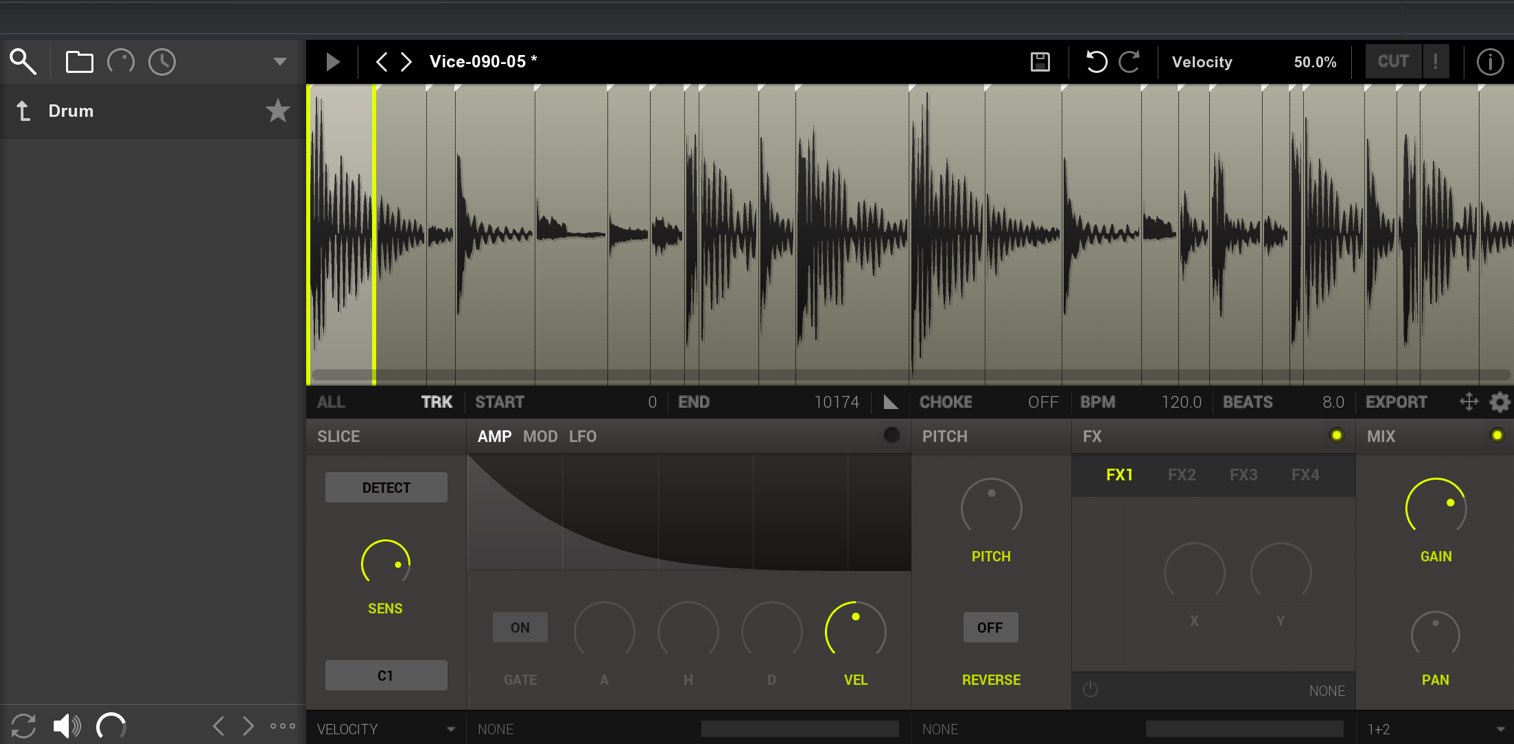
Vice detects attacks in audio loops, including material from sample CDs, and slices them.
Each slice is immediately mapped to a MIDI keyboard, so you can build new beats and phrases.
Vice also lets you edit those slices flexibly. Its streamlined interface makes sound design efficient and enjoyable.
How to use Vice
Loading presets and audio files
Vice comes with several audio loop presets.
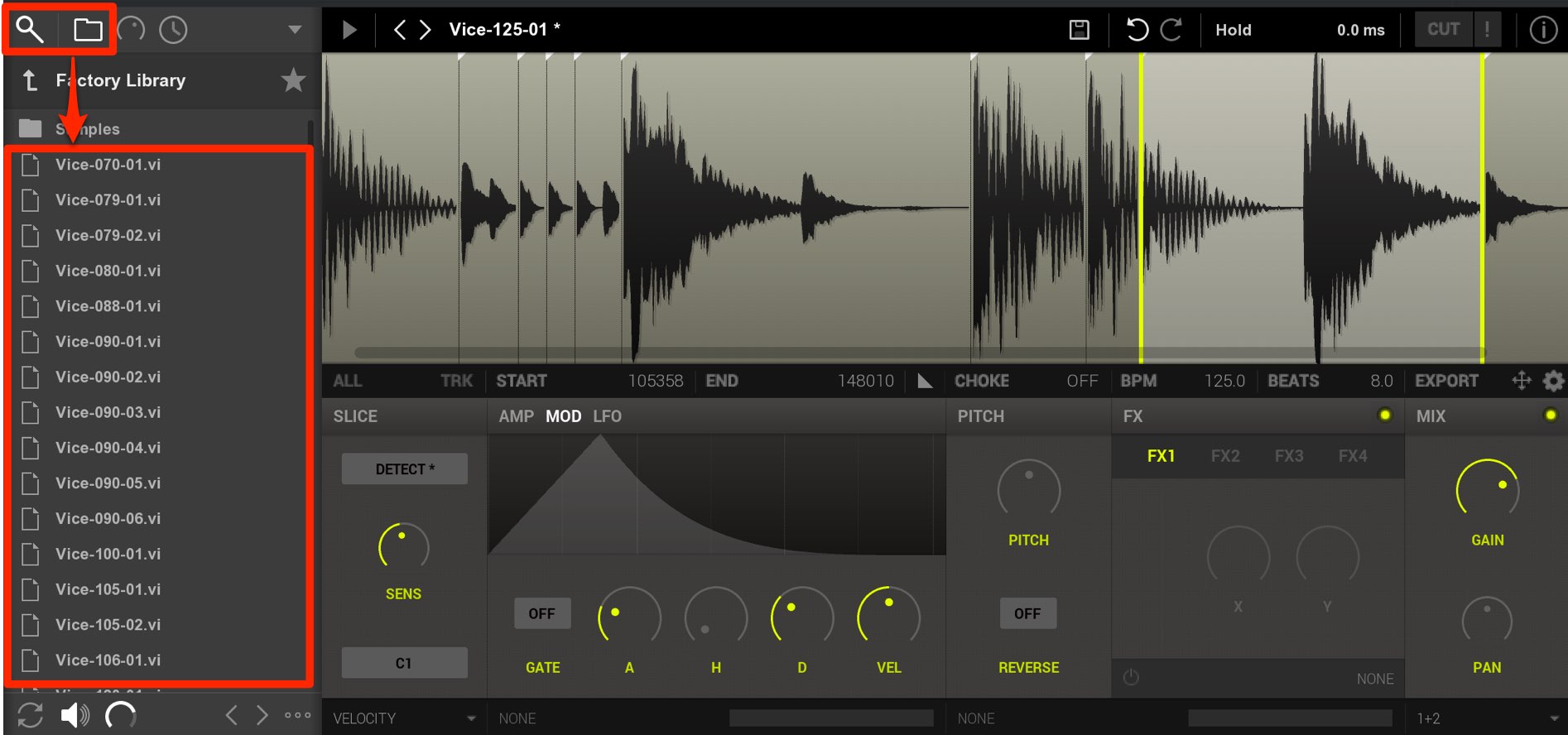
Click the browser icon and navigate to the folder to find the presets.
Double-click one to load it.
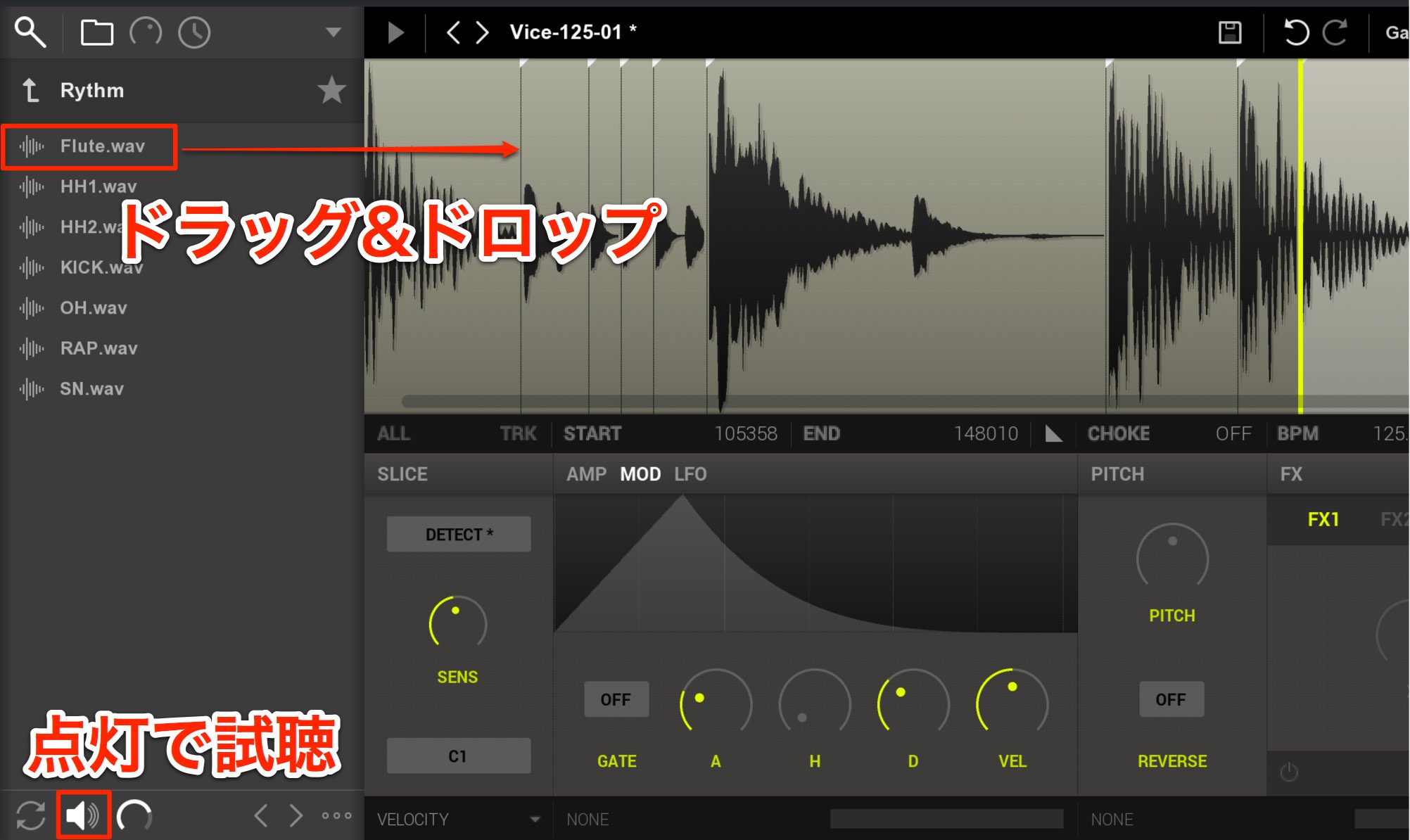
You can also load your own audio loops in AIFF or WAV format.
The browser can access your computer’s drive, so navigate to the folder containing your loops.
When the audition icon below is enabled, you can preview a loop with one click.
This is useful for finding a loop quickly when you have a large collection.
When you find a sound you like, double-click it or drag and drop it to load it.
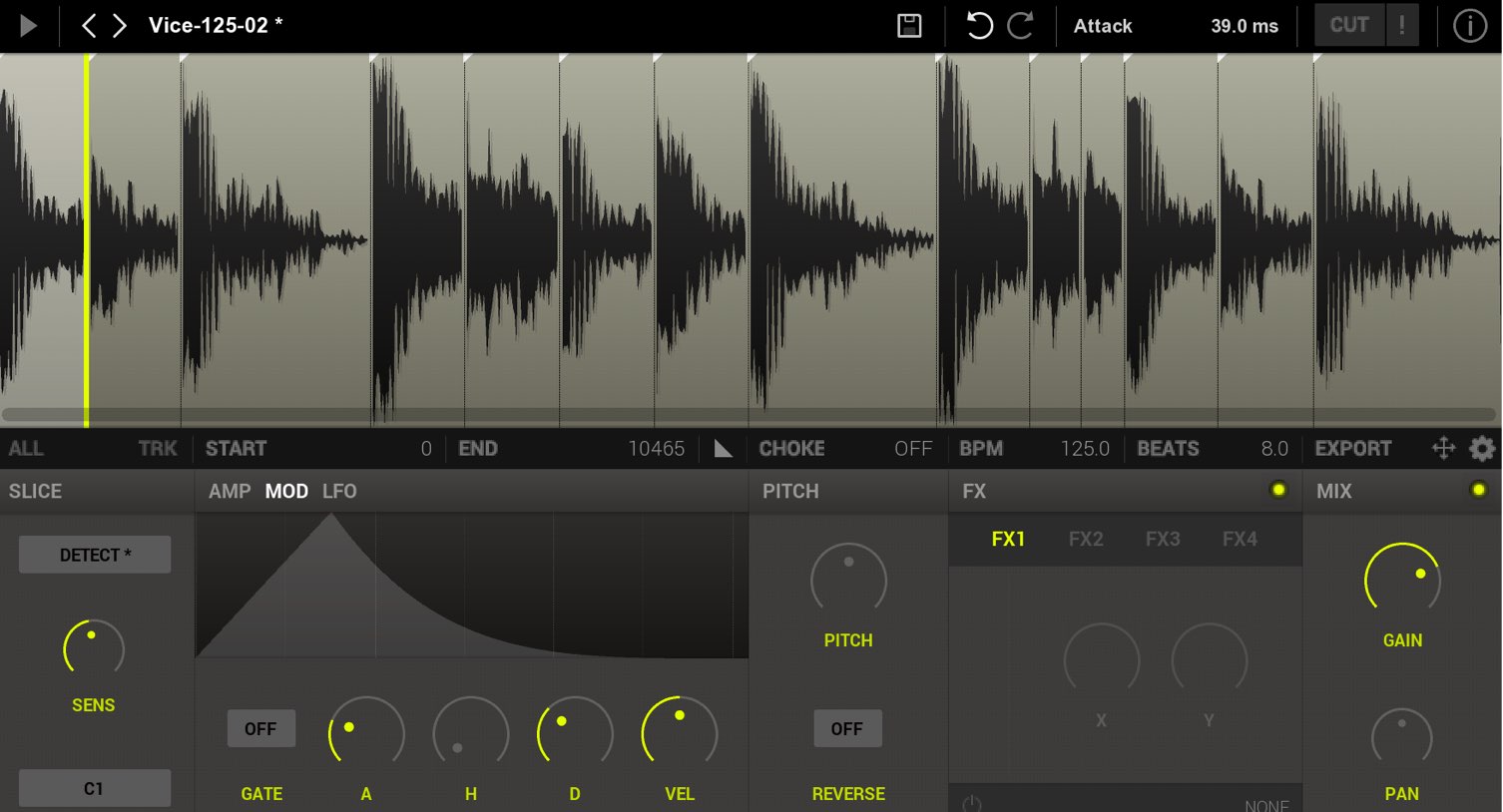
Vice automatically analyzes the loaded audio and creates slice points.
The individual slices are now mapped to the MIDI keyboard.
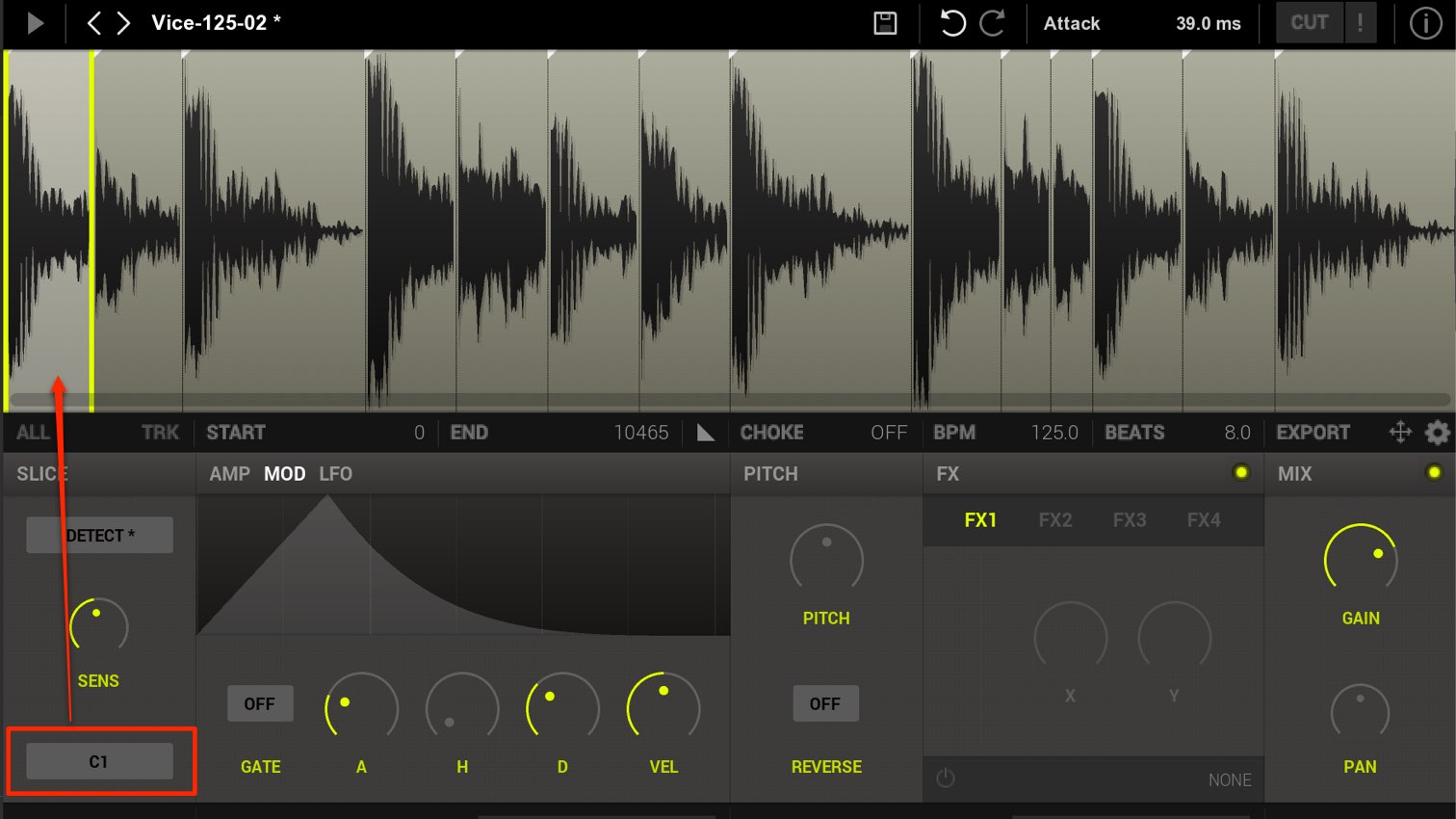
The default display is C1.
This means the first slice is assigned to C1, with subsequent slices placed one semitone apart in order.
For example, if you change this to G3, the first slice is assigned to G3 and the next to G♯3.
You can now program a new pattern using the loop’s slices as a kit.
Fine-tuning and optimizing slices
Depending on the source, attack detection may miss a transient or produce less-than-ideal results.
You can adjust detection sensitivity and customize the slice points yourself.
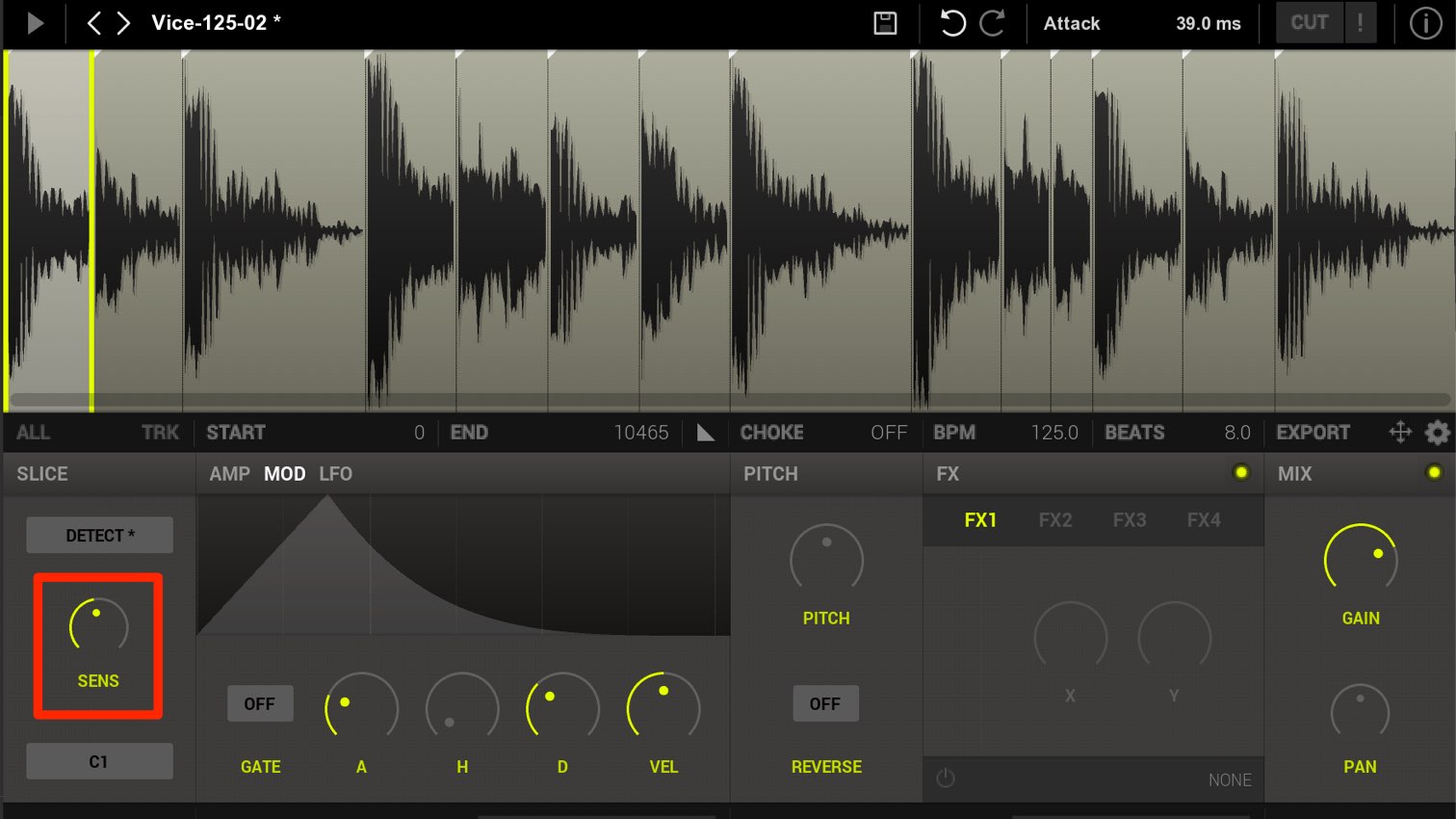
- Increasing the SENS knob makes attack detection more sensitive.
Raise it when attacks are not being detected as you expect. - Conversely, lowering SENS makes attack detection less sensitive.
Lower it if detection is too detailed and creates too many slices.
You can also edit slice points manually.
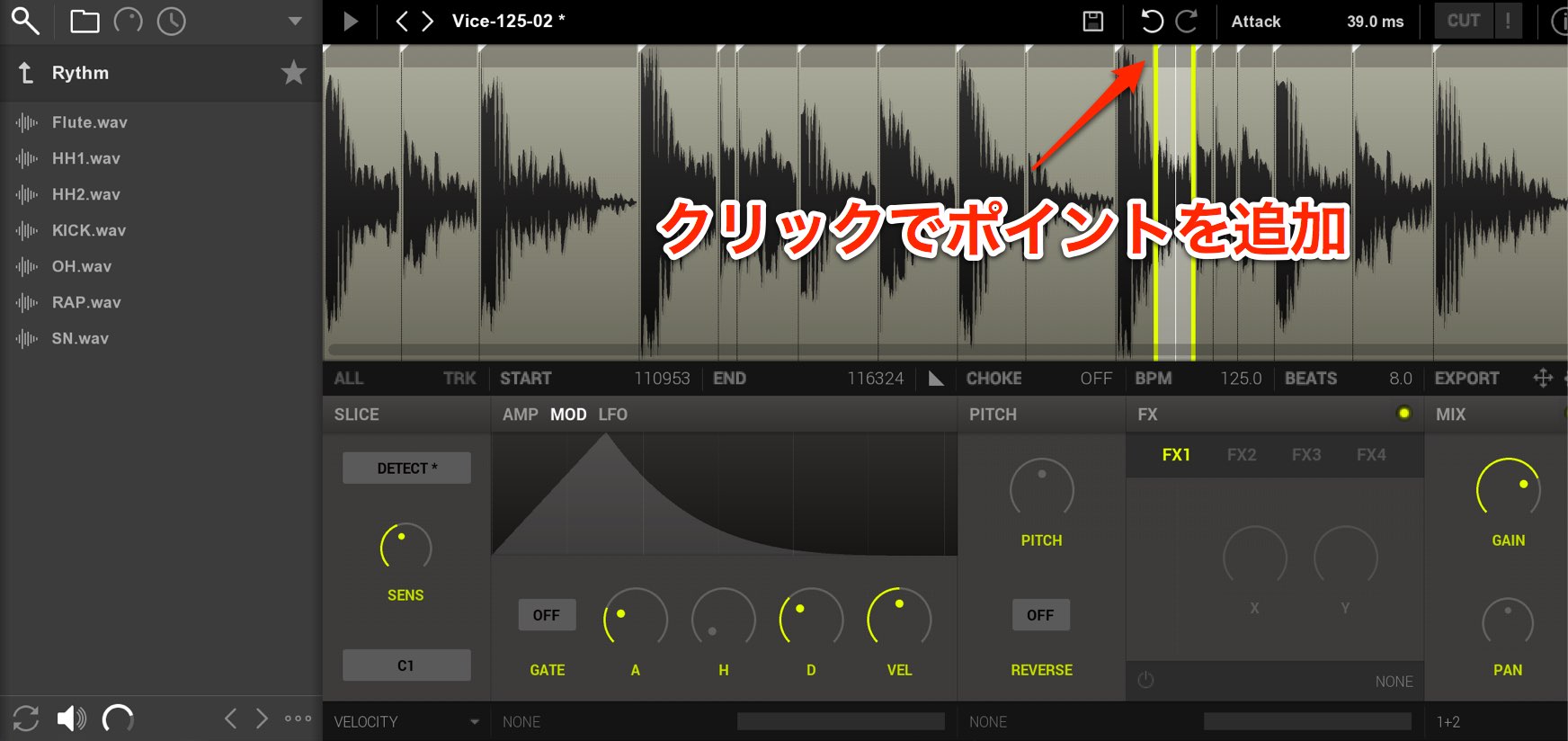
Click the top of the waveform to add a slice point.
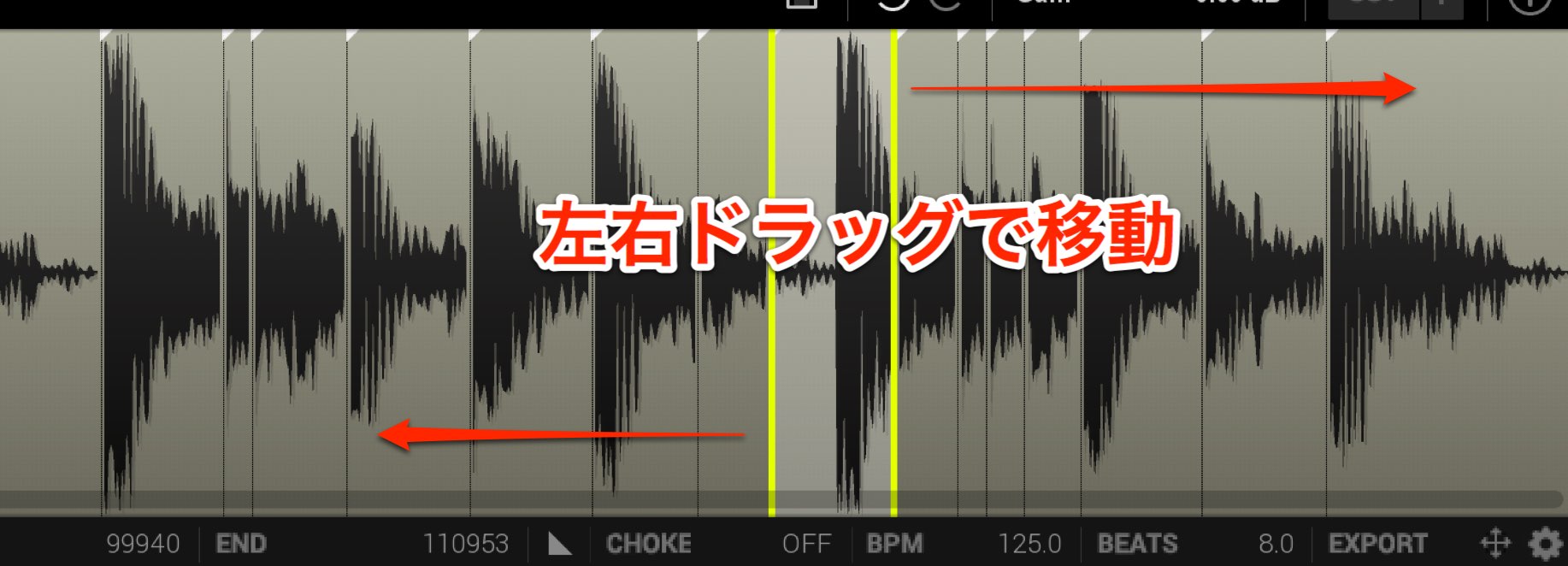
Drag a slice point left or right to place it at the desired attack.
Right-click a slice point to delete it.
Zooming the editing display
You can change the waveform zoom level to suit the task.
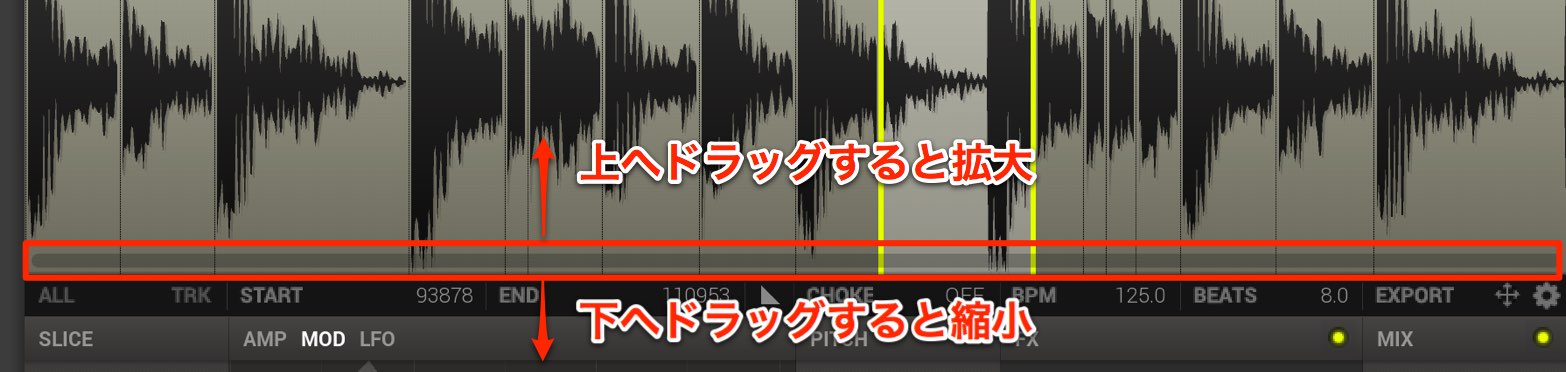
Move the cursor below the waveform until it becomes a magnifying-glass icon.
Drag upward to zoom in or downward to zoom out.
Editing individual slices
You can make detailed edits to the selected slice.
The parameters are straightforward, making sound adjustments intuitive.
Displaying slice parameters
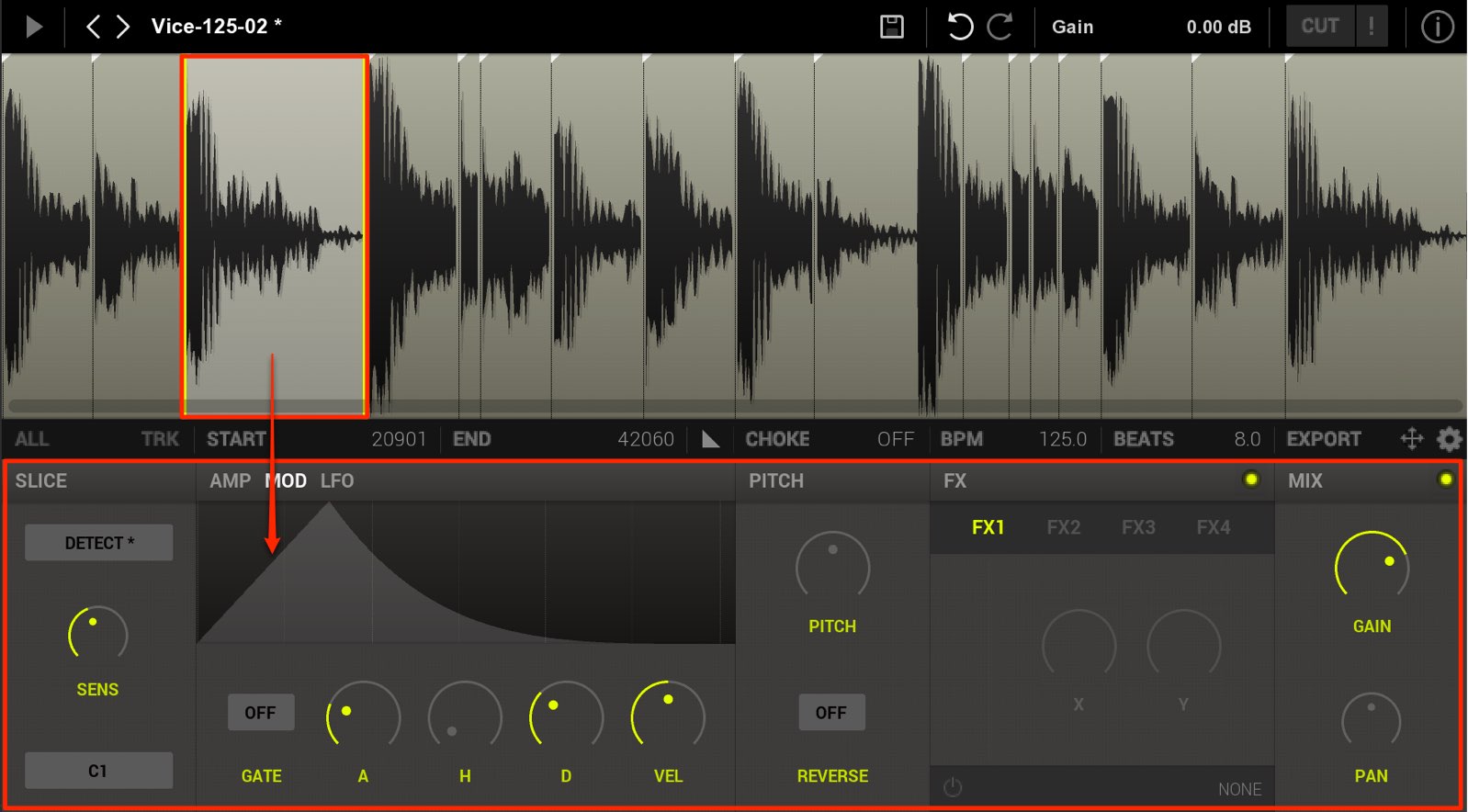
Click a slice to display its information below and select it for editing.
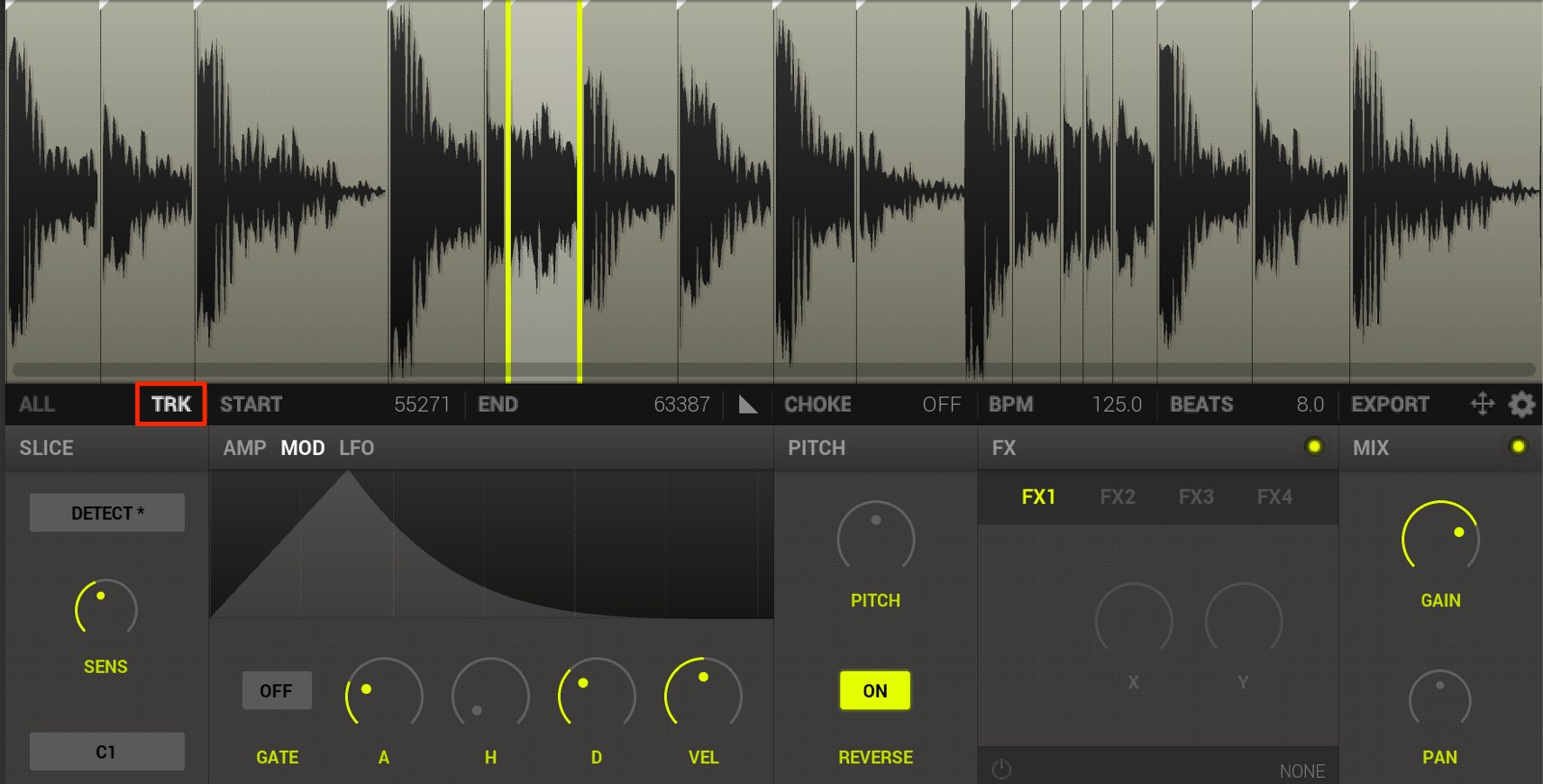
Enable TRK to automatically select the slice assigned to the MIDI note played from your keyboard or DAW.
This is especially useful when you find a slice on the MIDI keyboard and then want to edit it.
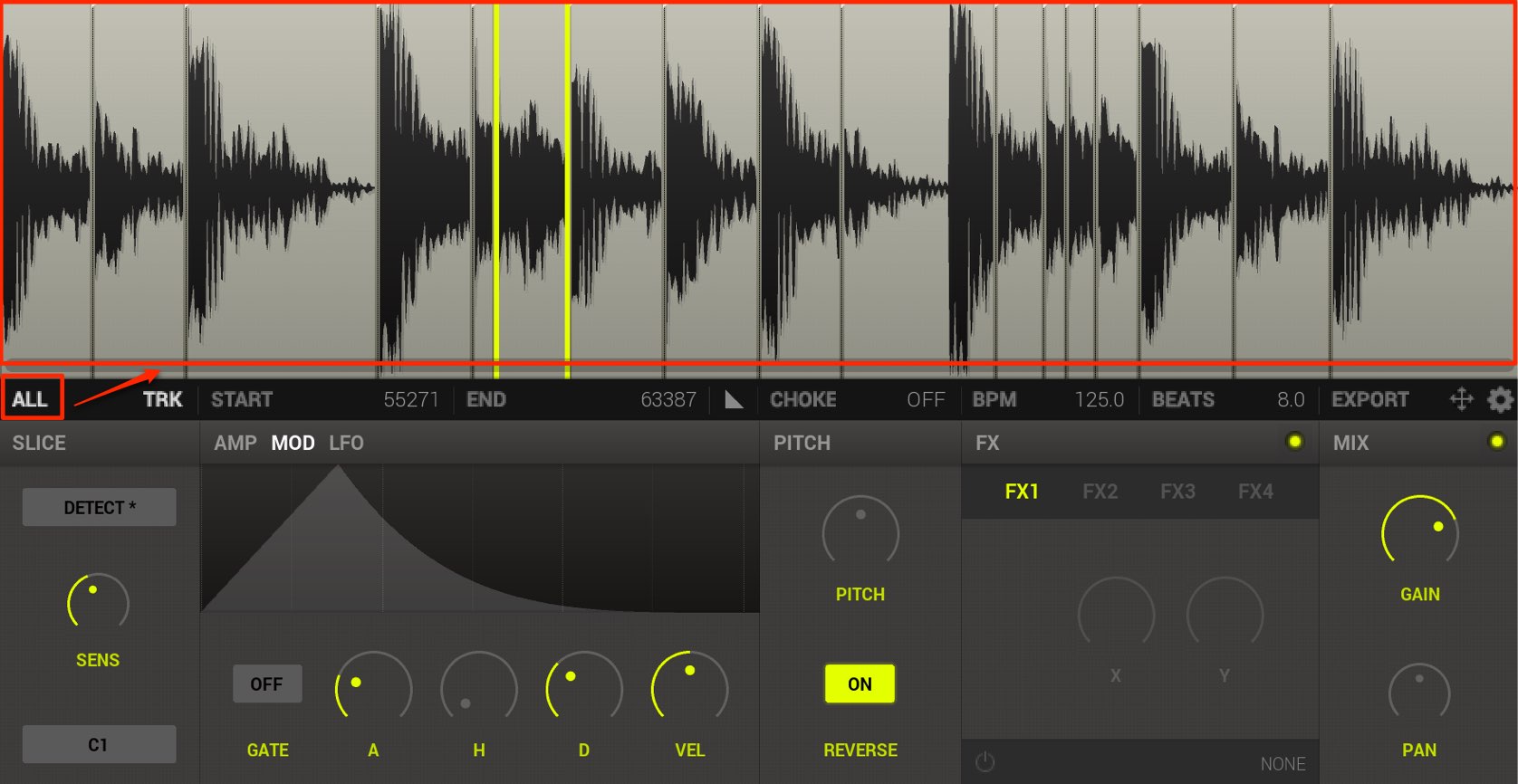
Enable ALL before changing a parameter to apply the same change to every slice.
Volume and pan
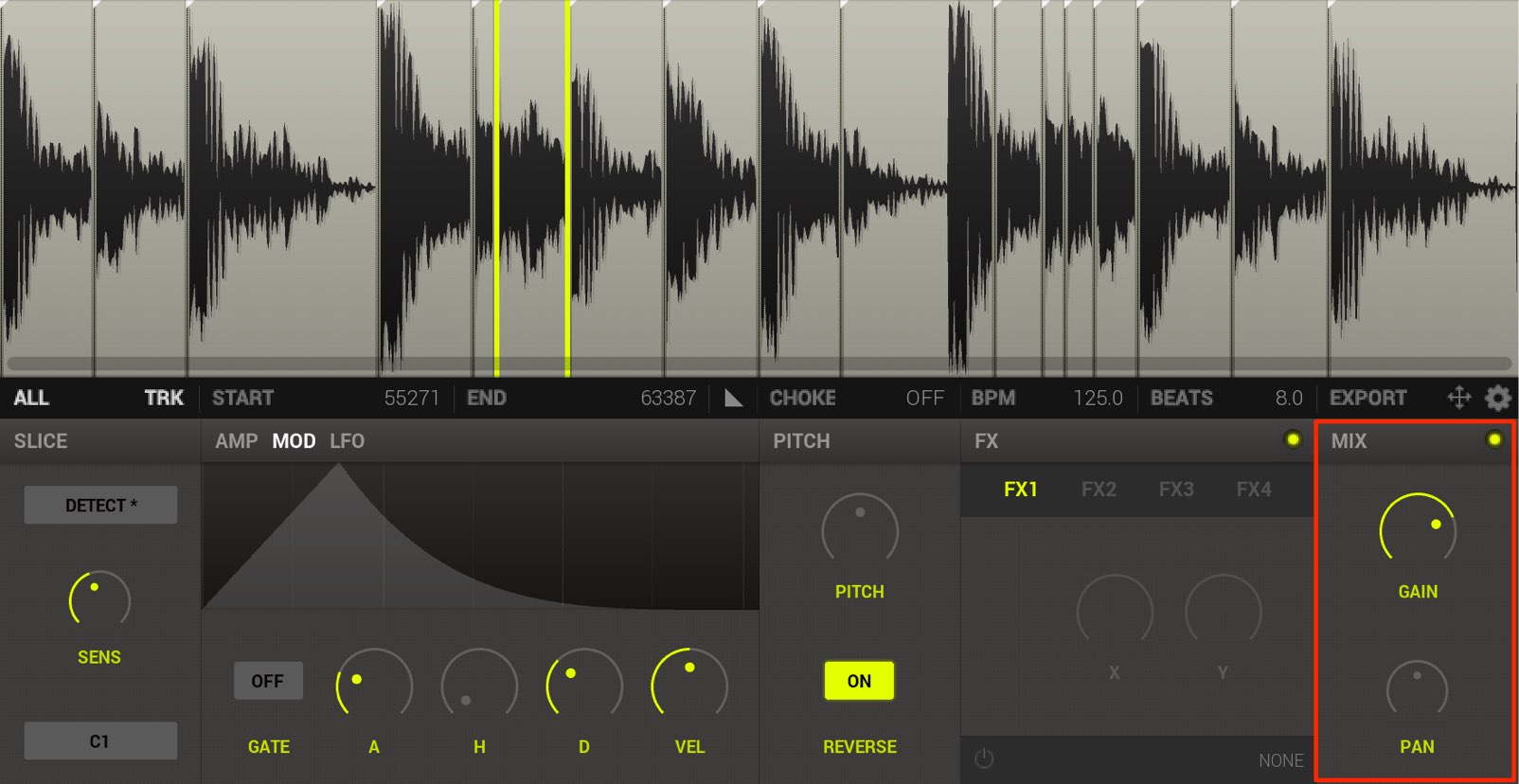
- GAIN: Adjust each slice’s level.
- PAN: Adjust each slice’s stereo position.
Effects
You can apply up to four effects, from FX1 to FX4.
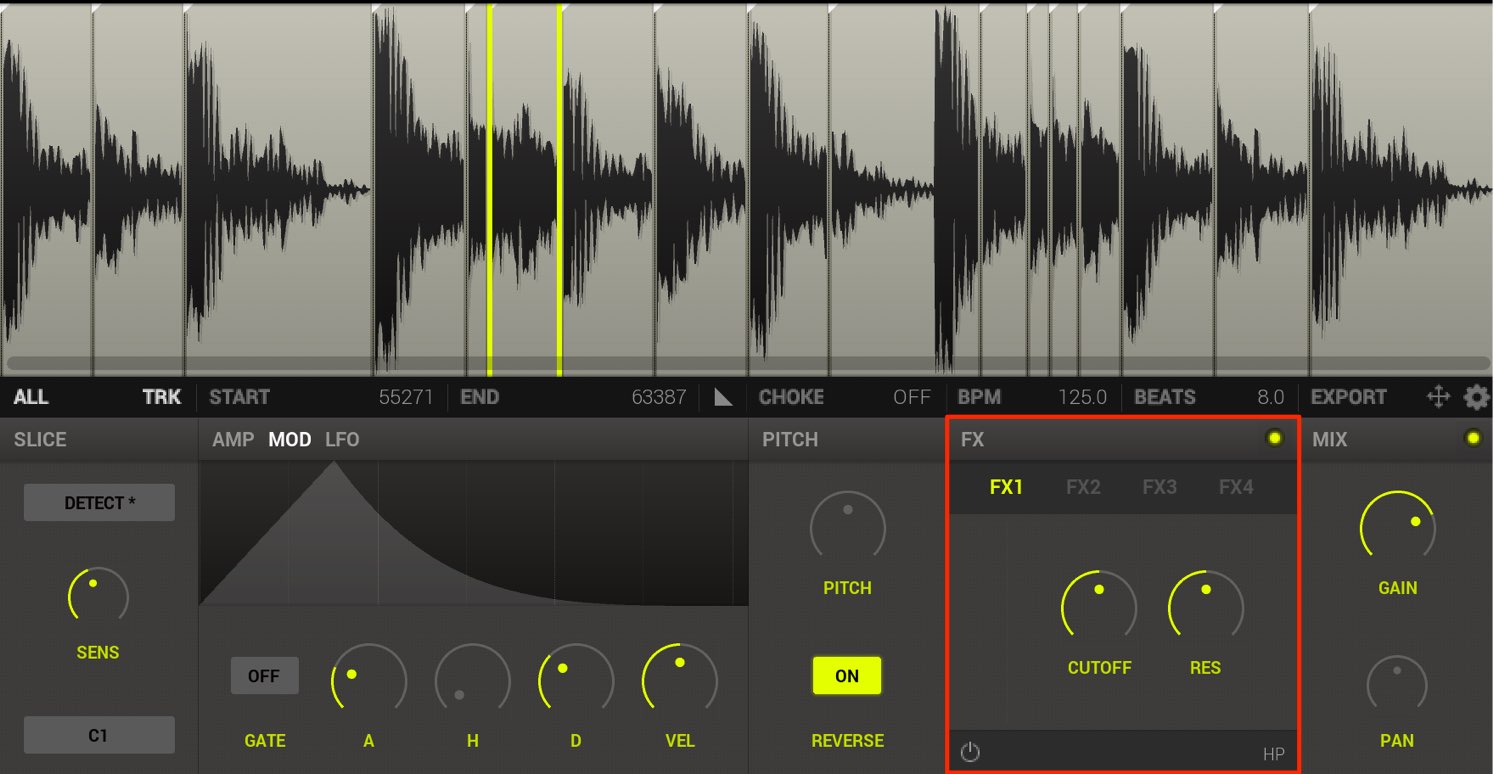
Select the desired effect from the lower section.
The effects are simply designed and easy to use.
Pitch and reverse
Adjust pitch to substantially change the character of the kit.
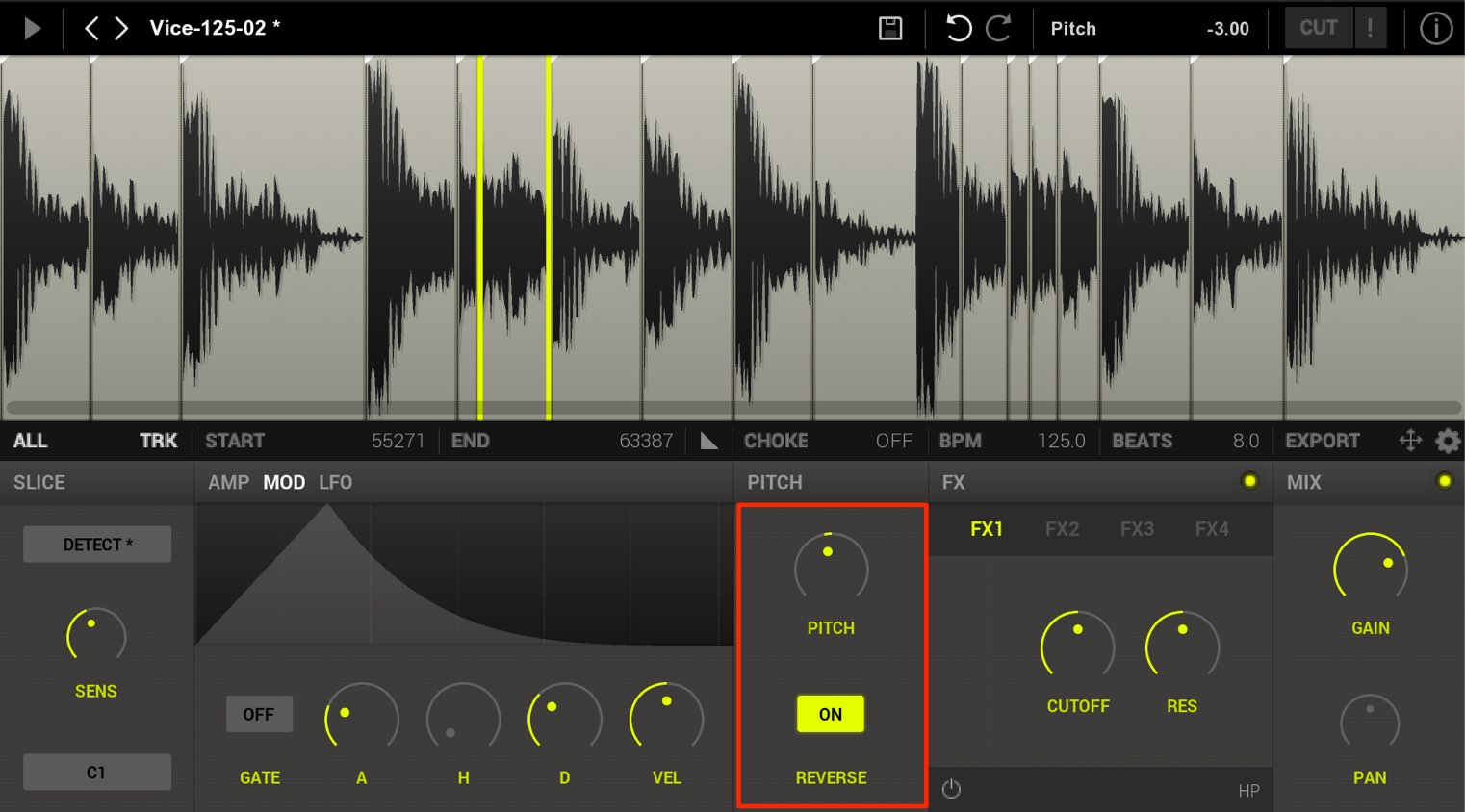
Enable REVERSE to play the slice backward.
This can be very useful for accents in a beat.
Exporting slices as MIDI
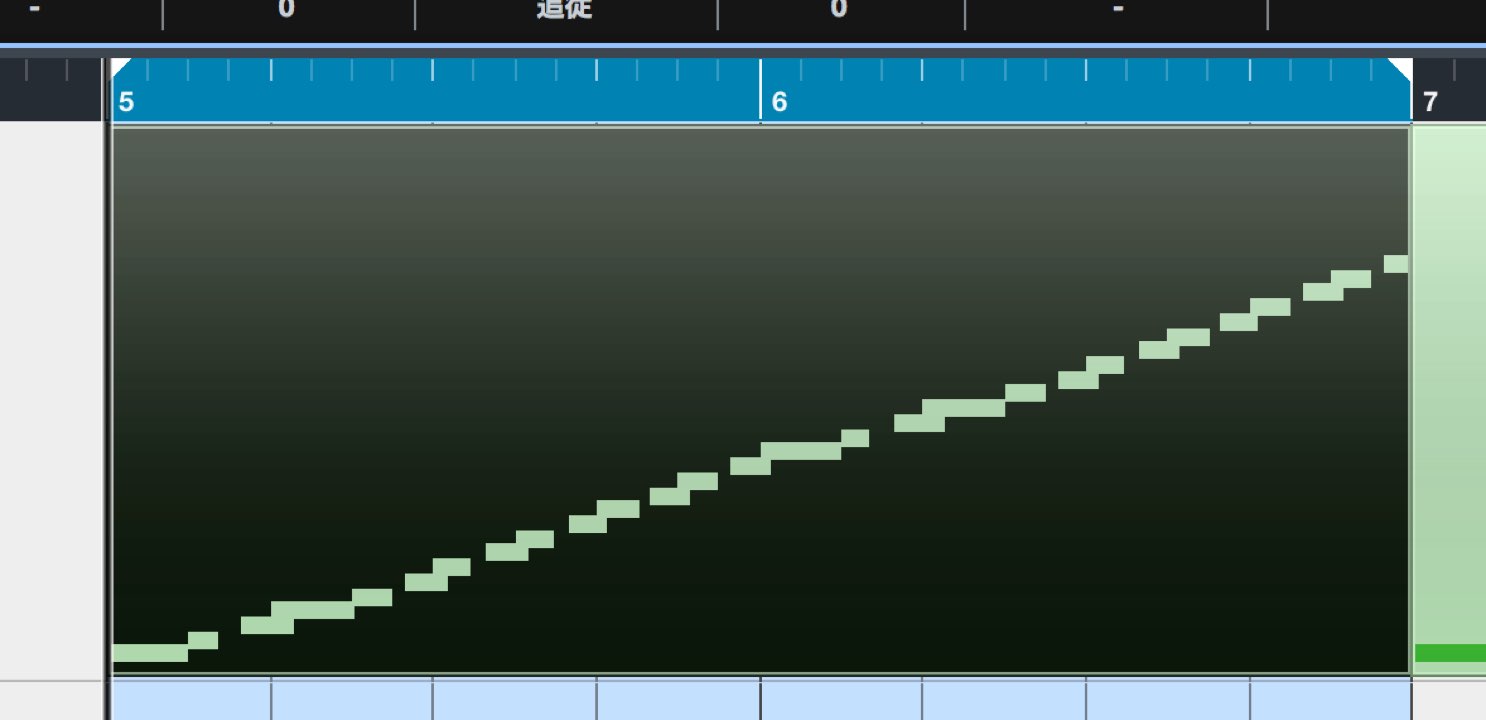
You can export the edited slices as a MIDI file.
- Turn the audio loop into a MIDI sequence so it follows the song tempo.
- Use groove quantization to match the loop’s feel to other tracks.
These are just two situations where this feature can be useful.
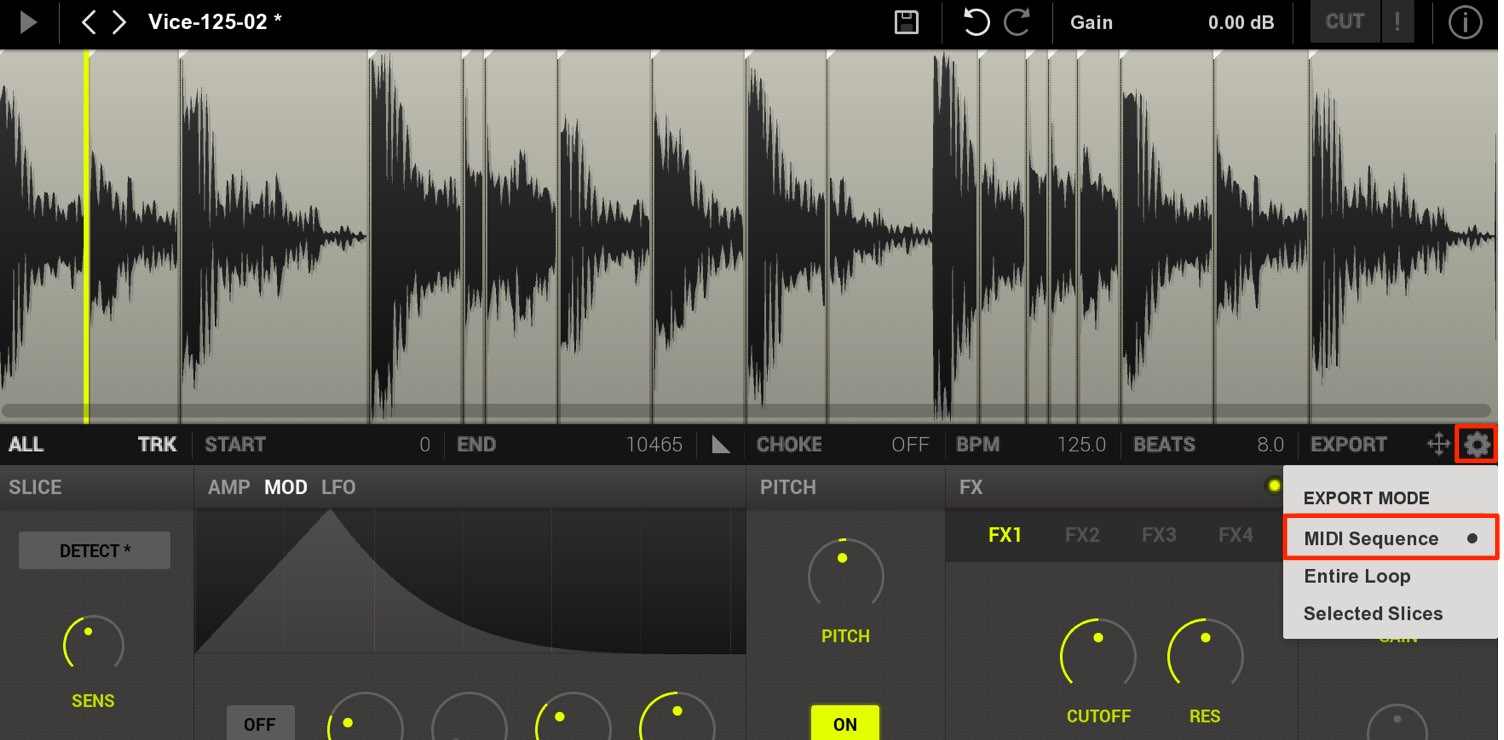
Select MIDI Sequence from the settings to the right of EXPORT.
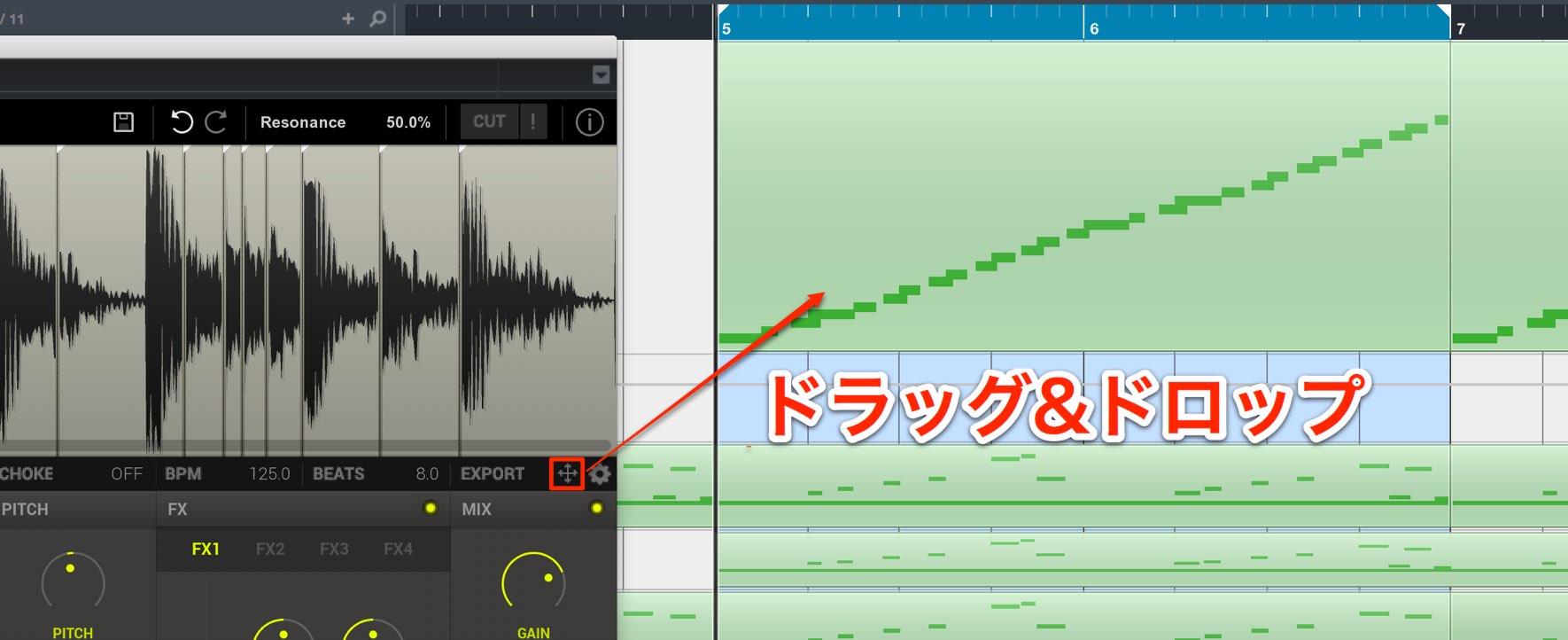
Drag and drop the cross-shaped icon to the desired location.
The loop can now be played in your DAW.
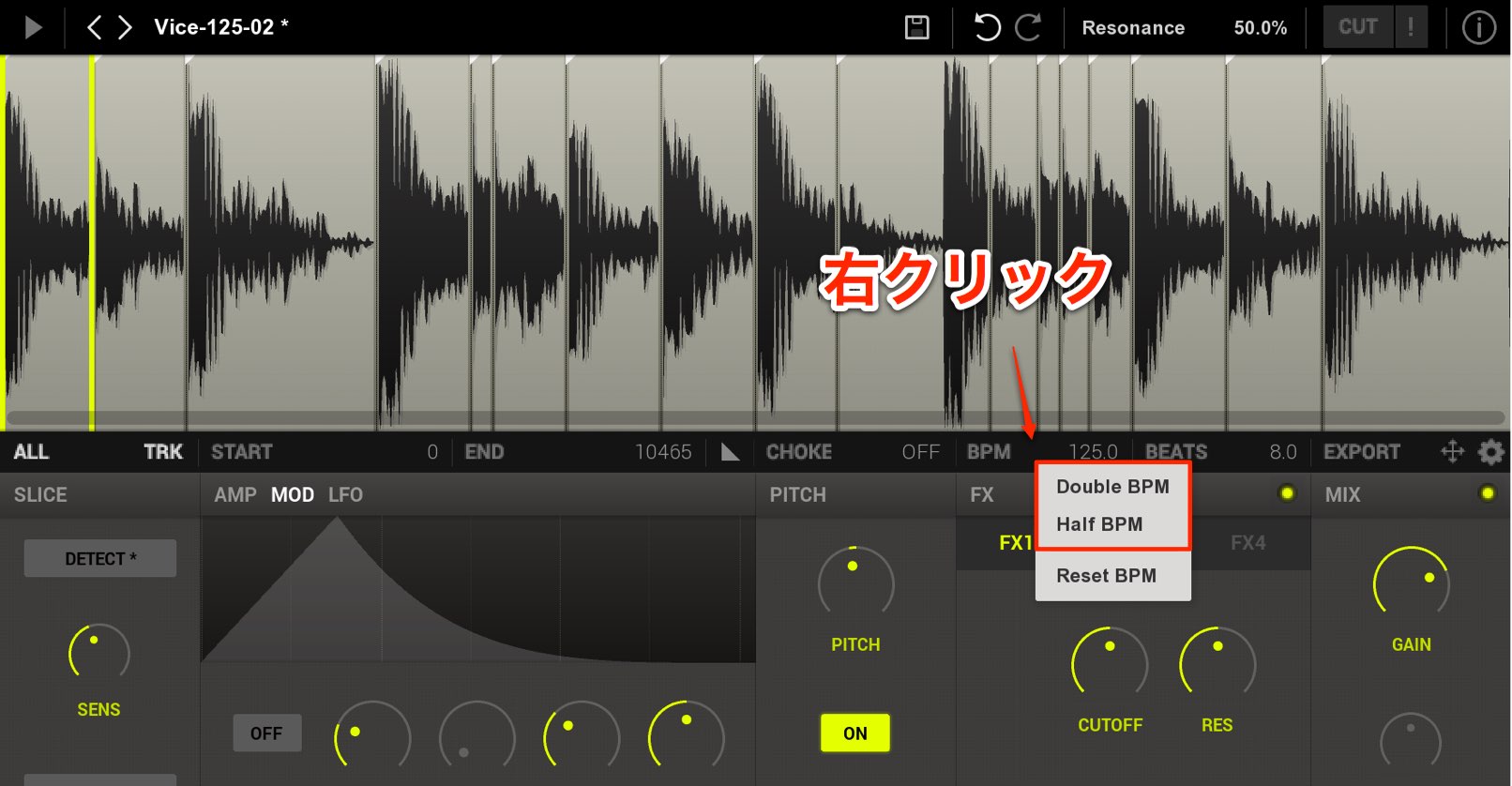
If the tempo feels twice as fast or half as fast, right-click BPM and select Double or Half before exporting.
Setting separate outputs for slices
Routing slices individually to your DAW lets you apply DAW effects and channel-strip settings to each slice separately.
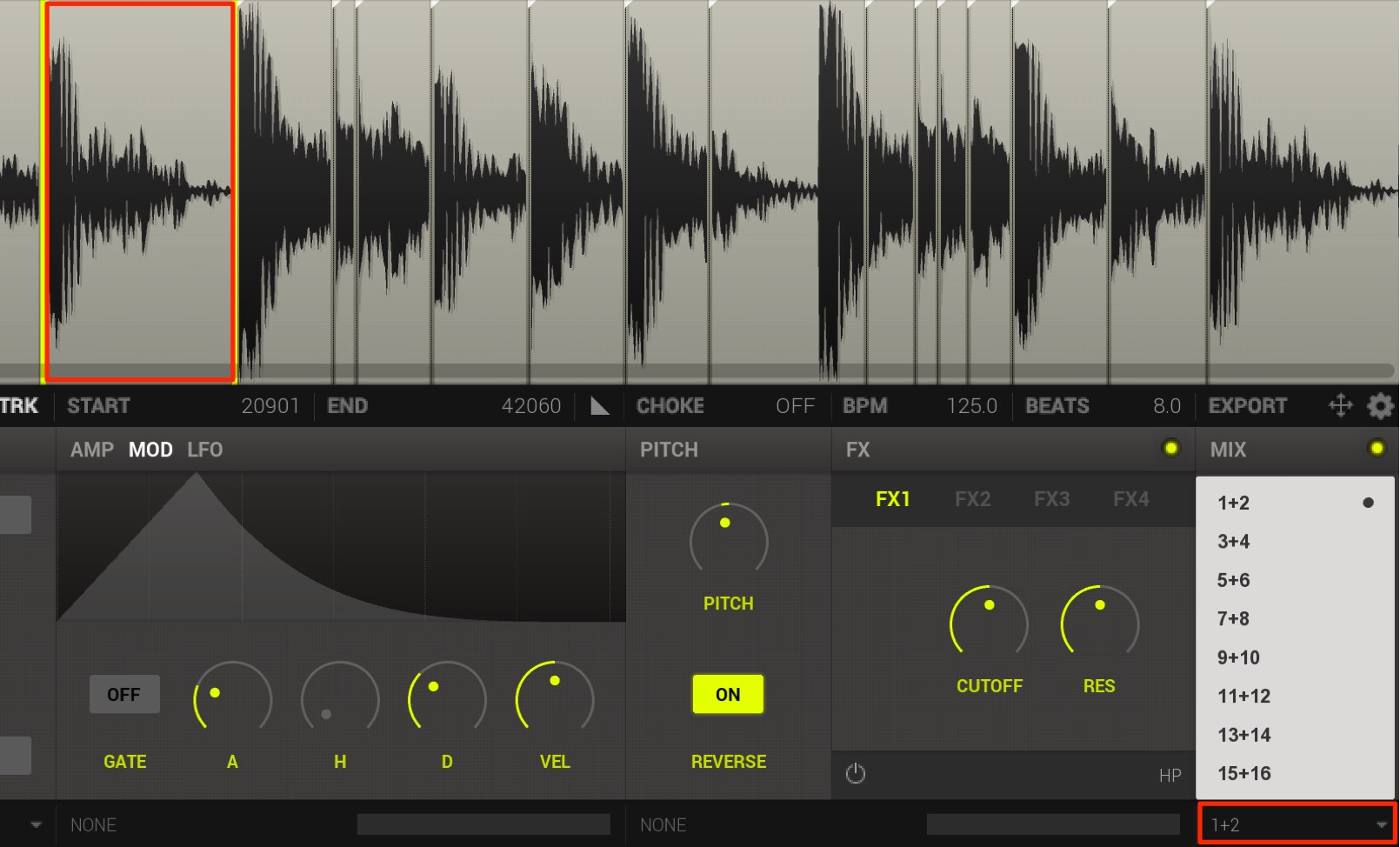
Select the slice you want to route separately and choose its output at the bottom right.
Assign different channel numbers to slices to send them to individual multi-output tracks in the DAW.
Multi-output setup by DAW

 Logic
Logic Cubase
 Ableton Live
 Studio One
 FL Studio
How did you find it?
We hope you can see the potential behind its simple design.
If you have not used audio loops before, you may discover something new.
Try using them in your music to create an original sound.
Frequently Asked Questions
Q1. Which audio loop formats does Vice support?
Vice supports AIFF and WAV loops. Use its browser to find and load loops stored on your computer.
Q2. How can I correct inaccurate automatically detected slice points?
Adjust the SENS knob: higher sensitivity detects attacks more readily, while lower sensitivity reduces overly detailed detection. You can also add, remove, and move slice points manually on the waveform.
Q3. How can Vice slices follow the tempo in a DAW?
Export the slices as a MIDI sequence so they can follow the song tempo. If the tempo feels doubled or halved, select Double or Half from the BPM settings before exporting.
NEW ARTICLES
Latest English Articles






























































































































































































































































































































































