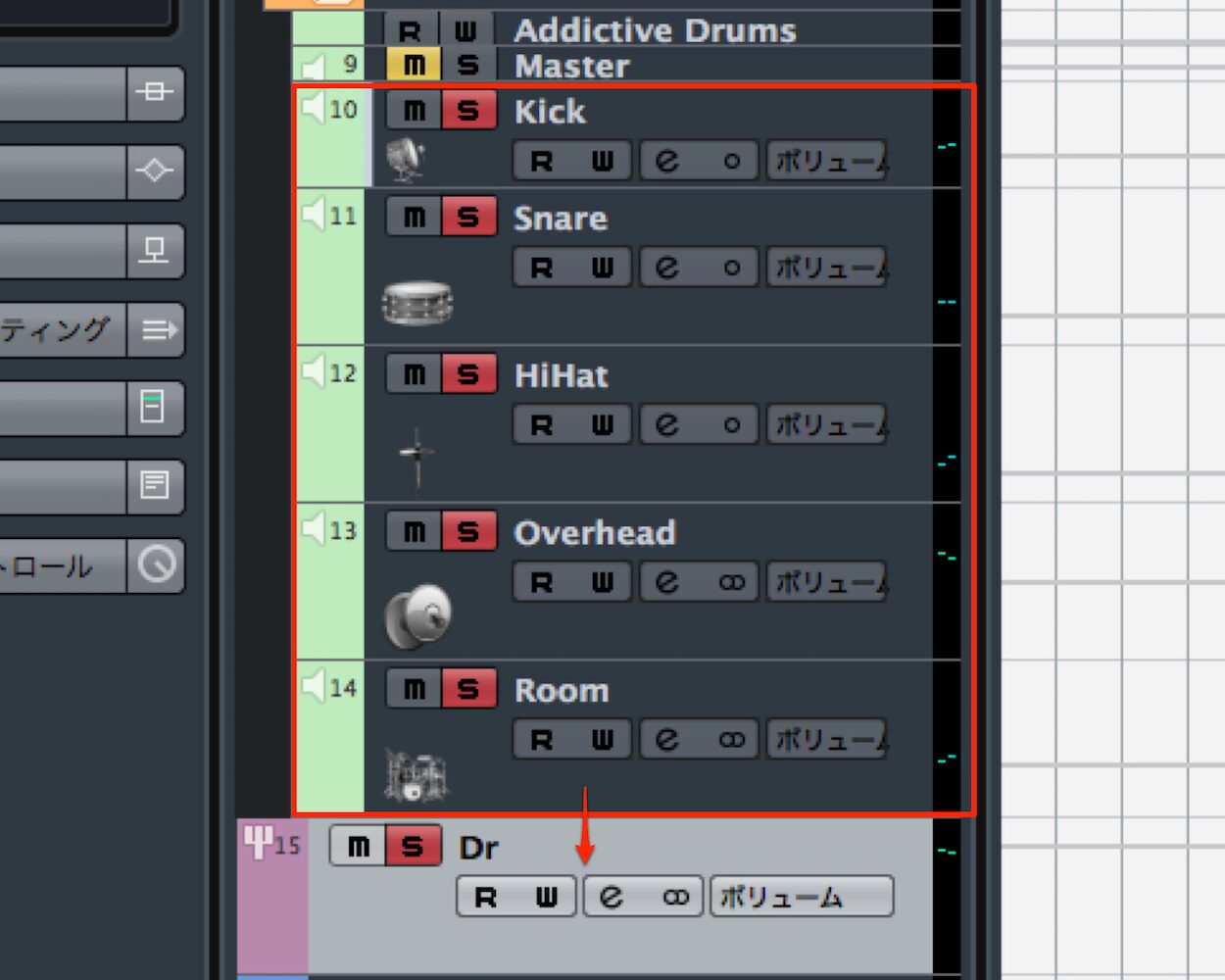
The enhanced VST instrument tracks in Cubase 7.5 synchronize instrument tracks with the rack, allowing simultaneous control of multiple sounds. Previously, an instrument track could control only one sound; the new version supports programming multiple channels by adding MIDI tracks. Multiple outputs can also be configured more easily from the track, allowing more efficient individual effects processing and volume adjustment for each instrument. This reduces work during mixing and improves the production workflow.
A More Convenient VST Instrument Workflow in Cubase 7.5
In the second part of our look at Cubase 7.5’s new features, we explain Instrument (T)rack 2.0.
Adding and configuring instruments has been made easier.
These improvements address some long-standing needs of Cubase users.
Cubase 7.5 New Features Video Series
Cubase 7.5 Free Grace Period Update & Installation Guide
New Feature 1: Show and Hide Tracks
New Feature 2: Enhanced VST Instruments — You are here
New Feature 3: Track Versions and Re-record Mode
New Feature 4: Added Effects
Video Highlights: Synchronizing VST Instrument Tracks and the Rack
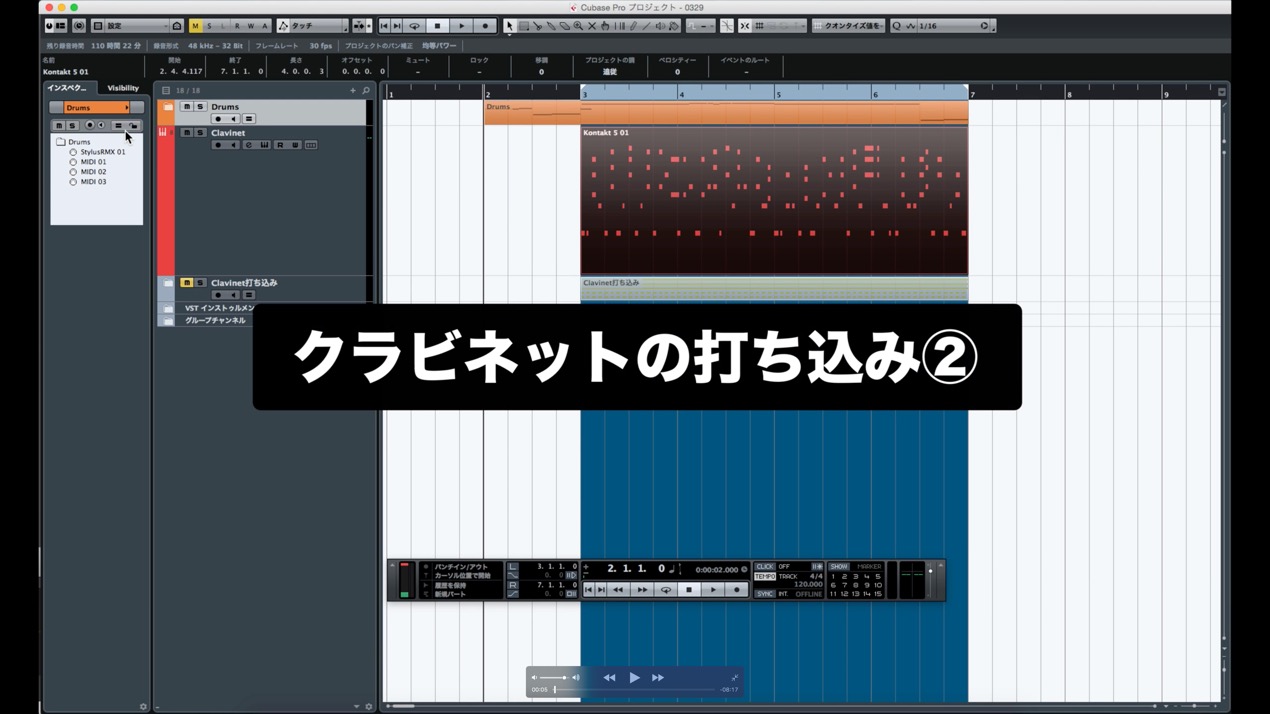
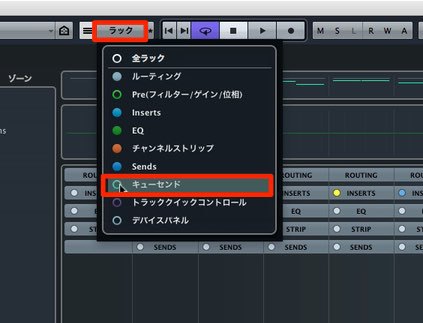
Instrument tracks and the rack are now synchronized.
This makes it possible to link a MIDI track to an existing instrument track.

Right-click the track list and select “Add Instrument Track.”

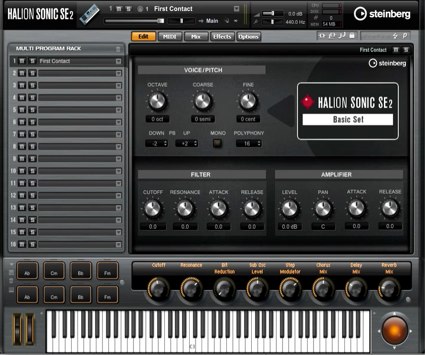
For this example, open the updated HALion Sonic SE 2.

HALion Sonic SE 2 also appears in the instrument rack.
The following sections explain the benefits.
Video Highlights: Play Multiple Sounds from an Instrument Track
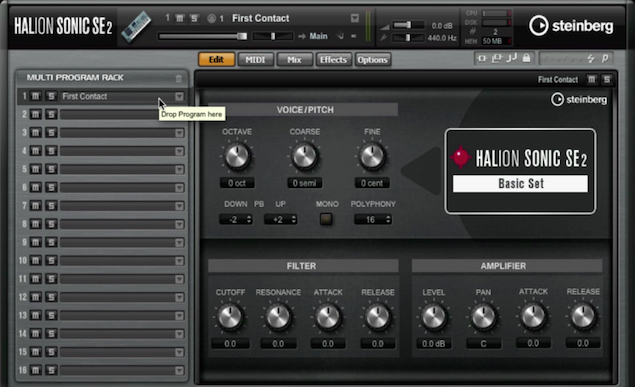
In instrument tracks through Cubase 7,
even when using a multitimbral instrument, you could control only one sound per instrument.
To use another sound,
you had to use the VST rack or add another instrument track.
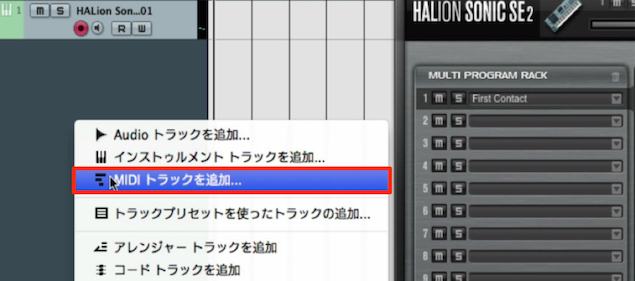
In Cubase 7.5, right-click the track list and select “Add MIDI Track.”
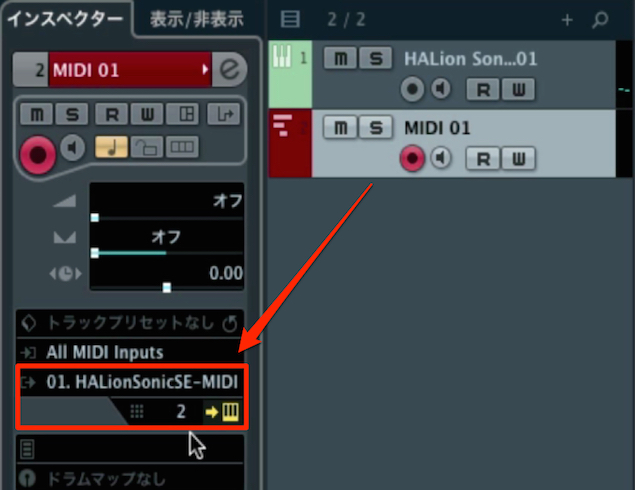
Here, the output is set to channel 2 and linked to HALion Sonic SE 2.
You can now program multiple channels from the instrument track setup.
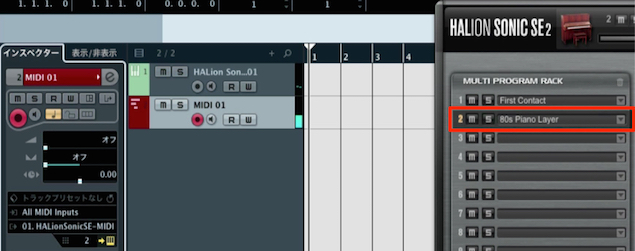
Assign a sound to channel 2 in HALion Sonic SE 2.
Easier Multiple-Output Routing
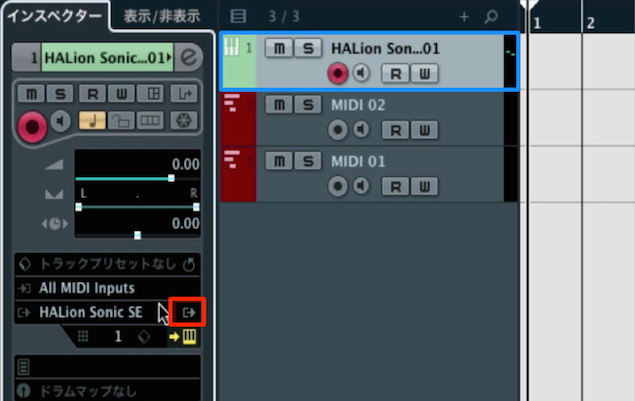
Multiple-output routing, previously configured from the VST instrument rack,
can now also be set up from the instrument track.
First, click the control outlined in red in the image above.

You can enable only as many outputs as needed; here we enable all outputs.

Next, click “Output” and assign the outputs.

Then, in HALion Sonic SE 2, change channels 2 and 3 from Main to Out 2 and Out 3.
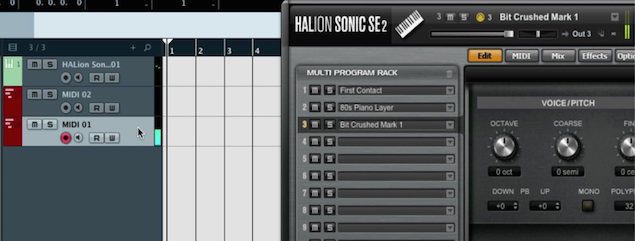
The multiple-output track information is incorporated in the MIDI track.
This makes the layout cleaner than before.
Frequently Asked Questions
Q1. How do I use multiple sounds with an instrument track in Cubase 7.5?
Add a MIDI track from the track list for the instrument track. Change the MIDI output channel and assign a sound to the corresponding channel in the instrument to control multiple sounds.
Q2. What is the advantage of setting up multiple outputs from the instrument track?
This makes the workflow simpler than configuring outputs only from the VST rack and allows separate volume, pan, and effects processing for each instrument.
Q3. Was the Cubase 7.5 update free?
Free updates were available to eligible Cubase 7 and Cubase Artist 7 users under Steinberg’s 2013 grace-period policy. The original article describes the update as free for existing users generally, but eligibility was limited. Steinberg’s release announcement explains the conditions: https://forums.steinberg.net/t/cubase-7-5-and-cubase-artist-7-5-update-released/38959
NEW ARTICLES
Latest English Articles