
Track visibility in Cubase 7.5 is a powerful way to manage projects with many tracks. You can manually show or hide tracks, filter them by criteria, and save multiple visibility configurations to quickly create a workspace suited to the task at hand. Assigning shortcuts makes switching configurations even faster and helps streamline music production.
Change Track Visibility to Suit Your Workflow in Cubase 7.5
Our first look at Cubase 7.5’s new features covers the convenient show and hide tracks function.
You can filter which tracks are displayed based on criteria,
making it easier to navigate and edit even a large project.
Cubase 7.5 New Features Video Series
Cubase 7.5 Grace Period Update & Installation Guide
New Feature 1: Show and Hide Tracks — You are here
New Feature 2: Enhanced VST Instruments
New Feature 3: Track Versions and Re-record Mode
New Feature 4: Added Effects
Video Highlights: Manually Show and Hide Tracks

Switch the Inspector tab to Visibility.
Turn off the white circle for a track
to hide it.
Note: Hidden tracks still play back.
Video Highlights: Filter Track Visibility

Click the control outlined in red in the upper menu.

You can show or hide tracks using a variety of criteria.
Video Highlights: Save a Visibility Configuration
You can save your preferred track visibility configurations.
Saving separate configurations for rhythm, guitar, chorus, and other groups makes your workflow more convenient.

Set up the track visibility you want to save.

Click “Configurations” and select “Create Configuration.”

Give it a name to finish saving it.

To recall it, click its name in the menu.
The saved track visibility configuration is restored immediately.
You can save multiple visibility configurations.

You can also assign shortcuts to track visibility configurations.
Shortcuts let you recall them even faster.
Assign them under:
- “Show/Hide Channels and Tracks” → “Visibility Configuration 1–8”
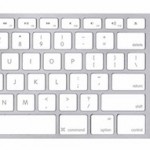
See the following article for details on assigning shortcuts.
Frequently Asked Questions
Q1. Does hiding a track stop its sound from playing?
No. Hidden tracks still play normally. Visibility controls what appears on screen; it does not affect audio output.
Q2. Can I save more than one visibility configuration?
Yes. Save separate configurations for rhythm, guitar, chorus, or other purposes and recall them from the menu or with shortcuts.
Q3. How do I assign shortcuts to track visibility configurations?
Assign keys to “Visibility Configuration 1–8” under “Show/Hide Channels and Tracks” to recall configurations with a shortcut.
NEW ARTICLES
Latest English Articles





















































































































































































































































































































































































































































































































































































































