
When editing and mixing a vocal cover, it is important to choose the best performances from multiple takes, join them naturally with crossfades and fine-tune their timing. You can then balance all the tracks while preventing clipping on the main output. Learning these practical steps in a DAW such as Studio One can help even beginners create a high-quality vocal mix.
Editing and Mixing: An Essential Part of the Process

In Part 4 of our Getting Started with Vocal Covers series, we will edit the vocal tracks recorded in the previous installment and move on to mixing.
Mixing means blending the vocal and backing track at an appropriate balance while improving the sound quality of each as much as possible.
Although this is generally considered a difficult process, we will work toward a simple approach that anyone can follow.
There is a lot to cover, so we have split this topic into two installments. This is the first.
Note: This article provides information that supplements the video, so please watch the video below before reading on.
Getting Started with Vocal Covers, Part 4 — Video
Building the Best Vocal Track from Multiple Takes
In the previous installment on recording, we recommended recording the same passage several times, even if you feel you have already sung it well.
Human vocal performances vary from take to take, so it is useful to be able to listen again later and choose the best one.
In Studio One, the takes are stored within a single track. Click the button shown on the track to expand them and see all the takes.

The colored take is the one currently being used; the pale takes are saved alternatives that are not currently selected.
Press the “S” button for each take to compare them one at a time.

You do not have to replace a take in its entirety: you can also use selected sections from different takes.
Simply drag to select the section you want to use, and it becomes part of the active vocal performance.

Adjusting Crossfades and Timing
When you use sections from different takes, Studio One automatically adds crossfades at the edit points to prevent unnatural transitions.
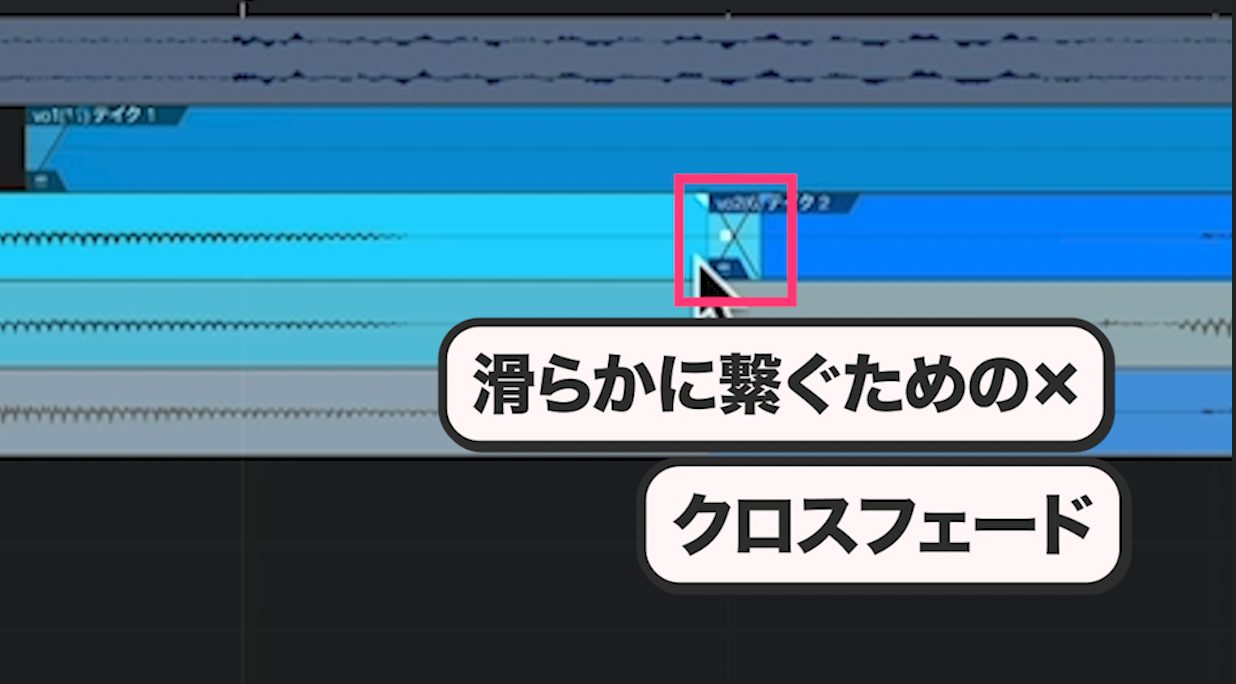
Crossfades often make the transitions sound natural without further attention. If a join sounds wrong, however, you can drag the edges to change the crossfade length until the transition sounds as natural as possible.

Editing also lets you correct timing discrepancies to some extent.
There are several ways to do this. The simplest is to drag a recorded block of audio to the left or right. Studio One calls these blocks “events”; other applications may call them “regions.”
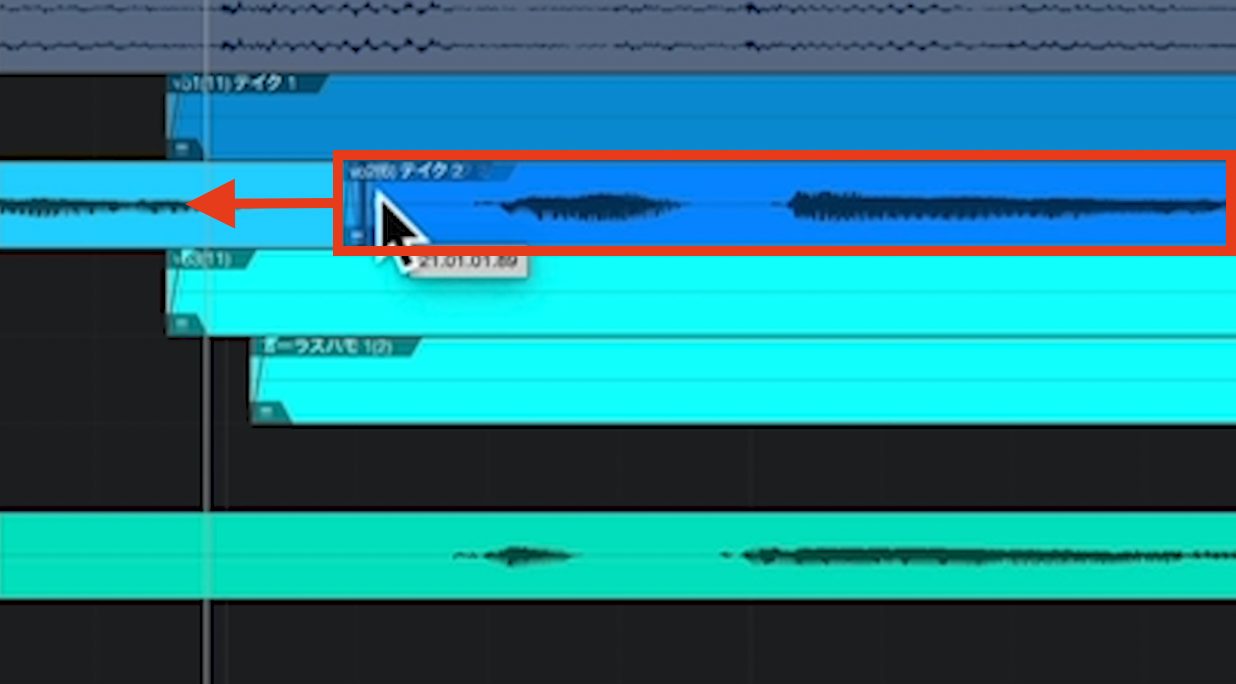
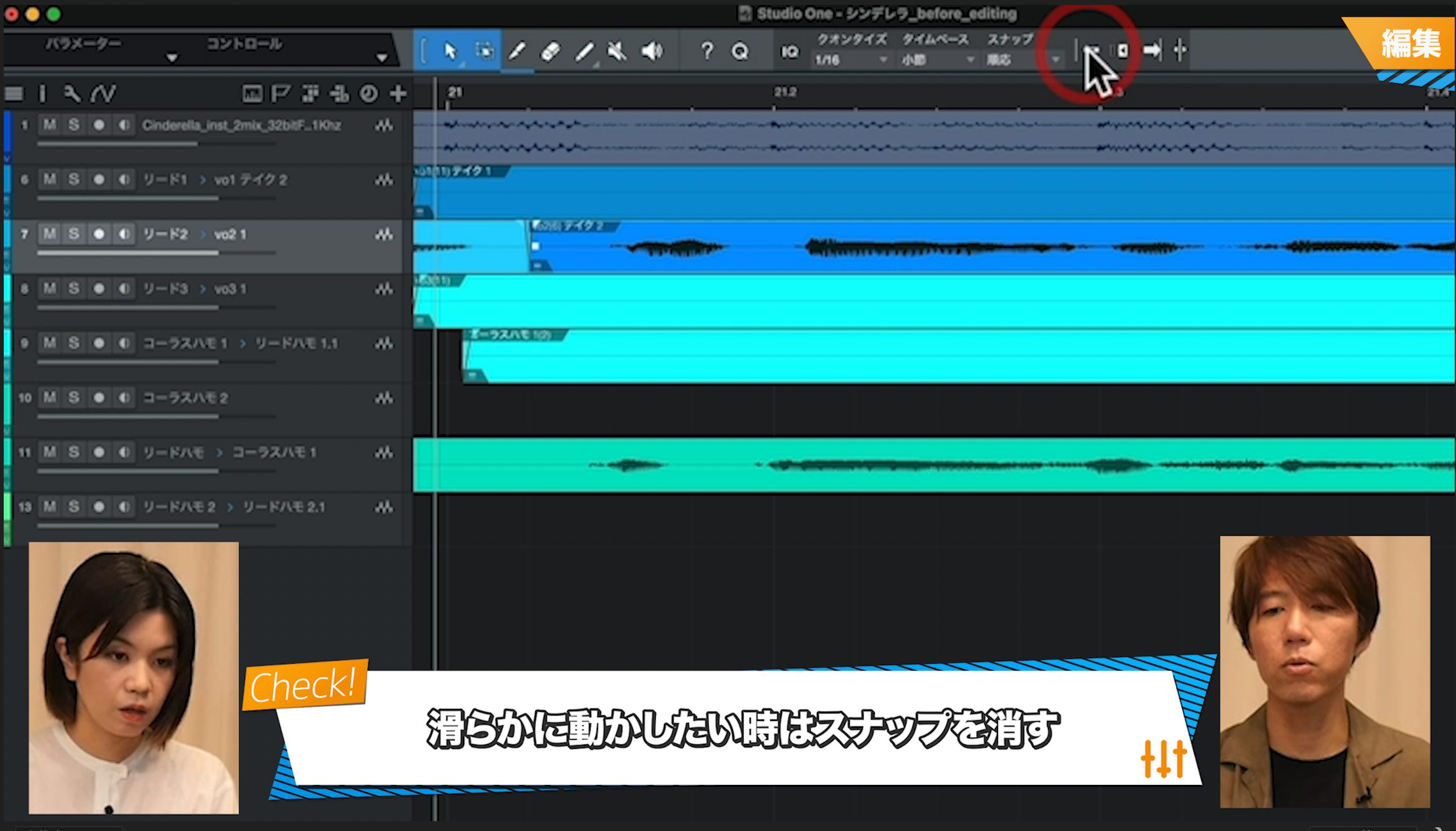
Most timing discrepancies are very small. To make fine adjustments, turn off the Snap button in the toolbar at the top before moving the event.
Adjusting Levels and Stereo Panning
Once editing is complete, it is time to start mixing.
Mixing improves the overall sound quality and listening experience by organizing the relationships between tracks and refining their individual sounds. Rather than just describing it, let us compare the audio before and after mixing.
Before Mixing
After Mixing
The mixed version clearly has a more professional sound.
First, let us look at panning—the distribution of sound between the left and right channels—which we have not adjusted yet.
The backing track and lead vocal are normally kept in the center, while harmonies and backing vocals may be panned to the left and right. To change their position, move the pan control above the volume fader to either side.
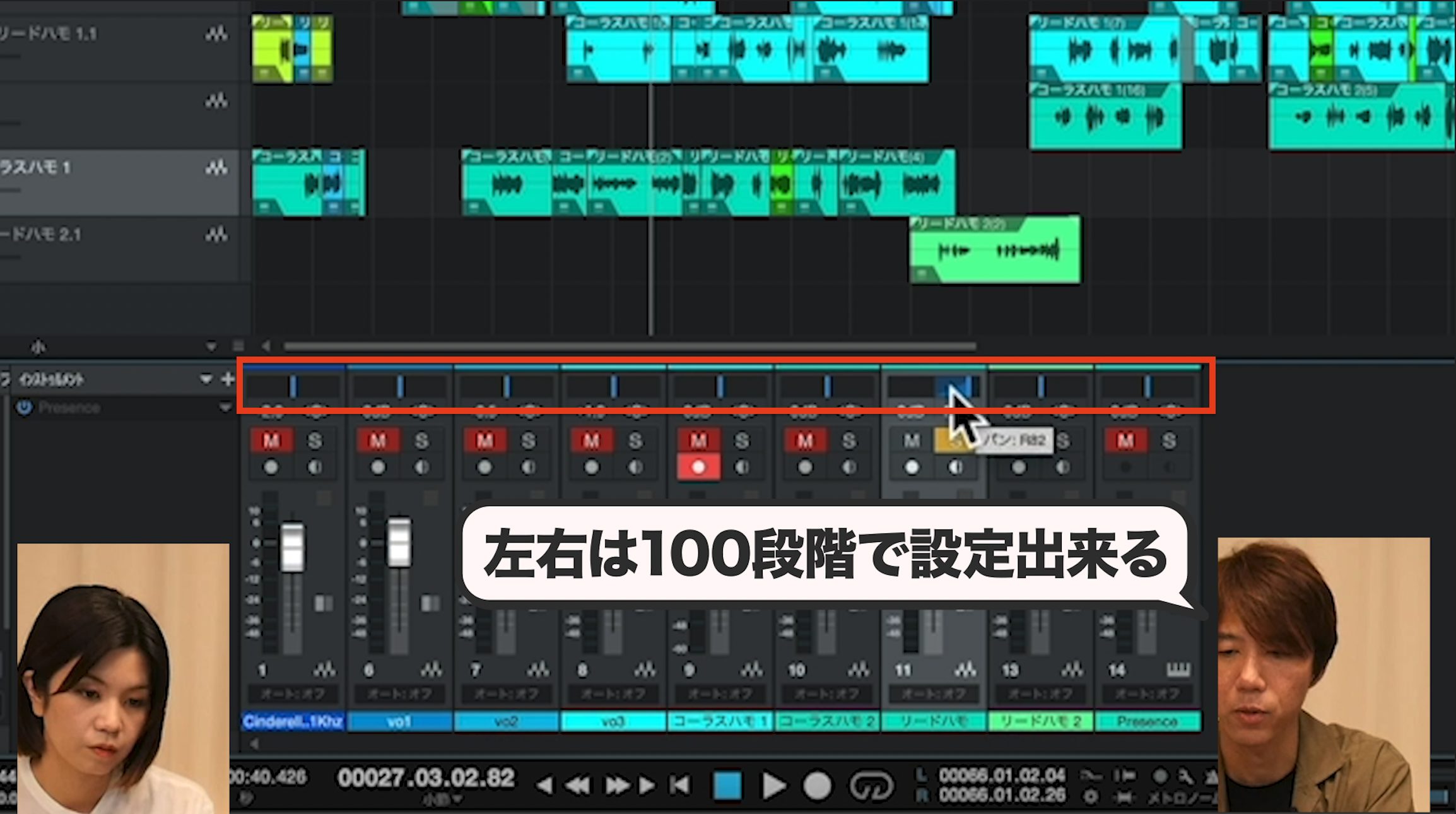
In this example, we will create the left-right distribution using effects, which we will cover in the next installment, so we have not adjusted the pan controls here.
Next, adjust the volume balance between the backing track, lead vocal, harmonies and other parts.
You probably established a rough balance while recording; now it is time to refine it carefully.
To adjust track levels, click Mix at the bottom right of the screen to display the mixer, or mixing console, along the bottom.
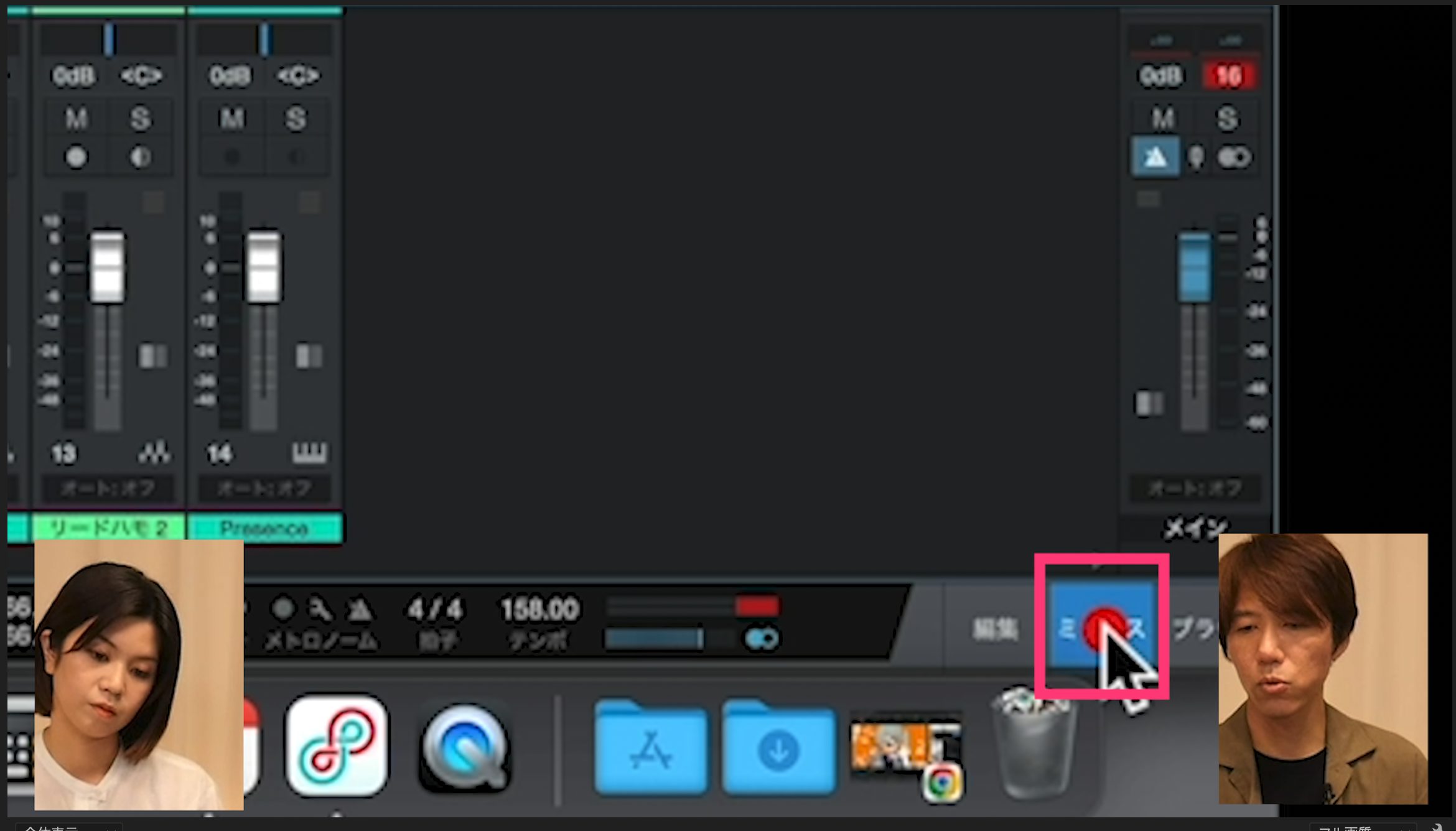
The mixer displays the tracks side by side, as shown here. Move each track’s volume fader up or down to adjust the balance.
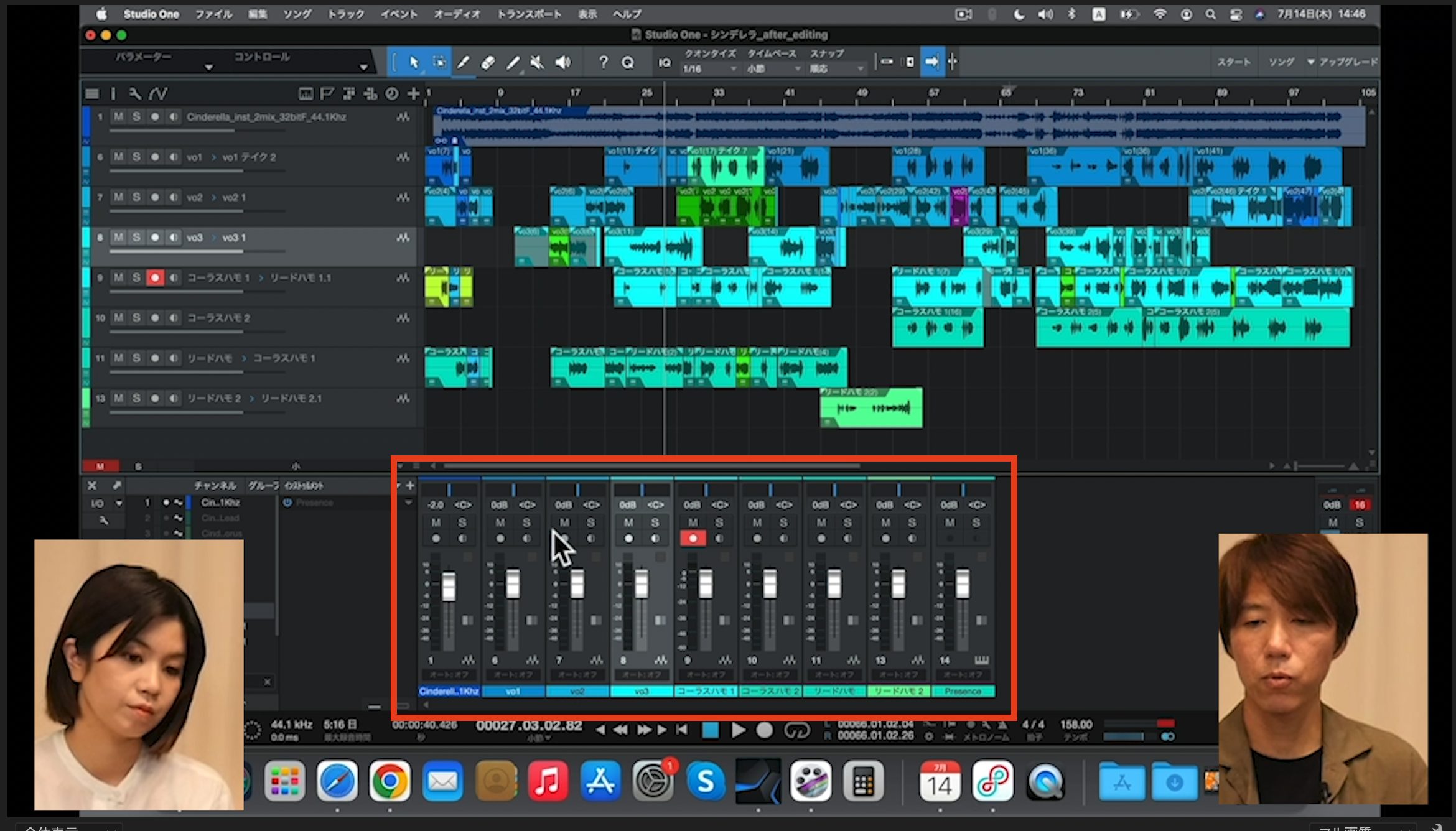
When setting levels, first check the final output level where all the tracks are combined—in Studio One, this is the Main channel.
If this level is too high, clipping can occur, degrading the sound during your work and making the final finishing stage more difficult.
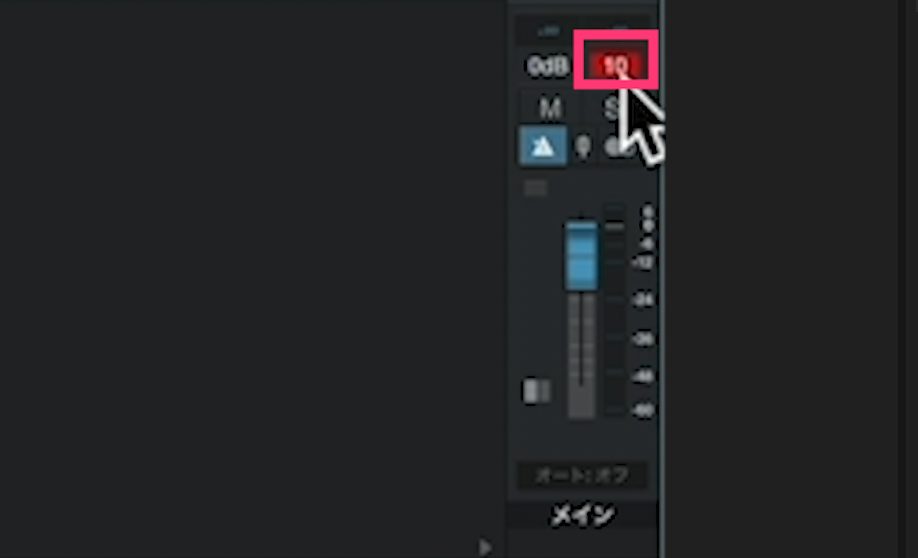
If the Main channel is clipping, indicated by a positive number in red, select all the other tracks and lower their faders rather than lowering the Main fader.
To select all the tracks in a range, select the track at one end, then hold Shift while selecting the track at the other end.
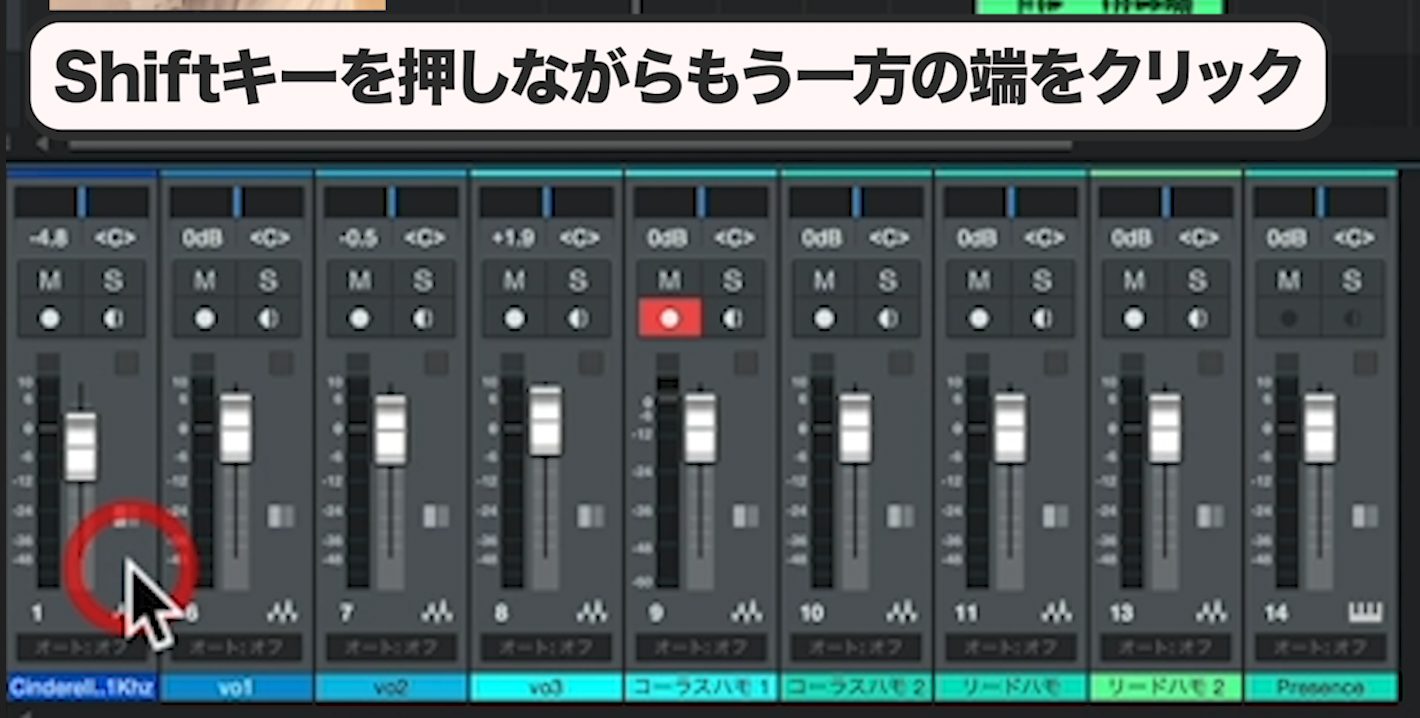
Once the overall level is appropriate, work on the balance between the individual tracks.
Use the track solo function to compare important combinations one at a time—for example, the backing track against the lead vocal, then the lead vocal against the harmonies. This helps bring the overall mix into balance.

That concludes the first half of the editing and mixing process in Part 4 of Getting Started with Vocal Covers.
In the second half, we will use useful tools called plug-in effects to transform the sound and take its quality further.
We hope you will join us!
Getting Started with Vocal Covers, Part 4: Editing and Mixing — First Half
We edit the vocal tracks and move on to mixing. Although this is generally a difficult process, we work toward a simple approach that anyone can follow.Article: https://t.co/f0K8JpbTPp
Video: https://t.co/5HRnKcKxa9 #DTM #VocalCovers pic.twitter.com/UthOi9DtJj
— SLEEP FREAKS (@SLEEPFREAKS_DTM) October 17, 2022
Frequently Asked Questions
Q1. How should I choose between multiple takes?
Use Studio One’s take functions and press the “S” button to audition each take individually. Choose the performance that sounds most natural. You can also combine sections from different takes simply by dragging to select the parts you want.
Q2. What is a crossfade?
A crossfade helps prevent an unnatural-sounding join when you combine sections from different takes. Studio One adds crossfades automatically, and you can drag their edges to adjust the length for the most natural transition.
Q3. What should I do first when mixing?
Check the Main channel’s output level for positive numbers in red, which indicate clipping. If it clips, lower the faders of the other tracks rather than the Main fader to bring the combined level down.
Q4. How do I balance the backing track and vocals?
Open the mixer and move the tracks’ volume faders up or down. Use solo to balance important combinations one at a time, such as the backing track and lead vocal, then the lead vocal and harmonies.
Q5. Do I always need to pan tracks?
The backing track and lead vocal are usually centered. Panning harmonies or backing vocals can create width, but in this example the left-right distribution will be handled with effects in the next installment, so we have not adjusted the pan controls.
NEW ARTICLES
Latest English Articles








































































































