
Neumann RIME is a binaural-monitoring plug-in designed to recreate the sound of speakers through headphones. Conventional headphone monitoring can make sound seem trapped inside your head and the stereo image feel narrow. RIME uses precise binaural processing to recreate crosstalk and a sense of space. Personal adjustment of ITD (interaural time difference) improves sound positioning, and immersive audio up to 7.1.4 channels is supported. Because it lets you work in a range of production formats using headphones rather than an expensive speaker system, it offers particular advantages in apartments and for late-night sessions.
An innovative approach to hearing speaker sound on headphones
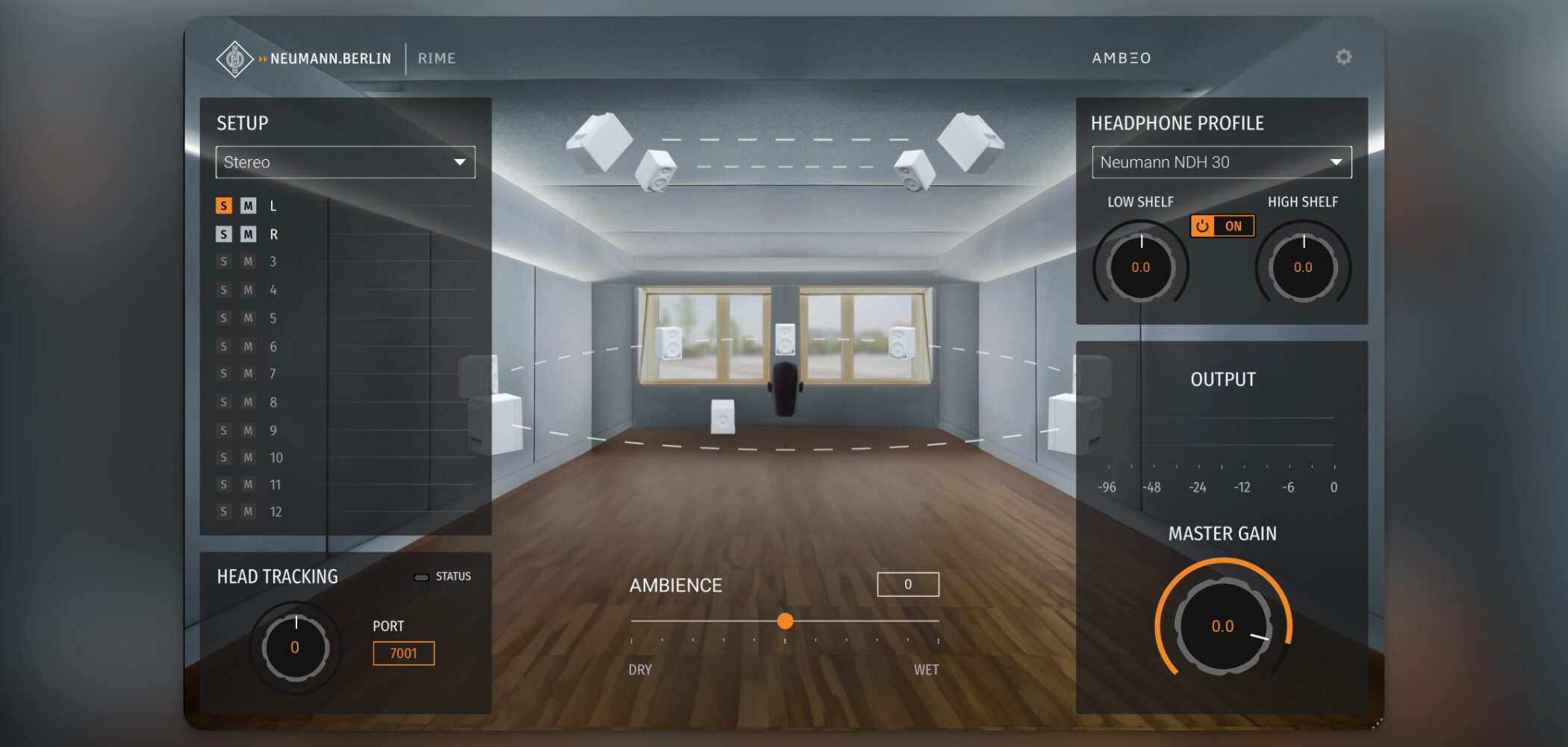
An ideal monitoring setup for music production and mixing would combine the strengths of both speakers and headphones.
But many creators in Japan face limits on how loudly they can work, especially at night.
One answer to this problem is RIME, a plug-in from Neumann, the world-renowned microphone brand.
- You want to focus on mixing at night or in an apartment without worrying about volume
- You are unsure whether your room acoustics allow accurate monitoring
- You want to start creating immersive audio but cannot install a large speaker system
- You want to move beyond the “sound inside your head” feeling of headphone mixing
If any of these sound familiar, RIME could make a substantial difference to your production environment.
Let’s take a closer look at the product and what it offers.
Neumann RIME video
Selected questions and answers from the YouTube video

Sorry this is a little off topic, but is there a guideline for how loud to work when adjusting a mix on speakers or headphones? Should the level be similar to normal listening, or as loud as possible? I would appreciate any advice or references.

There is no strict rule, but I recommend a level that lets you hear the details without straining your ears during long sessions.
Does this product have a standalone version like SoundID Reference? Can it also process audio played on the web?
Neumann RIME is designed as a plug-in for use inside a DAW. There is no standalone version, and it cannot be applied to audio from websites such as YouTube.
A revolutionary binaural-monitoring plug-in
RIME is a groundbreaking plug-in designed to recreate the sound of speakers through headphones.
Let’s listen to the effect of RIME.
RIME performs best when used with a supported pair of headphones and personalized settings, as described below.
The audio above is for reference, and what you hear will vary with your setup, but it should help demonstrate the change RIME makes.
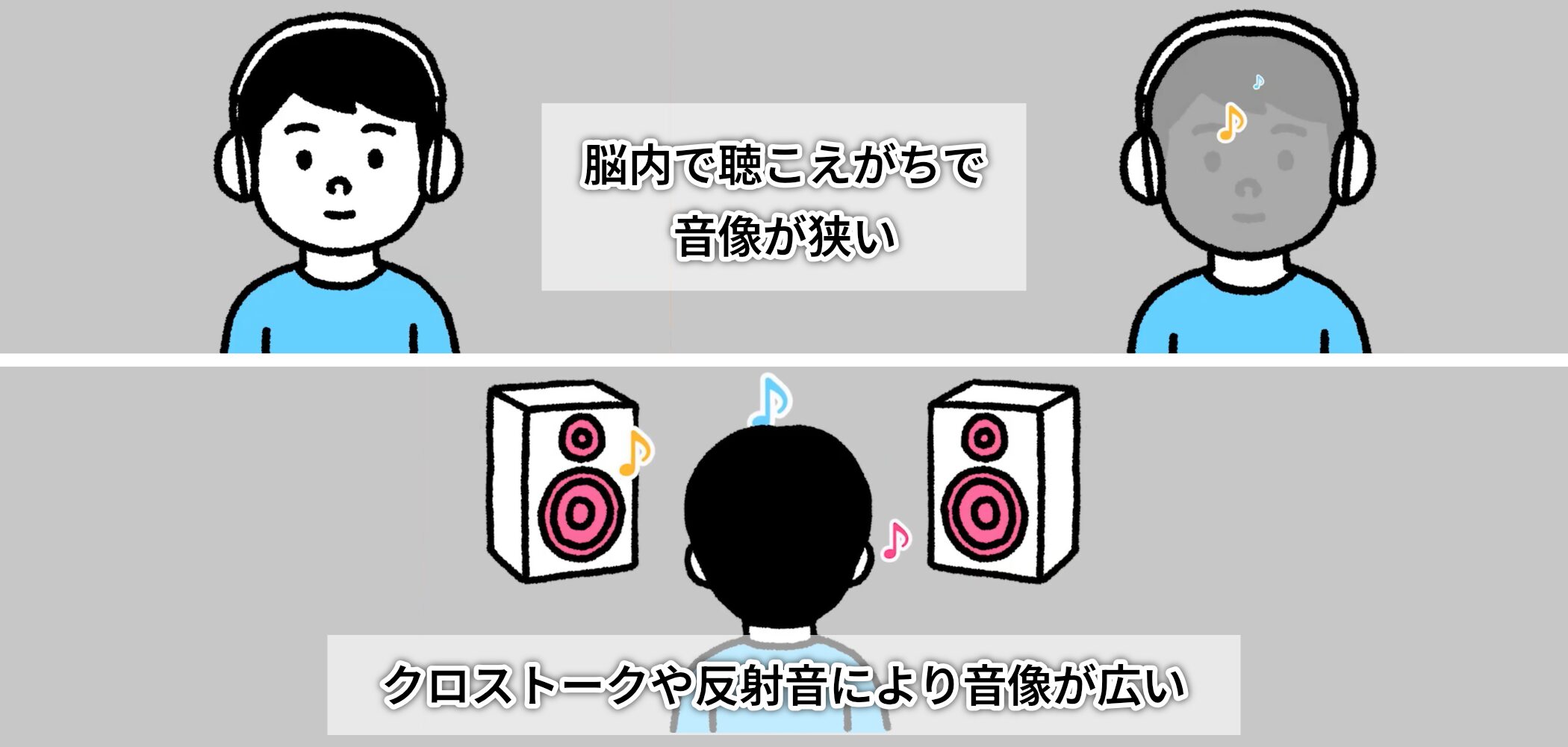
Traditional headphone monitoring can make sound seem to come from inside your head and make the stereo image feel narrower.
That is because headphones have difficulty recreating the crosstalk that happens naturally with speakers (sound from the left speaker also reaches the right ear), along with the sense of air and depth created by room reflections.
RIME recreates these acoustic characteristics through high-precision binaural processing.
Behind this quality is a design philosophy that integrates everything in-house, from the plug-in to the headphones.

RIME supports only two headphone models: the closed-back NDH 20 and the open-back NDH 30.
This limited selection helps deliver consistent, reliable high-quality sound.
The headphones also sound excellent in their own right; even without RIME, I could hear their potential.

Rather than letting you choose among various virtual studios, as many plug-ins do, Neumann provides a sound meticulously tuned in its own studio, which makes the system straightforward to use.
Basic RIME setup
Here is how to set up RIME, using Studio One as an example.

First, insert RIME in the very last slot of your DAW master channel.
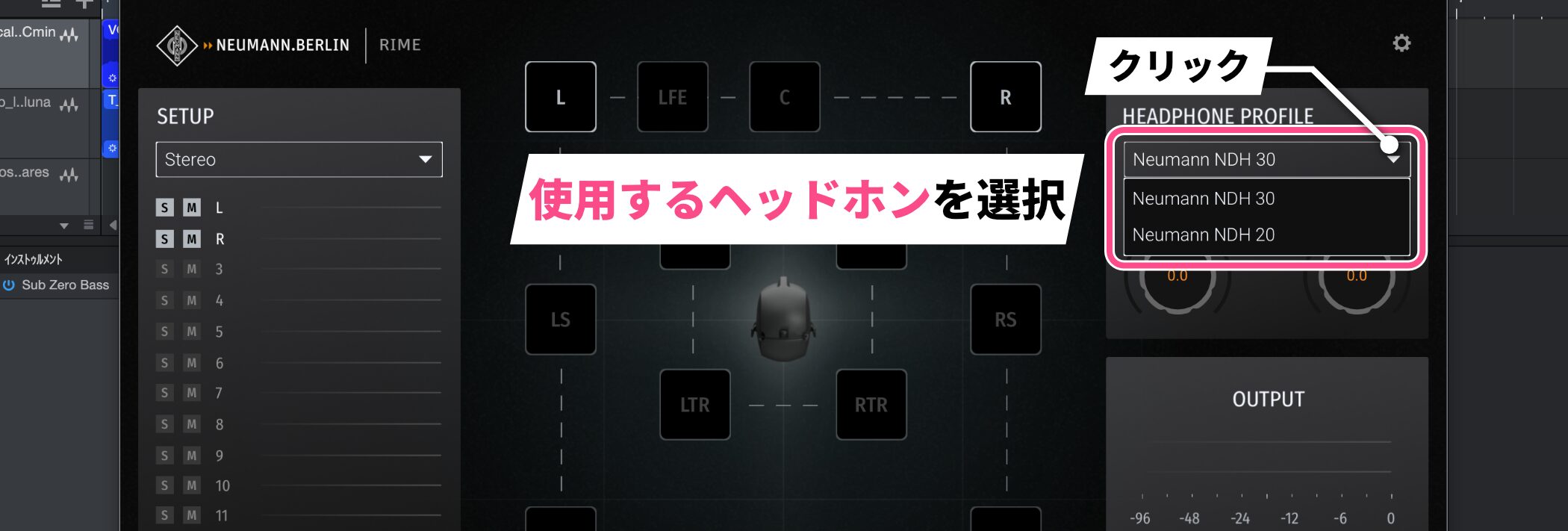
Open the plug-in, then select one of the two supported headphone models in the HEADPHONE PROFILE section at the upper right.
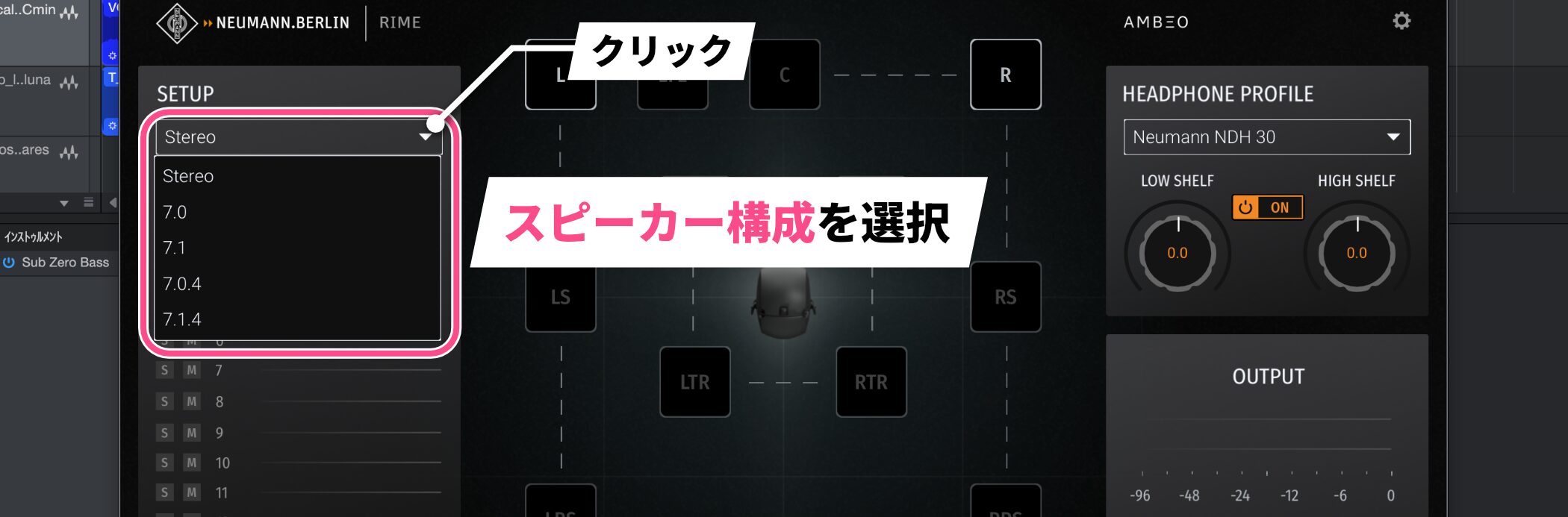
Next, choose the speaker configuration you want to recreate in the SETUP section at the upper left.

Use the bypass button at the upper left to switch RIME on and off and compare the unprocessed headphone sound with the sound through RIME.
Optimize the sound with personalization
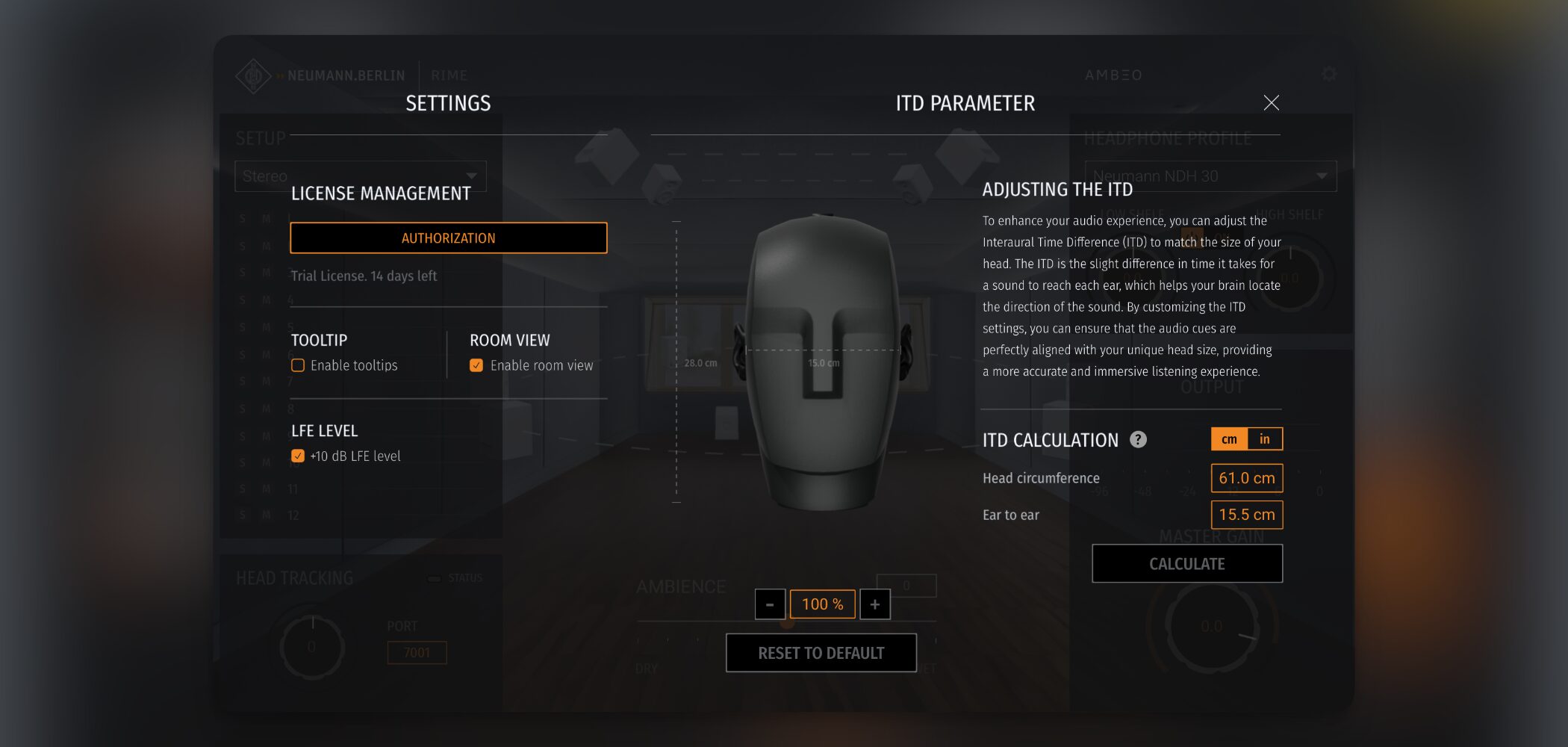
RIME includes advanced personalization featuresthat allow binaural processing to be matched to the characteristics of your own head.
Precise adjustment of ITD (interaural time difference)

Click the gear icon at the upper right of the plug-in to open its settings. The ITD PARAMETER section appears on the right.
ITD stands for interaural time difference: the difference in the time it takes sound to reach your left and right ears.
Adjusting this value to your head size can dramatically improve the accuracy of sound localization.

In the ITD CALCULATION section, you can enter your head circumference and ear-to-ear distance.
① Head circumference (red): Measure around your head above the eyebrows and across its widest point
② Ear-to-ear distance (blue): The straight-line distance between the tragus (the small projection in front of the ear canal) on each ear
Enter these values and click CALCULATE. The plug-in automatically calculates and applies an optimal ITD value.
In my listening comparison, accurate measurements produced a clear difference from inaccurate ones, so I strongly recommend completing this setup.
Create immersive audio with just headphones

One of RIME’s greatest strengths is full support for immersive audio up to 7.1.4 channels, with sound positioned above, below, and around you.
Formats such as Apple Spatial Audio and Dolby Atmos can be monitored on headphones without an expensive speaker system.
Let’s listen to an example in a 7.1.4-channel configuration.
This is also a reference recording, so the result depends on your playback setup, but it should give you a sense of immersive sound coming from above, below, and around you.
How to configure 7.1.4 channels
To monitor a 7.1.4-channel Dolby Atmos mix, first configure your DAW.

In Studio One, choose Spatial Audio from the Song menu and set the bed format to 7.1.4.
Leave the output format set to Stereo and click OK.
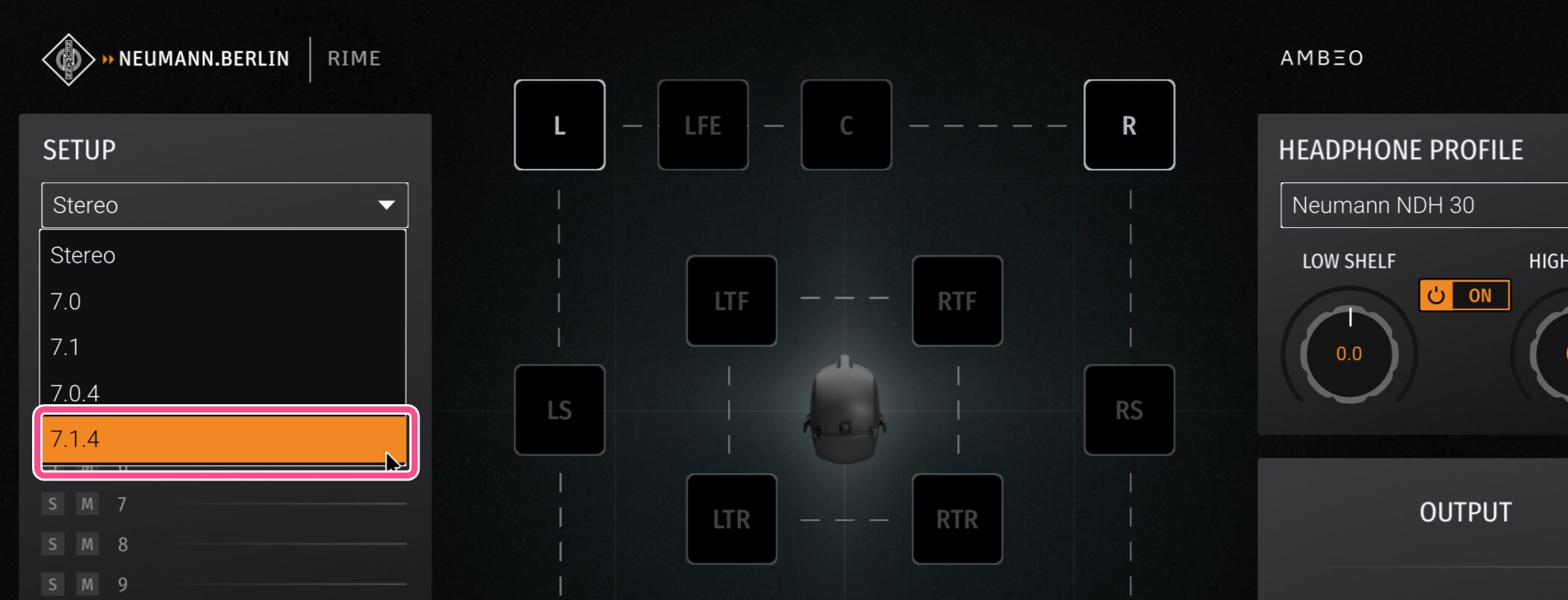
Next, select 7.1.4 in the SETUP section of RIME.
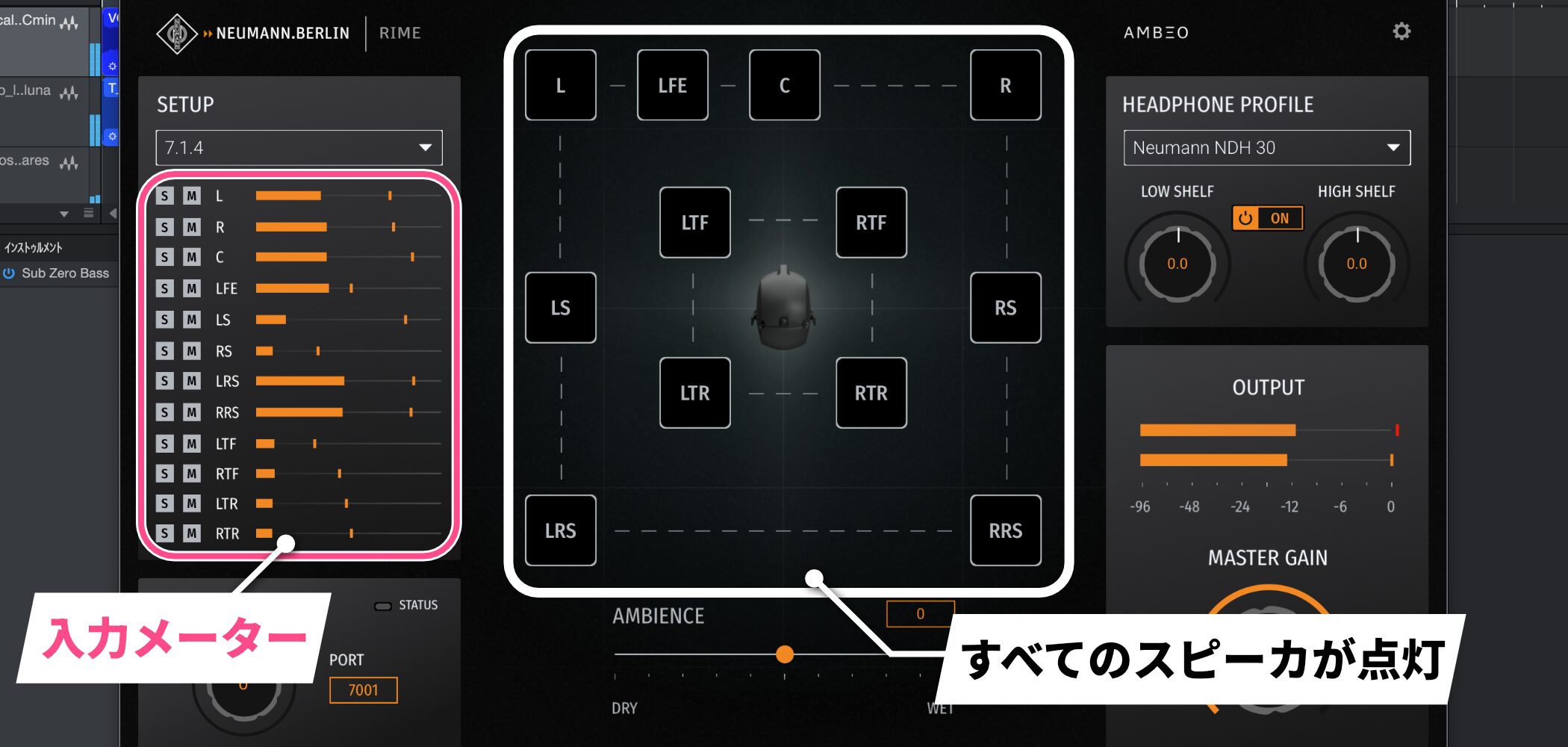
All the speakers in the central speaker-control area will light up, and you can inspect the input meter for each channel.
With these settings, you can work entirely on headphones without installing a physical 7.1.4-channel speaker system.
Intuitive speaker controls
The solo and mute controls for each speaker are particularly useful when mixing.

Left-click a speaker icon to solo it, or right-click to mute it.
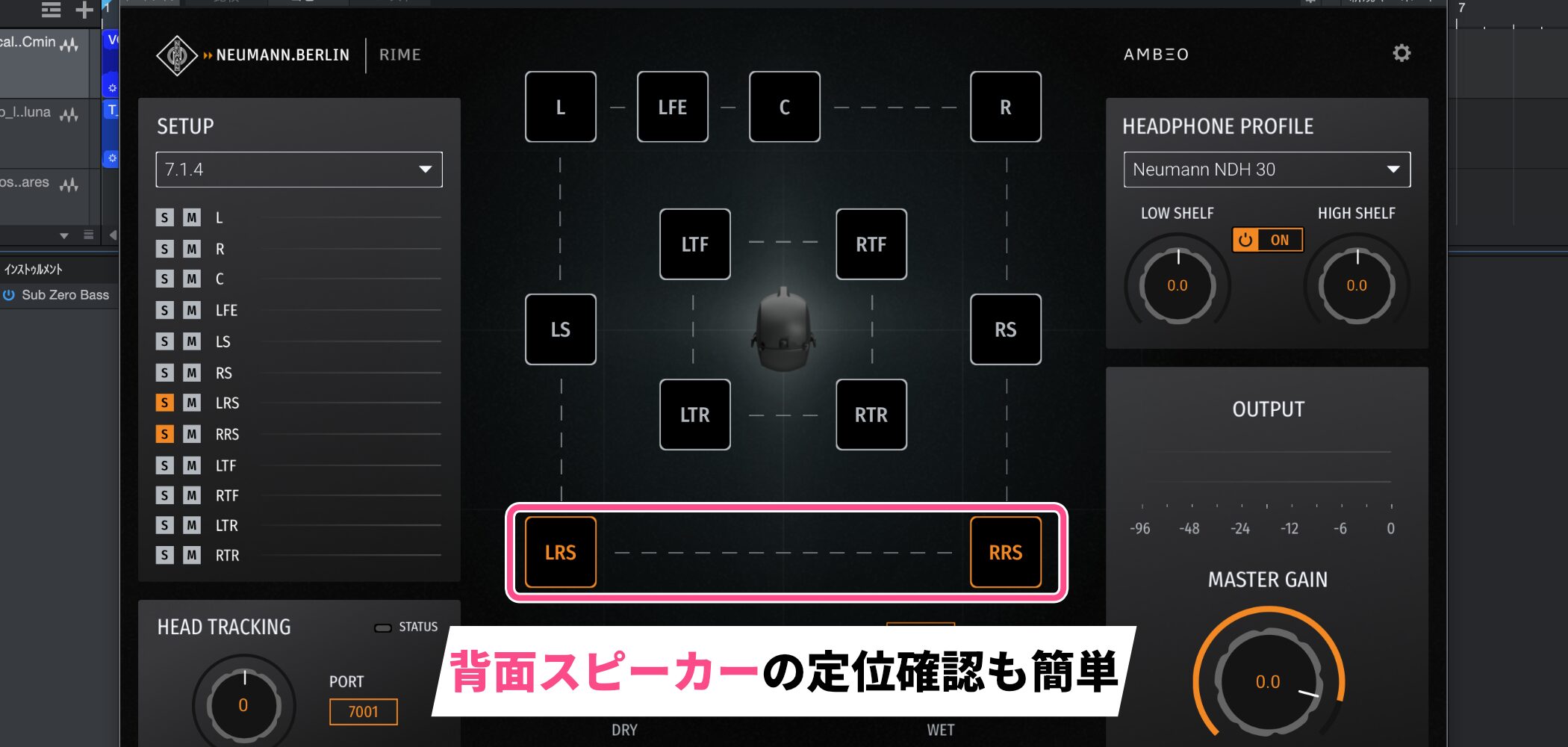
This makes it easier to check the placement of rear speakers (LRS/RRS), which can be especially challenging.
When I soloed just the two rear speakers, the sound seemed to be reproduced naturally from behind me.
Adjustments for more precise monitoring
RIME offers a range of controls for refining your monitoring environment.
View the space in 3D with ROOM VIEW
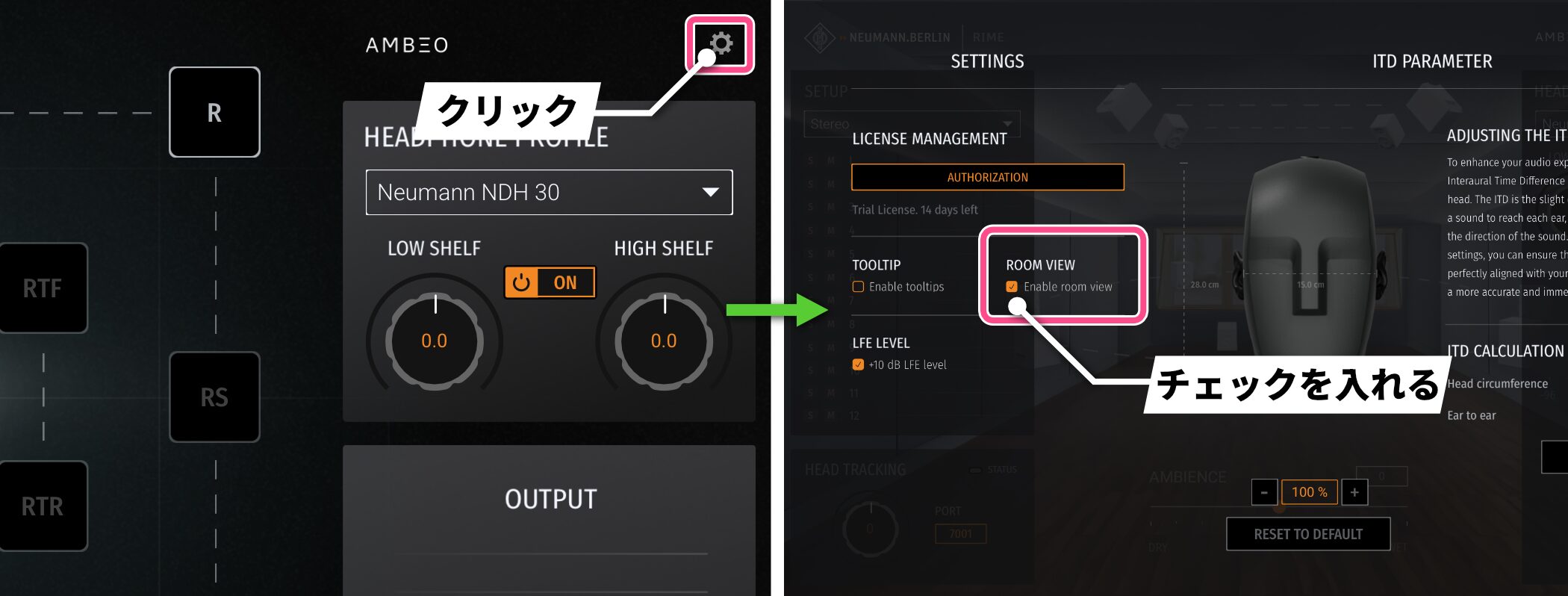
Check ROOM VIEW on the settings screen to display a 3D representation of the Neumann studio.
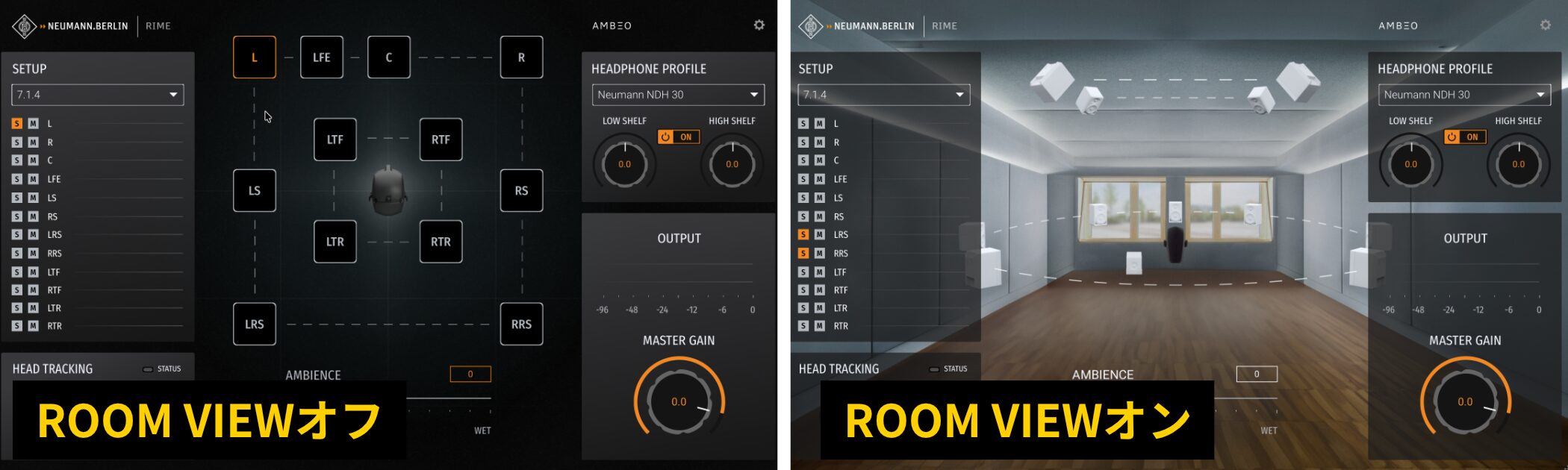
You can work in the default view most of the time and switch to ROOM VIEW when you want to see speaker placement in three dimensions, making immersive mixing easier to visualize.
Control the space with Ambience
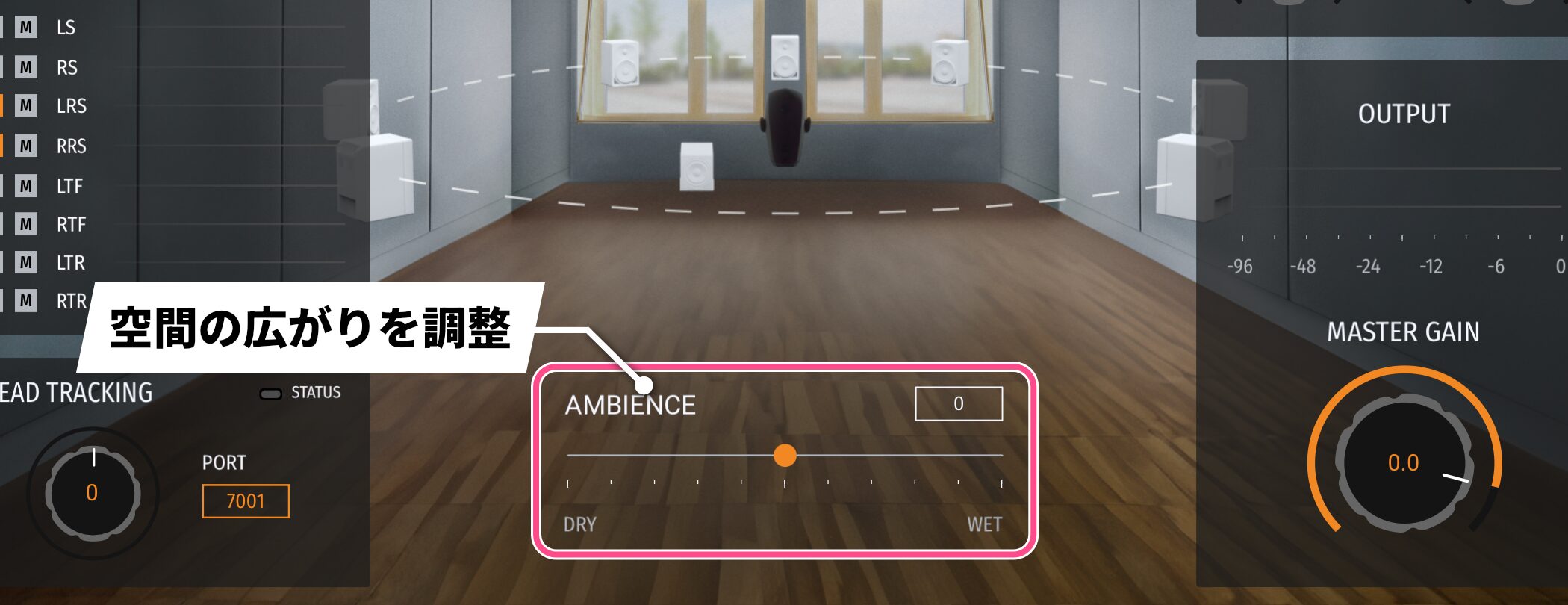
The AMBIENCE knob beneath the speaker-control section lets you adjust the sense of space from dry to wet.
Moving toward DRY on the left emphasizes direct sound for a tight, analytical presentation. Moving toward WET on the right emphasizes room reflections for a more natural, spacious sound.
Fine-tune the tone with a two-band shelving EQ
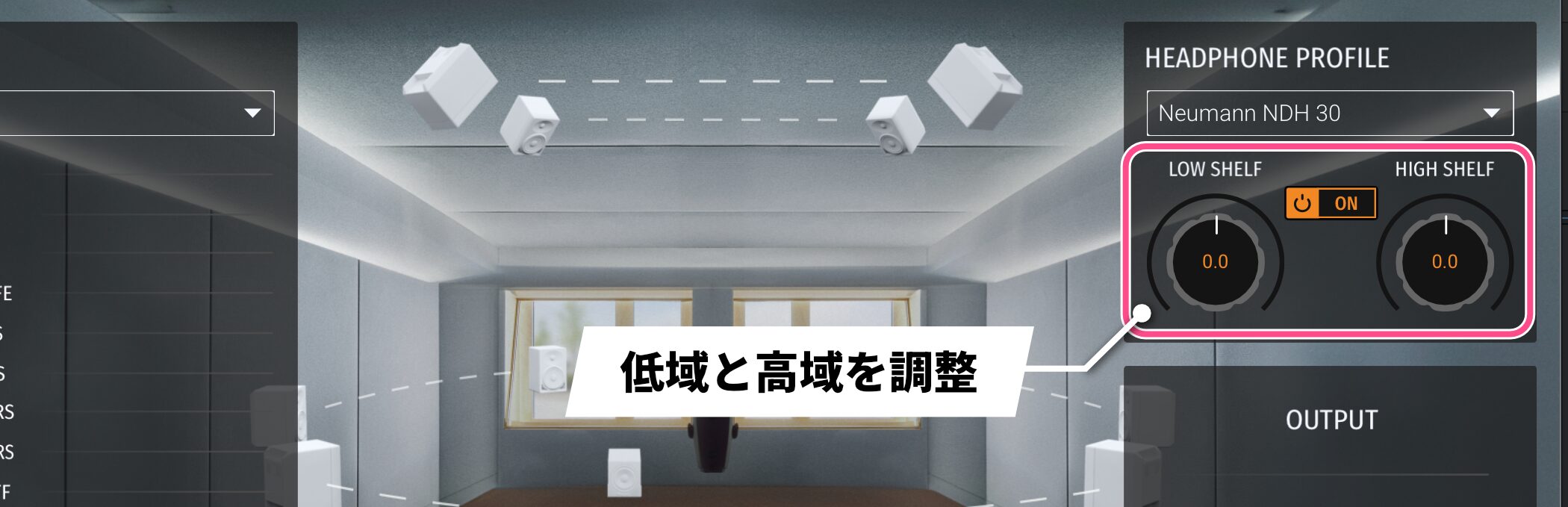
The HEADPHONE PROFILE section includes two shelving EQ controls, LOW SHELF and HIGH SHELF, for adjusting the low and high frequencies.
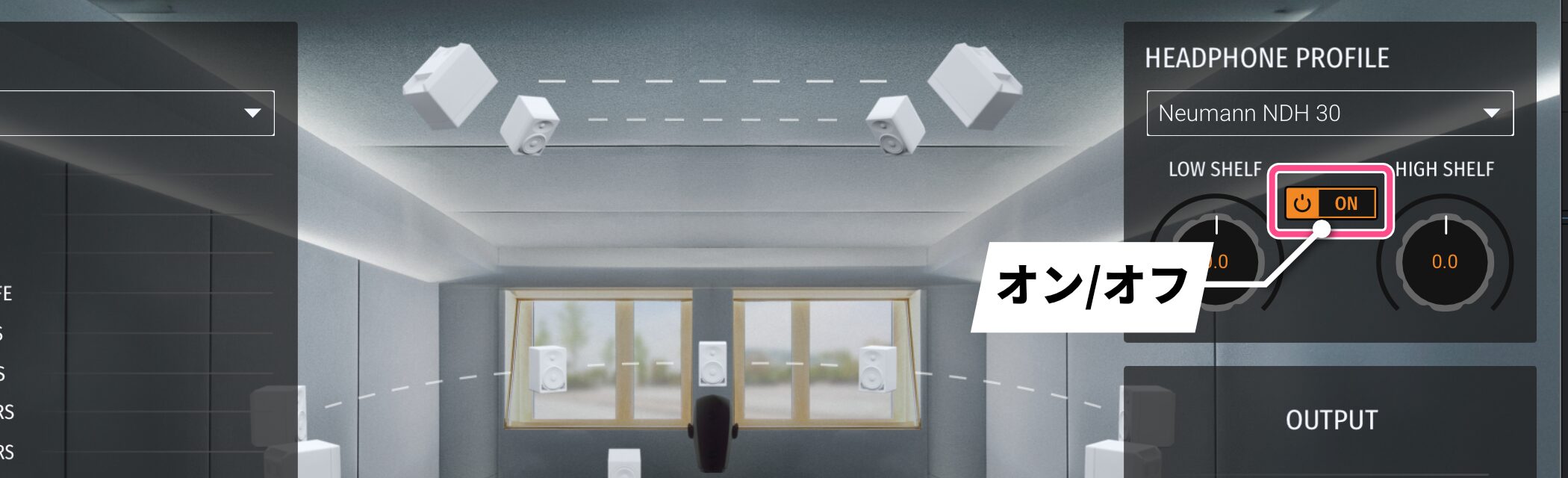
The central ON/OFF button enables or disables the EQ as a whole.
Supported systems and free trial

RIME is designed to work reliably across a range of production setups.
System requirements
• macOS: 10.15 or later (native support for Intel and Apple Silicon)
• Windows: 10 or later
• Sample rates: 44.1 kHz, 48 kHz, 88.2 kHz, 96 kHz, 176.4 kHz, 192 kHz
• Buffer size: 64–2048
Supported DAWs
• Pro Tools
• Cubase/Nuendo
• Logic
• Pyramix
• Reaper
The plug-in can be used with major DAWs that integrate a Dolby Atmos renderer. Check the official website for the latest compatibility information for other DAWs.

If you want to hear what it can do for yourself, you can download a free trial with all features available for two weeksfrom the product page.
Open the plug-in in your DAW and activate the trial to get started.
Take some time to experience the different approach to monitoring that RIME offers.
For creators in Japan who face limits on room space or volume, the prospect of a full multichannel studio-monitoring experience through headphones is significant.
As immersive-audio production becomes more common, RIME and a supported pair of headphones can be a practical and efficient choice compared with the cost and space required for a 7.1.4-channel speaker system.
Neumann brings its acoustic expertise together in RIME. Could it take your music production to the next level?
Frequently asked questions
Q1. Can RIME be used with any headphones?
No. RIME supports only the Neumann NDH 20 (closed-back) and NDH 30 (open-back). Its fully integrated design is intended to deliver consistent, reliable sound with these two models.
Q2. How many speakers do I need to produce immersive audio?
With RIME, you do not need physical speakers for monitoring. It can monitor immersive audio up to 7.1.4 channels through headphones, supporting production for formats such as Dolby Atmos and Apple Spatial Audio.
Q3. Is ITD adjustment easy for beginners?
Yes. Enter your head circumference and ear-to-ear distance, then click CALCULATE. The plug-in automatically calculates the ITD setting. Accurate measurement produced a clear improvement in my listening comparison, so I recommend completing the setup.
Q4. Can I use RIME in a small home studio?
Yes. It is especially useful when your room acoustics are uncertain or you face volume limits. Neumann provides a sound tuned in its own studio, so you can monitor without relying on your room’s acoustic characteristics.
NEW ARTICLES
Latest English Articles

























