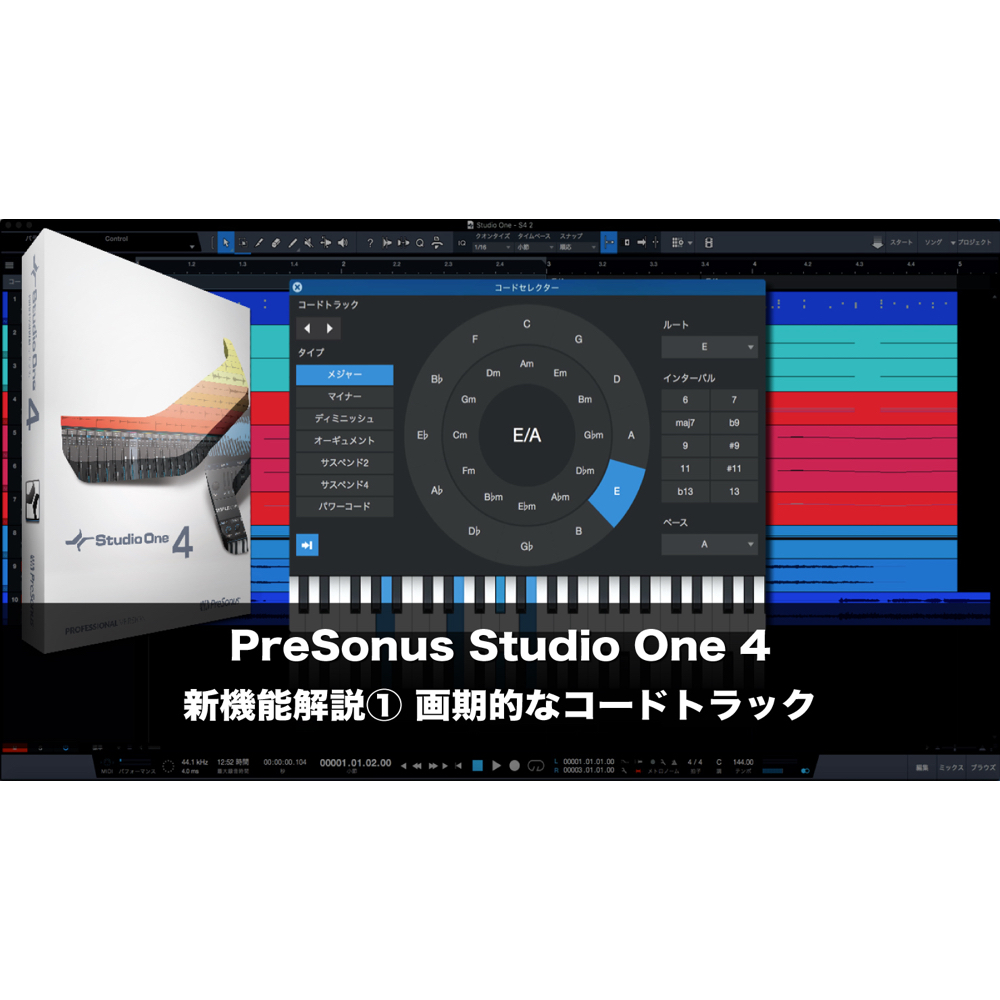
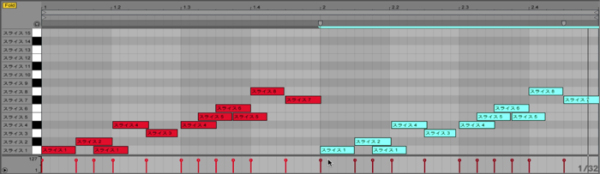
Studio One’s Groove Quantize lets you extract the feel of a favorite track or reference and apply it to a programmed phrase. By transferring subtle timing variations and dynamics, it can give programmed parts a more natural feel. Open the Quantize panel with the Q button, select Groove mode, and drag in audio or MIDI for analysis. You can also apply a groove across multiple tracks and save extracted grooves for later use, helping bring a track together.
Extract a Feel and Bring It into Your Music with Studio One Groove Quantize

Have you ever programmed the rhythm pattern from a favorite song?
Even if the notes are the same, you may have found it frustrating when the result did not sound quite as you imagined.
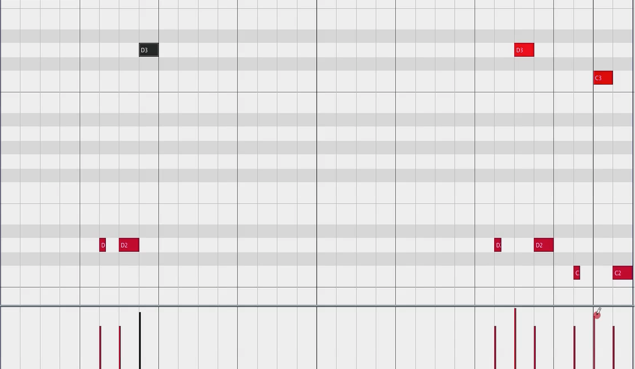
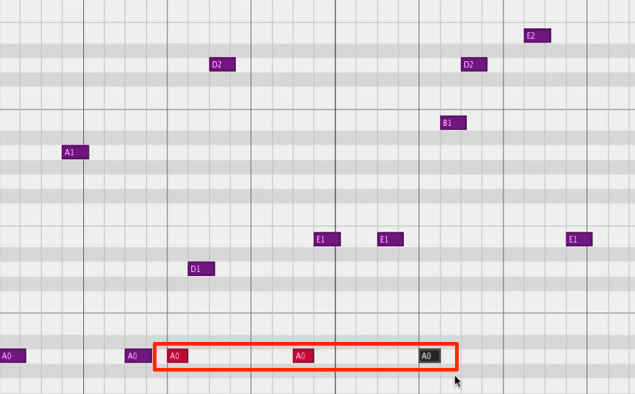
A major reason is the subtle difference in timing variations and dynamics (velocity) found in a real performance.
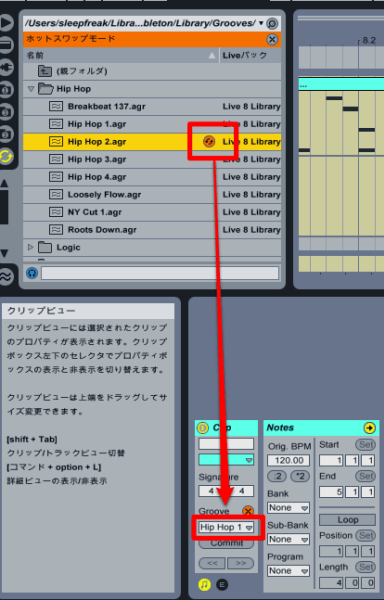
Studio One’s Groove Quantize can extract timing and dynamics from reference audio or MIDI and apply the groove to a phrase you have programmed.
It is a powerful way to bring the feel of a real performance into your own music.
Video: Groove Quantize
Extracting a Groove

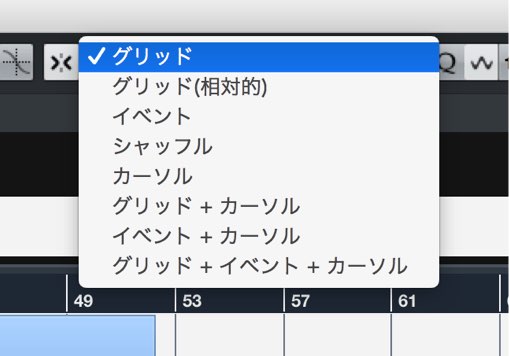
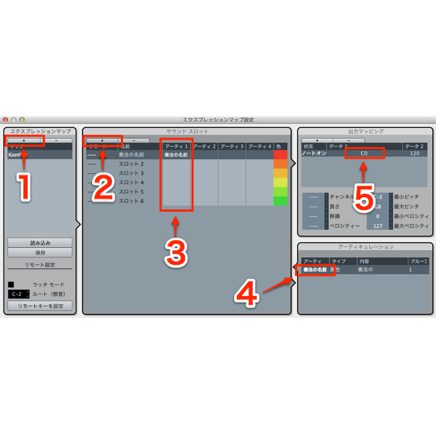
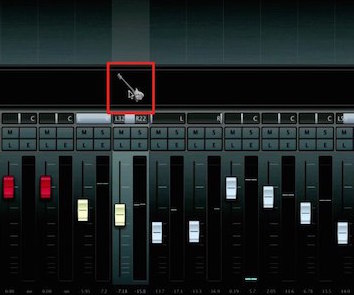
① (red): Click the Q button in the toolbar, or press Q on the keyboard, to open the Quantize panel.
② (blue): Select Groove mode in the panel so it lights up.
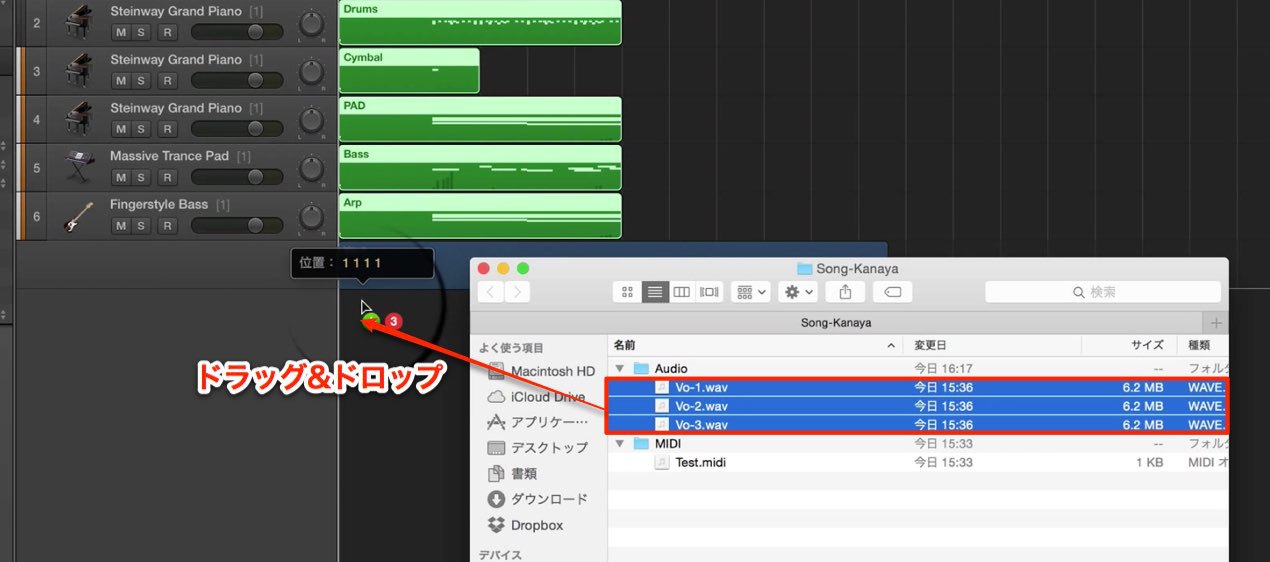
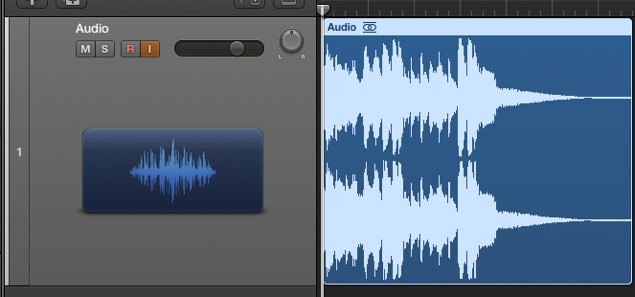
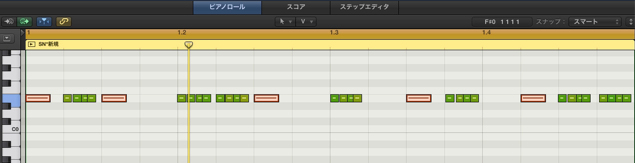
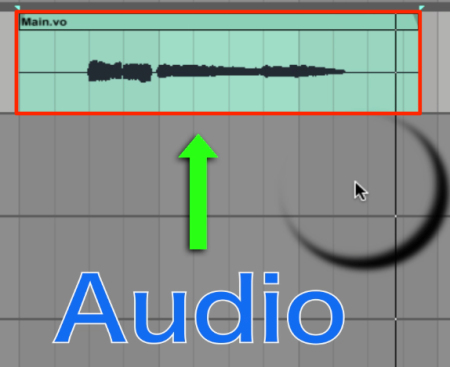
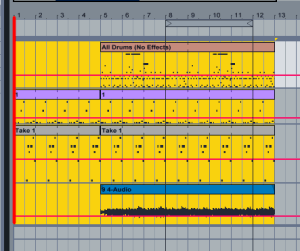
③ (orange): Drag and drop the source event (audio or MIDI) into the Groove area of the Quantize panel.
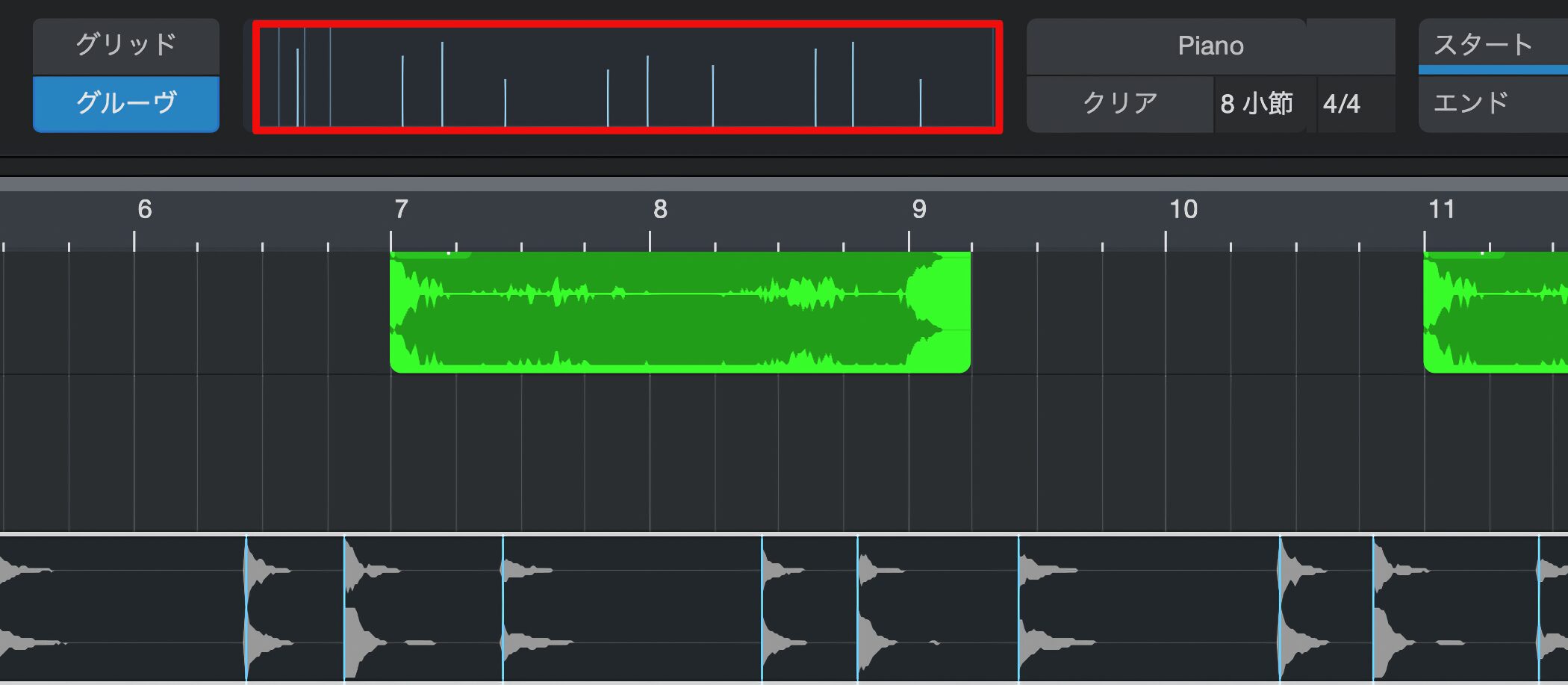
The event is analyzed and its groove is extracted.
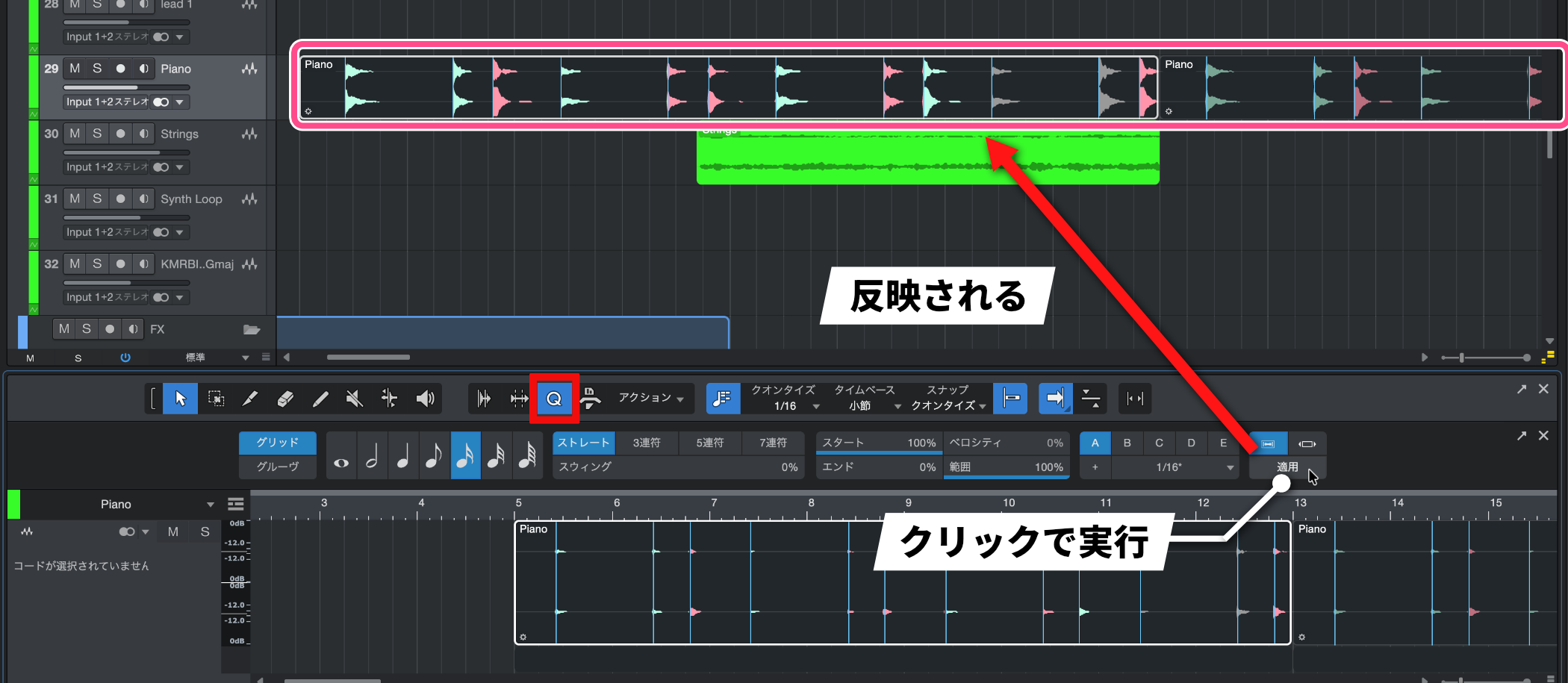
Next, select the event you want to affect and quantize it as usual. The extracted timing and dynamics are applied. Note velocity is adjusted only for instrument notes, according to the Groove Velocity setting; audio is quantized in timing rather than MIDI velocity.

Frequently Asked Questions
Q1. What material can Groove Quantize extract a feel from?
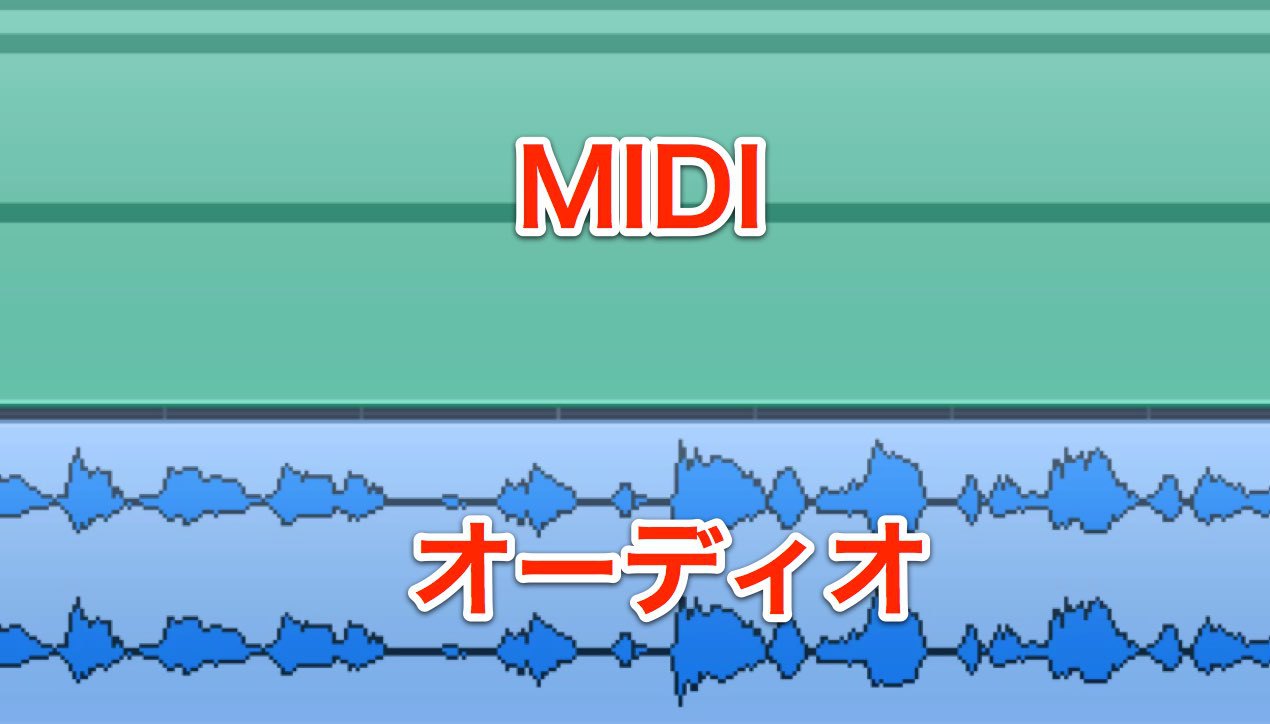
It can extract a groove from audio or MIDI. Reference material can include drum loops, bass lines, or vocal tracks from a favorite song.
Q2. What should I watch for when applying an extracted groove to multiple tracks?
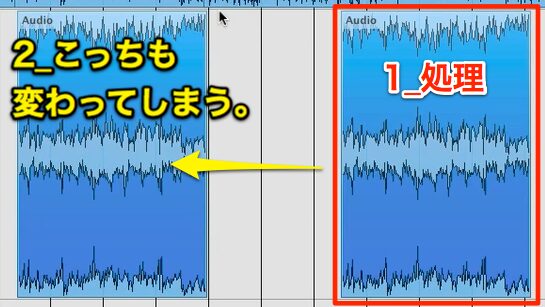
When applying a groove across multiple tracks, pay attention to potential phase alignment issues. Coordinating the timing of the tracks can help create a cohesive, polished groove; check related recordings together to ensure their phase relationship remains intact.
Q3. Can I save a groove I create and use it in other songs?
Yes. Extracted grooves can be saved and managed as presets and reused in other songs, allowing you to build your own groove library.
NEW ARTICLES
Latest English Articles