
VariAudio 3 in Cubase 10 brings a major improvement in the usability and flexibility of pitch editing. Previously separate pitch-editing and segment functions are combined, while Smart Controls let you split, glue, and move pitches without changing tools. Alongside Absolute and Relative snap modes, pitch quantization, pitch straightening, formant shifting, and volume adjustment, you can now display a MIDI track as a reference, making vocal editing more precise and efficient.
VariAudio: Greater Editing Flexibility and Ease of Use

In this series, we’ll explore the key improvements in Cubase 10.
This first installment focuses on VariAudio.
Cubase users will be familiar with this pitch-editing tool. In Cubase 10, it is even easier to use and offers greater editing flexibility.
Let’s take a closer look.
Cubase 10 New Features, Part 1 — Video
Download the Cubase 10 Song Project Here!
Lyrics / Vocals: 3SECONDS Lisa Briar Rose (@3secondslb) • Music / Arrangement: L75-3 (@l75_3)
Please also follow us on Twitter for music production tips and tutorials.
- 1Cubase 10 New Features: Improvements to VariAudio
- 2Cubase 10 New Features: MixConsole Recall, New Plug-ins, and More
- 3Cubase 10 New Features: Audio Alignment, Groove Agent SE 5, and More
Combined Segment Editing and Smart Controls
The first change you may notice when analyzing audio is that the separate Pitch & Warp and Segments buttons have been replaced by a single Edit VariAudio button.
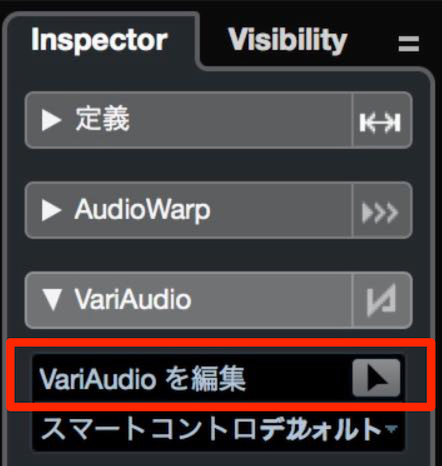
The two editing modes found in earlier versions have now been combined into one.
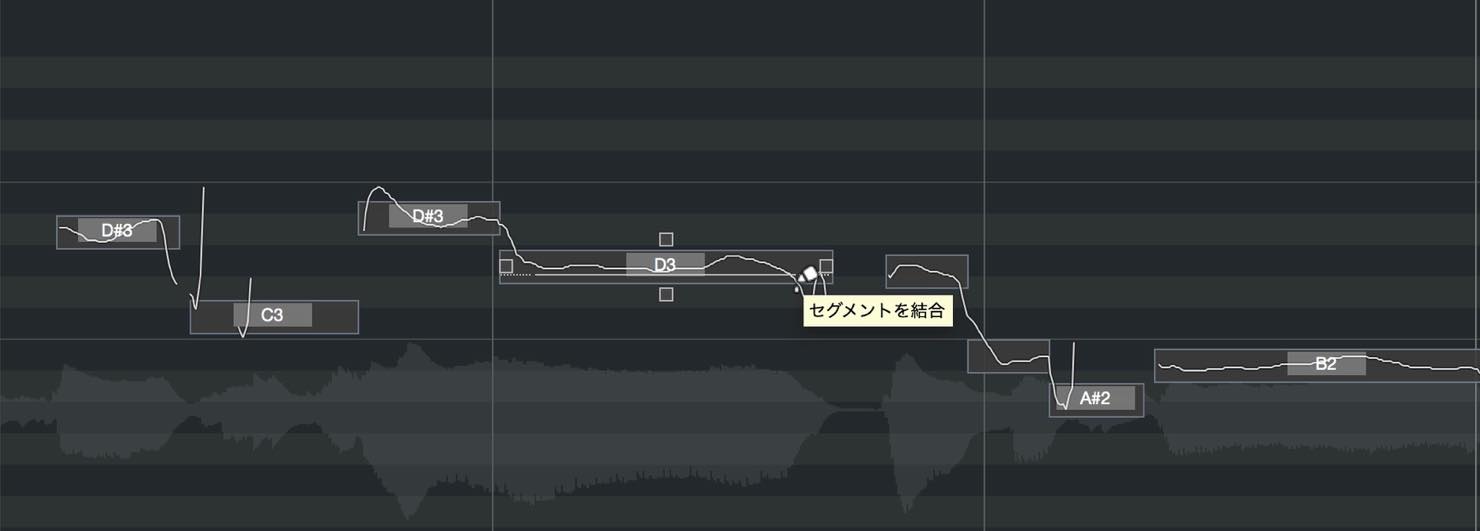
Enable Edit VariAudio to analyze the audio and display its pitches as segments.
You can still move segments up and down, but the combined functionality now lets you split and glue them in the same editing mode.
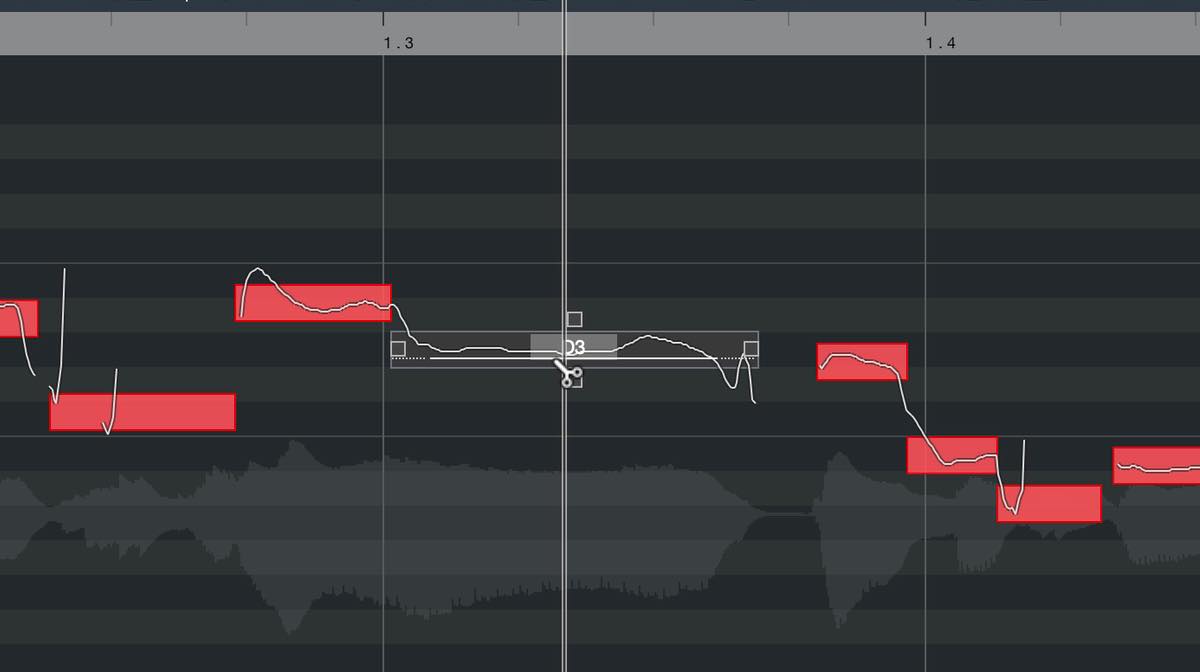
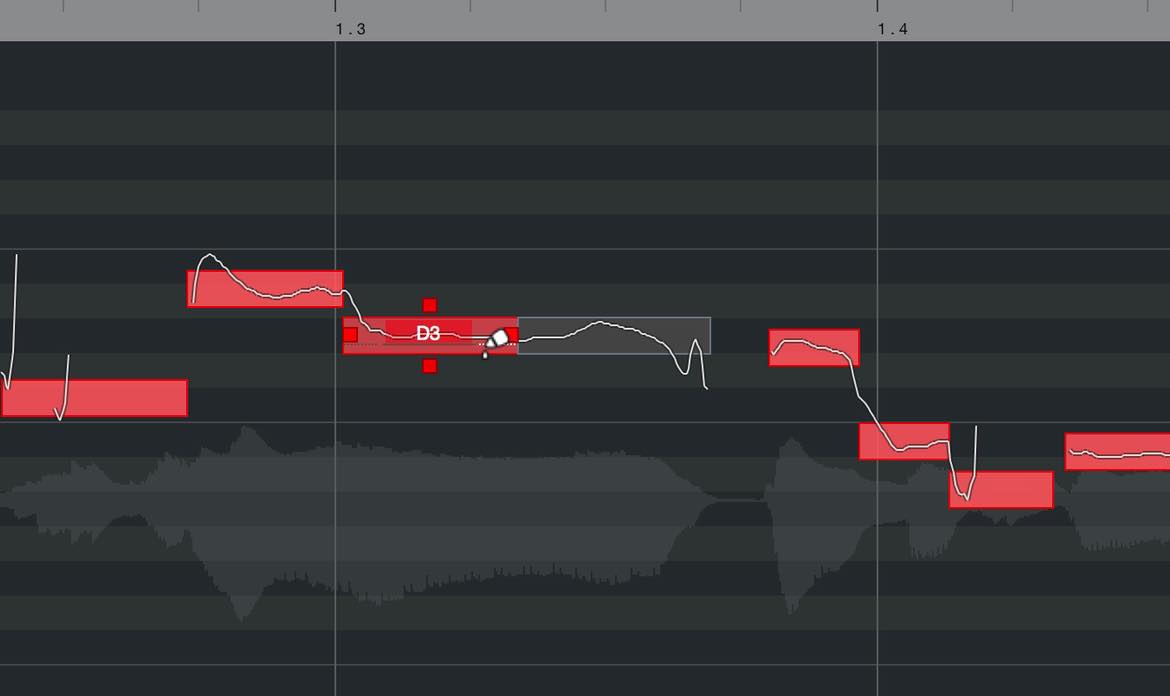
This system, which gives you different functions without switching tools, is called Smart Controls.
Place the pointer toward the top of a segment to display the hand icon for moving its pitch. Near the lower middle, the scissors icon lets you split it; at the lower left or right edge, the glue icon lets you join it to the adjacent segment.
The boundary between the split and glue areas depends on the minimum length allowed when splitting a segment.
Modifier keys can also restrict the available functions. Hold Option on Mac or Alt on Windows as you move the pointer over the segment to show only the scissors icon near its center.
Hold Shift to hide the scissors icon and use only pitch movement or gluing.
If you select several segments and glue at any applicable position, all selected segments are joined together.
Snap
You can apply snapping when moving pitches up and down. There are two snap modes: Absolute and Relative.
Switch between them in the Inspector.
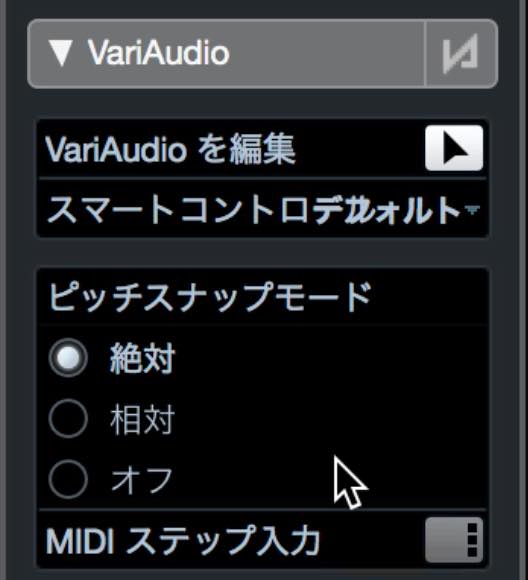
- Absolute: Moves the segment onto the correct pitch position, even if its original pitch was slightly off.
- Relative: Moves the segment in semitone steps while preserving its original pitch offset.
- Off: Lets you move freely, without following the pitch grid.
You can also switch modes temporarily with modifier keys.
While dragging, hold Command on Mac or Control on Windows for Absolute mode, Option on Mac or Alt on Windows for Relative mode, or Shift to turn snapping off.
Quantize Pitch, Straighten Pitch, and Warp
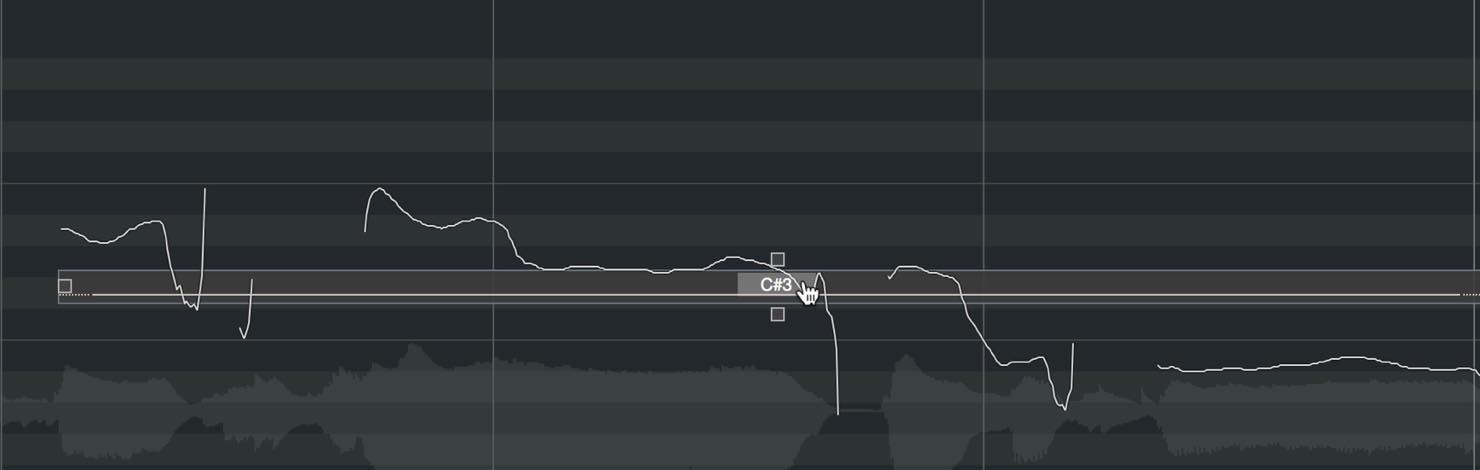
Drag the square handle below a segment upward to quantize the pitch of that segment alone.
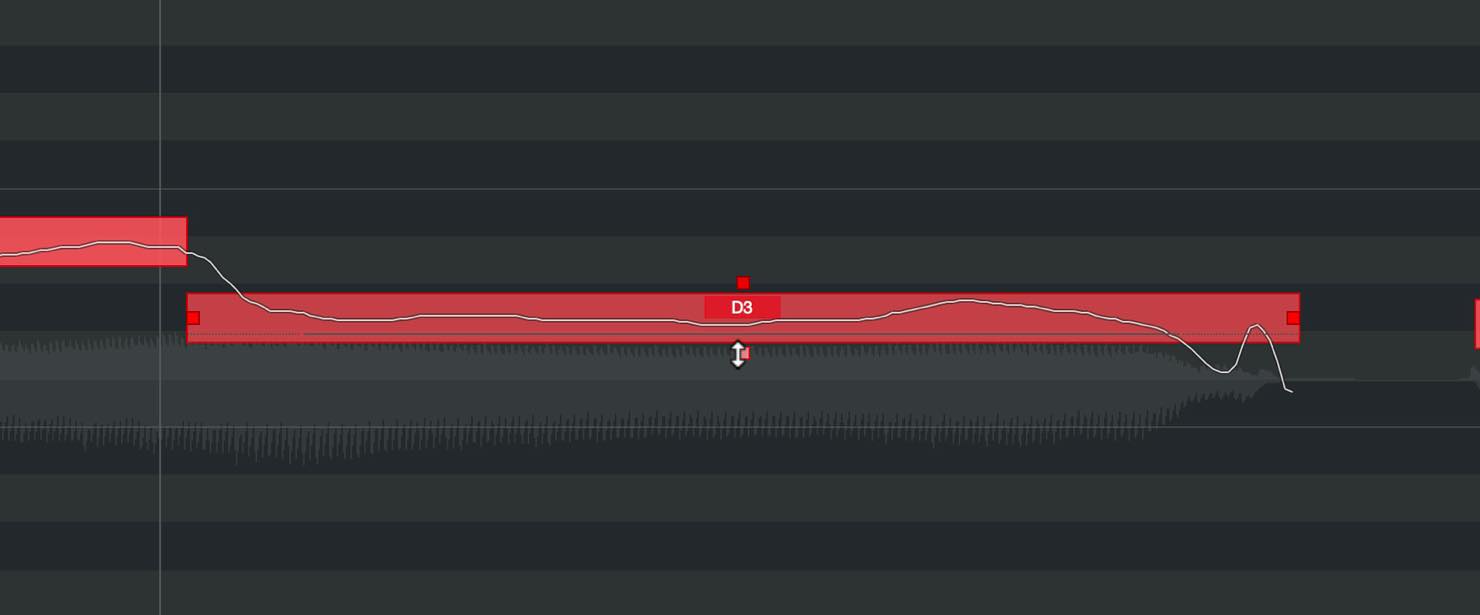
Drag the square handle above a segment downward to straighten the pitch of that segment alone.
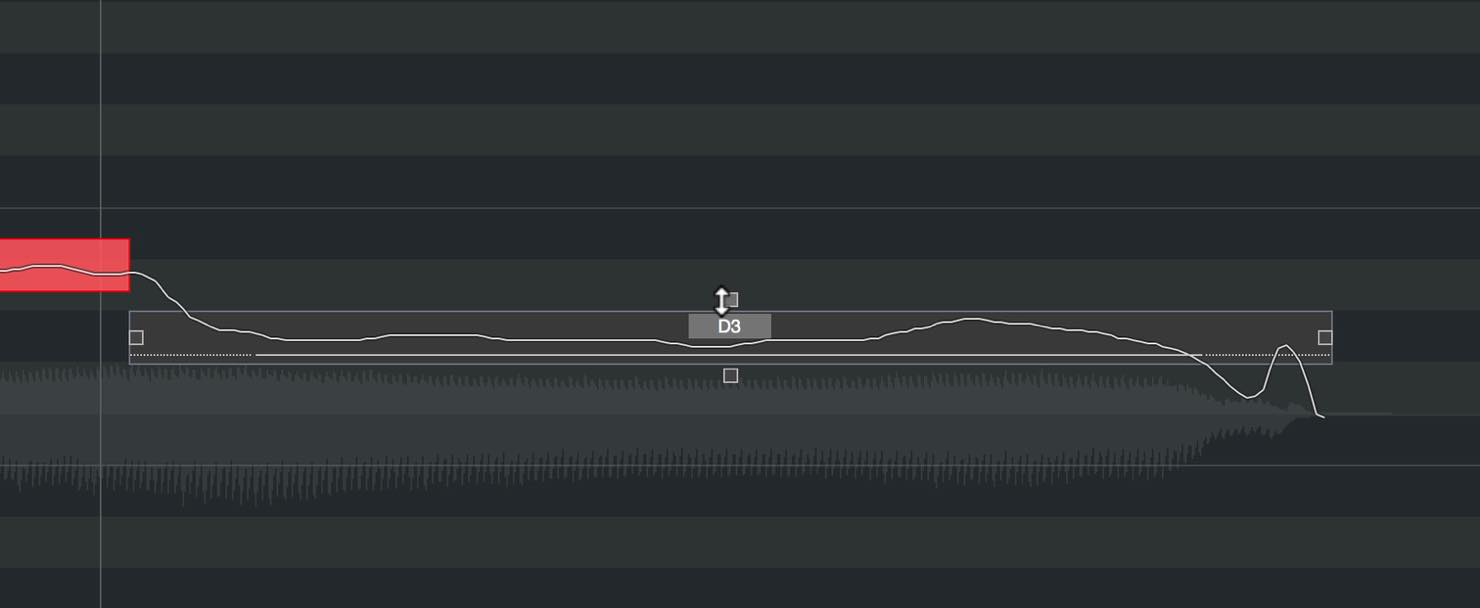
Warping, or timing correction, is still available as before, although the controls look slightly different.
Use the square handle at the left edge to warp the start, or the one at the right edge to warp the end.
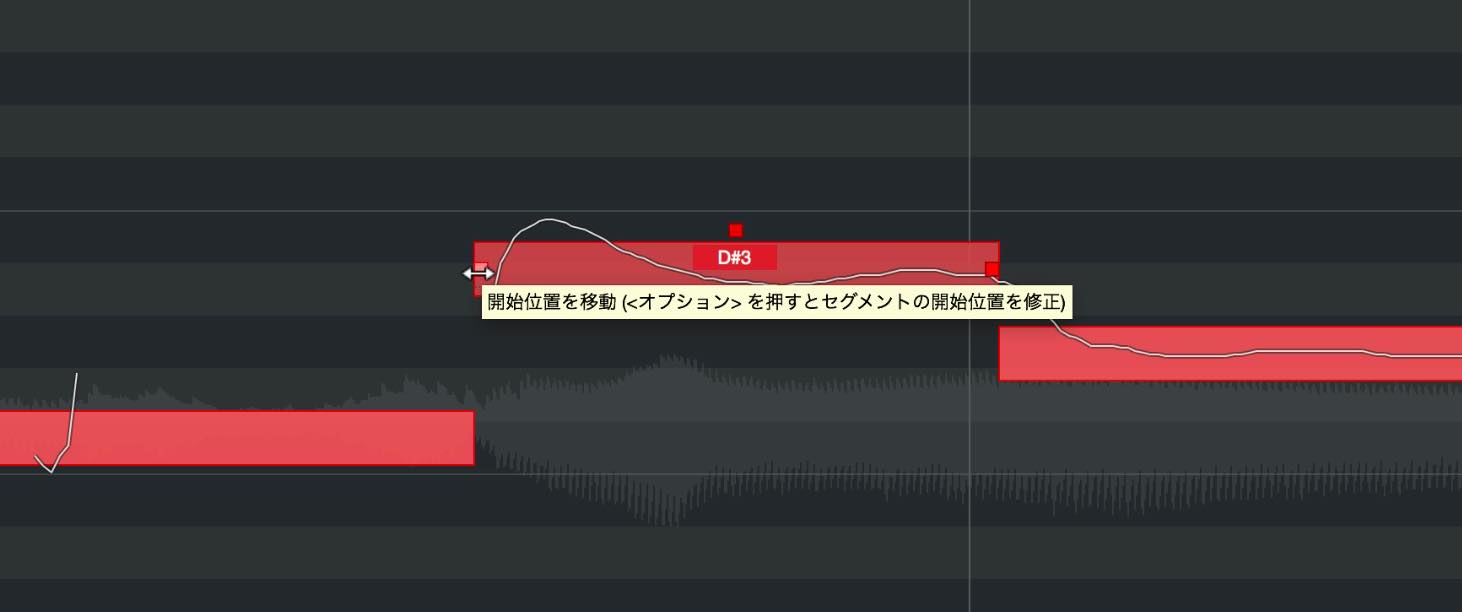
Hold Option on Mac or Alt on Windows while dragging either square handle to change the segment’s boundaries.
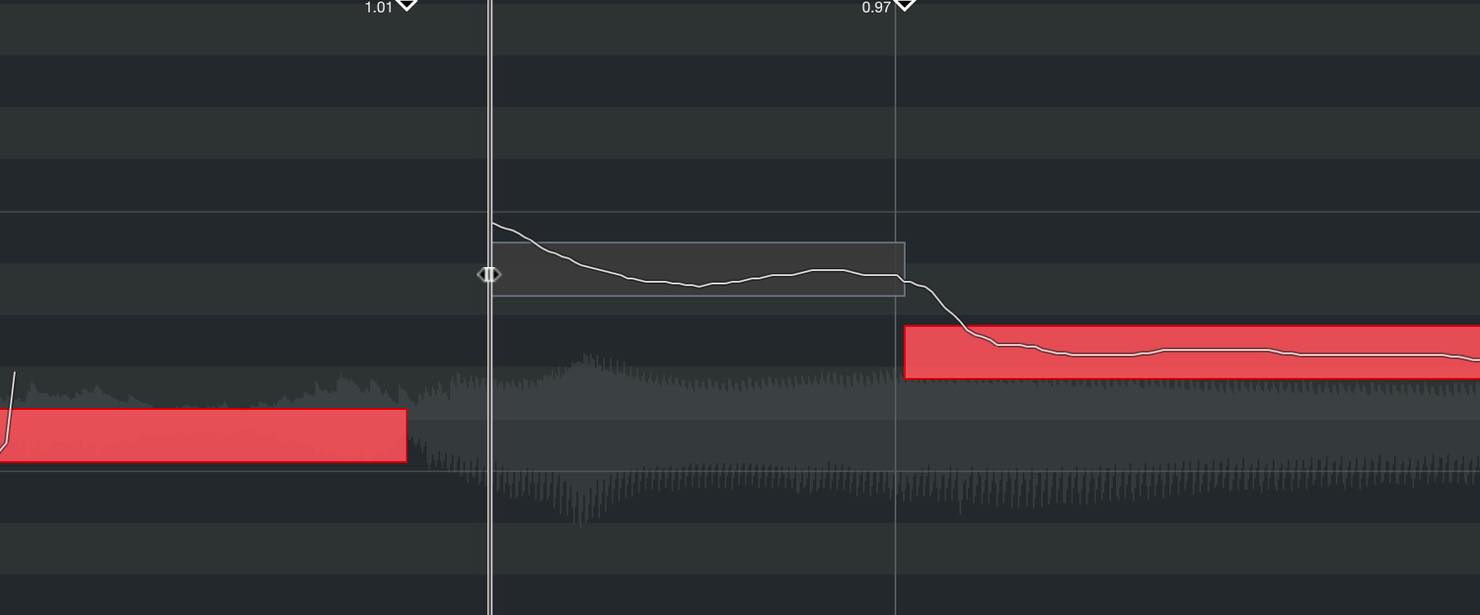
This changes the range that VariAudio edits, rather than the sound’s duration or timing.
More Detailed Smart Controls
Click Smart Controls Mode in the Inspector and switch to Show All Smart Controls to access additional functions.
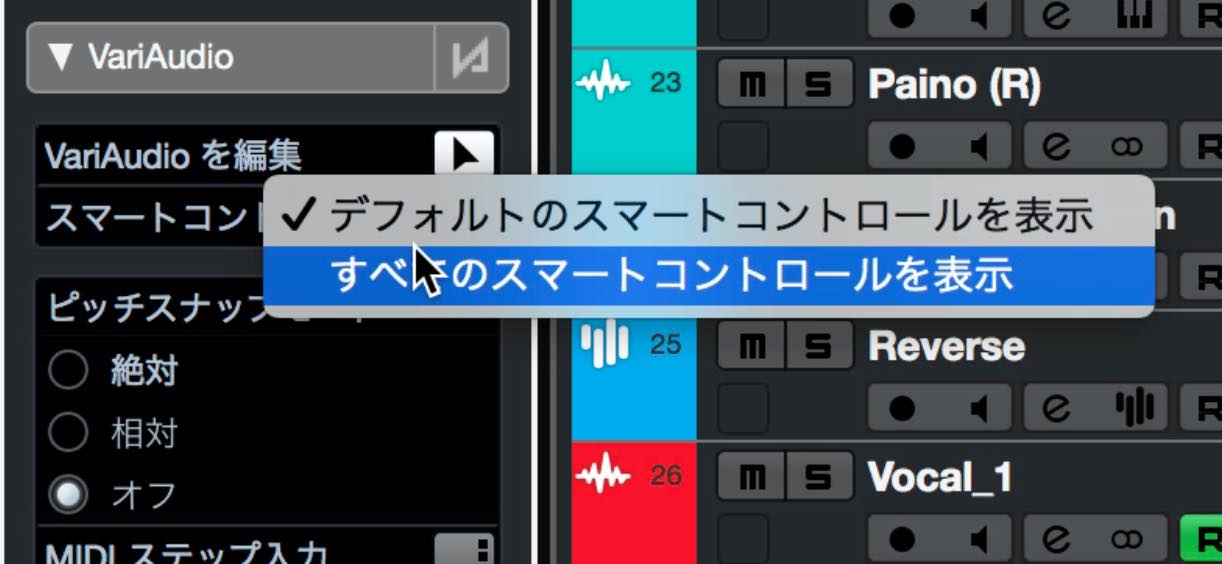
Use the triangular handles in the upper left and right corners to change the range affected by pitch straightening. This is useful when you want to preserve the original transitions at the beginning or end.
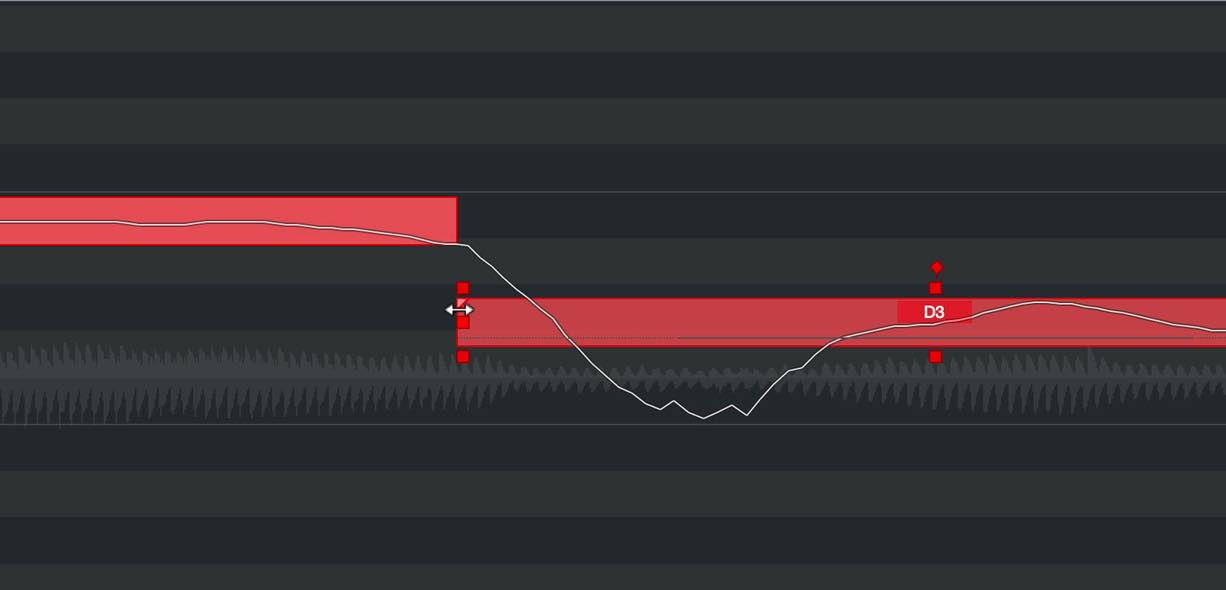
The square handles outside the upper left and right corners let you tilt the pitch curve.
Hold Option on Mac or Alt on Windows while dragging to rotate it instead.
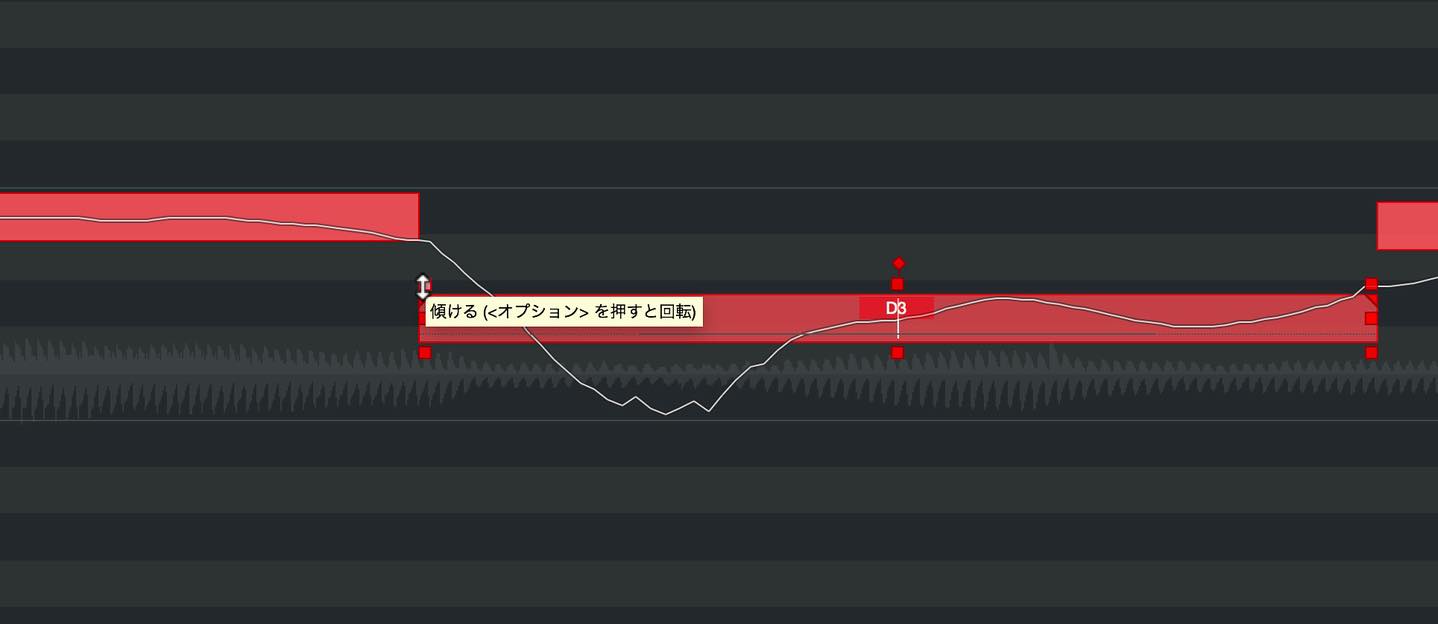
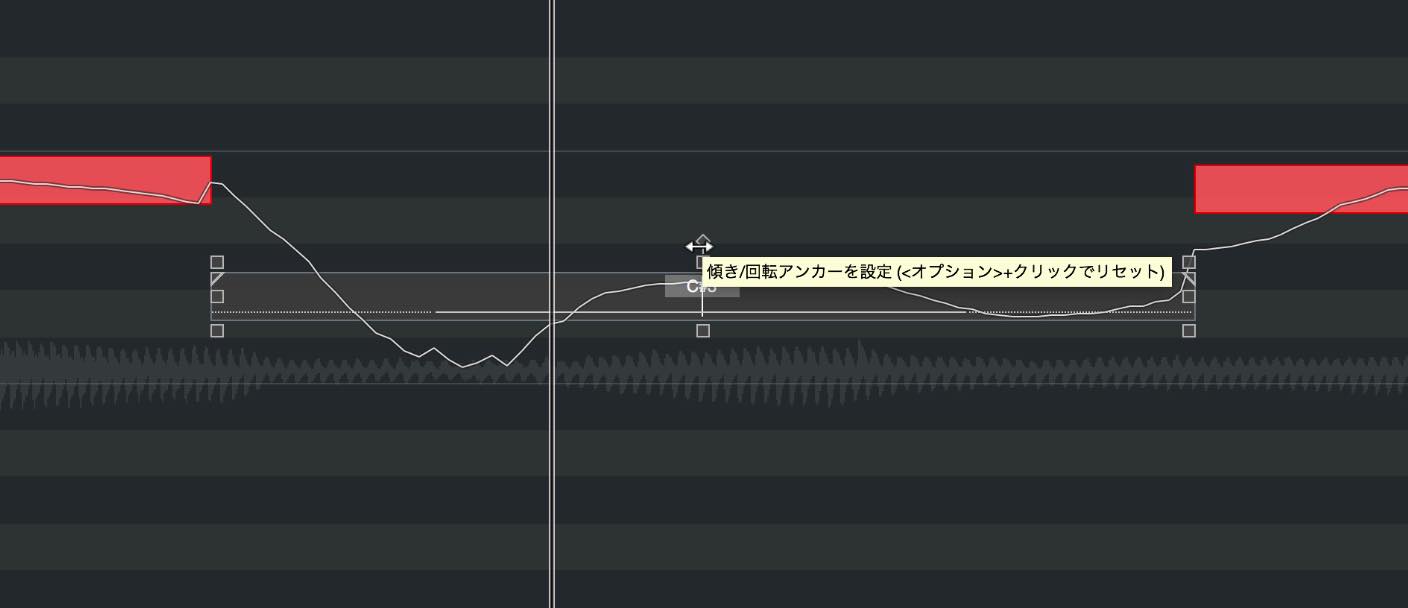
Drag the diamond handle outside the center of the segment left or right to change the rotation axis.
Option-click on Mac or Alt-click on Windows to reset it to its default position.
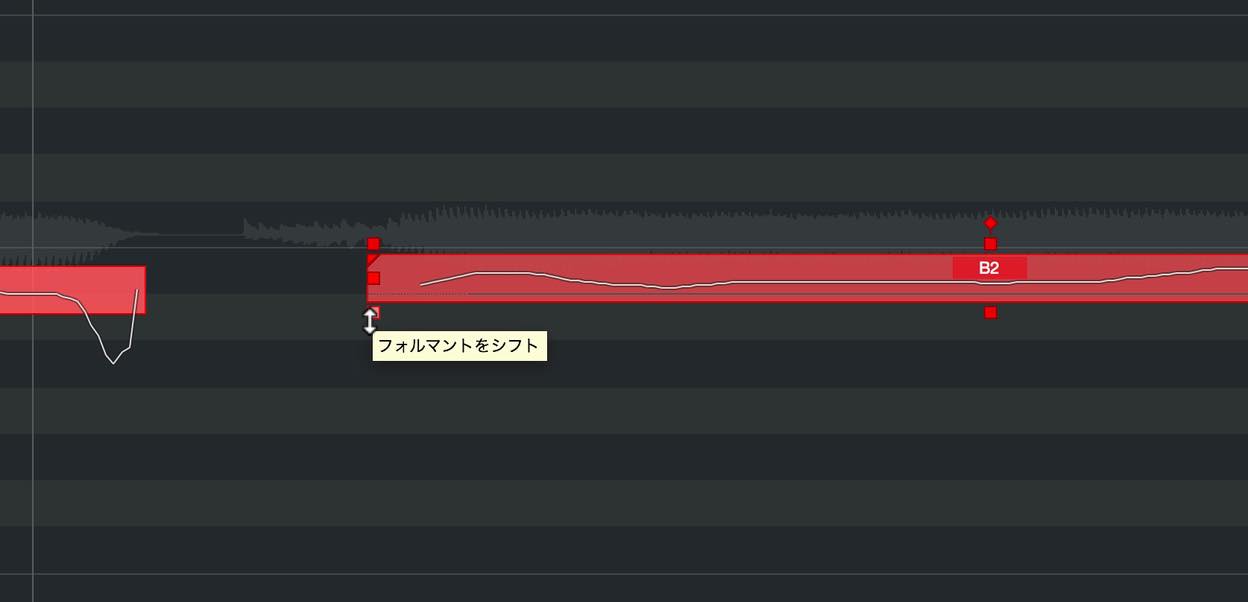
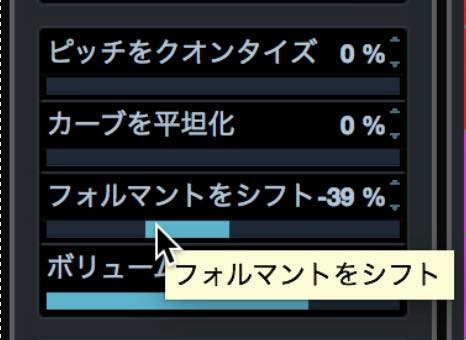
The square handle outside the lower left corner lets you shift the formants.
Dragging upward produces a brighter, more feminine-sounding voice; dragging downward produces a darker, more masculine-sounding voice.
The formant shift amount also appears in the Inspector, where you can adjust it directly.
The square handle outside the lower right corner changes the segment’s volume.
Drag upward to increase the volume or downward to reduce it. At the minimum setting, the segment is muted and turns gray.
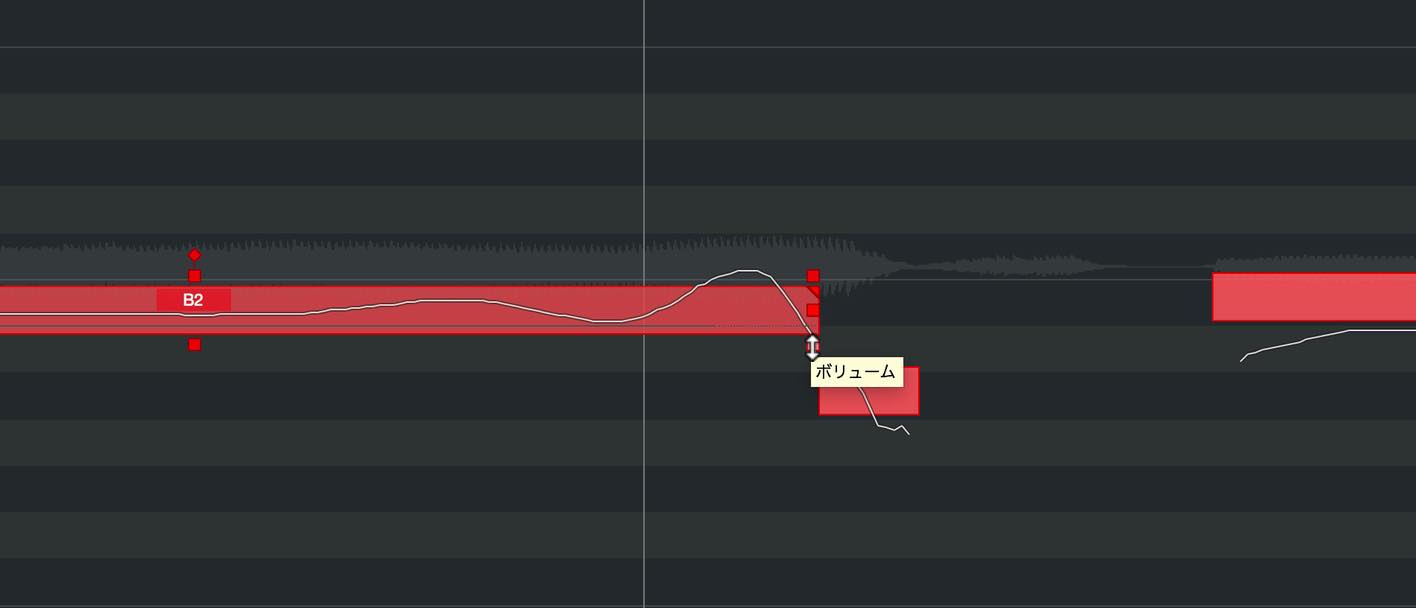
Like formant shift, volume is also displayed and adjustable in the Inspector.
When several segments are selected, operating a control on one of them lets you move pitch, straighten the pitch curve, quantize pitch, shift formants, or adjust volume across the selection. Other operations apply to individual segments only.
MIDI Reference
Another new feature lets you display a MIDI track as a reference.
Click No MIDI Reference in the Inspector to see a list of available reference tracks.
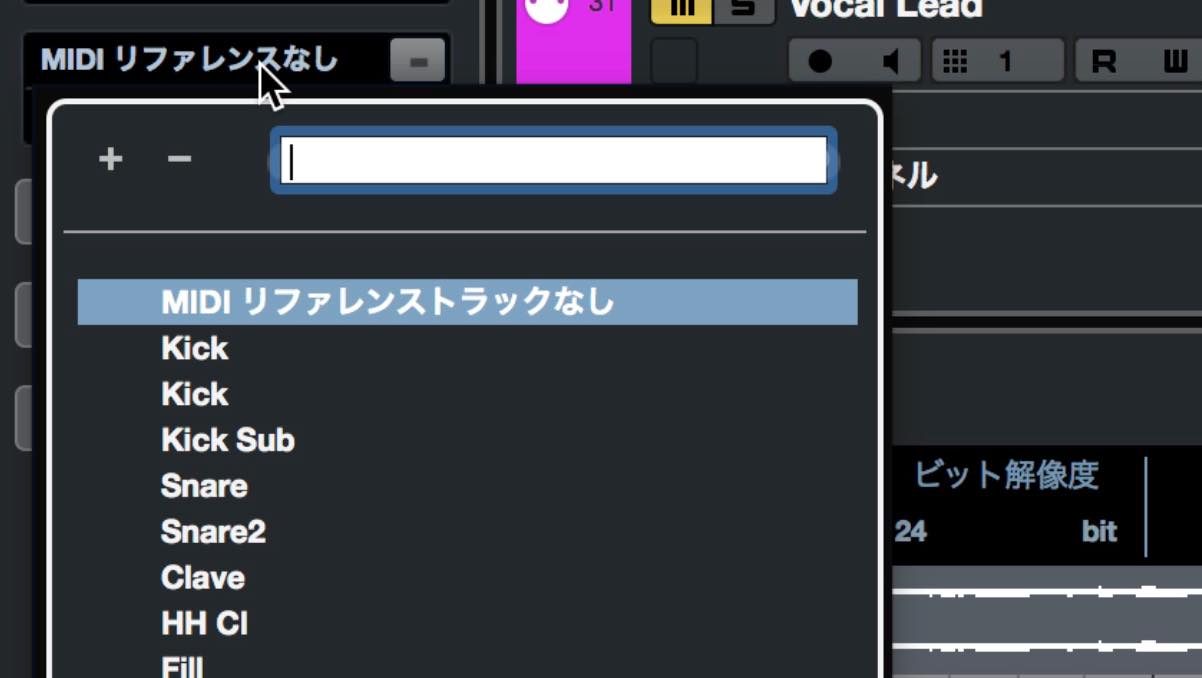
Select the appropriate track to display its MIDI notes over the VariAudio view, as shown here.
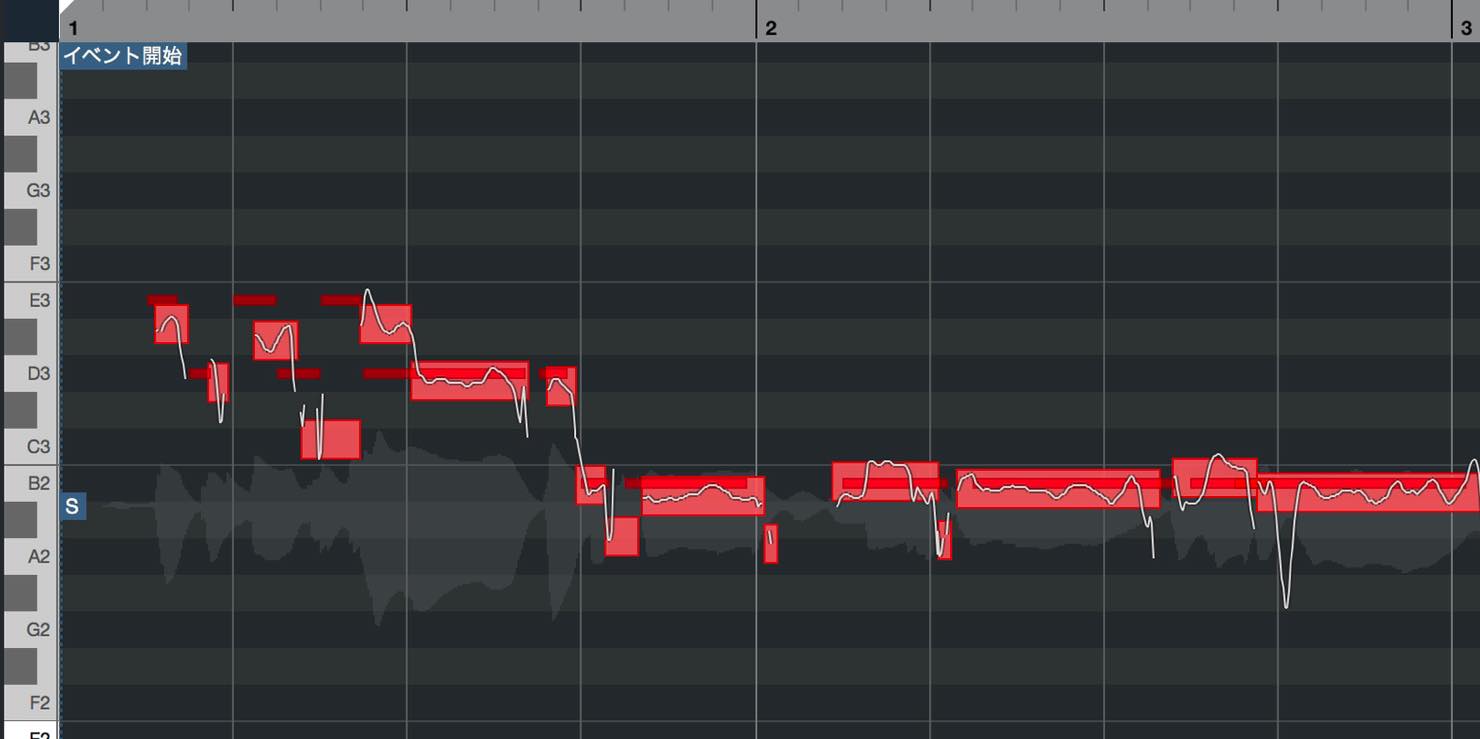
For better visibility, color-code the events beforehand and set this color menu to Event.
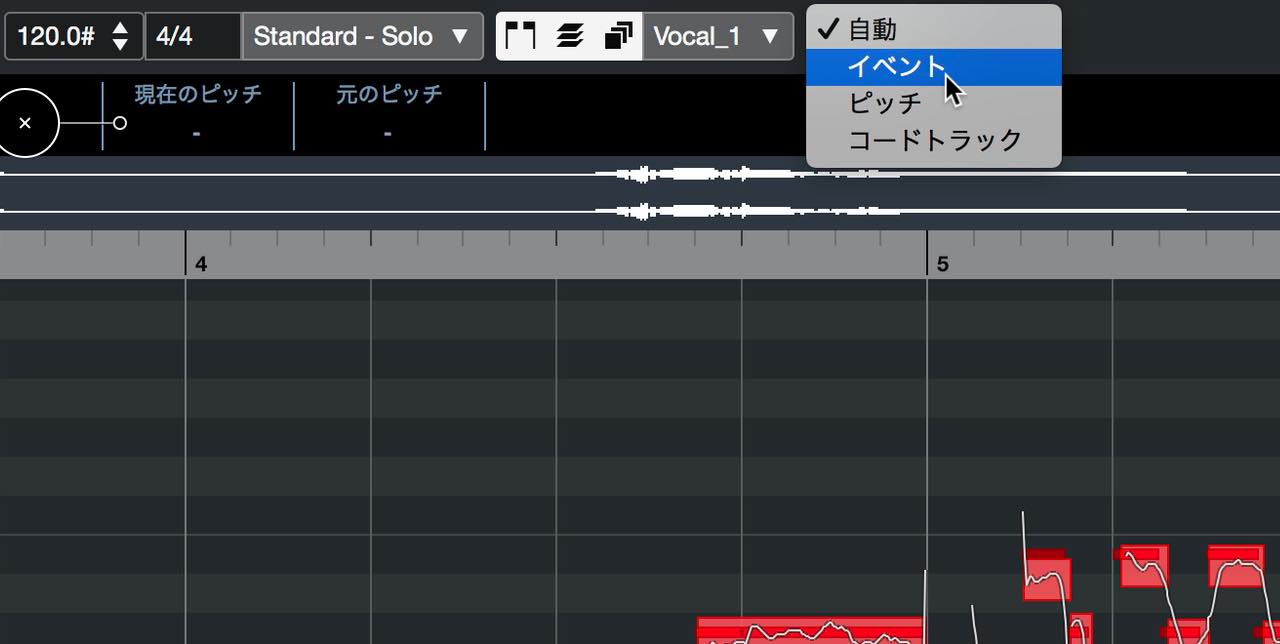
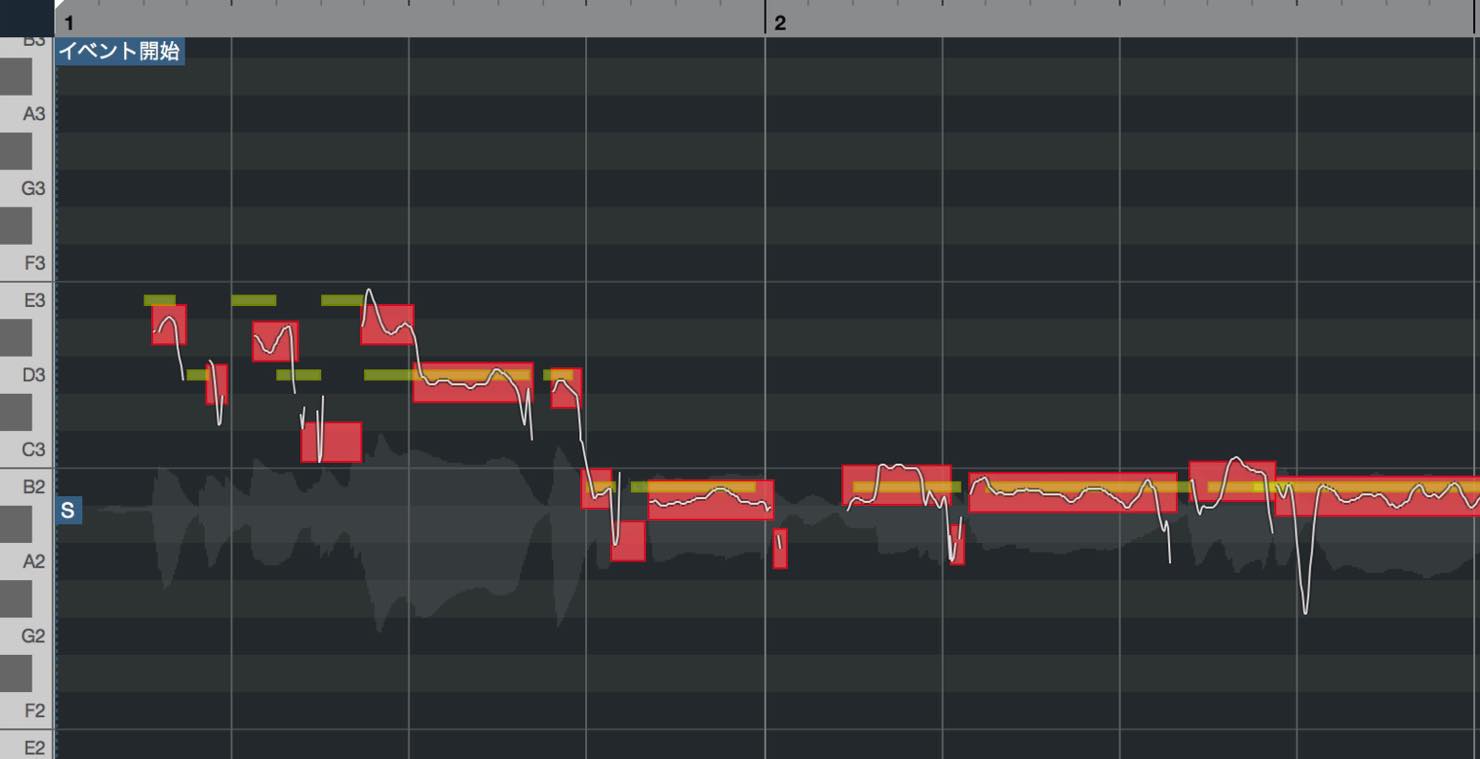
This is useful when you want a reference for the correct pitches.
Other Functions
The Functions menu in the Inspector brings together various other VariAudio features.
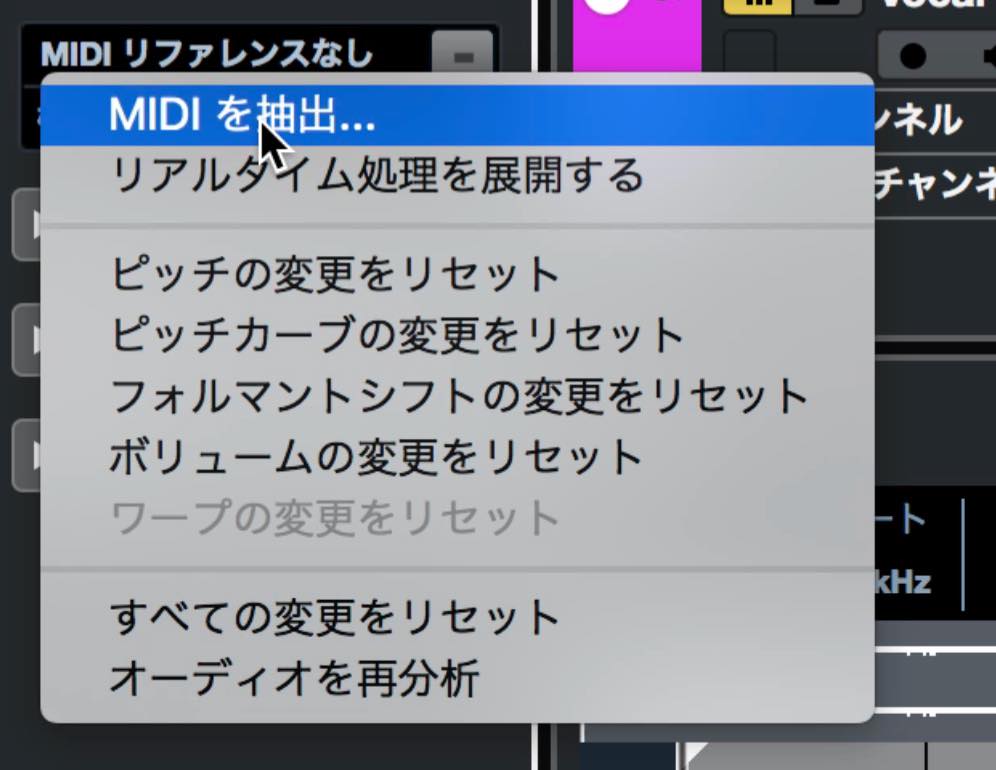
This is where you’ll find Extract MIDI and Flatten Realtime Processing, both available in previous versions.
There are also separate reset commands for different types of edits. For example, select the desired segments and choose the command to reset pitch changes in the selection; only their pitch edits will be reset, as shown here.
To analyze the audio again, choose Reanalyze Audio.
VariAudio now offers much better usability and editing flexibility. Try these features in Cubase 10 and put them to work in your own projects.
Steinberg Distributor — Explore Content from Yamaha Music Japan Co., Ltd.
- Yamaha Music Japan MPP (YouTube)https://www.youtube.com/user/SteinbergJapan
- MPP (Twitter)https://twitter.com/SteinbergJP
- Sound Roster Music Production Program (Fresh!)https://freshlive.tv/ymjsoundroster

Product Page: https://bit.ly/2UiQvP5
Frequently Asked Questions
Q1. How do I split a segment in VariAudio 3 in Cubase 10?
Move the pointer near the lower center of a segment to display the scissors icon, then drag there to split the segment. Hold Option on Mac or Alt on Windows to restrict the operation to splitting.
Q2. What is the difference between Absolute and Relative snap modes in VariAudio 3?
Absolute mode corrects the original pitch offset and snaps to the correct pitch. Relative mode moves in semitone steps while preserving the original offset, making it useful when you want to retain an intentional pitch deviation.
Q3. When is the MIDI Reference feature useful?
It is useful for checking the correct pitches of vocals or melodies. Displaying a MIDI track as a reference makes it easy to see differences from the target pitches and edit more precisely.
Q4. Can I edit several segments at the same time?
Yes. With multiple segments selected, you can move pitches, straighten pitch curves, quantize pitches, shift formants, and adjust volume across the selection for more efficient editing.
NEW ARTICLES
Latest English Articles
























































































































































































































































































