
Learn four essential ways to duplicate material and work more efficiently in Cubase 11: copy and paste with shortcuts, copy by dragging, duplicate an event immediately beside itself, and use Repeat to create many copies at once. This guide explains when to use each method, why selecting the destination track matters, and how shared copies keep edits synchronized. These practical techniques can make editing drum patterns and melodies much more productive.
This time, we will cover ways to duplicate material—an essential editing task after programming your parts.
There are several methods, so learn how each one works and choose the approach that suits the situation.
Ways to Duplicate Material: Video
Selected Questions and Answers from YouTube

At 2:10, I selected “Do not show this message again” in the pop-up and pasted without extending the part. How can I undo that choice and show the message again?

For Cubase 13 and later, the original reply gives this procedure: 1. Quit Cubase, then move Defaults.xml from the relevant Cubase preferences folder to another location, such as the desktop. On Windows, look in your user account's AppData/Roaming/Steinberg/Cubase settings folder; on macOS, look in your user Library/Preferences/Cubase [version number] folder. 2. Restart Cubase with Defaults.xml removed from that folder. The settings reset and the pop-up appears again. Be aware that this also resets other preferences: all dialogs previously dismissed with “Do not show this message again” will reappear; window sizes and positions, the recent-project list, and interface color settings will also reset.
Copy and Paste with Keyboard Shortcuts
The first method is to copy the selected material and paste it at the desired location. You can do this from the Edit menu, but keyboard shortcuts are commonly used.
First, select the event with the Object Selection tool. Press Command+C on Mac or Ctrl+C on Windows to copy it. Nothing visibly changes at this point.
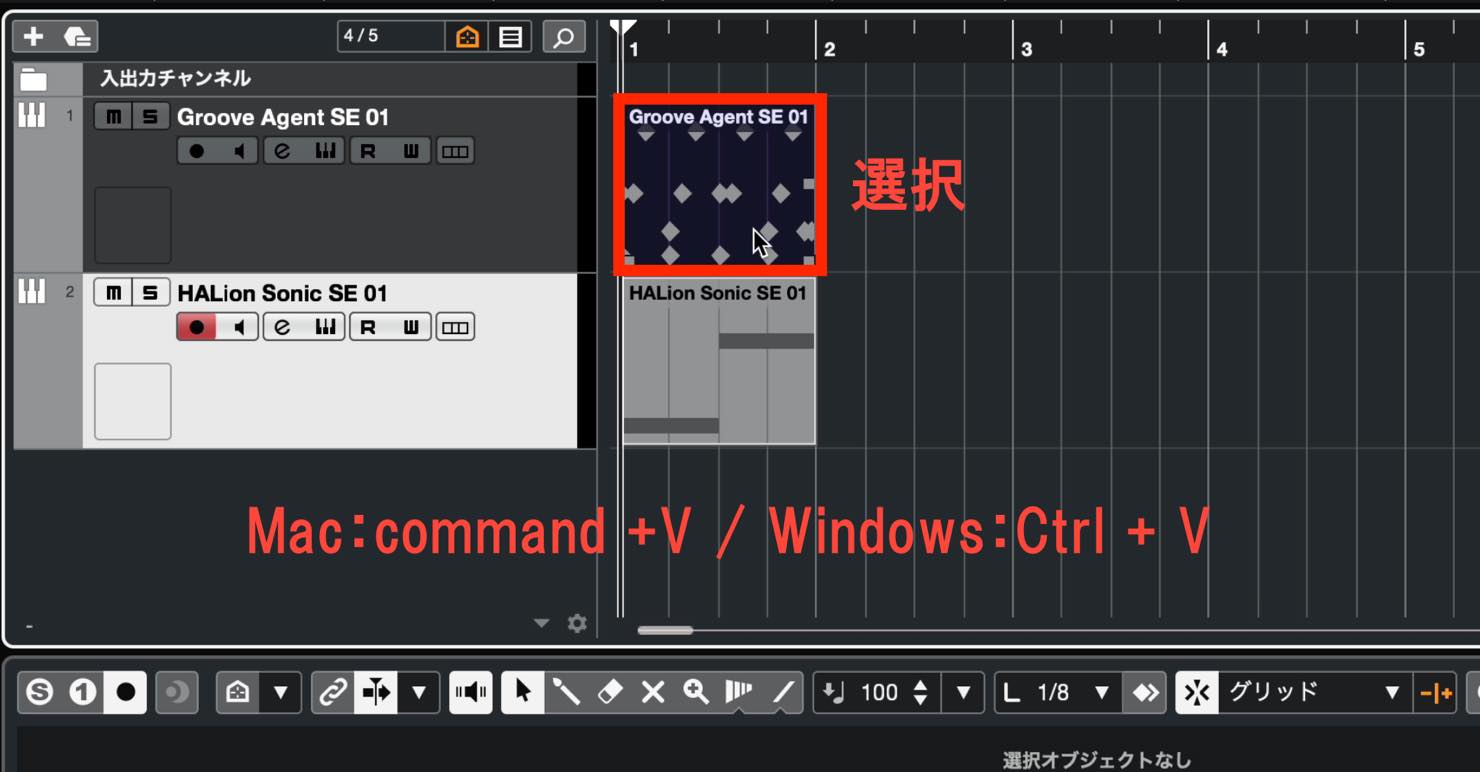
Move the project cursor to the desired position and paste. Use Command+V on Mac or Ctrl+V on Windows.
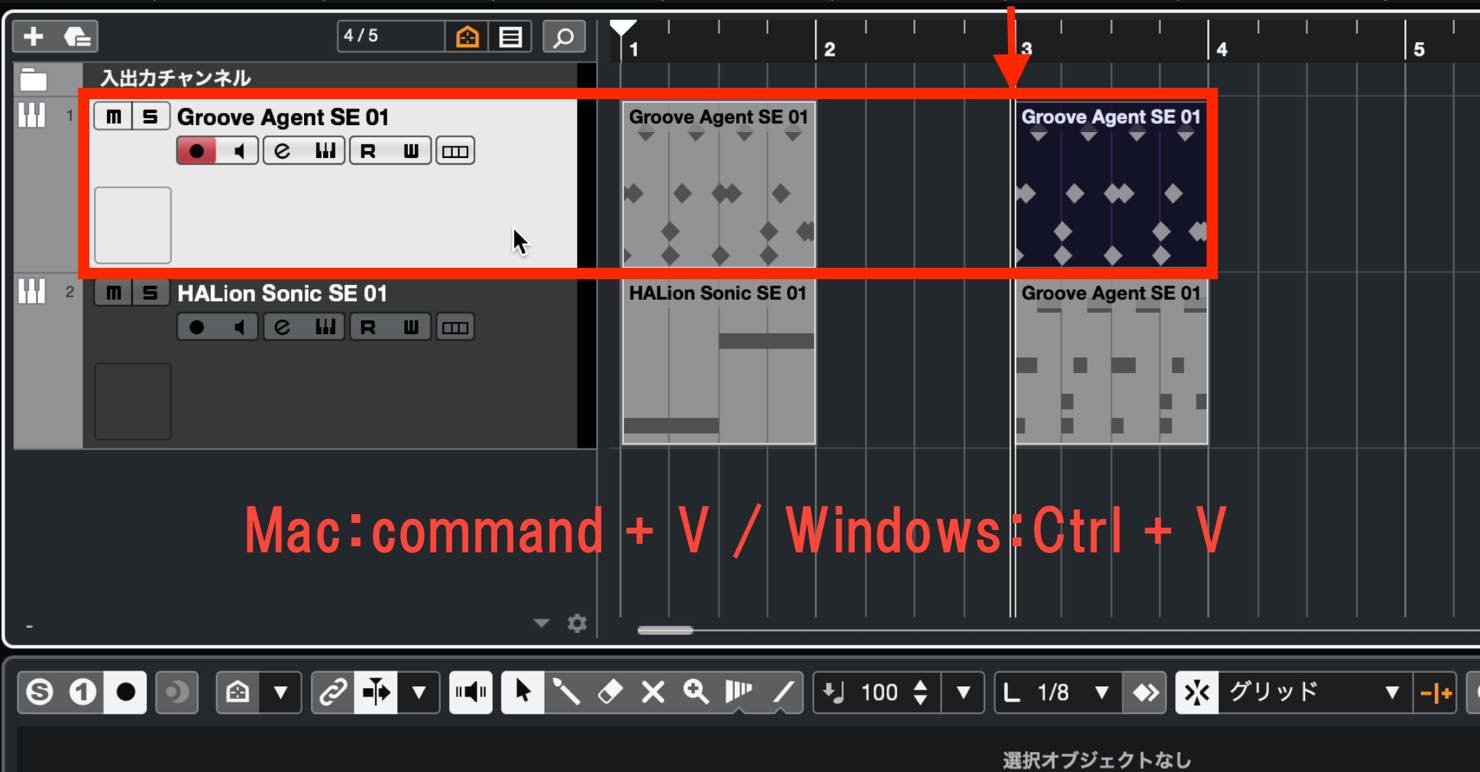
There is one important detail: Cubase has a vertical track axis as well as a horizontal time axis. Paste places the material on the currently selected track.
After setting the position with the project cursor, make sure you also select the intended destination track.
Copy While Dragging
The second method is to create a copy while dragging the material to a new position.
You can move an event by dragging it with the Object Selection tool. Hold Option on Mac or Alt on Windows while dragging, and a plus sign appears beside the pointer.
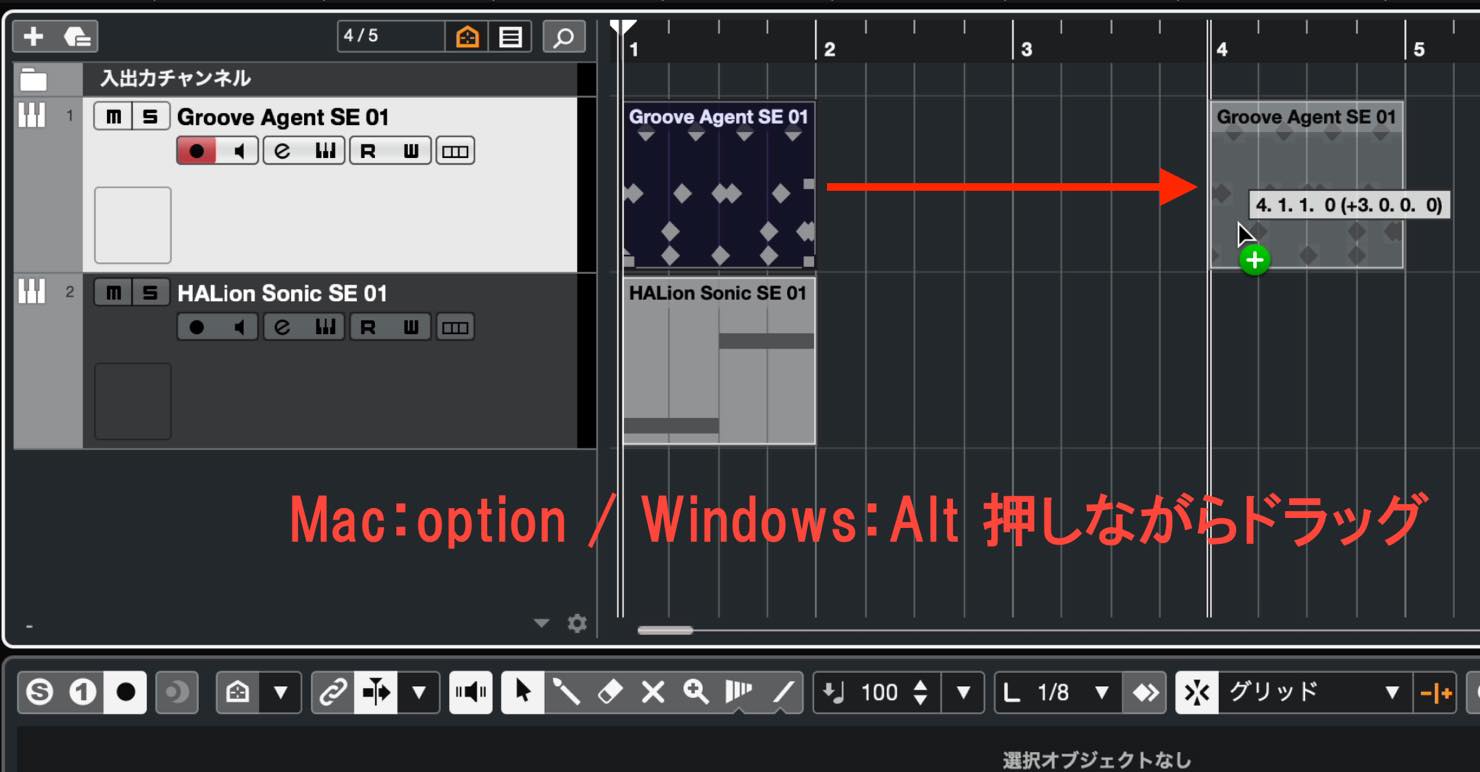
Drop the event at the desired position to create a copy there.
This is an intuitive method because you can see the positions of the original and the copy as you work.
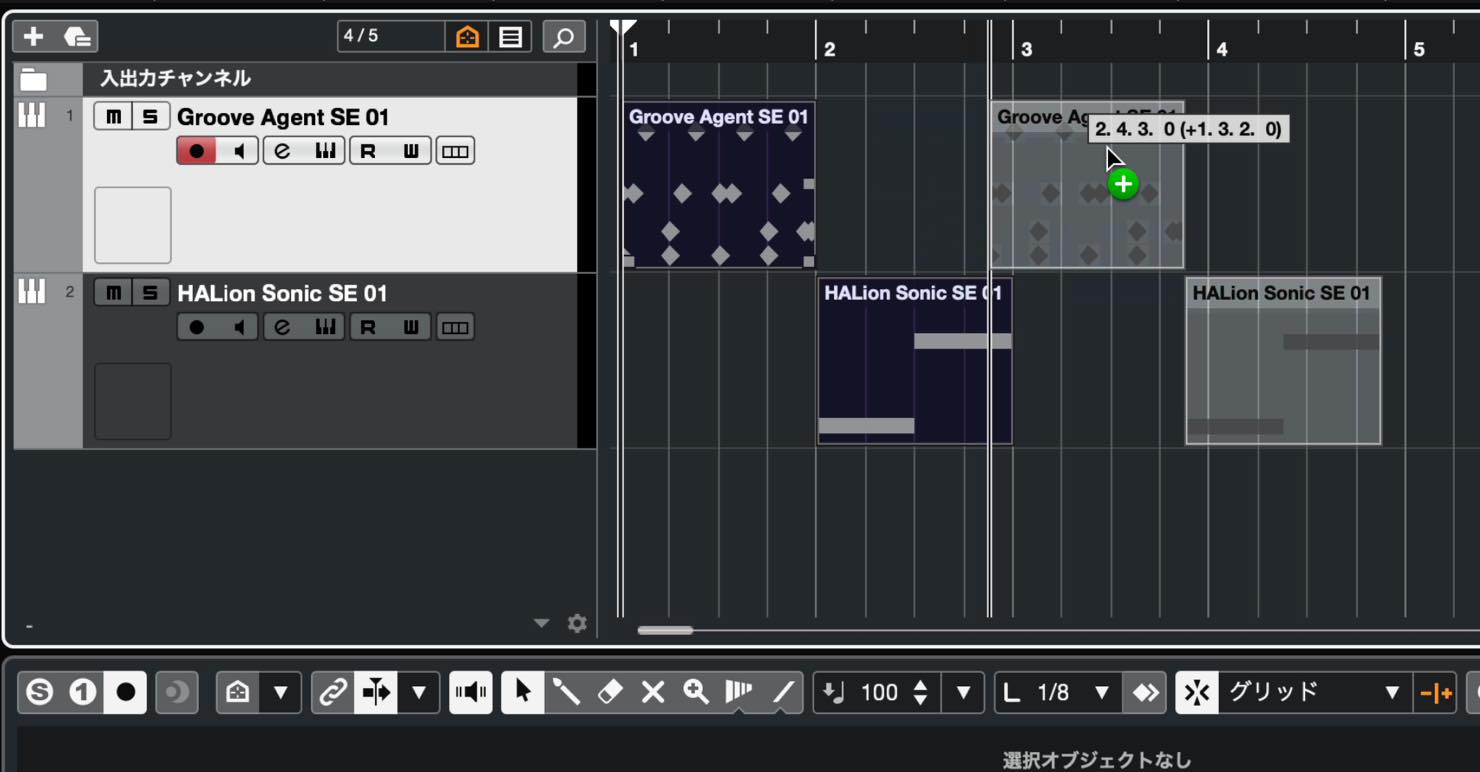
You can select several events and copy them together. Even if they start at different positions, their relative positions are preserved.
You can also duplicate individual MIDI notes.
Drag the desired note while holding Option on Mac or Alt on Windows to create a copy, as shown here.
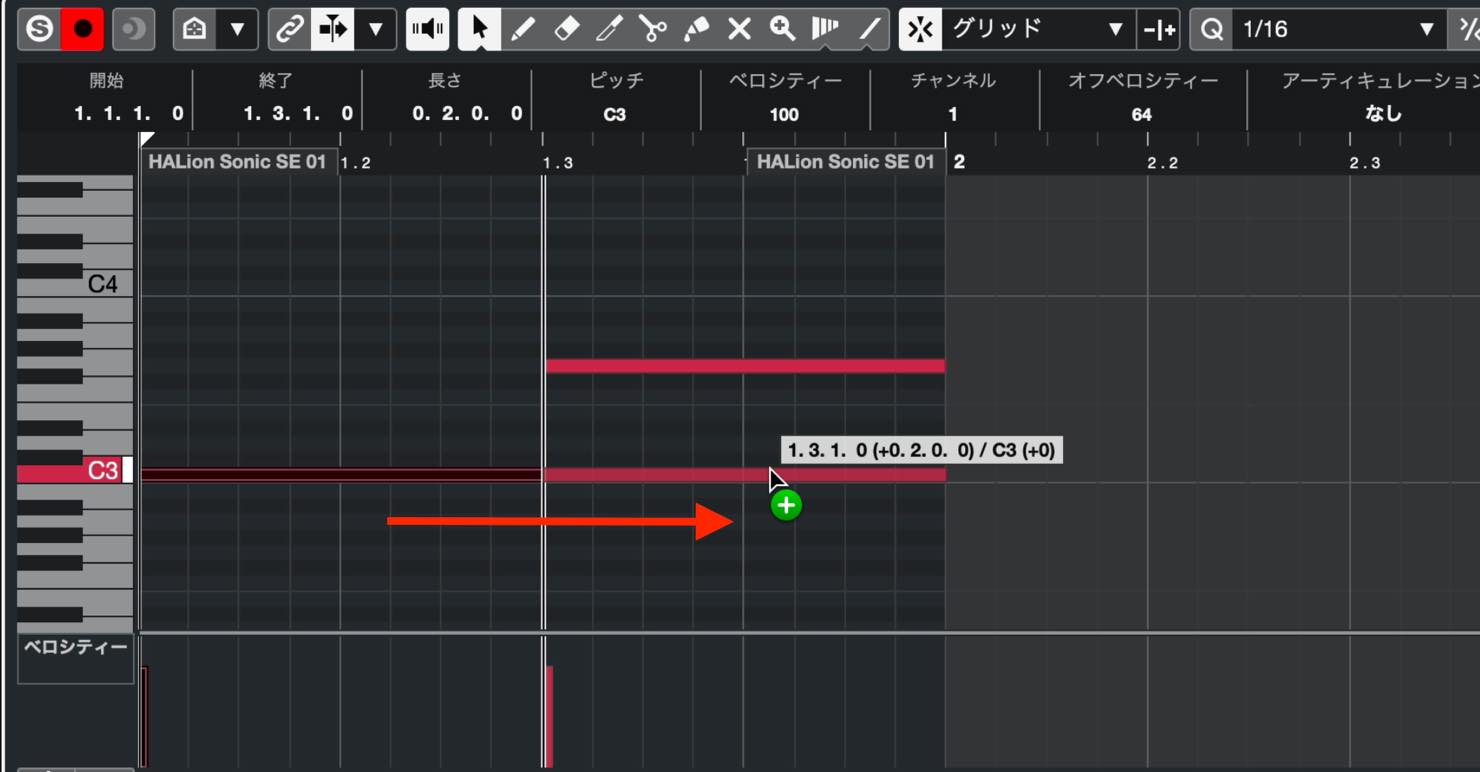
The same method works with multiple notes. If you try to move or copy notes beyond the boundaries of the part,
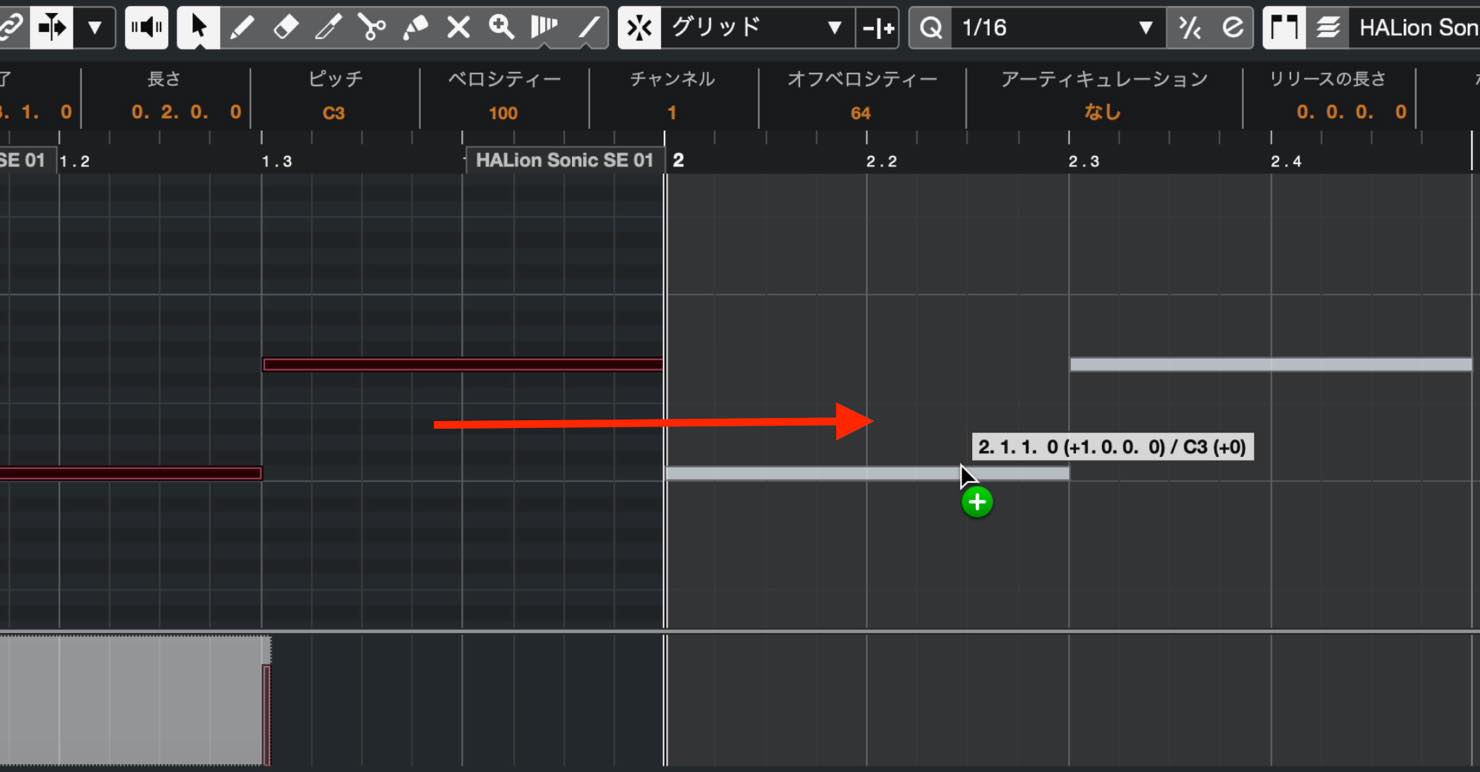
this dialog appears.
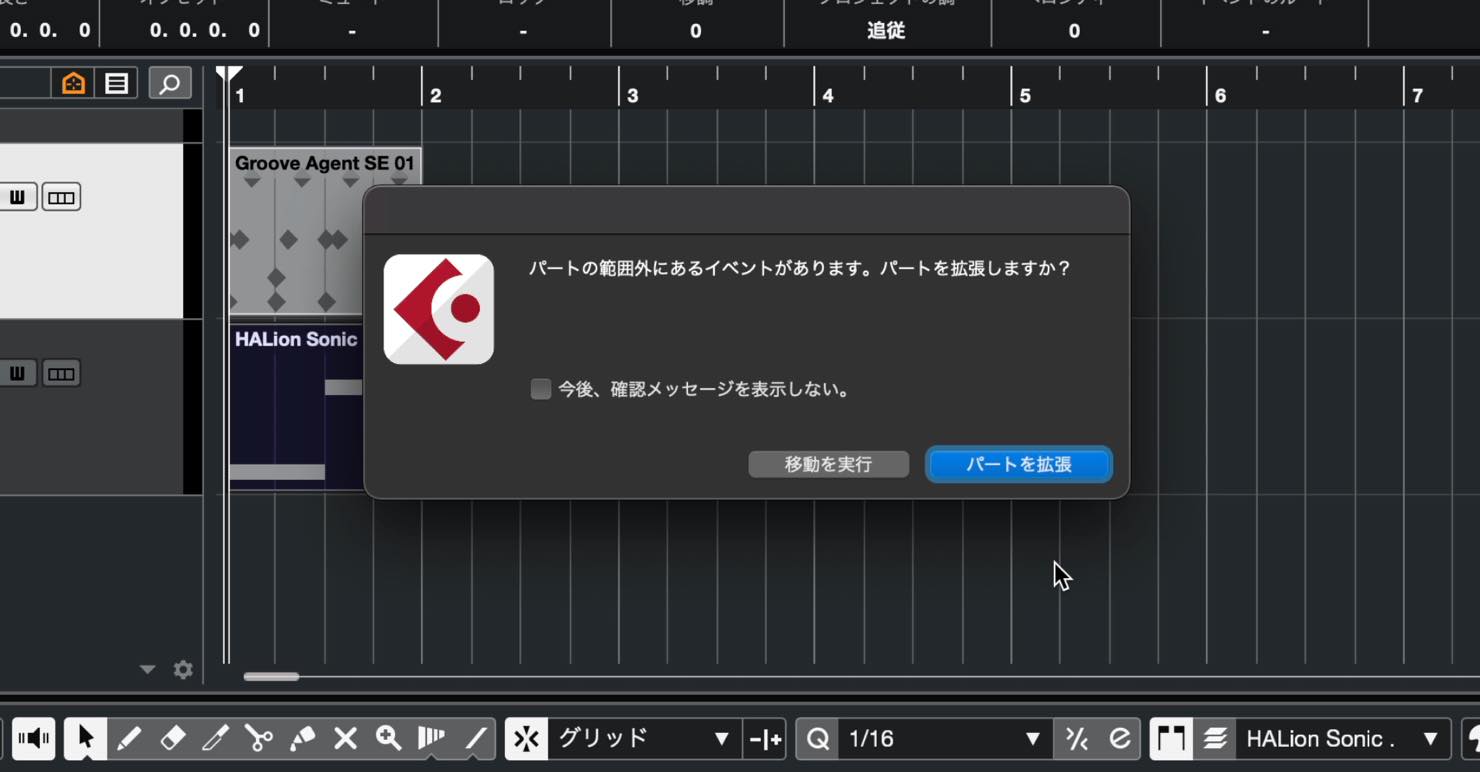
It means that you are trying to place notes outside the current part boundaries. Choosing Move Anyway places them there, but notes outside the part will not play.
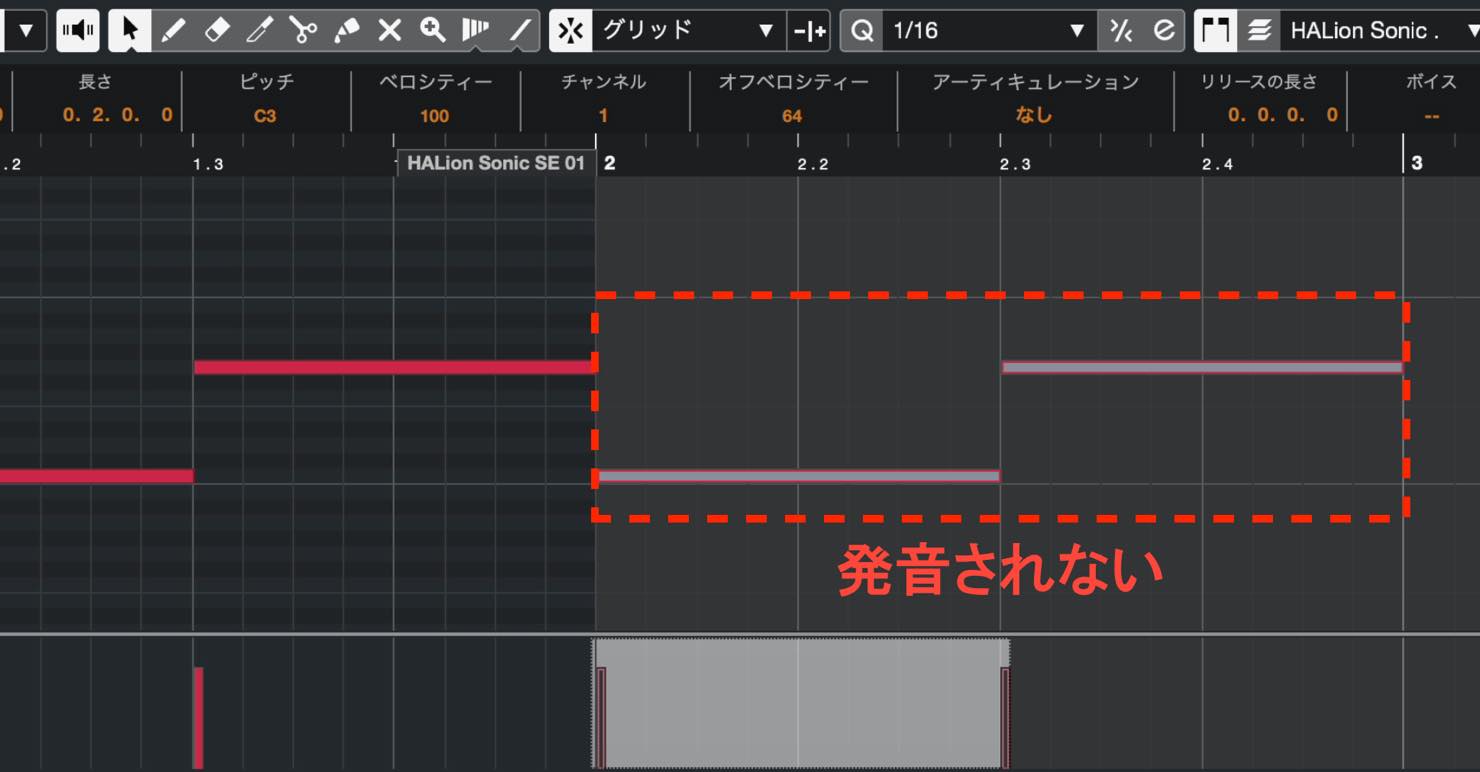
To hear those notes, choose Enlarge Part. Cubase automatically extends the part to contain them.
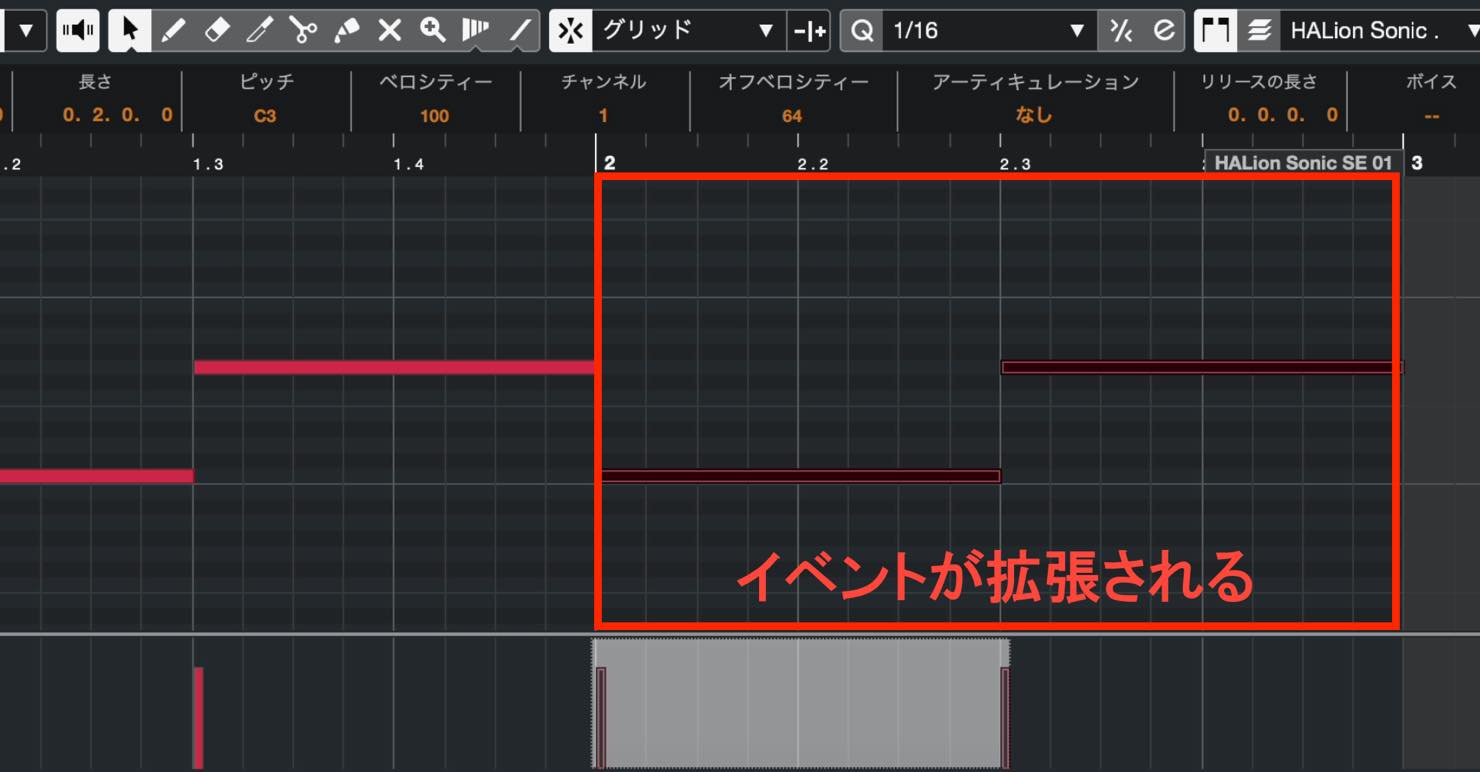
You can also change a part's boundaries in the Project window by dragging its lower-left or lower-right edge.
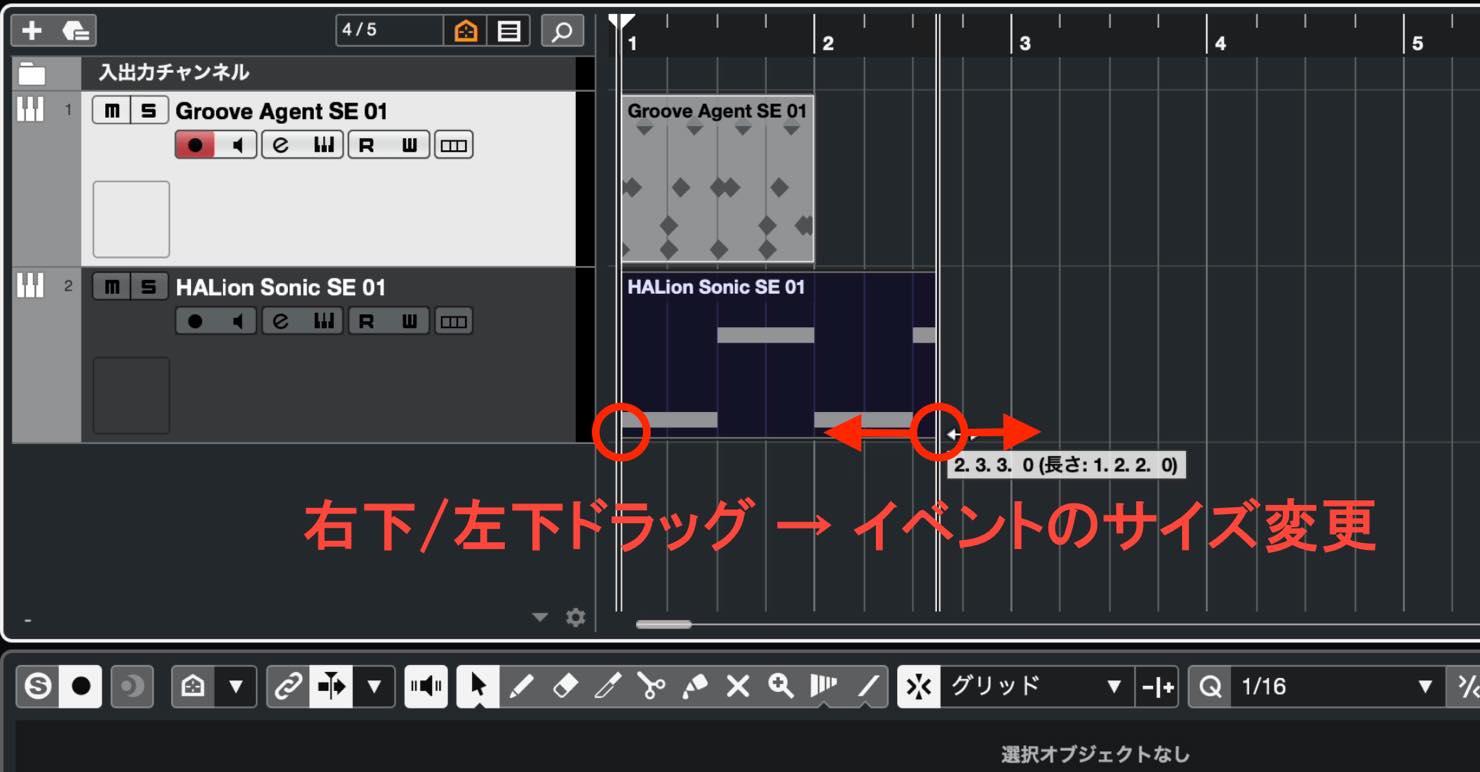
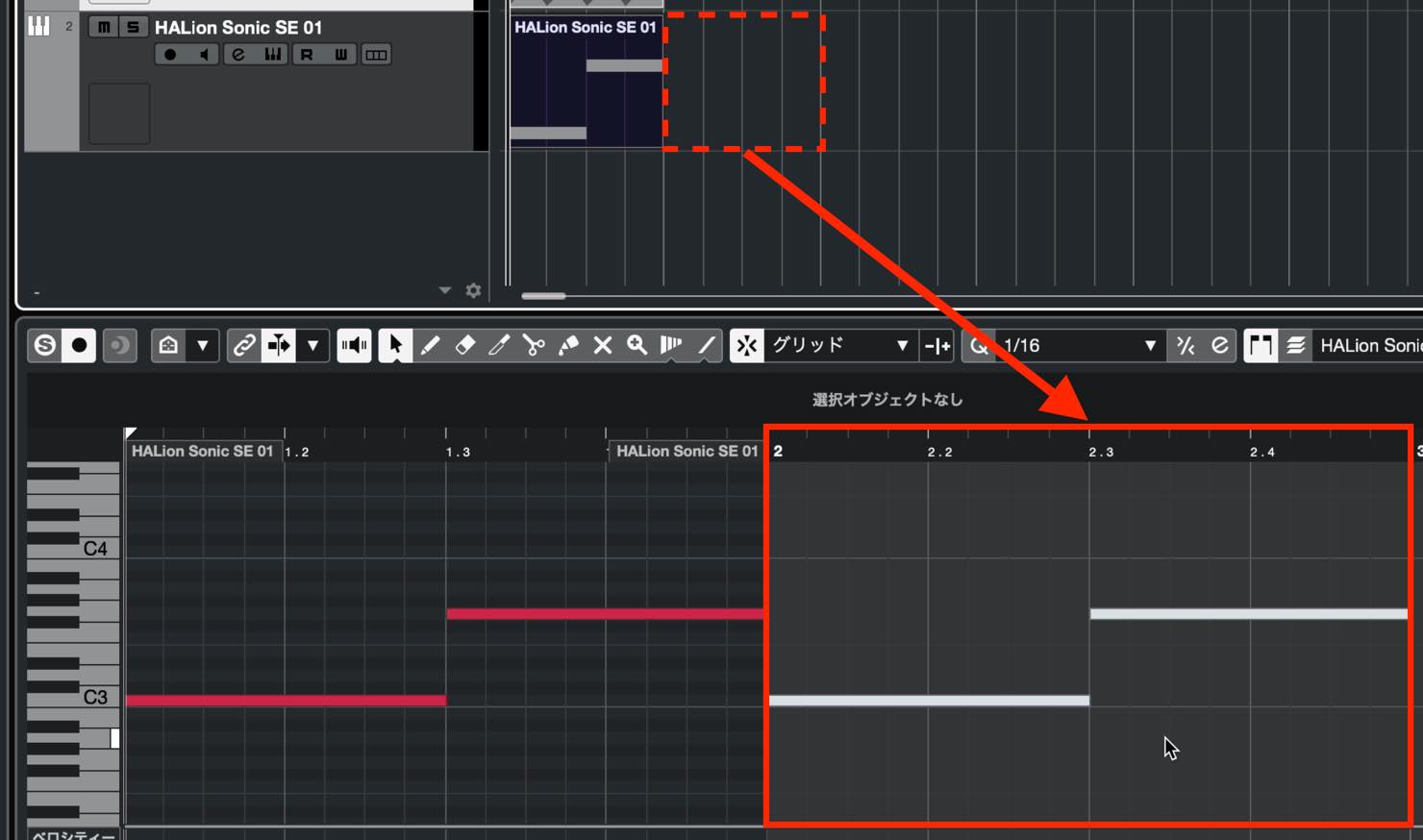
If you trim the part so that some notes fall outside it, those notes stop playing. They still exist in the editor, however. Delete them if you no longer need them.
Duplicate Immediately Beside the Original
The third method places a copy immediately beside the selected event.
Select the event with the Object Selection tool, then press Command+D on Mac or Ctrl+D on Windows.
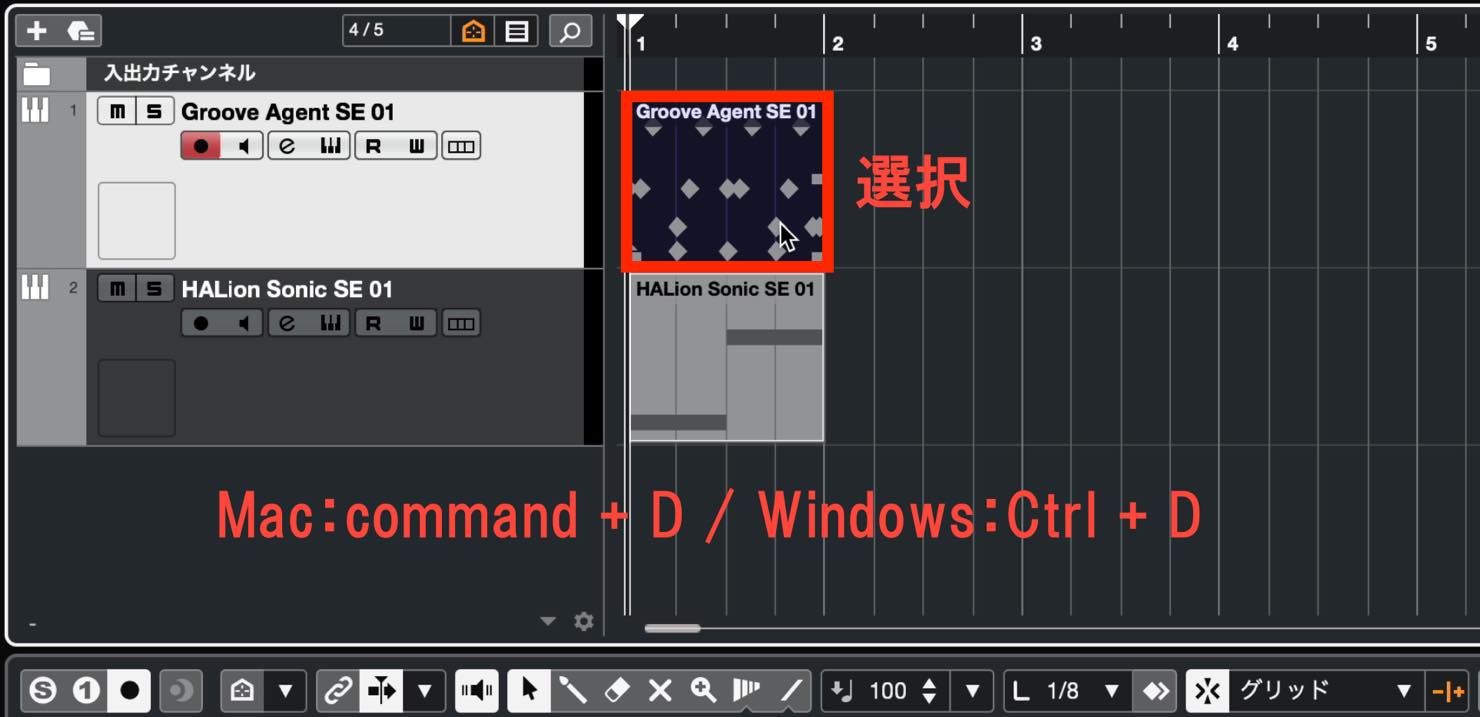
A copy appears directly after the selected event.
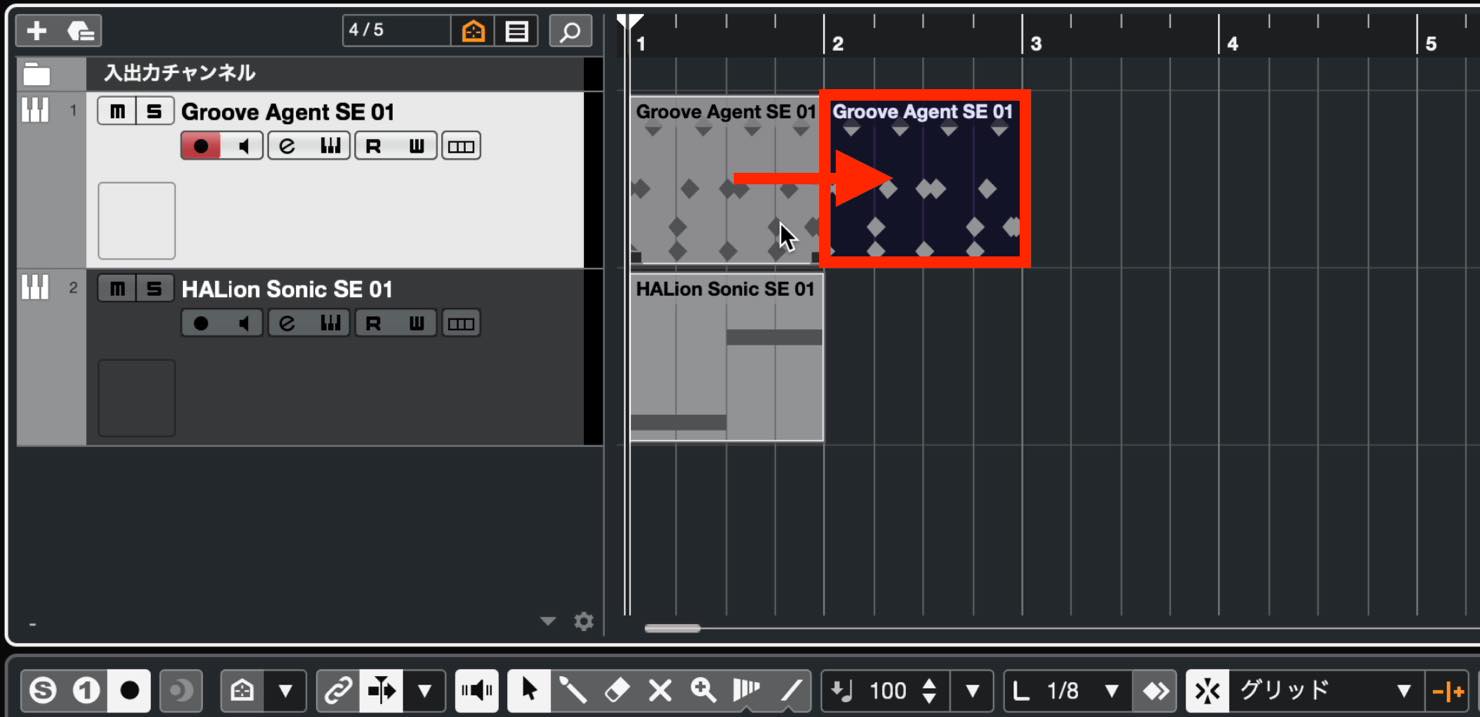
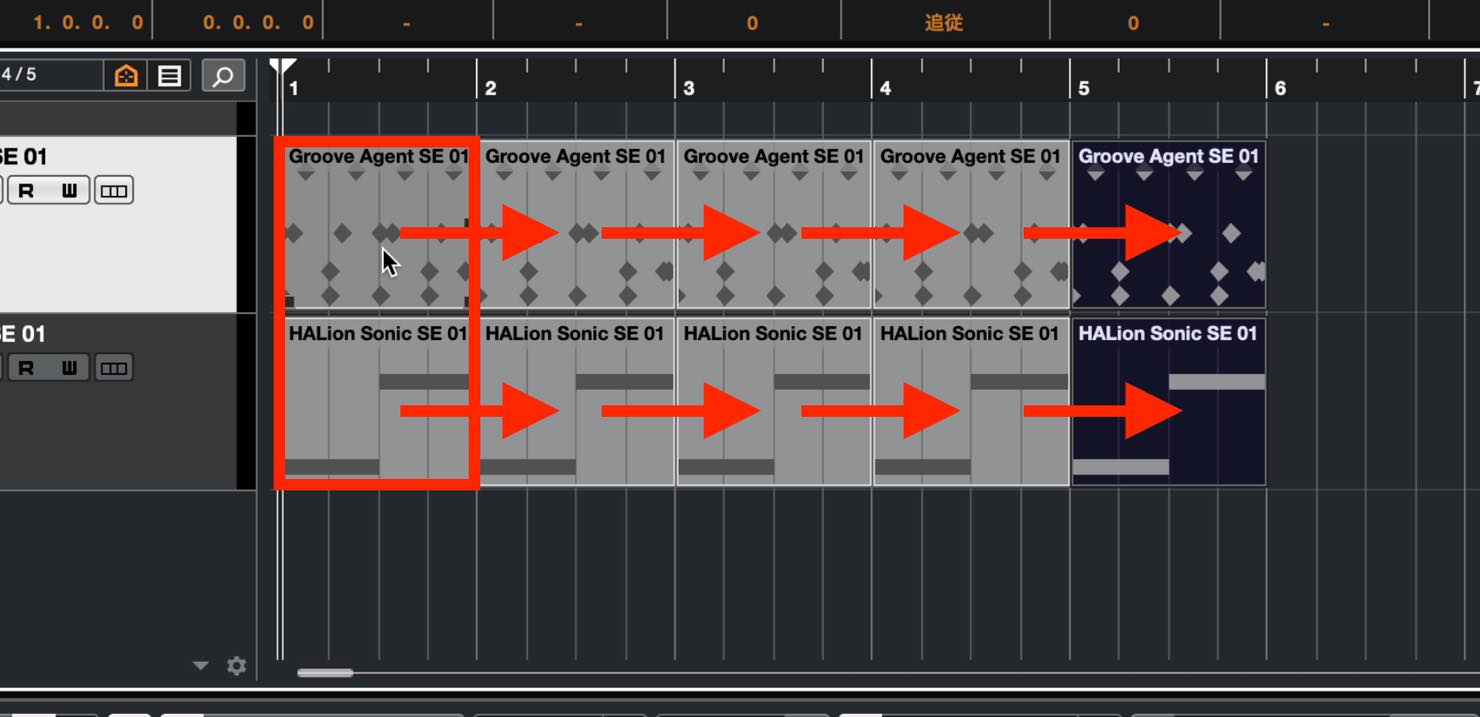
Repeat the shortcut to create further copies. You can also select and duplicate several events together.
If there is already an event beside the selection, the copy overlaps it. The diagonal lines shown here indicate overlapping events.
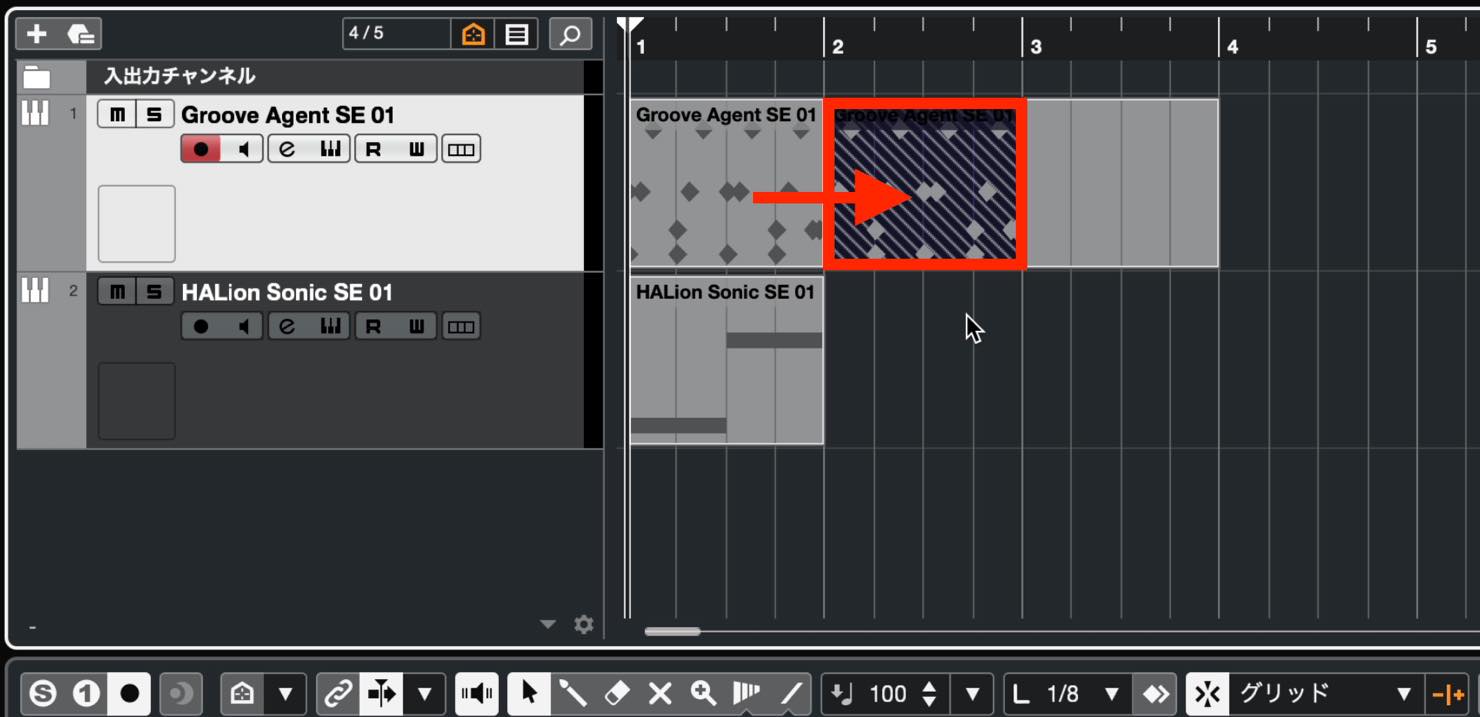
Unless that overlap is intentional, check that the destination area is empty before duplicating.
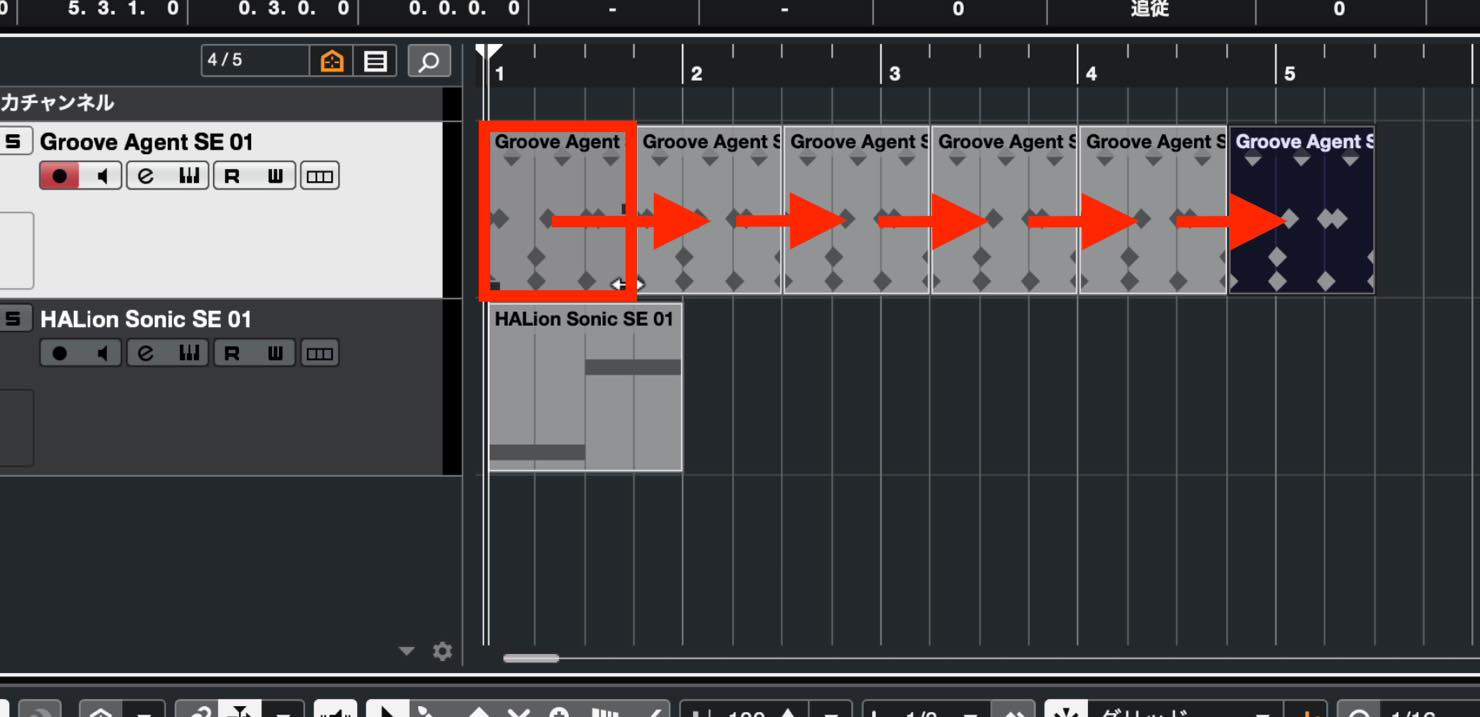
When making successive copies, you will often want the event to span a whole number of bars. An unintended partial length causes the copies to drift progressively away from the bar positions, as shown here, so check the event length first.
Repeat
The fourth method uses the Repeat function when you want to create a large number of successive copies.
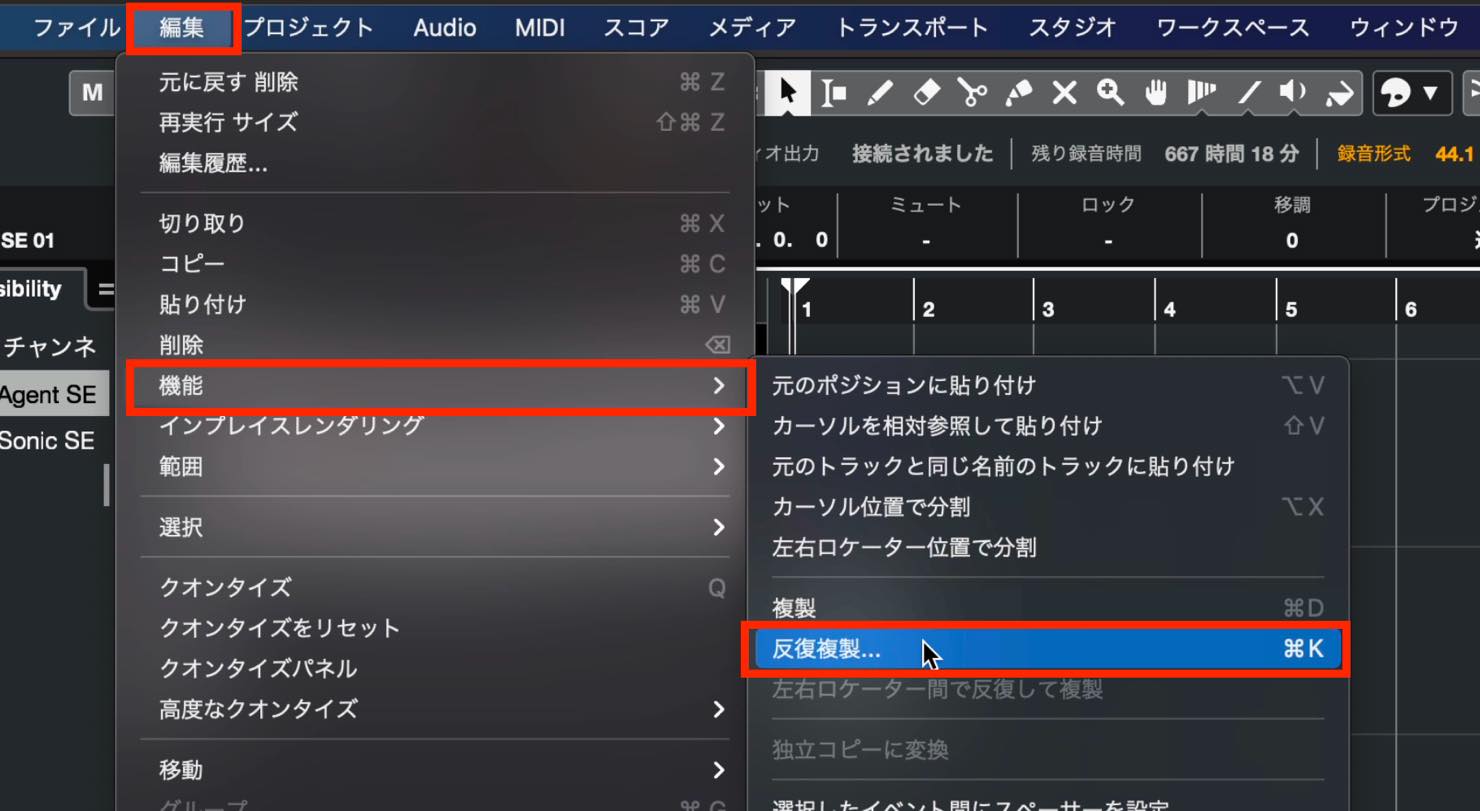
Select the event, then choose Edit > Functions > Repeat. Alternatively, press Command+K on Mac or Ctrl+K on Windows.
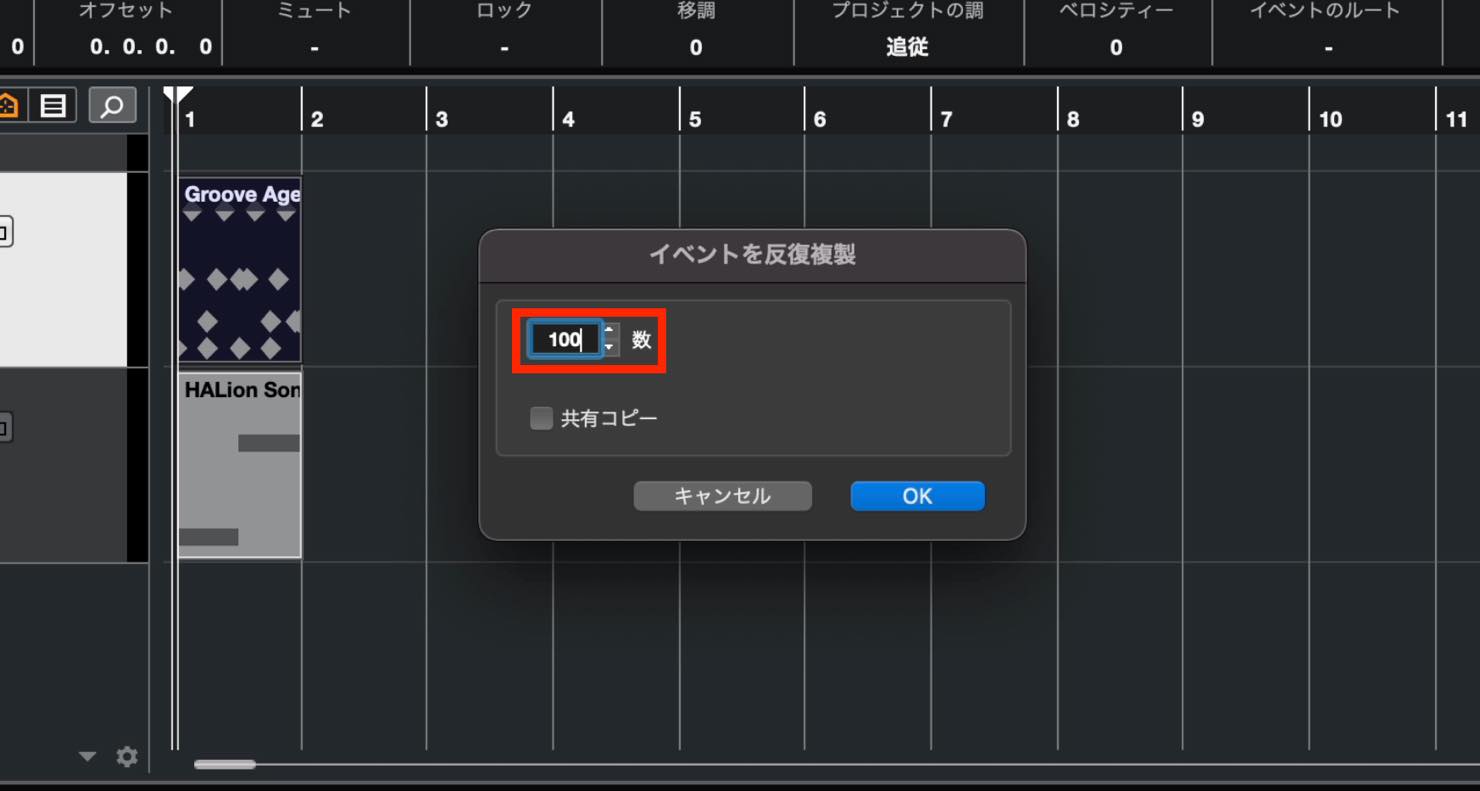
Enter the number of copies in the pop-up dialog.
Click OK to create all the copies at once.
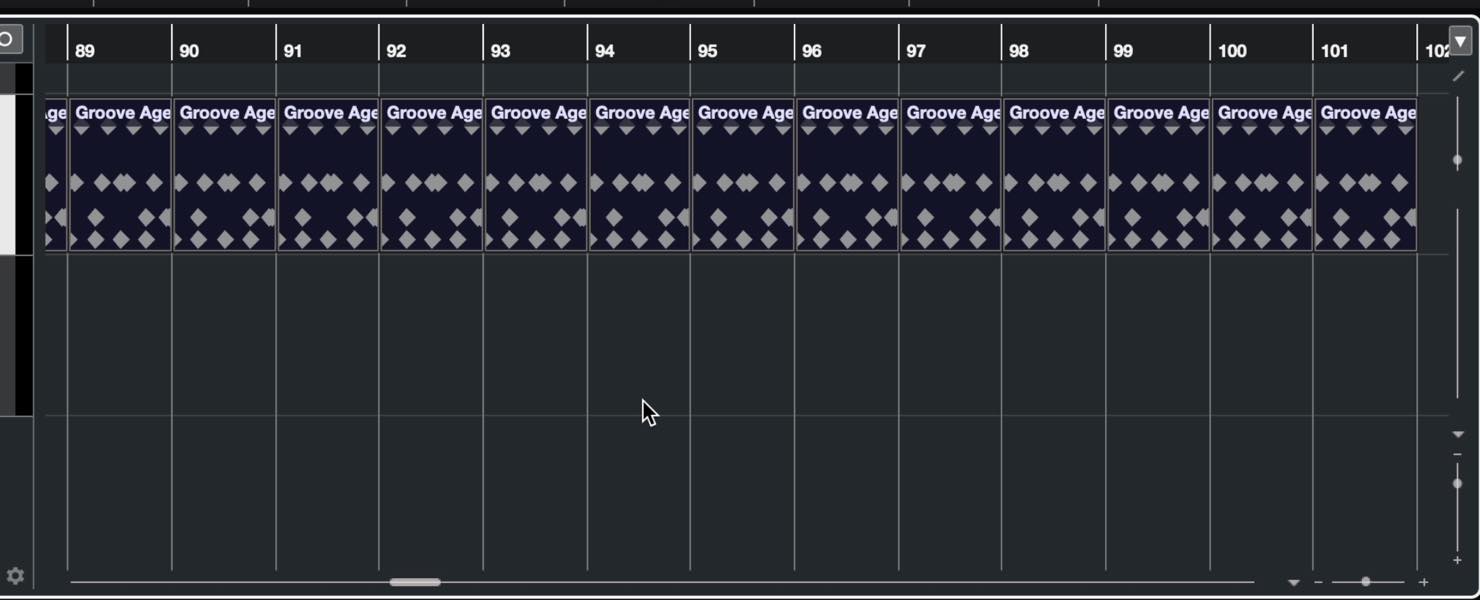
This is useful for laying out a rhythm across the song before making changes where needed.
The Repeat dialog also has a Shared Copies checkbox.
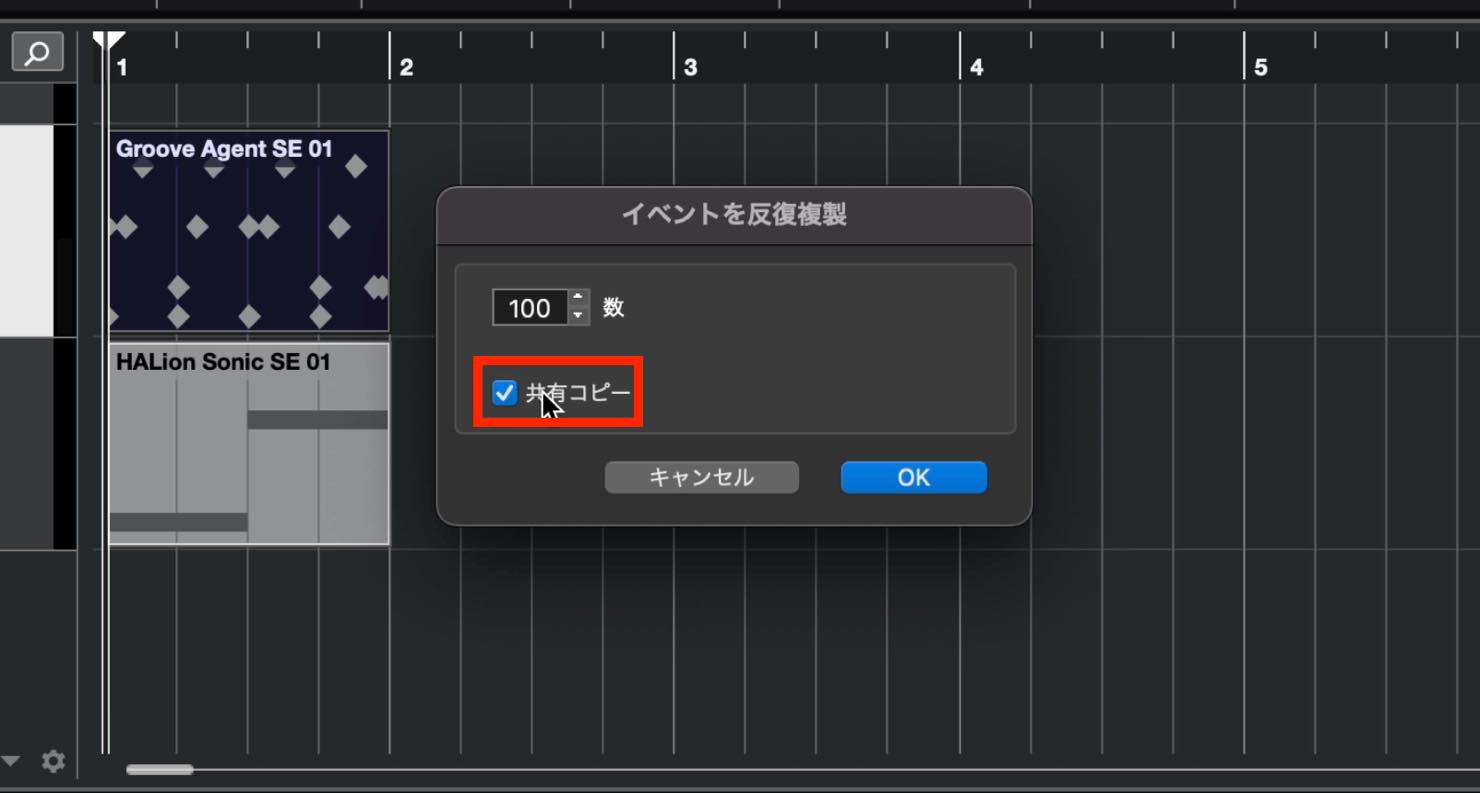
If you enable it, the events are repeated as before, but an equals sign appears in the upper-right corner of each copy.
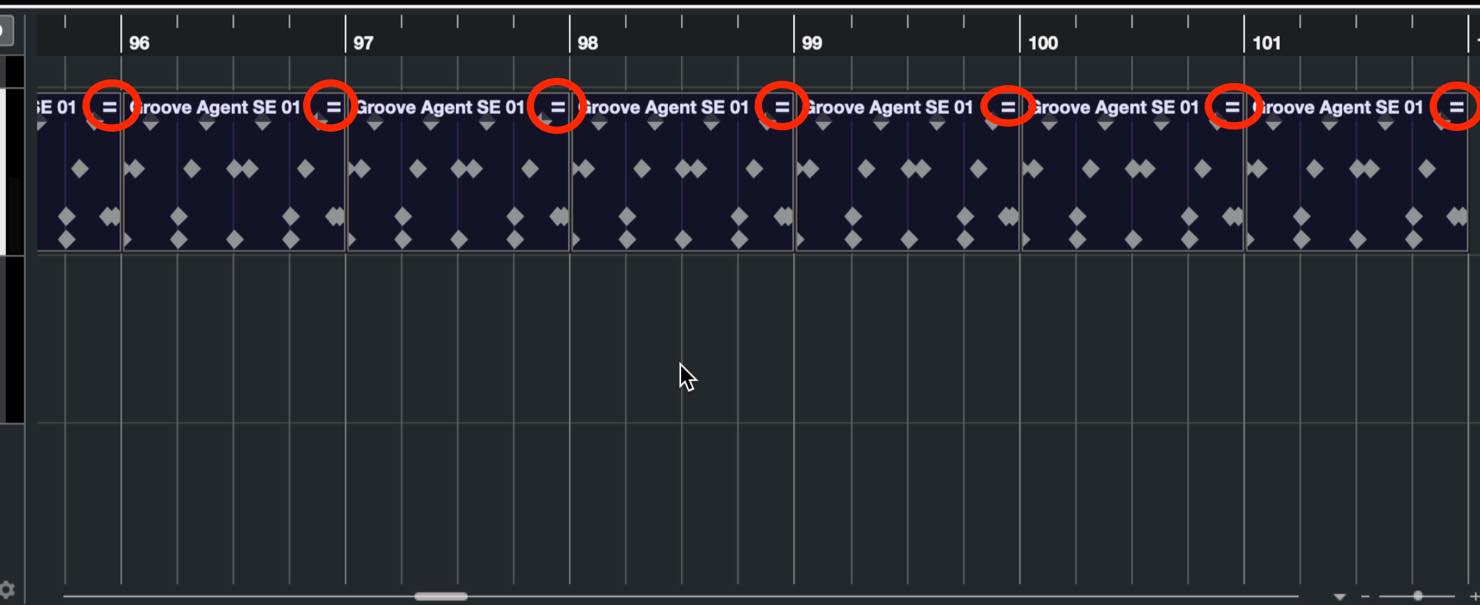
The equals sign means that edits to these shared events are synchronized. Edit one of them, and the changes are immediately reflected in the others.
Shared copies are useful when you want to lay out a basic rhythm pattern and refine the pattern later.
To change only one of the shared copies, you first need to make it independent.
Select the event, then choose Edit > Functions > Convert to Real Copy.
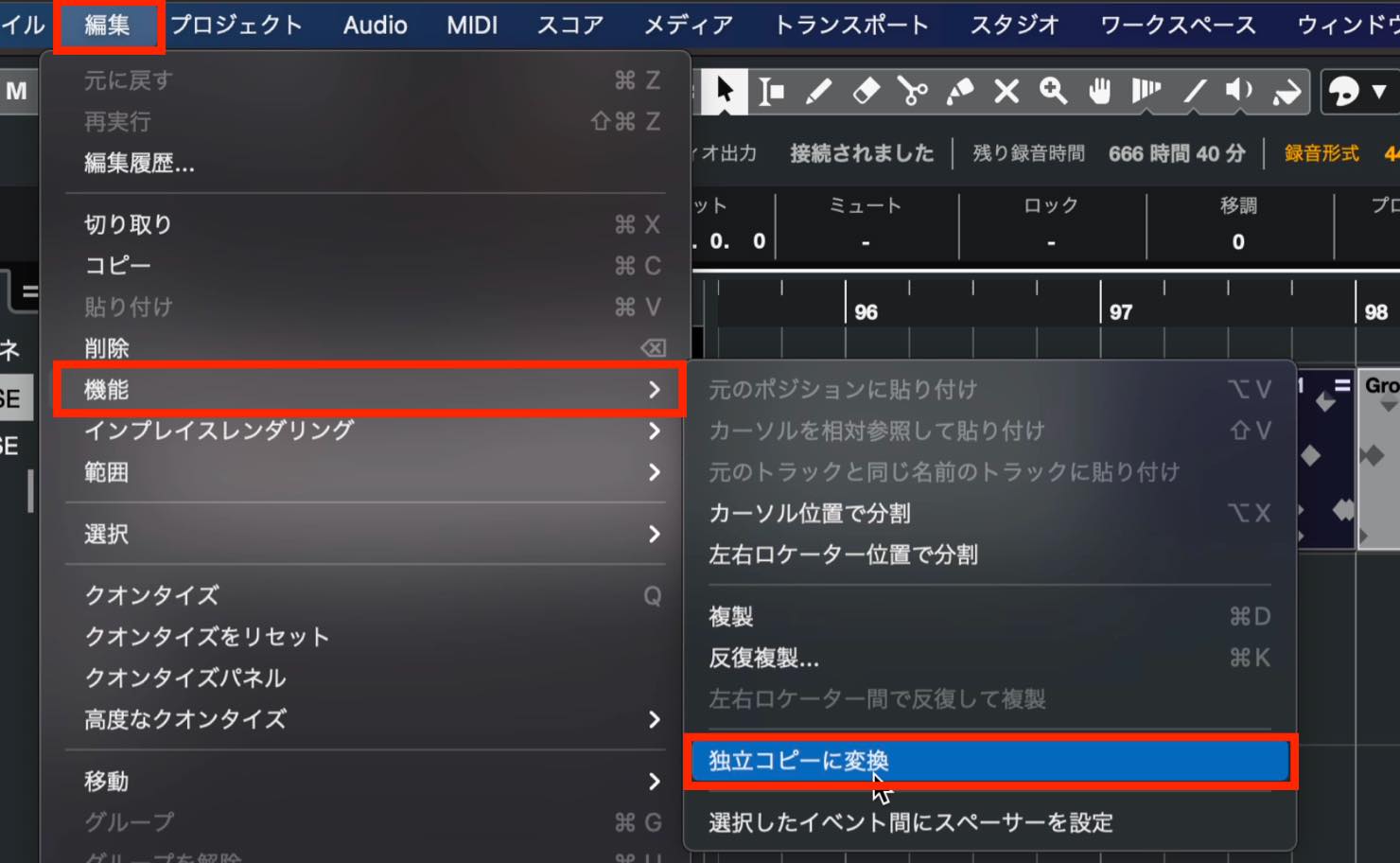
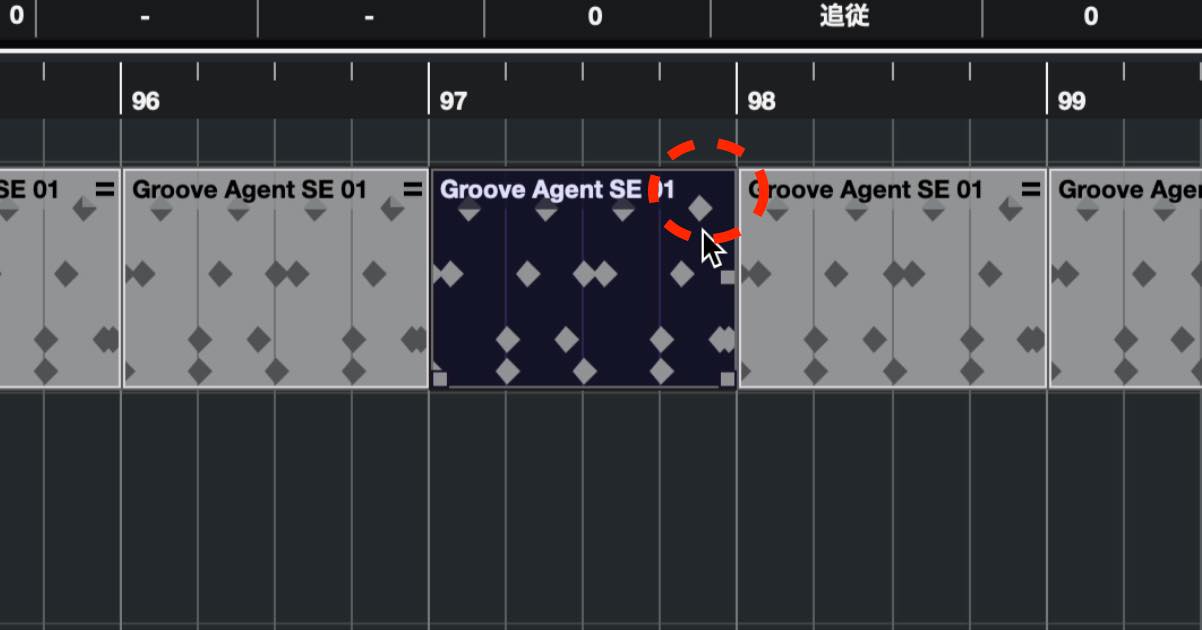
The equals sign disappears, and you can edit that copy independently.
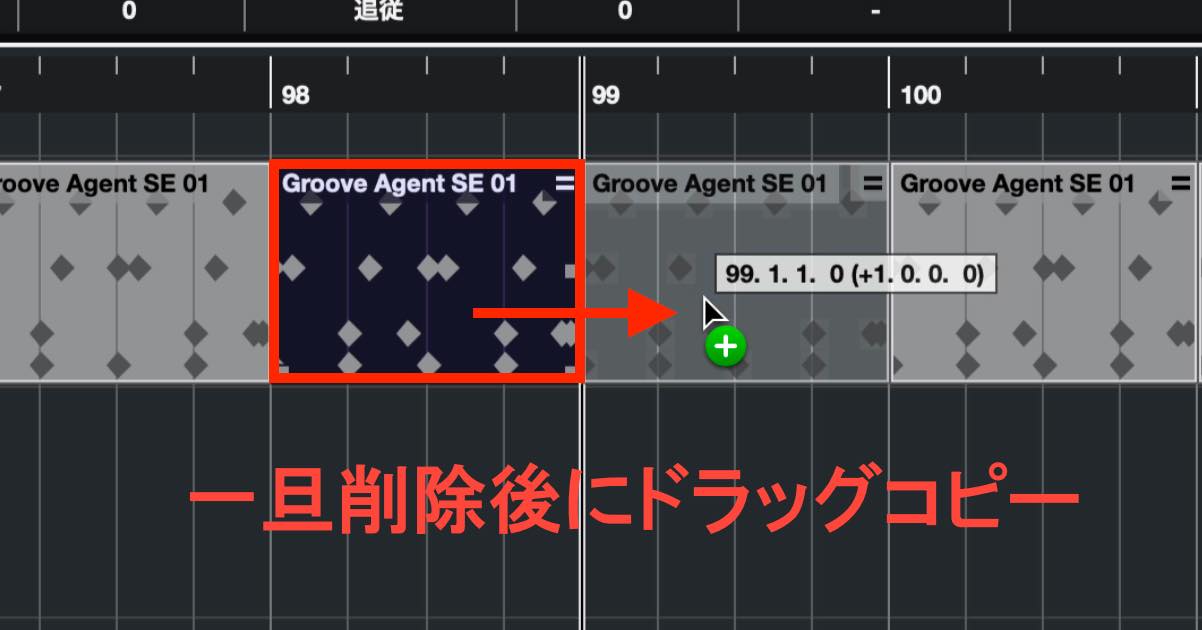
The source also describes deleting the event and replacing it with a copy made by dragging as another way to remove the shared-copy relationship.
Those are the main ways to duplicate material in Cubase.
Duplication is essential for efficient music production. Practice each method until you can use it quickly.
In the next tutorial, we will add a chord progression over the duplicated drum pattern.
Part 6 of our Cubase beginner series covers duplicating material—an essential editing task after programming your parts.
There are several copying methods, so learn to choose the one that suits the situation. https://t.co/n6i98WGLCe #MusicProduction #Cubase— SLEEP FREAKS (@SLEEPFREAKS_DTM) May 9, 2021
Frequently Asked Questions
Q1. I copied something in Cubase, but pasting does not seem to work. Why?
The intended destination track may not be selected. After positioning the project cursor, deliberately select the destination track before pasting.
Q2. What does Alt or Option do when copying by dragging?
Holding Alt or Option while dragging switches the operation to copying, and a plus sign appears beside the pointer. This makes it clear that you are creating a copy and helps you place it accurately.
Q3. What is the benefit of enabling Shared Copies in Repeat?
Shared copies keep edits synchronized across the duplicated events. Editing the main pattern once updates all the shared copies, making this useful for laying out a rhythm and revising it later.
Q4. My copied notes extend beyond the part boundaries. What should I do?
Choose Enlarge Part to extend the part so that it contains the notes. This allows the notes to play correctly.
Q5. How do I stop edits from being synchronized between shared copies?
Choose Edit > Functions > Convert to Real Copy. The source also describes deleting the event and creating a replacement copy by dragging to remove the shared-copy relationship.
NEW ARTICLES
Latest English Articles


























































































































































