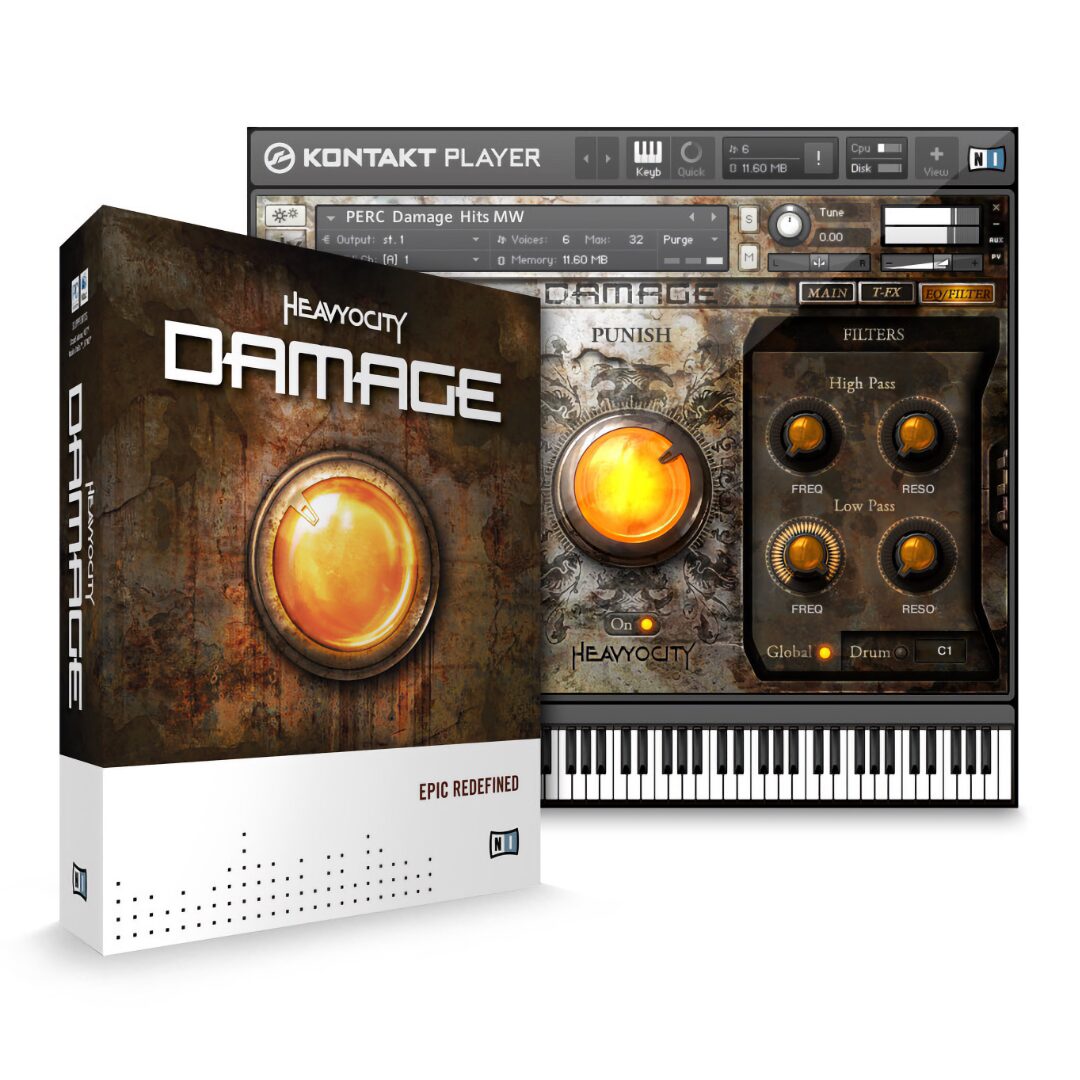
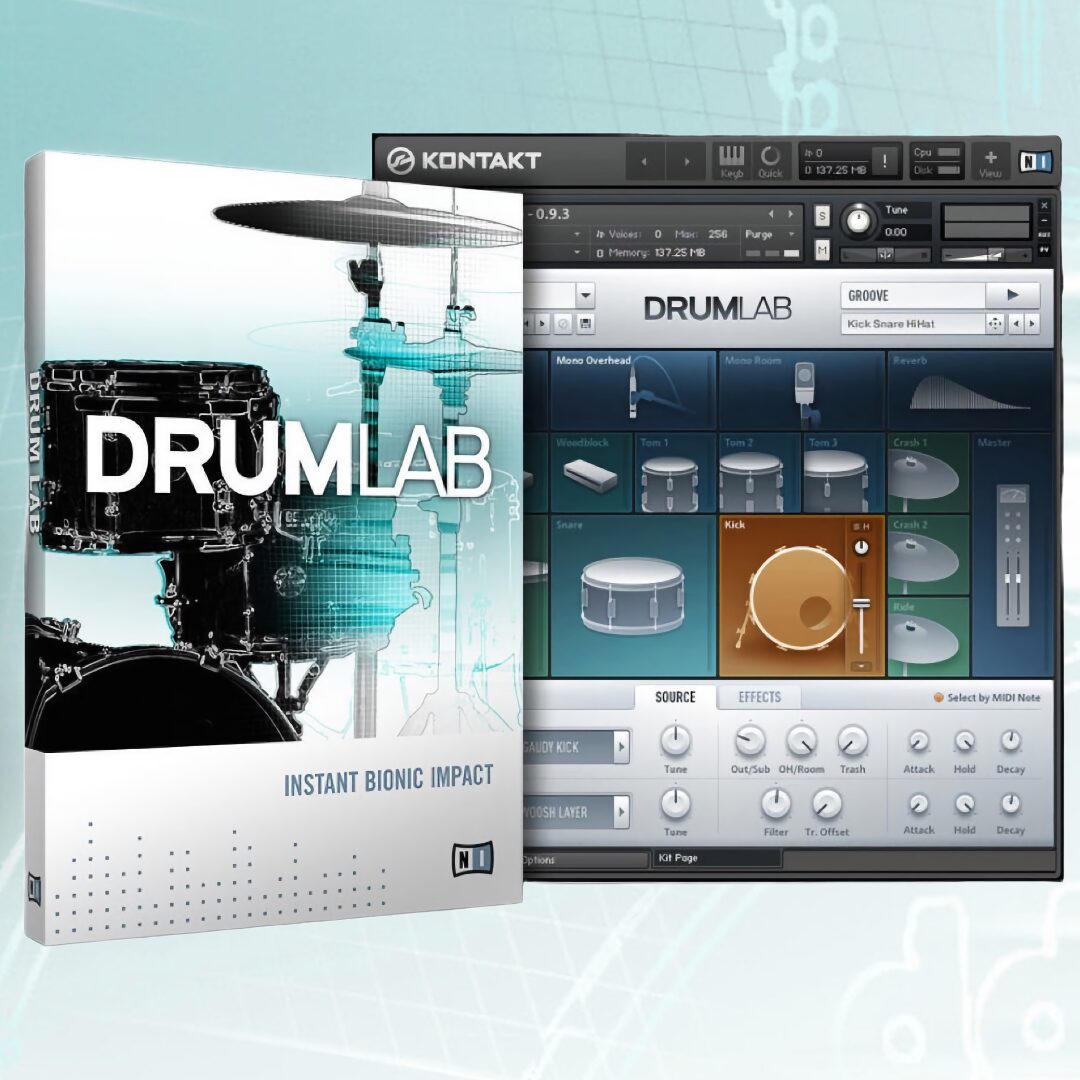
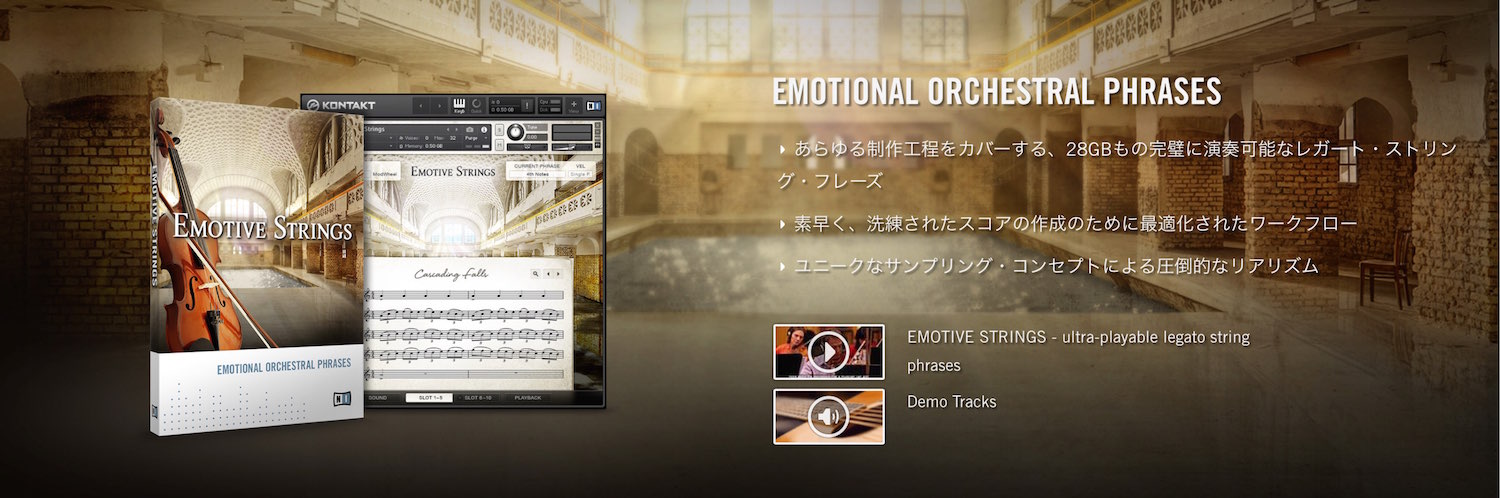
Native Instruments’ KOMPLETE KONTROL S-SERIES combines a MIDI keyboard controller with software designed to integrate with the KOMPLETE 10 library. In the generation covered here, KOMPLETE 10 and KOMPLETE 10 ULTIMATE offered 12,000 and 17,000 sounds respectively. The software can run standalone or as a DAW plug-in. At the time of this article, the keyboard also included the free KOMPLETE SELECT bundle. This guide covers the original download, installation and MIDI setup process.
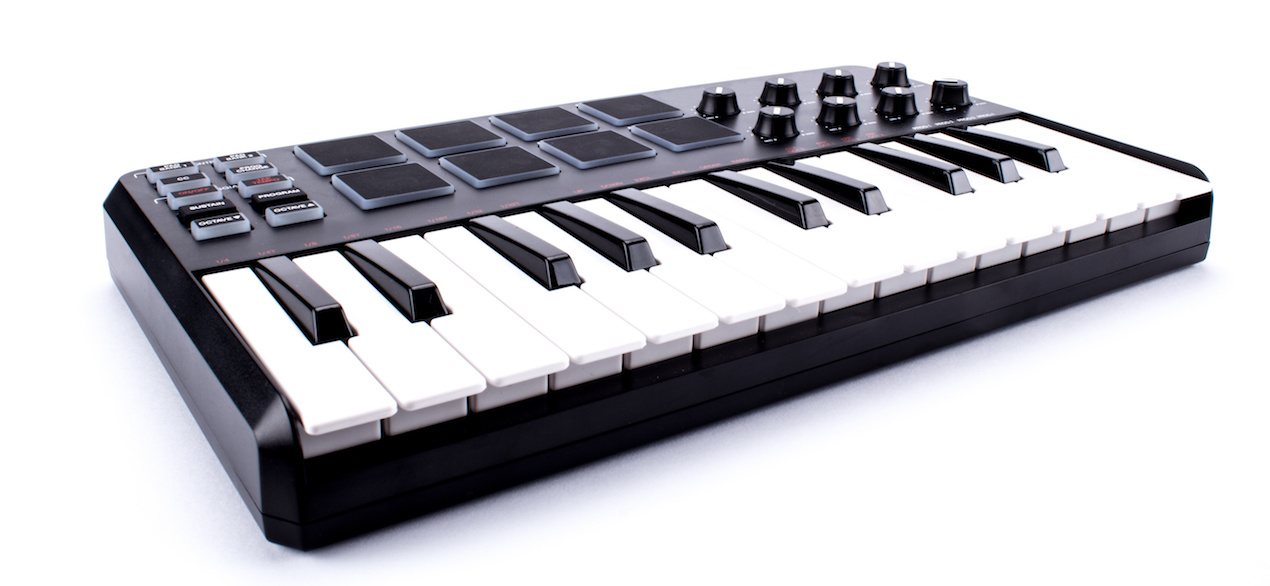
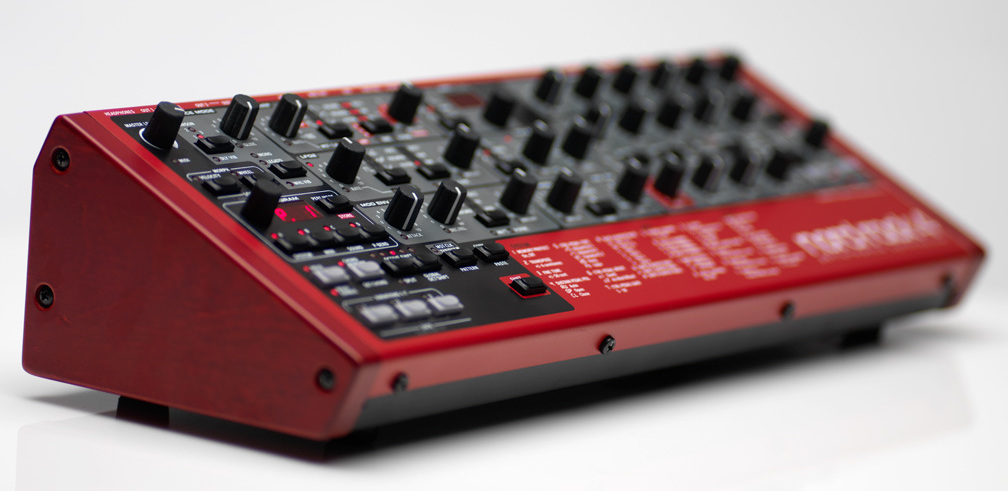
A MIDI keyboard controller integrated with KOMPLETE 10
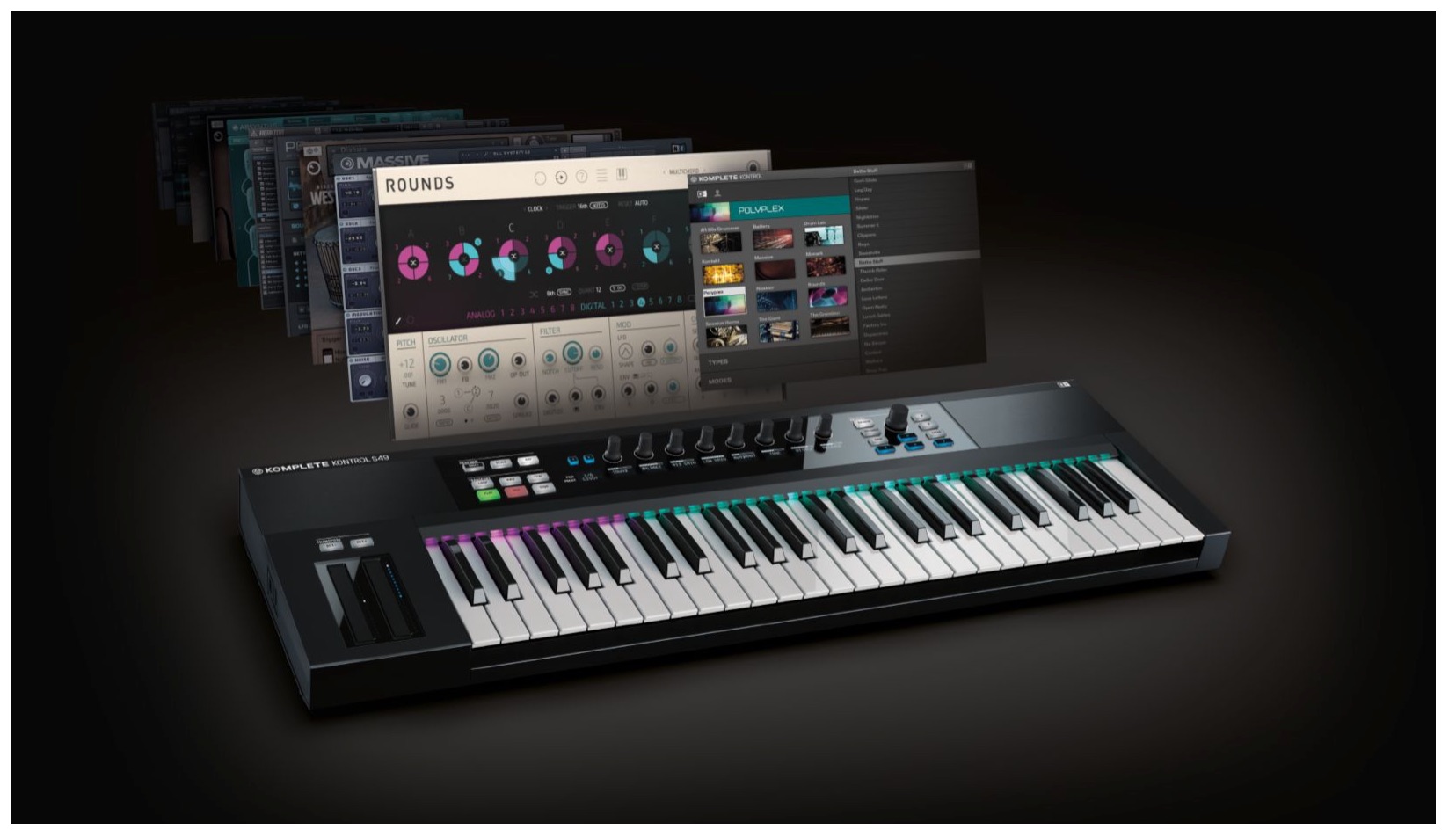
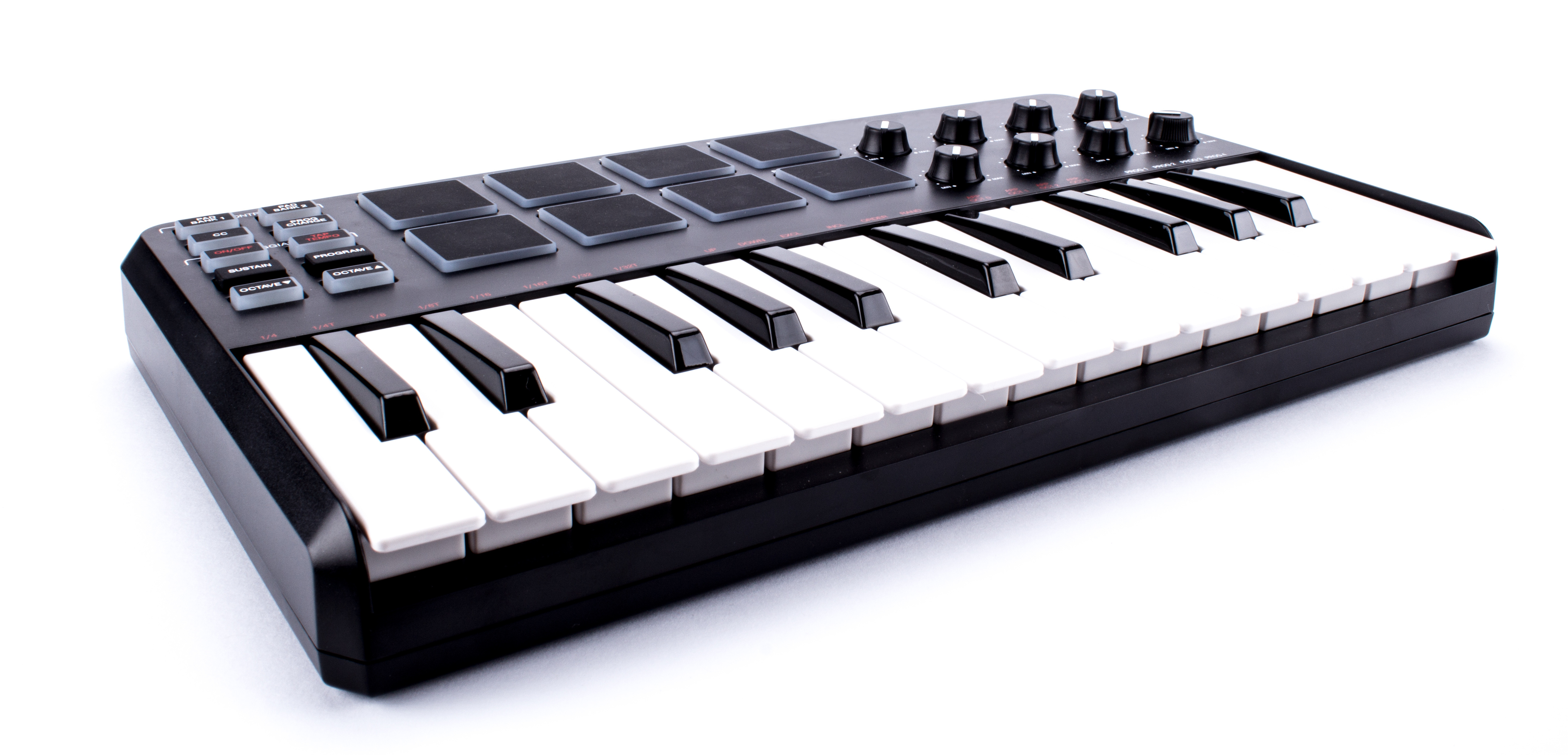
Native Instruments KOMPLETE KONTROL S-SERIES
combines a MIDI keyboard and MIDI controller in one hardware unit.
Its main feature is integration with KOMPLETE 10.

KOMPLETE 10: 12,000 sounds; KOMPLETE 10 ULTIMATE: 17,000 sounds.
You can load these extensive presets smoothly and control them flexibly,
opening up a wide range of creative possibilities.
If you purchased KOMPLETE 10,
you could use the software even without the KOMPLETE KONTROL hardware.
Komplete Kontrol video tutorials
- 1Product overview
- 2Browsing
- 3Light Guide and Clear View
- 4Scale function
- 5Chord function
- 6Arpeggiator
- 7Automation and MIDI mode
- 8What’s new in Komplete Kontrol 1.1
- 9KOMPLETE KONTROL version 1.5: new features
- 10KOMPLETE KONTROL version 1.6.2: new features
- 11KOMPLETE KONTROL version 1.9.3: creating a comfortable production environment with DAW control
- 12Komplete Kontrol version 1.9.3: host integration with Cubase
- 13KOMPLETE KONTROL version 2.0: NKS FX
- 14Maschine / Komplete Kontrol favorites
At the time of this article, purchasing KOMPLETE KONTROL included
the free 10-product bundle KOMPLETE SELECT.
Downloading the software
KOMPLETE KONTROL requires its dedicated software.
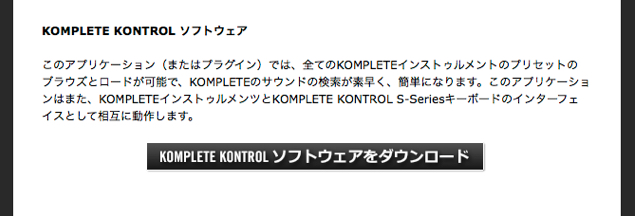
For the KOMPLETE 10 generation covered in this guide, Native Instruments sent purchasers
a download link for the software.
If the email did not arrive or you lost it,
contact support using the following URL:
http://www.native-instruments.com/jp/support/contact-support/
After downloading, install the software.
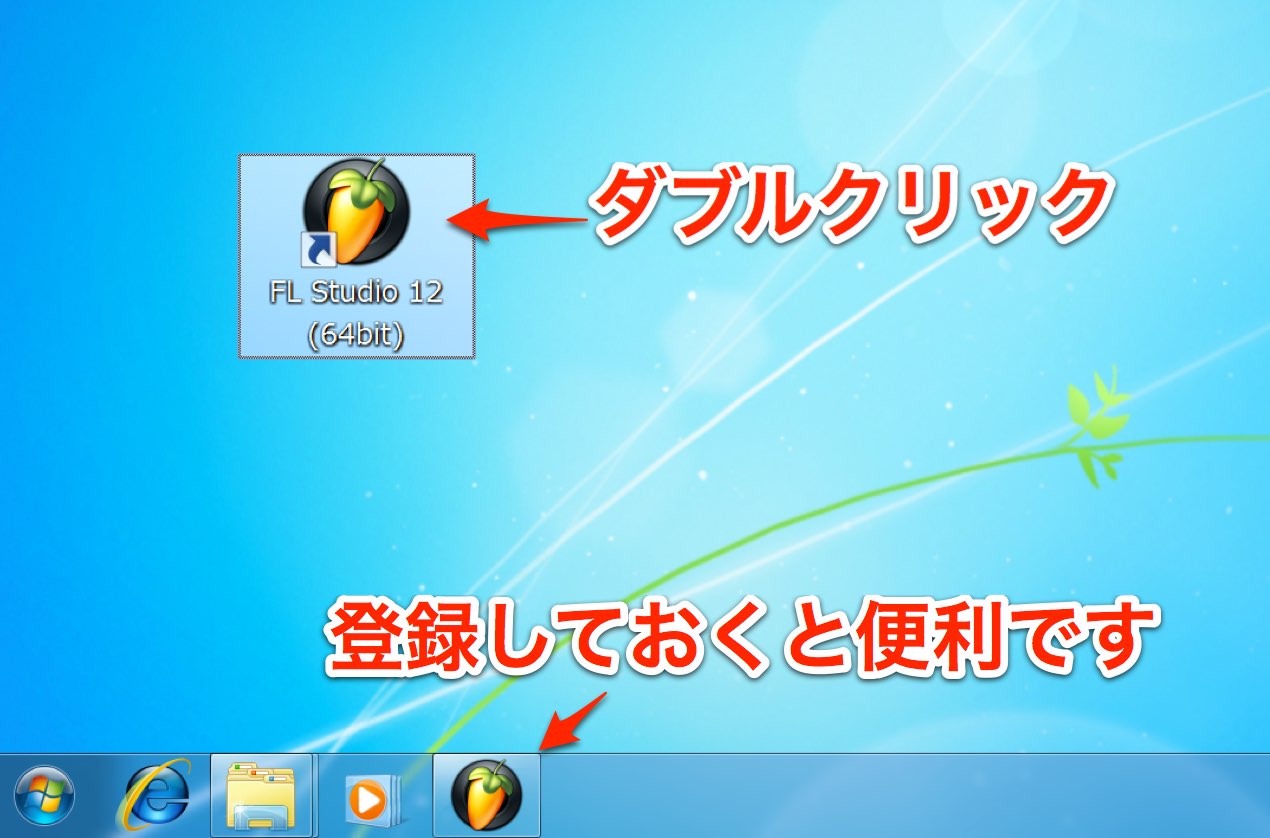
Launching KOMPLETE KONTROL
Once installation is complete,
KOMPLETE KONTROL is available on your computer.
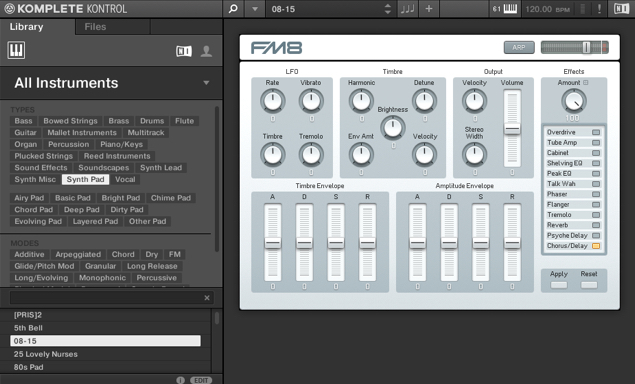
There are two ways to launch it:
- Standalone: run it directly on the computer.
- Plug-in: run it inside a DAW.
The following tutorials focus on the frequently used plug-in version.
Multiple instances of KOMPLETE KONTROL can be used as long as your CPU allows.
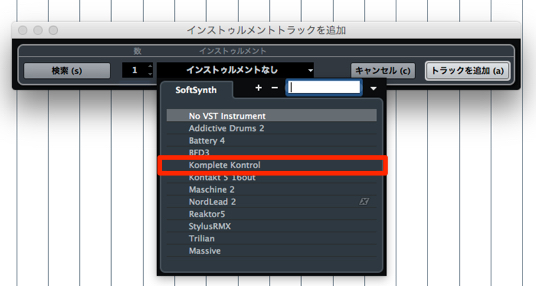
To use it in a DAW, load it as you would any other software instrument.
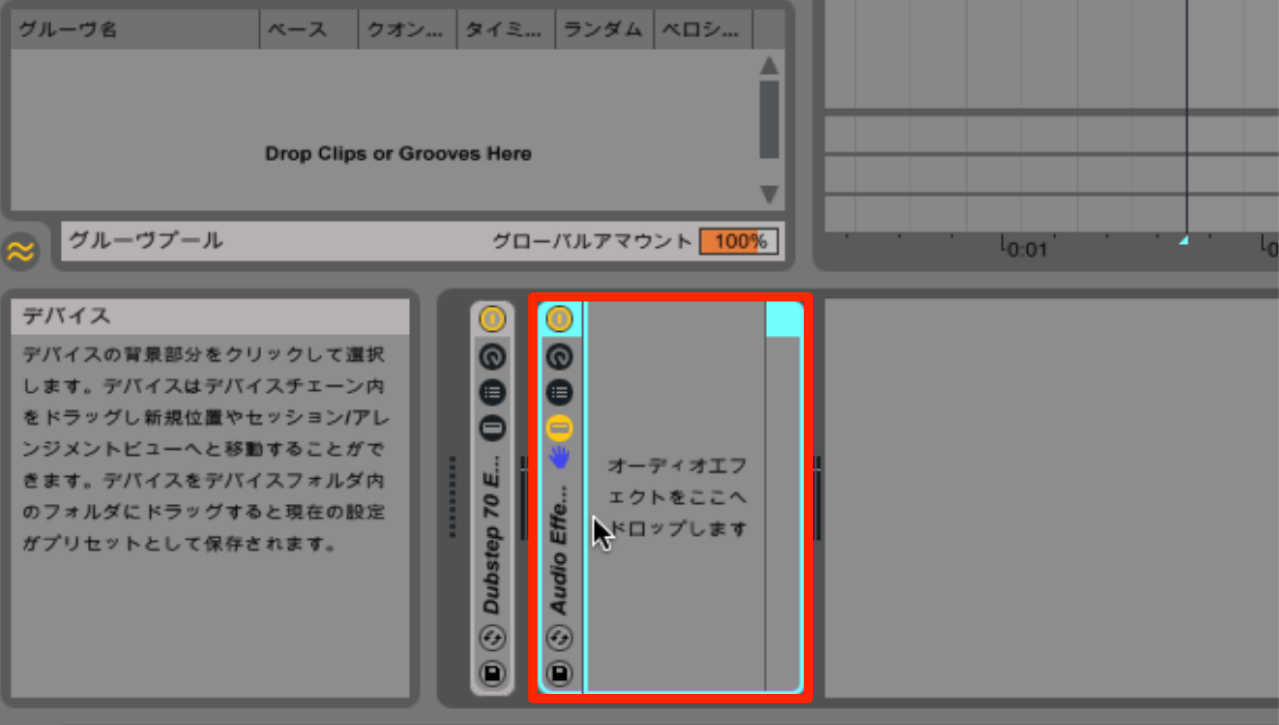
There is one setting to check when using the standalone version.
In the version shown here, the keyboard will not produce sound unless its MIDI input is enabled.
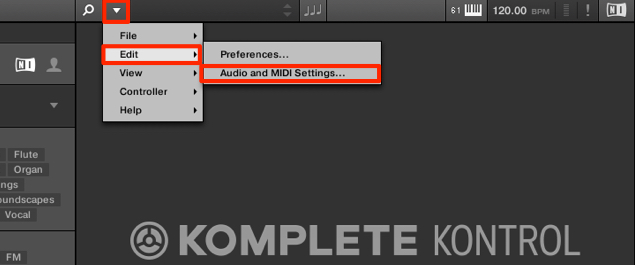
In the area outlined in red, select Edit → Audio and MIDI.
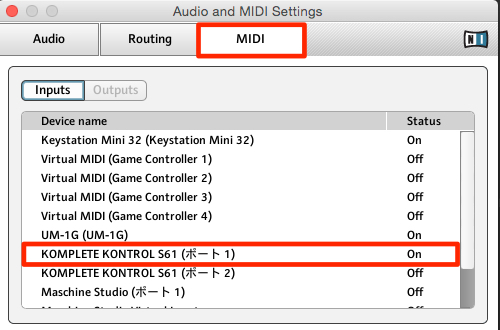
In the window that appears, select the MIDI tab
and set the KOMPLETE KONTROL Status to On.
Frequently asked questions
Q1. Do I have to buy KOMPLETE 10 to use KOMPLETE KONTROL?
The original article does not establish whether KOMPLETE 10 was required. It states that, in the version covered here, KOMPLETE 10 purchasers could use the software without the KOMPLETE KONTROL keyboard, and that purchasing the keyboard included KOMPLETE SELECT.
Q2. What is the difference between the two ways of running it on a computer?
Standalone runs directly on the computer, while the plug-in runs inside a DAW. The plug-in is recommended when working in a DAW, and you can run multiple instances as CPU resources allow.
Q3. What if there is no sound in standalone mode?
In the version shown here, choose Edit → Audio and MIDI → MIDI and set the KOMPLETE KONTROL Status to On. Without this setting, pressing the keyboard will not produce sound.
NEW ARTICLES
Latest English Articles