
Ableton Live’s Arpeggiator lets you perform audio samples in creative new ways. Slice audio to a MIDI track, arrange the notes across the performance range, and combine Arpeggiator with Auto Pan for an intricate, spacious sound. Mapping parameters to Macros lets you adjust them in real time as you play, creating dynamic expression that suits your track. This practical technique can open up new possibilities for rearranging samples and performing them.
Control Audio Samples with Slicing and Arpeggiator

In Ableton Live, you can easily slice audio into note-sized segments and
play them via MIDI.
This time, let’s combine Arpeggiator and Auto Pan to create an intricate performance.
Ableton Live Tips: Play Audio Creatively with Arpeggiator
View product details

Slicing the Audio
First, slice the audio to a new MIDI track.
The process is very simple.
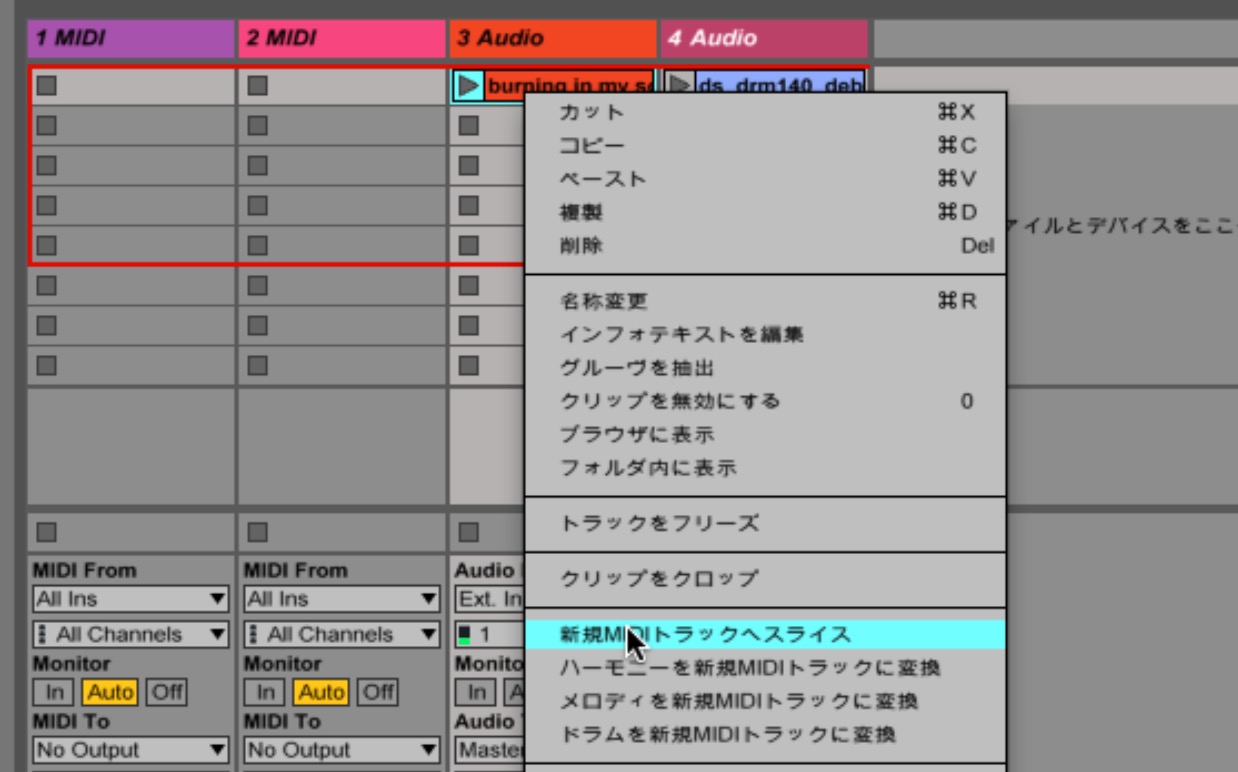
Right-click the audio in the track and select “Slice to New MIDI Track.”
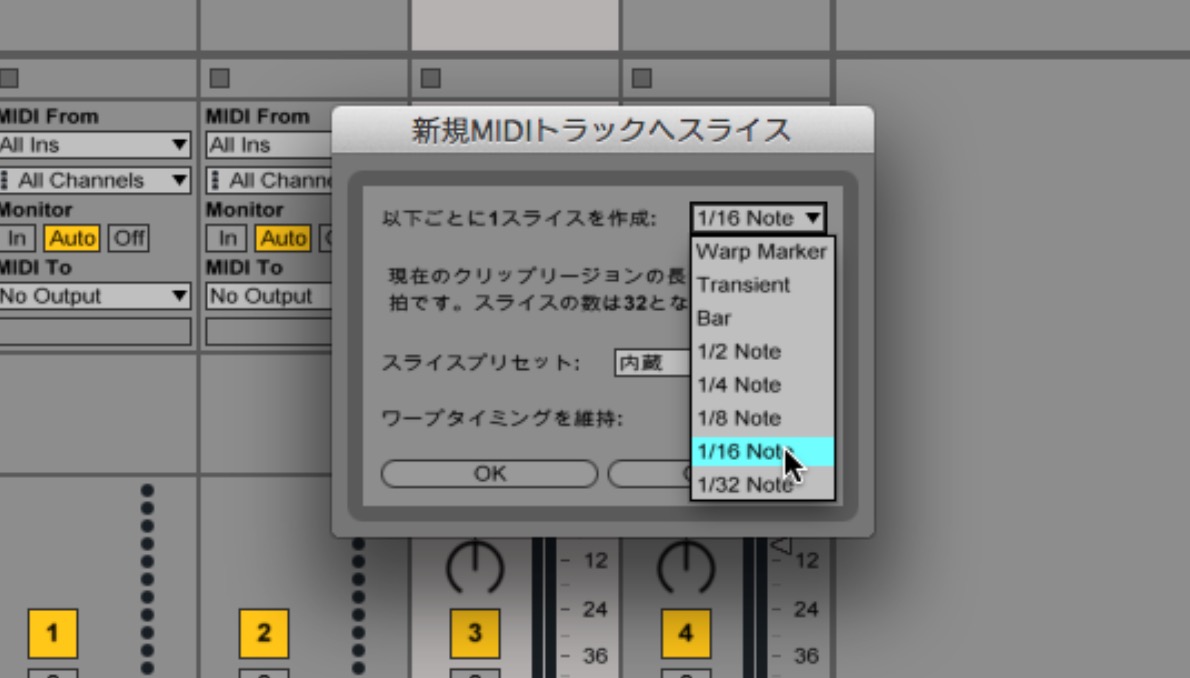
Choose a slicing interval from the list. Here we’ll use 1/16.
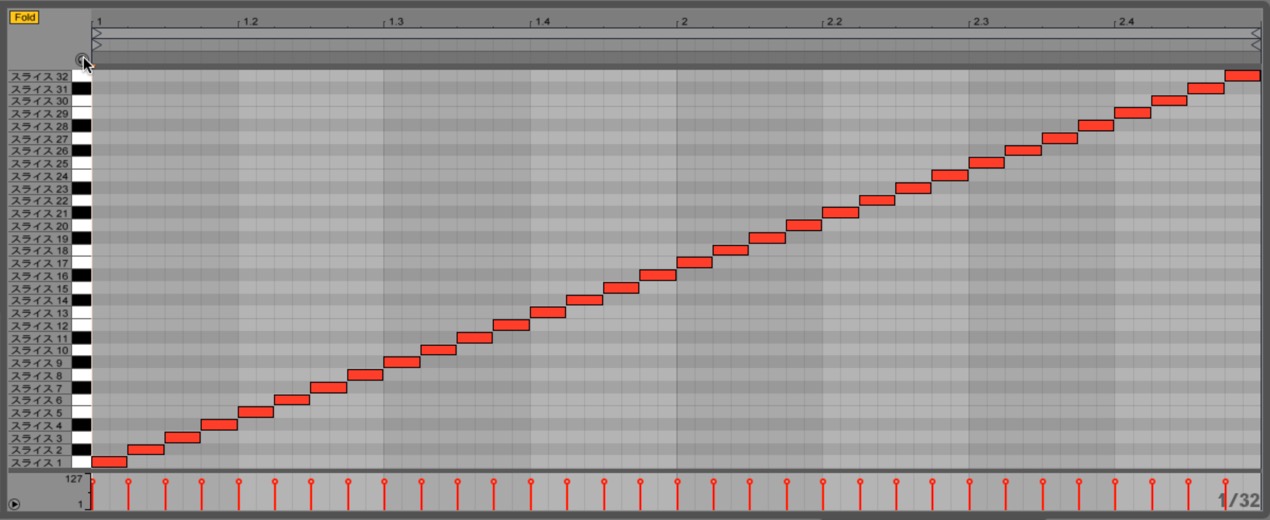
The sliced audio is assigned across the keys, and the MIDI track is ready.
Arranging Notes Across the Performance Range
Once the audio is sliced, prepare it for the Arpeggiator by
placing all the notes without gaps across the performance range.
Entering every note manually would take a while, so use the following steps.
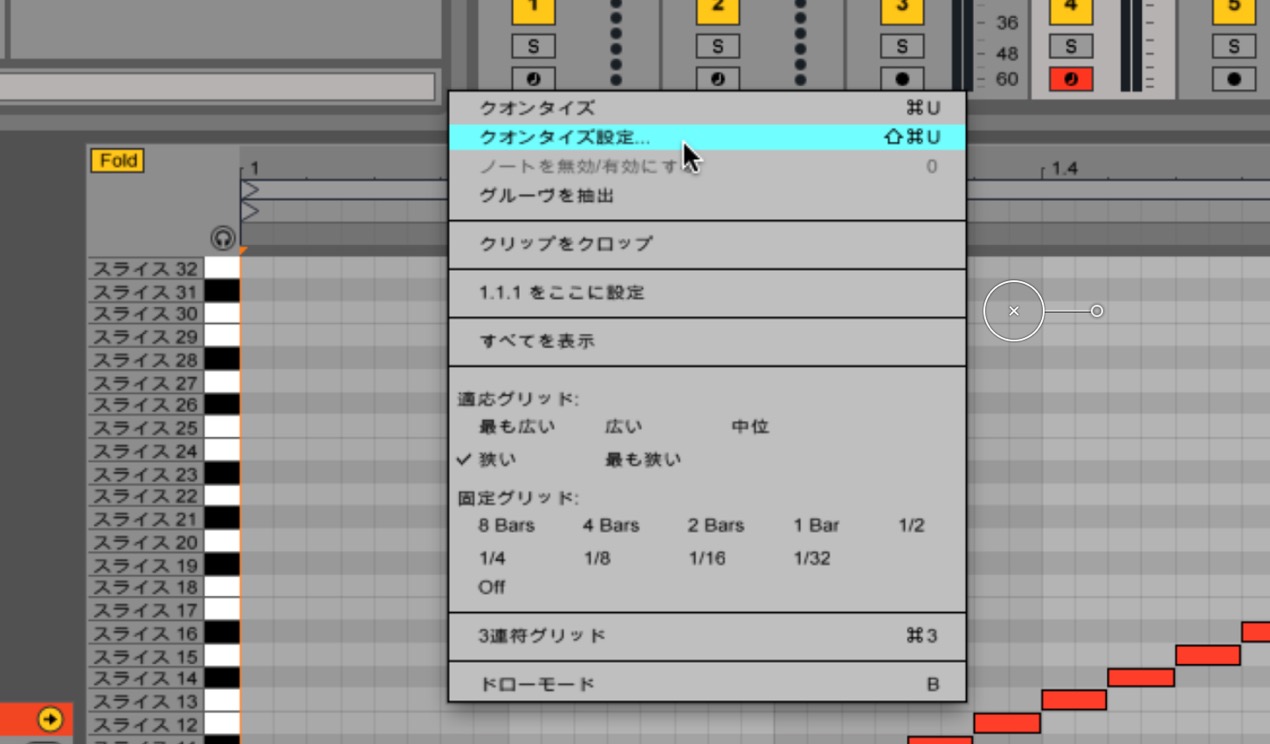
Right-click in the editor and select “Quantize Settings.”
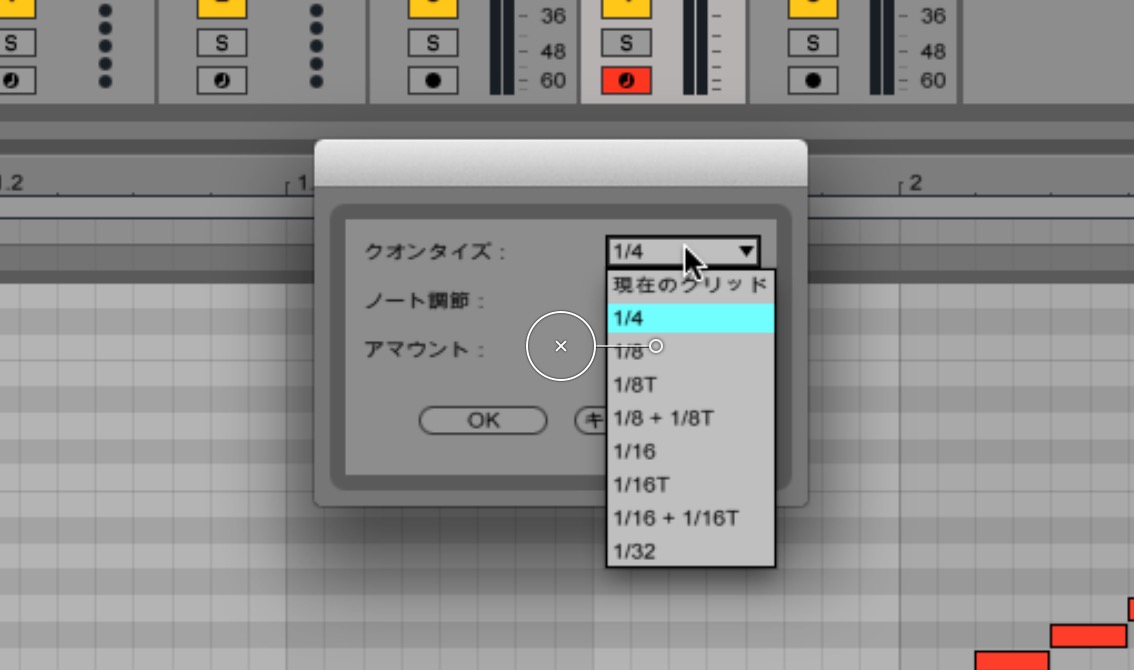
For now, quantize the notes to quarter notes.
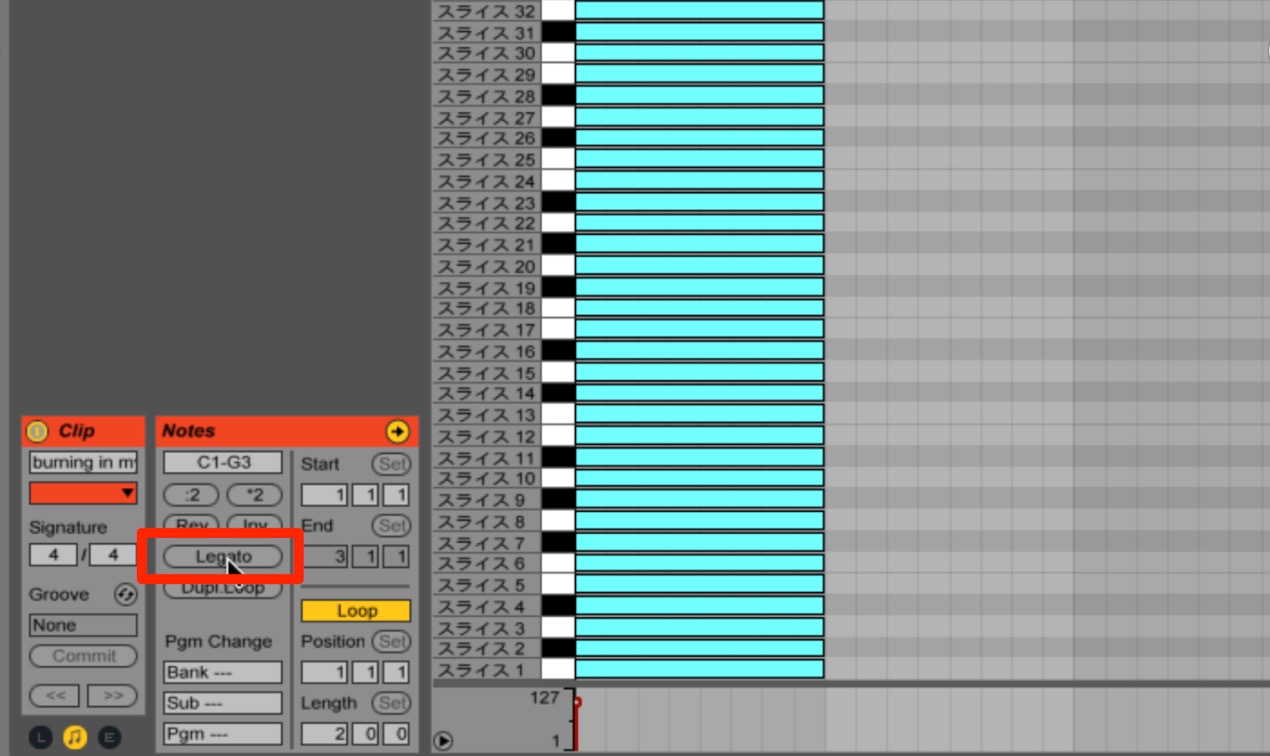
Move all the resulting quarter notes to the far left. A quick way is to move about two groups of quarter notes left, then copy them upward.
Then click “Legato” in the area outlined in red.
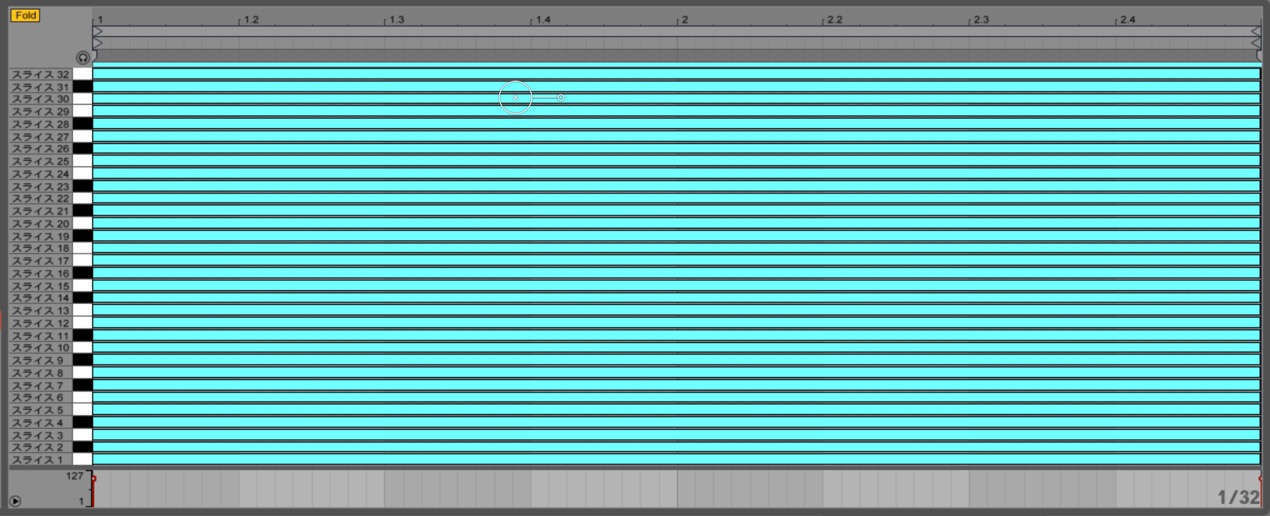
All the notes now extend across the entire performance range—in this example, two bars.
The MIDI setup is ready.
Setting Up Arpeggiator and Auto Pan
Next, set up the Arpeggiator.
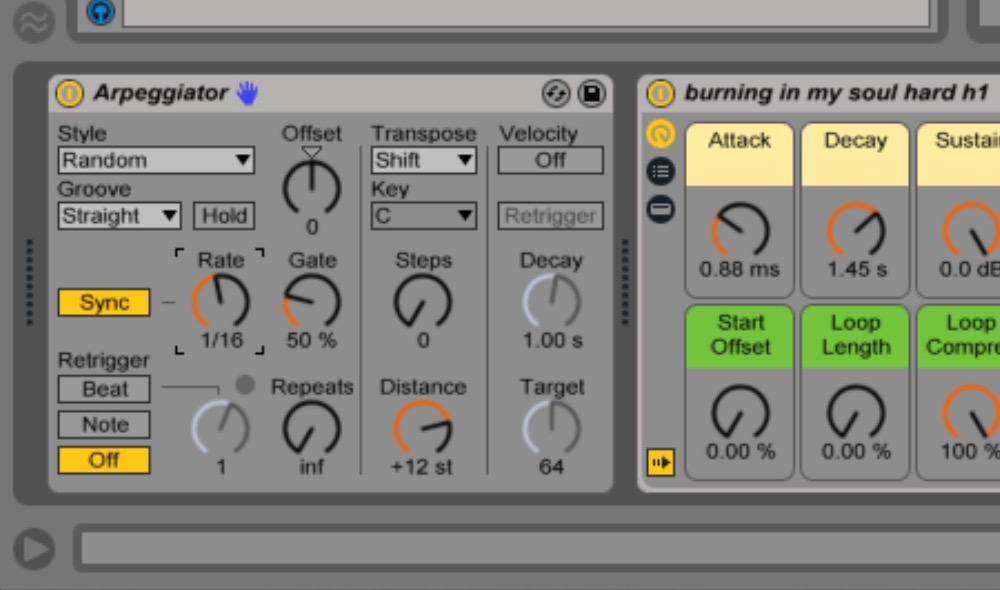
Drag and drop Arpeggiator before the device,
then set Style to “Random” and Rate to “1/16.”
You can choose settings to taste, but the “Chord Trigger” Style will not play this setup properly, so keep that in mind.
Now add Auto Pan.
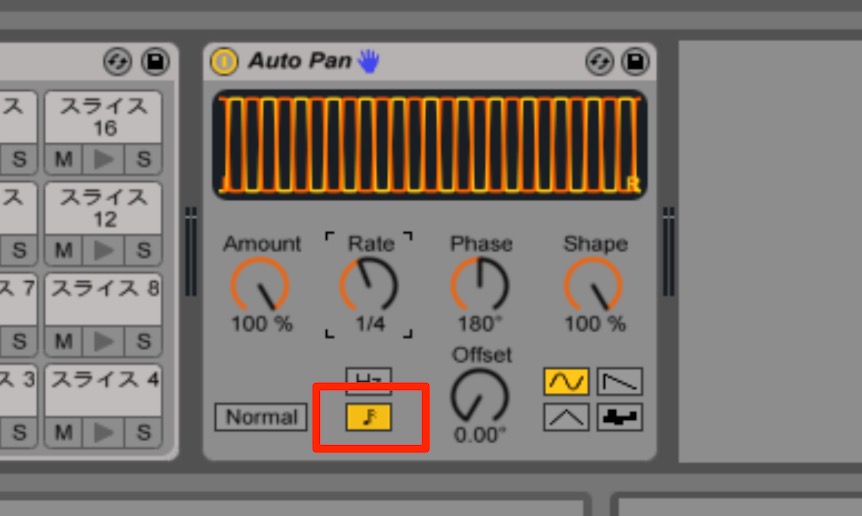
Place it after the device and set Amount to “100%” and Shape to “100%.”
For Rate, click the note icon and select “1/16.”
This moves the sound fully left and right at the slicing interval.
Play it back and the sliced voice sample will be performed in an intricate pattern.
Setting Up Macros
If you want to change settings dynamically while playing, set up Macros.
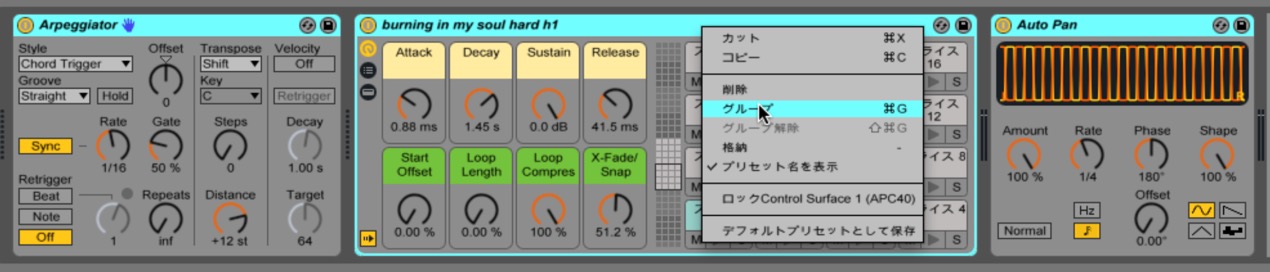
First, select the devices from Arpeggiator through Auto Pan, right-click, and group them.
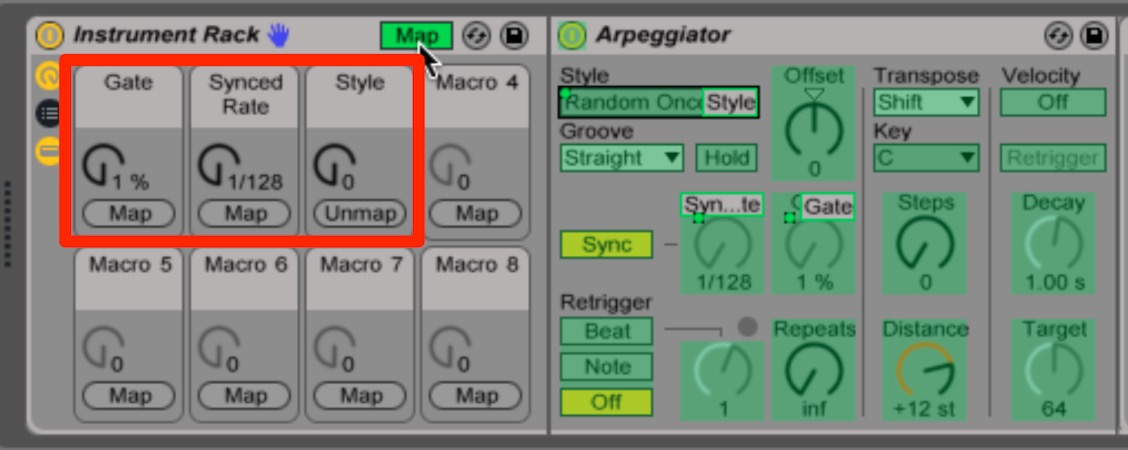
This creates an Instrument Rack. Show its Macros
and assign the parameters you want to the knobs.
In this example, we mapped Arpeggiator’s “Gate,” “Synced Rate,” and “Style.”
Now play the track and move the knobs to suit the music.
This is useful both for recording automation and for live performance.
Give it a try.
View product details
Frequently Asked Questions
Q1. How do I slice audio in Ableton Live?
Right-click the audio in the track, select “Slice to New MIDI Track,” and choose a slicing interval such as 1/16 from the list. A MIDI track is created with the audio slices assigned across the keys.
Q2. Why avoid the “Chord Trigger” Arpeggiator Style?
It does not play properly with this particular technique, so use another Style such as “Random.” Choose a Style that suits the sound you want.
Q3. What matters when setting up Auto Pan?
Set Amount and Shape to 100%, and Rate to 1/16, so the sound moves fully left and right at the slicing interval. This produces a spacious, intricate effect.
Q4. Which parameters should I assign to Macros?
Arpeggiator’s “Gate,” “Synced Rate,” and “Style” are suggested, but you can choose freely to suit your track and preferences. Use them for real-time control or recording automation.
NEW ARTICLES
Latest English Articles
































































































































































































































































































































































































































