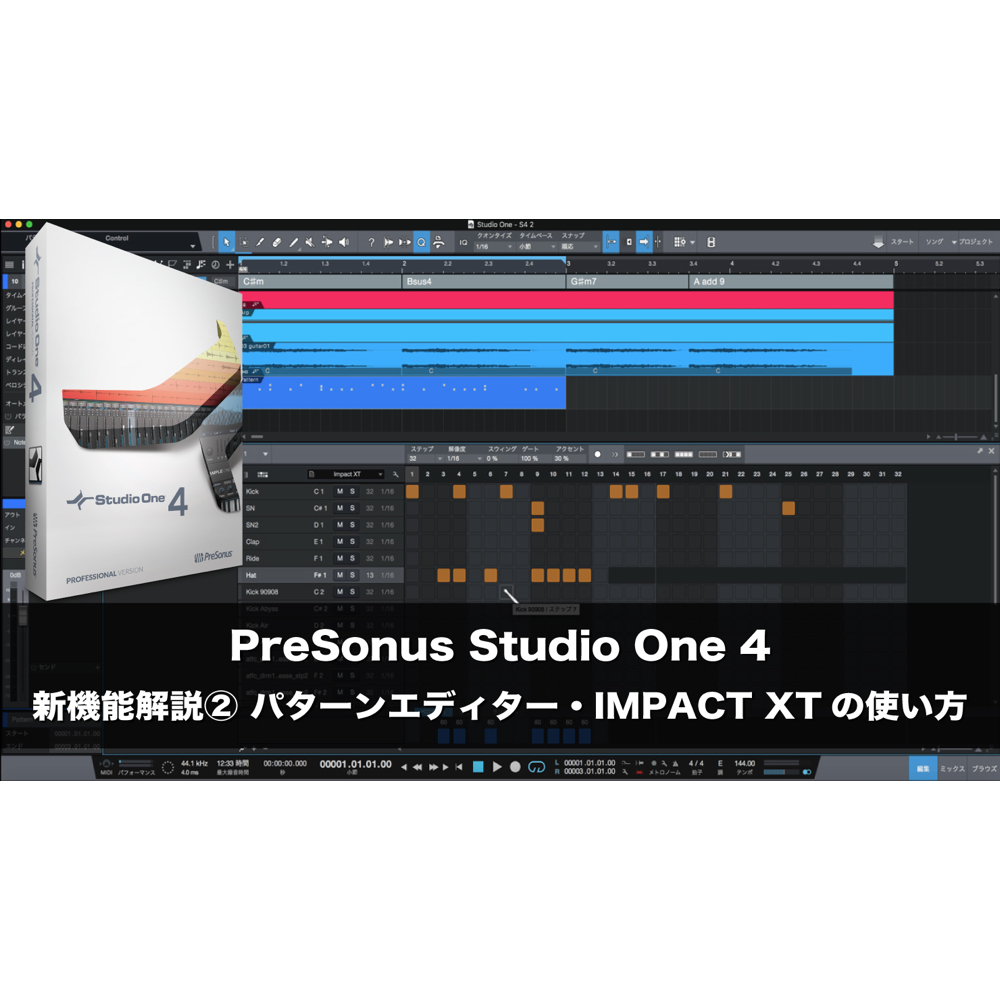
This guide explains practical ways to customize sounds in Impact, a drum instrument plug-in. Learn to use the AMP section for volume and pan, Pitch for tuning, and Filter for shaping tone to suit your music and ideas. It also covers changing the tone over time and saving and sharing presets, offering sound-design techniques for beginners and experienced producers alike.
Customize Impact Kit Sounds to Your Taste
After choosing a kit you like,
edit its sounds to suit your song and the sound you have in mind.
Drums can be as prominent in a song as the vocals,
so this is an area worth paying close attention to.
Impact Video Tutorials
- 1Impact Basics and Loading Kits
- 2Designing Kit Sounds *This article
- 3Real-Time Recording
- 4Multiple Outputs
Questions and Answers from the YouTube Video

The explanations are clear and very helpful. Is Impact only included if I buy the full version? I downloaded the free version but couldn’t find it.

We’re glad it helped. In this original response, we noted that Impact did not appear to be included in the free version then discussed. Availability depends on the version: PreSonus says the Studio One Pro 7 30-day demo includes Impact XT kits and sounds. Check the details for your edition before deciding. http://www.mi7.co.jp/products/presonus/studioone/portfolio/impact/
Video Notes: Selecting a Drum Sound to Edit
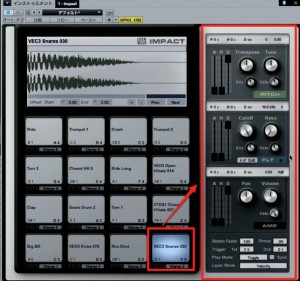
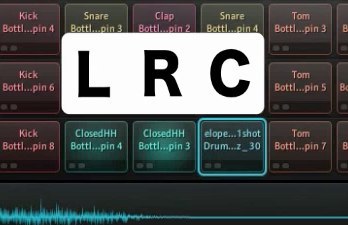
Select the drum sound you want to edit,
and the parameters on the right will change.
You can edit each sound individually.
Video Notes: Adjusting the AMP Section
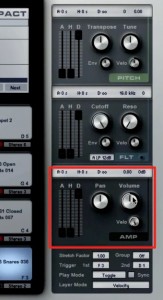
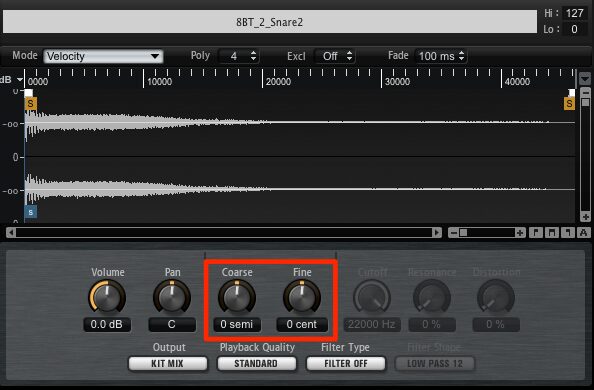
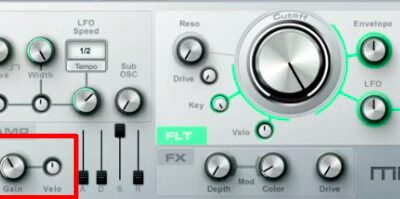
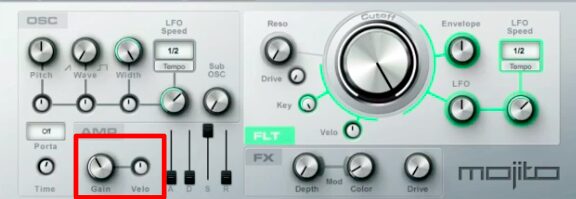
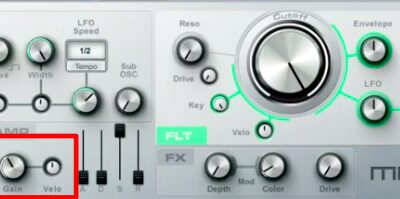
In the AMP section, you can adjust settings such as volume and pan for each sound.
These two controls are particularly important when shaping the groove,
so we recommend spending time fine-tuning them.
Video Notes: Adjusting the Pitch Section
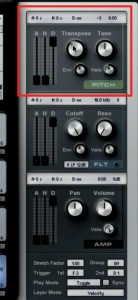
As its name suggests, the Pitch section lets you adjust the pitch of each sound.
This is similar to tuning a drum and can greatly change the feel of a pattern.
- Transpose: Makes larger pitch changes in semitone steps.
- Tune: Allows fine adjustments in hundredths of a semitone.
Use Transpose for a coarse adjustment,
then fine-tune the pitch with Tune.
Video Notes: Adjusting the Filter Section
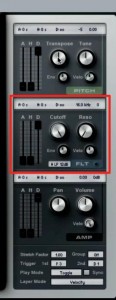
The filter is a crucial part of shaping a sound.
It affects the overall sound of the song.
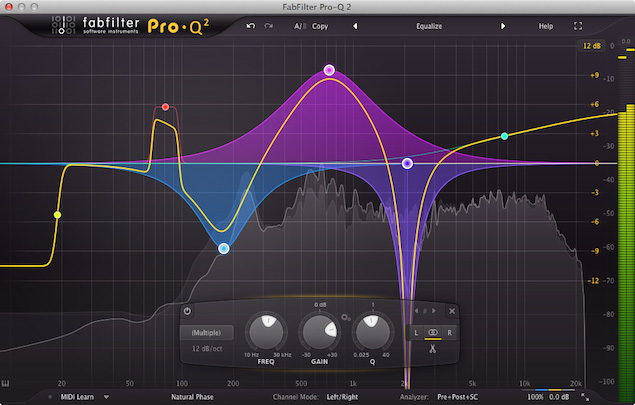
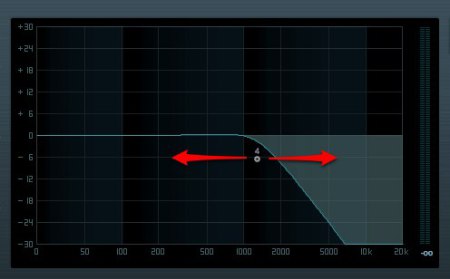
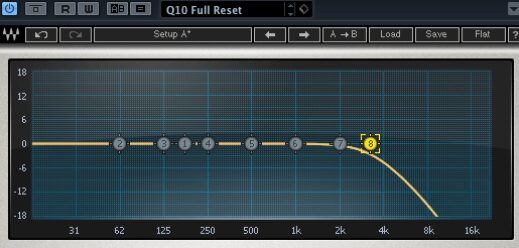
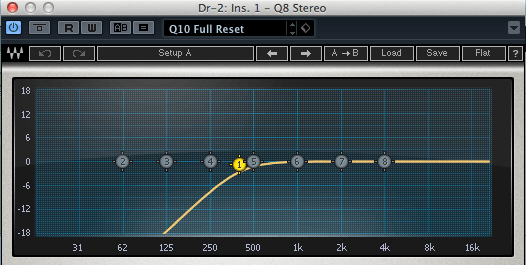
Use the low-pass, high-pass and band-pass filters to shape the sound’s tonal character.
For a deeper understanding of these filters, see this article.
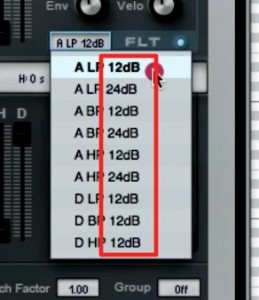
The numbers beside the filters describe their cutoff slope, measured in decibels per octave.
A higher number means a steeper reduction beyond the cutoff, changing the tone.
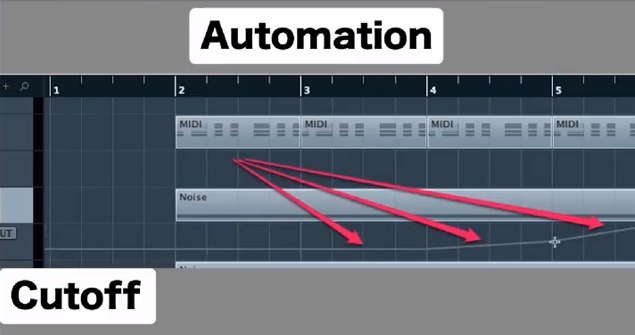
Video Notes: Changing the Tone Over Time with the Filter

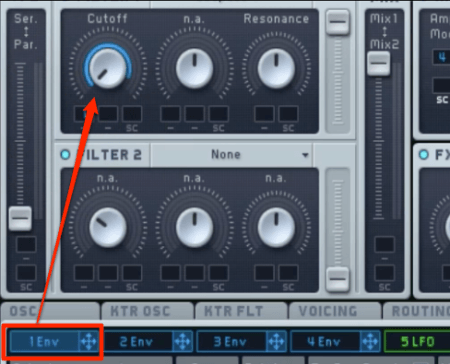
You can make the tone change over time.
This is often used in electronic music.
- A — Attack: The time over which the tone changes from the cutoff setting.
- H — Hold: The time for which the changed tone is maintained.
- D — Decay: The time it takes for the tone to return after Hold.
These are the three stages.
Video Notes: Saving an Edited Kit
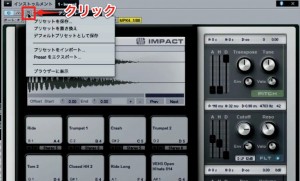
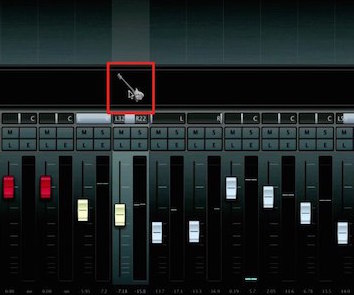
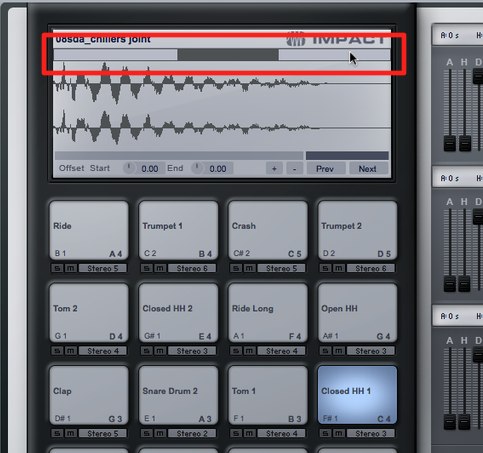
Click the area outlined in red and select “Store Preset.”
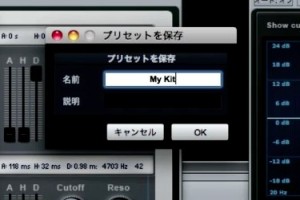
Choose a name and select “OK.”
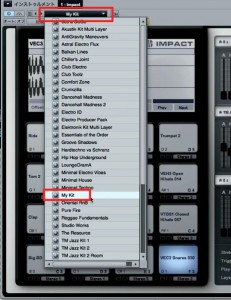
The saved kit will appear in the preset list next time.
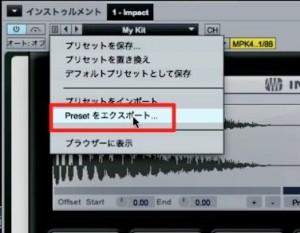
“Export Preset” lets you choose where to save the kit,
so you can transfer it by USB and use it on another computer.

Frequently Asked Questions
Q1. How can I shape sounds in Impact’s Filter section?
Use low-pass, high-pass and band-pass filters to shape the tonal character. The filter number indicates its cutoff slope; a steeper slope reduces frequencies beyond the cutoff more sharply and can affect the overall sound.
Q2. What is the difference between Transpose and Tune when adjusting drum pitch?
Transpose makes larger changes in semitone steps, while Tune allows fine adjustments in hundredths of a semitone. Start with Transpose for a coarse adjustment, then use Tune to fine-tune it.
Q3. Can I use a kit preset I created on another computer?
Yes. Use “Export Preset” to save the kit to a location of your choice, then transfer the preset to another computer using a USB drive or another method.
NEW ARTICLES
Latest English Articles