
Applying effects is an essential part of mixing in FL Studio. This tutorial explains two practical methods: dragging an effect from the Browser and selecting one from the Mixer. It also covers editing and removing effects and checking the effect mix when you cannot hear a change.
Shape a Channel’s Sound with Effects

Effects change the sound of individual channels
and are also used when mixing a finished song.
If the term “effect” is unfamiliar,
you may recognize the echo used in karaoke.
Echo adds depth to a voice; in music production,
delay and reverb are examples of effects that can create a sense of space.
Let’s look at how to apply effects in FL Studio.
Video Tutorial
Applying Effects
There are several ways to add effects.
Start by learning these two methods and choose whichever suits your workflow.
Method 1: Drag from the Browser
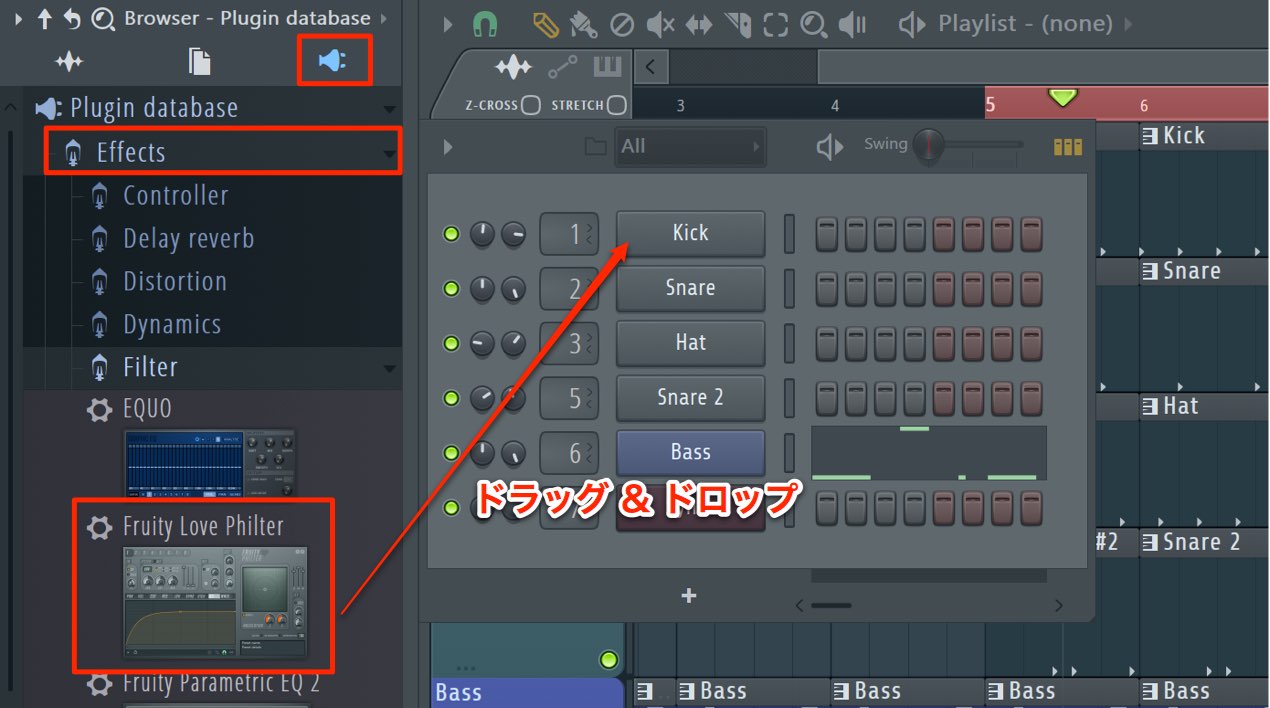
Open the effects section of the Browser.
Drag and drop the desired effect onto the channel where you want to use it.
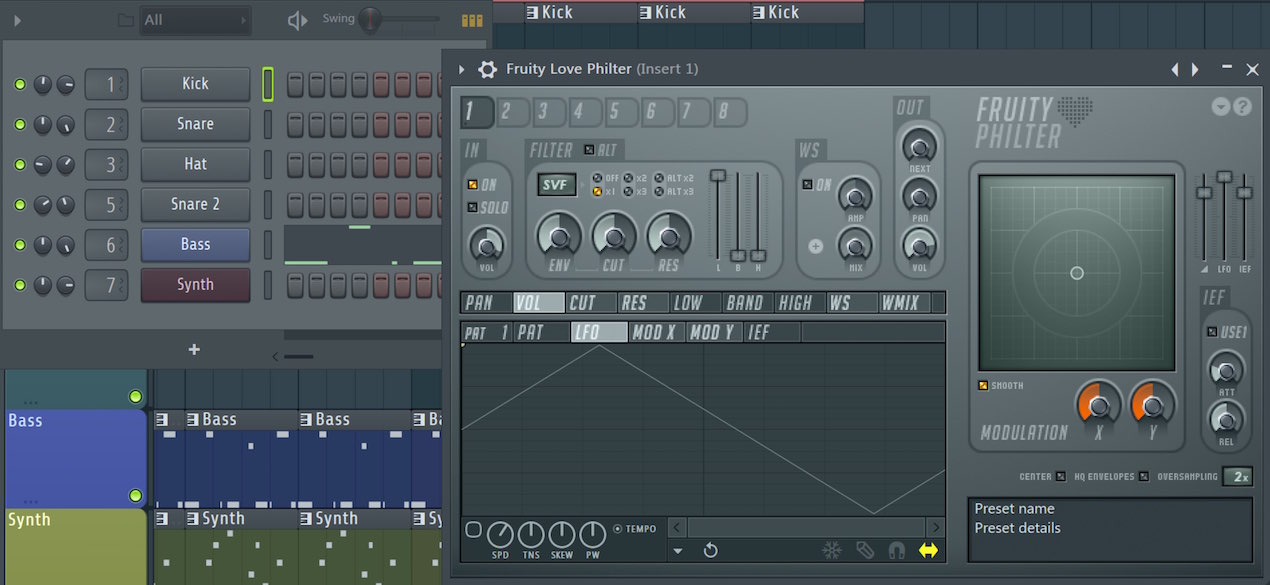
The effect will open and you can edit its settings.
Method 2: Select from the Mixer
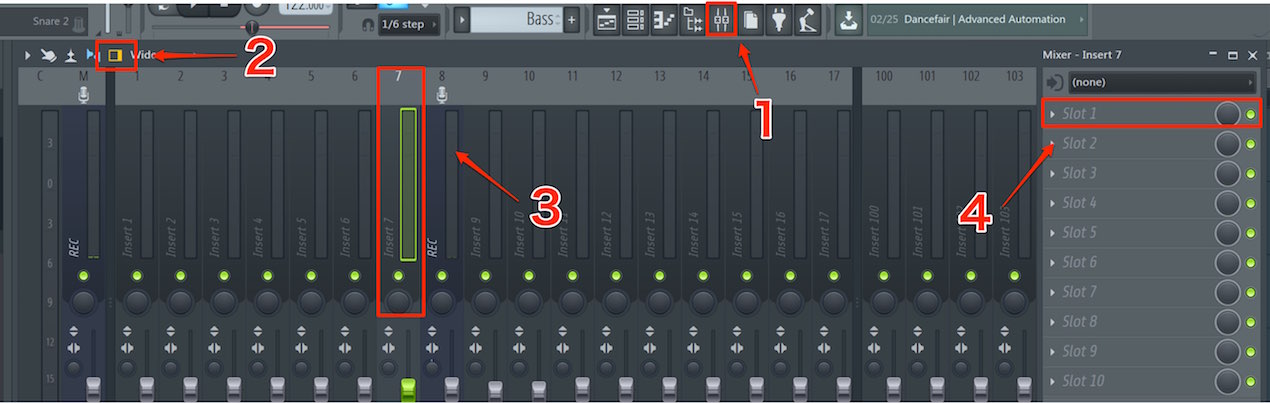
- 1. Open the Mixer window.
- 2. Display the inspector.
- 3. Select the channel to which you want to apply the effect.
- 4. Click an empty slot.
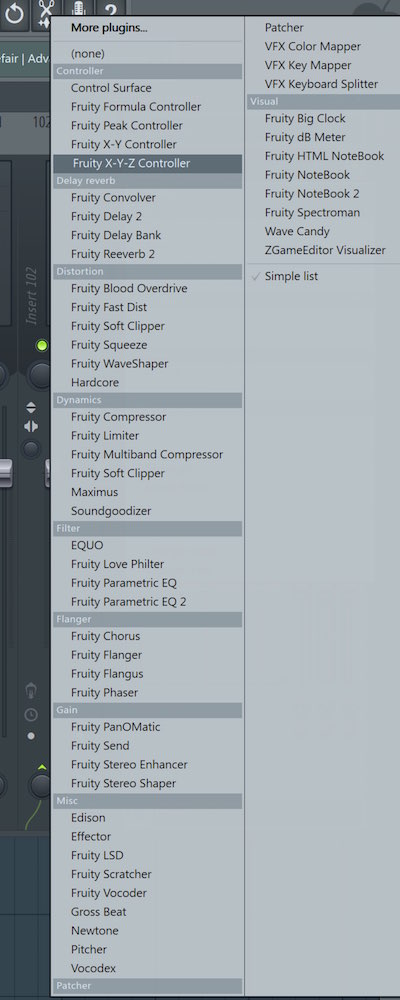
An effects list appears; select the effect you want to use.
Editing an Effect
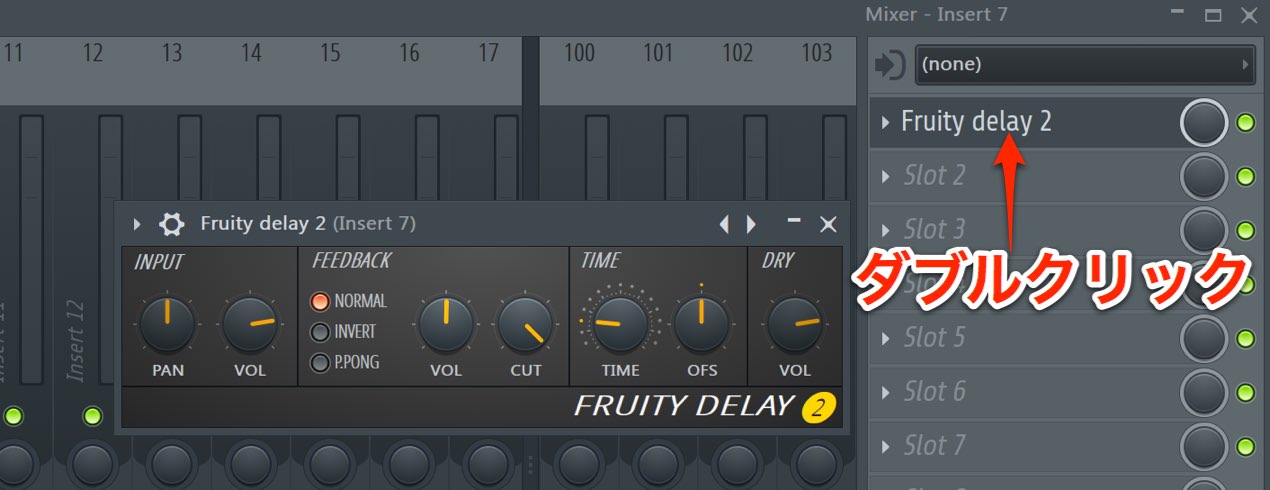
You can return to an applied effect and edit it as often as you like.
Select the track you want to change in the Mixer,
then double-click the effect in its slot.
Removing an Effect
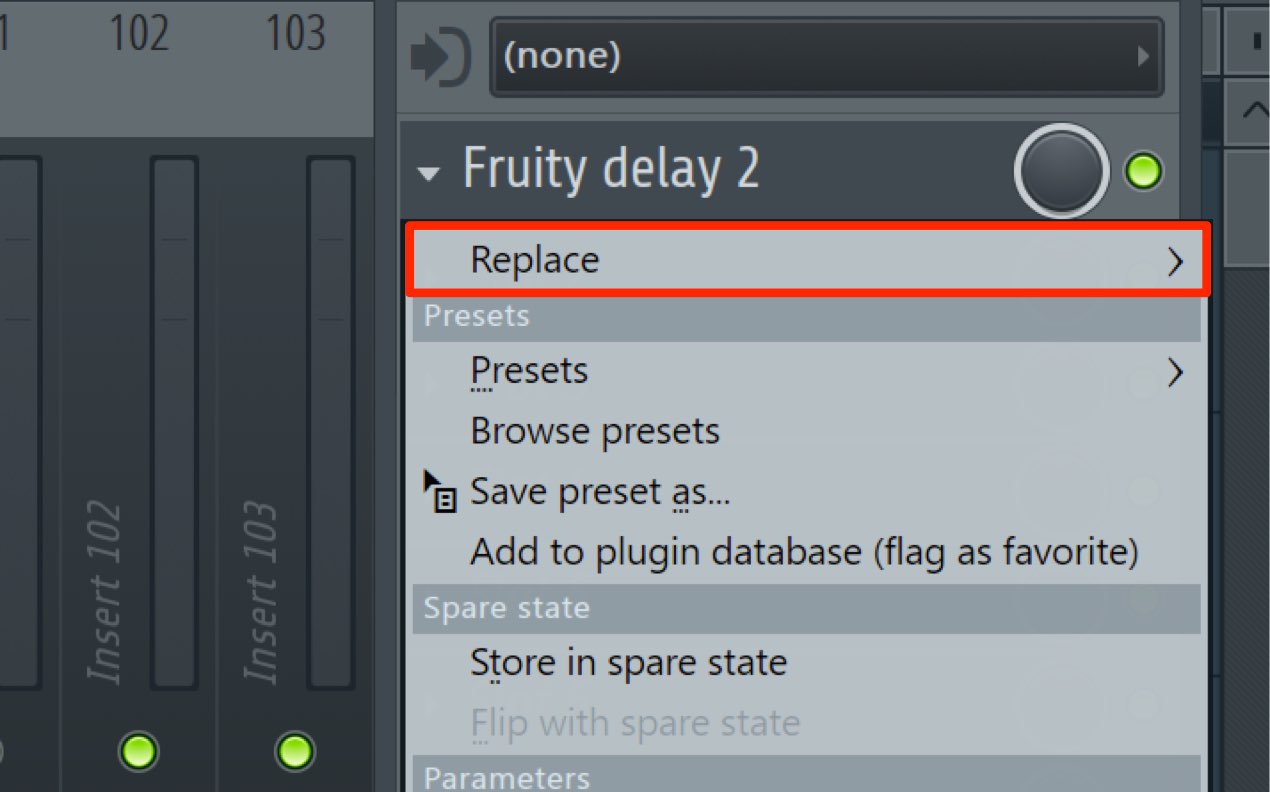
Select the track you want to change in the Mixer,
then choose “Replace” from the effect in its slot.
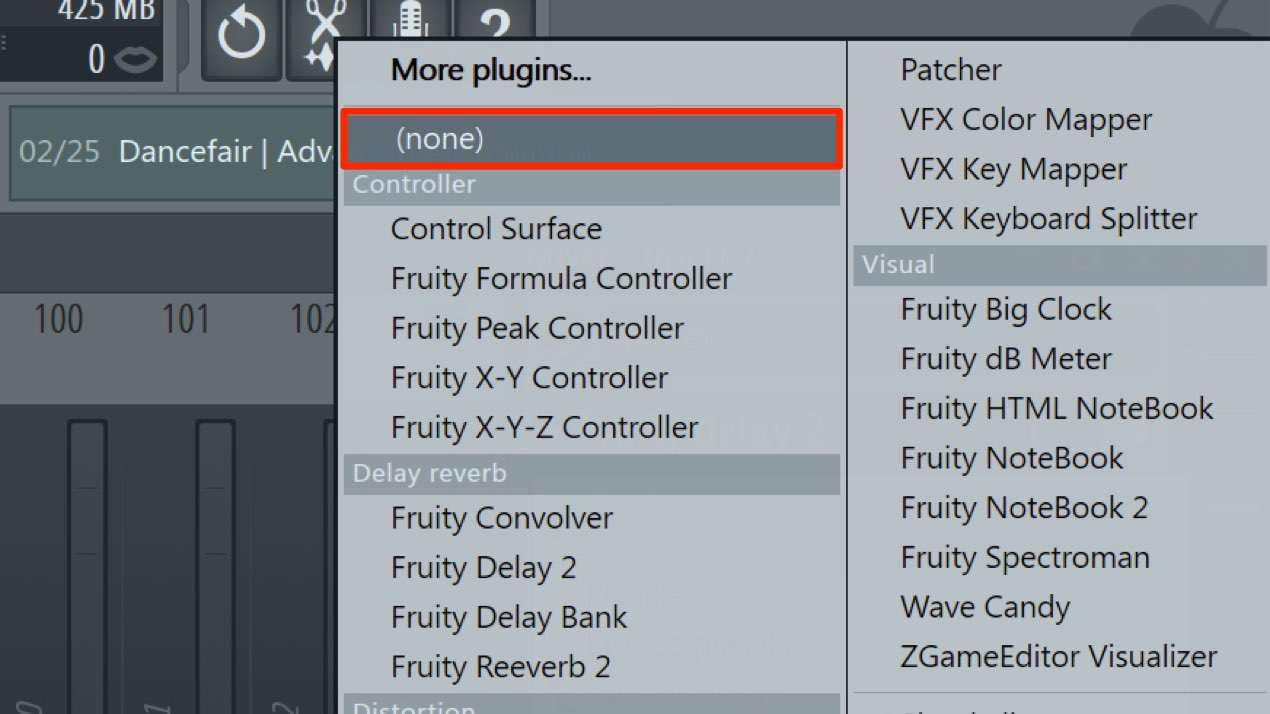
Select “None” from the list.
When You Cannot Hear the Effect
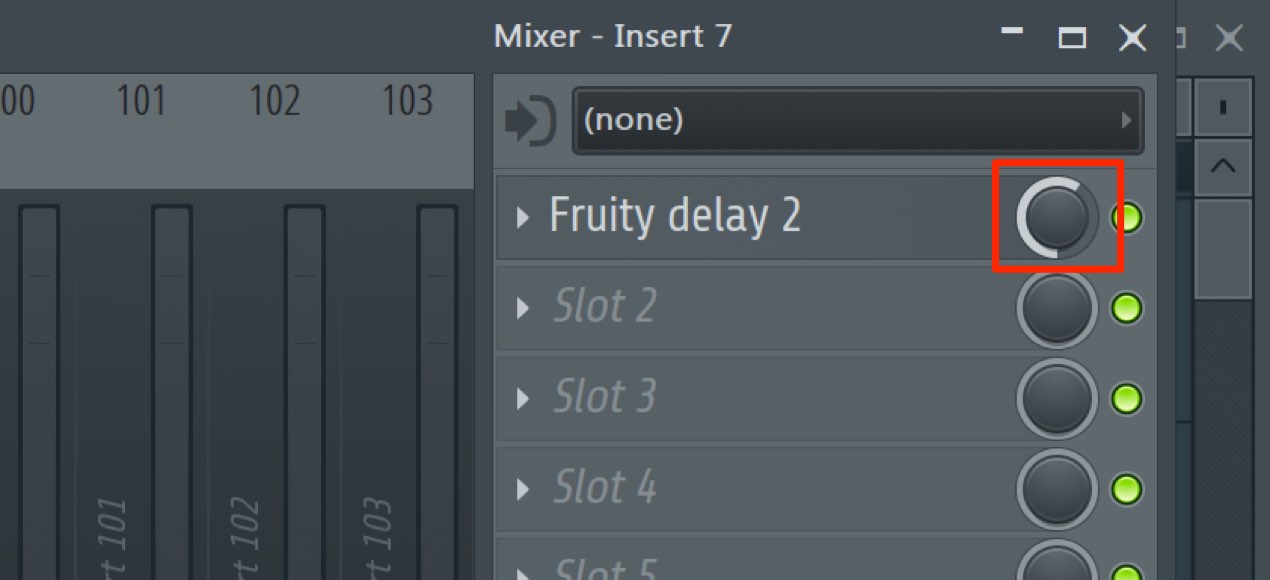
FL Studio has a knob for adjusting the effect slot’s mix level.
The tutorial recommends turning it fully right to set the slot mix to 100%.
Check whether this control has been turned toward or all the way to the left.
Effect Tips and Techniques
Sleepfreaks offers articles and videos explaining a wide range of effects.
Take a look if you would like to learn more.
https://sleepfreaks-dtm.com/category/dtm-mix-technique/

Frequently Asked Questions
Q1. What should I do if an effect does not seem to be working in FL Studio?
Check whether the effect slot mix knob is turned toward or all the way to the left. The tutorial recommends turning it fully right for a 100% slot mix.
Q2. How do the two methods of applying effects differ?
Method 1 uses drag-and-drop from the Browser; method 2 uses the Mixer and inspector to select an effect for a slot. Both can be used to add an effect, so choose the workflow that suits you.
Q3. Can I change an effect after applying it?
Yes. You can edit it repeatedly: select the track in the Mixer and double-click the effect to open its editing window.
NEW ARTICLES
Latest English Articles









































































































































































































































































































































































































































