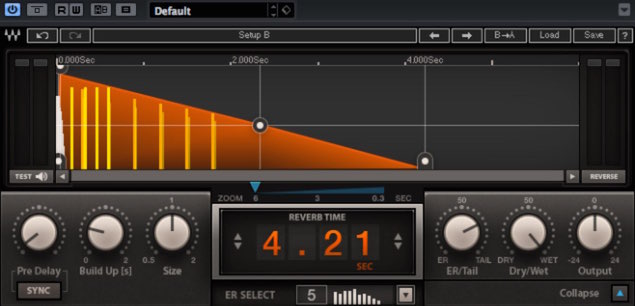
Waves IR-Reverb simulates the reverberation of real spaces, offering a detailed, natural sound. This article explains how to download and install free presets on Mac and Windows, so even beginners can add a professional spatial effect to their DAW. It also links to AUX reverb setup guides for major DAWs, offering practical knowledge to use in music production.
Waves IR: Reverb Based on Real Acoustic Spaces
IR-Reverb uses convolution technology to recreate reverberation:
it applies information captured from a real acoustic space to your track.
This produces a realistic, finely detailed sound.
Purchase the product: https://bit.ly/3c4kAZq
Download the Free Presets
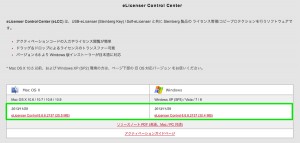
Waves distributes reverb presets that can be downloaded here:
http://www.waves.com/downloads
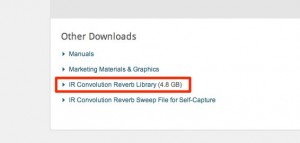
Inside the downloaded and extracted folder,
you will find two folders: “Virtual Acoustics” and “Sampled Acoustics V2.”
To complete the installation, move only the contents of these folders to the locations below.
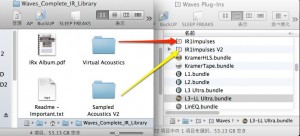
Move the contents of “Virtual Acoustics” into “IR1Impulses.”
Move the contents of “Sampled Acoustics V2” into “IR1Impulses V2.”
The original article lists the locations below. Waves’ current installation guide instead places these folders inside the Waves/Data folder on both platforms. See https://www.waves.com/support/how-to-install-ir-reverb-preset-library for the current instructions.
Mac (original path)
Main HDD → Applications → Waves → Waves Plug-Ins
Windows (original path)
C drive → Program Files (x86) → Waves → Plug-Ins
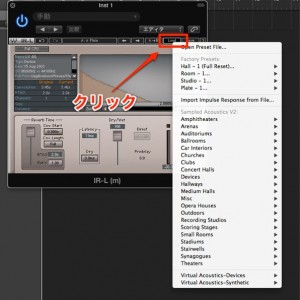
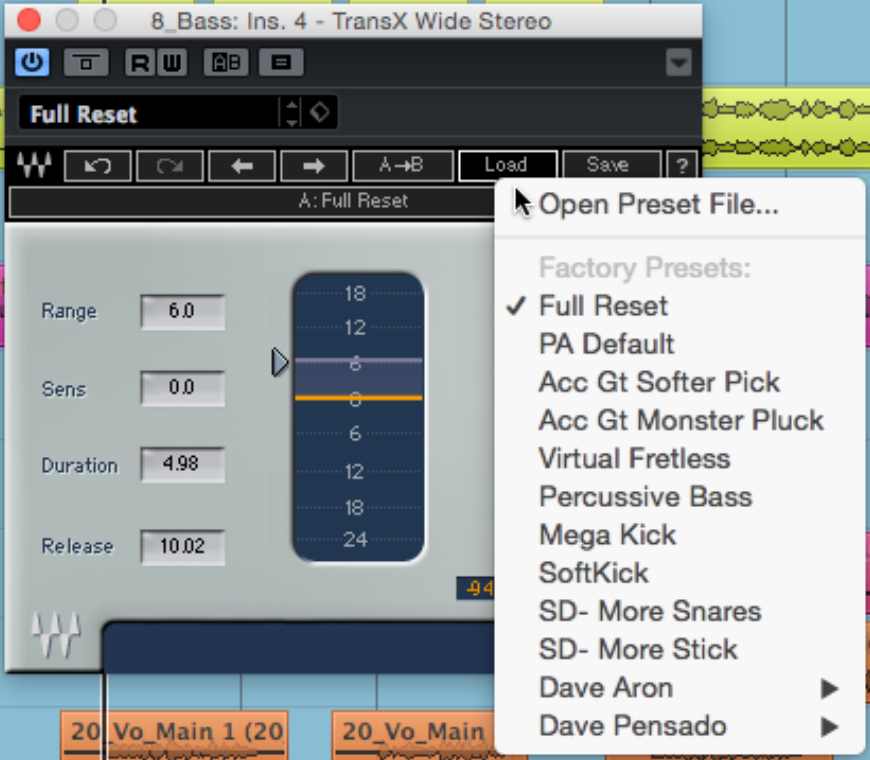
You can then access the presets from “Load.”
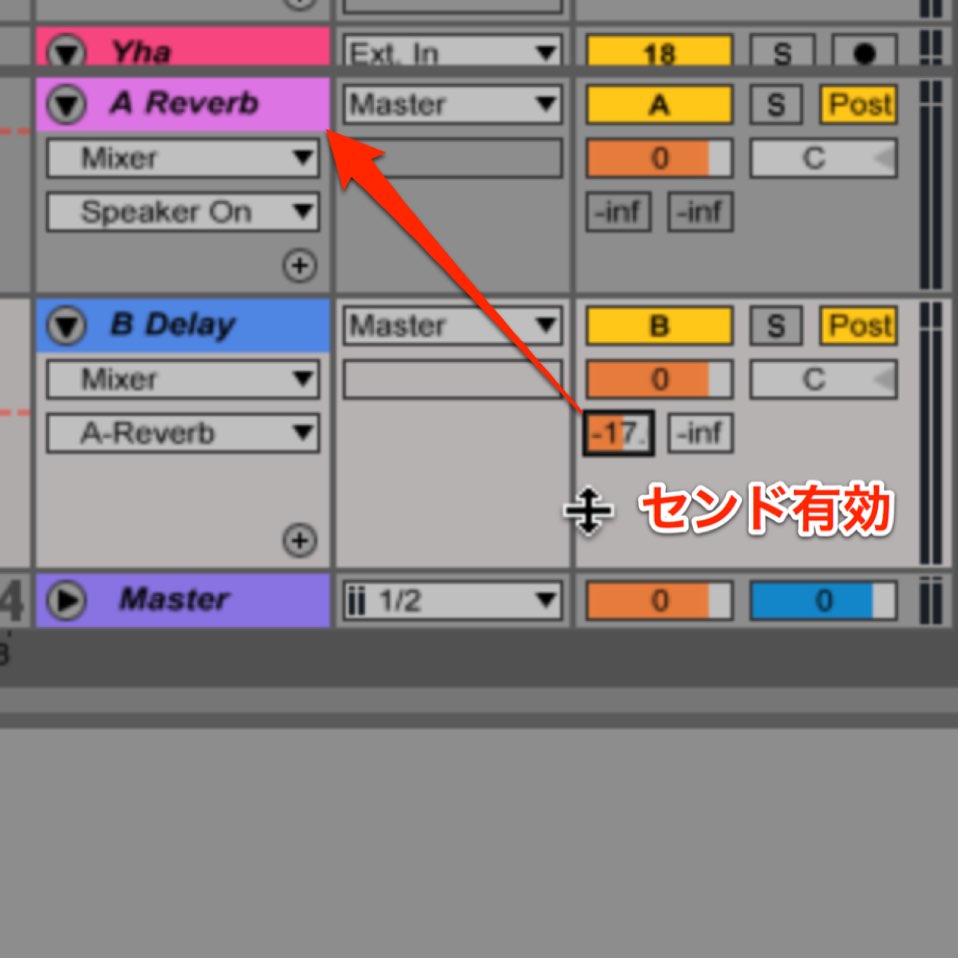
Setting Up Reverb on an AUX
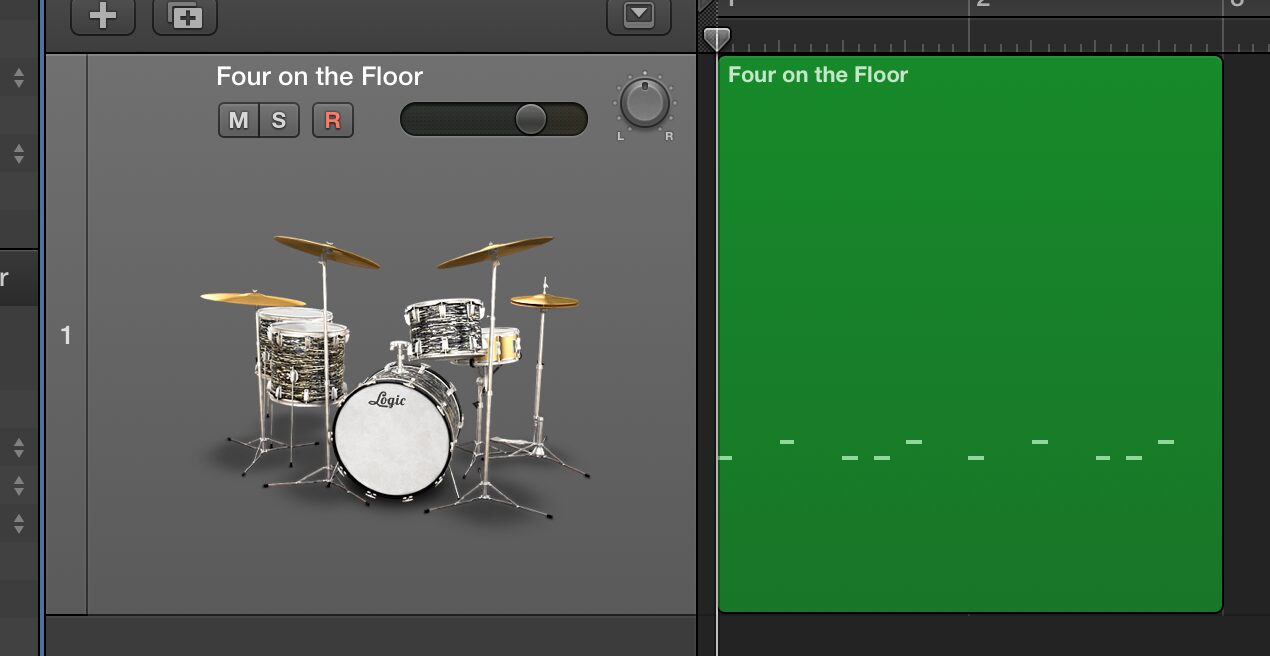
 Logic
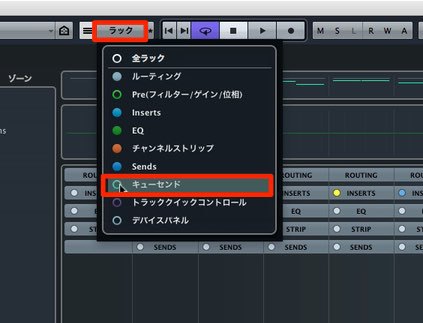
 Cubase
 Ableton Live
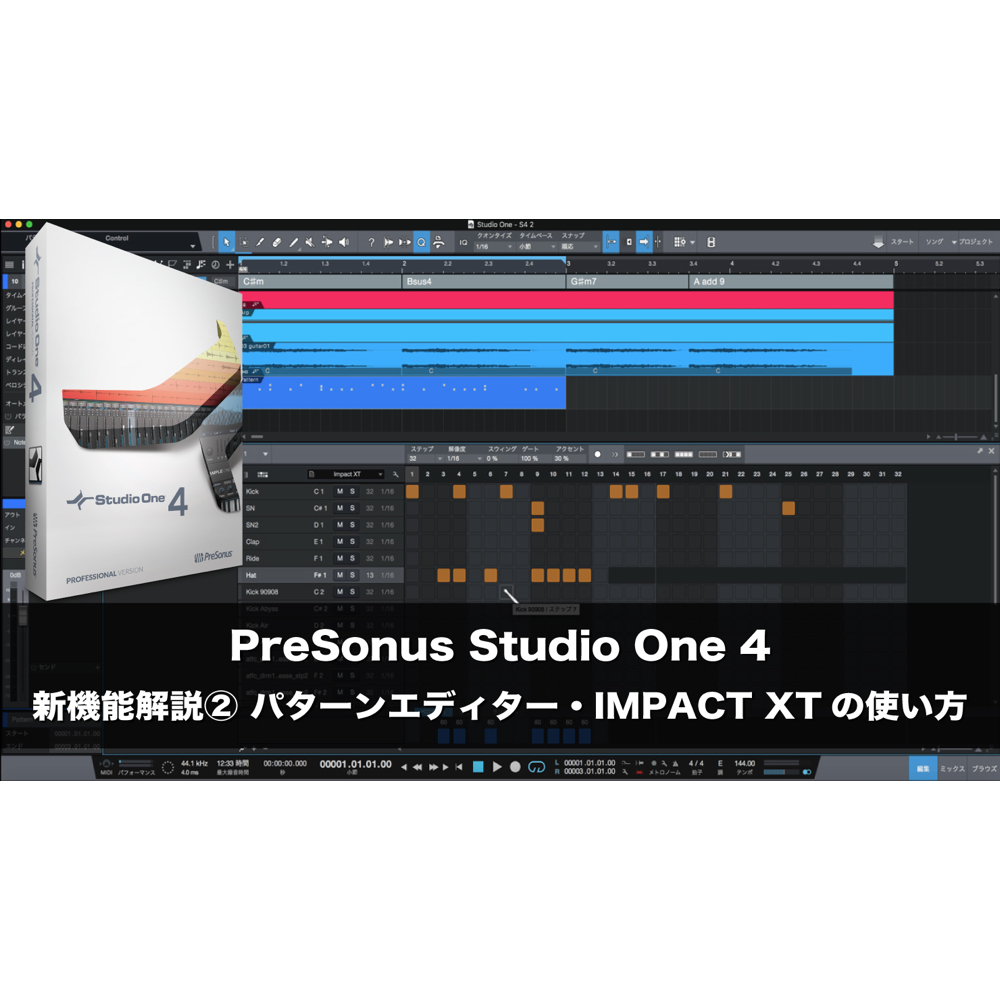
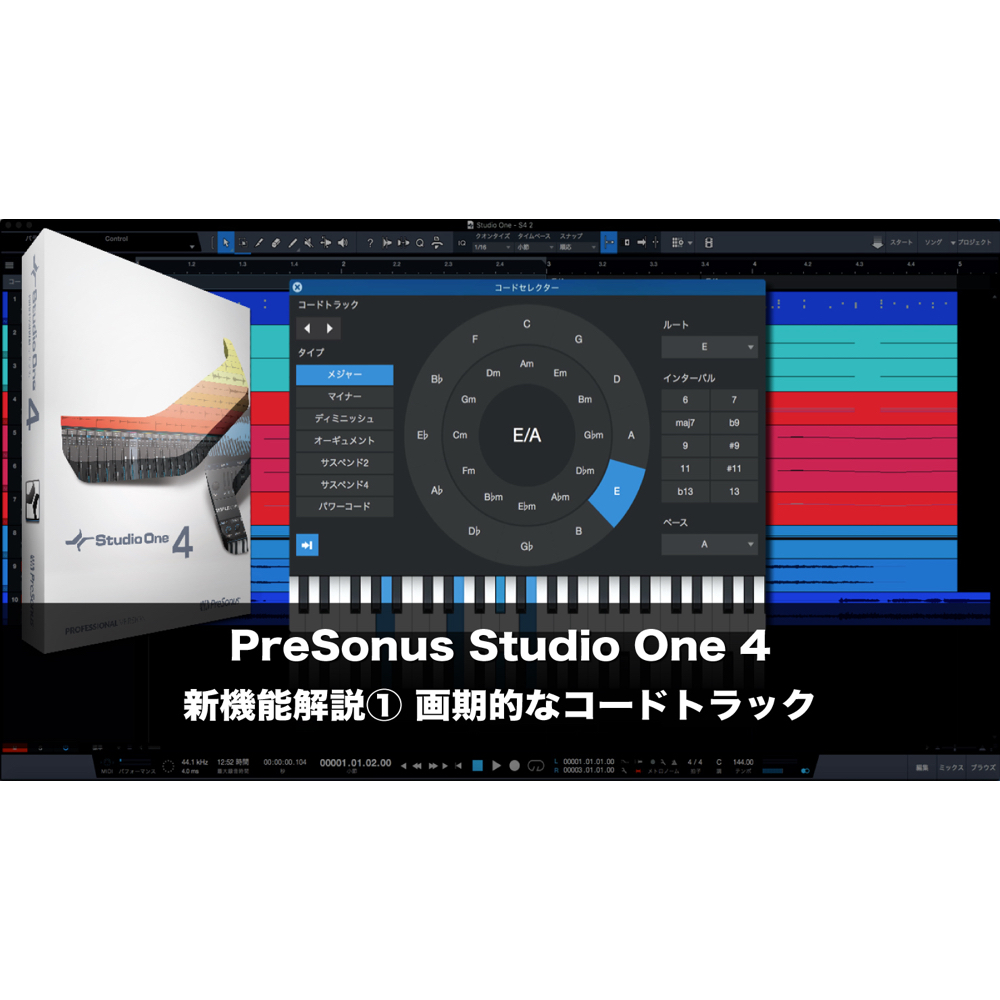
 Studio One
 FL Studio
Frequently Asked Questions
Q1. Can I really download the Waves IR-Reverb presets for free?
Yes. Waves offers the library as a free download. The extracted library contains “Virtual Acoustics” and “Sampled Acoustics V2”; copy their contents into the corresponding folders. Check the current Waves installation guide at the address above for the correct locations.
Q2. Are the installation folder paths different on Mac and Windows?
Yes. The original article lists the Mac path under Applications → Waves → Waves Plug-Ins and the Windows path under Program Files (x86) → Waves → Plug-Ins. Waves’ current instructions use the Waves → Data folder instead; follow its installation guide at the address above.
Q3. What is the difference between IR-Reverb and audio I/O?
The original question mentions audio I/O, but its answer compares convolution reverb with algorithmic reverb. IR-Reverb uses impulse responses recorded in real acoustic spaces to reproduce detailed acoustic characteristics and create a natural, realistic reverberation.
NEW ARTICLES
Latest English Articles