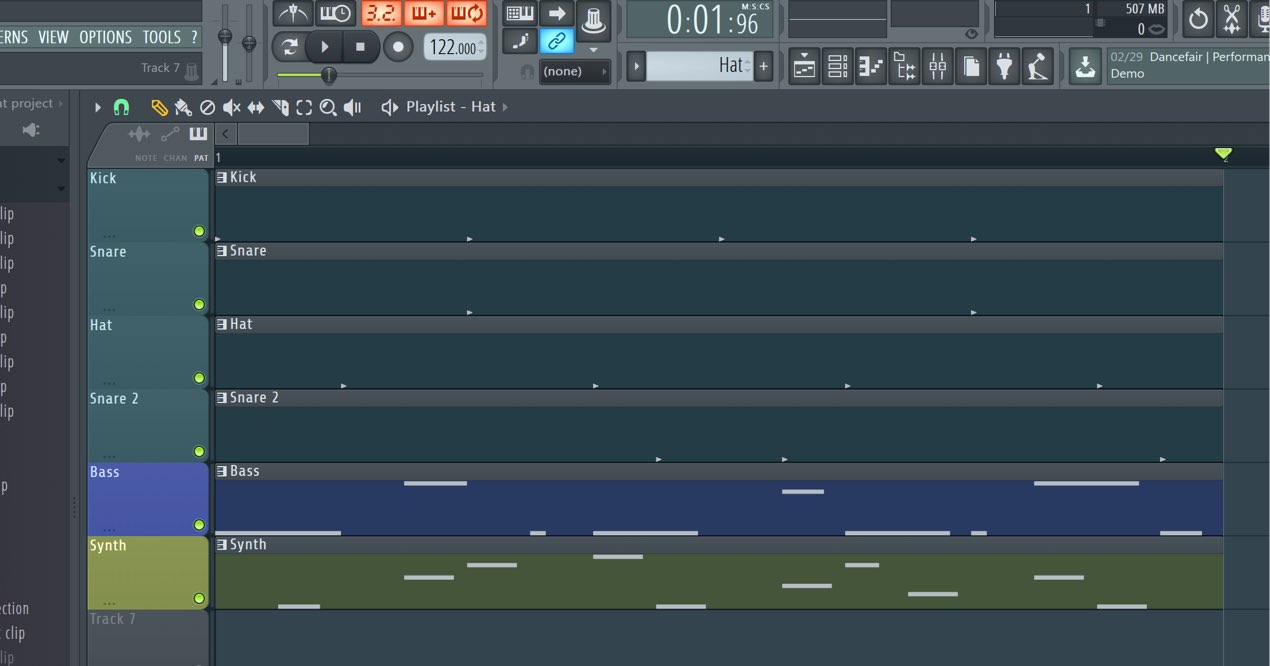
Patterns are a fundamental part of making music in FL Studio. They let you organize parts of a song and combine them to build an arrangement. This tutorial covers creating, deleting and cloning patterns, splitting them by channel and using shortcuts to manage your work.
Create Multiple Patterns for the Parts of a Song
This is the Channel Rack we have built in the lessons so far.
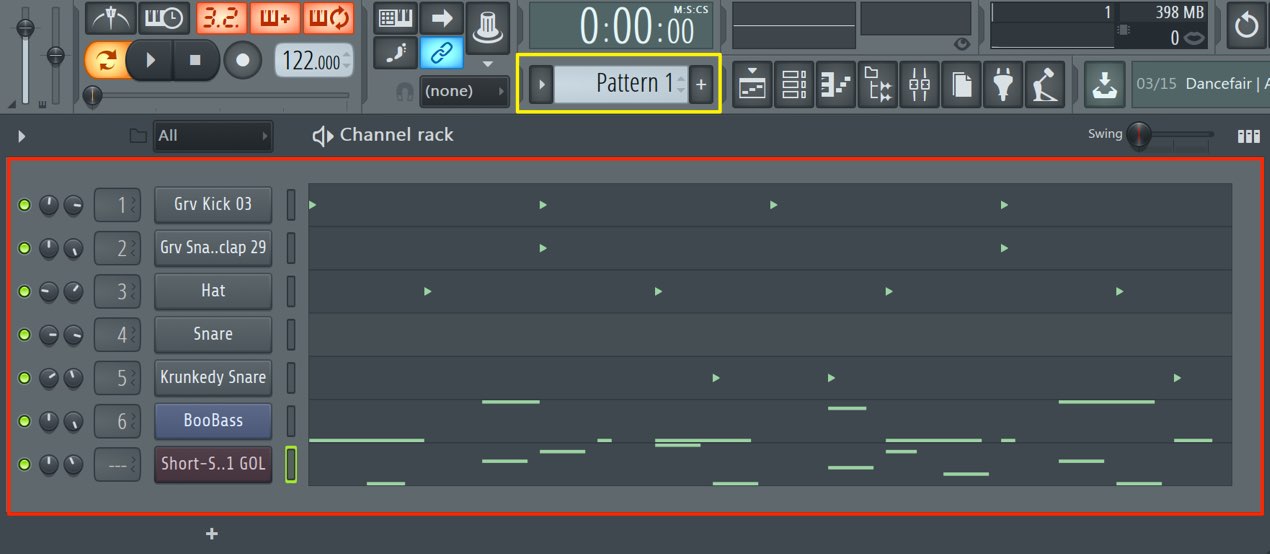
Notice the “Pattern” section at the top.
It currently says “Pattern 1,” which contains the material we have programmed so far.
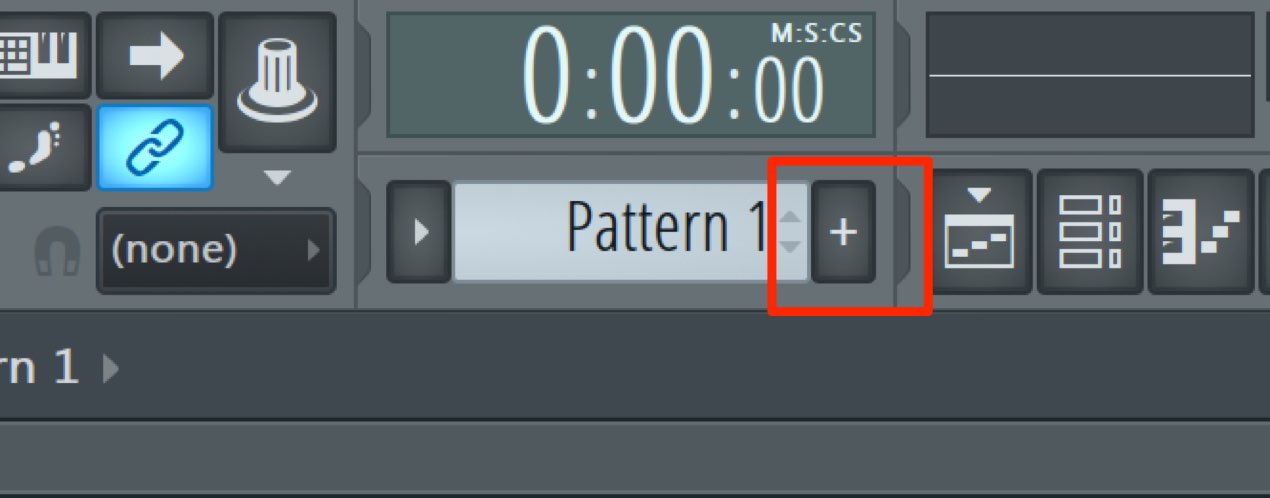
Try clicking “+.”
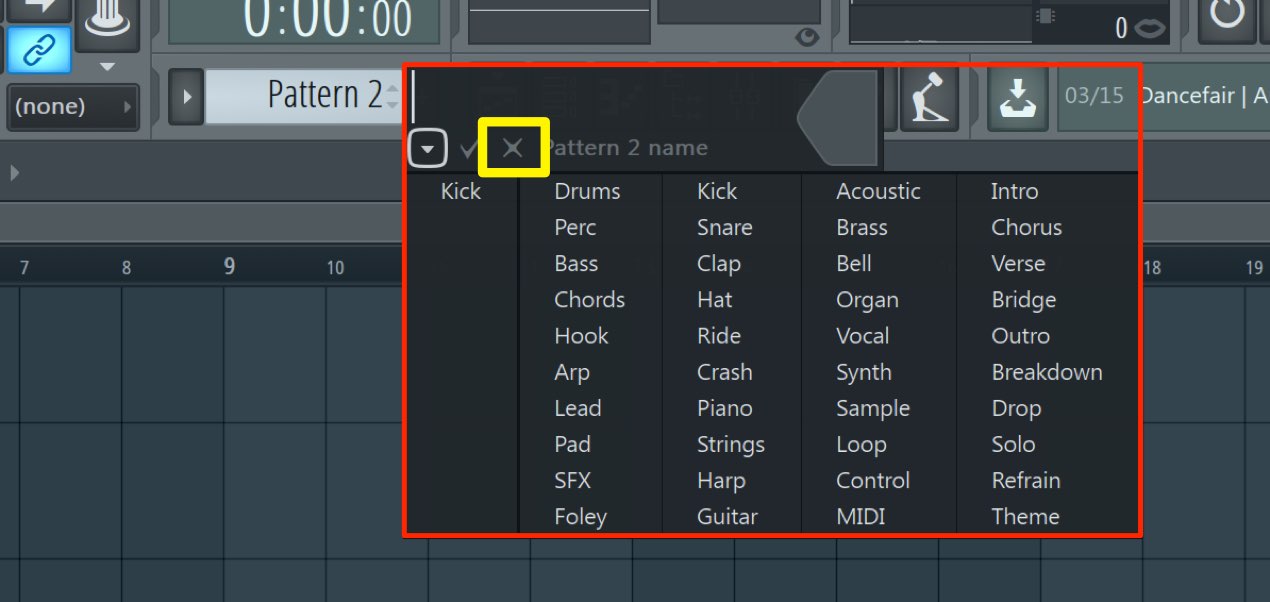
A dialog like this appears.
You can give the pattern a name or select the “×” in the yellow area to continue.
F4 is the shortcut for finding the next empty pattern.
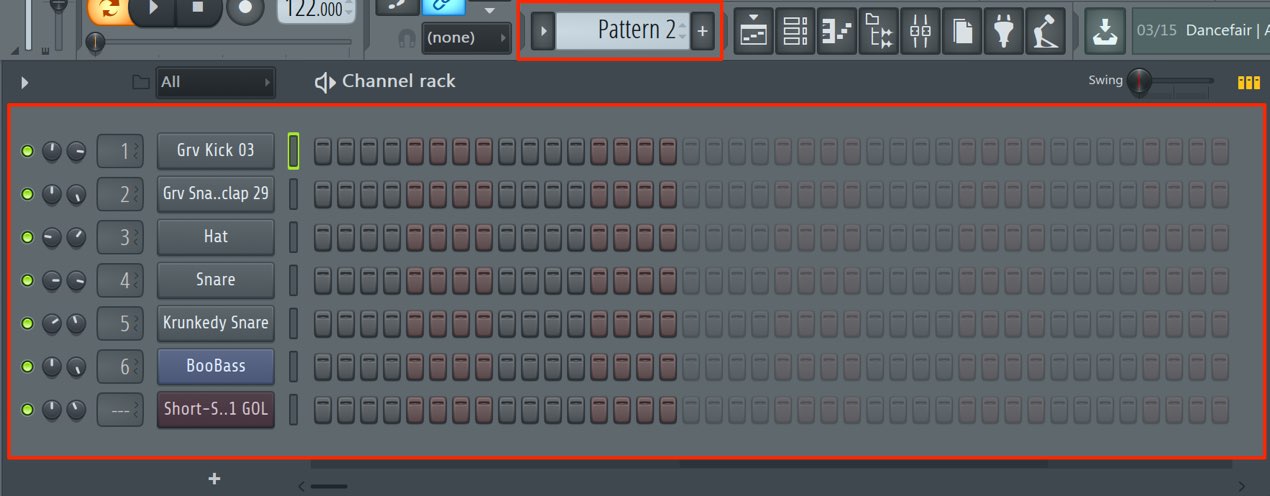
The new pattern appears to have reset the programmed material.
However, your earlier material has not been deleted; you can enter different notes in the new pattern instead.
In this way, FL Studio lets you treat each pattern as a part of your song.
Let’s take a closer look at managing patterns.
Video Tutorial
Selected Questions and Answers from the YouTube Video

Thank you for the lessons. About the explanation at 2:08: could I use the Clone function so I do not have to re-enter the other instruments? Please correct me if I am mistaken.

Yes. You can then change only the instrument phrases you want to alter.
When I place patterns in the Playlist, they do not line up with the grid. I have to zoom in every time, which makes detailed work difficult. What should I do?
Snap may be set to “(none).” If you want to align starts to whole bars, try setting Snap to “Bar.”
How to Think About Creating Patterns
So far we have put rhythm, bass and synthesizer parts in one pattern.
In many situations, it is easier to use one instrument phrase per pattern.
For example:
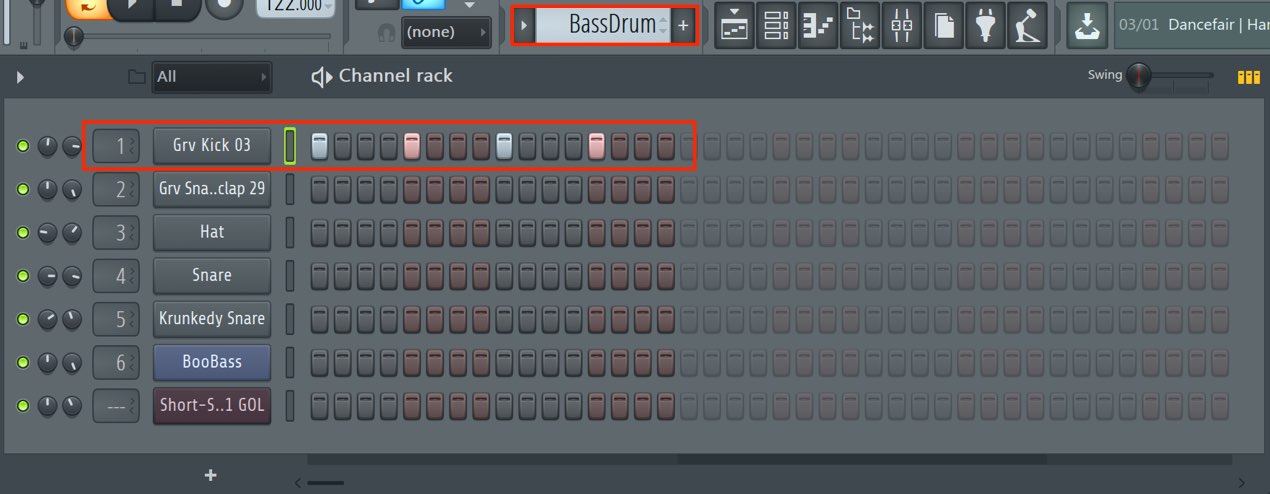
A pattern for the kick drum
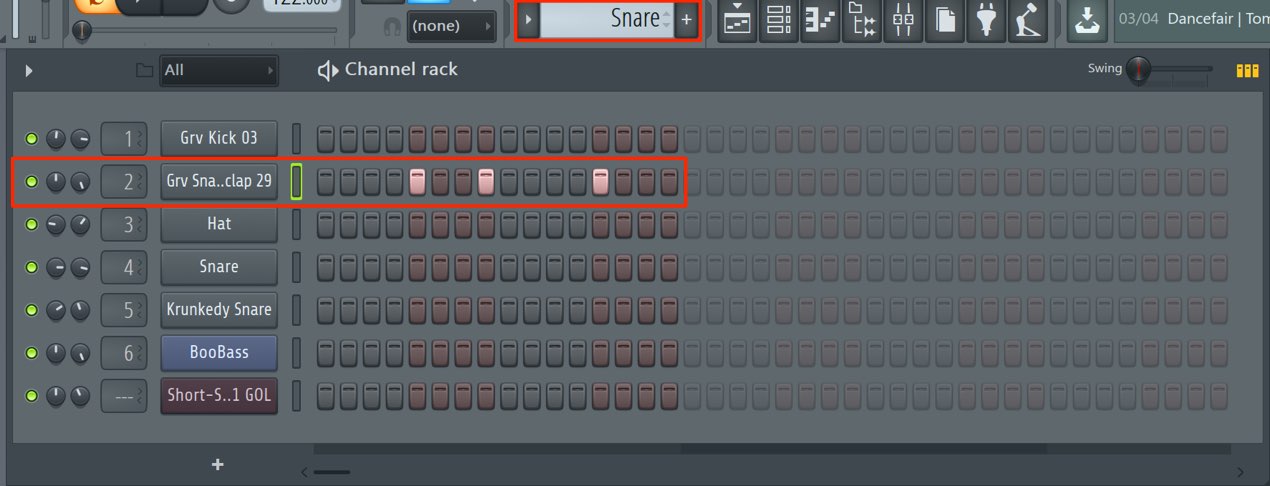
A pattern for the snare
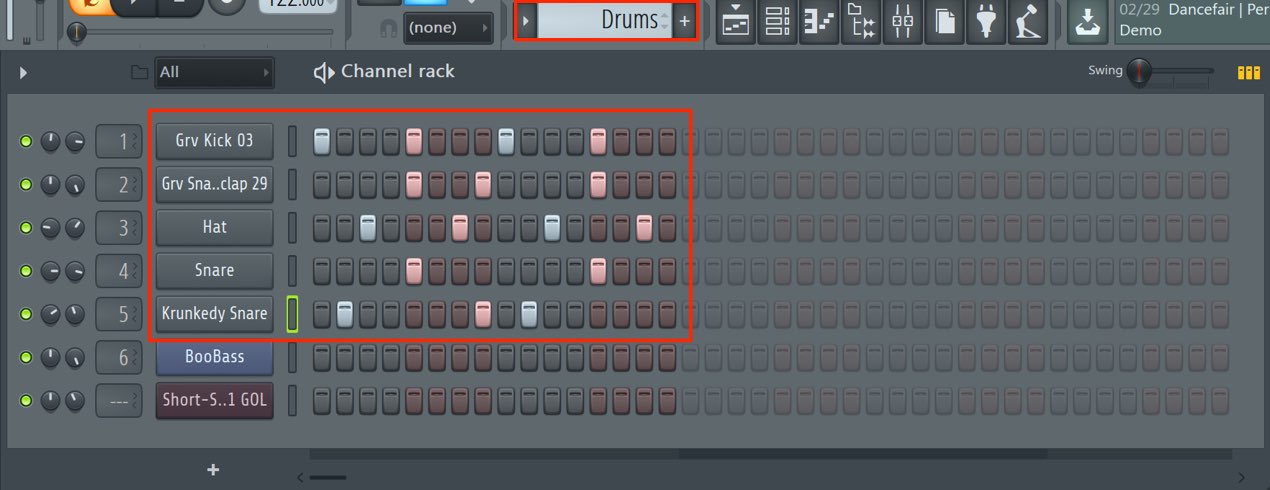
The parts combined
Preparing separate patterns for each drum or instrument
makes it easier to build the arrangement, as we will see in the next lesson.
Split Each Channel into Its Own Pattern
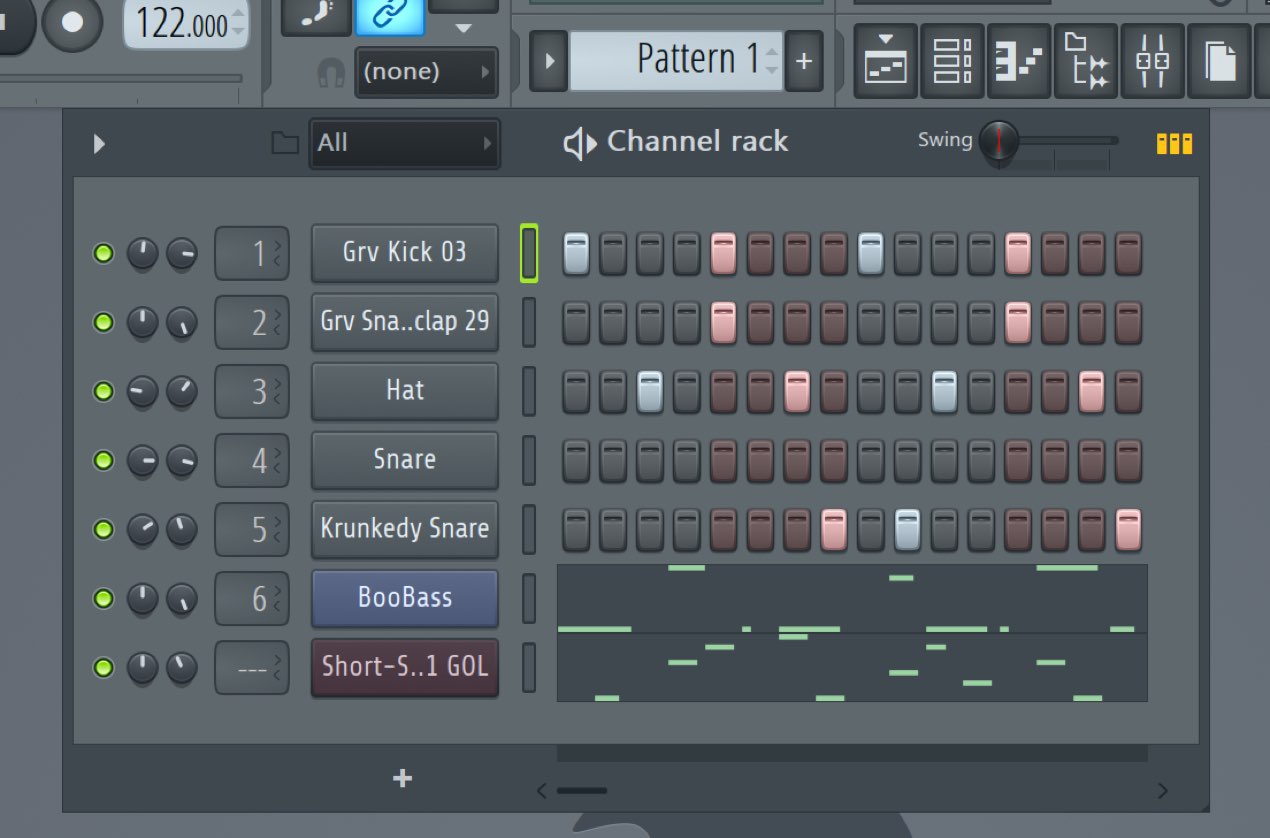
In the previous lessons, we programmed several instruments in one pattern.
This operation is useful when you want to use each phrase as a separate pattern.
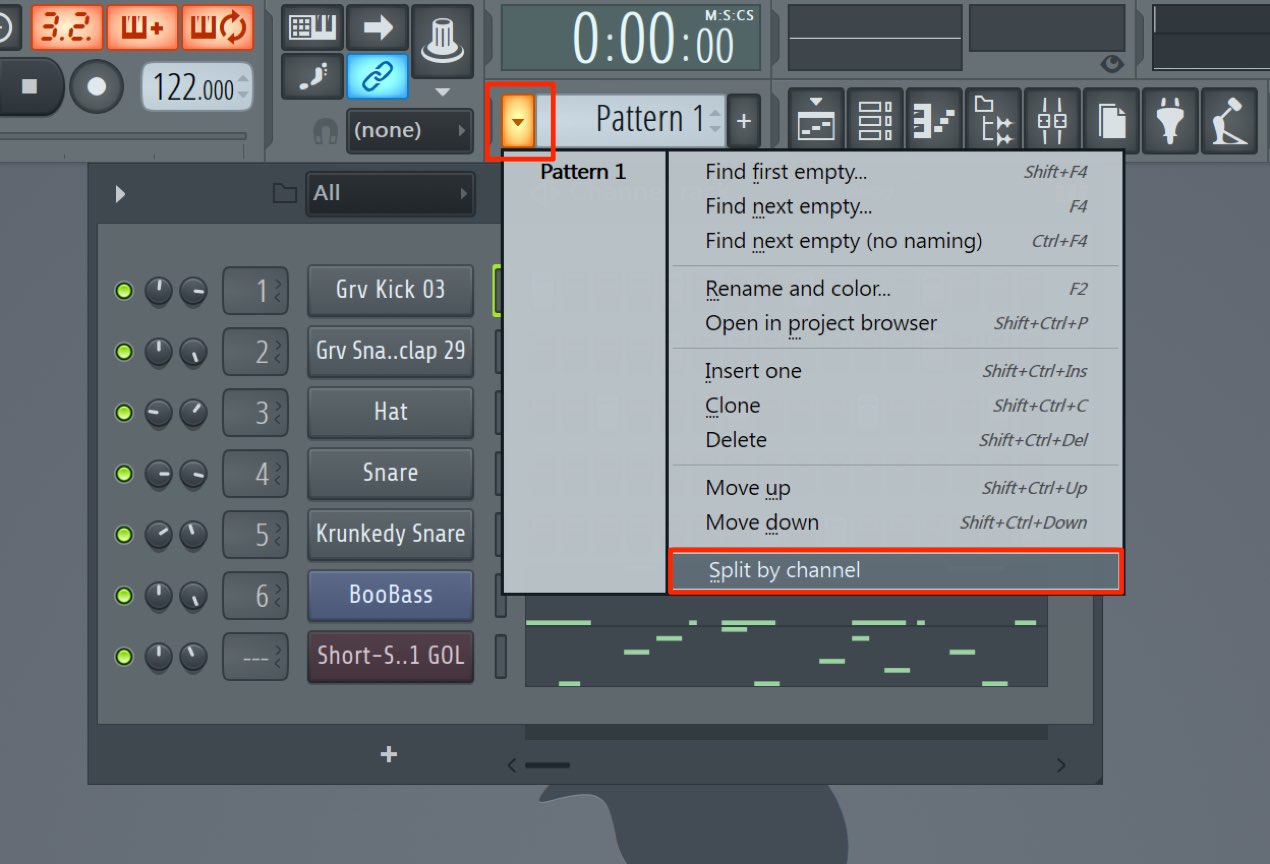
Click the area outlined in red in the image and choose “Split by channel” from the menu.
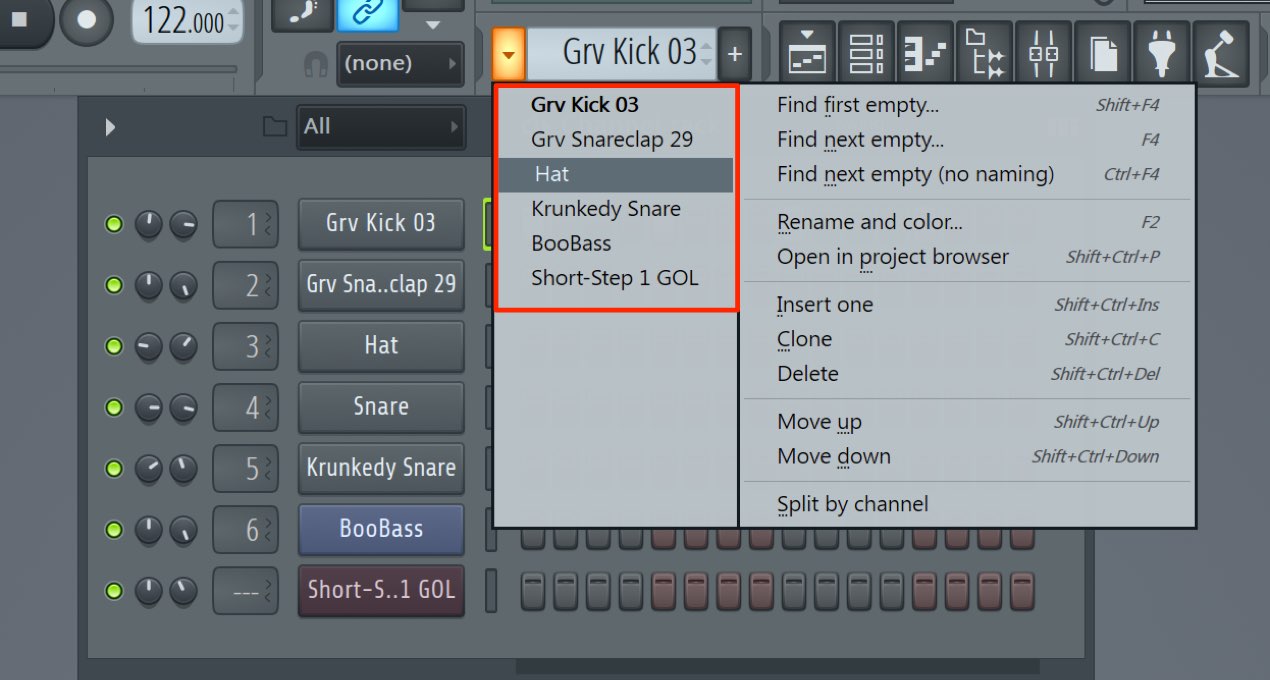
Each active channel is created as a separate pattern for independent arrangement.
This is useful when you sketch a song with several instruments in one pattern,
then split the parts when you are ready to develop the arrangement.
Selecting and Deleting Patterns
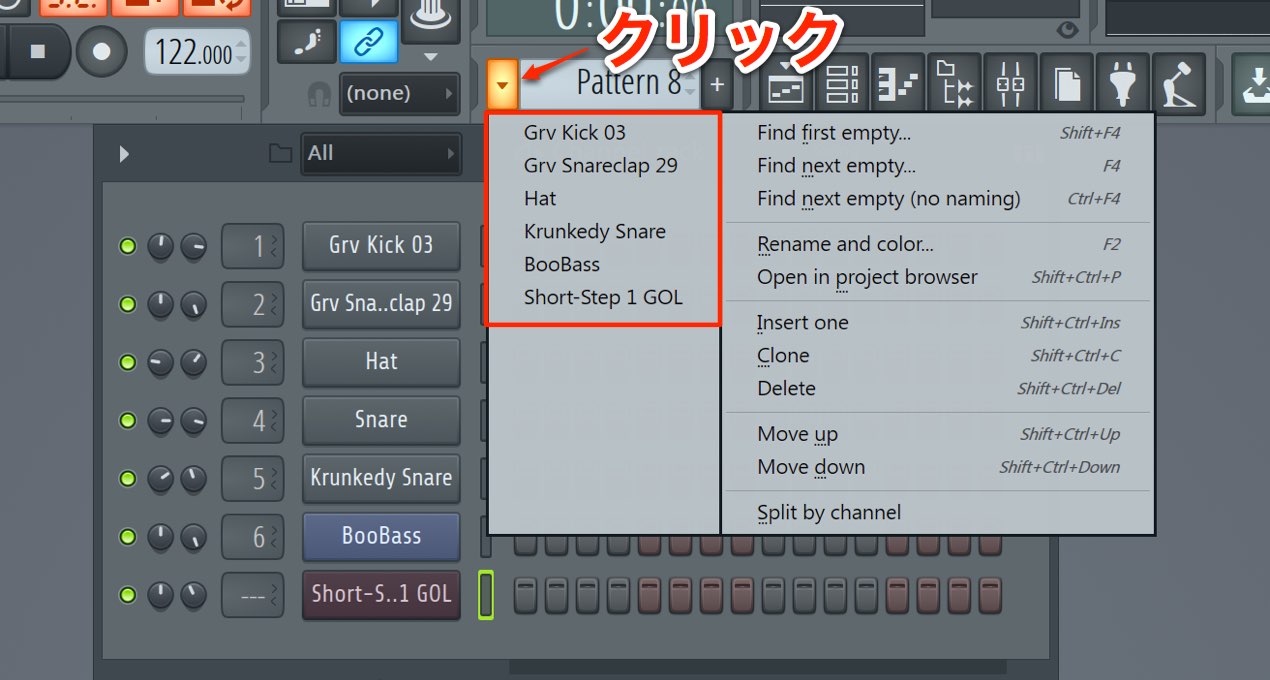
You can select a pattern from the menu opened by clicking “▼” to the left of the pattern name.
- “+” key: Next pattern
- “−” key: Previous pattern
These shortcuts are also available.
When you no longer need a pattern,
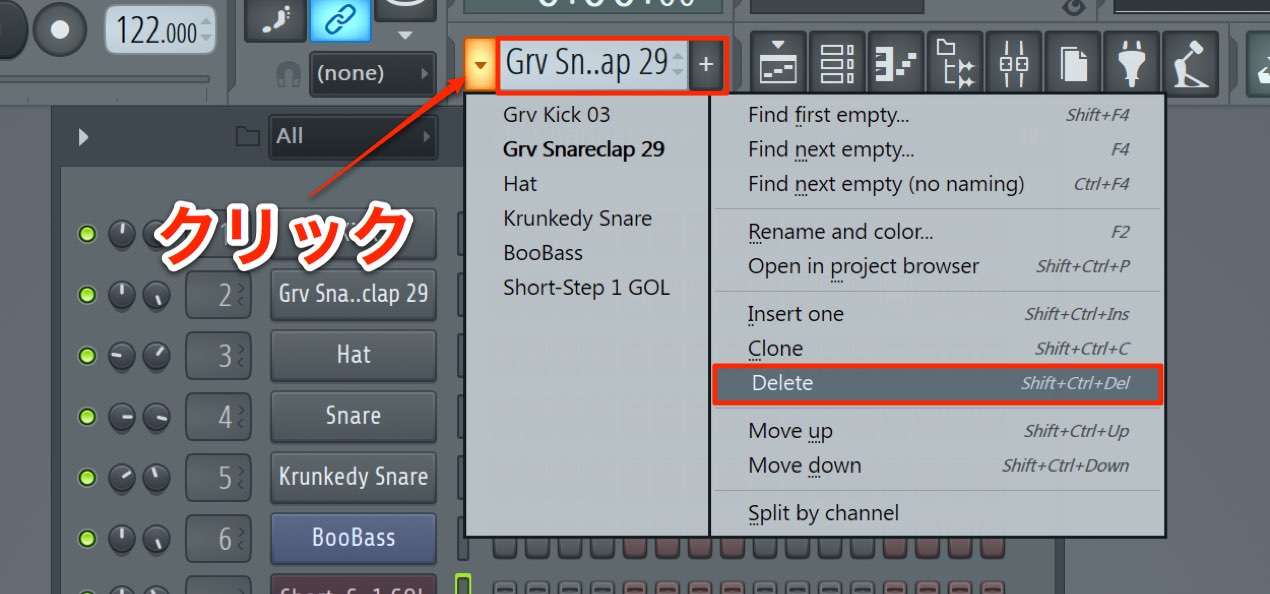
select it and click “Delete” in the menu.
Make Use of the Clone Function
As its name suggests, Clone creates a duplicate of a pattern with the same contents.
- Use it to create a variation by changing part of an existing pattern.
- You can also keep a copy of a pattern as a backup.
It is useful for both purposes.
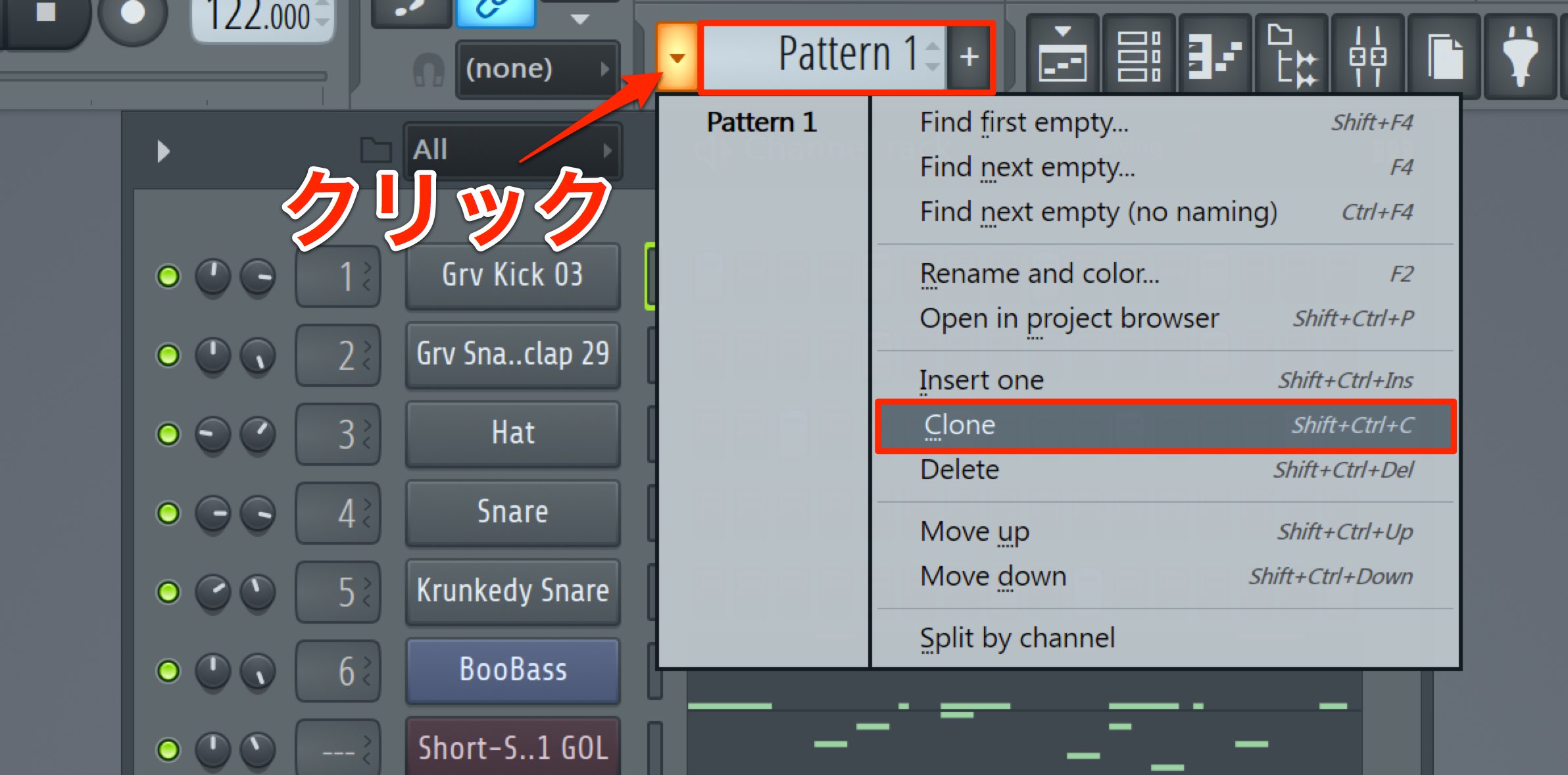
Select the pattern you want to duplicate and choose “Clone” from the menu.
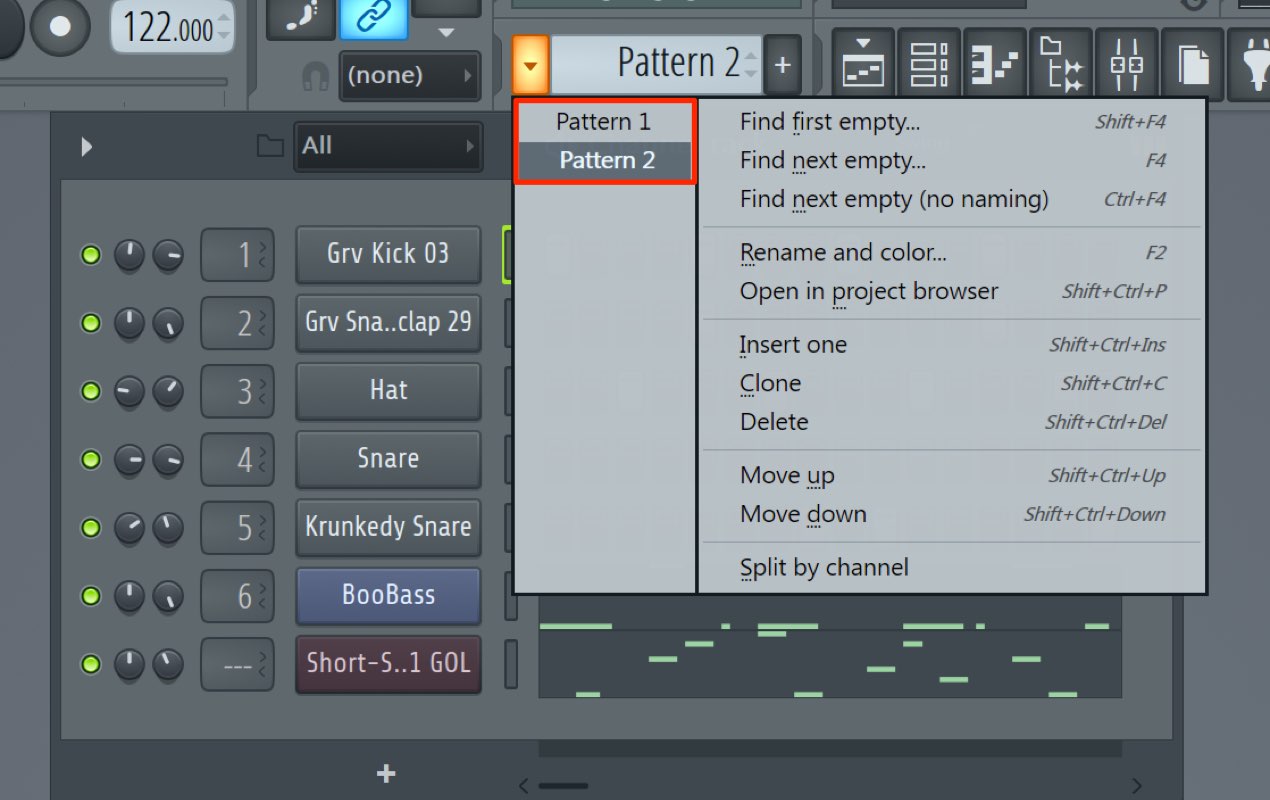
An identical pattern is created, as shown.
You can then edit either copy.
That was a fair amount to cover,
but it completes this overview of creating and managing patterns.
Patterns are an essential FL Studio concept, so take time to become comfortable with them.
Next we will look at the Playlist, where patterns are assembled into a song.

Frequently Asked Questions
Q1. Is there a limit to the number of patterns in FL Studio?
Image-Line’s current manual specifies a maximum of 999 individual patterns. As your project grows, naming and organizing patterns helps keep it manageable; remove unneeded patterns when appropriate.
Q2. Can I reuse a pattern in another project?
Yes. You can copy material between projects or use FL Studio’s template feature to reuse your setup and patterns.
Q3. Can I edit multiple patterns at the same time?
The tutorial focuses on editing one selected pattern at a time. You can clone similar patterns and edit each copy separately to work efficiently.
NEW ARTICLES
Latest English Articles