
Native Instruments FORM is a powerful sample-based synthesizer included in KOMPLETE 11. It runs inside REAKTOR 6 and combines macro controls with SAMPLE, SOUND, and EFFECTS sections for creating original sounds. Features such as FREQUENCY SHAPING and MOTION provide ways to shape the spectrum and playback movement beyond conventional sampling.
FORM: Native Instruments’ Synthesizer Included in KOMPLETE 11

Described as an “advanced morphing sampler,” FORM is a synthesizer that uses samples as its starting point and offers flexible manipulation through playback controls and synthesis.
It was included in KOMPLETE 11 ULTIMATE and KOMPLETE 11.
Here we’ll explain how to use FORM.
FORM Tutorial: Basic Overview
Opening FORM
FORM runs inside REAKTOR 6.
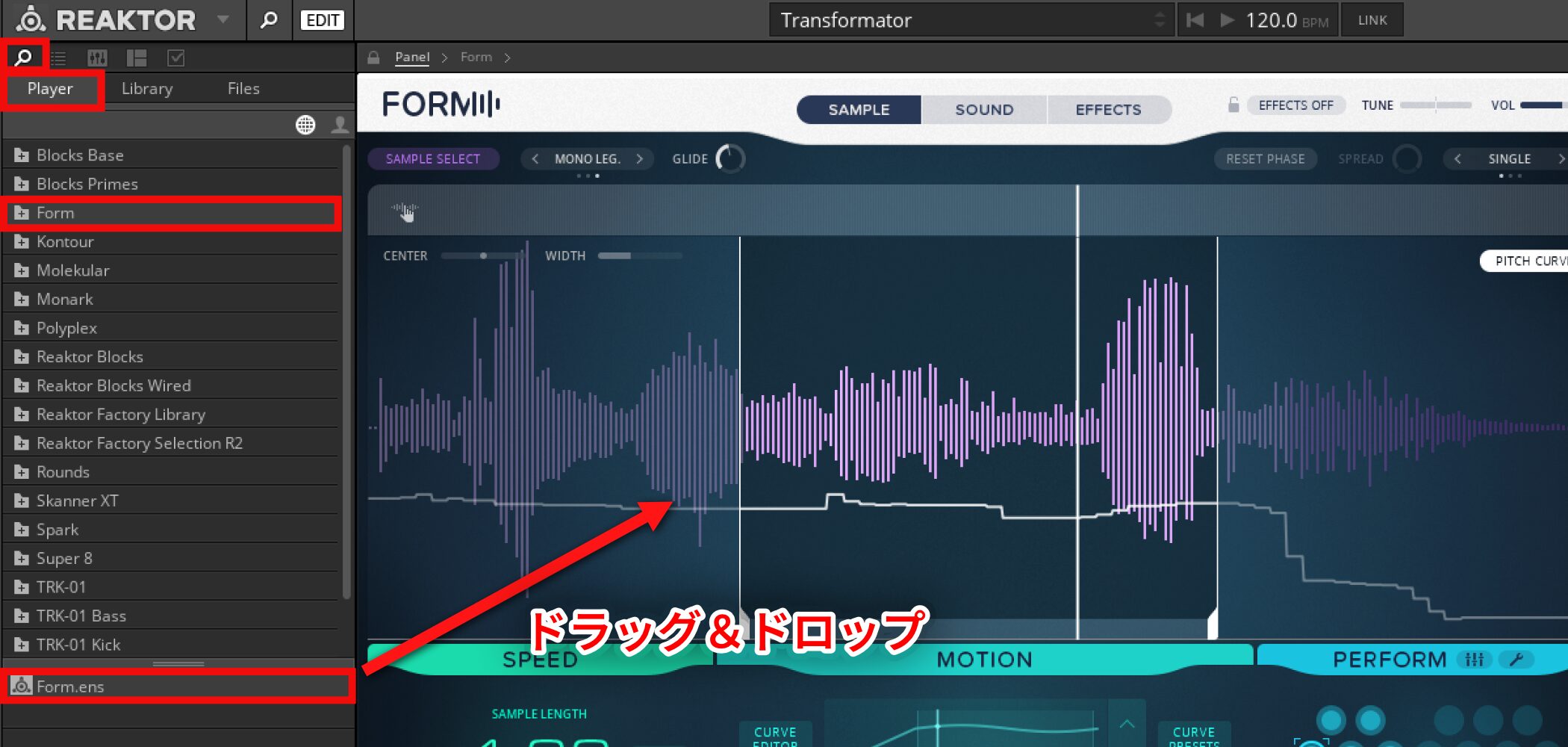
- Open the Player tab using the magnifying-glass icon in the upper left.
- Select the “Form” folder.
- Drag and drop “Form.ens” into the main window.
Loading Presets
There are many presets, so let’s start by listening to the sounds they make.
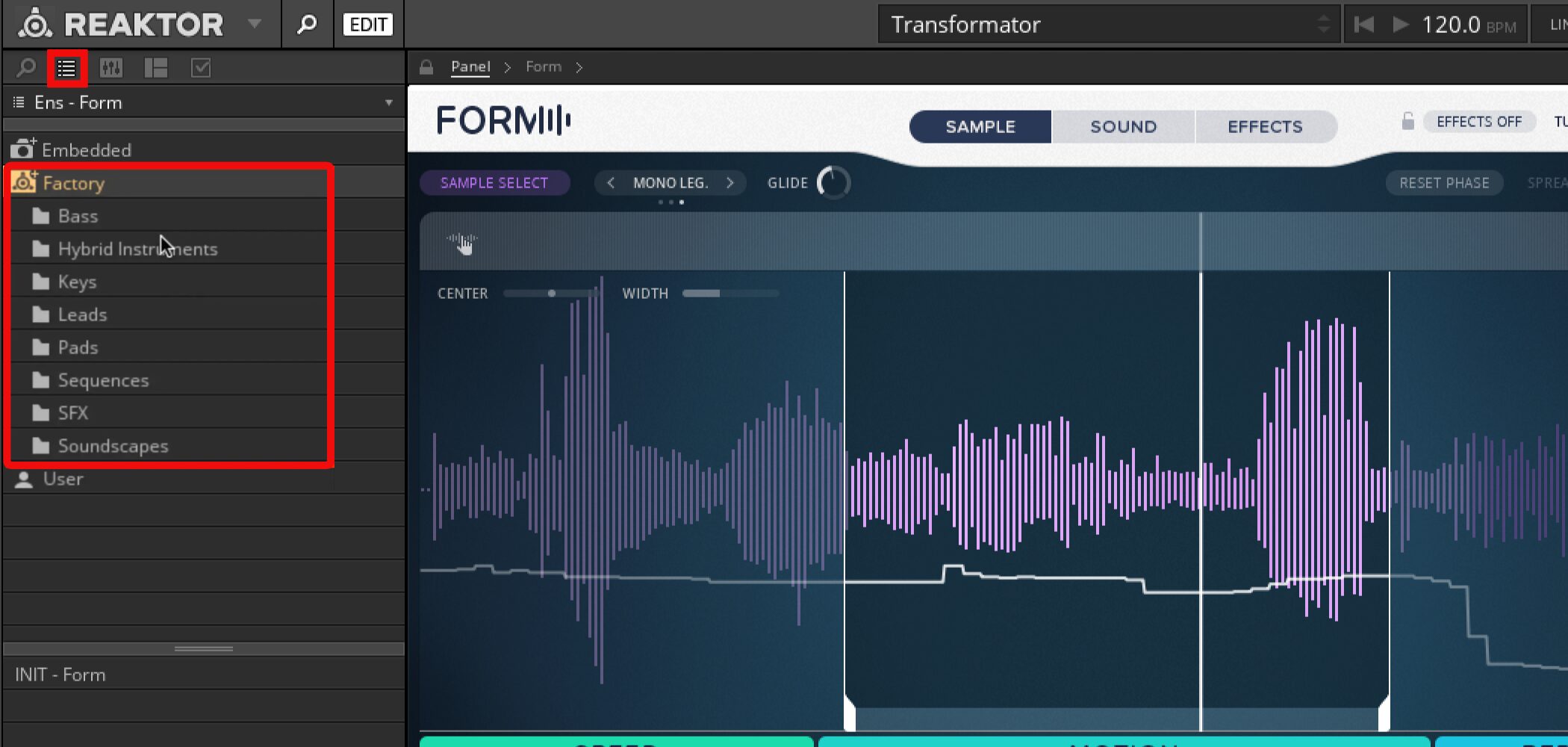
- Click the list icon next to the magnifying glass.
- The Factory folder contains presets organized by category.
Shaping the Sound with Macro Controls
Four macro control knobs sit at the bottom of the main screen and let you make broad changes to a preset’s sound.
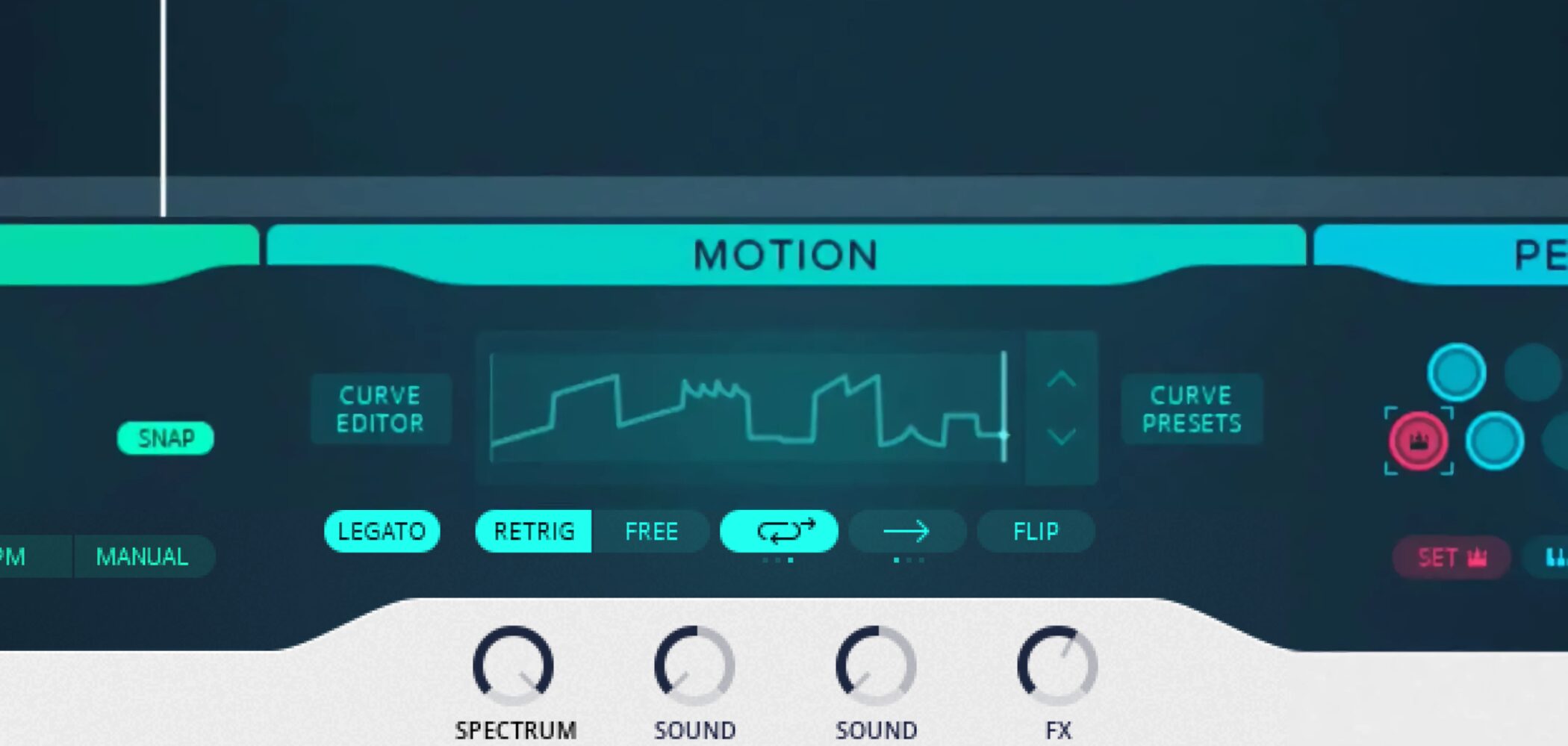
Even if you find detailed synthesizer controls difficult, adjusting these knobs lets you customize presets.
Fine-Tuning Sounds in Three Sections
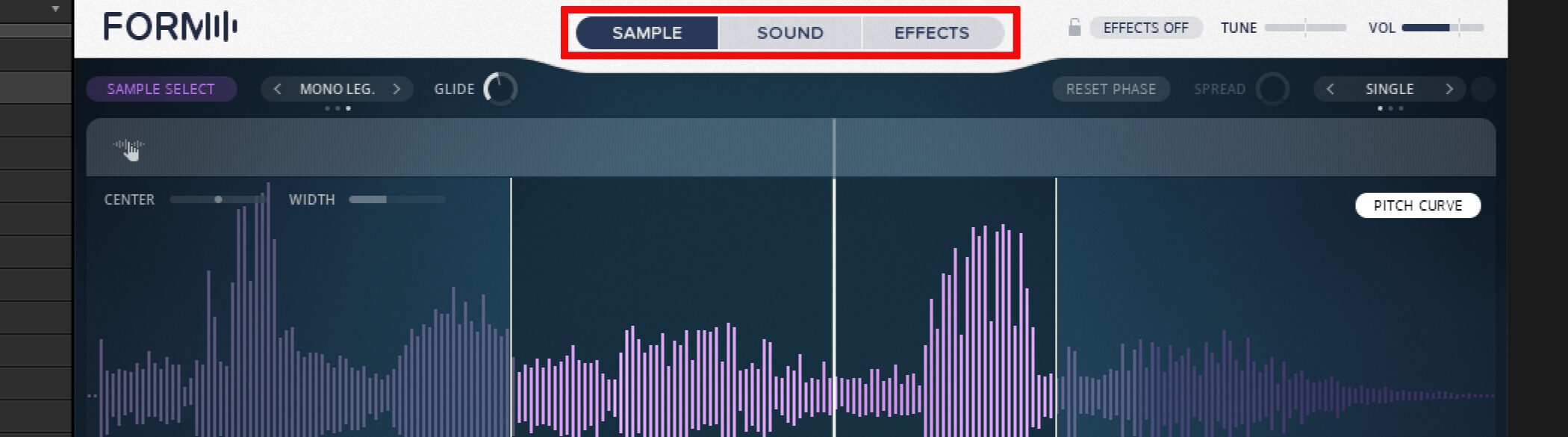
To edit a sound in greater detail and make it your own, switch between the three sections at the top: SAMPLE, SOUND, and EFFECTS.
SAMPLE Section
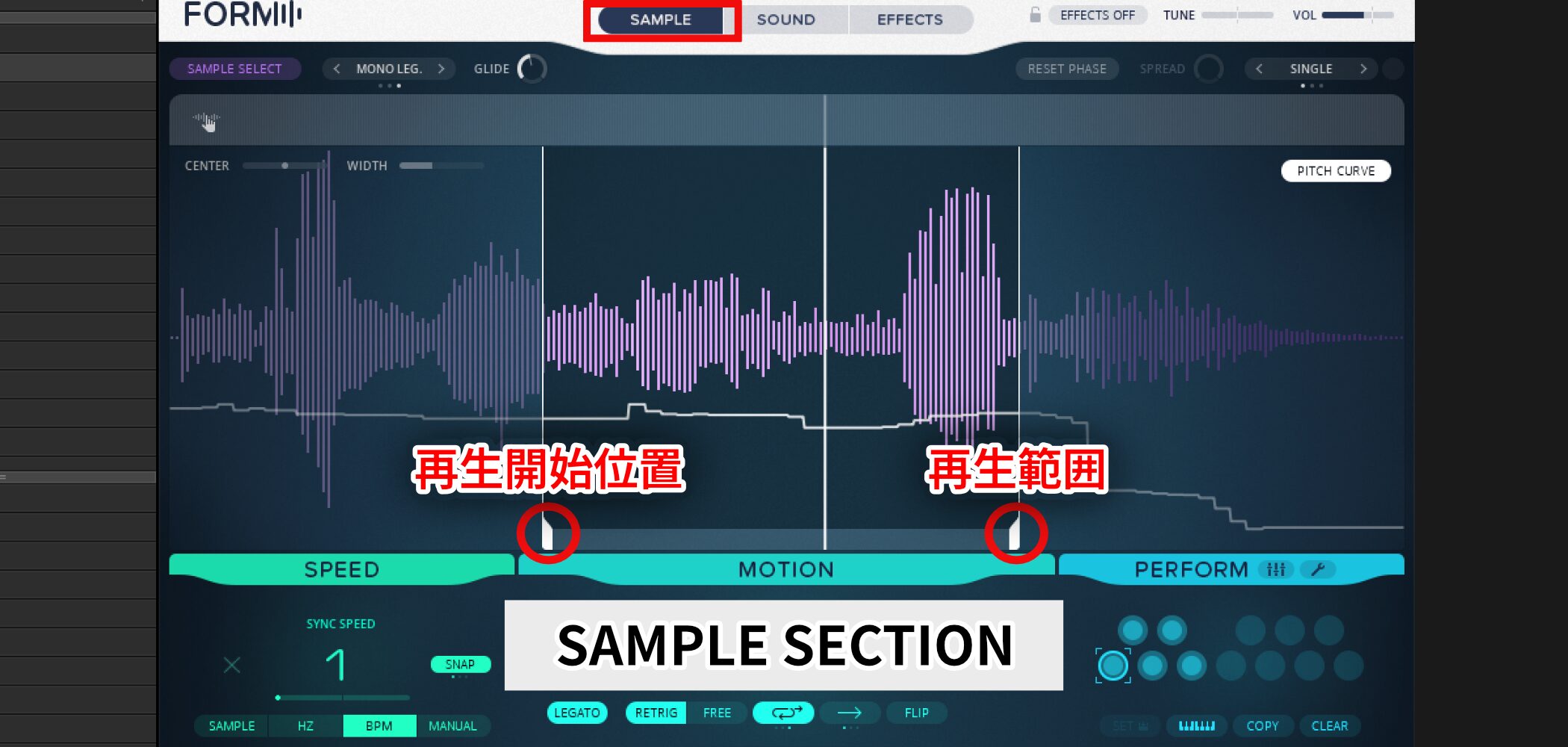
The SAMPLE section controls how the source sample waveform is played.
We’ll cover it in more detail later.
Drag the white lines in the waveform to set the playback start position on the left and the playback range on the right.
You can also drag the area between the lines to move the range without changing its size.
SOUND Section
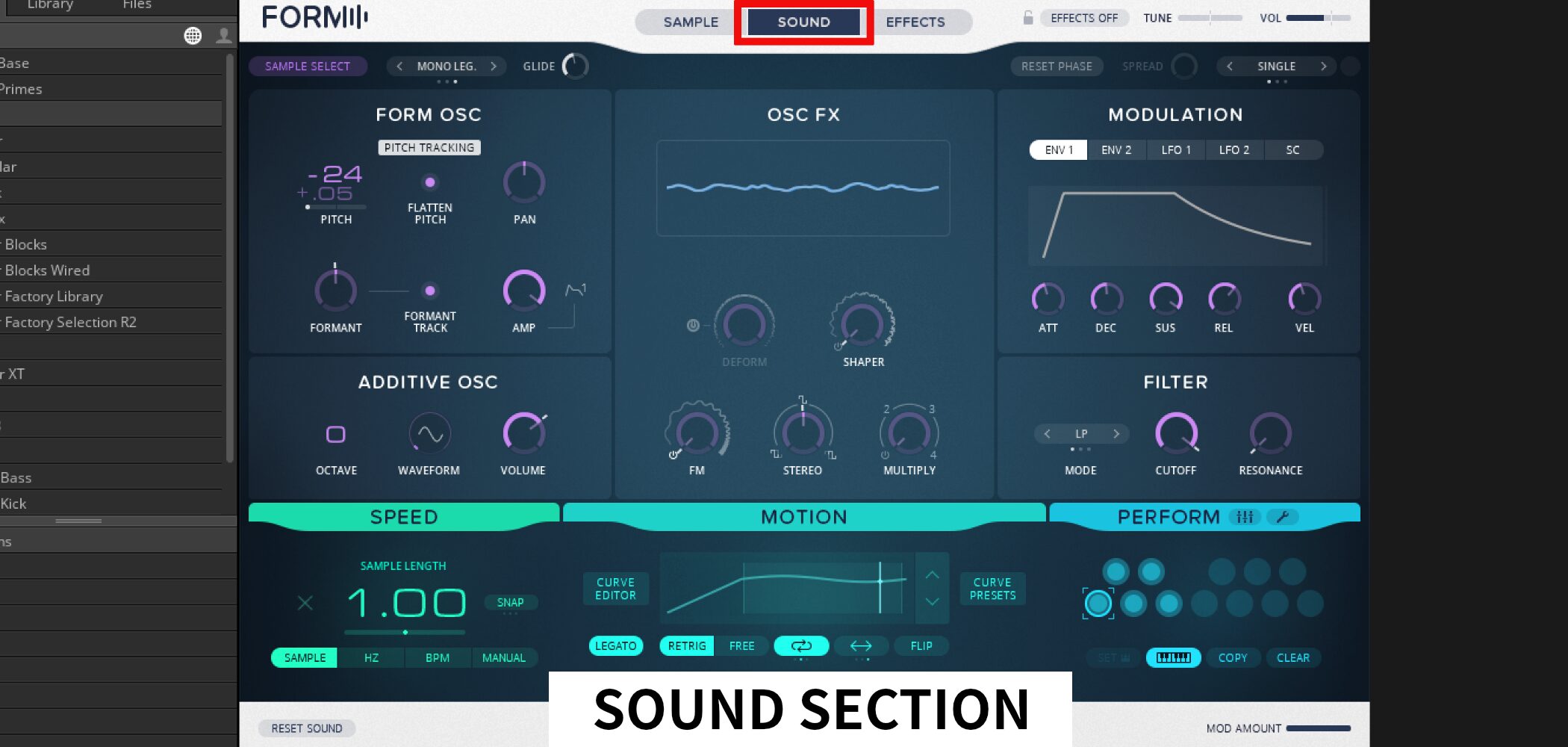
The SOUND section processes the sample using oscillators, effects, and modulation.
Although it starts with a sample, you can transform the sound so dramatically that it is barely recognizable.
- FORM OSC
Adjust pitch, pan, formant (a sound’s character), volume, and other settings. - ADDITIVE OSC
Add harmonic content using a sine or triangle wave. Pitch choices are limited to intervals that sound harmonious against the original, such as a fifth or an octave. - OSC FX
Use SHAPER to divide the waveform and DEFORM to adjust the speed of the wave. These controls can drastically change the sound.
FM modulation can add brightness, the sound can be widened, and MULTIPLY can add further harmonic content.
EFFECTS Section
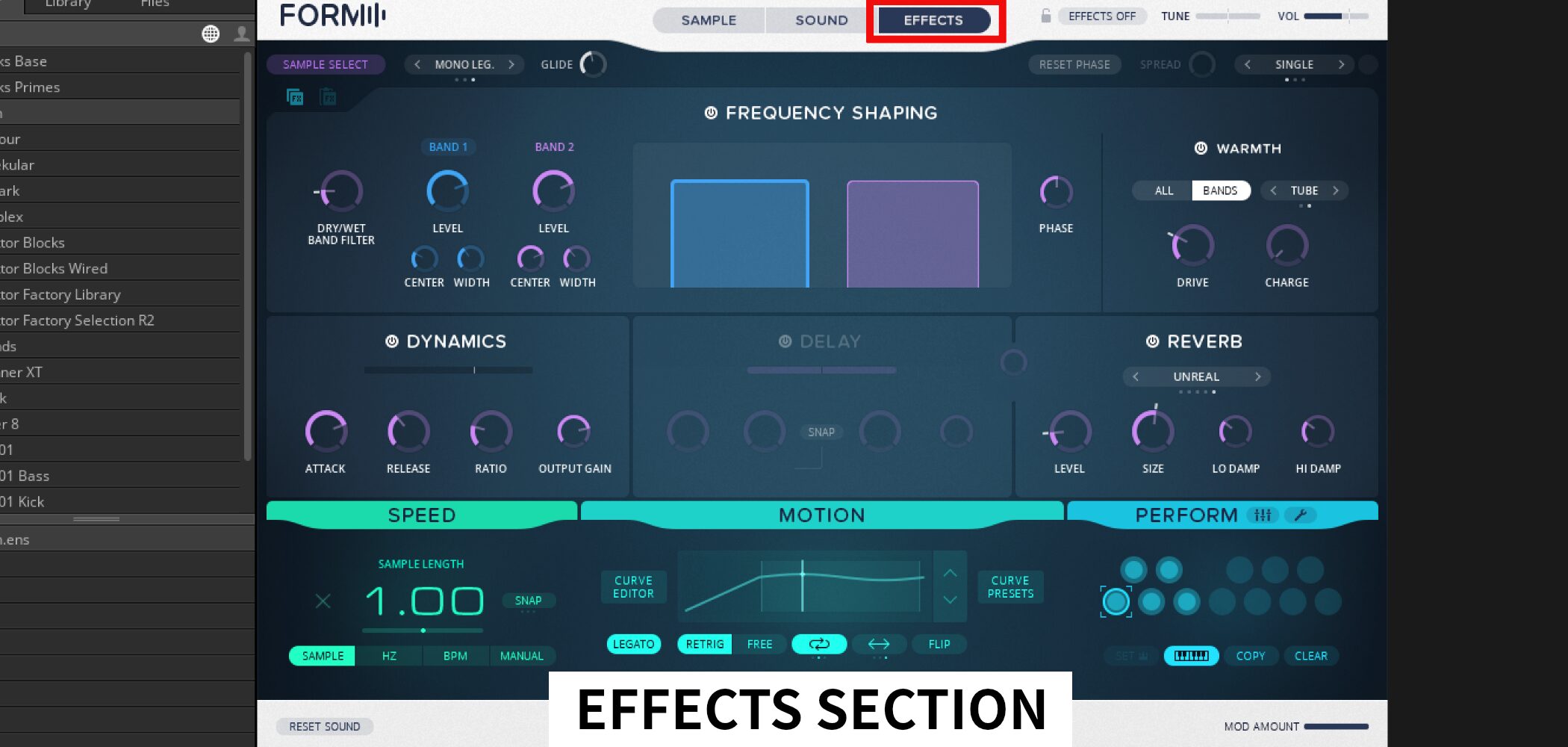
As the name suggests, the EFFECTS section lets you apply multiple effects to your sound.
It includes familiar effects such as DYNAMICS, DELAY, and REVERB, but one of FORM’s distinctive effects is FREQUENCY SHAPING.
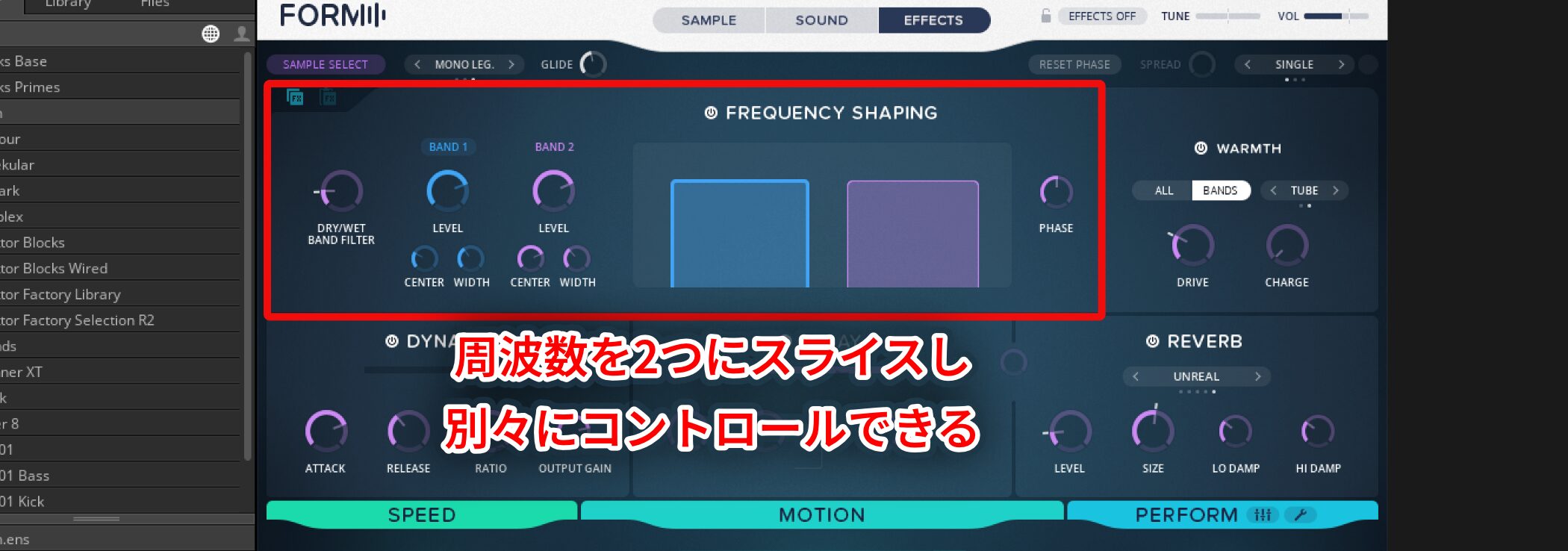
It divides the frequency spectrum into two sections, allowing you to adjust the position, width, and volume of each.
You can emphasize harmonics in a particular area and move the settings with an LFO to create a sound with motion.
Creating Original Sounds in FORM
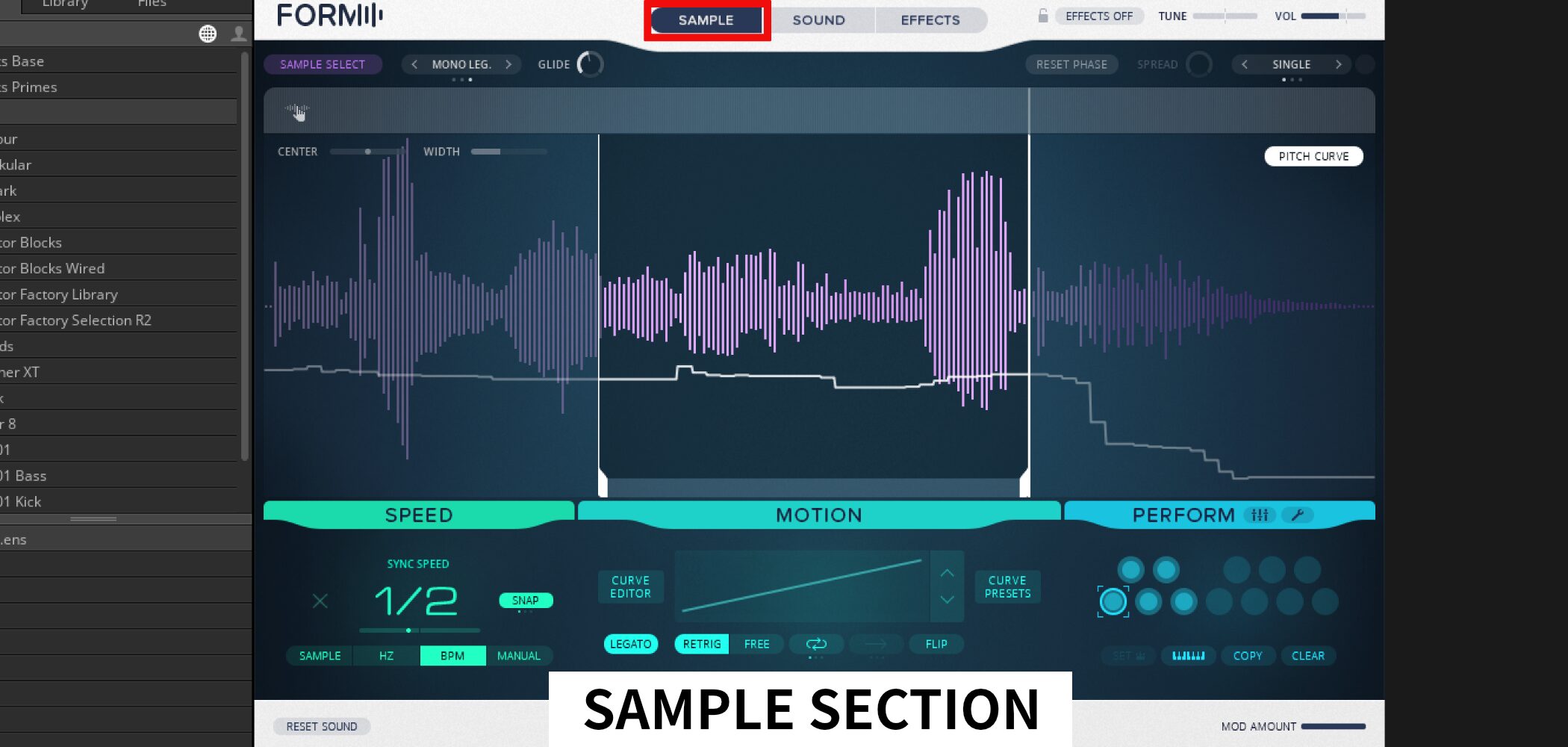
Next, let’s go beyond the basics and create an original sound.
Starting with a sample, FORM can produce sounds and loops using a different approach.
We’ll focus on the SAMPLE section introduced above.
FORM Tutorial: Advanced Techniques
Resetting the Settings
Before designing a sound in FORM, reset the settings.
The process is simple.
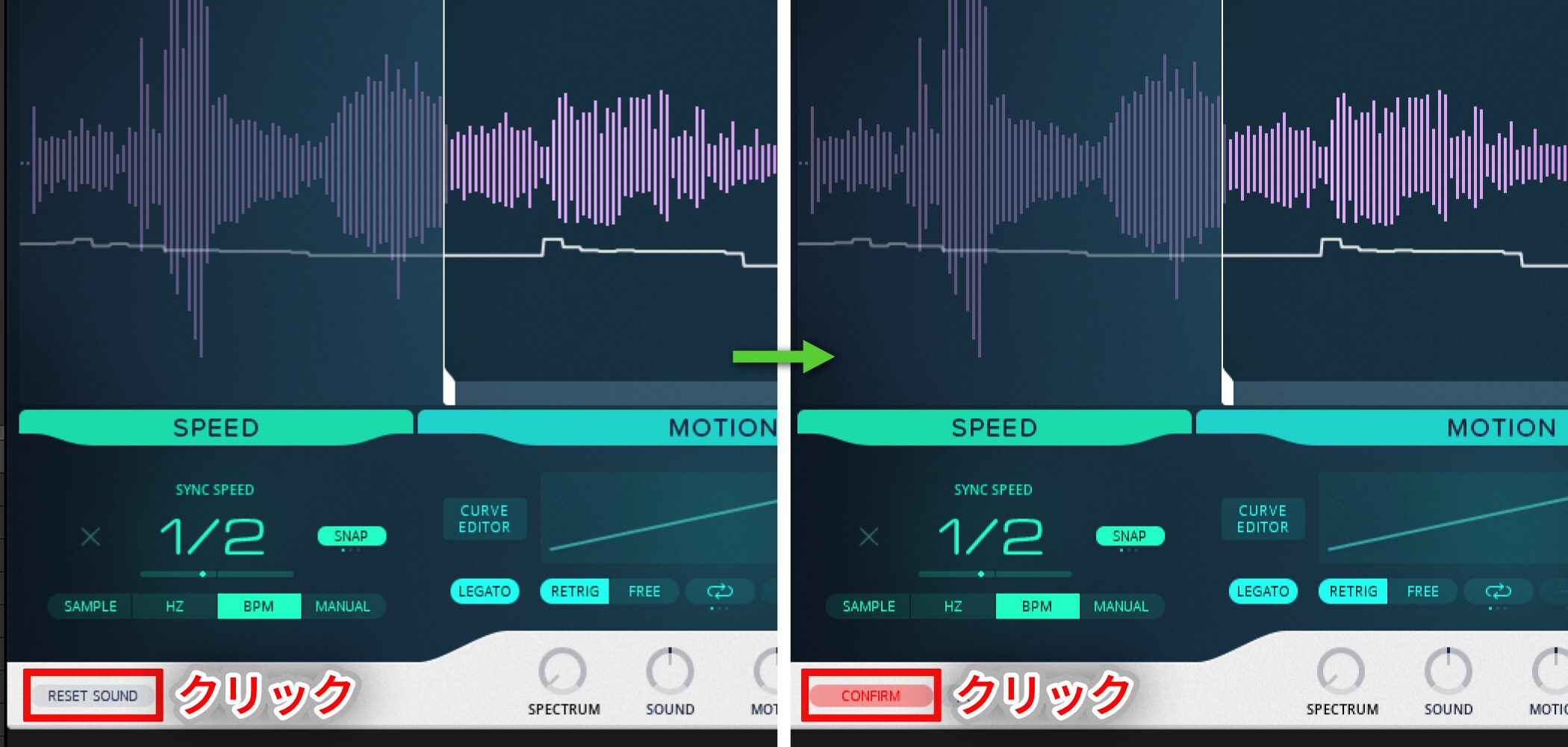
- Press the RESET SOUND button at the lower left.
- A red CONFIRM label appears in the same place; press it again.
Loading an Audio File
After resetting, load the audio file that will form the basis of your sound.
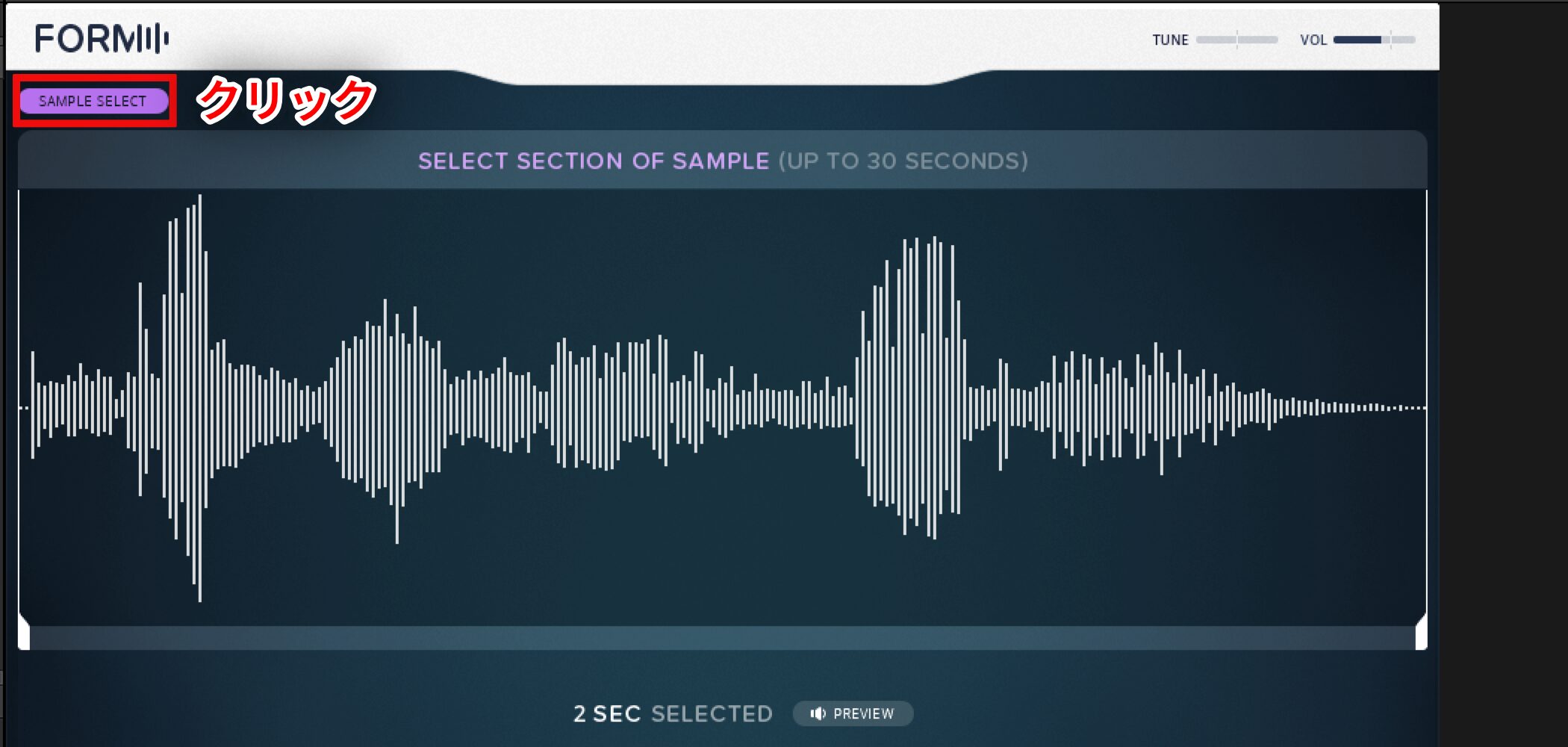
First click SAMPLE SELECT at the top.
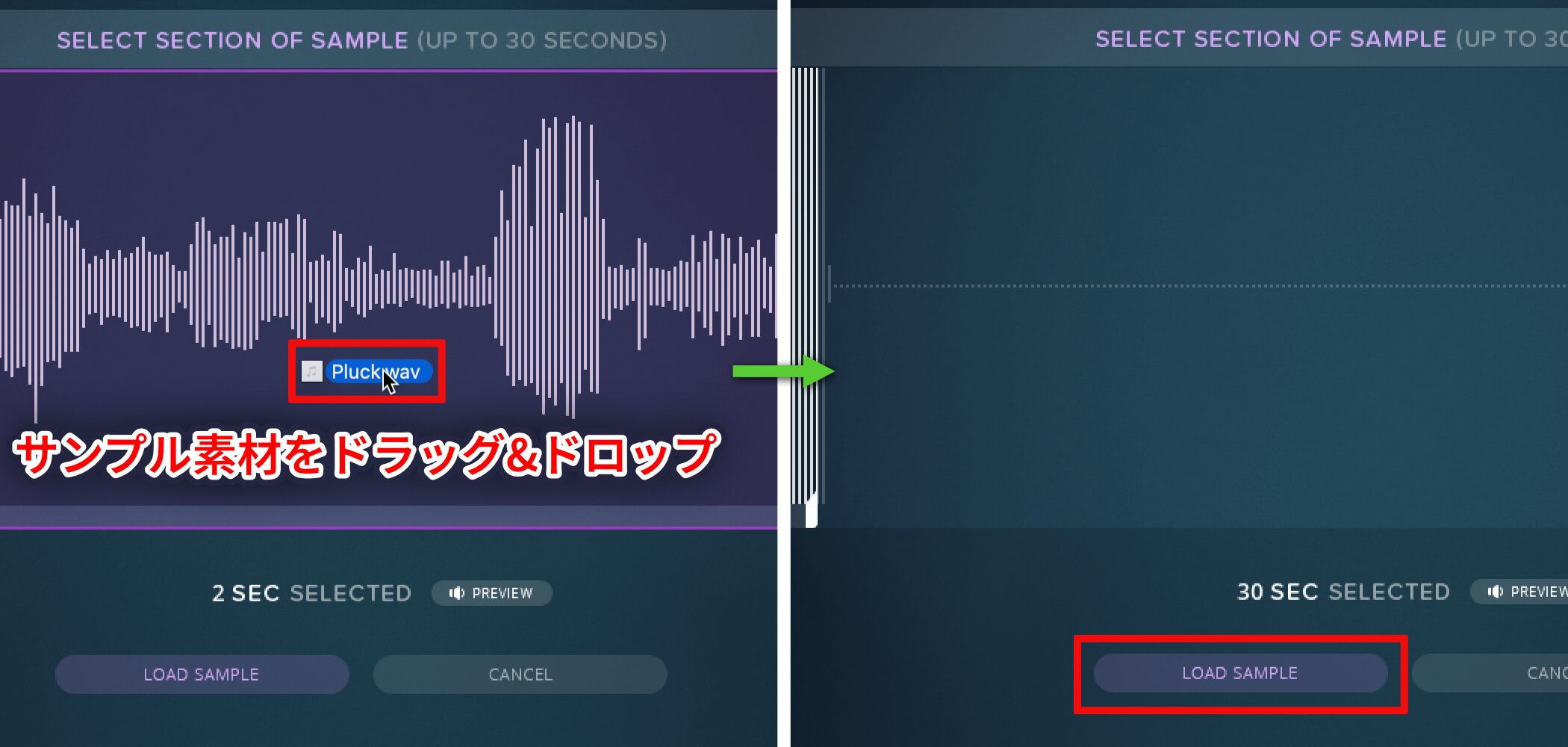
Then drag and drop an audio file into the FORM window.
Use PREVIEW to audition it and, if it sounds right, press LOAD SAMPLE.
Changing Playback Speed
The SPEED section at the lower left changes the playback speed of the loaded sound.
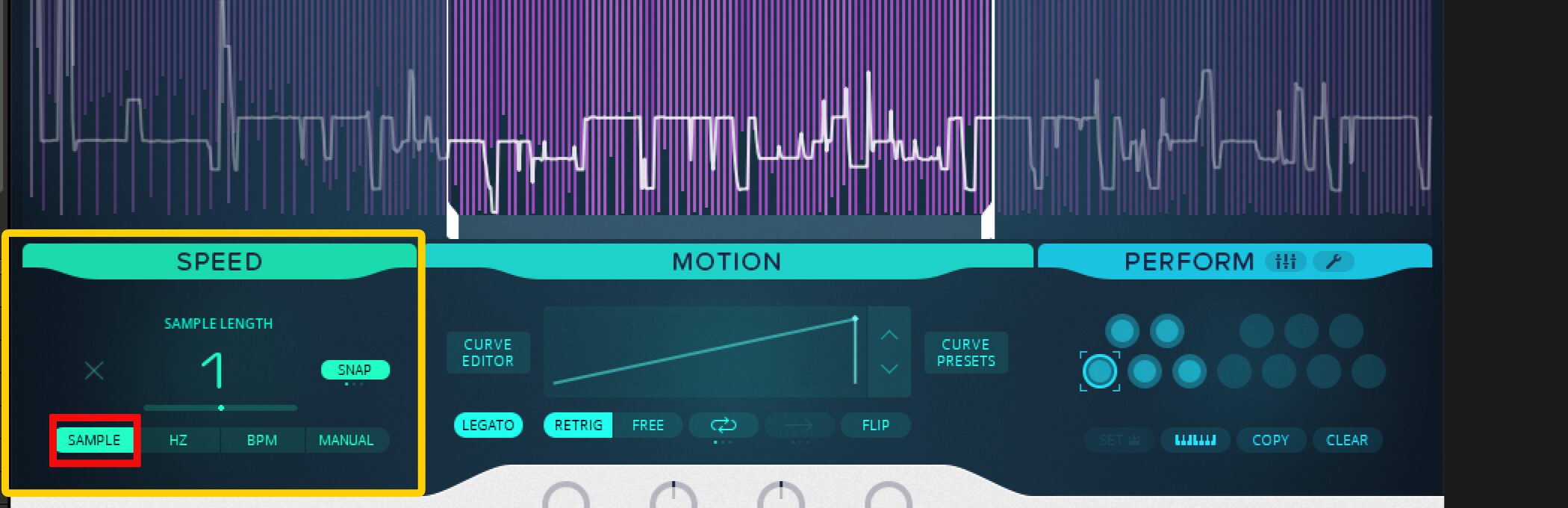
- SAMPLE: Changes playback speed by a multiplier.
- HZ: Sets speed by the number of playback cycles per second.
- BPM: Changes speed in relation to the host DAW’s BPM.
Shaping Sound with MOTION
Understanding the Curve Designer
The MOTION section at the bottom center lets you design unusual playback patterns.
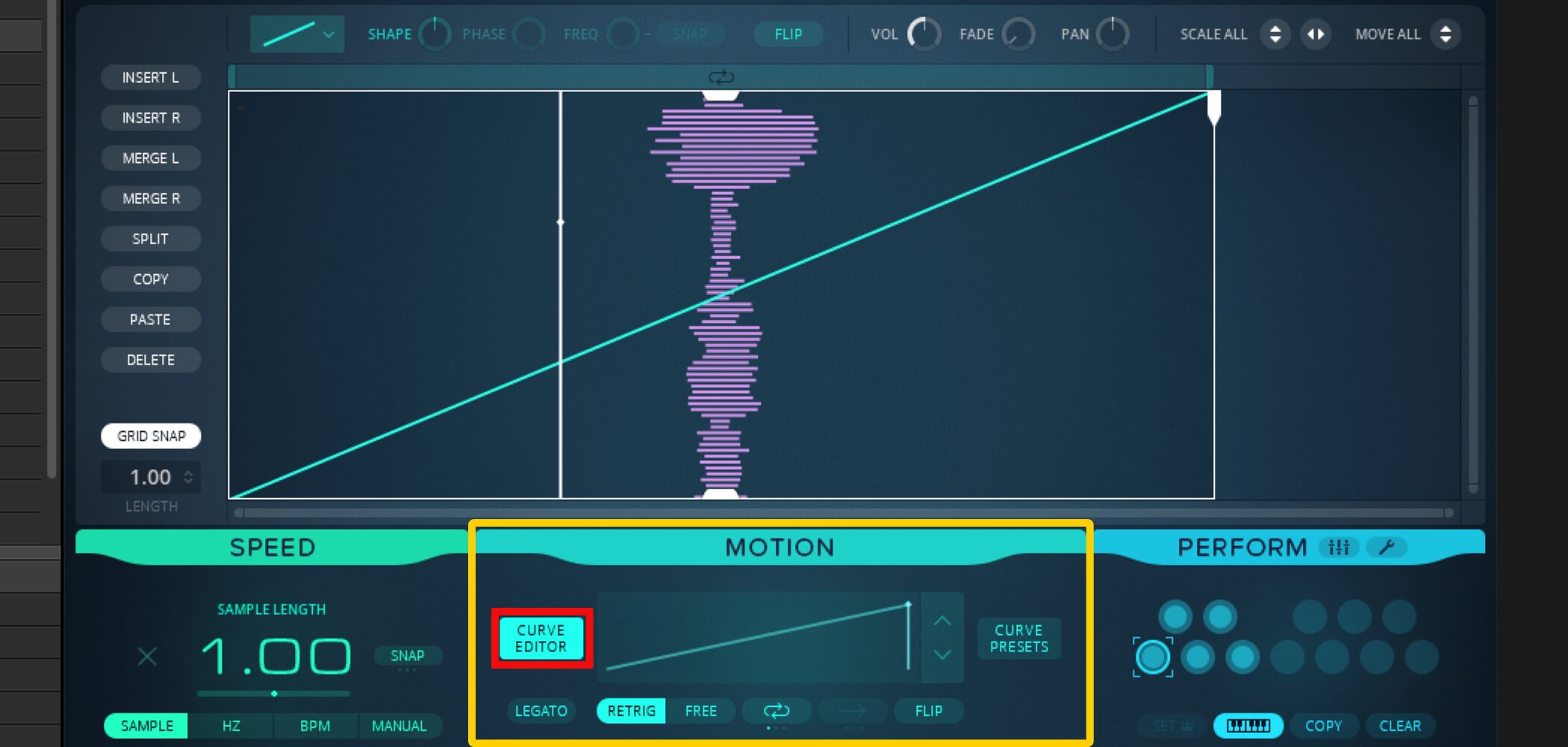
First, click CURVE EDITOR.
The waveform appears vertically, with a diagonal line from the lower left to the upper right.
This represents forward playback of the original sample at a constant speed.
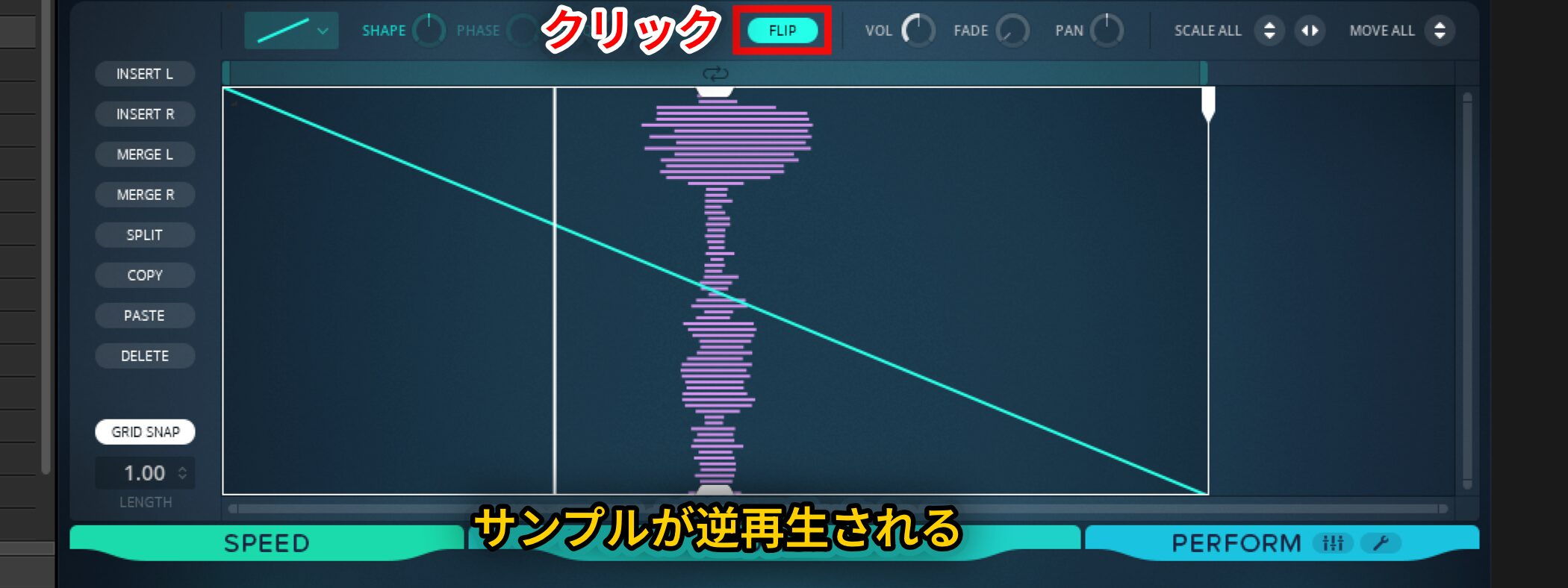
Press FLIP to reverse the direction of the diagonal line and play the sample backward.
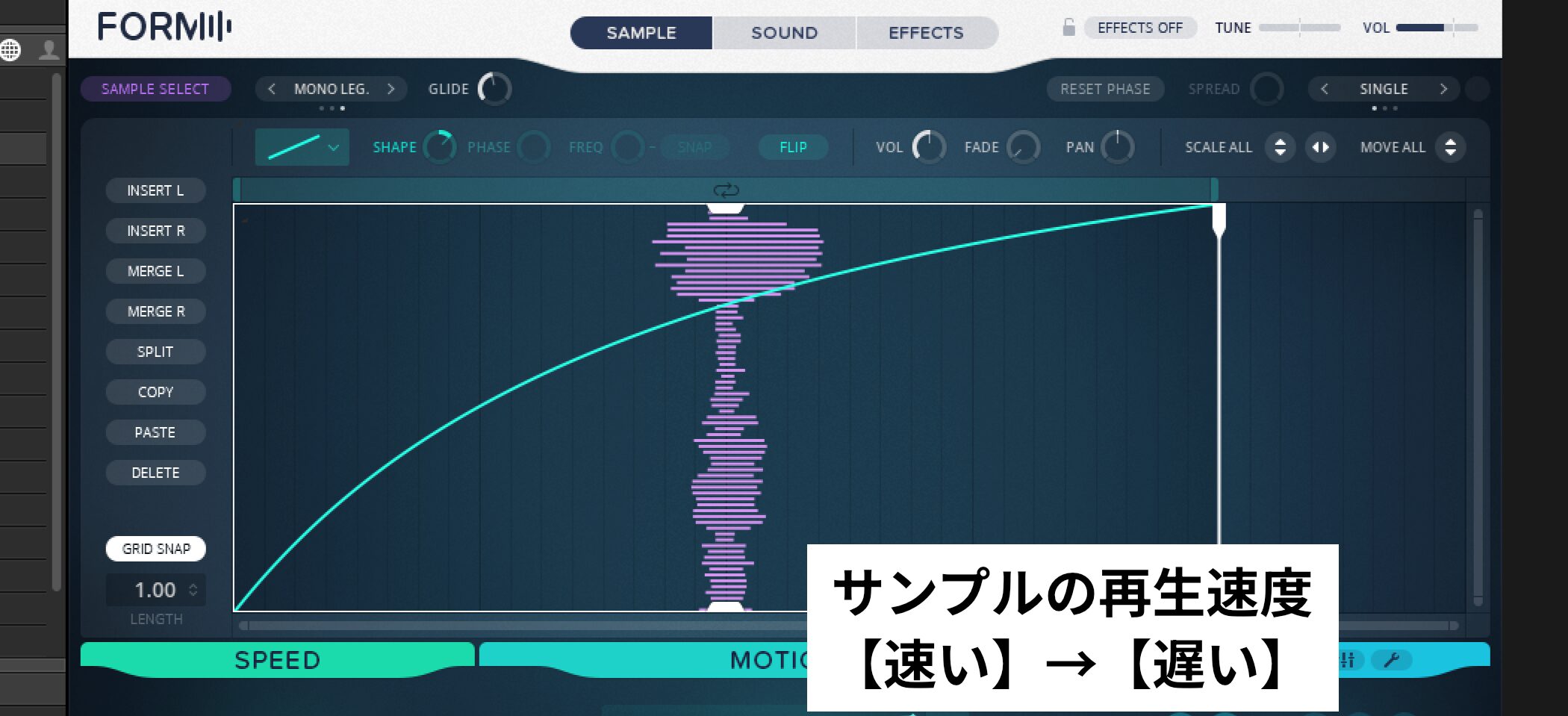
Turn the SHAPE knob in the upper left to bend the diagonal into a curve, making it possible to create faster and slower sections of playback. Steeper sections relative to the horizontal axis play faster; shallower sections play more slowly.
In the example below, playback moves forward, beginning quickly and slowing toward the end.
There are also many curve presets; you can select a shape such as a sine wave.
Playback can move from forward to reverse and then forward again, creating a more unusual result.
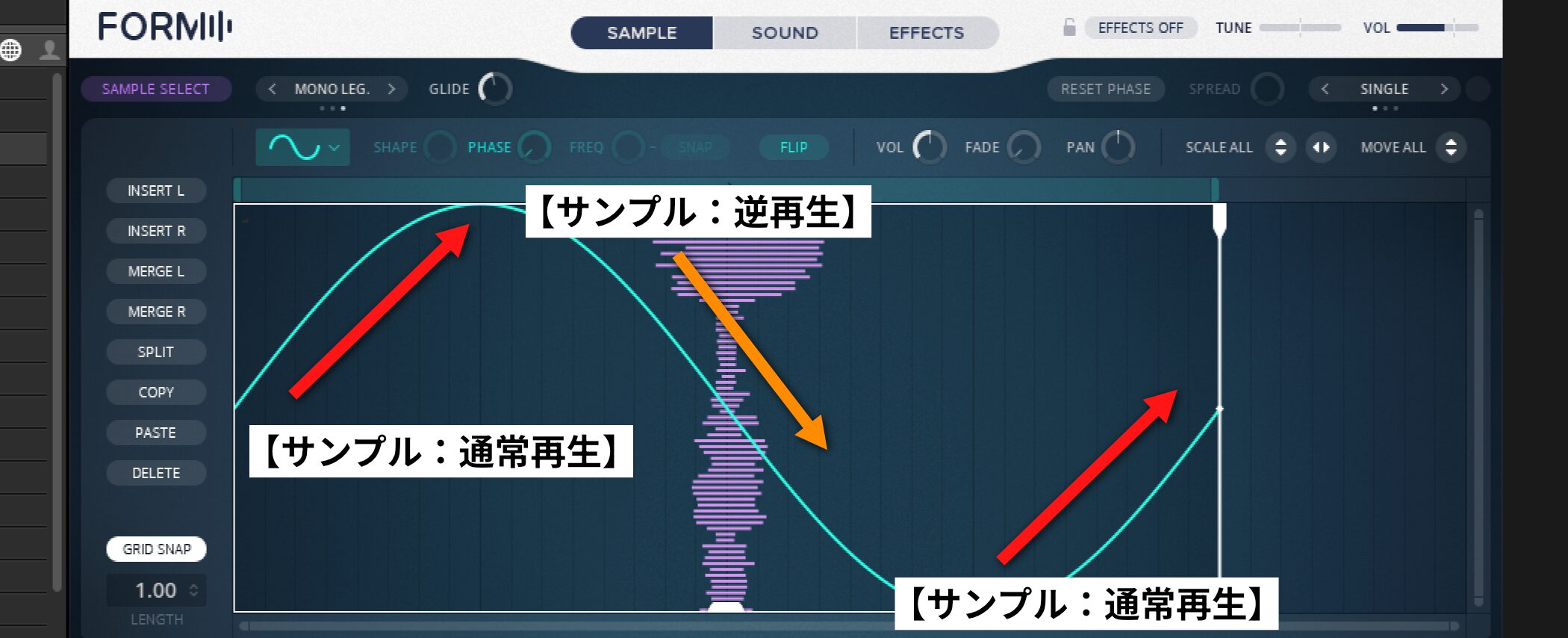
Editing the Sample
The MOTION section offers various ways to edit the sample.
In this example the sample is one bar long at 120 BPM; let’s change it first.
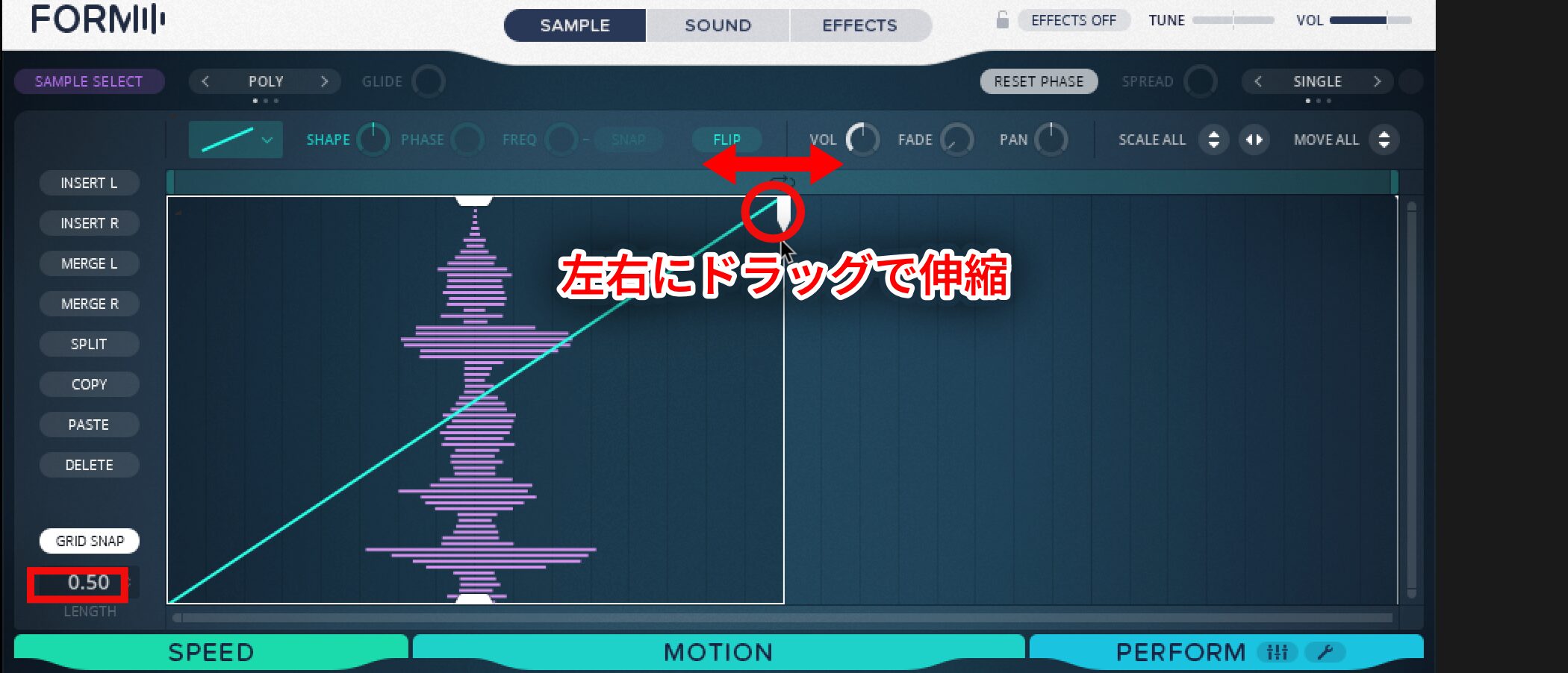
Drag the white area at the upper right of the CURVE DESIGNER to stretch or shorten it horizontally.
Use the LENGTH value at the lower left as a guide. In the image it reads 0.50, half the original length, equivalent to a half note at 120 BPM.
Next, press INSERT L in the menu on the left.
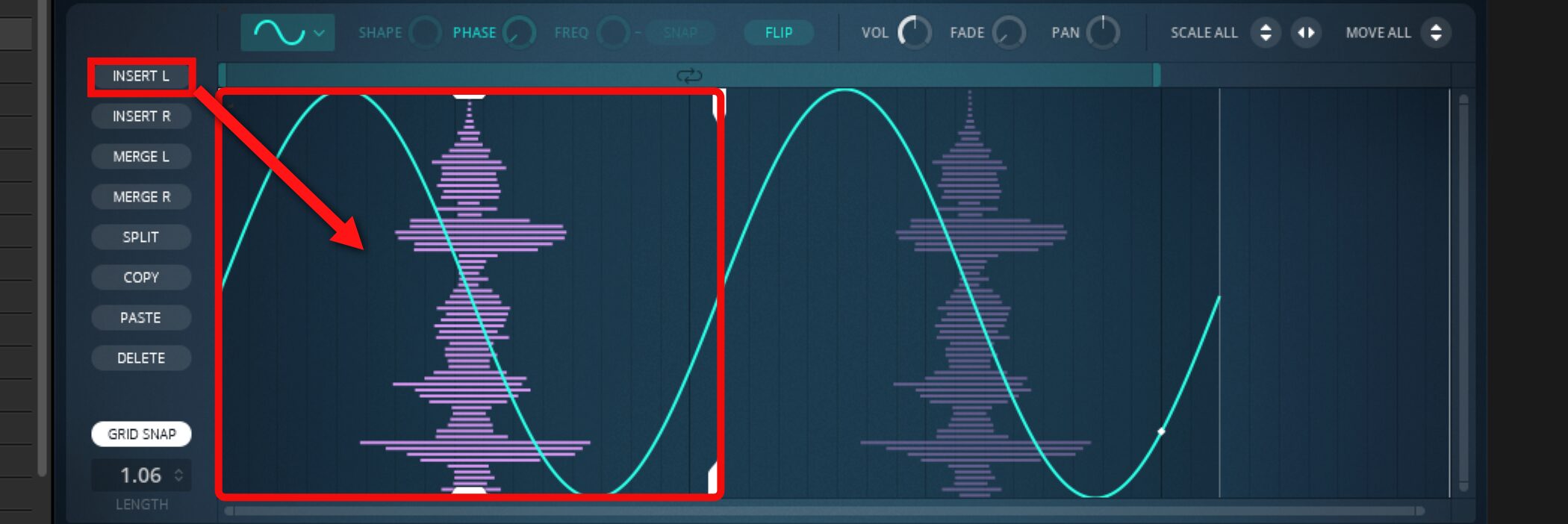
The original waveform is inserted on the left, and the playback curves connect.
Notice that LENGTH changes from 0.50 to 1.00.
To remove one, select a waveform and press DELETE.
Press SPLIT to split the selected waveform in half and duplicate it.
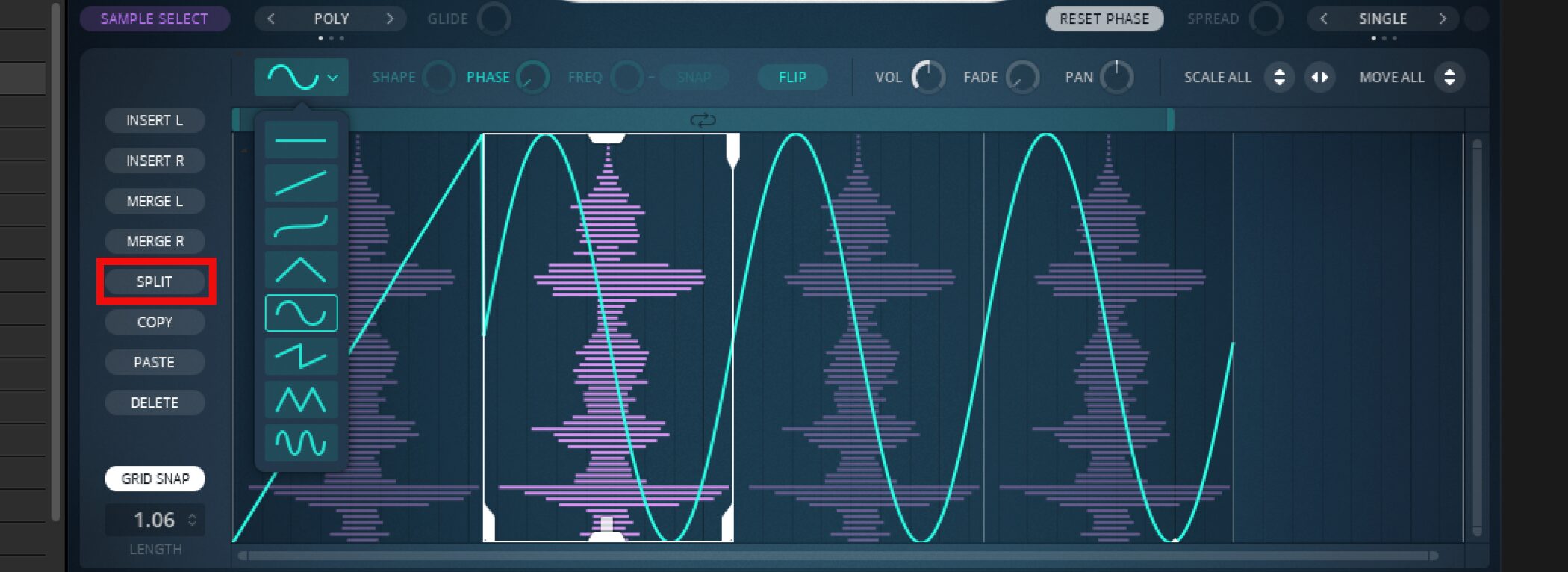
As shown above, each waveform can have a different playback curve or be flipped.
Now let’s change the playback range of each waveform.
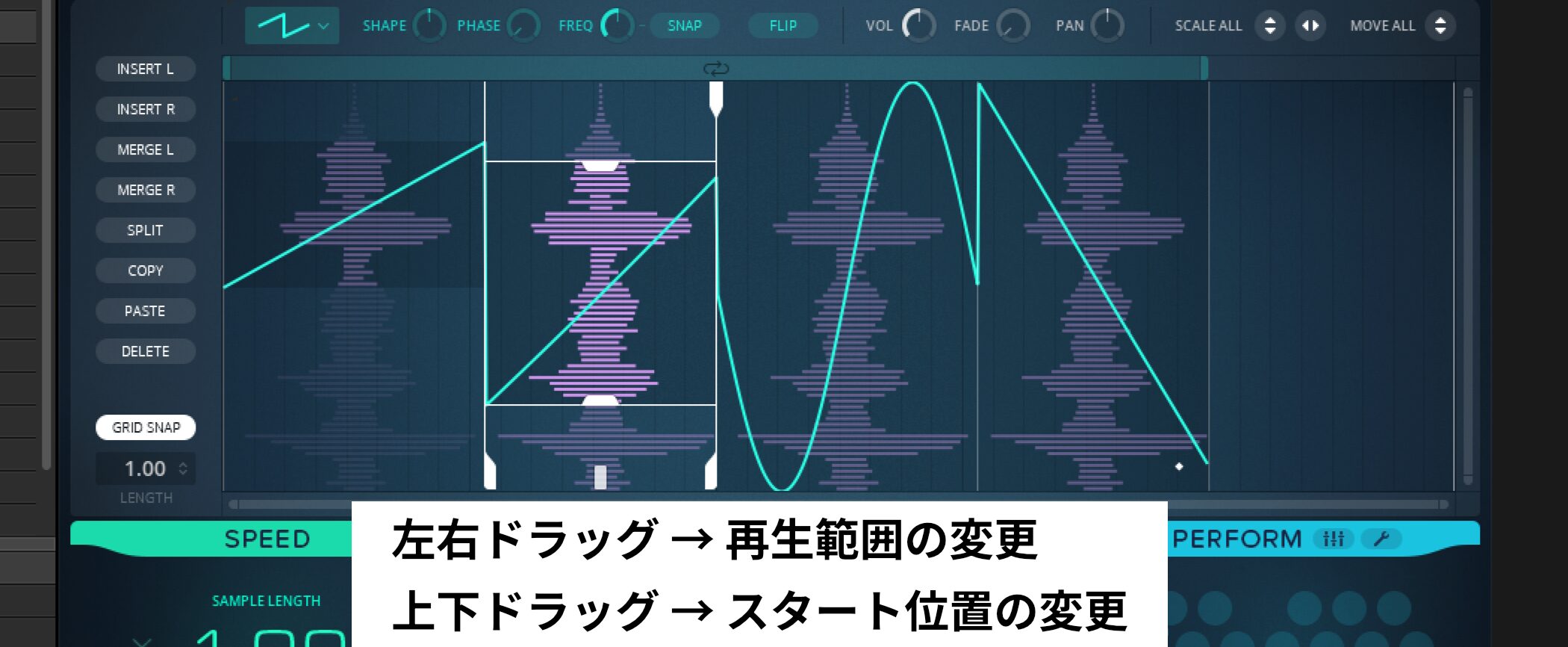
Drag each waveform horizontally to change its playback range, or vertically to change its start position.
You can also drag the white boundary to change the length and shape the sound to taste. Adjust LENGTH to 1.00 for a total of one bar in this example.
Changing the Loop and Playback Direction
Return to the MOTION menu below.
Here you can also set a loop and change its playback direction.
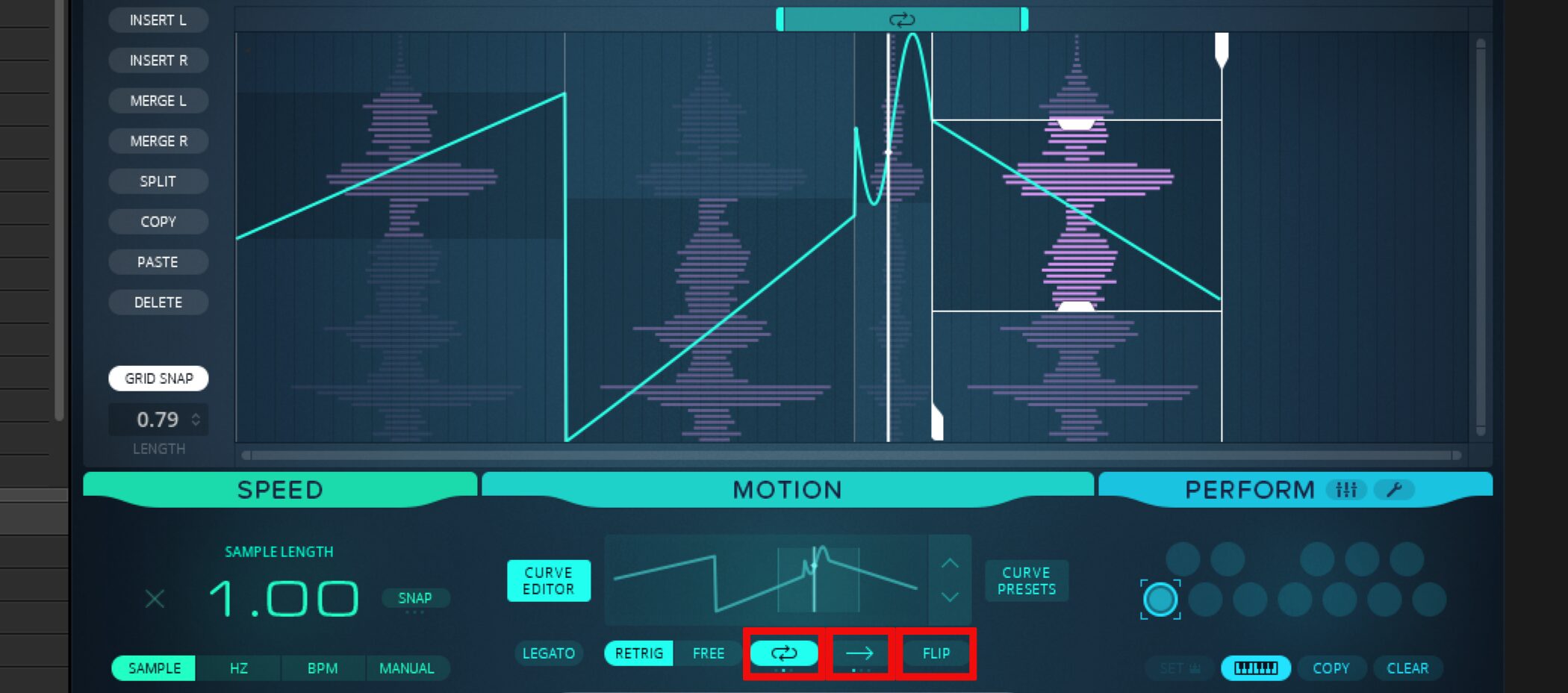
- Press the center loop button to display the loop range and adjust its length.
- Use the arrow buttons to set the playback direction. The ↔ setting loops back and forth through the range.
- FLIP reverses the entire curve vertically.
Assigning Macro Controls
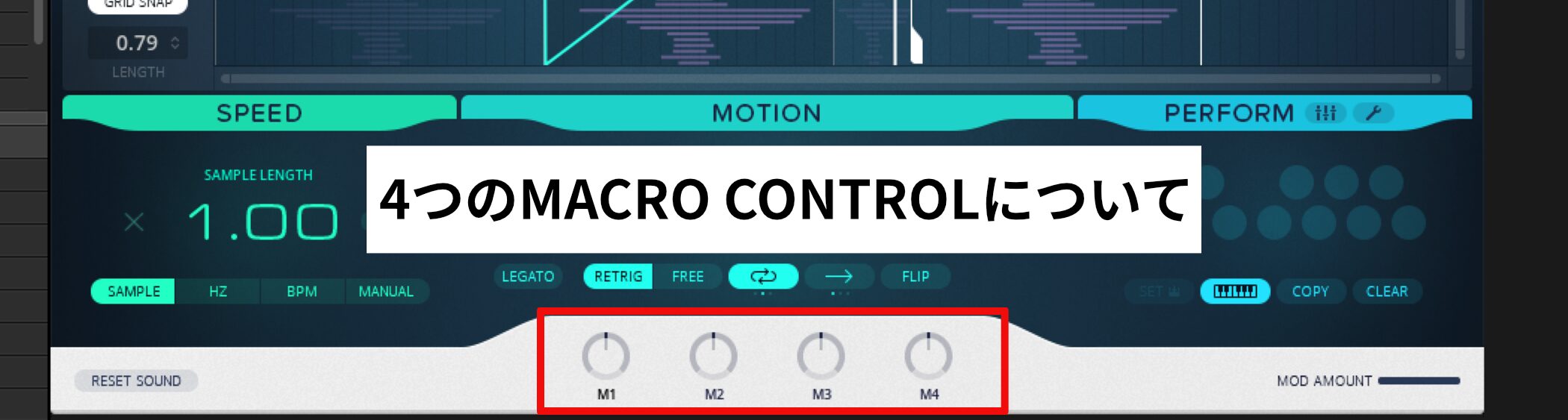
MACRO CONTROL knobs are freely assignable controls useful for live performance and writing automation.
Presets already have assignments, but you can assign parameters of your own choice.
The process is simple.
Click the name of the parameter you want to assign (FORMANT in this example) to open the pop-up shown below.
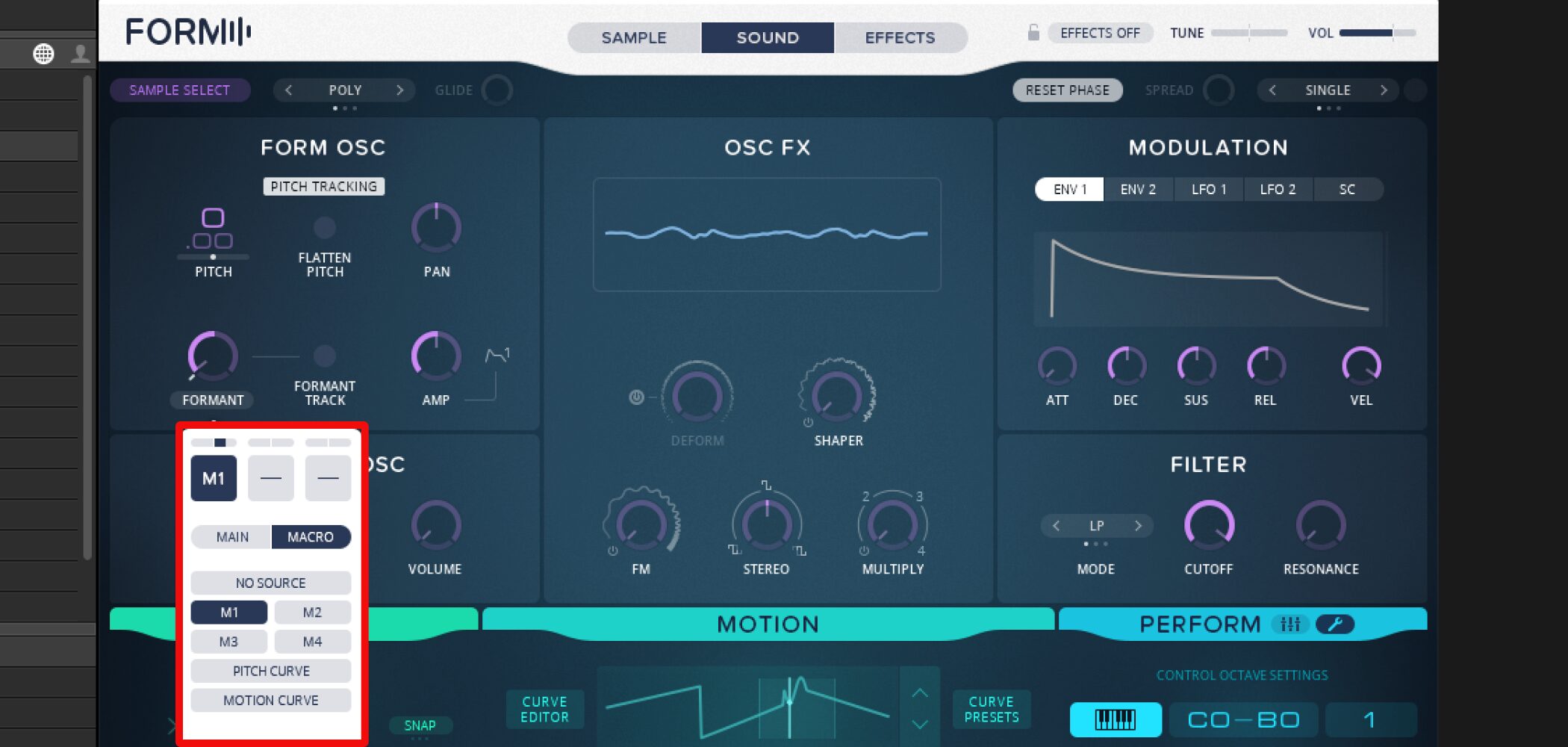
- Click the box marked “-” (blank).
- Select MACRO.
- Choose the macro knob to assign, M1 in this example.
- Drag up or down on the bar above the M1 box.
Dragging up makes the parameter follow the macro knob; dragging down reverses its direction.
Assign multiple parameters to one macro to control them together.
Using PERFORM
Finally, let’s briefly cover the PERFORM section.
It allows you to assign the sounds you create to keys as key switches.
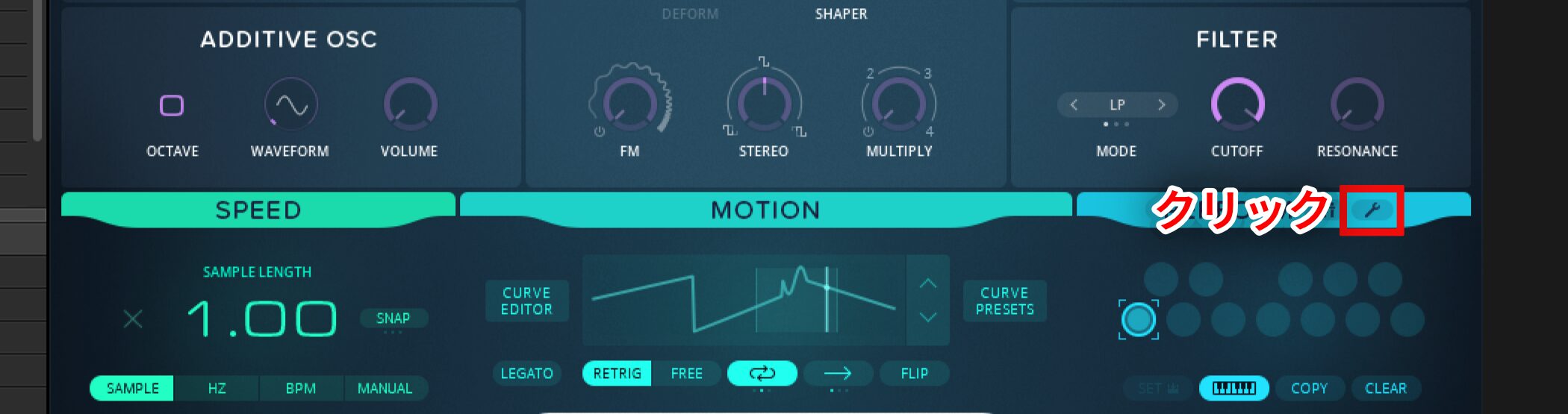
Each circle corresponds to a key. Click the wrench icon beside the section name to view or change the octave range assigned to key switches.
The key already lit by default, C3, already contains the sound you have been creating.
To assign a new sound, activate an empty key and design a sound there. It begins functioning as a key switch once you change at least one parameter.
You can also copy the current sound to another key.
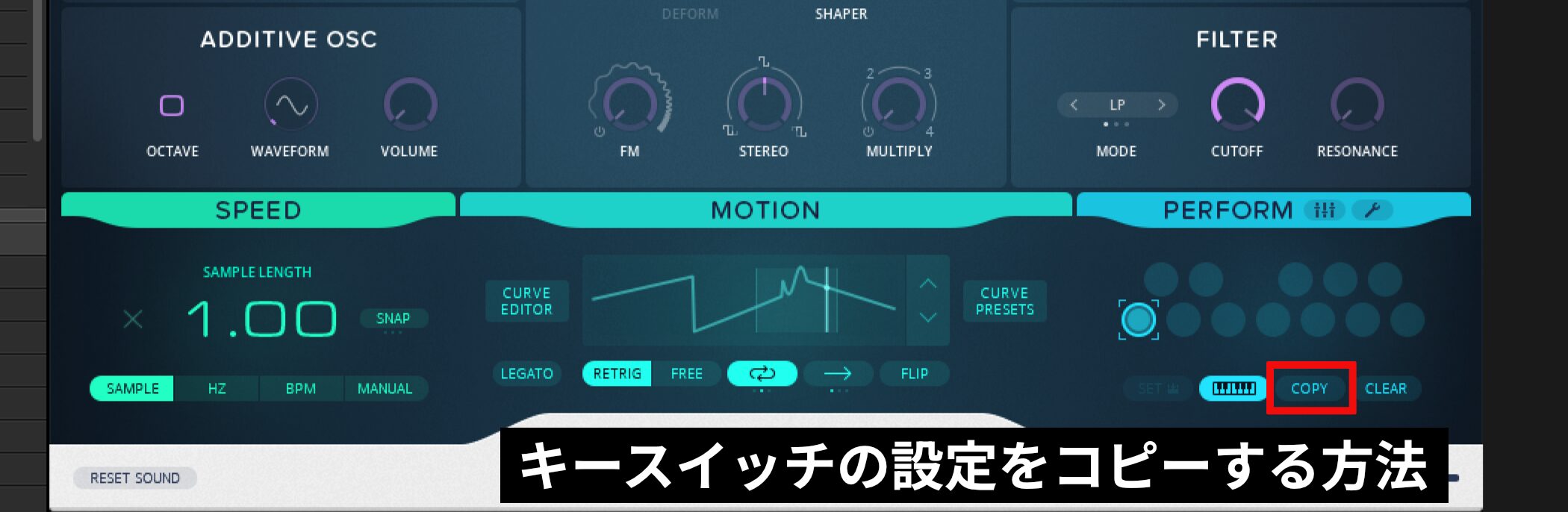
- Select the key you want to copy and press COPY.
- While COPY is flashing, click the destination key.
This is useful when you want to modify an existing sound as a starting point.
Using Key Switches
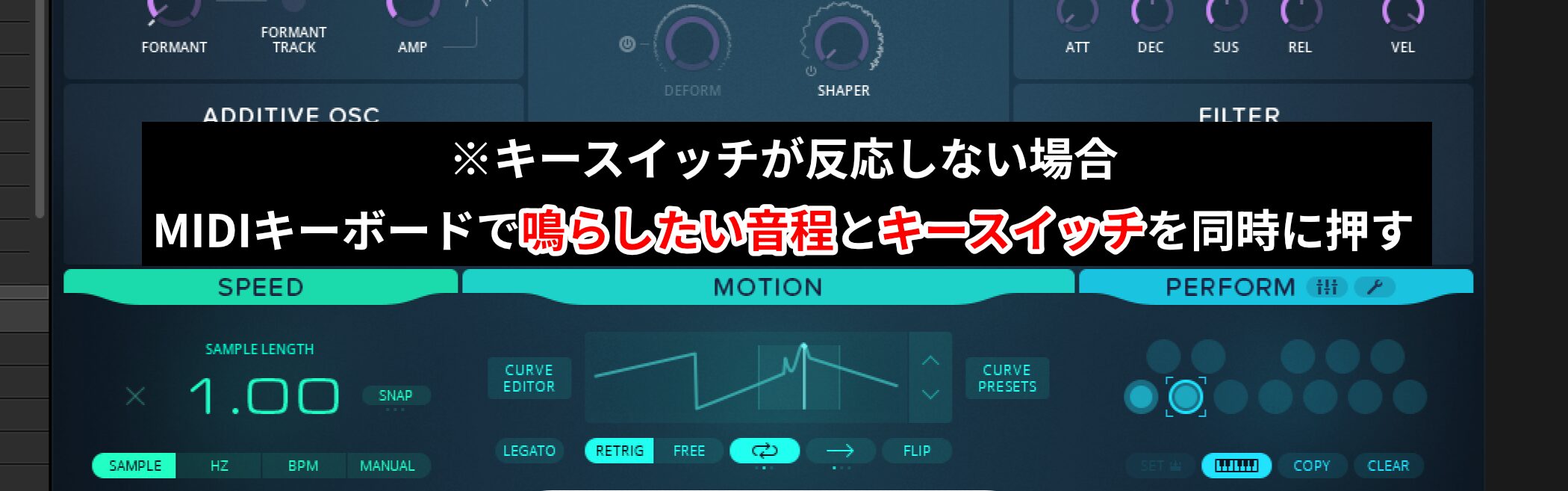
- To play or program assigned key switches, turn on the keyboard icon.
- If the keyboard does not respond, try pressing a note and the key switch at the same time.
That concludes our overview of the main points of using FORM.
As a different kind of synthesizer, it offers many possibilities when approached creatively.
Use this article and the videos as a starting point and explore what it can do.
Frequently Asked Questions
Q1. What software runs FORM?
FORM runs inside REAKTOR 6. Open the Player tab using the magnifying-glass icon, then drag and drop Form.ens from the FORM folder.
Q2. Can I customize a sound without mastering complex synthesizer controls?
Yes. The four macro knobs at the bottom of the main screen allow you to make broad changes to presets and are approachable for beginners.
Q3. What is a distinctive FORM effect?
FREQUENCY SHAPING divides the spectrum into two sections whose position, width, and volume can be adjusted. It can emphasize harmonics and be modulated by an LFO to create movement.
Q4. Can I load my own audio into FORM?
Yes. Click SAMPLE SELECT in the SAMPLE section, drag and drop an audio file, audition it with PREVIEW, and press LOAD SAMPLE.
NEW ARTICLES
Latest English Articles





























































































































































































































































































































































































