In this practical piano arrangement tutorial, learn three aspects of MIDI programming in Cubase that can make a part feel more like a live performance: adjusting timing with iterative quantize or randomization, setting note lengths and sustain-pedal data (CC64), and adding expression through velocity randomization and manual editing.
Note Length and Velocity in Practice
This time we will put note length and velocity into practice.
When programming notes with Cubase’s Pencil tool,
understanding these ideas can make it easier to simulate a live performance.
We will look at how a pianist’s performance is captured as MIDI data
and use that understanding
as a practical editing skill.
Video Navigation
- 11. Piano Arrangement: Programming the Melody
- 22. Piano Arrangement: Choosing Velocity
- 33. Piano Arrangement: Adding Chords
- 44. Piano Arrangement: Note Length and Velocity in Practice
- 55. Piano Arrangement: Left-Hand Approaches to Chords
- 66. Piano Arrangement: Left-Hand Approaches 2 and Right-Hand Arrangement
Timing Variations in a Live Performance
Even when playing to a metronome,
very few players record notes exactly on the grid.
Note onsets fall slightly before or after it; those timing differences are part of what makes a performance feel live.
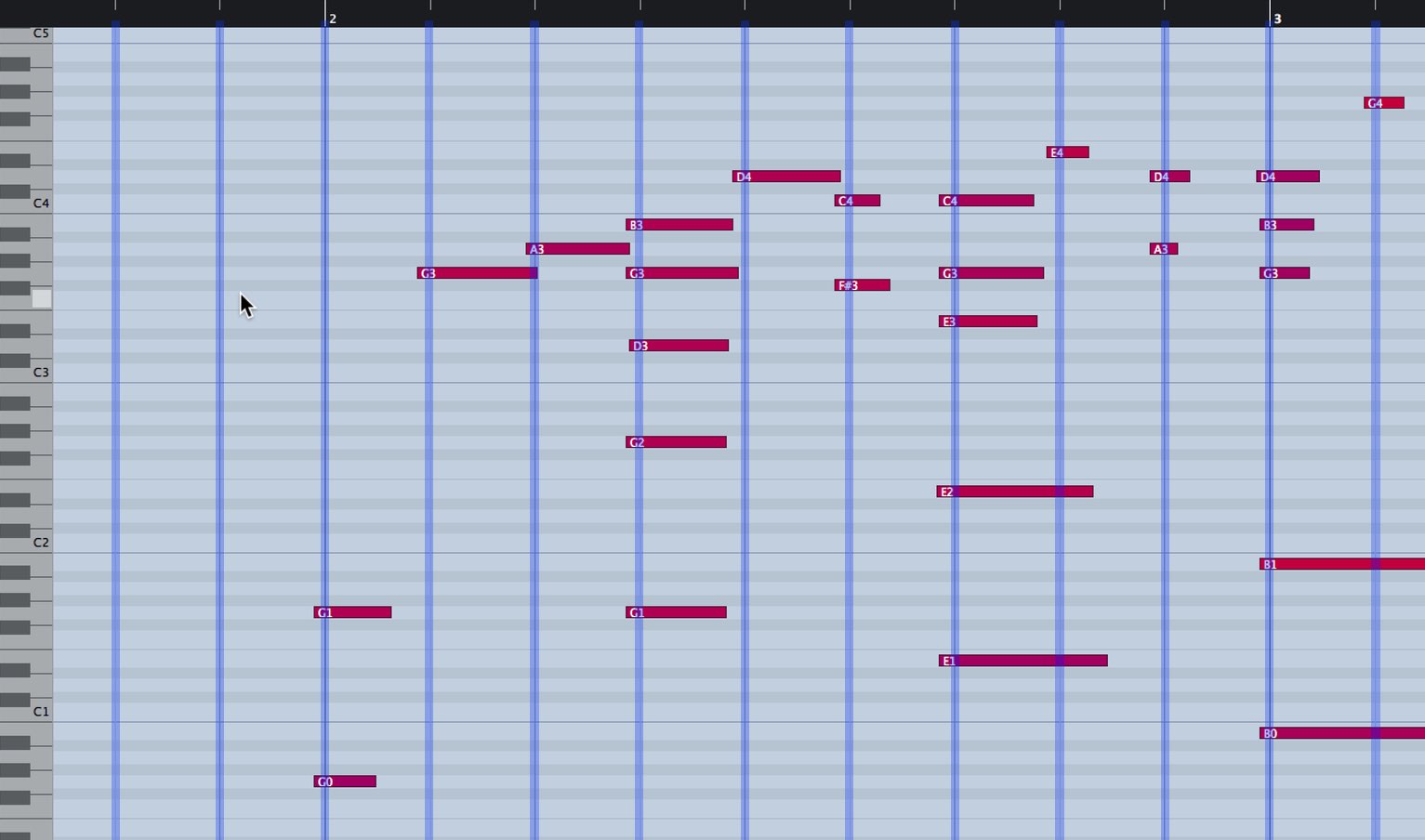
If you can play the keyboard to some extent, after recording your MIDI part,
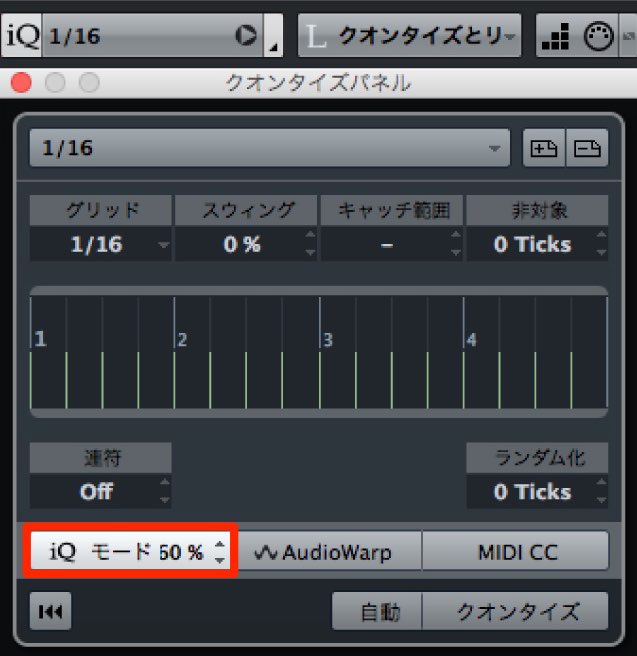
use iterative quantize to correct extreme timing differences.
Applying 100% quantization would remove the human feel of the performance.
(Adjust this with the iQ mode shown below.)
If you program keyboard parts with the Pencil tool,
you can also easily introduce similar timing variations.
In this case, use the quantize randomization setting.
(The randomization value in ticks shown below determines the amount of variation.)
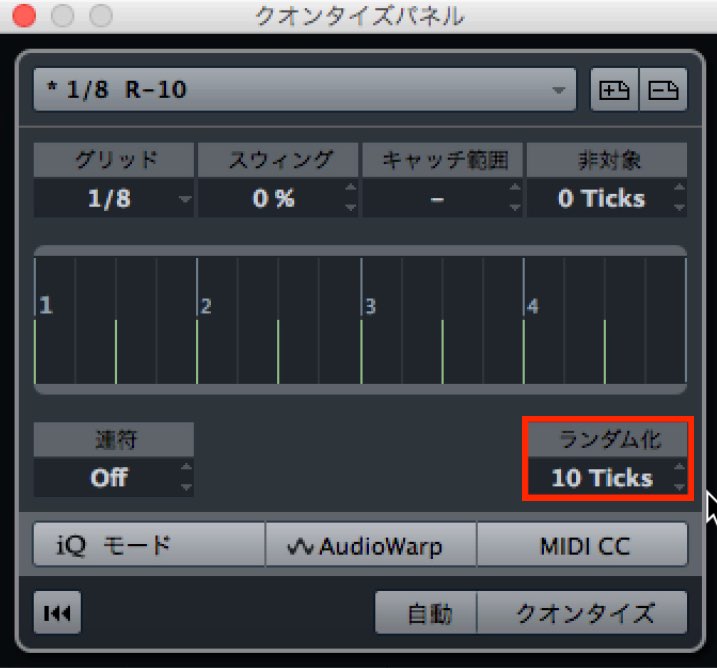
Use these quantize functions to edit MIDI note timing and give it a more live feel.
Note Length
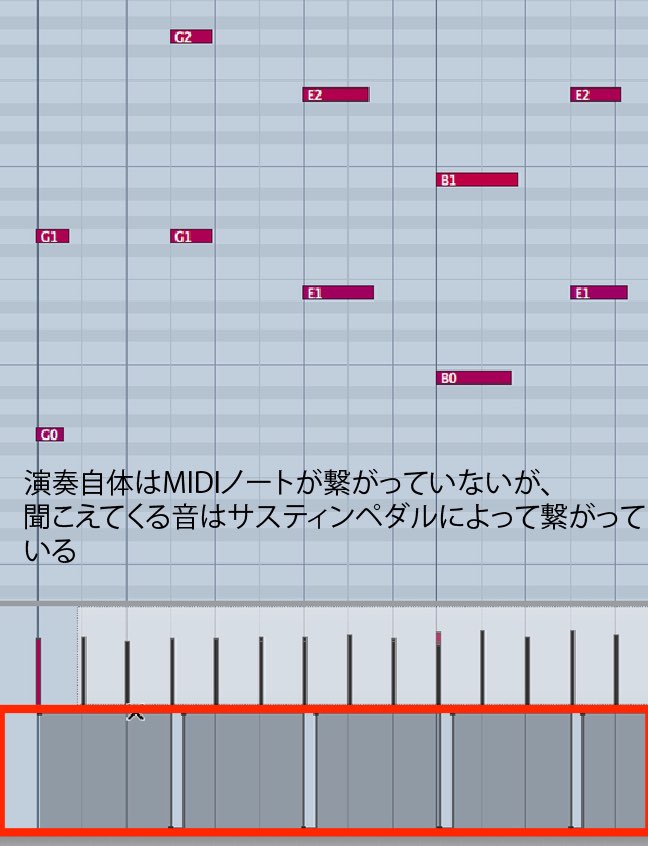
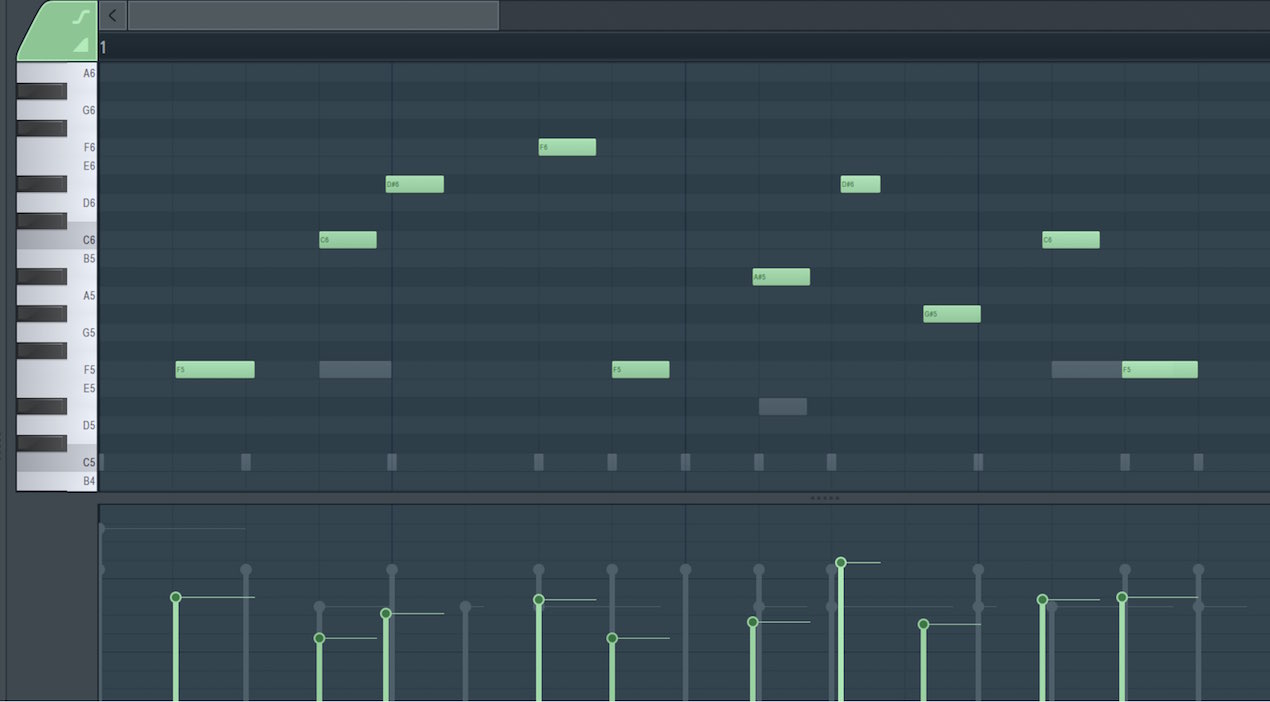
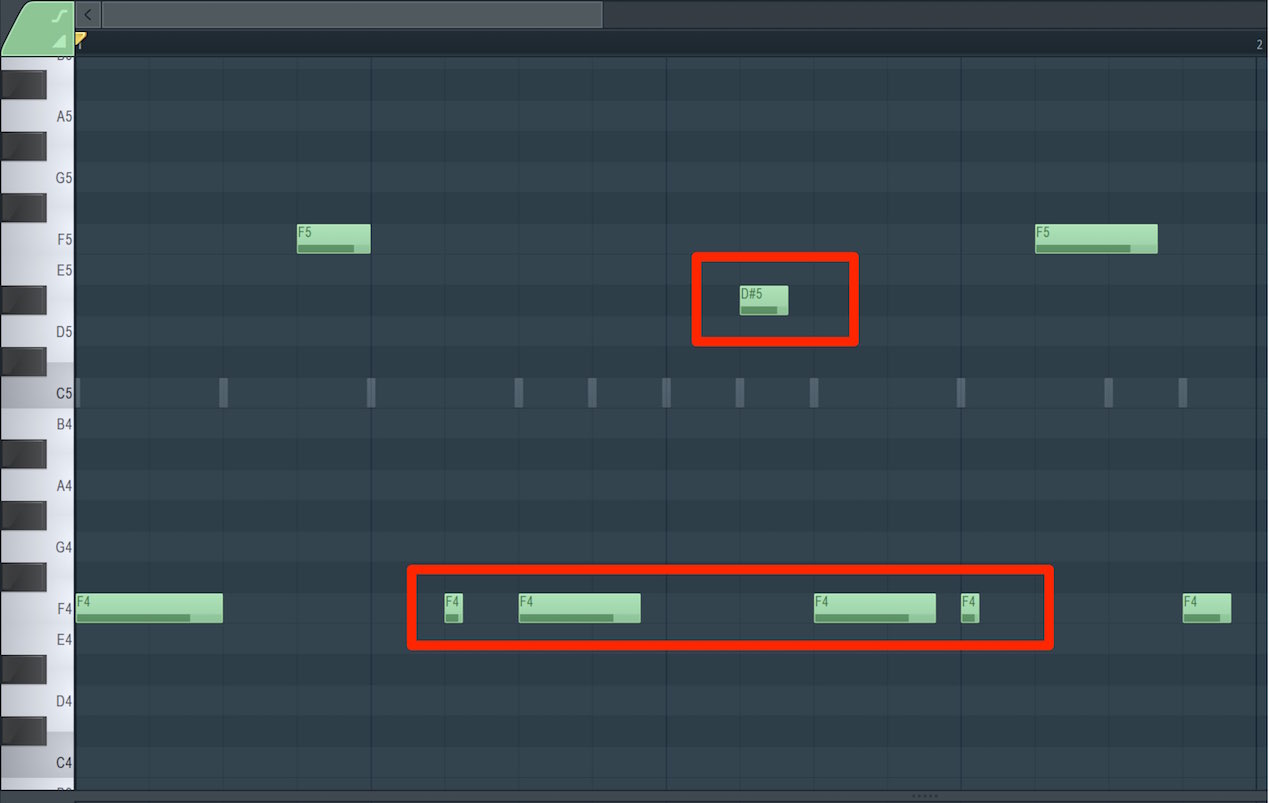
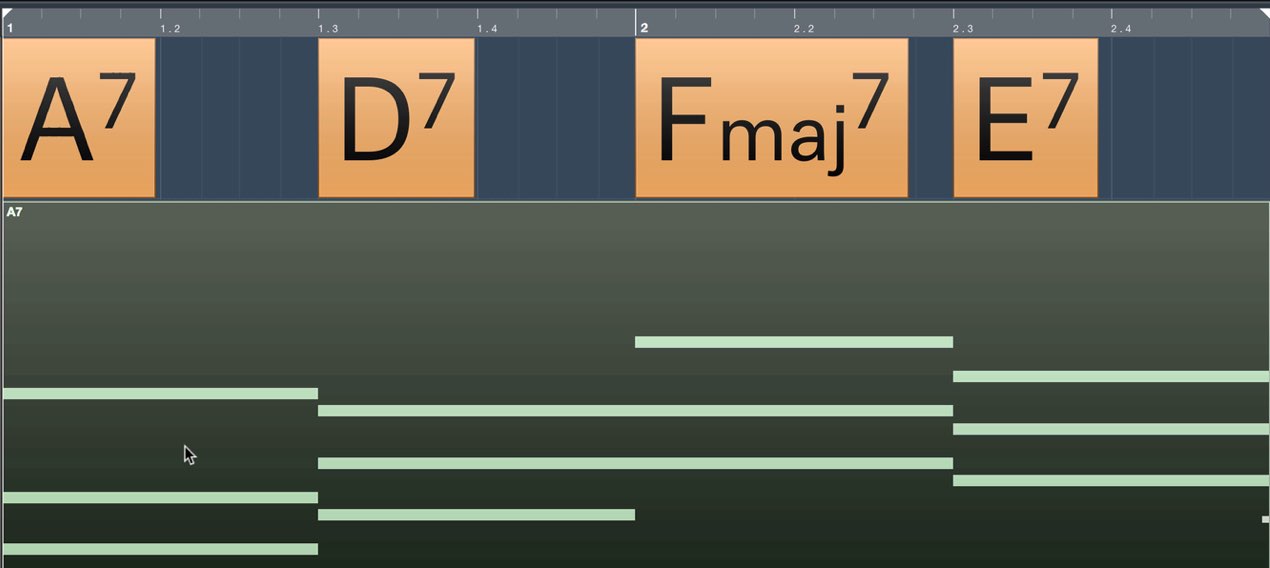
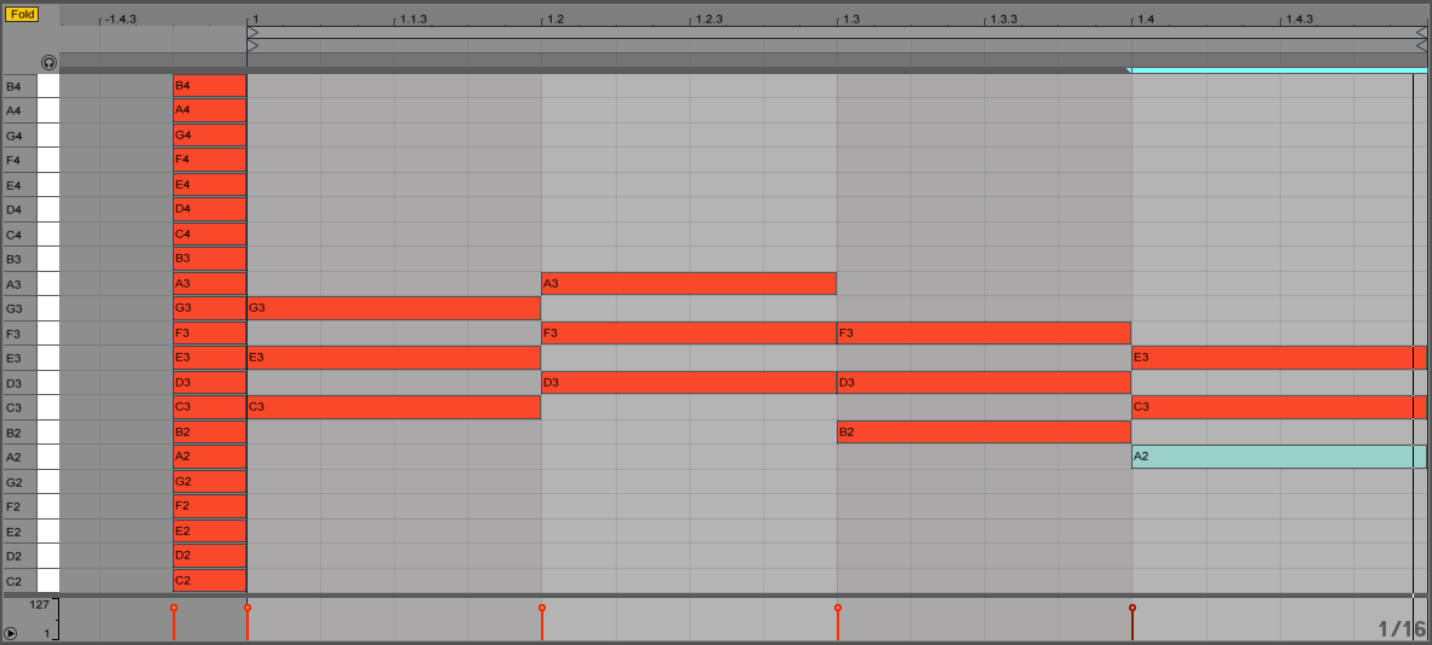
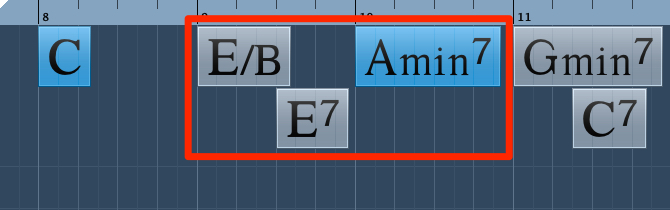
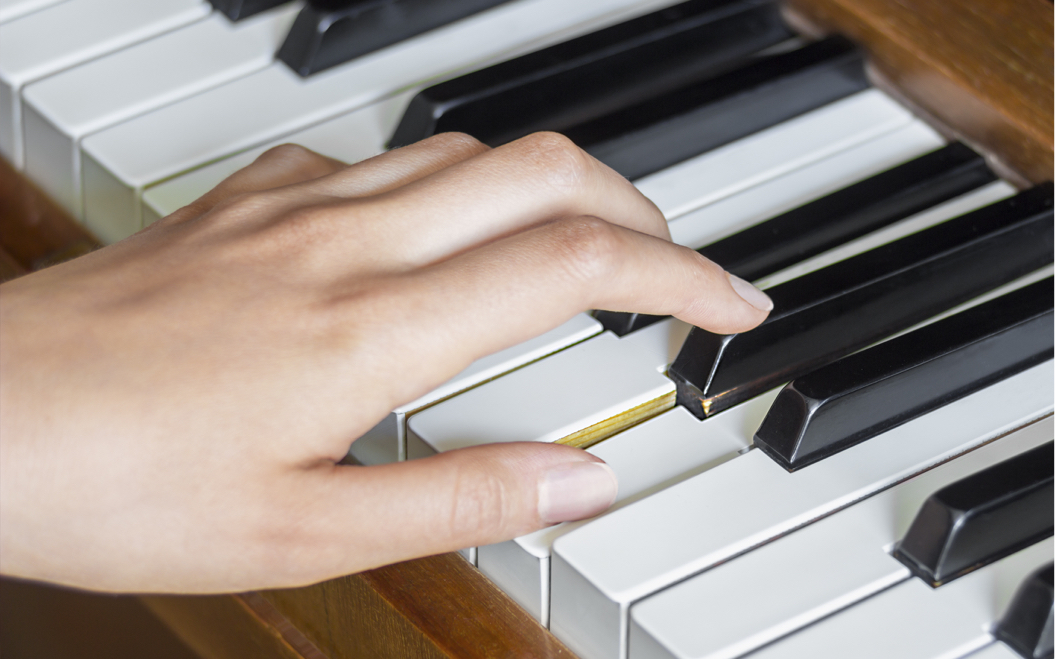
When playing a keyboard, moving between keys means that successive notes do not always join perfectly.
(See the MIDI notes above.)
Since this alone does not produce a smooth connection,
a pianist uses the sustain pedal to keep the notes sounding long enough.
When programming with the Pencil tool, you can extend MIDI notes all the way to the next note,
so it is easy to forget to enter sustain-pedal data (CC64).
Some software instruments also change their tone when the sustain pedal is pressed,
so remember to program sustain data as well.
Velocity
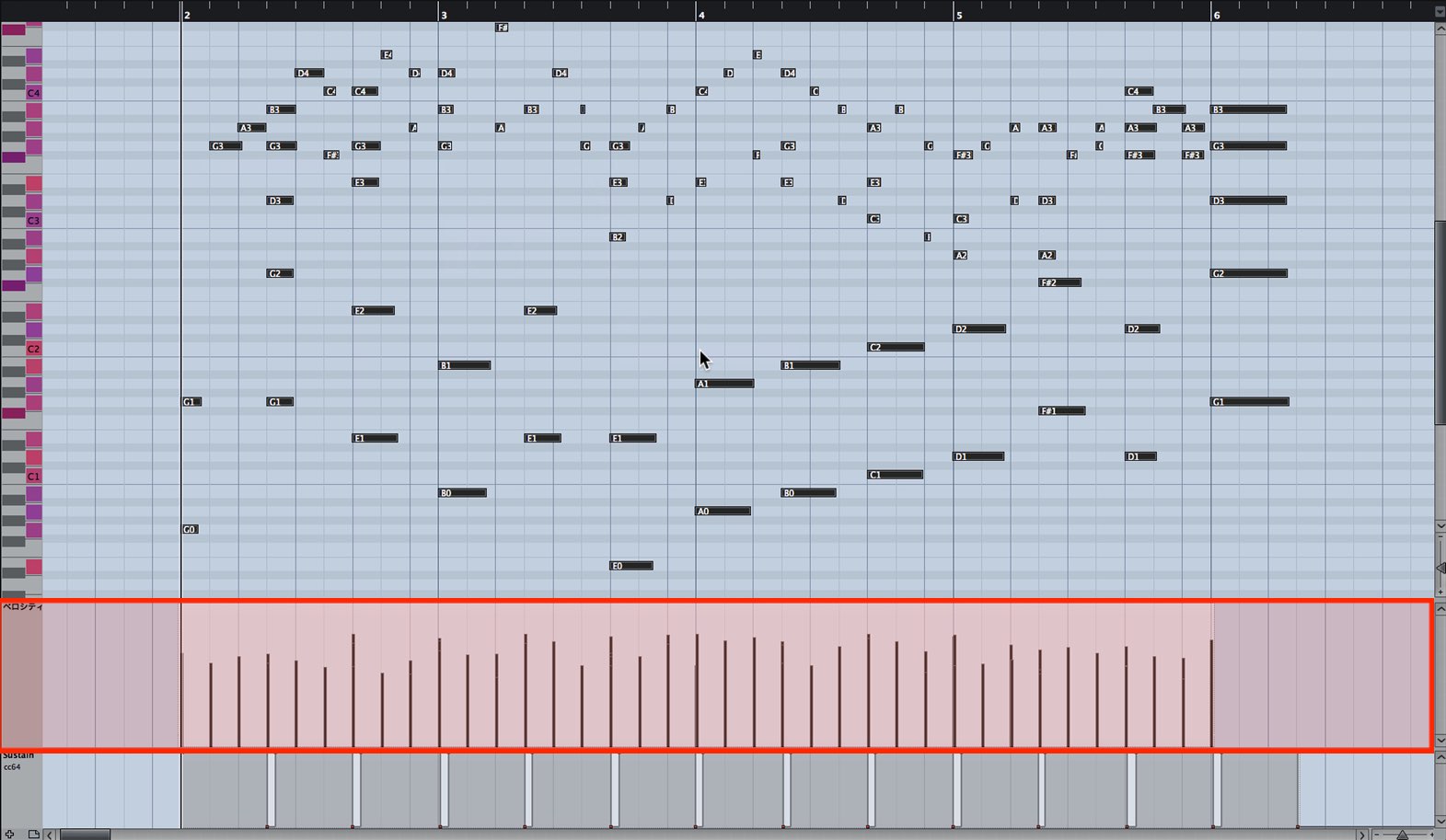
As mentioned in the video, there is no single correct velocity for a programmed piano part.
Players express themselves differently,
and velocity sensitivity also varies by MIDI keyboard.
As a general starting point, the author suggests that a velocity around 80 may represent relaxed playing. Vary the values from there to give the part a more live feel.
This is detailed work, but
editing velocity reduces the mechanical feel and can make a significant difference to the expression the listener hears.
In the video, Cubase’s Logical Editor is used to vary the velocities.
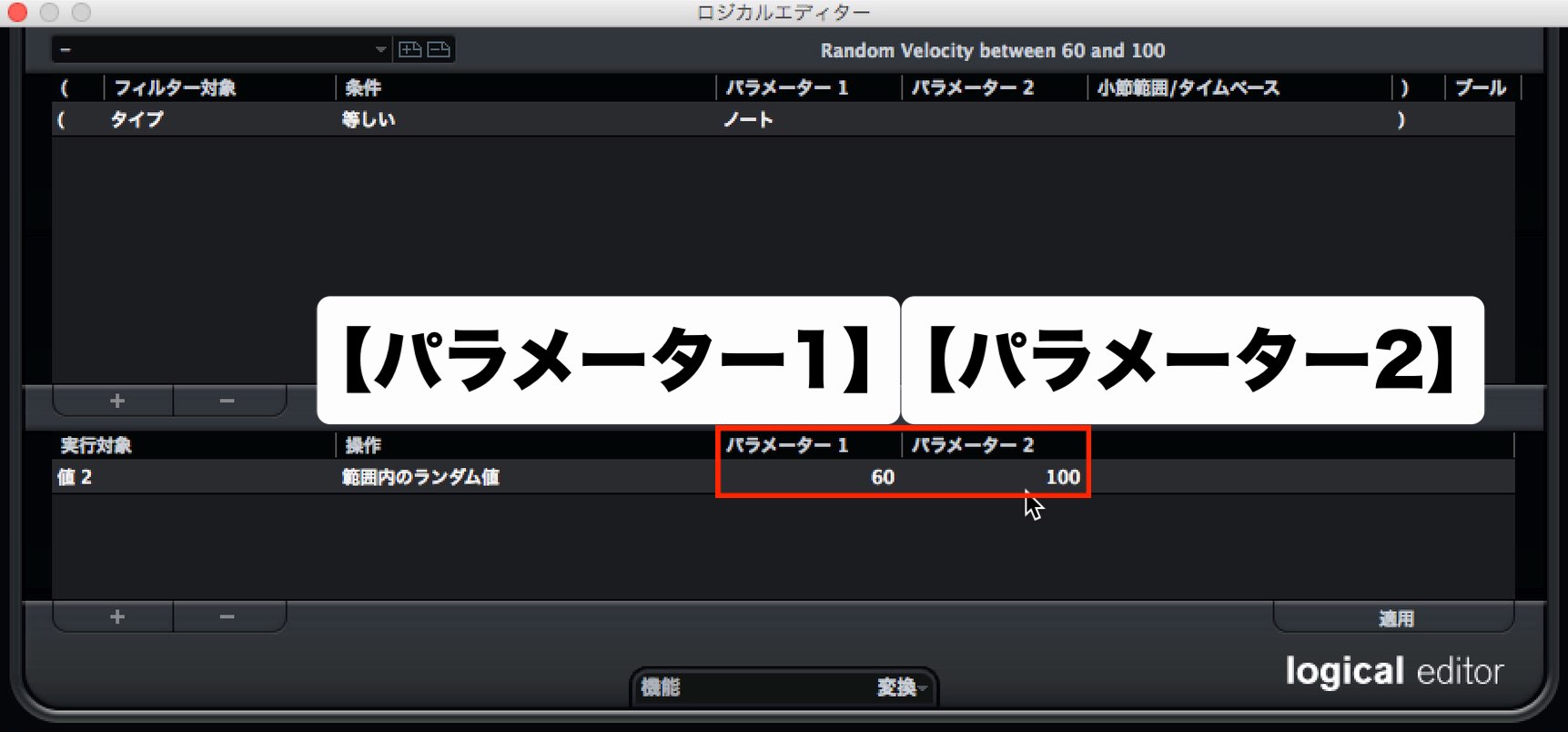
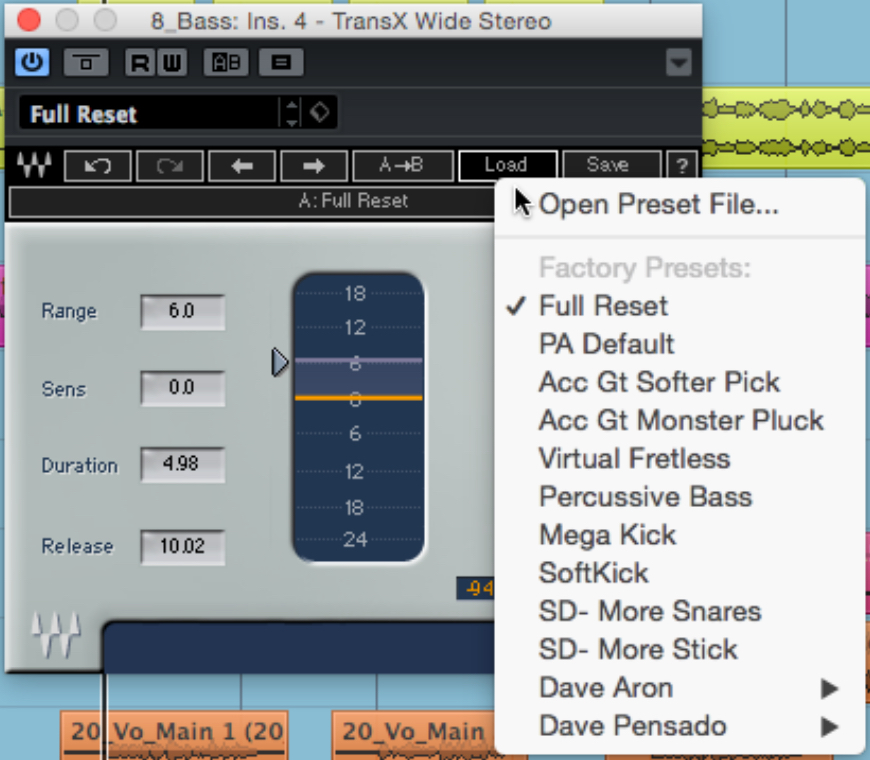
Cubase 8 Pro includes a Logical Editor preset for randomizing velocity between 60 and 100.
This preset is already provided in that version.
You can use it to vary velocities easily.
You could also customize it
for a range such as 60–80.
Another approach is to edit the velocity of each note carefully while imagining it being played.
Although it takes time, careful velocity editing may be necessary to create the desired dynamics.
The author’s ideal approach is to randomize the values first,
then carefully edit the notes that need attention.
Frequently Asked Questions
Q1. What matters most when programming piano MIDI?
Timing, note length and velocity are the three key elements. Velocity editing is especially important for expression and can reduce a mechanical feel. Avoiding full quantization and combining randomization with manual editing can help.
Q2. Why use sustain-pedal data (CC64)?
Pianists use the sustain pedal to connect notes smoothly. Some software instruments also change tone when the pedal is pressed, so programming this data can help approximate a real performance.
Q3. What is the right velocity?
The author suggests around 80 as a possible starting point for relaxed playing, but there is no single correct value: the keyboard and intended expression both matter. One option is to start around 80 and randomize within 60–100 before refining the part.
NEW ARTICLES
Latest English Articles