
This guide explains a recovery method to try when a Logic Pro project file will not open or has become corrupted. Create a new project, locate the damaged project in the file browser, and import its audio and MIDI data again. This can help you recover material and continue working, making it a useful technique for dealing with data loss in music production.
Recover a Damaged Project That Will Not Open

A project you worked hard on will not open, or has become corrupted…
Here is a procedure to try in that situation.
What to Try
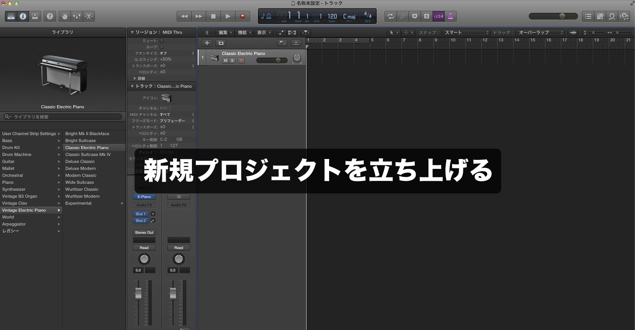
First, create a new project in Logic.
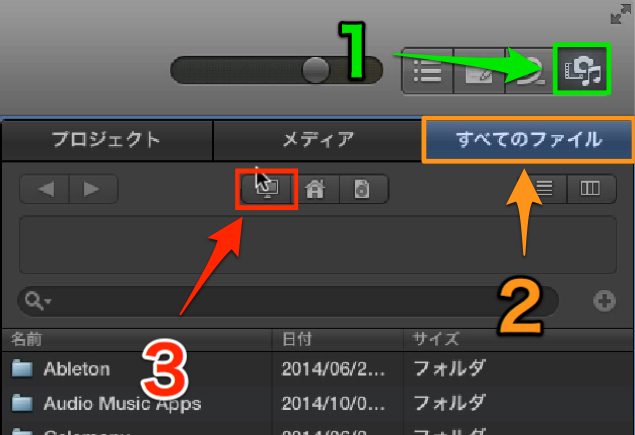
Click the buttons on the right side of Logic in the order shown (1 → 2 → 3),
and look for the project that will not open on your drive (shown as Macintosh HD in this example).
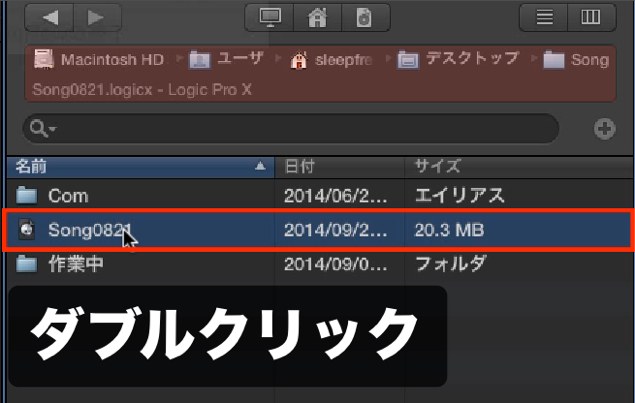
When you find the project, double-click it.
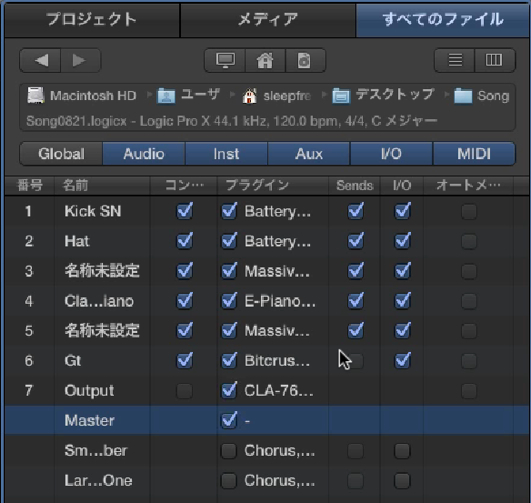
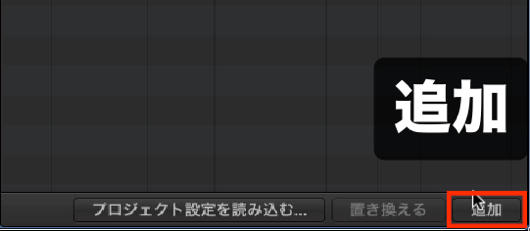
Select the items you want and click Add in the lower right.
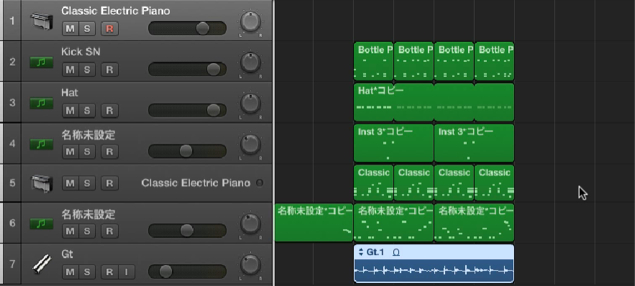
In this example, we successfully imported the audio and MIDI files.
Give it a try.
Frequently Asked Questions
Q1. What can I do if a Logic Pro project will not open?
Create a new project, then find the damaged project in the file browser and double-click it. You can try to recover its audio and MIDI data by importing the items with the Add button.
Q2. Can I retrieve MIDI data and audio from a damaged project?
In some cases, yes. The method in this article lets you import individual MIDI and audio items from a damaged project into a new project.
Q3. How can I protect against project corruption?
Make a habit of regularly using Save As. Also use your computer’s backup features to back up project files regularly, so you are better prepared for unexpected problems.
NEW ARTICLES
Latest English Articles



















































































































































































































































































































































































































































































































































