
Steinberg UR series Morphing Channel Strip combines an equalizer and compressor in one VST plug-in. Its presets provide a quick starting point for shaping a track. This guide explains the compressor controls, including DRIVE, RATIO, ATTACK and RELEASE, and shows how to refine a preset for your mix.
Using Basic FX Suite in your DAW
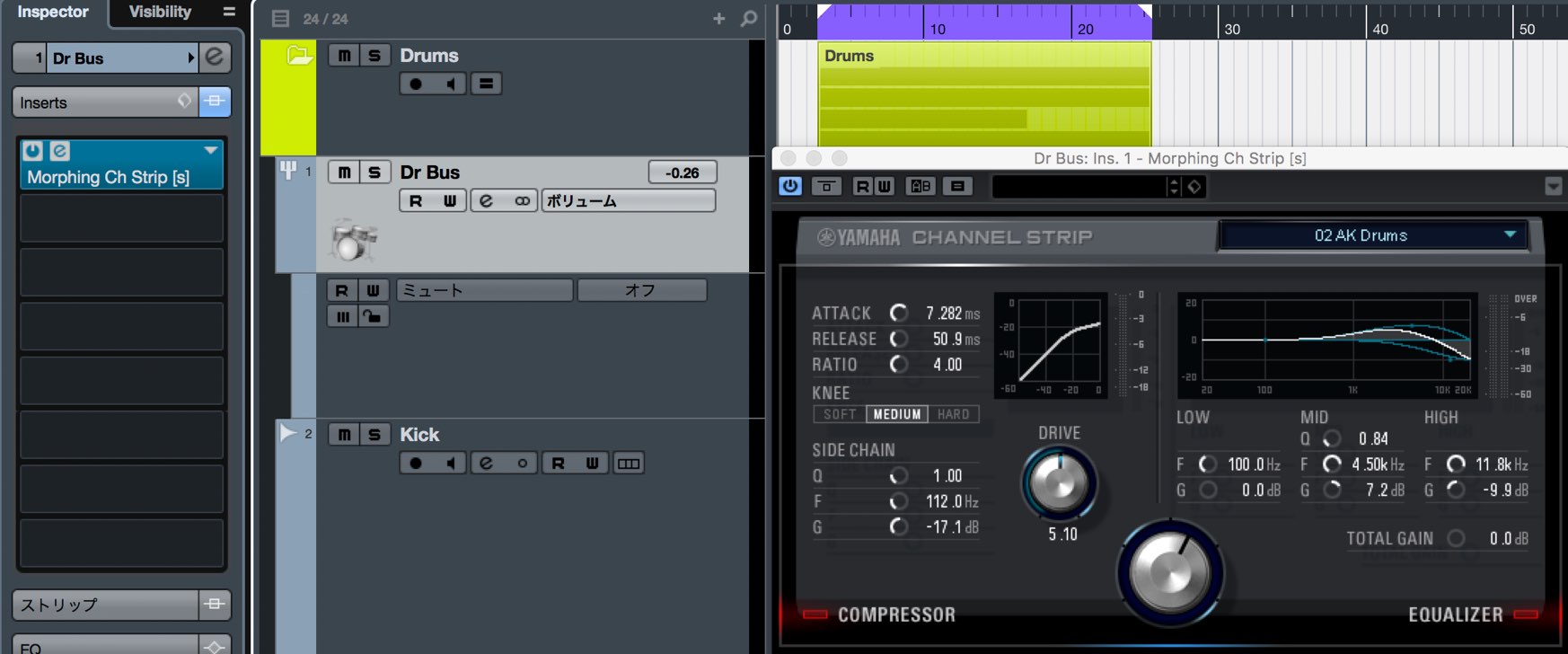
The effects introduced in the previous dspMixFx article can be used in a DAW as VST plug-ins by installing the Basic FX Suite supplied with the UR interface.
They work in VST-compatible DAWs such as Cubase and Studio One.
Note: The original article stated that, as of late September 2017, the effects were VST3-only and could not be used in the then-current version of Ableton Live because it did not support VST3. Check the compatibility of your current DAW and plug-in versions.
Here we will explore Morphing Channel Strip, included in Basic FX Suite.
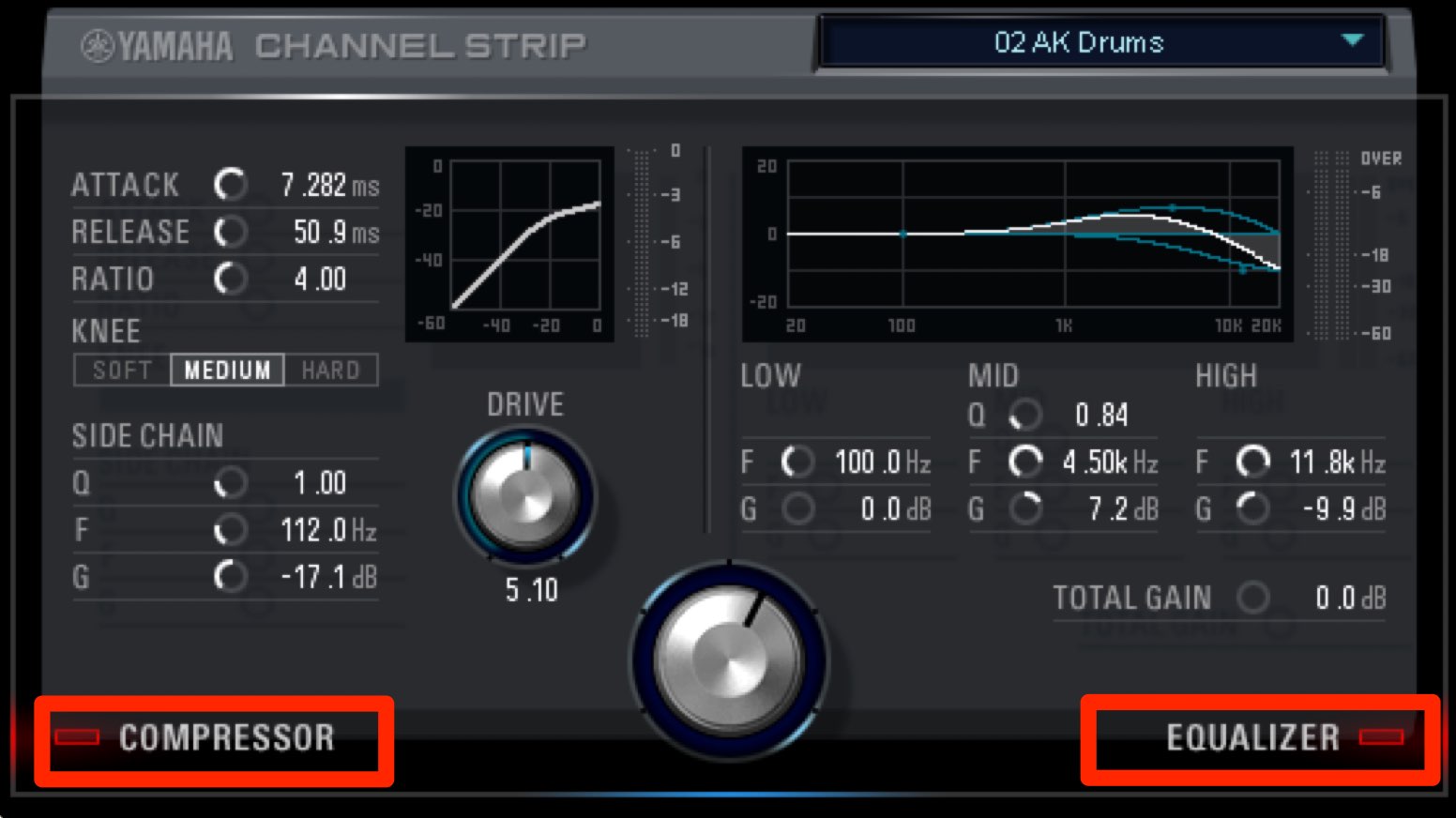
This channel strip combines an equalizer and a compressor. Its presets let you quickly shape the sound of a track.
Video: Morphing Channel Strip compressor
- 1dspMixFx overview and setup
- 2Morphing Channel Strip: compressor
- 3Morphing Channel Strip: equalizer
- 4Guitar Amp Classics: guitar amp simulator
- 5REV-X digital reverb
Steinberg distributor — Access Yamaha Music Japan content
- Yamaha Music Japan MPP (YouTube) https://www.youtube.com/user/SteinbergJapan
- MPP (Twitter) https://twitter.com/SteinbergJP
- Music production program Sound Roster (Fresh!) https://freshlive.tv/ymjsoundroster
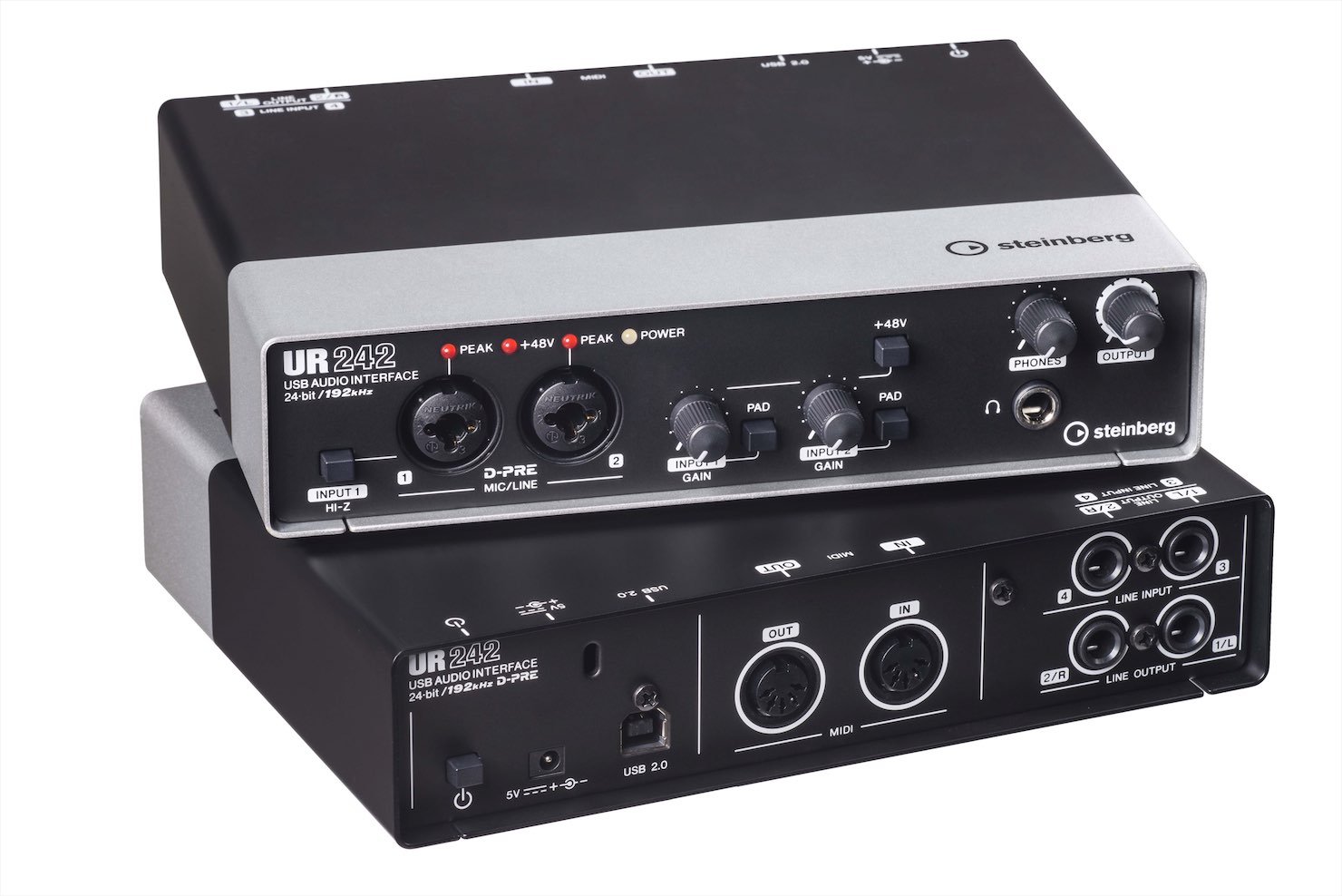
Purchase products: https://japan.steinberg.net/jp/products/hardware/ur_series/lineup.html The original article lists UR242, UR44, UR28M, UR824 and the UR-RT series as supporting dspMixFx.
Morphing Channel Strip presets
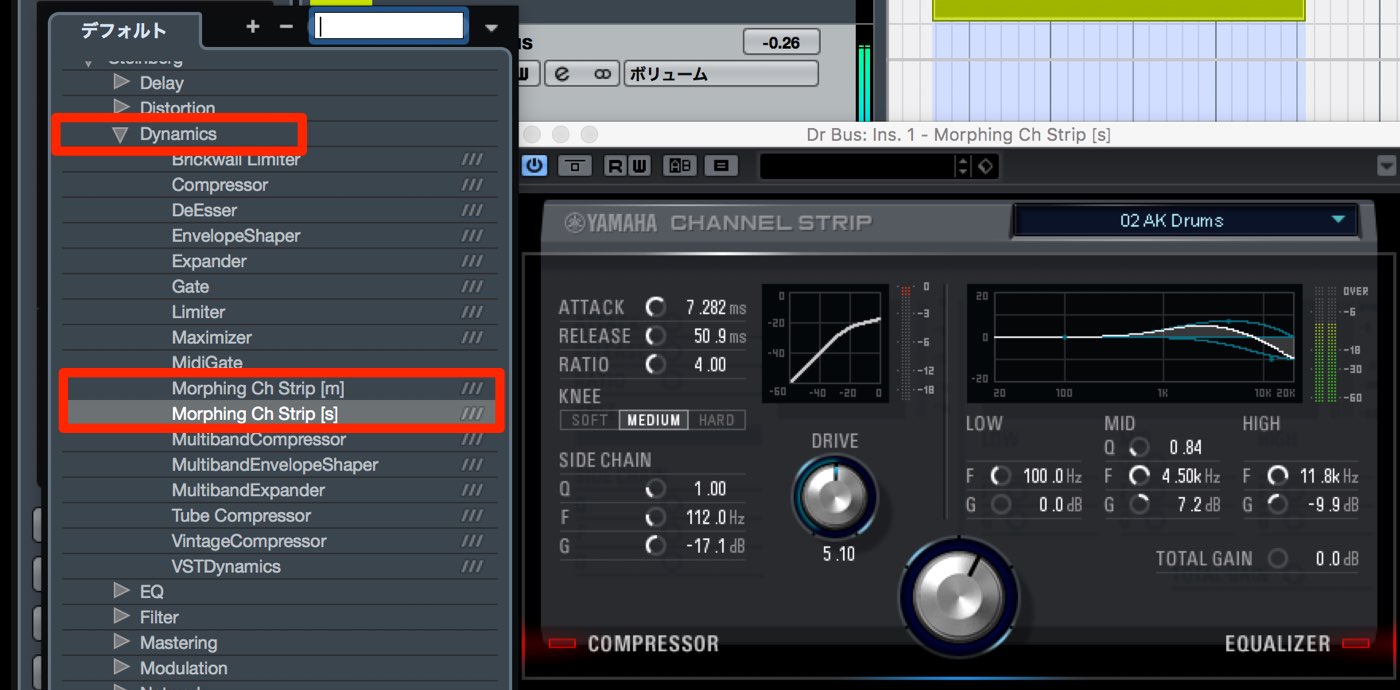
Morphing Channel Strip appears in the Dynamics category of insert plug-ins.
One of its features is a wide selection of presets made by sound engineers.
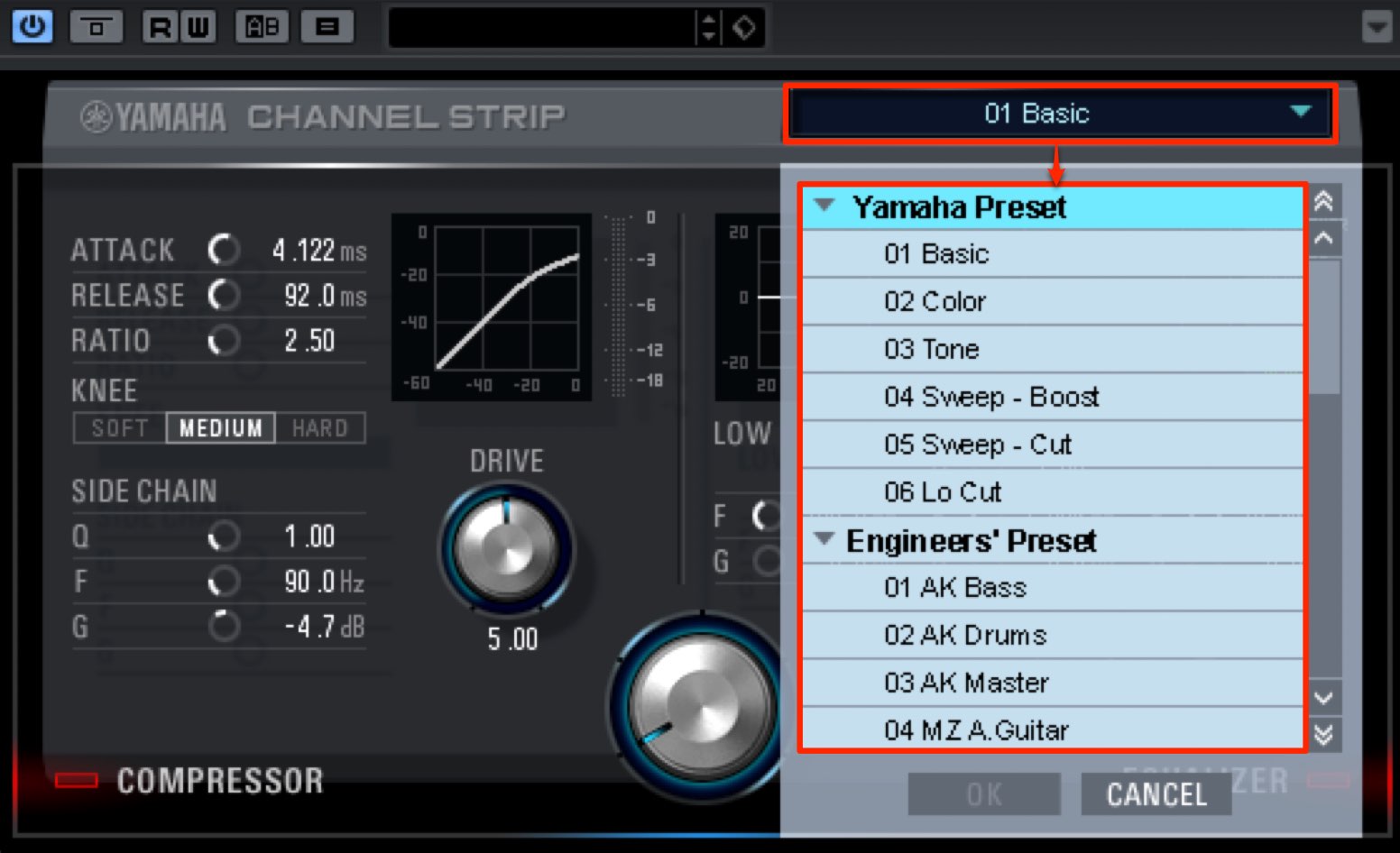
Choose a preset from the window at the top.
- Yamaha Preset: standard presets provided by Yamaha.
- Engineers Preset: presets created by sound engineers.
Engineers Preset contains several presets tailored to individual instruments.
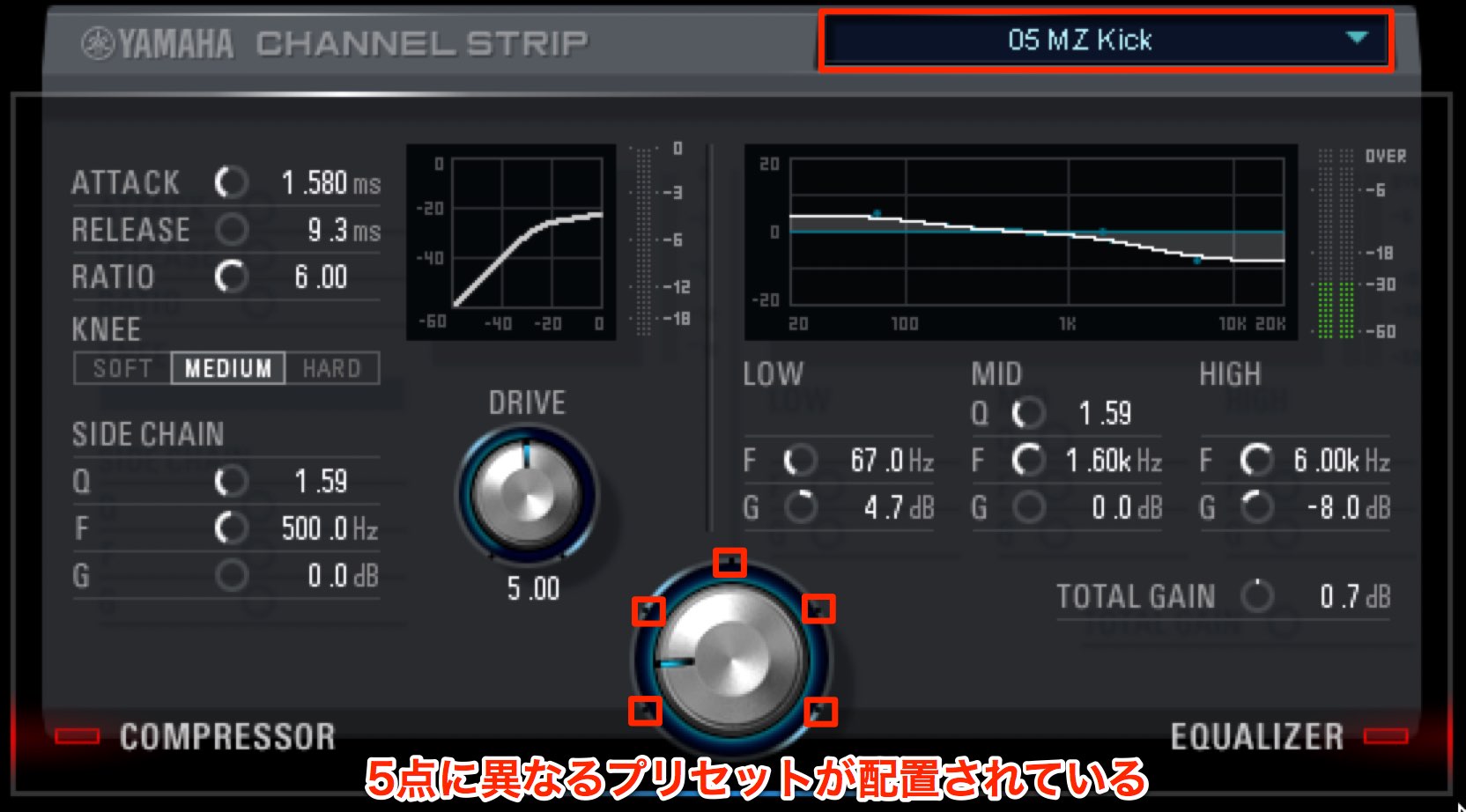
Here we selected “05 MZ Kick” for a kick track.
One feature of Morphing Channel Strip is that each preset contains five different settings.
The five points around the lower dial correspond to these settings; turning the dial changes the settings.
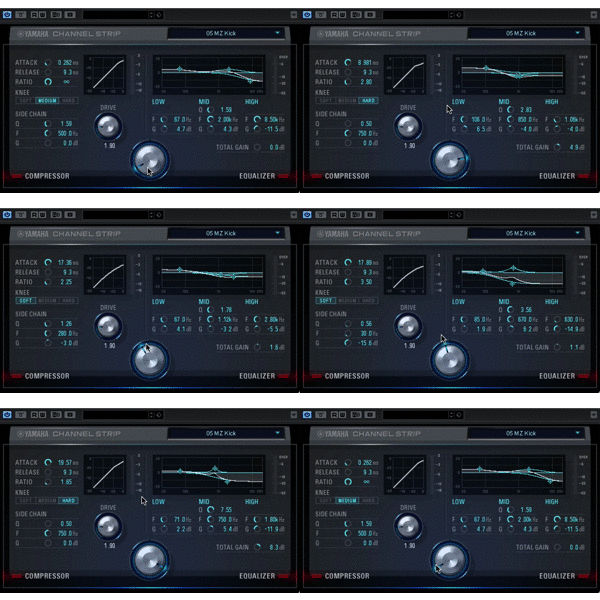
The dial moves smoothly between points, and the parameters transition smoothly between their values.
This makes it easy to find settings that suit a track.
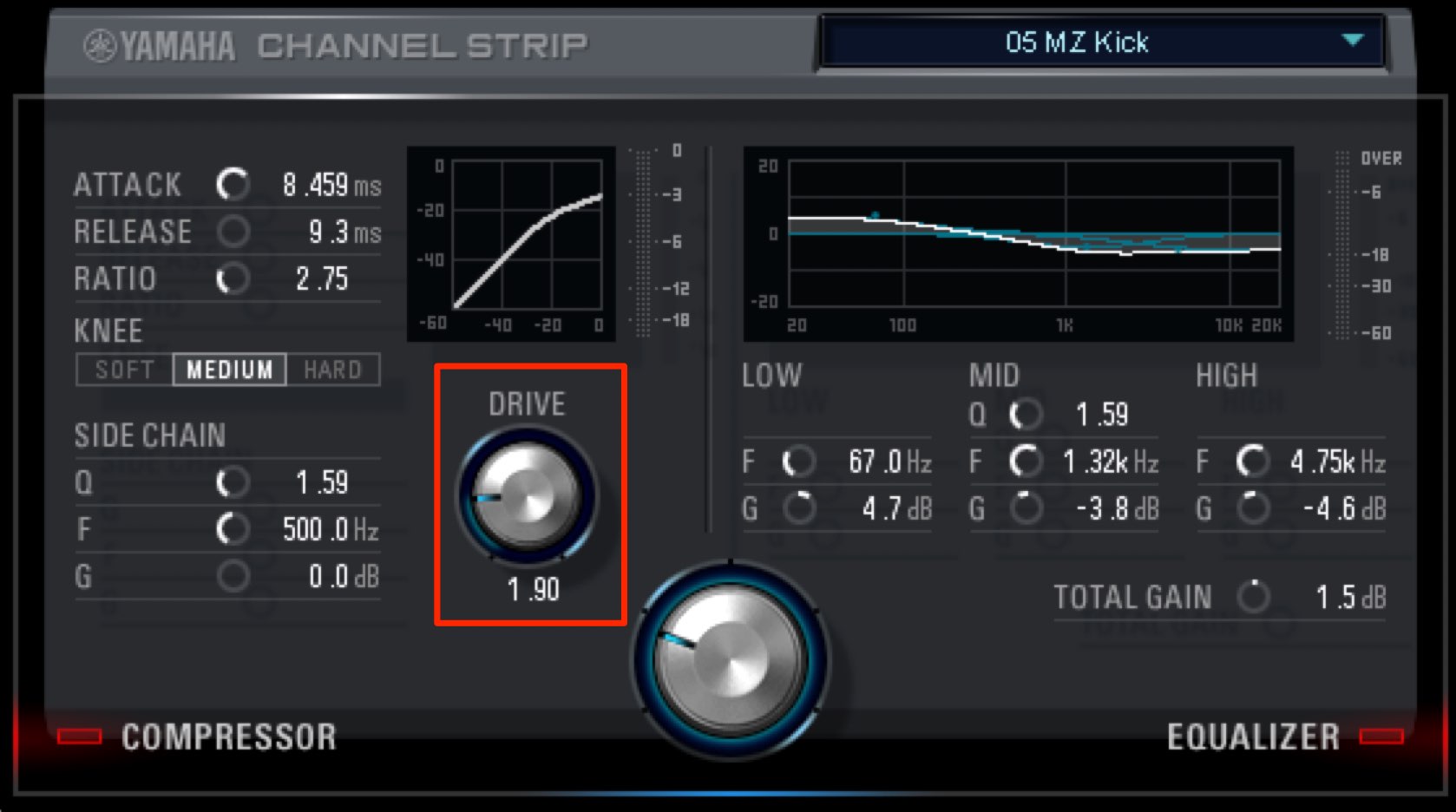
The most important control to watch when using presets is DRIVE.
We will explain DRIVE in the compressor section below.
Compressor section parameters
To customize a preset or set up the plug-in from scratch, adjust its parameters manually.
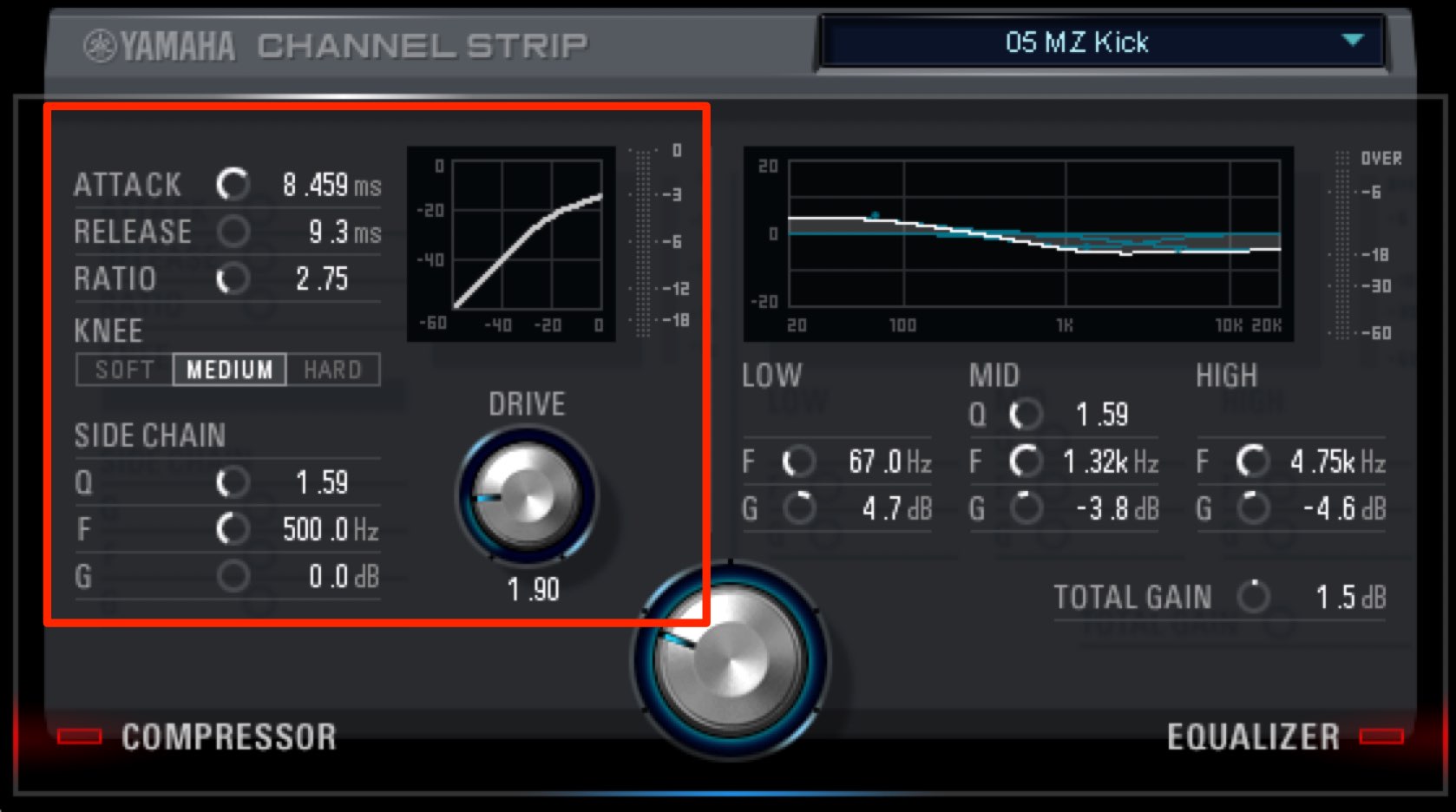
First, let’s examine the controls in the compressor section.
What is a compressor?
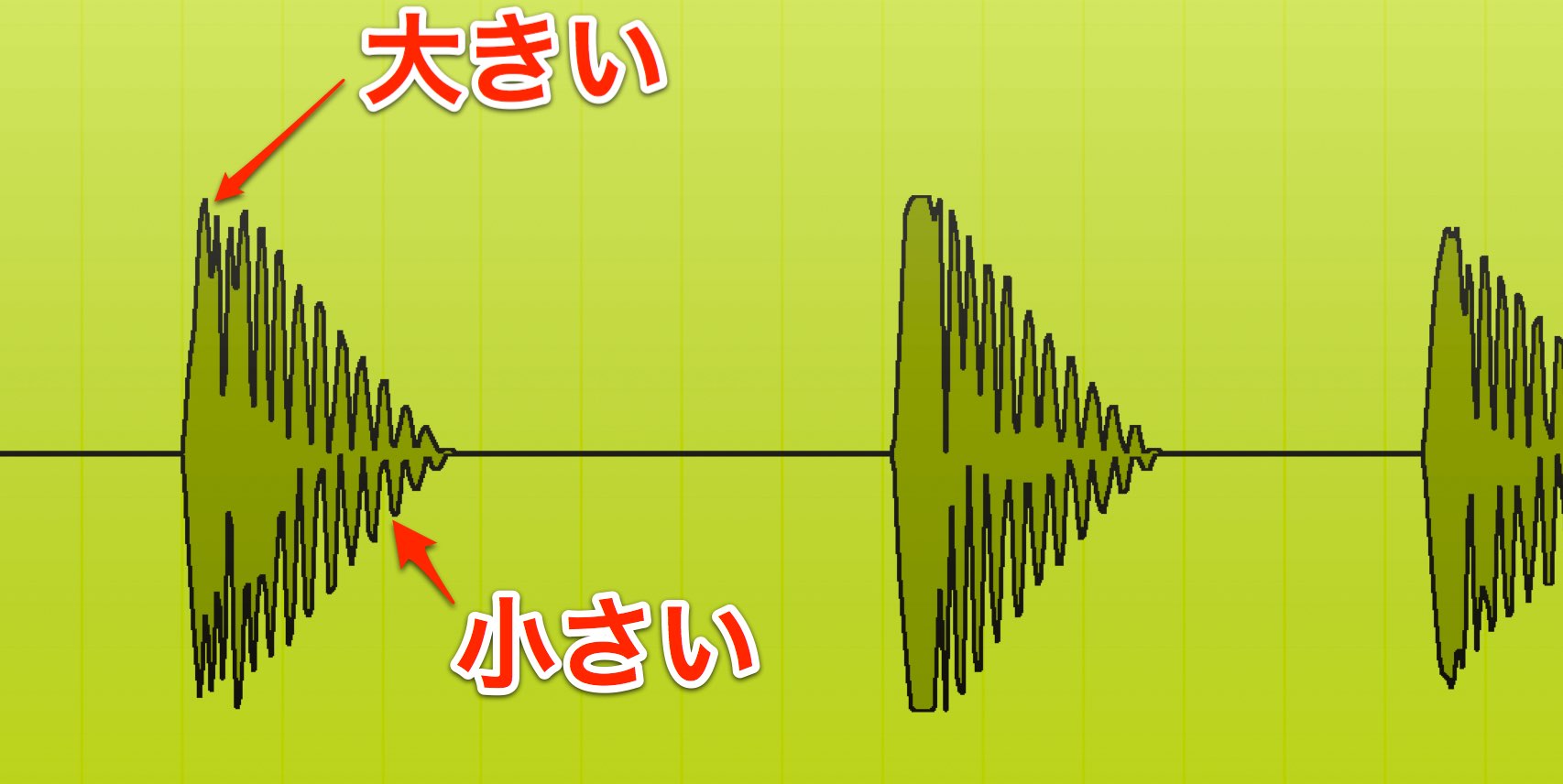
The levels of many instruments and tracks—including drums, bass, guitar and vocals—vary during a performance.
A compressor helps make a performance easier to hear by reducing these level differences.
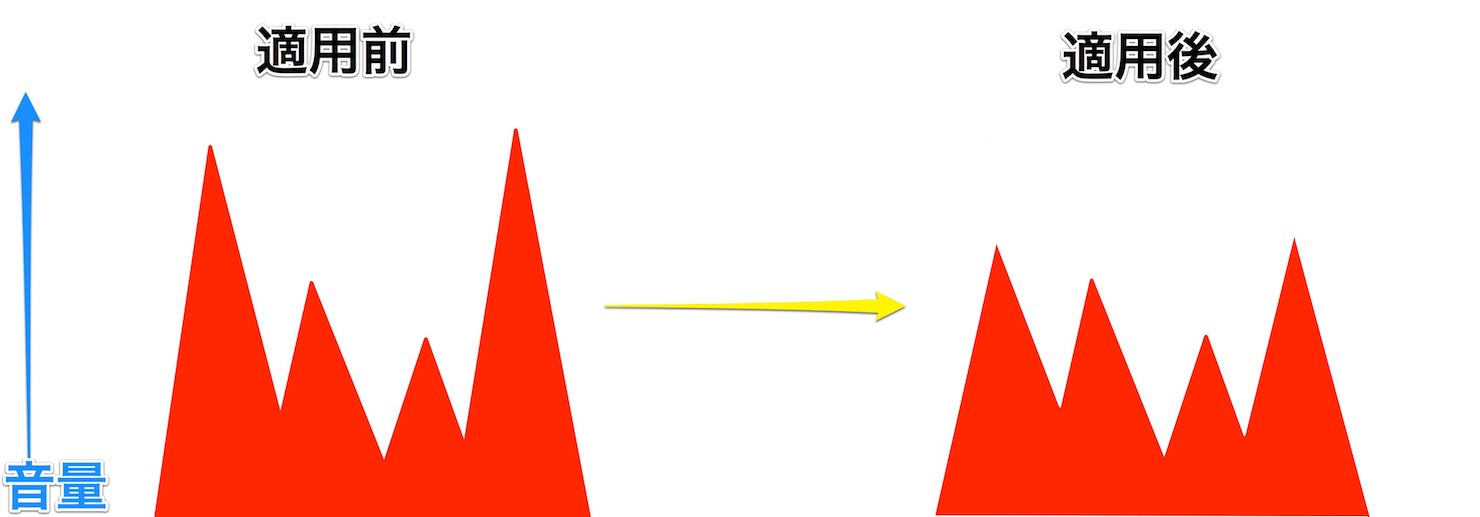
It does this by compressing louder portions to reduce their difference from quieter portions.
The illustration is simplified for clarity; the parameters control details such as the range and timing of compression.
DRIVE
This parameter also needs attention when using presets.
A compressor reduces louder levels; DRIVE sets the reference for what counts as loud enough to compress.
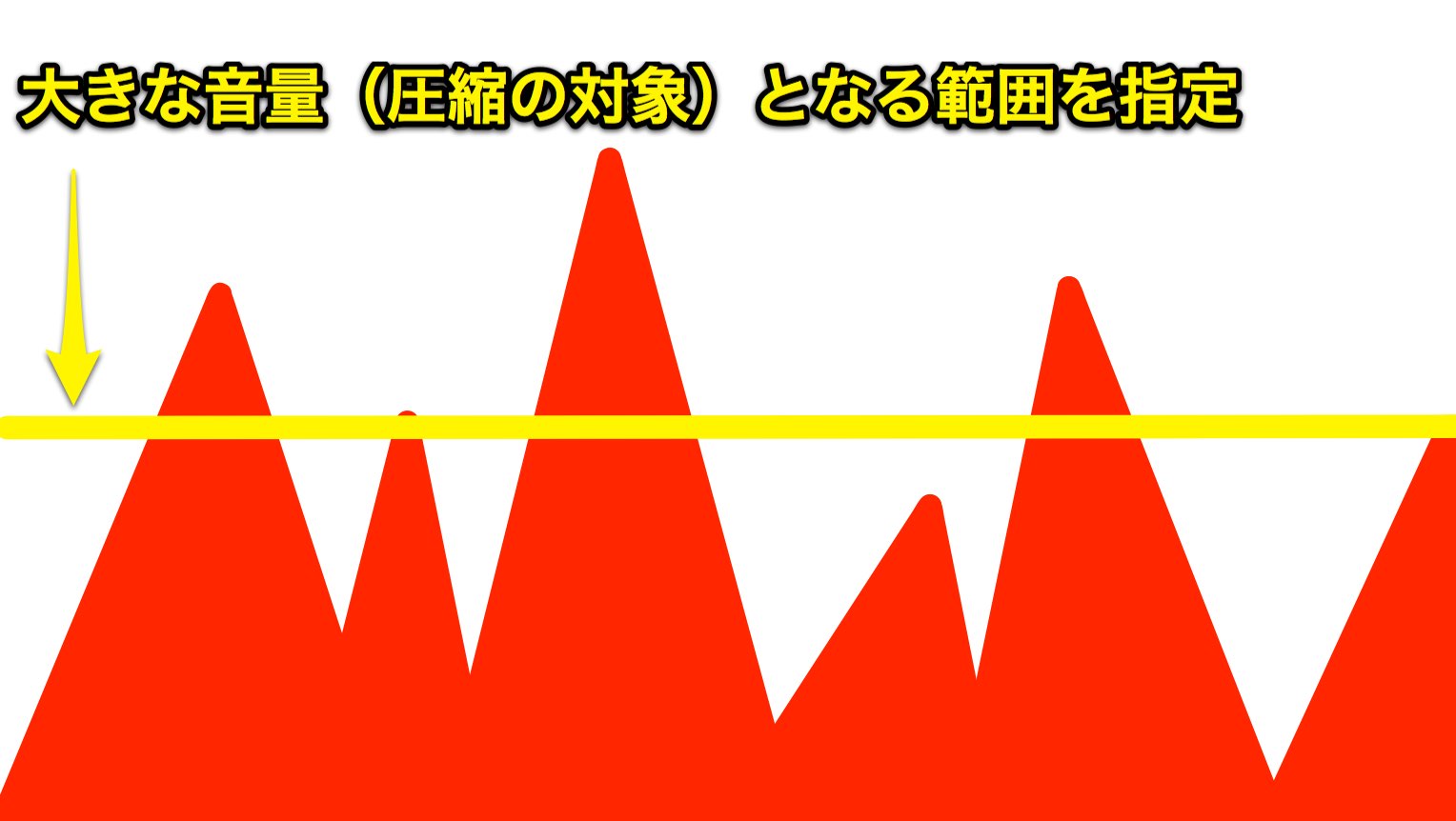
Think of raising DRIVE as lowering the effective threshold so that more of the signal is compressed.
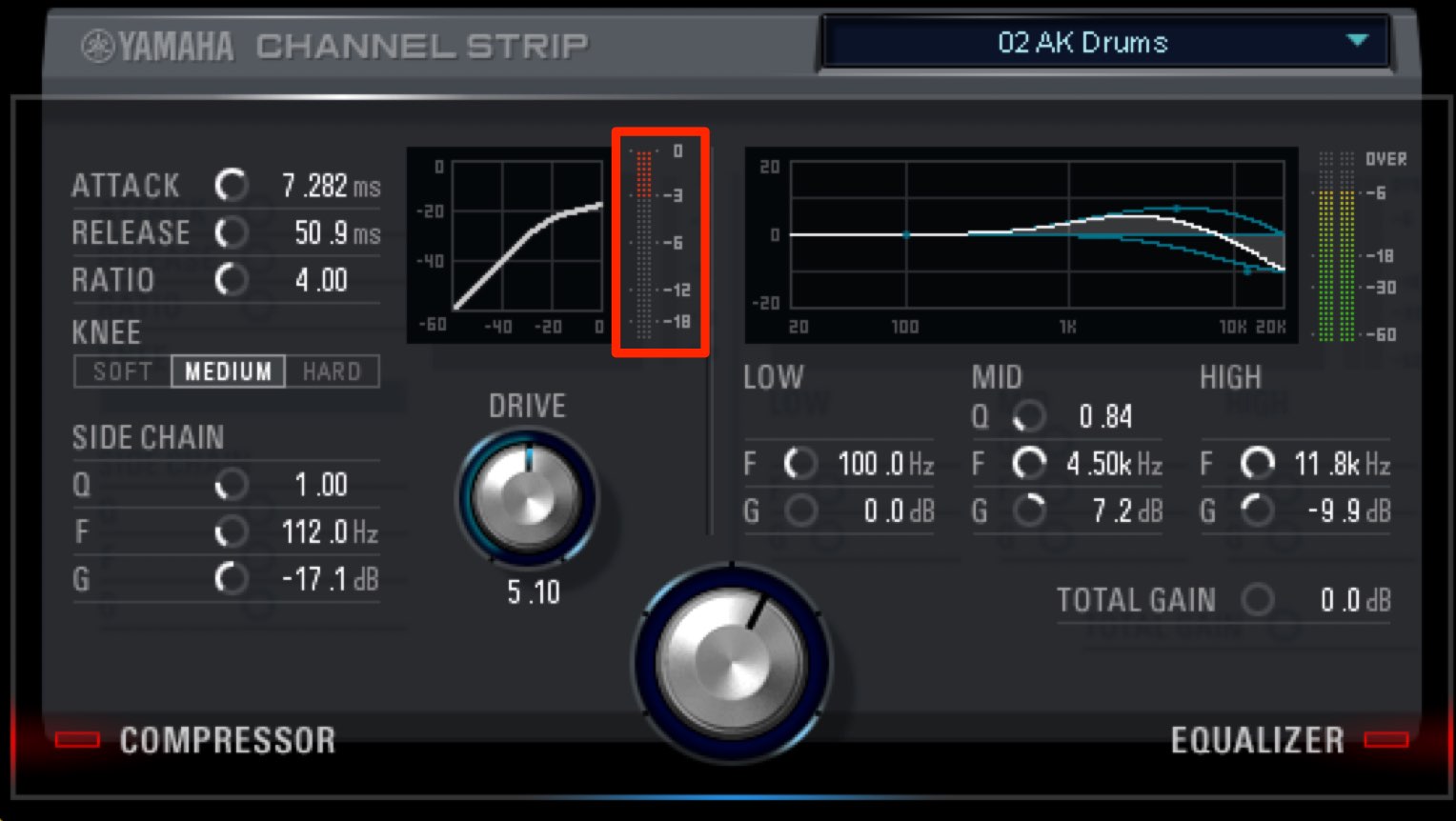
The GR (gain reduction) meter shows how much compression is being applied.
As you raise DRIVE, you can see the amount of gain reduction increase on the GR meter.
Gain reduction is measured in decibels (dB). As a starting point, try around −3 to −6 dB to hear the change in sound.
The article notes that DRIVE is not included in the preset and remains fixed when presets change.
Because each track’s level differs, compression may be too weak or too strong. Adjust DRIVE yourself while watching the GR meter.
RATIO
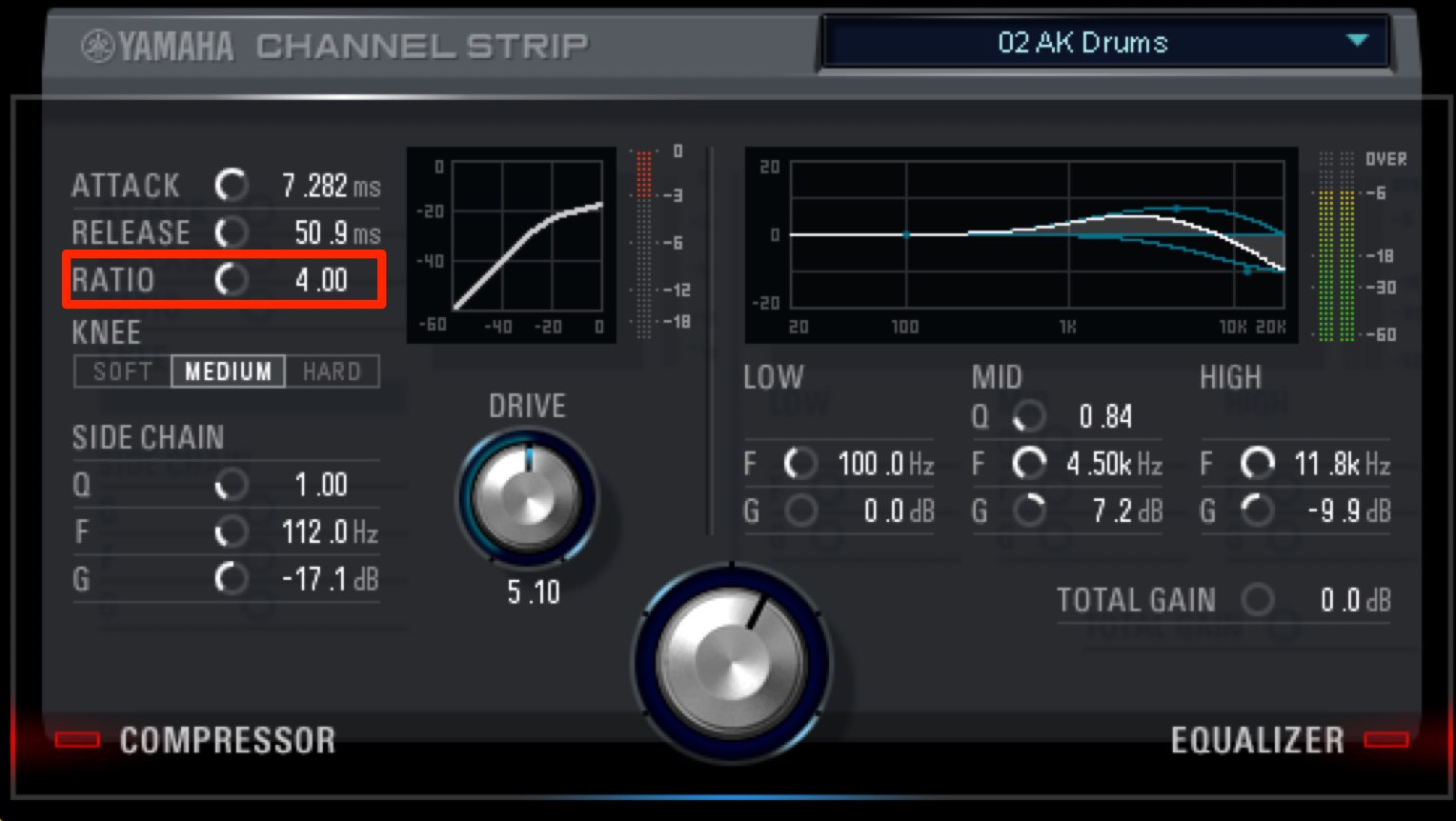
RATIO sets how much levels above the DRIVE reference are compressed.
Increasing the value increases the amount of compression.
At the minimum value of 1:1, there is no compression.
Higher settings can make the sound denser and punchier, but they can also sound unnatural or make it less clear in the mix.
Try 3:1–4:1 as a starting point and use around 8:1 if you want a stronger effect.
ATTACK
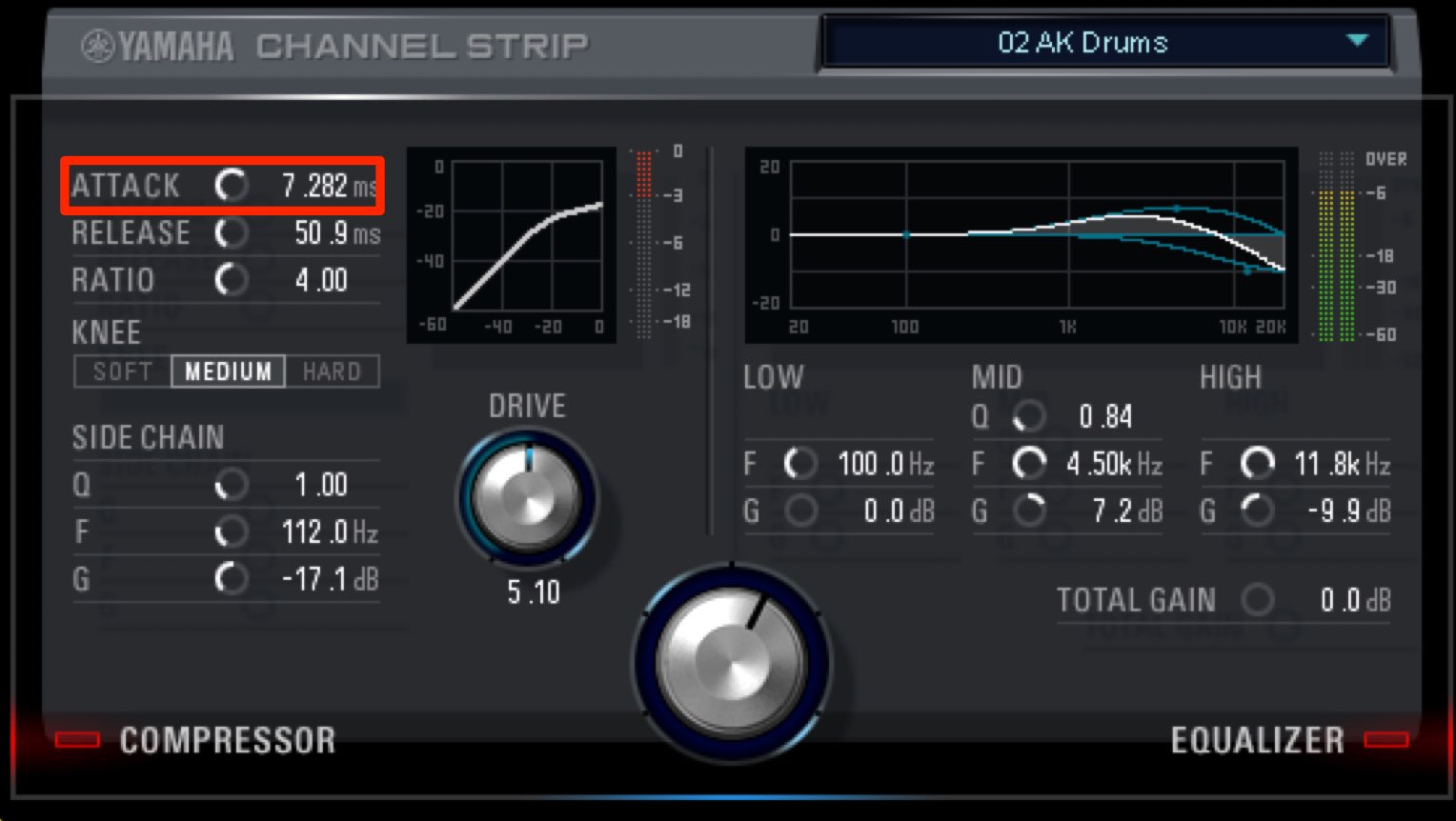
ATTACK controls how quickly compression approaches the selected RATIO after a signal exceeds the DRIVE reference.
It is usually measured in milliseconds (ms), or thousandths of a second.
Smaller values apply compression more quickly; larger values take longer.
An extremely fast attack can make a sound seem to recede.
The article suggests values below 10 ms when you want to alter the sound’s attack; the result also depends on the material and settings.
If the attack is too slow, a short sound may finish before compression fully develops.
Choose the setting with the desired character of each track in mind.
RELEASE
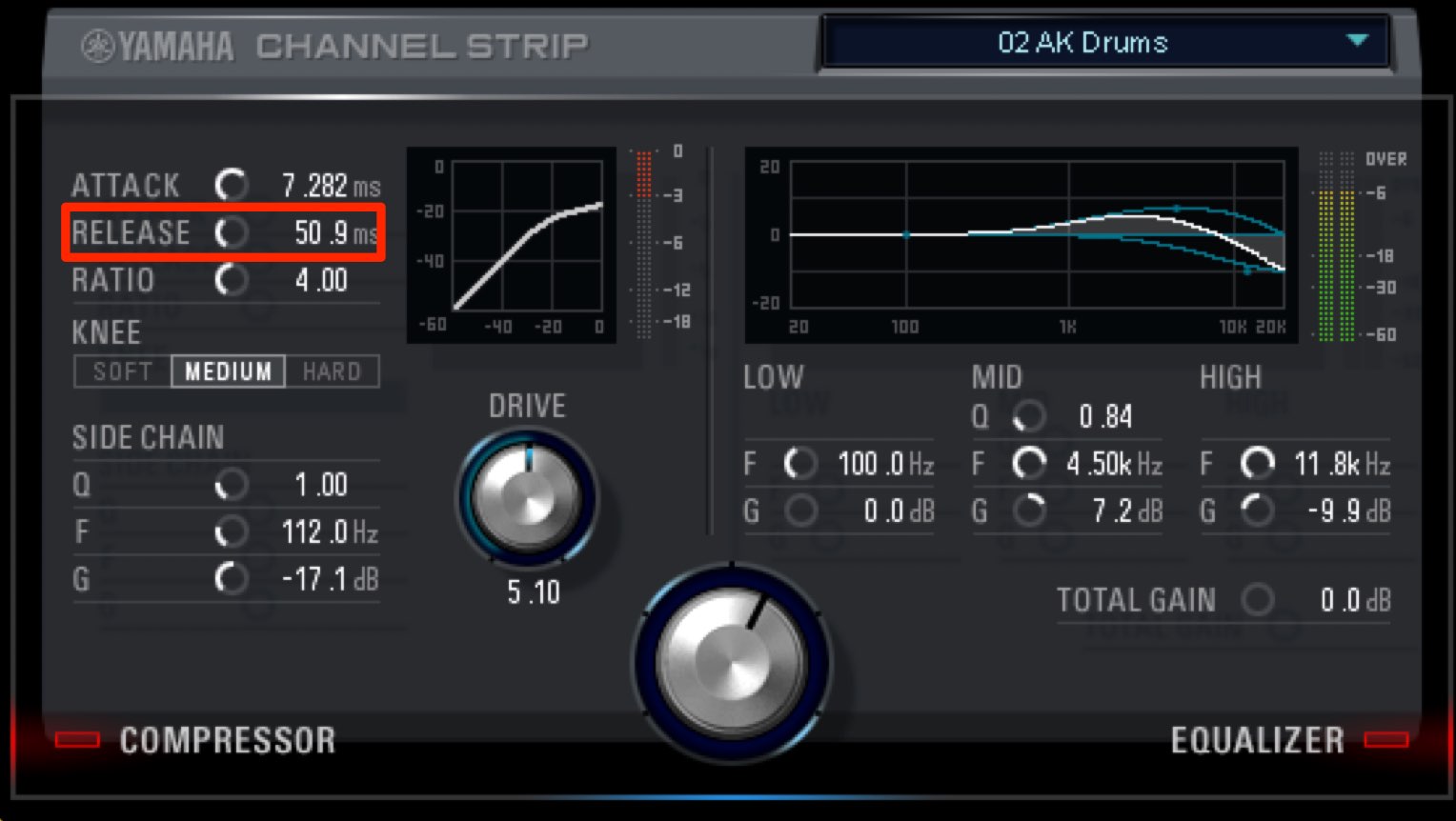
RELEASE controls how quickly compression is relaxed.
When the signal falls below the DRIVE reference, the compressor begins to release.
If compression stopped instantly, the sound could become unnatural.
RELEASE lets the compression fade out over the selected time.
Like ATTACK, it is measured in milliseconds (ms).
A longer release, such as 100 ms or more, can leave compression active when the next attack arrives, depending on the performance.
This can help even out inconsistent levels, but may not suit a performance whose dynamics you want to preserve.
For fast-decaying percussion, the article suggests trying a shorter release, around 80 ms or less, so the compression can finish between hits; the right value depends on the material and tempo.
Watch the GR meter as a guide.
With a short release the meter returns quickly; with a long release it returns more slowly, giving you a useful visual cue.
KNEE
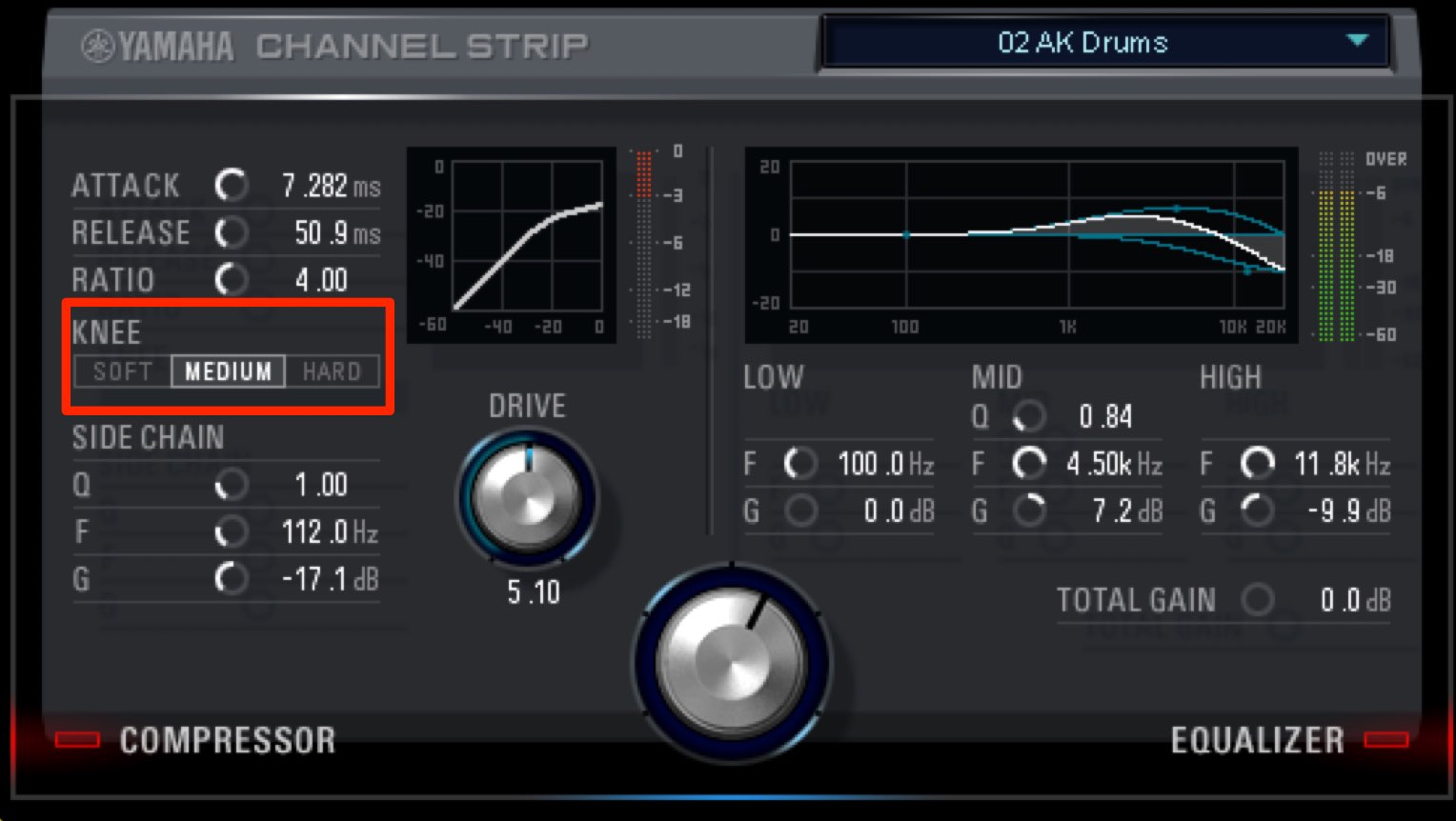
This parameter controls the character of the compression.
It changes how gradually compression begins around the DRIVE reference, giving different responses and sounds.
Choose from SOFT, MEDIUM and HARD.
- SOFT: produces a more gradual, natural level change.
- MEDIUM: sits between SOFT and HARD.
- HARD: produces a more pronounced level change.
Switch between the three and choose the one that suits the sound you have in mind.
What did you think?
Understanding these parameters lets you take sound design beyond the presets.
Try a variety of settings!
Next time, we will explore the Morphing Channel Strip equalizer section.
Steinberg distributor — Access Yamaha Music Japan content
- Yamaha Music Japan MPP (YouTube) https://www.youtube.com/user/SteinbergJapan
- MPP (Twitter) https://twitter.com/SteinbergJP
- Music production program Sound Roster (Fresh!) https://freshlive.tv/ymjsoundroster
Purchase products: https://japan.steinberg.net/jp/products/hardware/ur_series/lineup.html The original article lists UR242, UR44, UR28M, UR824 and the UR-RT series as supporting dspMixFx.
Frequently asked questions
Q1. Can Morphing Channel Strip be used in Ableton Live?
The original article’s compatibility advice reflects September 2017, when the version of Ableton Live discussed did not support VST3. Compatibility depends on the versions of the DAW and plug-in; check their current system requirements. The article recommended VST3-compatible DAWs such as Cubase and Studio One.
Q2. How should I adjust the compressor’s DRIVE?
The article notes that DRIVE is not included in presets, so adjust it for each track’s level. Watch the GR meter and try around −3 to −6 dB of gain reduction as a starting point, then adjust by ear.
Q3. What happens if ATTACK is too long?
A short sound may end before compression fully develops, reducing the audible effect.
Q4. Which instruments might benefit from a short RELEASE?
For fast-decaying percussion such as kick and snare, try a shorter release—around 80 ms or less as a starting point—so compression can recover between hits. The appropriate timing depends on the performance and tempo.
NEW ARTICLES
Latest English Articles























































































































































































































































































































































