
Arturia's KeyLab Essential mk3 is a lightweight MIDI controller designed for computer-based music production. This 2023 guide covers the 49- and 61-key models, USB-C connectivity, DAW controls, pads, performance tools and integration with the included Analog Lab software. The display and encoders help with track volume, pan and transport operations. Software names, bundles and prices below reflect the original review; check the official product page for the current package.
A Stylish Keyboard with Practical Features
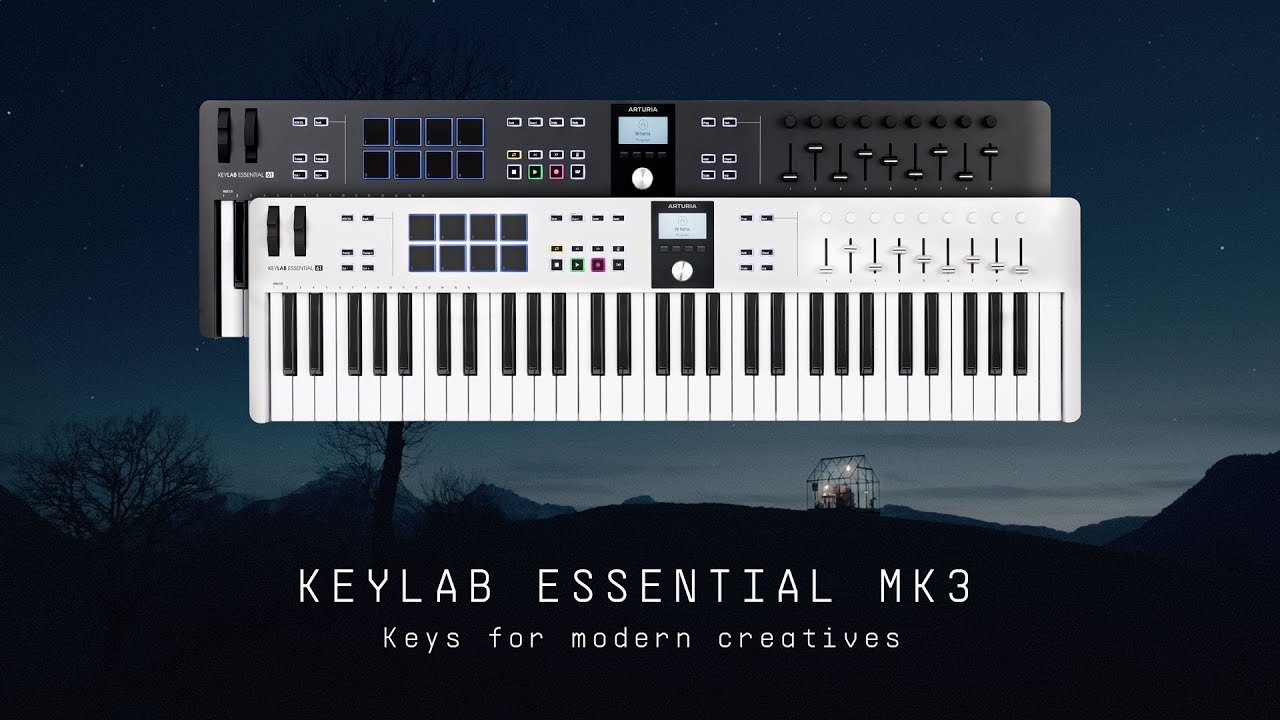
Arturia, known for its music-production plug-ins and hardware, has released a new MIDI keyboard: KeyLab Essential mk3.
Positioned as the successor to the previous KeyLab Essential, it emphasizes features for computer-based music production.
In this hands-on guide, we explore KeyLab Essential mk3 from its basic features through everyday operation.
KeyLab Essential mk3 Video
- 1Product Overview and Features
- 2Controlling Your DAW
- 3The Pad Section
- 4Customization with MIDI Control Center
- 5The Keyboard Section
- 5.1Setting the MIDI Channel
- 5.2Octave and Transpose Settings
- 5.3Pitch-Bend and Modulation Wheels
- 5.4Scale Mode
- 5.5Chord Mode and Chord Presets
- 5.6The Arpeggiator
- 6Integration with Analog Lab V
Selected Questions and Answers from YouTube

How can I add a DAW track from the keyboard?

The standard controls mainly cover operations such as playback, stop, recording, track navigation and volume. In the documentation checked for this answer, we did not find an official description of directly adding a track from the controller. Adding tracks in the DAW itself is therefore the reliable approach.
Hello! I bought a KeyLab Essential 49, but every note plays at the same volume. What could be causing this?
First, check the KeyLab's velocity settings. KeyLab Essential supports velocity, but if Velocity Curve is set to Fixed in MIDI Control Center, notes will have the same velocity regardless of how hard you play. Also check whether the sound or instrument you are using responds to velocity.
Product Overview and Features
First, let's look at the main features.
49- and 61-Key Models

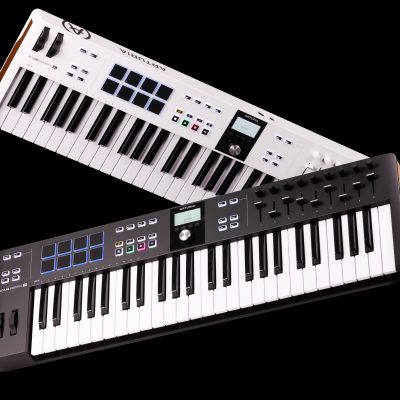
The models covered here have 49 or 61 keys, each available in black or white at the time of the review.
The white finish was a welcome option and should fit into many different rooms.
- 49 keys: 790 mm wide × 240 mm deep × 70 mm high; 2.76 kg
Japanese suggested retail price at the time of the 2023 review: ¥39,600, including tax. - 61 keys: 890 mm wide × 240 mm deep × 70 mm high; 3.08 kg
Japanese suggested retail price at the time of the 2023 review: ¥49,500, including tax.
The lightweight design makes it practical to carry.
We also found the key action carefully balanced, feeling neither excessively light nor heavy.
USB-C Connectivity

The keyboard connects to a computer through USB-C and does not require a separate power adapter.
The supplied USB-C-to-A cable also lets you connect to a computer equipped with USB-A ports.
A Clear Display and Convenient Controls
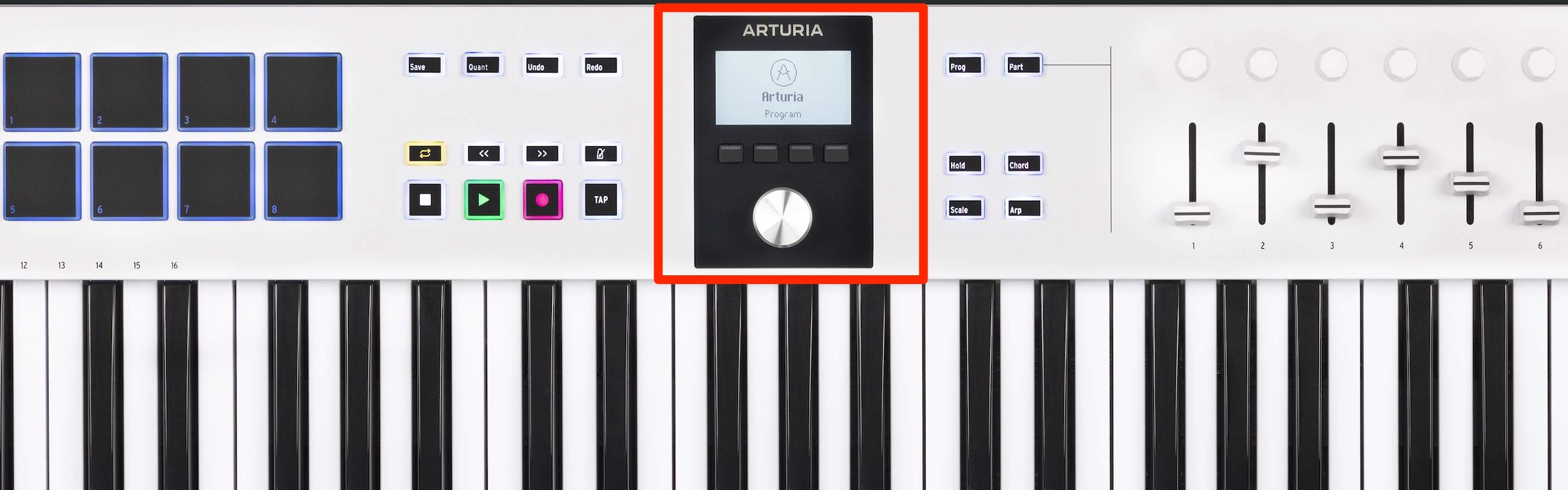
The central navigation display has been improved, making information easier to read. The encoder beneath it also makes operation more convenient.
As we will see, the display presents a range of information that you can work with using the encoder.
Control Major DAWs Comfortably
As a controller focused on music-production workflows, it lets you operate key DAW functions from the hardware.
The straightforward controls can make everyday production tasks more comfortable.
A Generous Software and Service Bundle
The review package includes DAW software, virtual instruments and music-service offers at no additional purchase cost. The bundle and any service-trial conditions may change, so check the current offer.
Particularly useful is Arturia's Analog Lab V, with more than 2,000 sound presets in the package reviewed here. These cover a wide range of sounds, from familiar staples to contemporary styles. We will explore its integration with the keyboard later. Current editions and preset counts may differ.
Let's move on to the details and controls.
Controlling Your DAW
KeyLab Essential mk3 has a DAW mode for controlling your recording software.
The integrations discussed in this guide are:
- Logic Pro
- Cubase
- Ableton Live
- FL Studio
- Bitwig Studio
Setup differs between DAWs.
For detailed instructions, see our setup guide whenever you need it.
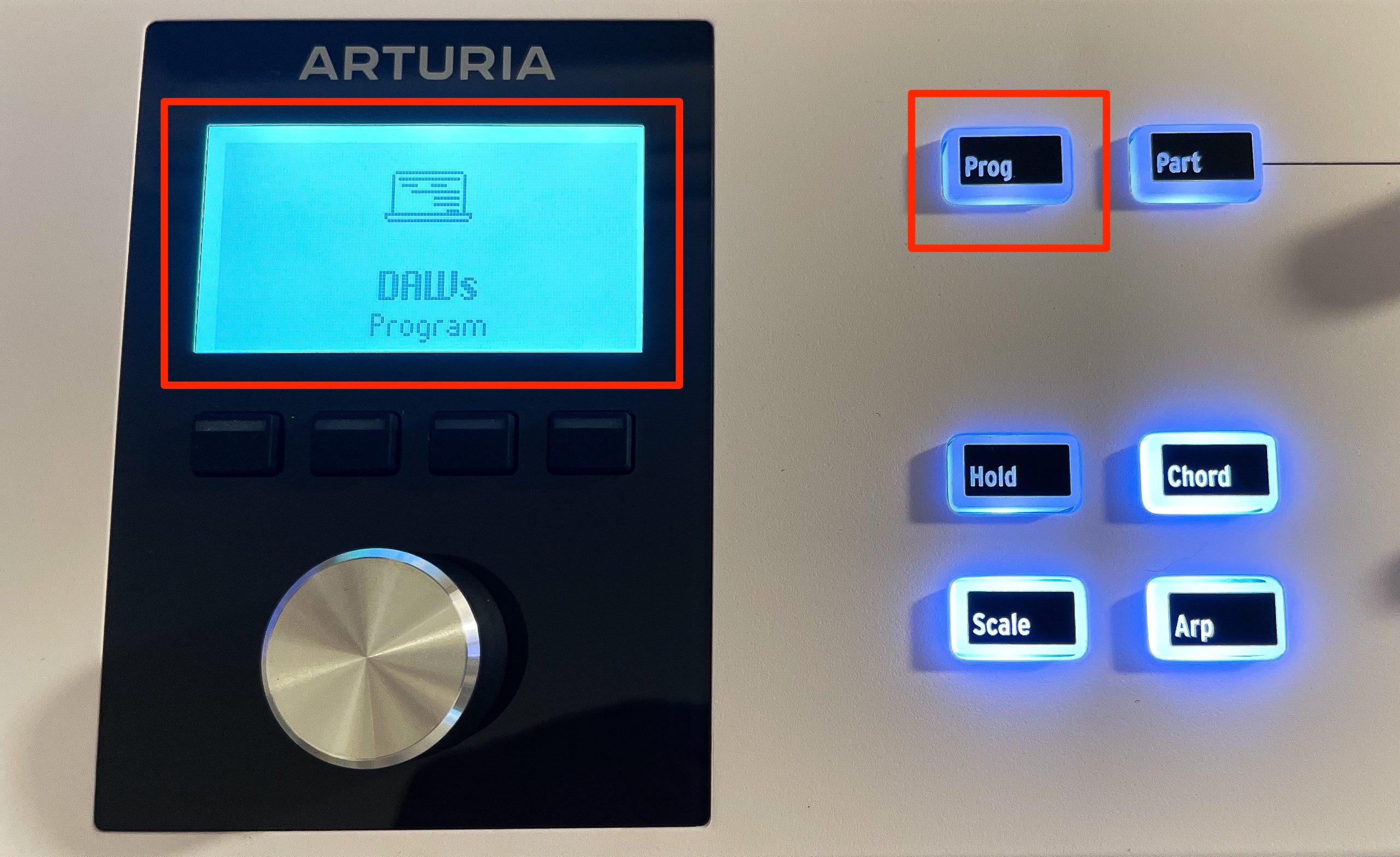
Press Prog to select DAW mode.
The display shows the current mode.
Pressing Prog cycles through Analog Lab mode, DAW mode and the enabled user presets.
Transport and Other Frequently Used Controls
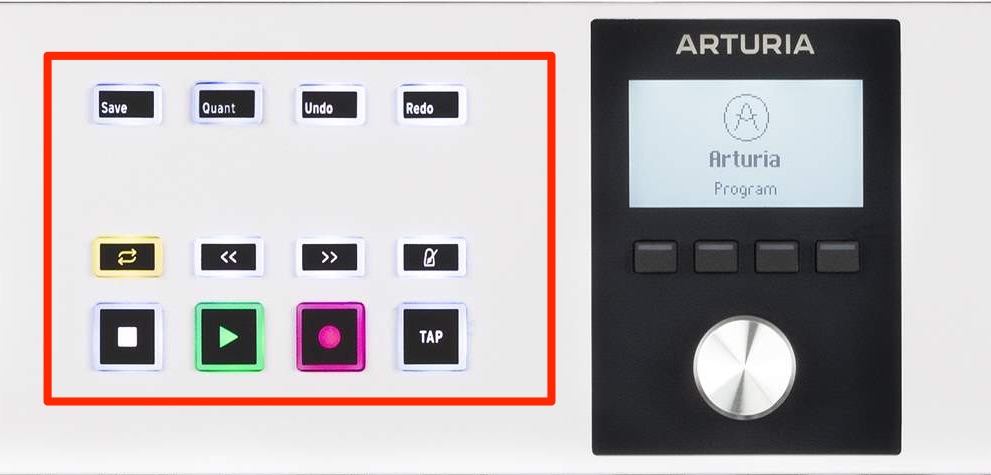
You can operate the DAW transport, including playback, stop, recording and loop.
Other controls include metronome on/off, save, quantize and undo/redo, depending on the DAW integration.
Having these frequently used functions on buttons is convenient.
Intuitive Track Volume and Pan Control
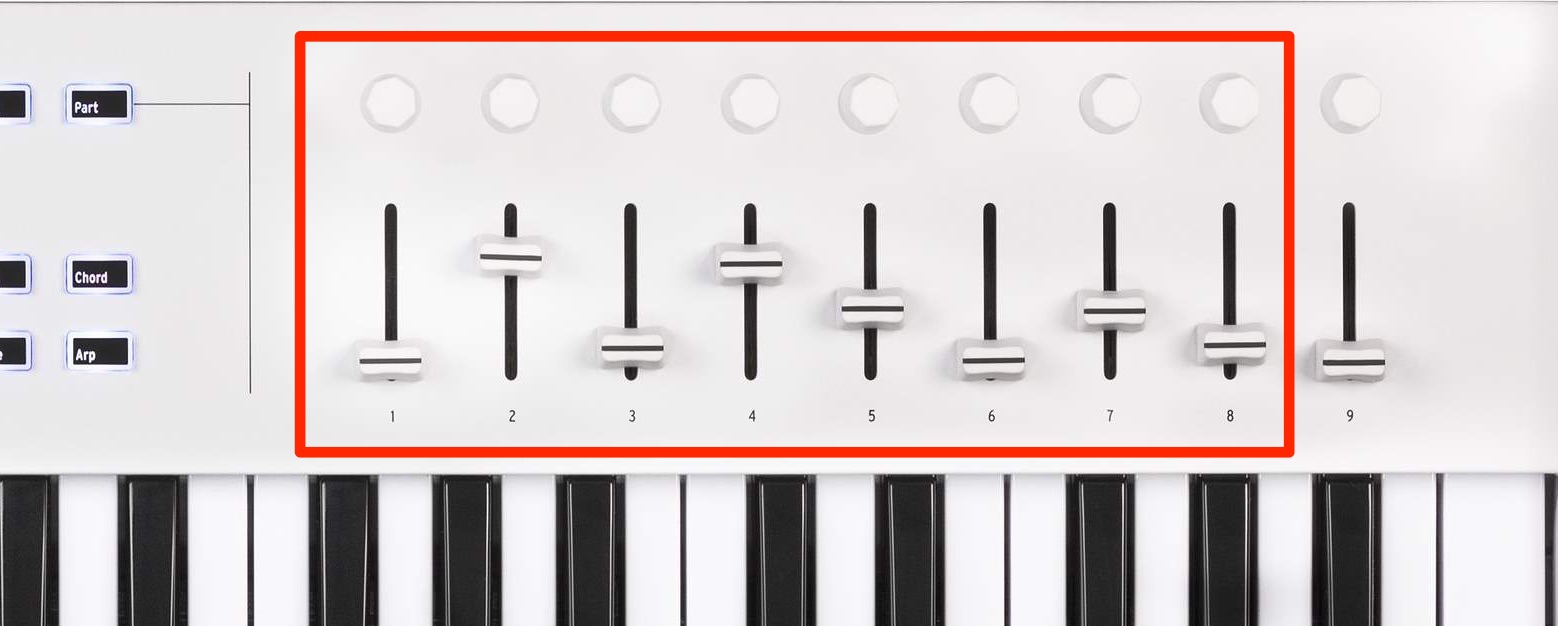
Faders and encoders 1–8 control the DAW tracks' volume and pan.
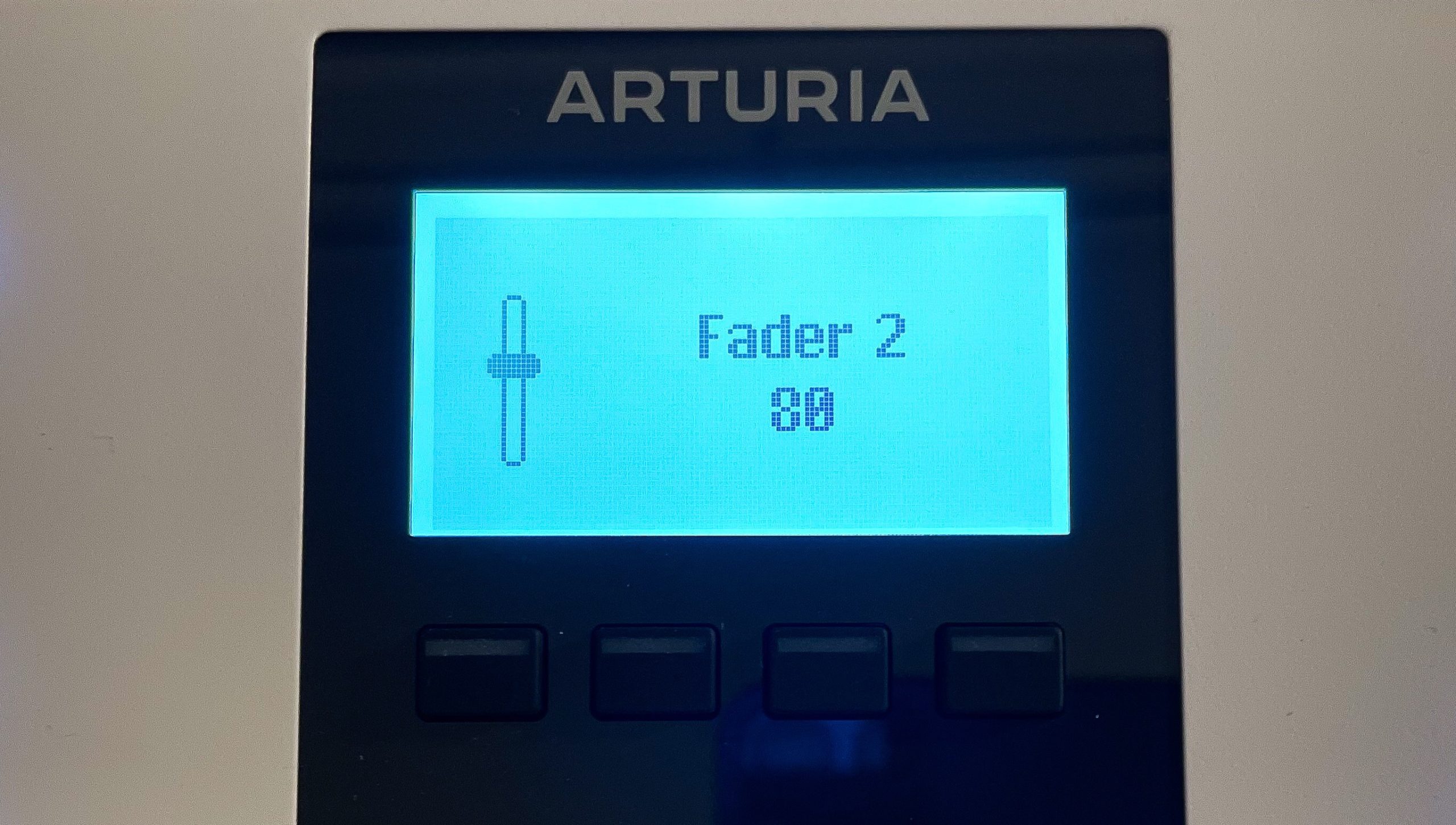
The display clearly shows the current fader or encoder value.
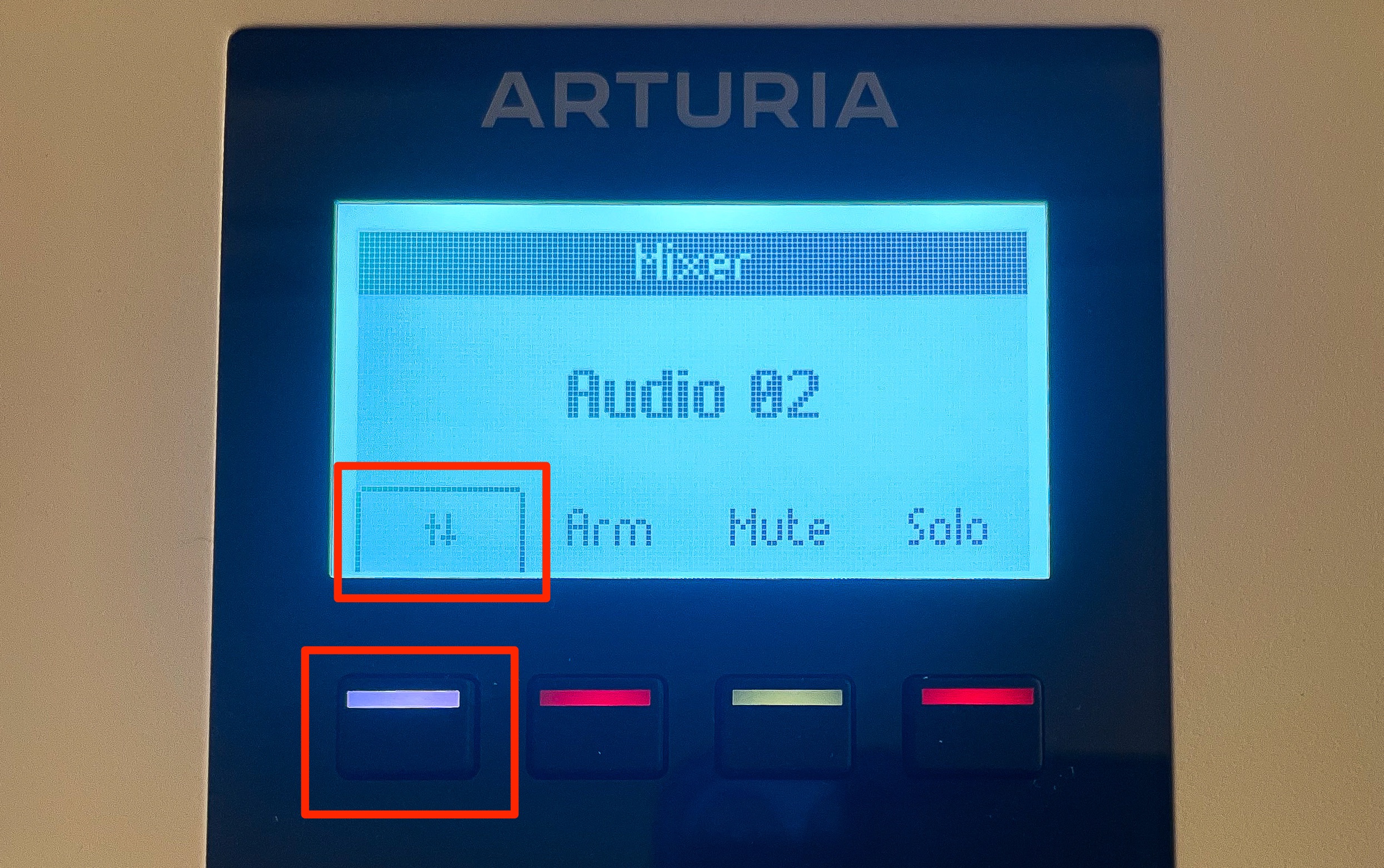
If the faders or pan controls are not following the DAW, press the mixer button on the left to activate the mixer controls.
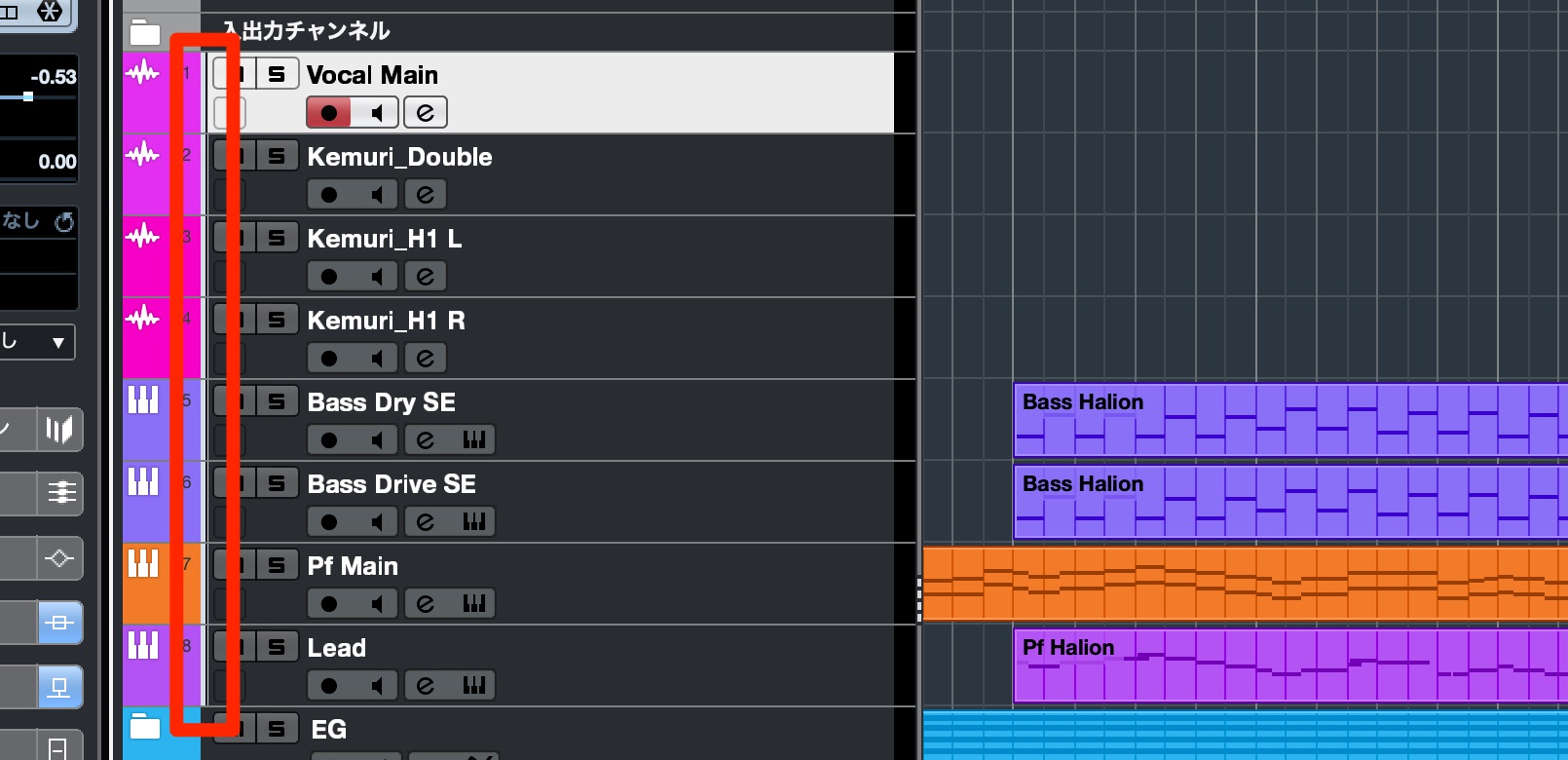
A white outline in the track list indicates the bank of tracks assigned to faders and encoders 1–8 in the DAW shown here.
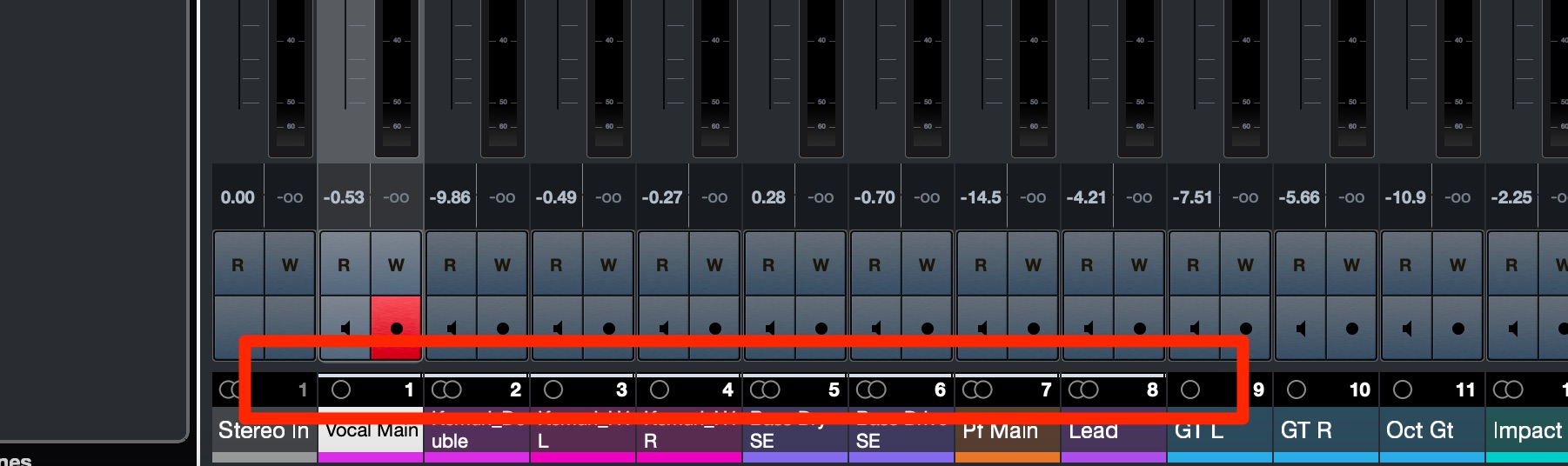
The same indication appears in its mixer window.
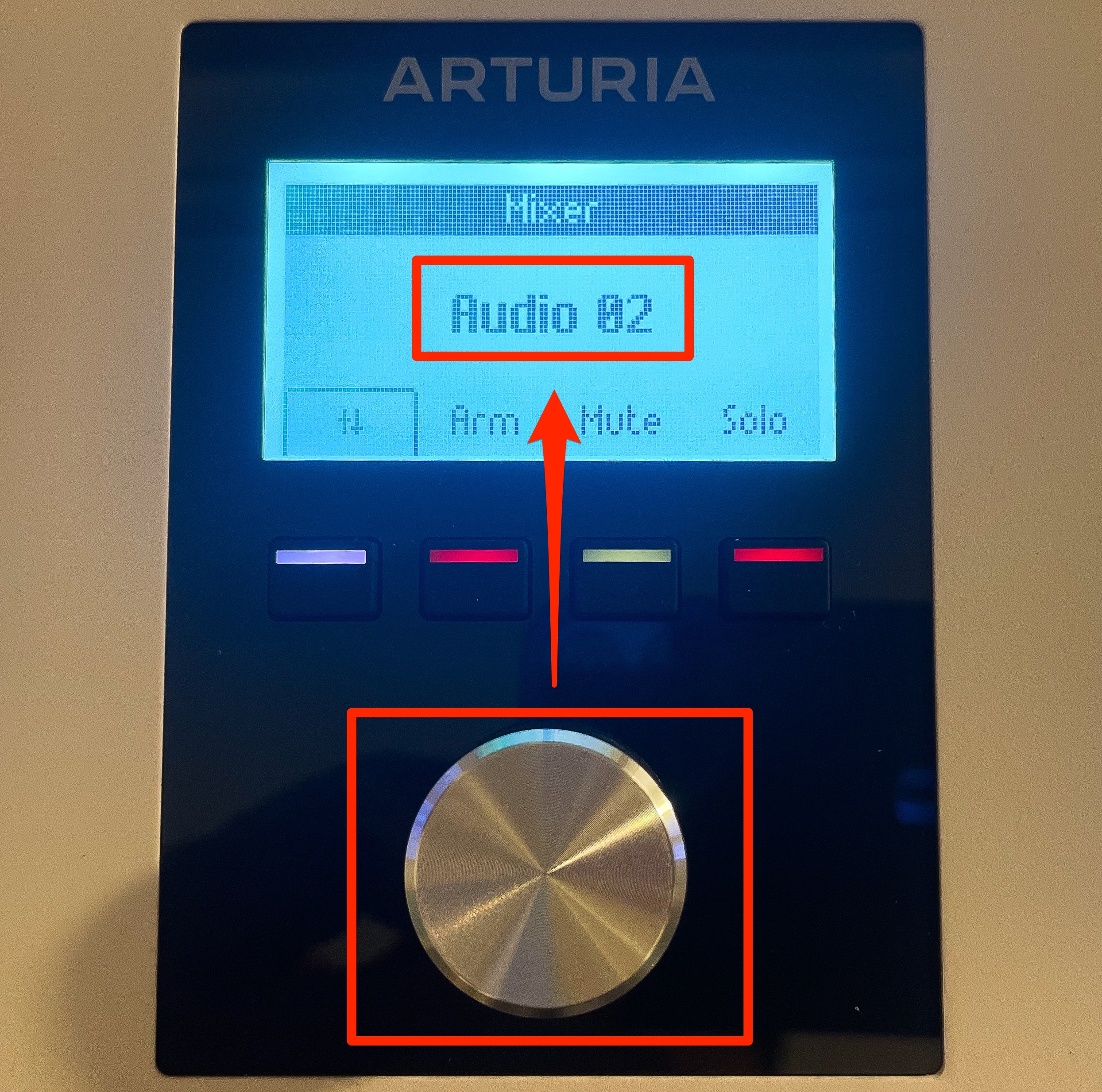
Turn the central encoder to select the track range.
The selected track's name also appears on the keyboard display, helping you keep track of your position.
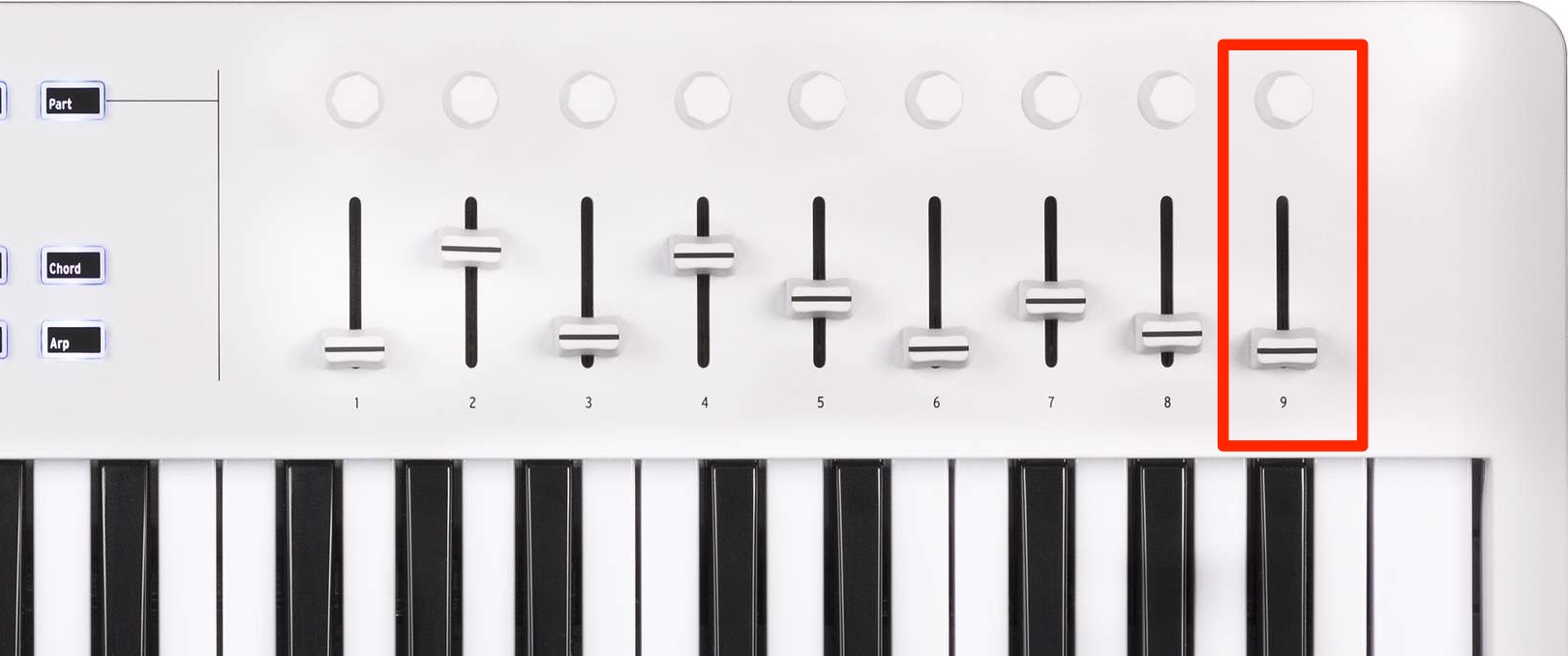
The ninth control on the far right operates the master track.
This gives you direct access to the master independently of the selected bank of eight tracks.
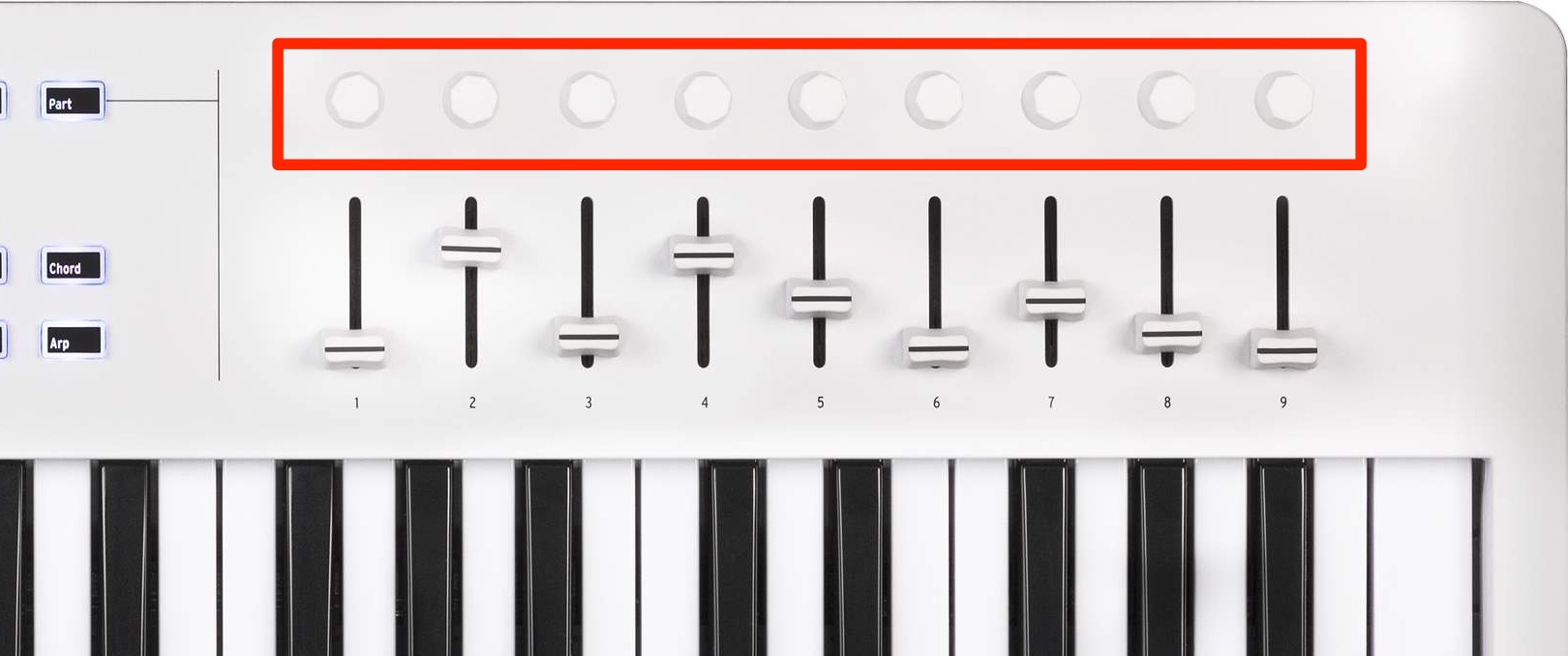
The encoders turn continuously, so you do not run out of physical knob travel when changing values.
It may sound like a small detail, but it makes a noticeable difference in use.
Record Arm, Mute and Solo
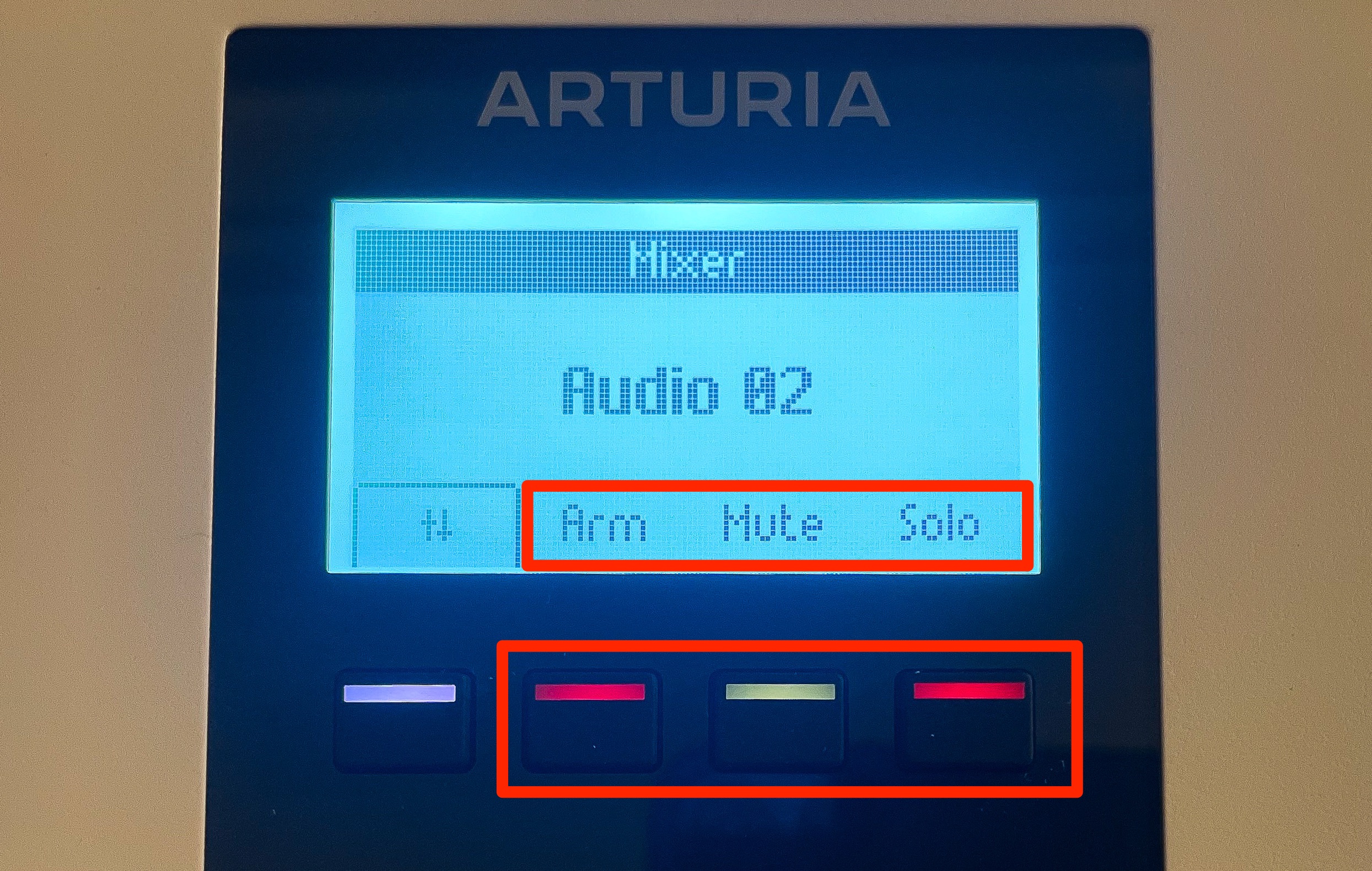
These three buttons control the currently selected track, whose name is shown on the display.
- Left: toggle record arm on or off
- Center: toggle mute on or off
- Right: toggle solo on or off
These frequently used operations are particularly useful during production.
The Pad Section
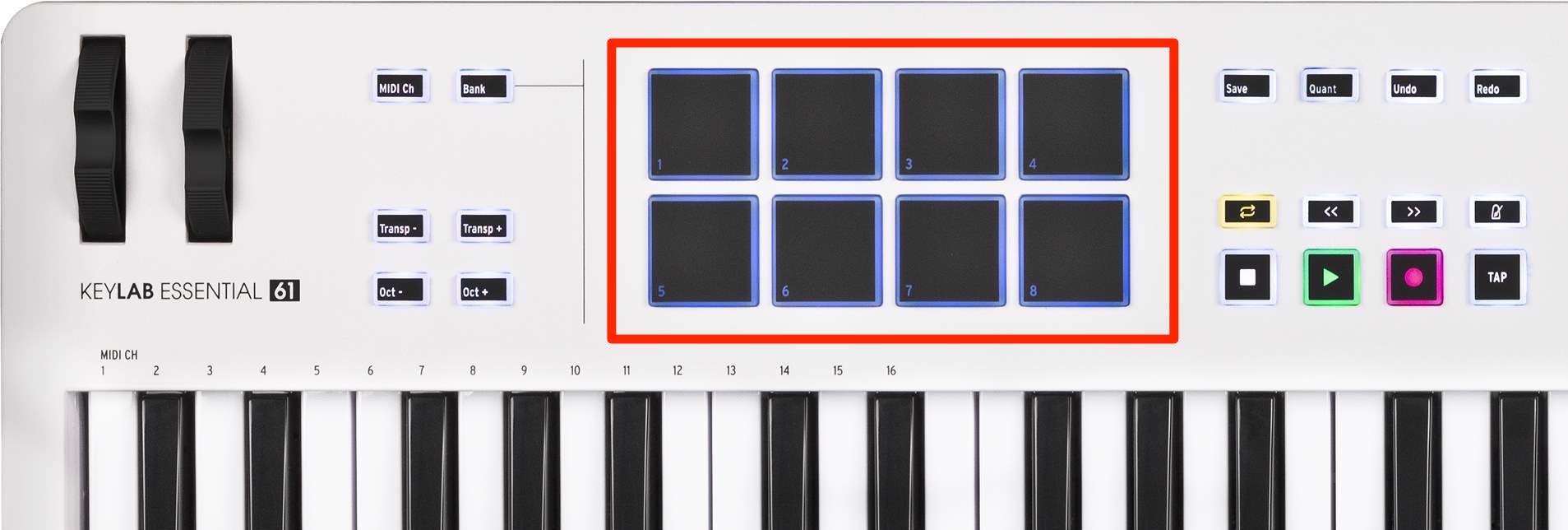
The eight pads are useful for drums and other rhythmic percussion parts.
They also respond to velocity and pressure, allowing you to capture expressive playing.
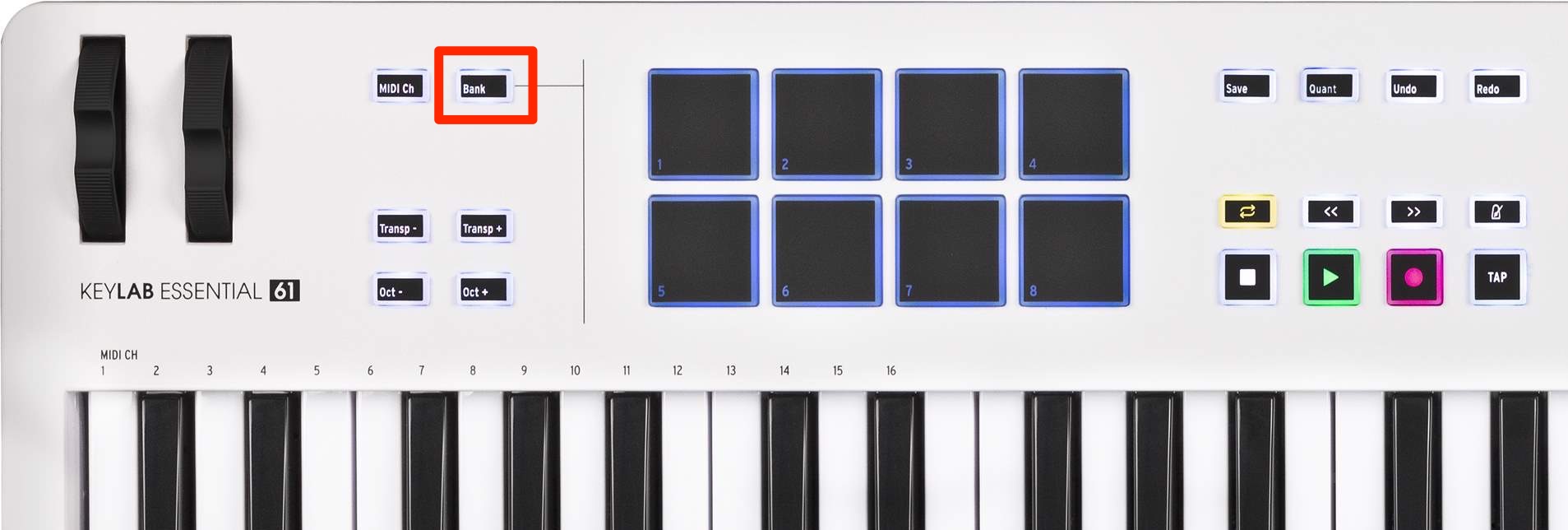
Press Bank to switch between banks A and B.
This gives access to 16 pad assignments in total: eight in each bank.
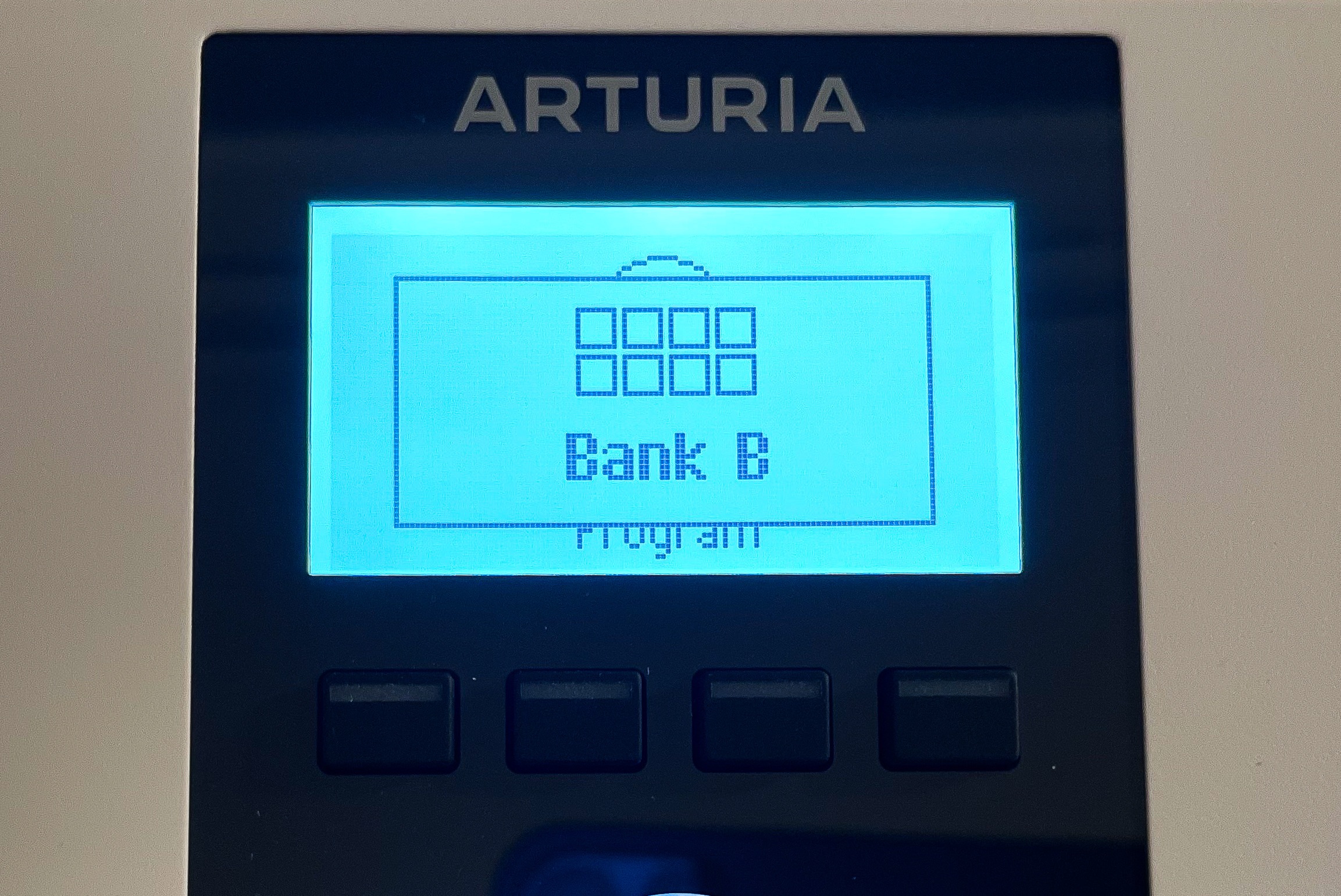
Which bank is active?
The display makes that clear as well.
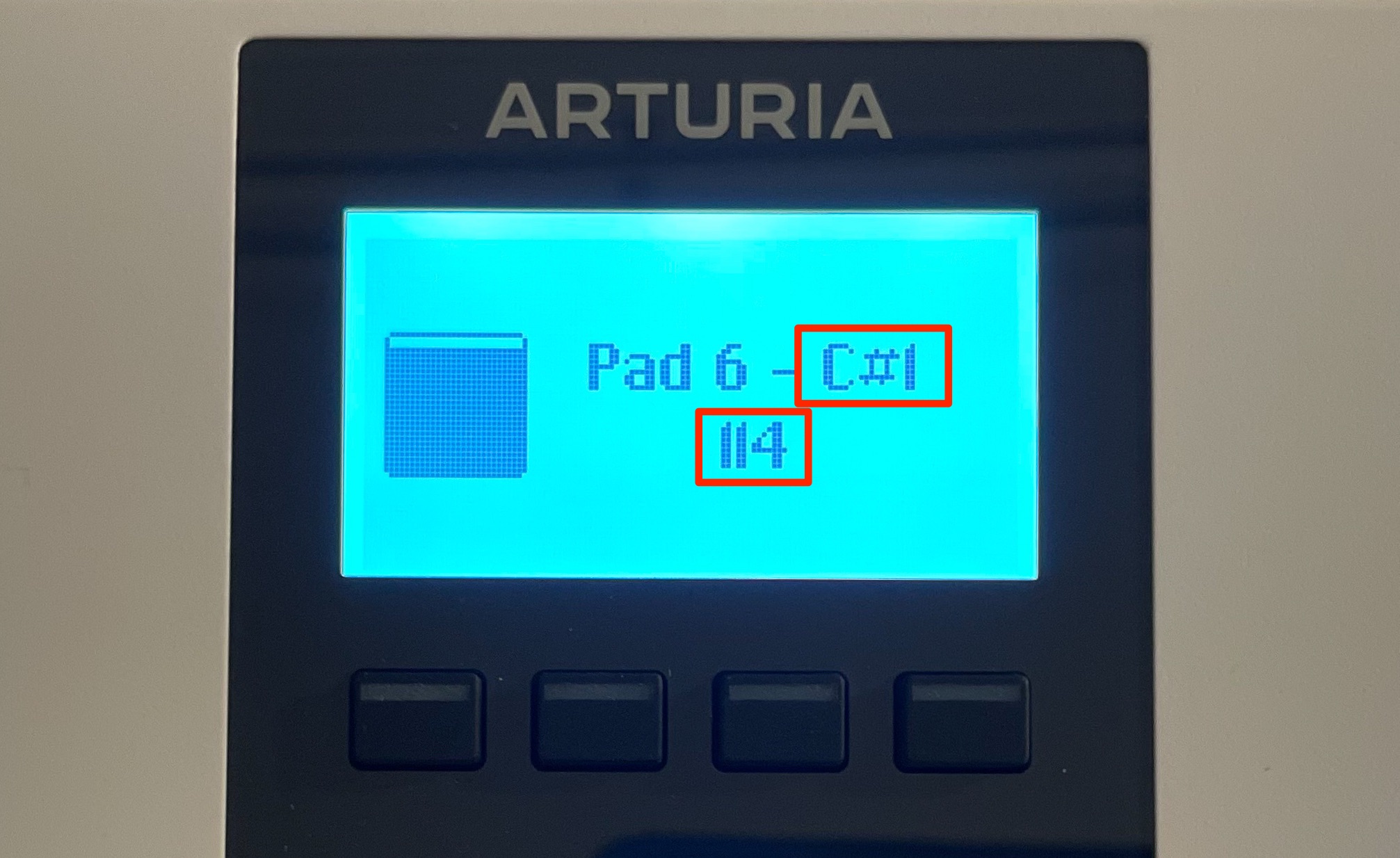
The note and velocity of the pad being played are also shown clearly.
Customization with MIDI Control Center
Next, let's use the pads to explore MIDI Control Center, which lets you customize the assignments of controls such as buttons and knobs.
Each pad has a MIDI note assigned, but you may want to change its note number to match a drum instrument's kit.
Also, the pads use MIDI channel 10 by default in the setup shown here.
Let's adjust these settings.
Launch MIDI Control Center from the following location:
- Mac: Applications → Arturia → MIDI Control Center
- Windows: C drive → Program Files → Arturia → MIDI Control Center
If you have not installed MIDI Control Center yet, see the installation steps in the following article.
First, let's review how customization works.
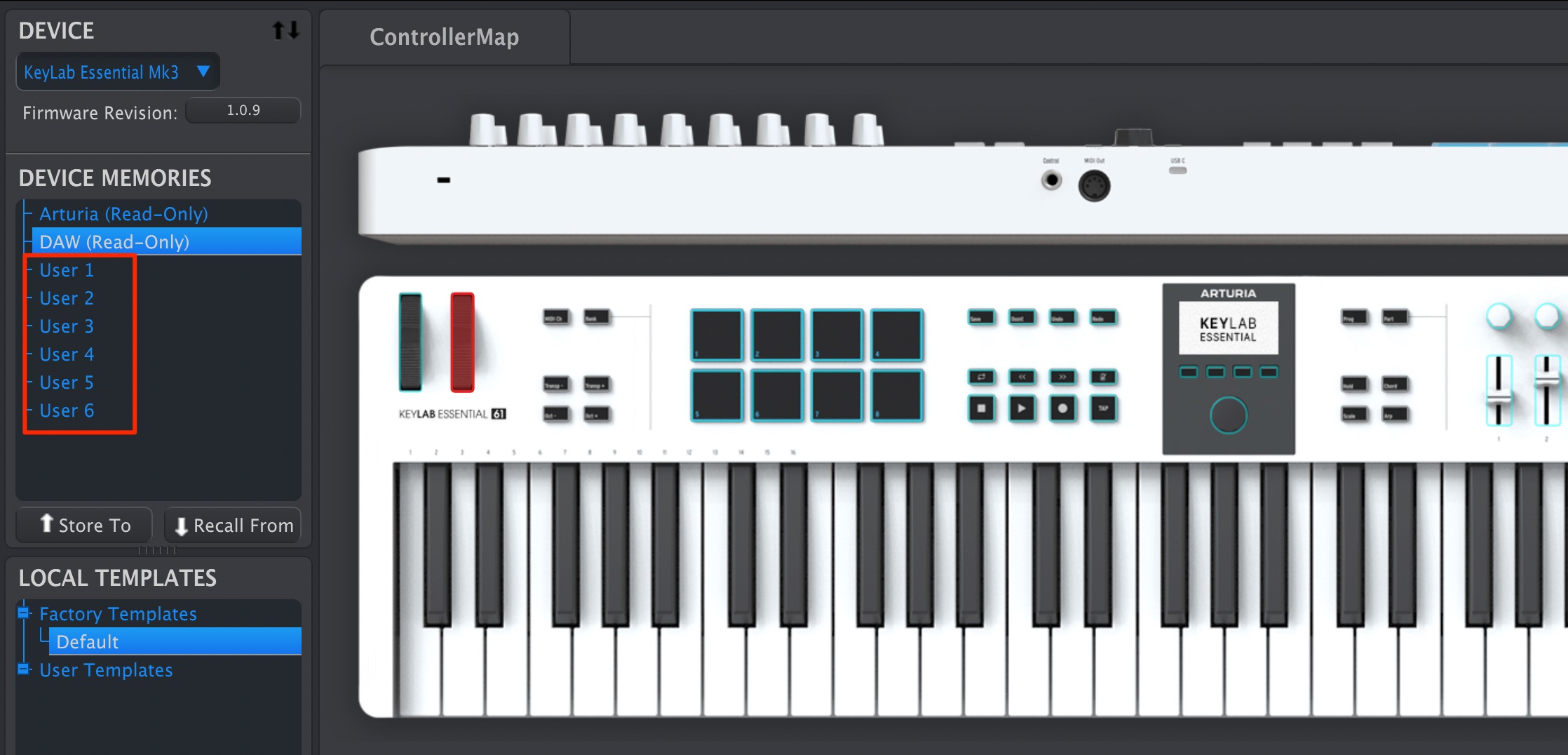
Device Memories shows the presets stored on the hardware and available for use.
You can save your preferred settings in User 1–6.
In the initial setup described here, those user slots have not yet been customized; treat them as starting-point presets.
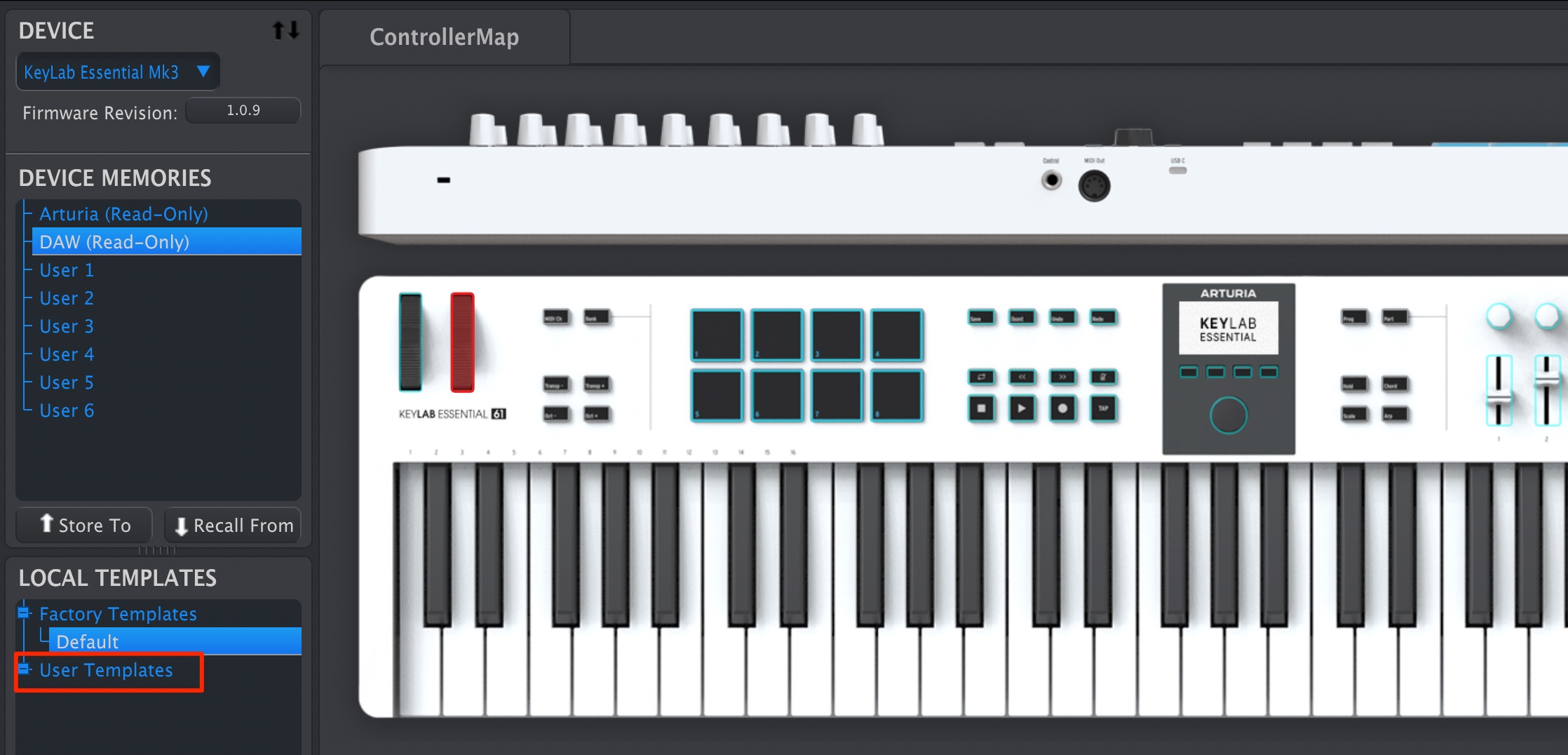
Create your custom configuration under Local Templates → User Templates.
In this example, we only want to change the pad assignments and keep the rest of the DAW-mode behavior.
This is likely to be a useful starting point for many users.
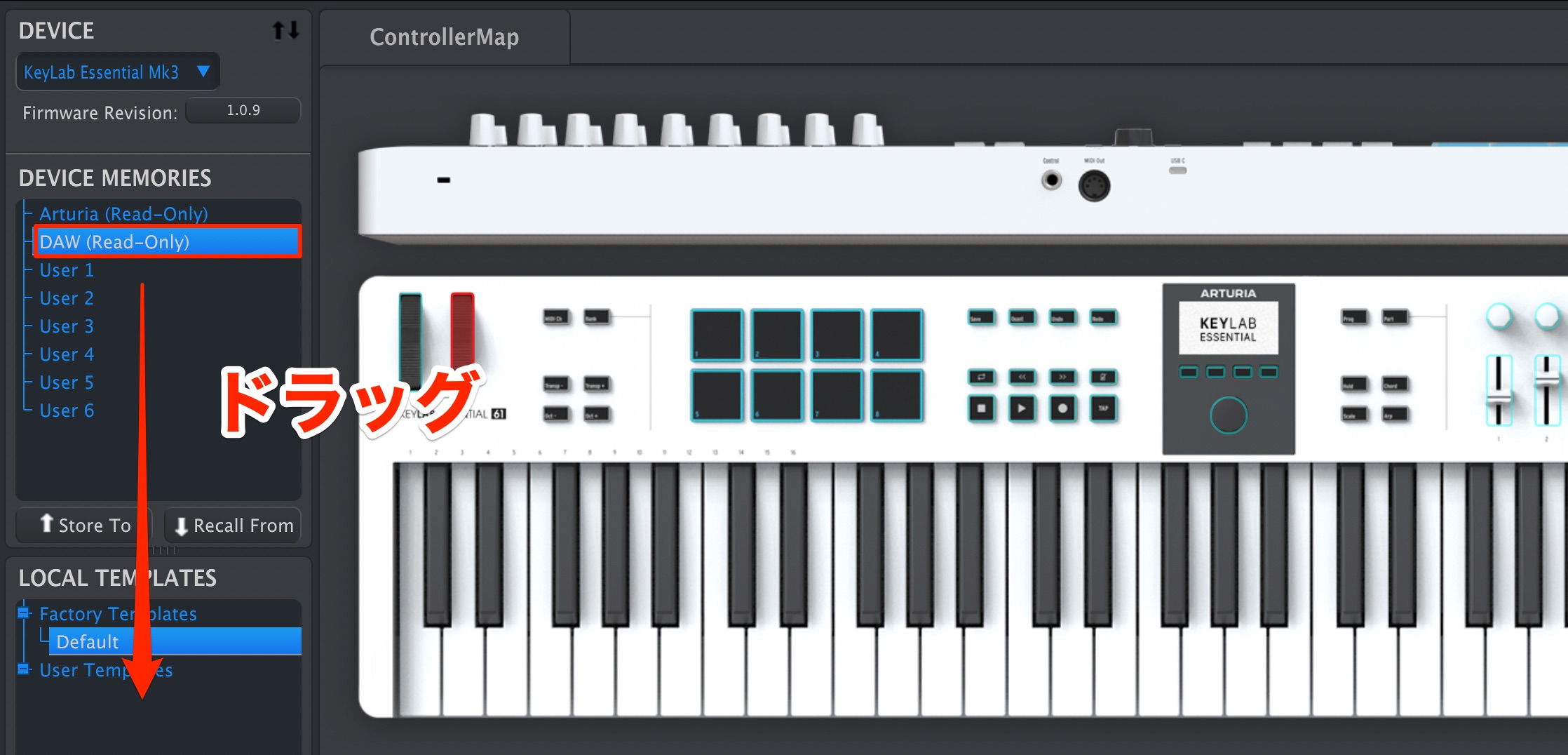
Drag the DAW preset you want to use as a base into Local Templates below.
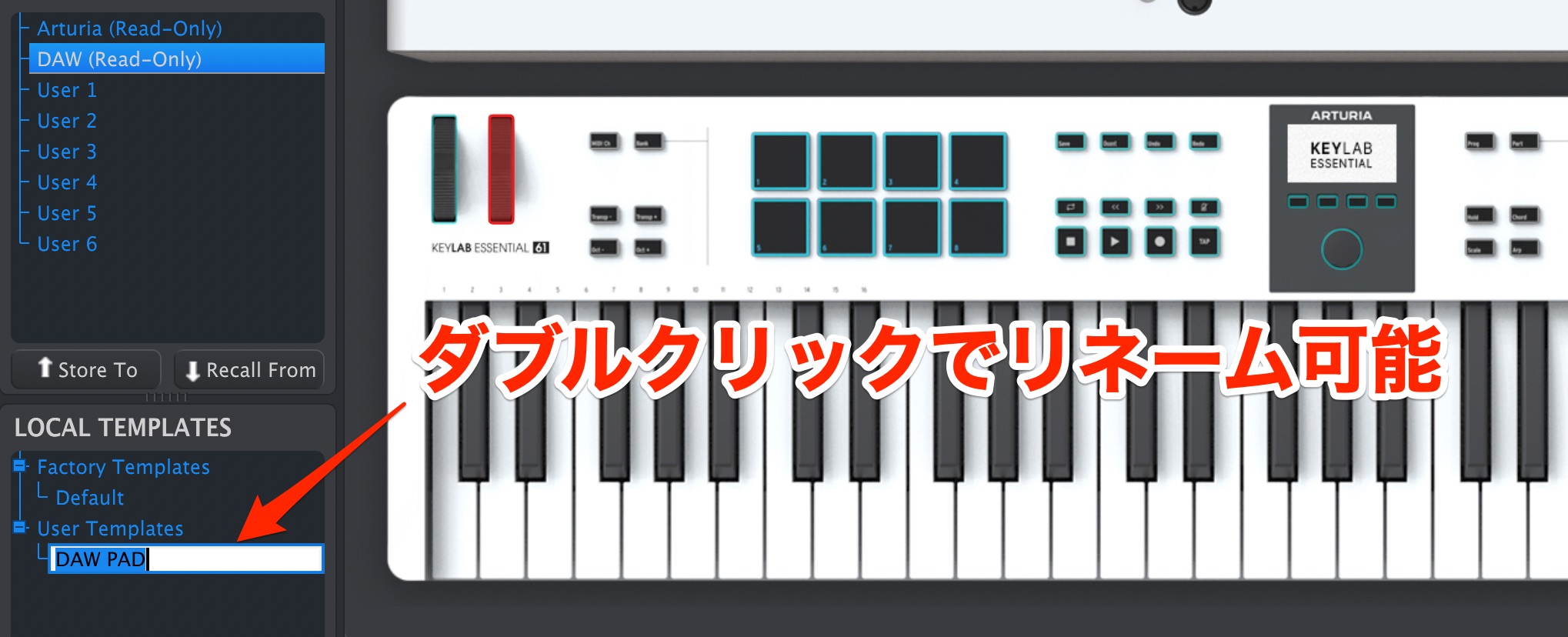
This creates a copy of the DAW configuration.
Double-click it to rename it. We named ours “DAW PAD.”
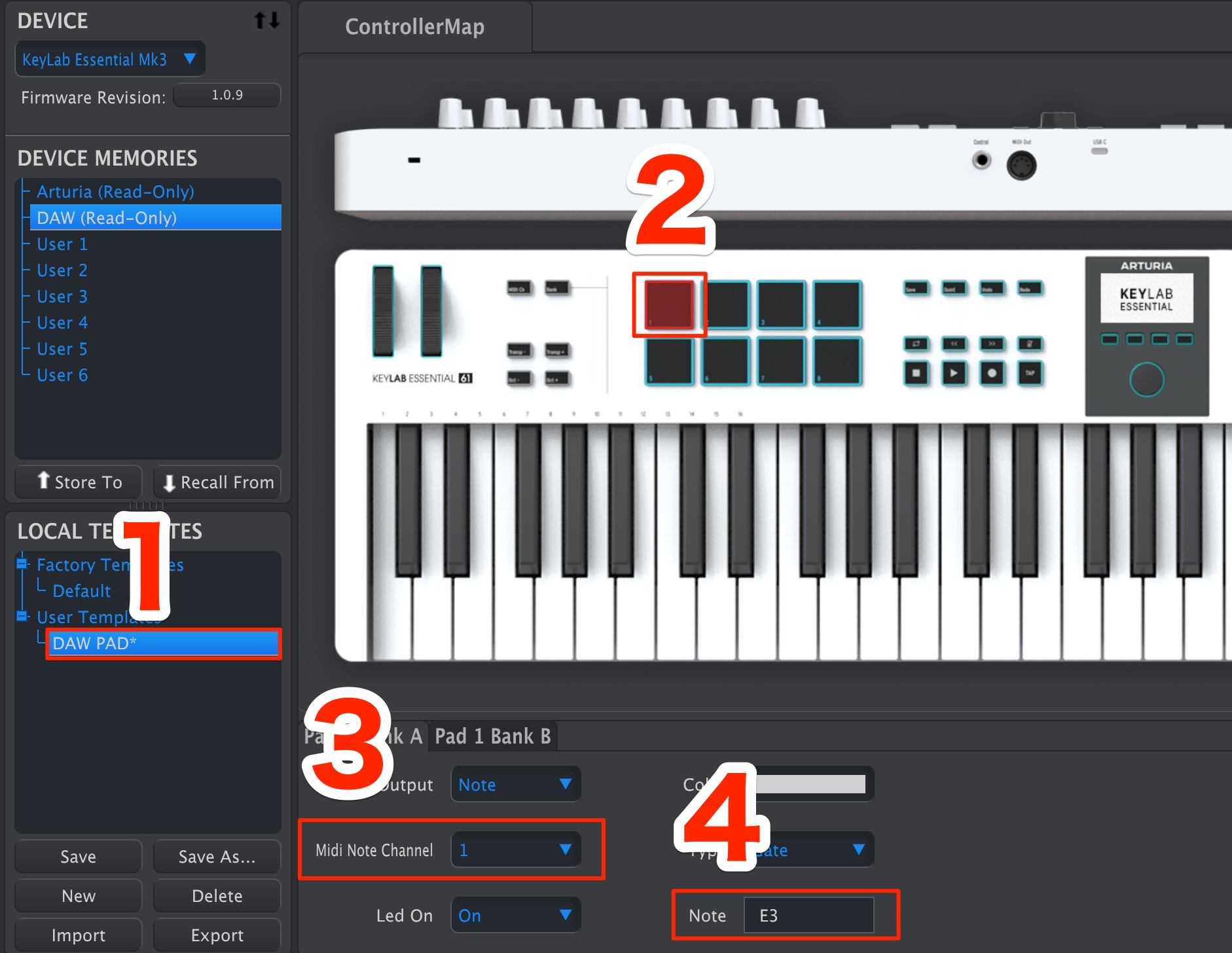
- 1. Select the user template you want to edit.
- 2. Select the pad whose note or other settings you want to change.
- 3. Change the MIDI channel here.
- 4. Specify the note the pad will play.
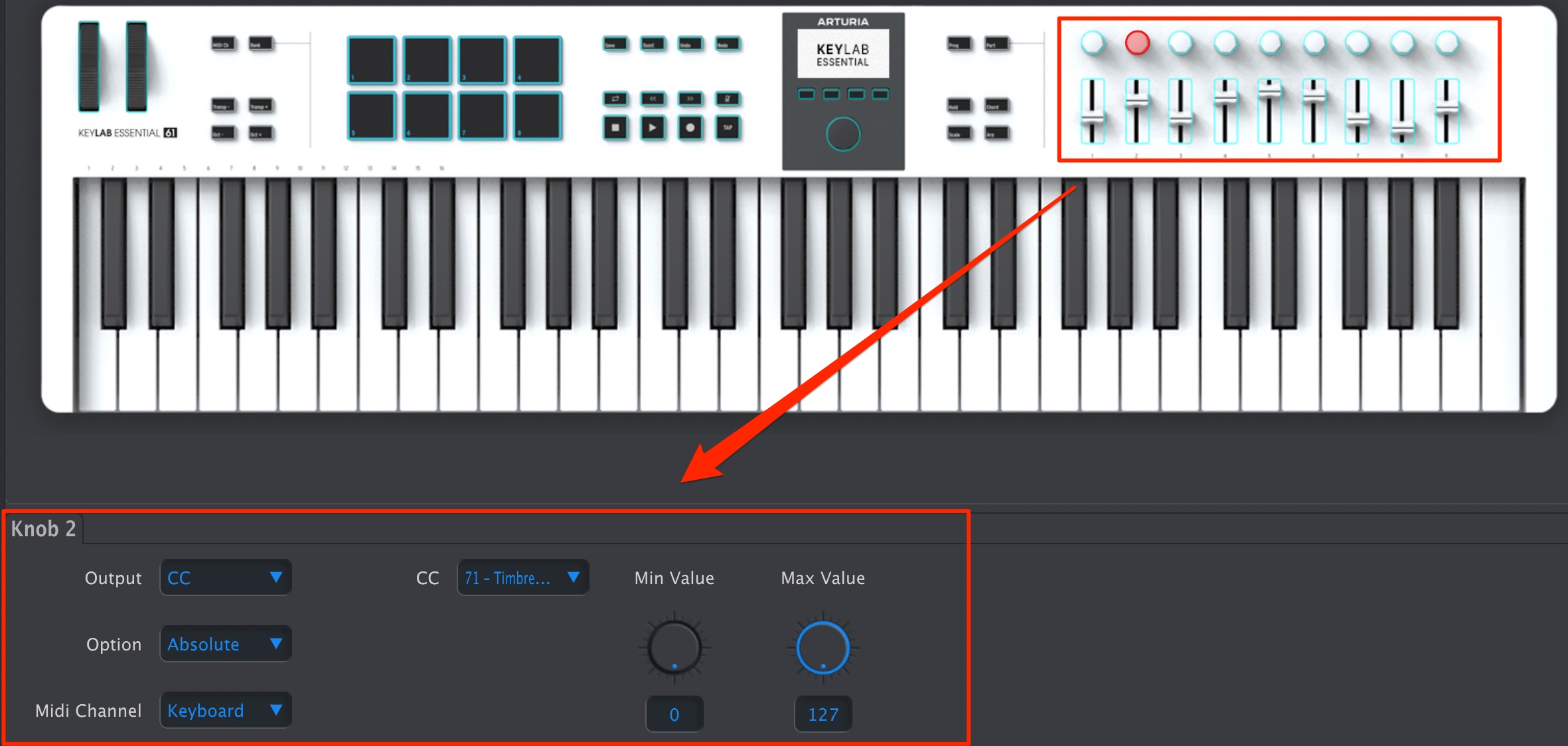
You can similarly assign MIDI CC functions to faders and knobs.
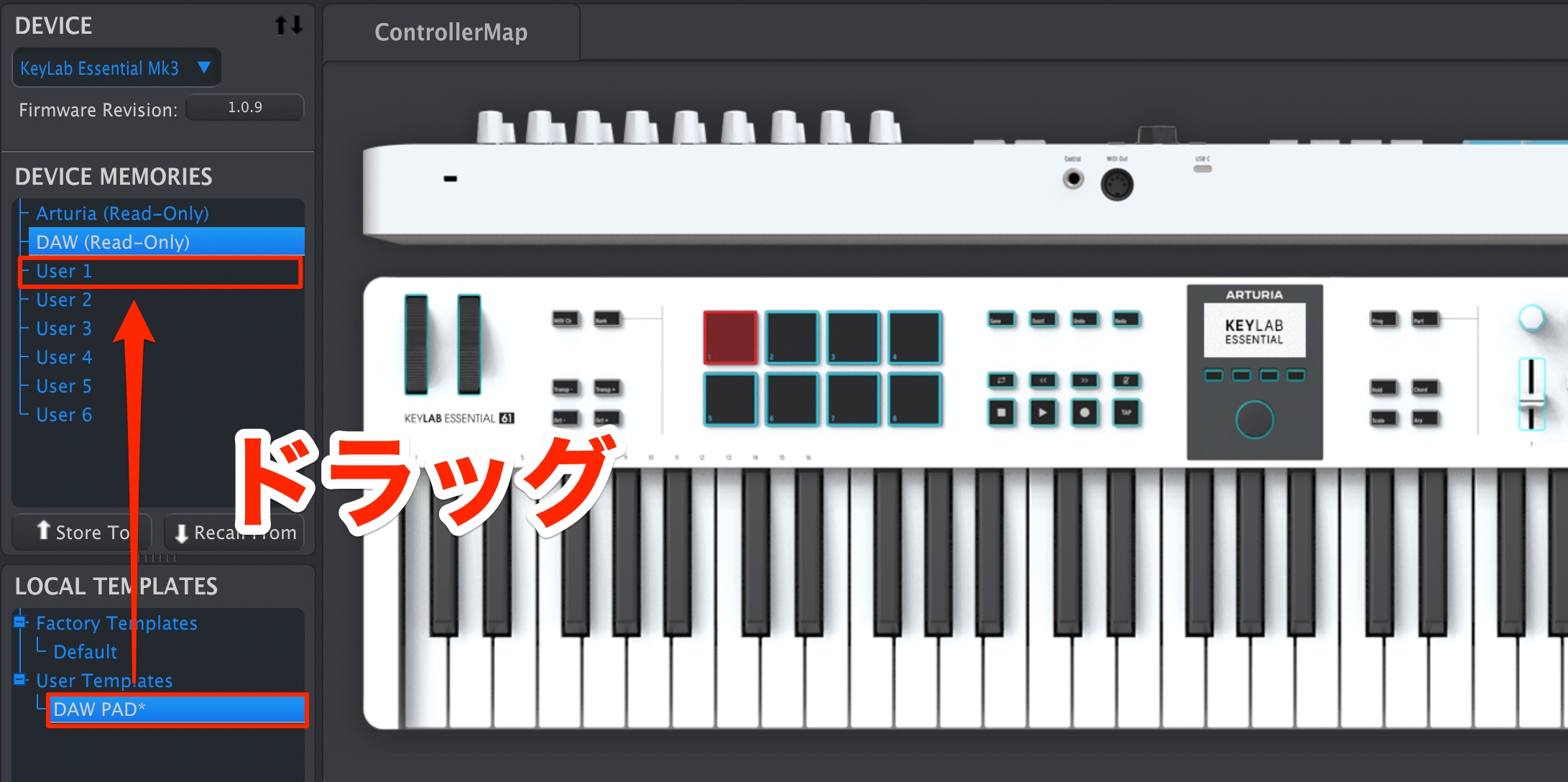
To use the template on the hardware, drag it to a User slot. Here, we use User 1.
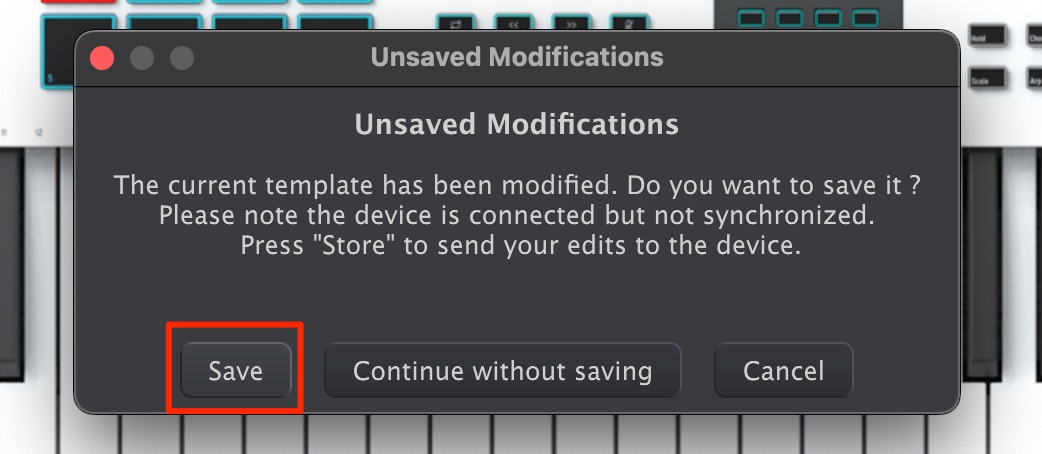
When the confirmation appears, click Save.
The slot may look unchanged, but your custom settings have now been stored in User 1.
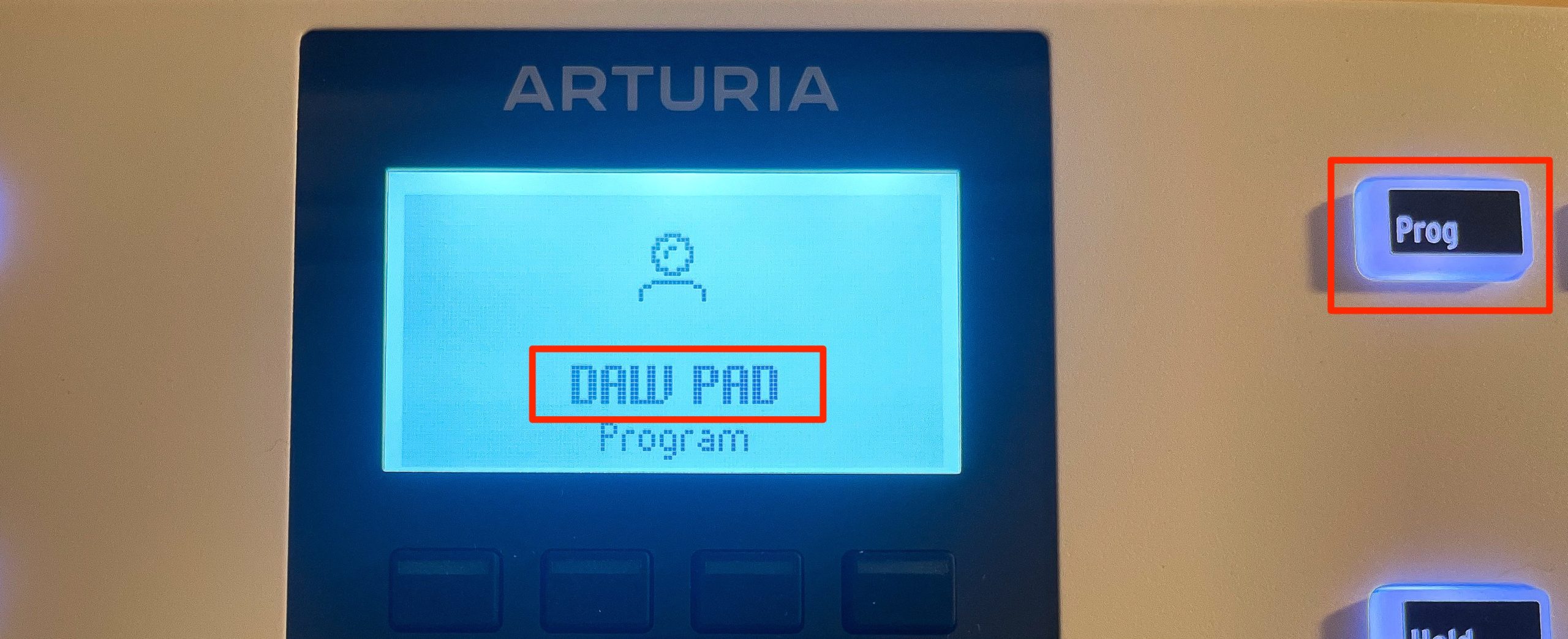
Press Prog to enter the user mode; the custom preset name appears on the display.
Recalling User 2 and Later Presets
Here is a point to keep in mind when using more than one user preset.
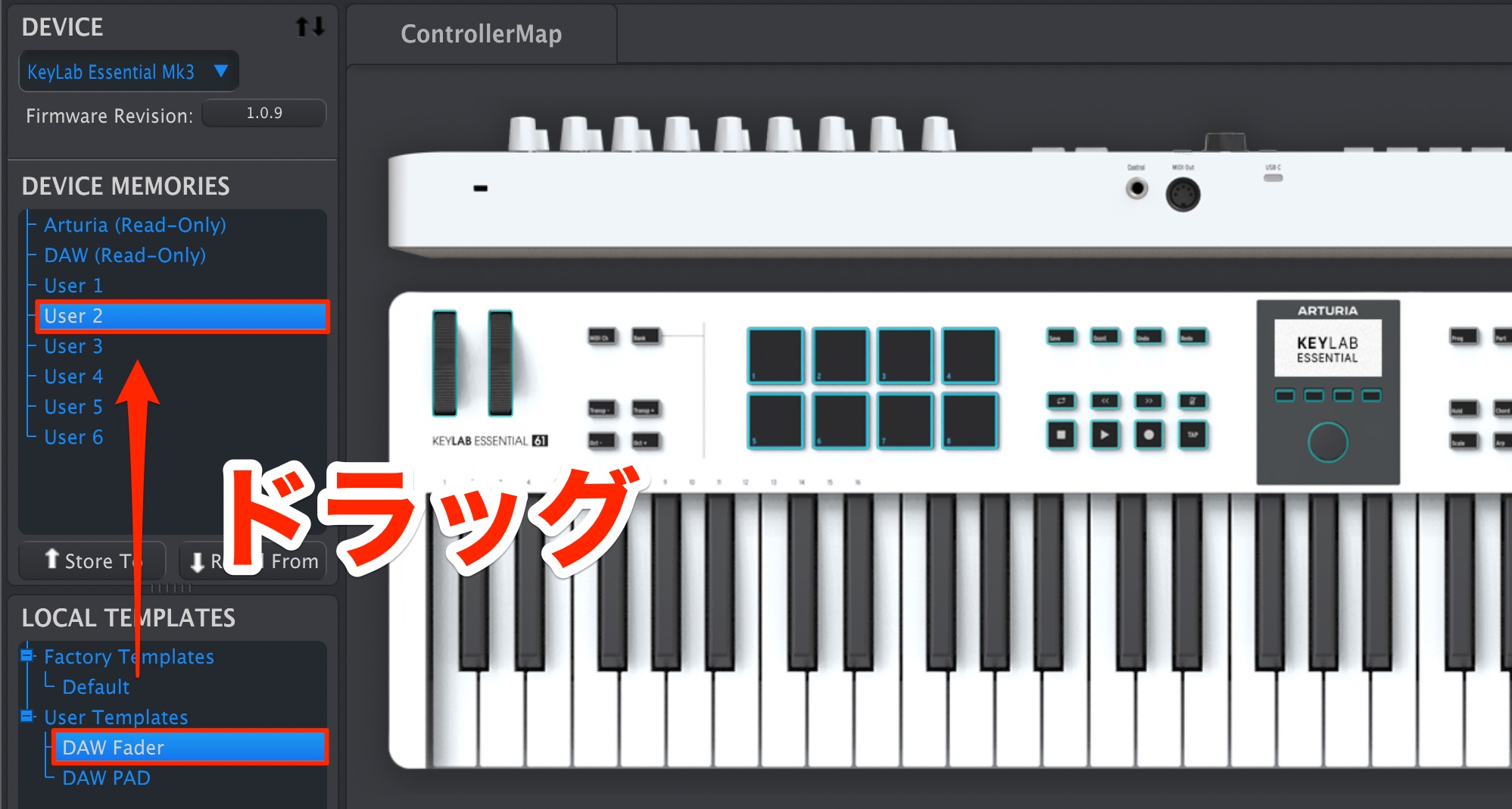
Suppose you create a second preset and save it to User 2.
As before, press Prog to move between presets.
As you enable more user presets, the sequence cycled through by the Prog button becomes longer.
For example: Analog Lab → DAW → User 1 → User 2.
With more presets enabled, the sequence grows further.
For example, with five enabled user presets:
Analog Lab → DAW → User 1 → User 2 → User 3 → User 4 → User 5.
It will take more presses of Prog to return to Analog Lab mode.
This can become less convenient, so enable only the user presets you need.
Restoring a Preset to Its Default State
To restore a customized user preset,
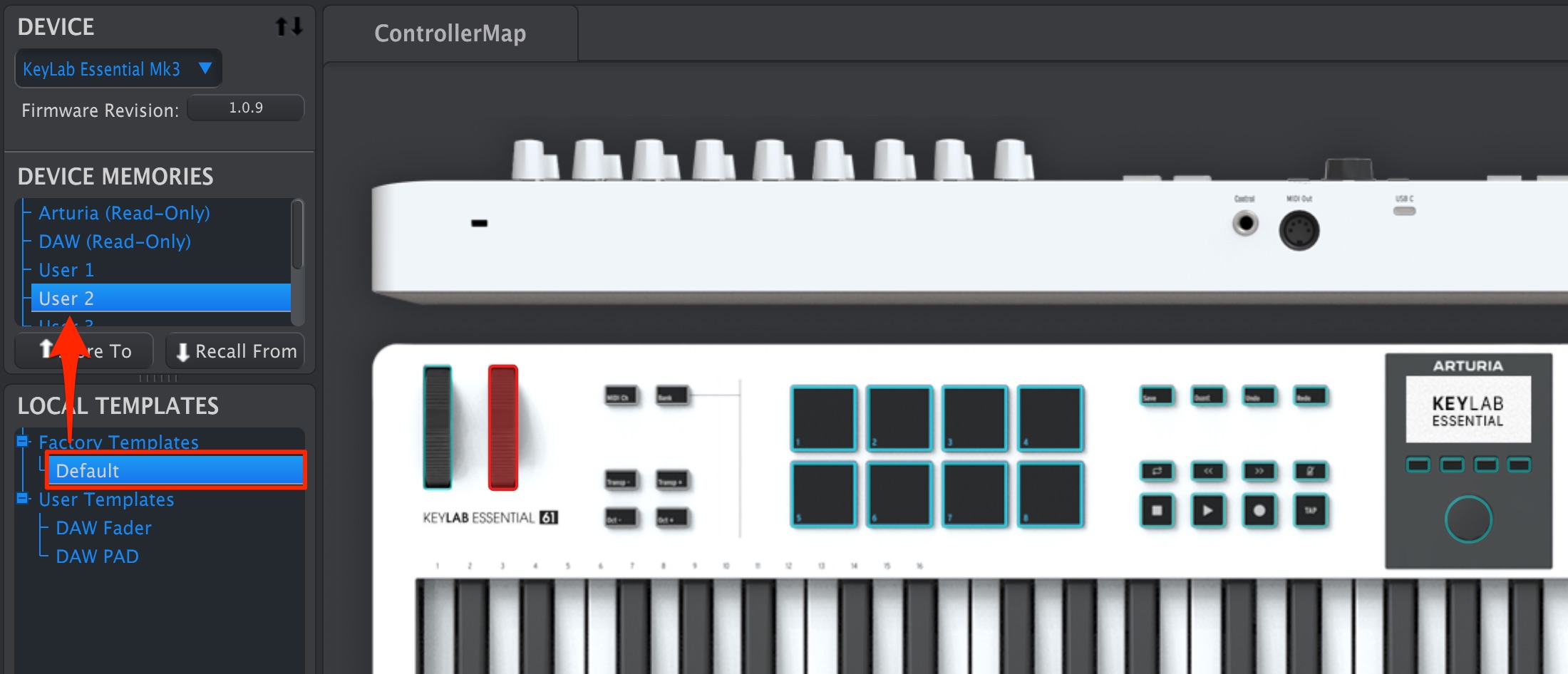
drag the Default template to the relevant slot as shown.
If you do not want an unused user preset to appear in the Prog cycle,
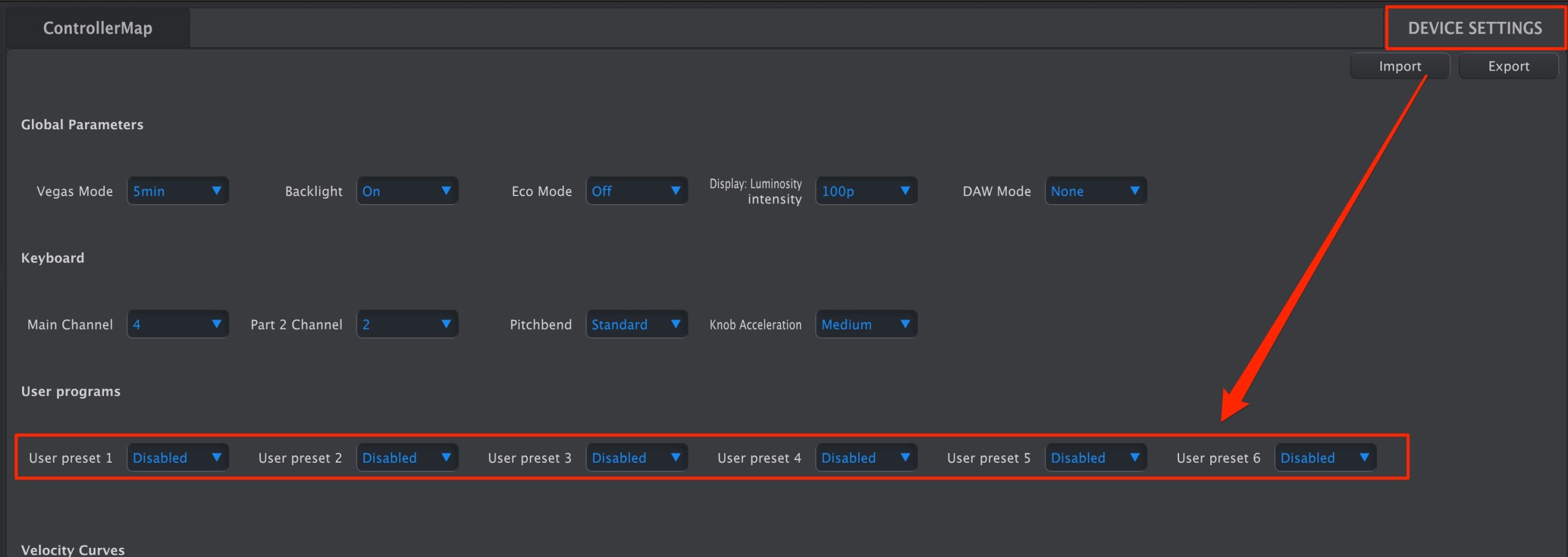
open Device Settings and set that preset number to Disabled.
As shown above, disabling all user presets removes user mode from the cycle. Each press of Prog will then switch Analog Lab → DAW → Analog Lab → DAW, alternating between just these two modes
. This can make operation more convenient if you do not use user presets.
The Keyboard Section
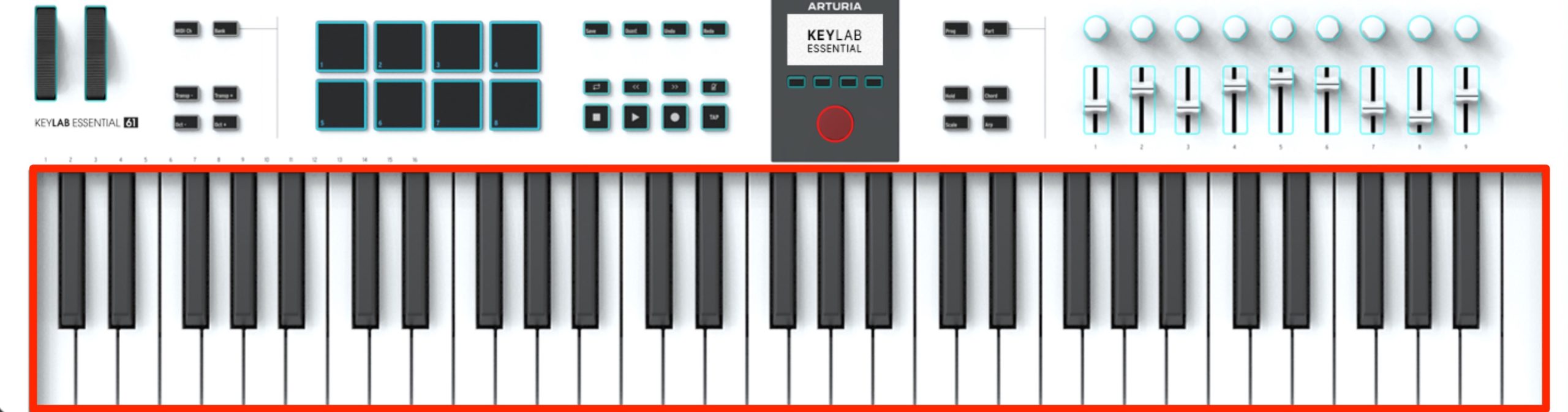
This is, of course, the main playing surface.
The keys respond to velocity for expressive performance. Editorial clarification: the original text also attributes aftertouch to the keys, but key aftertouch should not be confused with the pressure-sensitive pads. Arturia specifies a velocity-sensitive keybed and pressure-sensitive pads for the Essential mk3.
There are plenty of functions to explore, so let's go through them one by one.
Changing the MIDI Channel
You may need to specify a MIDI channel, for example when controlling a multitimbral instrument.
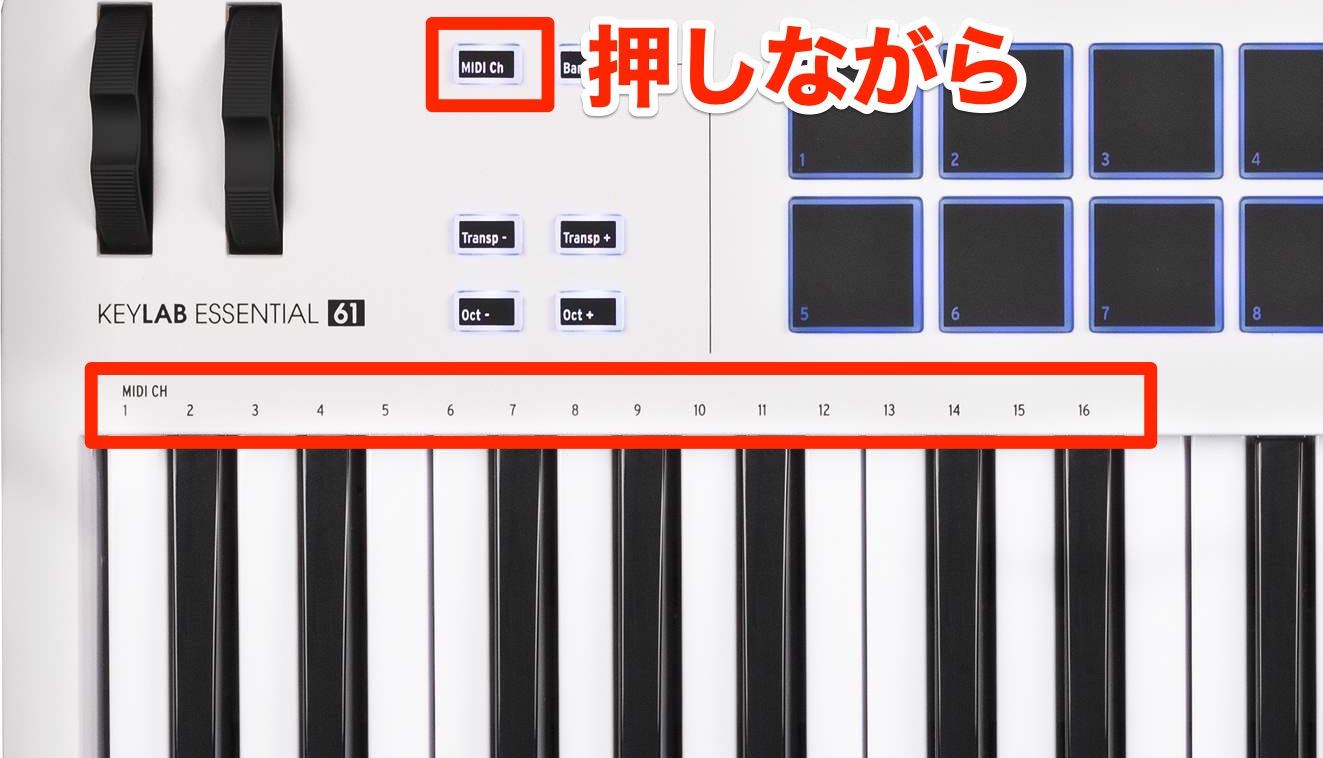
Hold MIDI Ch and press the key corresponding to channel 1–16.
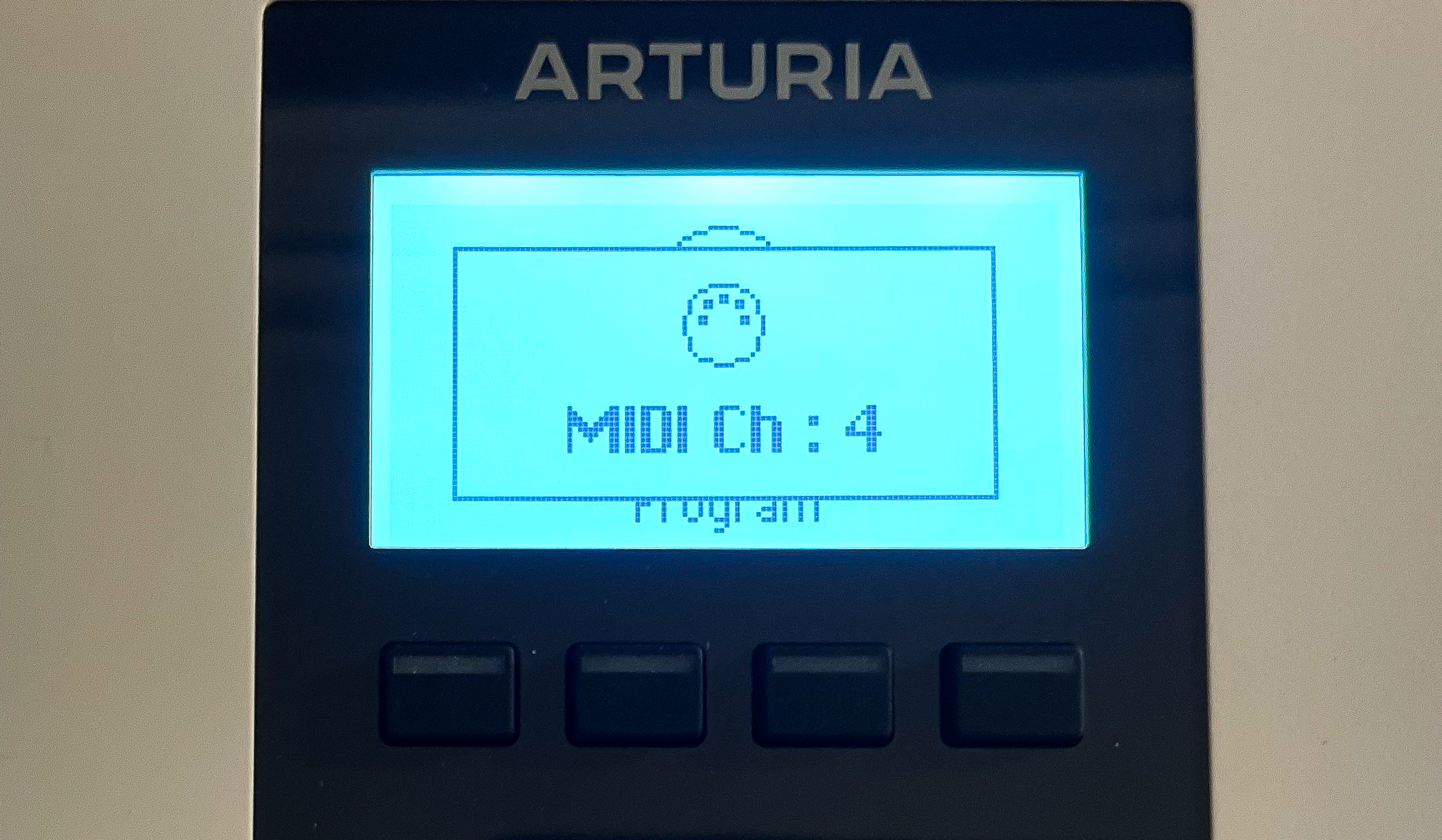
The selected MIDI channel is also shown on the display.
This makes changing the MIDI channel straightforward.
Octave and Transpose Settings
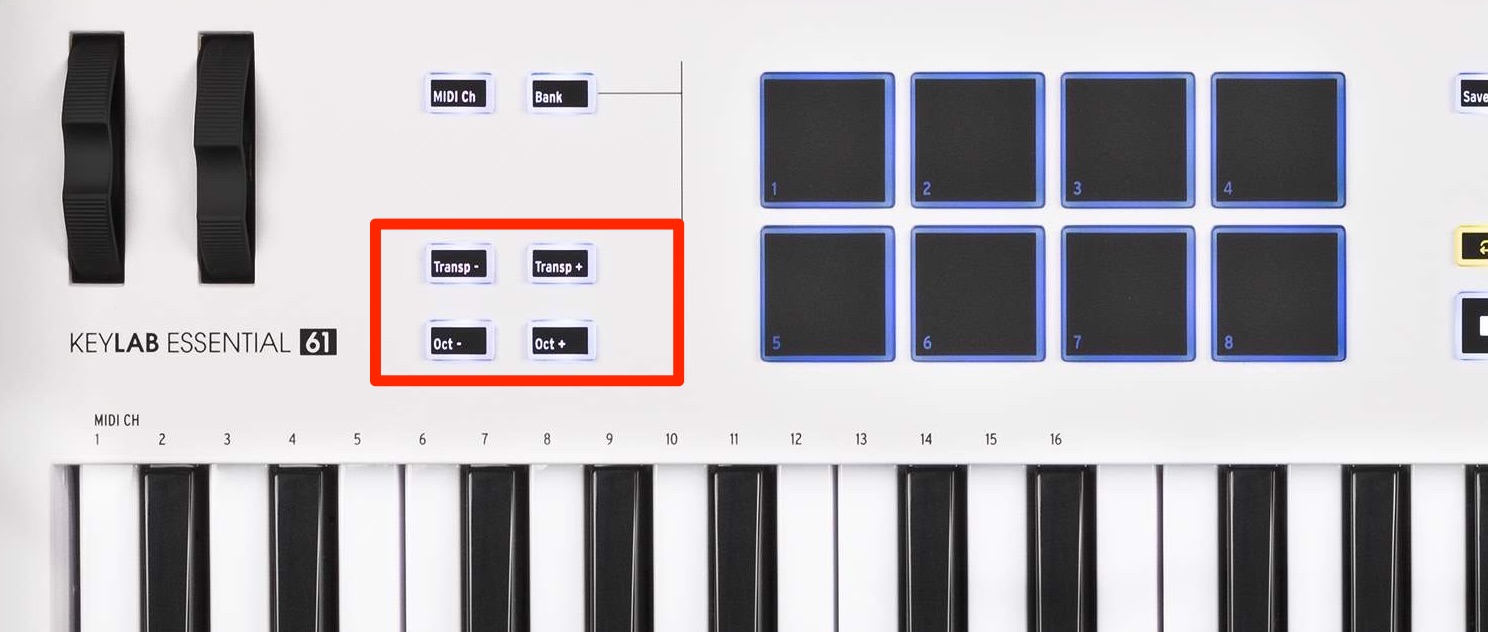
Use these buttons to change octave and transpose settings.
- Oct: shift the keyboard's pitch in whole octaves.
- Transp: shift the keyboard's pitch in semitones.
For a key you find difficult to play, adjusting Transp lets you use familiar keyboard shapes.
For example, to play in E♭ major using C-major fingerings, set Transp to +3 semitones.
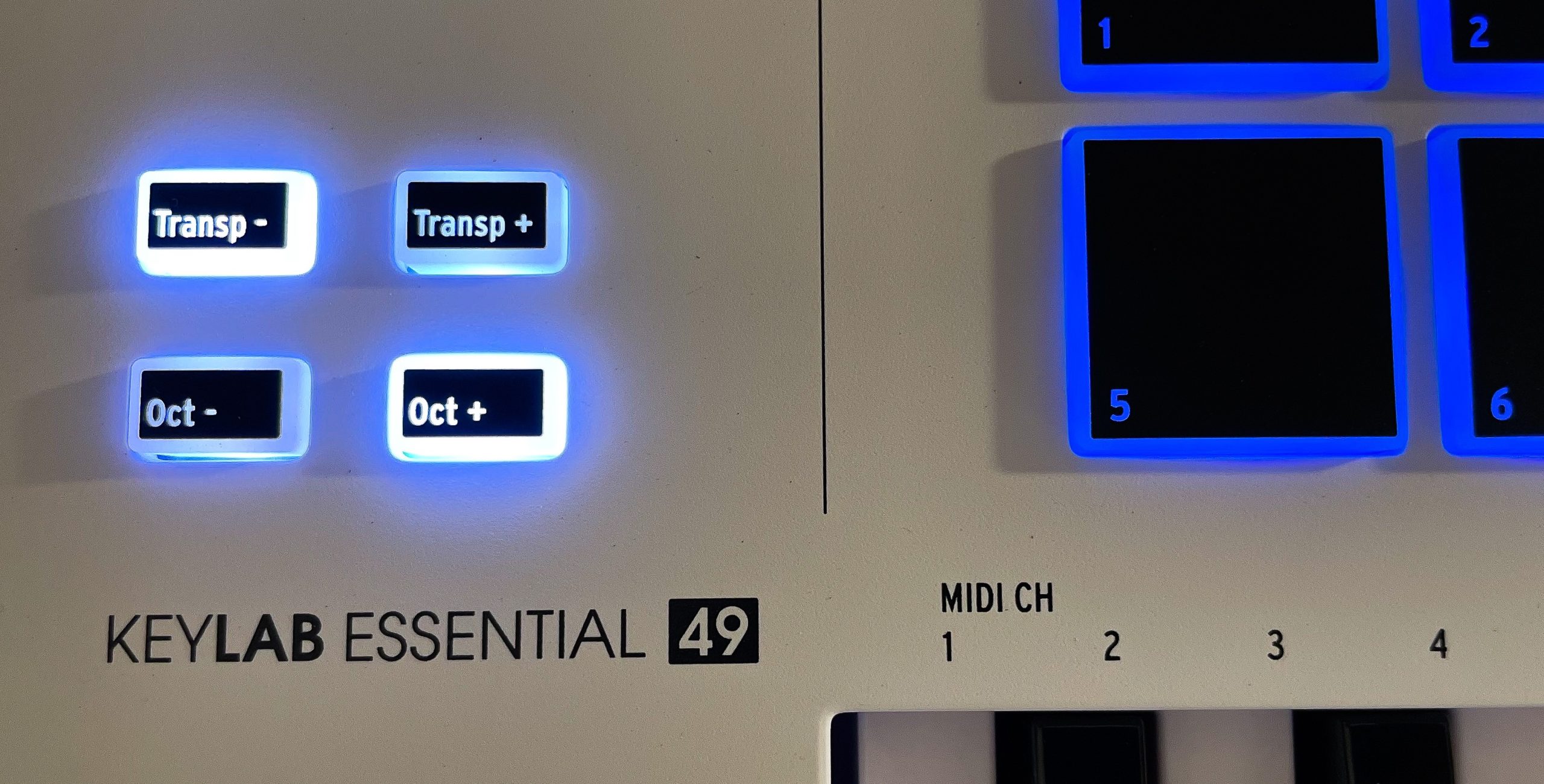
The button lights indicate the current state.
If neither button is lit, the setting is at its default.
A lit button indicates a shift in that direction.
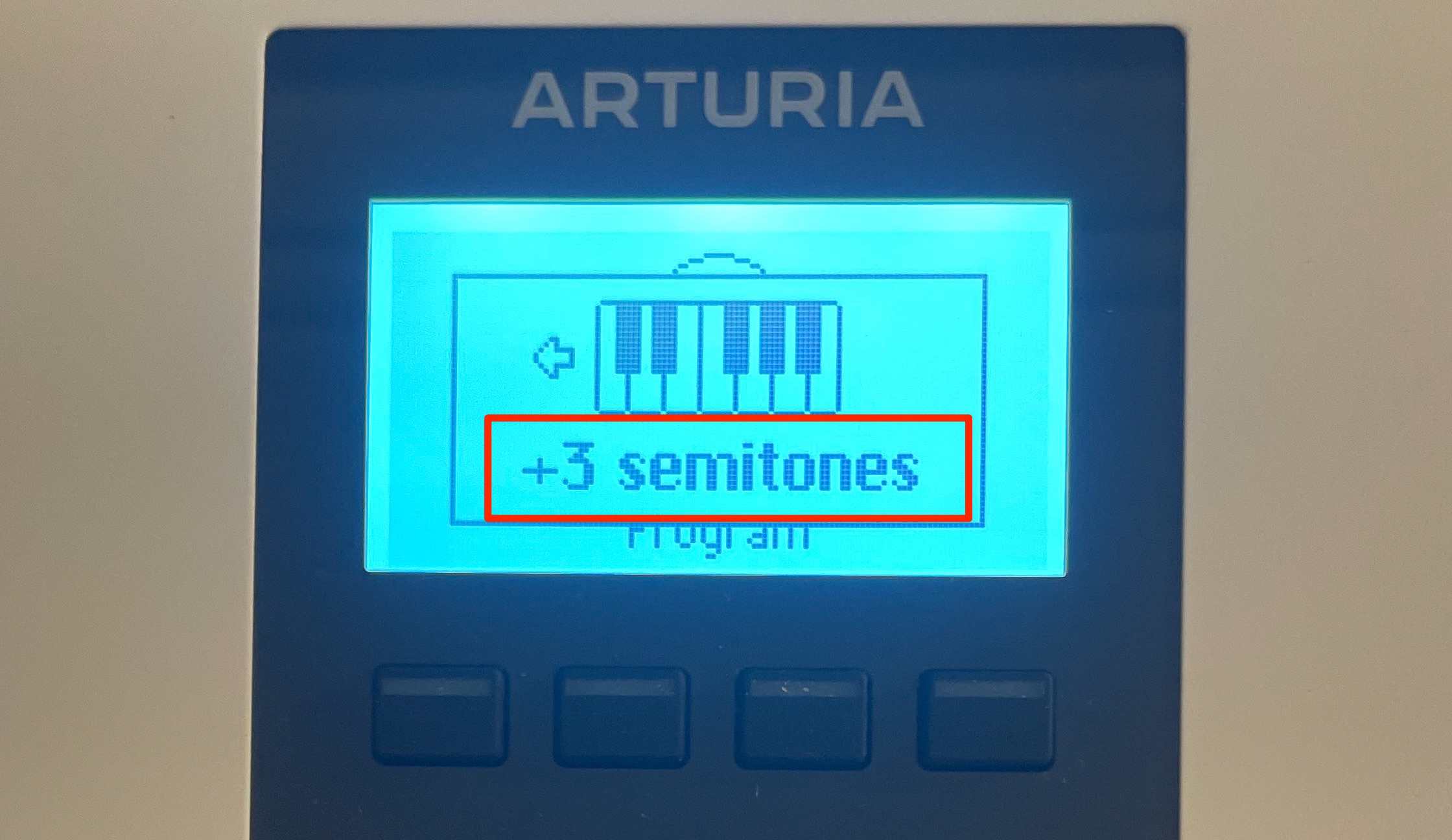
You can also check the current setting on the display.
That is very convenient.
You can reset either setting immediately:
- Press Oct + and − together to reset the octave shift.
- Press Transp + and − together to reset transposition.
These shortcuts are useful to remember.
Pitch-Bend and Modulation Wheels
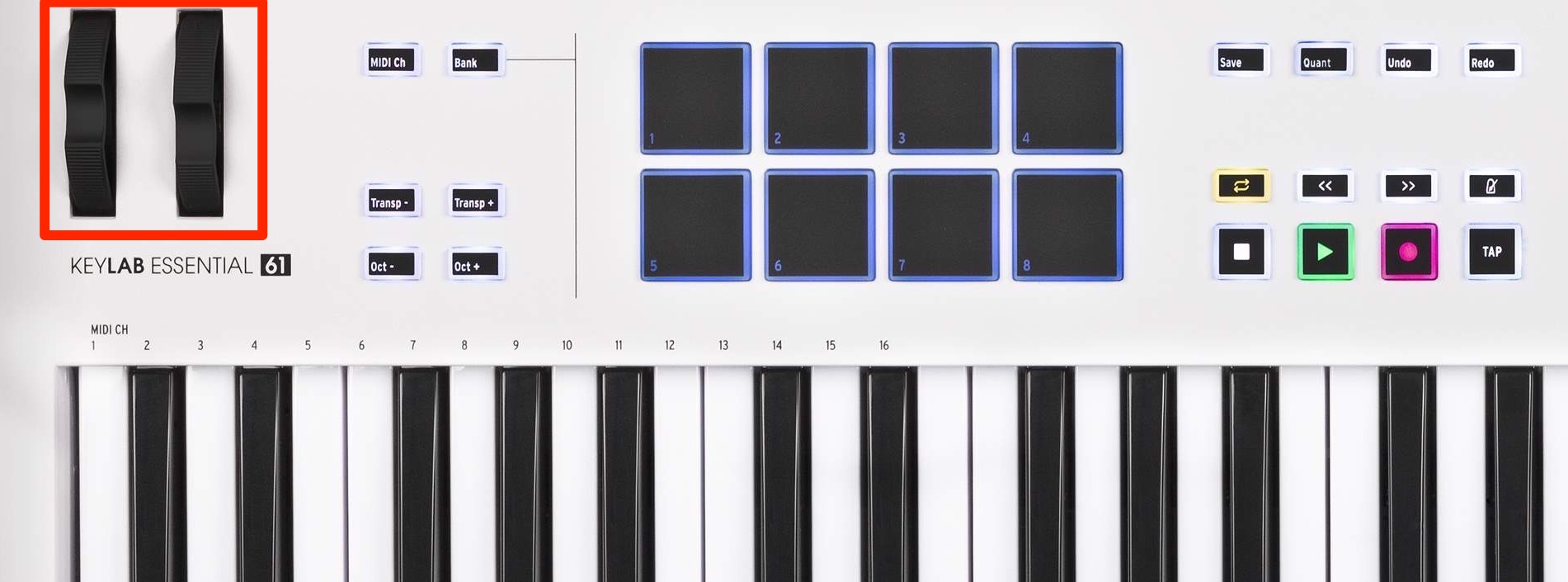
Pitch bend and modulation are especially useful in real-time performance.
We found the wheels smooth and pleasant to use.
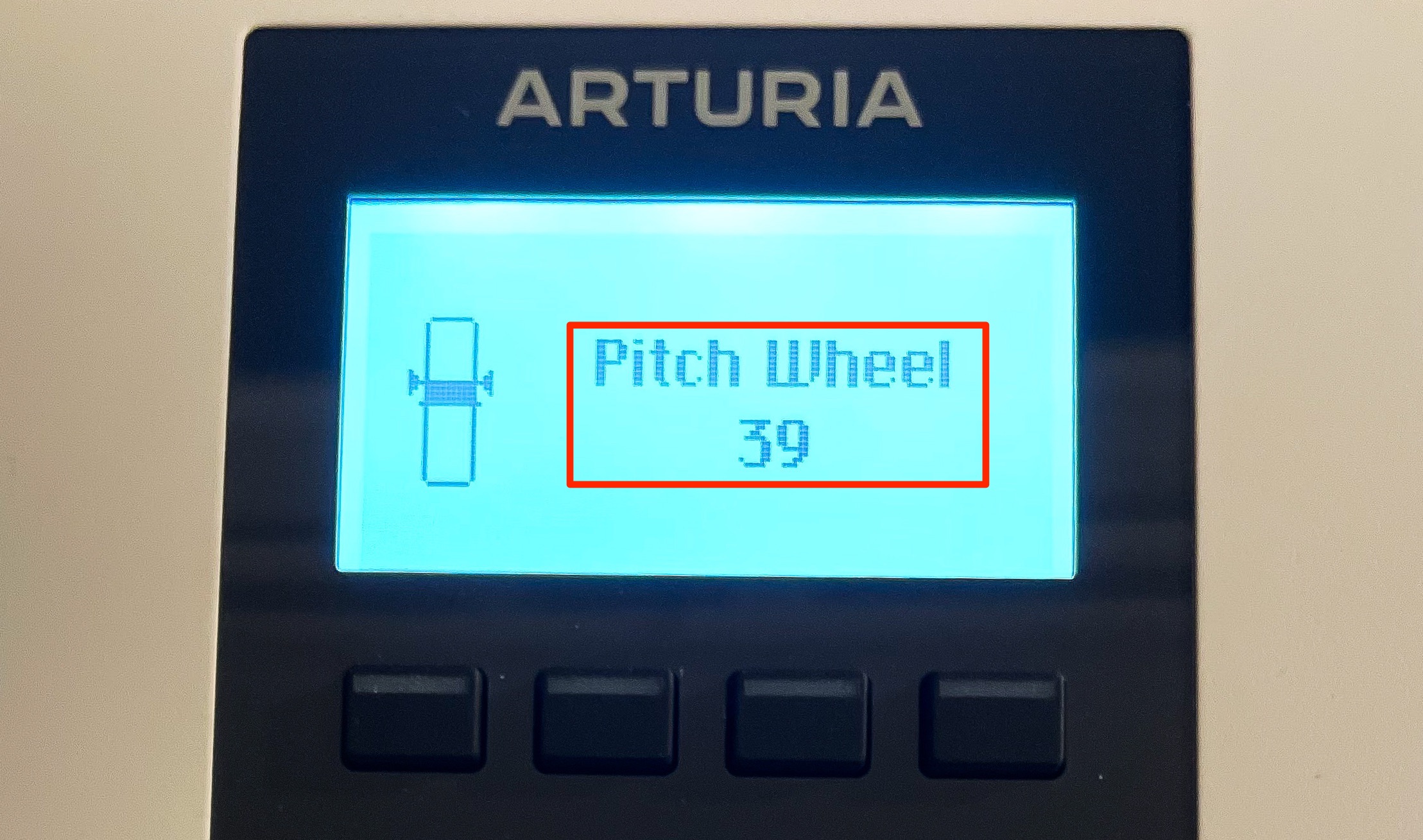
Their current values and changes are also shown on the display.
Scale Mode
Scale mode makes it easier to play a variety of scales used in music production.
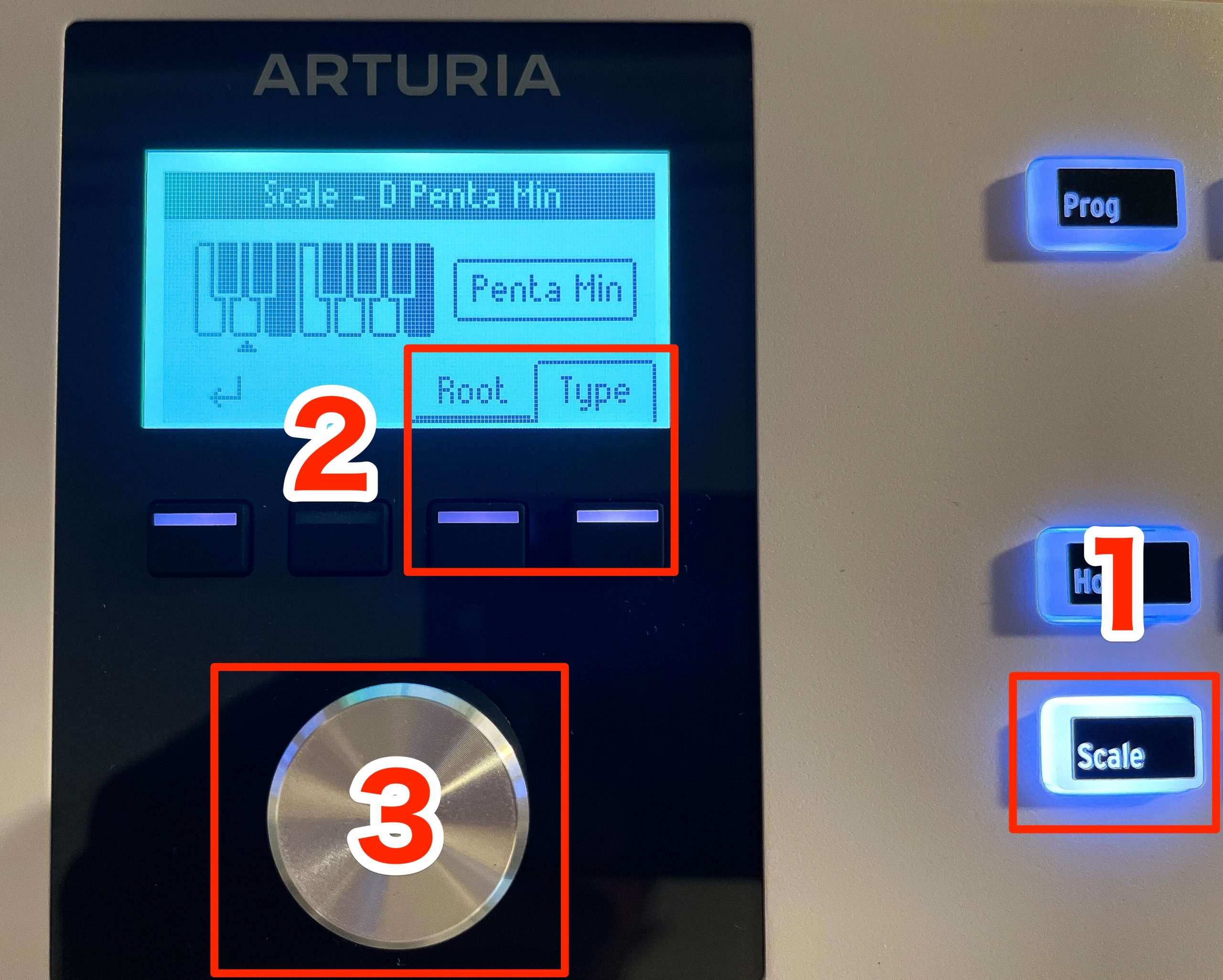
- 1. Hold Scale to enter its editing mode.
- 2. Root sets the tonic; Type sets the scale.
- 3. Use the encoder to change and confirm these settings.
- Finally, make sure Scale is lit. When unlit, the function is off.
That completes the setup.
The keyboard now maps your playing to notes in the selected scale.
This keeps the output within the chosen scale and can help establish a consistent tonal palette. It can be reassuring for beginners, although scale membership alone does not guarantee every note suits every chord or phrase.
The available scale settings are listed below:
• Chromatic (default)
• Major: Major scale.
• Minor: Natural minor.
• Dorian: Dorian (or doric) mode.
• Phrygian: Phrygian mode.
• Lydian: Lydian mode.
• Mixolydian: Mixolydian mode.
• Locrian: Locrian mode.
• Harmonic Minor: Harmonic minor.
• Blues: Blues scale with only 6 notes.
• Pentatonic Major: 5 note pentatonic scale.
• Pentatonic Minor: 5 note pentatonic, also a simplified blues scale.
• Japanese: 5 note pentatonic scale.
• Gypsy: One of several Gypsy scales.
• Arabic: Arabic or double harmonic scale.
• Freygish: Freygish or Phrygian dominant scale.
Chord Mode and Chord Presets
This function plays a chord when you press a single key.
It is useful for chord backing and styles that use repeated parallel chord shapes.
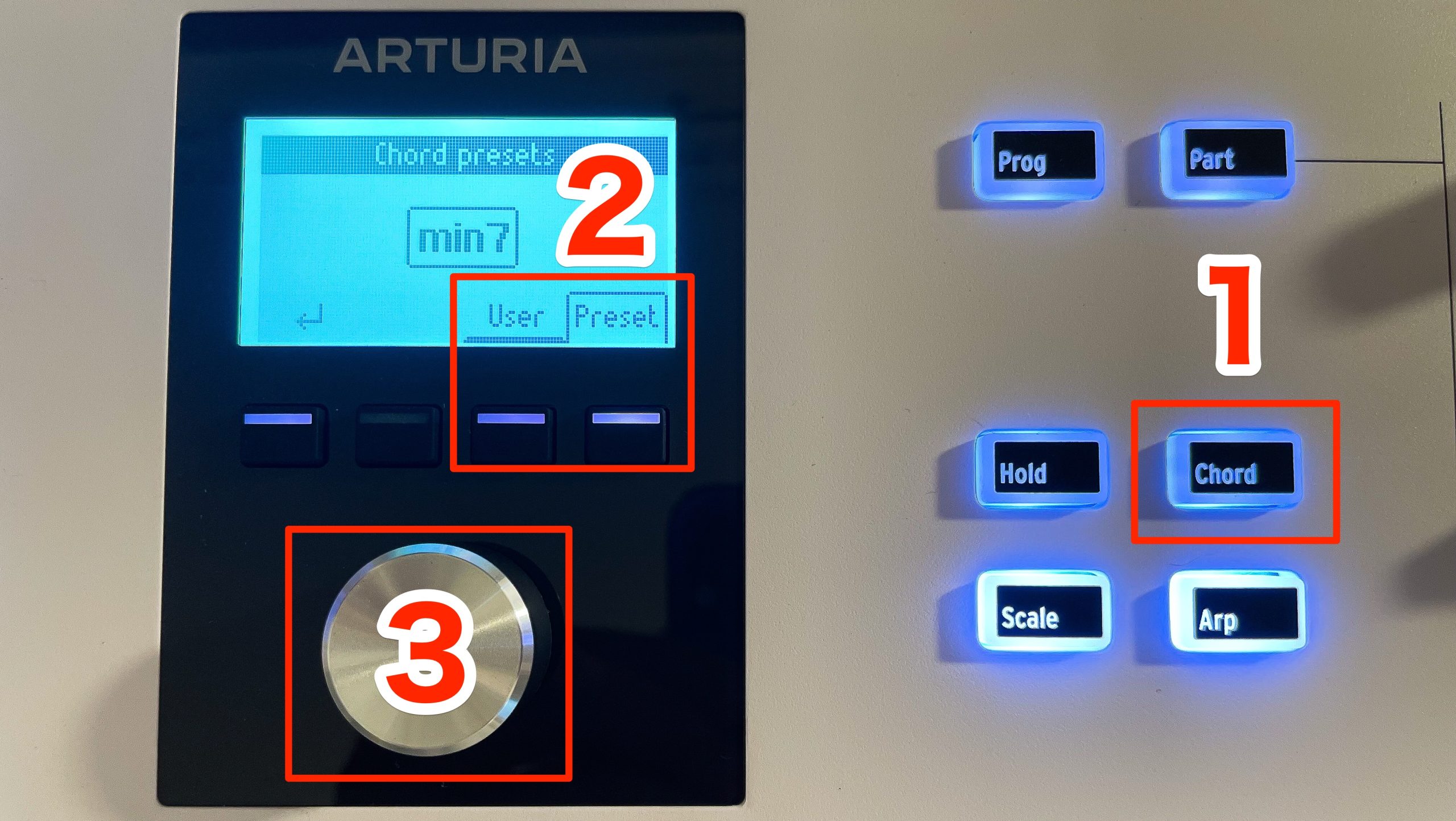
- 1. Hold Chord to enter its editing mode.
- 2. Choose a supplied chord under Preset.
- 3. Use the encoder to change and confirm the chord selection.
- Finally, make sure Chord is lit. When unlit, the function is off.
The key you play now becomes the root of the selected chord.
The included chord presets are listed below:
• Octave
• 5th
• Major Triad
• Minor Triad
• Sus 2
• Sus 4
• Major 7
• Minor 7
• Major 9
• Minor 9
• Major 11
• Minor 11
You can also choose the individual notes yourself to create a custom chord.
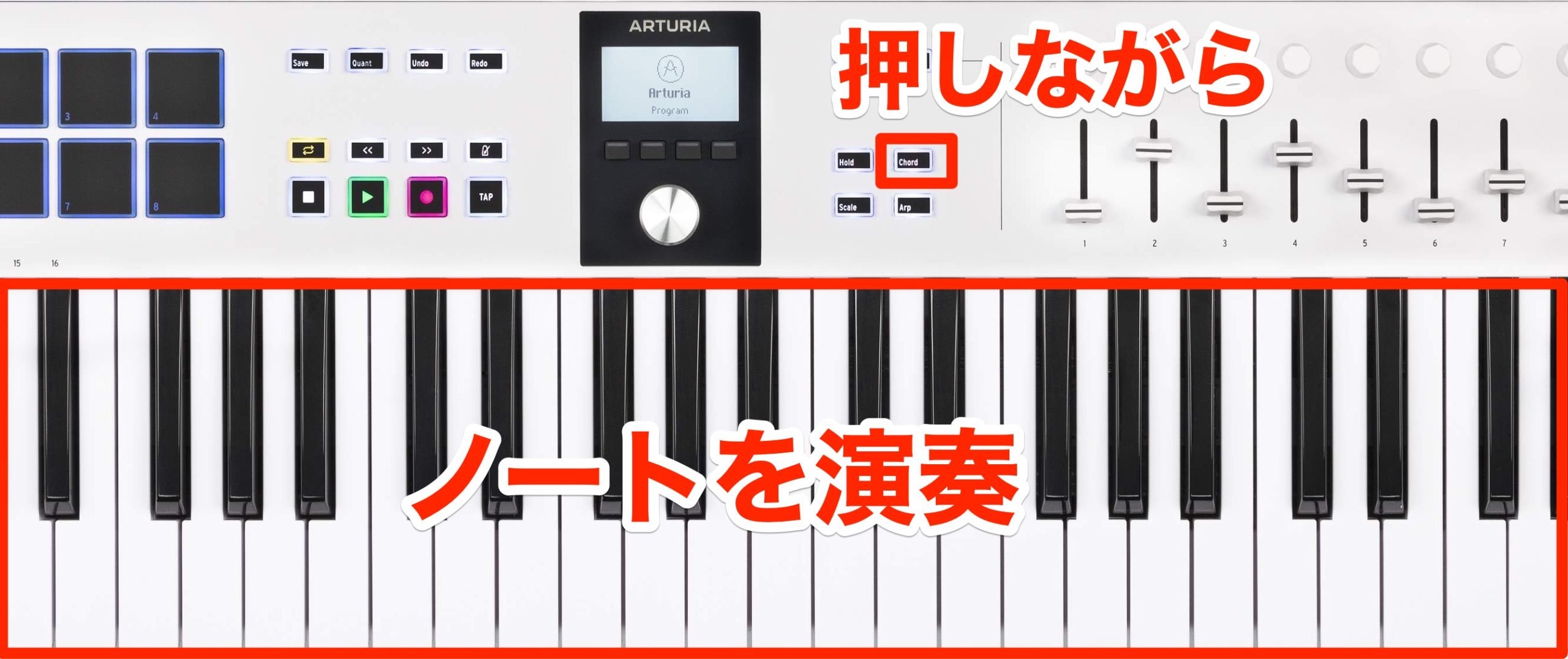
Hold Chord and play the notes you want to include.
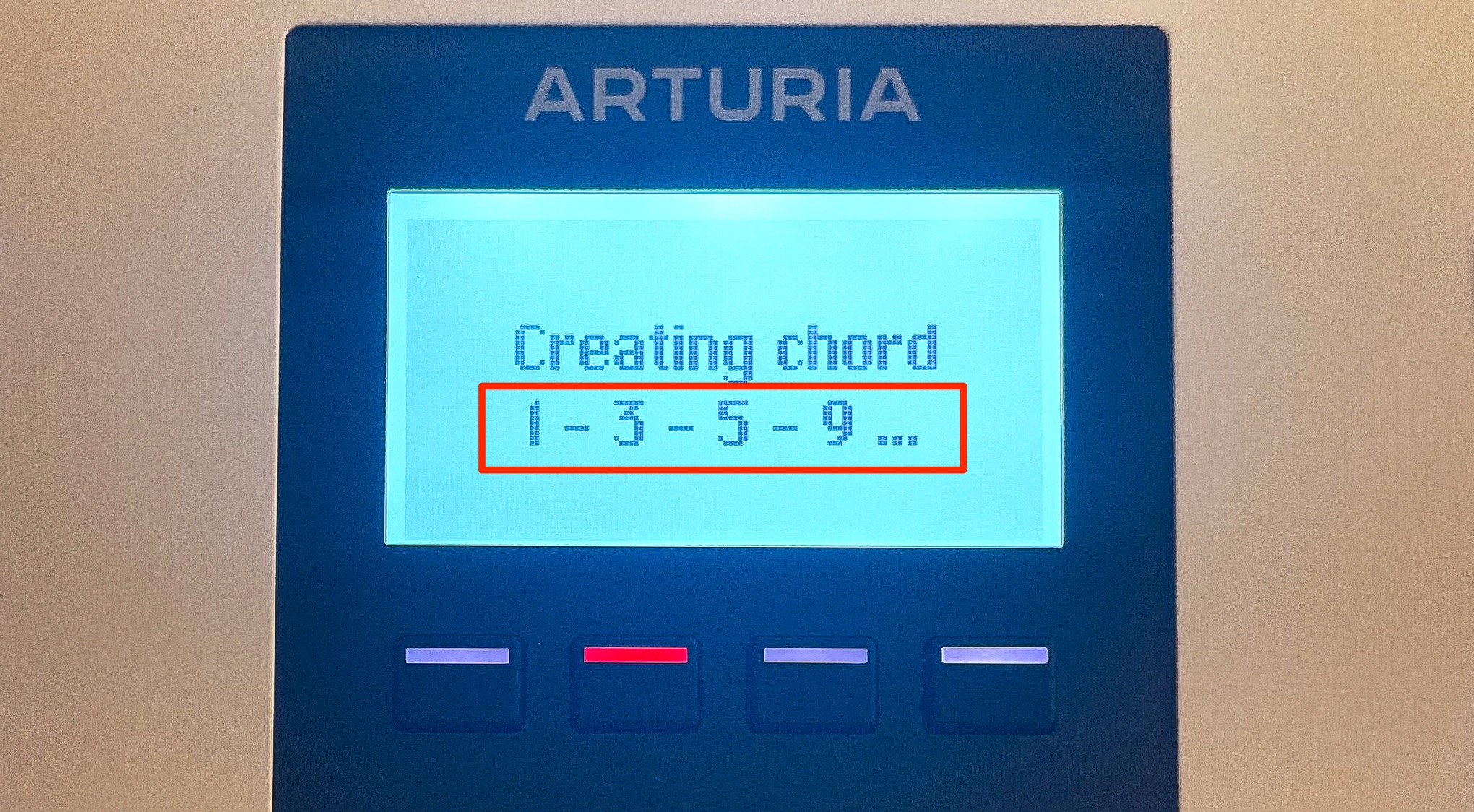
The entered notes appear on the display.
Release Chord after entering the notes.
You can use voicings that span several octaves and would be difficult to play by hand, making this an interesting creative tool.
The Arpeggiator
Control the repeating note patterns familiar from synthesizer arpeggiators.
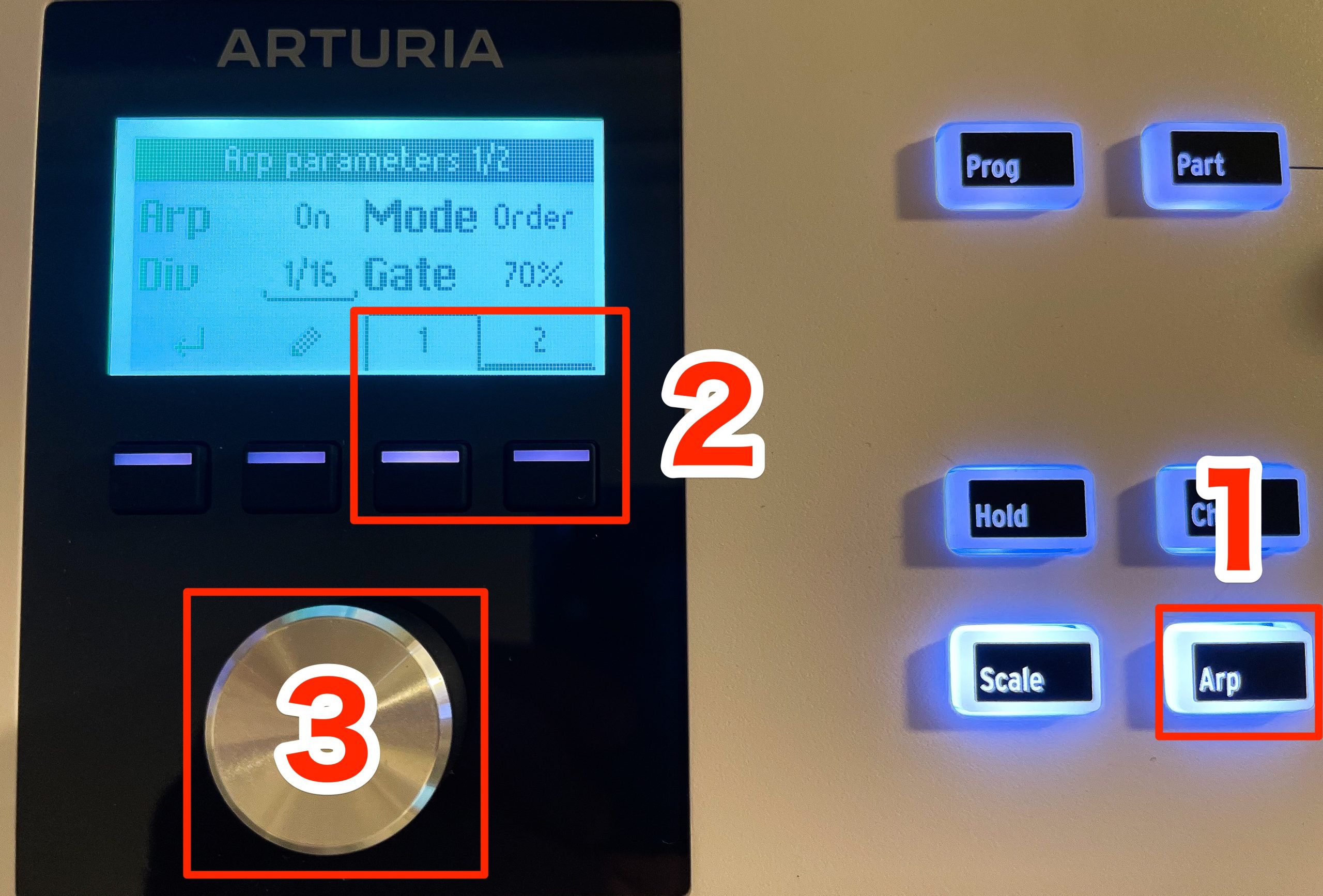
- 1. Hold Arp to enter its editing mode.
- 2. Set the parameters across pages 1 and 2.
- 3. Use the encoder to change parameters and values.
- Finally, make sure Arp is lit. When unlit, the function is off.
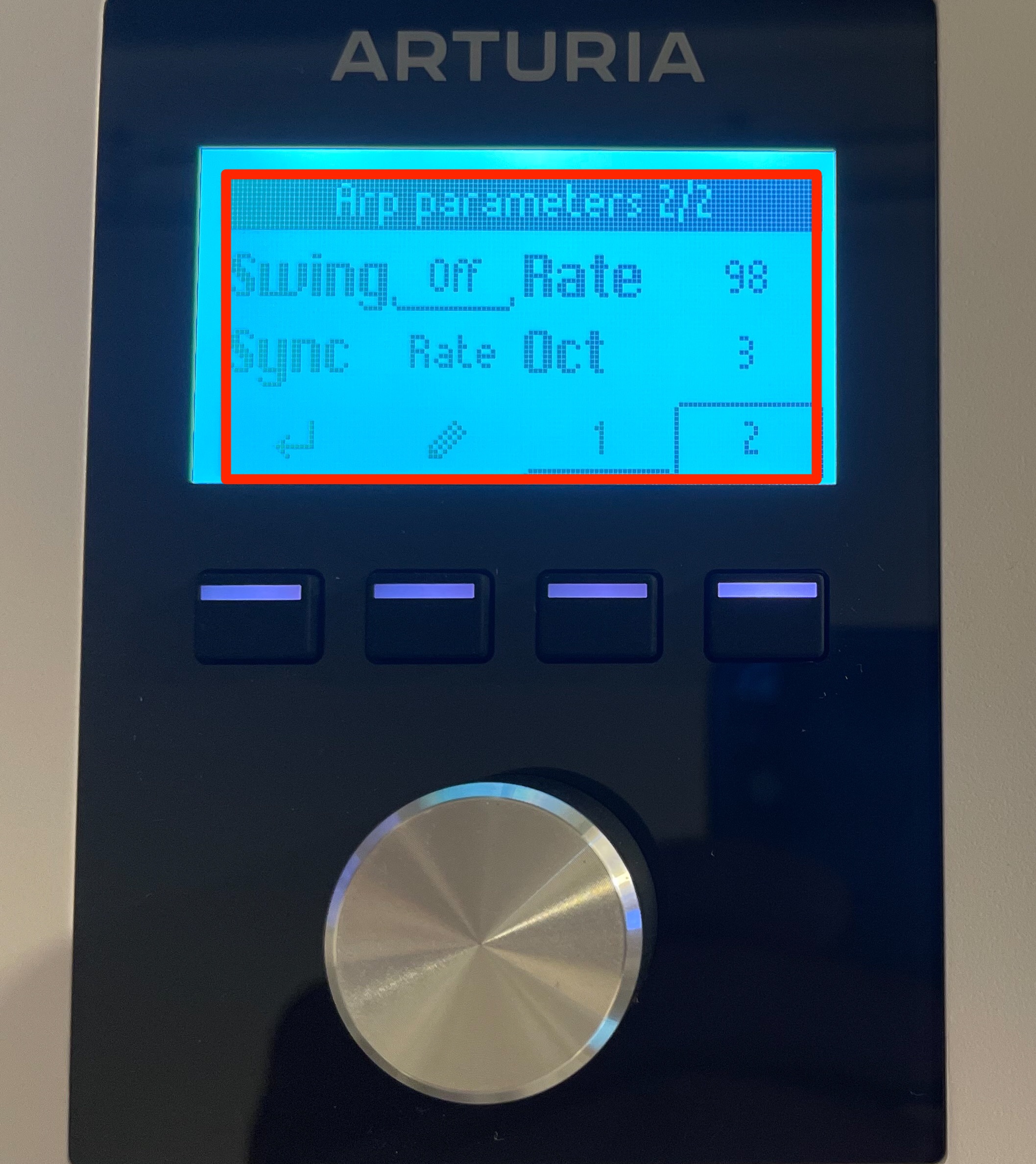
- Mode: choose the note order, such as up, down, or up and down.
- Div: choose the rhythmic division of the arpeggiator notes.
- Gate: set how long each note lasts relative to the selected division.
- Swing: add a swung feel, with stronger swing available up to 75% in the setting shown.
- Rate: set the arpeggiator tempo when using its internal clock.
- Sync: select the internal Rate clock or an external MIDI clock, including one sent by a DAW. Use Rate for a freely running internal tempo; external synchronization requires a clock source that is running. This clarifies the original wording that described synchronization only with non-DAW devices.
- Oct: extend the pattern across a range of octaves.
Combining Scale, Chord and Arpeggiator Functions
The scale, chord and arpeggiator functions can be used together
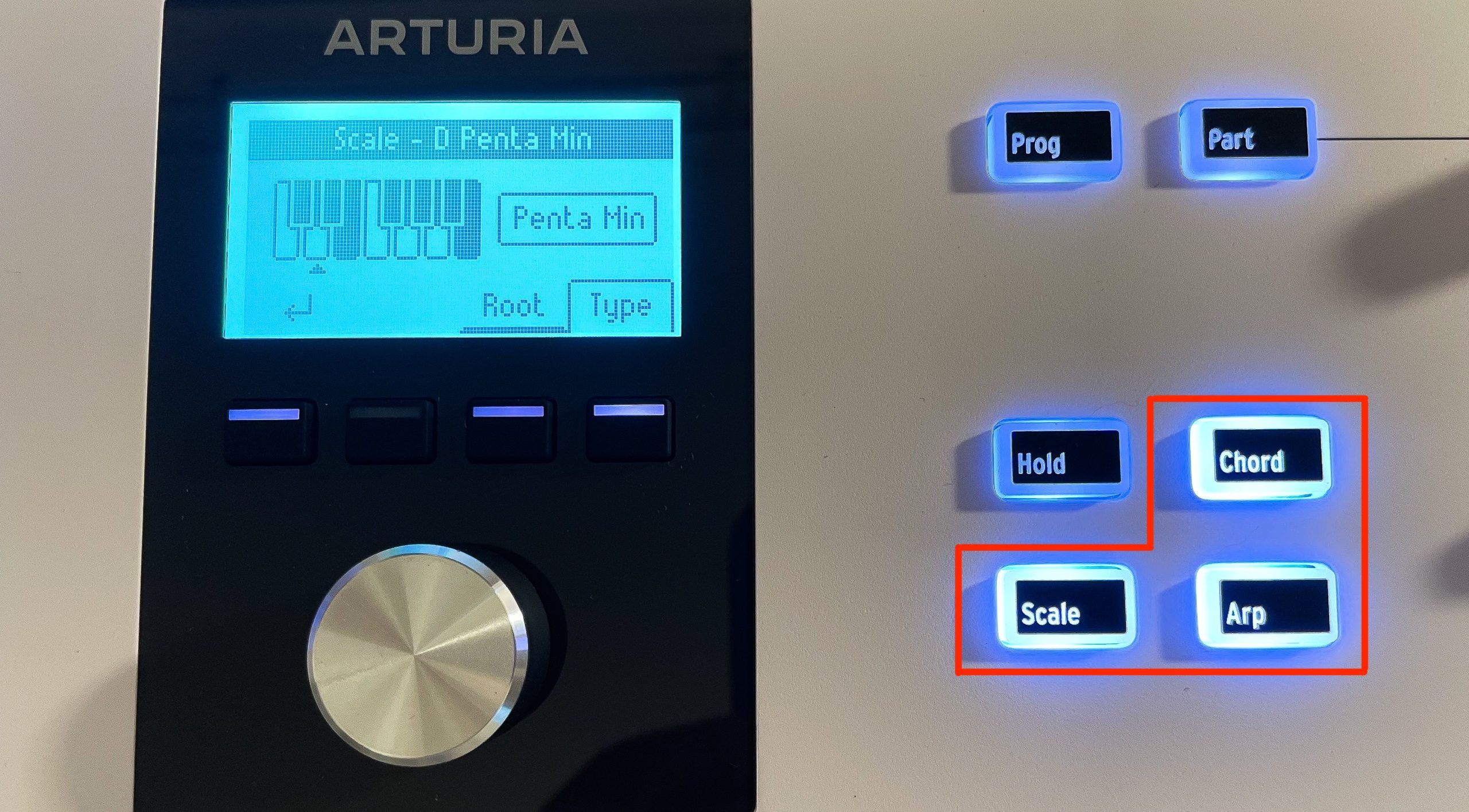
.
For example, use an arpeggio based on scale-constrained notes, or build chords within the selected scale.
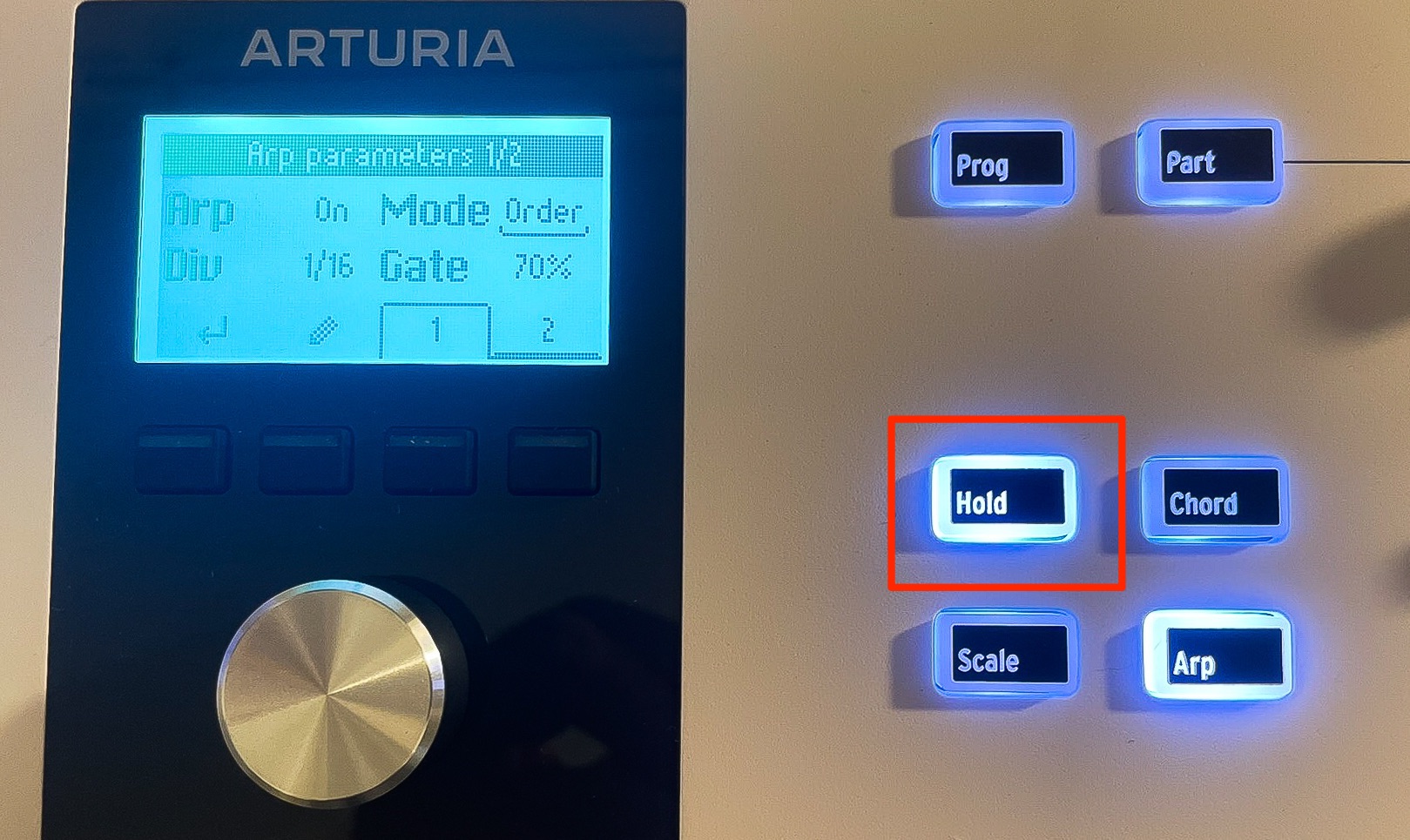
When you want to adjust parameters while listening, Hold is useful.
As the name suggests, turning on Hold keeps the played notes or pattern going.
Your hands are then free to concentrate on shaping the sound.
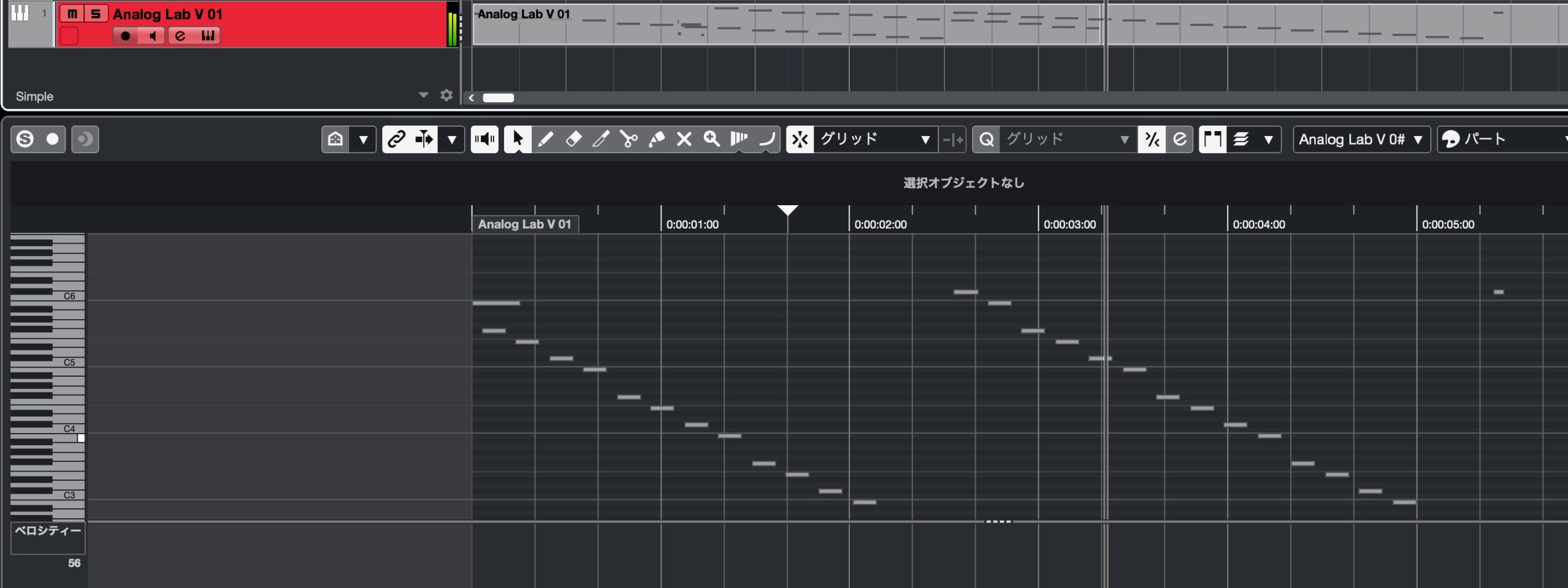
The MIDI phrases generated by these functions can be recorded as individual notes in your DAW.
You can then refine the phrase by editing particular notes or passages.
Integration with Analog Lab V
KeyLab Essential mk3 has a mode for controlling the included Analog Lab V instrument reviewed here.
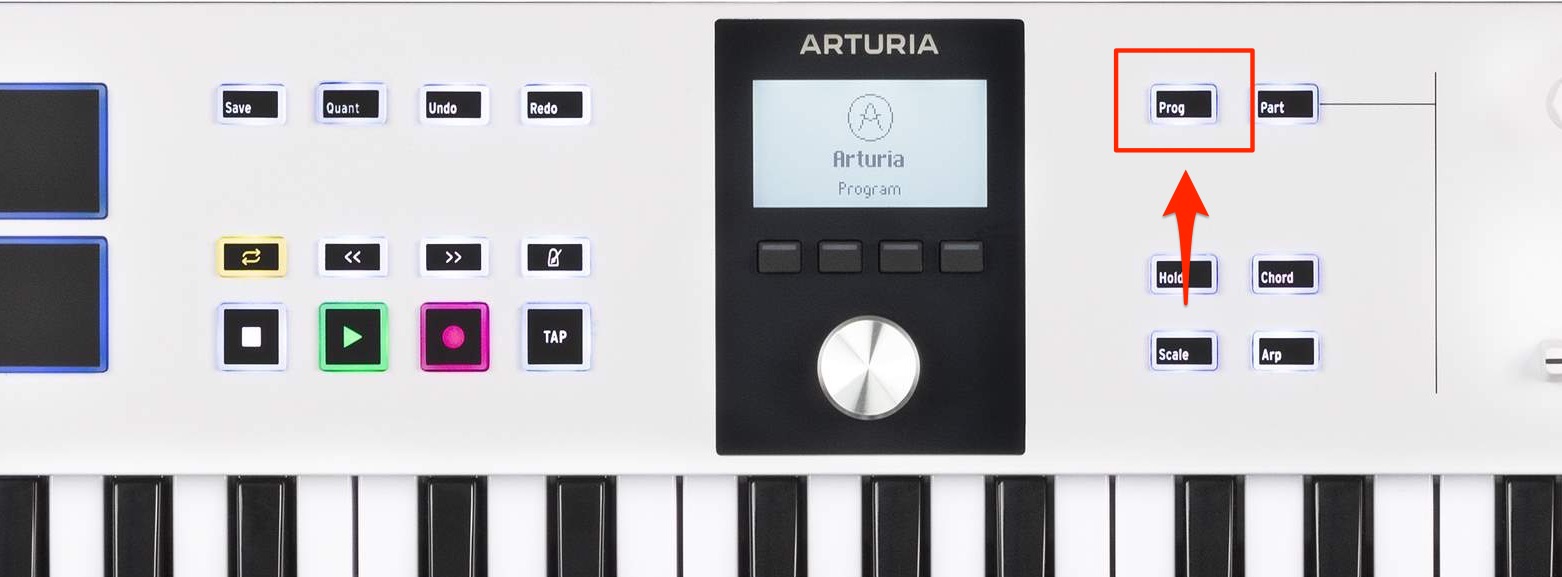
Simply press Prog and select Analog Lab mode.
Pressing Prog cycles through Analog Lab, DAW and enabled user presets.
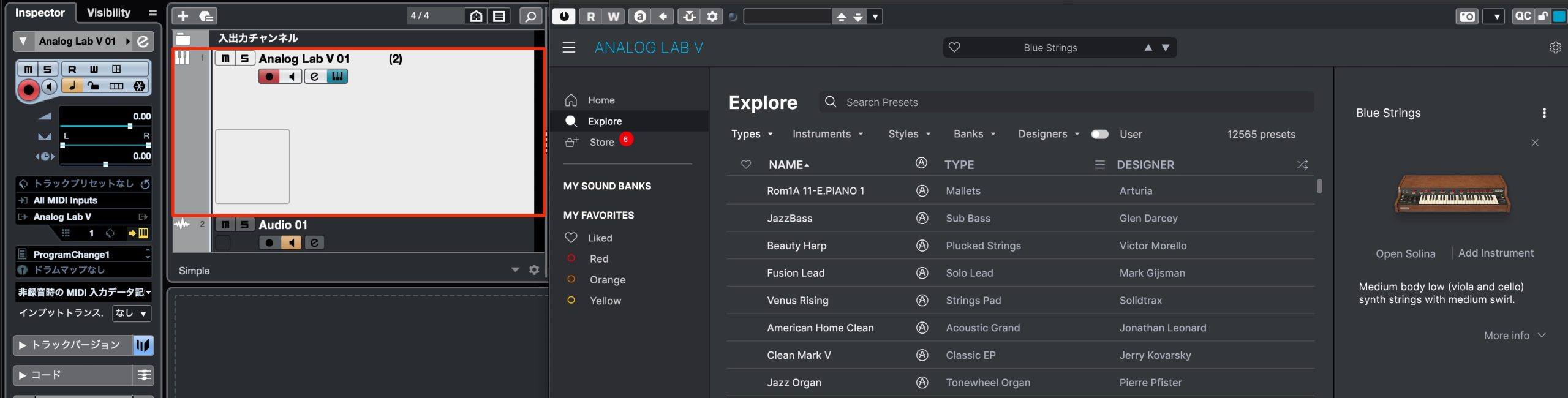
Select Analog Lab mode and a DAW track running Analog Lab V to begin controlling it.
Browse More Than 2,000 Presets in the Reviewed Bundle
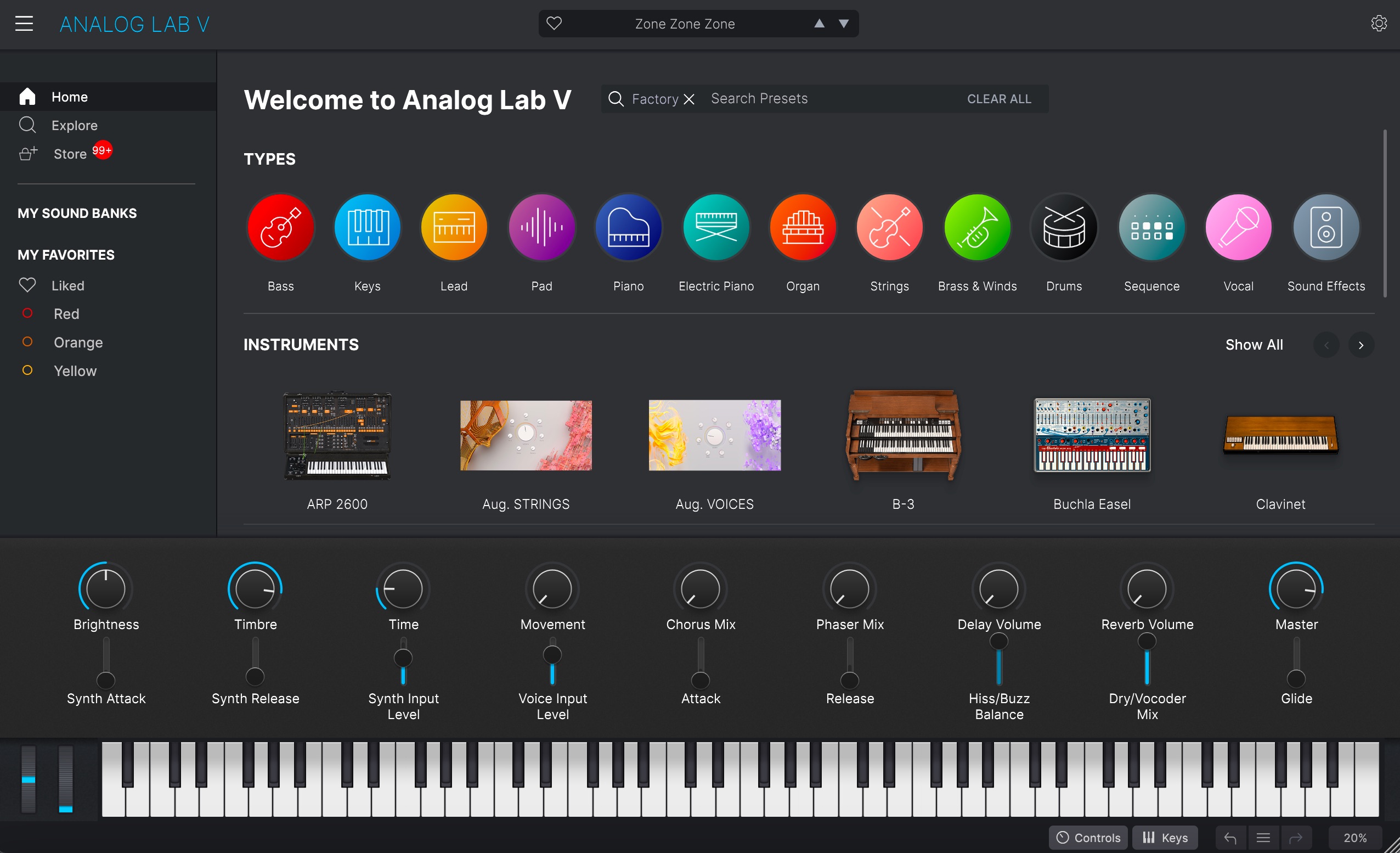
The Analog Lab V package reviewed here contains over 2,000 useful presets, accessible directly from the hardware.
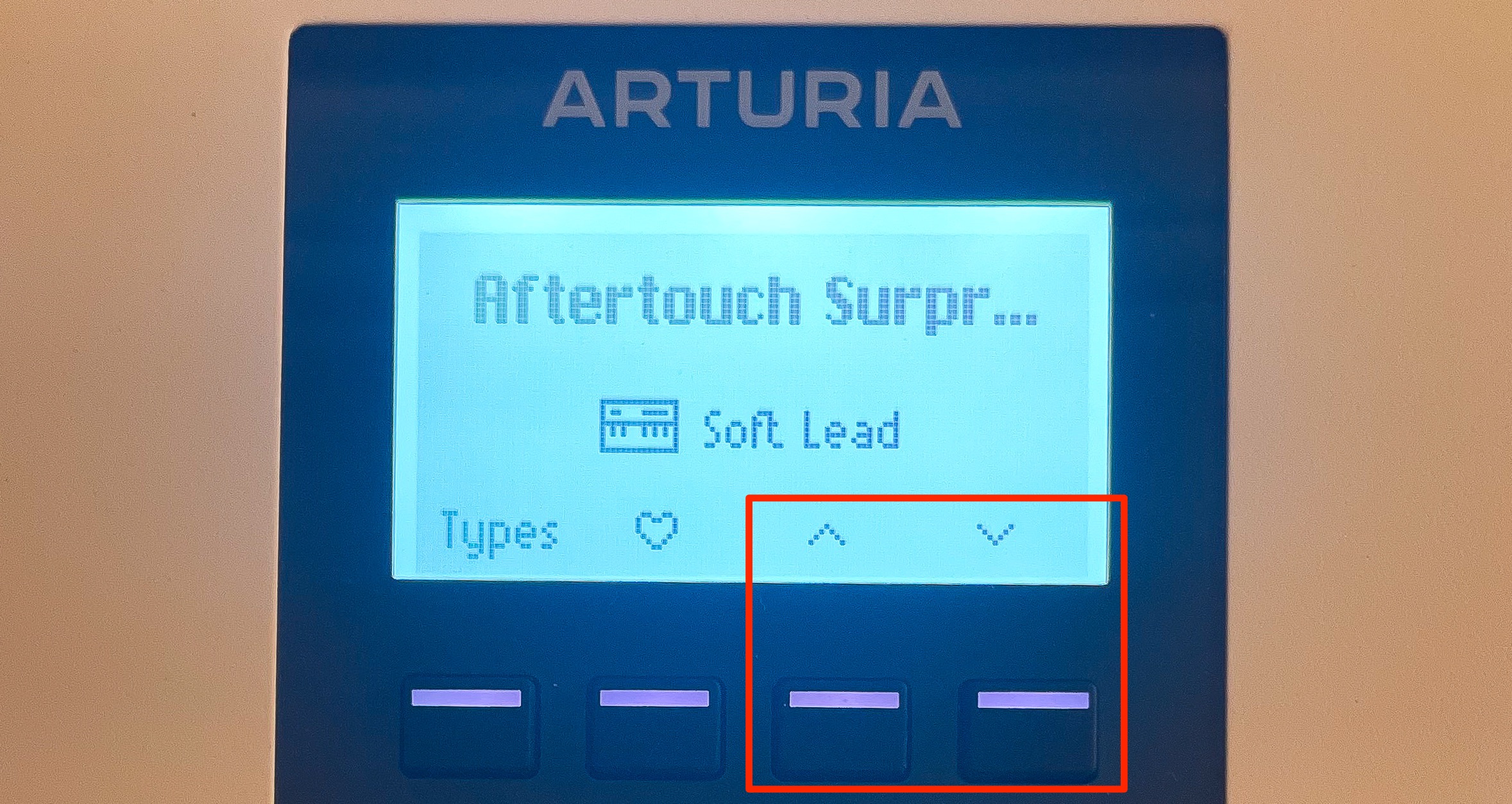
Use the two buttons on the right to move to the previous or next preset.
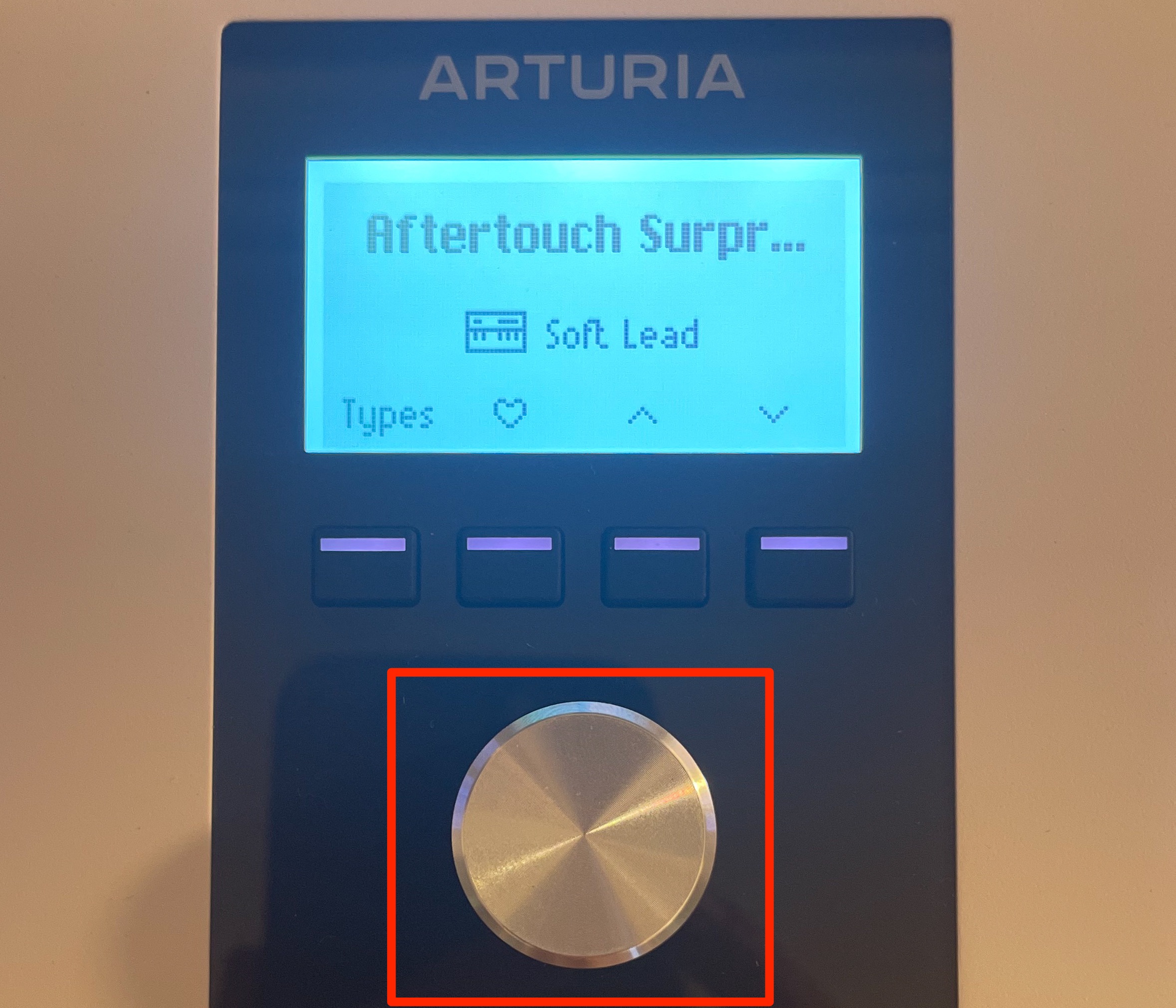
Turn the central encoder to browse, then press it to load a preset.
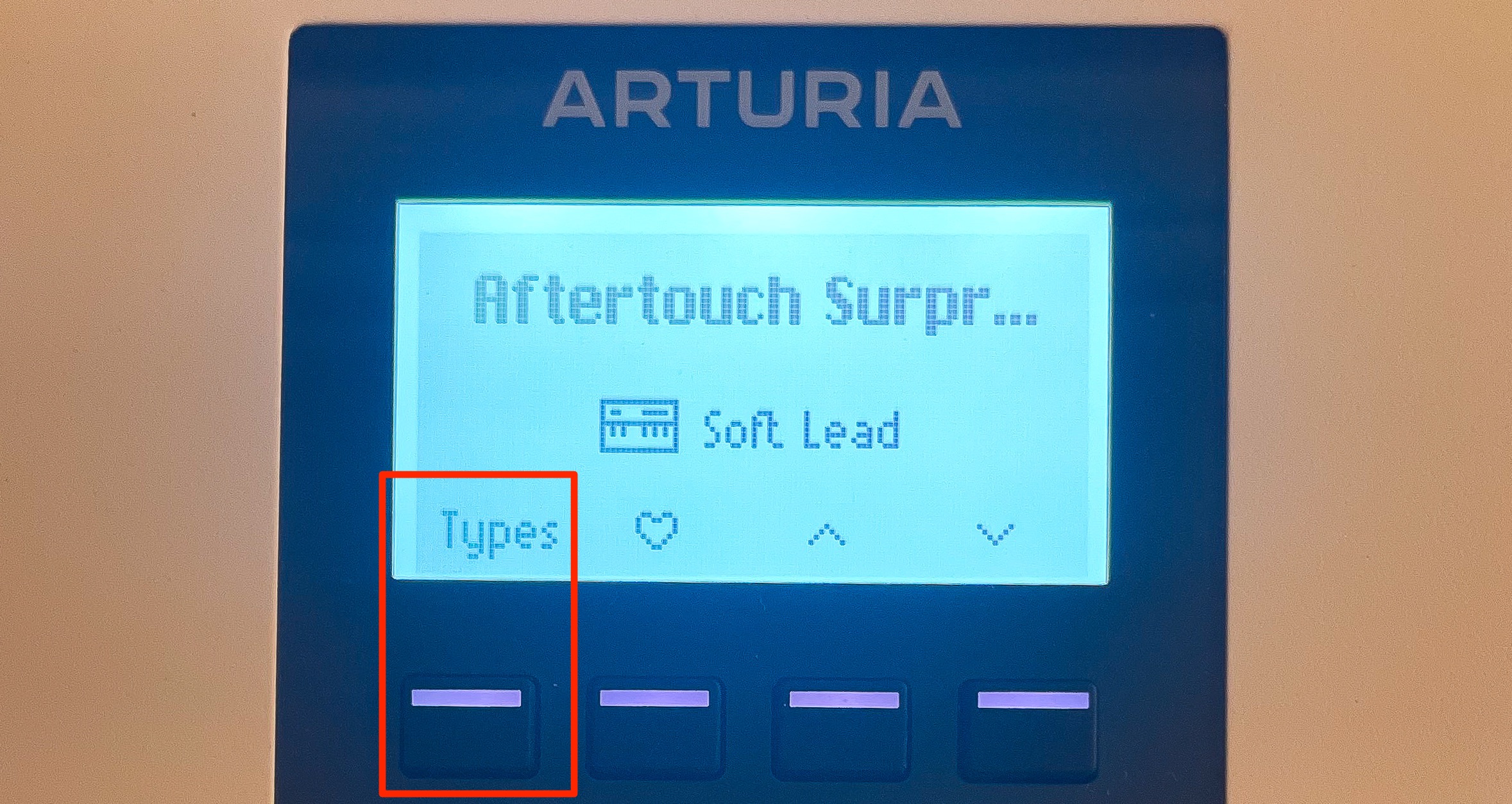
Choose Types to
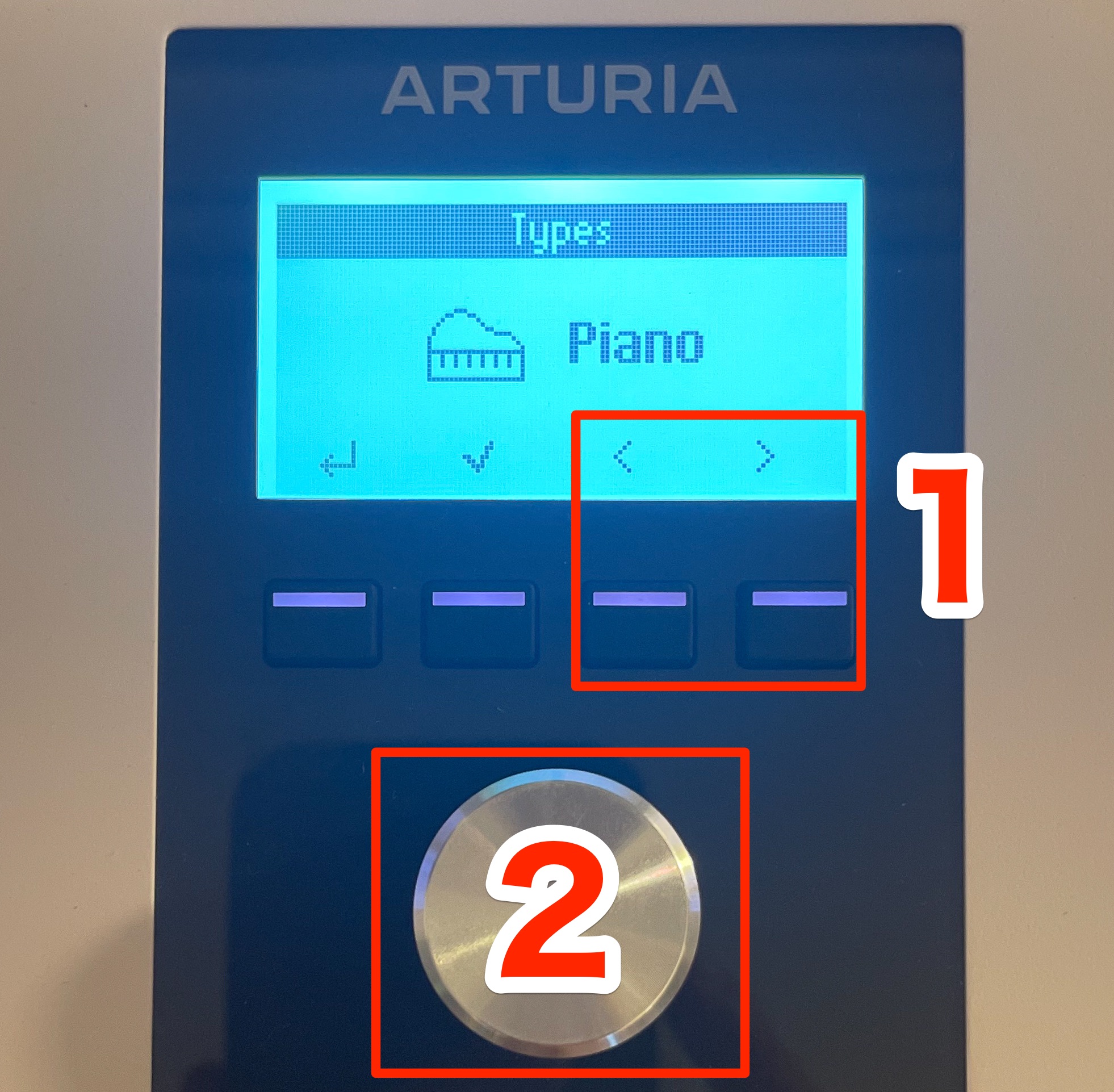
browse presets by instrument type.
Use the two right-hand buttons to choose a type, then press the encoder to confirm.
Combining these controls lets you quickly find a sound from the keyboard.
Integration goes further than preset browsing.
Eight Main Parameters and Master Controls
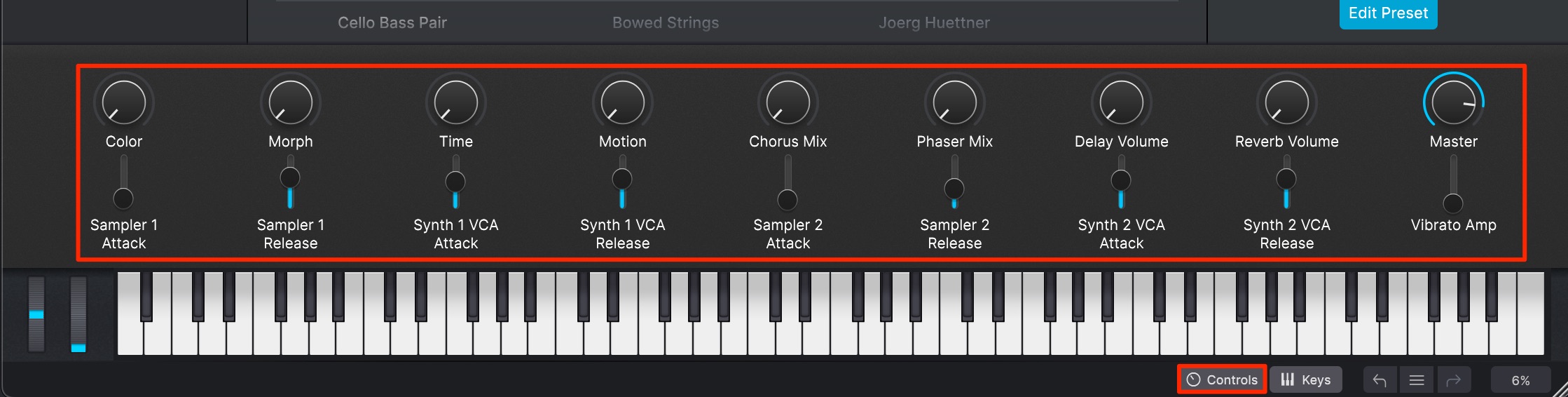
Analog Lab V presets provide eight principal sound parameters and master controls.
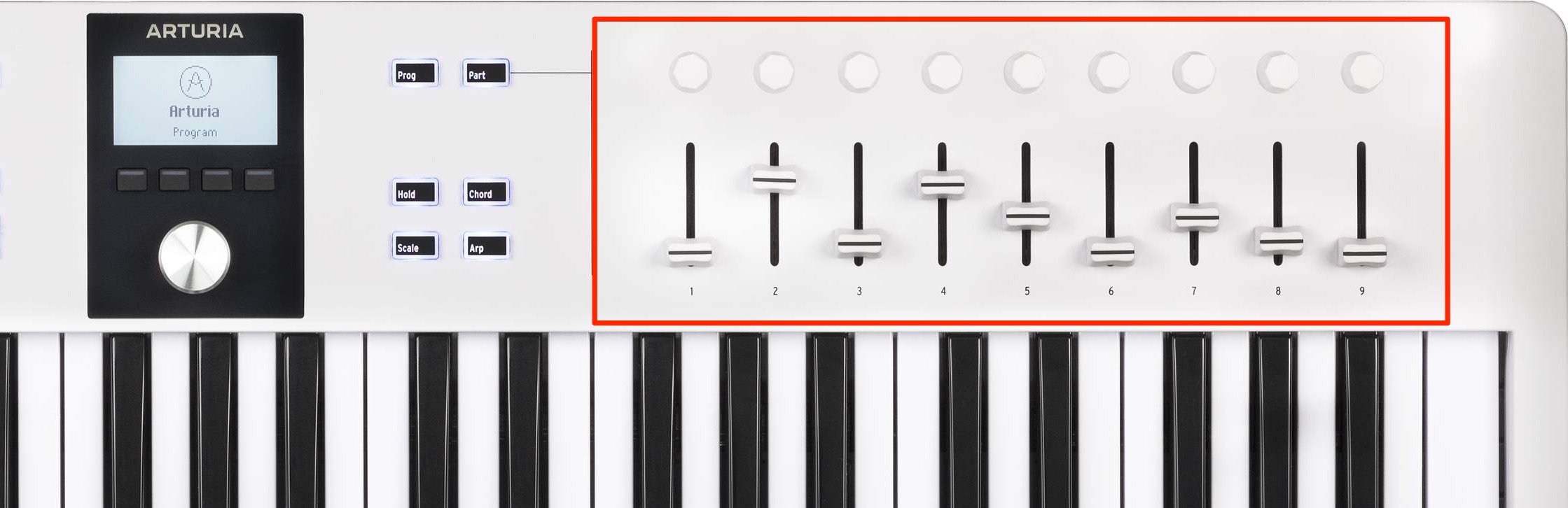
These parameters are already mapped to the hardware faders and knobs, so you can edit sounds or change them during a song immediately.
Their behavior differs between presets, making sound exploration enjoyable.
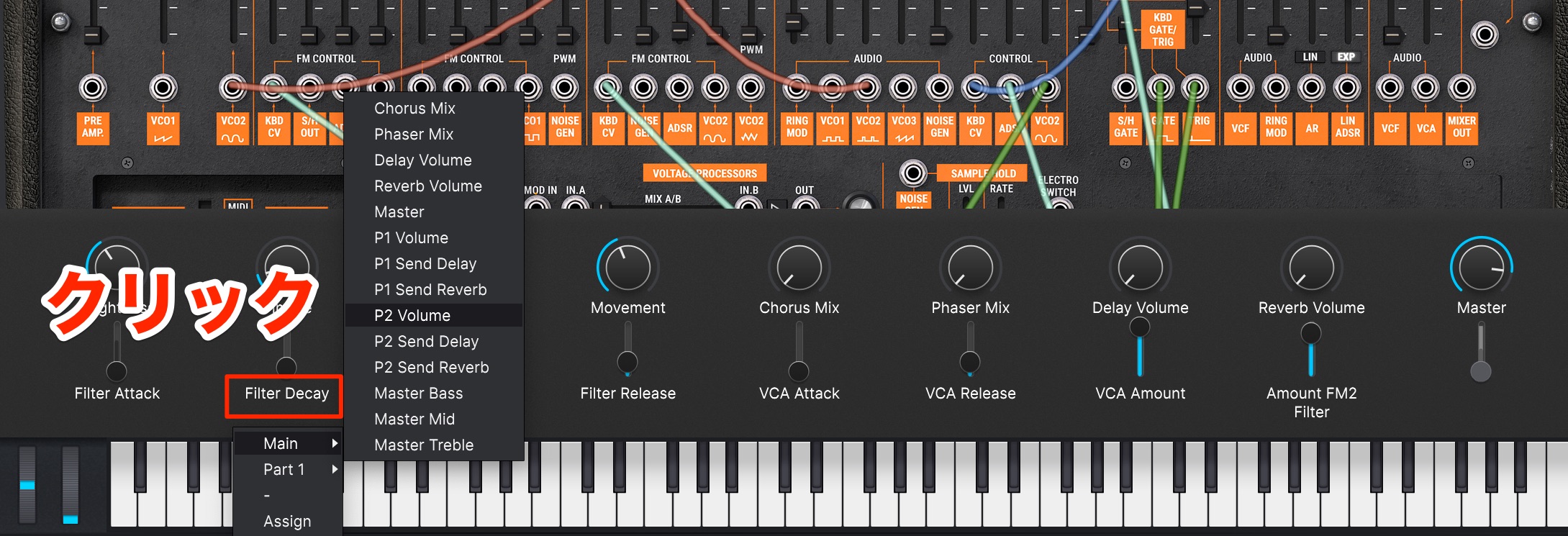
Click a fader's assignment in the software to choose a different parameter.
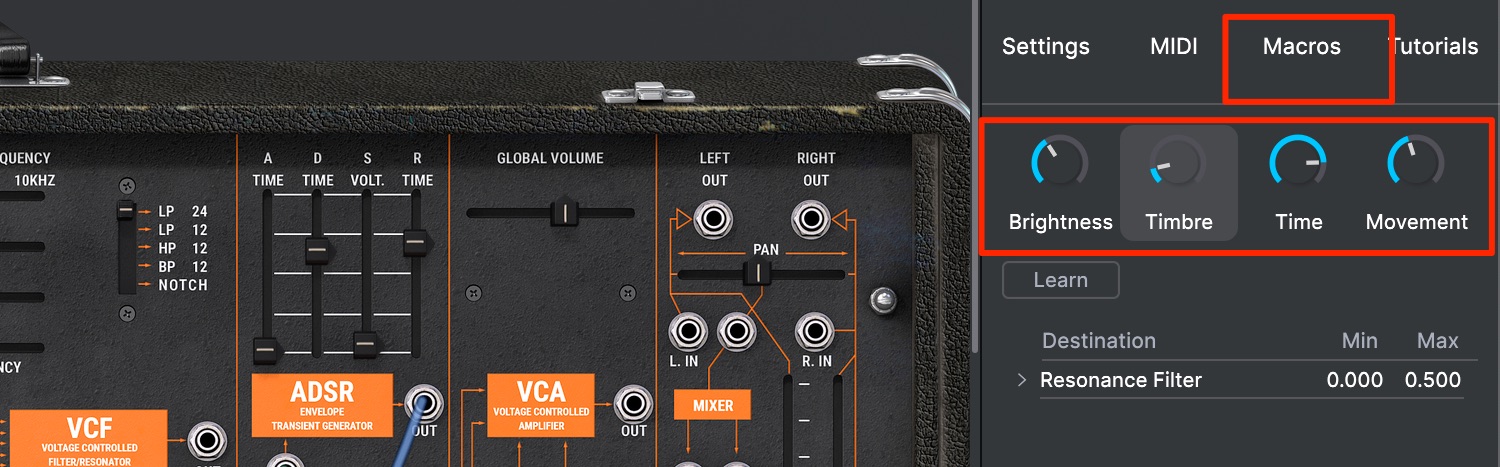
Knob assignments can be changed under Macros.
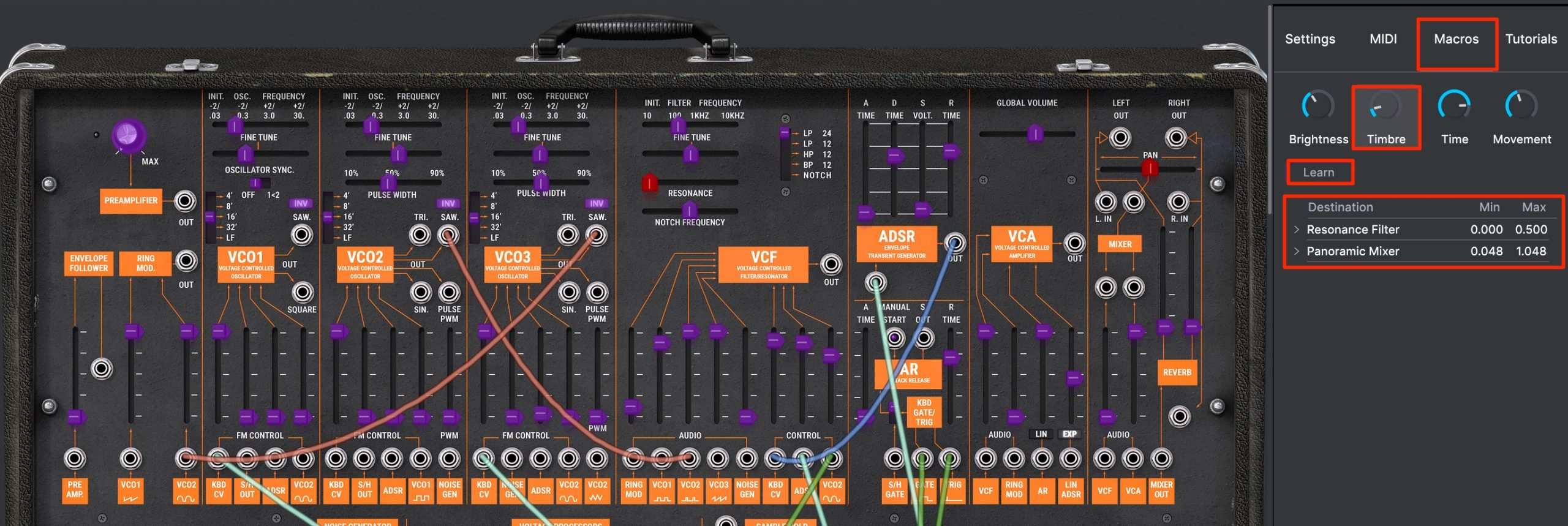
- 1. Open the Macros tab.
- 2. Select the knob you want to edit.
- 3. Click Learn; assignable parameters are highlighted in purple.
- 4. Click the parameter you want to assign.
- 5. Set the range over which the assigned parameter will move.
A knob can control multiple parameters.
This makes simultaneous parameter changes possible and can be useful in live performance.
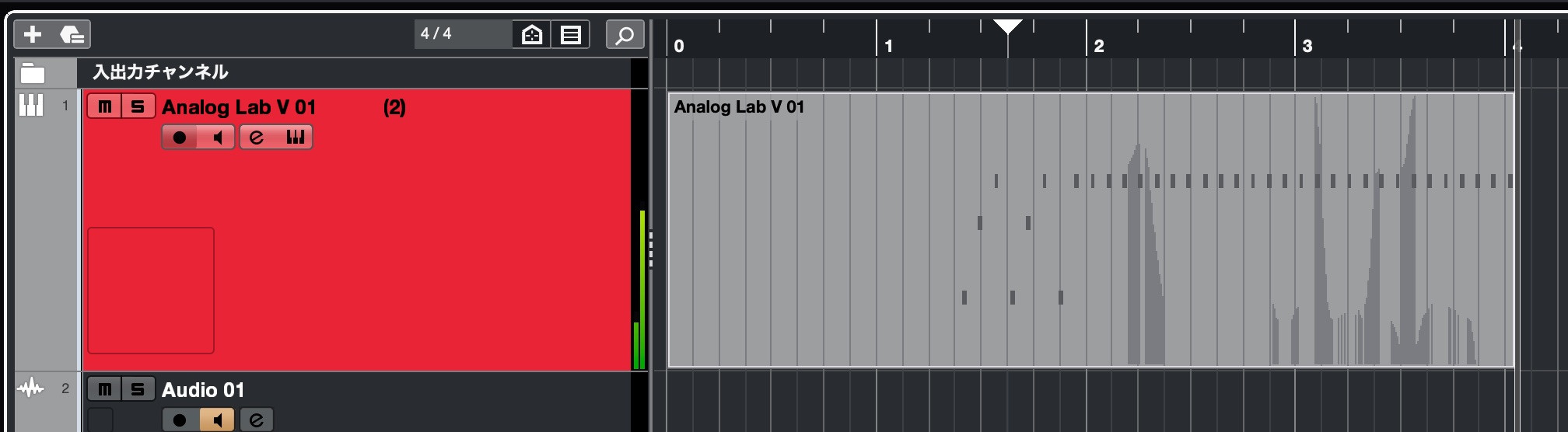
When you record while moving the faders or knobs, their movements can be captured as MIDI CC data.
You can also record only fader and knob movements over existing MIDI notes.
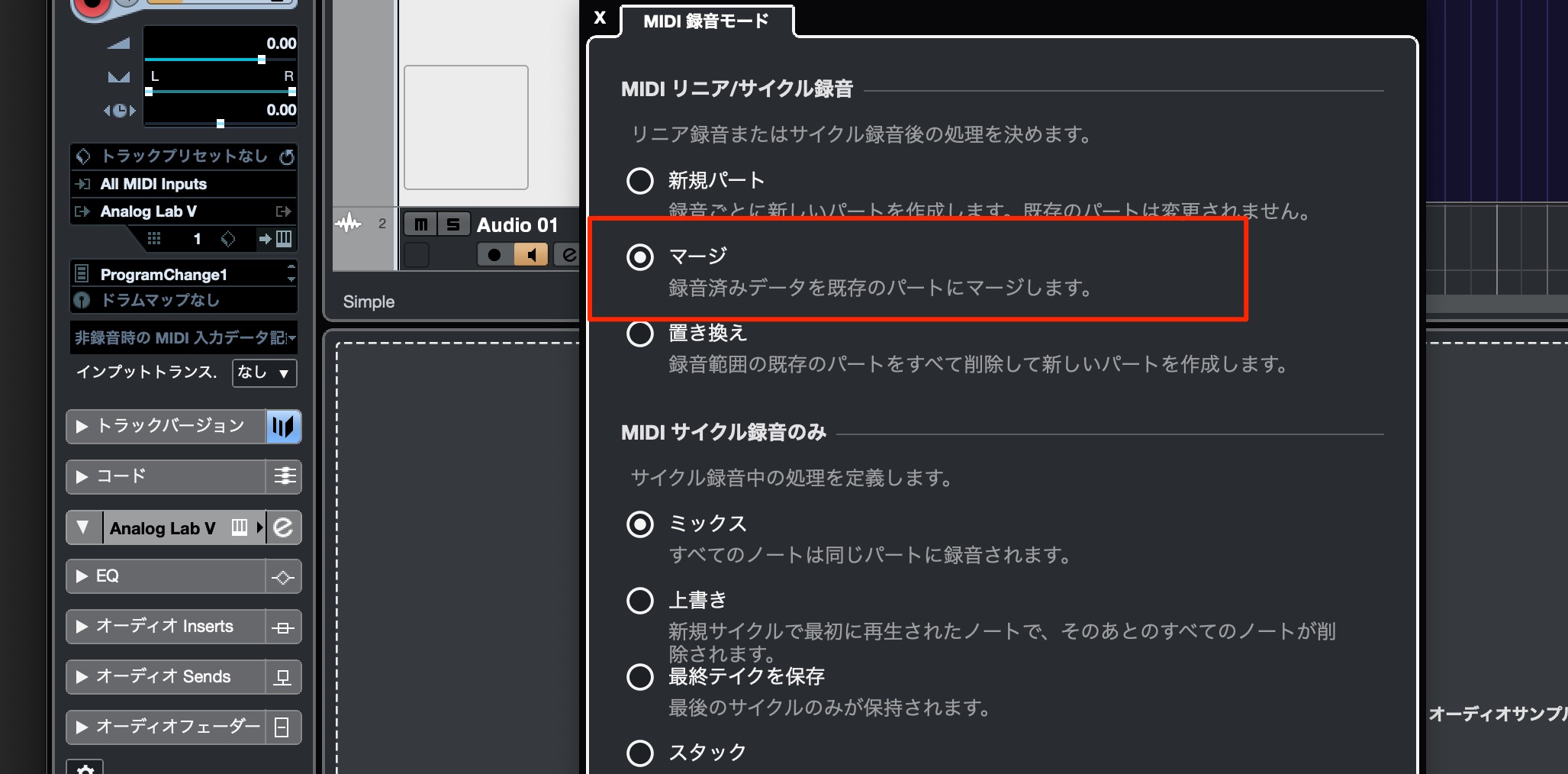
In that case, enable your DAW's MIDI merge or overdub setting so the existing notes are not replaced.
What do you think?
We found this a well-balanced product, combining DAW-focused controls, attractive styling, bundled software and an accessible price at the time of review.
The controls are straightforward and produce audible results, so even people who are less confident keyboard players can enjoy creating music with it.
We particularly appreciated that the output of its performance tools can be recorded directly as MIDI notes, helping speed up production.
We also liked how the display continually shows the active operations and settings, making the controller reassuring to use.
If you are looking for a MIDI keyboard, take a closer look at the product.
Frequently Asked Questions
Q1. Which keyboard sizes does this guide cover?
This guide reviews the 49- and 61-key versions, weighing approximately 2.76 kg and 3.08 kg respectively. Both are portable and were offered in black and white in the reviewed lineup. This describes the 2023 review, rather than an exhaustive list of current models.
Q2. Which DAWs does it support?
The integrations discussed here are Logic Pro, Cubase, Ableton Live, FL Studio and Bitwig Studio. DAW mode gives access to their main controls after the appropriate setup. Press Prog to switch modes; available functions depend on the DAW and integration version.
Q3. Do I need a power adapter for USB operation?
No separate adapter is required for the computer-connected USB setup described here. The supplied USB-C-to-A cable connects to a computer with a USB-A port.
Q4. What can the pads do?
The eight velocity- and pressure-sensitive pads are useful for drums and percussion. The Bank button switches between A and B, giving access to 16 pad assignments in total.
Q5. What instrument software is included?
The reviewed package includes Analog Lab V with over 2,000 presets covering a broad range of sounds. Software editions, preset counts and service offers can change; check the official product page for the current bundle.
NEW ARTICLES
Latest English Articles



































































































