
Recording audio in FL Studio lets you add vocals, guitar and other live performances to a song. This beginner’s guide walks through preparing an audio interface, configuring the Mixer and making a recording. It also covers Channel Rack assignments, input selection and editing recorded audio clips.
Record Vocals and Instruments

Here we explain audio recording for live sources such as vocals and guitar.
A live performance can change the character of a song considerably,
so if you sing or play an instrument, give it a try.
For this recording setup, you will need an audio interface and the configuration described below.
Video Tutorial
Selected Questions and Answers from the YouTube Video

I use a KOMPLETE AUDIO 6 with a condenser microphone connected to input 1. Even after following the video, I cannot record and FL Studio shows no input activity. Sound comes through the interface speakers, so the output seems to work. I suspect the input, but cannot identify the problem. What should I do?

If your condenser microphone requires phantom power, check that the interface’s phantom power is switched on. KOMPLETE AUDIO 6 provides 48 V phantom power; check your microphone’s requirements before enabling it.
When I record audio, I hear my own voice. Is there a setting I can change so that I do not hear it?
One suggestion is to mute the track while recording, then unmute it afterwards to check the take. Monitoring behavior depends on the routing and interface settings.
Preparing to Record: The Mixer Window
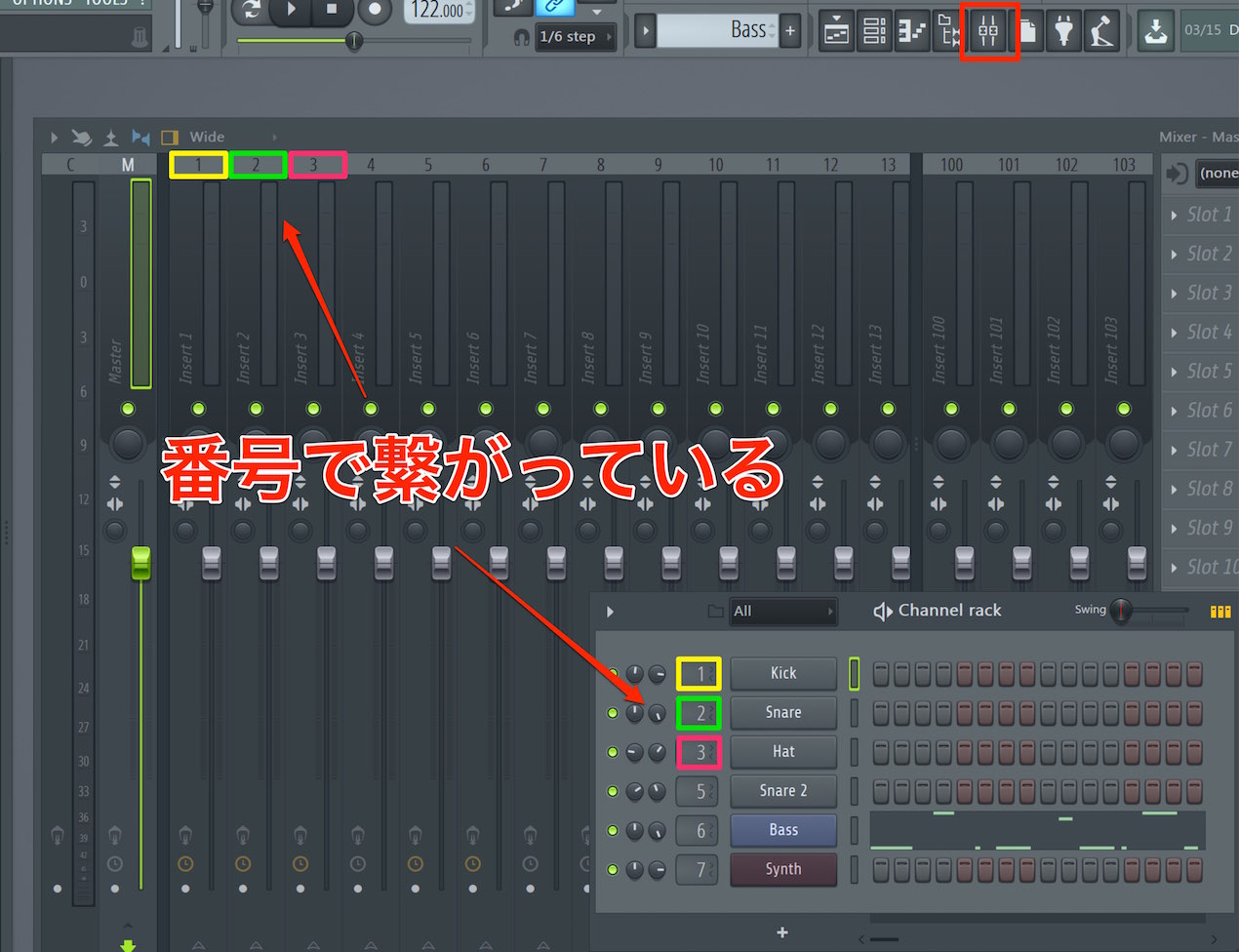
Open the Mixer window to prepare for audio recording.
Click the Mixer icon at the top of the screen shown in the image.
There are many controls, but for now you only need to understand the ones relevant to recording.
First, each Mixer track has a number,
and a Channel Rack channel can be assigned to the corresponding numbered track for routing.
For example, the snare in the Channel Rack is assigned to “2.”
This means its sound is sent to Mixer track 2.
These assignments can be changed, and multiple channels can use the same number when needed.
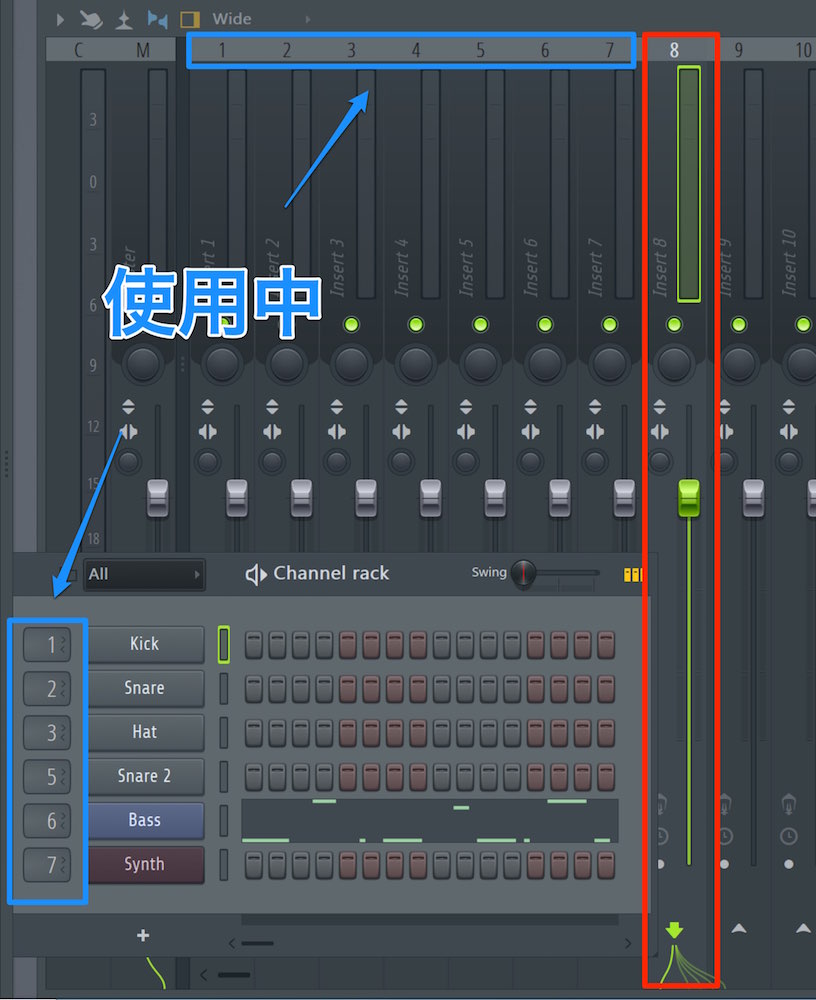
In this example, we will record a new guitar part.
Because channels 1–7 are already in use in the Channel Rack, we will use 8.
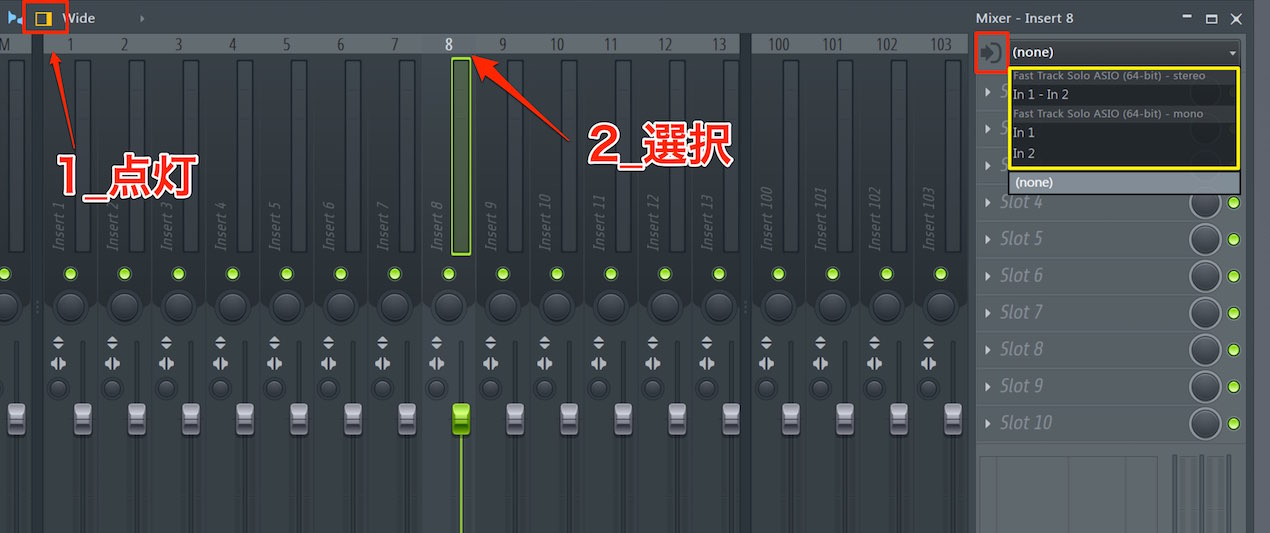
- 1. Enable the inspector.
- 2. Select the track you want to record.
- 3. Select the input source.
The top stereo option is for a signal arriving on both interface inputs 1 and 2.
Choose “In 1” or “In 2” for the input where the microphone or instrument cable is connected.
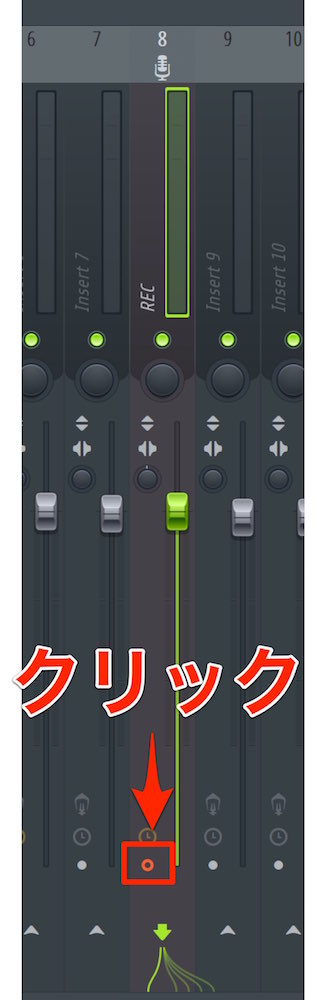
Once configured, click the recording button so that it lights up.
You are now ready to record.
Making a Recording
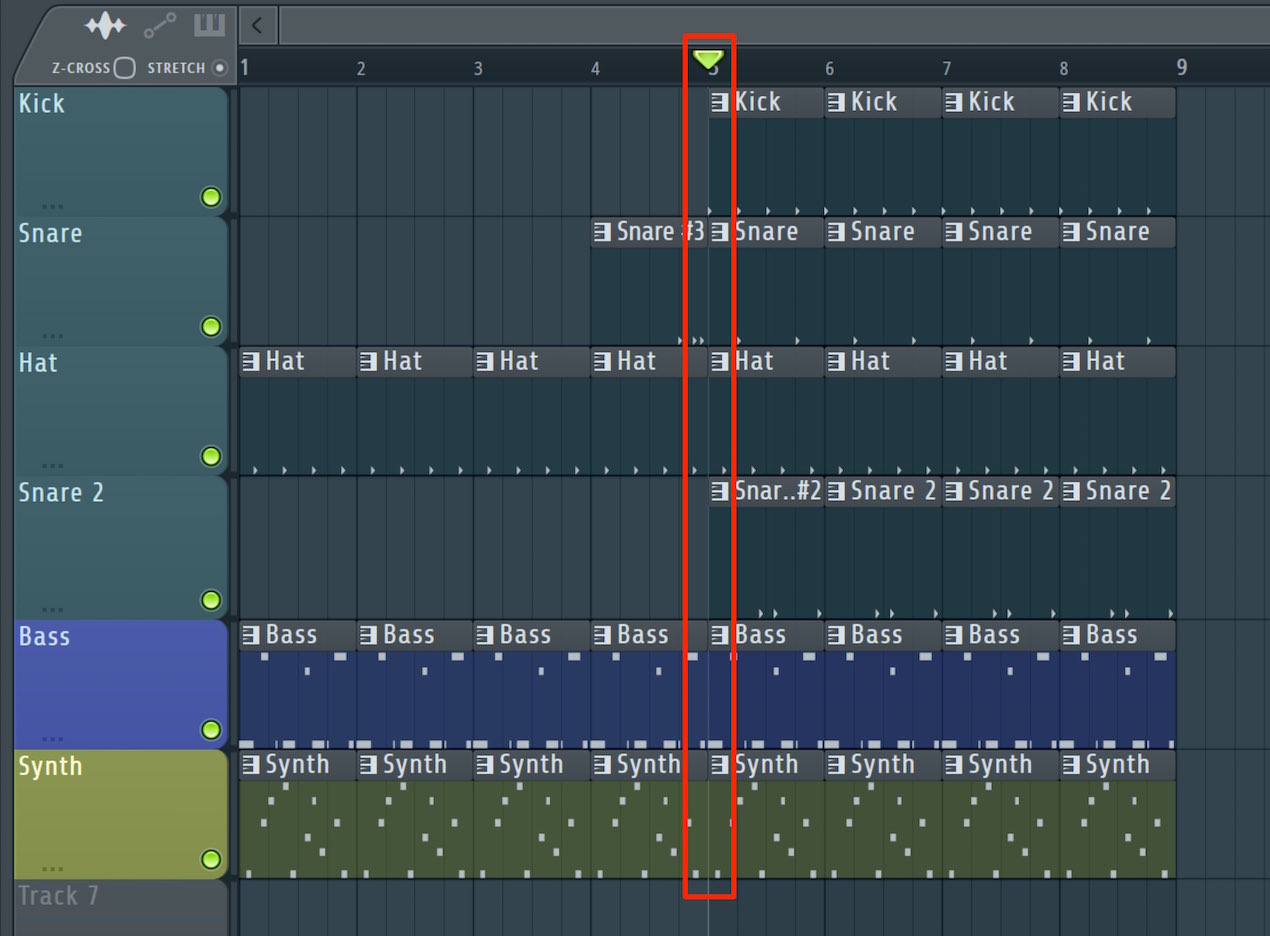
Place the playback cursor where you want to start recording.
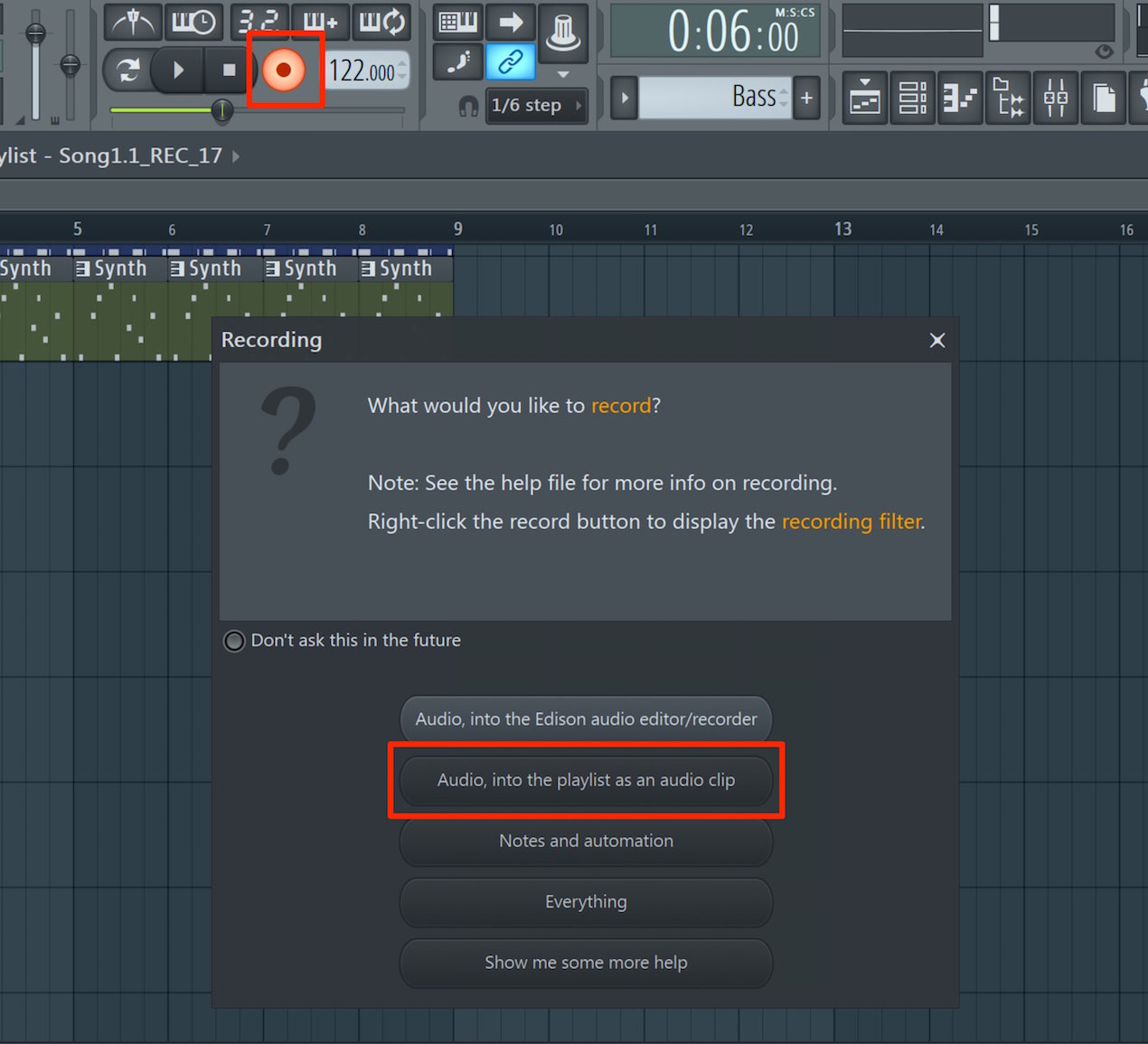
Click the record icon to open a dialog.
To record into the Playlist, choose “Audio, into the playlist as an audio clip.”
After the count-in, recording begins.
When you finish playing, stop playback to end the recording.
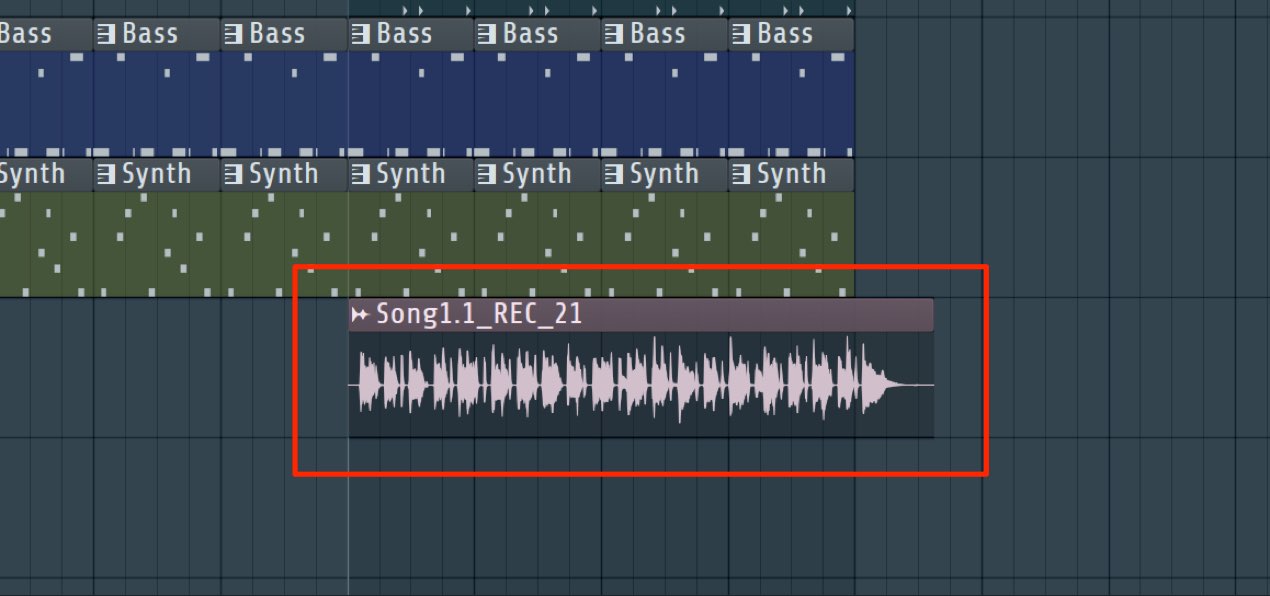
The performance is recorded as a waveform, as shown.
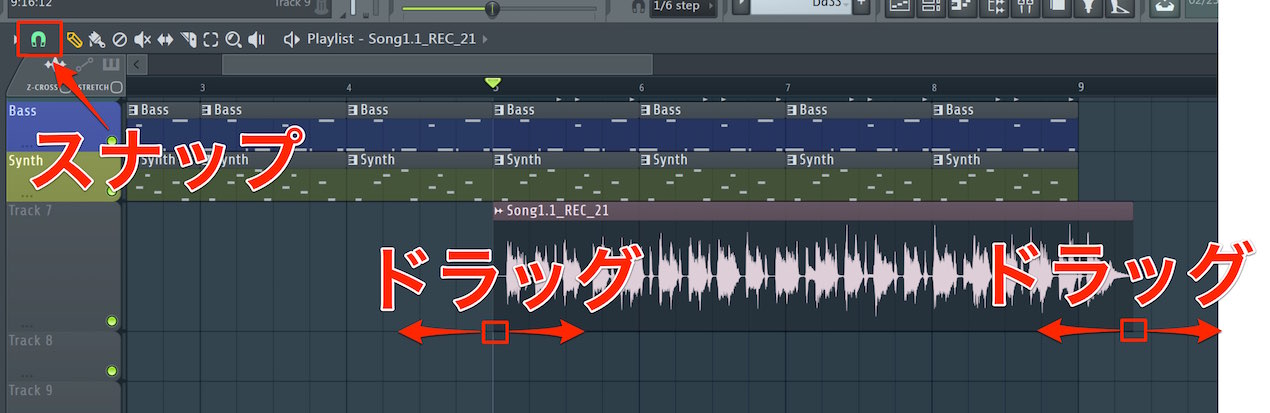
Like a MIDI clip, an audio clip can be moved and its length edited.
You can also use Snap to adjust the editing grid.
Recording Through a Hardware Compressor

Frequently Asked Questions
Q1. What equipment do I need to record audio in FL Studio?
This setup uses an audio interface. Connect a microphone or guitar with the appropriate cable and route its signal to the computer through the interface. Select the correct interface input on the FL Studio Mixer track.
Q2. How do Mixer track numbers relate to the Channel Rack?
Each Channel Rack sound can be assigned to a numbered Mixer track. For example, a snare assigned to Mixer track 2 sends its output there. You can change this assignment.
Q3. Can I edit the waveform after recording?
Yes. Like MIDI clips, audio clips can be moved and their length edited. Adjust Snap to control the editing grid when positioning or cutting clips in the Playlist.
NEW ARTICLES
Latest English Articles










































































































































































































































































































































































































































