
The FL Studio Mixer brings channel audio together so you can efficiently adjust levels and panning and apply effects. This guide covers four areas: the Master track, mixer tracks, FX tracks and insert effects. Assigning a Channel Rack channel to a numbered Mixer track routes its audio there. Understanding pan, mute and solo, volume faders, stereo separation and routing helps you work more smoothly during mixing.
Route Channel Audio for Mixing and Editing

The Mixer receives audio from each channel
and lets you efficiently control volume, pan, effects and more.
It is also used frequently during mixing, one of the final stages of producing a song.
As mentioned briefly in the audio-recording lesson,
you can link Channel Rack channels to numbered Mixer tracks.
Assign a Mixer track number to a channel to send that channel’s sound to the corresponding track.
Video Tutorial
Selected Questions and Answers from the YouTube Video

I cannot see the stereo separation control or the phase inversion icon above it. What could be causing this?

These controls can be hidden if the Mixer window is made too short vertically. Check the window height. https://www.dropbox.com/s/jaul9093f2sn1hu/FL%20Sep.mp4?dl=0
The Master channel has disappeared and I cannot find how to display it. Could you help?
The Master channel may be hidden. Try dragging the edge of the Mixer window. https://app.box.com/s/8l4wxb0bfzsxfnqd4phbhw9ra6k7hvx3
The Mixer Window
The Mixer window can be divided into four main parts.
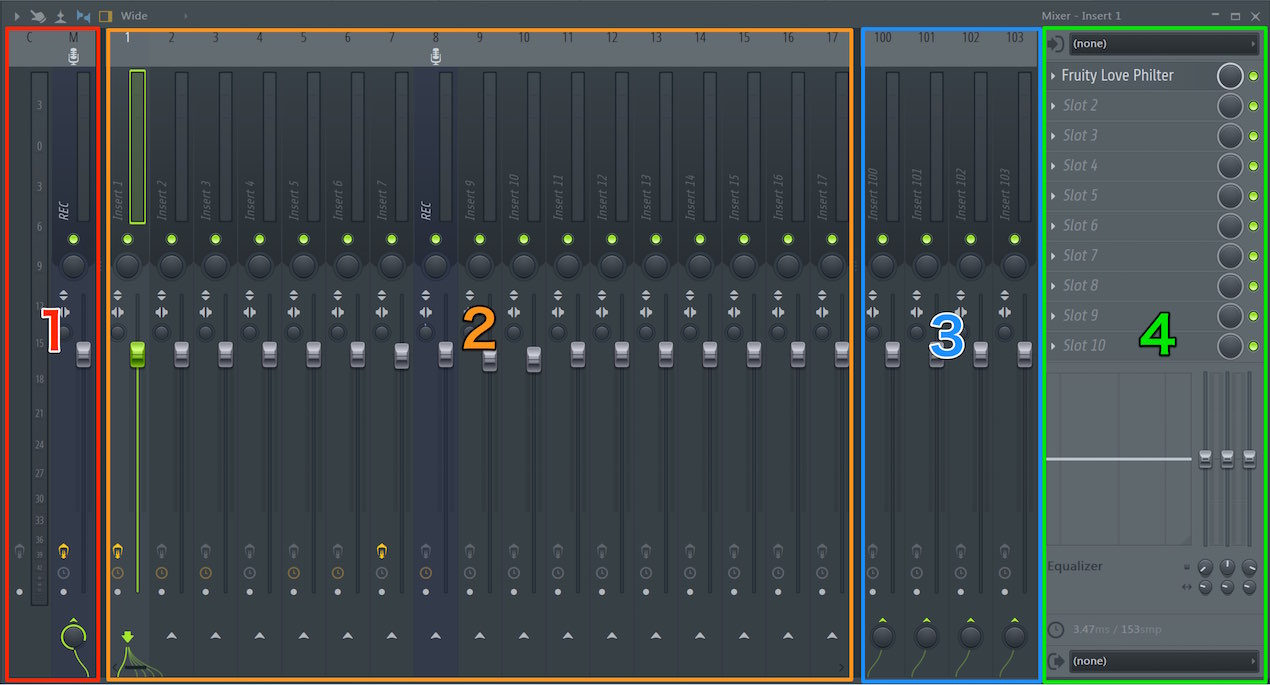
1. Master Section
As the name suggests, this is the section where the audio from the tracks is brought together before output.
The audio reaching this section is what you hear through your speakers or headphones.
Effects applied to the Master track affect the sound of all tracks routed through it as a whole.
You can also control the overall volume of the song here.
2. Track Section
This is the main part of the Mixer,
where you adjust the sound received from each channel individually.
We will explain the controls below.
3. FX Tracks
These tracks let you share an effect among several tracks using send and return routing instead of inserting a separate instance on each track.
The following article explains the concept and method in more detail.
4. Insert Effects Section
You can apply individual effects to each track using this section.
The following article explains how to apply effects.
Track Controls
Now that we have covered the overview, let’s look more closely at the track section you will use most often.
Understanding these controls will make the Mixer easier to use.
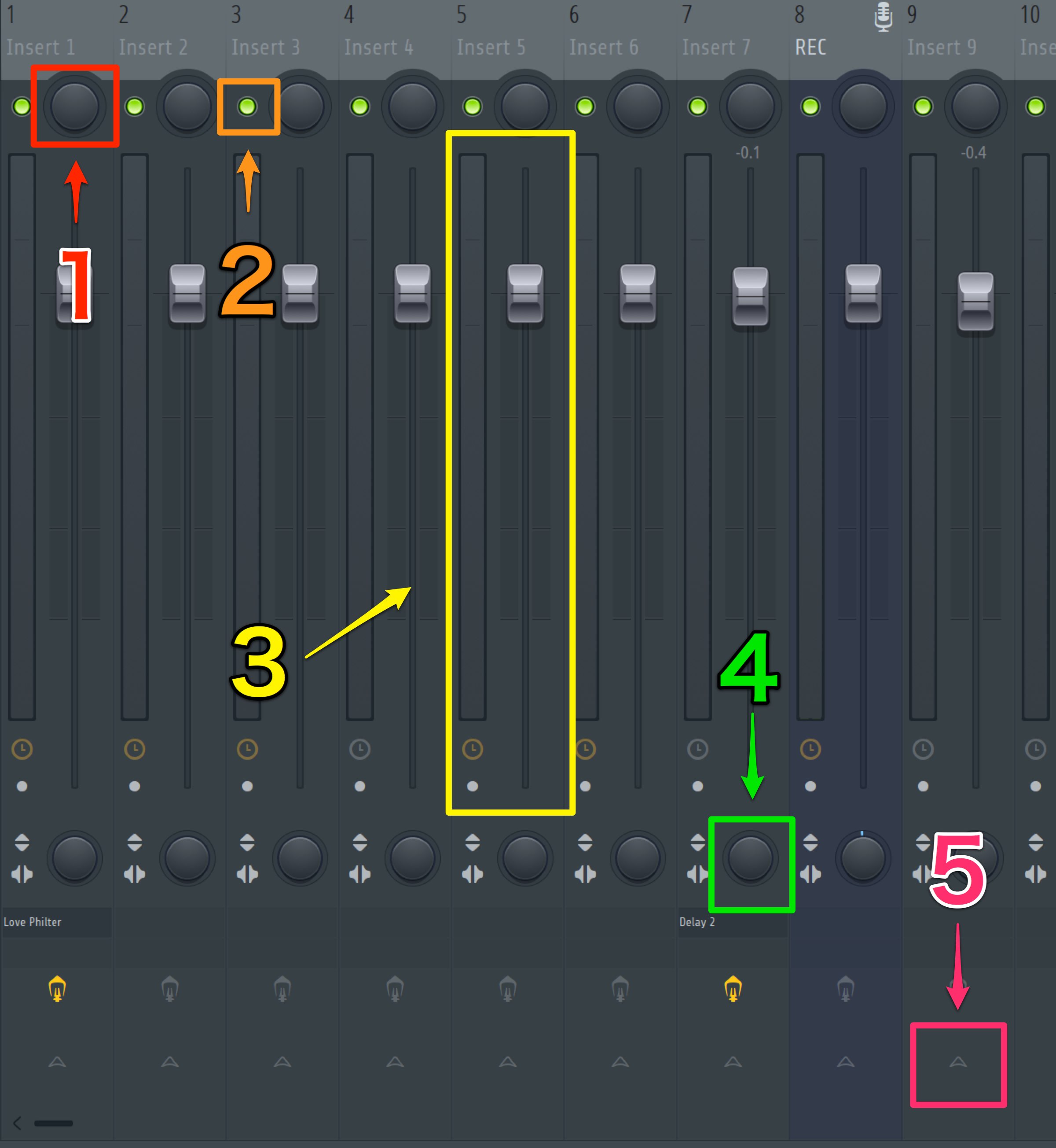
- 1. Pan: Sets the sound’s position between left and right.
- 2. Mute / Solo: Click the lit control to turn it off and temporarily silence the track.
Alt-click to enter solo mode, muting the other tracks. - 3. Volume fader: Adjusts the level.
- 4. Stereo separation: Adjusts the stereo width of the sound.
- 5. Routing: Combines multiple tracks or sets up the send and return routing described above.
There are many controls, which may feel overwhelming at first, but with practice you will be able to work quickly.
Try adjusting them as you search for the right balance.

Frequently Asked Questions
Q1. How are the Mixer and Channel Rack related in FL Studio?
Assigning a numbered Mixer track to a Channel Rack channel sends that channel’s audio to the corresponding track, making it easier to manage and adjust multiple sound sources.
Q2. What do effects on the Master track do?
Effects on the Master affect the tracks routed through it. You can also control the overall song level there; the final audio normally passes through the Master on its way to your speakers or headphones.
Q3. What is the difference between send/return and insert effects?
Send/return routing uses an FX track to share one effect among multiple tracks, often for reverb or delay. Insert effects are applied individually to a track.
Q4. What is the difference between mute and solo?
Mute temporarily silences the selected track. Alt-click activates solo mode, muting the other tracks so you can hear that track on its own.
NEW ARTICLES
Latest English Articles








































































































































































































































































































































































































































