
Waves Curves Equator is an equalizer plugin designed to be approachable for everyone from beginners to experienced music producers. Its automatic learning feature can detect harsh frequencies and unwanted resonances and reduce them, helping you shape your sound without relying entirely on complex manual adjustments. It also offers detailed controls when you want to fine-tune the sound. The plugin can be used for mastering as well as processing individual tracks, with the aim of helping you work more efficiently while creating a high-quality mix.
Control the Sounds You Want: An Intuitive New Tool for Shaping Your Sound
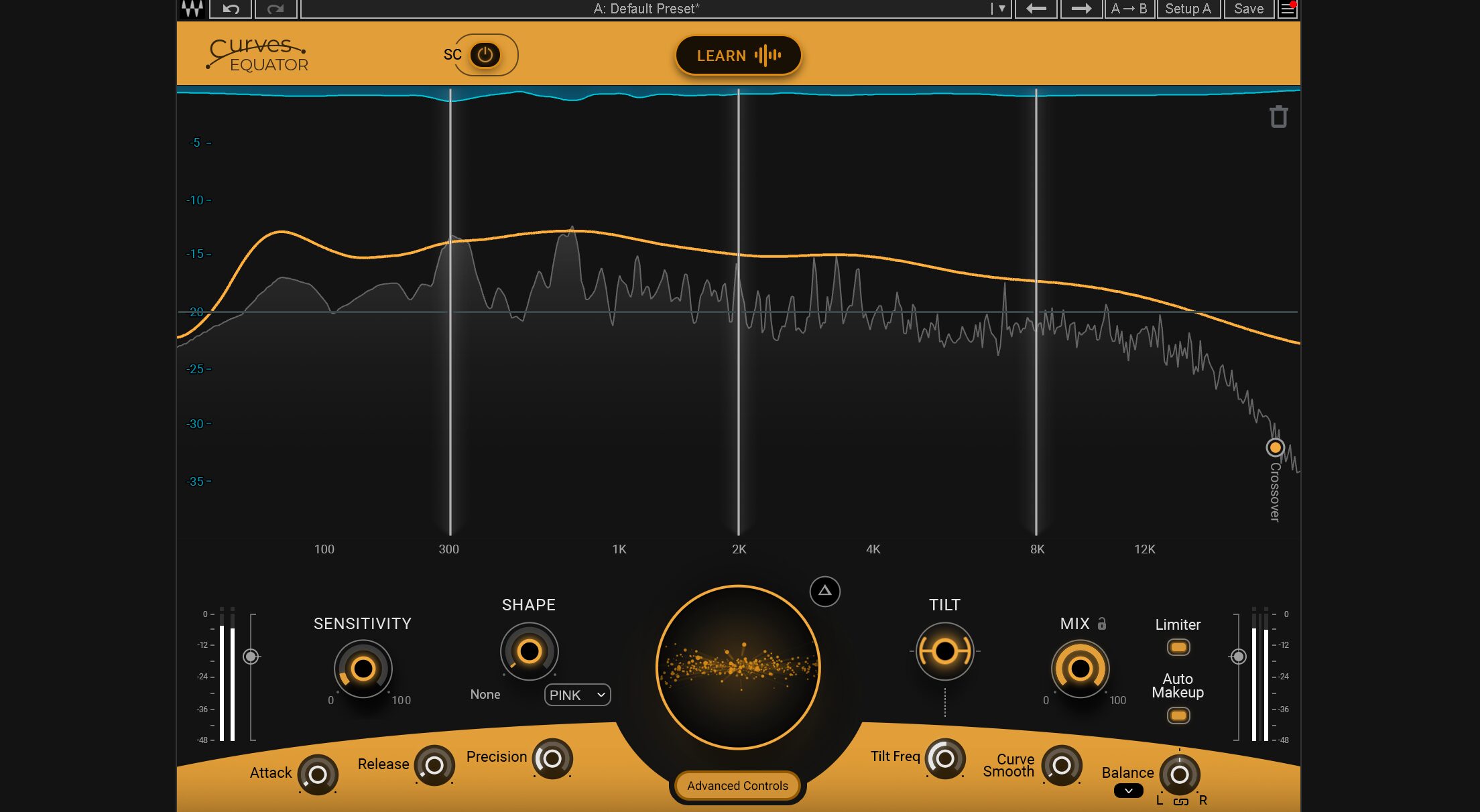
In music production, it is important to manage harsh resonances and unwanted frequencies appropriately.
Waves’ new plugin, Curves Equator, is designed to address these issues automatically while helping you balance the sound and create a more pleasant listening experience.
If you want more control over the tone of your sound, this plugin may be worth exploring.
This article covers the features, functions, and basic operation of Curves Equator.
What Is Curves Equator?
Excerpt from a Q&A on the YouTube video

Is this different from Curves Resolve?

Yes, they are different tools. Equator focuses on resonance correction, while Resolve is designed to address masking between tracks.
First, listen to the audio before and after using Curves Equator.
The overall sound feels cleaner.
Curves Equator’s key feature is its automatic processing and learning functions, which make it easy to adjust the sound.
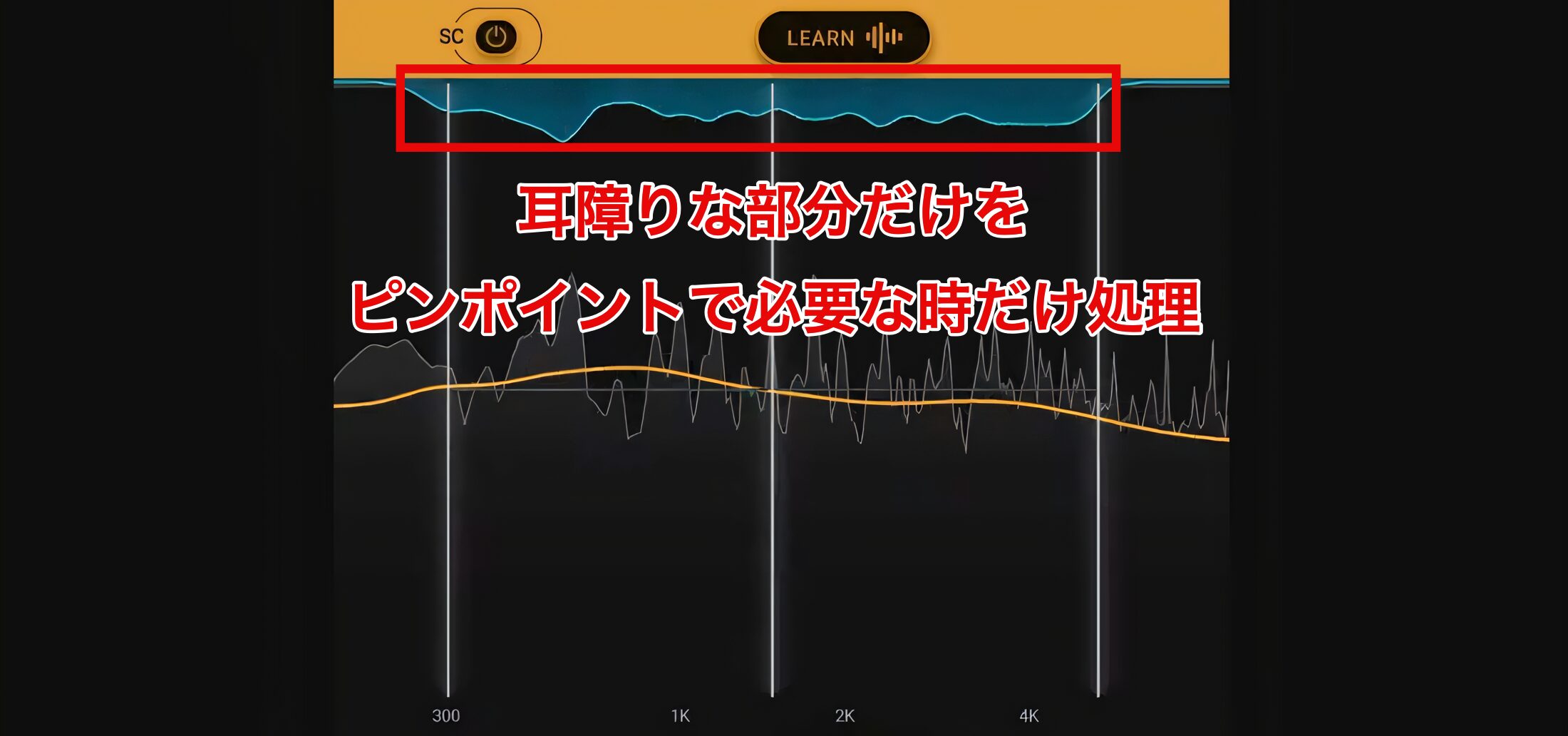
The automatic processing function identifies harsh sounds and unwanted resonances and reduces them precisely, helping prevent excessive adjustments from thinning out the sound and aiming for a natural result.
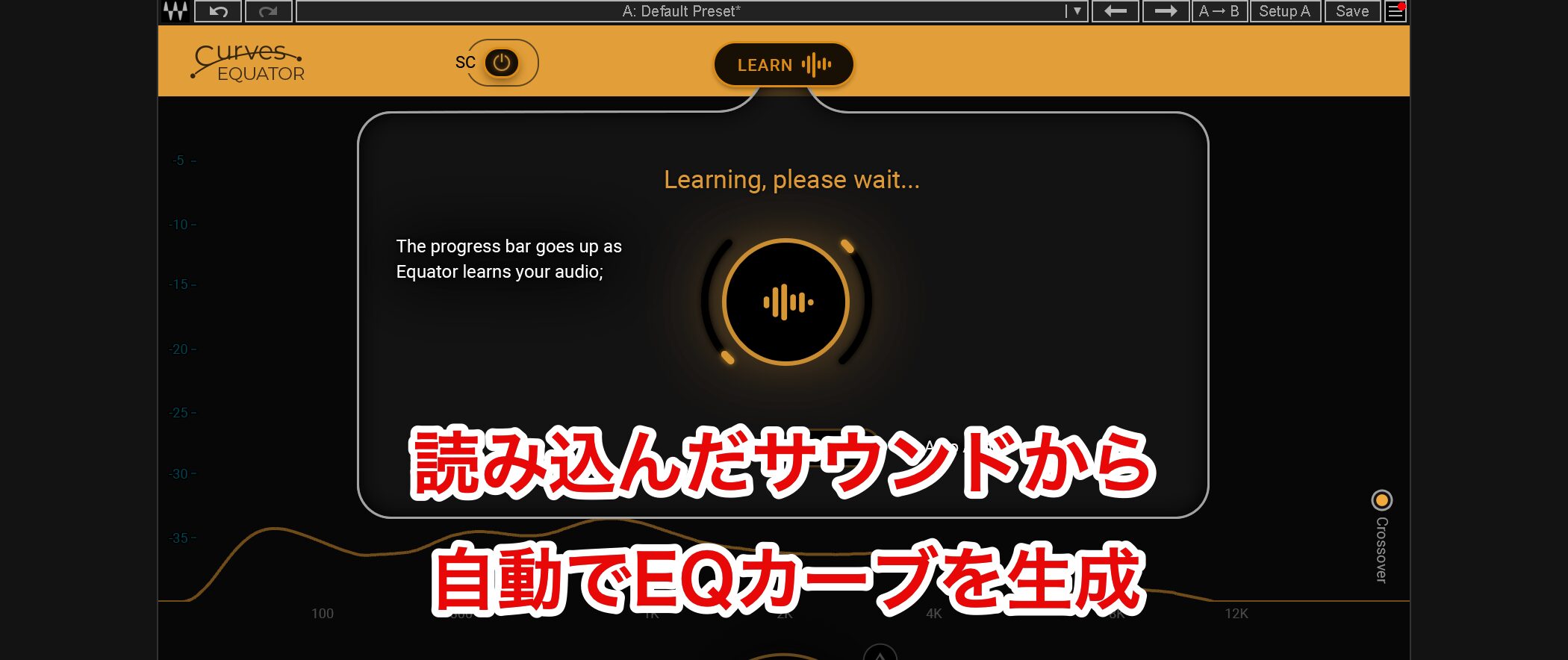
The learning function can also analyze audio and automatically create an appropriate threshold curve, reducing the need for extensive manual setup and helping you achieve a balanced sound.
Main Screen
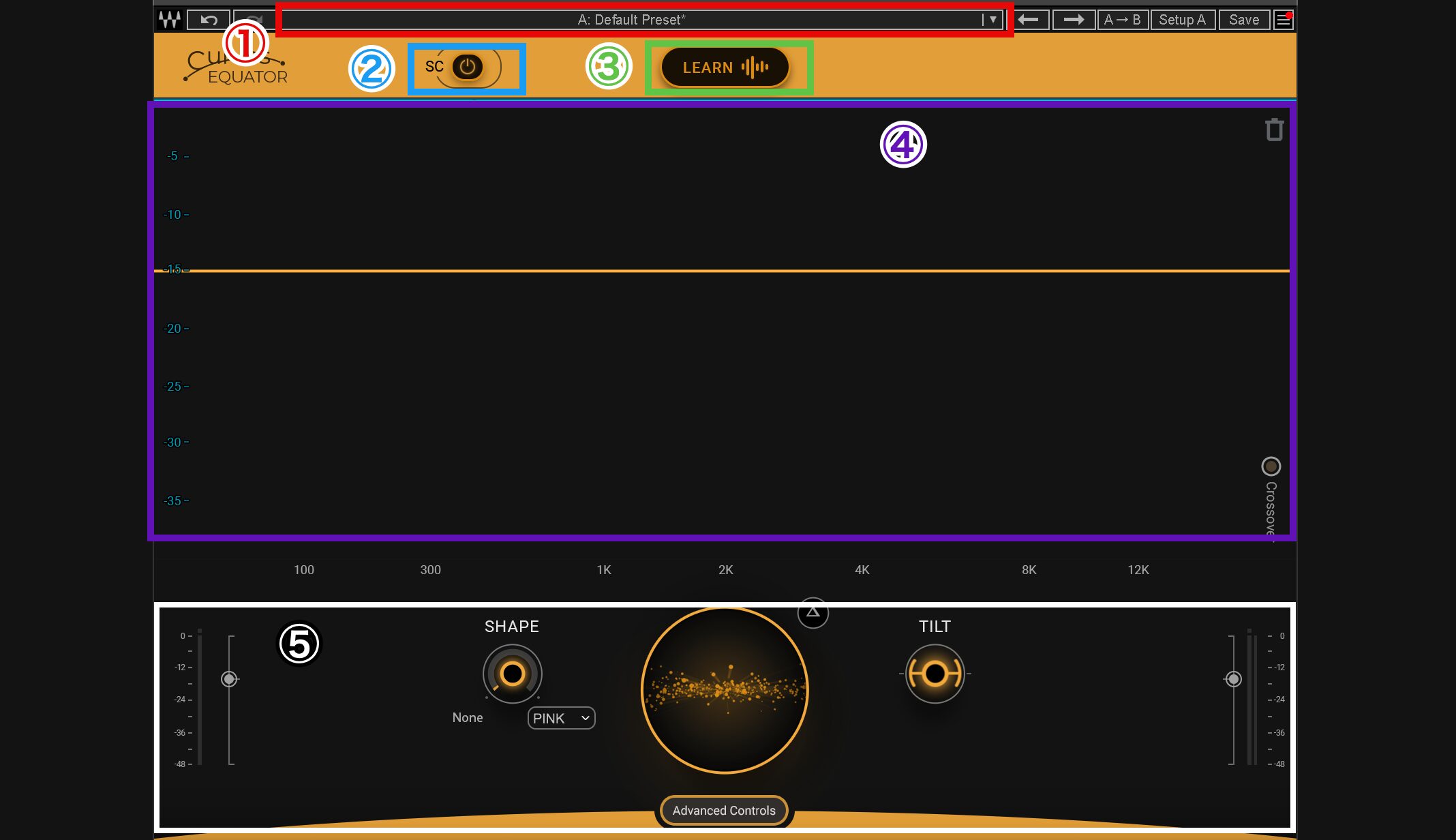
Here are the main functions on the screen:
1. (Red) Preset Area: Displays the current preset and lets you choose one for your goal.
2. (Blue) SC Button: Enables sidechain analysis when an external sidechain is routed from the DAW. This is separate from bypassing the plugin.
3. (Green) LEARN Button: Analyzes the sound and automatically creates a curve to reduce resonances and unwanted frequency ranges.
4. (Purple) Spectrum Display: Displays the frequency spectrum. Use the curve editor to make manual adjustments at specific frequencies.
5. (White) Control Area: Use parameters such as SHAPE and TILT to fine-tune the sound.
How to Use Curves Equator
The following steps show a basic way to use Curves Equator to shape your sound.
Insert the Plugin
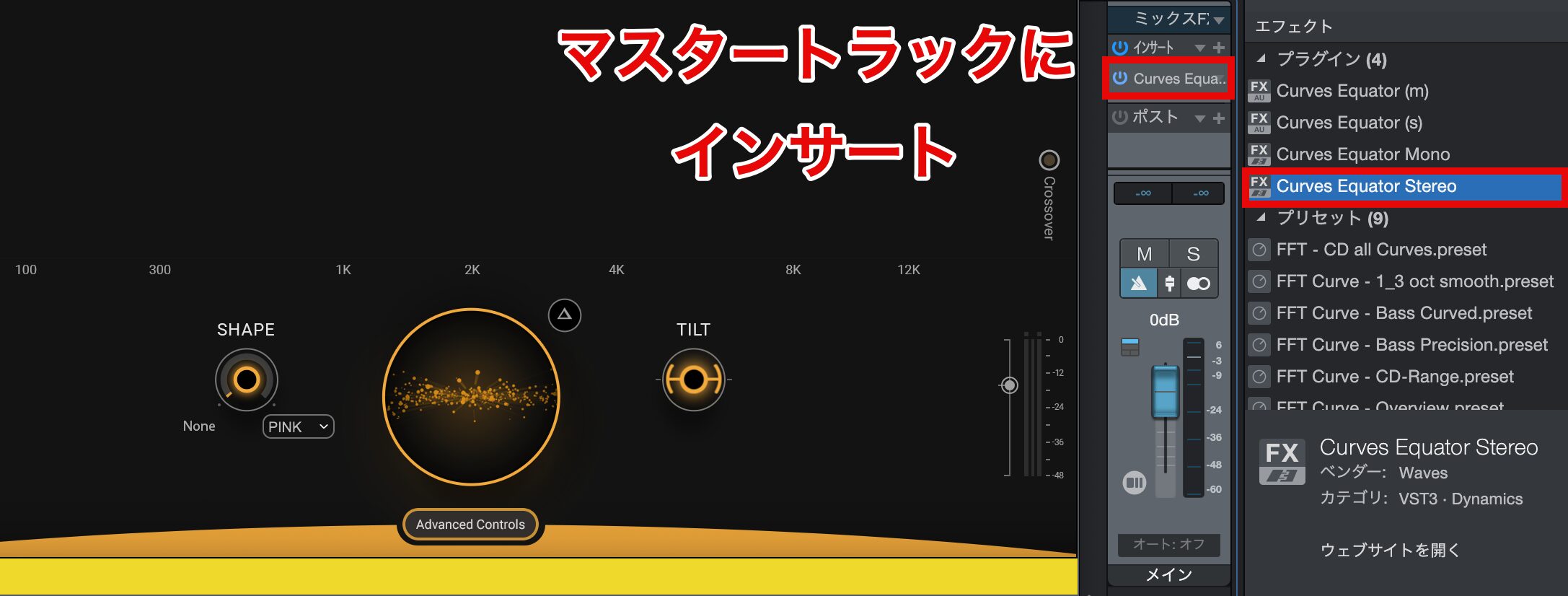
Curves Equator can be used on individual tracks, but here we’ll use it on a complete song as an example of mastering.
Insert Curves Equator on your DAW’s master track.
Choose a Preset
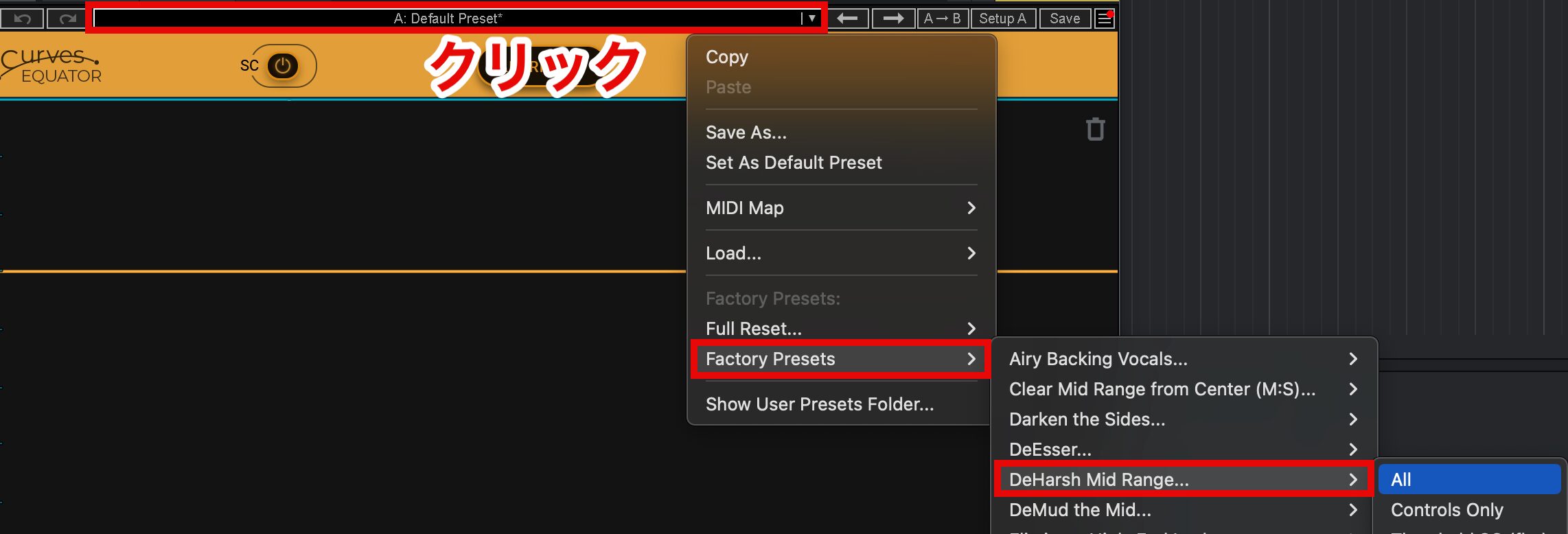
Next, choose a factory preset for your purpose.
Click the preset area and open “Factory Presets” to display the list.
In this demo track, we heard a resonance in the midrange, so we selected the “DeHarsh Mid Range” preset.
Create a Suitable Threshold Curve with the Learning Function
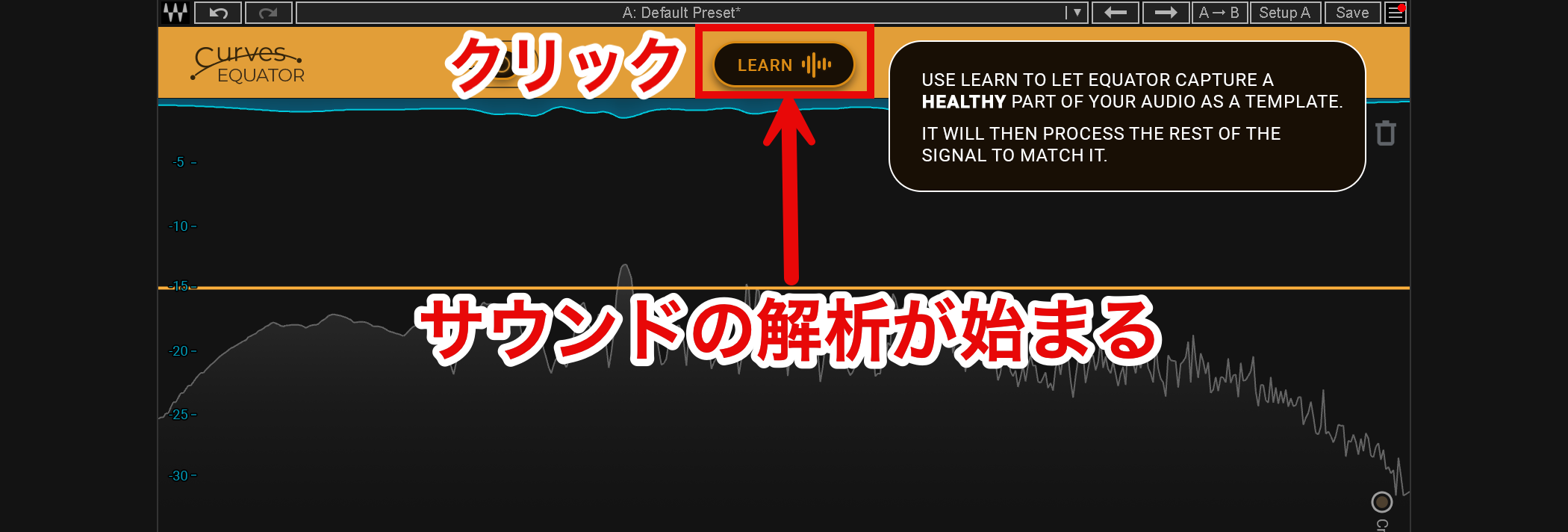
Use the learning function to create a threshold curve for the song.
While the section you want to process is playing in your DAW, press the “LEARN” button.
The plugin will begin analyzing the sound.
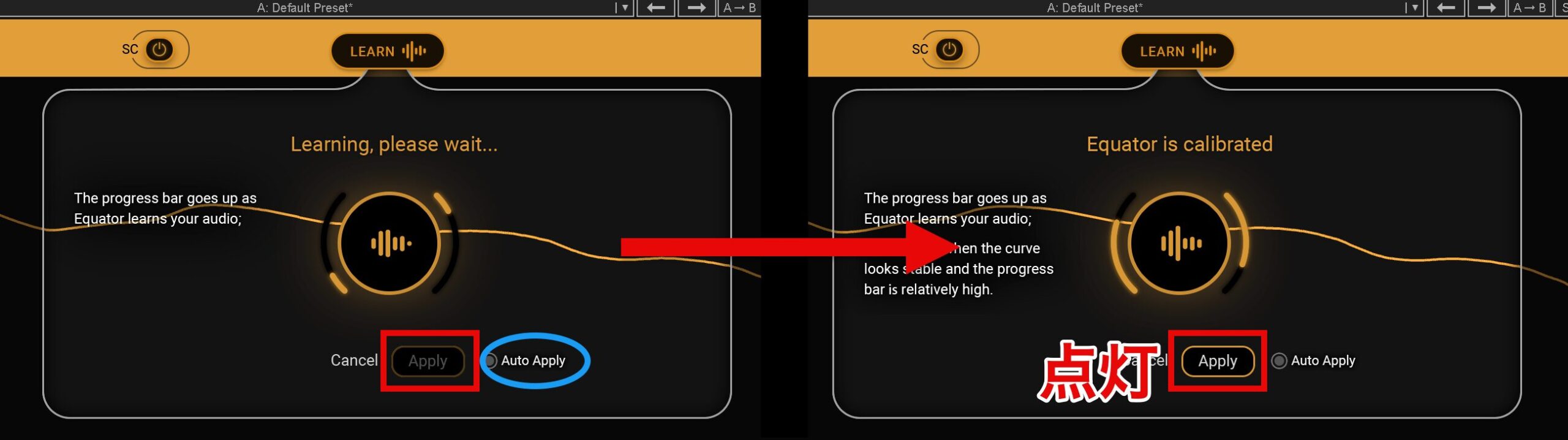
The “Apply” button lights up as the analysis progresses.
The bar beside the circle indicates the learning progress. When playback reaches the end of the section you want to analyze, press “Apply.”
If you enable “Auto Apply,” the result is applied automatically when the analysis finishes.
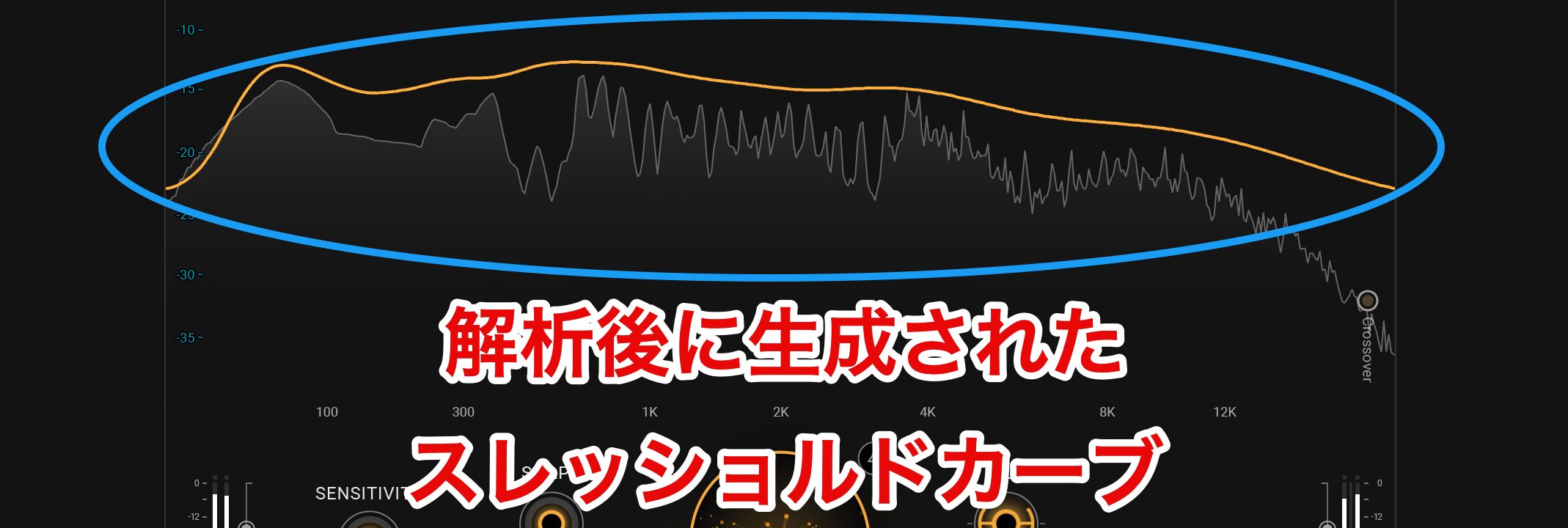
After the analysis, the plugin creates a threshold curve that represents the characteristics of the audio you loaded.
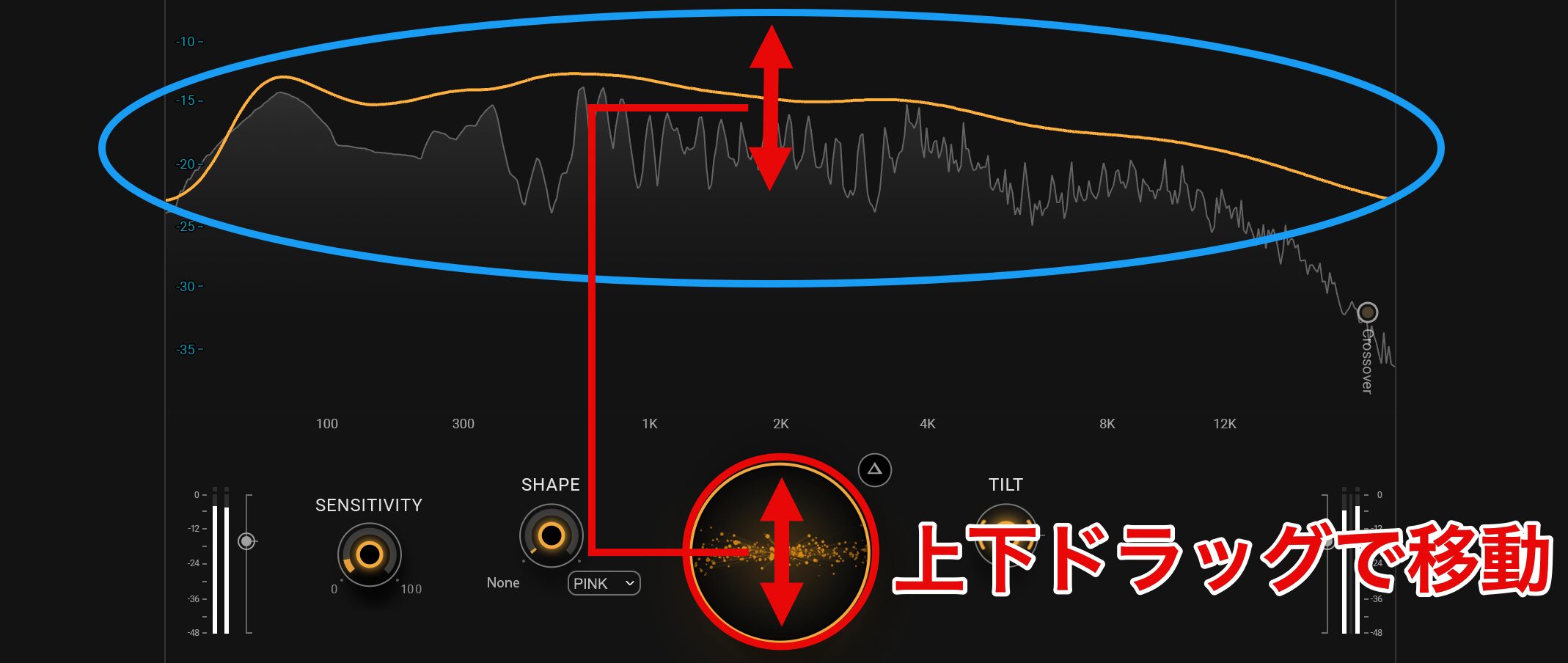
A threshold curve visually shows which frequency components will be processed.
This makes it easier to check and adjust which frequency ranges are targeted.
Drag the red-circled area up or down to move the threshold curve and adjust the amount of processing.
Listen to the song while dragging and set how much of the unwanted content you want to reduce.

The “▲” button plays only the sound being processed.
This lets you check the result by both sight and sound, helping you avoid applying so much processing that the sound breaks down.
For More Detailed Adjustments
Curves Equator is useful for quickly improving a sound with automatic adjustments, but you can also make detailed manual adjustments.

Click the “Advanced Controls” button at the bottom of the screen to display additional parameter options.
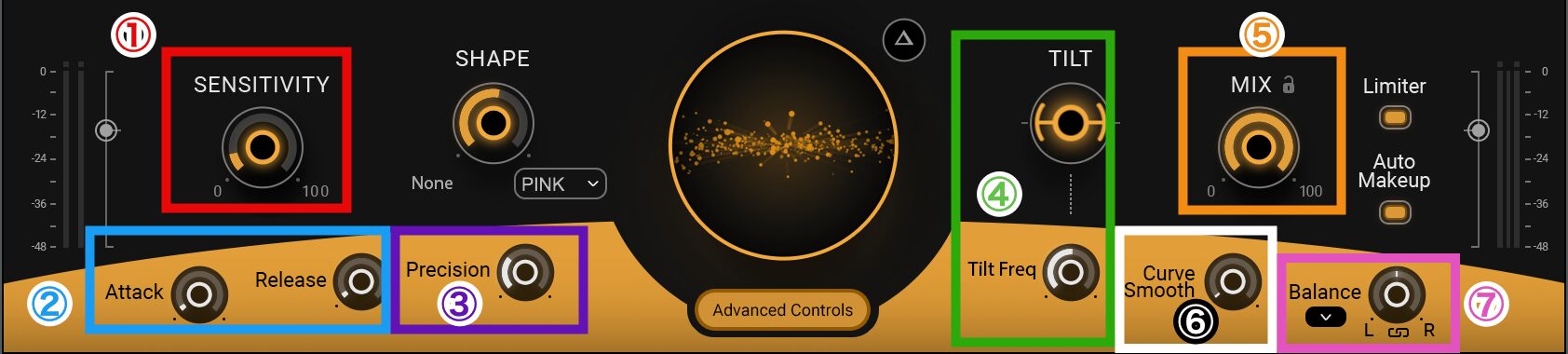
The parameters are as follows:
1. (Red) SENSITIVITY: Sets how sensitively the plugin responds to the sound. Higher values make it respond to quieter sounds; lower values limit processing to louder sounds.
2. (Blue) Attack / Release: Sets how quickly processing begins (Attack) and how quickly it ends (Release).
3. (Purple) Precision: Determines how finely the processing is applied. Higher precision allows more accurate adjustments to specific frequencies.
4. (Green) TILT / Tilt Freq: Changes the balance between high and low frequencies. Tilt Freq sets the frequency around which the balance is adjusted.
5. (Orange) MIX: Adjusts the balance between the processed and original sound.
6. (White) Curve Smooth: Smooths the EQ curve for more natural-sounding changes.
7. (Pink) Balance: Adjusts stereo balance and placement in L/R or M/S mode, adding a sense of space and width.
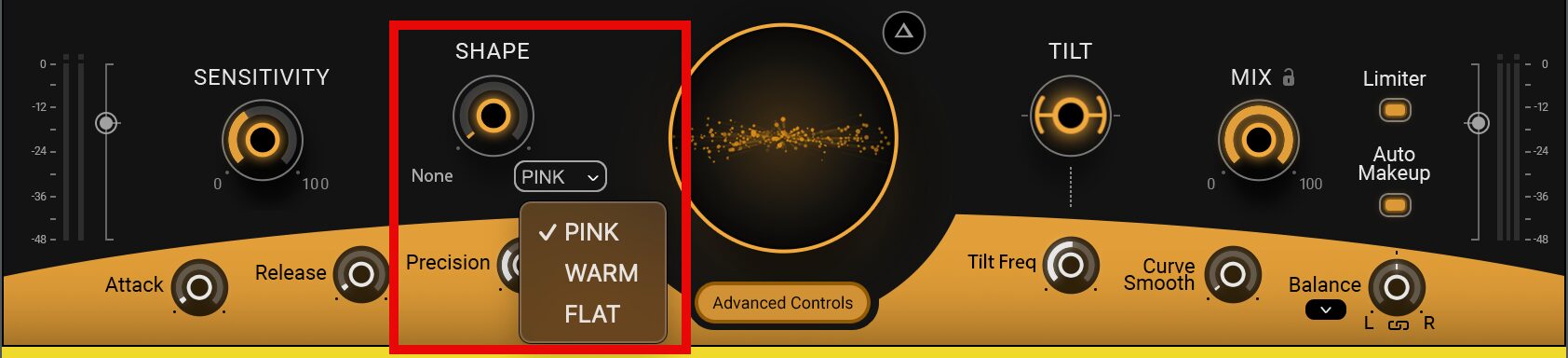
SHAPE adjusts the overall form of the threshold curve, letting you change the character and nuance of the sound.
- PINK: Adds a natural balance and creates a smooth overall frequency response.
- WARM: Adds warmth and emphasizes the low end.
- FLAT: Uses a flat threshold curve as a neutral starting point for processing.
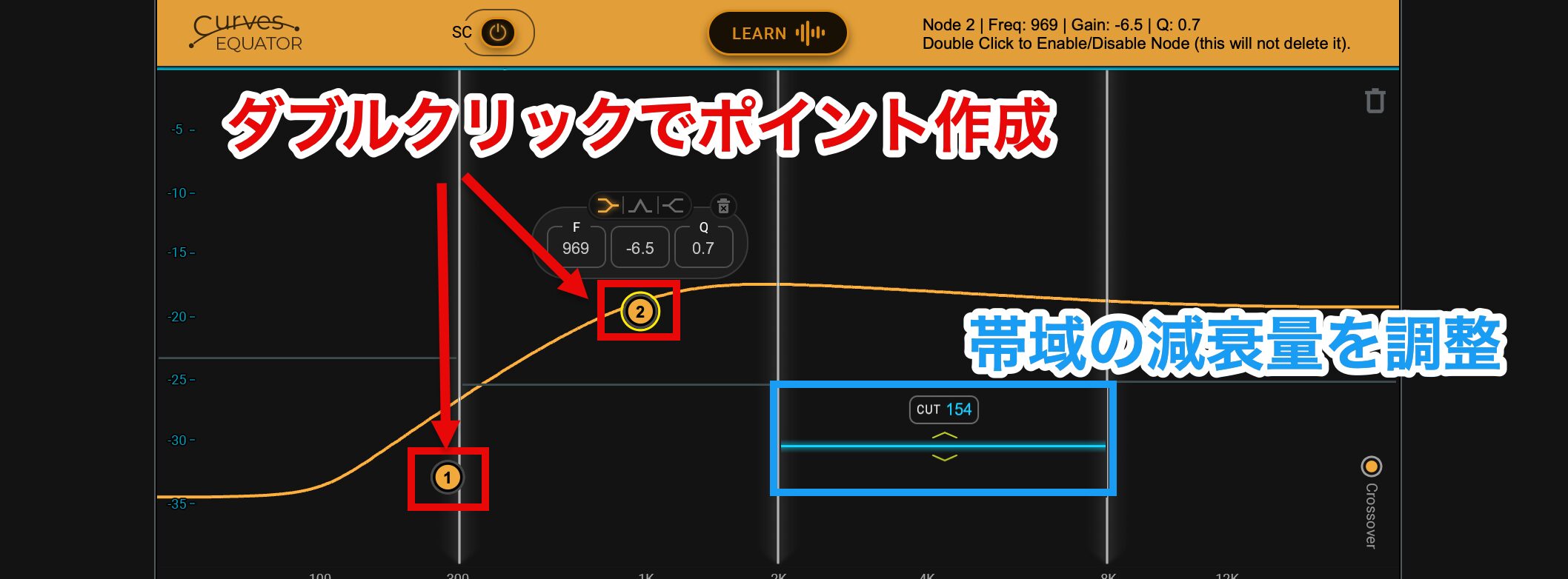
You can also double-click the threshold curve to add a point, then drag it up, down, left, or right to raise or lower the threshold in a specific frequency range.
Double-click a point you created to toggle it on or off.
You can also drag the blue-framed slider up or down to adjust the amount of attenuation in the selected band.
System Requirements Listed in the Original Article
Mac
Supported CPUs: Intel Core i7/i9, Xeon W, or Apple M1
Memory: 8 GB minimum (16 GB or more recommended), plus 16 GB of available storage.
Operating System: macOS 10.15.7, 11.6.5, or 12.3.1
Windows
Supported CPUs: Intel Core i5/i7/i9 or Xeon (5th generation or later), or AMD quad-core
Memory: 8 GB minimum (16 GB or more recommended), plus 16 GB of available storage.
Operating System: Windows 10 (64-bit, 21H2) or Windows 11 (21H2)
Pricing and Trial Information from the Original Article
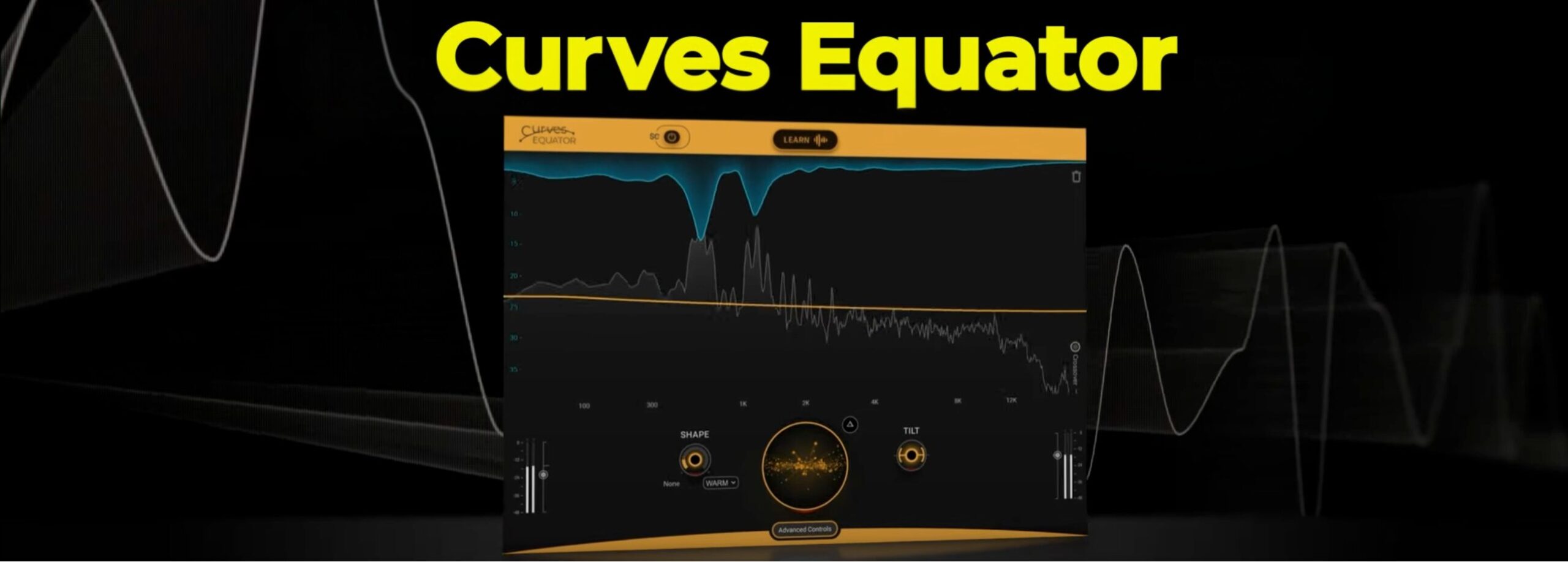
The source article lists a regular price of ¥12,650 (tax included) and a 48% discount, bringing the price to ¥6,600 (tax included).
The article describes this as an affordable price and invites readers to try the plugin.
The original article also describes a 7-day demo version.
To install the demo, open “All Products” on the “Install Products” page in Waves Central, find the product, and install it.
For installation instructions, see the Japanese-language guide below.

Frequently Asked Questions
Q1. How do I use the learning function in Curves Equator?
After inserting the plugin on your DAW’s master track, play the section you want to process and press the “LEARN” button. The plugin analyzes the sound and creates an appropriate threshold curve automatically, so you don’t need to configure complex settings.
Q2. Can beginners use it effectively?
Yes. You can perform the basic processing by choosing a preset and pressing the “LEARN” button, even without EQ knowledge. If you need finer adjustments, use Advanced Controls to change the detailed parameters.
Q3. Can it be used for purposes other than mastering?
Yes. You can insert it on individual vocal, instrument, or drum tracks to process their frequency balance or reduce unwanted resonances.
Q4. What is the difference between the “PINK,” “WARM,” and “FLAT” SHAPE settings?
PINK provides a natural balance, WARM emphasizes a warmer low-end balance, and FLAT uses a flat threshold curve. Choose the setting that best matches the result you want.
Q5. Are there feature differences between the Mac and Windows versions?
The core functions are the same, but the system requirements differ. The original article lists Intel or Apple M1 processors for Mac and Intel or AMD processors for Windows, and recommends at least 16 GB of memory for both operating systems.
NEW ARTICLES
Latest English Articles































































